
All guides
For the owner
Set it all up on your own.
Create your first job, bring your crew in and put them on it, and they are clocking in tomorrow. Then the settings, the emails and your plan, when you want them.
Getting started
For everyone: your phone, signing in, and finding your way.
- 1 minPut KārgāhFlow on your phoneAdd KārgāhFlow to your home screen, so it opens like any other app.
- 1 minSign inOpen KārgāhFlow with your email and password, and stay signed in on your own phone. With practice
- 1 minTurn on notificationsGet a buzz when your manager messages you or decides on a claim. With practice
- 2 minFind your way aroundWhat is on your home screen, and where everything else is. With practice
- 1 minYour profile and passwordChange your photo, your phone number and your password. With practice
On site
For the crew: clocking in, receipts, days off and your hours.
- 2 minSee where you are going this weekYour days on the roster: the job, the time, who else is going, and the way there. With practice
- 2 minFinish a job and get it signedTell the office the work is done, with the customer’s signature on your phone when they need to sign. With practice
- 1 minClaim back an expenseSnap the receipt, check the figures it fills in, and send it to your manager. With practice
- 1 minAsk for time offPick the days, the type of leave, and send the request. With practice
- 1 minAdd a licence or certificatePhotograph a licence or ticket; the details fill themselves in. With practice
- 3 minDo an inspectionTick Pass, Fail or N/A for each check, add a photo of anything wrong, and sign. With practice
- 1 minSend and read messagesTalk to your team or your manager inside the app. With practice
Running the team
For admins and owners: jobs, people, approvals and payroll.
- 3 minRun your jobs on the boardSee every job by where it is up to, and move each one on with one button. With practice
- 2 minLog a new enquiryWrite down a phone call or an email as a job, while they are still on the line. With practice
- 2 minGive your jobs numbers and stagesNumber the jobs you already have, in the order they were made, and say where each is up to. With practice
- 2 minCreate a new jobAdd a piece of work for your crew: where it is, and notes for the crew. With practice
- 1 minAdd people to a jobPut your crew on a job, so it shows on their phones to clock in to. With practice
- 3 minPlan your crew’s weekPut people on jobs for each day, with a start time and a note, and they see it on their phones. With practice
- 3 minAdd customers and their sitesWho the work is for, the places it happens and who to call there, in one place. With practice
- 3 minSort your jobs into sitesMake sites from the addresses of your jobs, then give each site to its customer. With practice
- 1 minInvite people by emailSend up to five invitations at once. They sign up already approved. With practice
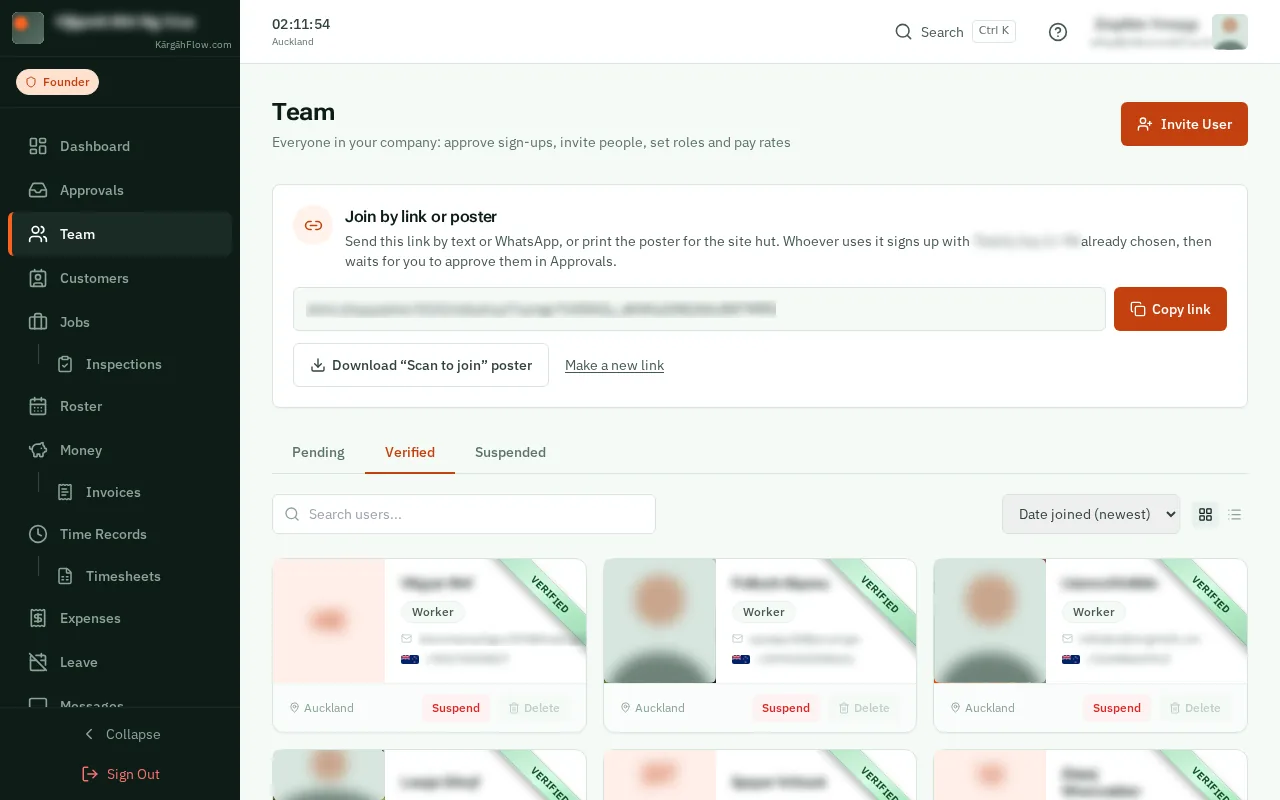
- 2 minAdd people with a link or posterText your join link, or put up the “Scan to join” poster, then approve who signs up. With practice
- 1 minApprove sign-ups, claims and leaveEverything waiting for you in one list, oldest first. With practice
- 1 minPrint your clock-in postersOne poster for the company and one for each job, ready to print. With practice
- 1 minSee who is workingWho is on the clock now, where, and for how long. With practice
- 1 minFix a wrong clock timeCorrect a start or finish time, with a reason the worker can see. With practice
- 1 minClock in a crewClock in a team that arrives together, or has no phones. With practice
- 2 minTimesheets and payrollHours, overtime and pay for a period, sent to your accountant. With practice
- 2 minSee what a job makesWhat you can charge for a job, what it has cost you, and the profit, on the job’s own page. With practice
- 1 minAdd a supplier billPut a docket or a merchant’s invoice on the job it was for, from a photo, and check the ones the crew send. With practice
- 2 minApprove a job’s hoursSee every shift on a job marked with what backs it, then approve the hours that go on the bill. With practice
- 1 minMove a shift to another jobClocked in on the wrong job? Count the shift for the right one. Nobody’s pay changes. With practice
- 2 minSplit a shift between jobsSomeone worked on two jobs without clocking out in between? Give each job its part of the shift. With practice
- 2 minSend an invoiceMake a finished job’s invoice from its approved hours and costs, check it, and email it. With practice
- 2 minGet paidSee what you are owed, remind a customer who is late, and record each payment as it comes in. With practice
- 2 minPut an invoice rightSomething wrong on an invoice you sent? Take money off it with a credit note, or cancel it. With practice
- 5 minMake an inspection formStart from your paper form or an example, add your questions, and put it on jobs. With practice
- 3 minDo an inspection yourselfFill in a form on a job yourself, from the Do an inspection tab, and sign it. With practice
- 3 minScore your inspectionsGive a form a pass mark, choose which checks matter most, and see every inspection scored out of 100. With practice
- 2 minPut a form on new jobs by itselfChoose the customers and sites whose new jobs get a form, so nobody has to remember to add it. With practice
- 2 minTake a form off jobsSee every job a form is on and take it off one job, or many at once. With practice
- 2 minCheck inspection reportsEvery finished inspection in one list, with its PDF report to print or email. With practice
- 1 minSet pay rates and rolesSet a person’s pay rate and hours, make them an admin, or suspend them. With practice
- 1 minEmail someone from the appClick anyone’s email address to write to them, with attachments. With practice
Setting up
For the owner: your company, its settings and your plan.
- 2 minSet your rates and GSTWhat you charge for an hour of each person’s time, what an hour costs you, your markups and GST. With practice
- 2 minSet up your invoicesYour details, GST number and bank account on every invoice, and where you send invoices from. With practice
- 3 minStart your companySign up as the owner in a few minutes, with a free trial. With practice
- 5 minSet up in five stepsYour logo, your first job, your team, your poster and a pay rate. With practice
- 3 minSwitch features on and offChoose what your company uses, and what each person can see. With practice
- 2 minTurn on automatic clock-inLet your crew’s app clock them in when they open it at their job. With practice
- 1 minChoose who gets which emailsThe evening summary and message emails, and the hour they arrive. With practice
- 2 minYour logo and colourPut your logo and your colour on everything your company sends. With practice
- 1 minYour plan and billingYour card, your invoices, and changing or cancelling your plan. With practice