KārgāhFlow
About 1 minute 6 stepsFor admins and owners

Invite people by email

Send up to five invitations at once. They sign up already approved.

Invite people by email: the screen on a phone
Invite people by email: the screen on a computer
Step 1 of 6
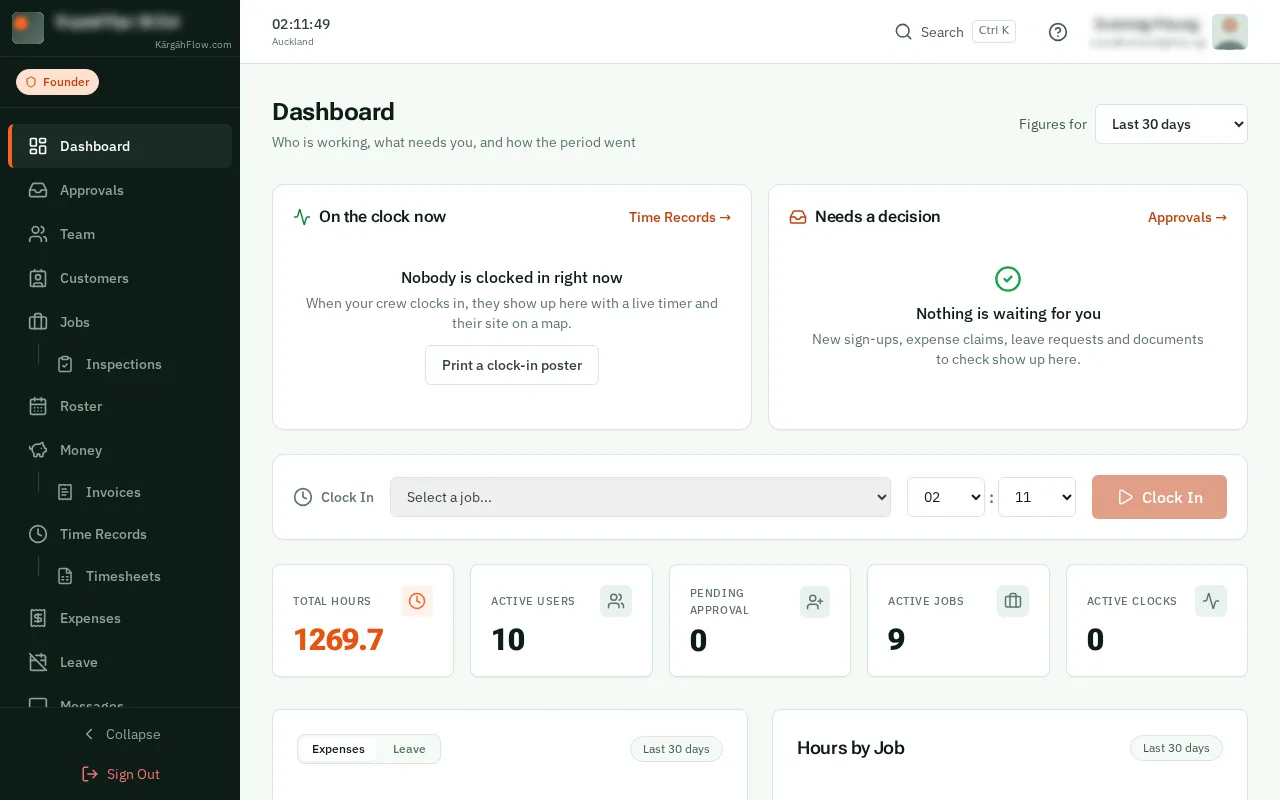
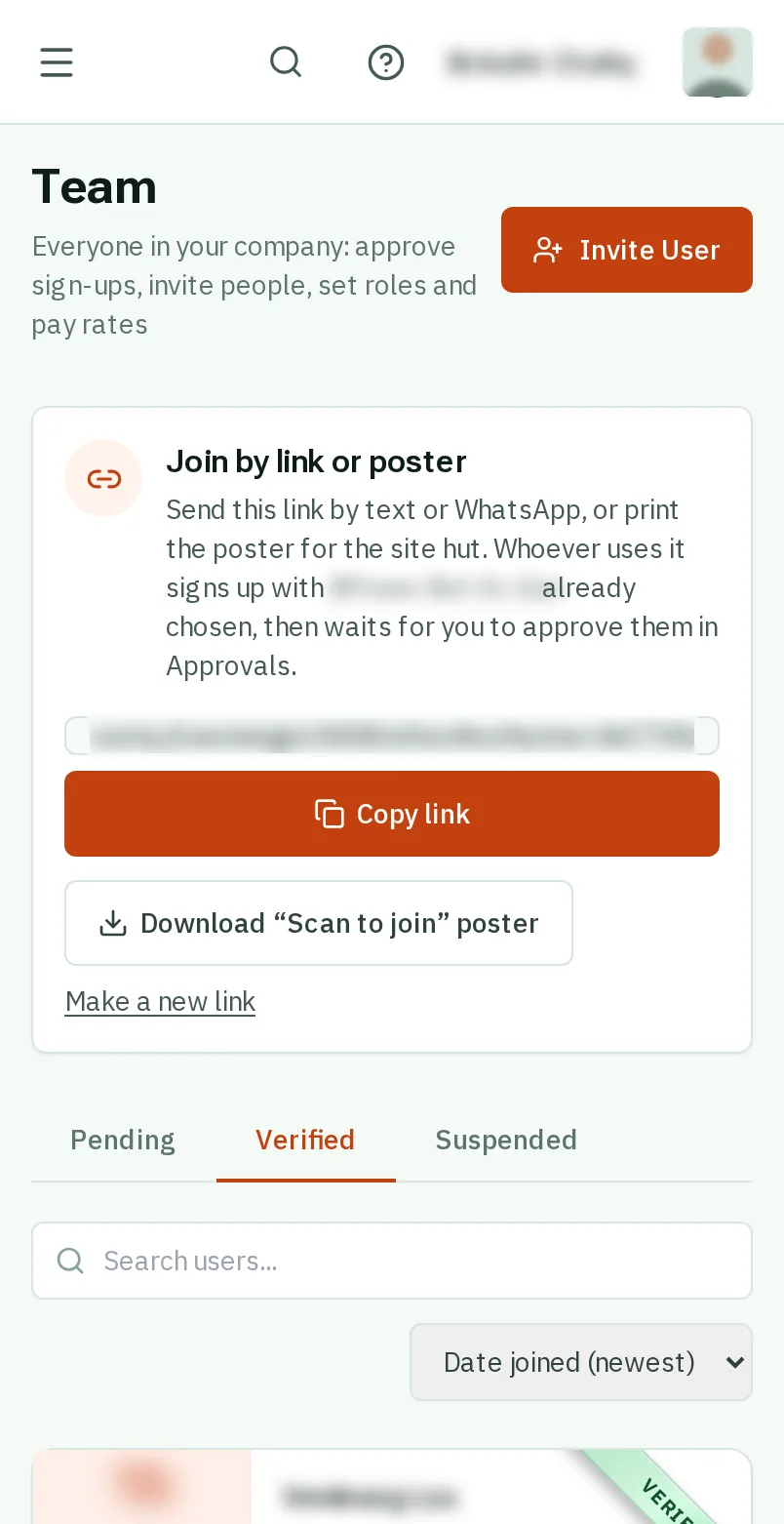
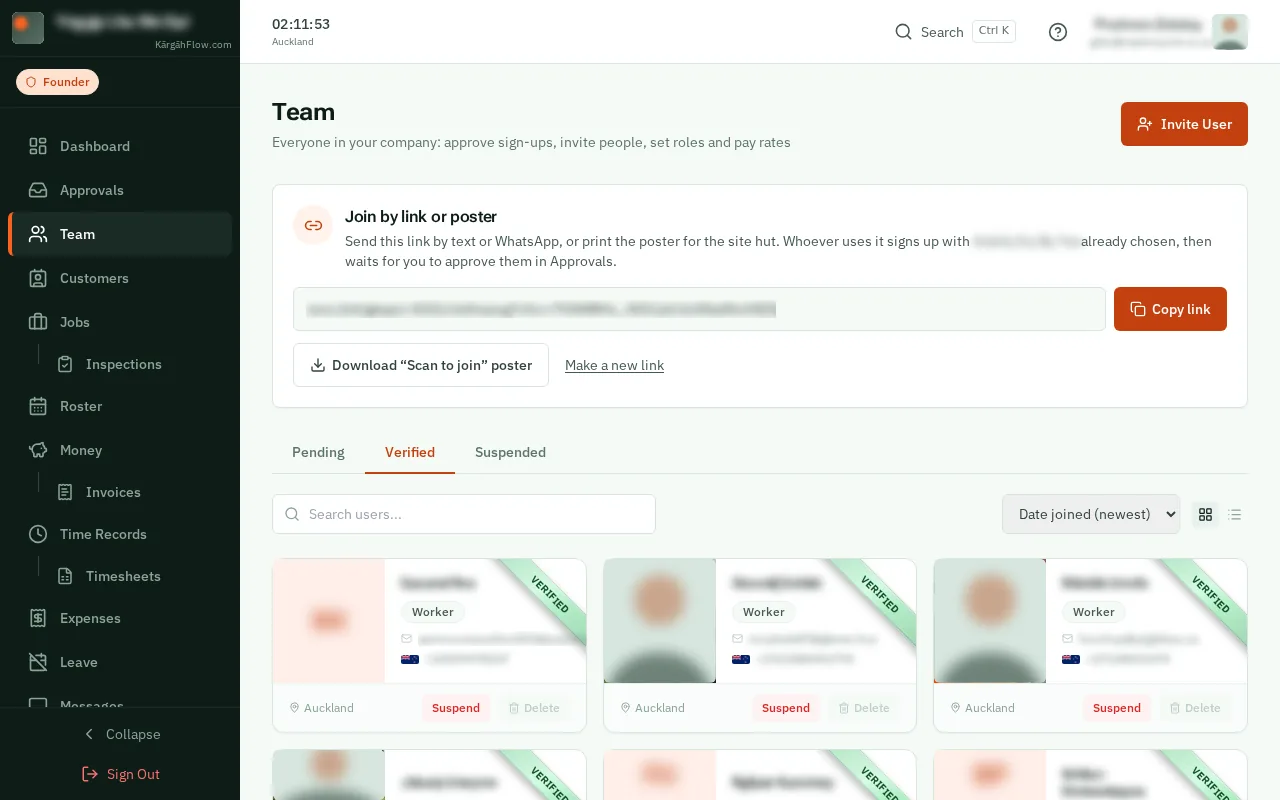
  1. Step 1: Open Team

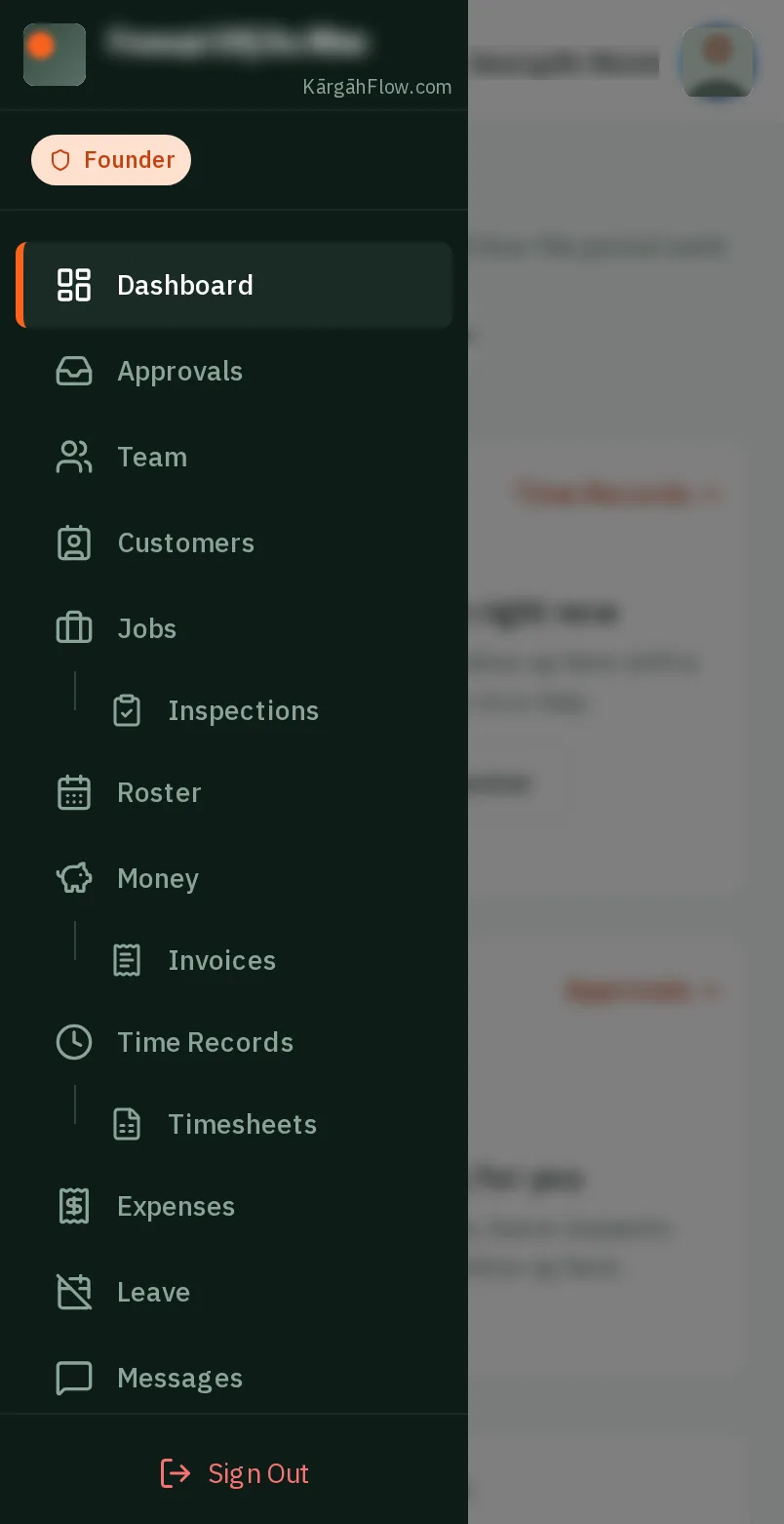
    TapClick the menu button at the top left of the screen, then Team.TapClick Team in the menu on the left.

    Look forthe Team item in the menu
    Open Team
    Open Team
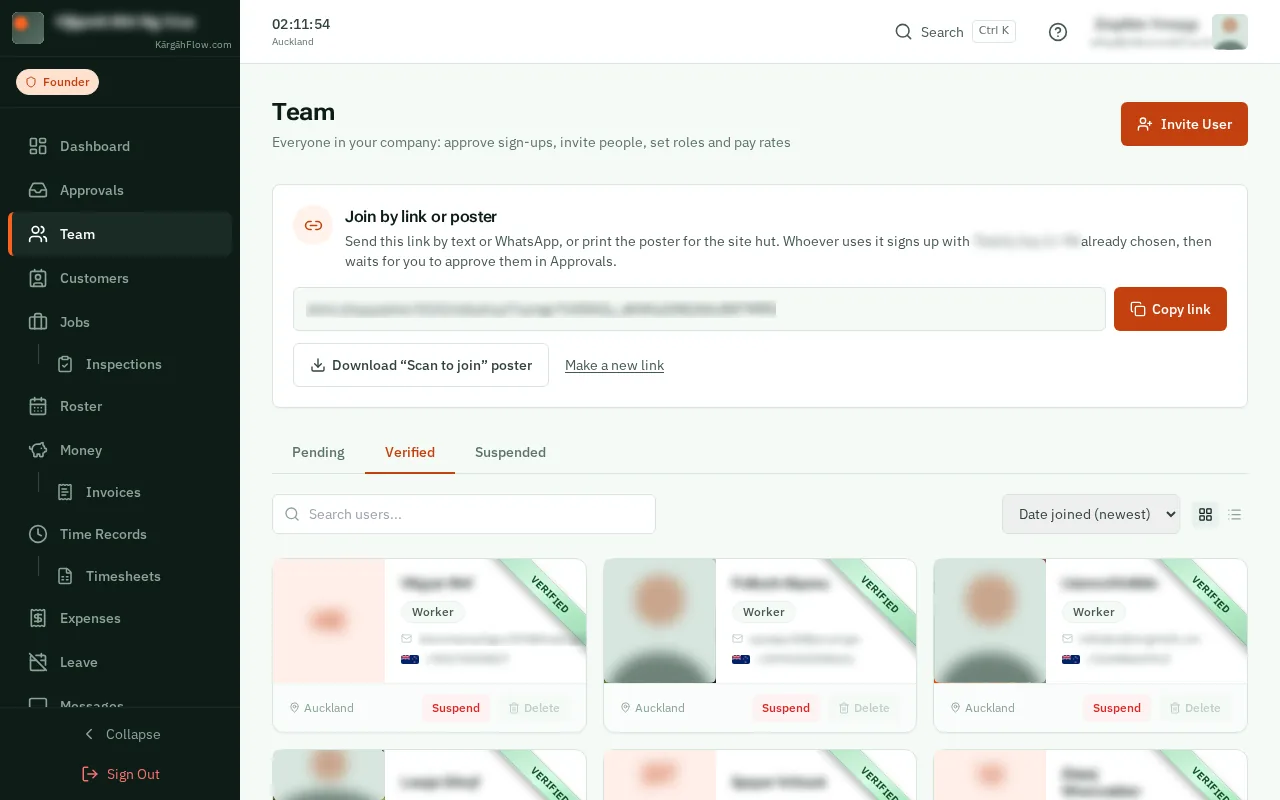
  2. Step 2: TapClick Invite User

    TapClick the orange Invite User button at the top of the page.
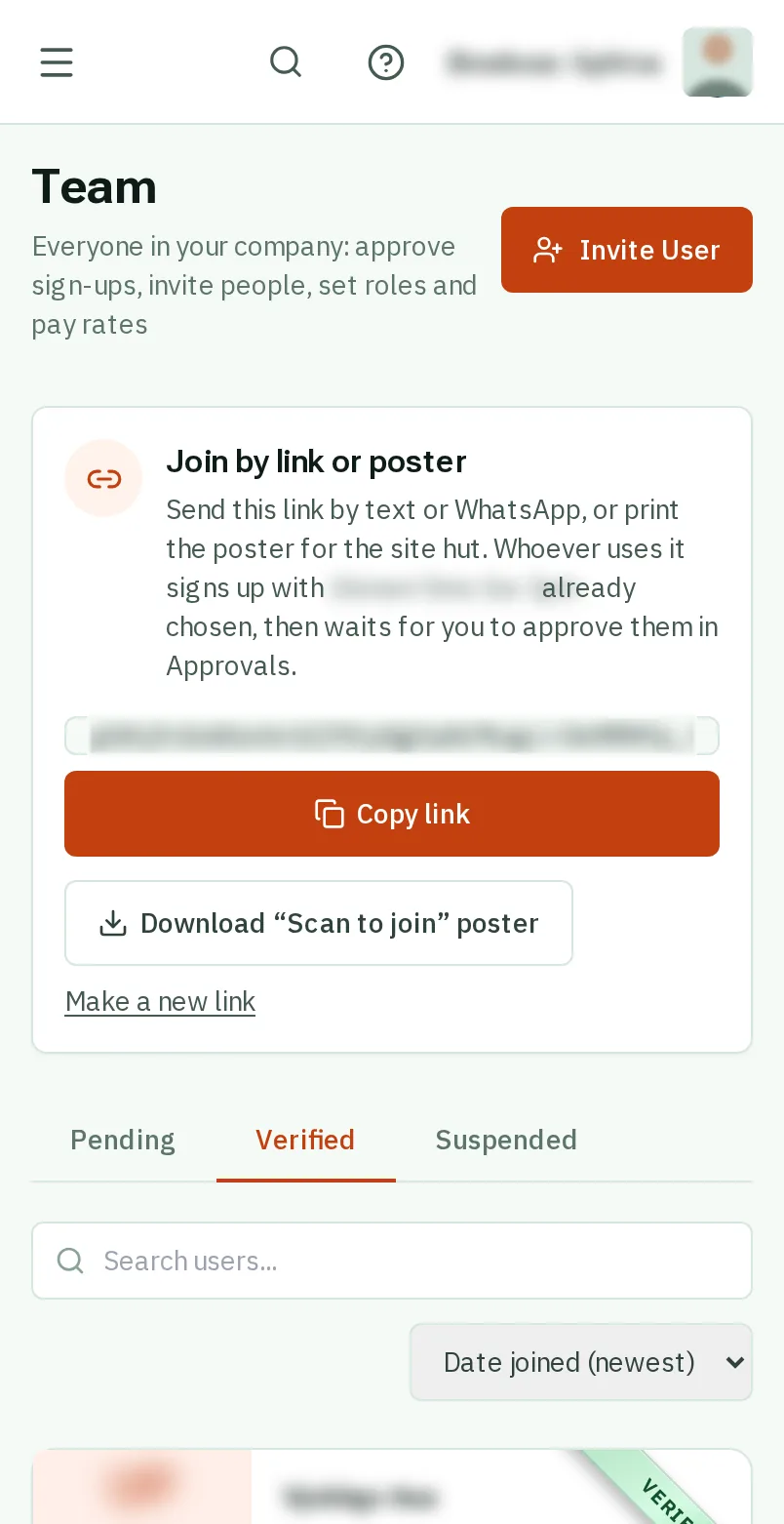
    Look forthe Invite User button
    Tap Invite User
    Click Invite User
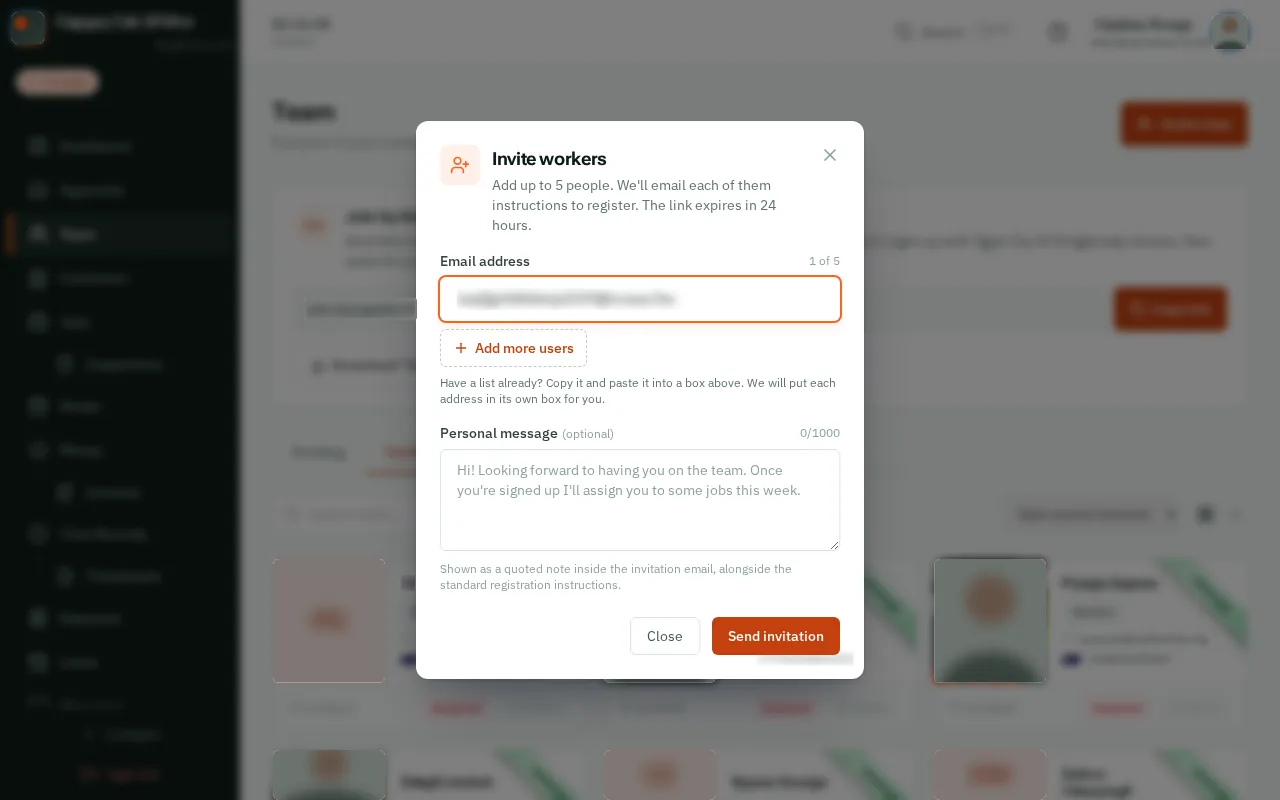
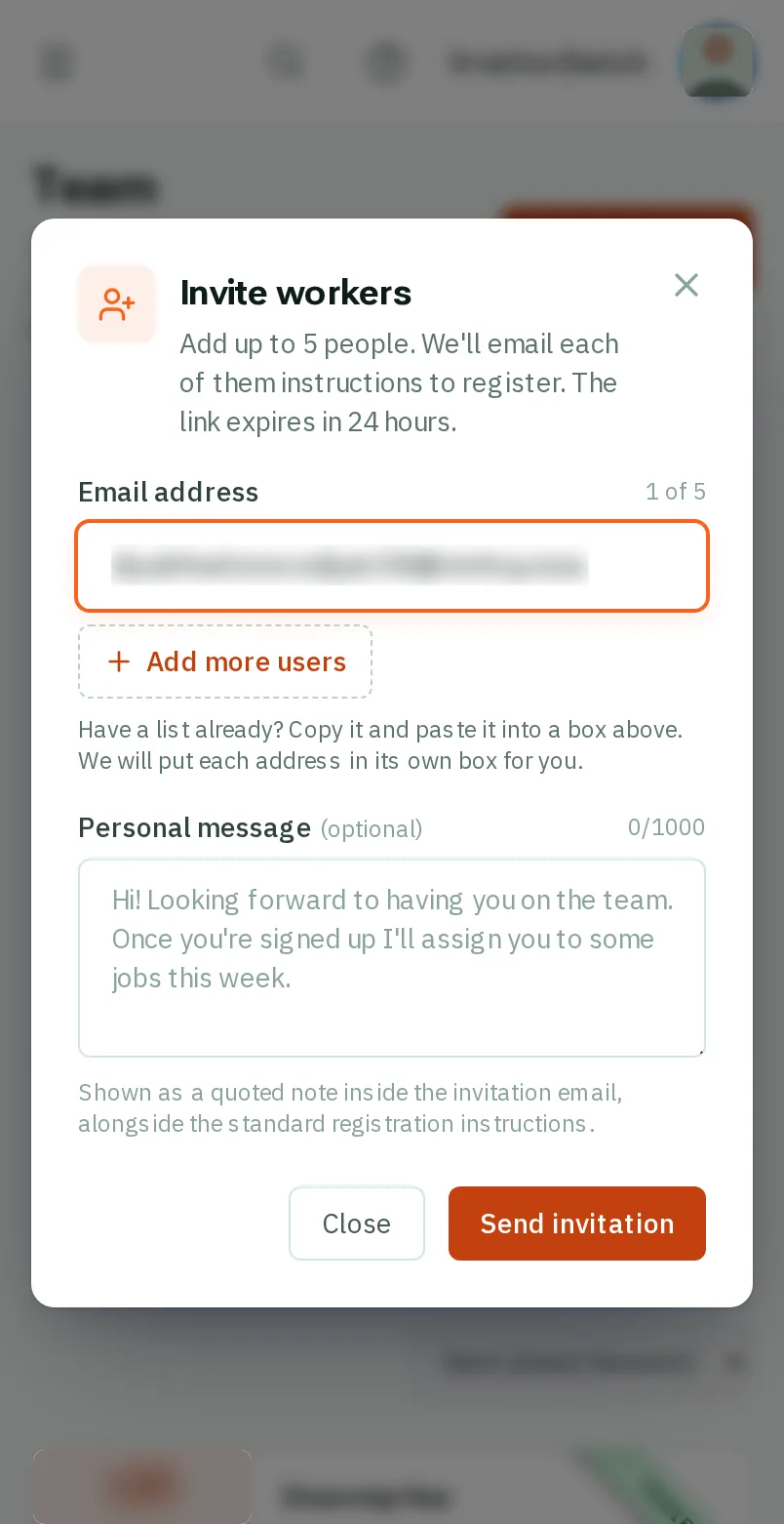
  3. Step 3: Type their email

    Type the person’s email address in the box. To invite more people, tapclick Add more users: up to five at once. Have a list already? Paste it into the first box and it is split up for you.
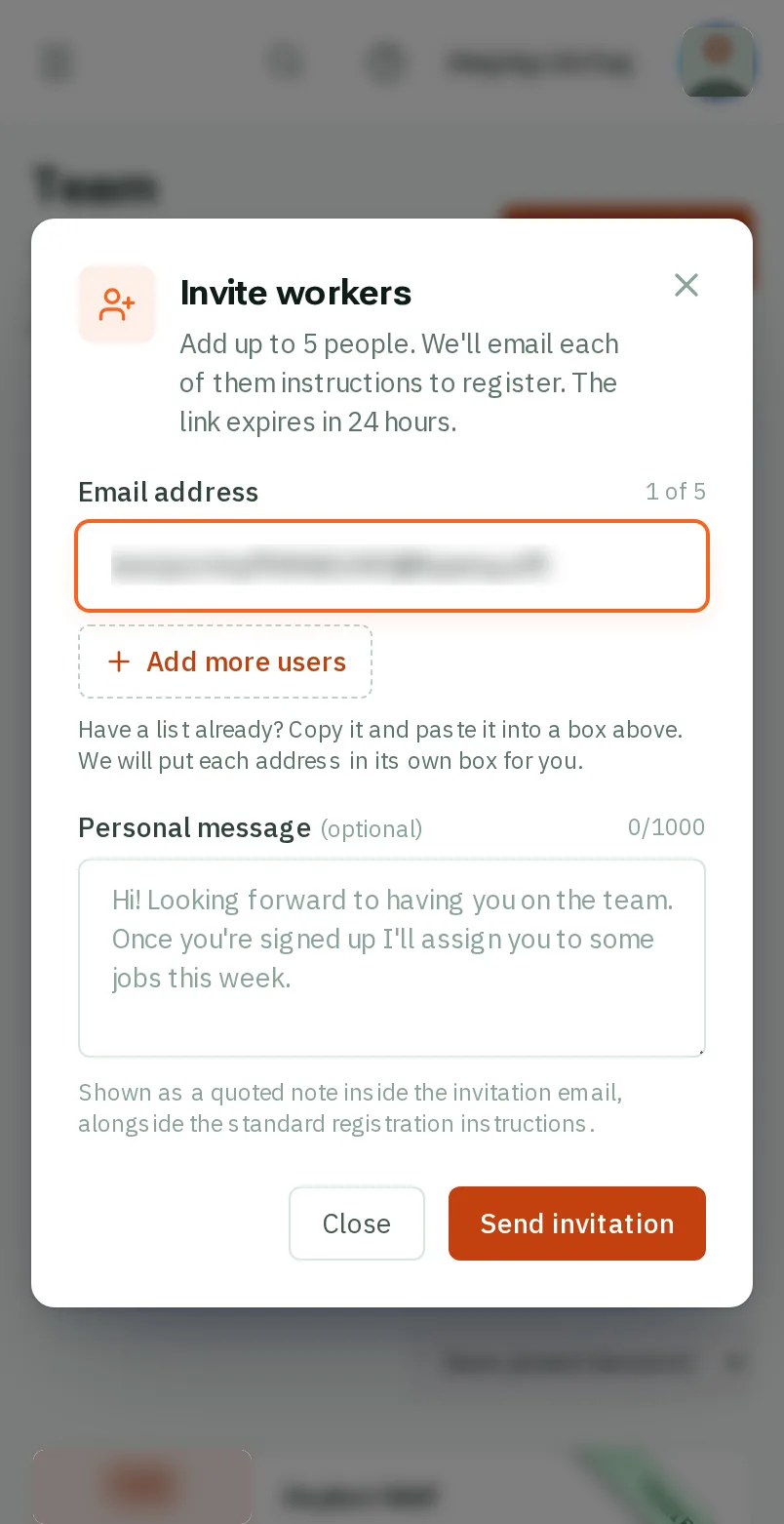
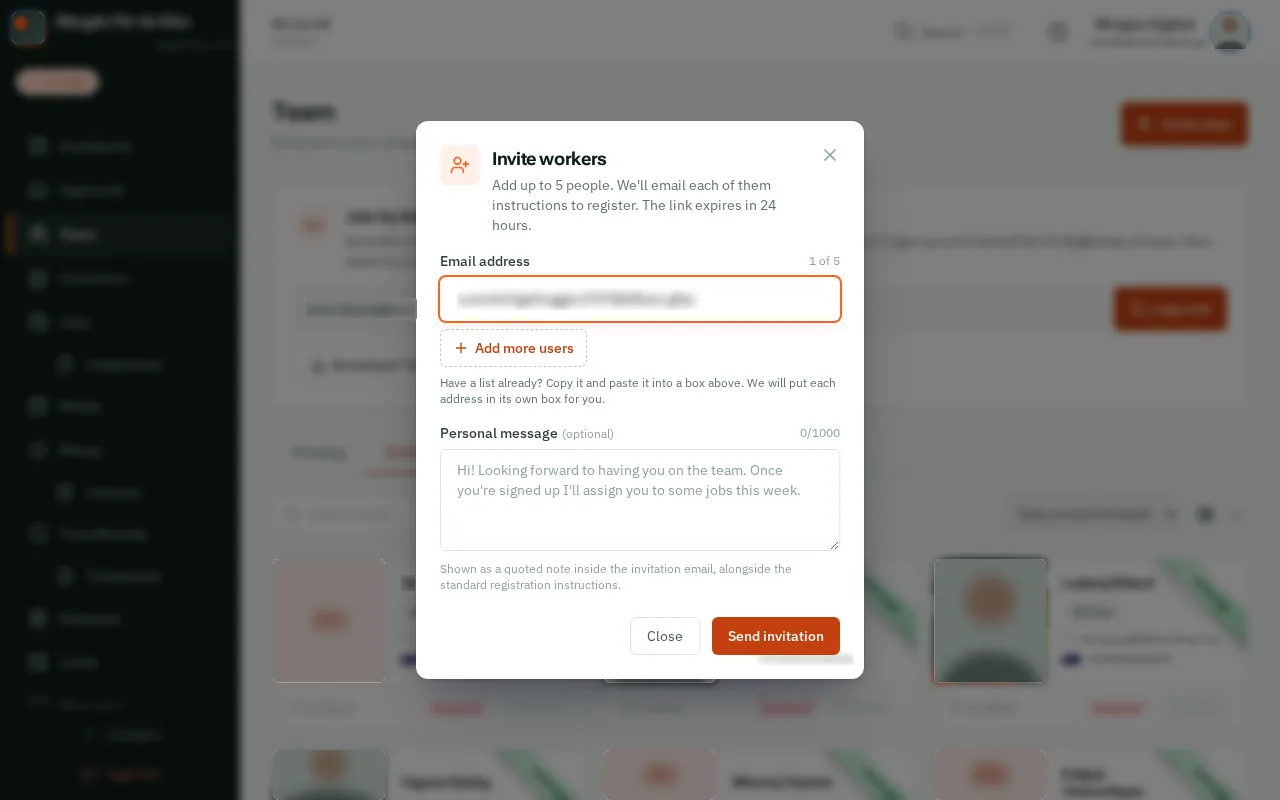
    Look forthe Email address box
    Type their email
    Type their email
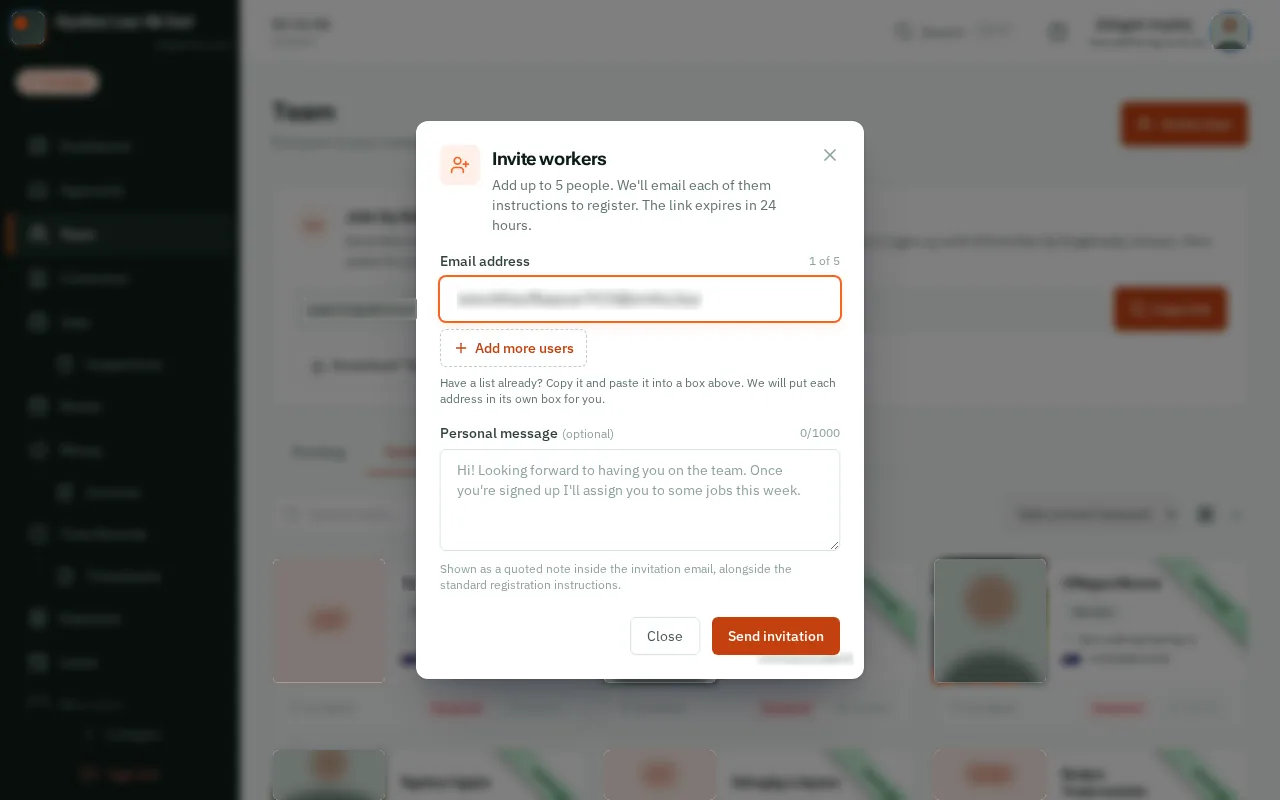
  4. Step 4: Add a note (if you like)

    Under Personal message, write a line to go with the invitation. You can leave it empty.
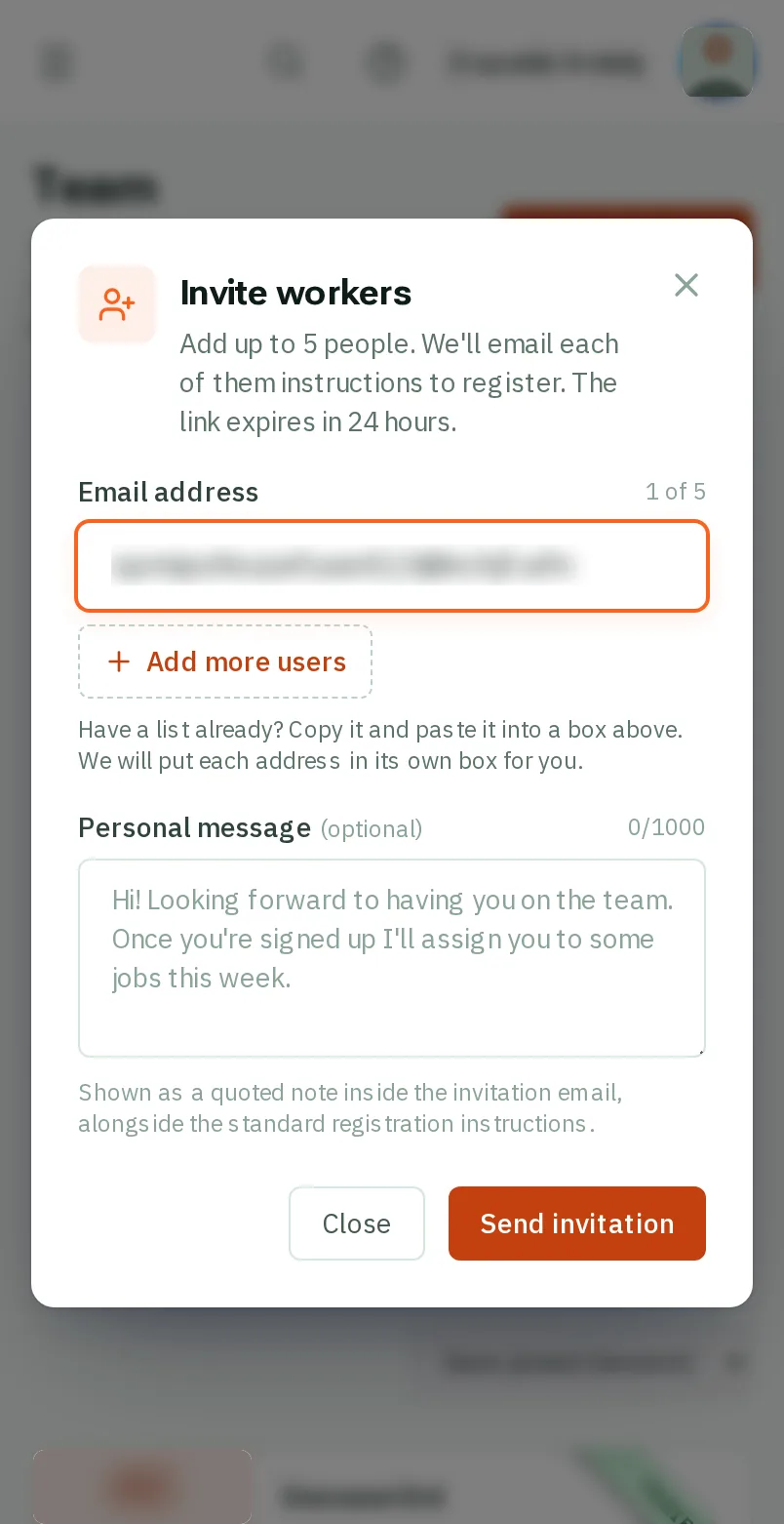
    Look forthe Personal message box
    Add a note (if you like)
    Add a note (if you like)
  5. Step 5: TapClick Send invitation

    TapClick Send invitation. Each person gets an email with a link to sign up.
    Look forthe Send invitation button
    Tap Send invitation
    Click Send invitation
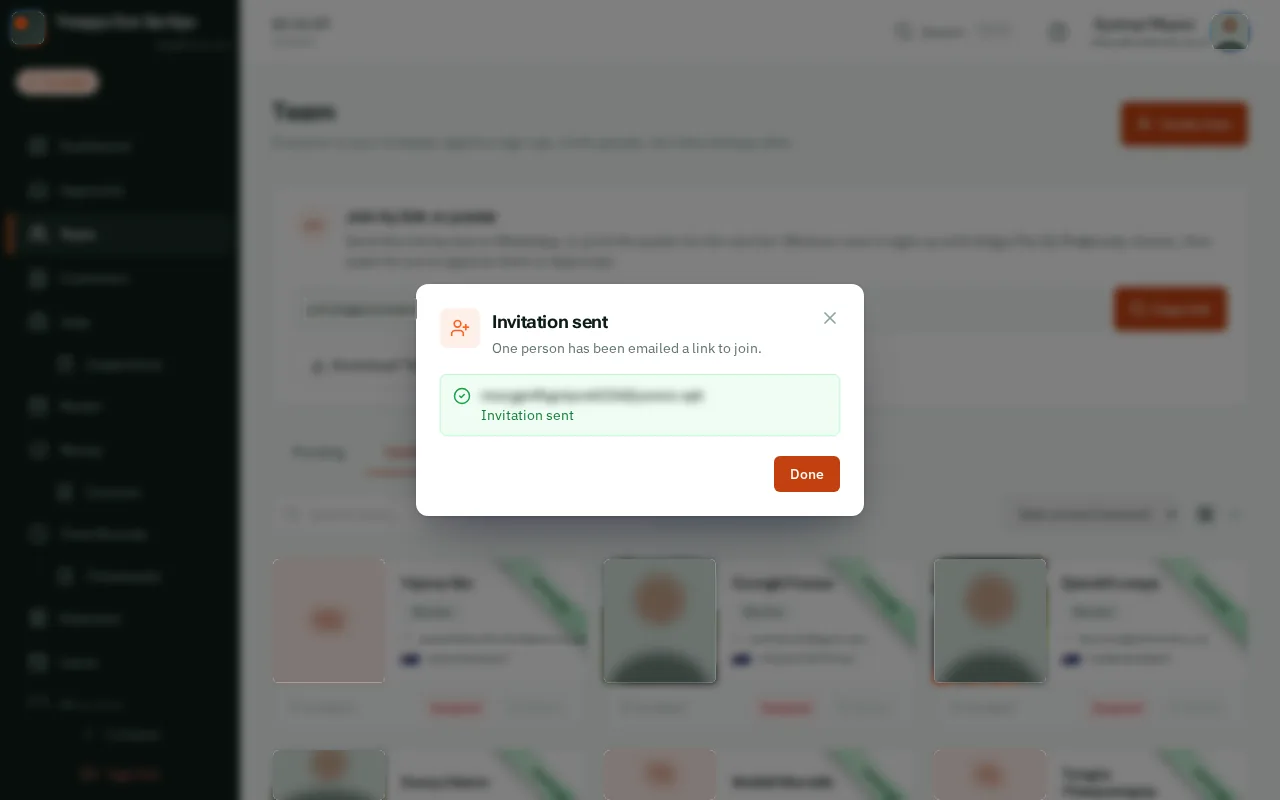
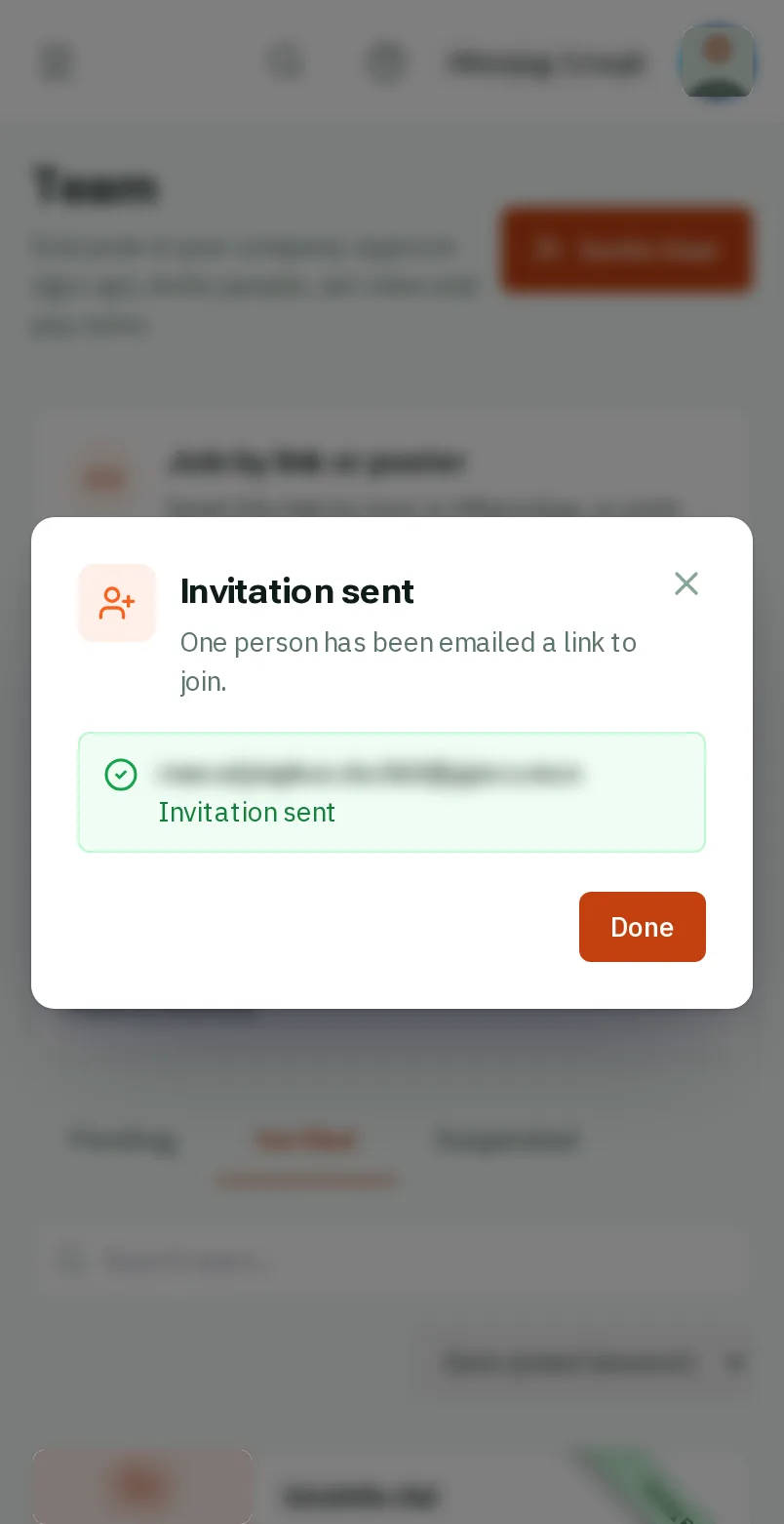
  6. Step 6: Check it went

    A green line says Invitation sent for each person. They sign up from the email and start straight away, already approved.

    Good to know: The link in the email lasts 24 hours. If it runs out, send the invitation again.
    Check it went
    Check it went

That's it

Your invitations are on their way. When people sign up, put them on a job.

Usually next

Still stuck? Ask your manager, or tap the ? at the top of any page in KārgāhFlow. Running the business and need us?