KārgāhFlow
About 1 minute 4 stepsFor admins and owners

Add people to a job

Put your crew on a job, so it shows on their phones to clock in to.

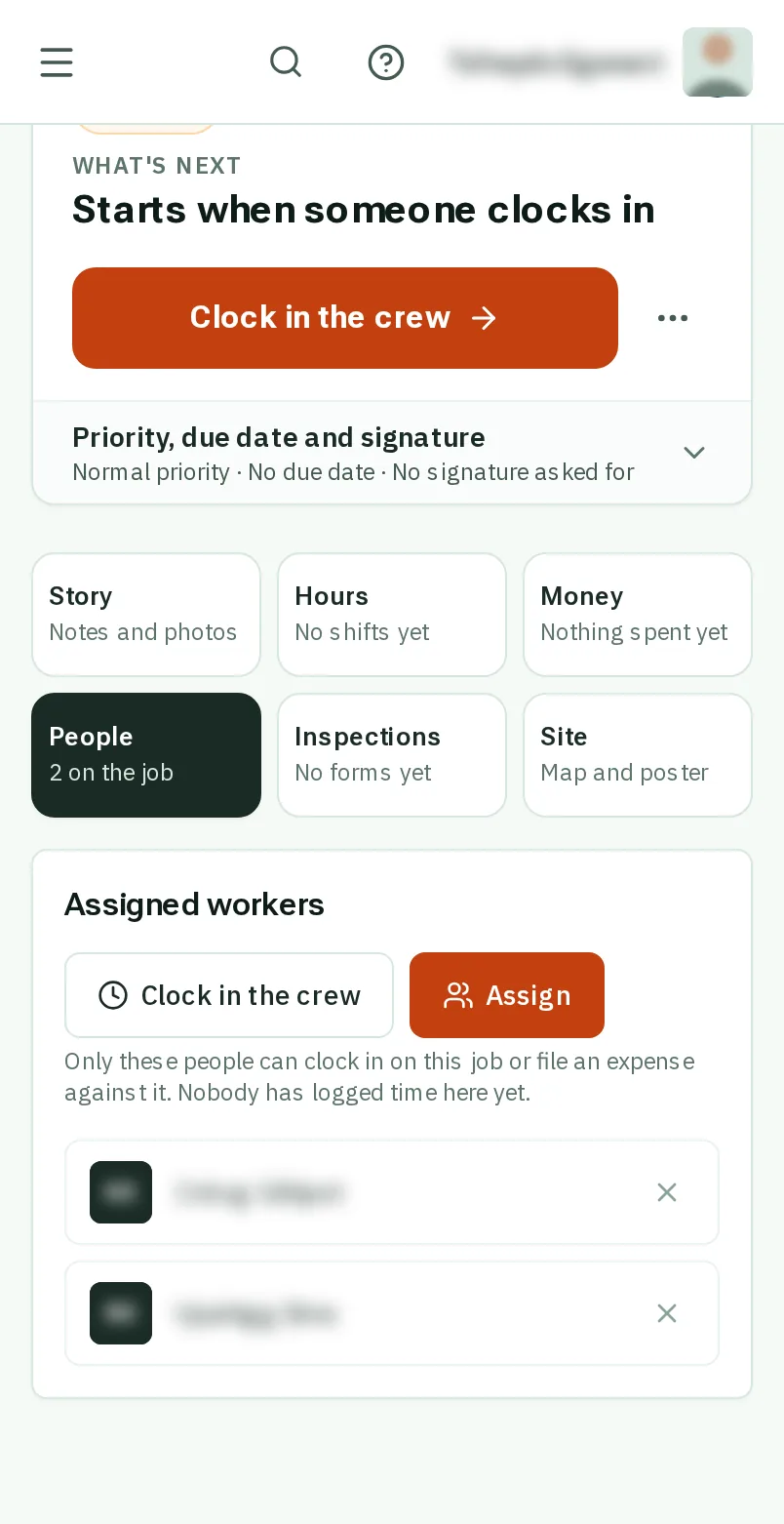
Add people to a job: the screen on a phone
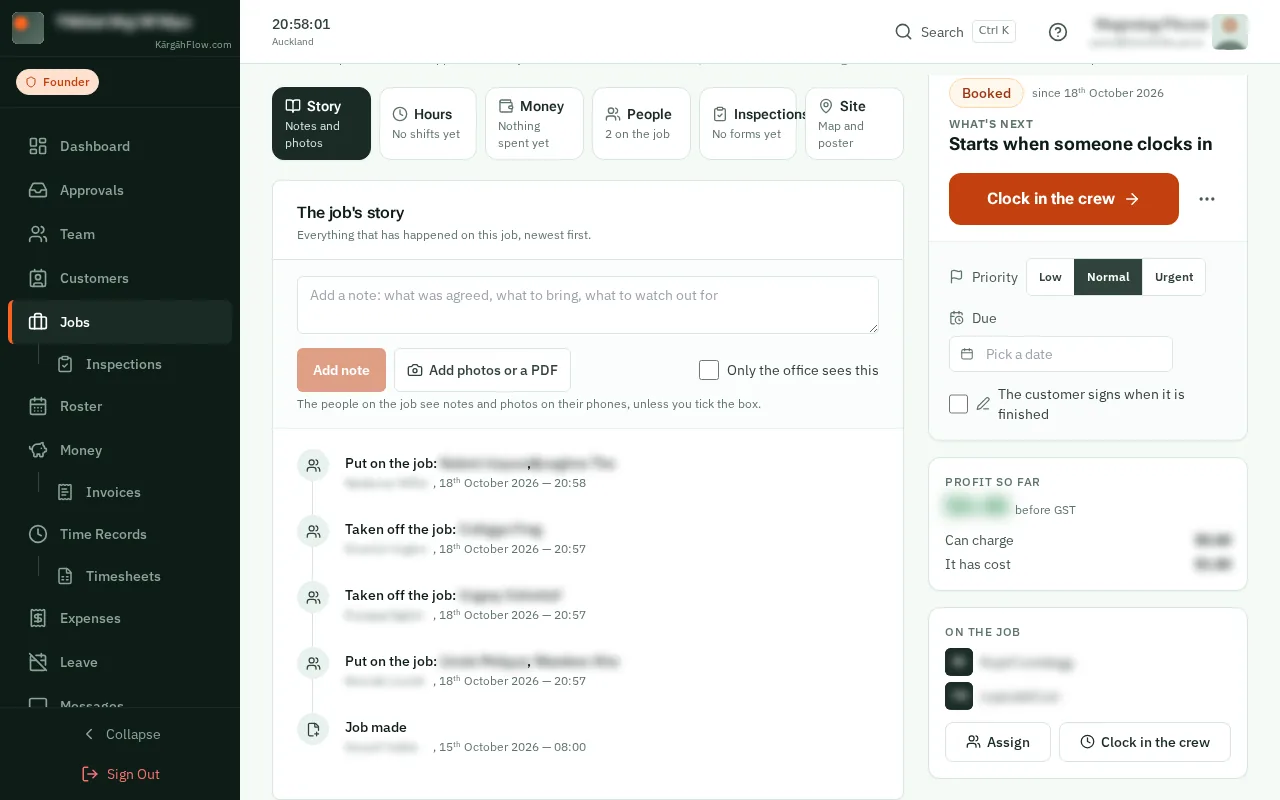
Add people to a job: the screen on a computer
Step 1 of 4
  1. Step 1: TapClick Assign on the job

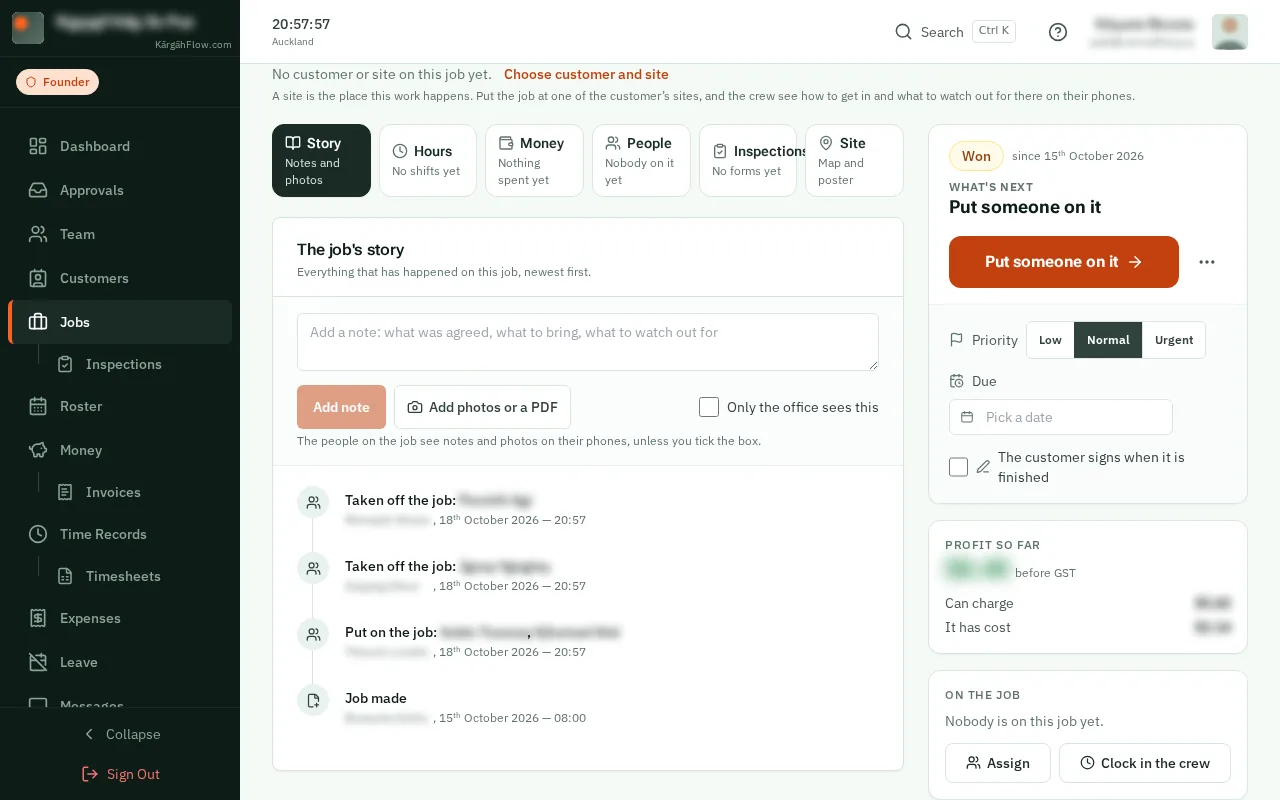
    Open Jobs and tapclick the job. TapClick the People tab, then Assign.Open Jobs and tapclick the job. On the right, under On the job, tapclick Assign.

    Look forthe Assign button

    Good to know: A job the board says is Won has Put someone on it as its big button: it opens the same window.
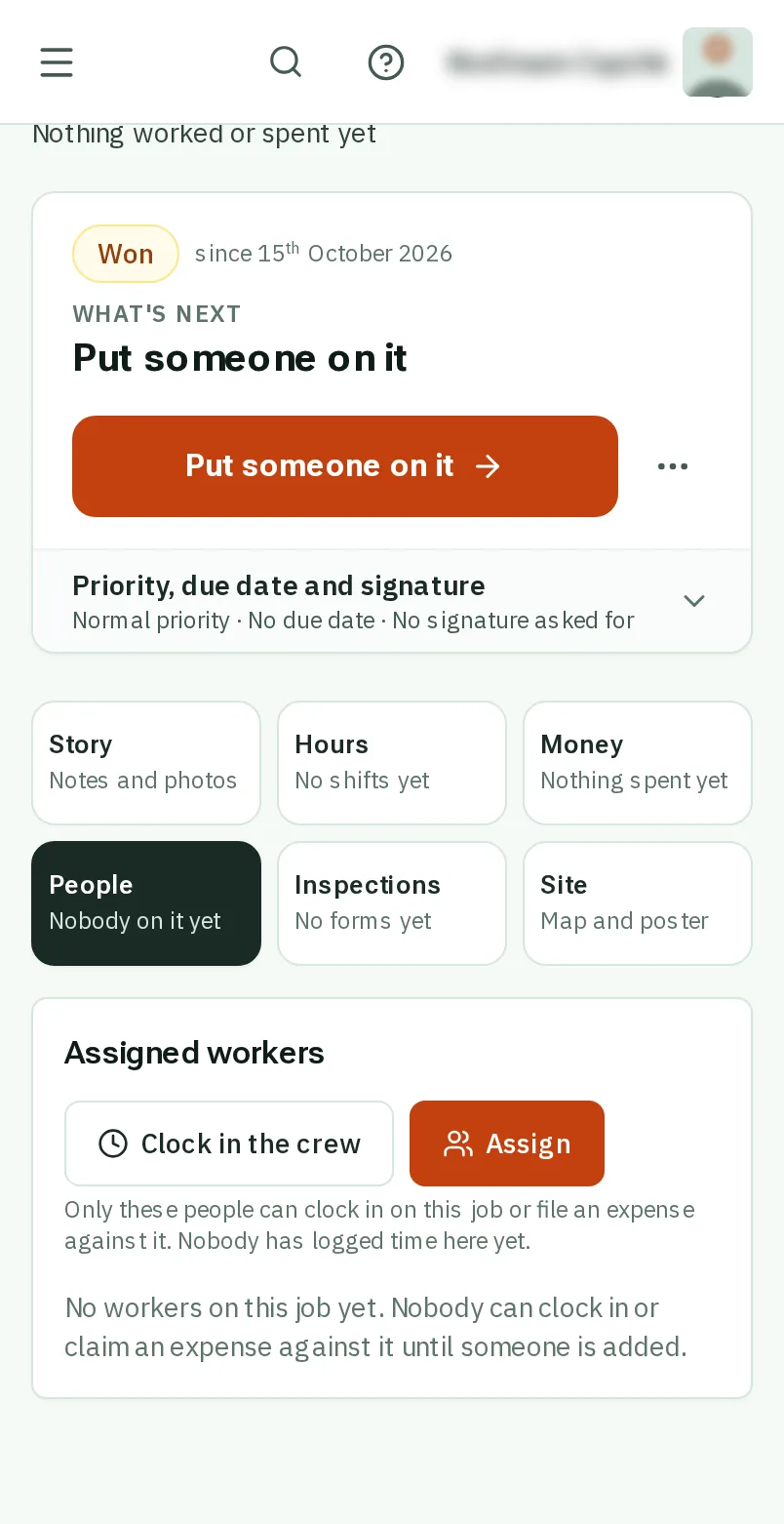
    Tap Assign on the job
    Click Assign on the job
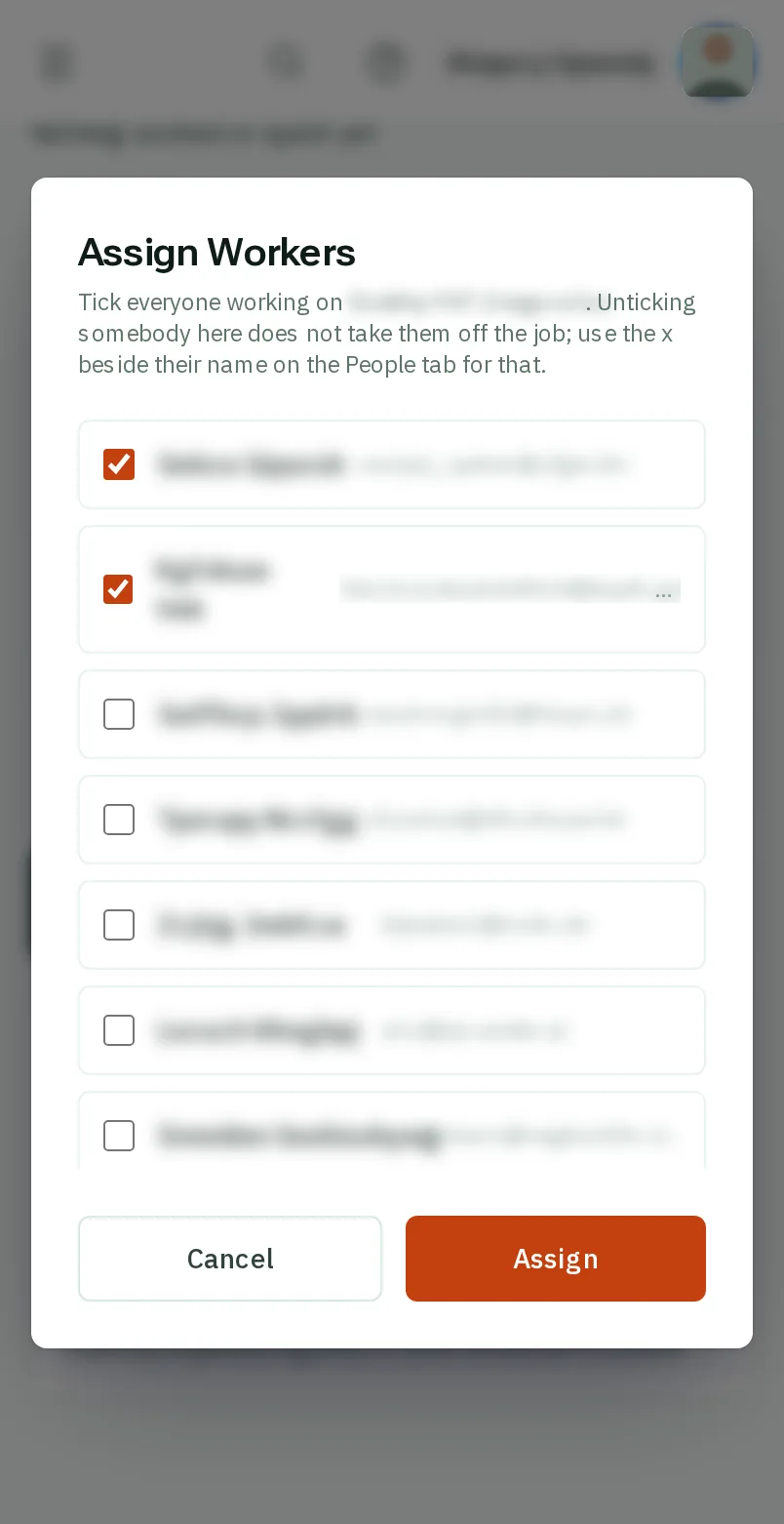
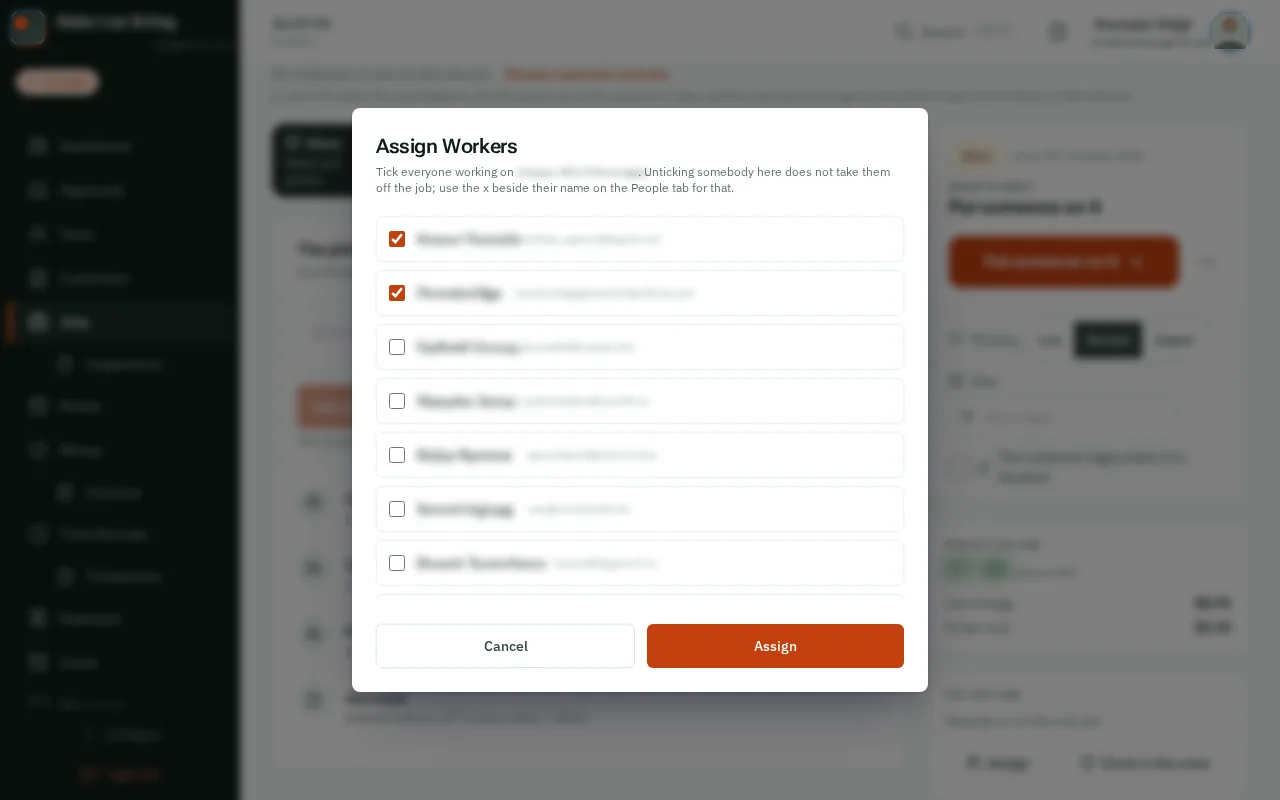
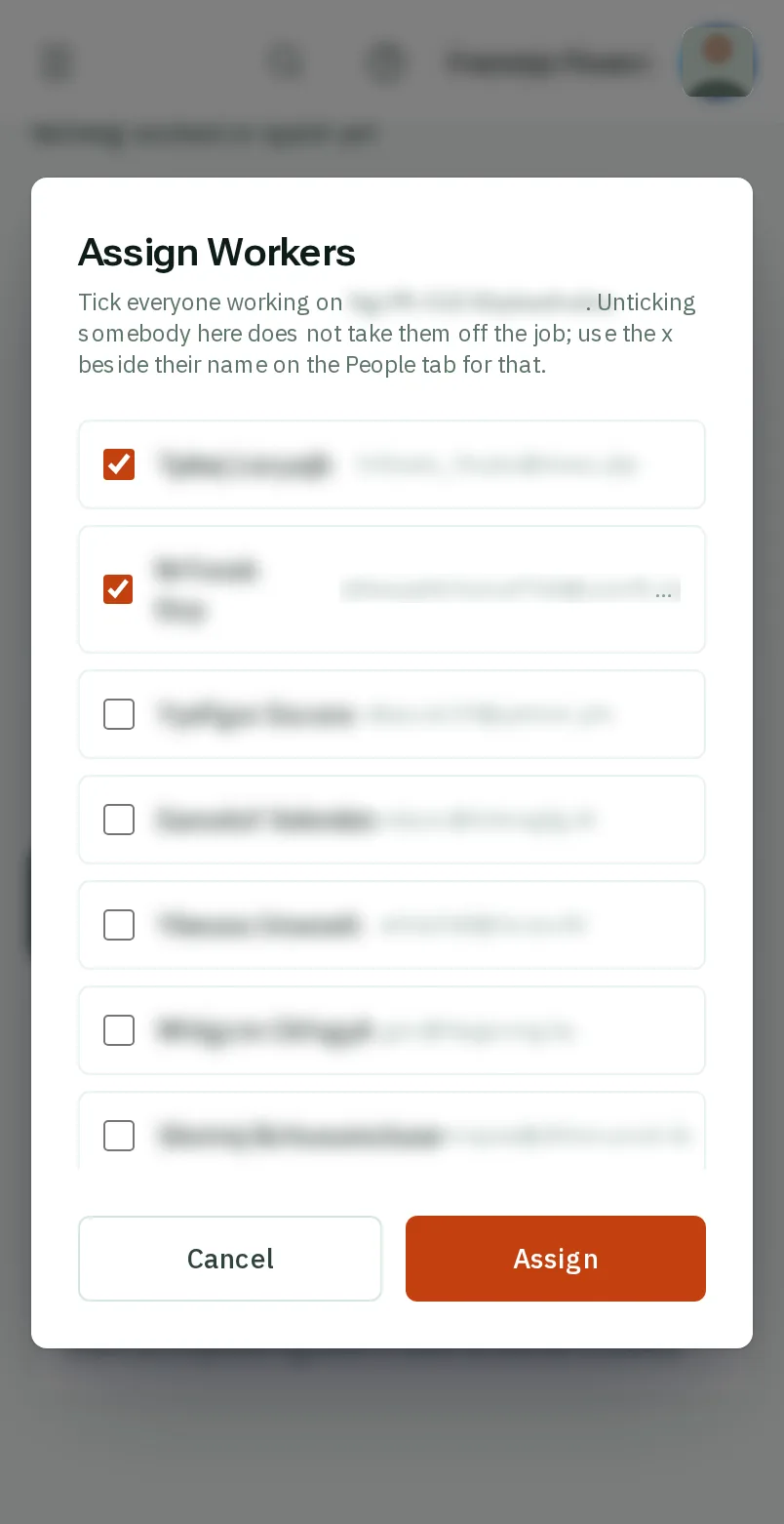
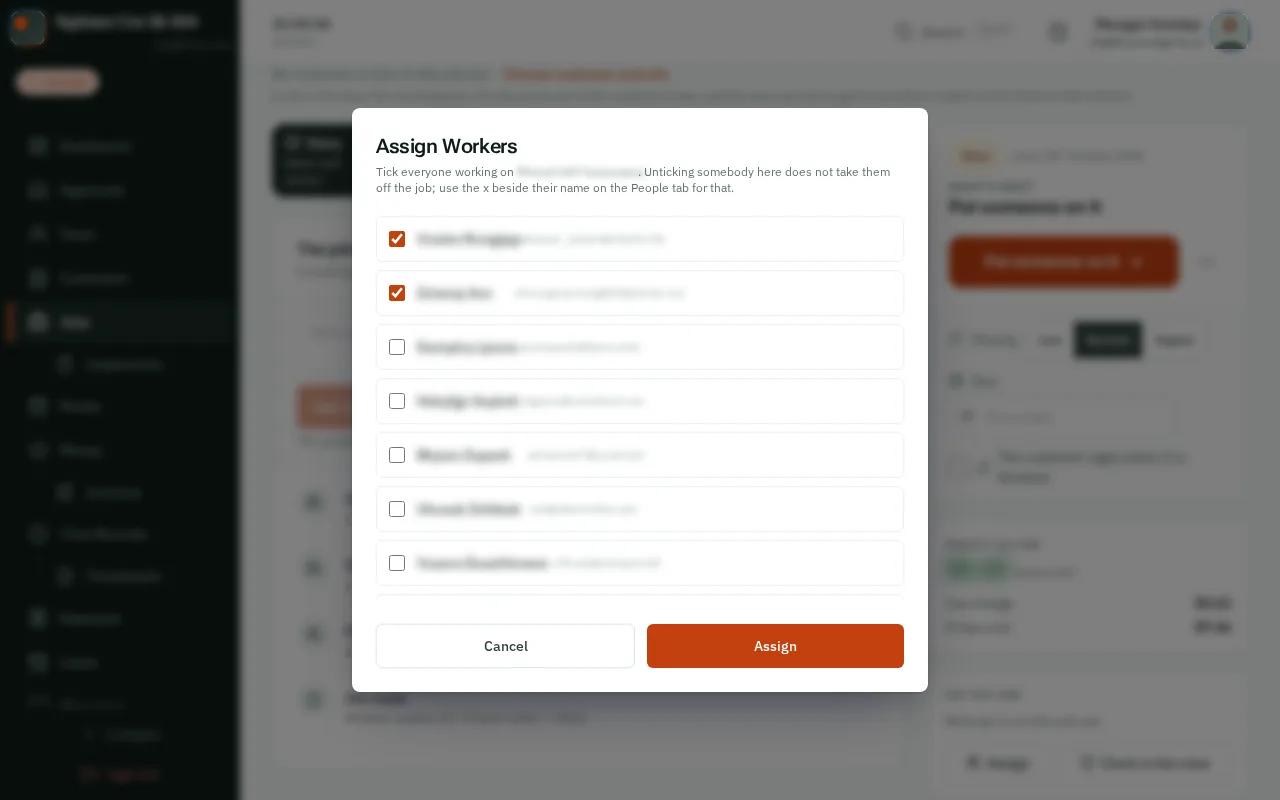
  2. Step 2: Tick the people

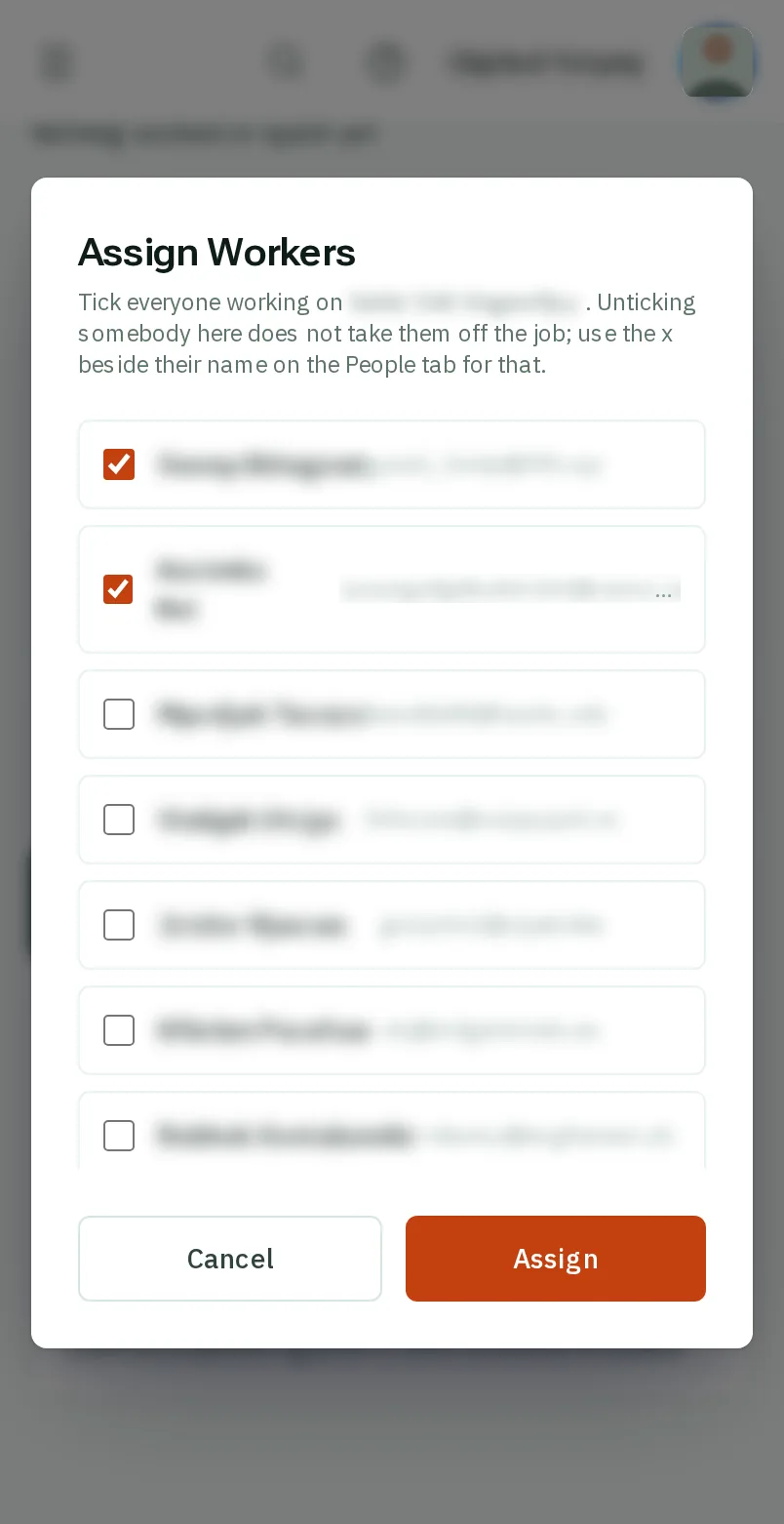
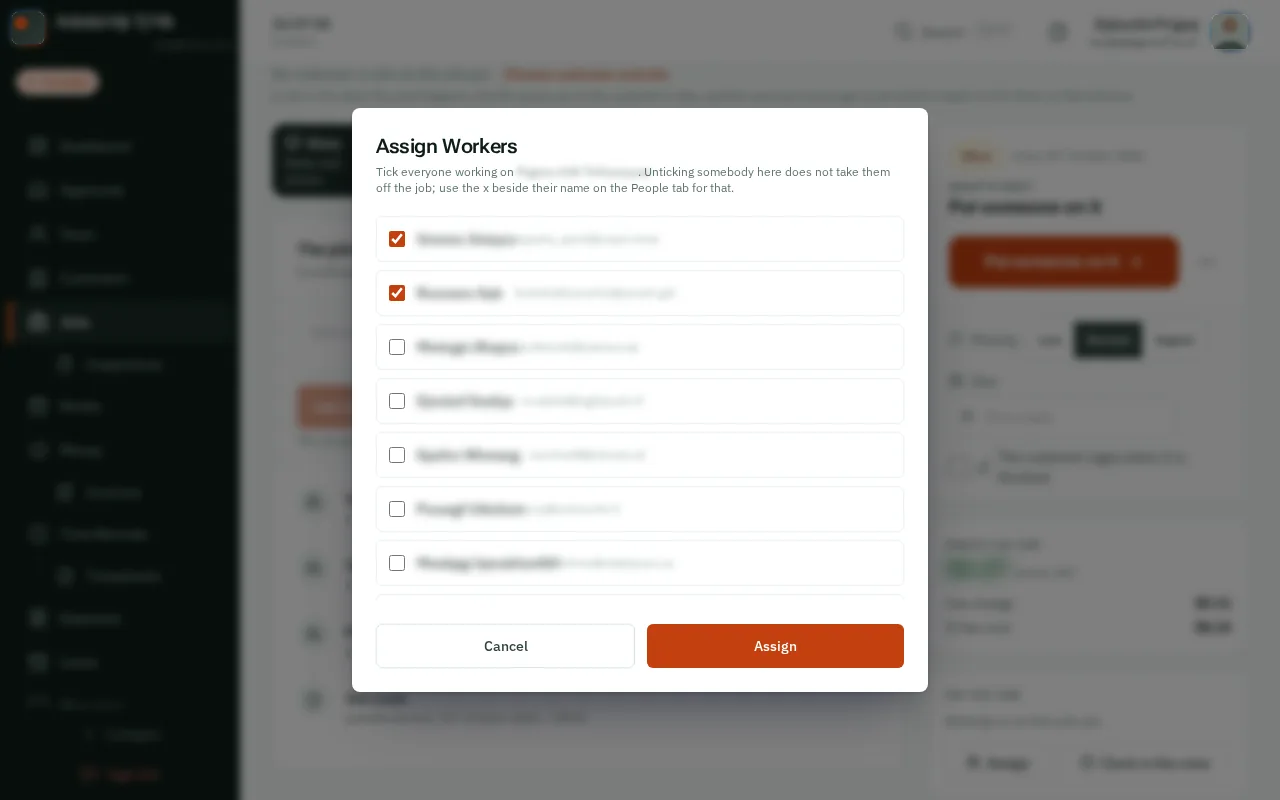
    Tick everyone who works on this job. Someone who is clocked in right now cannot be taken off until they clock out.

    Look forthe Their name choice

    Good to know: Putting someone on the roster for a job puts them on the job too. Untick someone who is on the roster for it, and you are asked first: taking them off the job takes those days off the roster as well.

    Tick the people
    Tick the people
  3. Step 3: TapClick Assign

    TapClick the orange Assign button.

    Look forthe Assign button
    Tap Assign
    Click Assign
  4. Step 4: They are on the job

    Their names are under Assigned workers on the People tab now, and the job is on their phones, ready to clock in to.Their names are under On the job on the right now, and the job is on their phones, ready to clock in to.

    They are on the job
    They are on the job

That's it

Your crew can see the job and clock in to it from their phones.

Next: Plan your crew’s week