KārgāhFlow
About 1 minute 5 stepsFor crew

Clock in and out

Start and finish your shift with one tap, and undo a tap made by mistake.

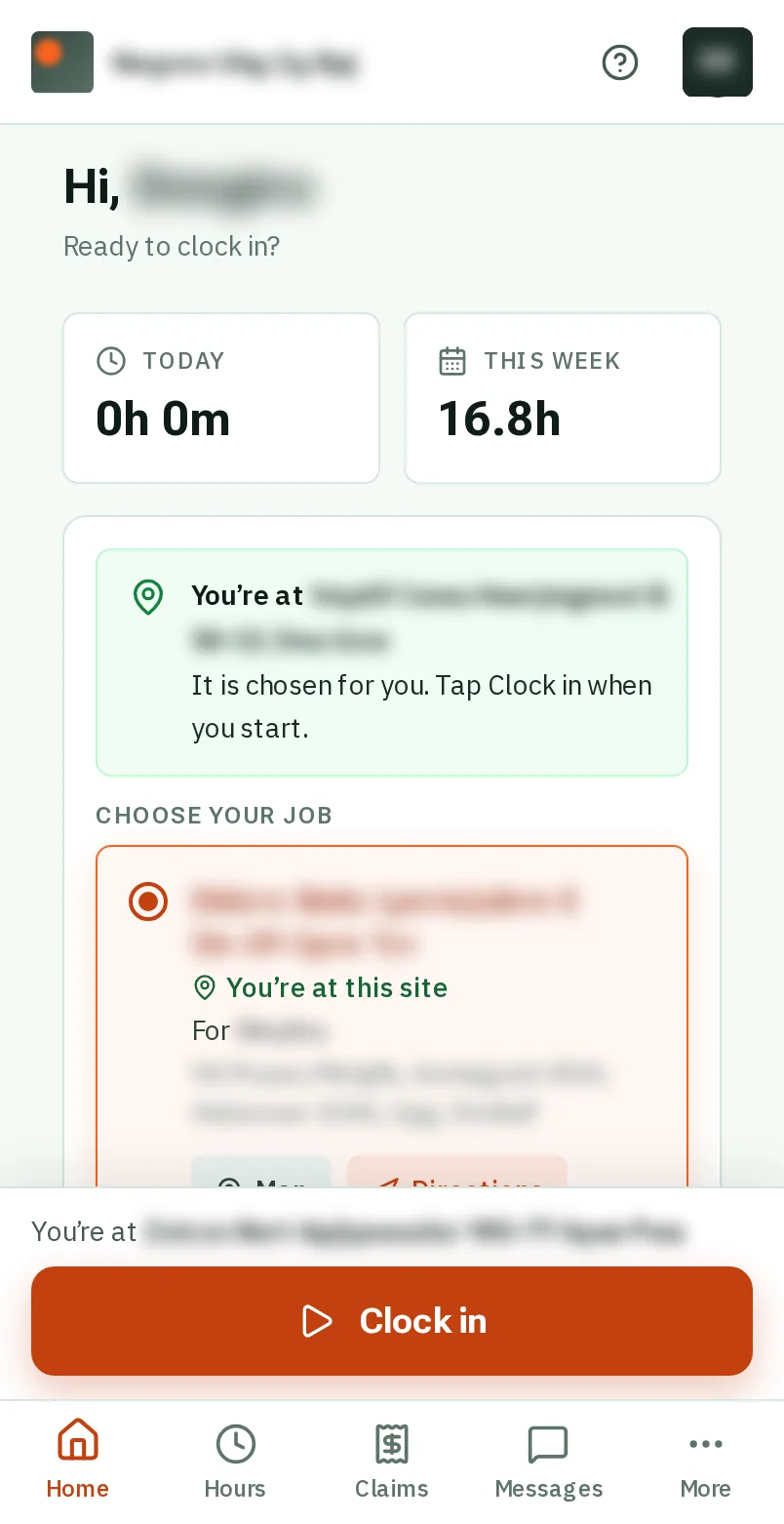
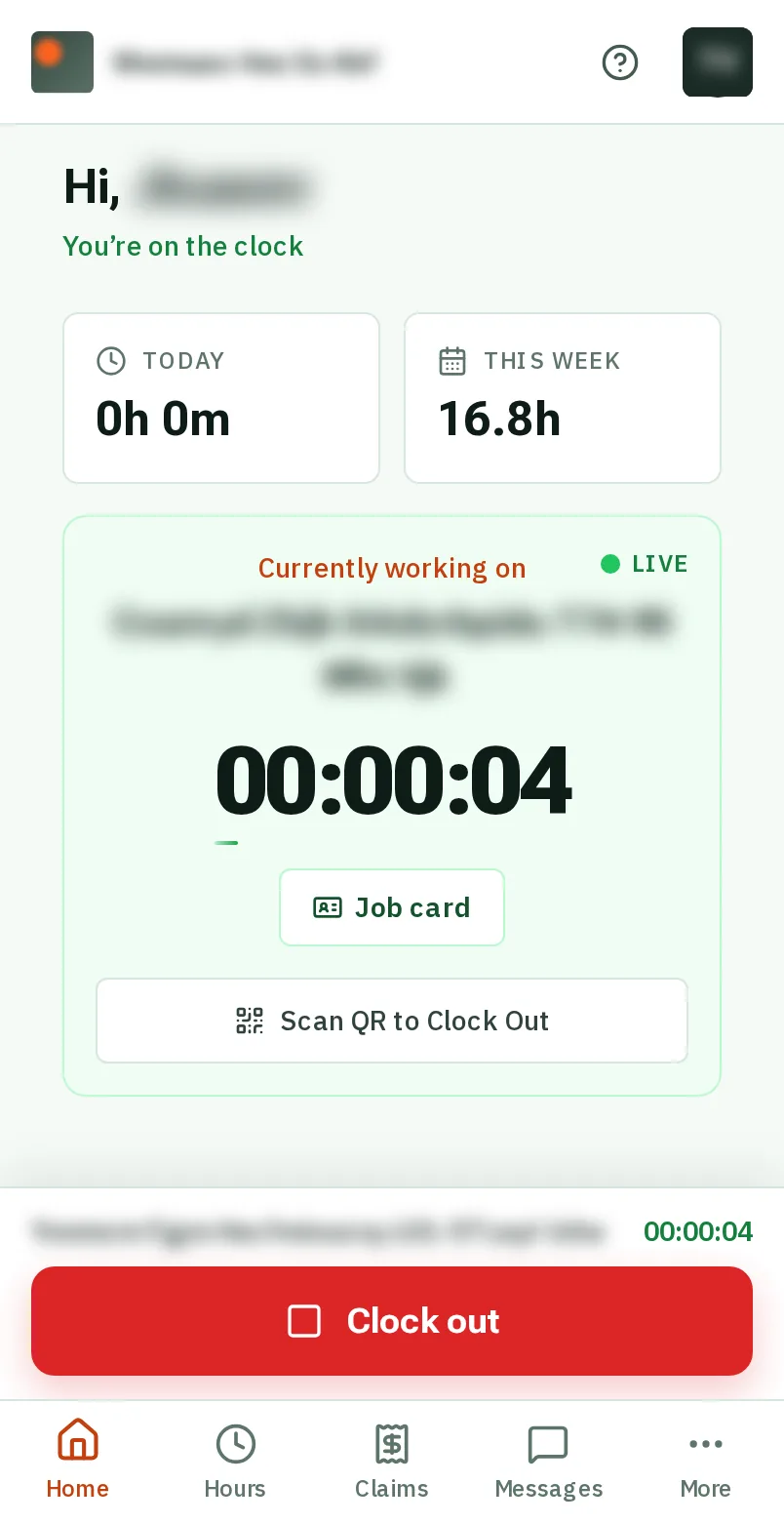
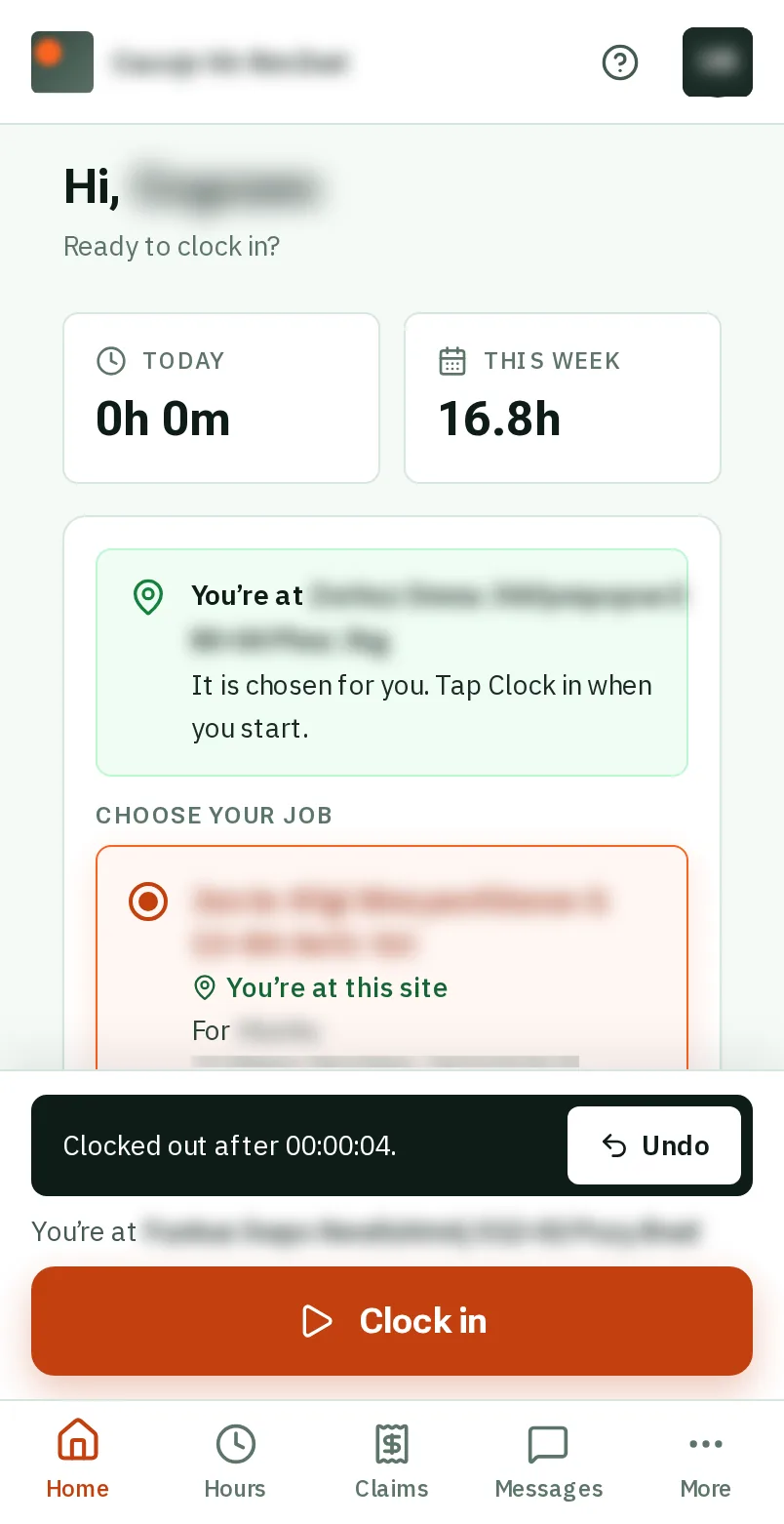
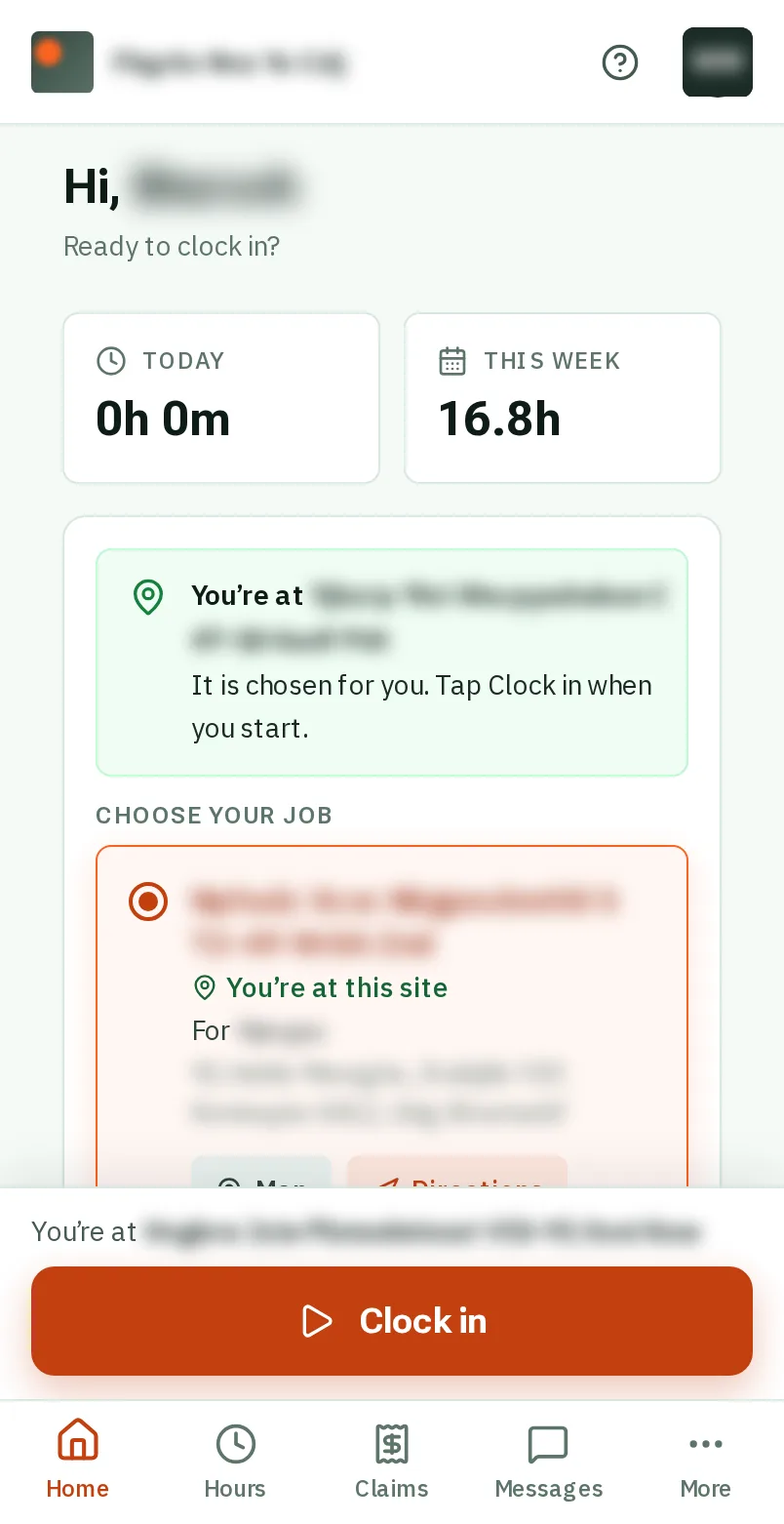
Clock in and out: the screen on a phone
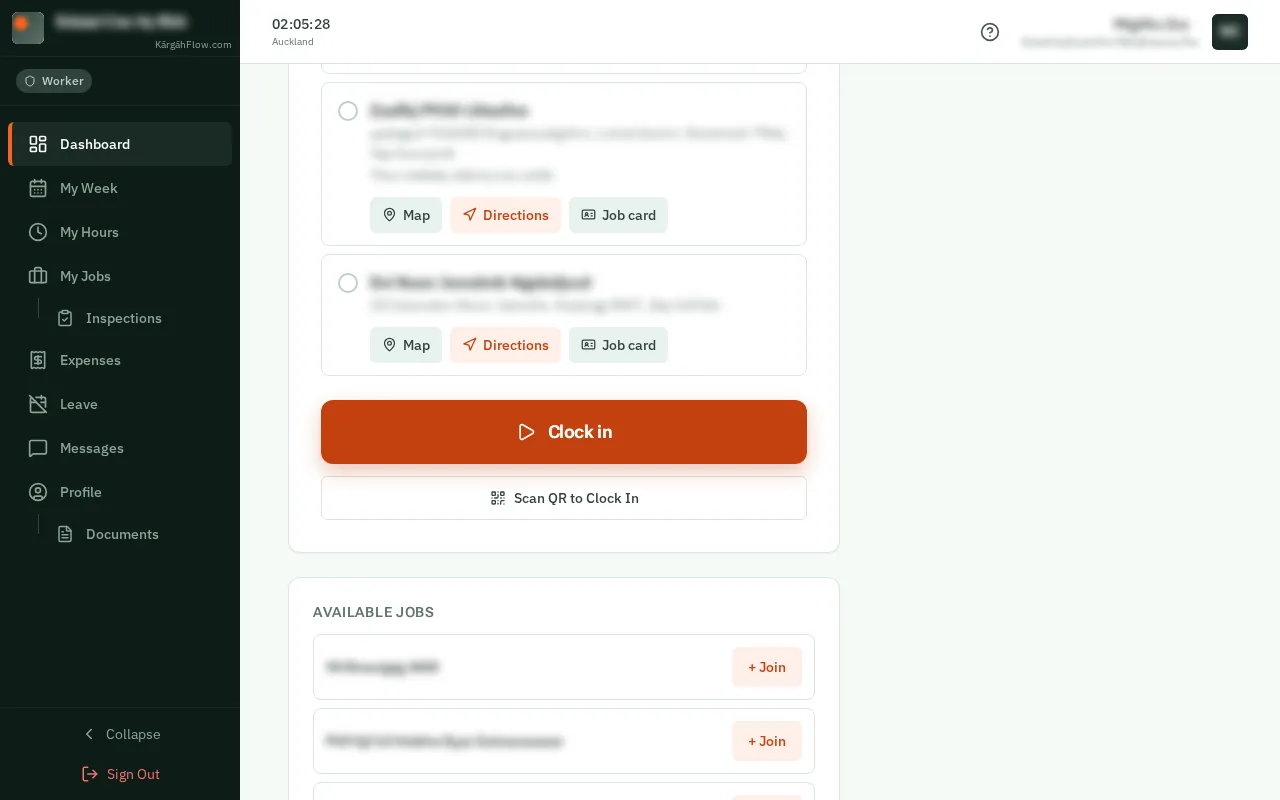
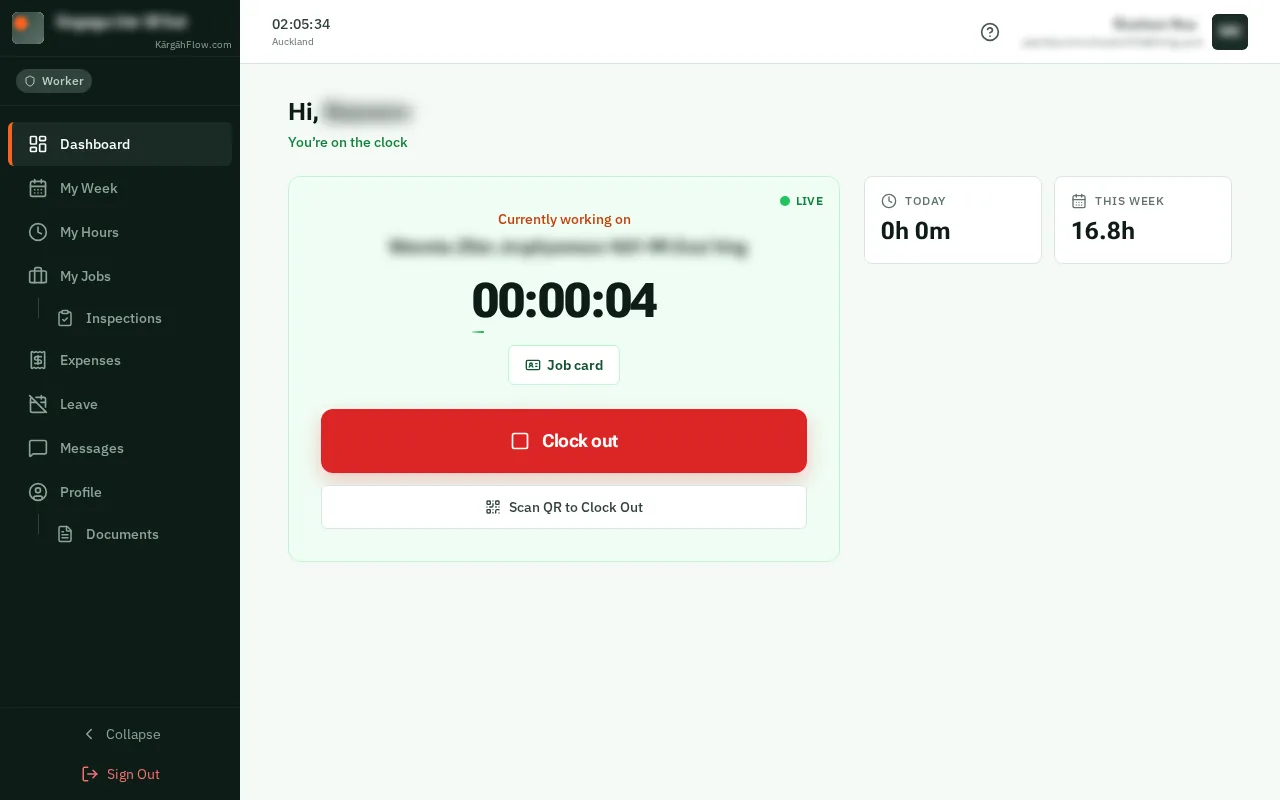
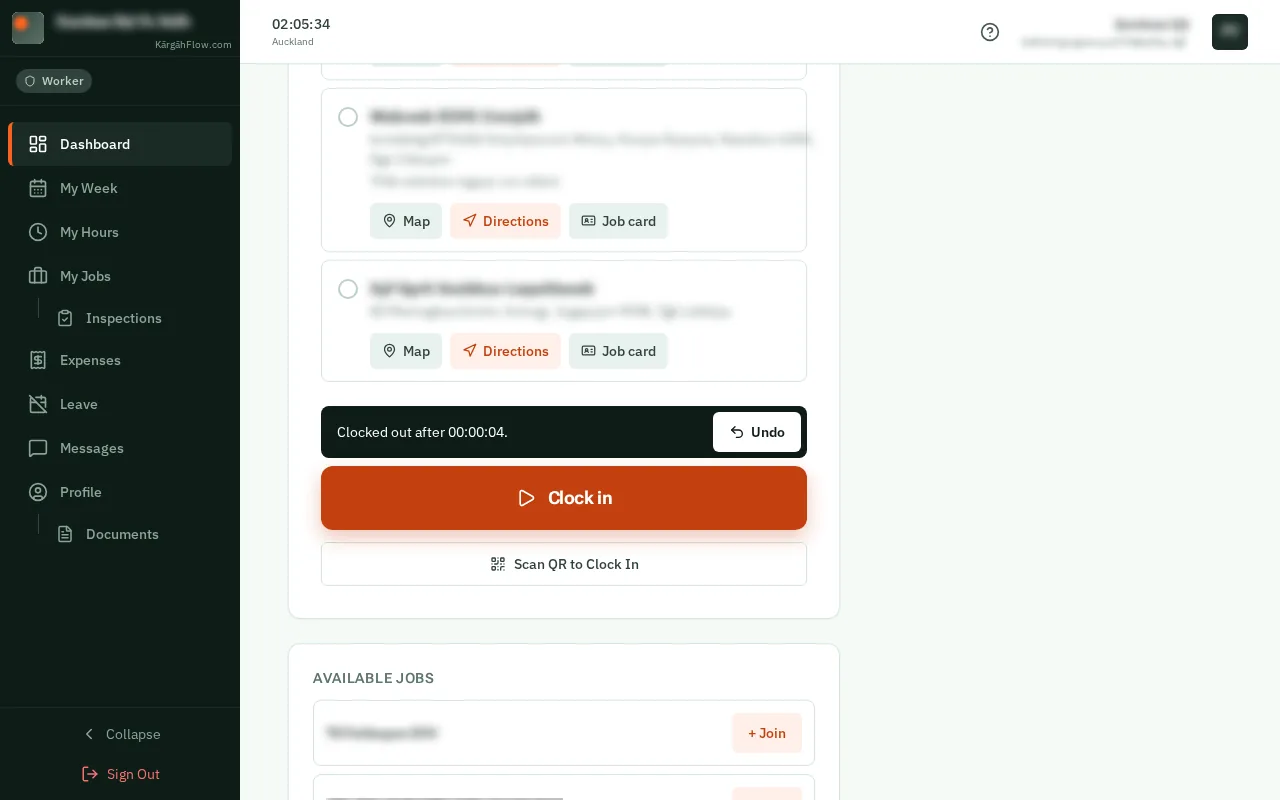
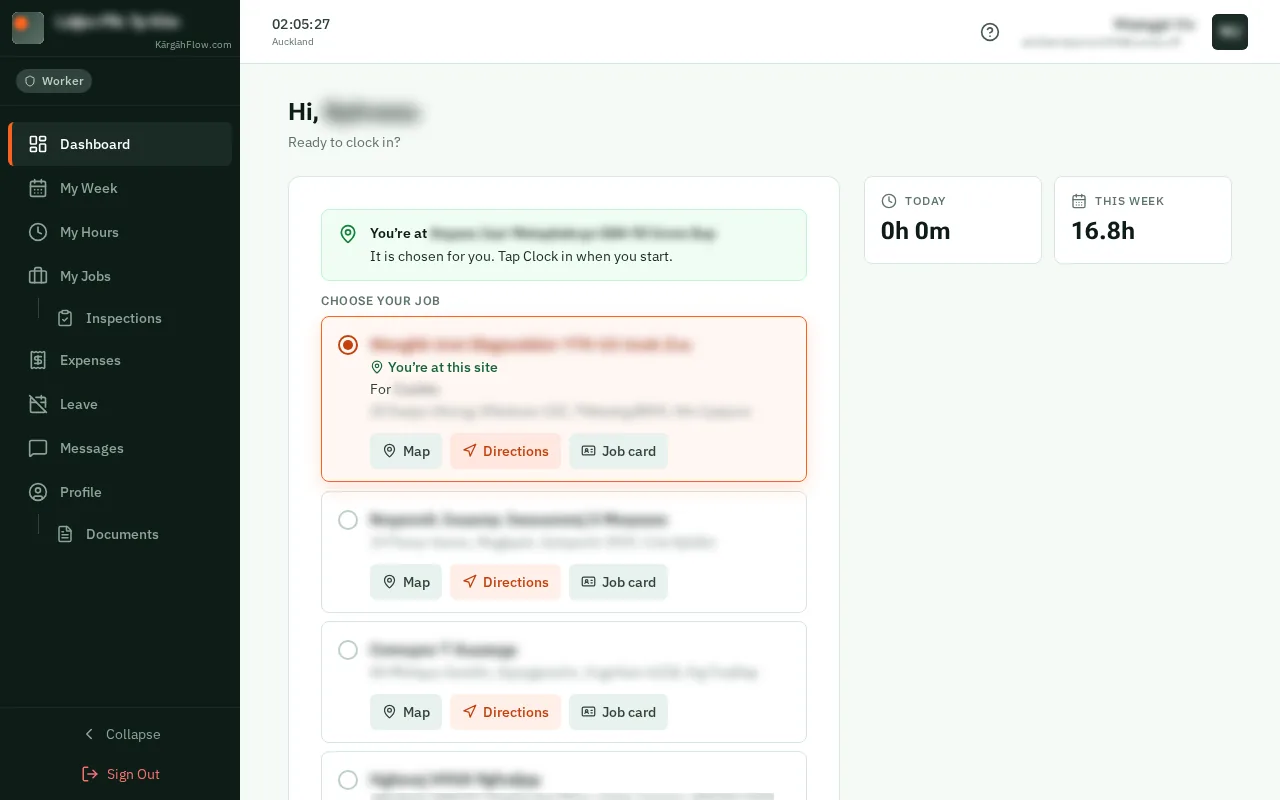
Clock in and out: the screen on a computer
Step 1 of 5
  1. Step 1: Choose your job

    Open KārgāhFlow. Your jobs are listed under Choose your job. TapClick the one you are working at today. If you are standing at the site, or you are on the roster for one job today, it is already chosen for you.

    Look forthe Choose your job choice

    Good to know: A short green line under a job says On your roster today, or You’re at this site. Your office sees the same, beside your hours on that job.
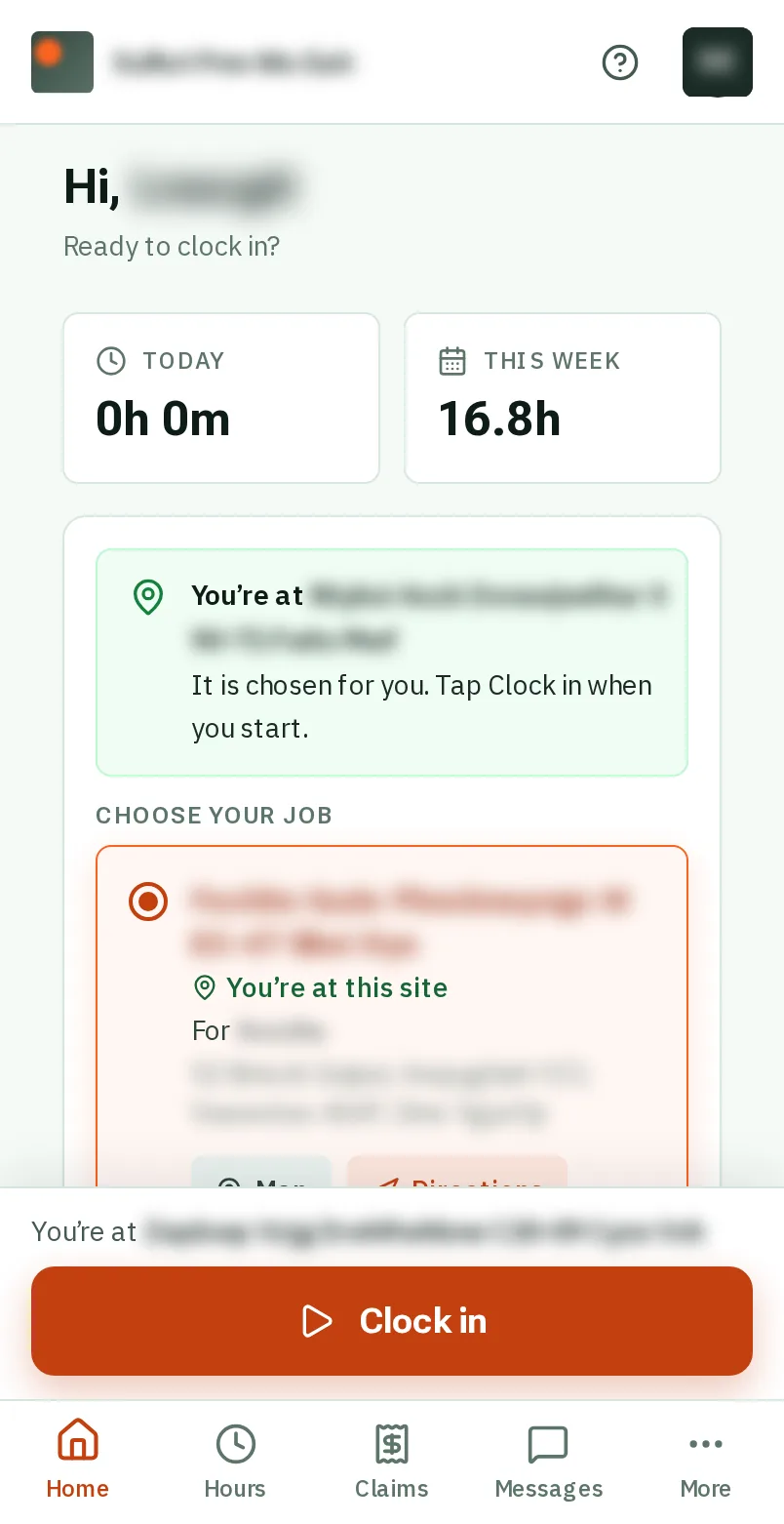
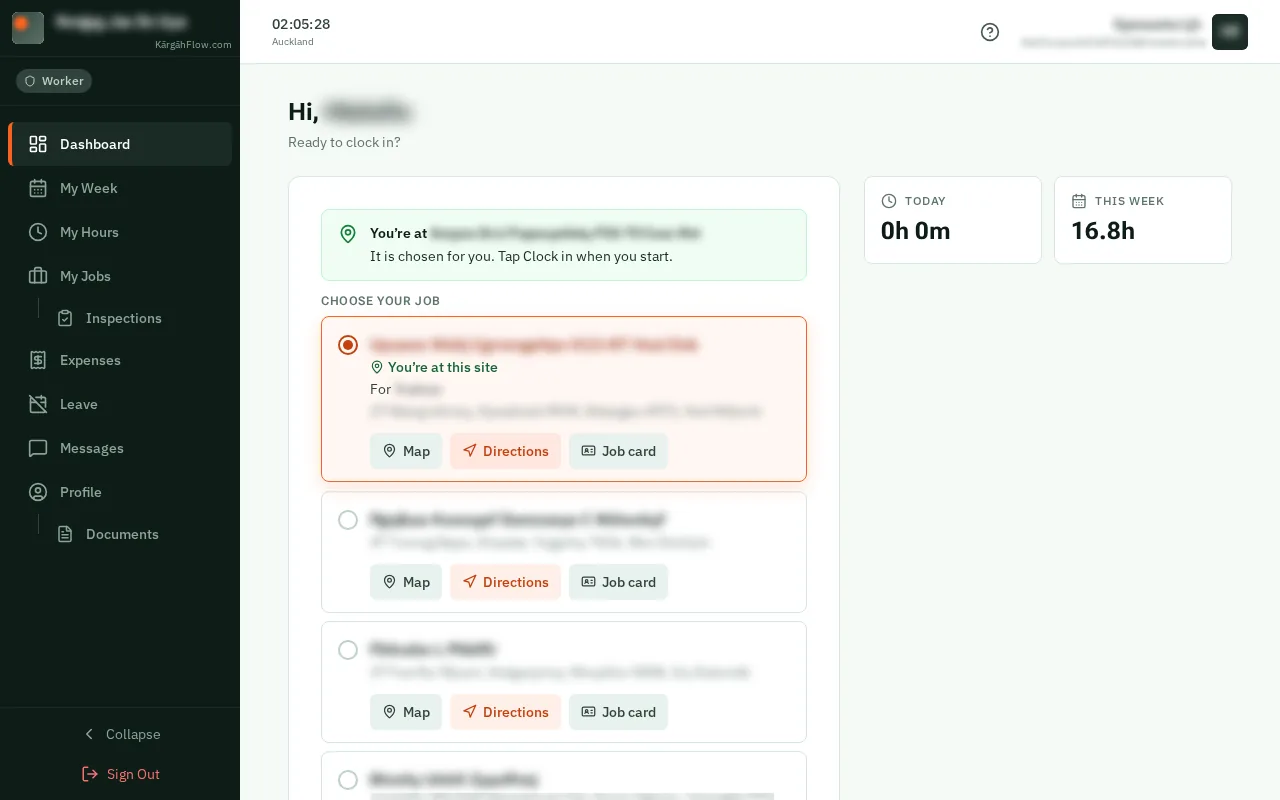
    Choose your job
    Choose your job
  2. Step 2: TapClick Clock in

    When you start work, tapclick the orange Clock in button at the bottom of the screen.When you start work, tapclick the orange Clock in button under your jobs.

    Look forthe Clock in button

    Good to know: The first time, KārgāhFlow asks to use your location. Say yes (Allow), so your manager can see you were on site.

    Tap Clock in
    Click Clock in
  3. Step 3: Your time is counting

    A timer counts your time on the job. You can close the app and put your phone away: the timer keeps going.

    Good to know: Did the app clock you in by itself? It says so just above Clock out, with Undo for five minutes.

    Your time is counting
    Your time is counting
  4. Step 4: TapClick Clock out when you finish

    At the end of the day, tapclick the red Clock out button.

    Look forthe Clock out button
    Tap Clock out when you finish
    Click Clock out when you finish
  5. Step 5: Tapped it by mistake?

    TapClick Undo within ten seconds, and your shift carries on as if nothing happened.

    Look forthe Undo button

    Good to know: No signal in a basement or a plant room? Tap as normal with the app open. The time you tapped is kept on your phone and sent by itself when the signal comes back.

    Tapped it by mistake?
    Tapped it by mistake?

That's it

That is your shift recorded, to the minute, with nothing to fill in later.

Next: Clock in with a QR poster