KārgāhFlow
About 2 minutes 6 stepsFor crew

Your job card

Everything you need on site: the address, how to get in, what to watch out for, photos and notes.

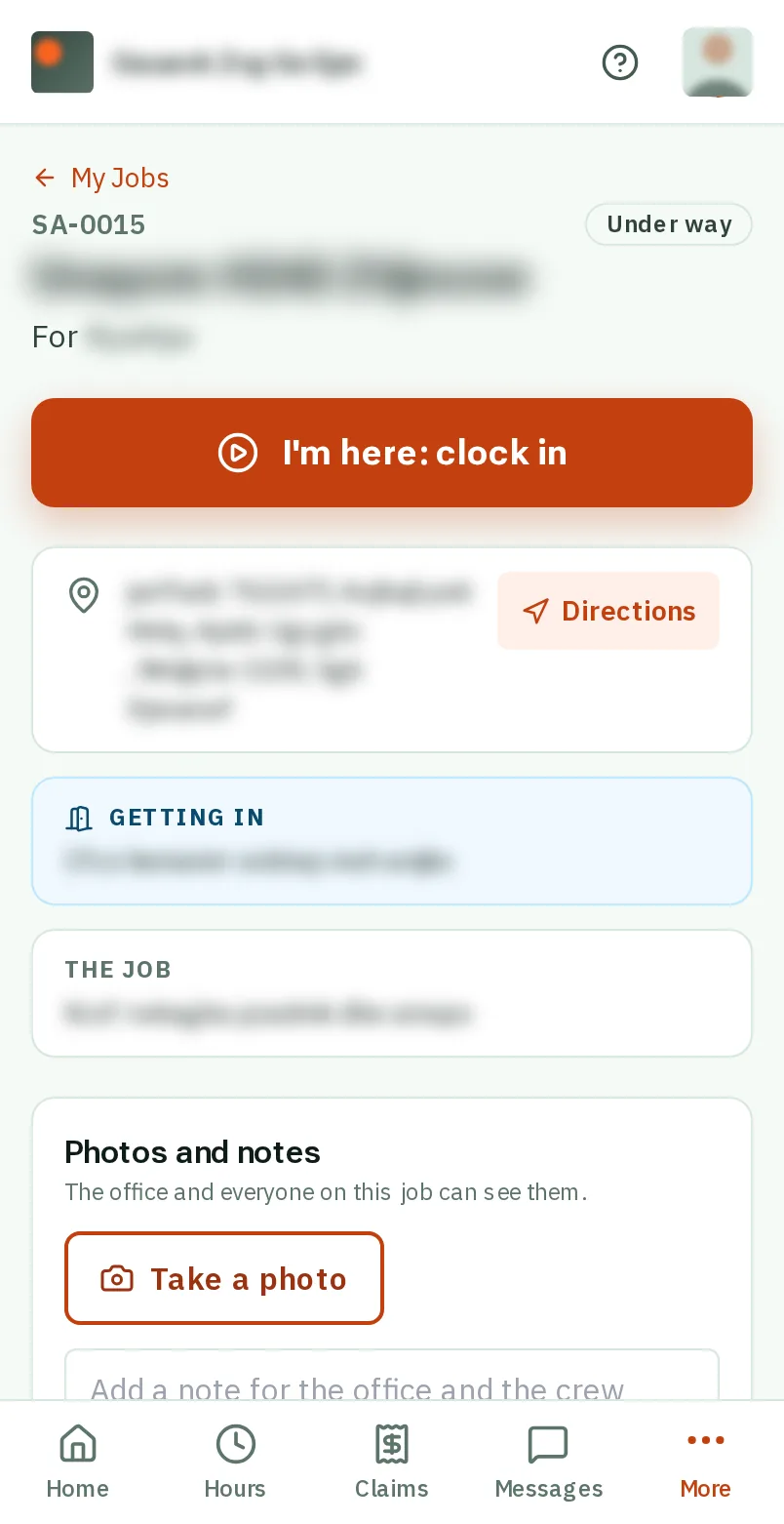
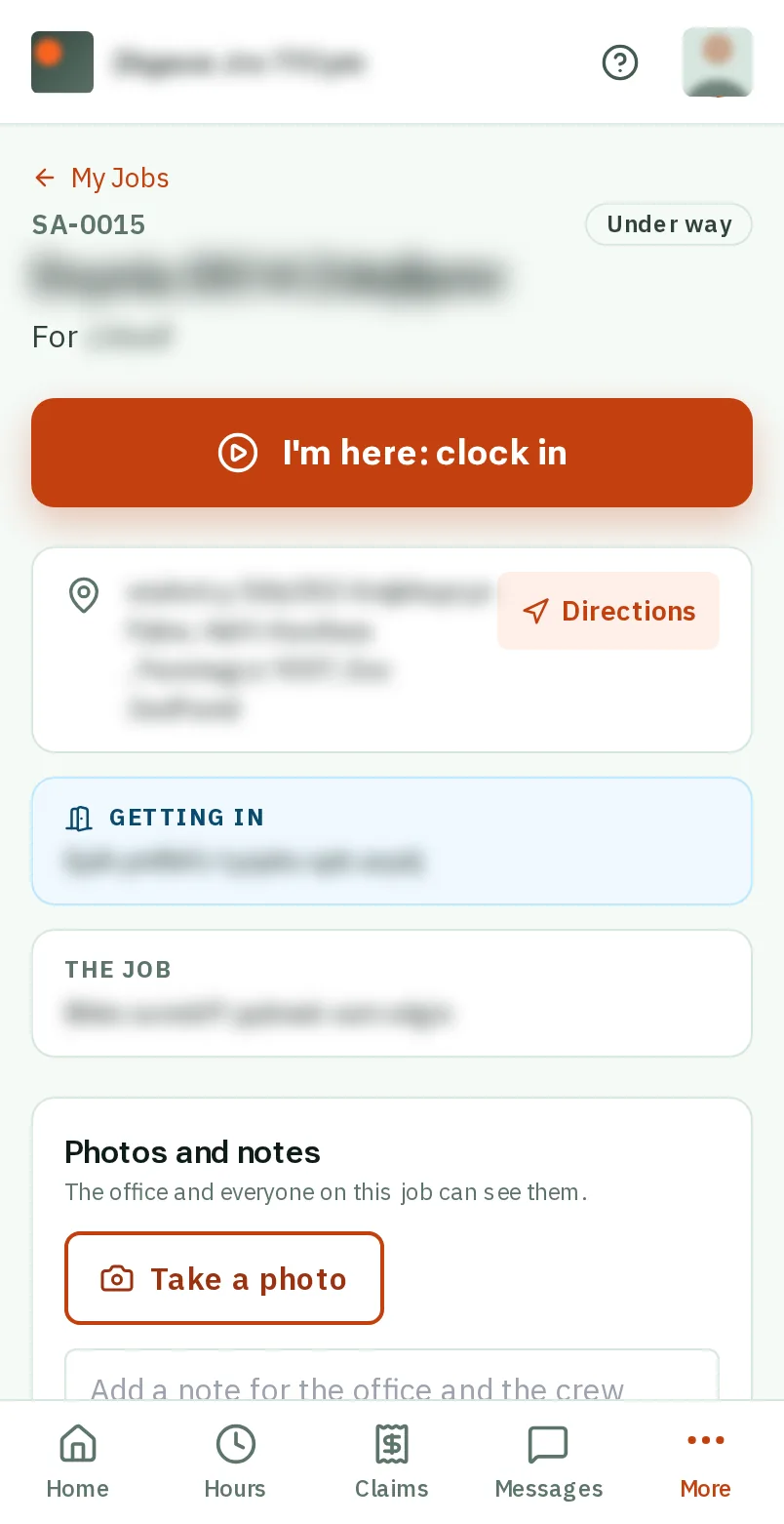
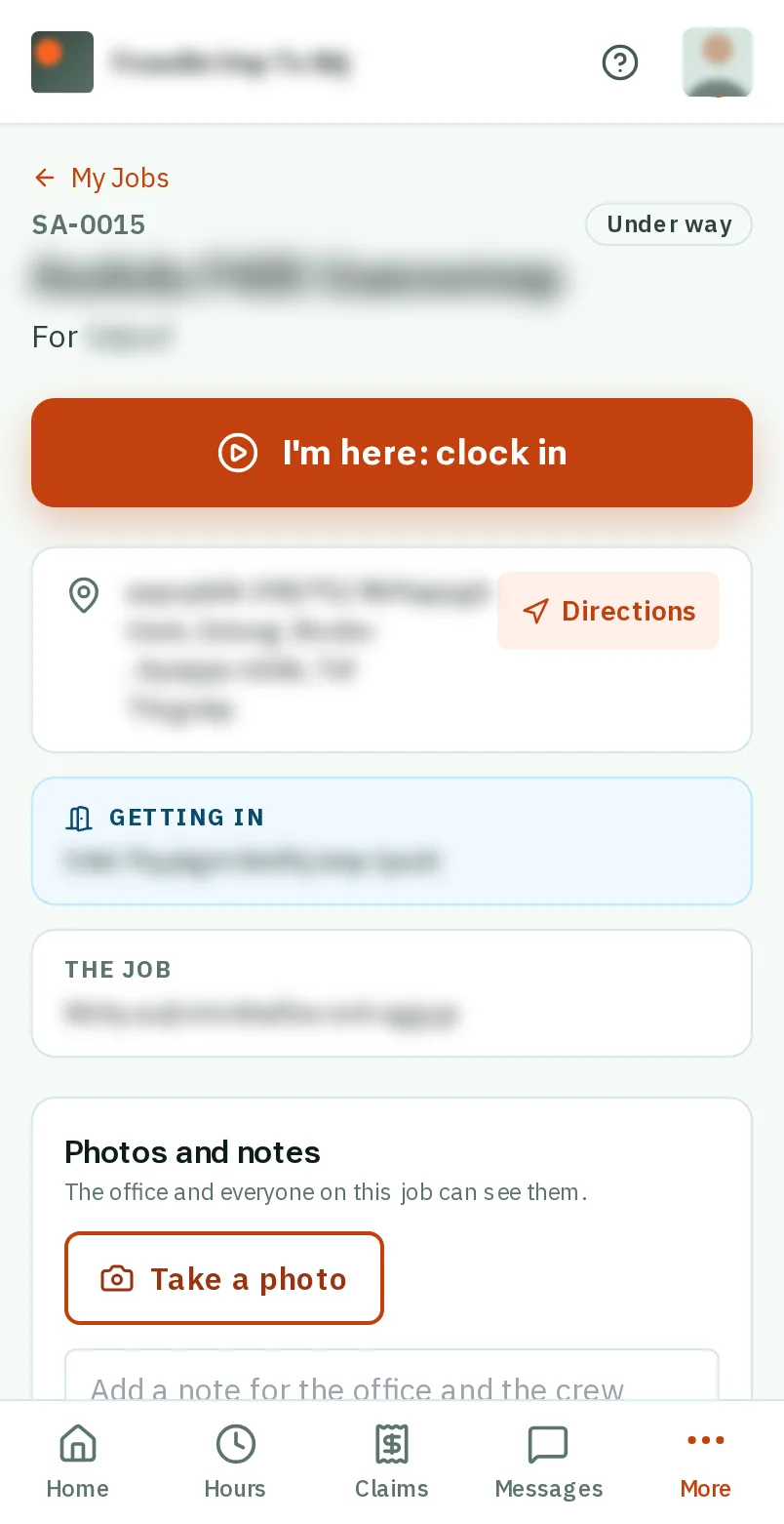
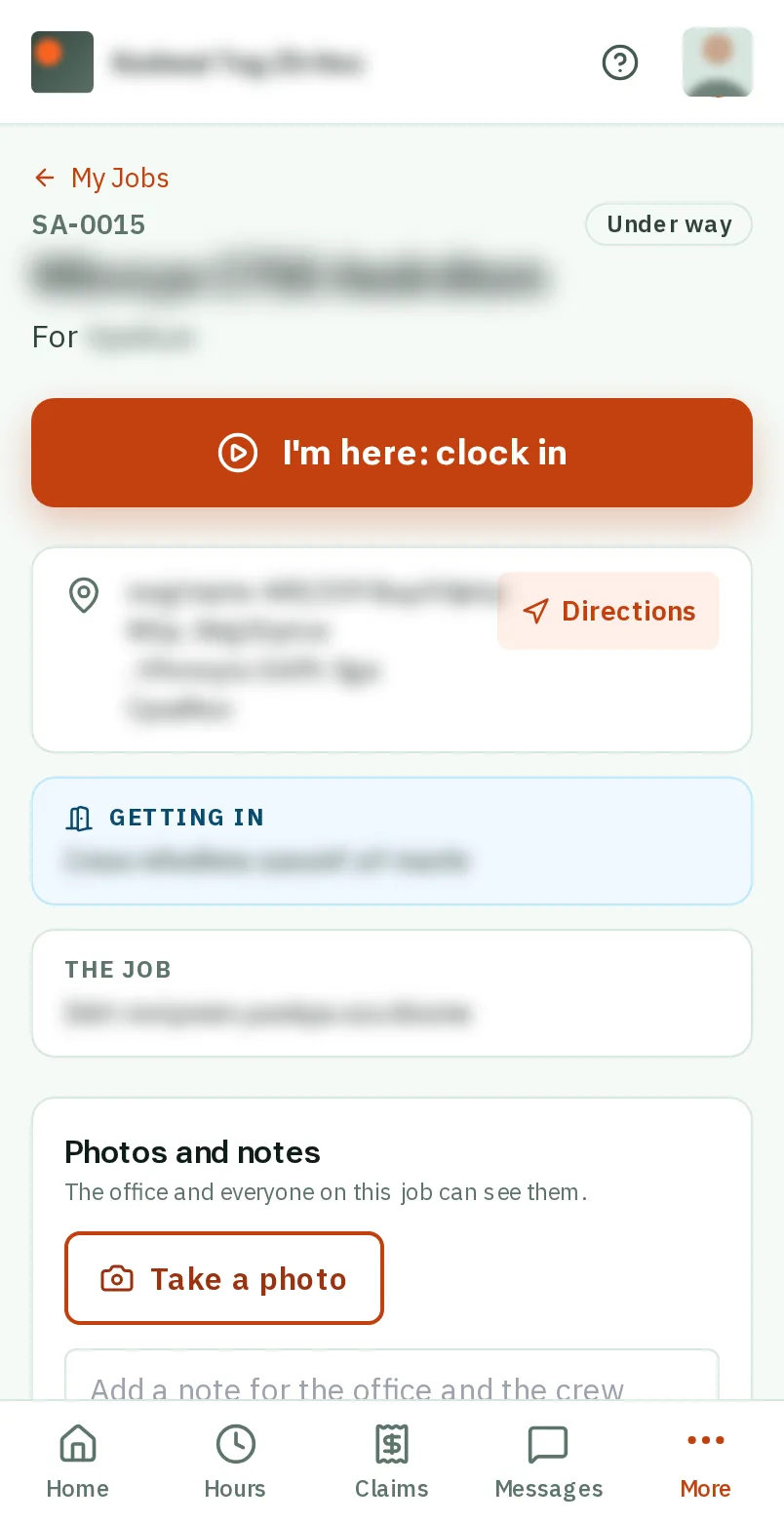
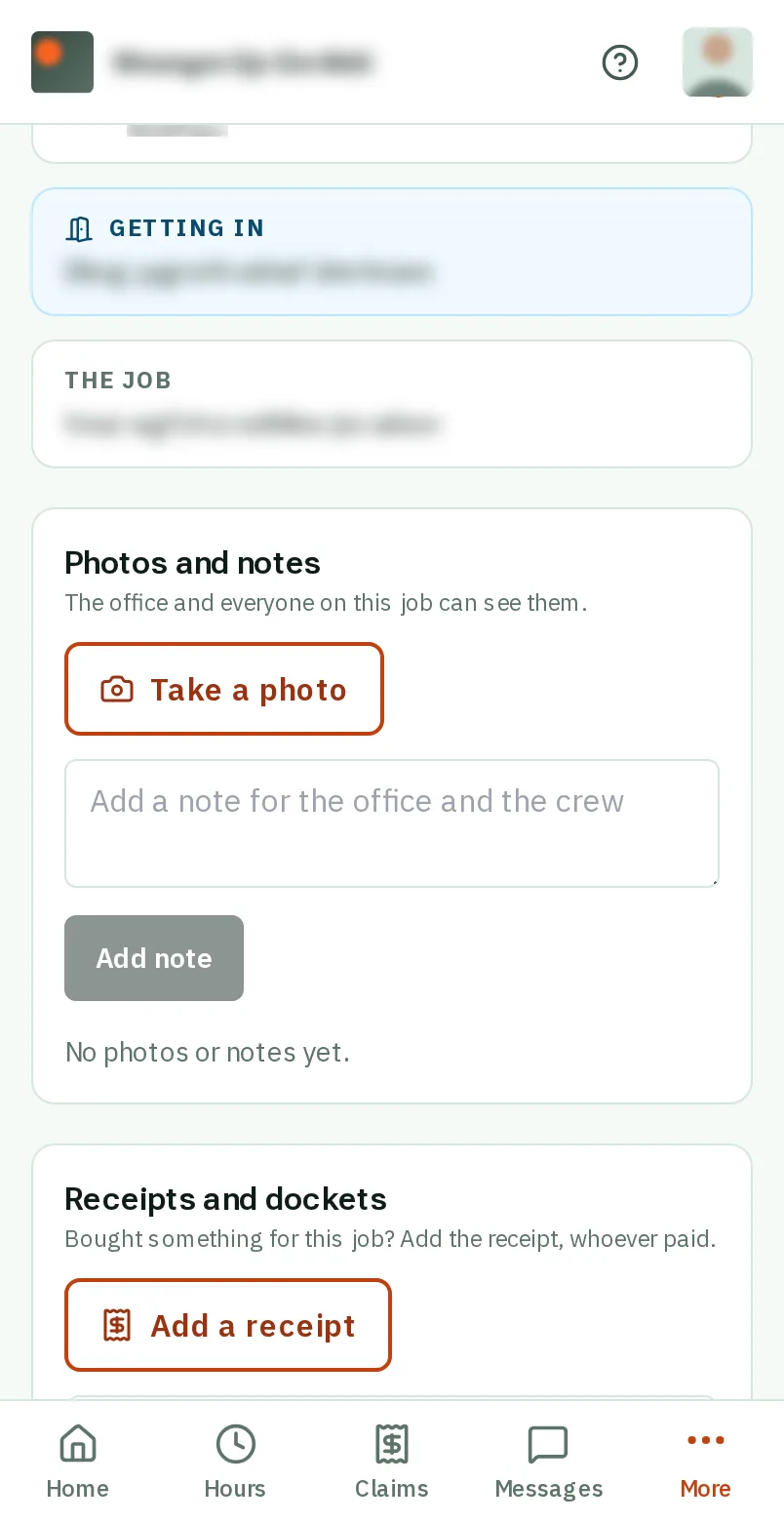
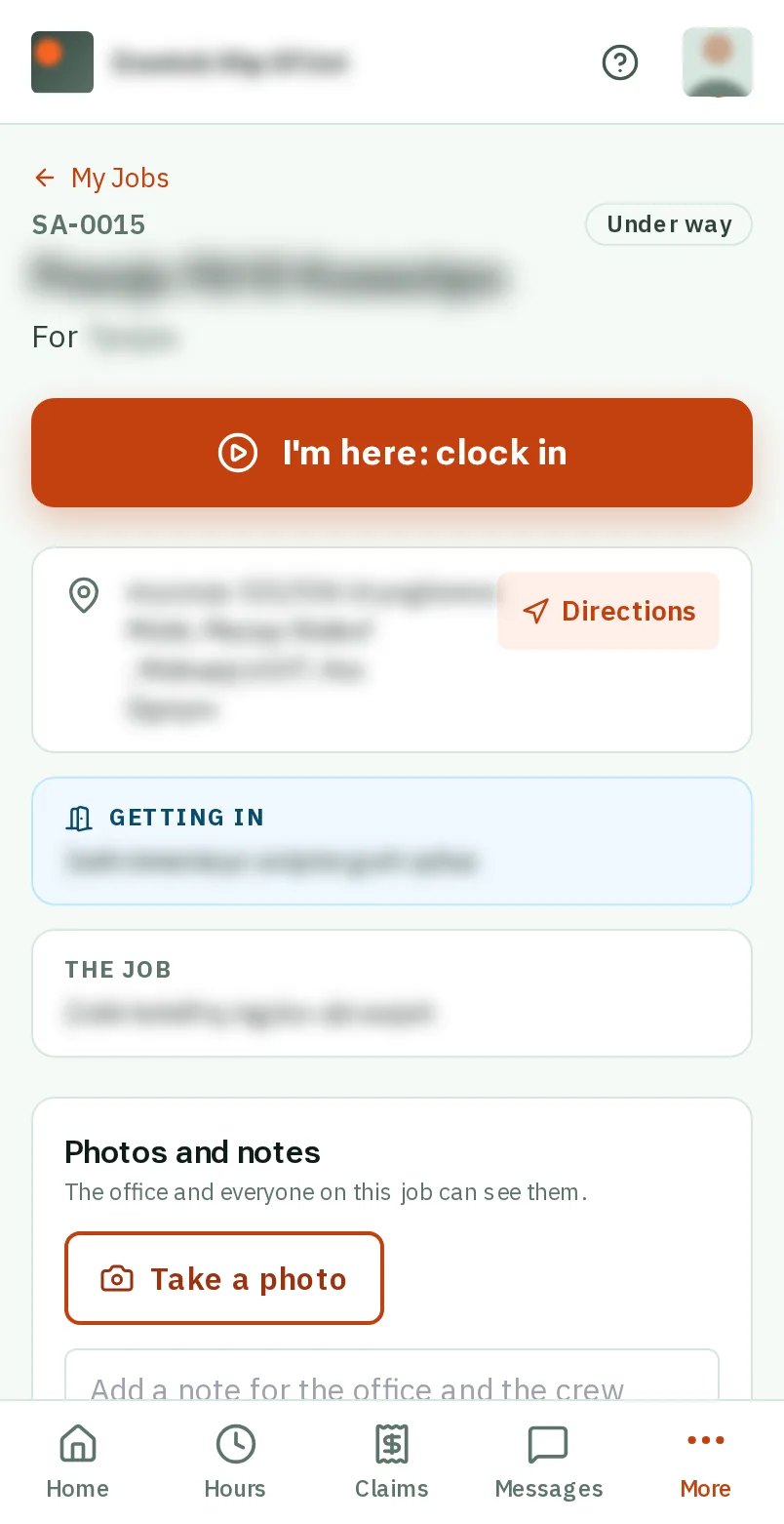
Your job card: the screen on a phone
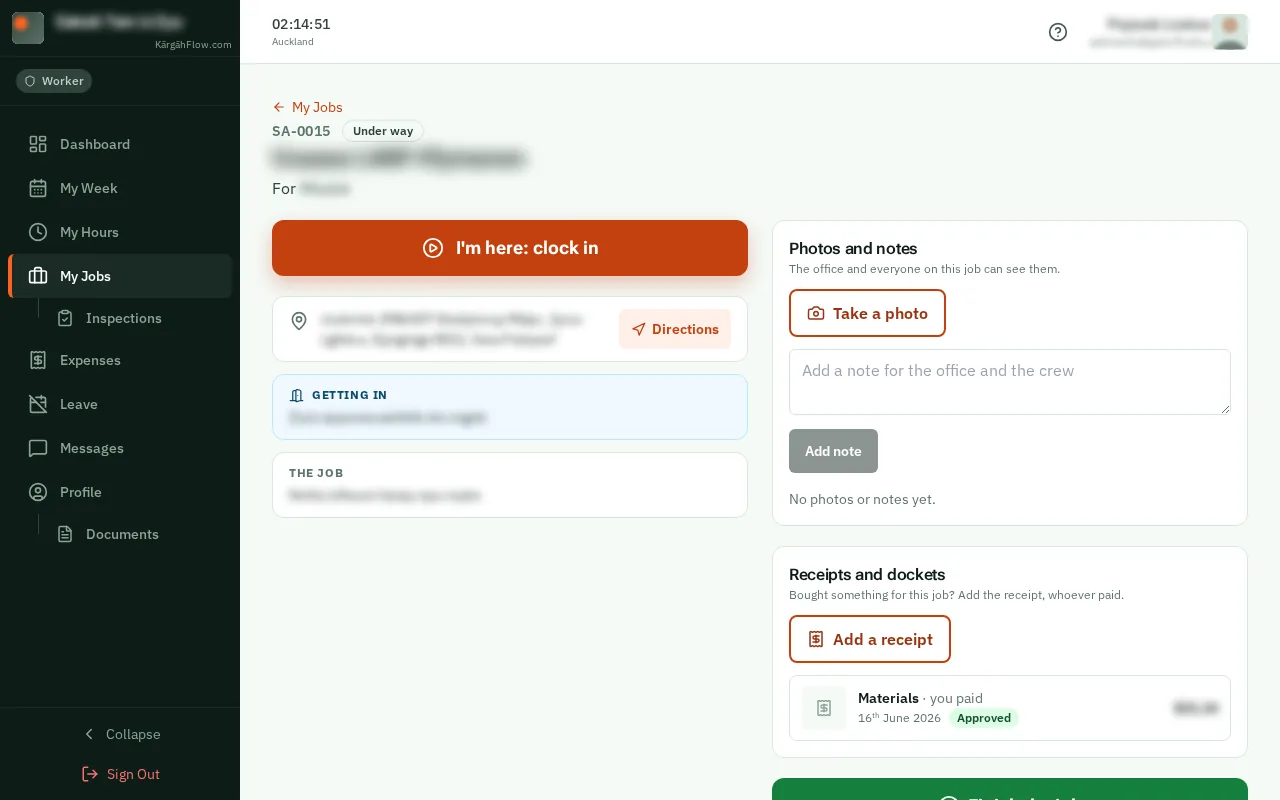
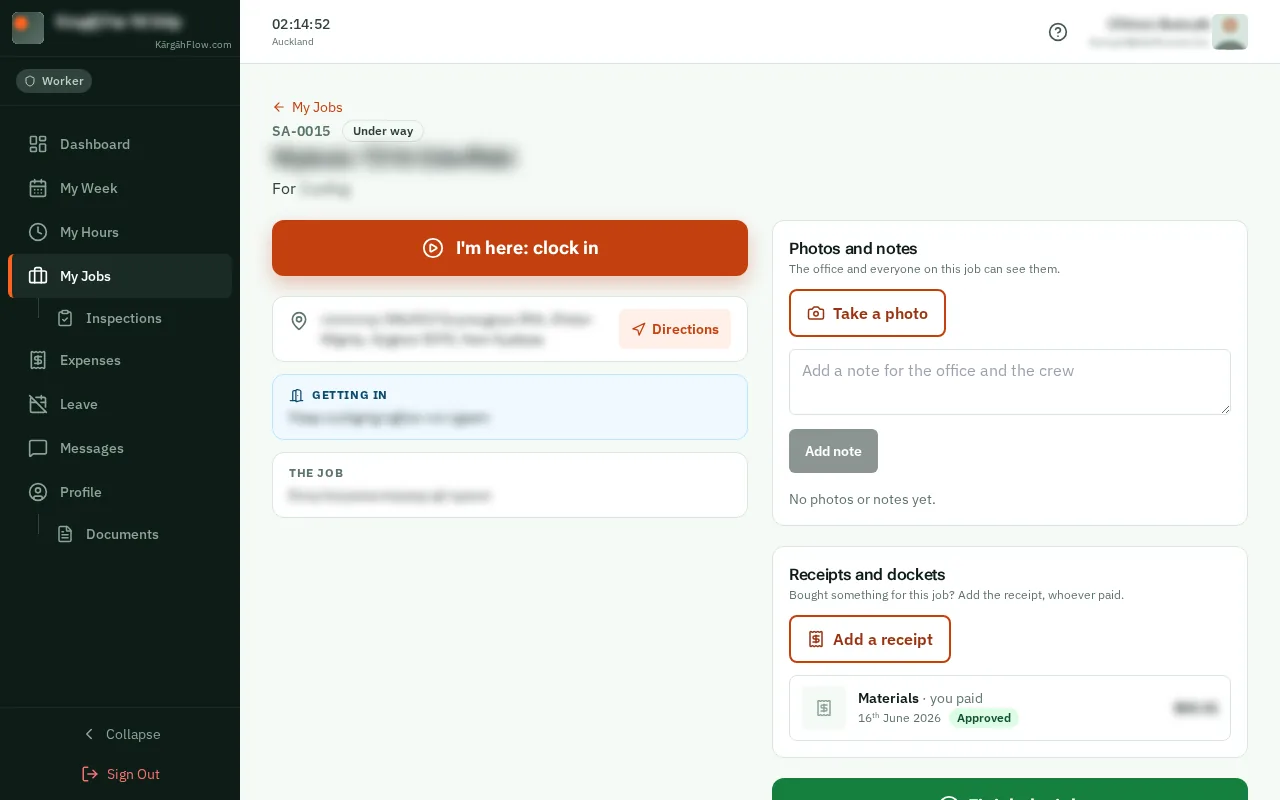
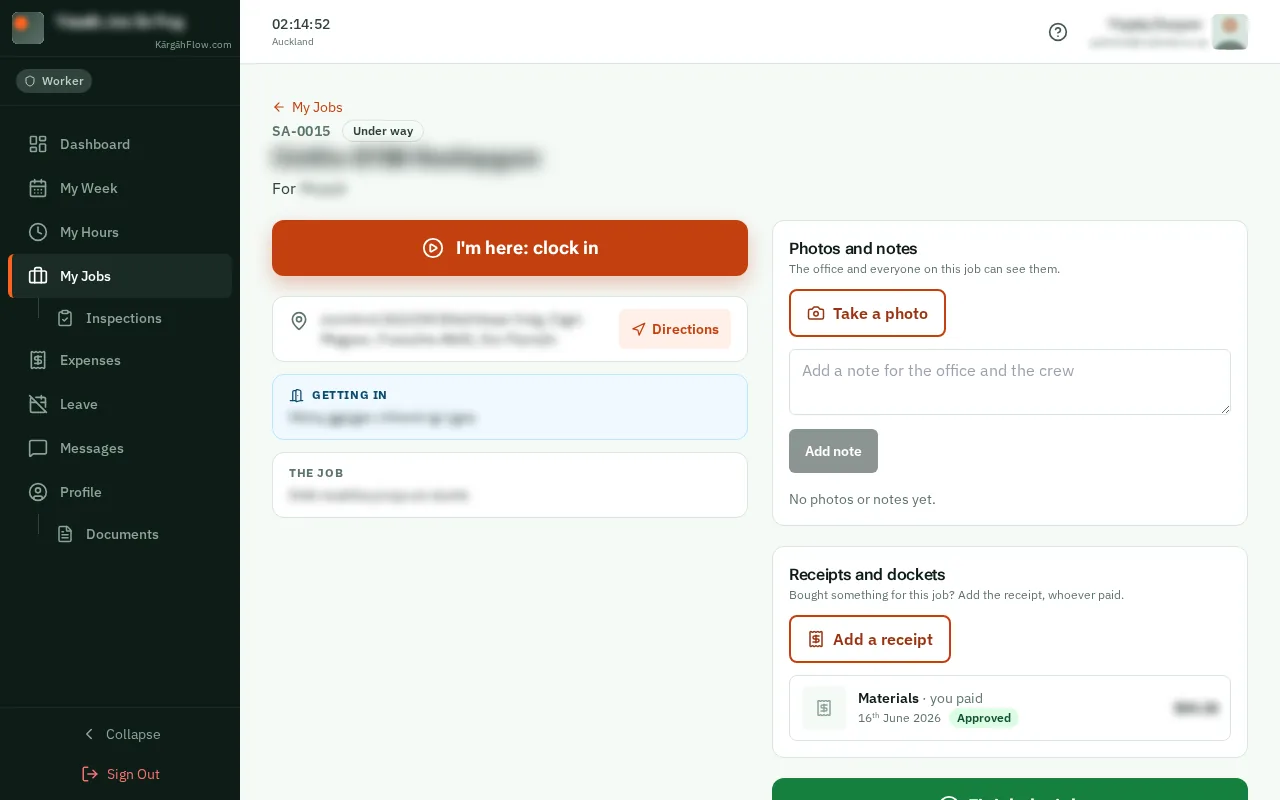
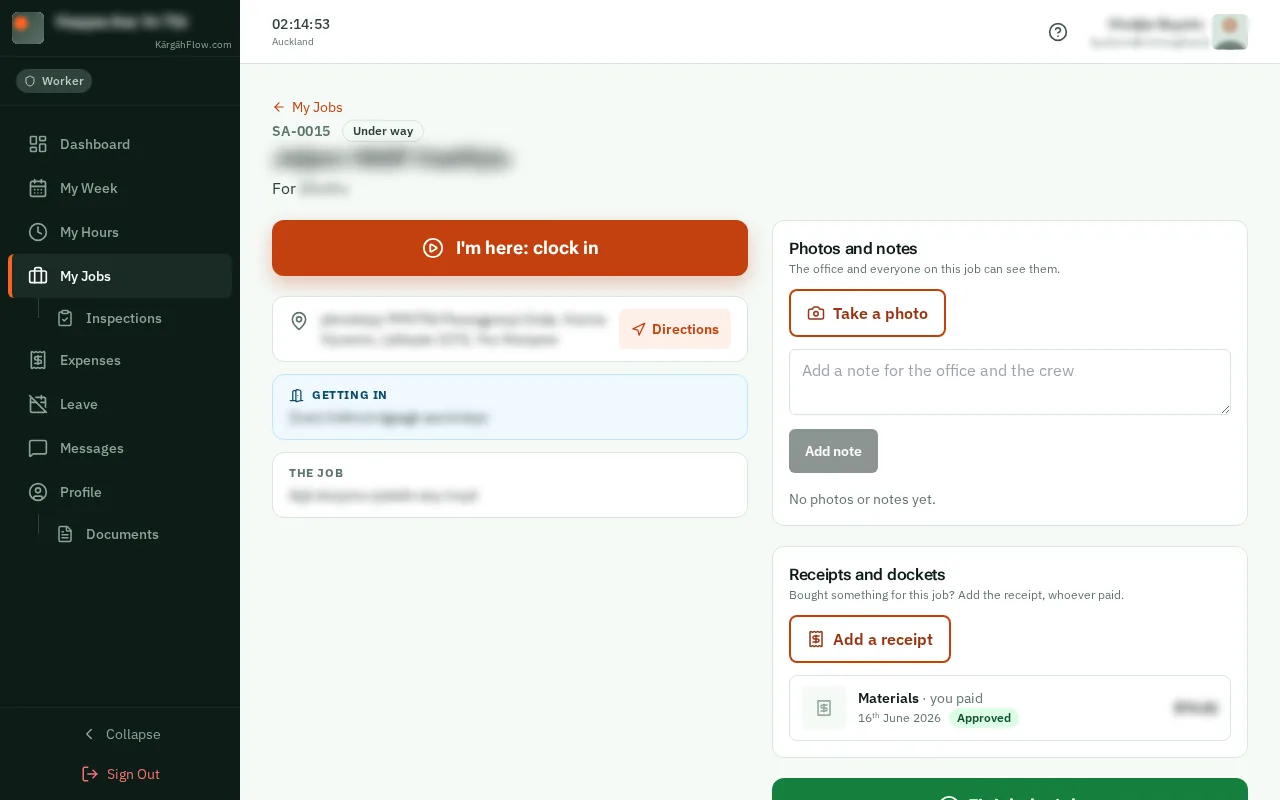
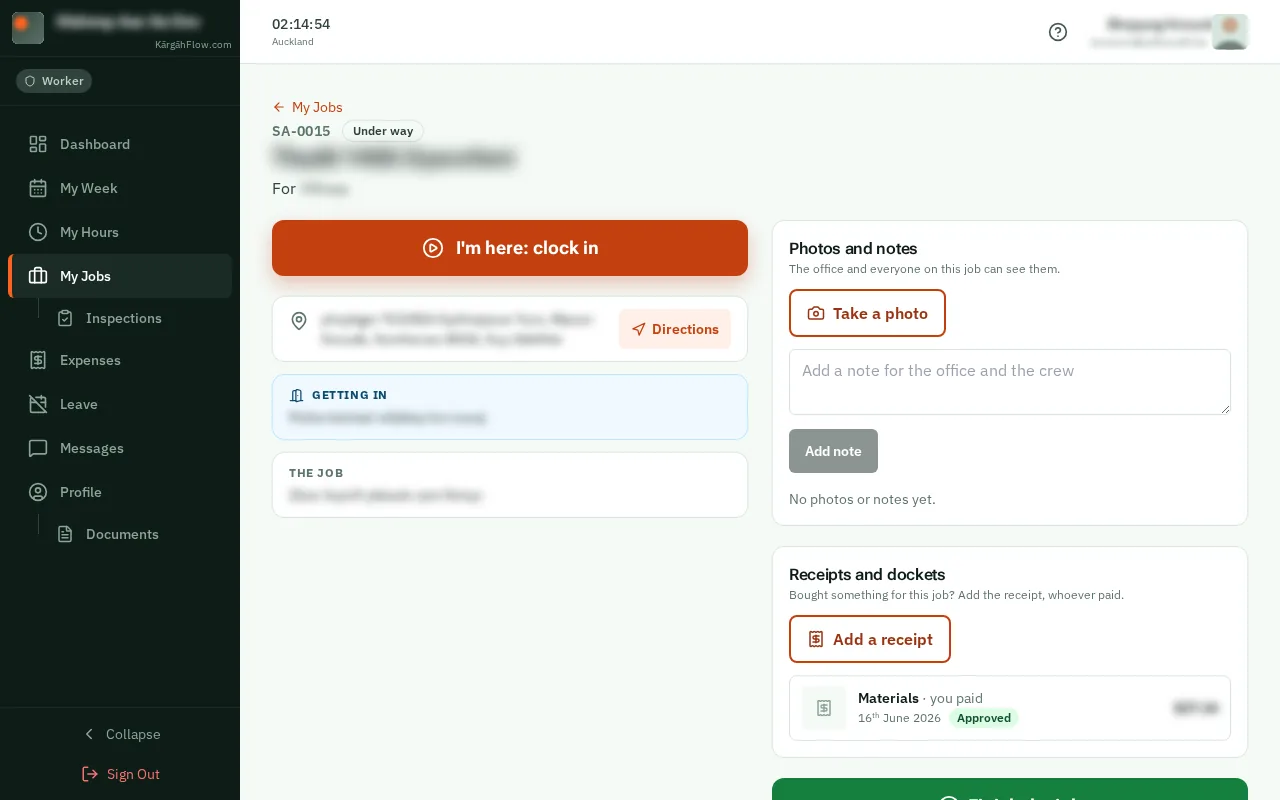
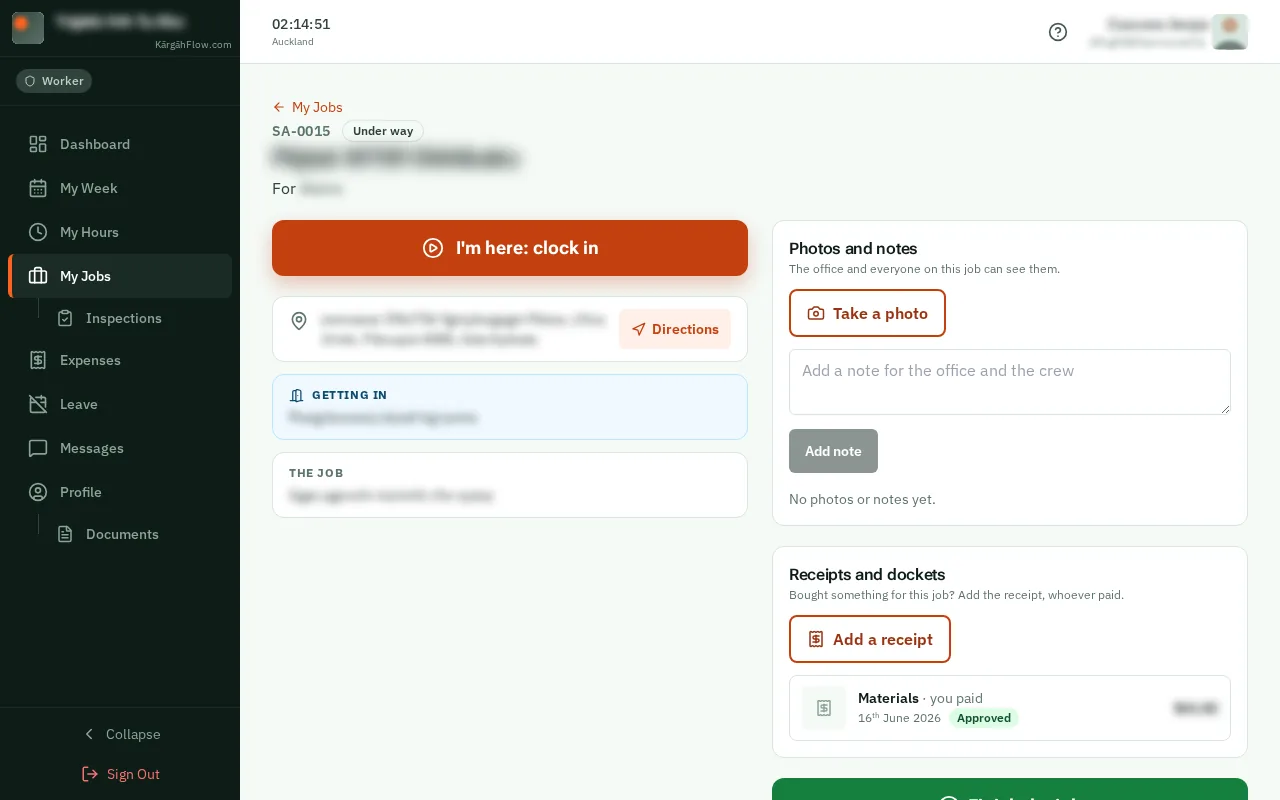
Your job card: the screen on a computer

What this is

Your job card is everything about one job, on your phone: where it is and the way there, how to get in, what to watch out for, who to ask on site, and any forms to fill in.

Photos and notes you add go straight to the office, and everyone on the job can see them.

Step 1 of 6
  1. Step 1: Open the job card

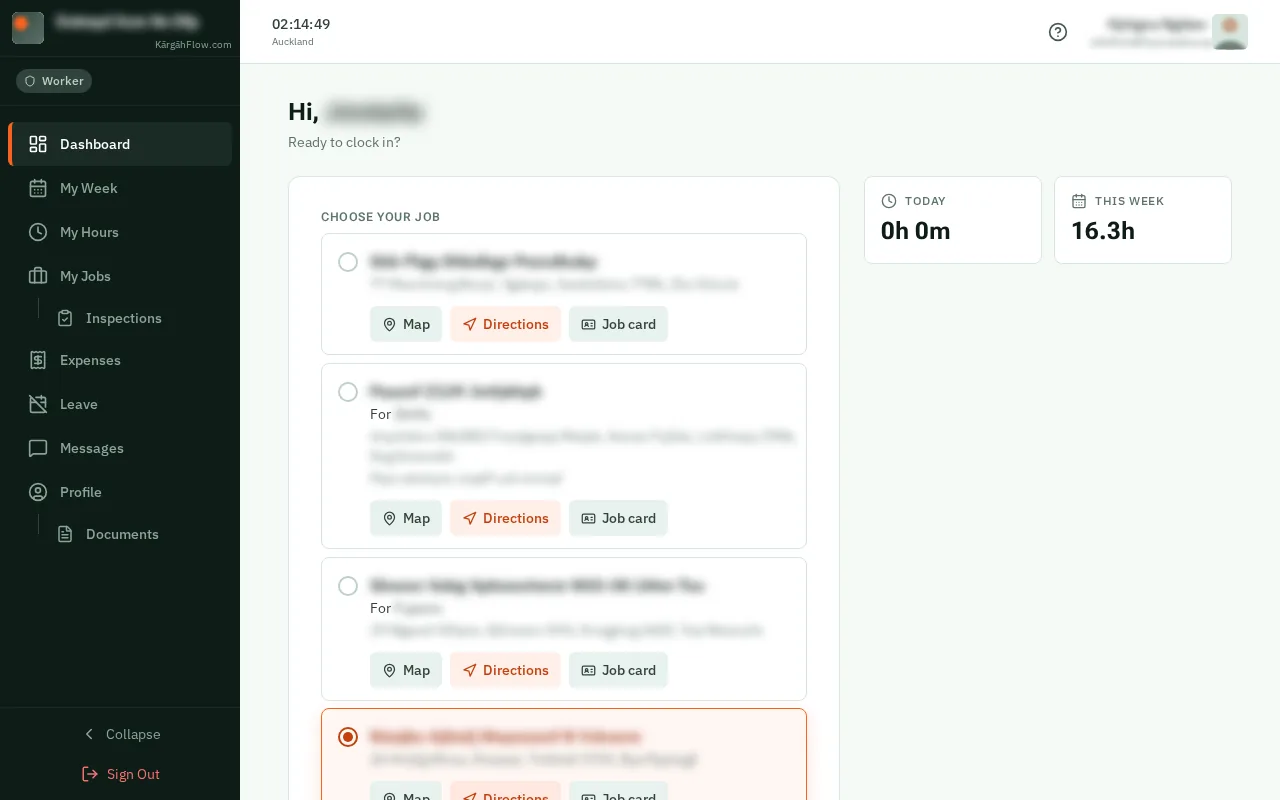
    On your Home screen, tapclick Job card under the job. All your jobs are also under More, My Jobs.On your Dashboard, tapclick Job card under the job. All your jobs are also under My Jobs in the menu.

    Look forthe Job card button
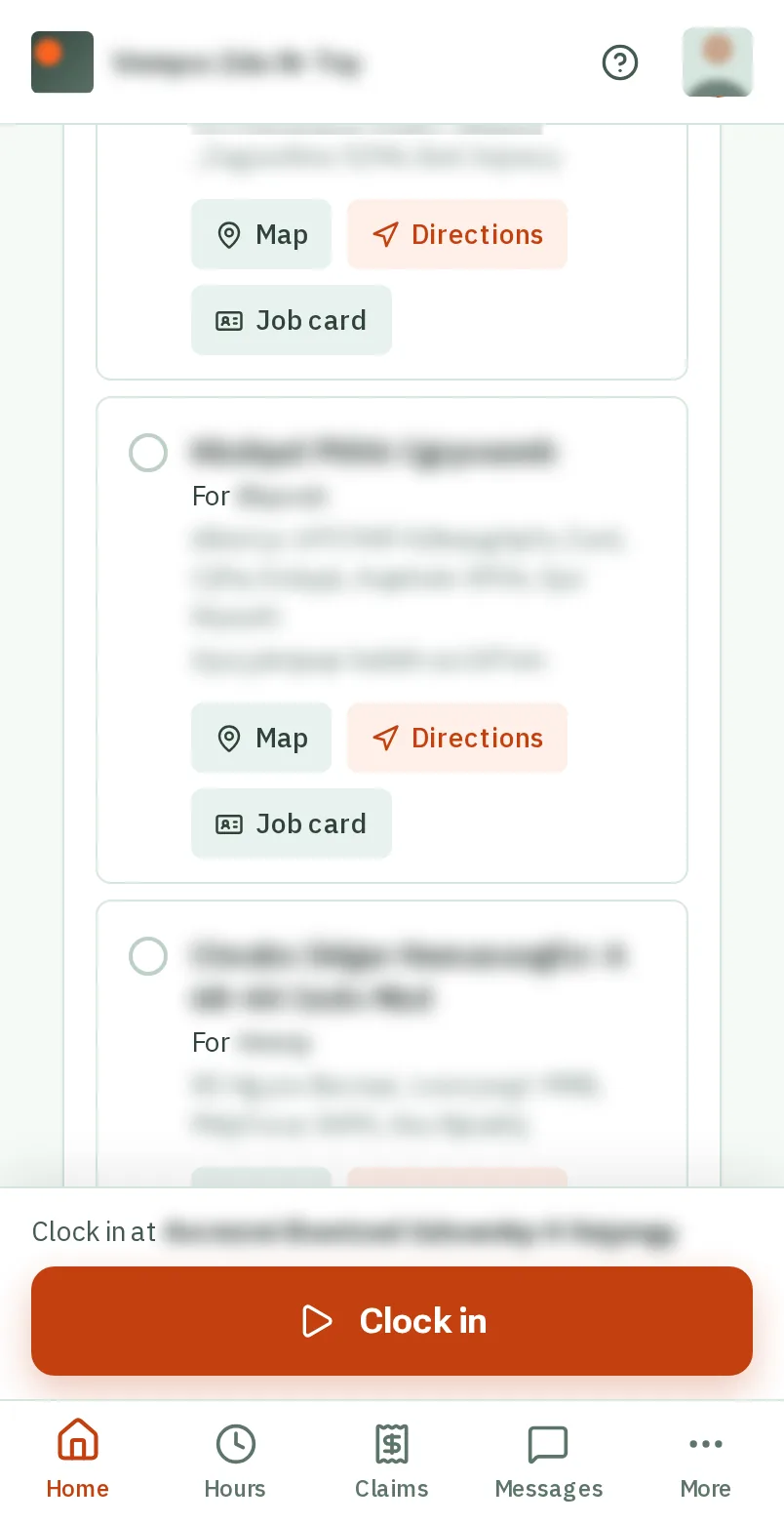
    Open the job card
    Open the job card
  2. Step 2: Find your way there

    TapClick Directions, and a map shows you the way there.

    Look forthe Directions button
    Find your way there
    Find your way there
  3. Step 3: Read how to get in

    Getting in says how to get in: a gate code, who has the key, where to park. Watch out for says what to be careful of on that site.

    Look forthe Getting in box

    Good to know: Who to ask on site is under them. TapClick Call to ring them.

    Read how to get in
    Read how to get in
  4. Step 4: TapClick I’m here

    When you get there, tap I’m here: clock in. Your Home screen opens and clocks you in at this job.When you get there, click I’m here: clock in. Your Dashboard opens and clocks you in at this job.

    Look forthe I’m here: clock in button

    Good to know: A job the office has marked finished says so here instead. Back for more work? Ask the office to open it again.

    Tap I’m here
    Click I’m here
  5. Step 5: Take a photo

    TapClick Take a photo to show the office something: the job before you start, a problem you found, the finished work.

    Look forthe Take a photo button
    Take a photo
    Take a photo
  6. Step 6: Add a note

    Type in the box under it and tapclick Add note. The office and everyone on the job can read it.

    Look forthe Add note button
    Add a note
    Add a note

That's it

Everything about the job is on your phone, and the office sees what you add straight away.