KārgāhFlow
About 3 minutes 9 stepsFor crew, admins and owners

Do an inspection

Tick Pass, Fail or N/A for each check, add a photo of anything wrong, and sign.

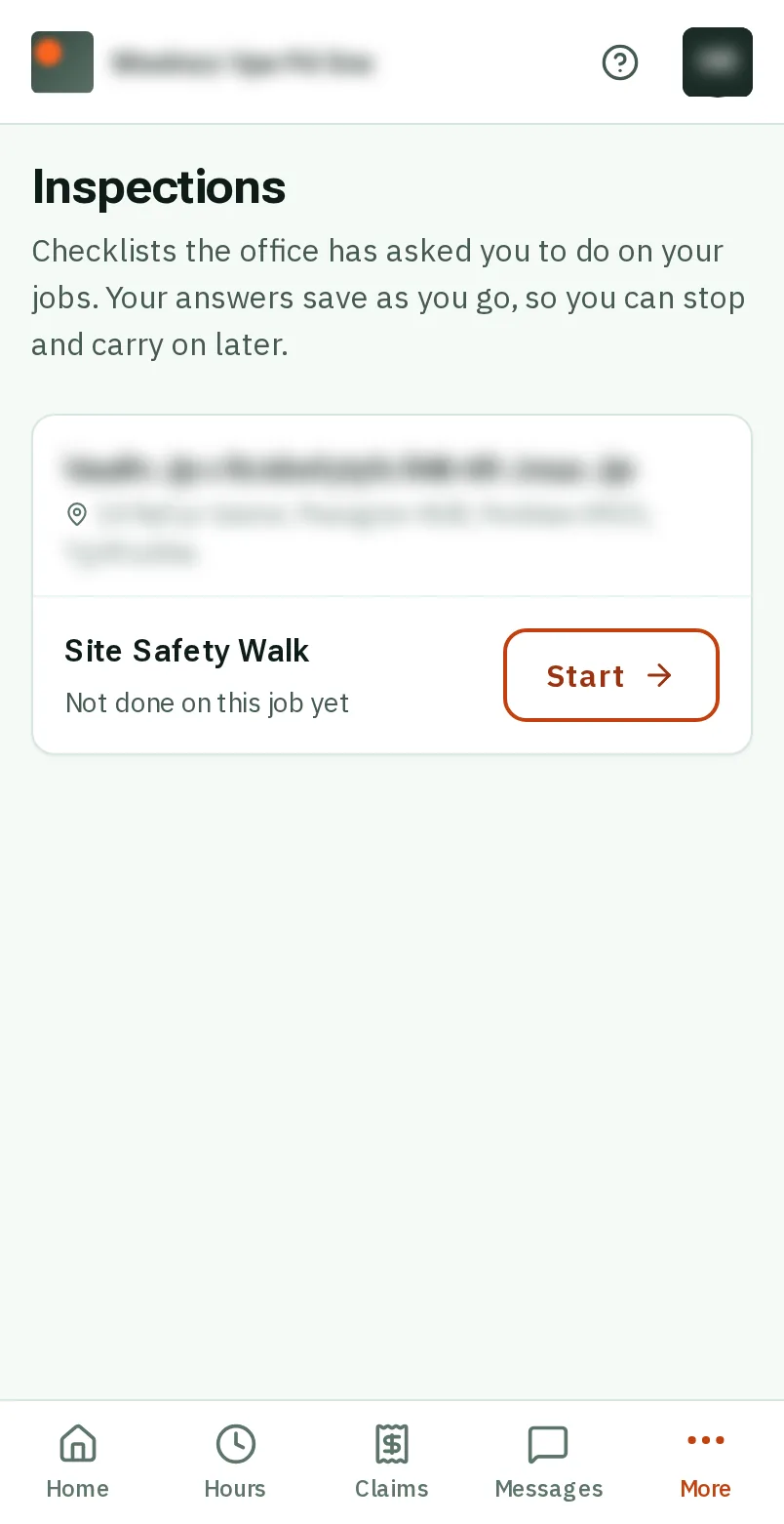
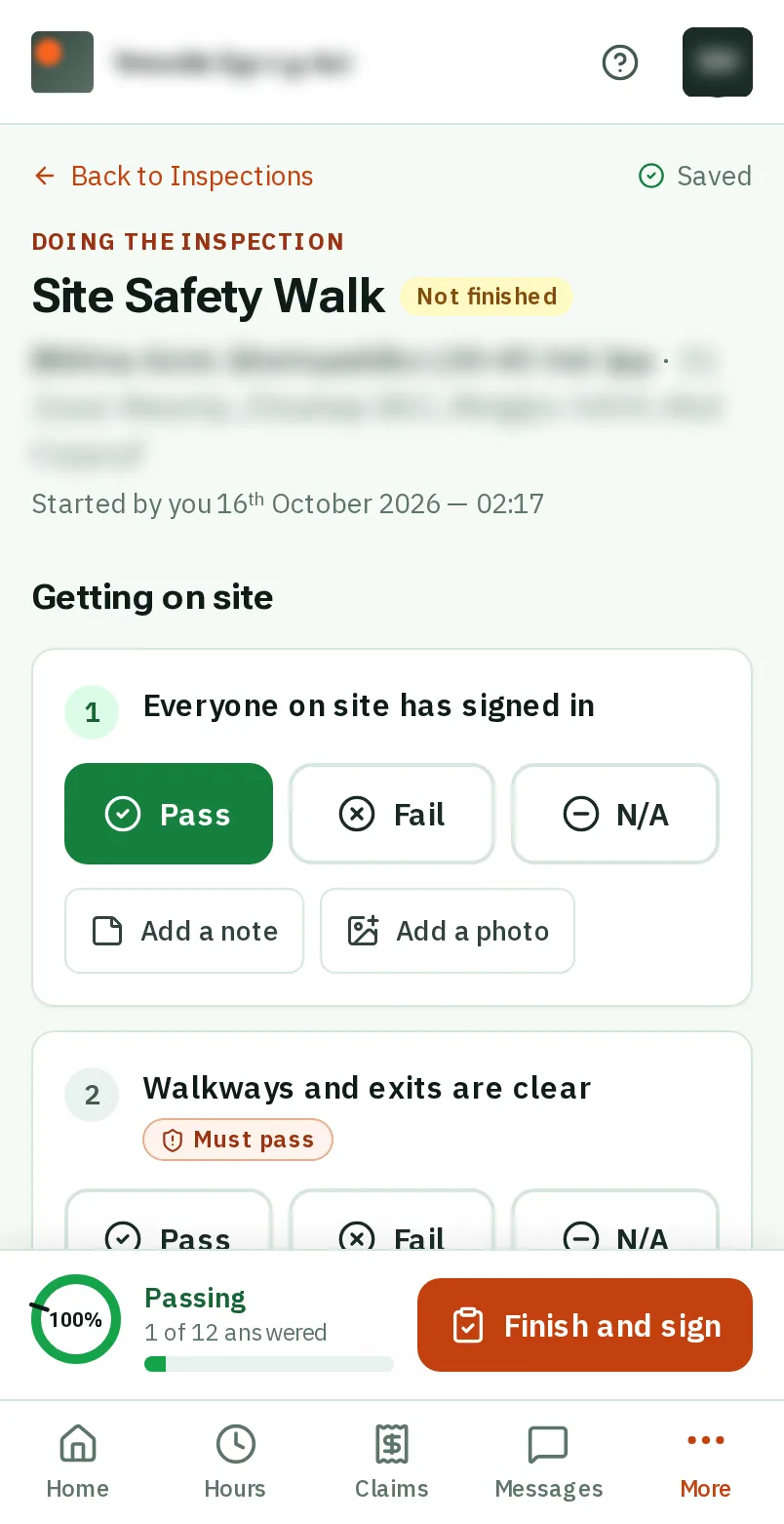
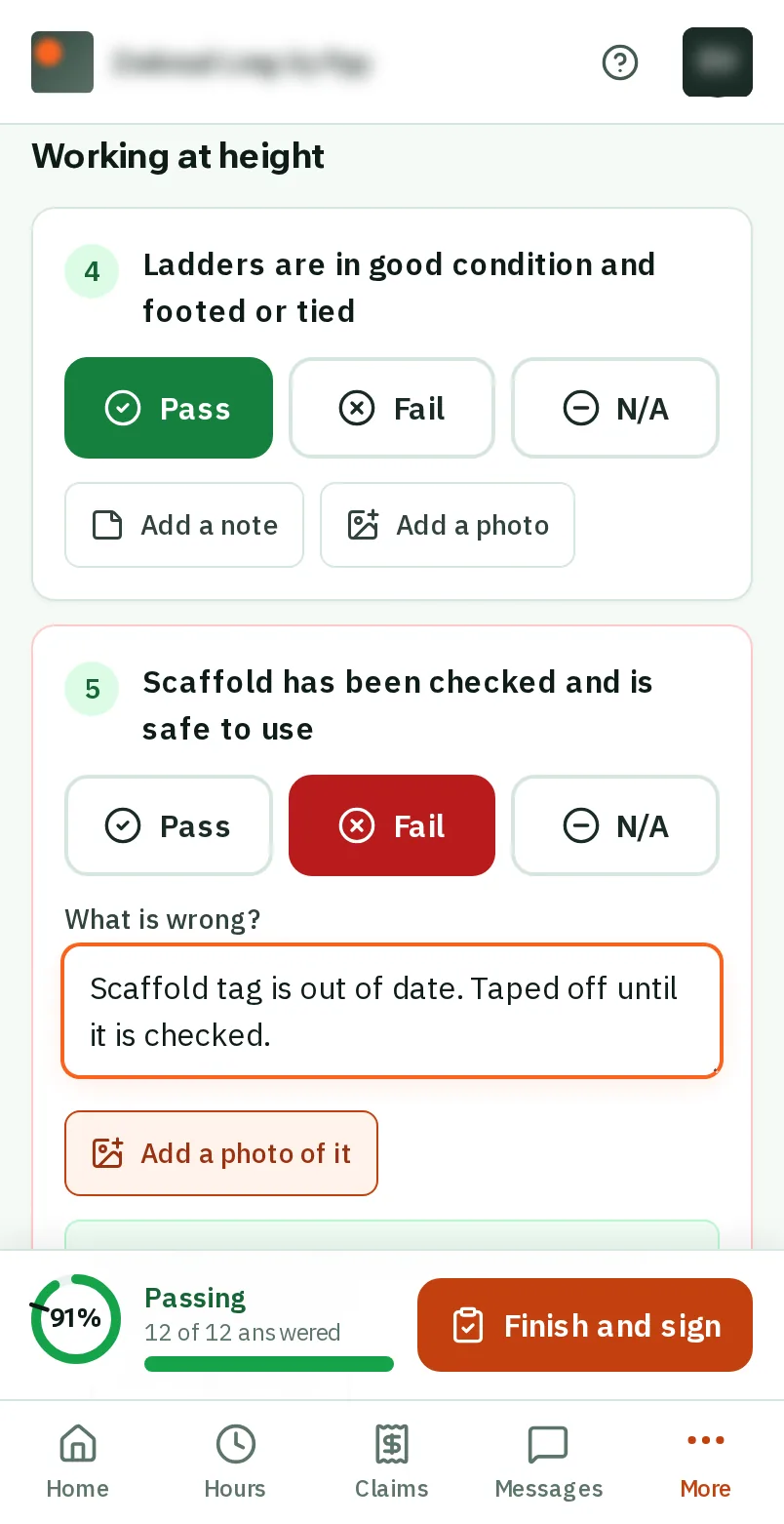
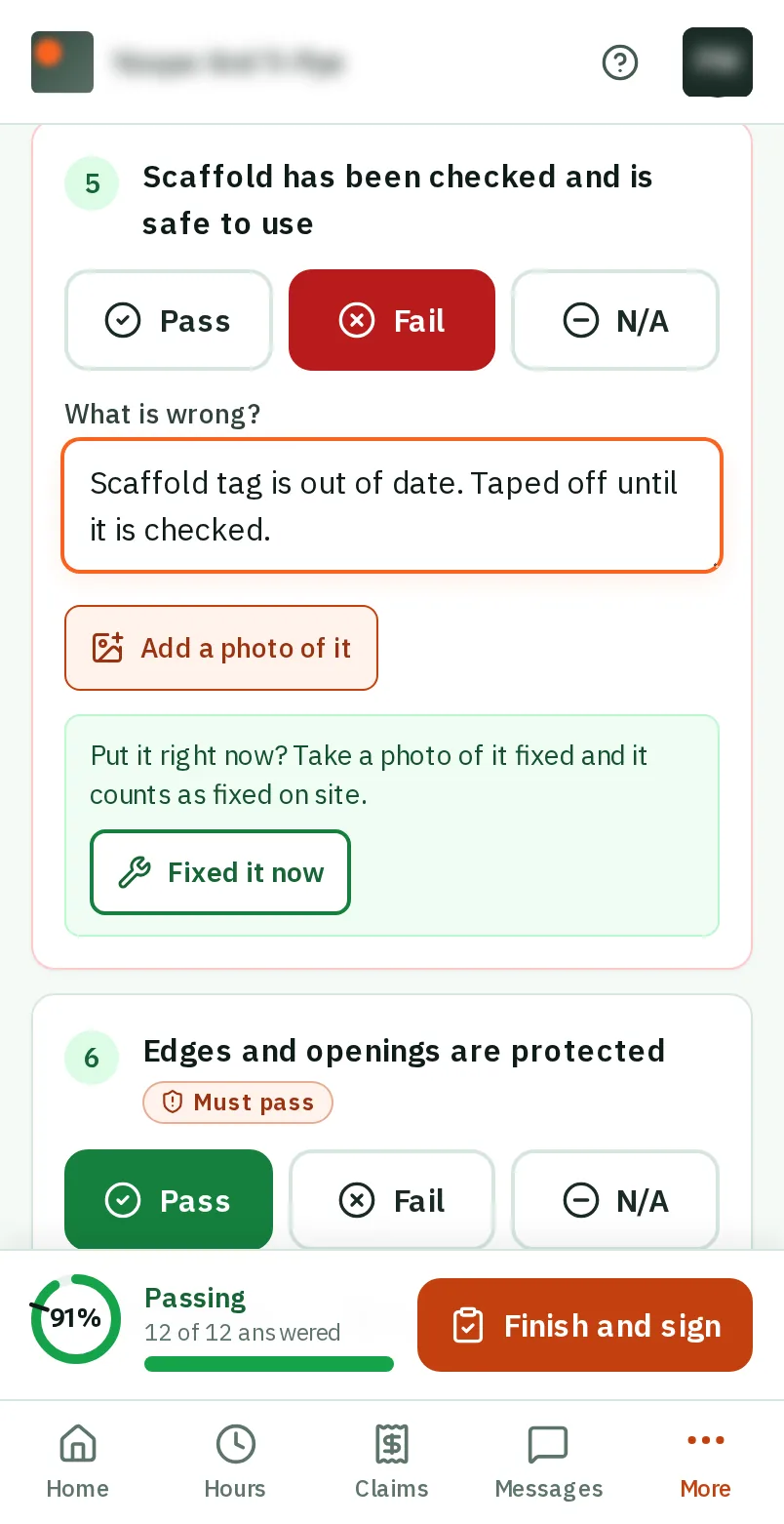
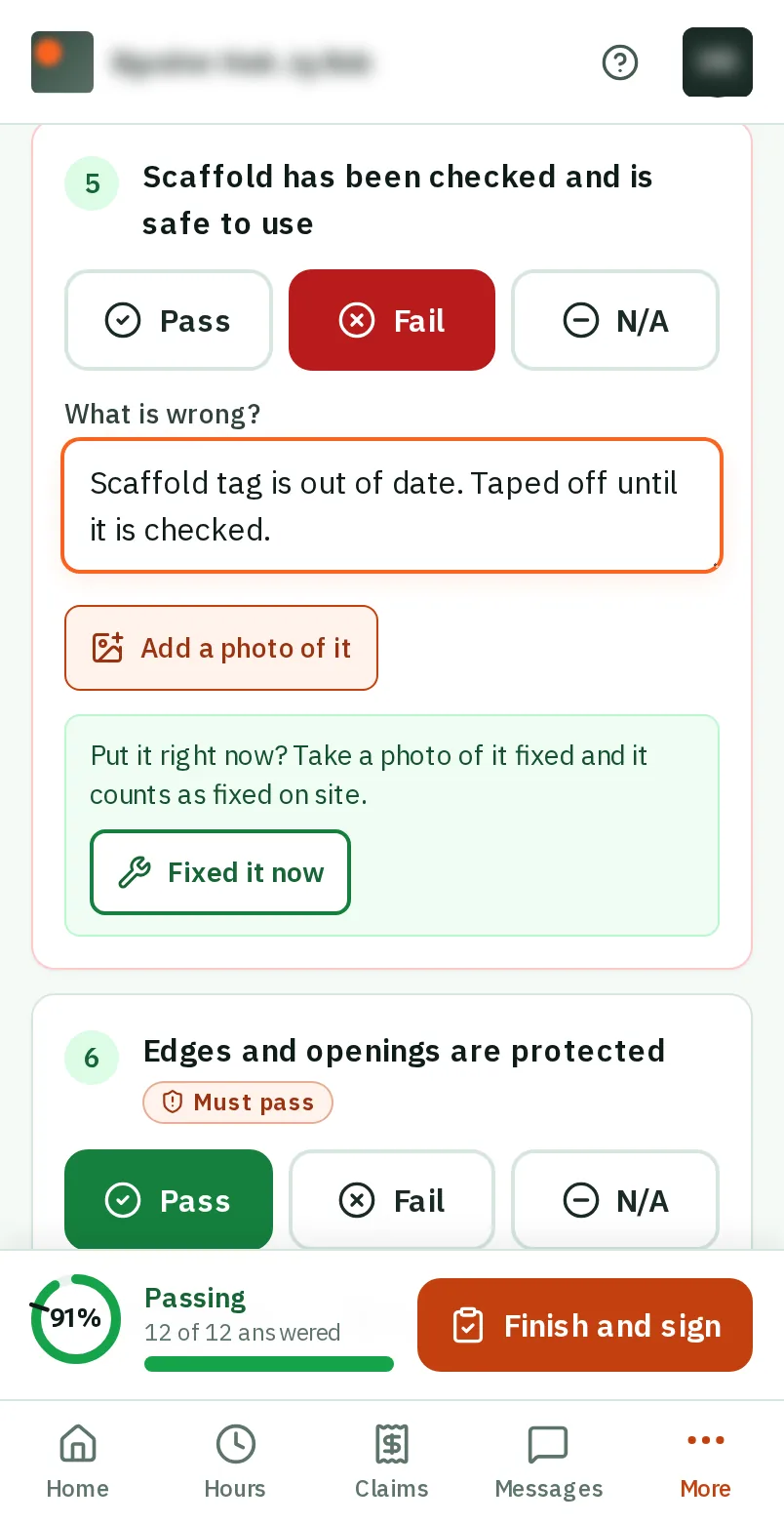
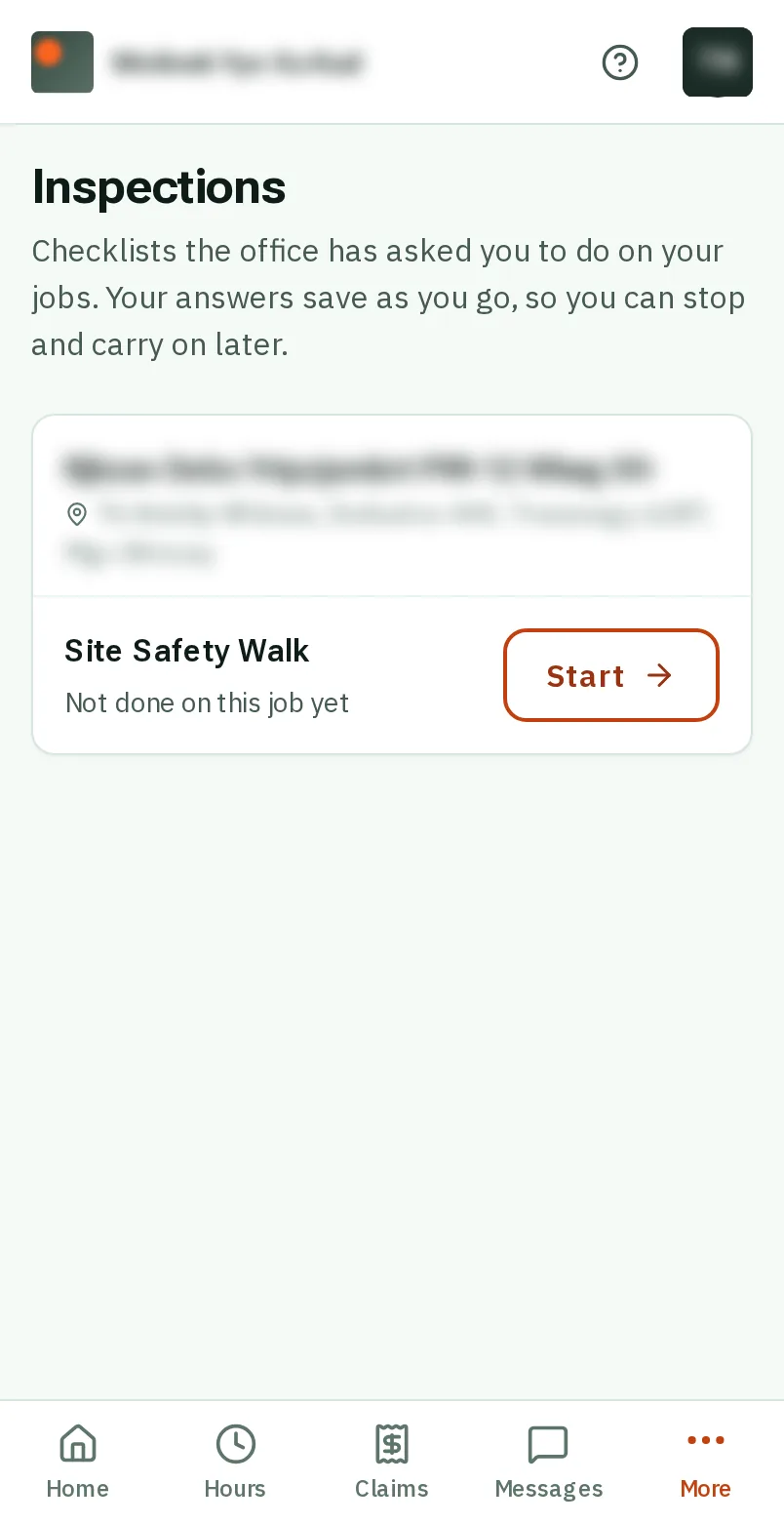
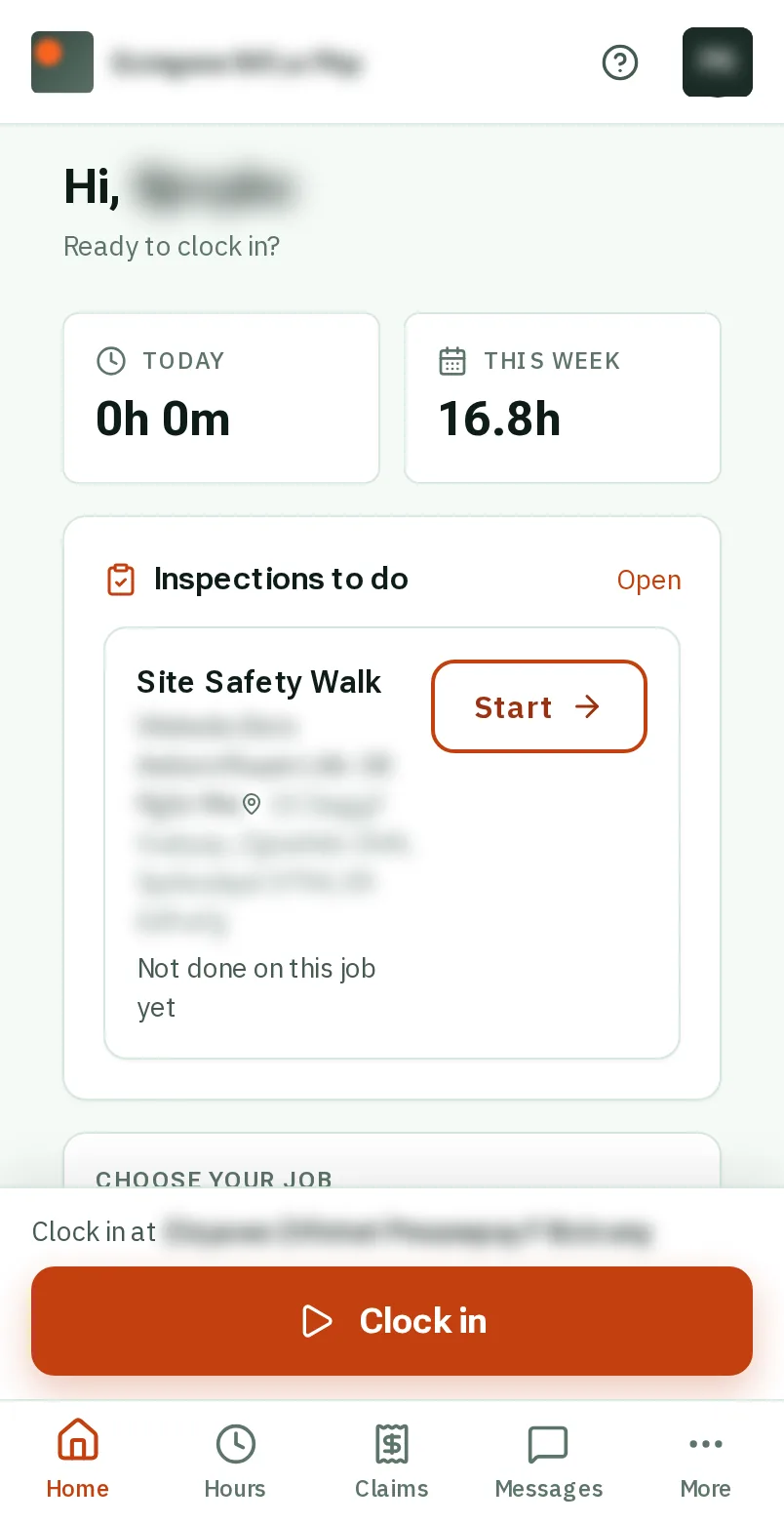
Do an inspection: the screen on a phone
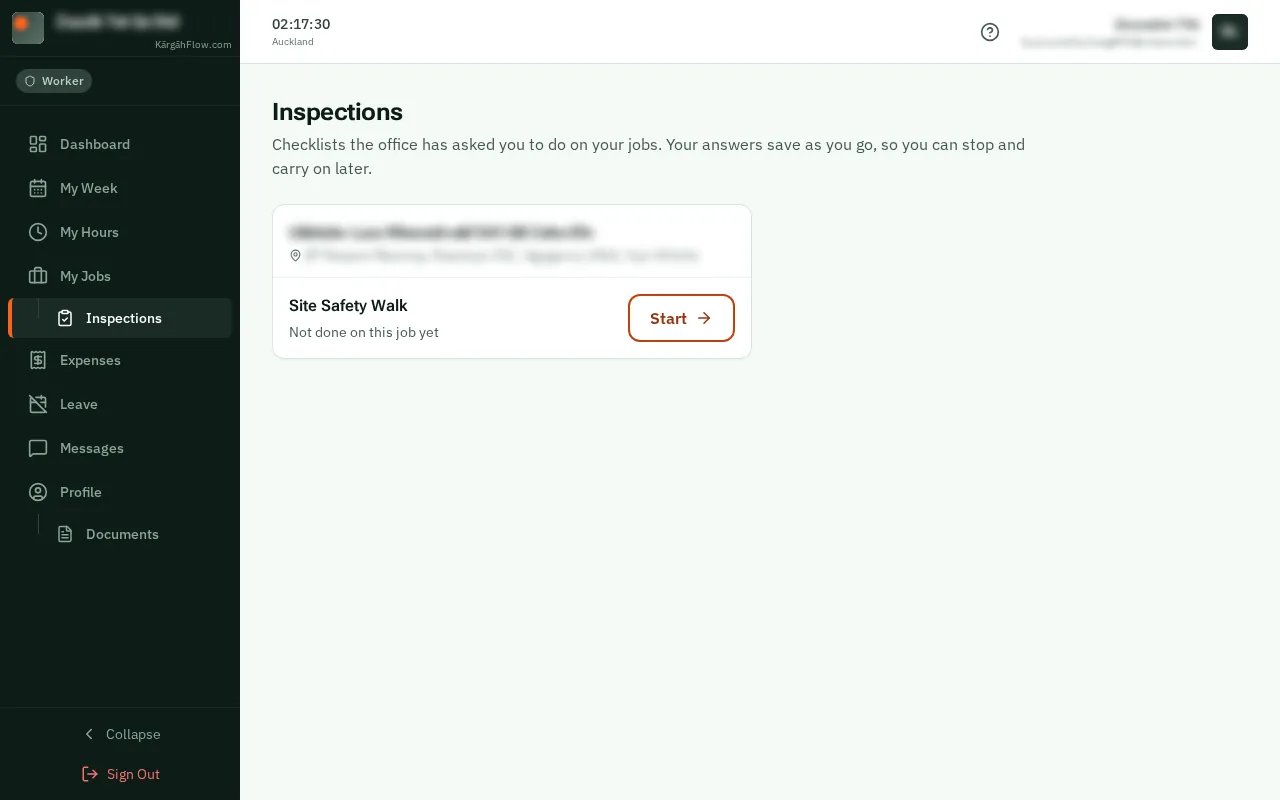
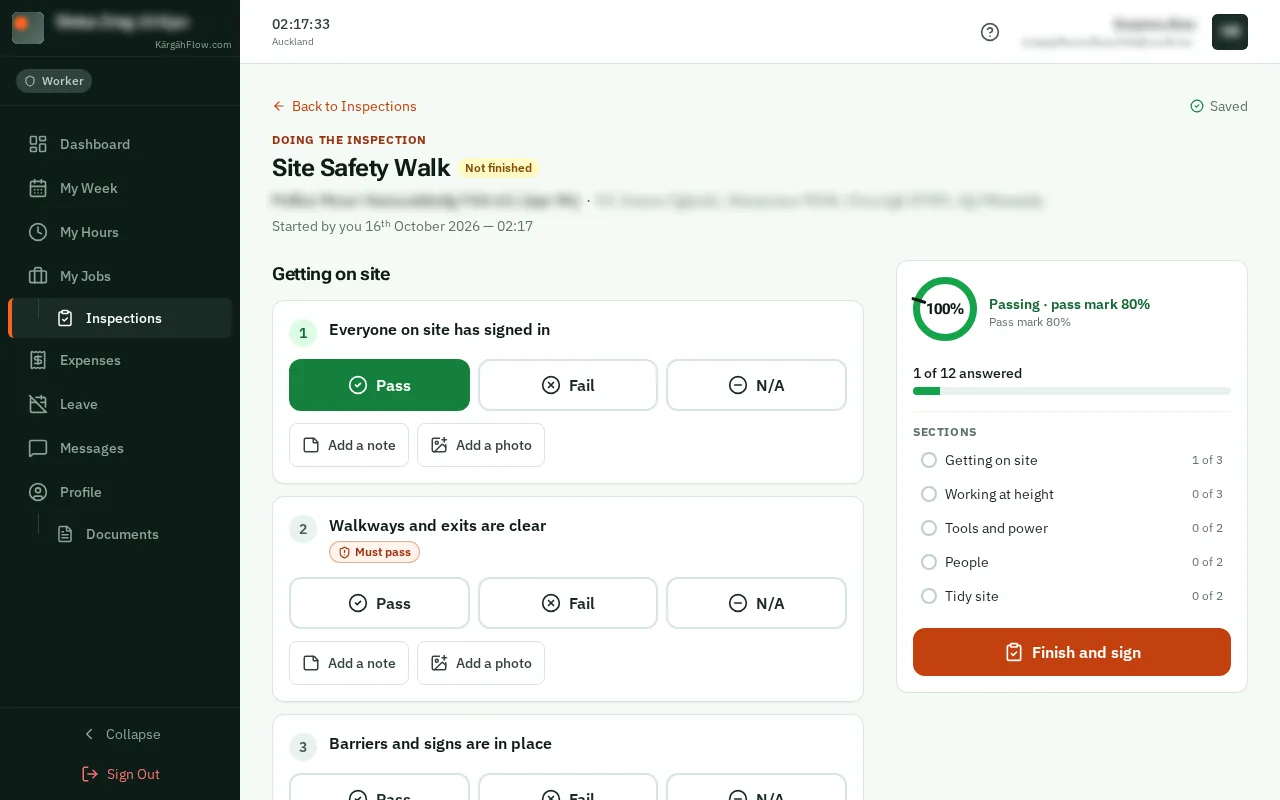
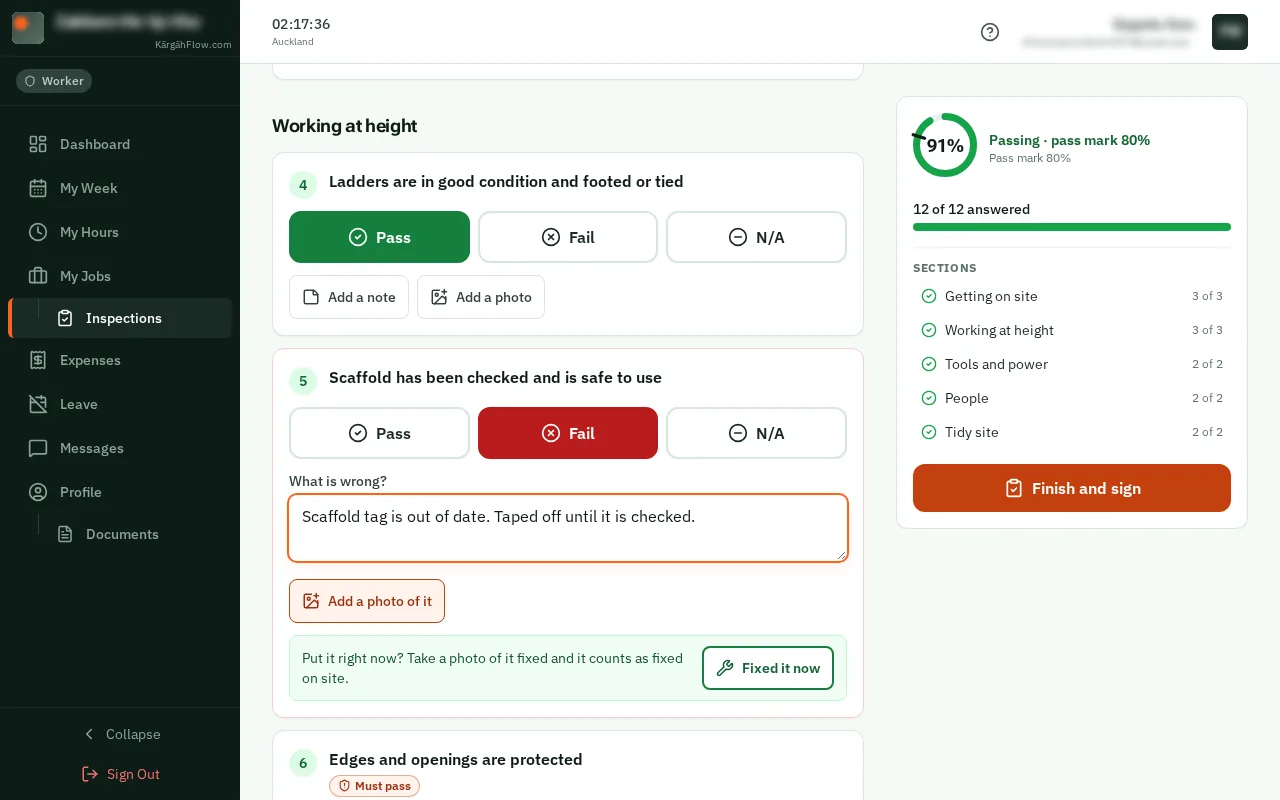
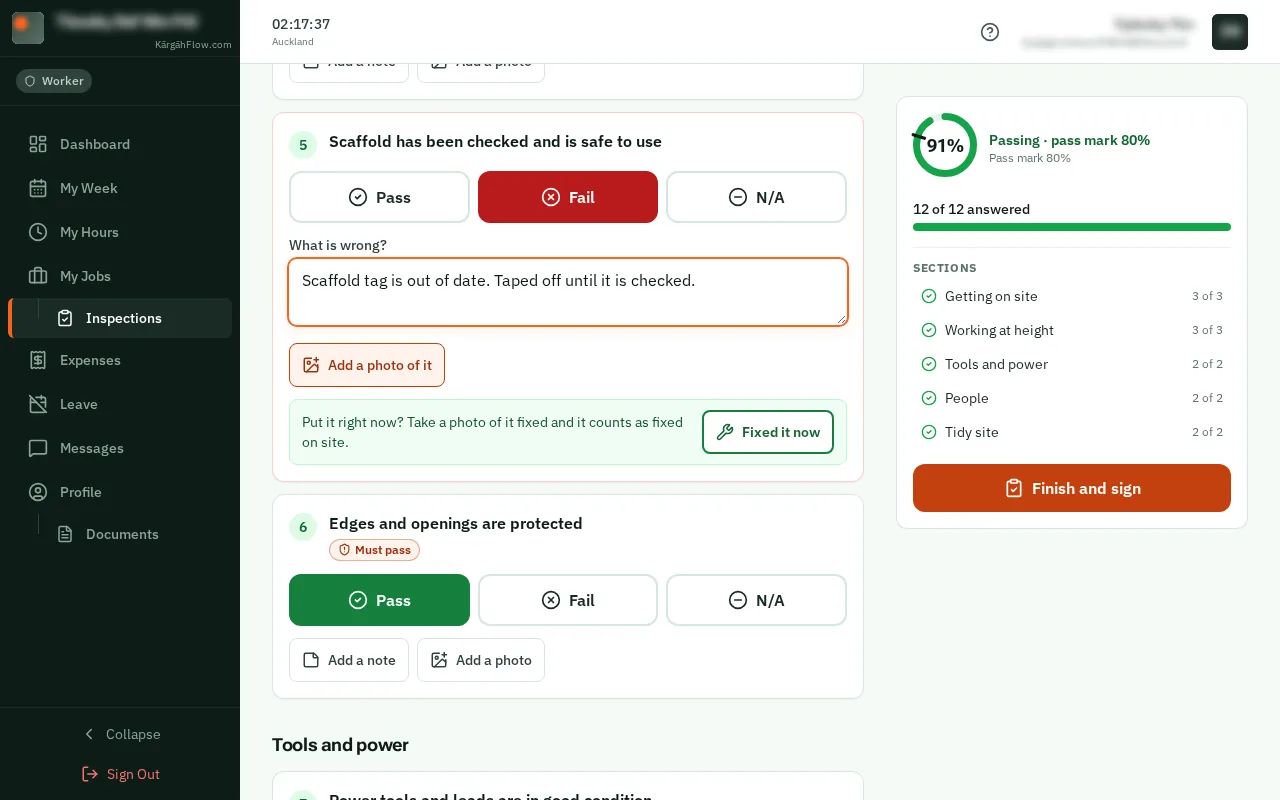
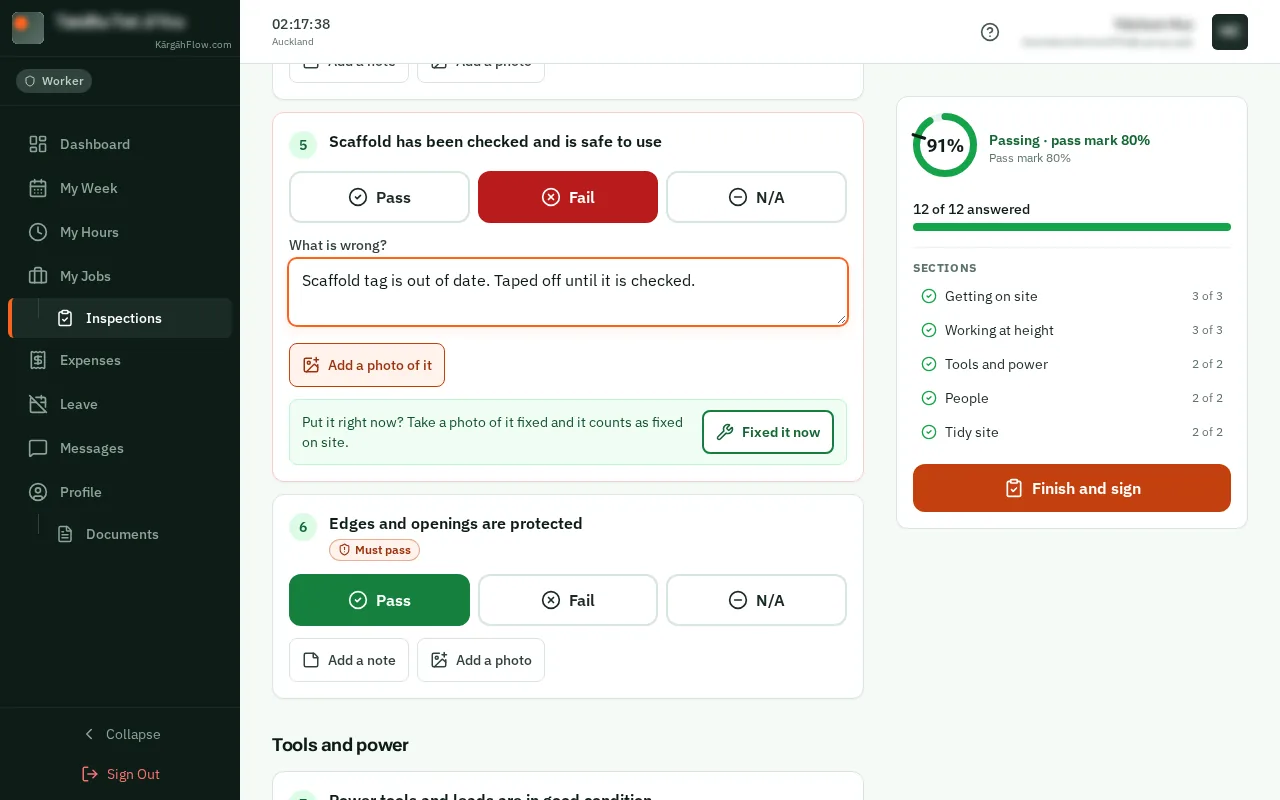
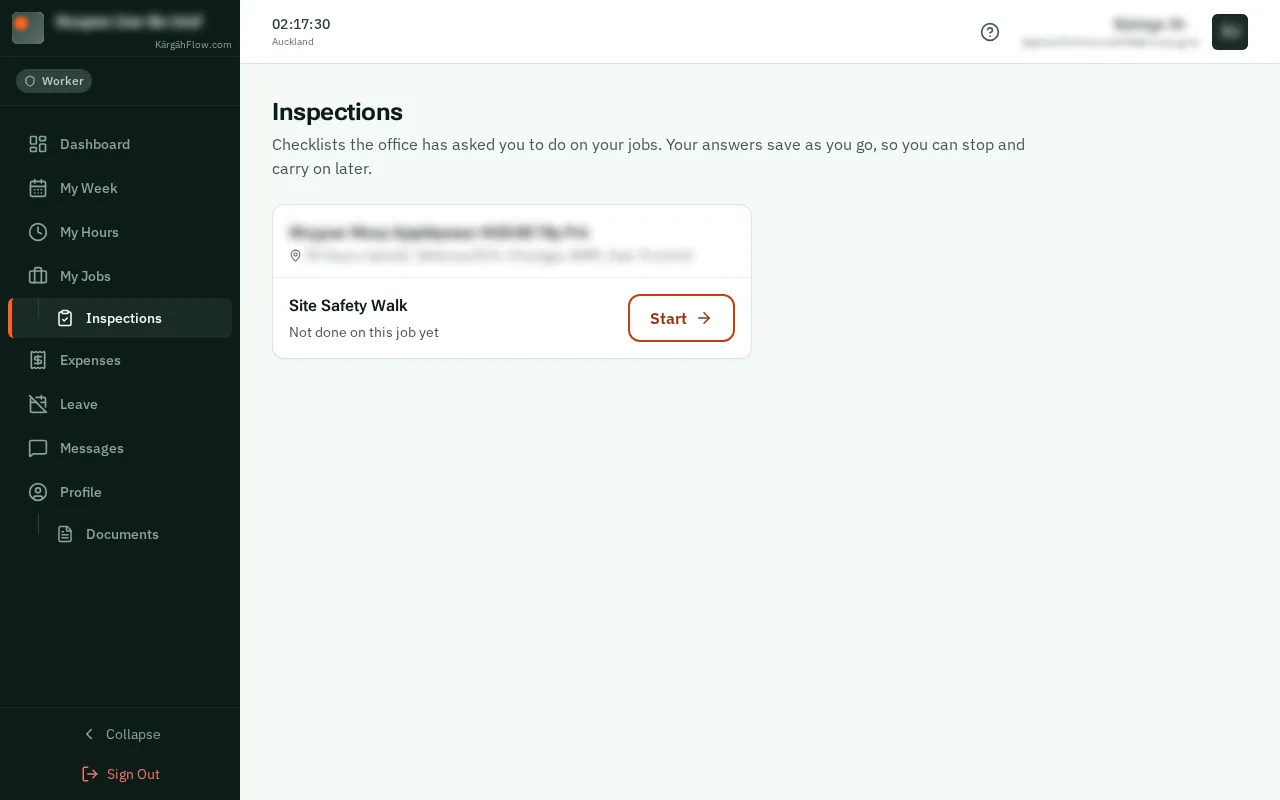
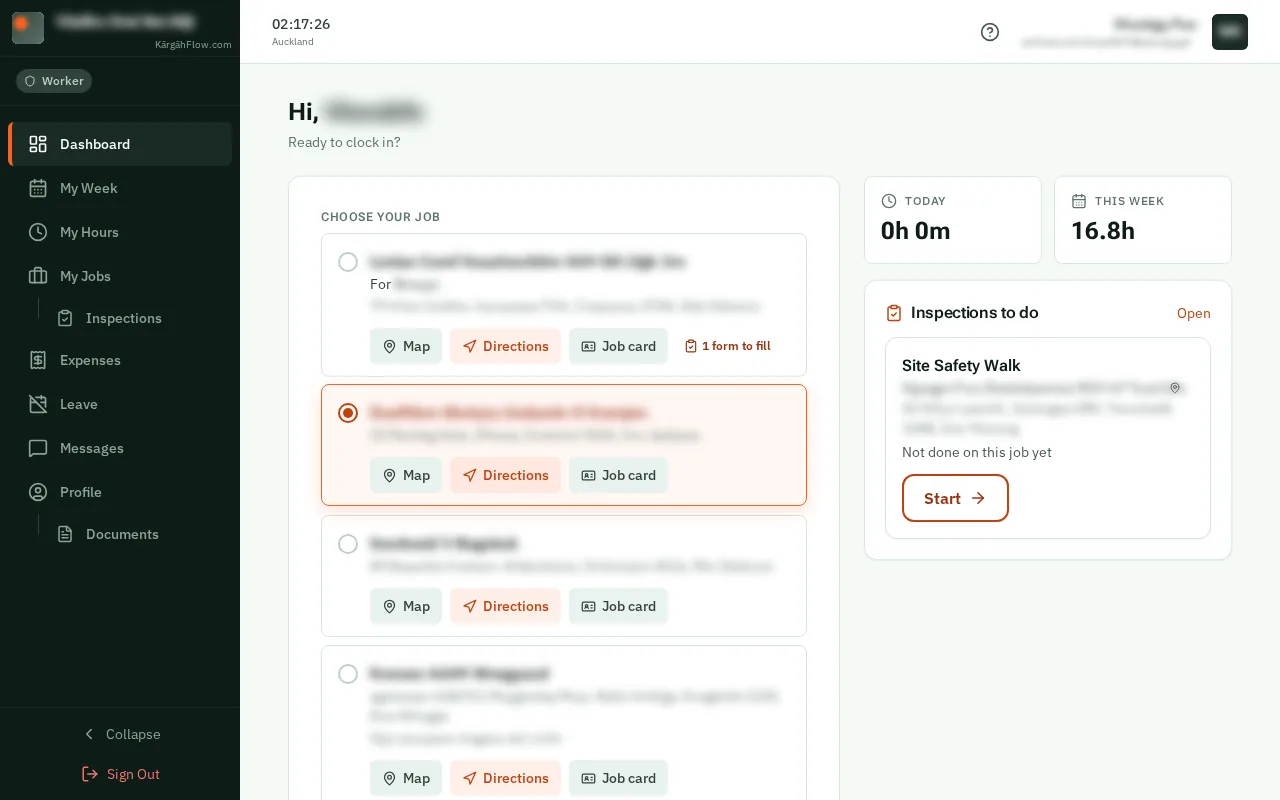
Do an inspection: the screen on a computer

What this is

The office makes the form: the blank checklist, such as a safety walk, a clean check or a service visit. An inspection is you filling in a copy of it on site.

You answer each check on your phone, add a photo of anything wrong, and sign. Your answers save as you go, even with no signal, and once you sign, the office has the finished report as a PDF.

Many forms have a score. You see it as you go, and anything you put right on the spot counts as fixed.

Step 1 of 9
  1. Step 1: Open your inspections

    TapClick More at the bottom right of the screen, then Inspections. One you have been asked to do also shows on your Home screen.TapClick Inspections in the menu on the left. One you have been asked to do also shows on your Dashboard.

    Look forthe More tab in the bar at the bottom of the screen

    Good to know: Admins and owners: tapclick the Do an inspection tab of Inspections. The owner sees every form on every job there.
    Open your inspections
    Open your inspections
  2. Step 2: TapClick Start

    Your inspections are grouped by job. TapClick Start beside the one to do. Started one before? TapClick Carry on to pick up where you left it.

    Look forthe Start button
    Tap Start
    Click Start
  3. Step 3: Answer each check

    TapClick Pass, Fail or N/A for each check, and fill in any other questions.

    Look forthe Pass button

    Good to know: Your answers save as you go. With no signal they are kept on your phone, and sent when the signal comes back.

    Answer each check
    Answer each check
  4. Step 4: Say what is wrong

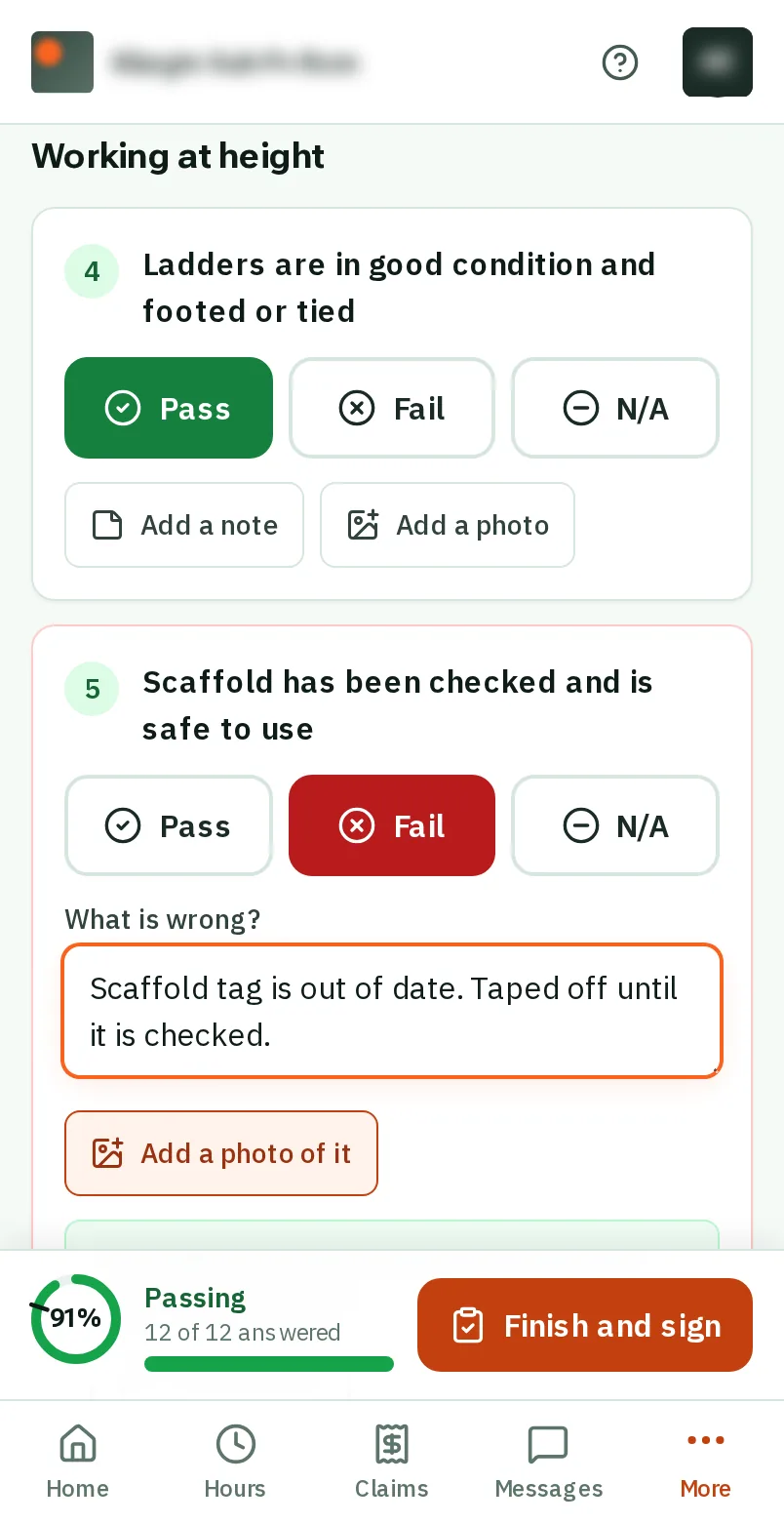
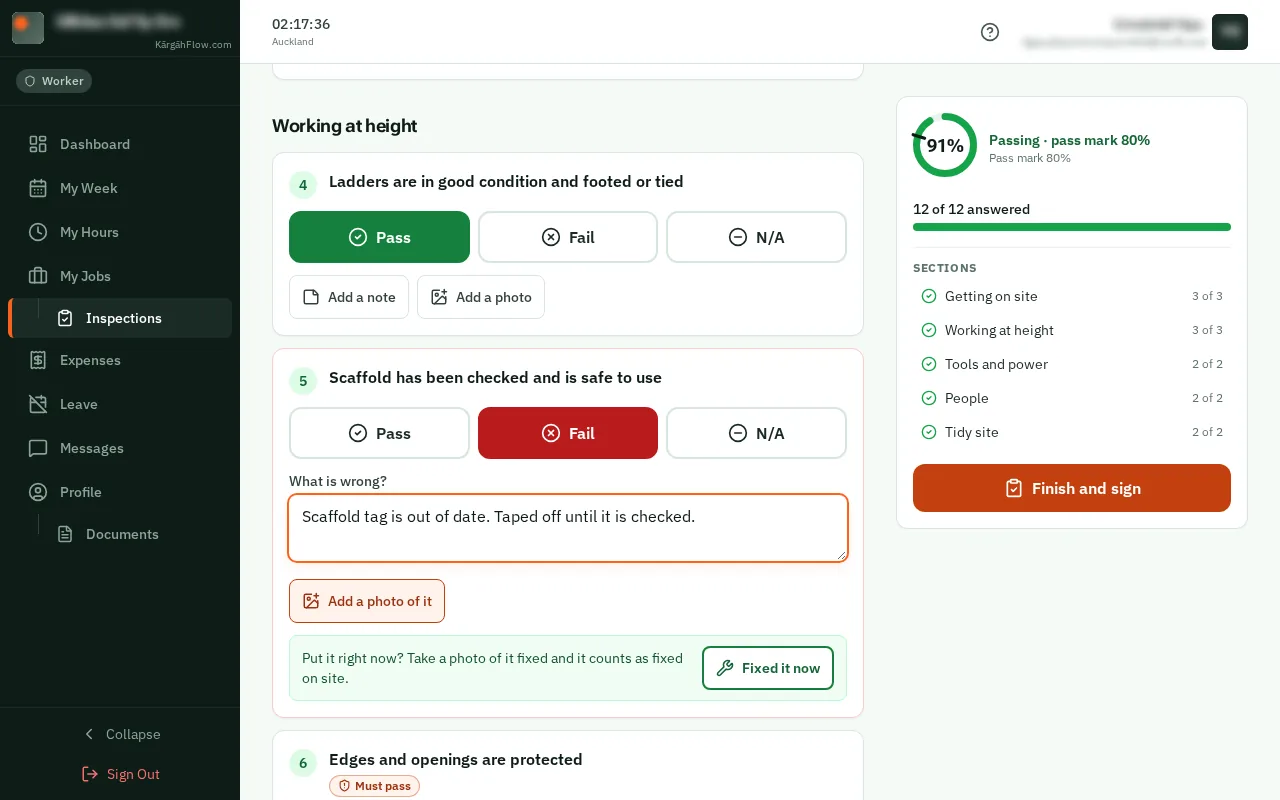
    When you tapclick Fail, a box asks What is wrong? Write what you found, then tapclick Add a photo of it and take a photo.

    Look forthe Add a photo of it button
    Say what is wrong
    Say what is wrong
  5. Step 5: Watch the score

    When the form has a score, it shows in a ring at the bottom of the screen: green when it passes, red when it is under the pass mark. TapClick the ring to see what is pulling it down, and which check would make it pass.When the form has a score, it shows in a ring in the panel on the right: green when it passes, red when it is under the pass mark. TapClick the ring to see what is pulling it down, and which check would make it pass.

    Look forthe Fix 1 to pass link

    Good to know: A check marked Must pass fails the whole inspection if it fails, whatever the score.

    Watch the score
    Watch the score
  6. Step 6: Fixed it now

    Put something right while you are there? Under the check, tapclick Fixed it now and take a photo of it fixed. It counts as fixed on site, and the report shows what you found and how you left it.

    Look forthe Fixed it now button
    Fixed it now
    Fixed it now
  7. Step 7: TapClick Finish and sign

    TapClick Finish and sign at the bottom of the screen. A question that still needs an answer is marked in red, and the screen takes you to it.TapClick Finish and sign in the panel on the right. A question that still needs an answer is marked in red, and the screen takes you to it. The panel also lists each section: tapclick one to go to it.

    Look forthe Finish and sign button
    Tap Finish and sign
    Click Finish and sign
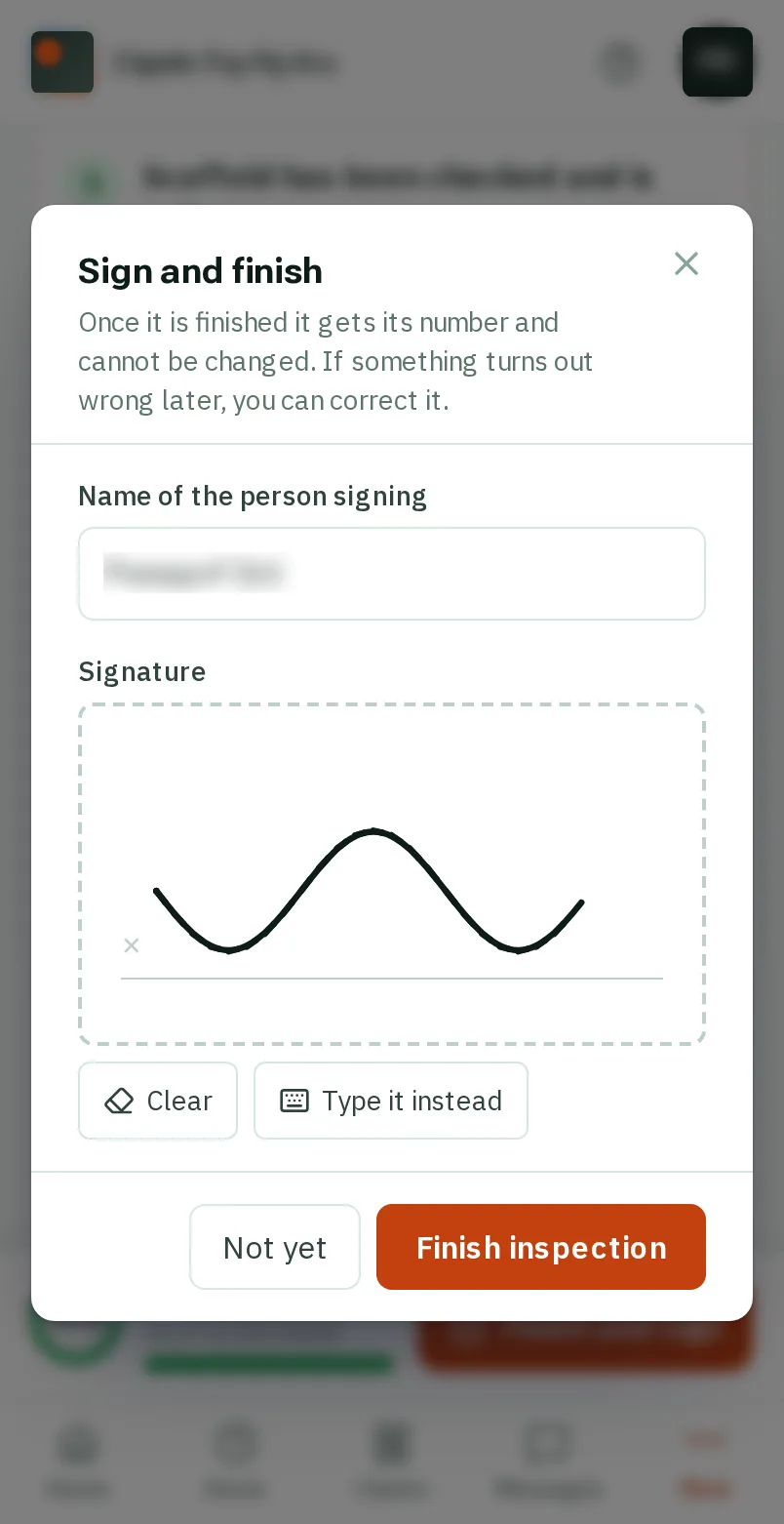
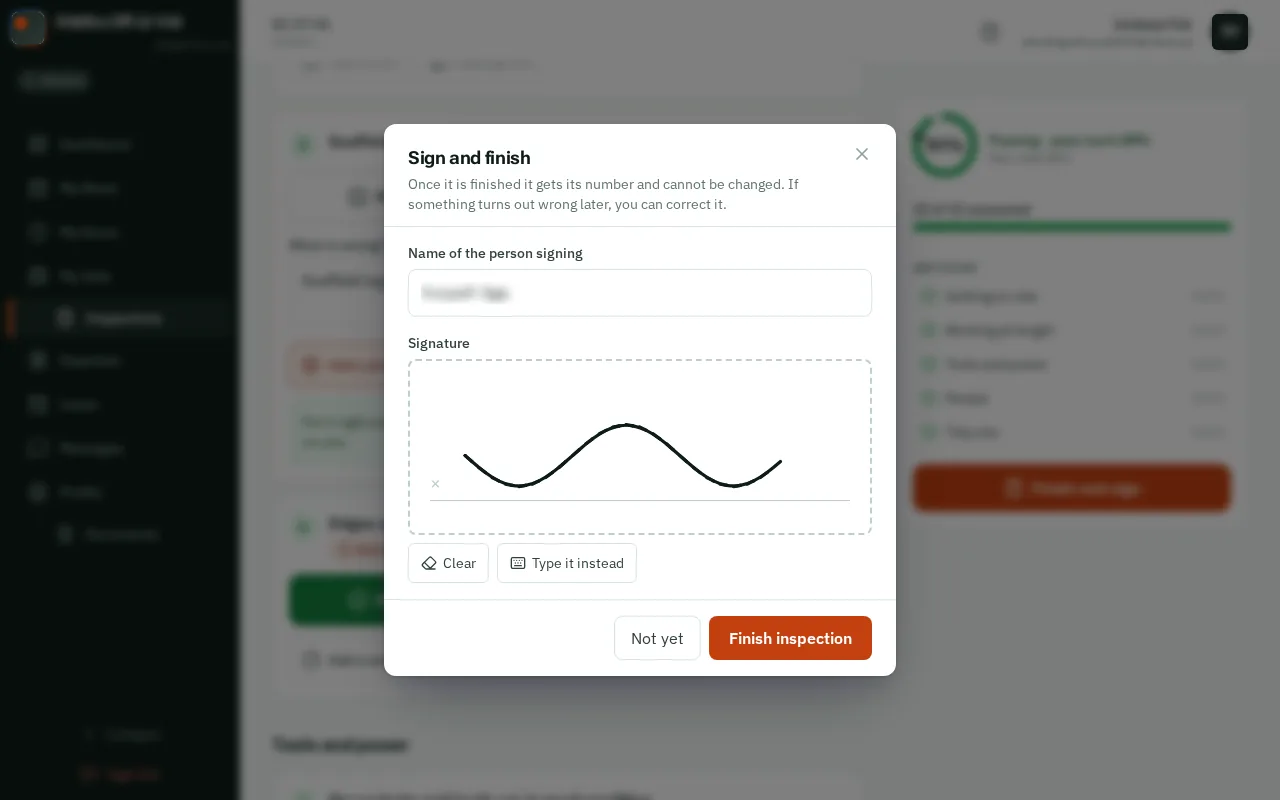
  8. Step 8: Sign with your finger

    Check your name, sign in the box with your finger, and tapclick Finish inspection.

    Look forthe Finish inspection button

    Good to know: No room to sign? TapClick Type it instead and your name is written in for you.

    Sign with your finger
    Sign with your finger
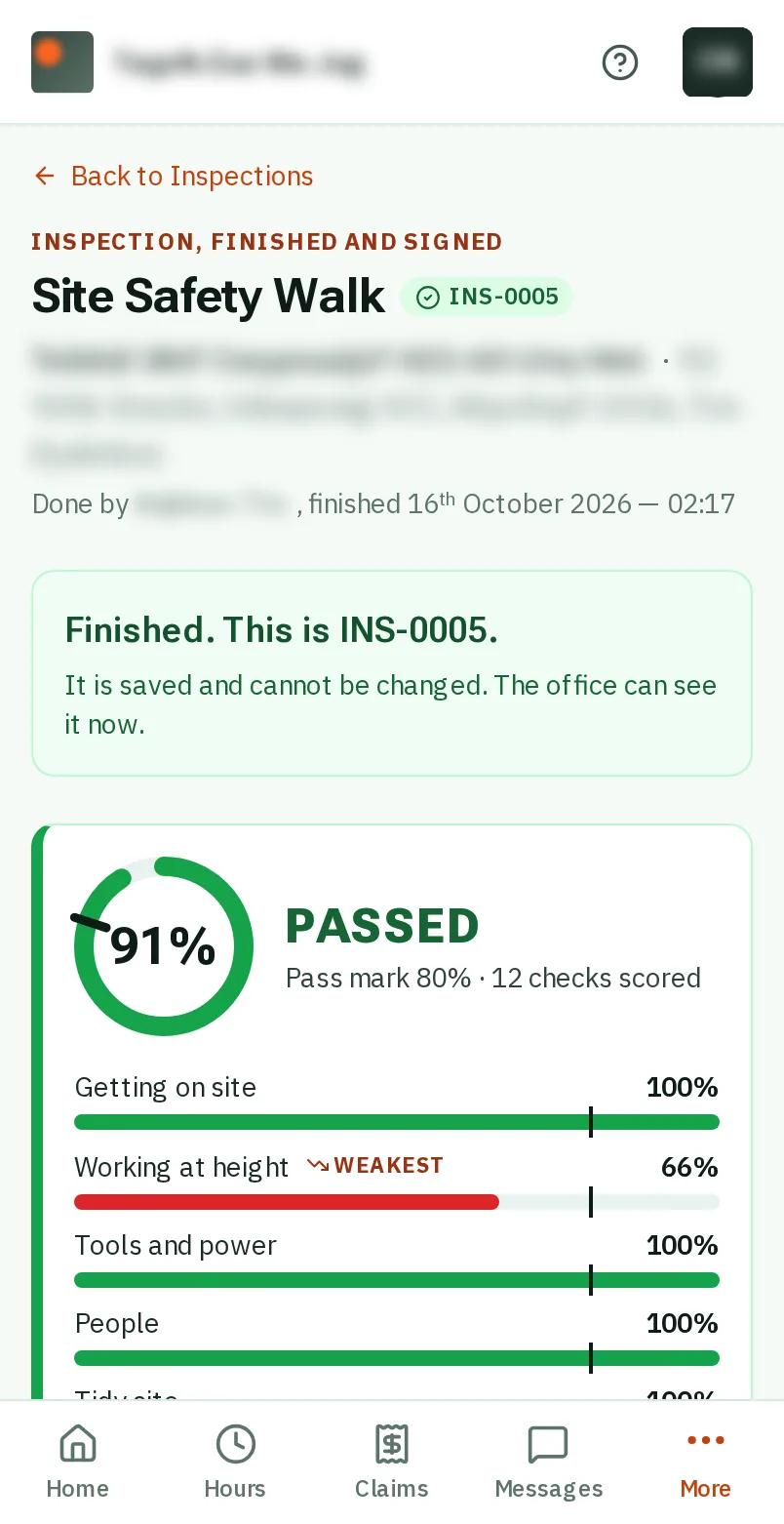
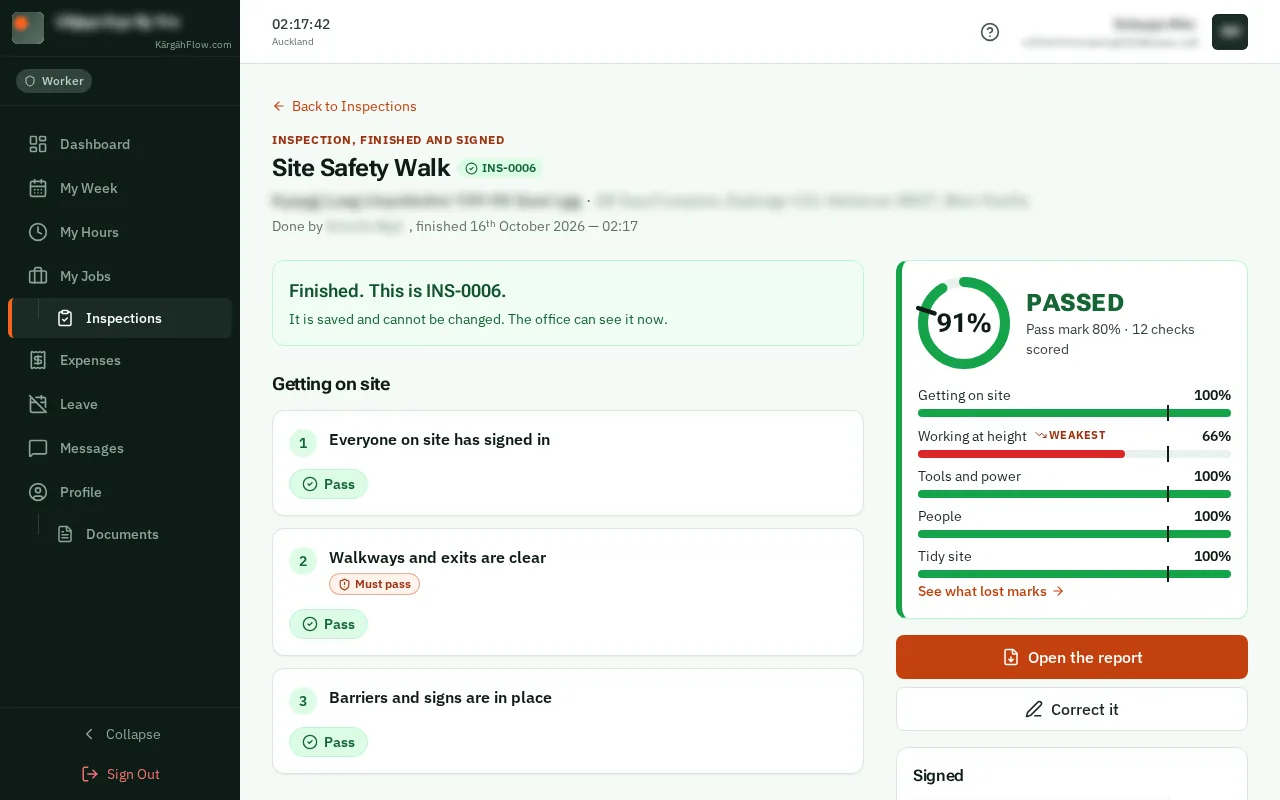
  9. Step 9: It is done

    It gets its number, like INS-0007, and the office can see it straight away. TapClick Open the report to see the PDF.

    Good to know: A finished inspection cannot be changed. If something was wrong, tapclick Correct it to start a corrected copy.

    It is done
    It is done

That's it

Your inspection is signed and on record, with its photos, and nobody has to type it up.

Next: Send and read messages