Step 1: Open Inspections
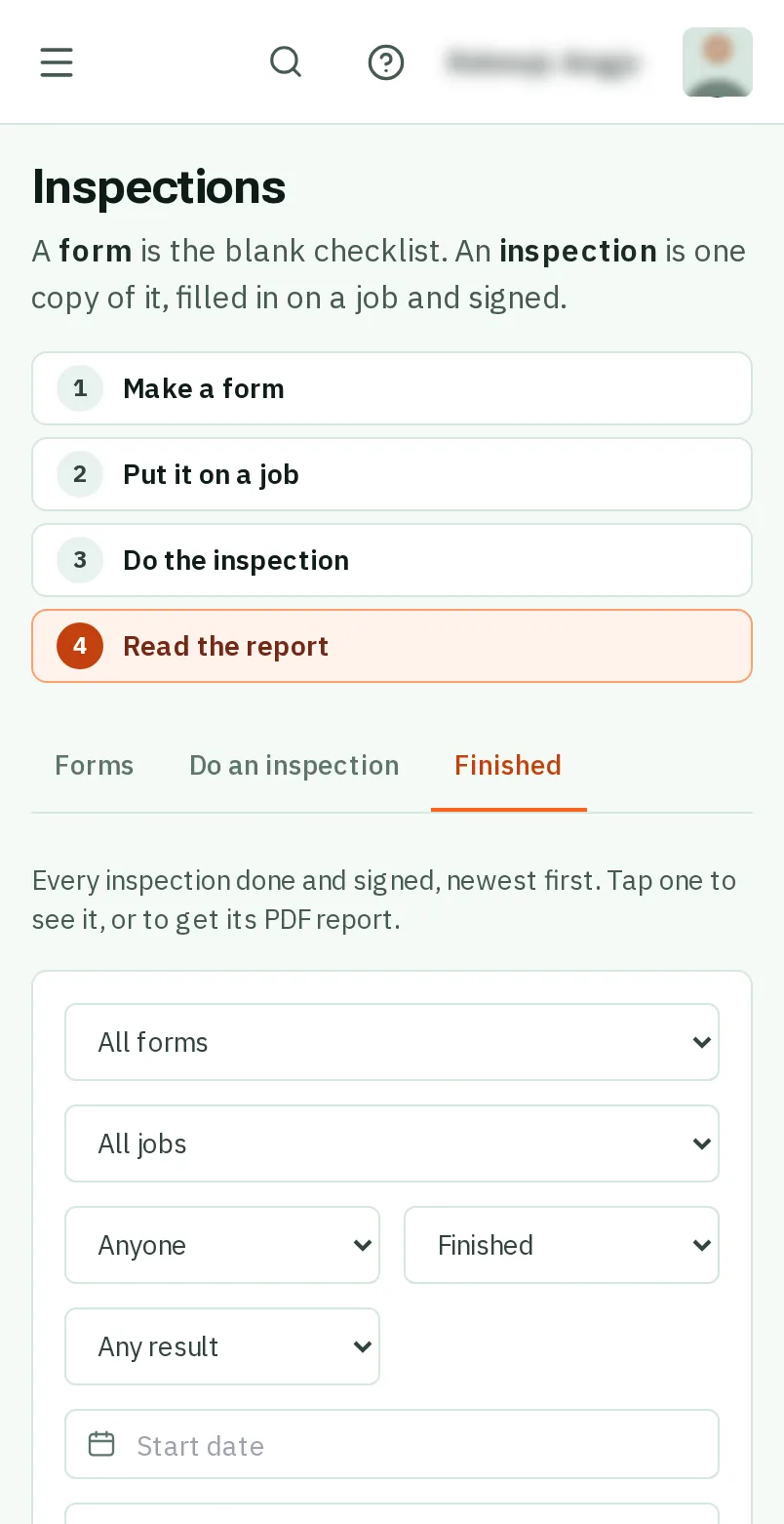
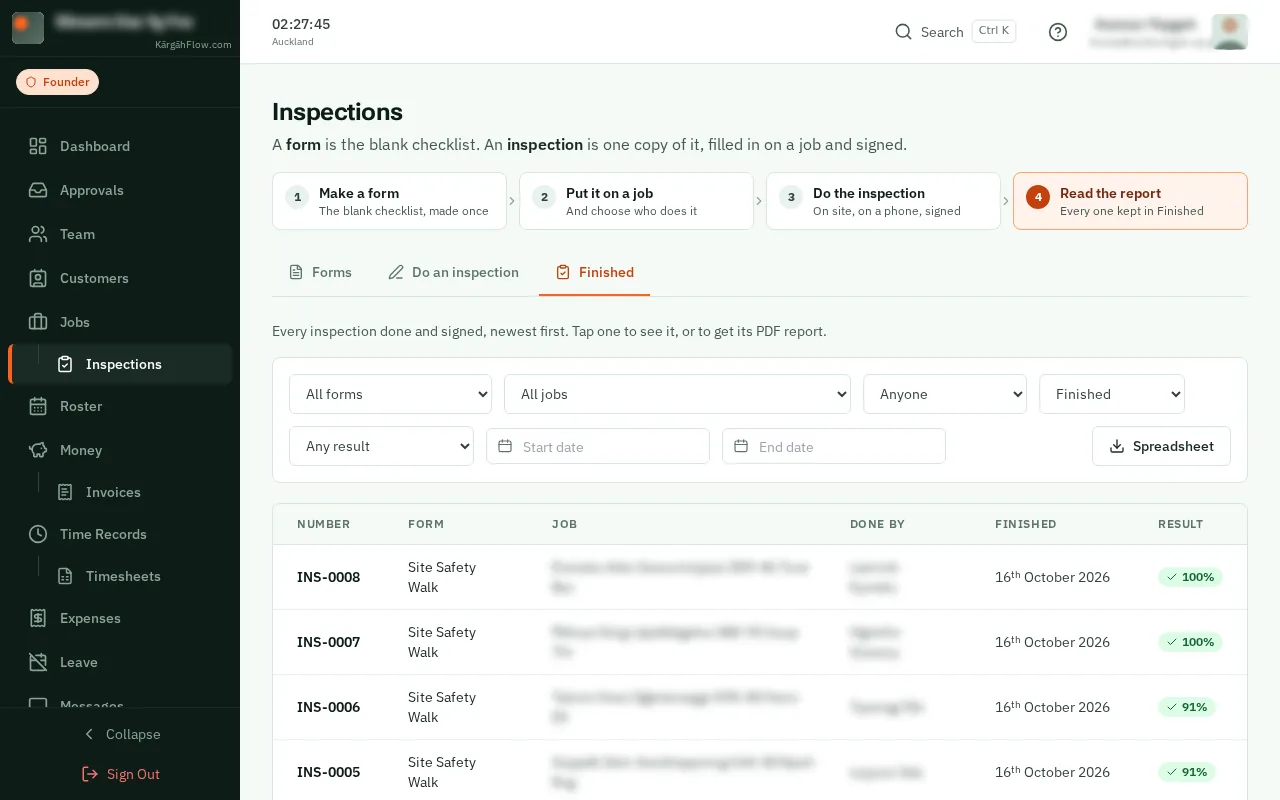
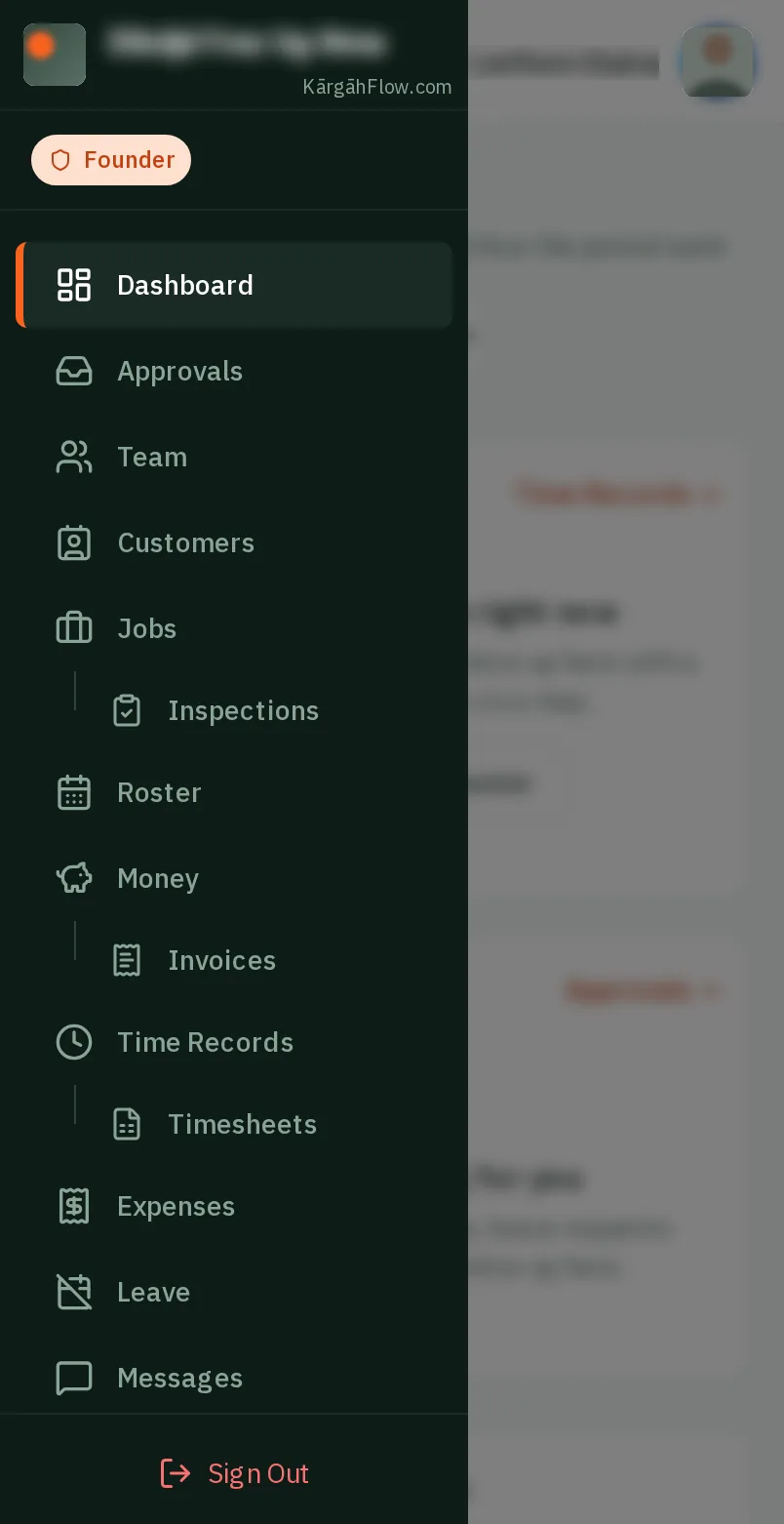
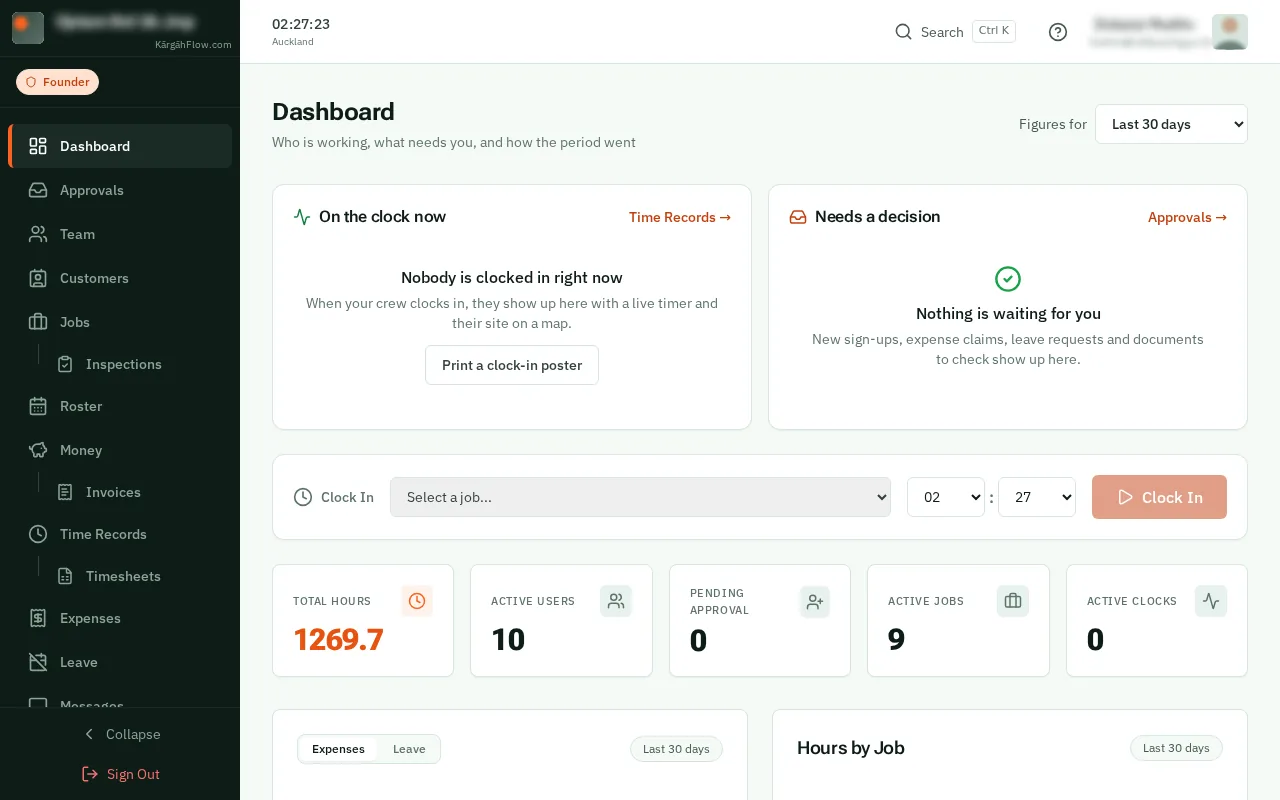
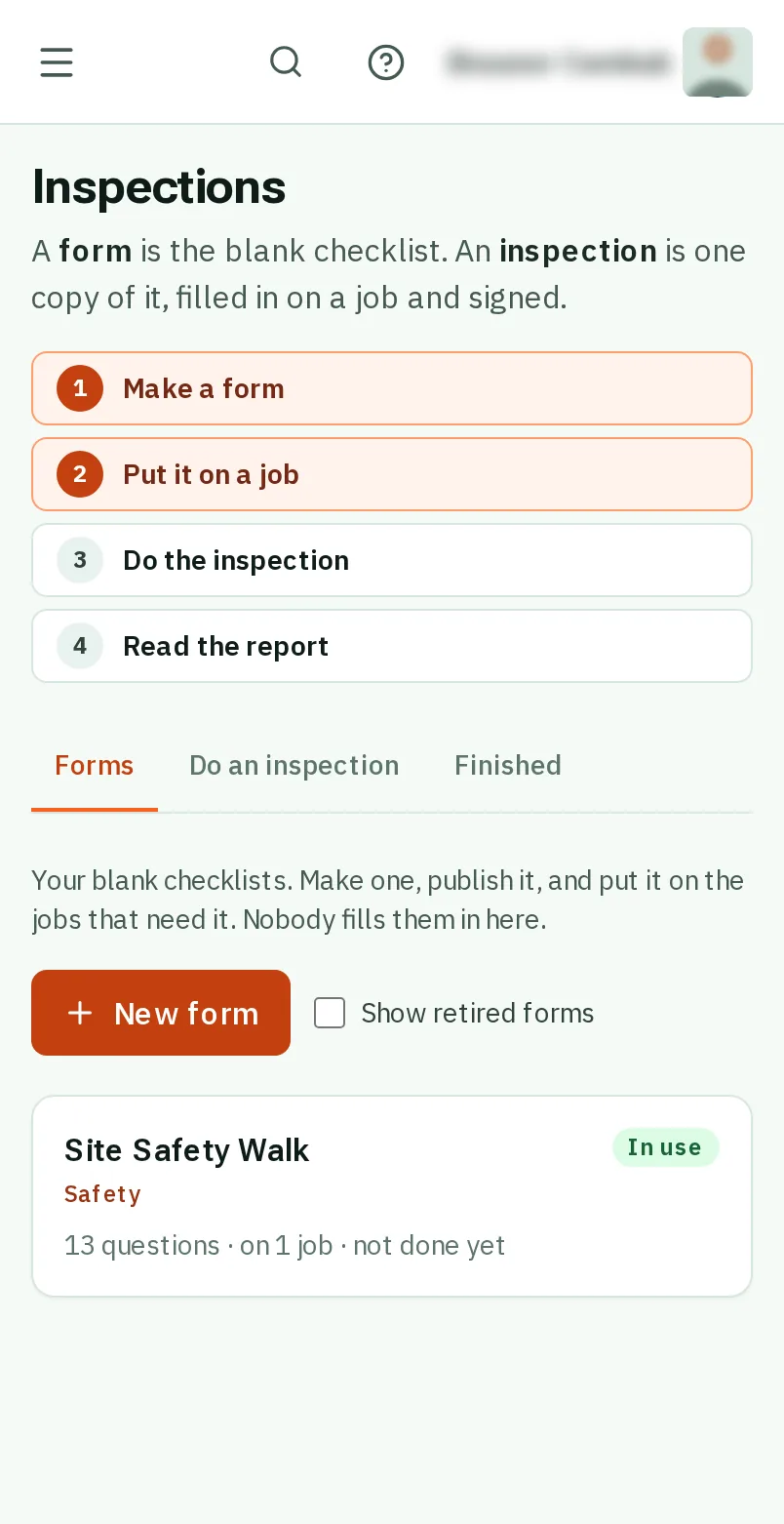
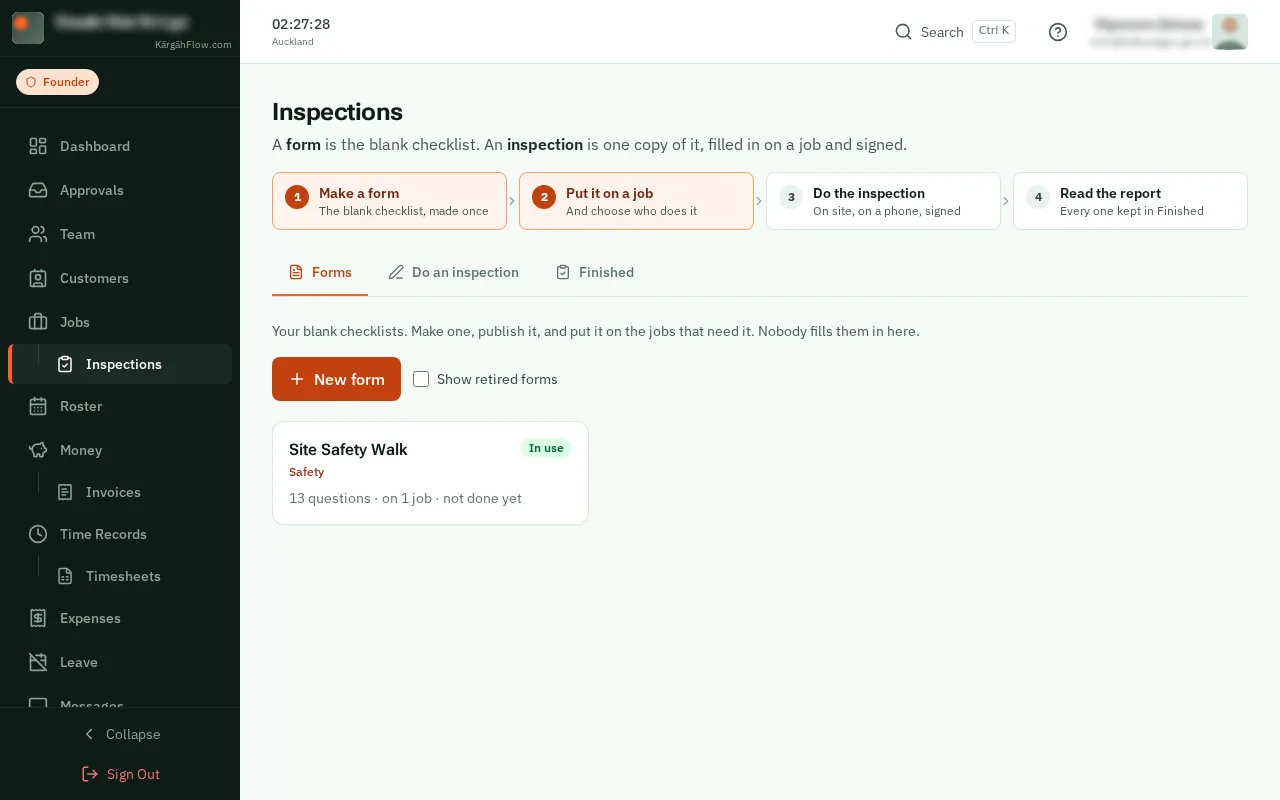
TapClick the menu button at the top left of the screen, then Inspections.TapClick Inspections in the menu on the left.
Look forthe Inspections item in the menu
A scored form gives every inspection a score out of 100, worked out as it is filled in. Under your pass mark, it fails, and you get a notification.
You choose what counts: checks that count double, checks that must pass whatever the score, the safe range for a reading, and marks for each choice. Your crew see the score as they go, and can fix things on the spot with a photo.
TapClick the menu button at the top left of the screen, then Inspections.TapClick Inspections in the menu on the left.
TapClick the form you want to score. The examples under New form come scored already.
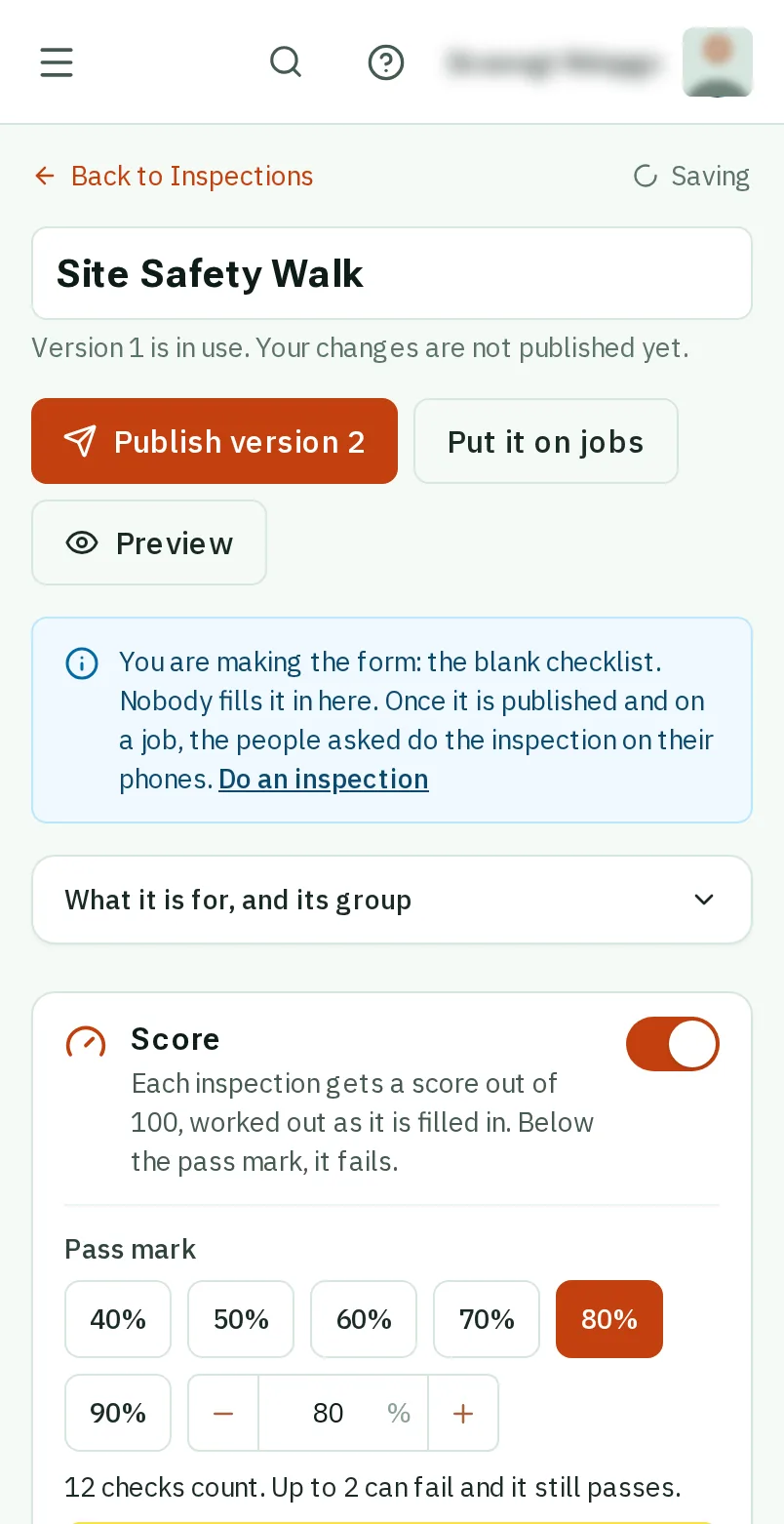
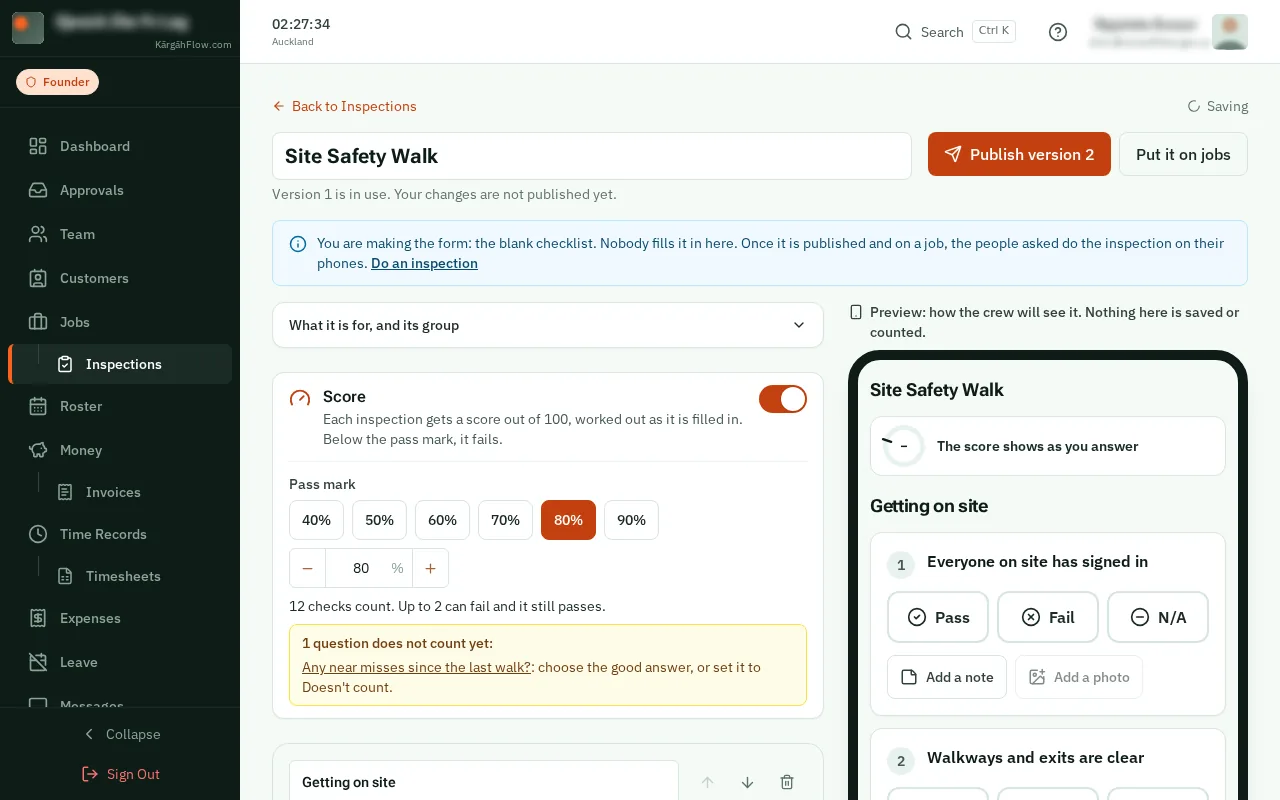
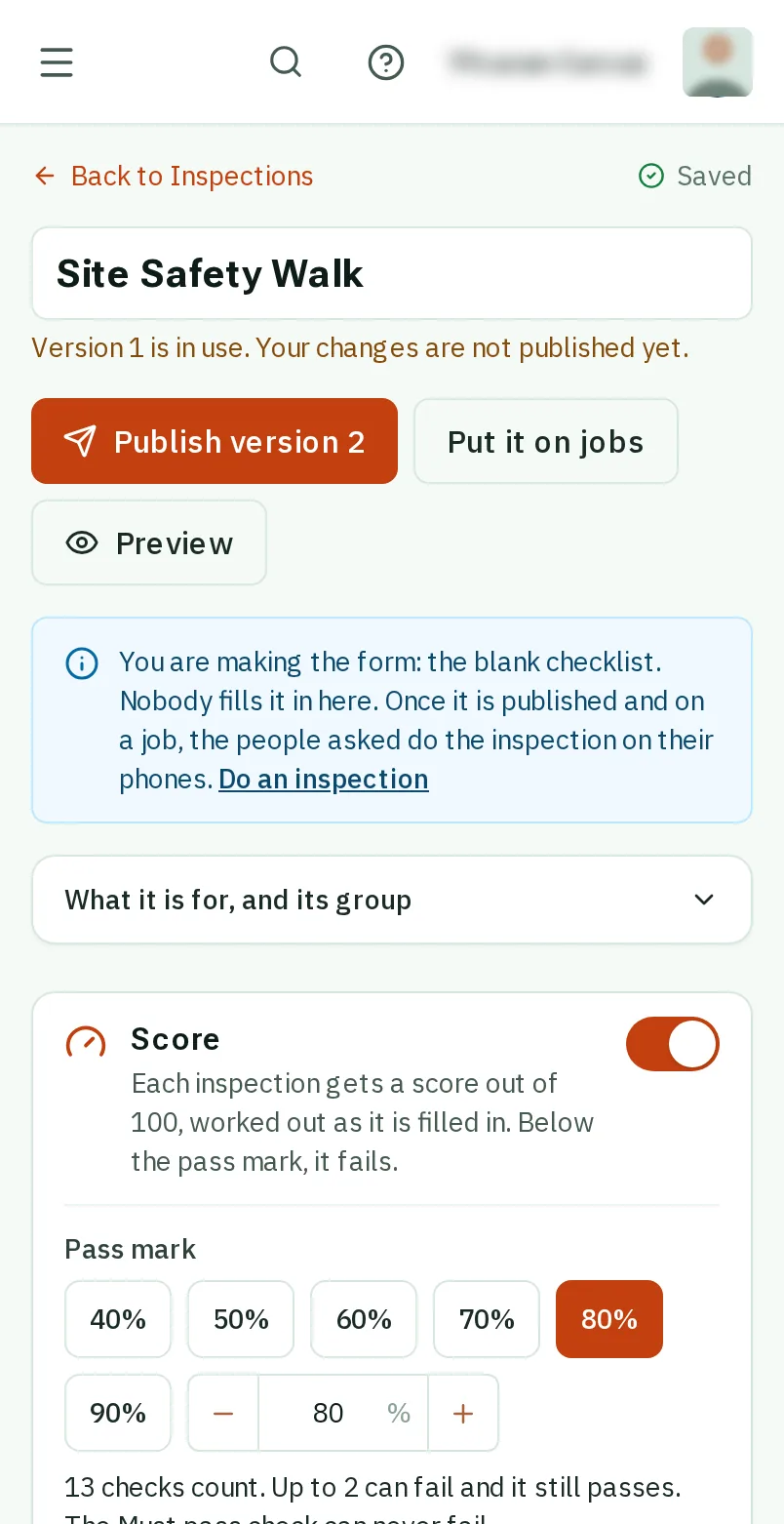
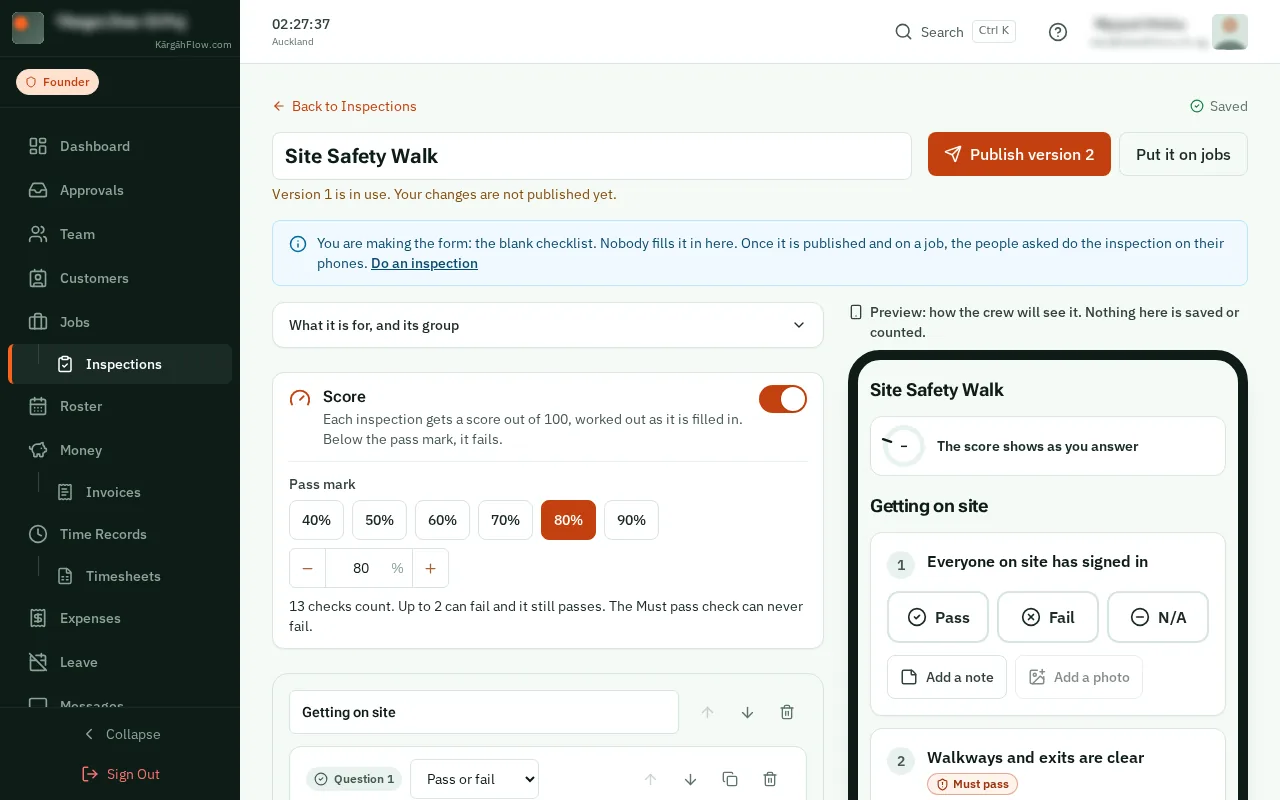
Above the questions, switch on Score.
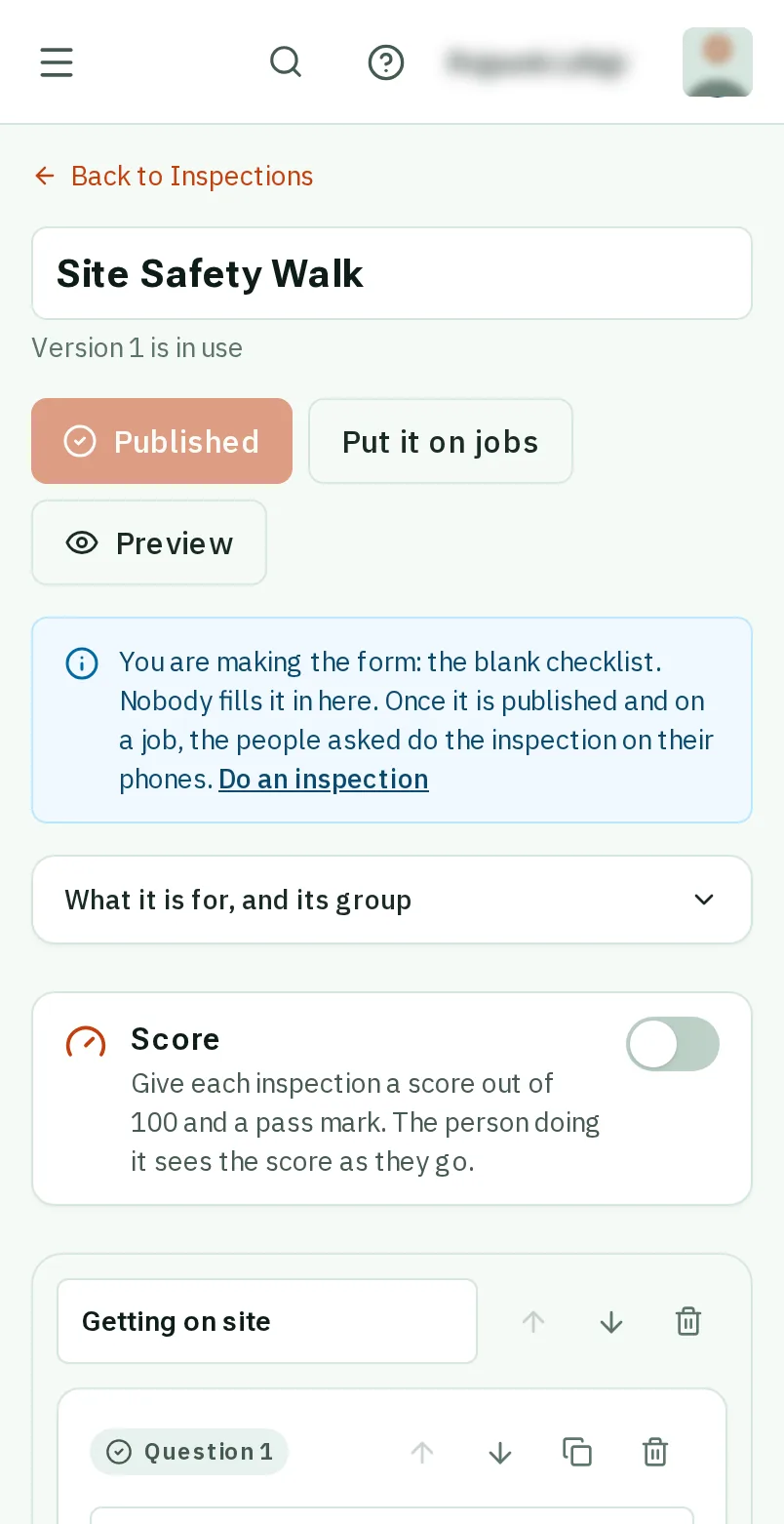
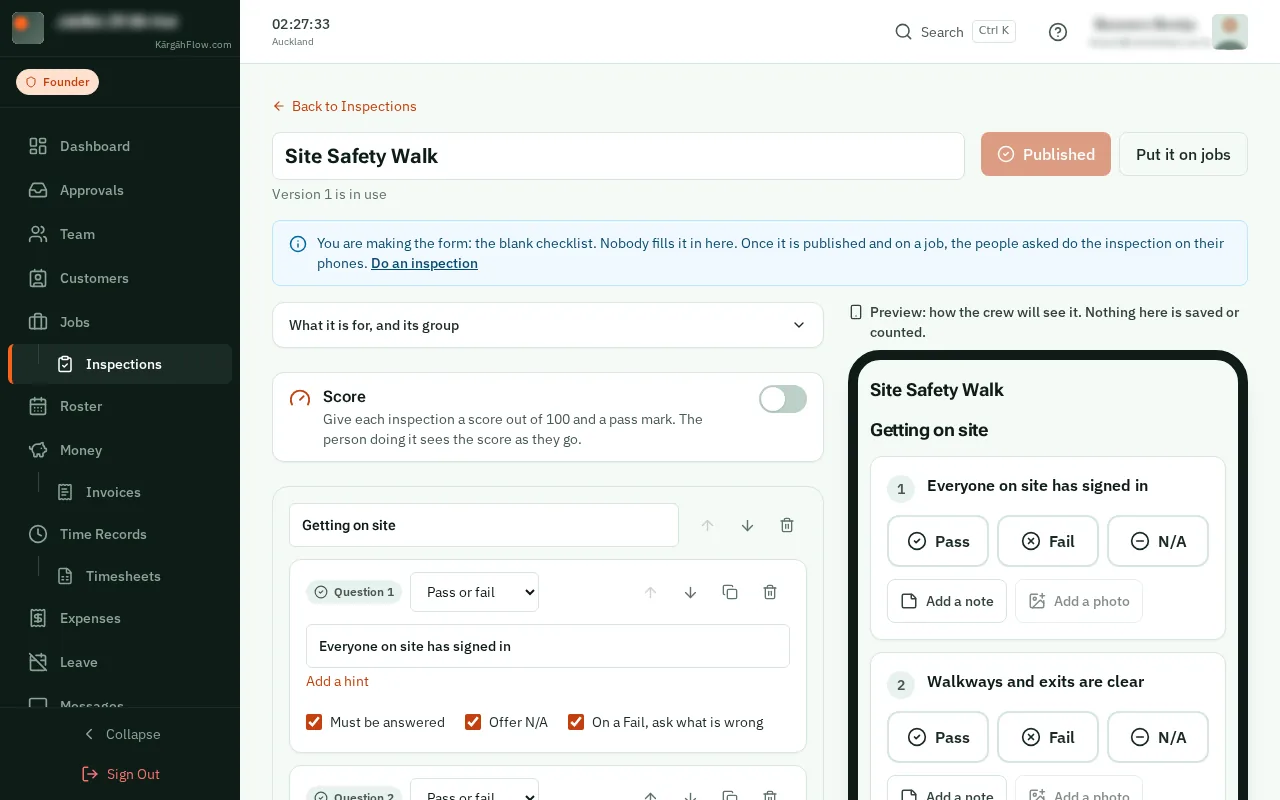
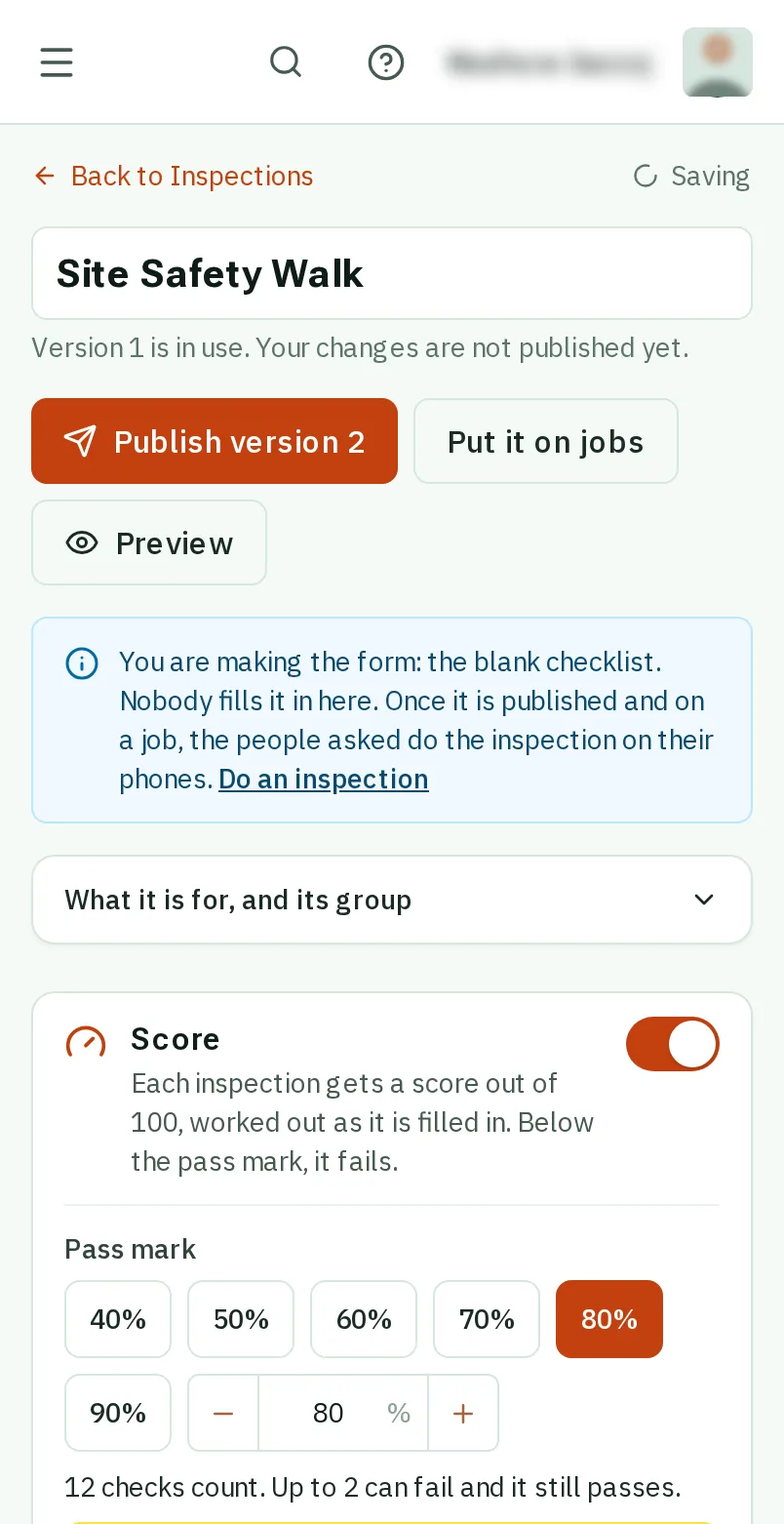
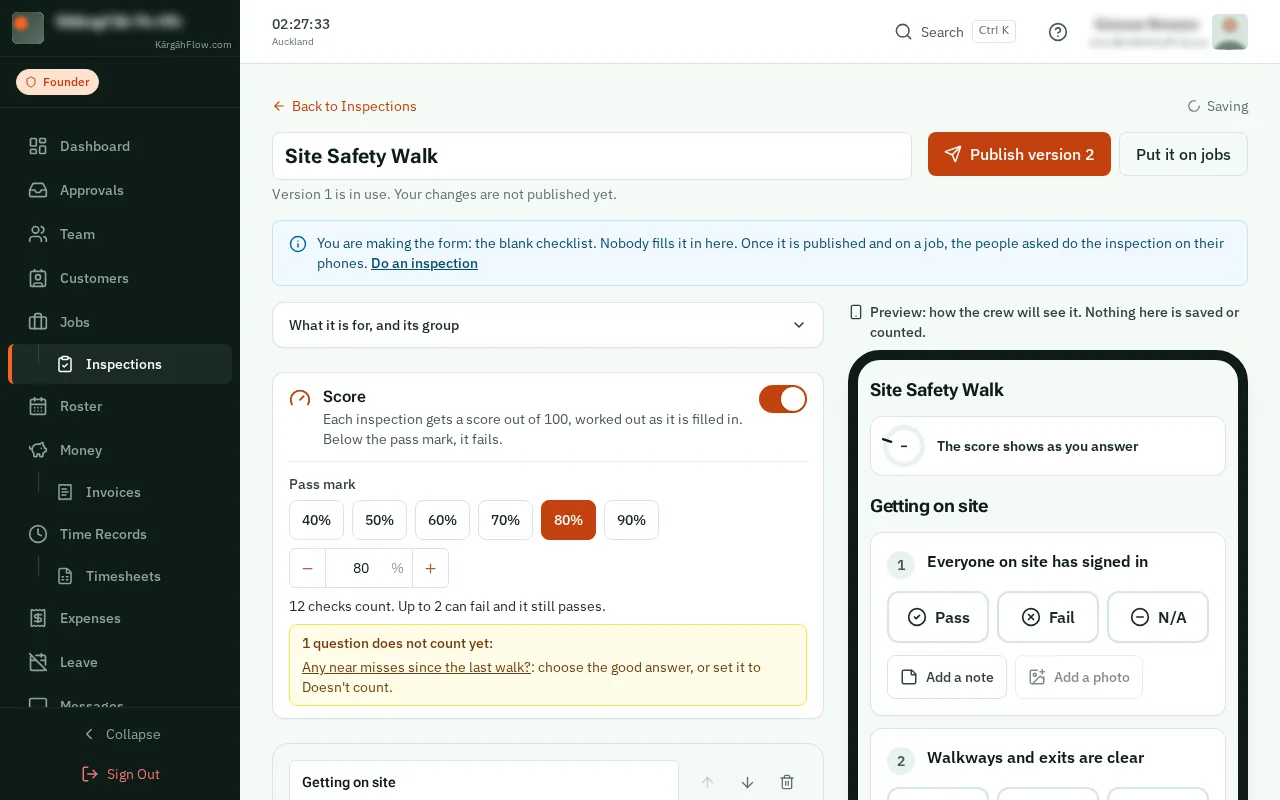
TapClick a pass mark, like 80%. The line under it says what that means for your form: how many checks can fail and it still passes.
Under each question, tapclick Normal, Counts double or Must pass. If a Must pass check fails, the whole inspection fails, whatever the score.
Good to know: A question that is not right or wrong, like who was on site, can be set to Doesn’t count.
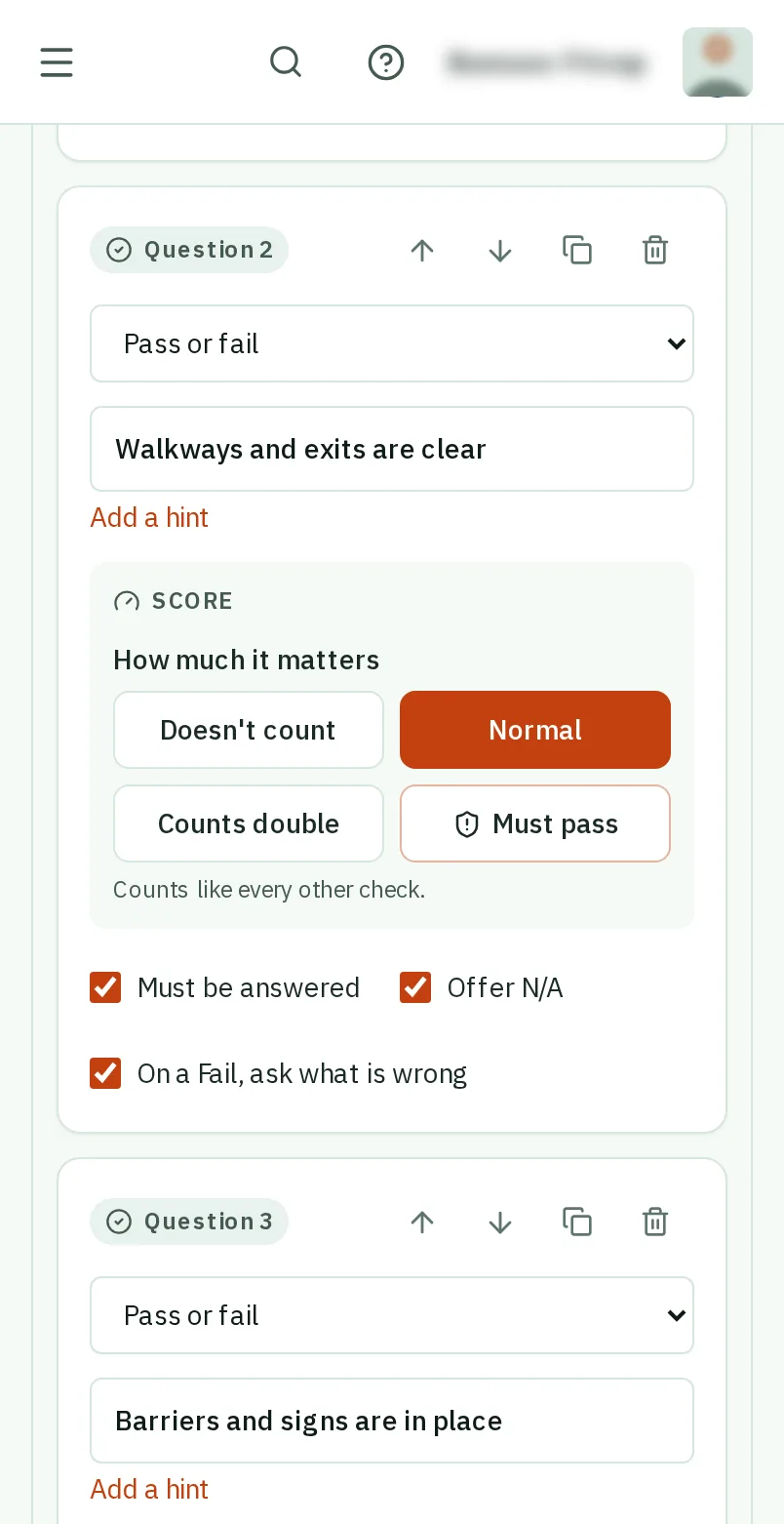
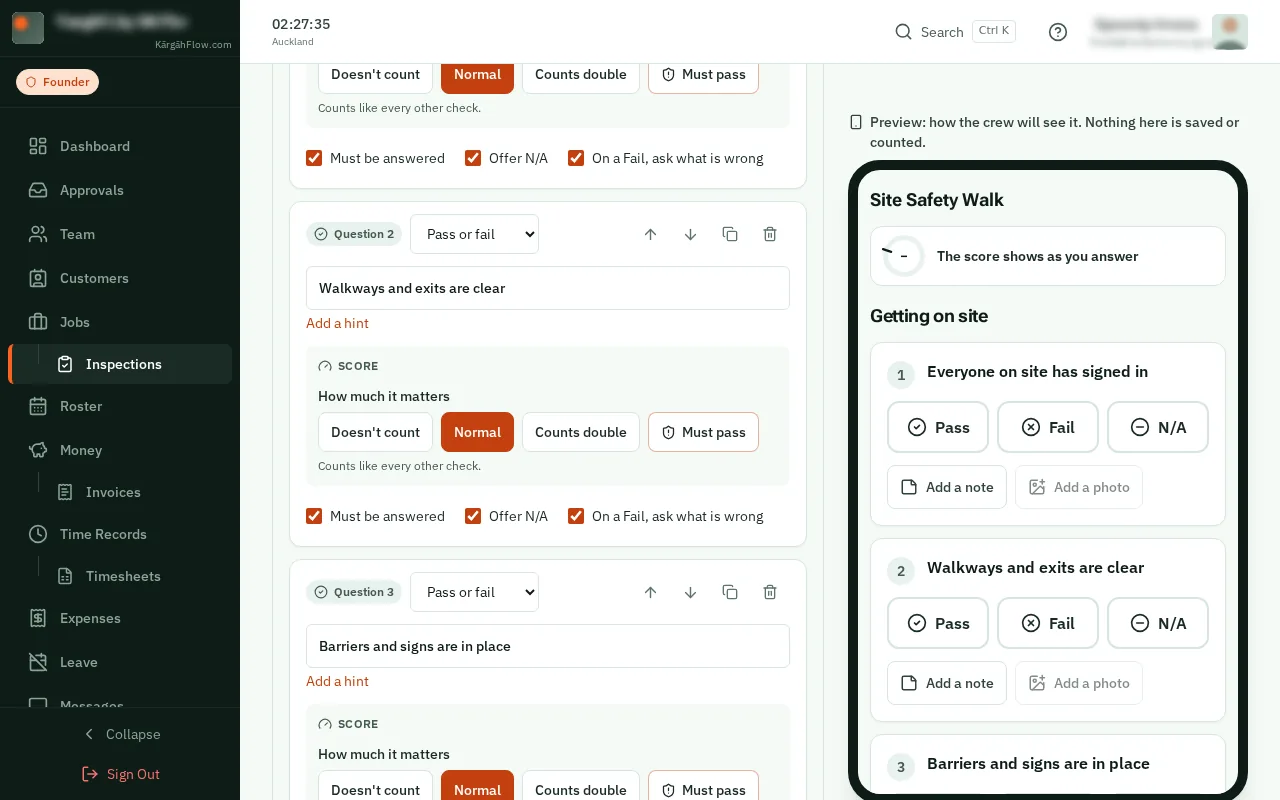
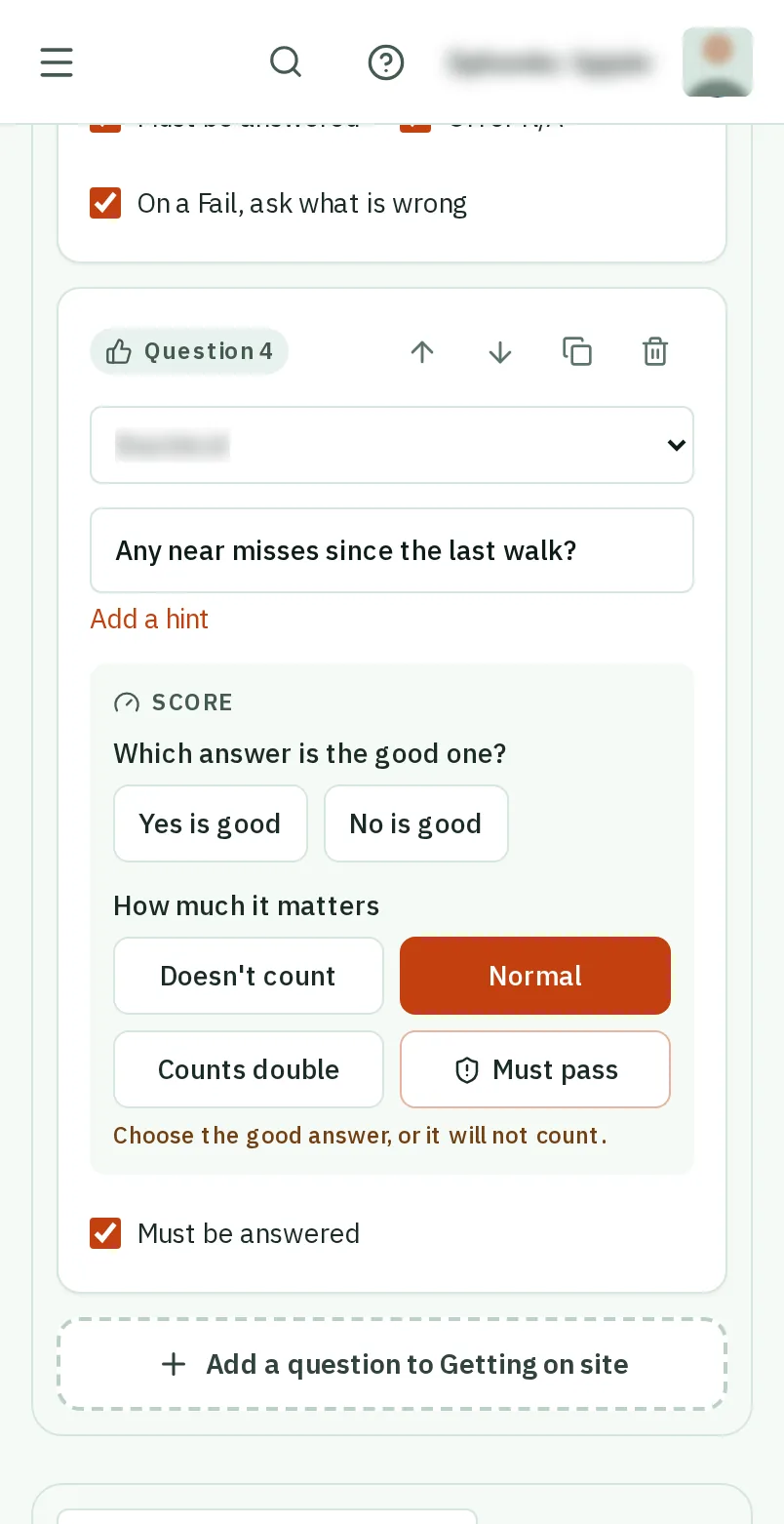
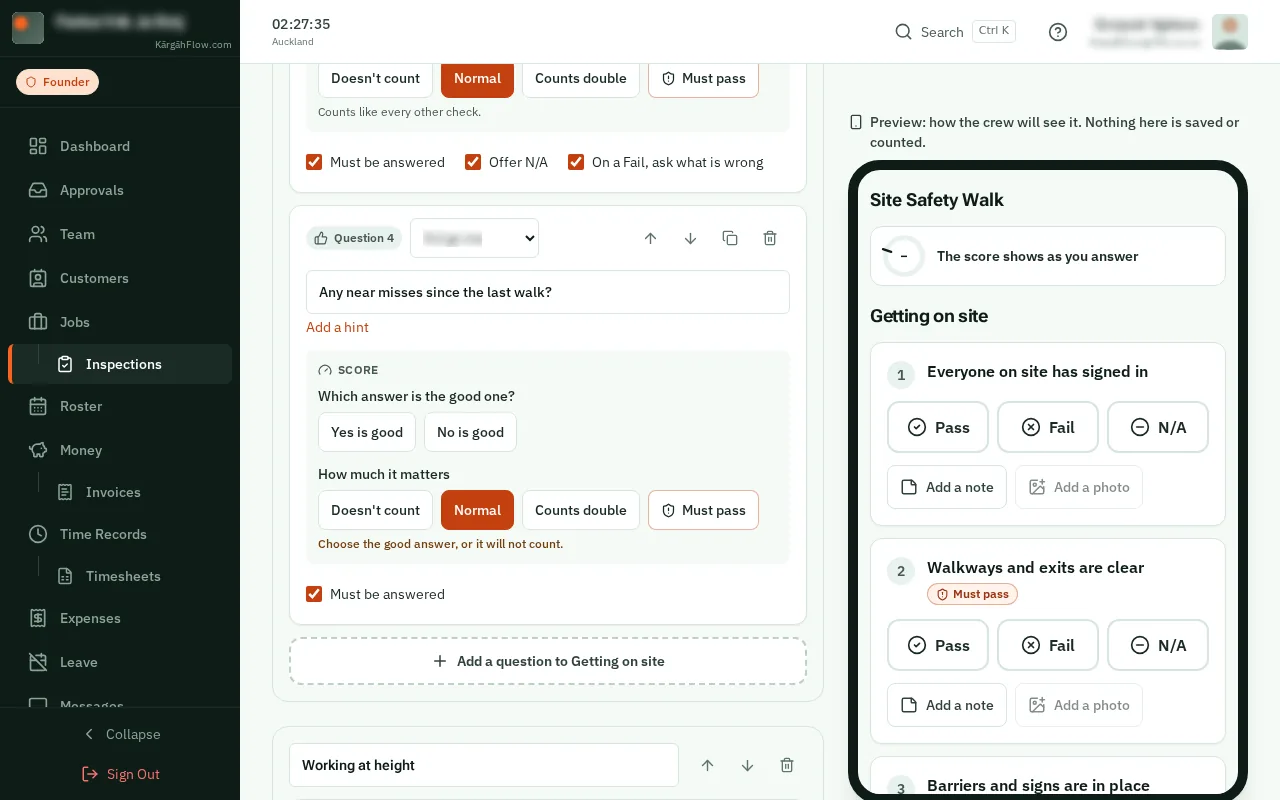
For a Yes or no question, tapclick Yes is good or No is good. For a Number, type its safe range, like 0 to 5 °C. For a Pick one question, tapclick Give the choices marks, then give each choice a mark out of 100.
Good to know: A question that still needs this is listed in yellow under the pass mark, and does not count until it is done.
TapClick Publish. From now on, every inspection of this form gets a score.
Good to know: A finished inspection keeps the score it got. A new pass mark only changes the ones done after you publish it.
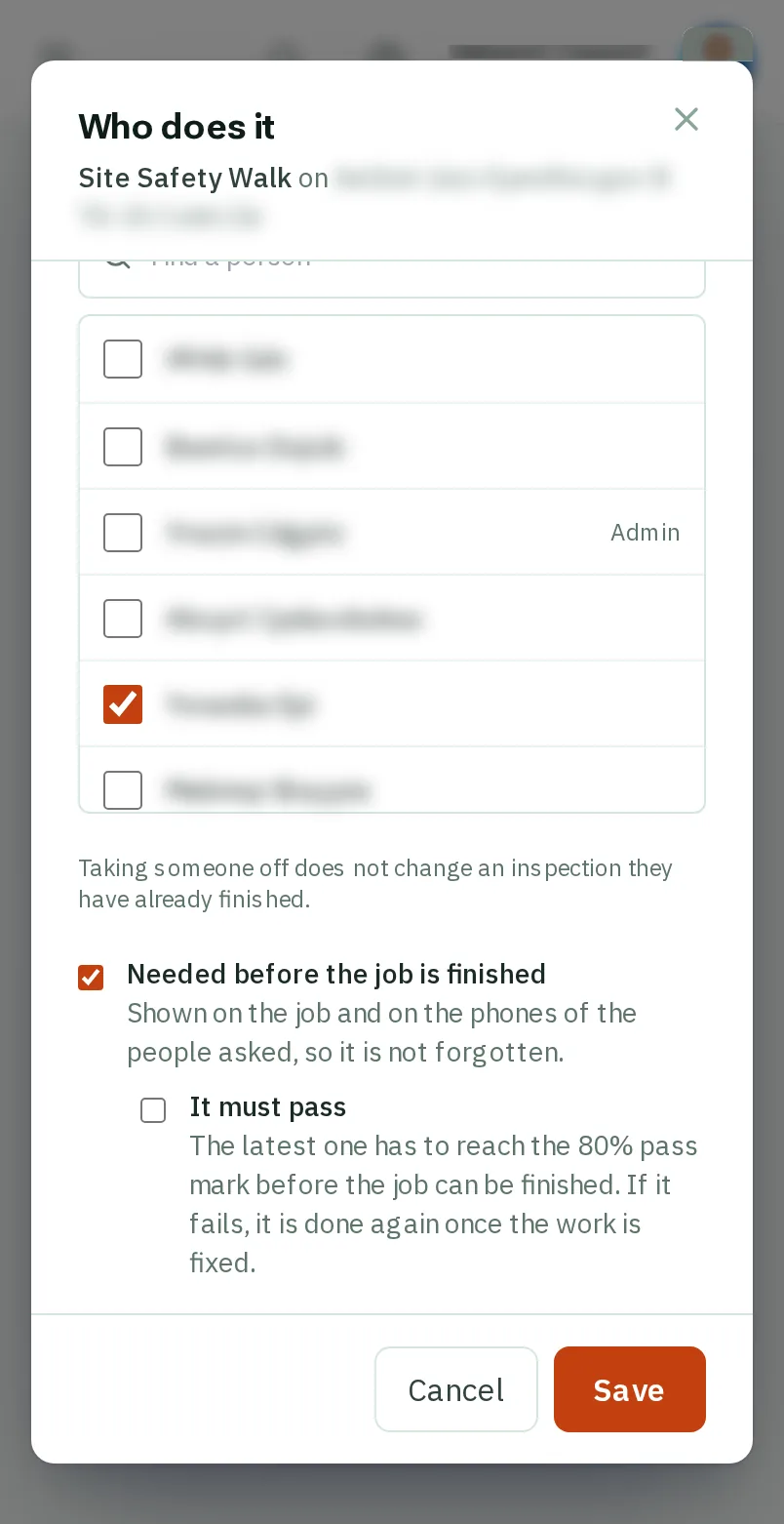
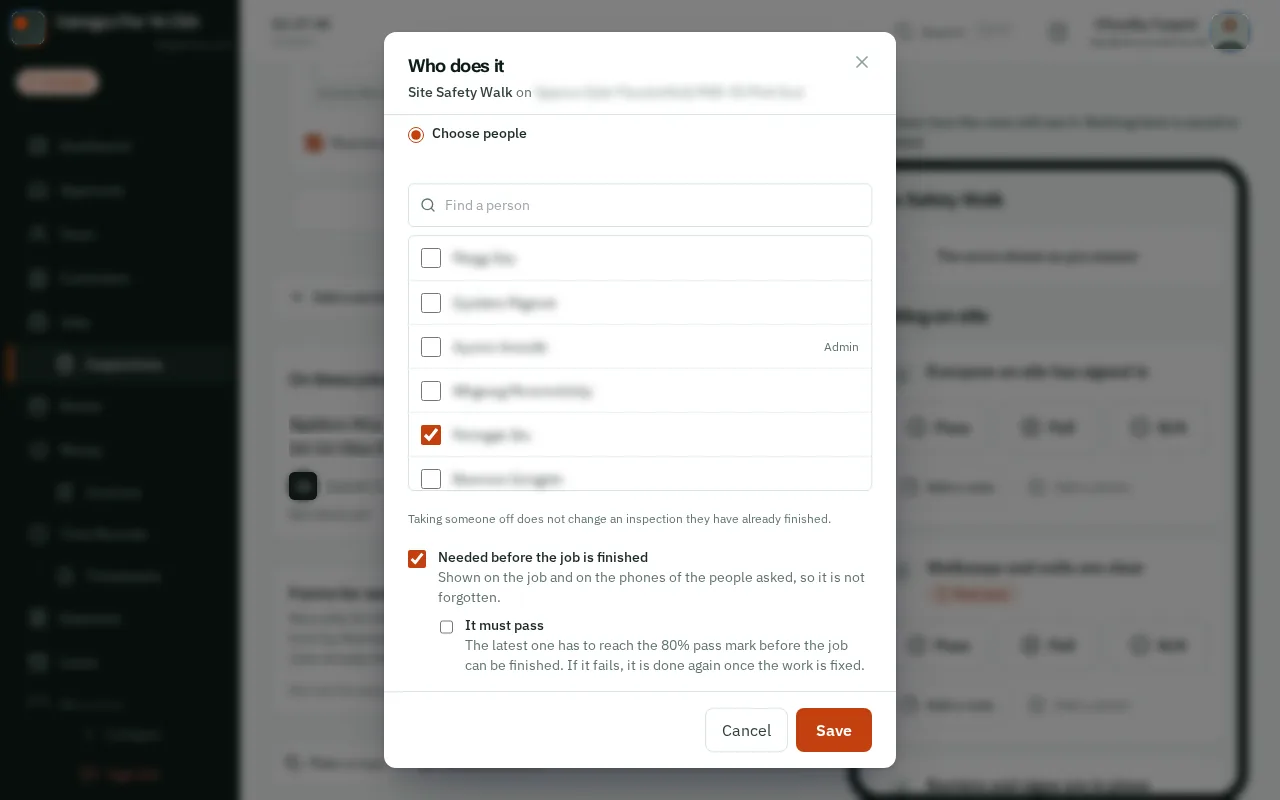
Under On these jobs, tapclick Who beside a job, tick Needed before the job is finished, then It must pass, and tapclick Save. The job cannot be finished until its latest inspection passes.
On the Finished tab, every inspection shows its score: green passed, red failed. Choose Failed under Result to see the ones that need you.
Good to know: When one fails, the owner and admins get a notification on their phones, and the job’s story says so.