Step 1: Open Inspections
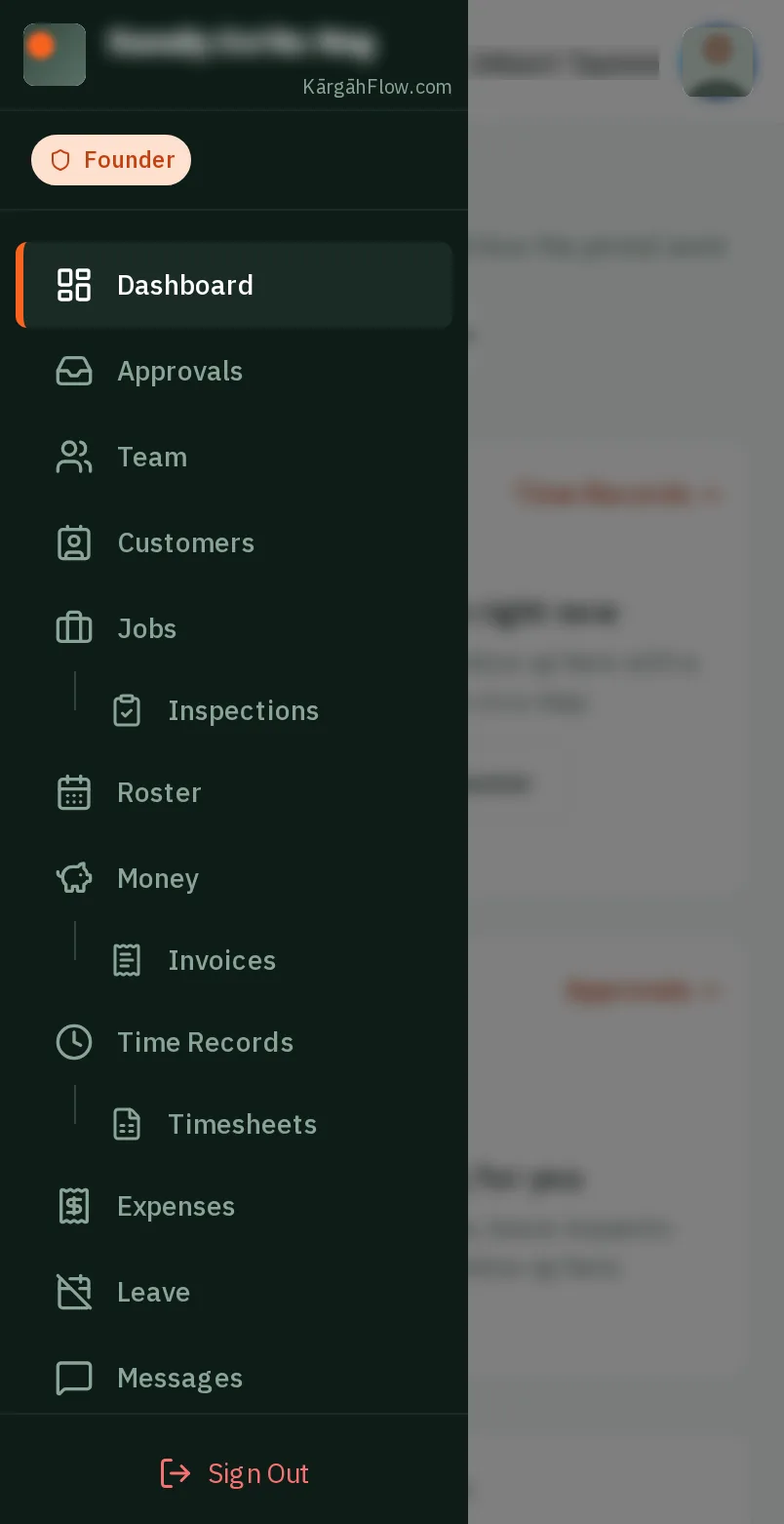
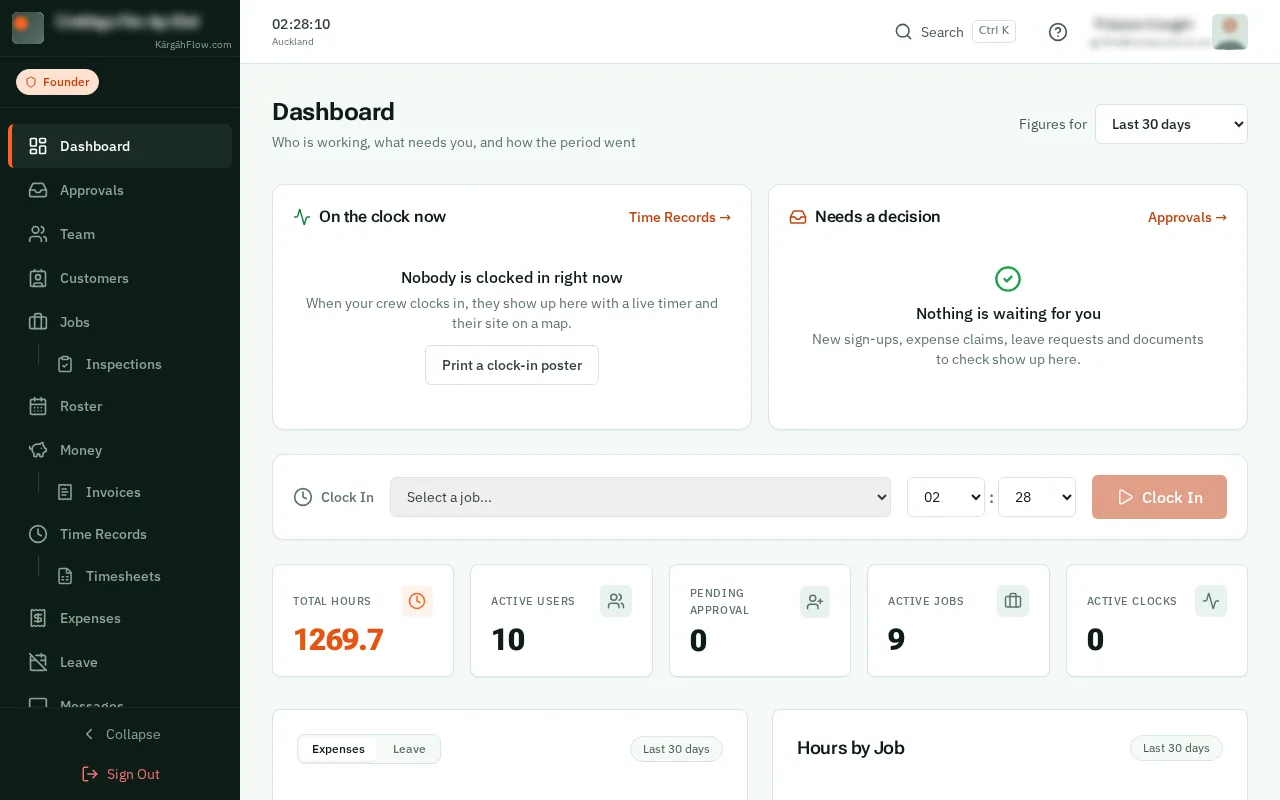
TapClick the menu button at the top left of the screen, then Inspections.TapClick Inspections in the menu on the left.
Look forthe Inspections item in the menu
Some checks are needed on every job for a customer, or at one site: a safety walk at a hospital, a quality check for a body corporate. Set the form once, and every new job there gets it by itself, asking everyone on the job.
A job gets it when it is made for that customer or at that site, or moved there. Jobs already there stay as they are, unless you ask.
TapClick the menu button at the top left of the screen, then Inspections.TapClick Inspections in the menu on the left.
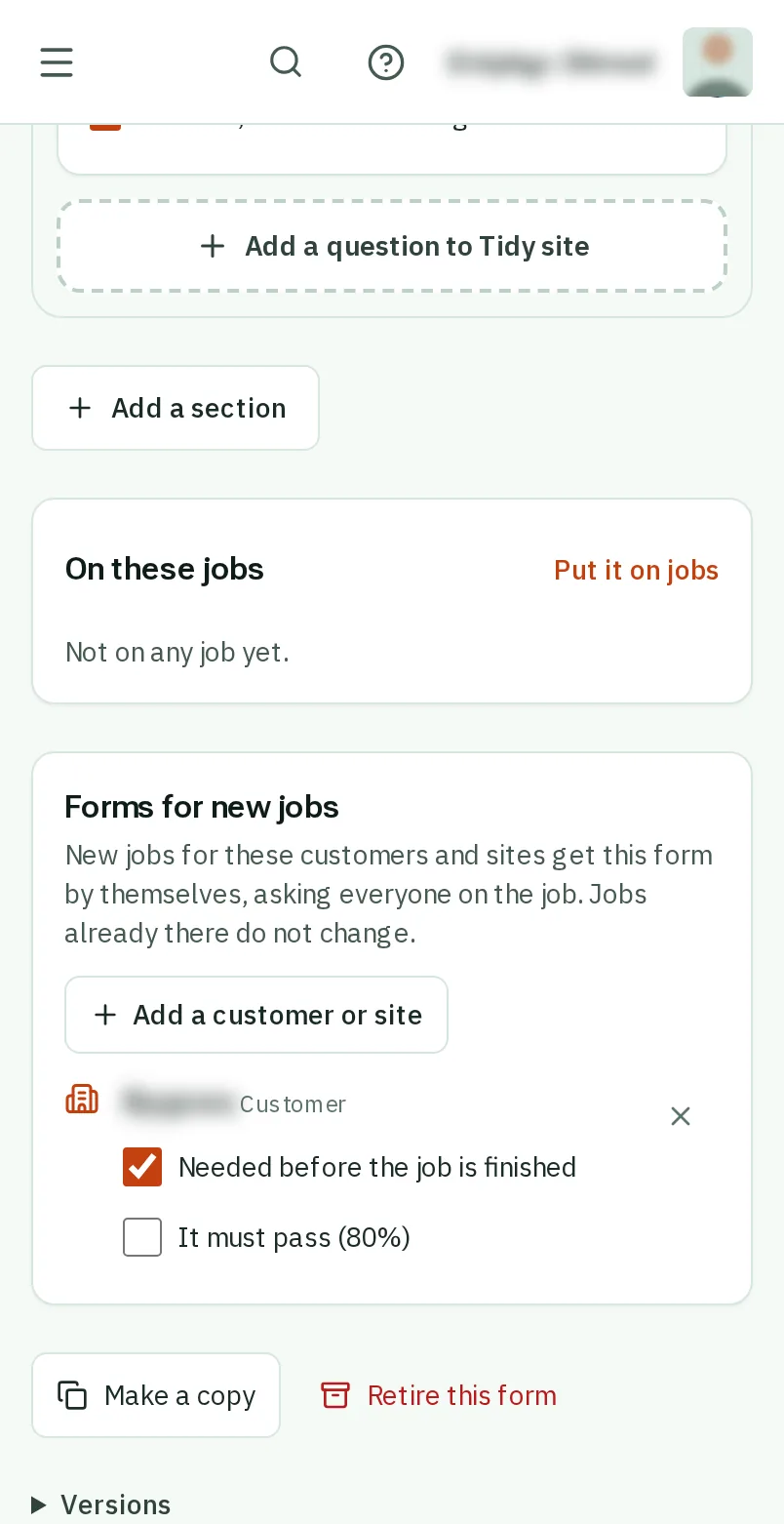
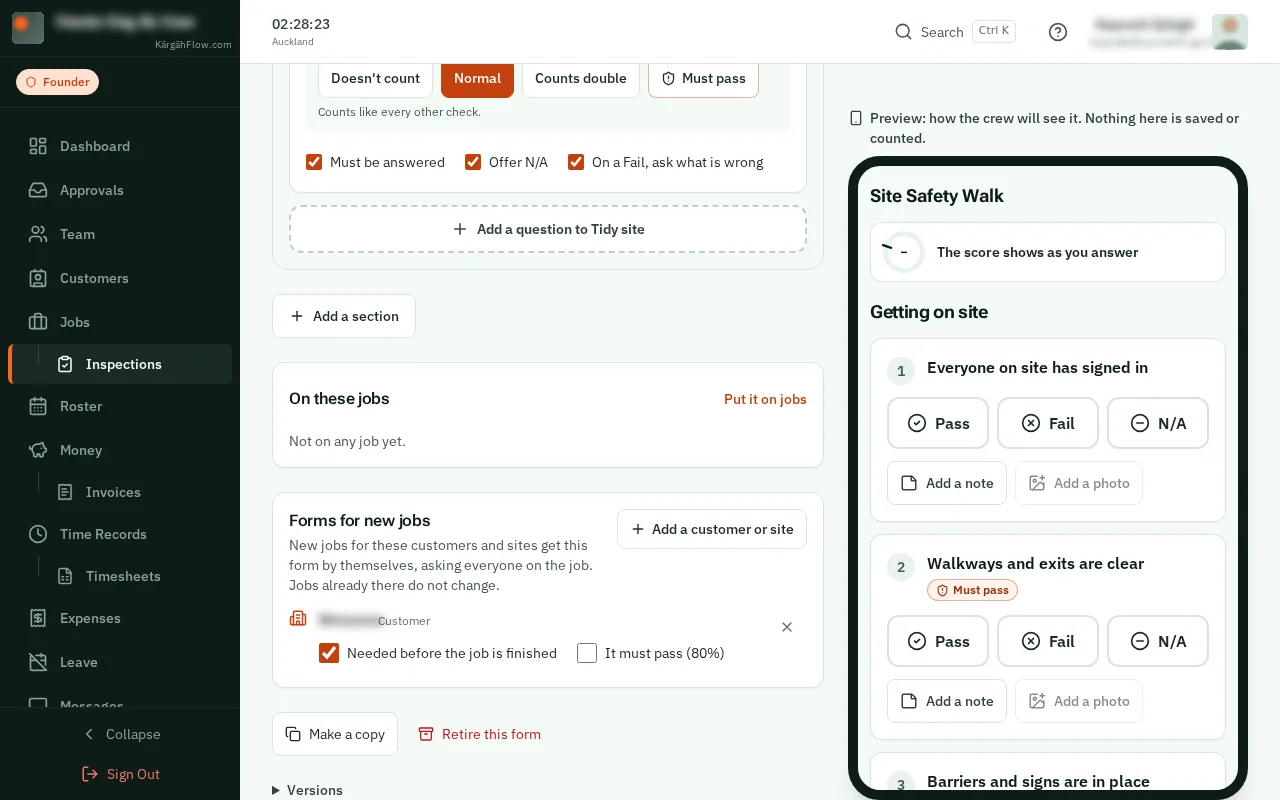
TapClick the form those jobs need. It has to be published first.
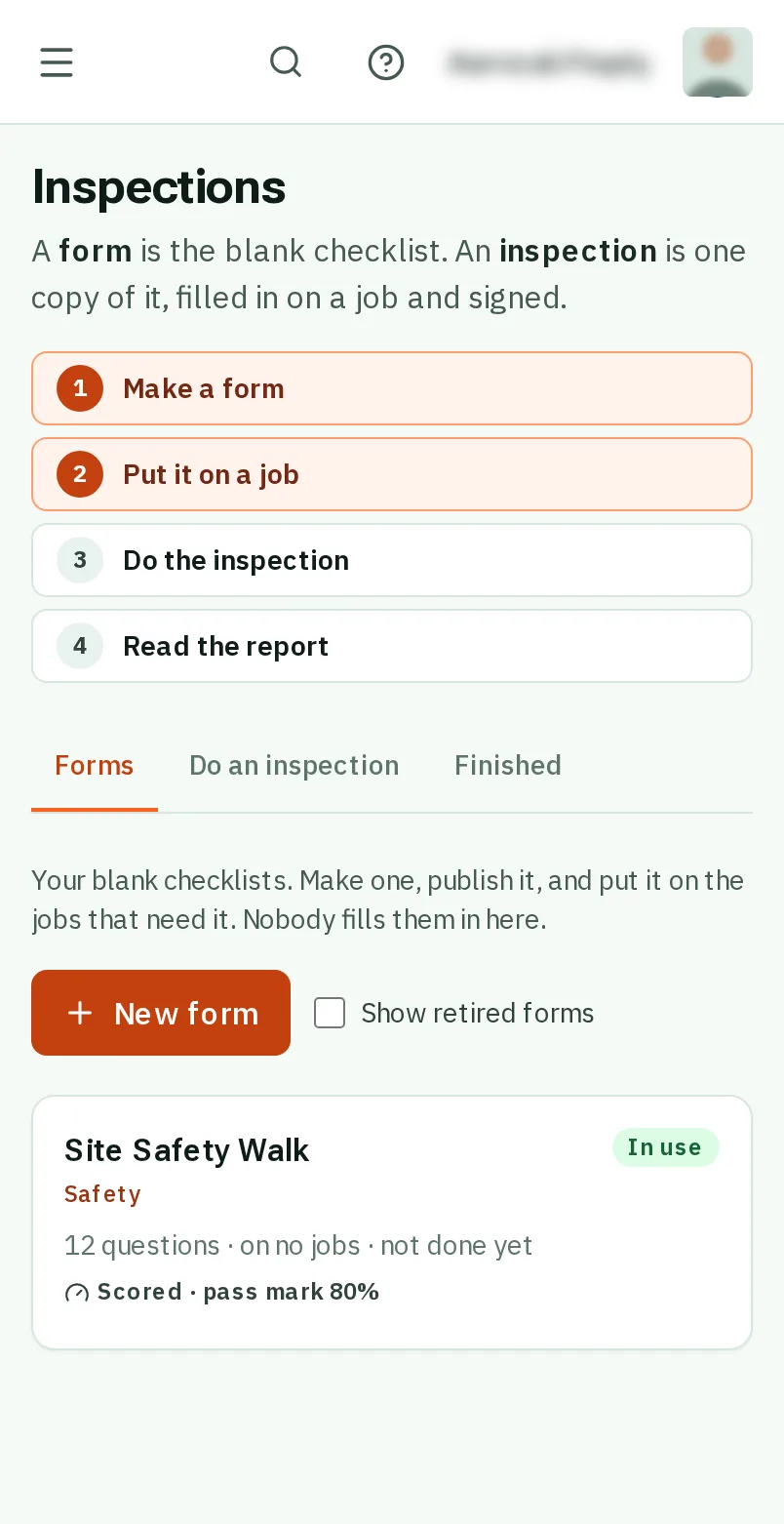
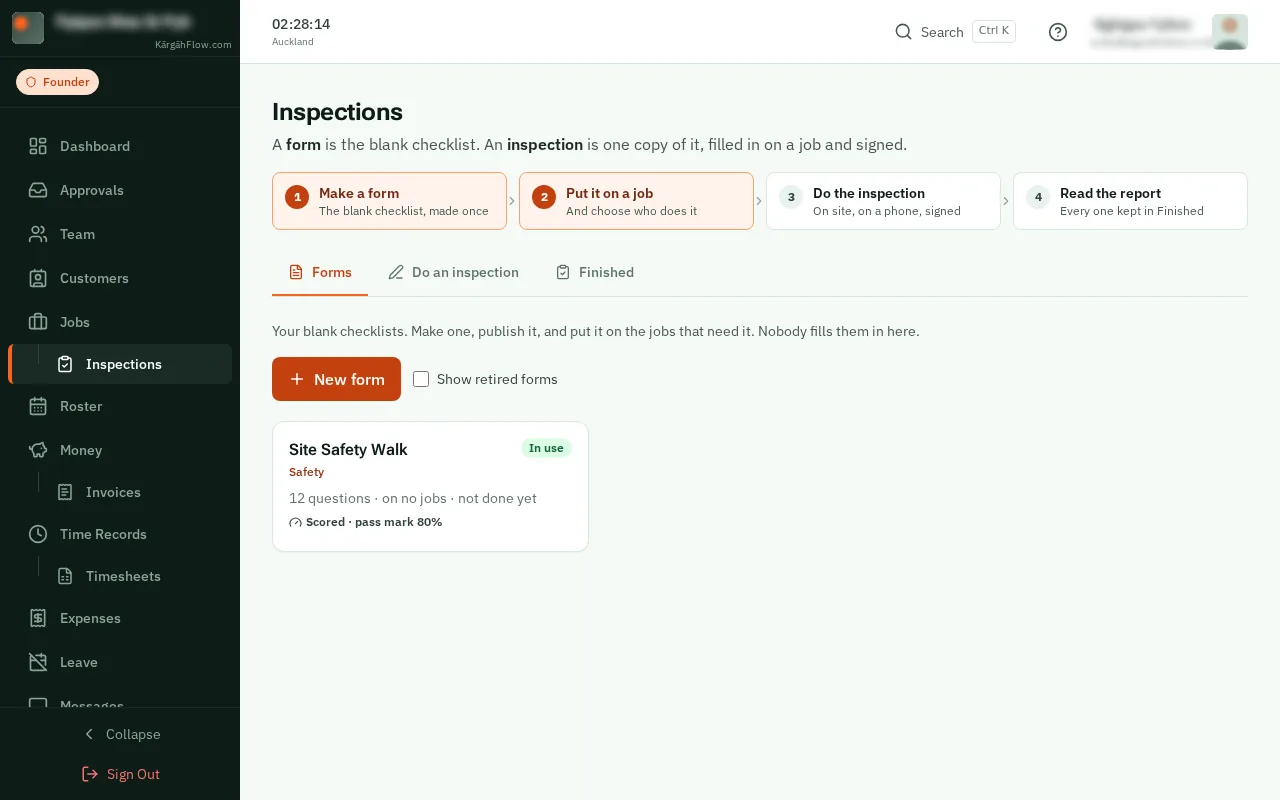
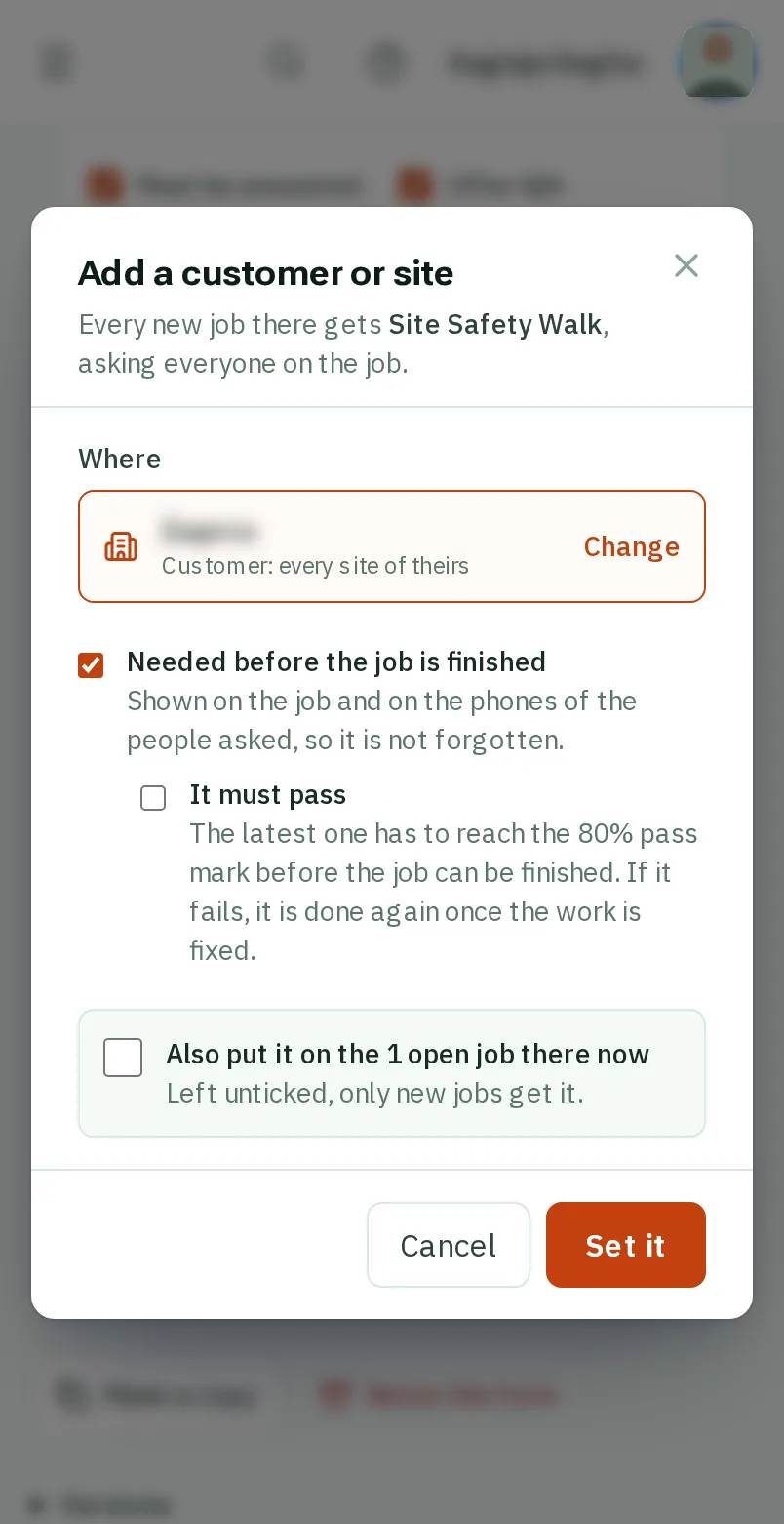
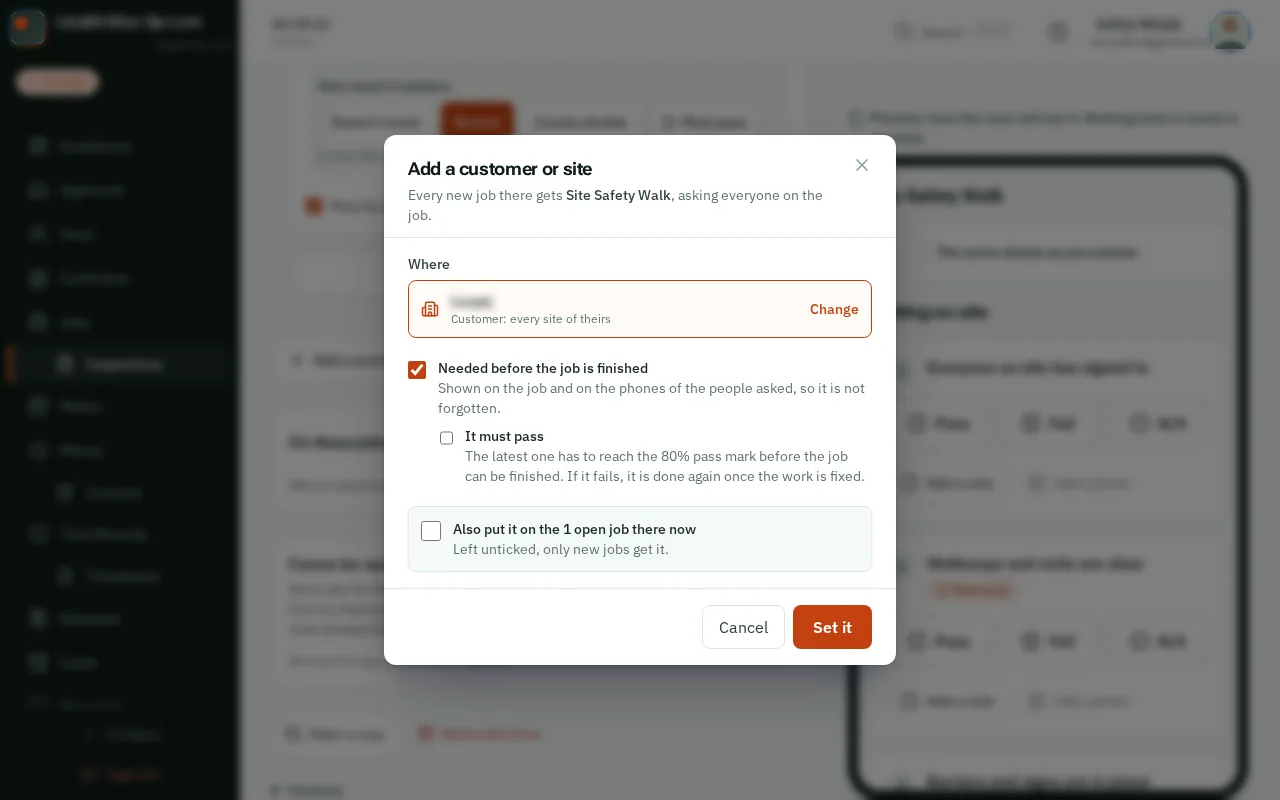
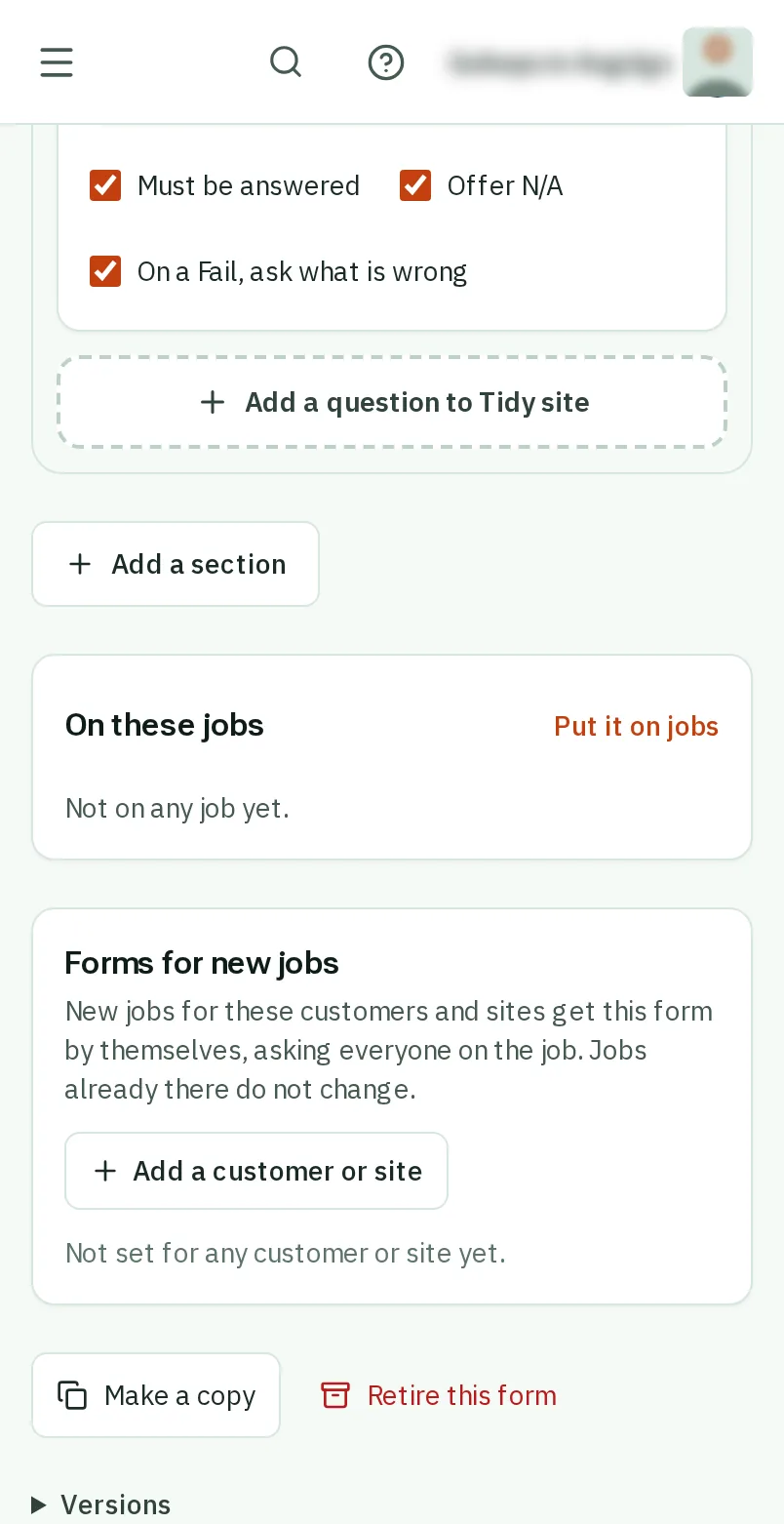
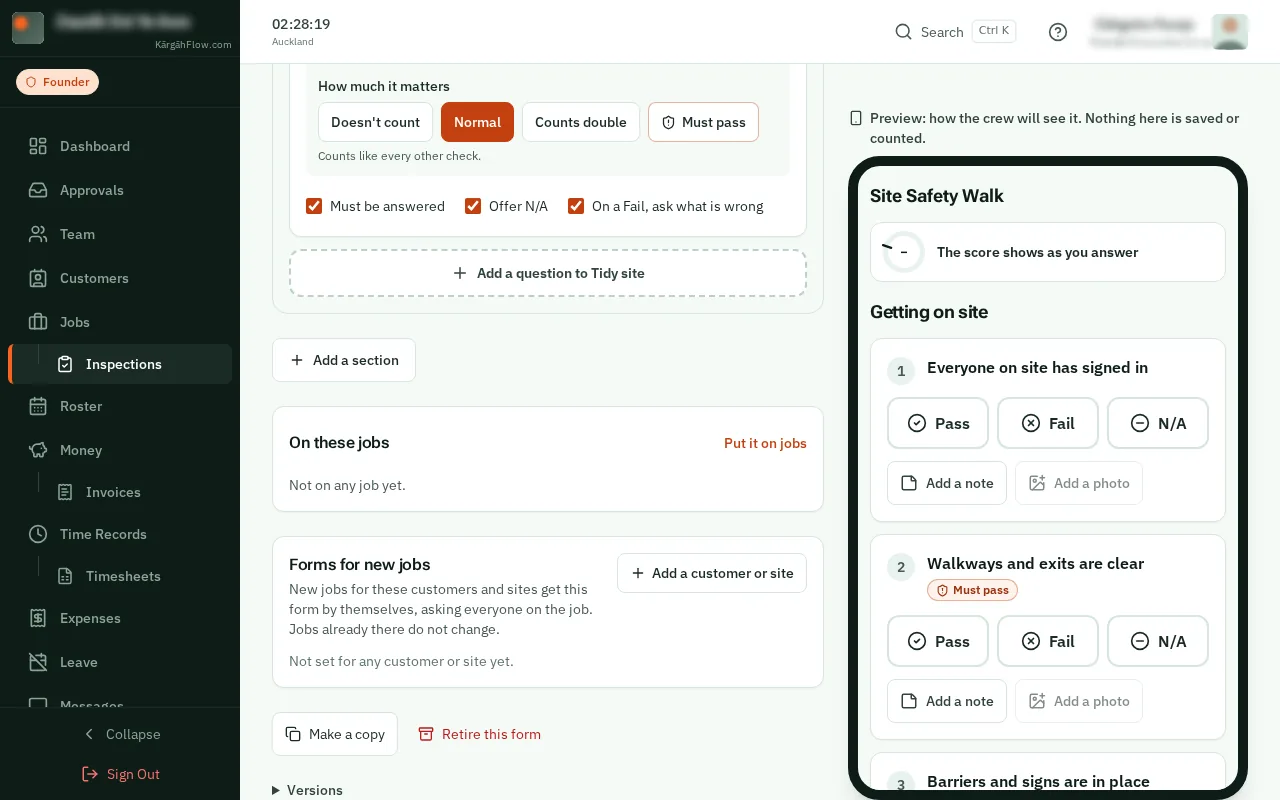
Under Forms for new jobs, tapclick Add a customer or site.
Good to know: You can start from the customer instead: the same list is on a customer’s page under Inspections, and at the bottom of a site’s page.
Type its name and tapclick it in the list. A customer covers every one of their sites; a site covers that place only.
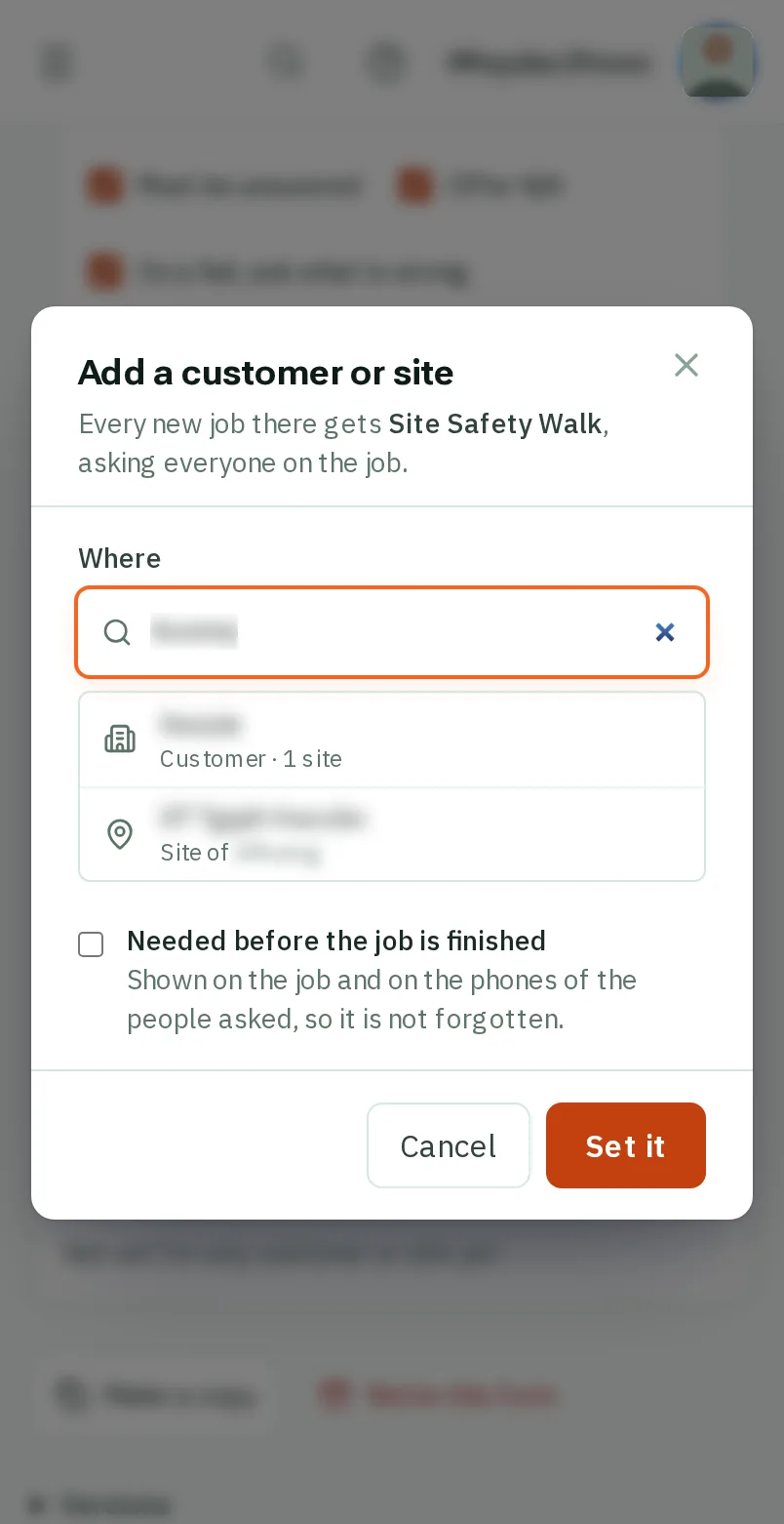
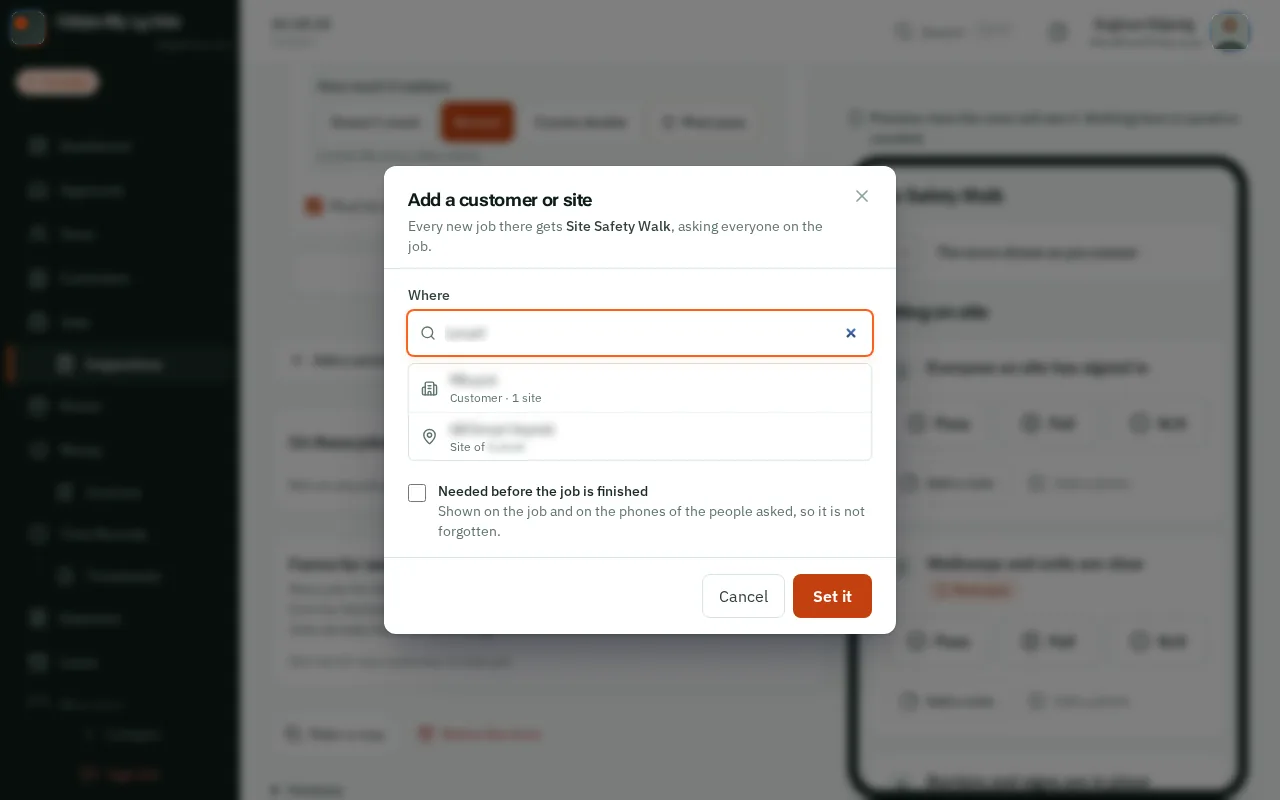
Tick Needed before the job is finished if the job cannot be finished without it. For a scored form you can also tick It must pass.
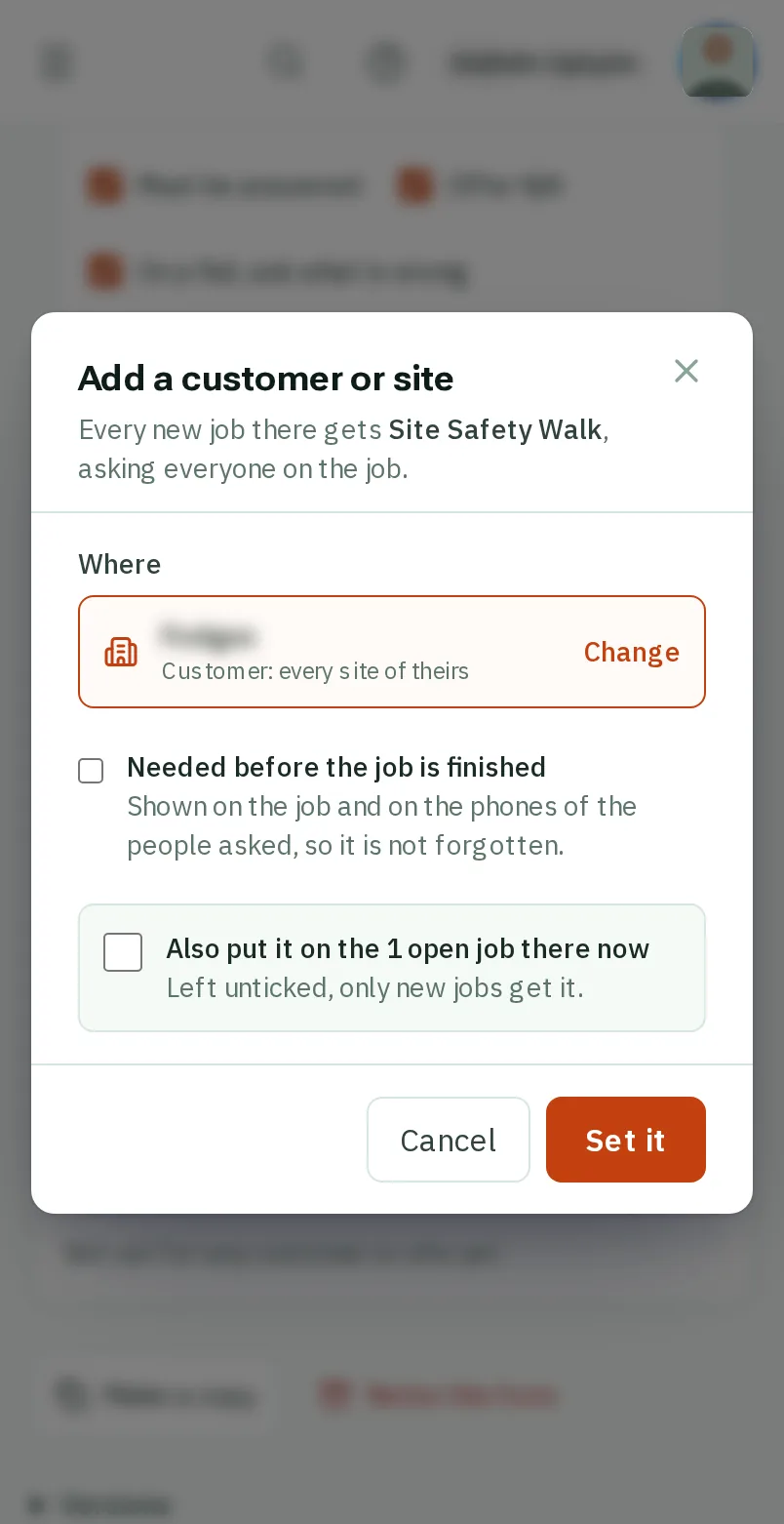
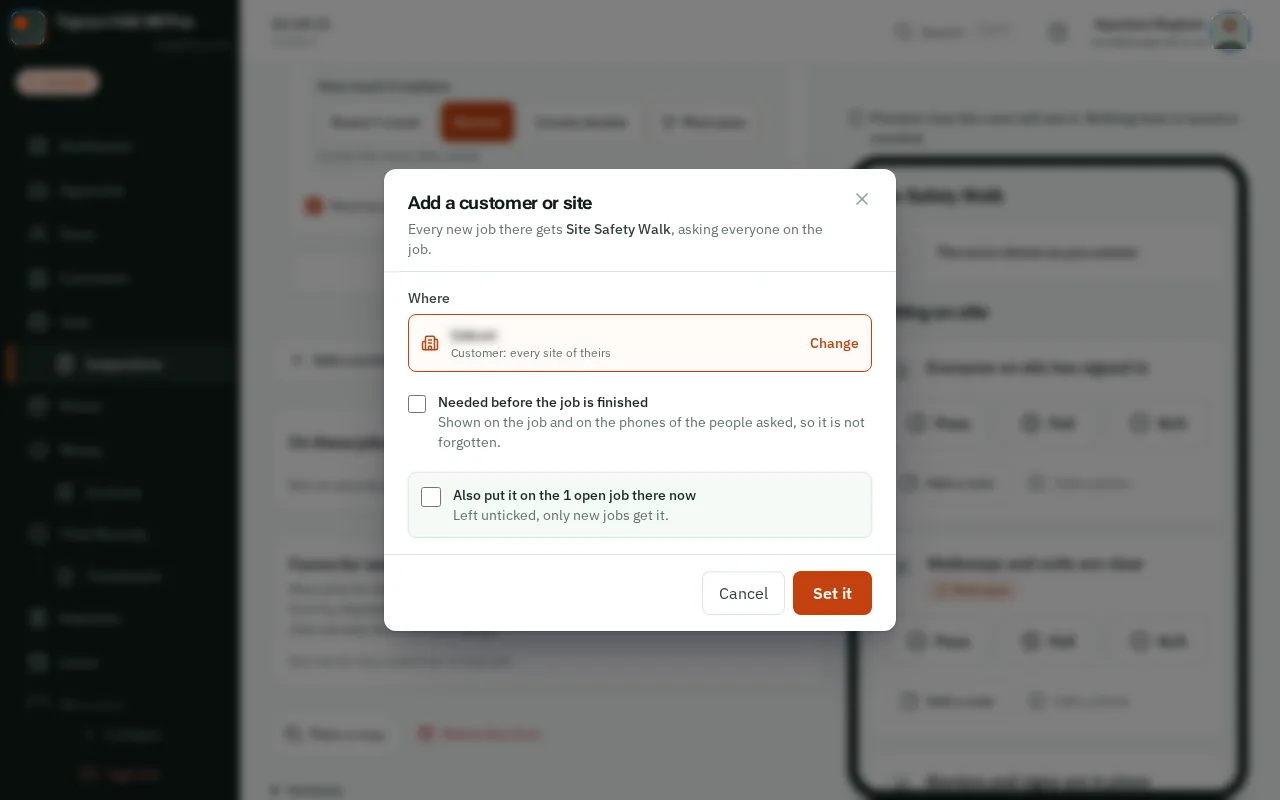
TapClick Set it. Every new job there gets the form by itself, and everyone on the job is asked to do it.
Good to know: Jobs already running there keep what they have. To put it on them too, tick Also put it on the open jobs there now before you tapclick Set it.