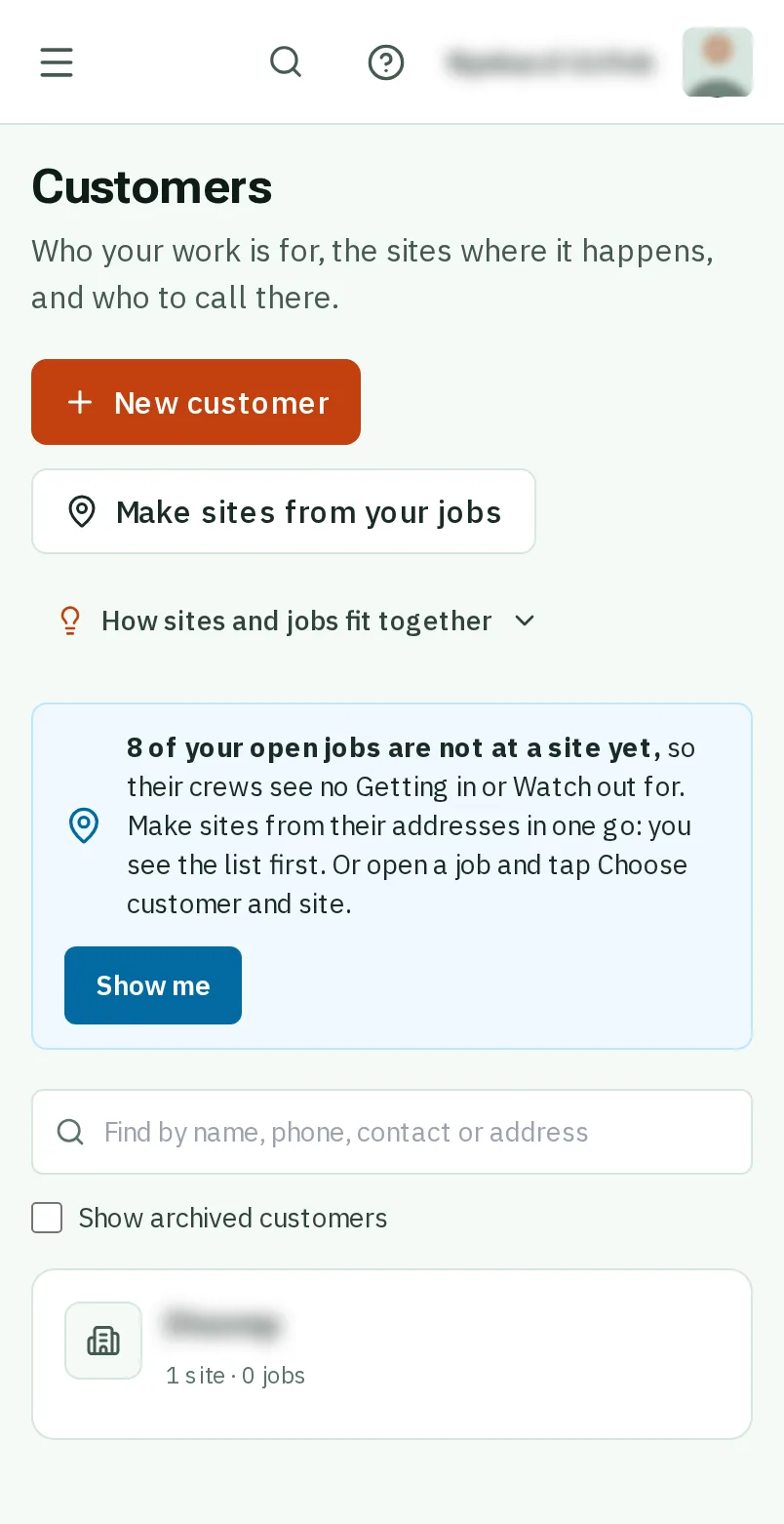
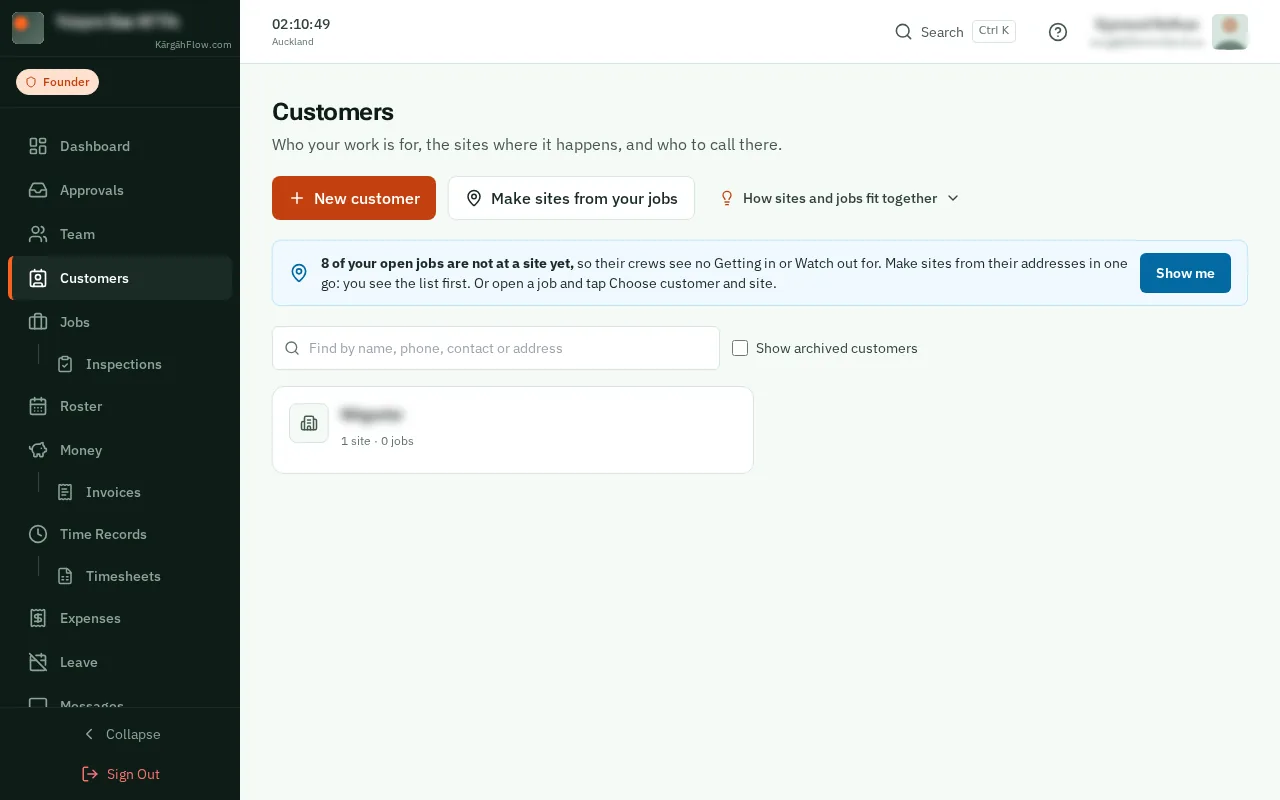
Step 1: Open Customers
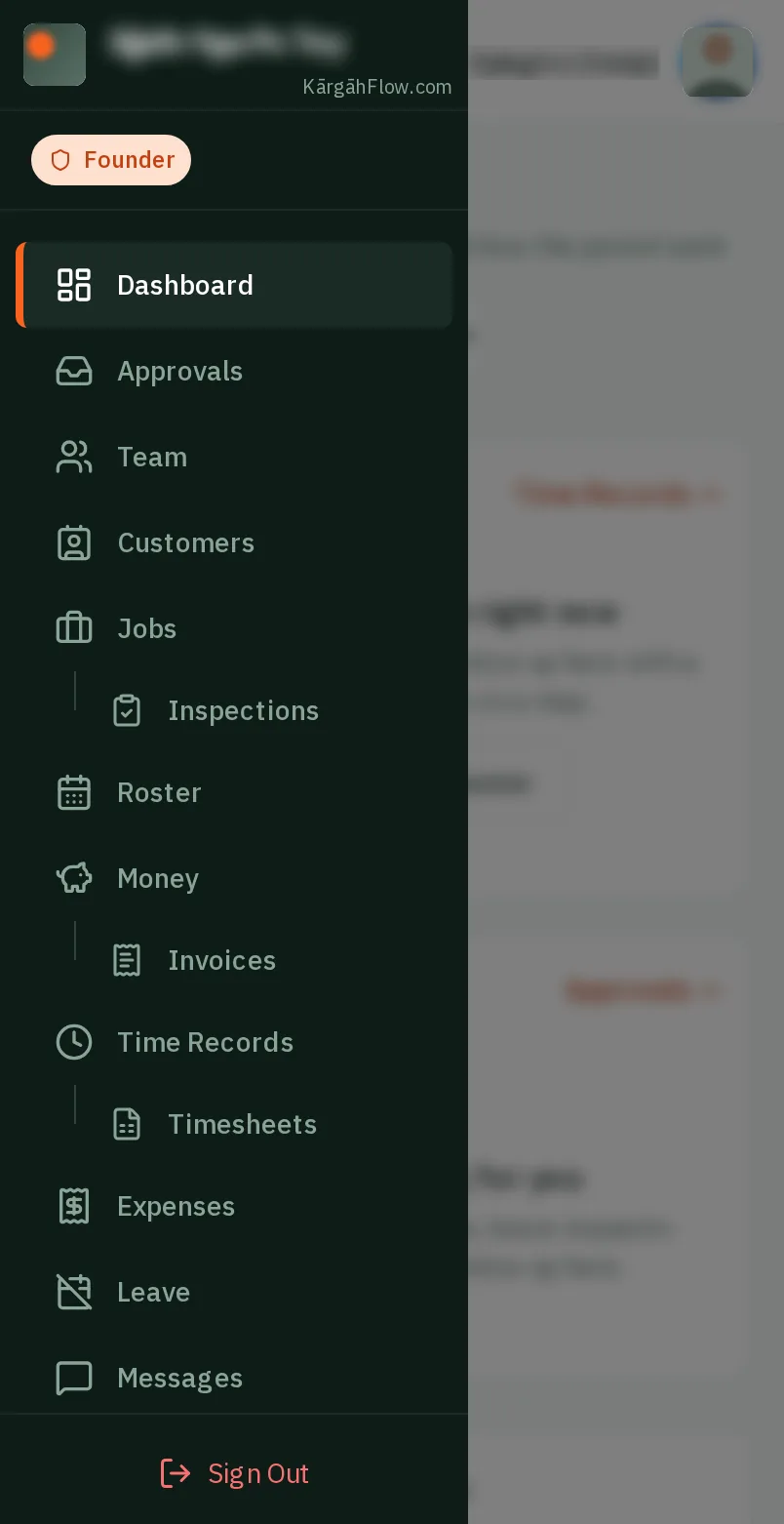
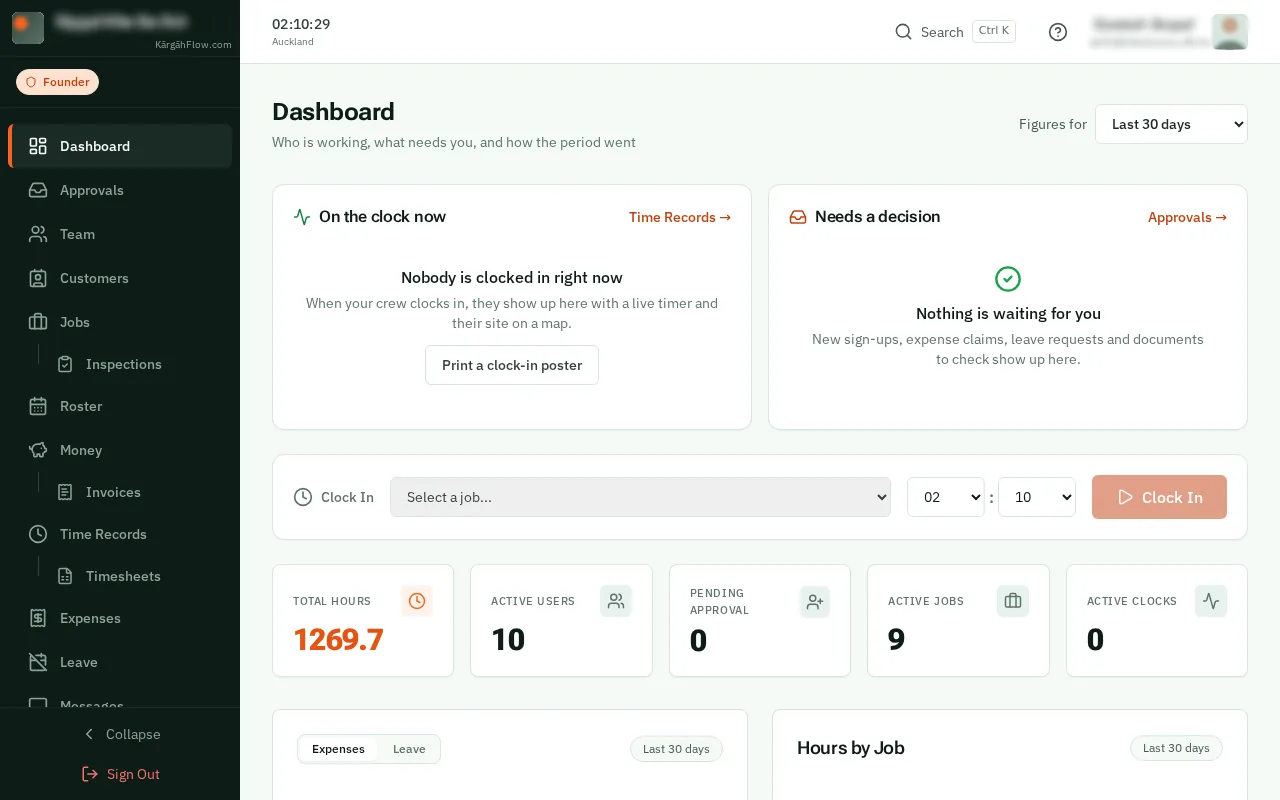
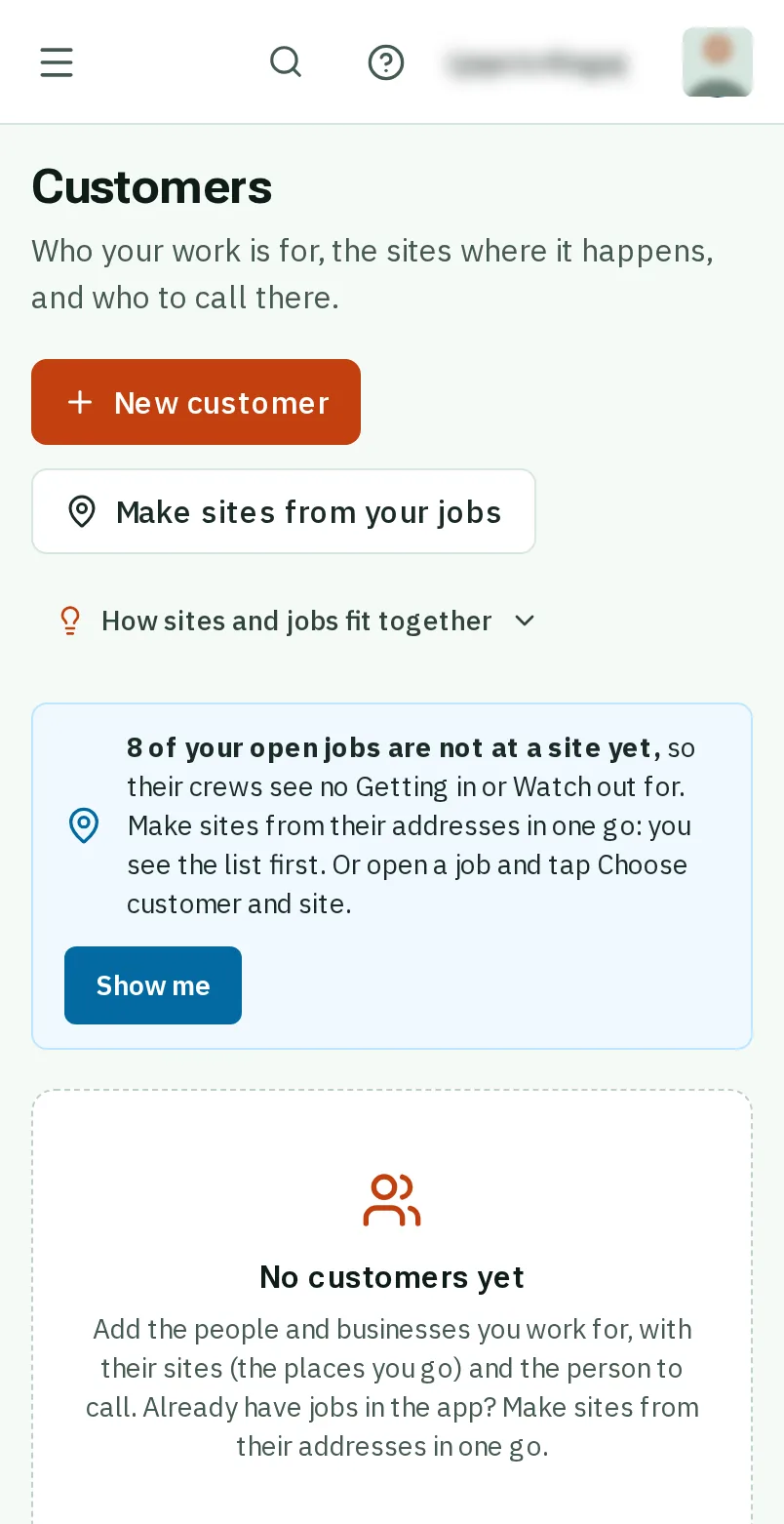
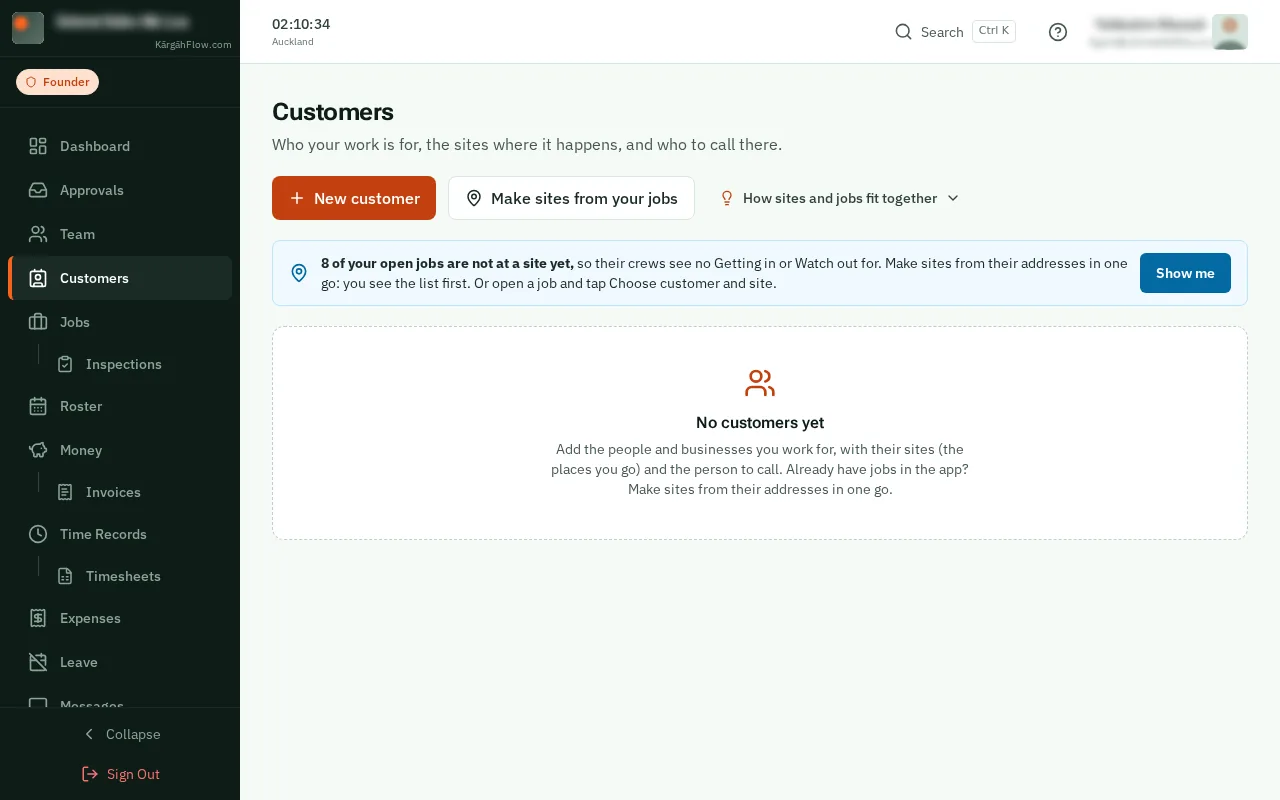
TapClick the menu button at the top left of the screen, then Customers.TapClick Customers in the menu on the left.
Look forthe Customers item in the menu
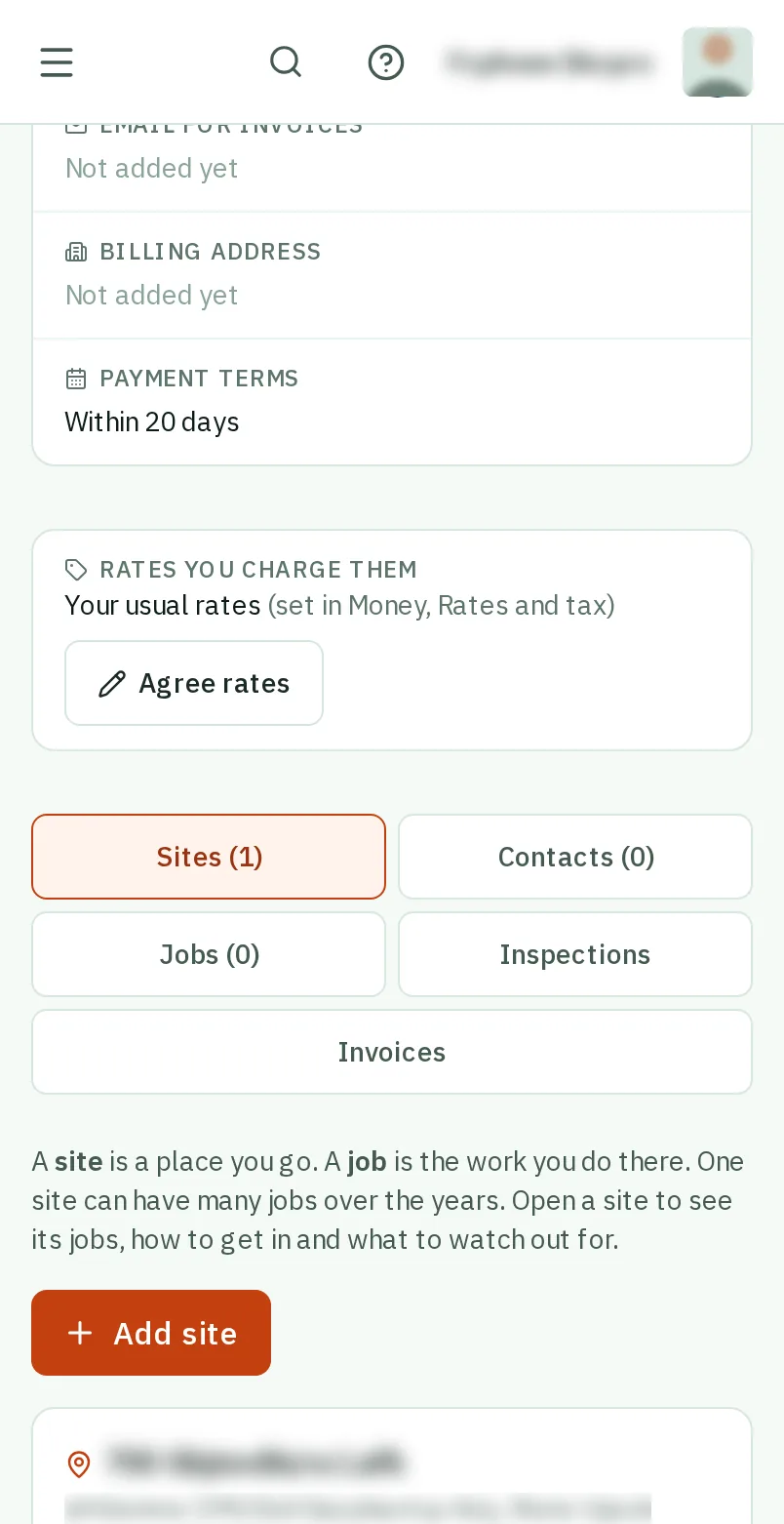
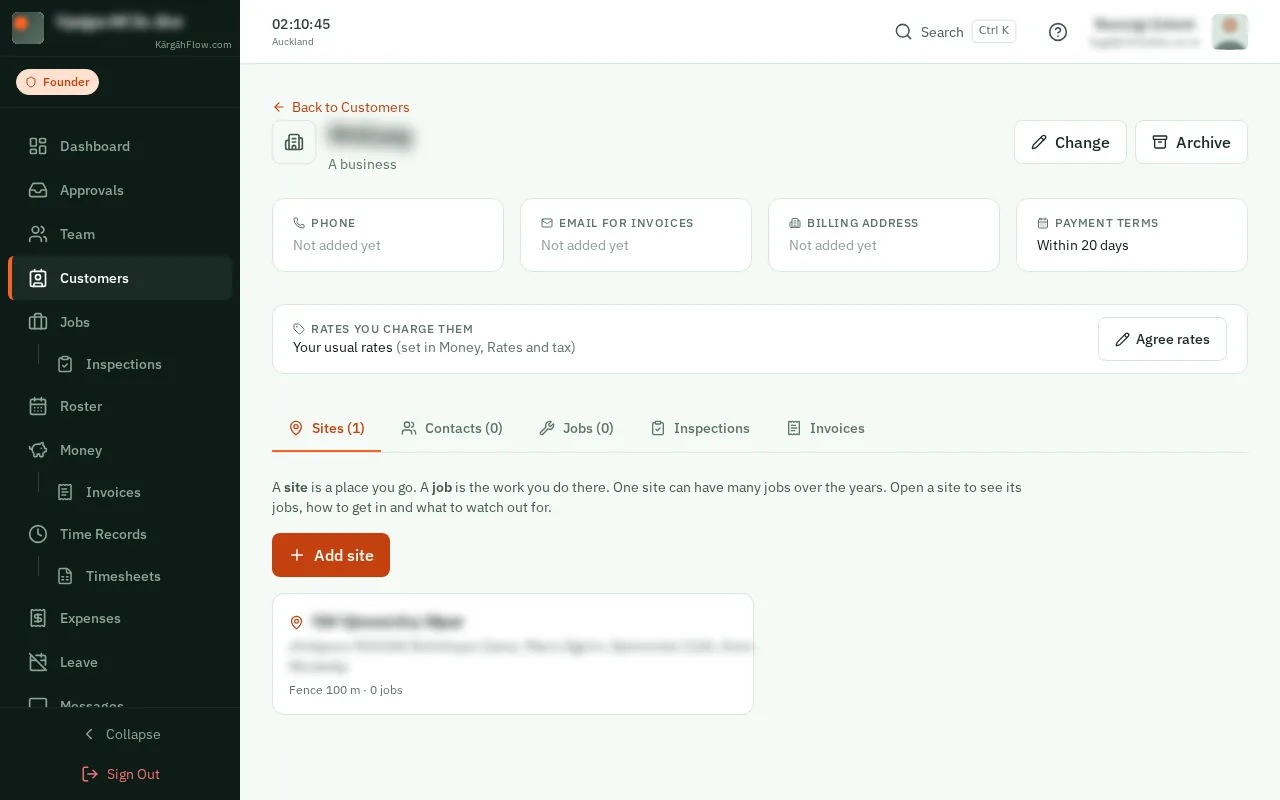
A customer is who the work is for: a business, or a person for a job at their home. A site is a place you go for them, like a building, a house or a yard.
A job is the work you do there. One site can have many jobs over the years, like a weekly clean and a one-off carpet shampoo.
Write how to get in and what to watch out for once, on the site. Everyone sent to any job there sees it on their phone, so nobody rings your customer for the gate code.
TapClick the menu button at the top left of the screen, then Customers.TapClick Customers in the menu on the left.
TapClick the orange New customer button at the top of the page.
Under Name, type the business, or the person if it is a homeowner. For a person, tapclick A person.
Good to know: The name is all you need now. Their phone, email, billing address and payment terms can wait.
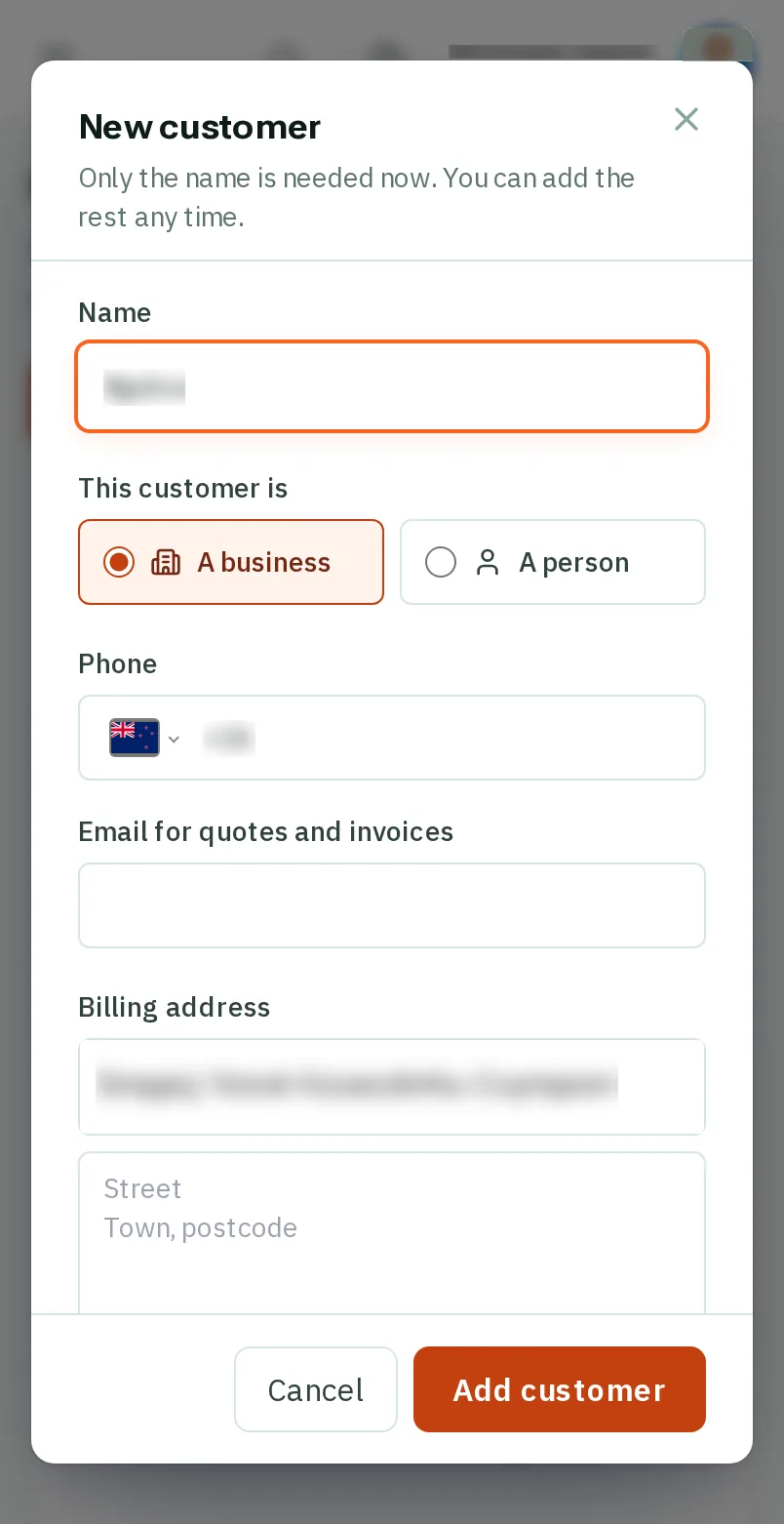
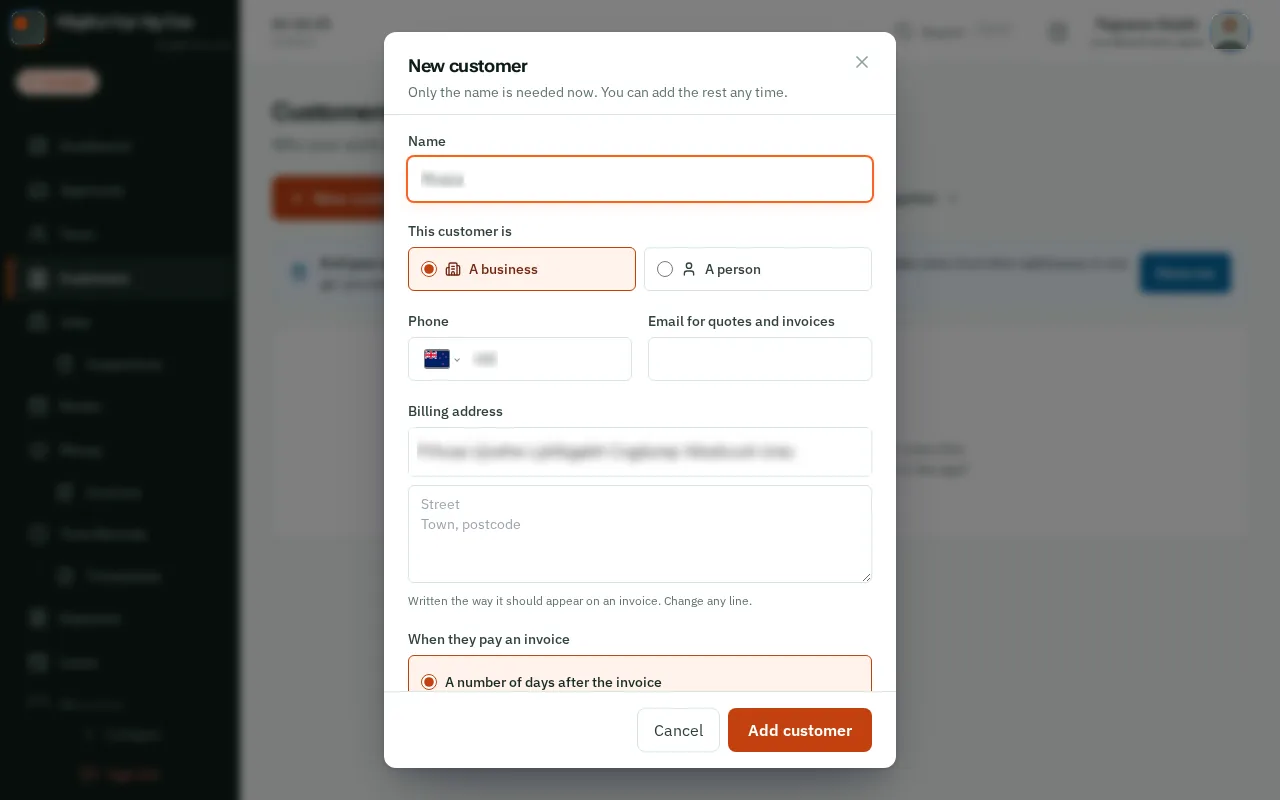
TapClick Add customer at the bottom of the window. Their own page opens.
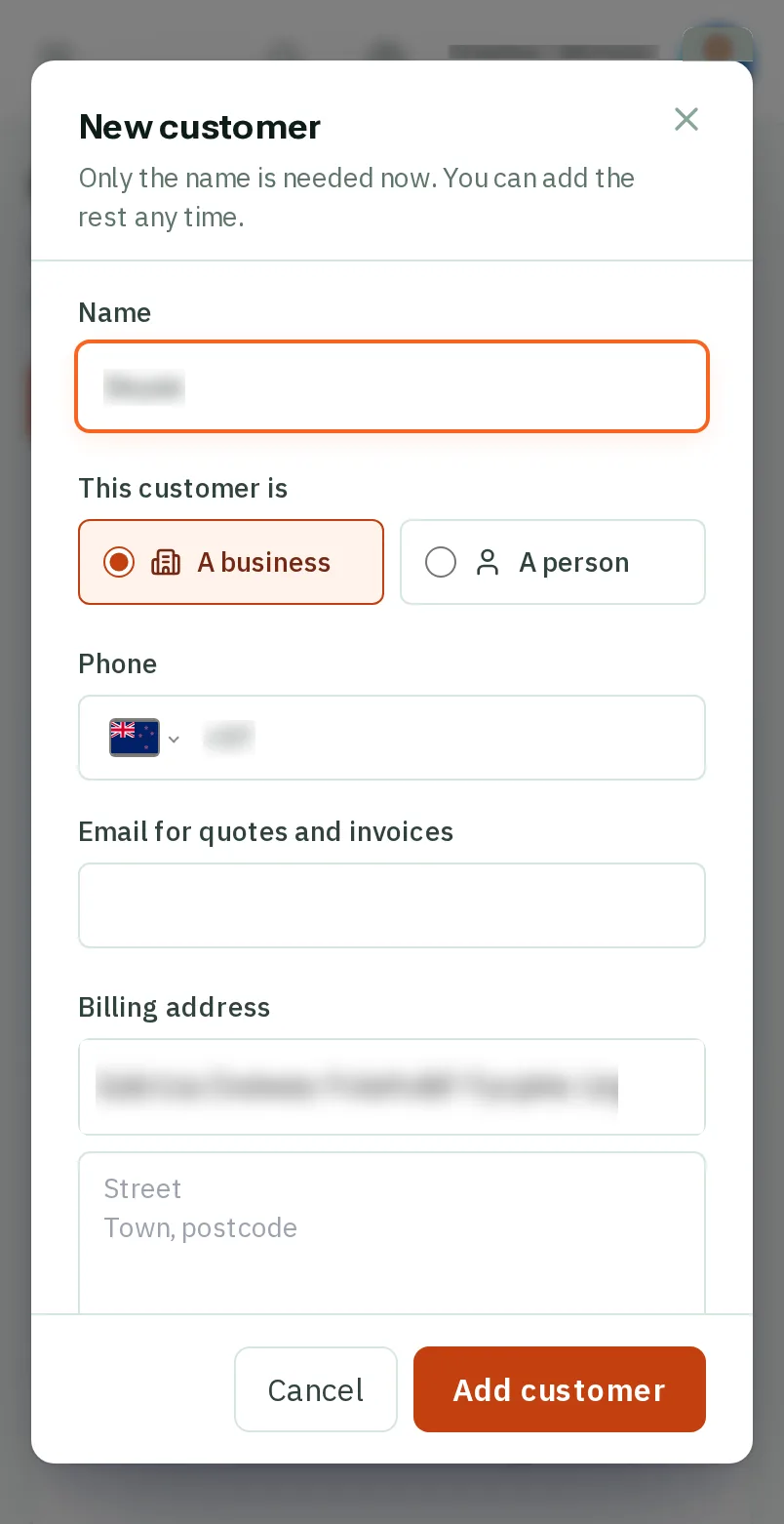
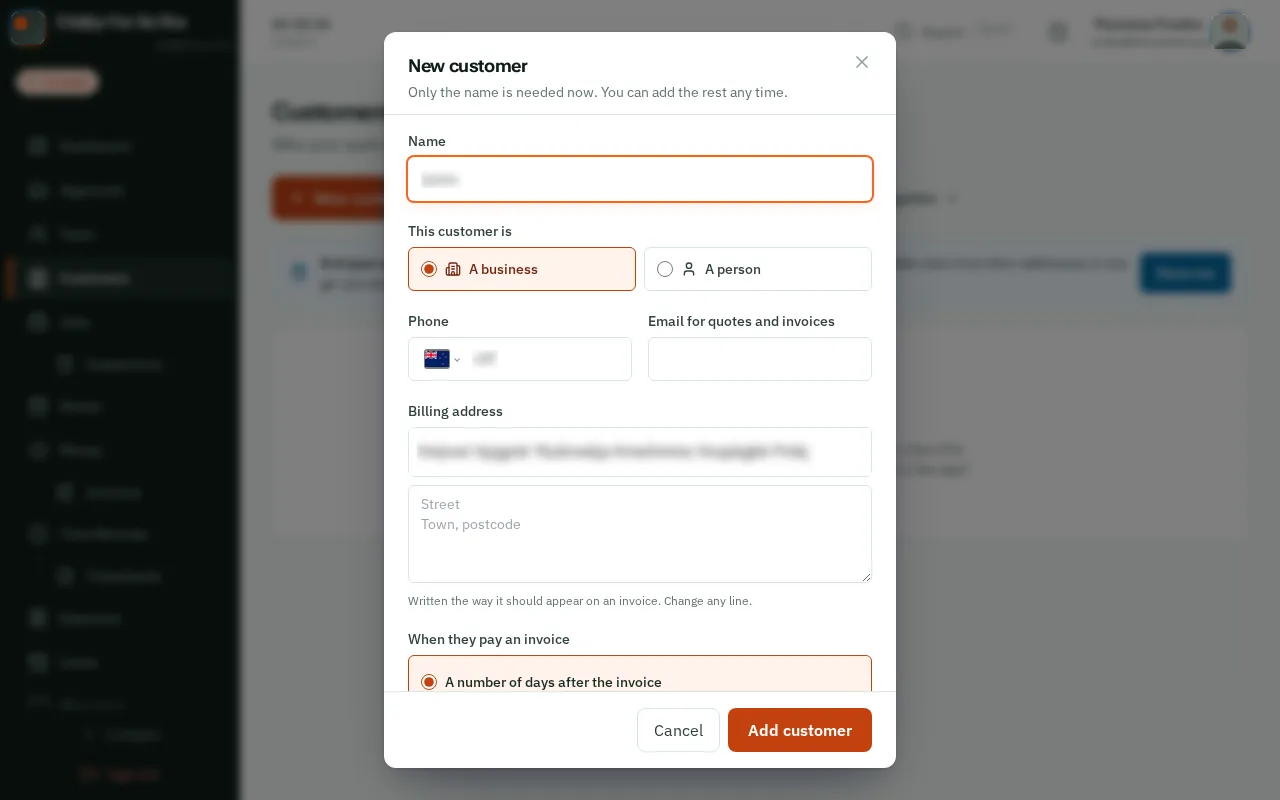
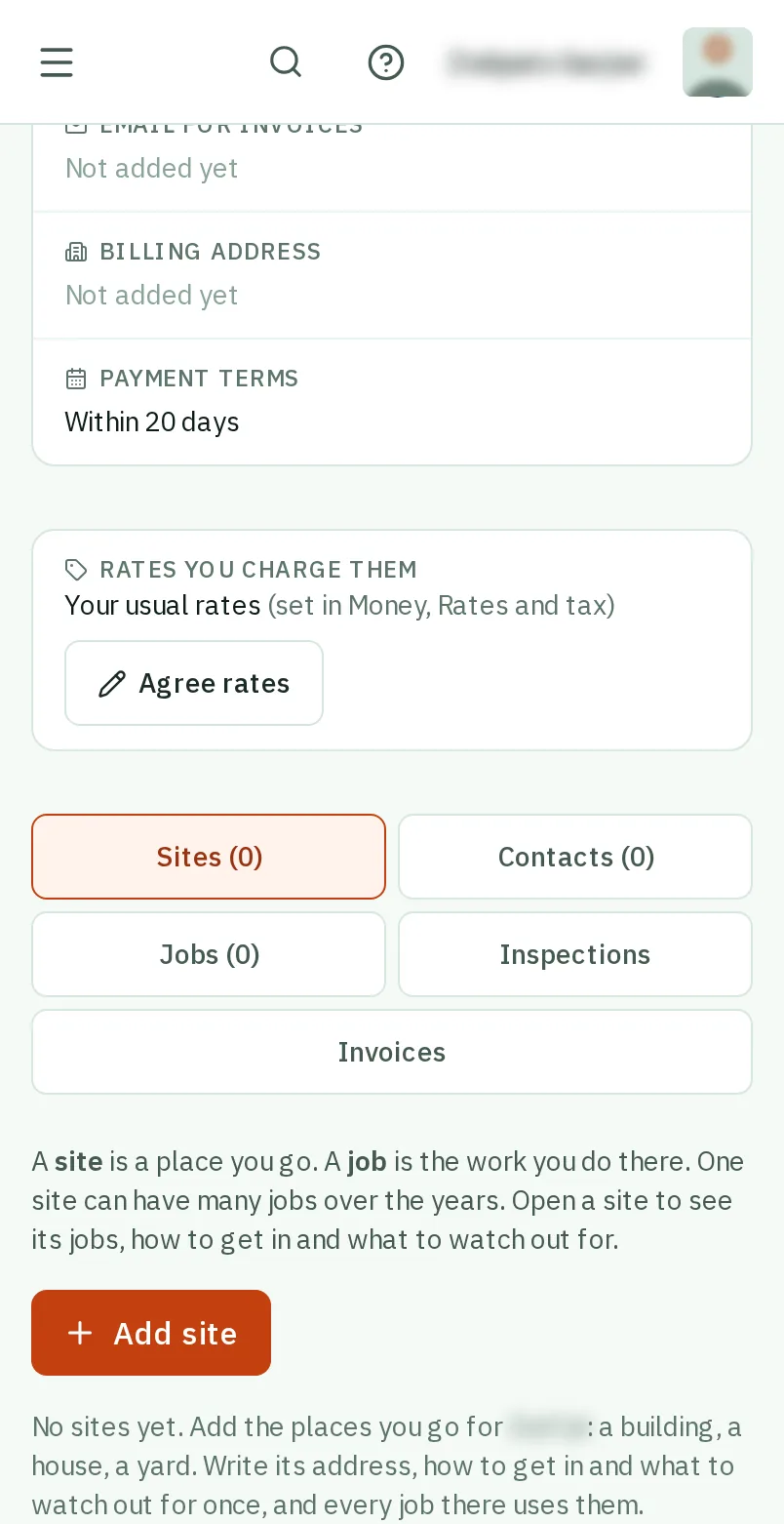
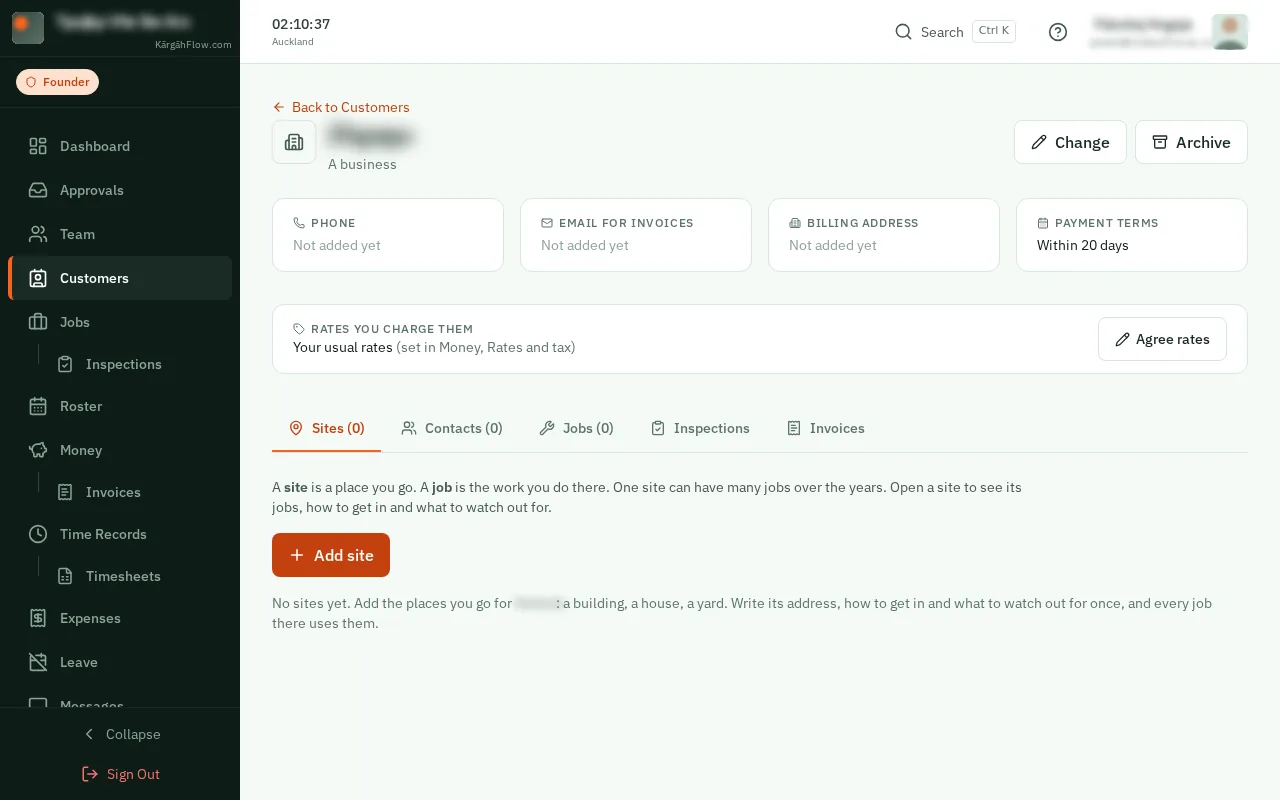
TapClick Add site. A site is a place you go for them: a building, a house, a yard.
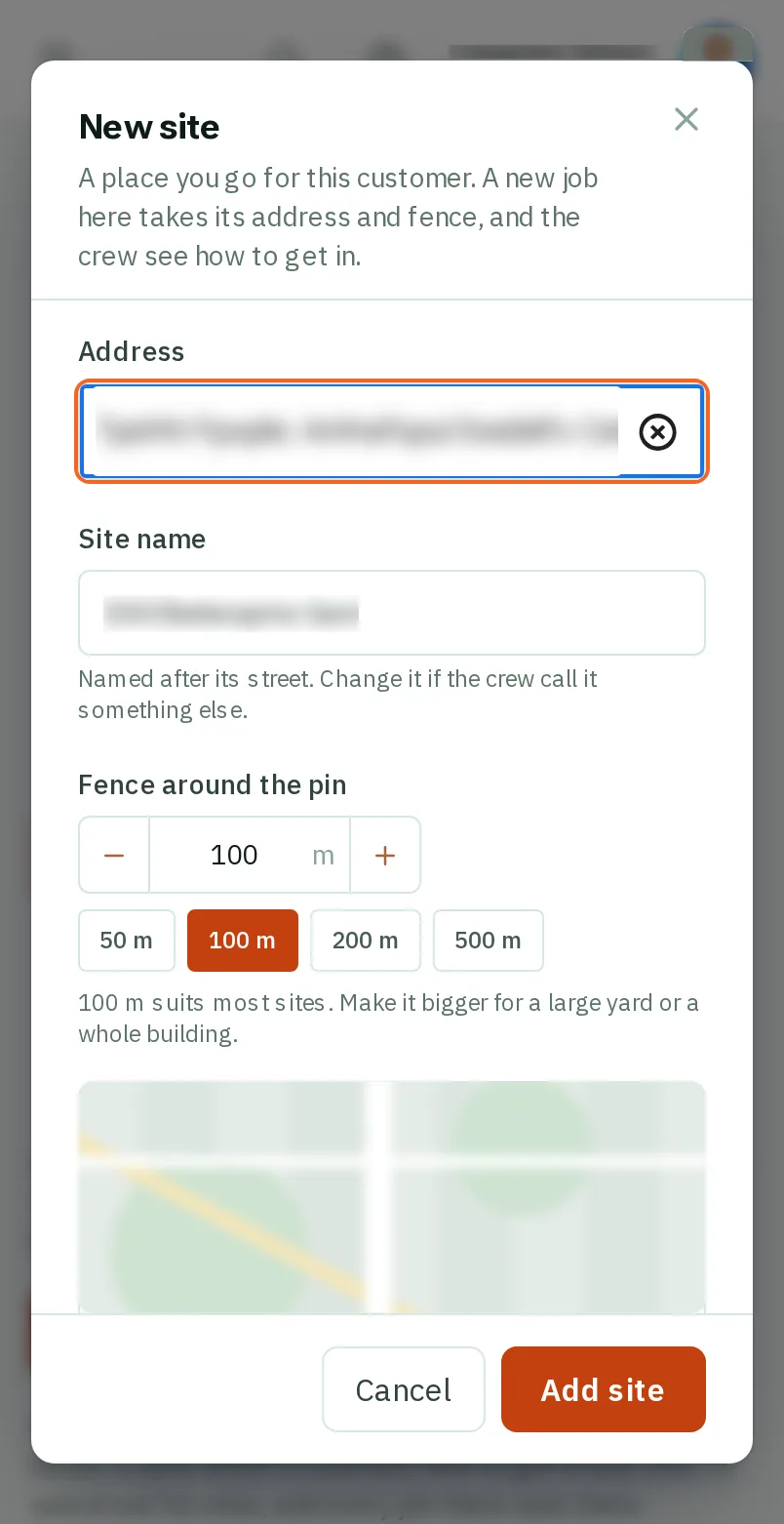
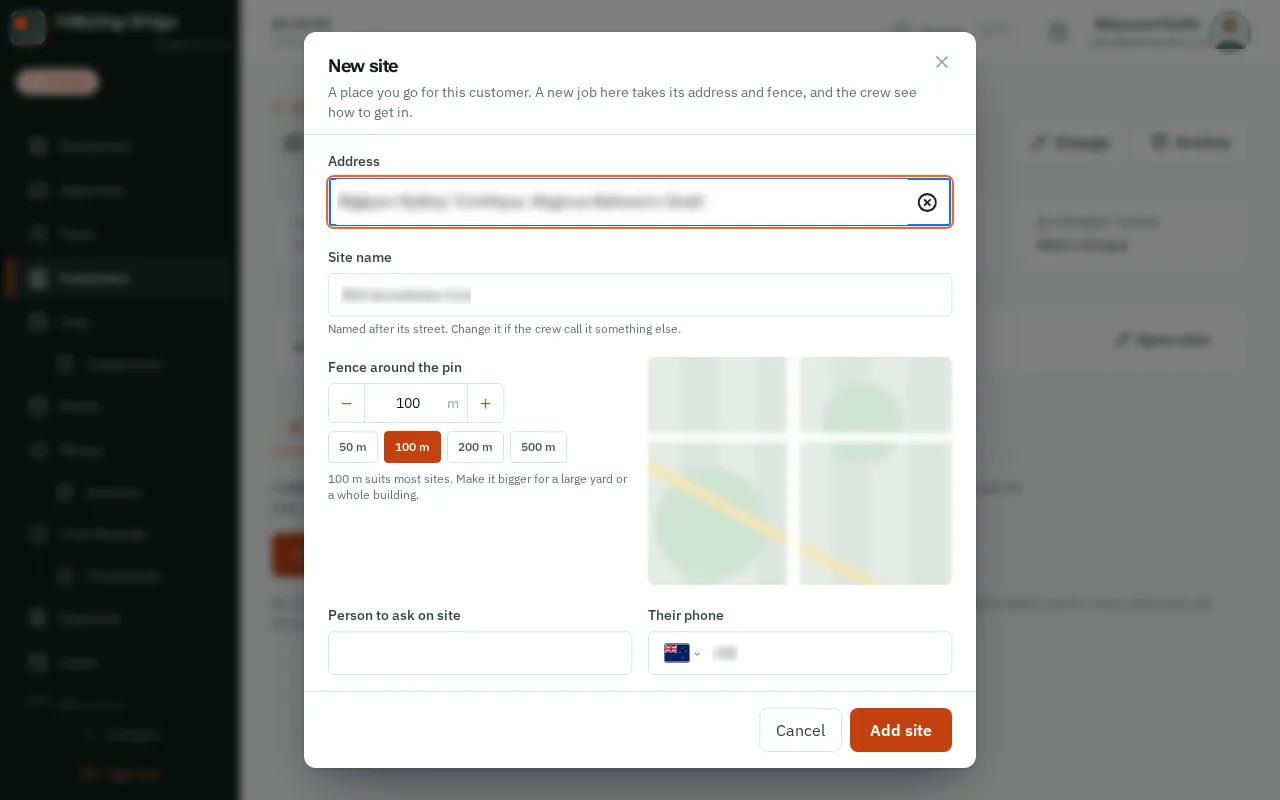
Start typing under Address, then tapclick the right one in the list. The site’s name fills itself in from the street, and the photo shows the fence around it.
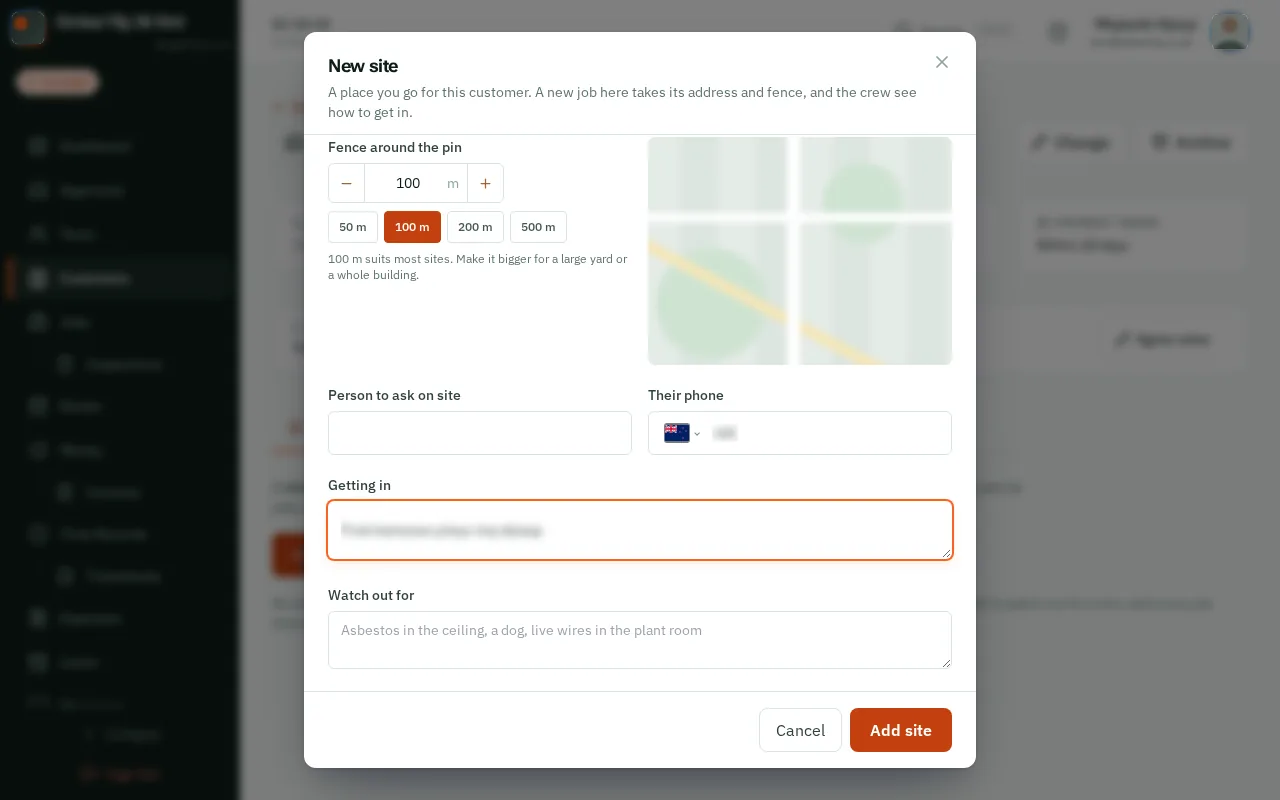
Good to know: The fence starts at 100 m, which suits most sites. TapClick 200 m or 500 m for a big yard or a whole building.
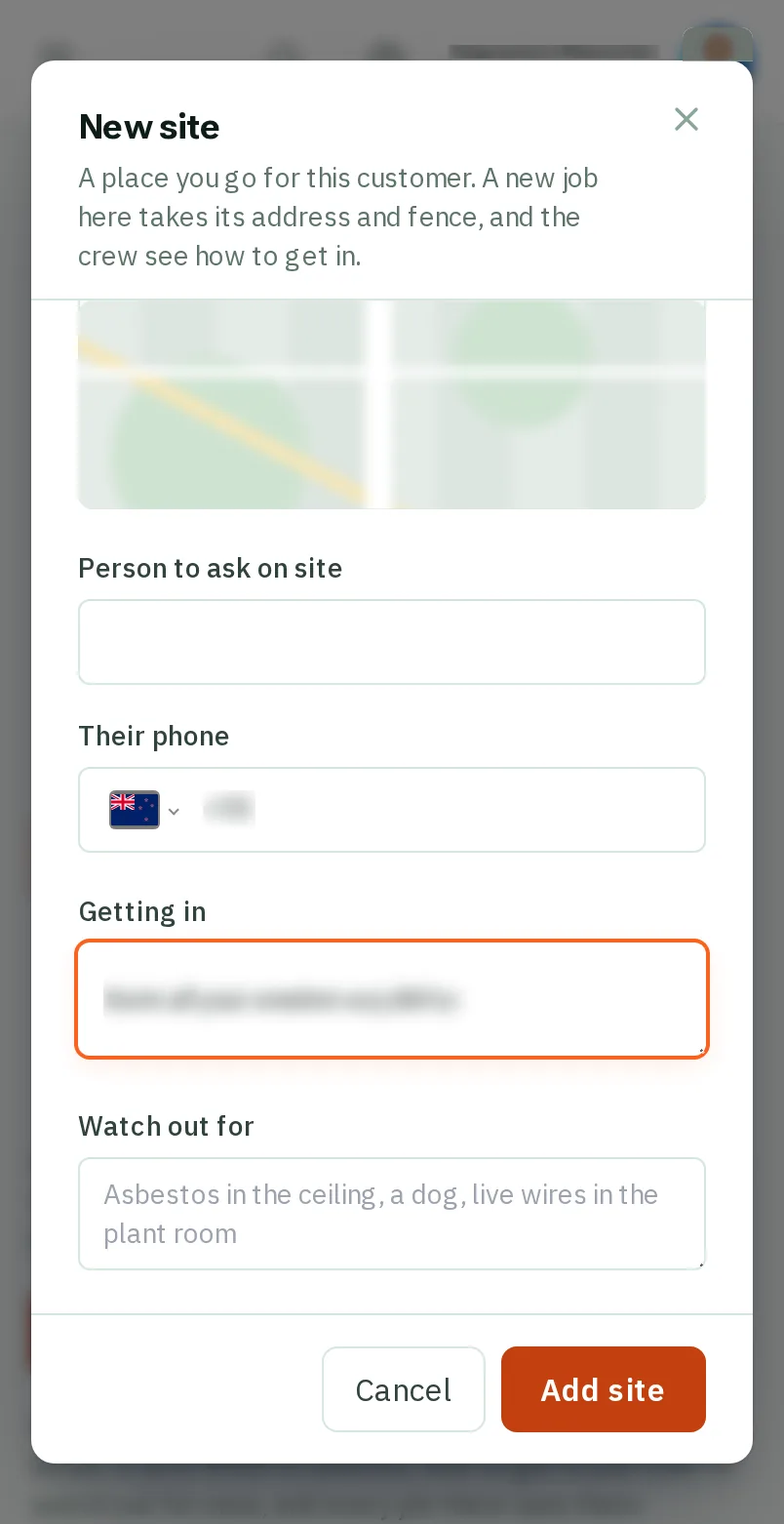
Under Getting in and Watch out for, write what anyone going there needs to know: the gate code, where to park, a dog. Then tapclick Add site.
TapClick Contacts, then Add contact. Type their name, what they do there and their phone, and tapclick Add contact.
Good to know: The first person you add is the main contact. A new job for them starts with Where is the work?: tapclick their site there, and the job is theirs.