Step 1: Open Jobs
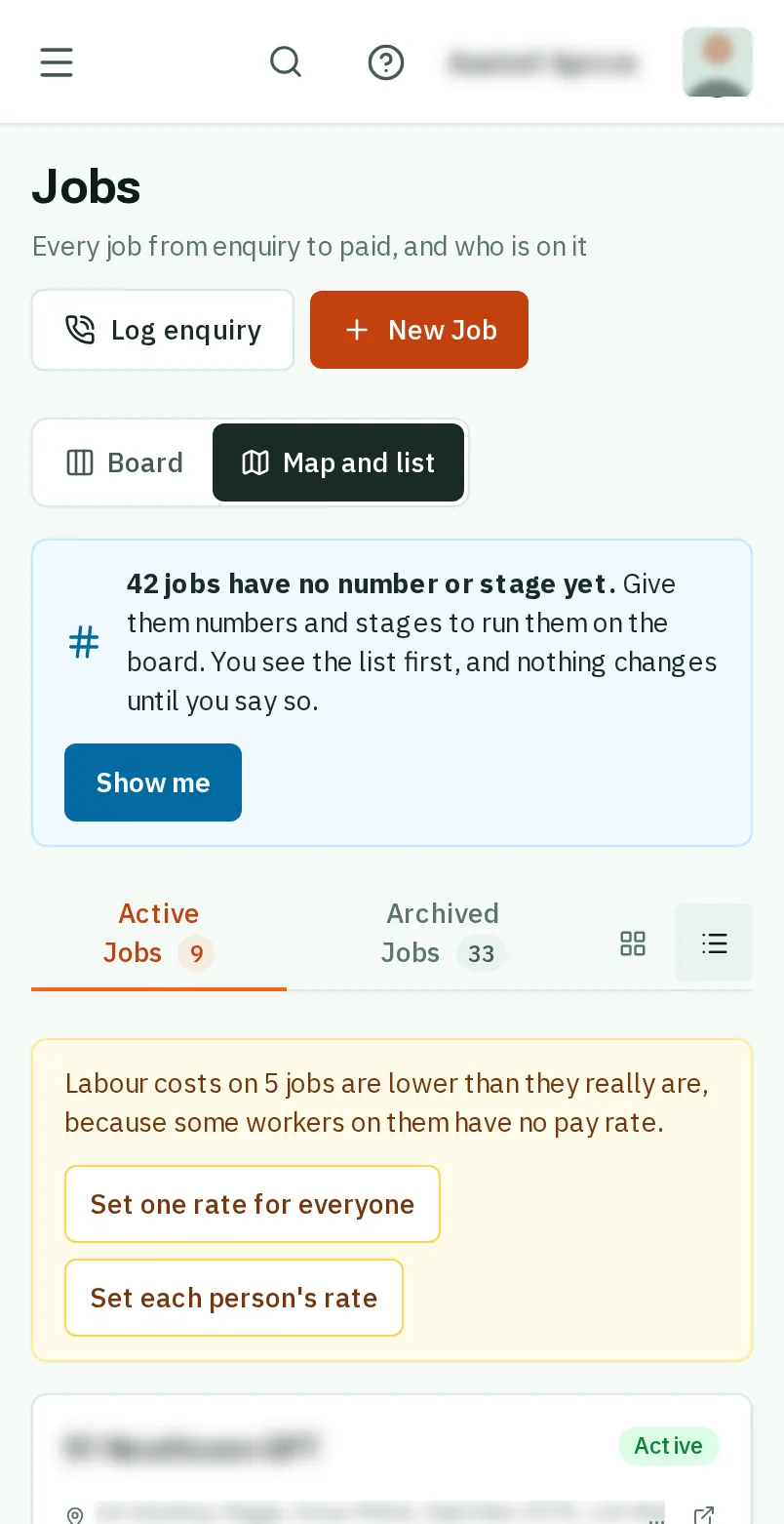
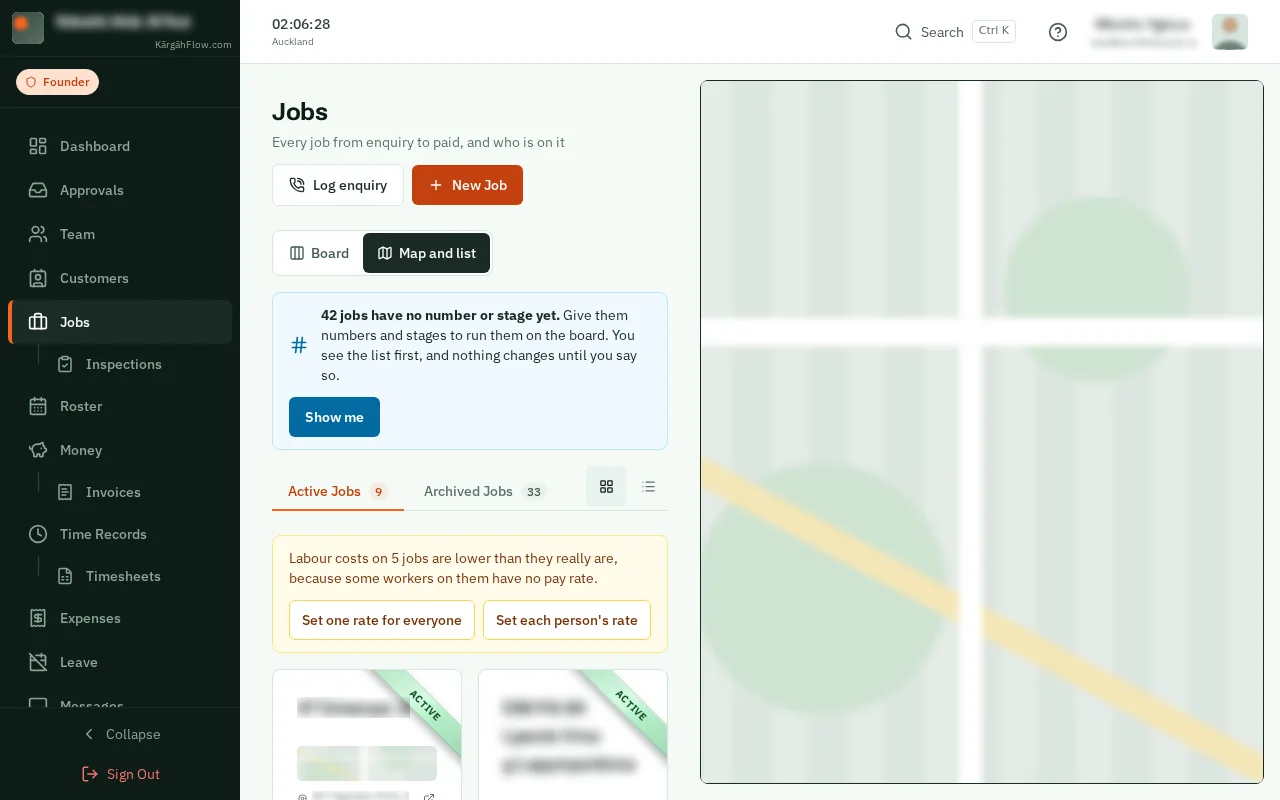
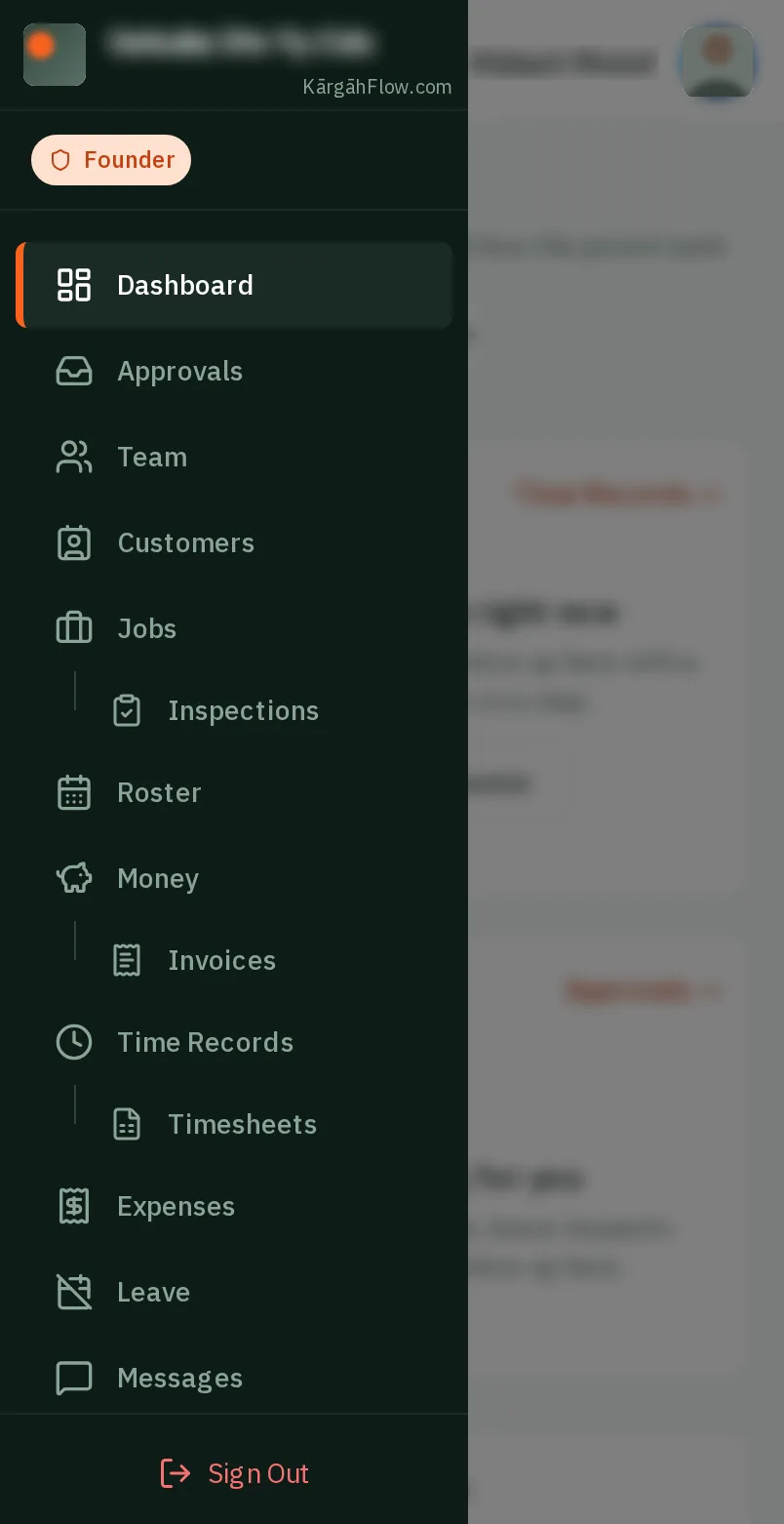
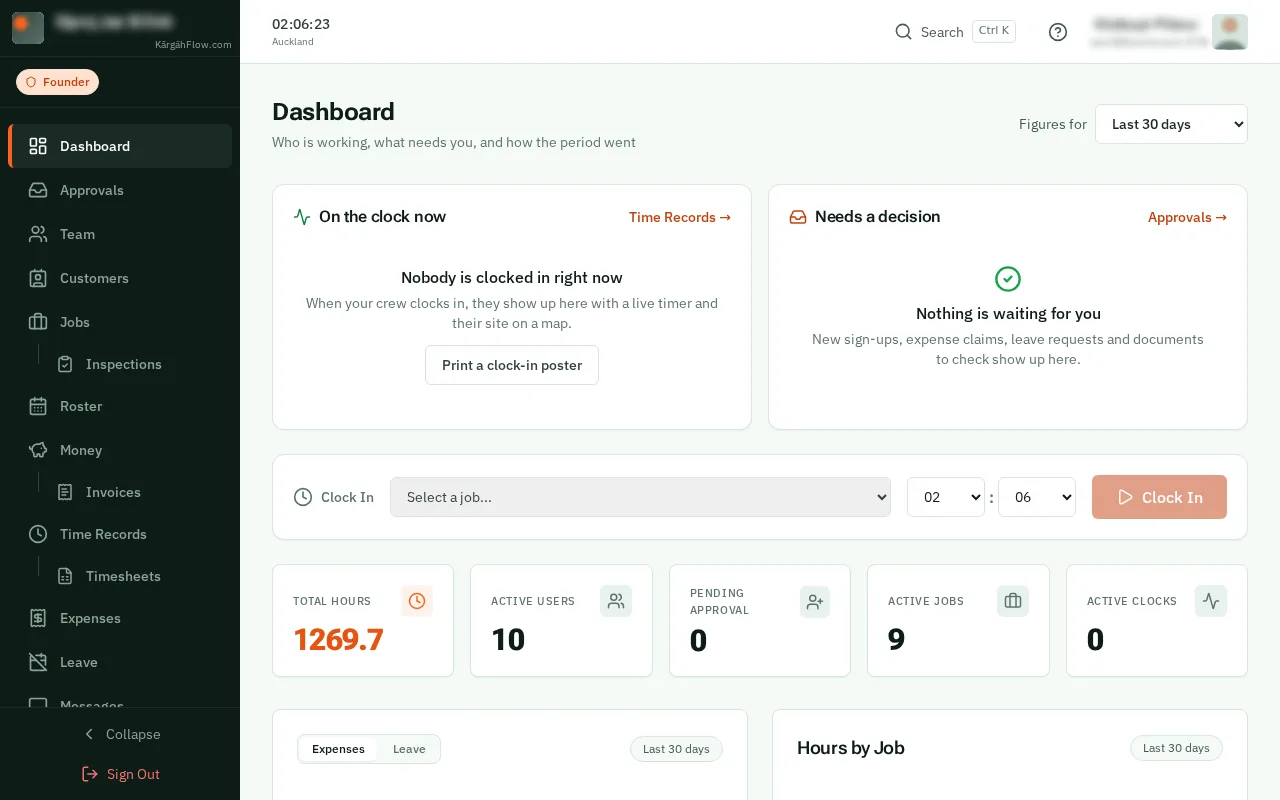
TapClick the menu button at the top left of the screen, then Jobs.TapClick Jobs in the menu on the left.
Look forthe Jobs item in the menu
A job is a piece of work, like a weekly office clean or a new chiller. It happens at a site, the place you go, and one site can have many jobs over the years.
Pick one of your sites and the job takes its address and clock-in fence, and your crew see how to get in and what to watch out for there.
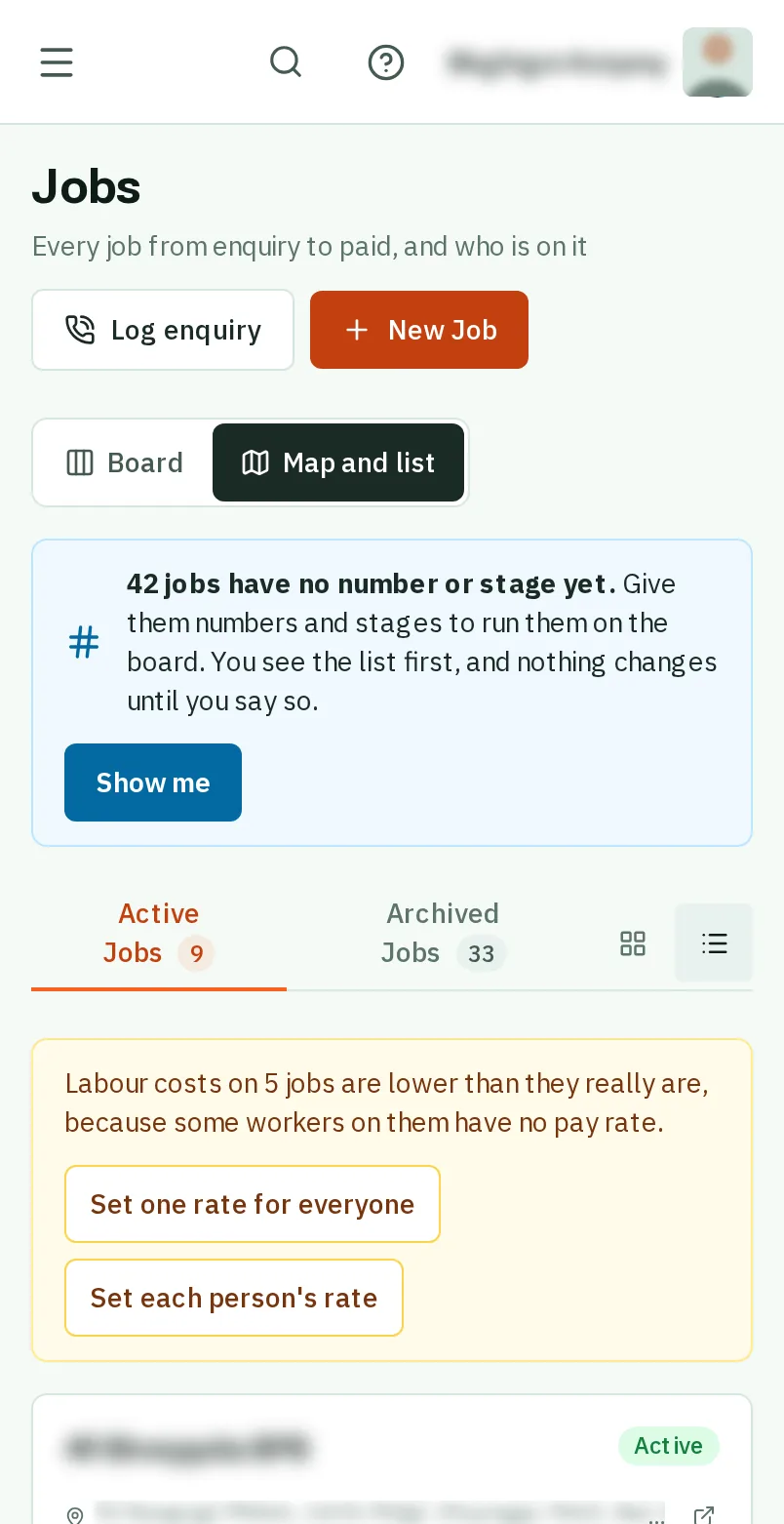
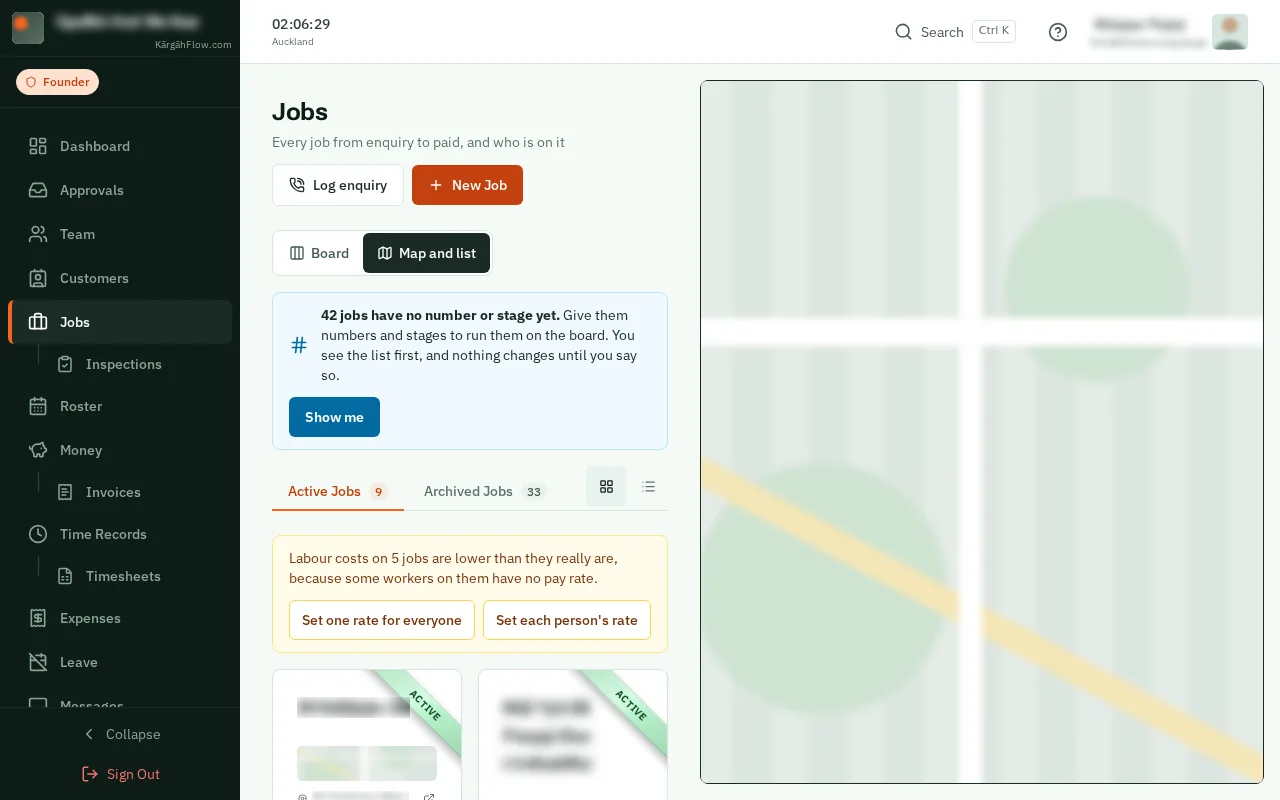
TapClick the menu button at the top left of the screen, then Jobs.TapClick Jobs in the menu on the left.
TapClick the orange New Job button at the top of the page.
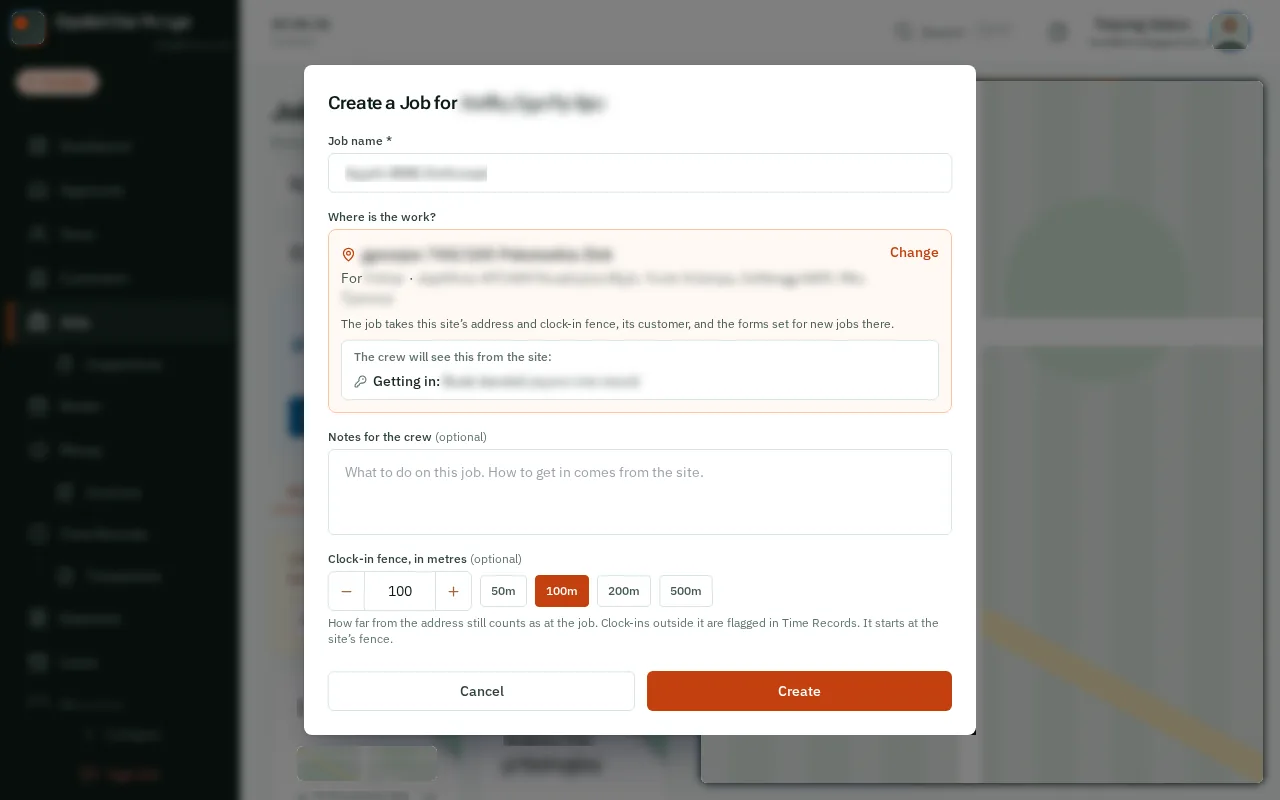
Under Job name, type a name for the work your crew will know it by, like Weekly office clean or Install new chiller.
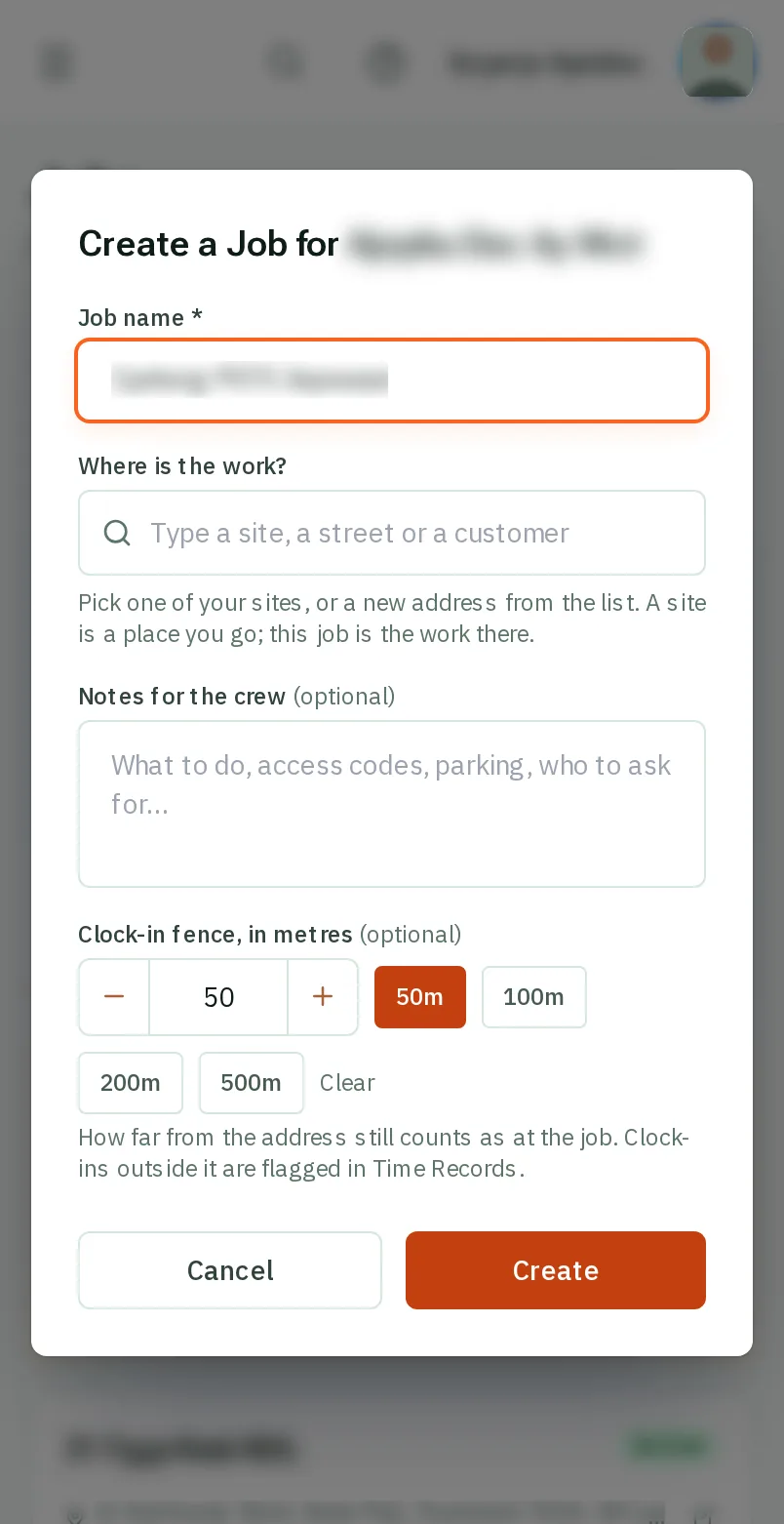
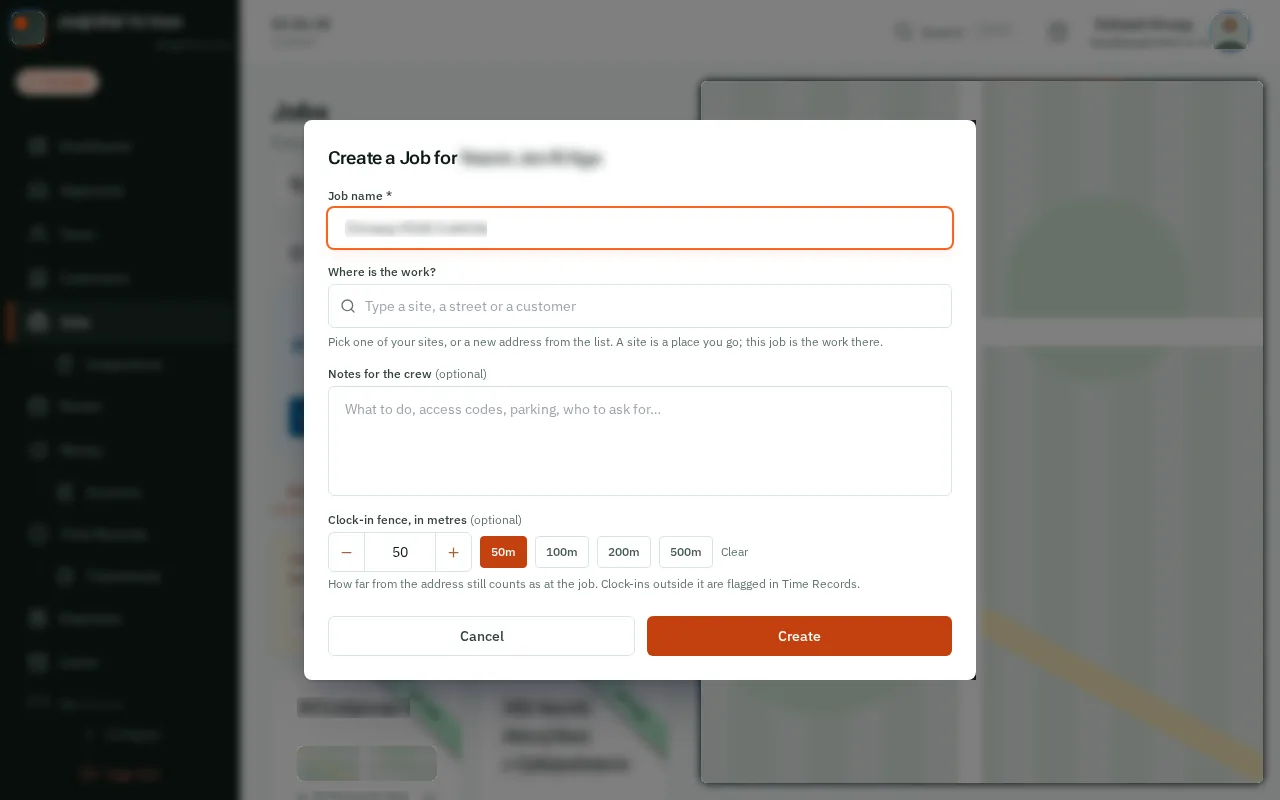
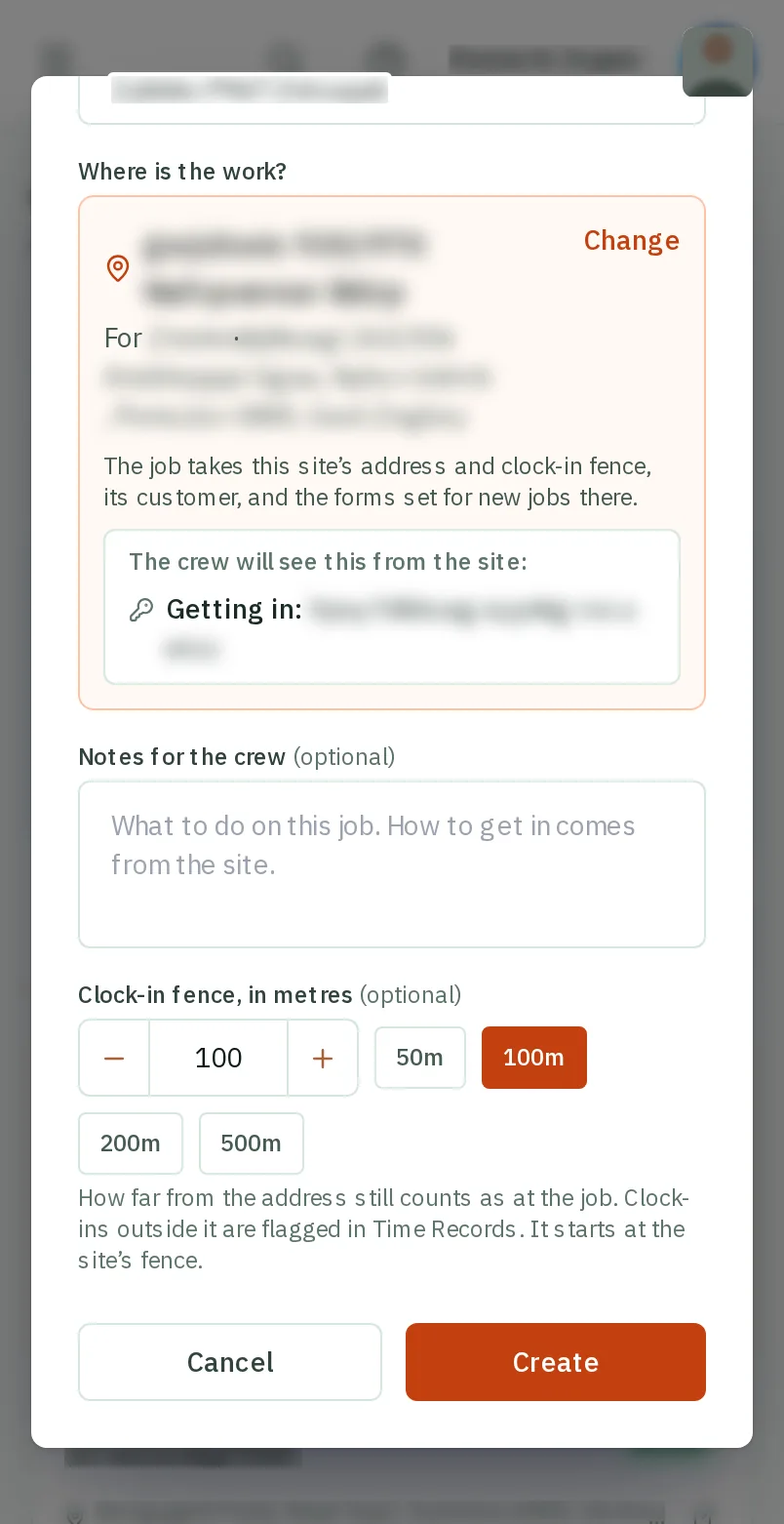
Under Where is the work?, type the site’s name, the street or the customer. TapClick one of Your sites, or a new address under A new address.
Good to know: A site gives the job its address and clock-in fence, and the crew see its Getting in and Watch out for. For a new address you can choose who it is for, and keep it as one of their sites for next time.
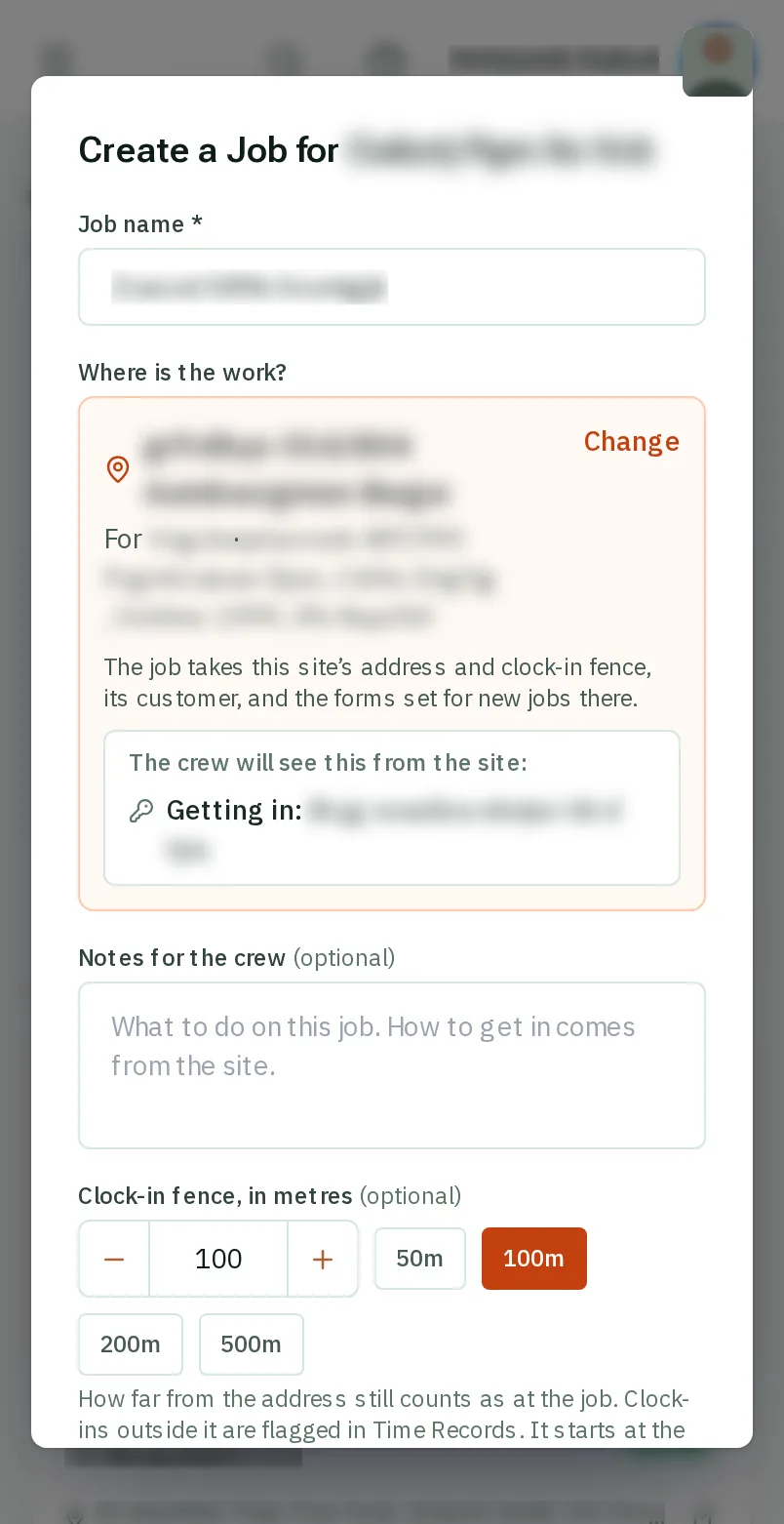
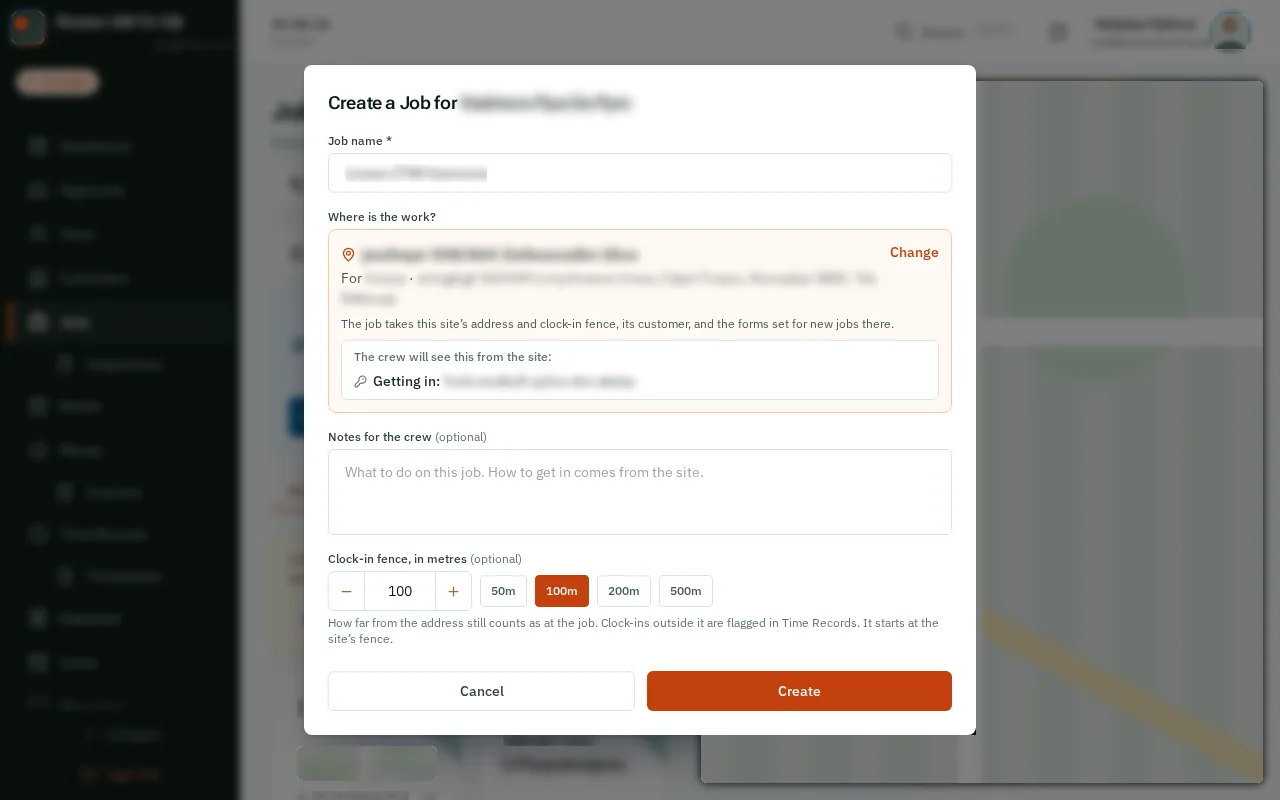
Under Notes for the crew, put what they need to know about this job. You can leave it empty.
Good to know: How to get in and what to watch out for are written once on the site, so you do not need them here when you picked one.
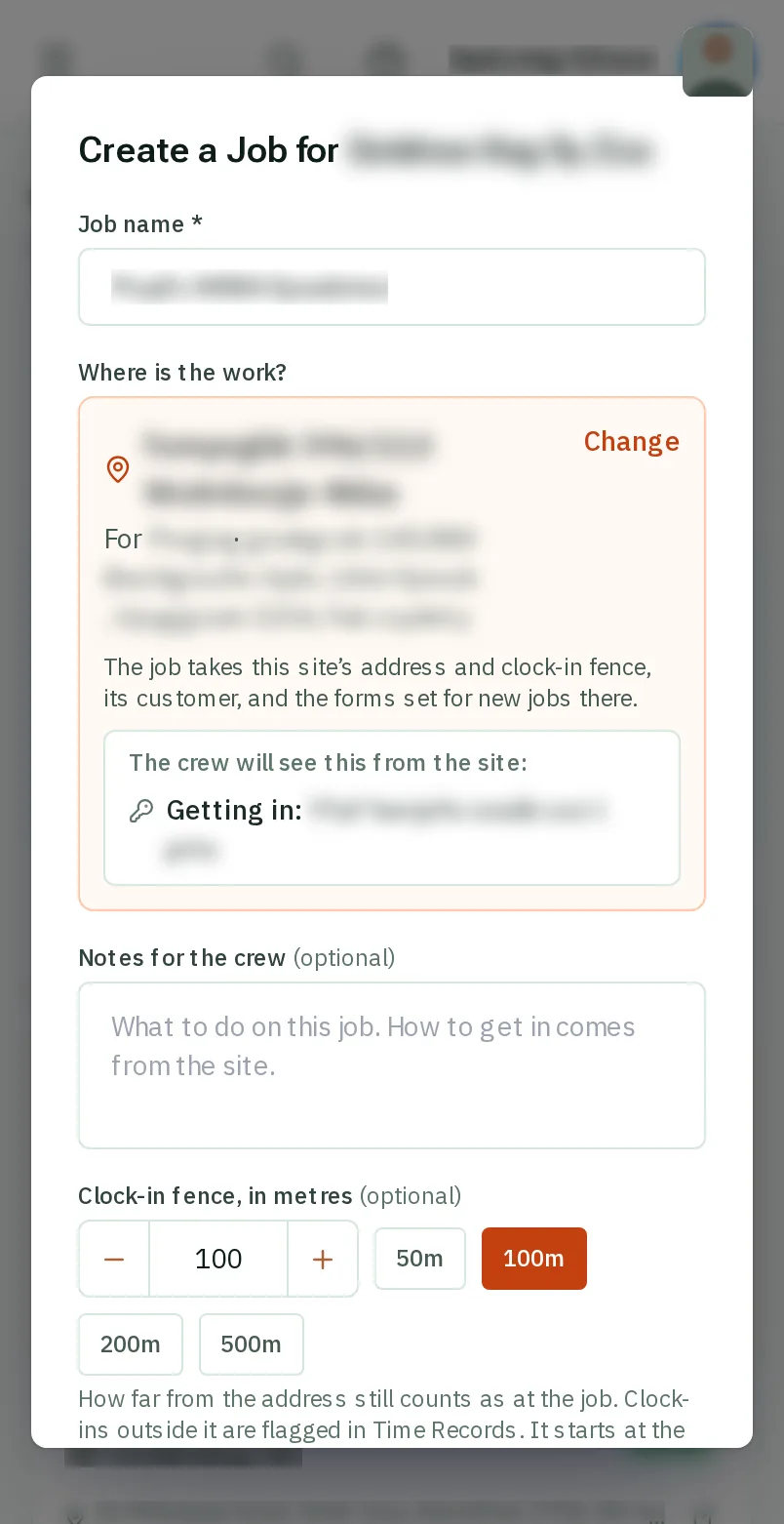
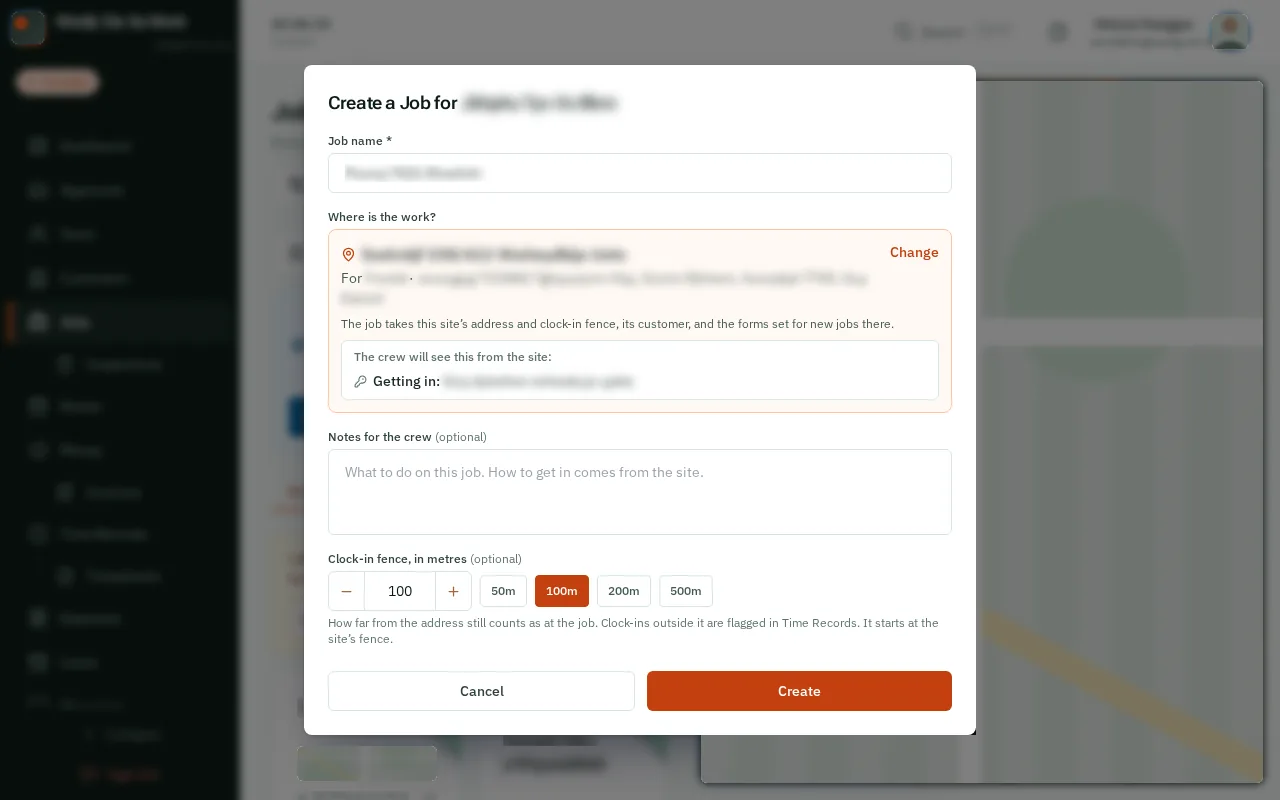
Under Clock-in fence, choose how far from the address still counts as being at the job. A site gives its own; otherwise it starts at 50m: tapclick 100m or more for a big place.
Good to know: Someone who clocks in outside the fence is flagged in Time Records, so you can ask why. With automatic clock-in on, untick Clock people in here automatically under it for a yard or a workshop.
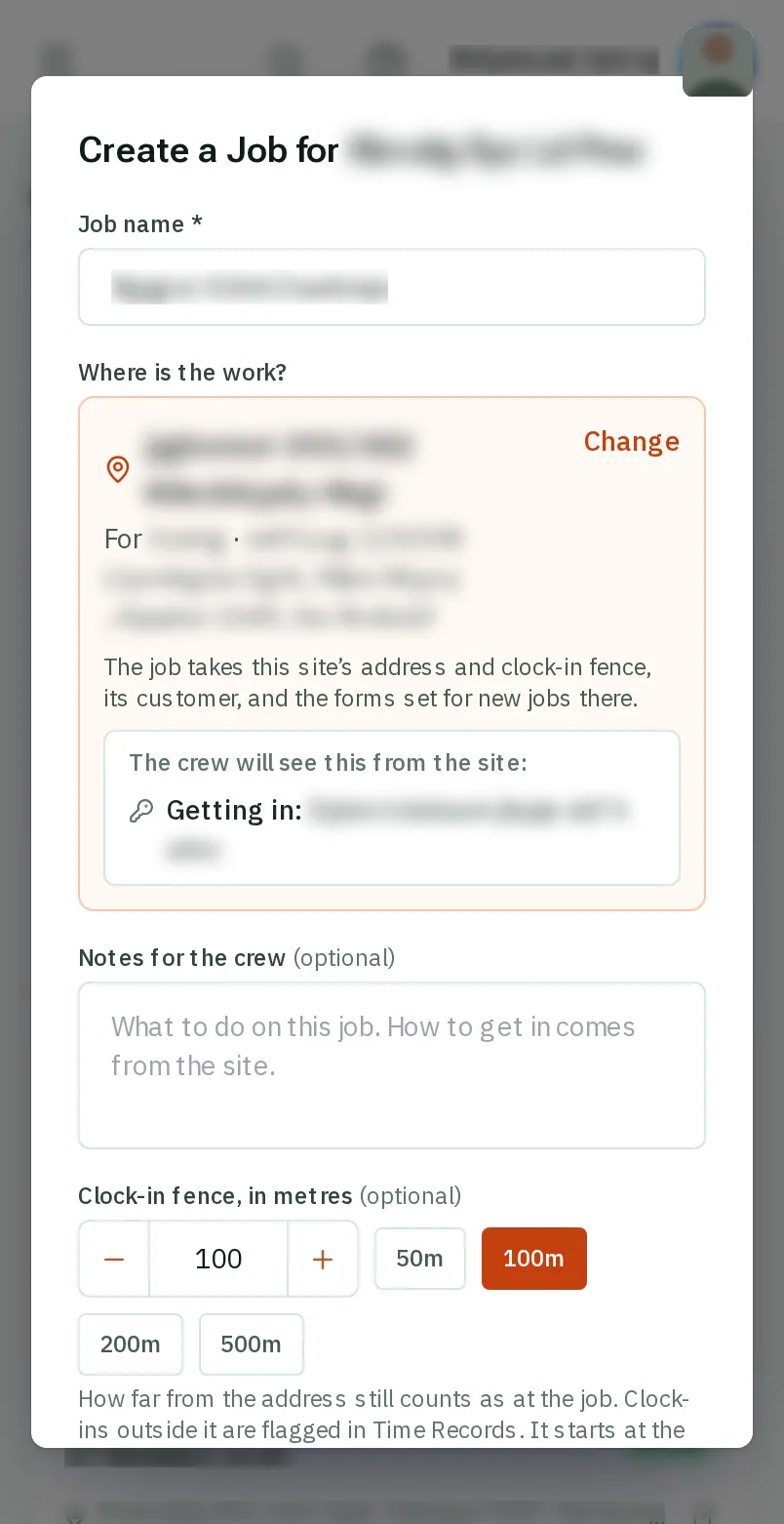
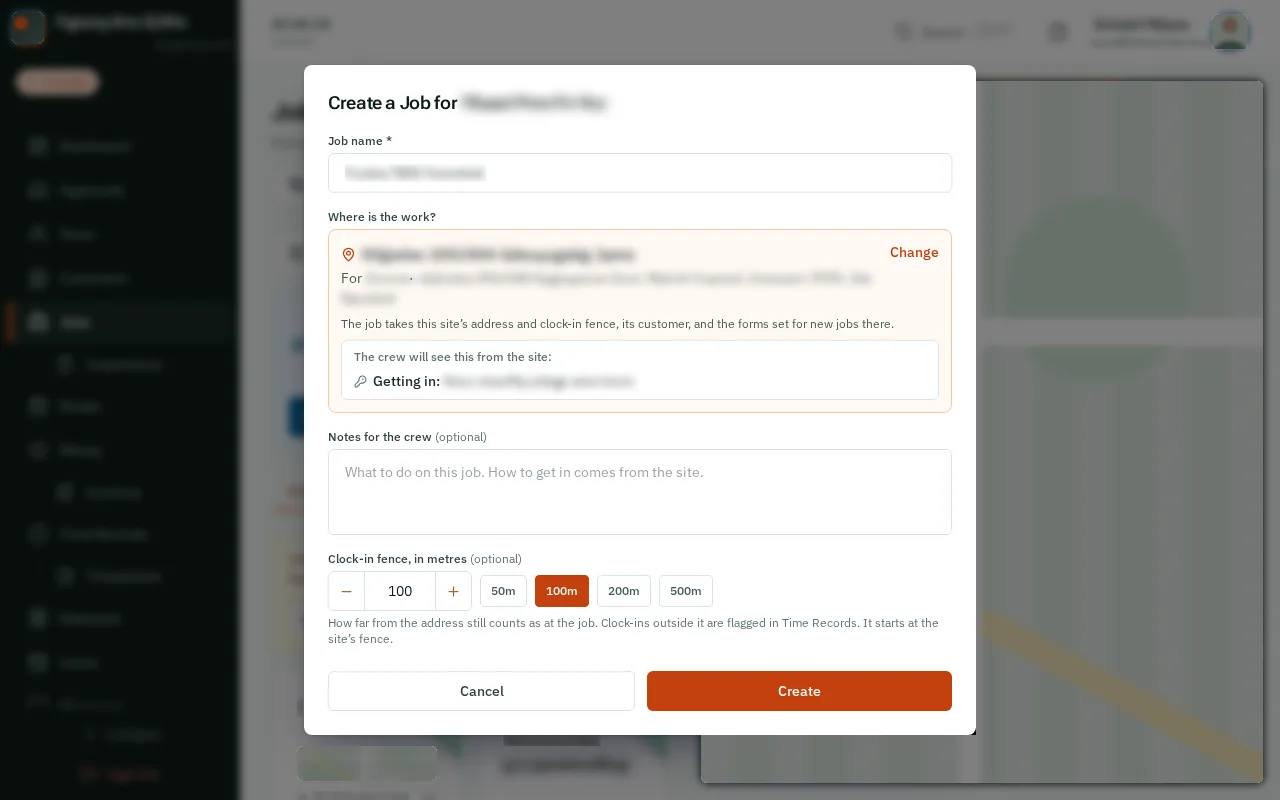
TapClick Create. The job is added to your list, with its own clock-in poster.
Good to know: Once your jobs have numbers, a new job gets the next one by itself and goes on the board at Won. To change its name, notes, address or clock-in fence later, open the job and tapclick Edit job beside its name. To change who it is for, tapclick Change under its name.