Step 1: Open Jobs
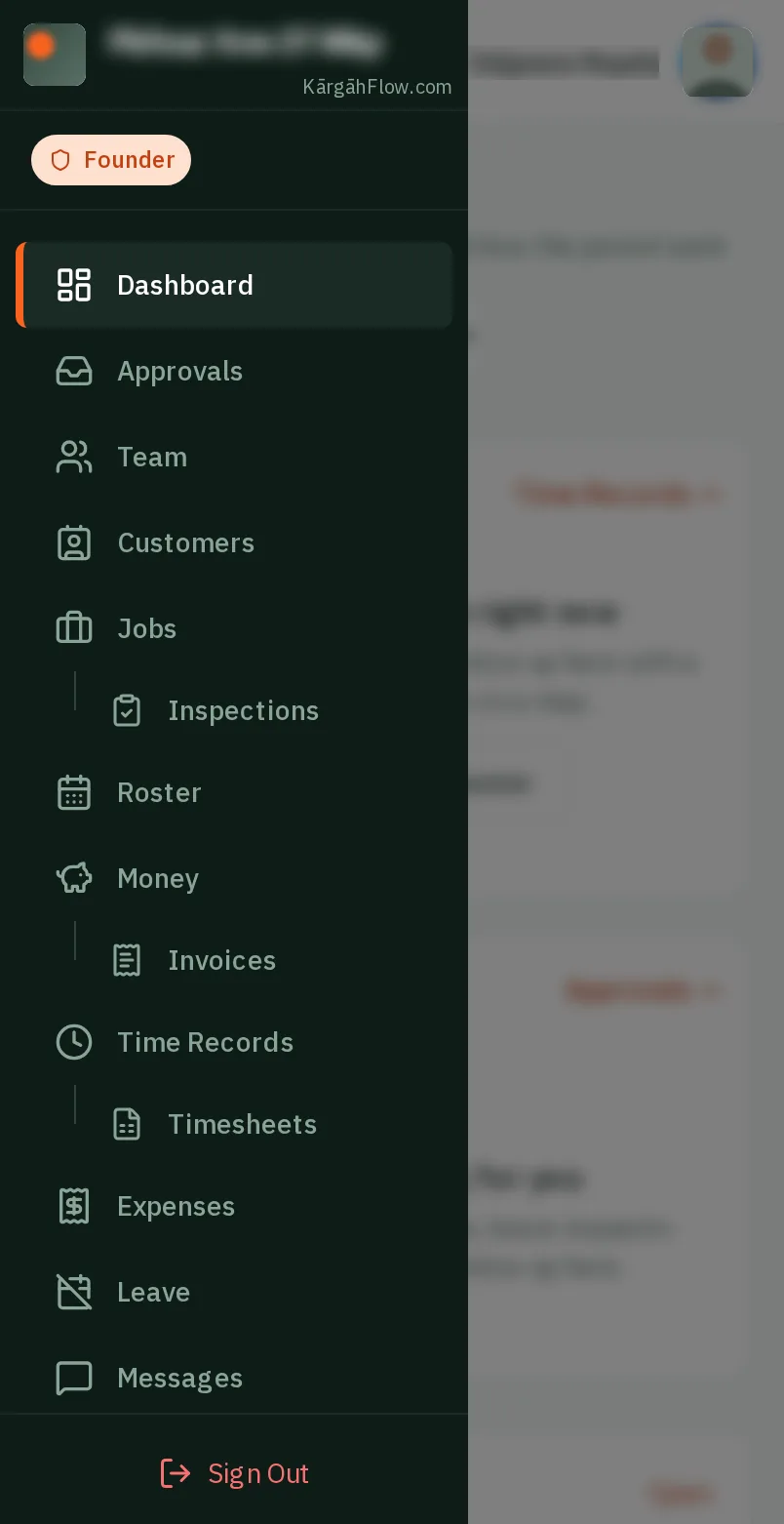
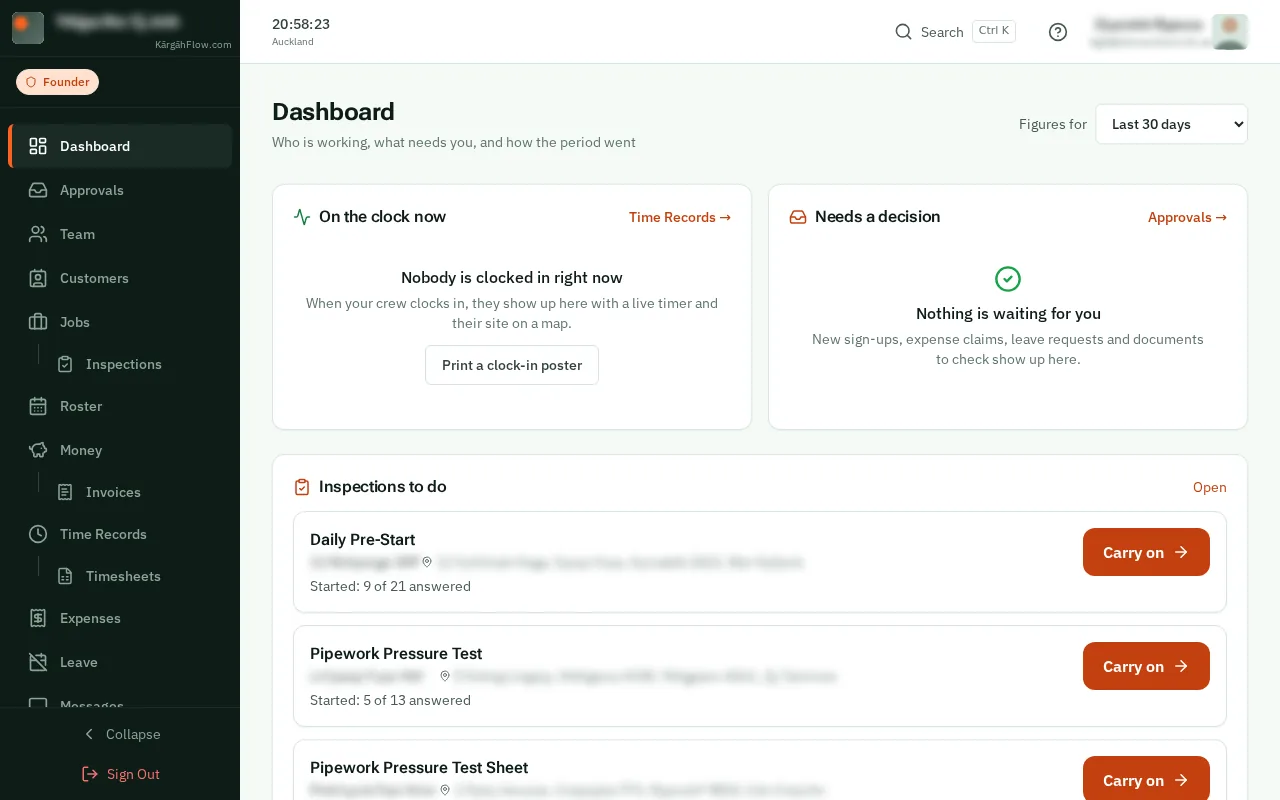
TapClick the menu button at the top left of the screen, then Jobs.TapClick Jobs in the menu on the left.
Look forthe Jobs item in the menu
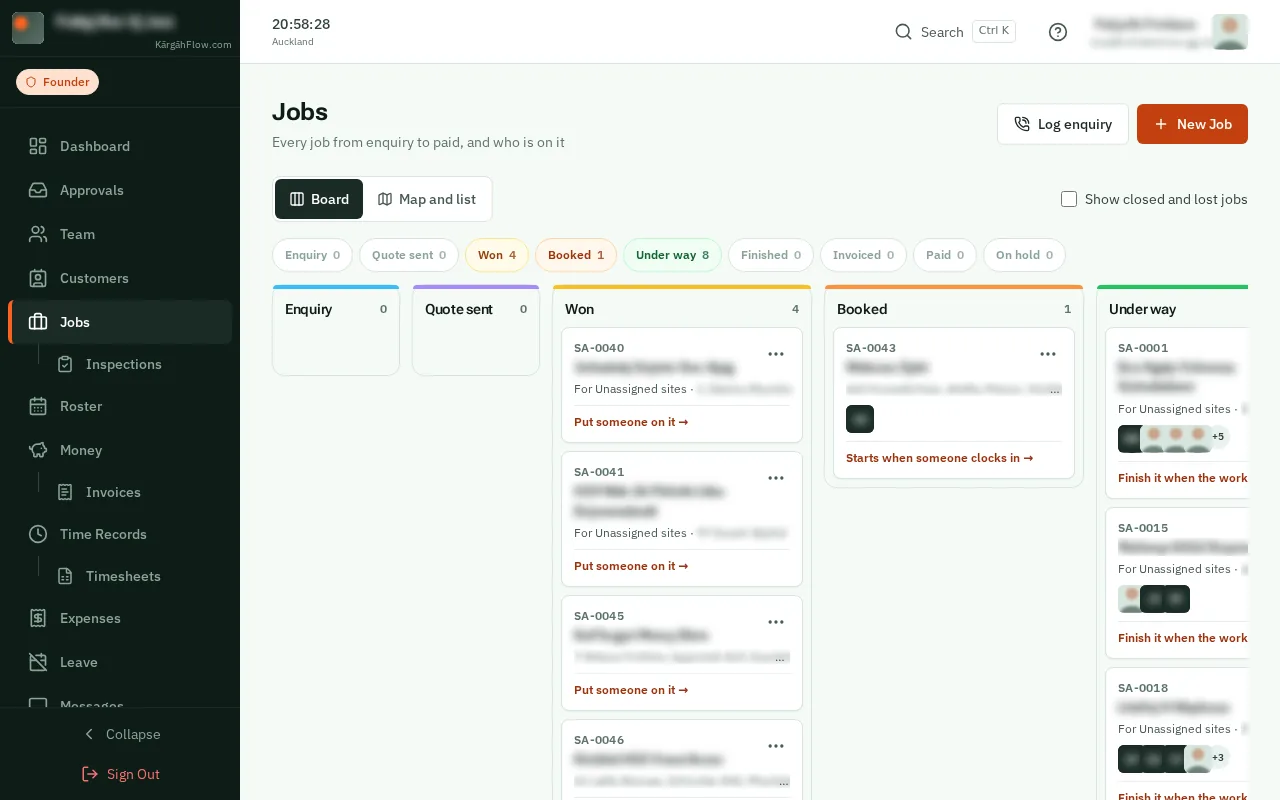
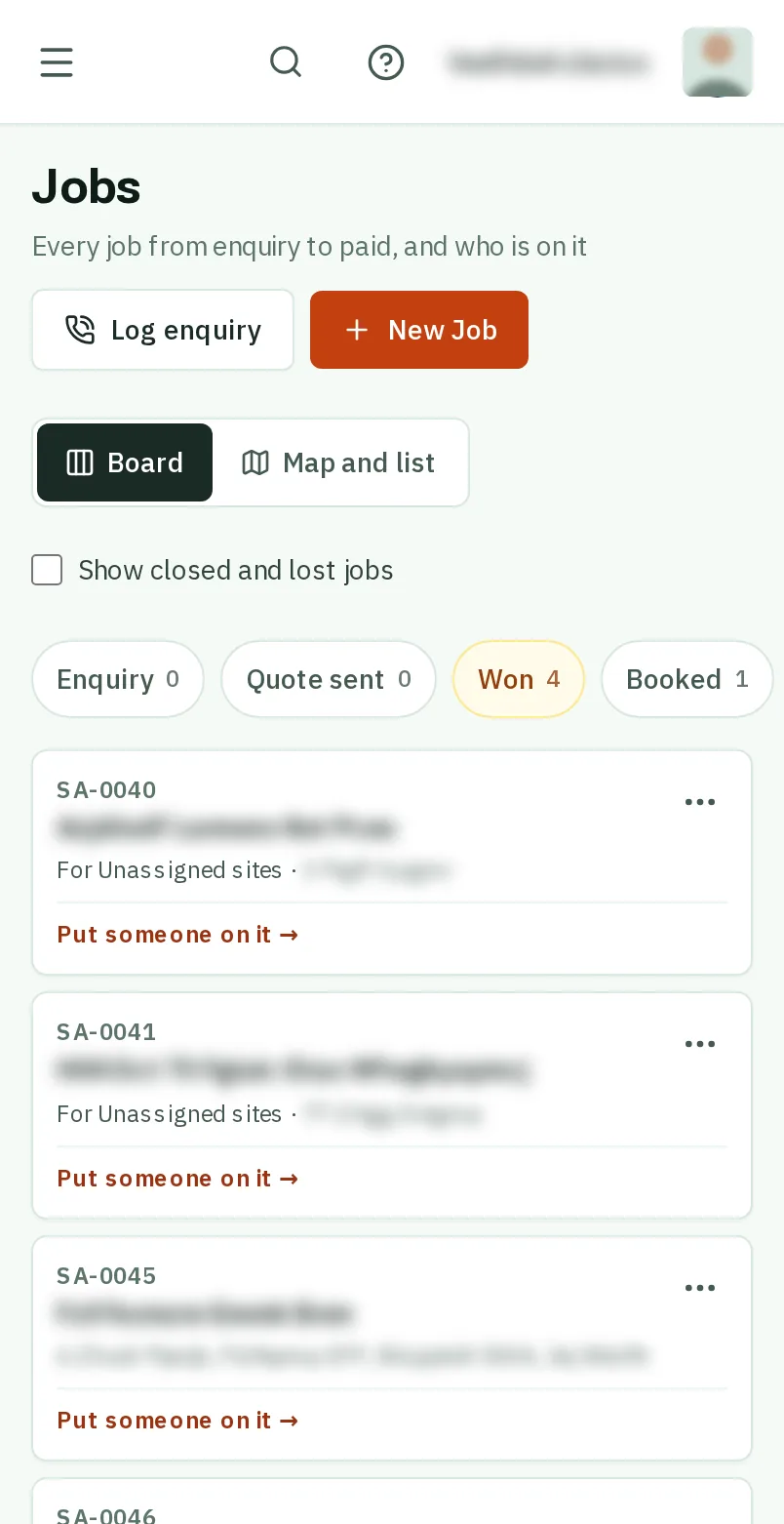
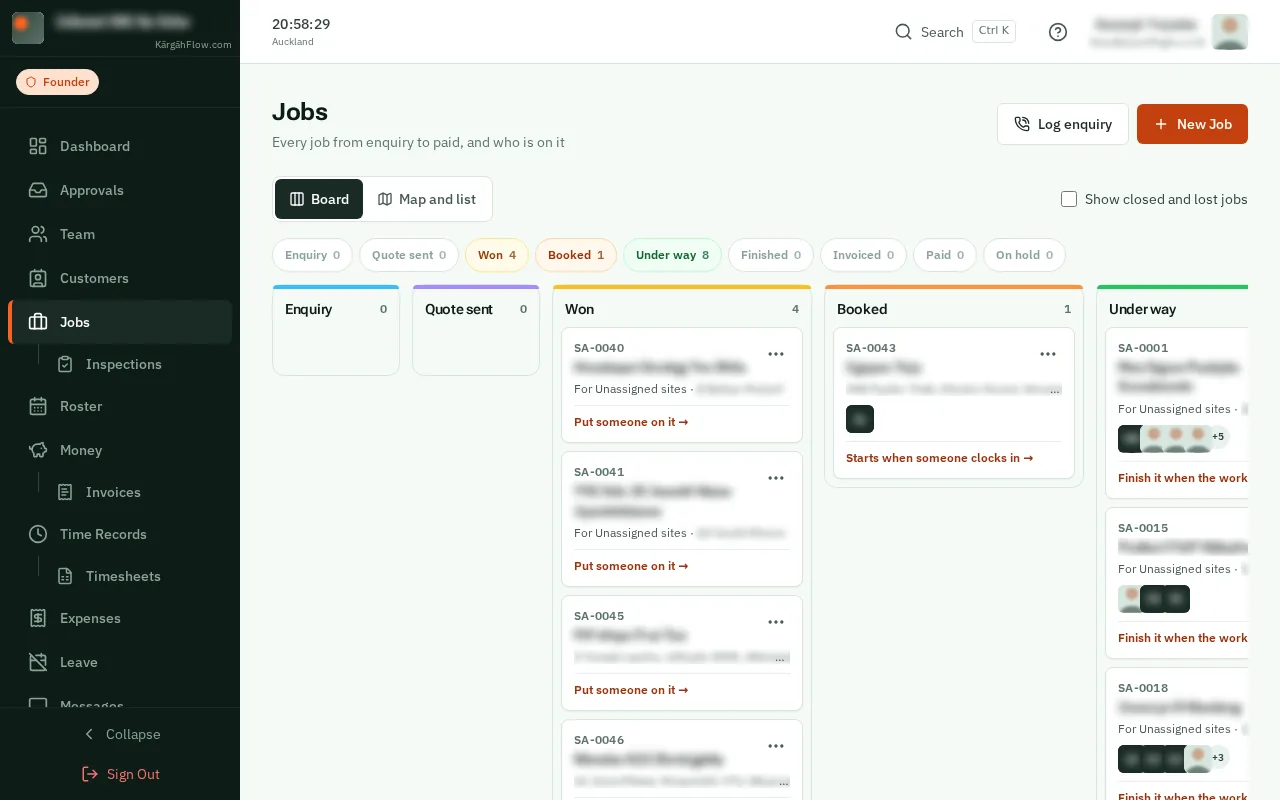
The board is every job in one place, sorted by where it is up to: from the first enquiry, through the quote and the work, to the invoice and paid.
Some of it moves by itself: a job is Booked as soon as someone is put on it, Under way the first time anyone clocks in there, and Invoiced and Paid as its invoices from KārgāhFlow are sent and paid. You only tap when you have done something the app cannot see, like sending a quote.
TapClick the menu button at the top left of the screen, then Jobs.TapClick Jobs in the menu on the left.
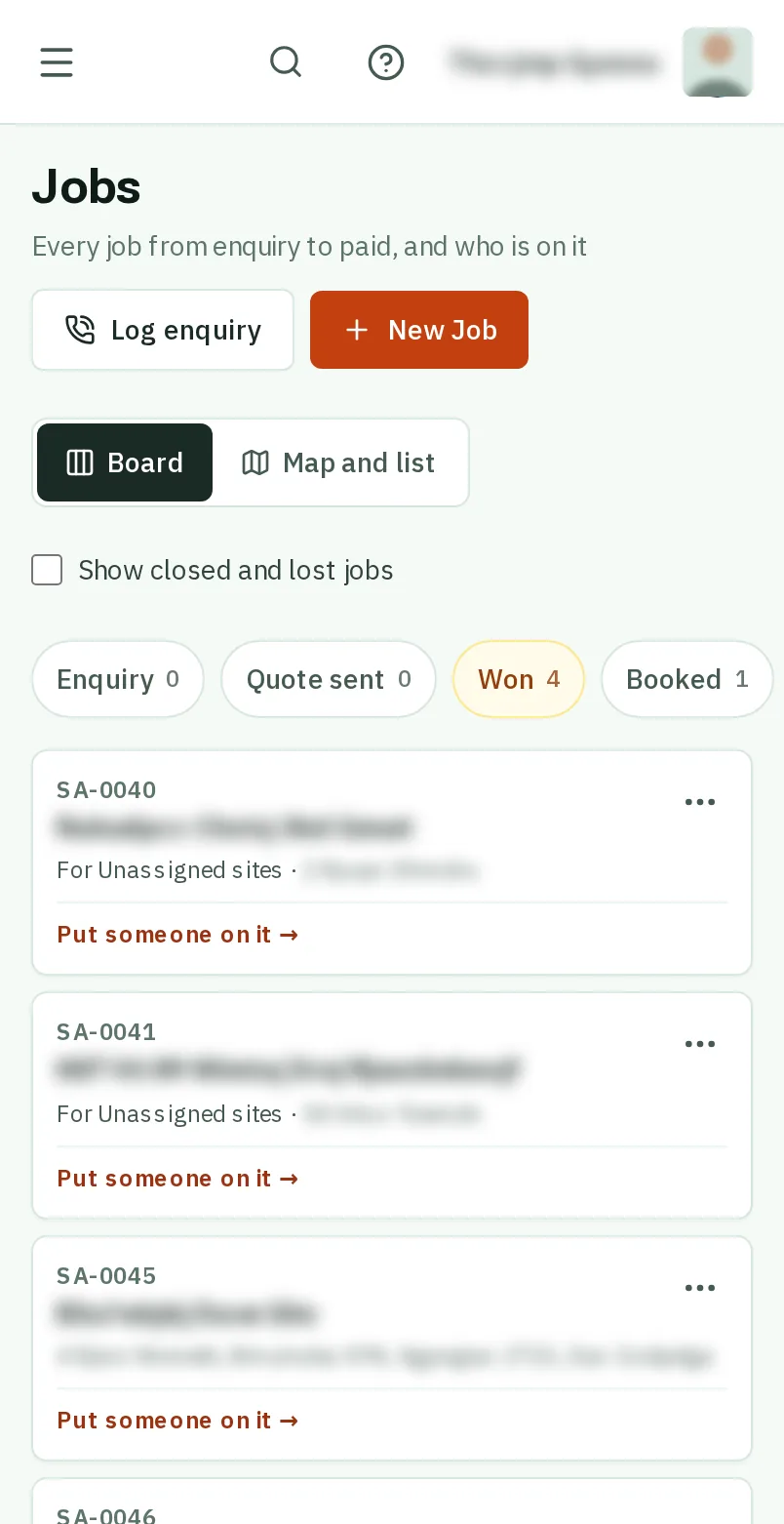
TapClick Board at the top, then a stage, like Under way, to see its jobs. The orange line under each job is its next step.TapClick Board at the top. Every job sits in its stage, from Enquiry to Paid, and the orange line under each one is its next step.
Good to know: Nobody has to move a job to Booked or Under way: it is Booked when you put someone on it, and Under way when someone clocks in.
TapClick a job to open its page.
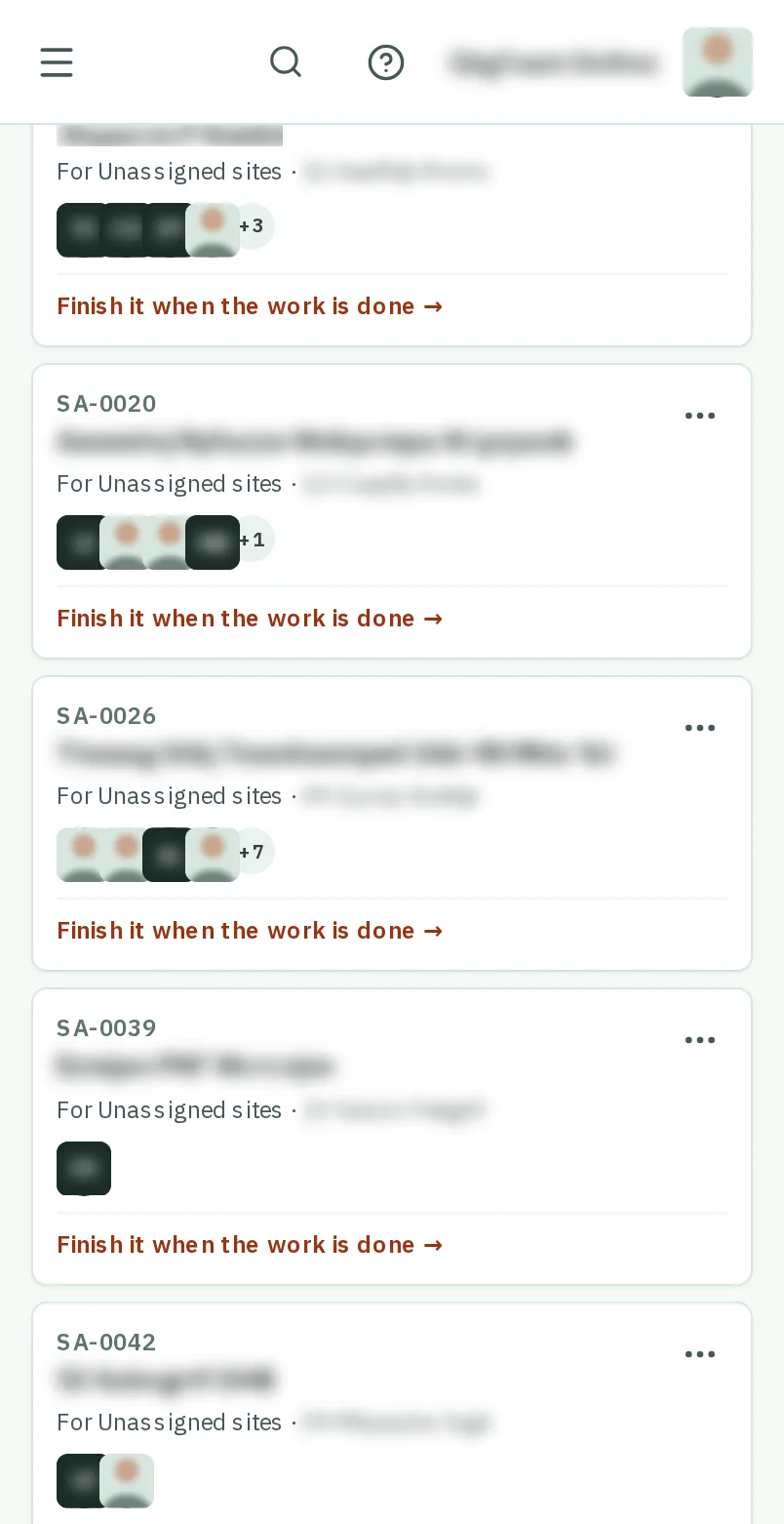
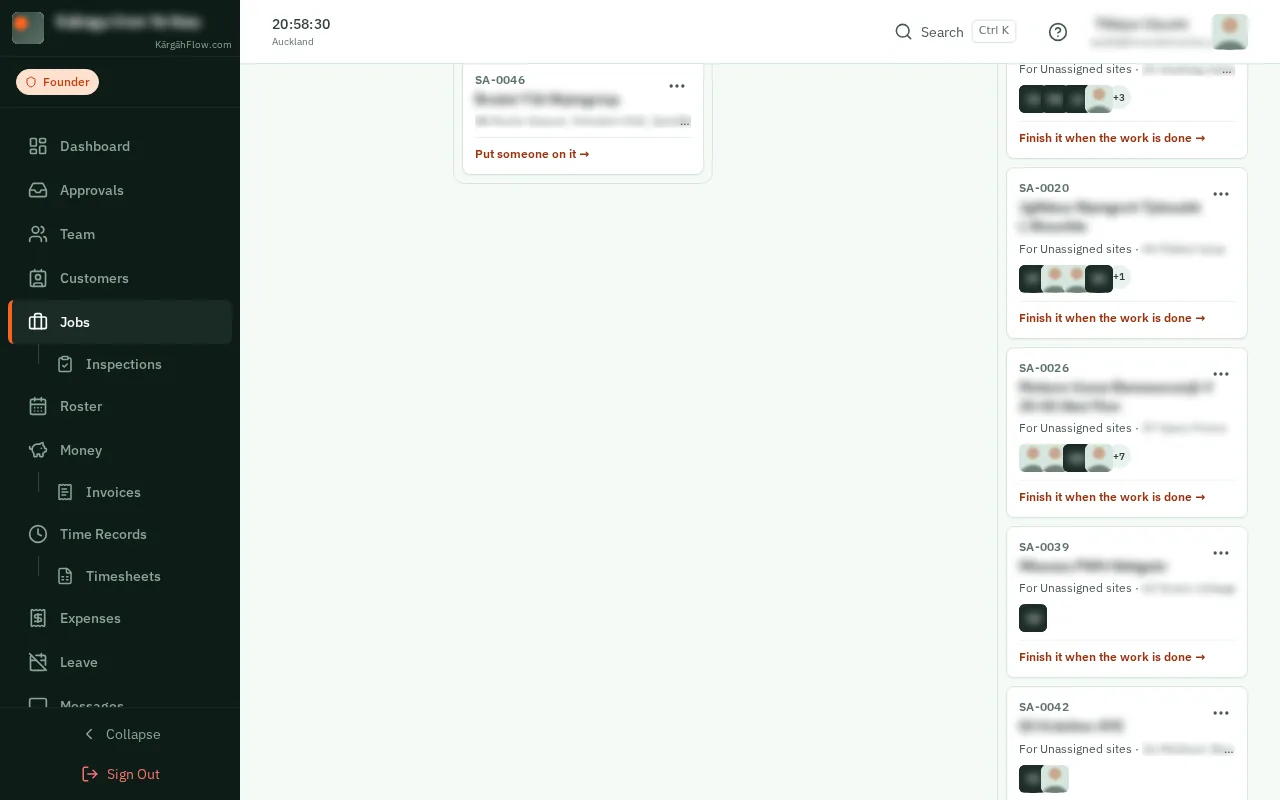
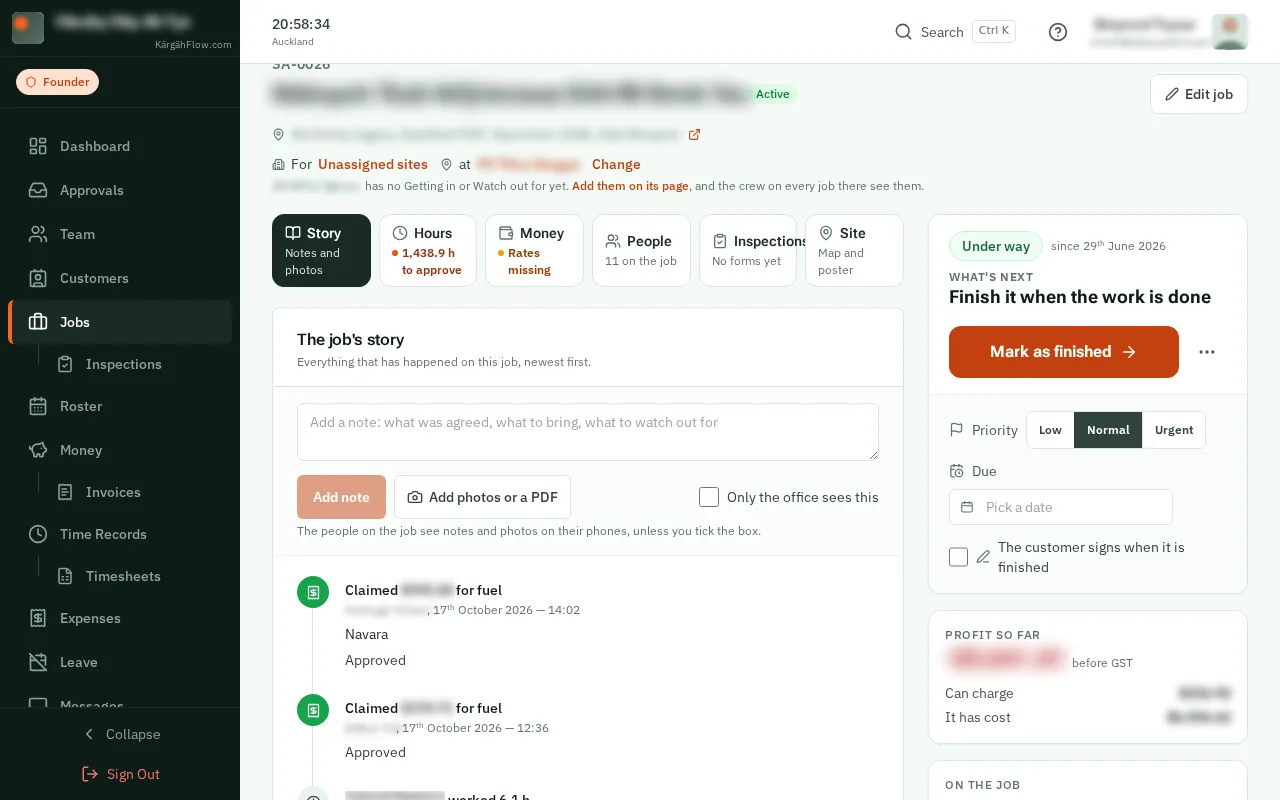
The big button at the top of the job is its next step: They said yes, Put someone on it, Mark as finished. TapClick it when that step is done.The big button on the right of the job’s page is its next step: They said yes, Put someone on it, Mark as finished. TapClick it when that step is done.
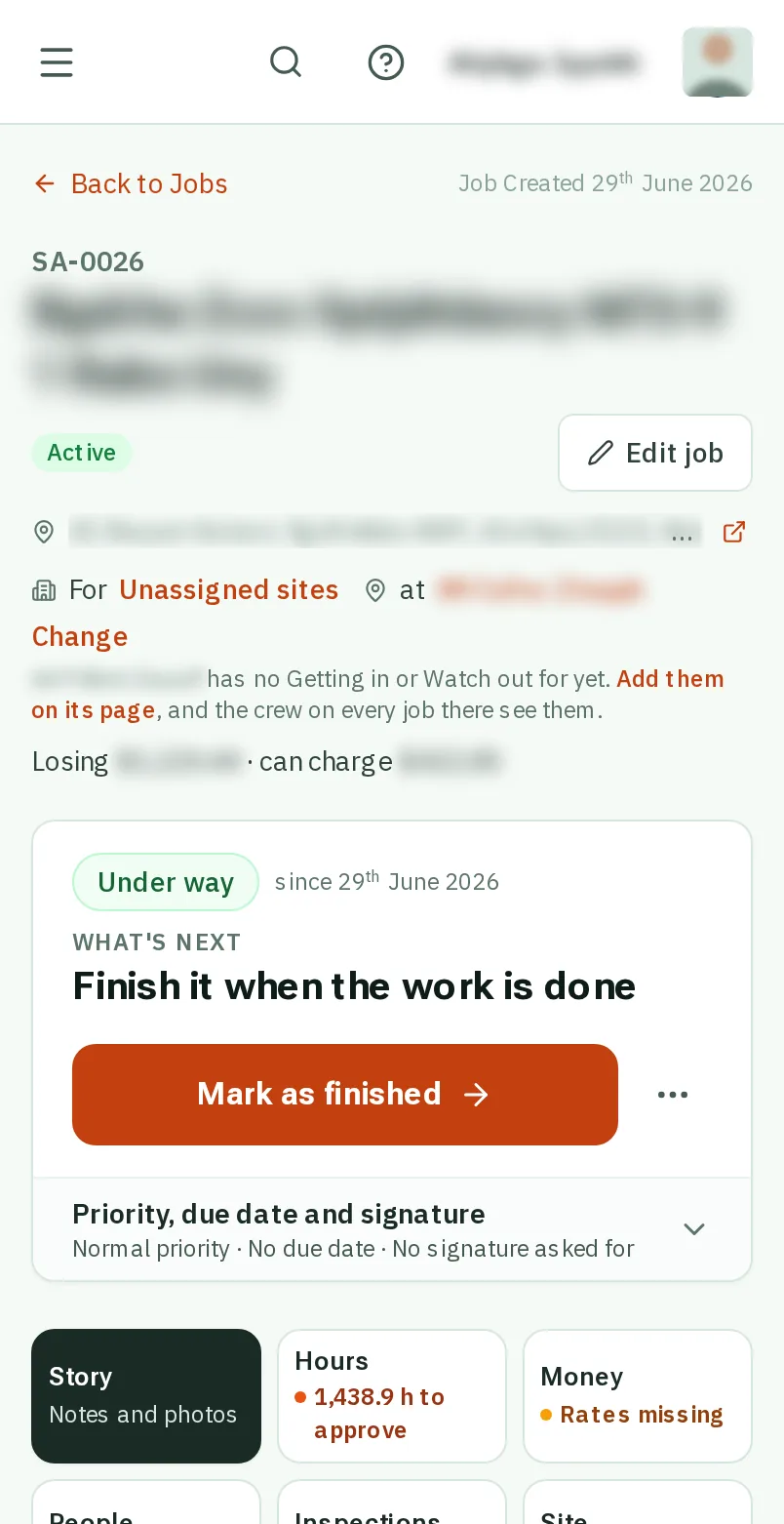
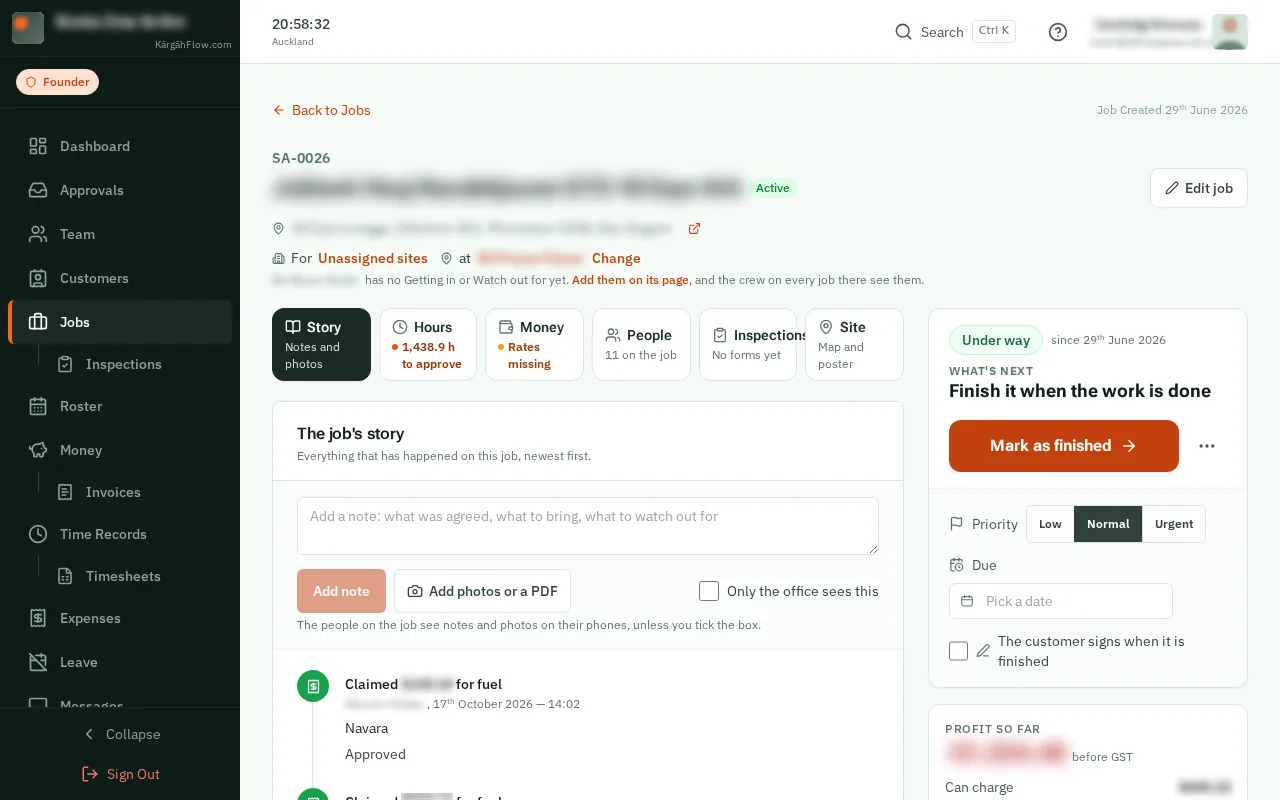
TapClick the three dots beside the big button for the job’s other moves, like Put on hold.
Good to know: A move made by mistake can be taken back from the same menu: Back to enquiry, Not invoiced after all, Reopen.
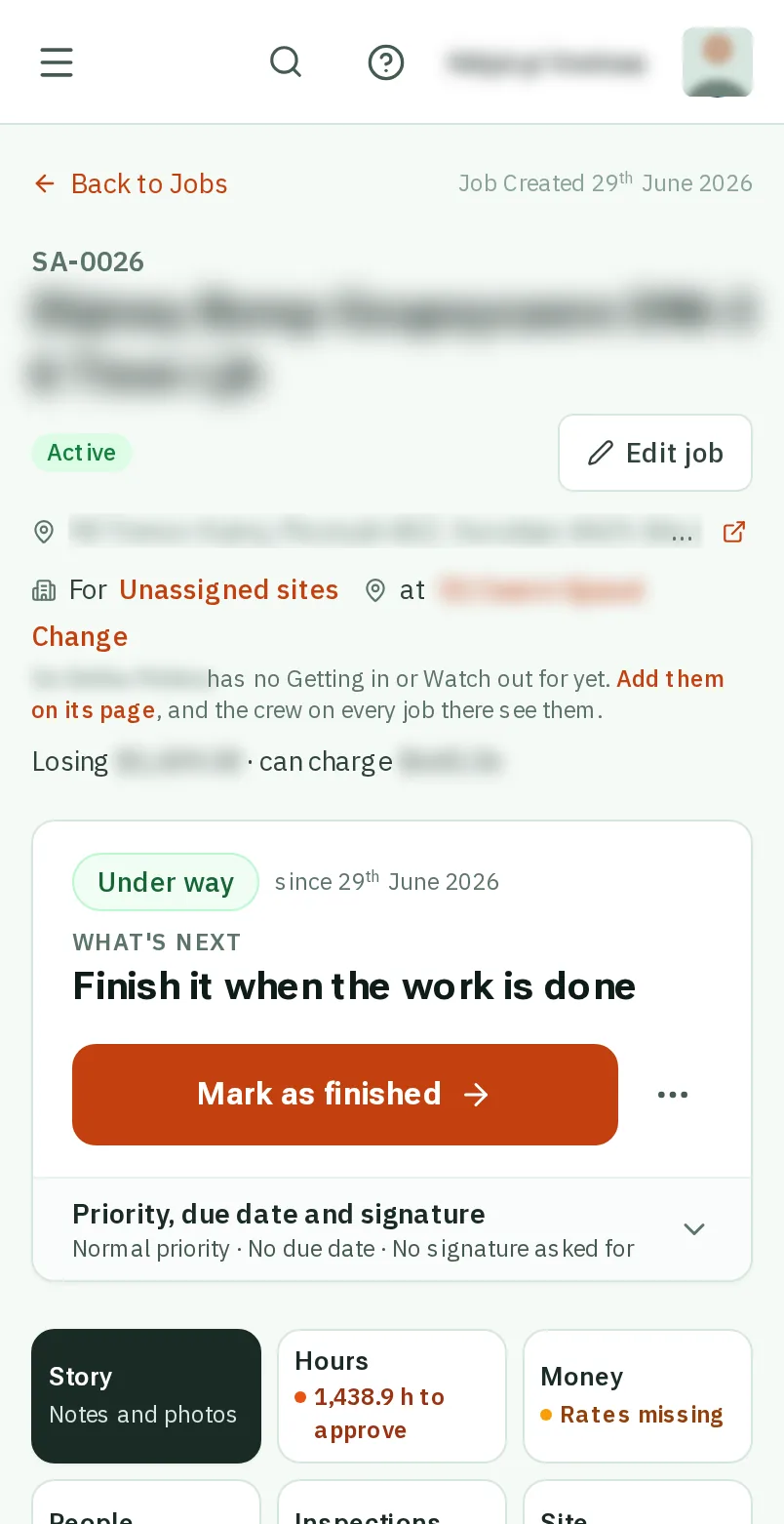
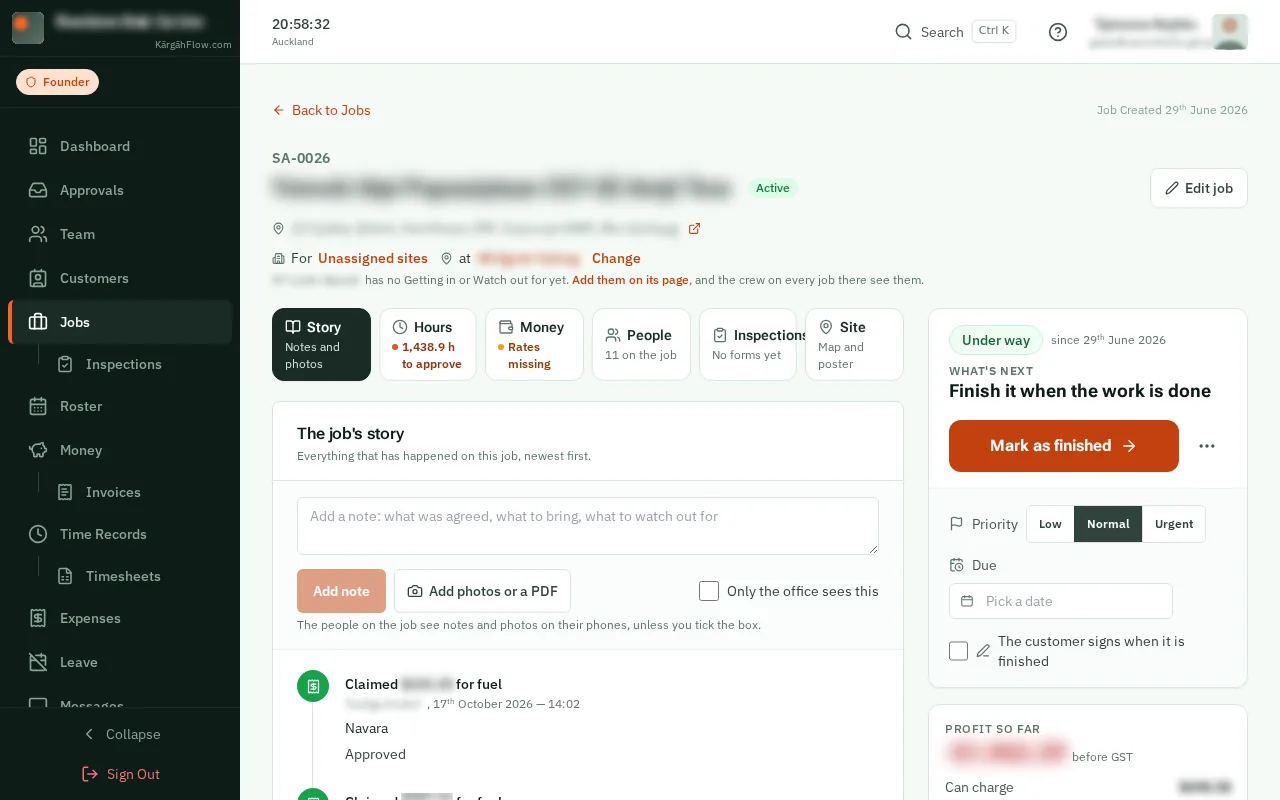
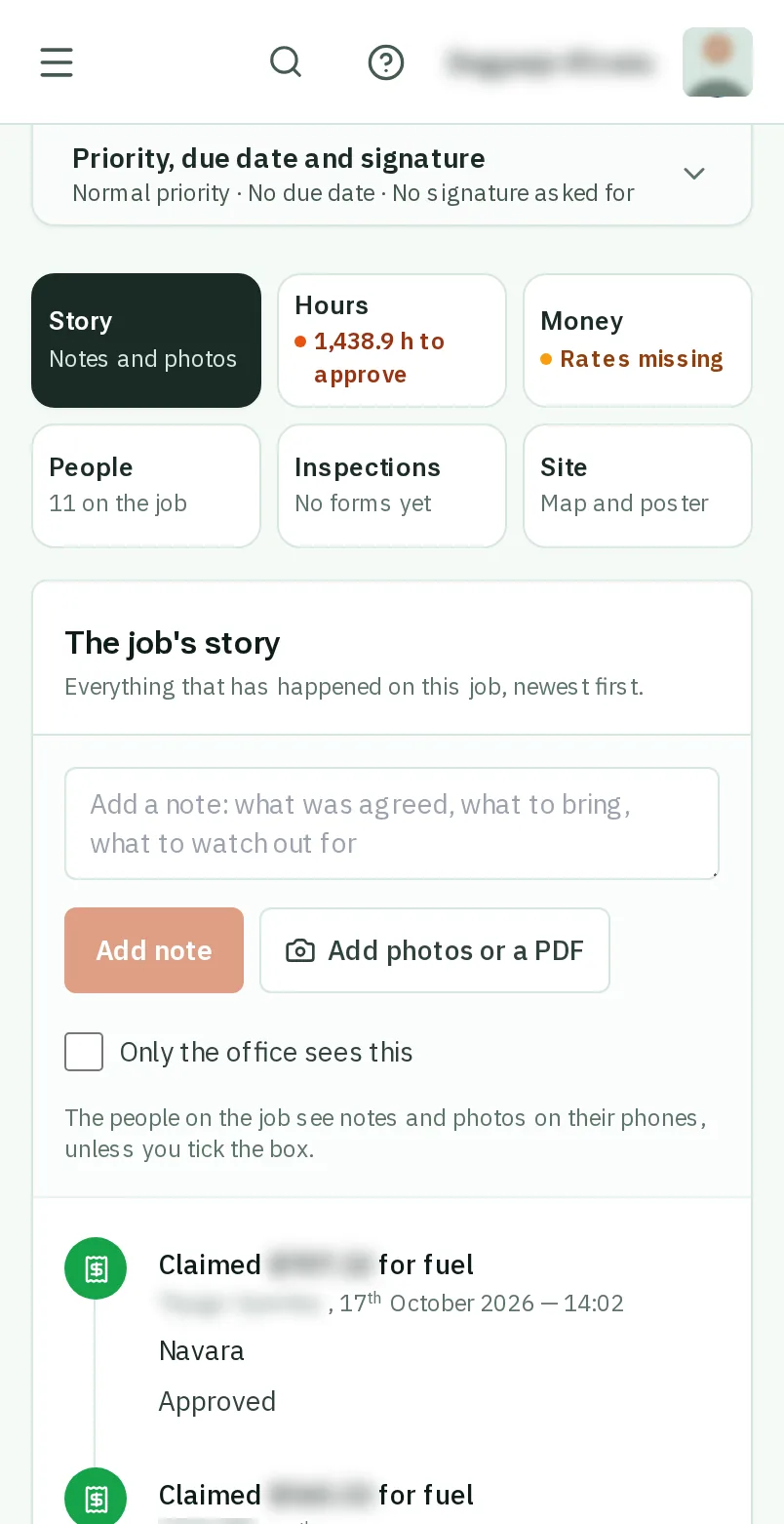
Under the big button are the job’s tabs: Story, Hours, Money, People, Inspections and Site. Each says what is waiting in it, like 14 h to approve. TapClick one to open it.Under the job’s name are its tabs: Story, Hours, Money, People, Inspections and Site. Each says what is waiting in it, like 14 h to approve. TapClick one to open it.
Good to know: On a computer, the panel on the right stays in view whichever tab is open: the next step, what the job has cost, and who is on it.
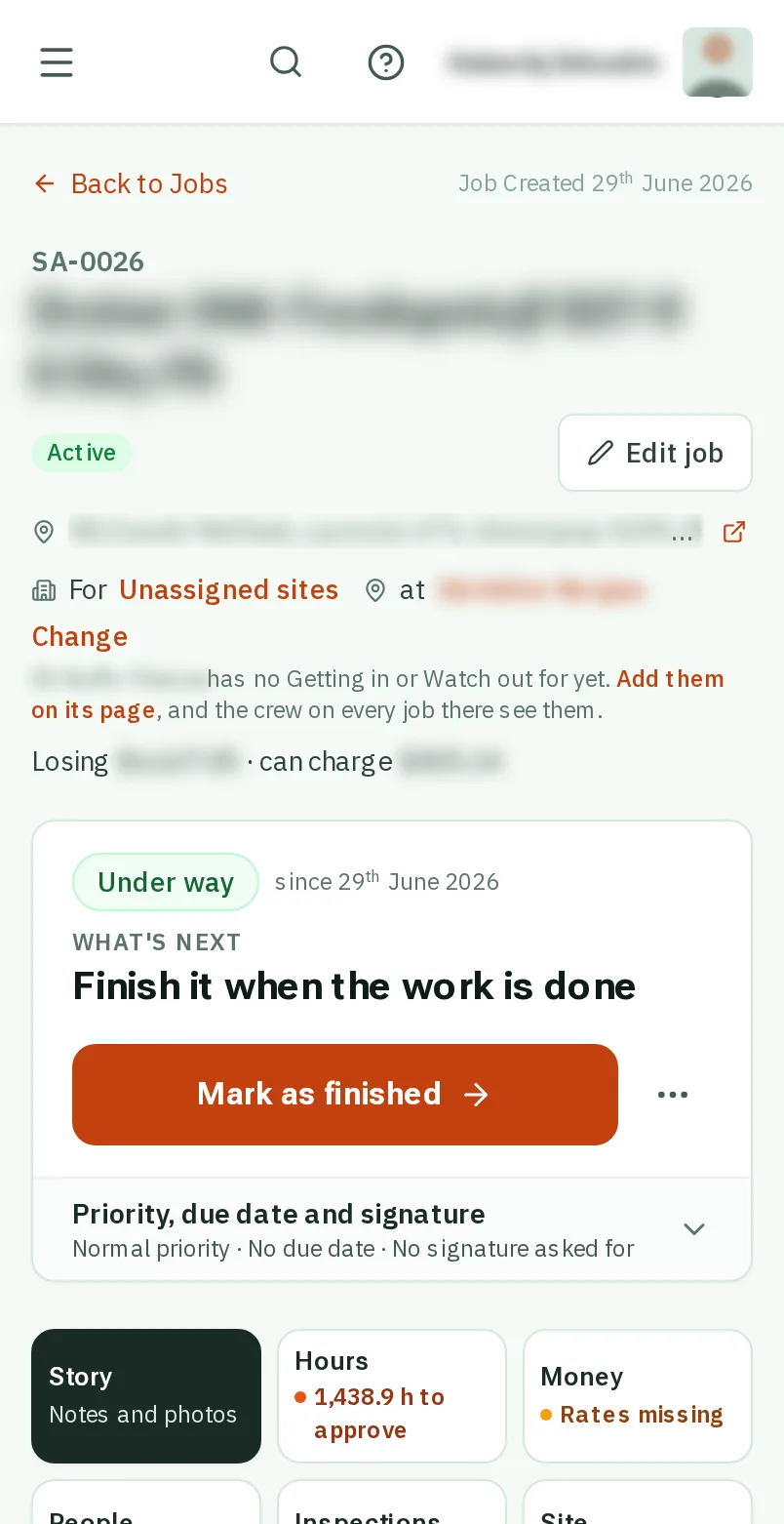
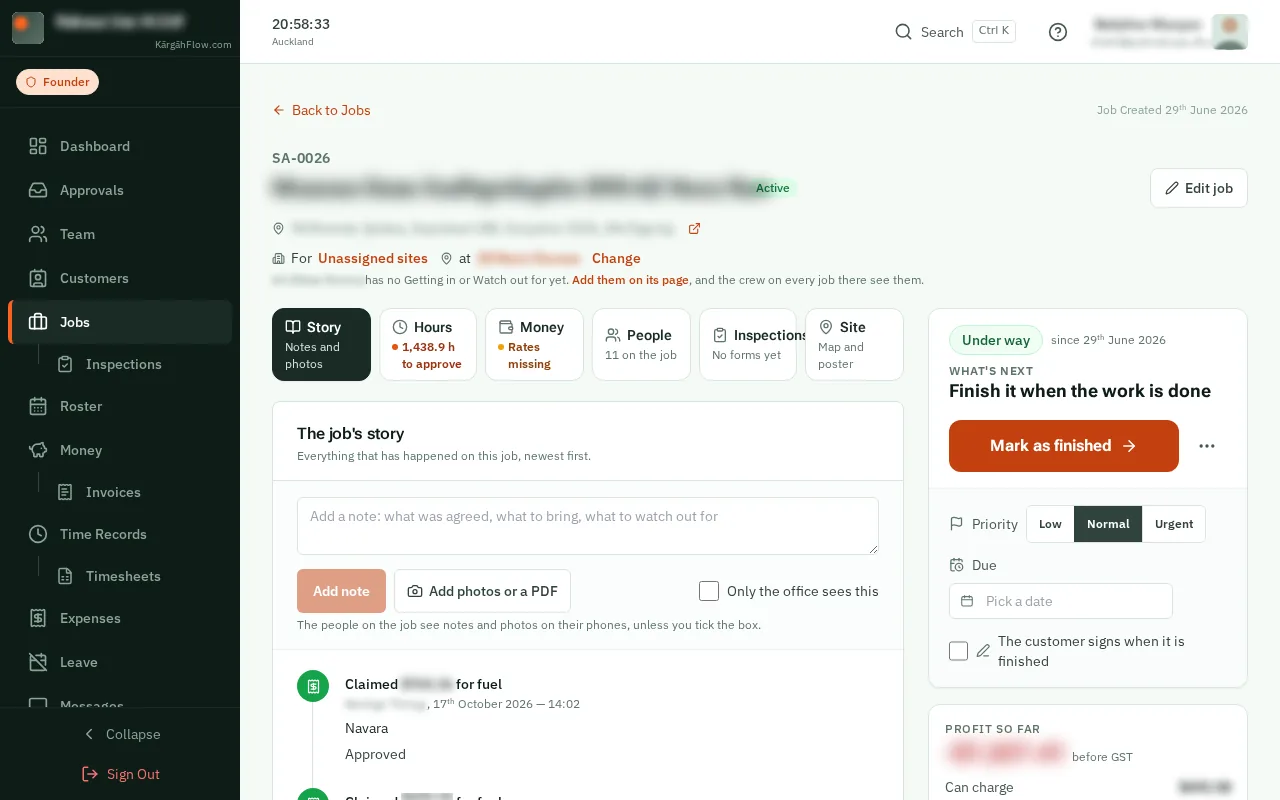
Story, the tab a job opens on, has everything that happened on it: who worked when, photos, notes, claims and sign-offs. Type a note and tapclick Add note.
Good to know: The crew see your notes and photos on their phones. Tick Only the office sees this to keep one to yourselves. Anything added since you last opened the job is marked New.