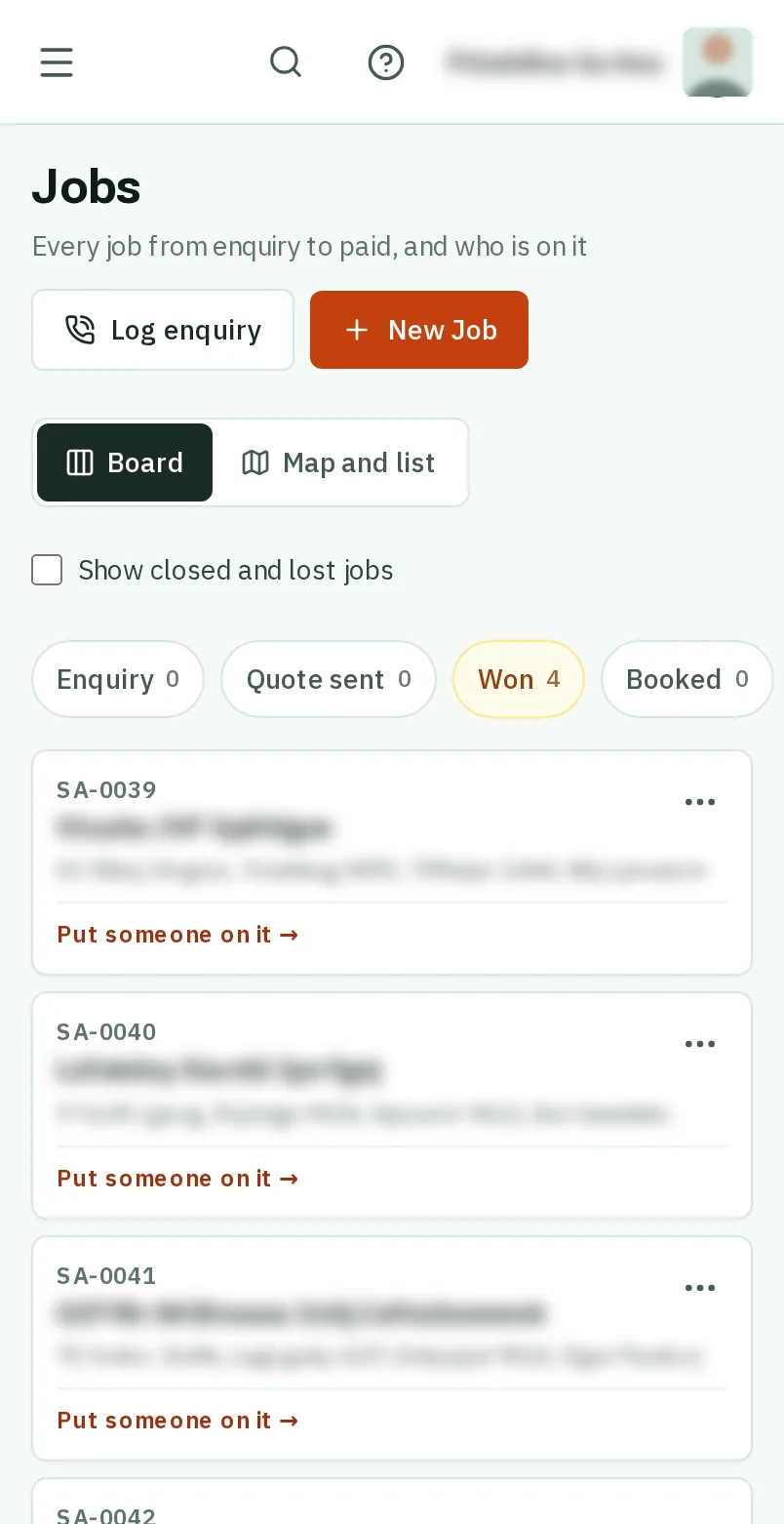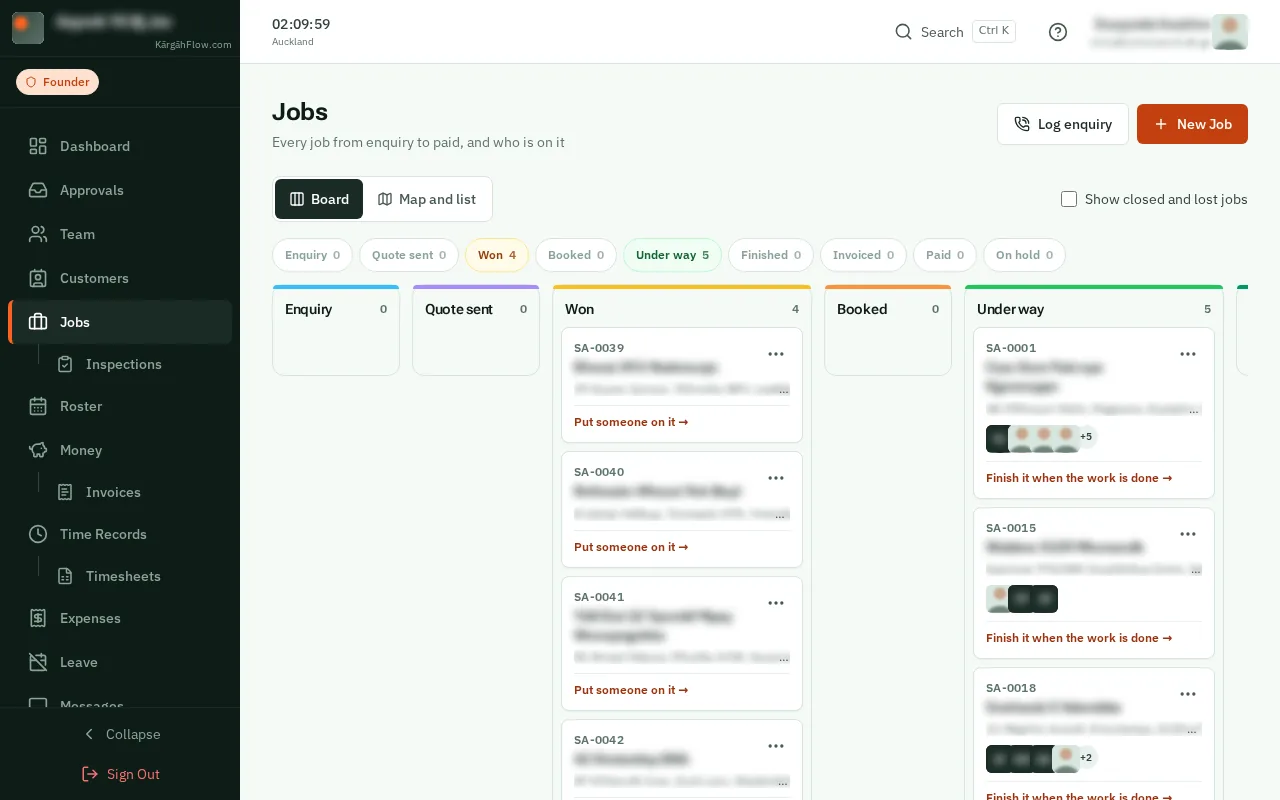
Step 1: Open Jobs
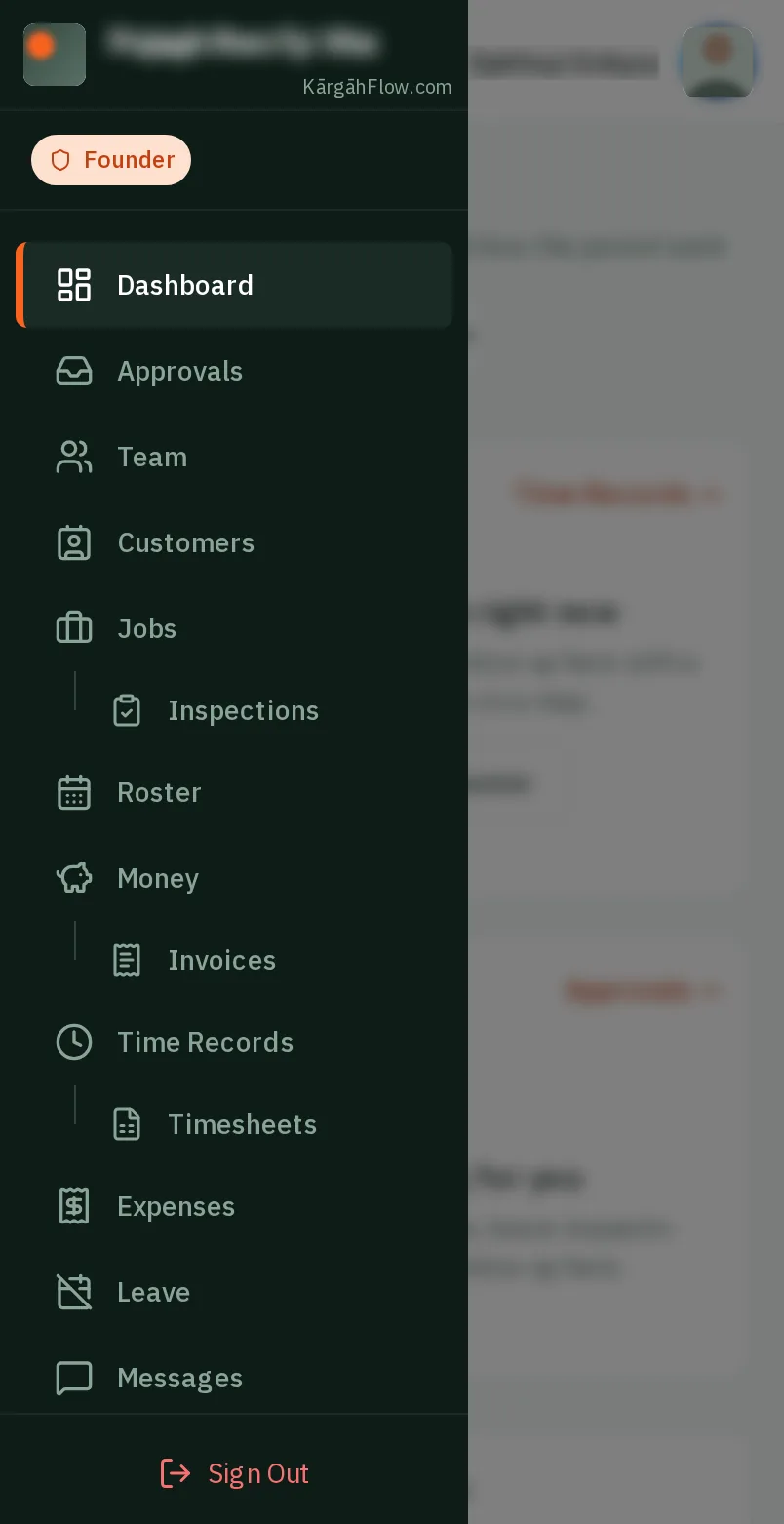
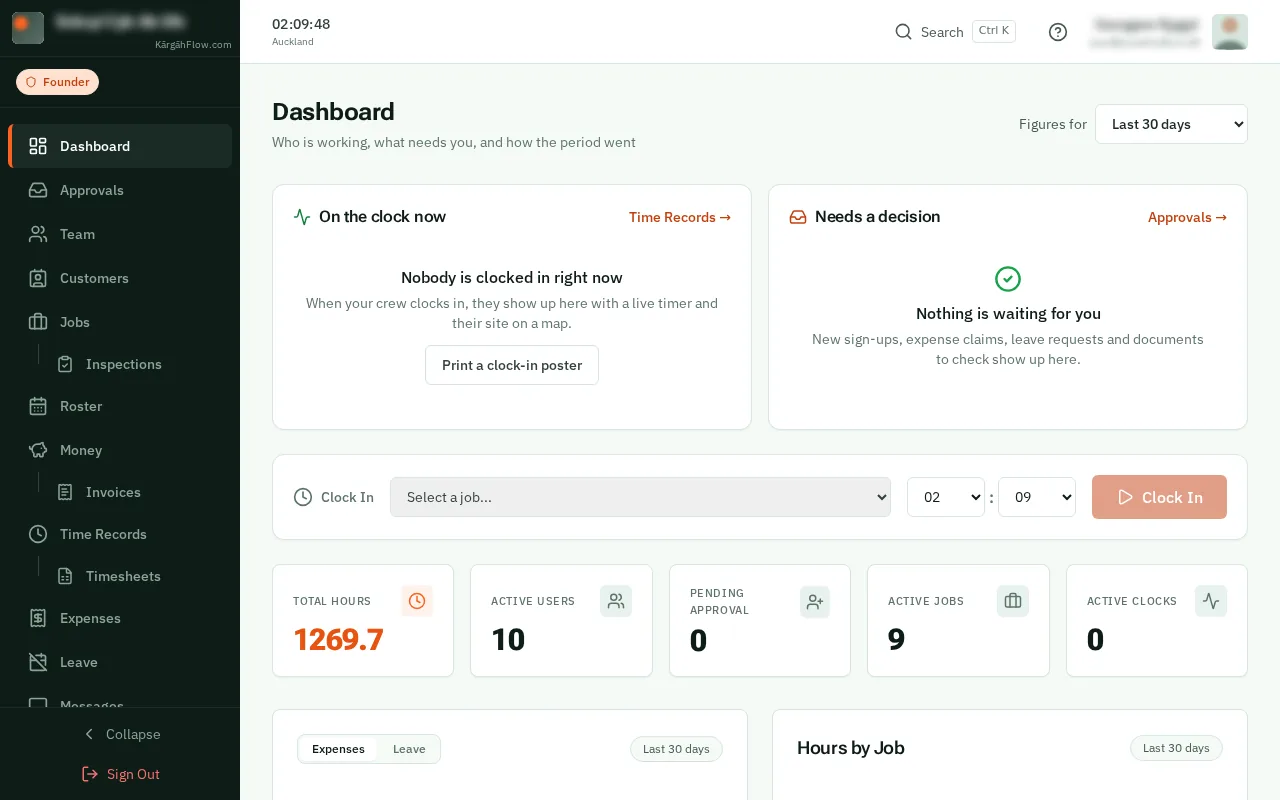
TapClick the menu button at the top left of the screen, then Jobs.TapClick Jobs in the menu on the left.
Look forthe Jobs item in the menu
A job number, like SA-0042, gives every job a short name your crew and customers can quote. Your jobs get theirs in the order they were made, and every new job gets the next one by itself.
Nothing changes until you have checked the list and said so, and Undo puts everything back straight after.
TapClick the menu button at the top left of the screen, then Jobs.TapClick Jobs in the menu on the left.
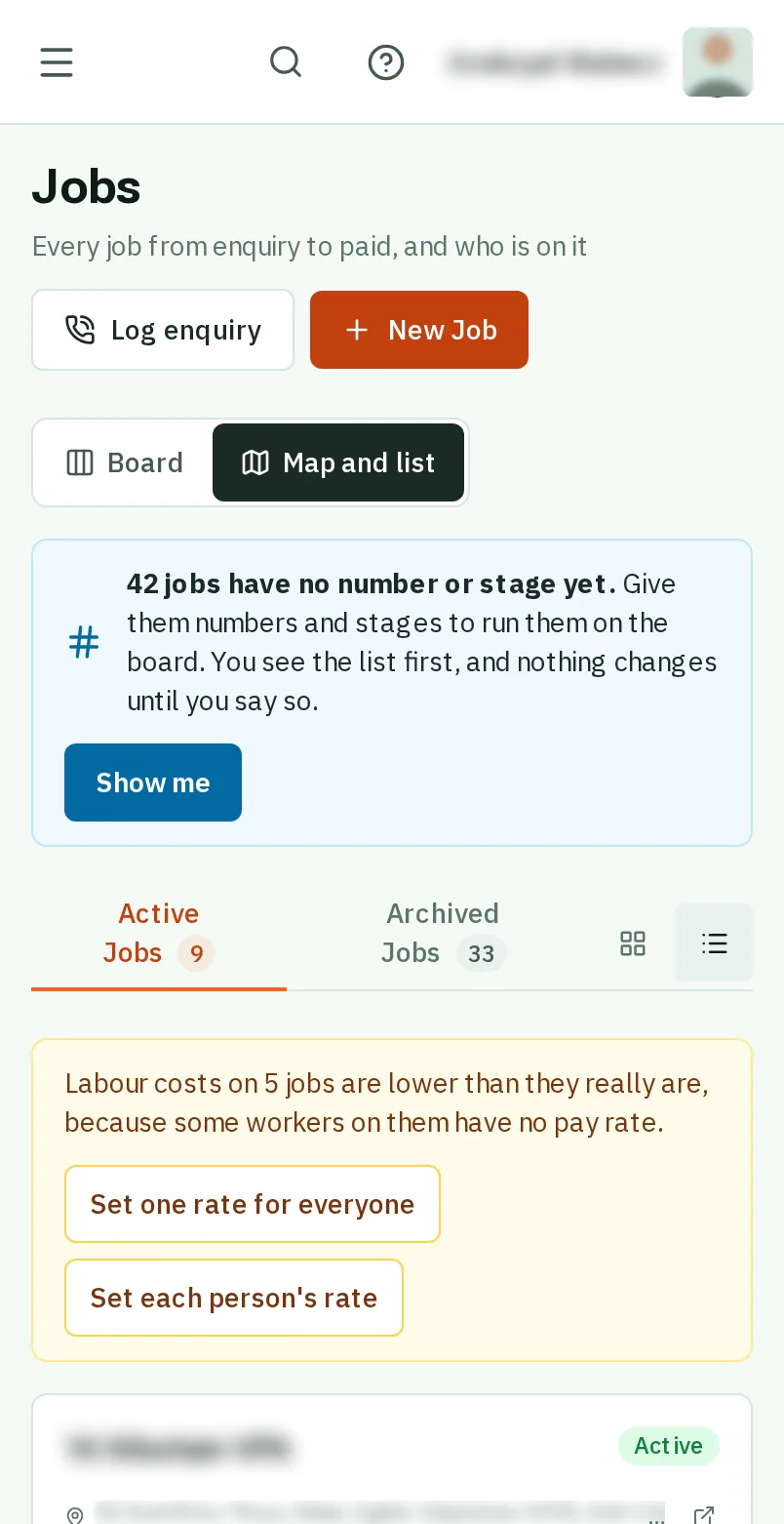
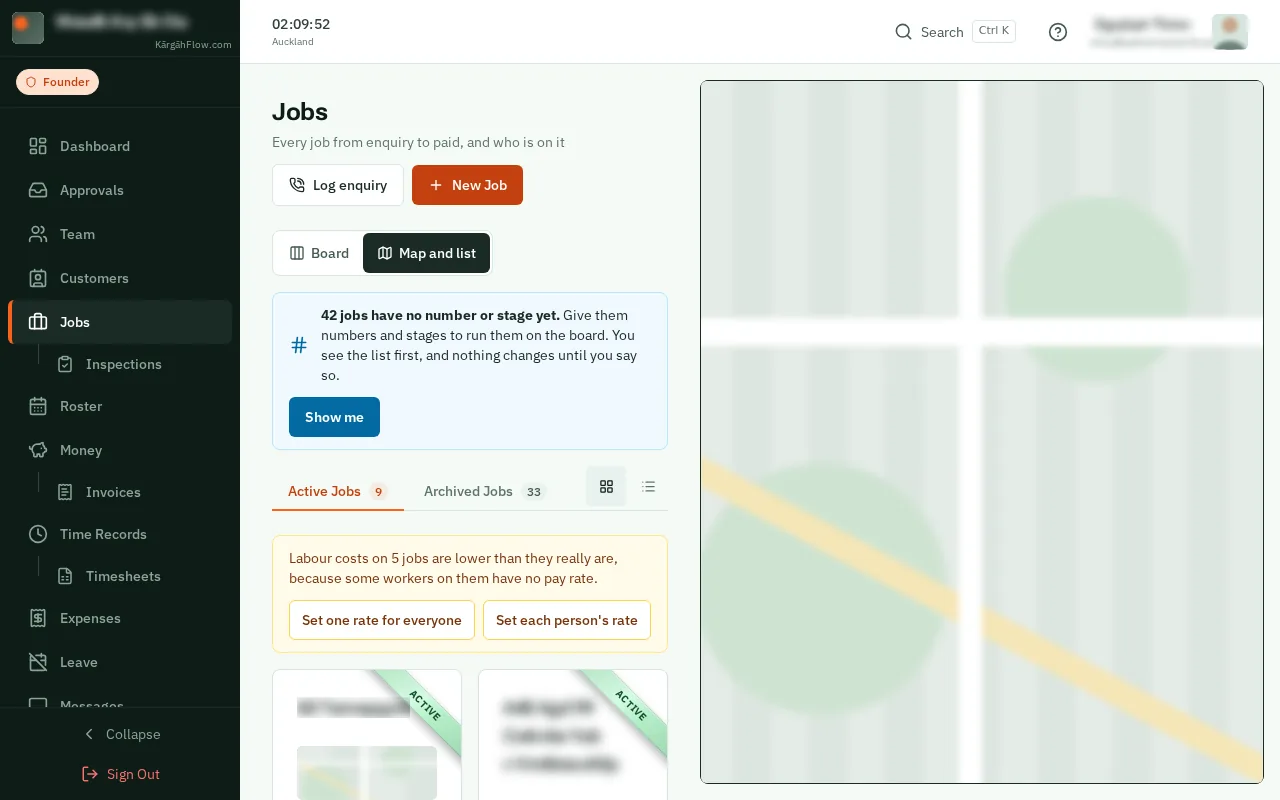
A blue box says how many jobs have no number yet. TapClick Show me. Nothing changes until you say so.
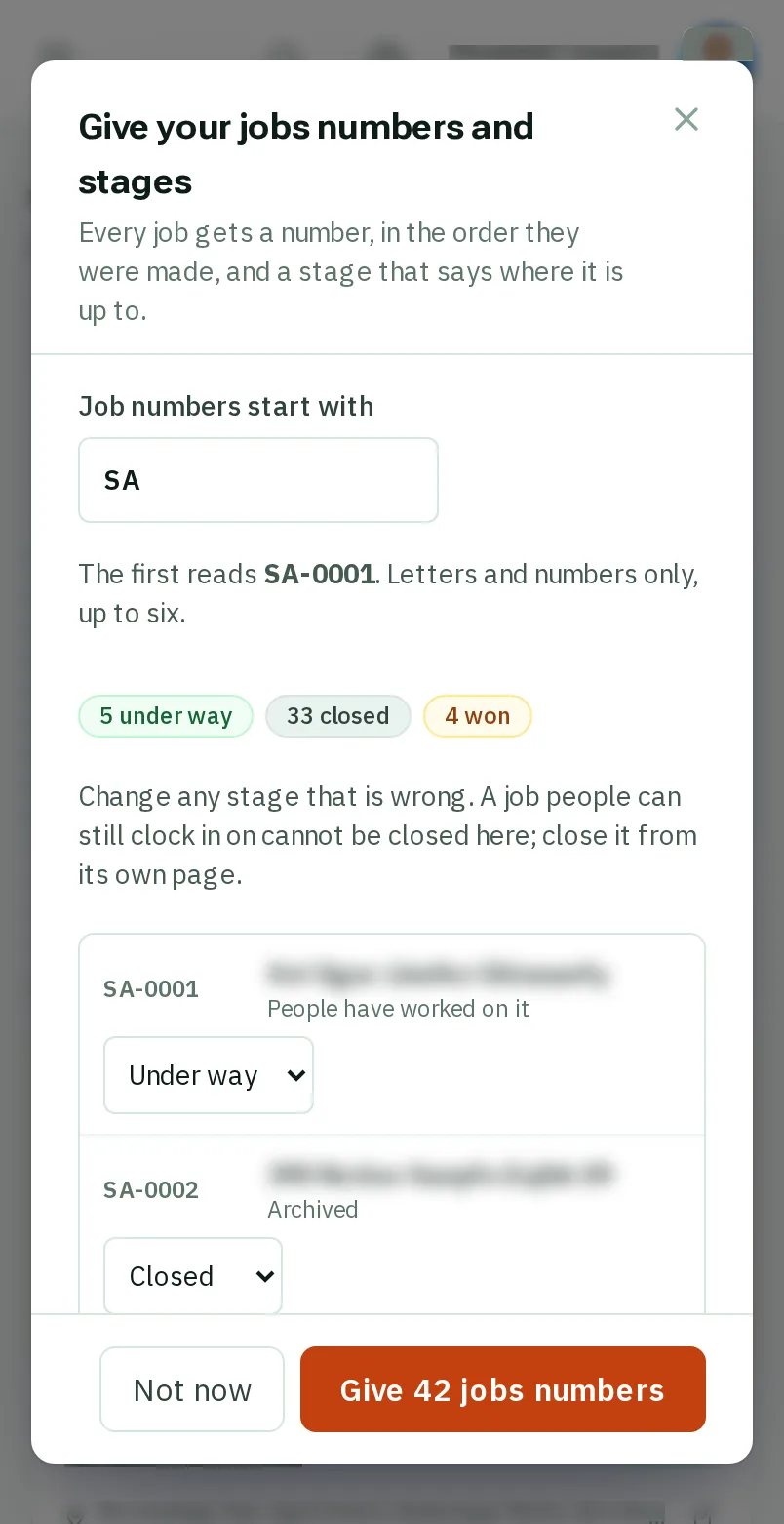
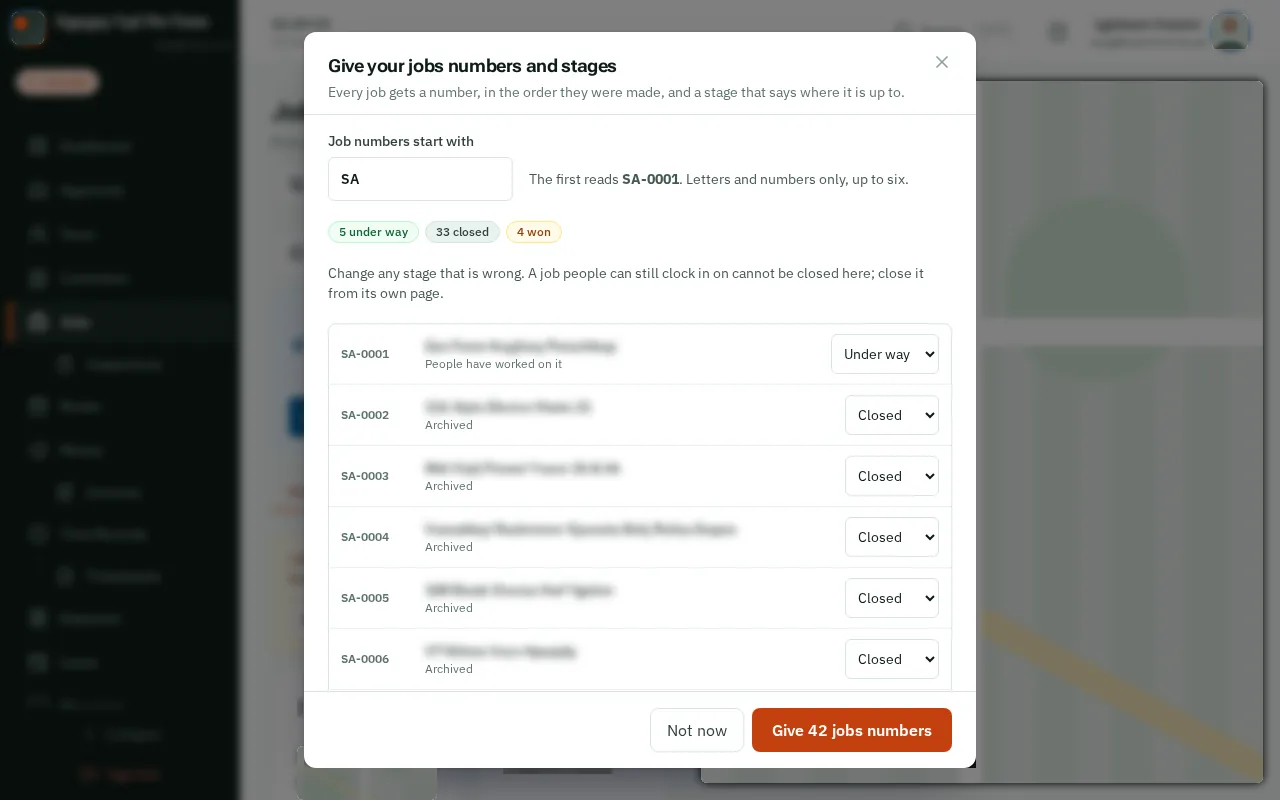
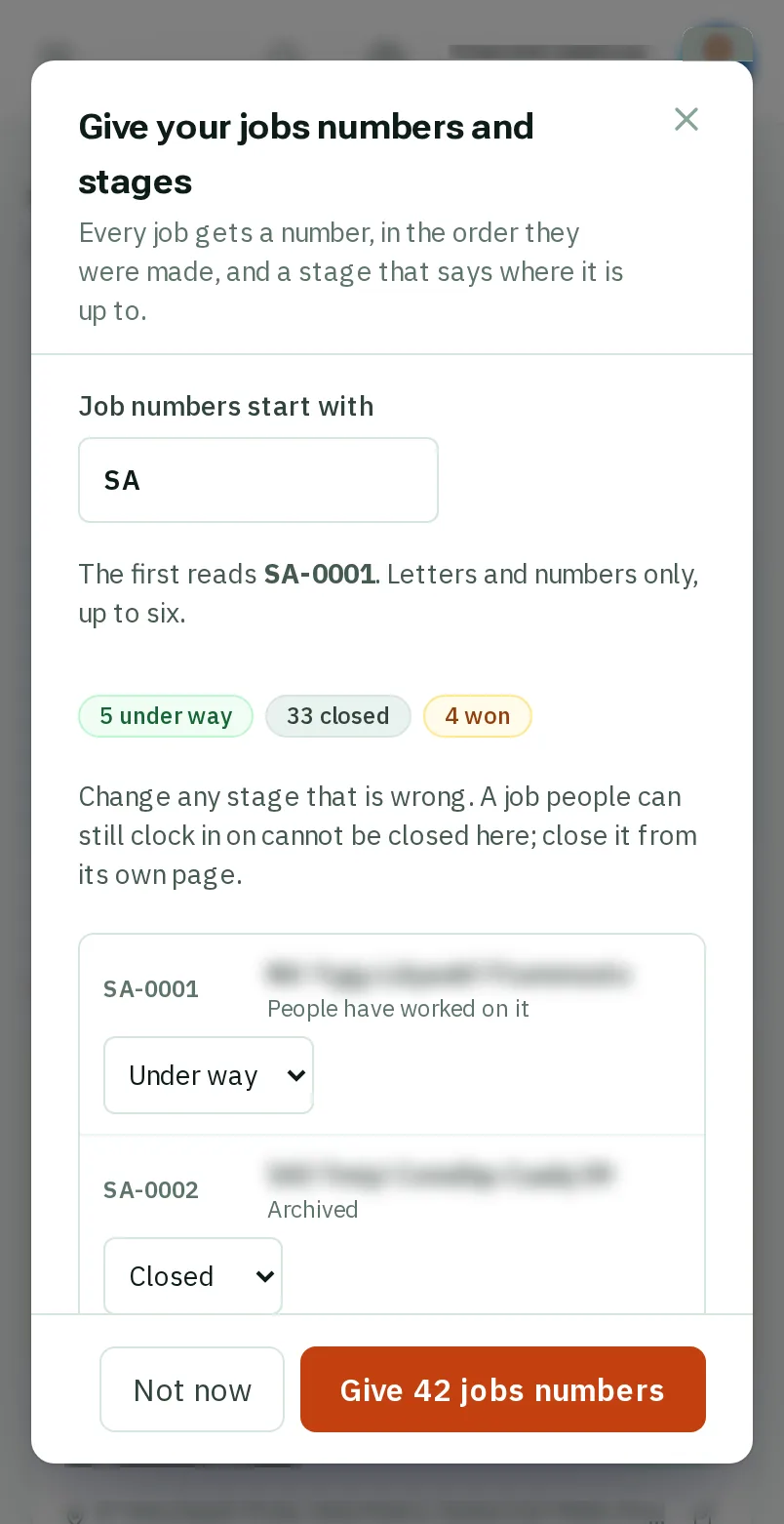
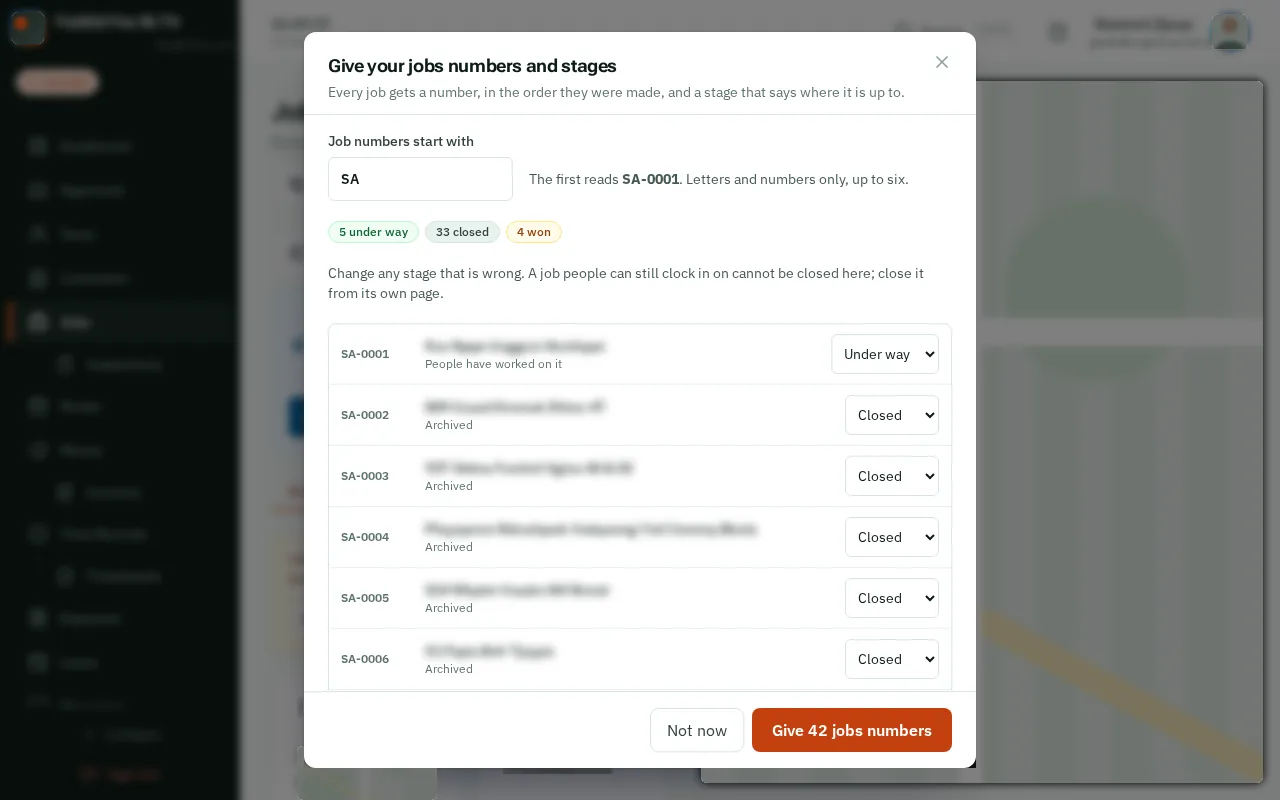
Under Job numbers start with are your company’s initials. Keep them, or type your own, up to six letters and numbers.
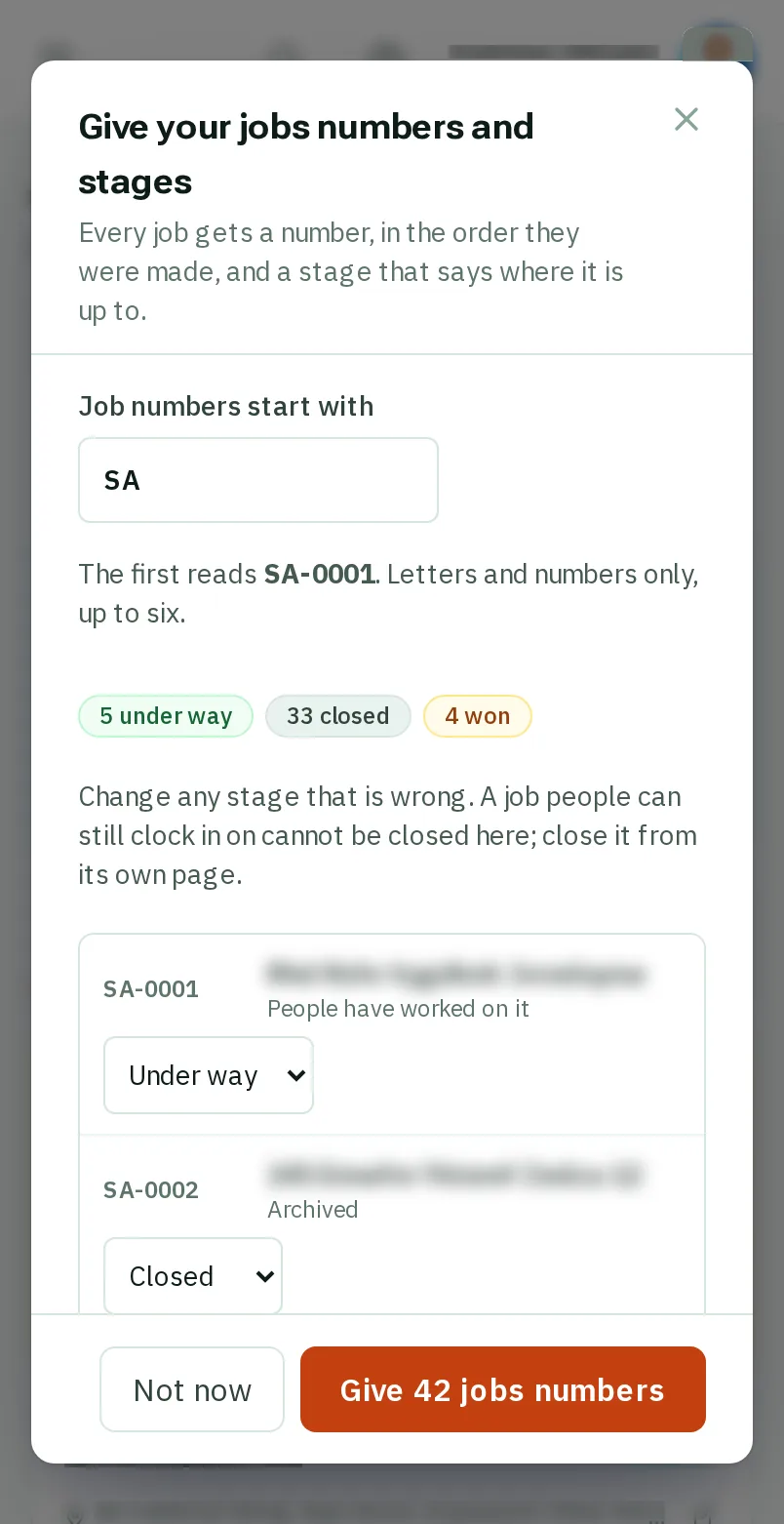
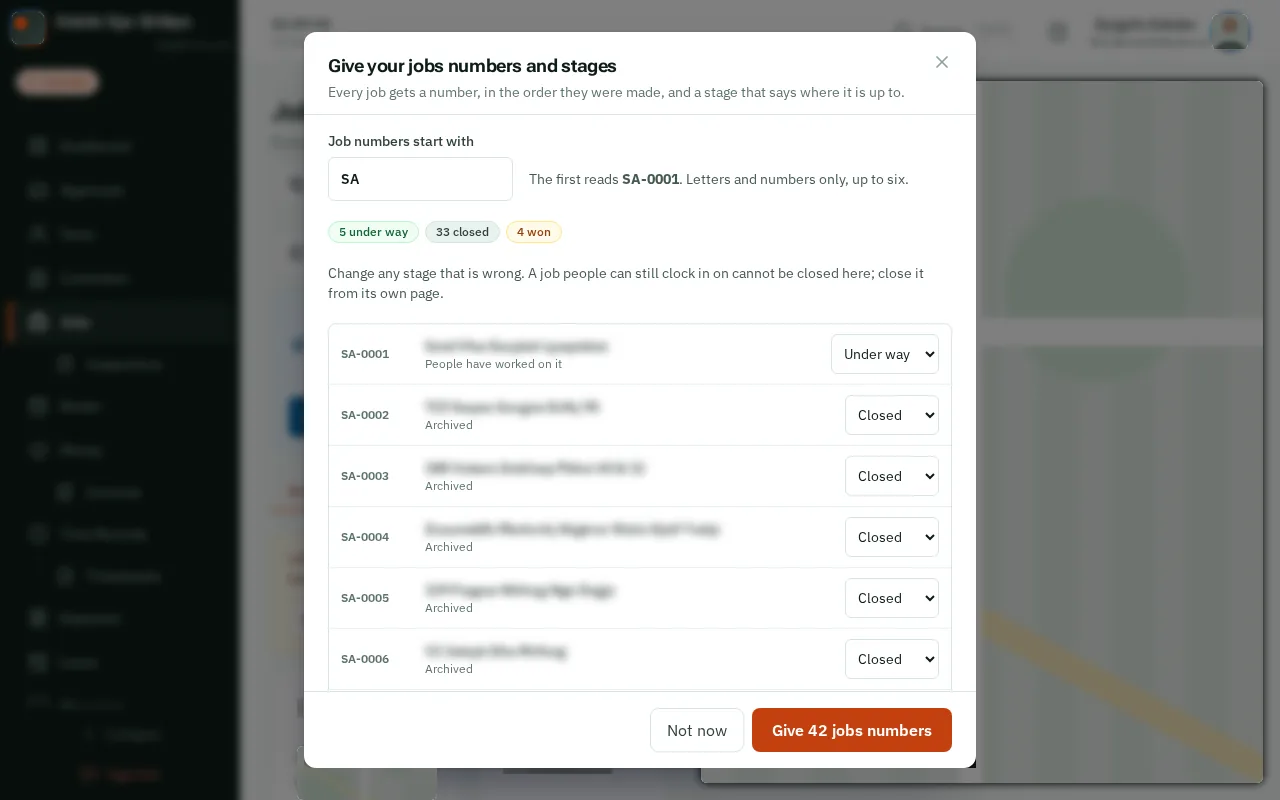
Each job shows the number it will get, in the order the jobs were made, and a stage worked out for it: Under way if people have worked on it, Booked if people are on it, Won if nobody is on it yet, and Closed if it is archived. Change any that is wrong.
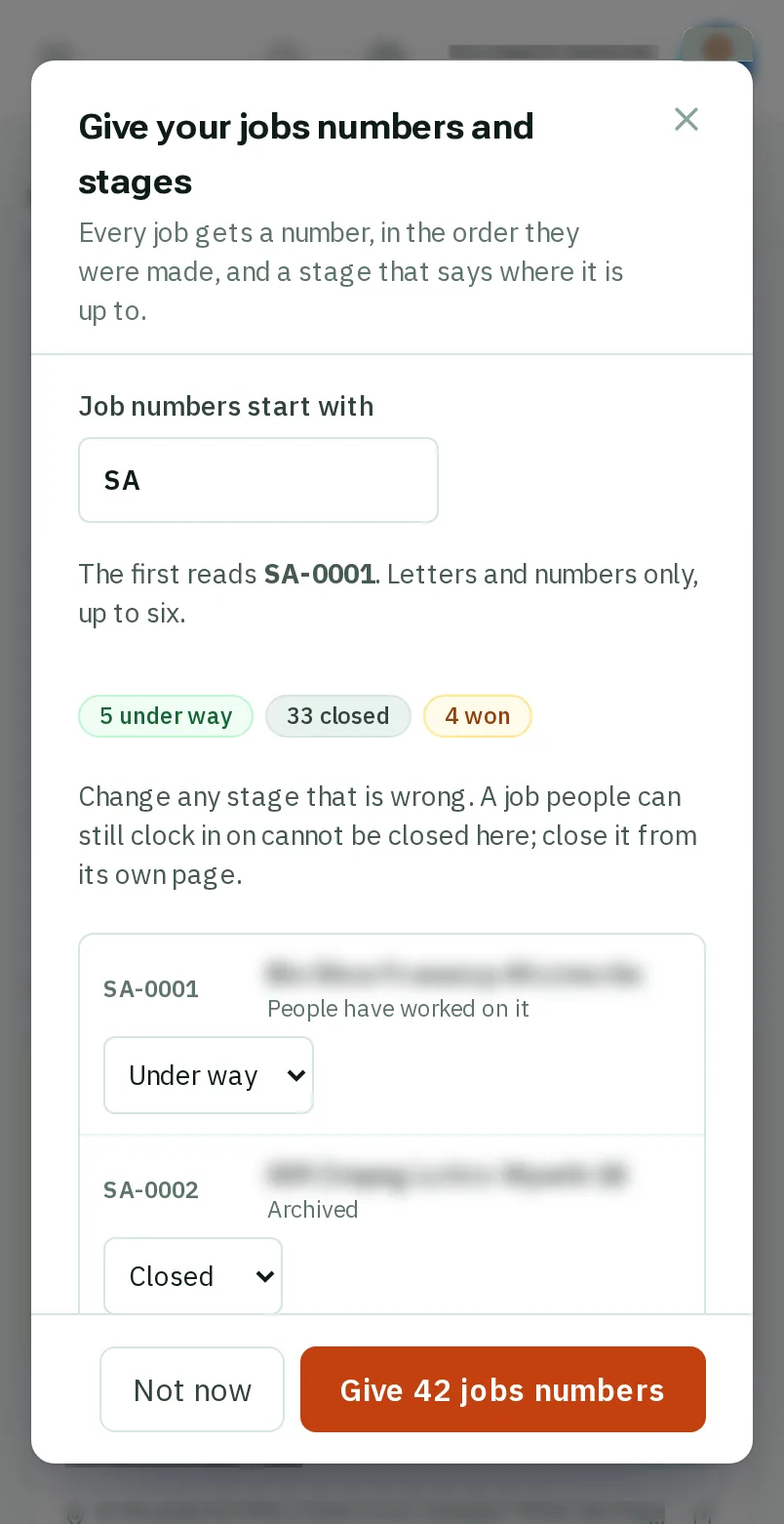
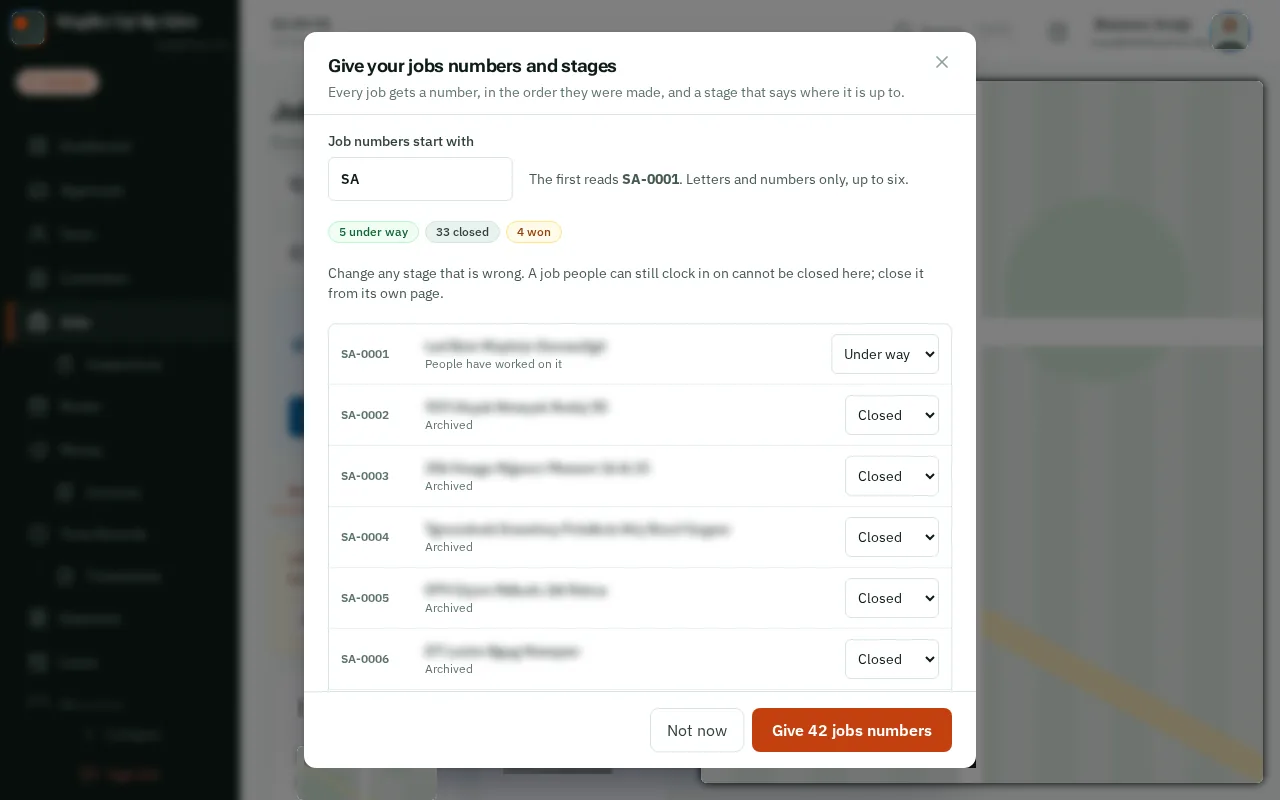
TapClick the orange button at the bottom. It says how many jobs it numbers.
Good to know: Something wrong? TapClick Undo straight after, and your jobs are as they were.
Your jobs are on the board now, each with its number, and every new job gets the next number by itself.