Step 1: Open Jobs
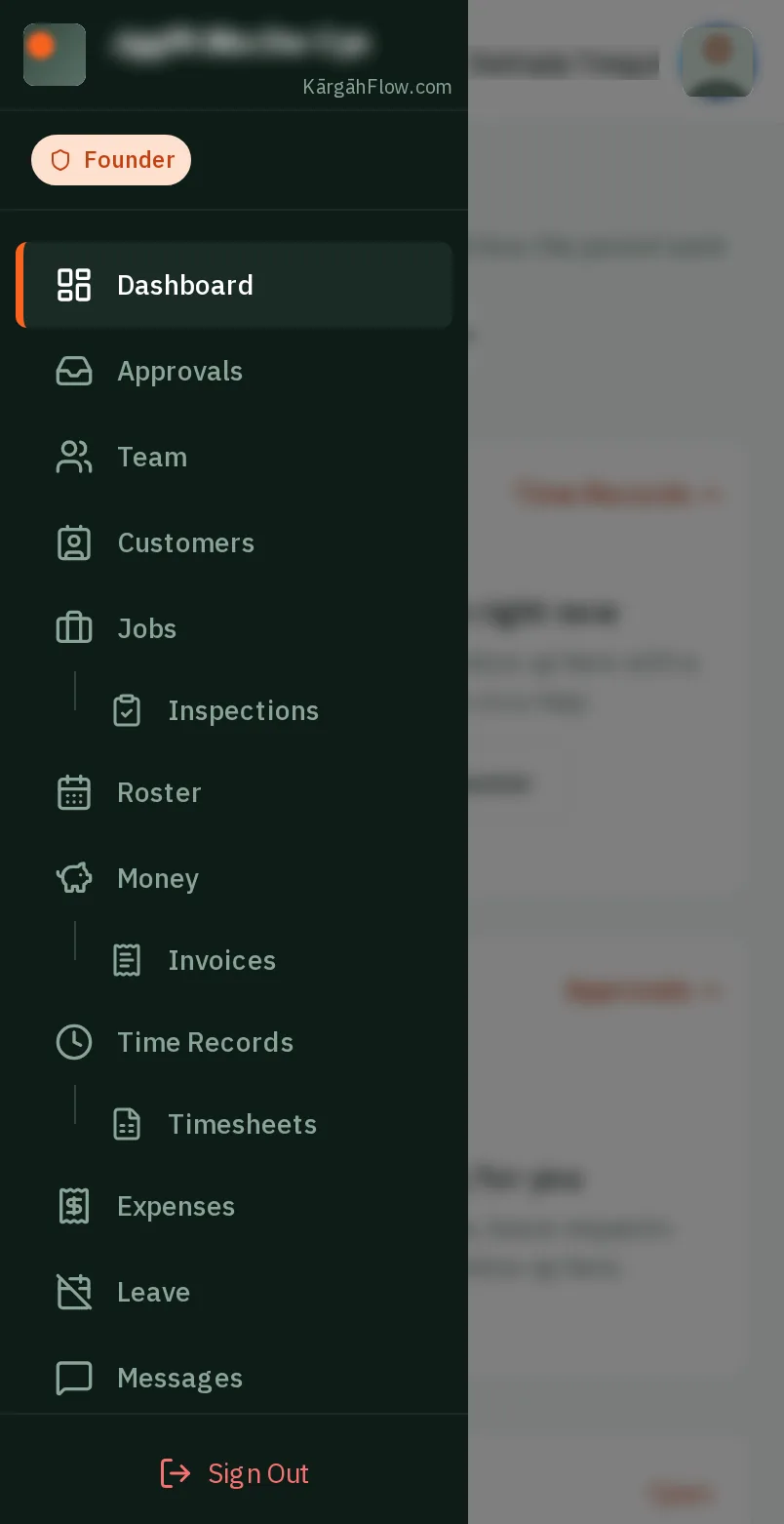
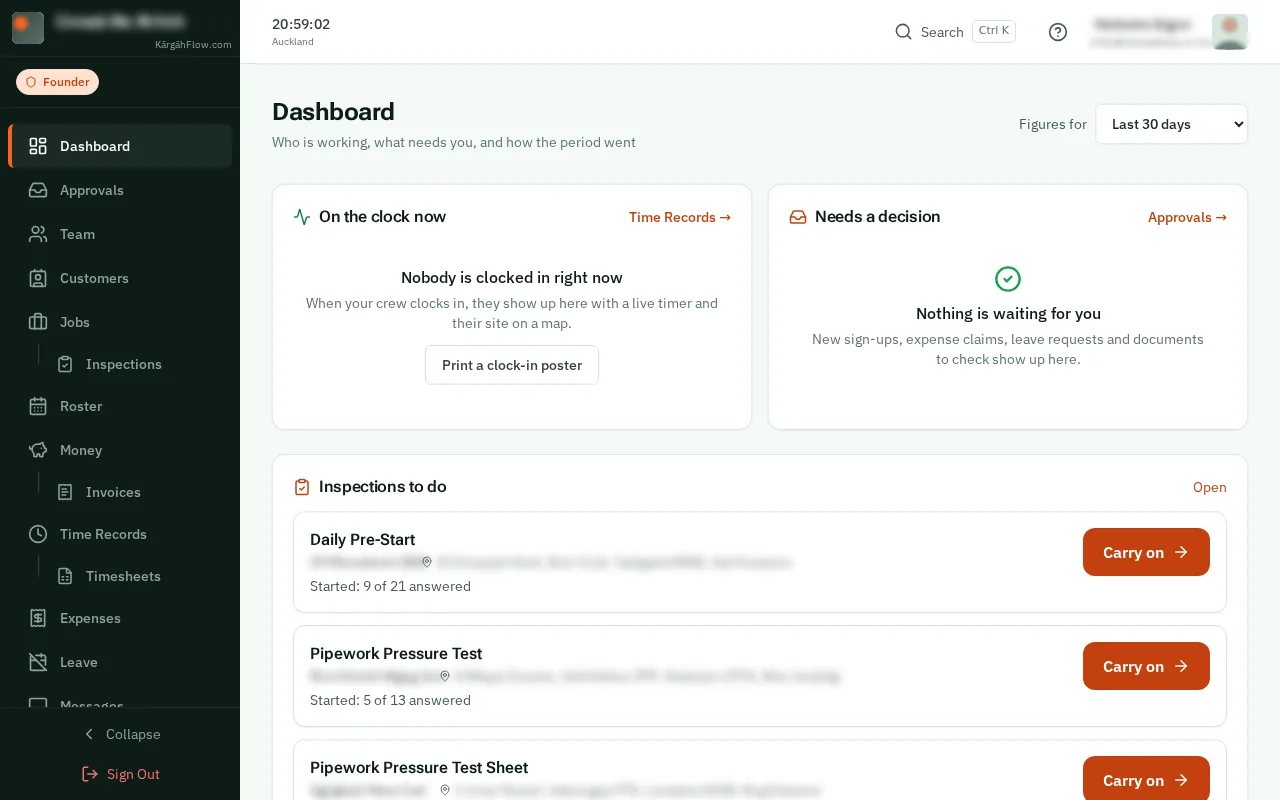
TapClick the menu button at the top left of the screen, then Jobs.TapClick Jobs in the menu on the left.
Look forthe Jobs item in the menu
An enquiry is work you might get: someone has rung or emailed to ask for a price. Logging it puts it on the board at Enquiry, with its own number, so it is never lost in a notebook or an inbox.
When they say yes, the same job moves on to Won, with everything they told you still on it.
Pick one of their sites and the job takes its address and clock-in fence. A new address is kept as one of their sites, so next time it is one tap.
TapClick the menu button at the top left of the screen, then Jobs.TapClick Jobs in the menu on the left.
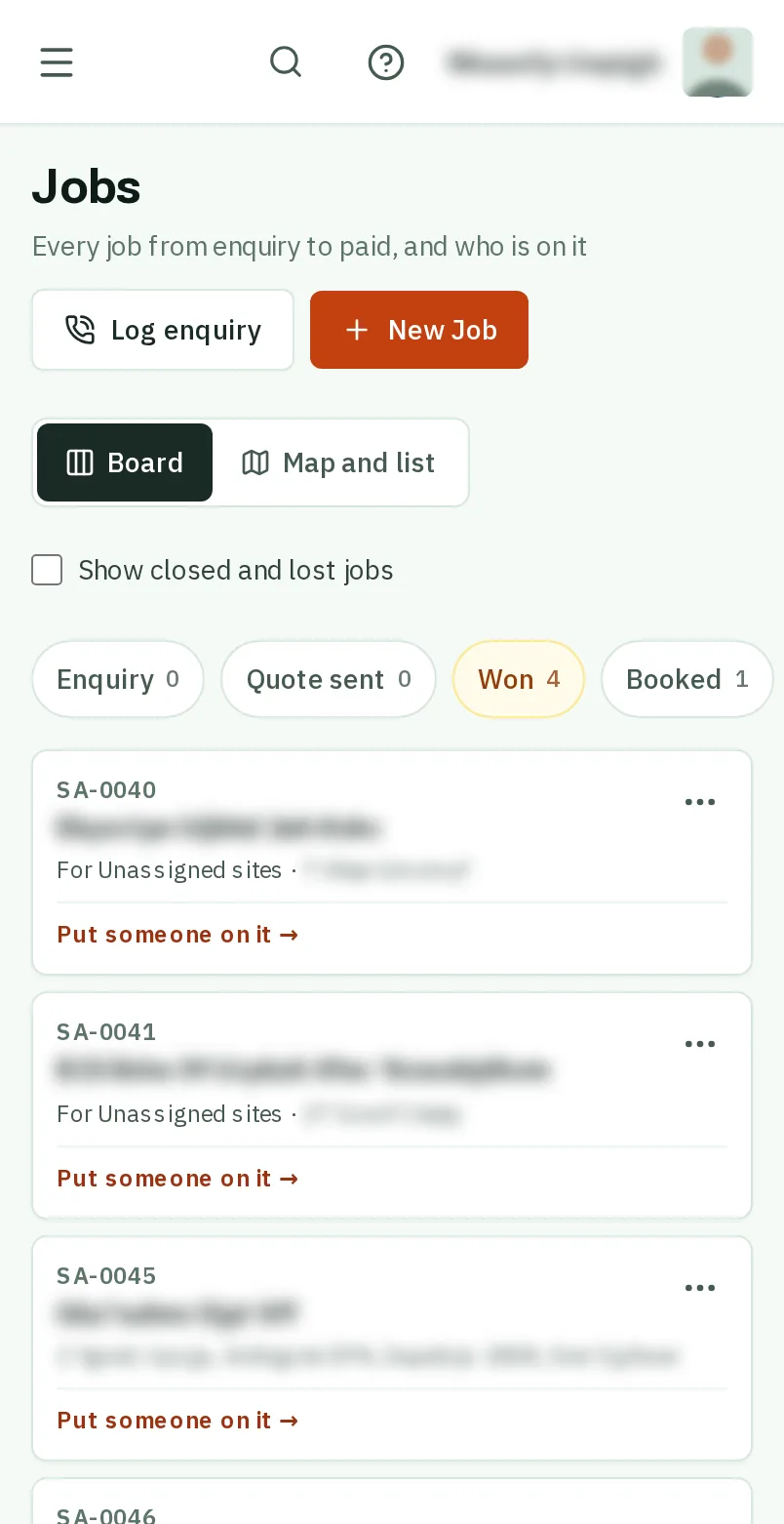
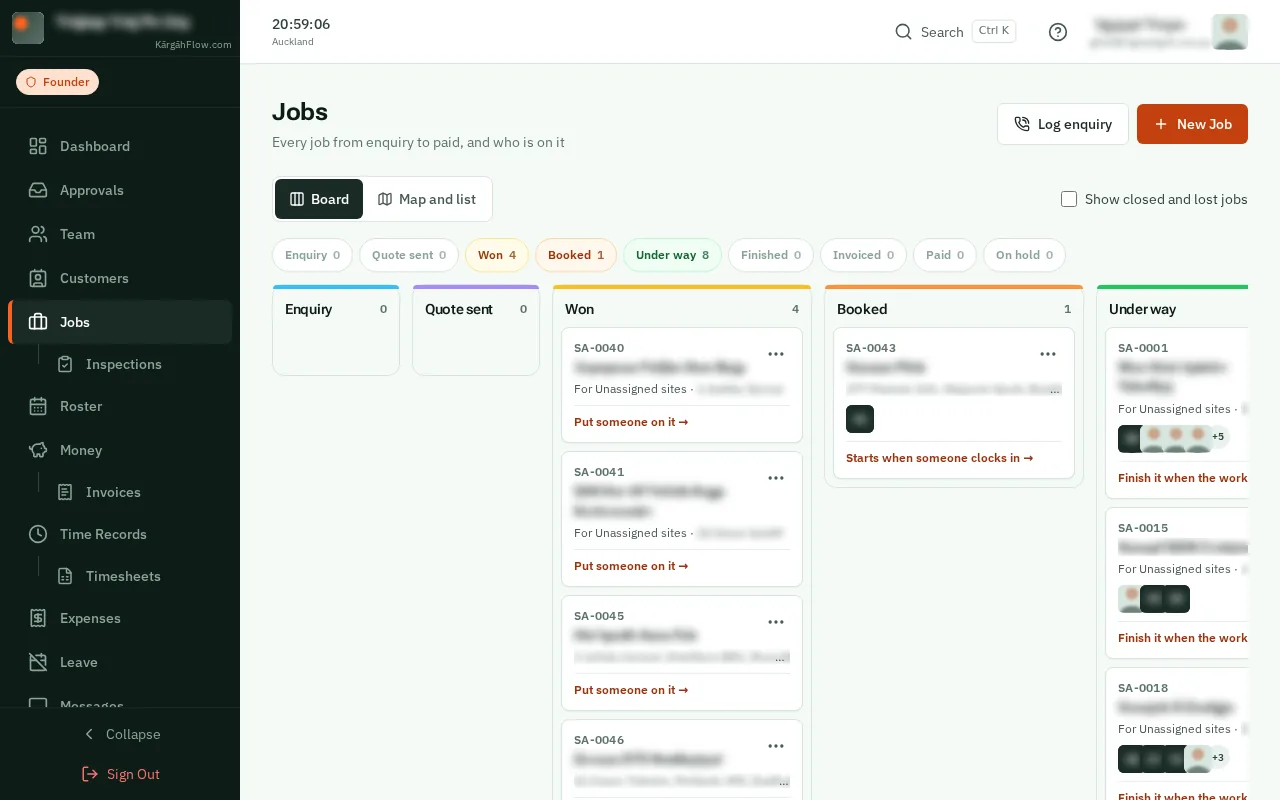
TapClick Log enquiry at the top of the page.
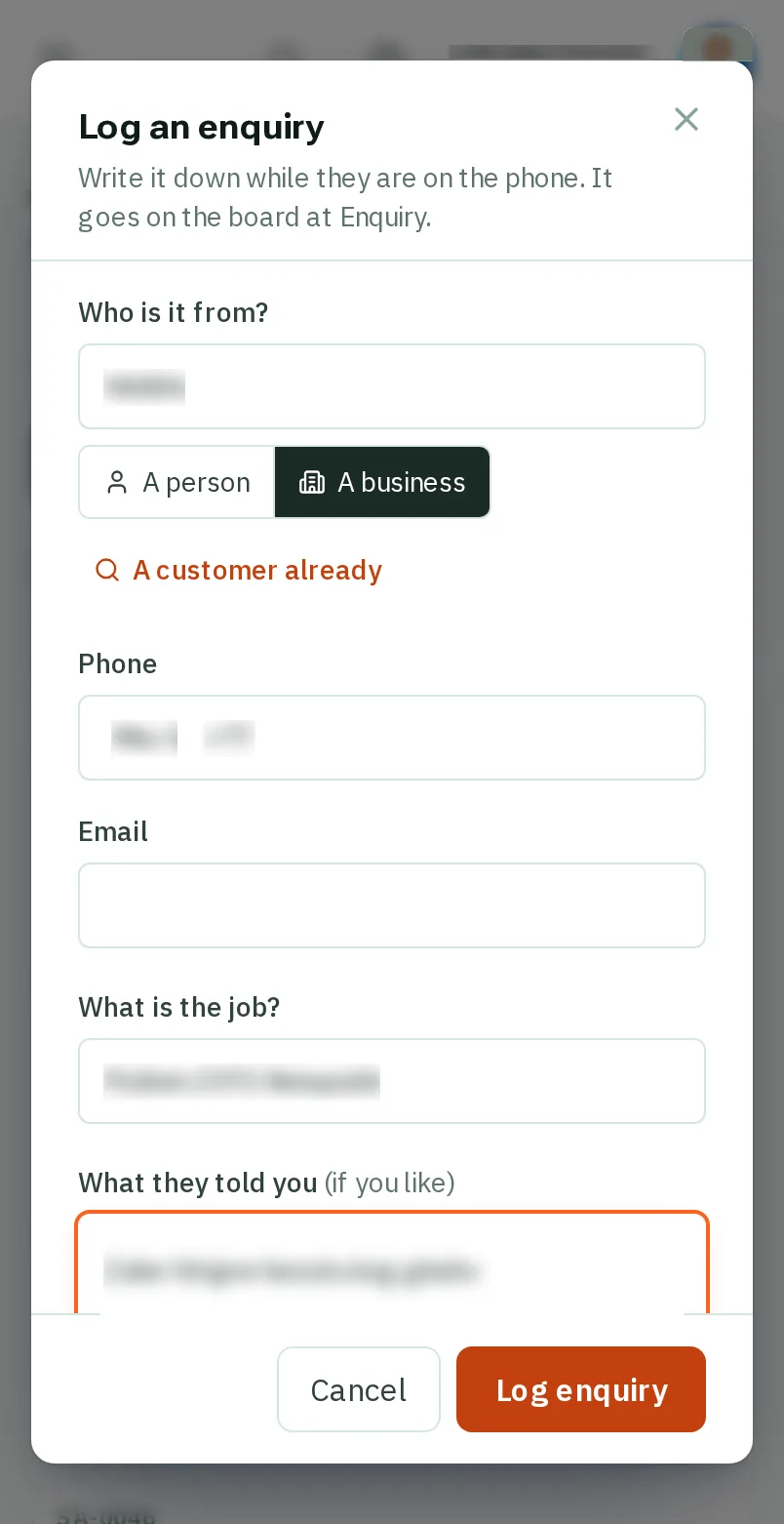
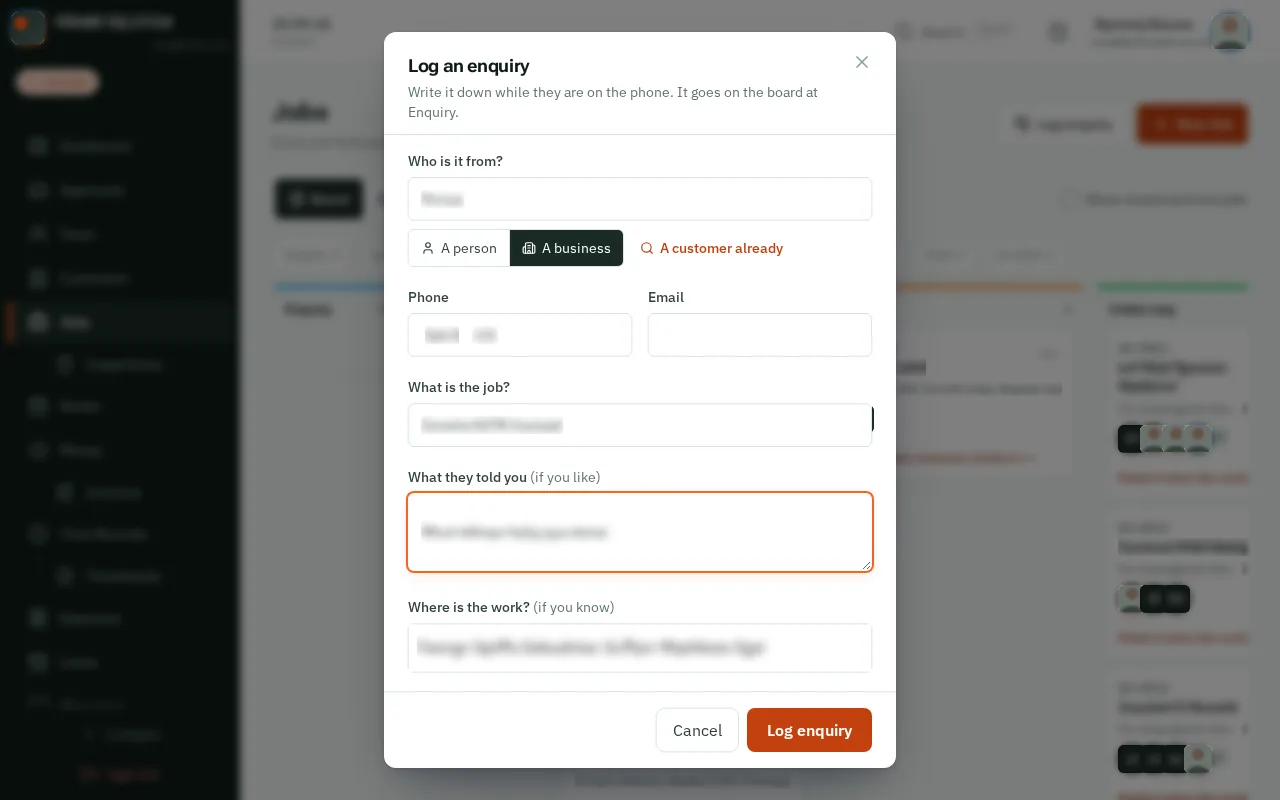
Type their name, and tapclick A person or A business. Then their phone and email, if they gave them. The country in front of the phone number is chosen for you.
Good to know: If the phone number or email belongs to a customer you have, the window says so: tapclick Use them.
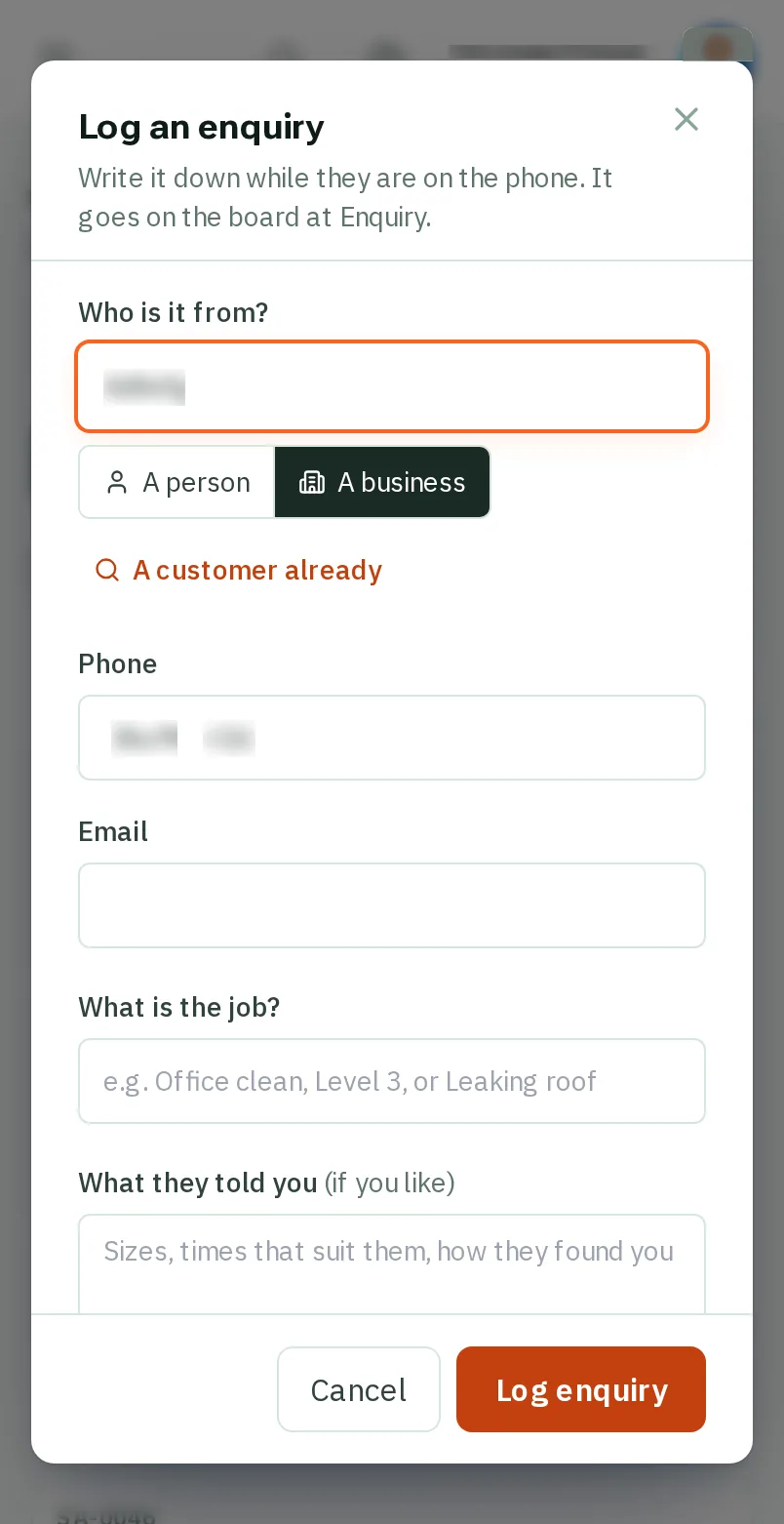
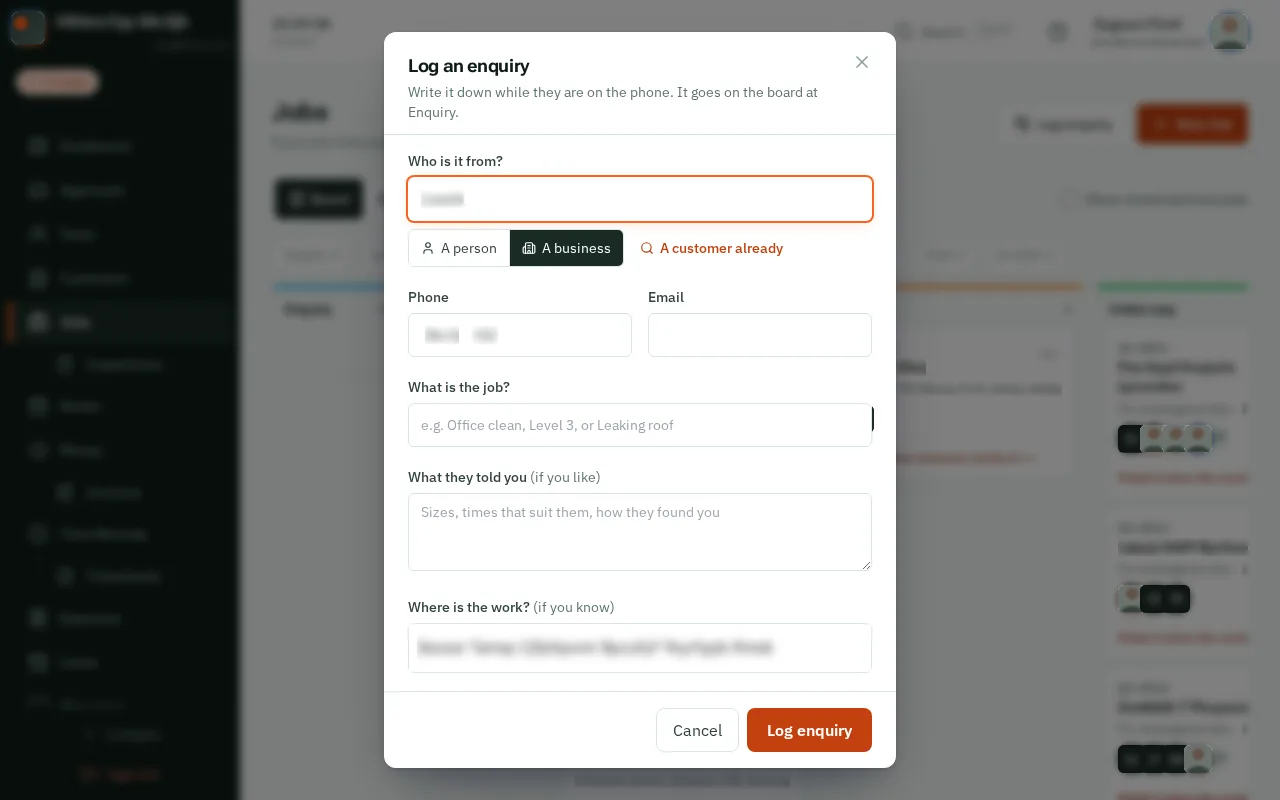
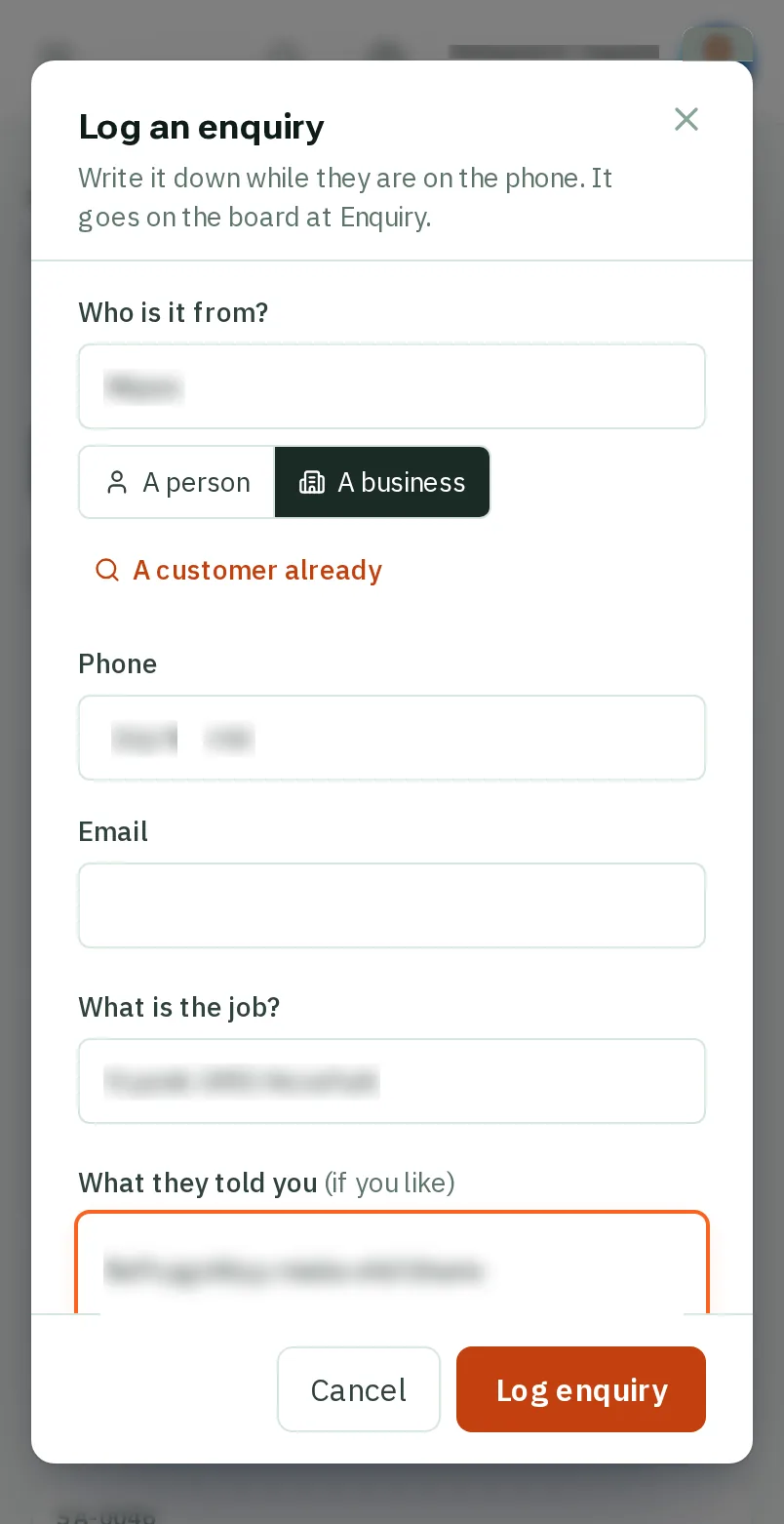
Under What is the job?, type a short name for it. Put anything else they told you in the box under it.
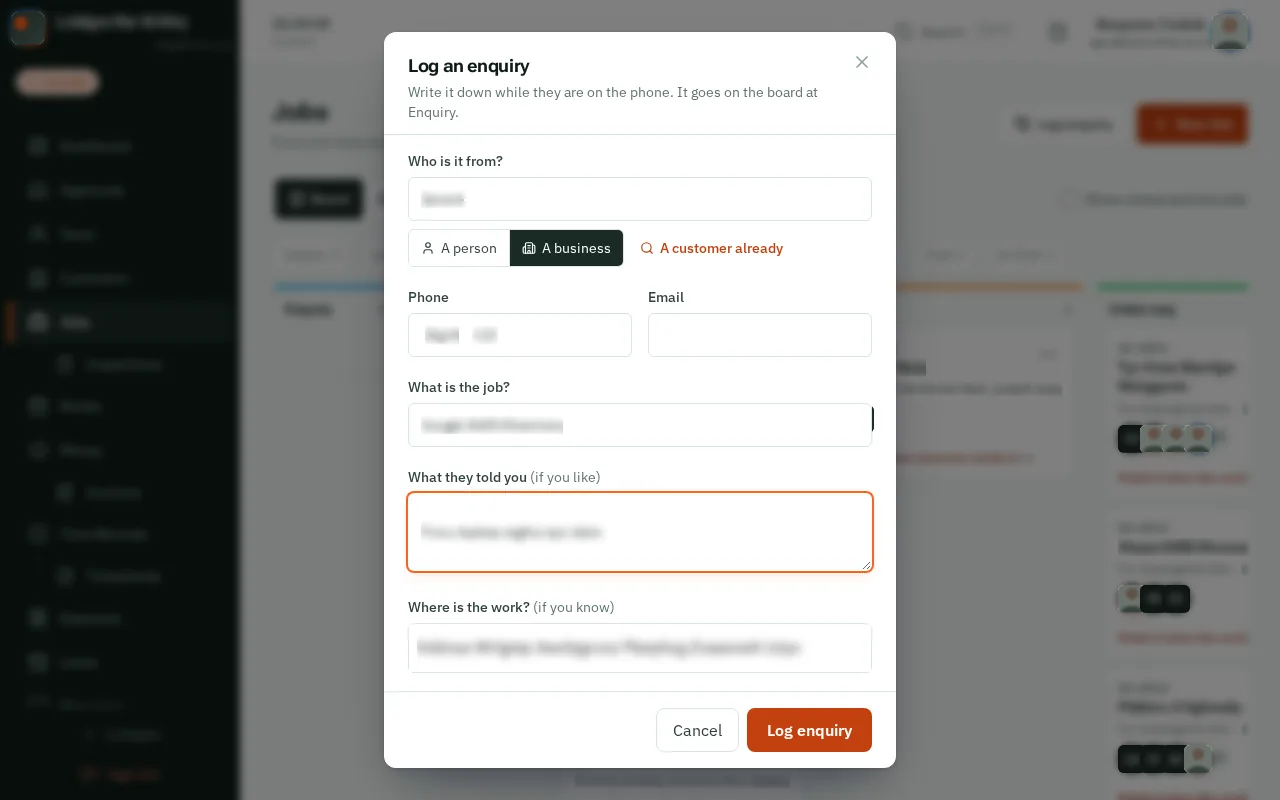
Start typing the address, then tapclick the right one in the list. For a customer you have, tapclick one of their sites instead.
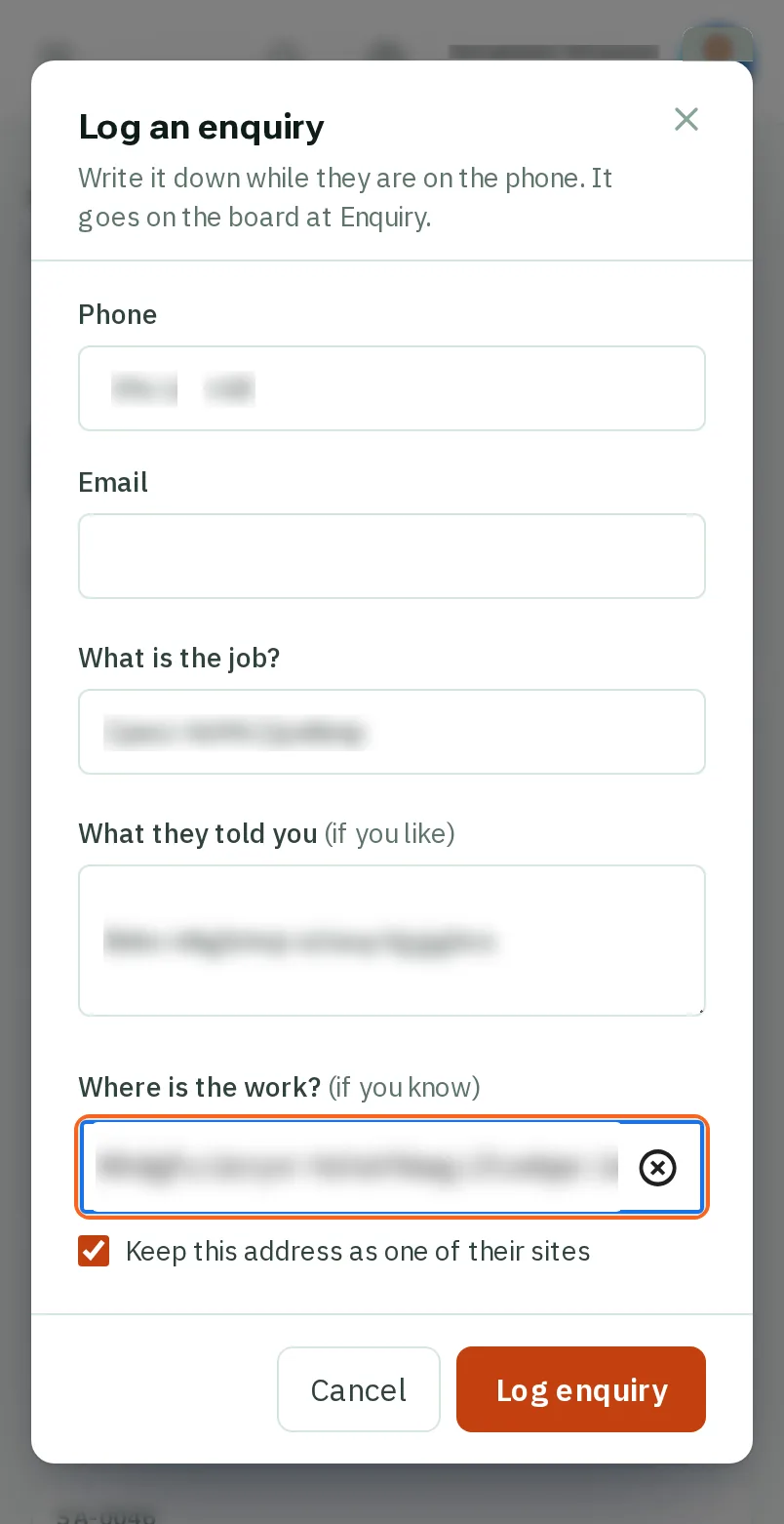
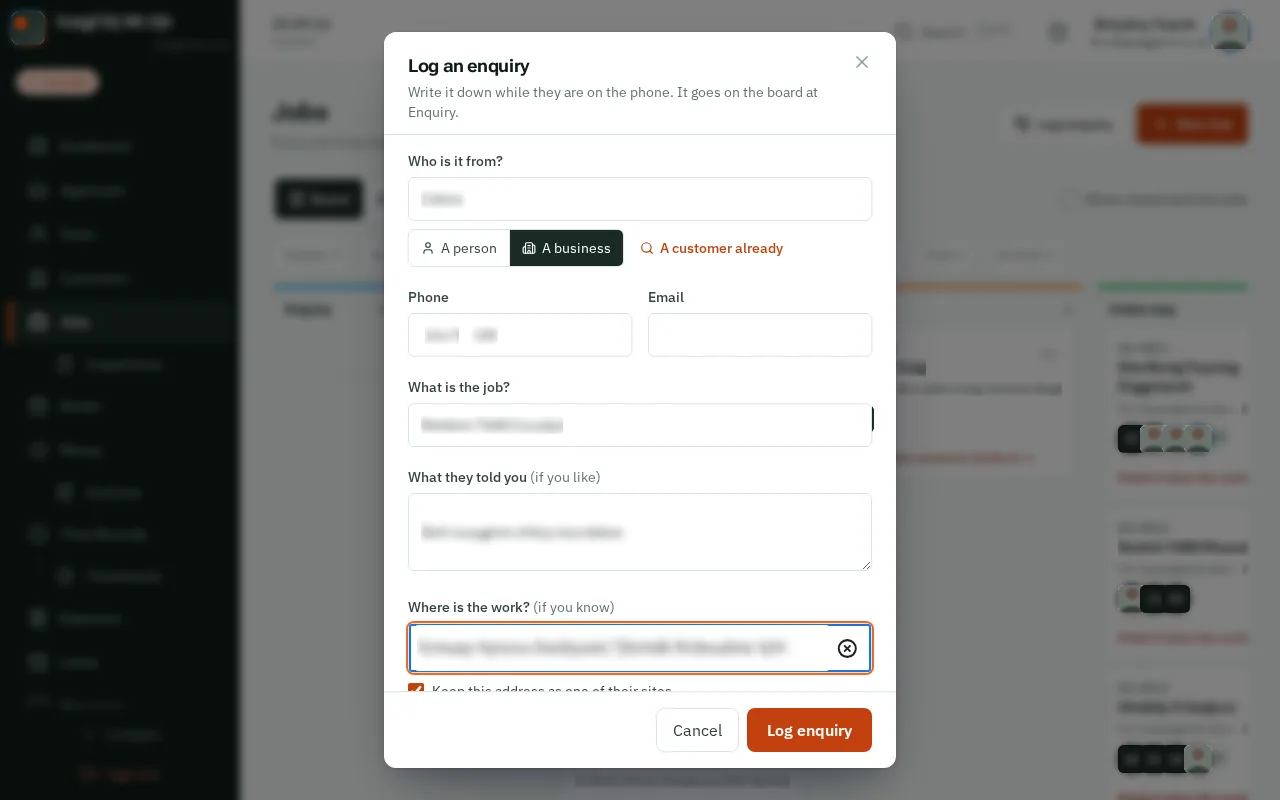
TapClick Log enquiry at the bottom of the window. It goes on the board at Enquiry, with its own number.
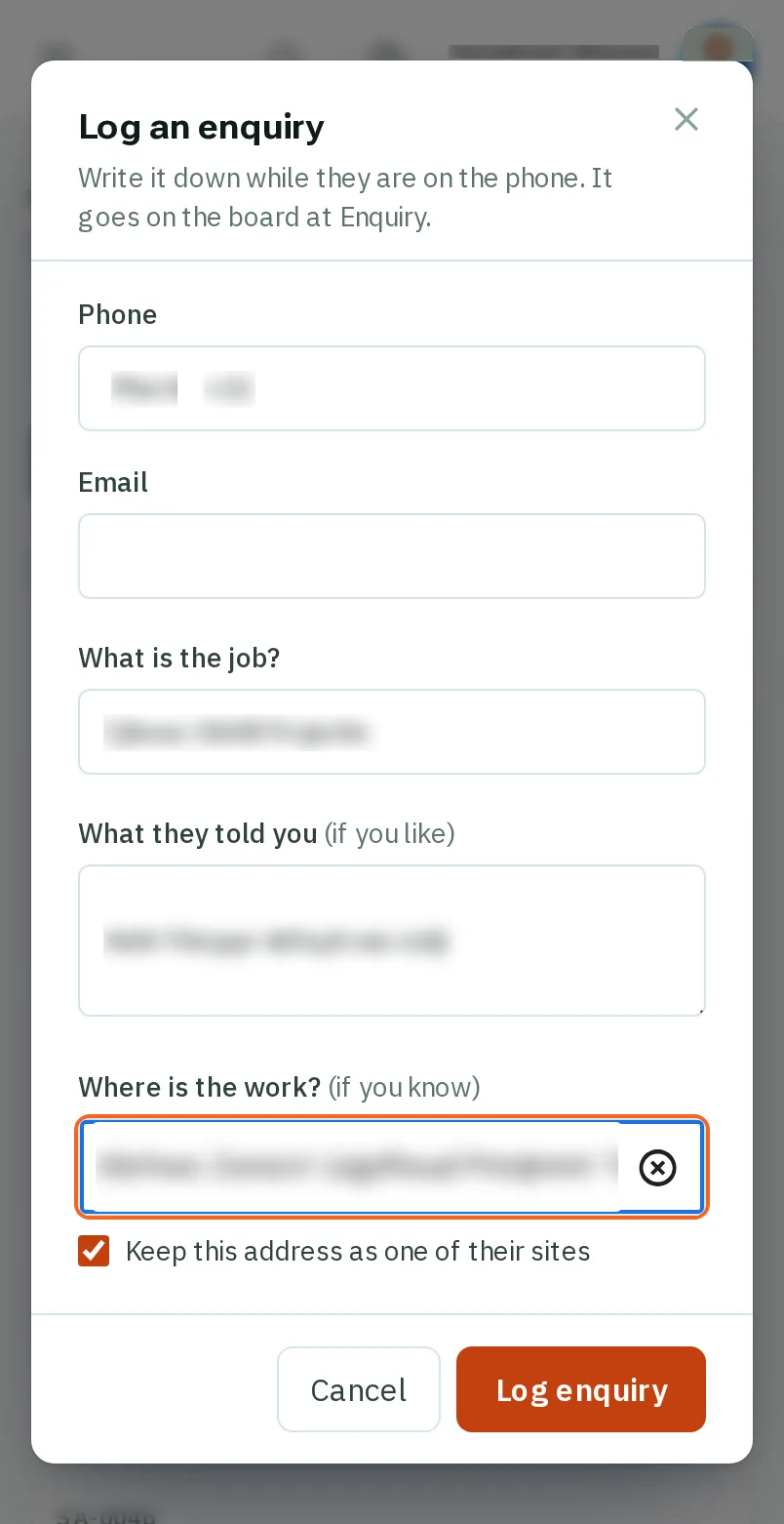
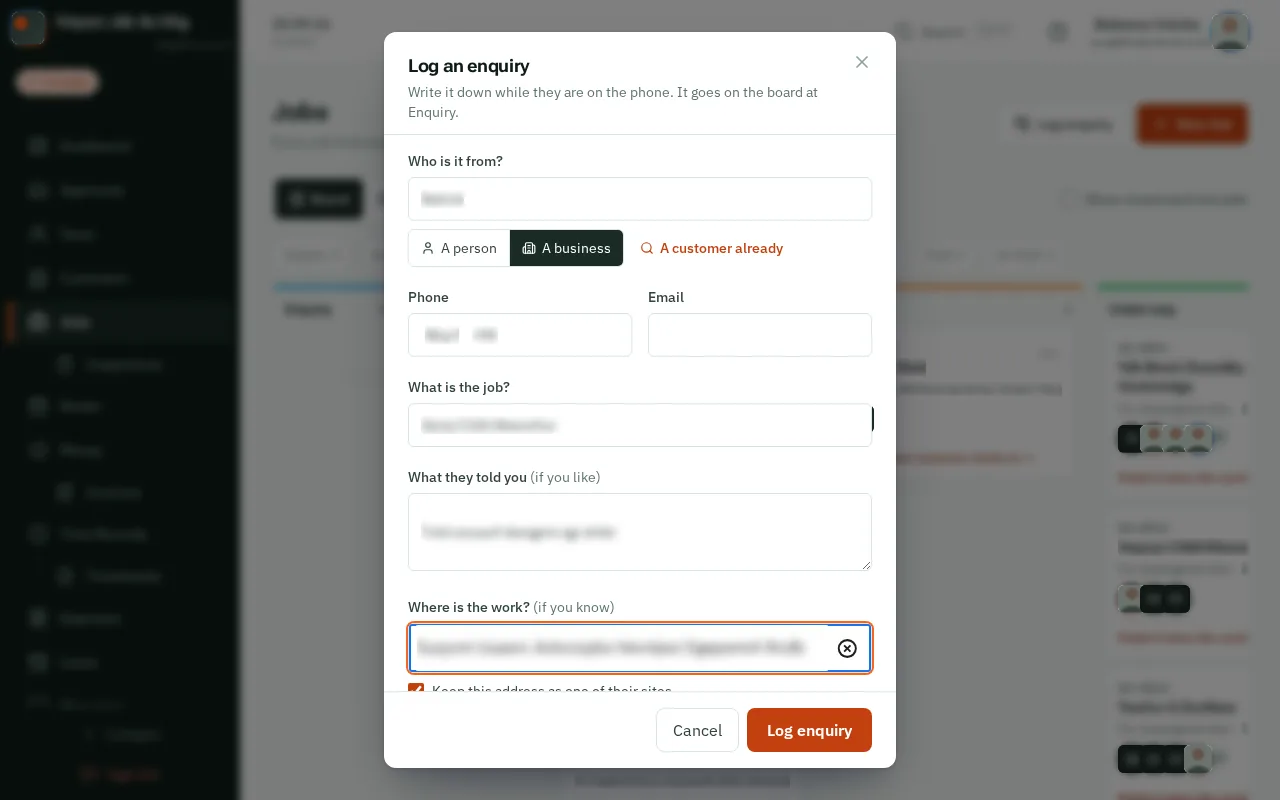
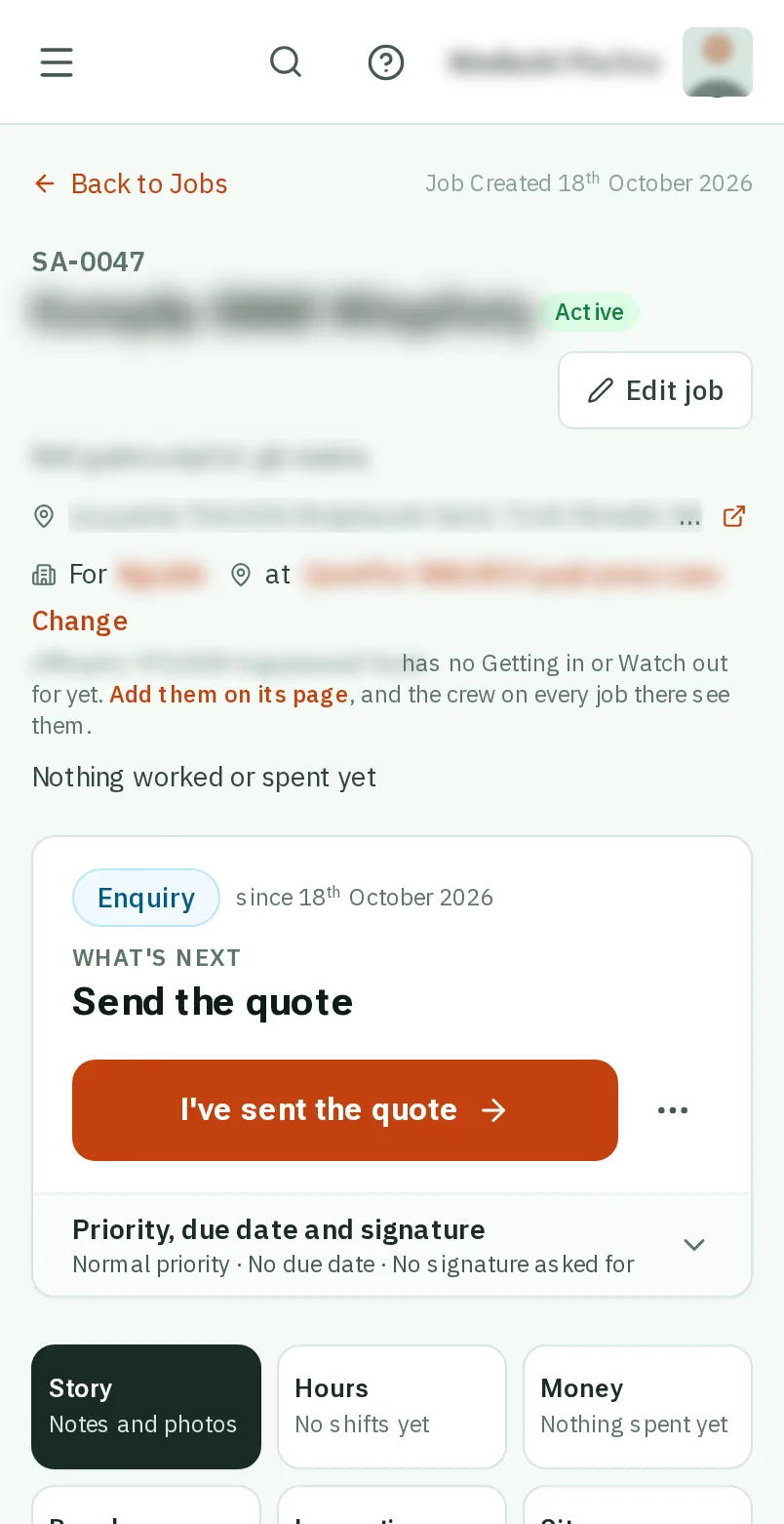
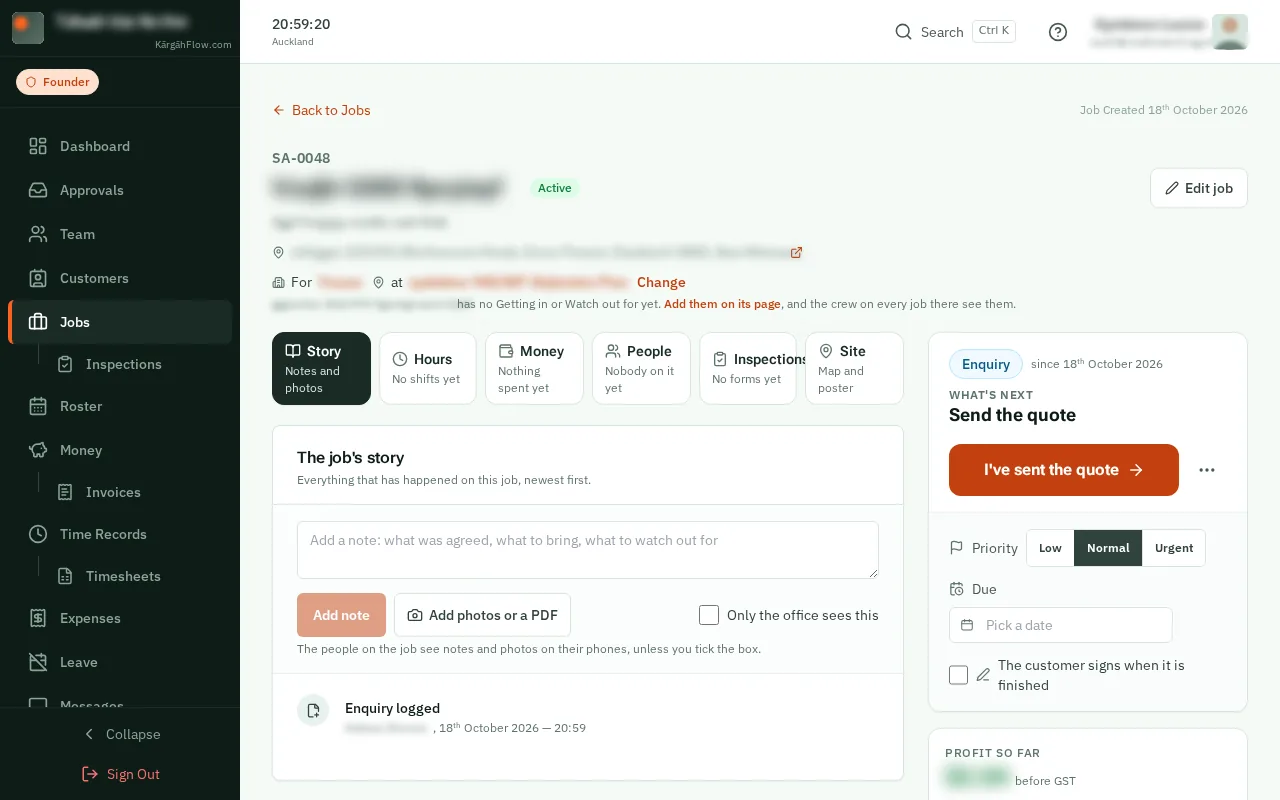
Open the job and tapclick I’ve sent the quote. When they say yes, tapclick They said yes.