KārgāhFlow
About 2 minutes 5 stepsFor crew, admins and owners

Finish a job and get it signed

Tell the office the work is done, with the customer’s signature on your phone when they need to sign.

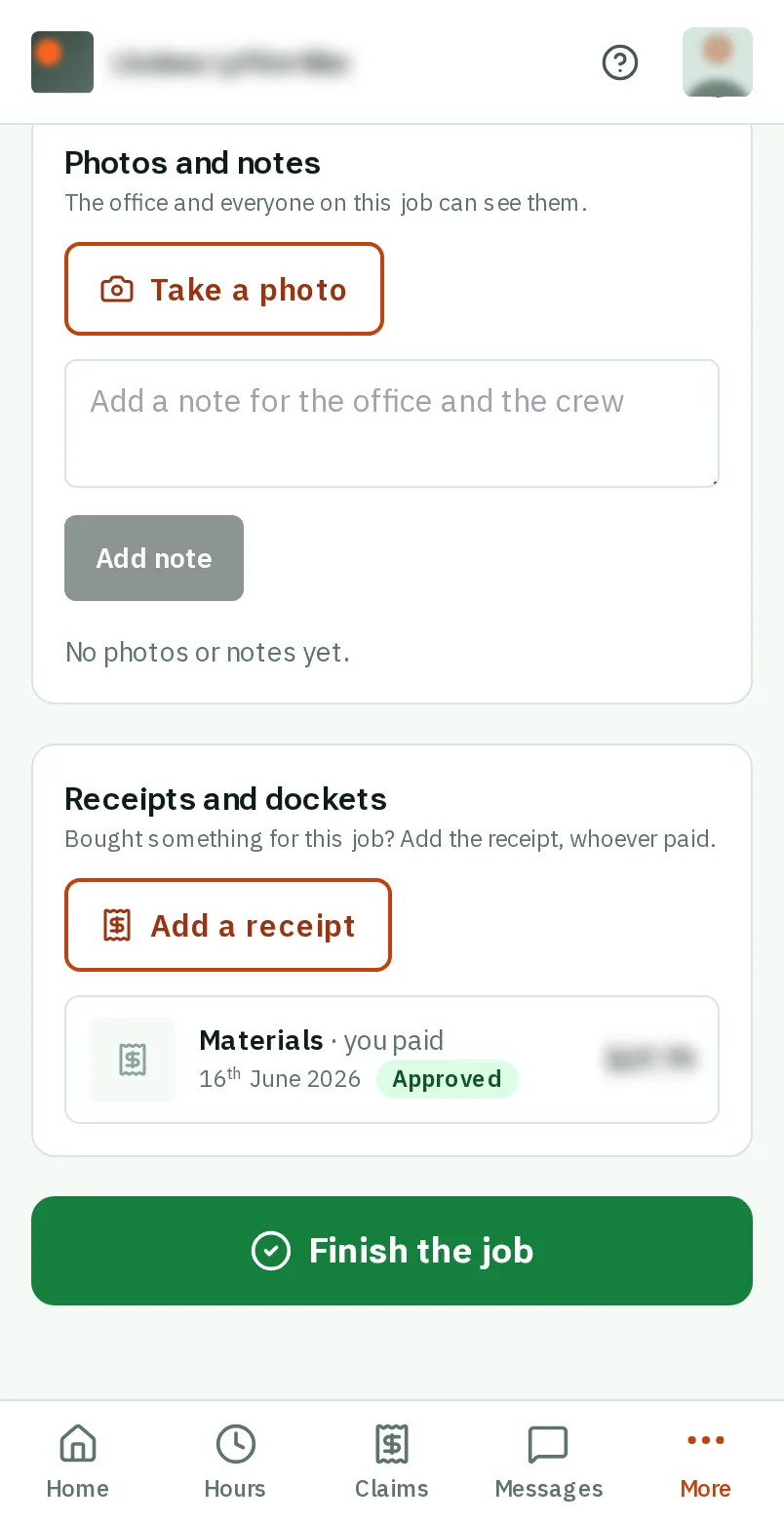
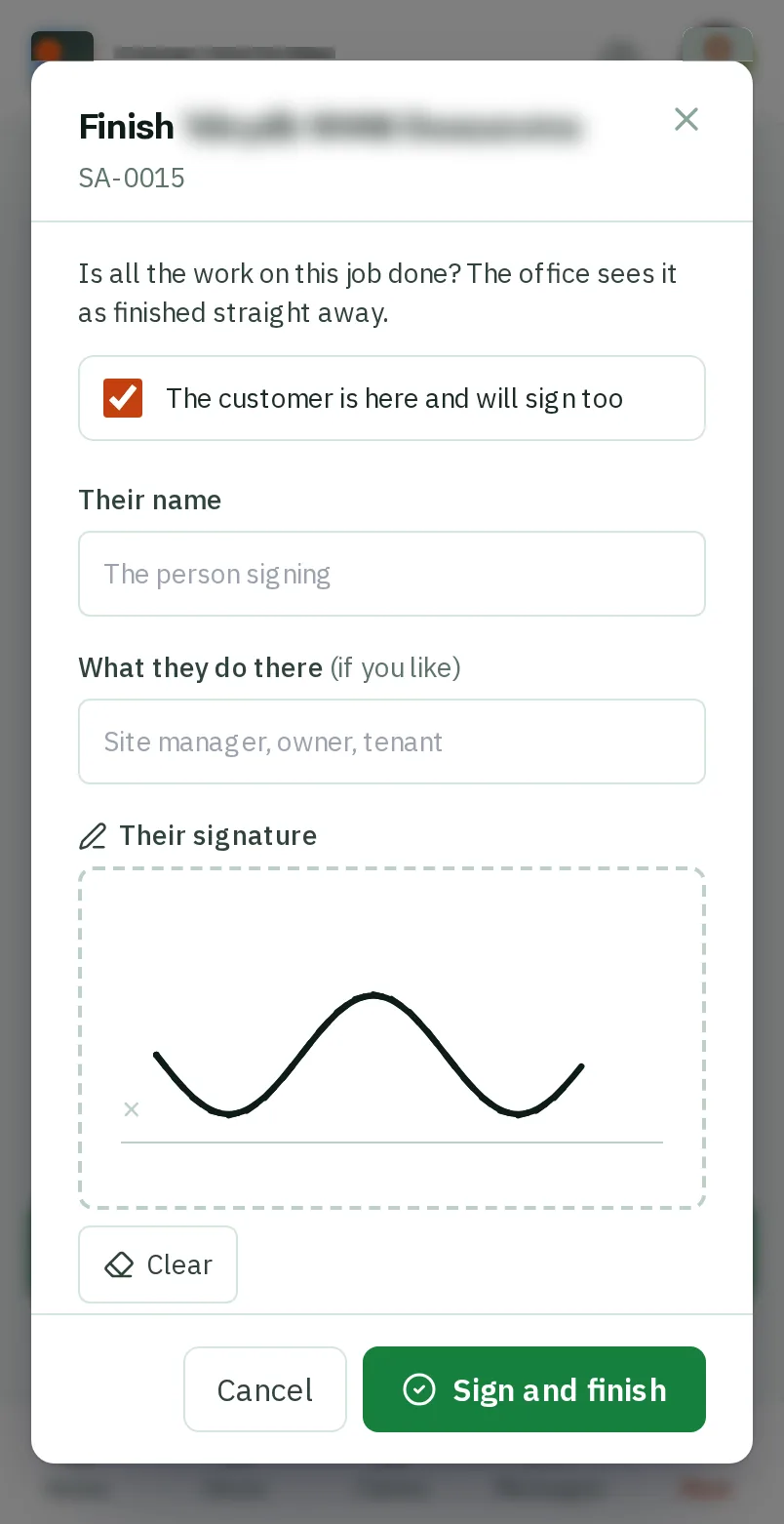
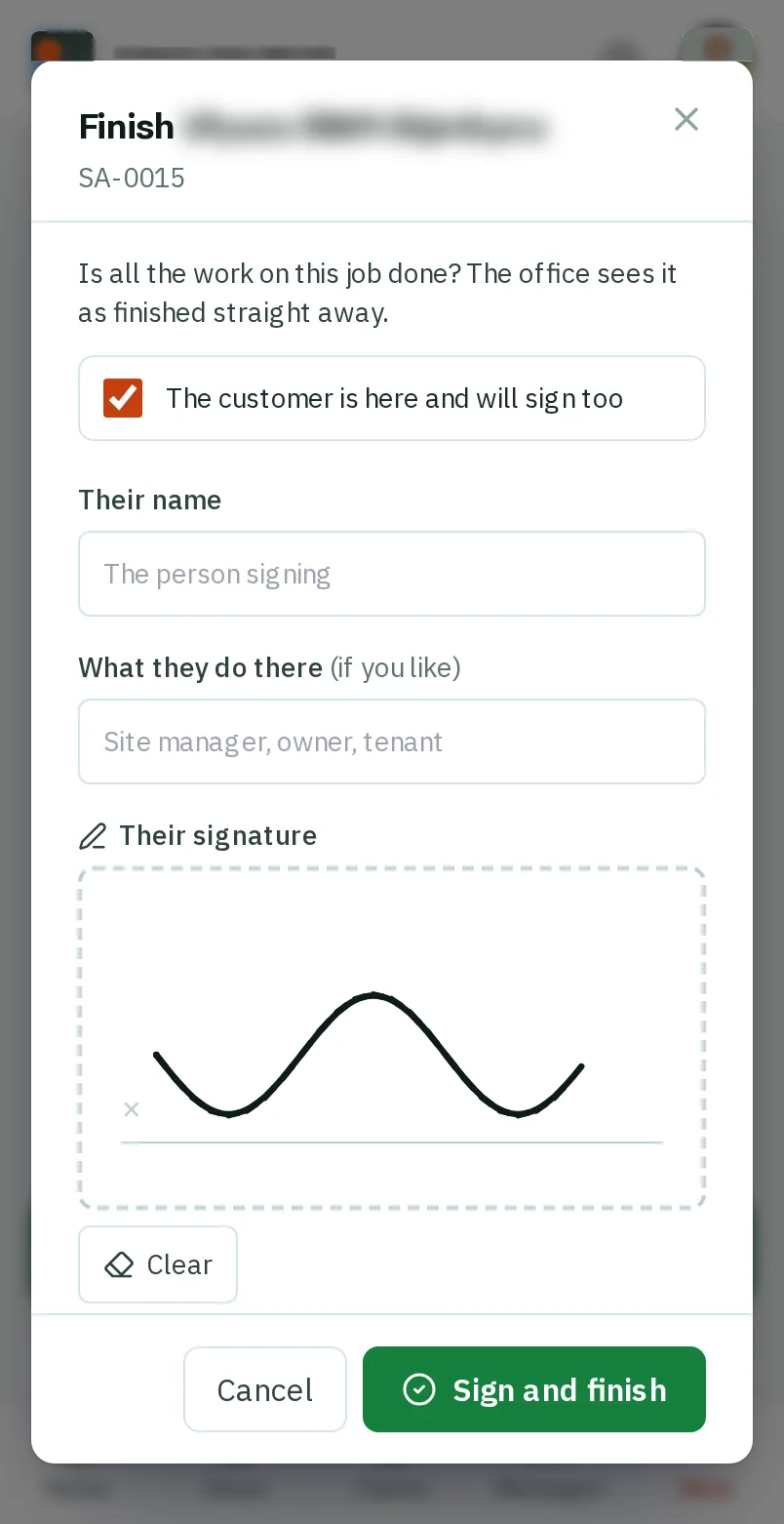
Finish a job and get it signed: the screen on a phone
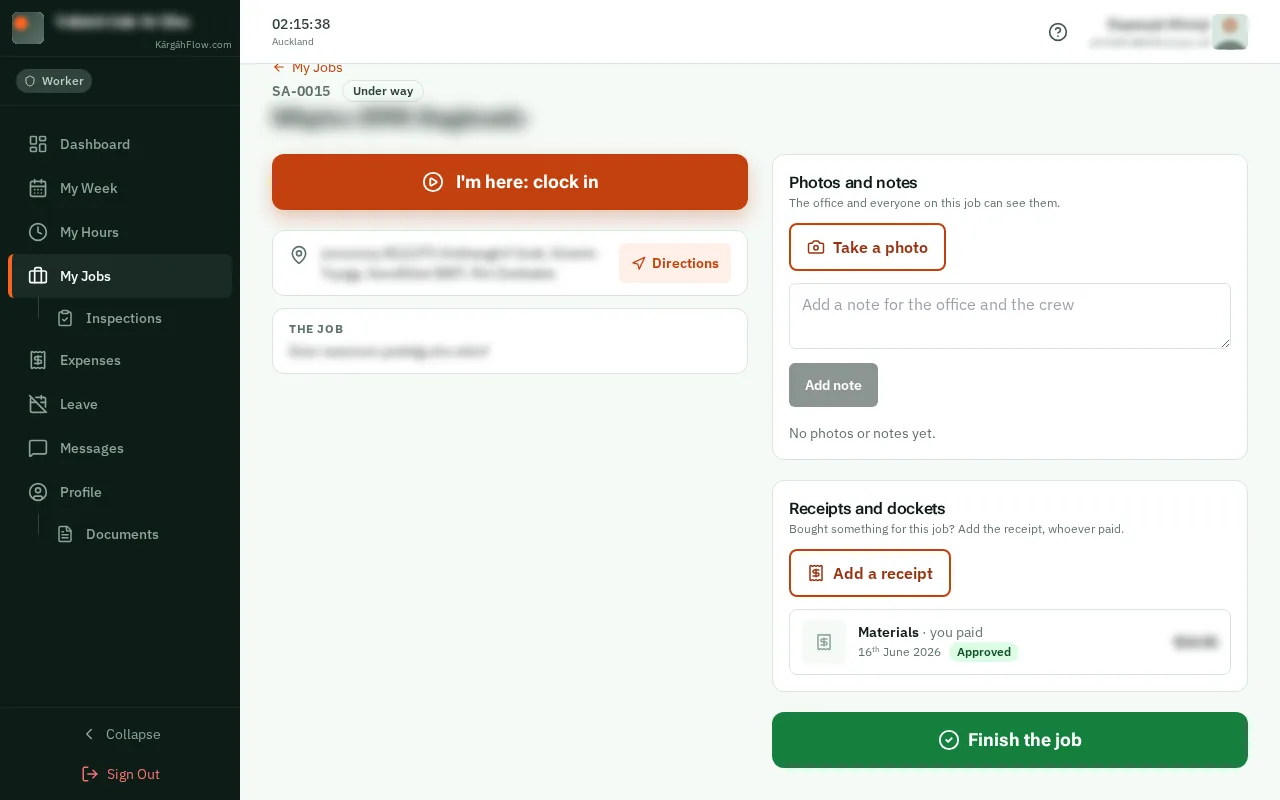
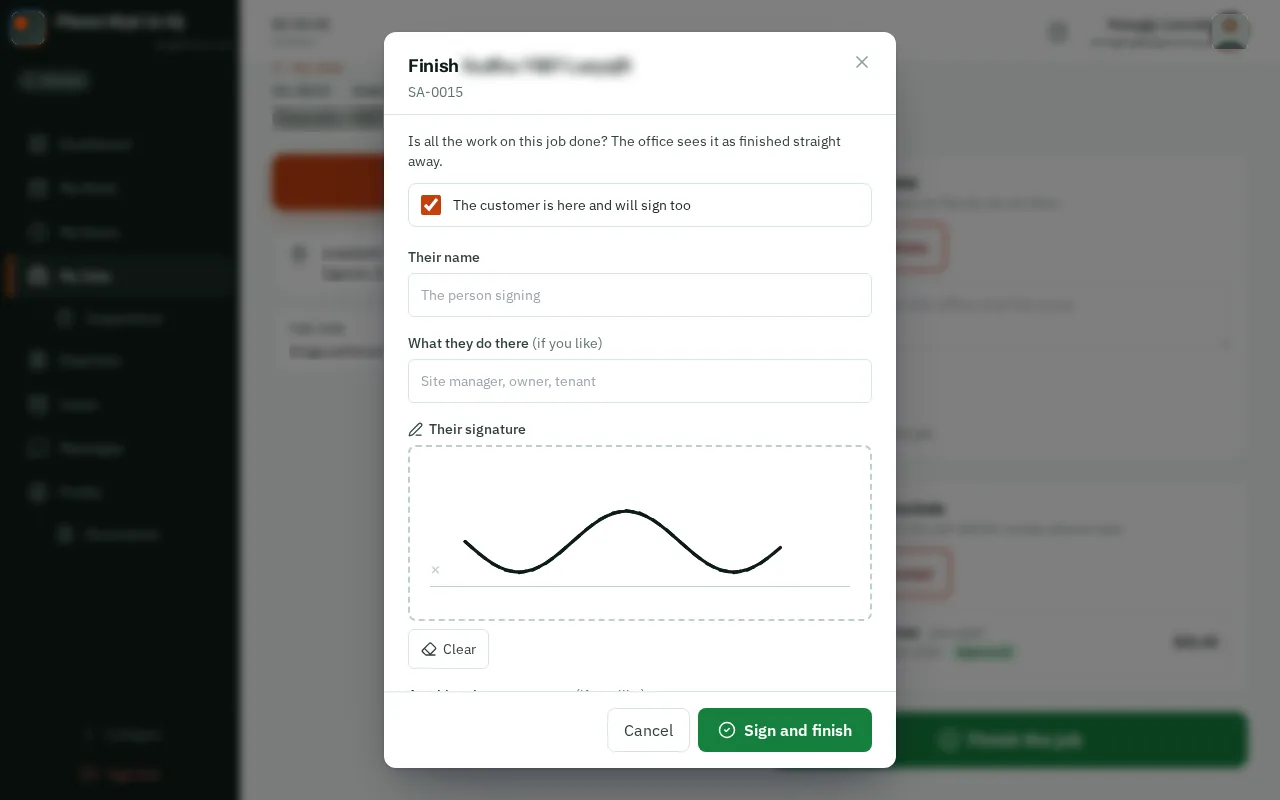
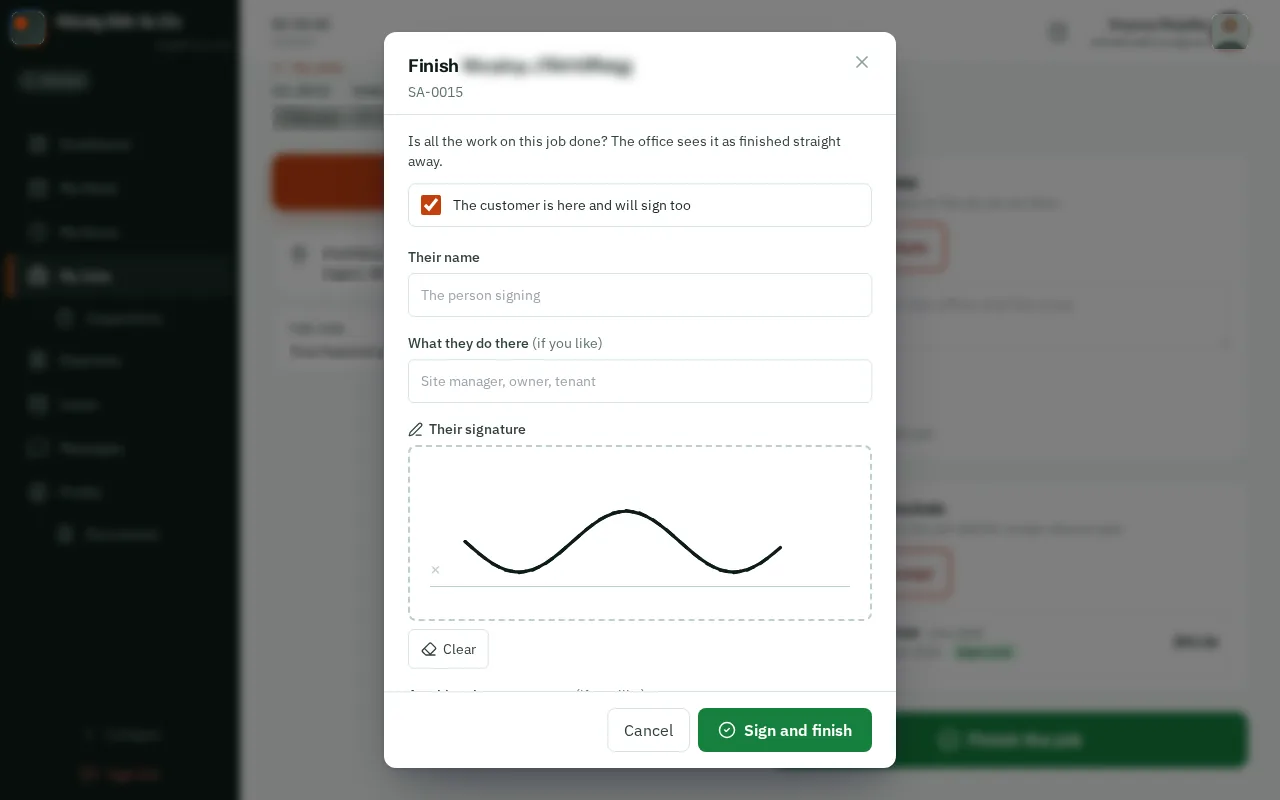
Finish a job and get it signed: the screen on a computer

What this is

Finishing a job tells the office the work is done, so they can invoice it.

When the job needs the customer’s signature, they sign on your phone, and the office gets the signed record, with a PDF of it, straight away.

Step 1 of 5
  1. Step 1: Open the job card

    TapClick More, then My Jobs, and tapclick the job.TapClick My Jobs in the menu, and tapclick the job.

    Look forthe My Jobs item in the menu

    Good to know: Admins and owners: open the job from Jobs and tapclick its big button, Mark as finished. The same window opens.
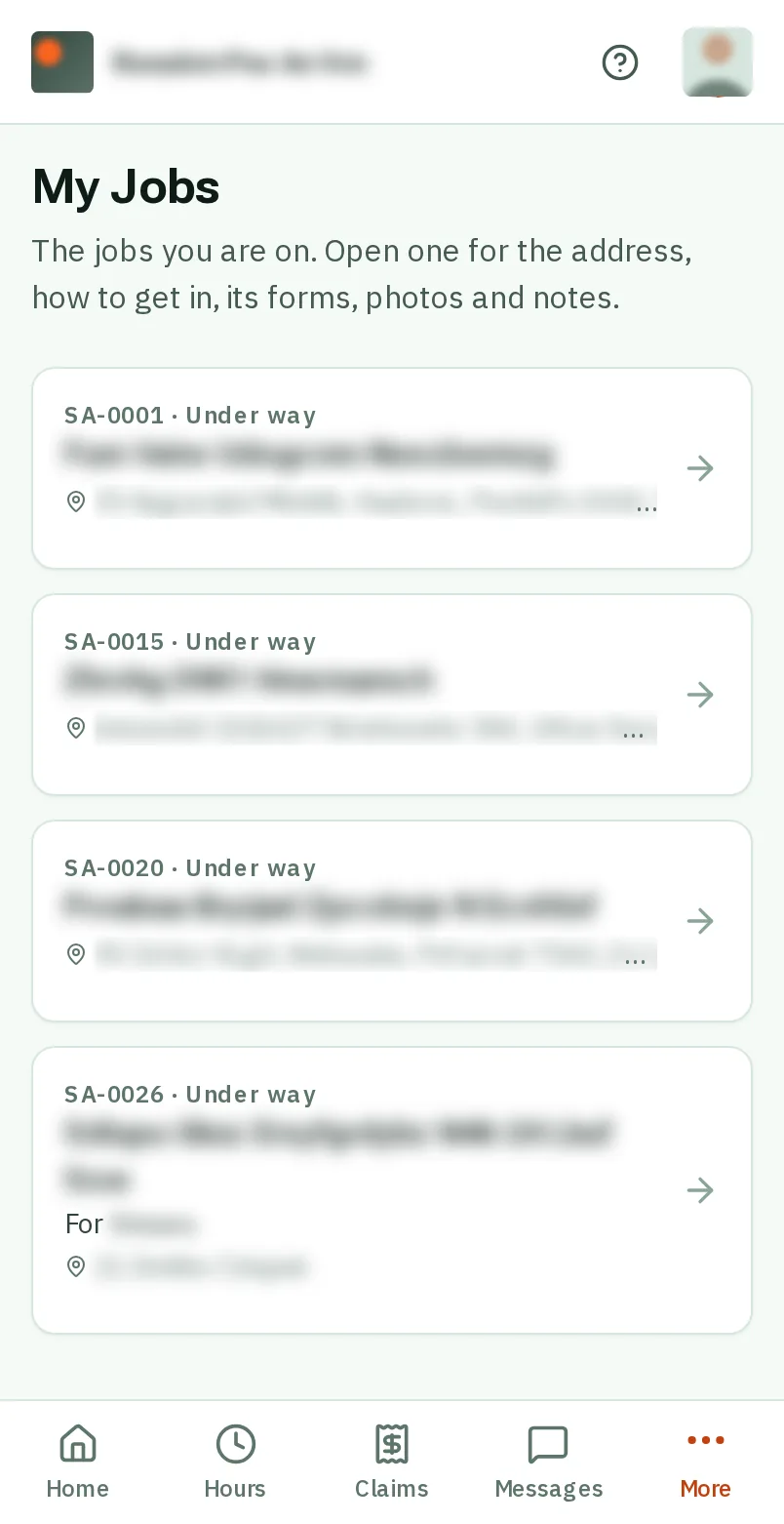
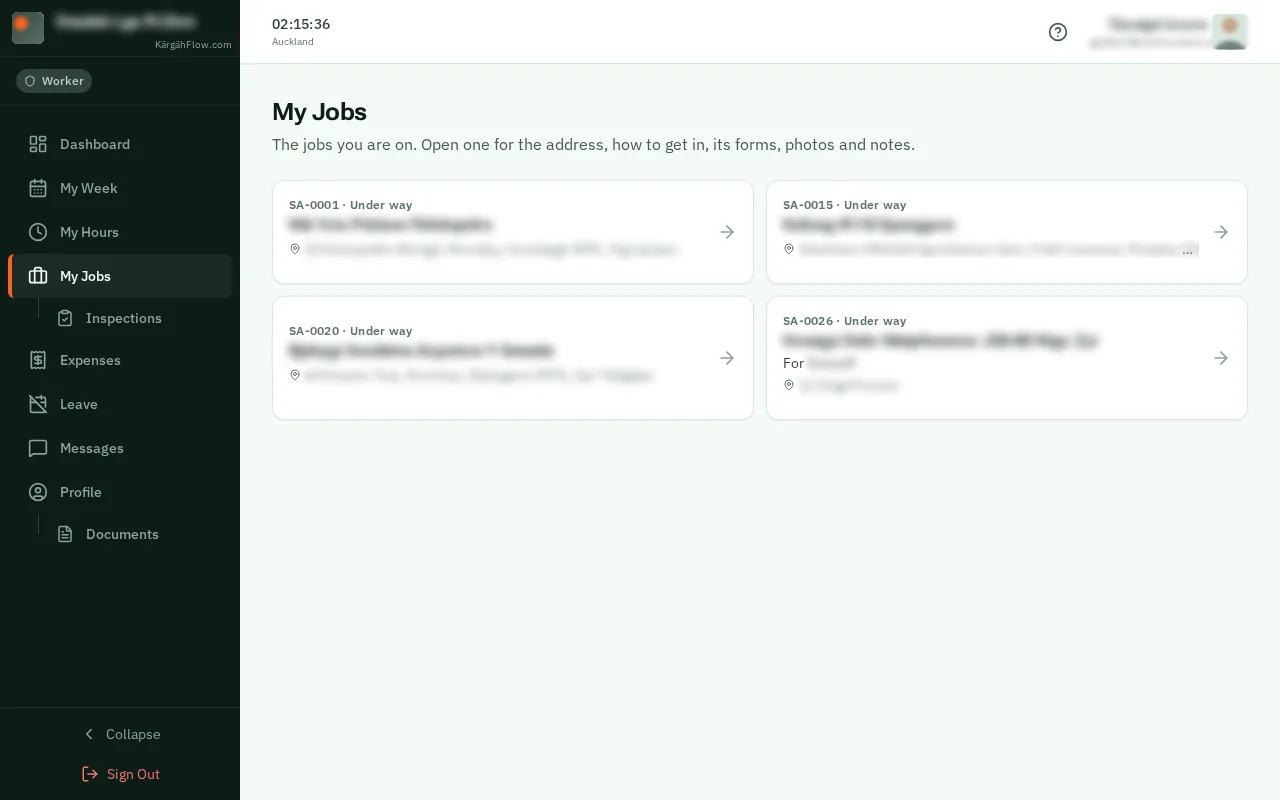
    Open the job card
    Open the job card
  2. Step 2: TapClick Finish the job

    At the bottom of the job card, tapclick the green button: Finish the job, or Finish and get it signed when the customer has to sign.On the right of the job card, under Photos and notes, tapclick the green button: Finish the job, or Finish and get it signed when the customer has to sign.

    Look forthe Finish the job button

    Good to know: If a form has to be filled in first, the window says which one. Fill it in from Forms to fill in on the job card.

    Tap Finish the job
    Click Finish the job
  3. Step 3: Their name

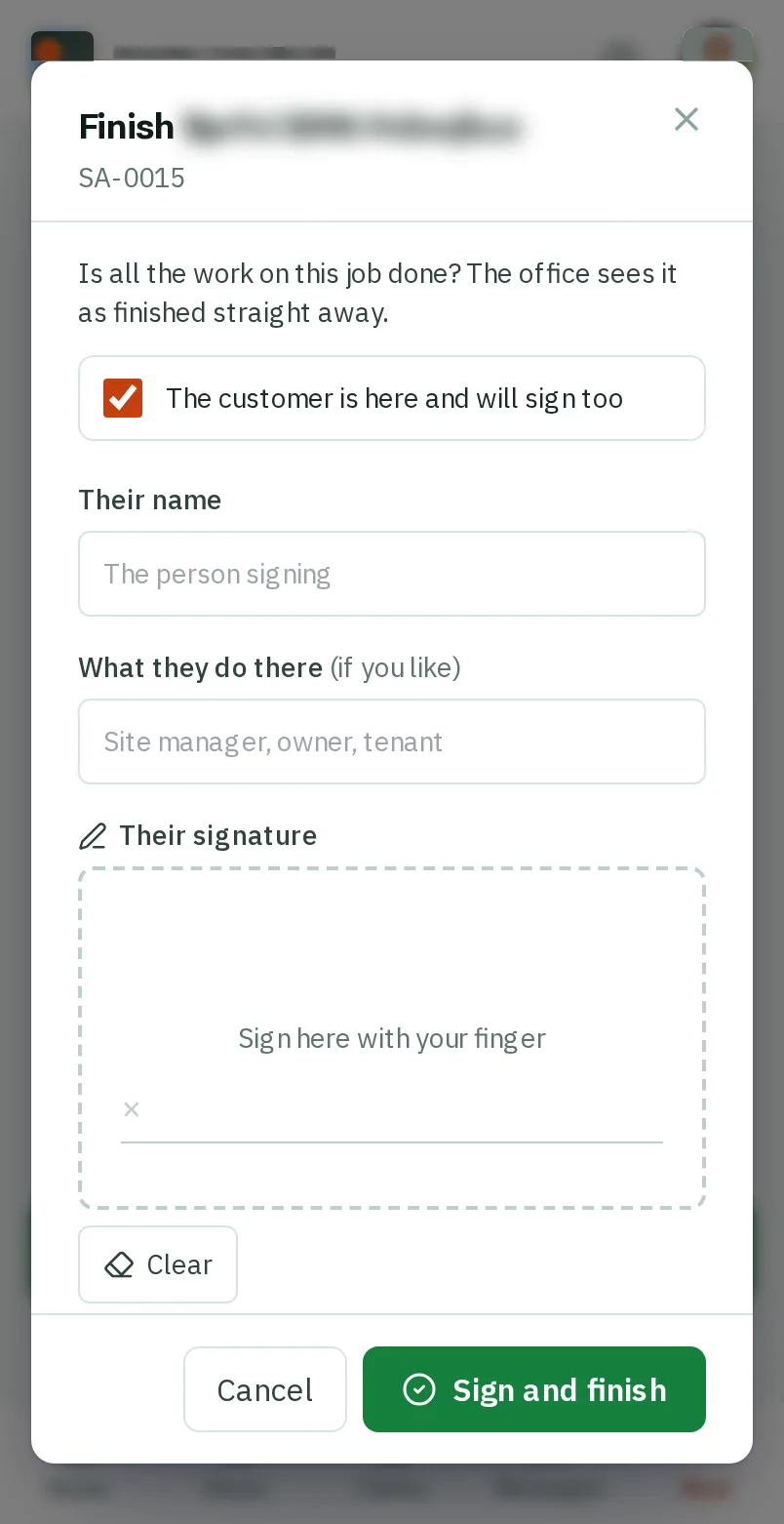
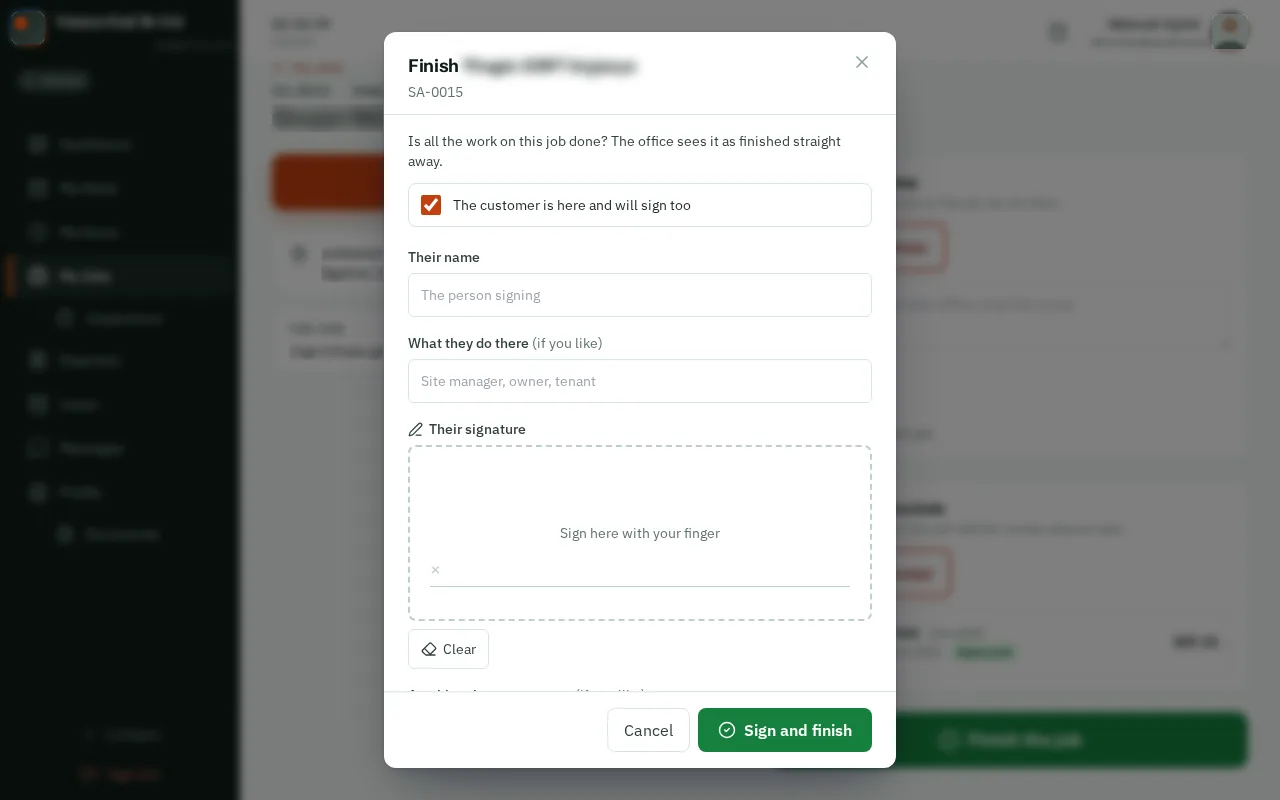
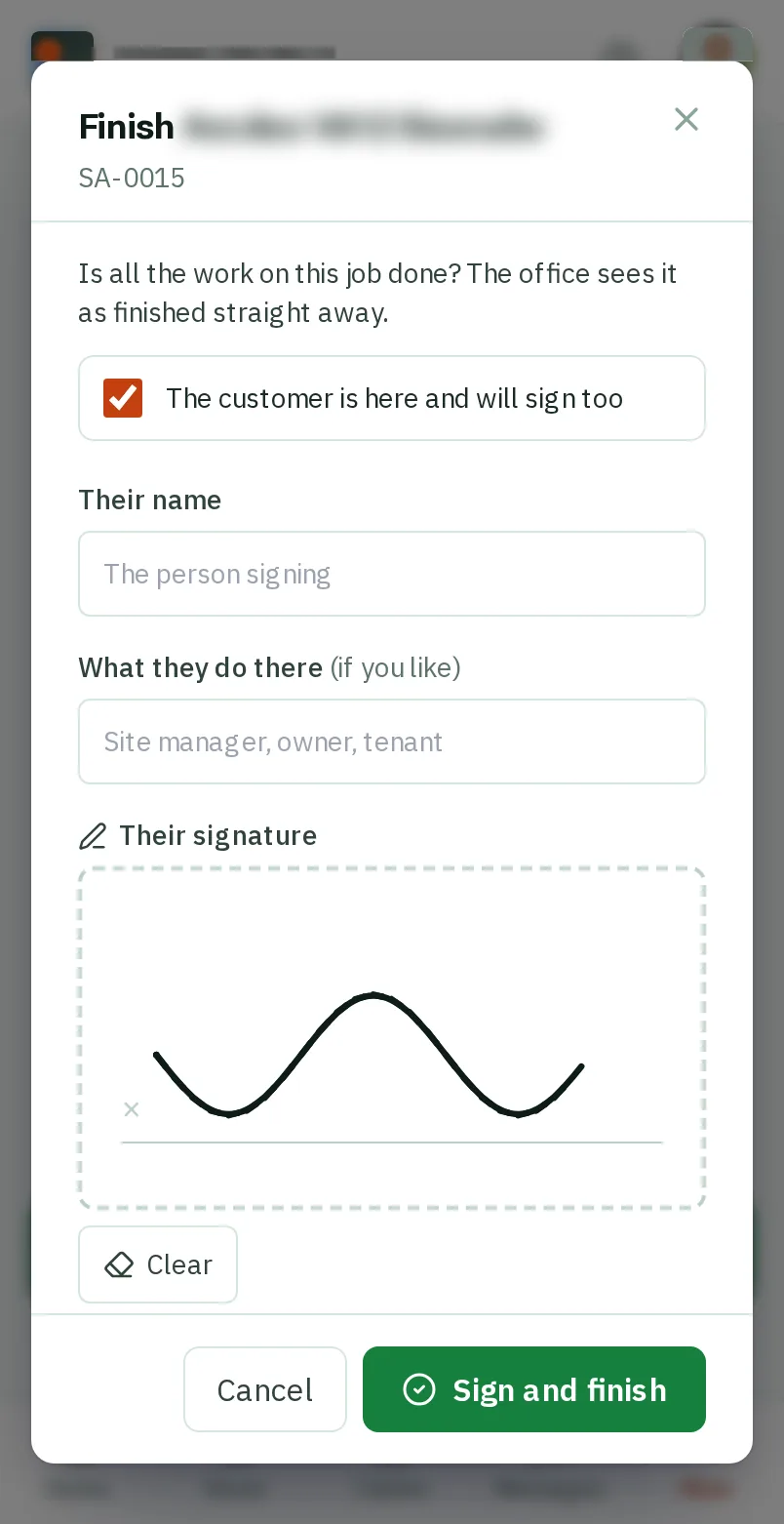
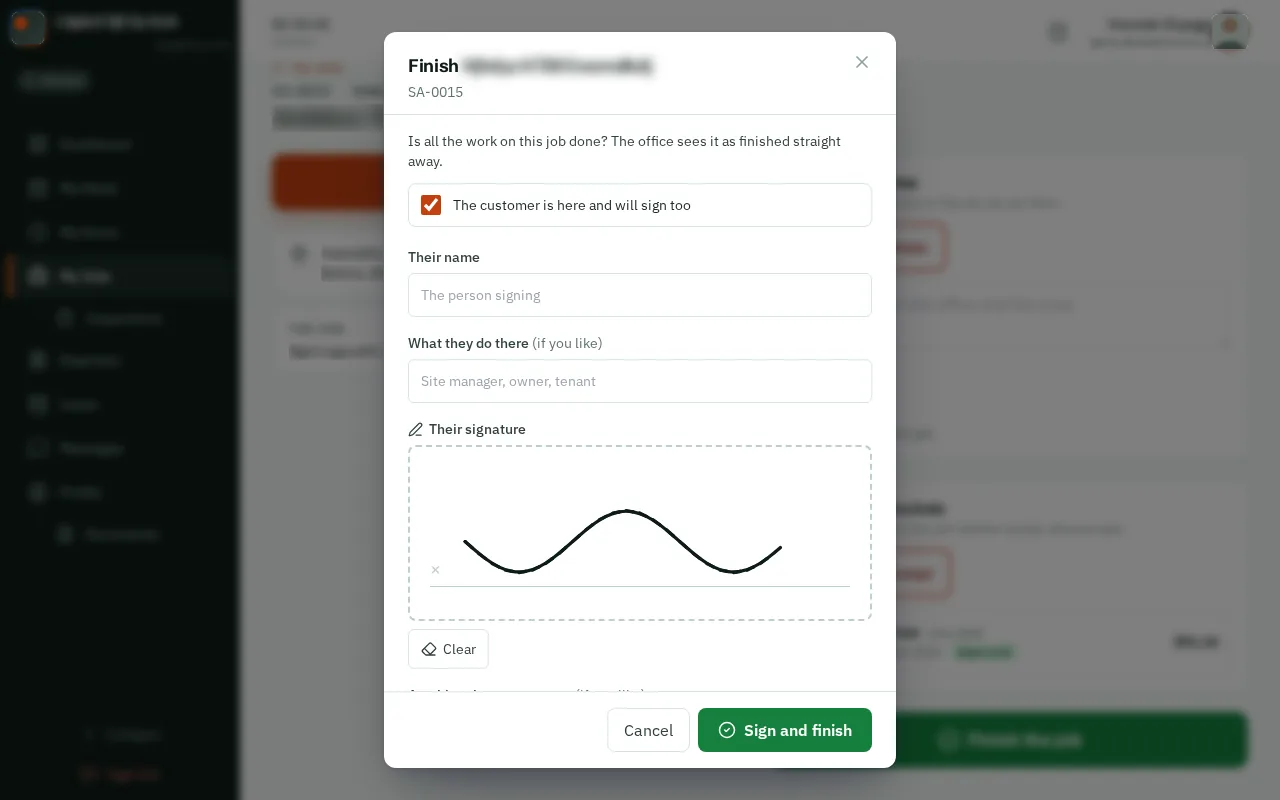
    Type the customer’s name under Their name, and what they do there if you like.

    Look forthe Their name box

    Good to know: If the job does not ask for a signature, tick The customer is here and will sign too first.

    Their name
    Their name
  4. Step 4: They sign in the box

    Hand them your phone, and they sign in the box with their finger. Signed crooked? Tap Clear, and they sign again.They sign in the box with the mouse, or a finger on a touch screen. Signed crooked? Click Clear, and they sign again.

    Look forthe Clear button
    They sign in the box
    They sign in the box
  5. Step 5: TapClick Sign and finish

    TapClick Sign and finish. The job is finished, and the office has the customer’s signature on file.

    Look forthe Sign and finish button
    Tap Sign and finish
    Click Sign and finish

That's it

The office knows the job is done, with the customer’s signature to prove it.

Next: Claim back an expense