Step 1: Open QR Codes
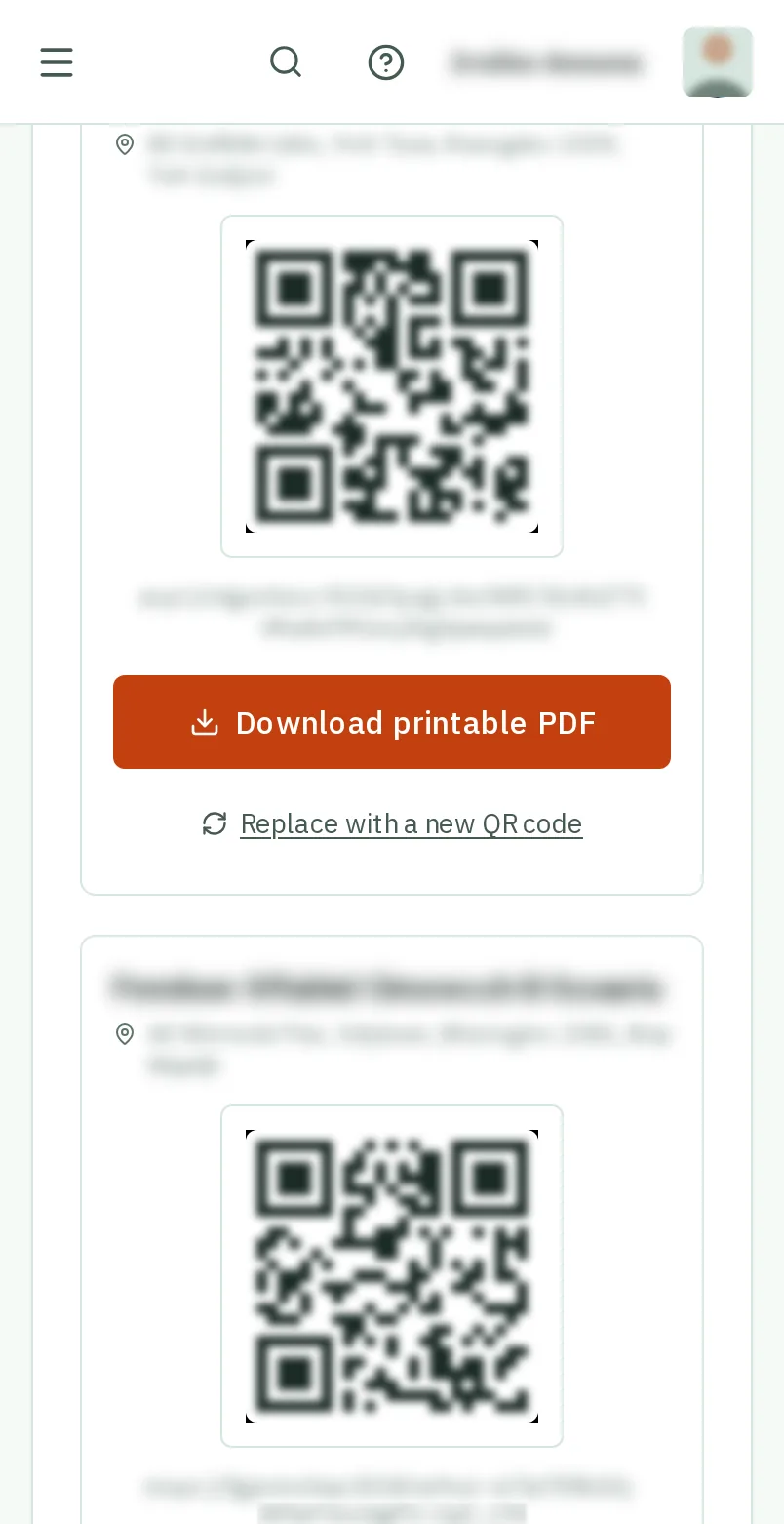
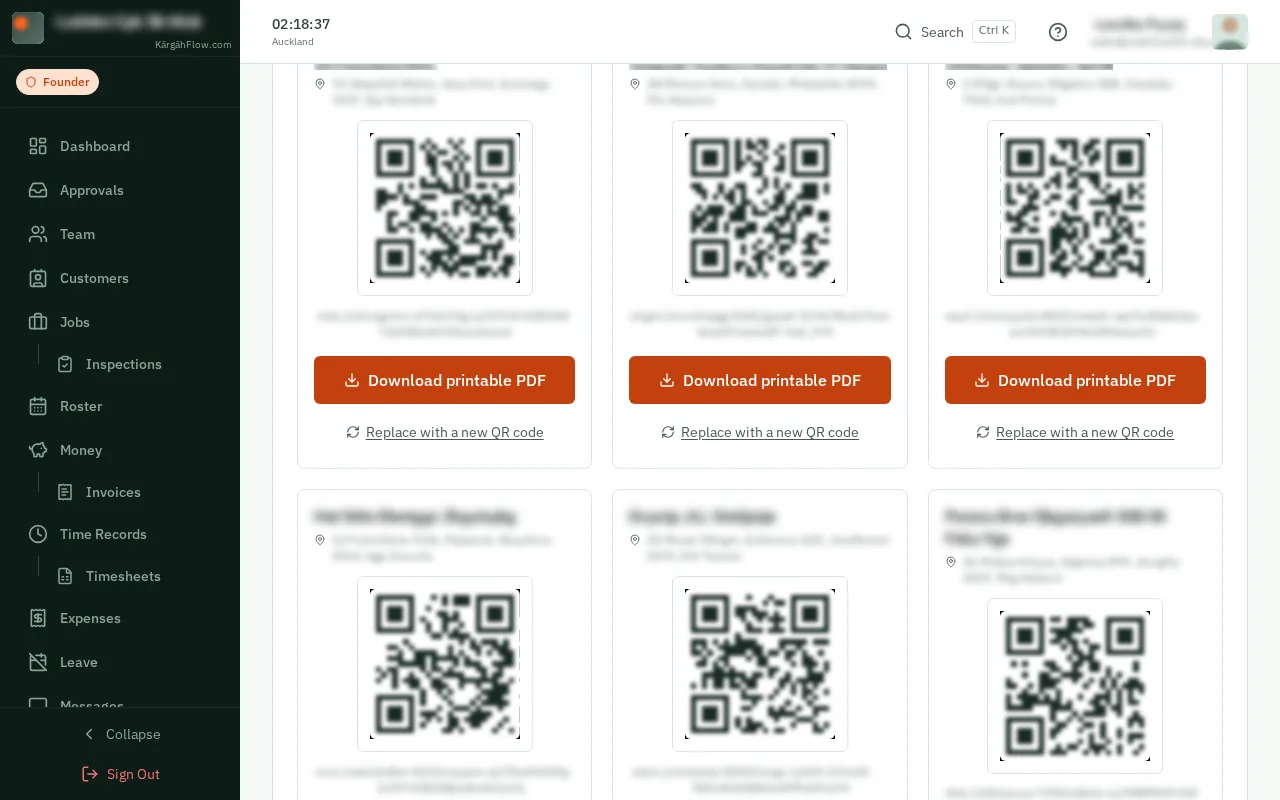
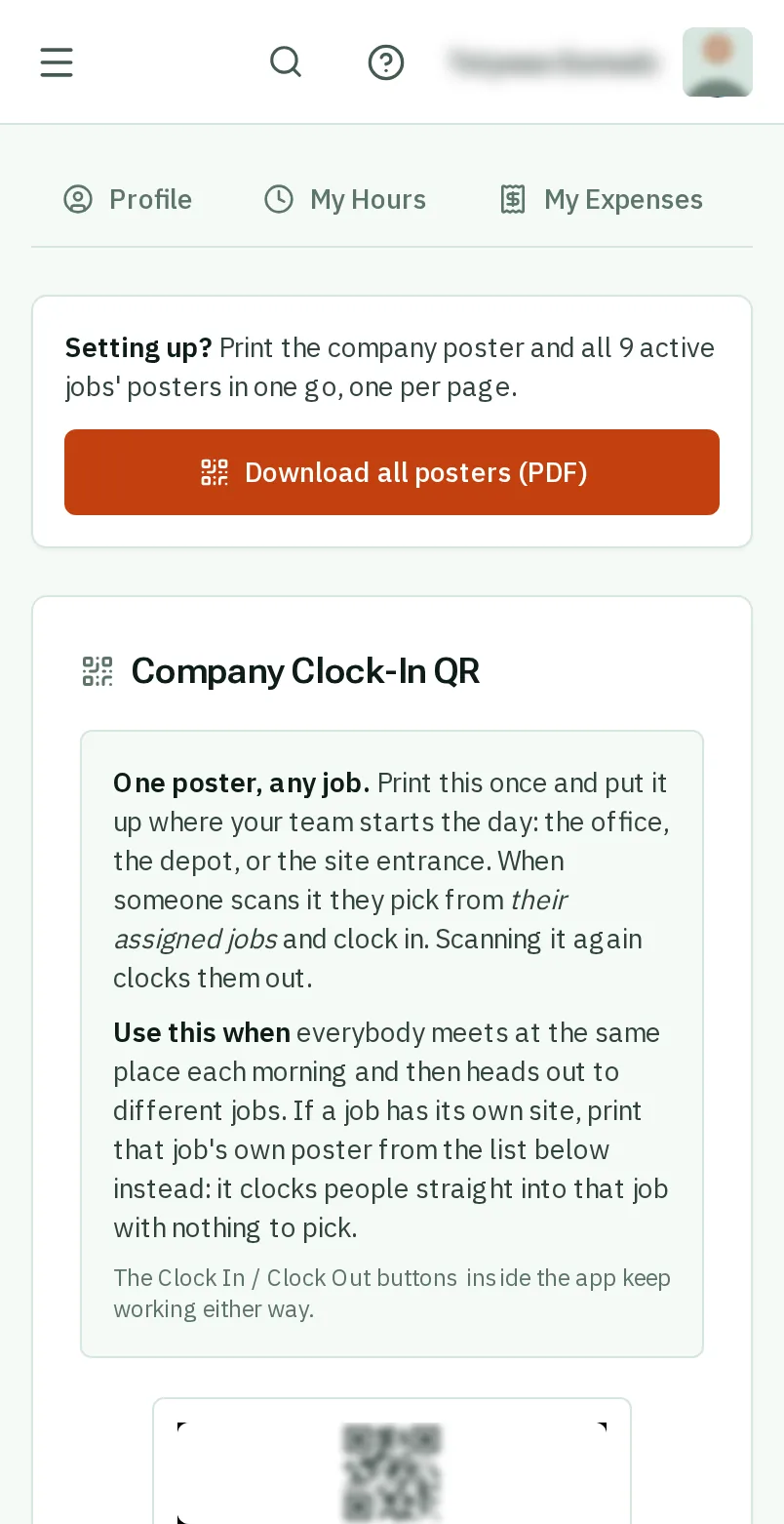
TapClick the menu button at the top left of the screen, then QR Codes.TapClick QR Codes in the menu on the left.
Look forthe QR Codes item in the menu
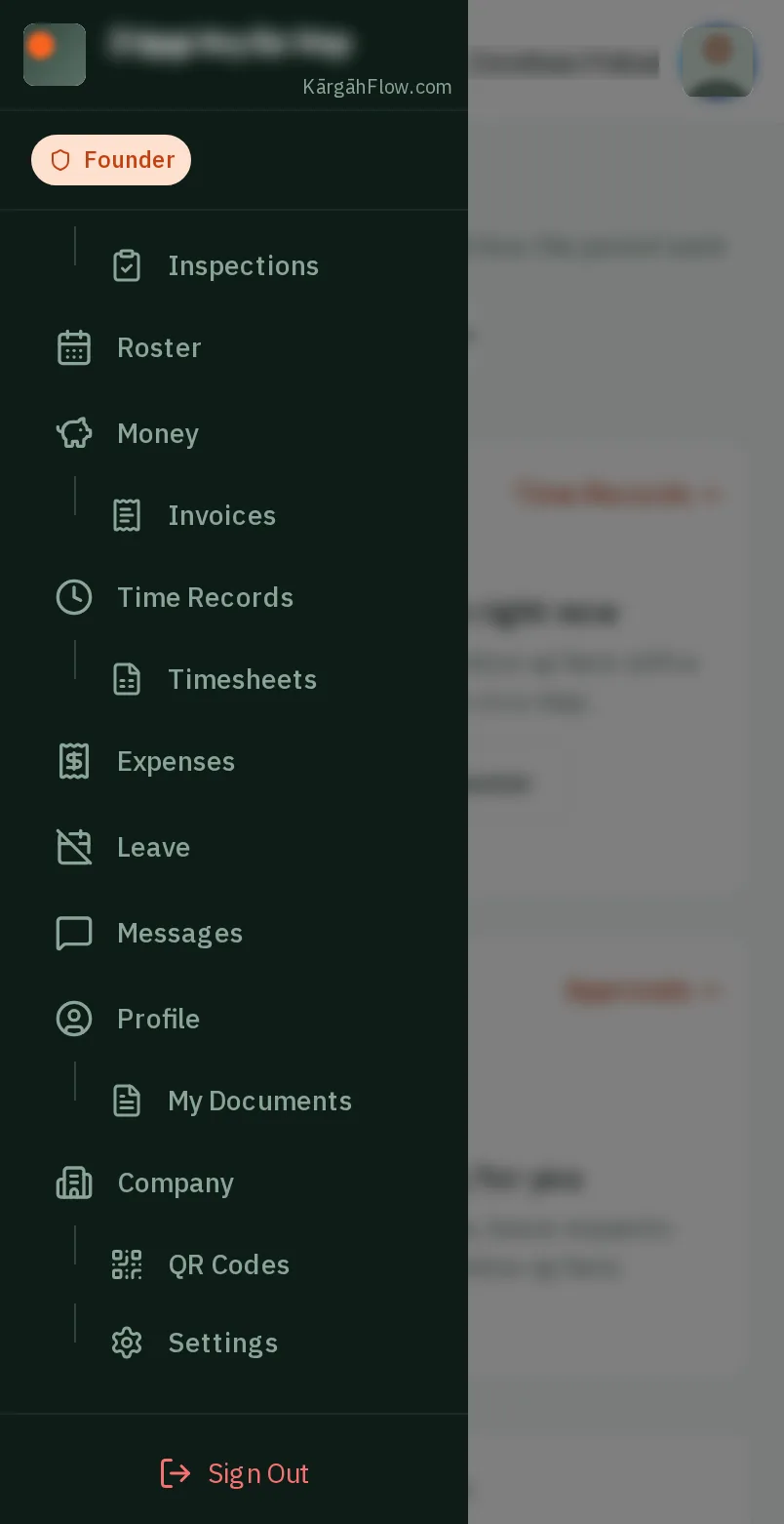
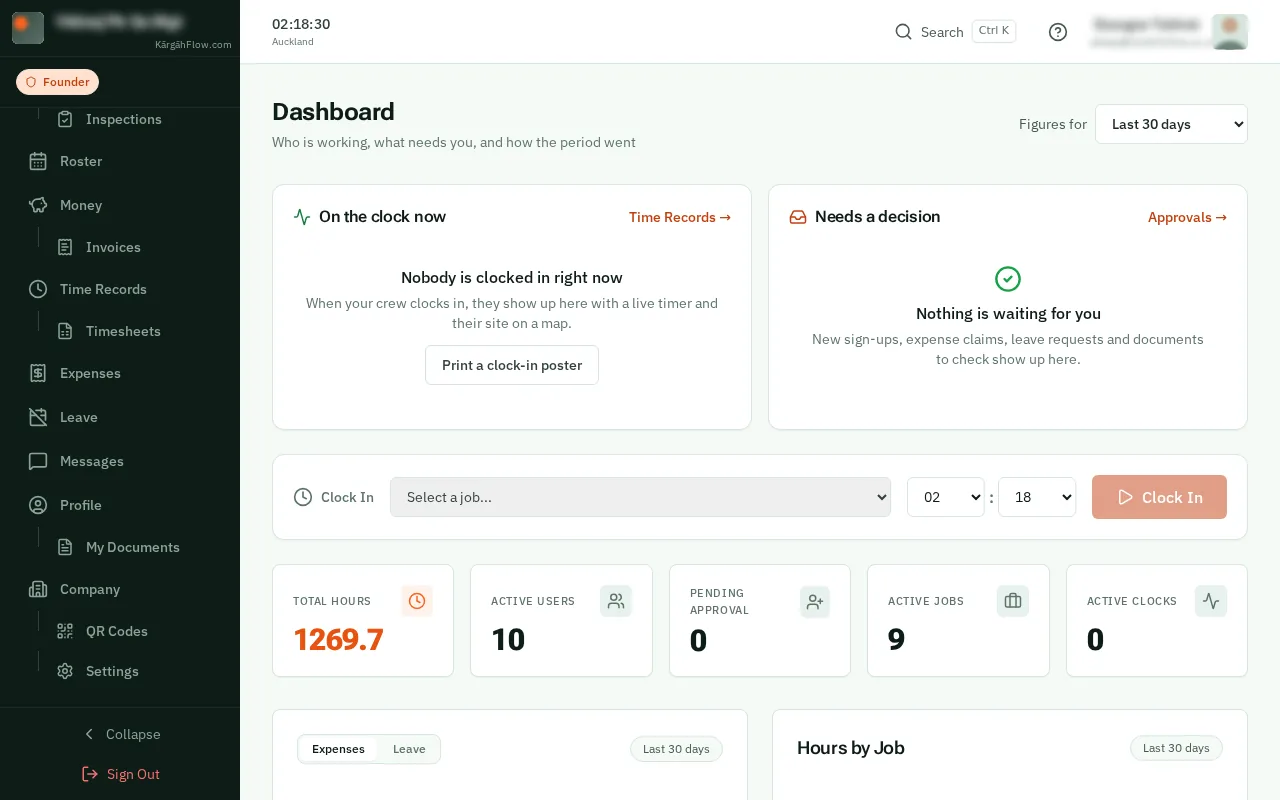
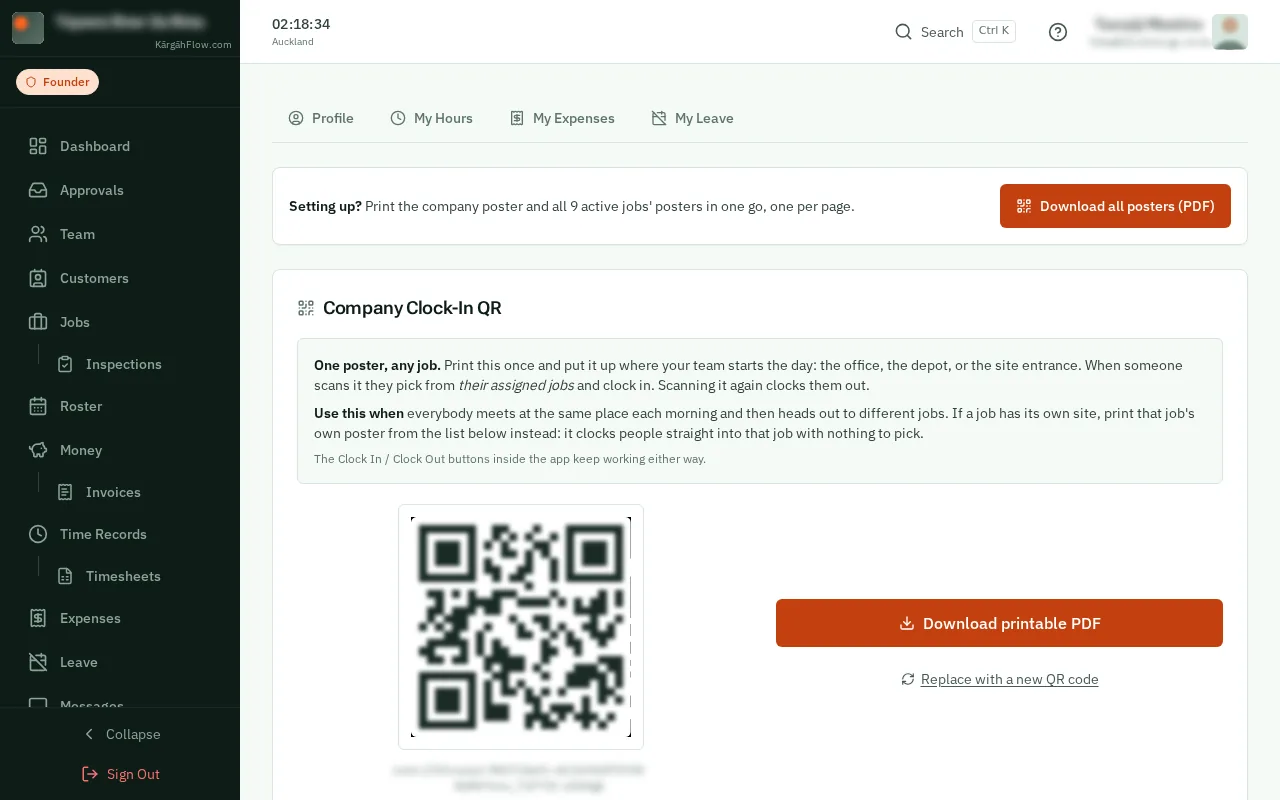
TapClick the menu button at the top left of the screen, then QR Codes.TapClick QR Codes in the menu on the left.
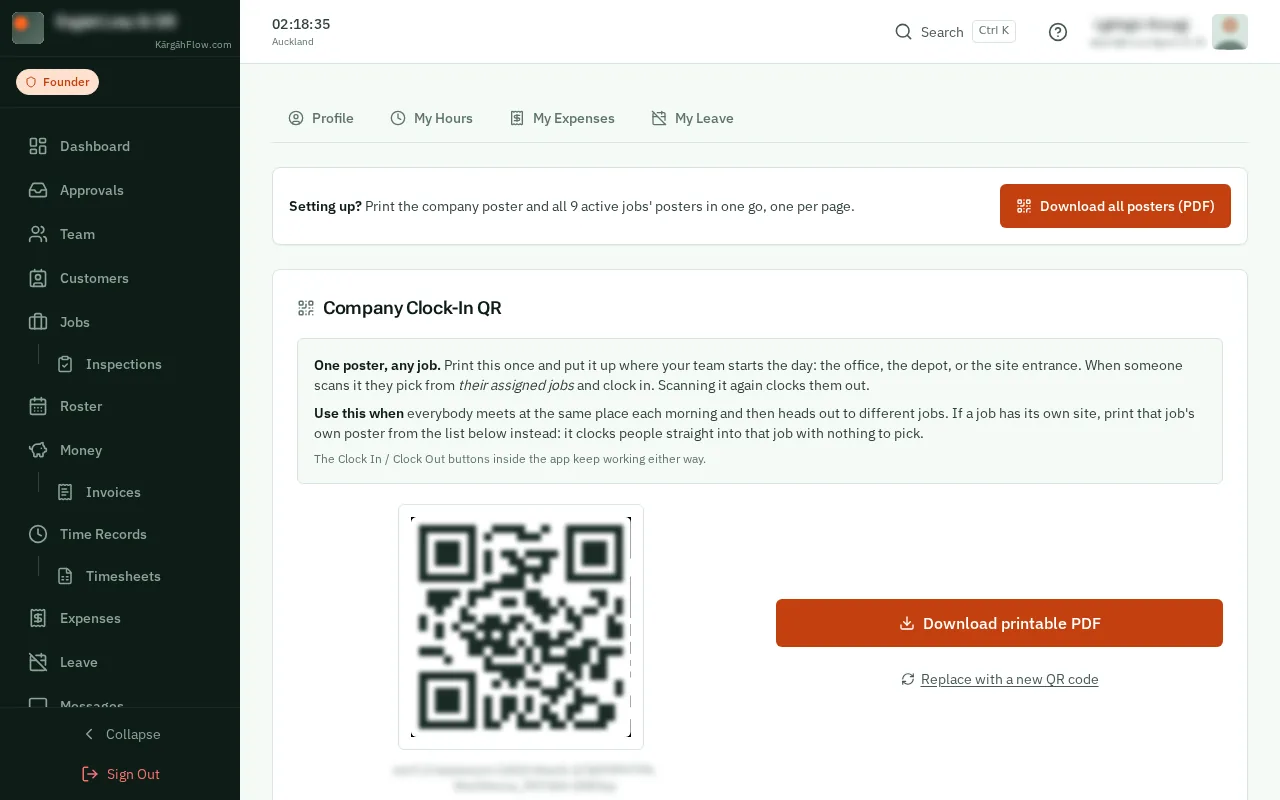
TapClick Download all posters (PDF): the company poster and every job’s, one to a page, ready to print.
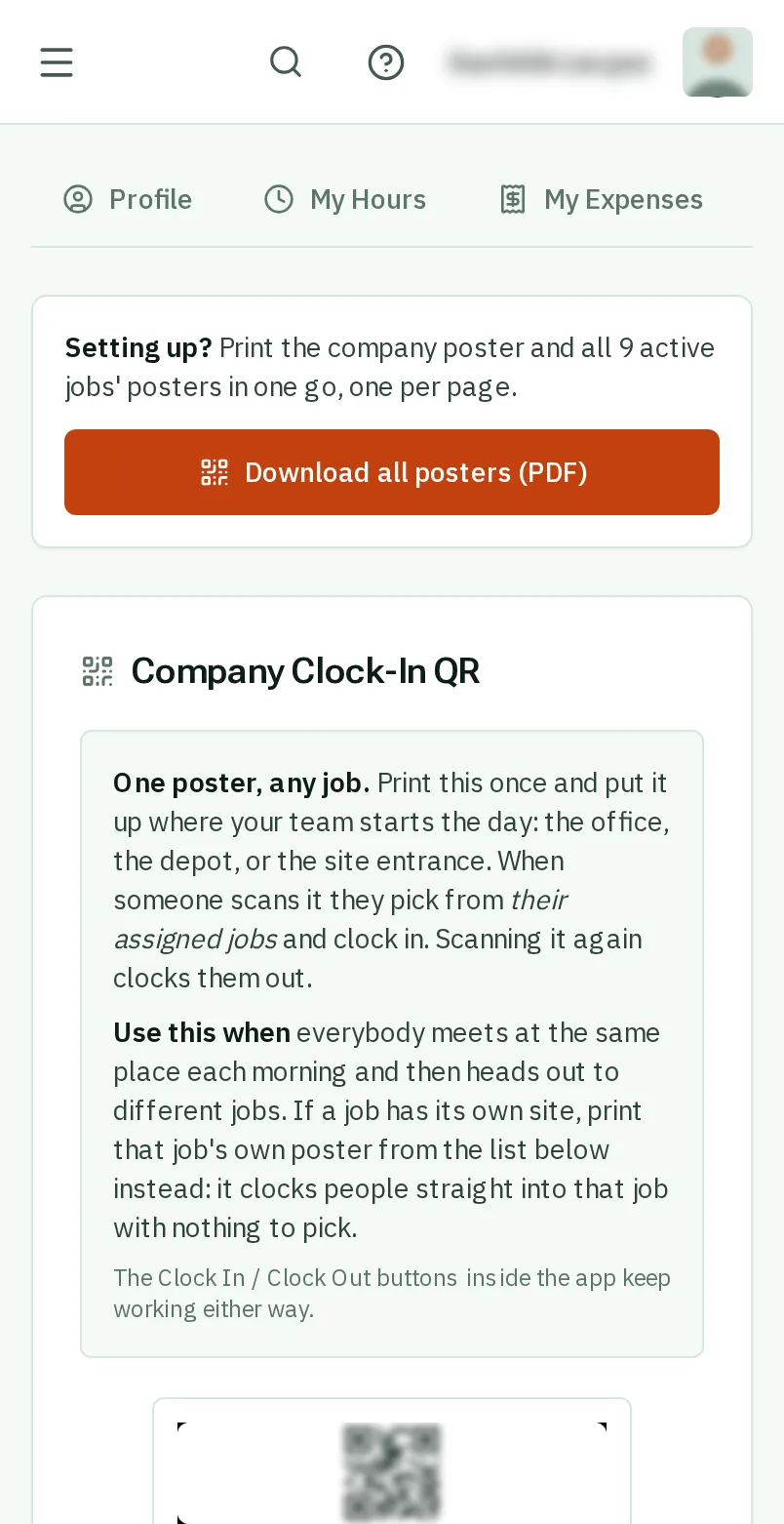
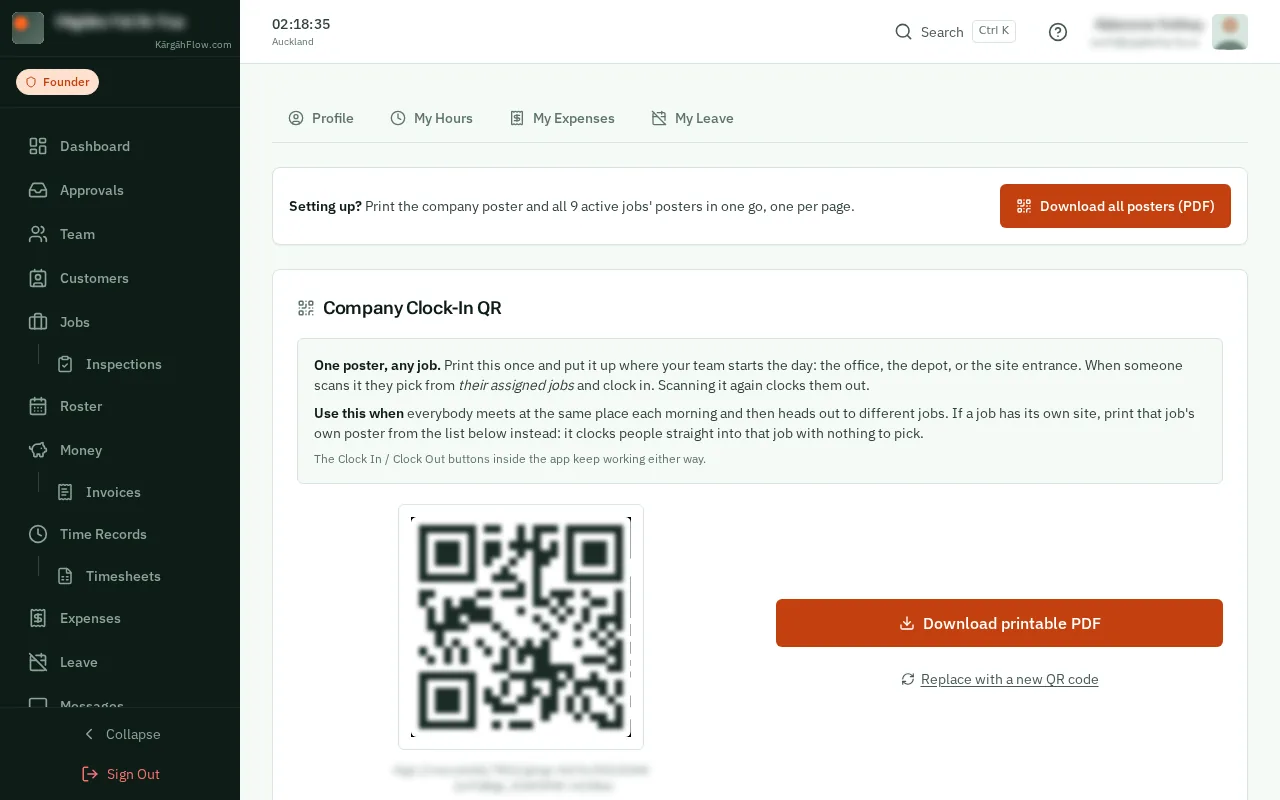
One poster for where everyone starts the day, such as the depot. Scanning it shows each person their own jobs to choose from. TapClick Download printable PDF under it.
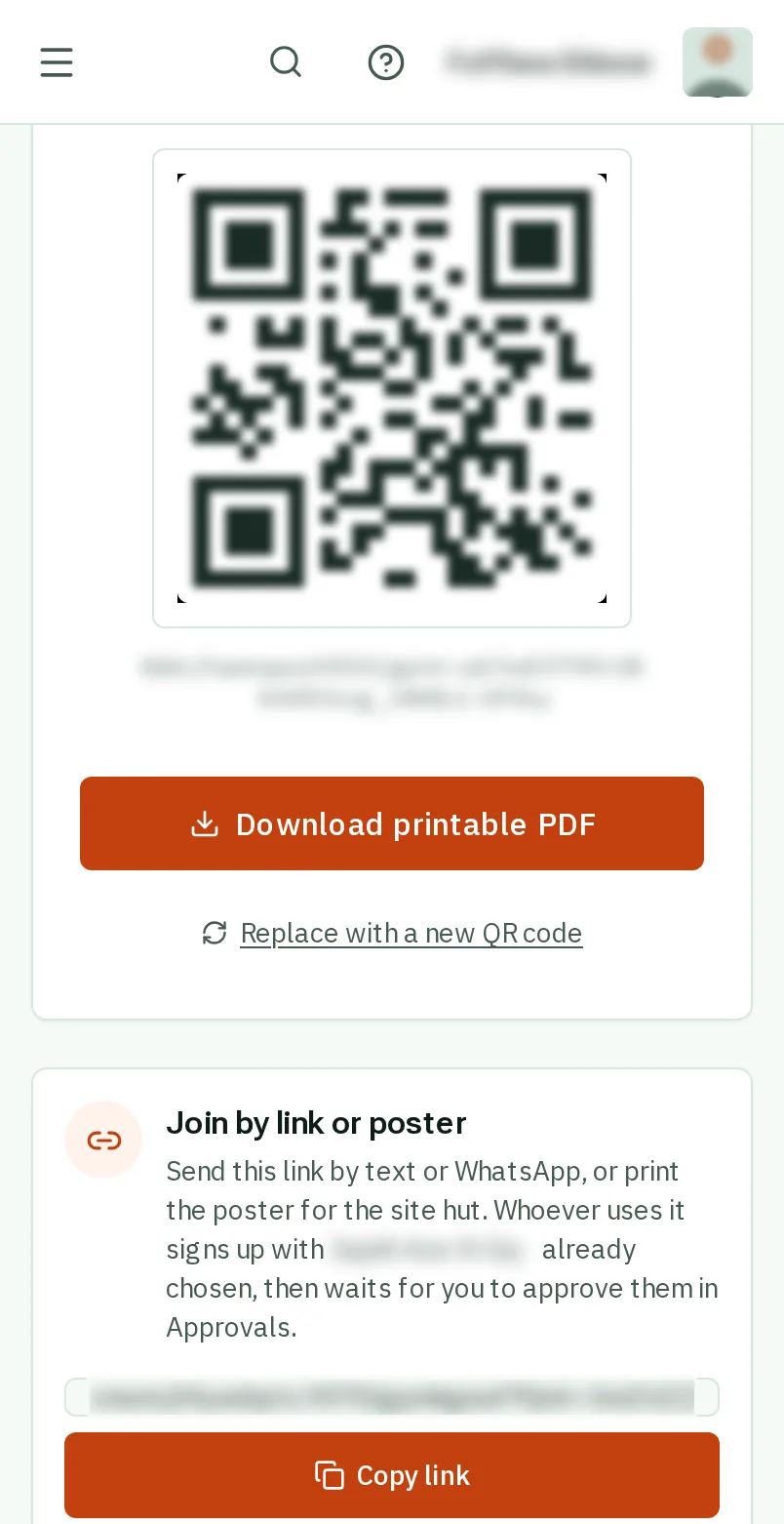
Further down, each job has its own poster. Put it up at that site: scanning it clocks people straight in to that job, with nothing to choose.
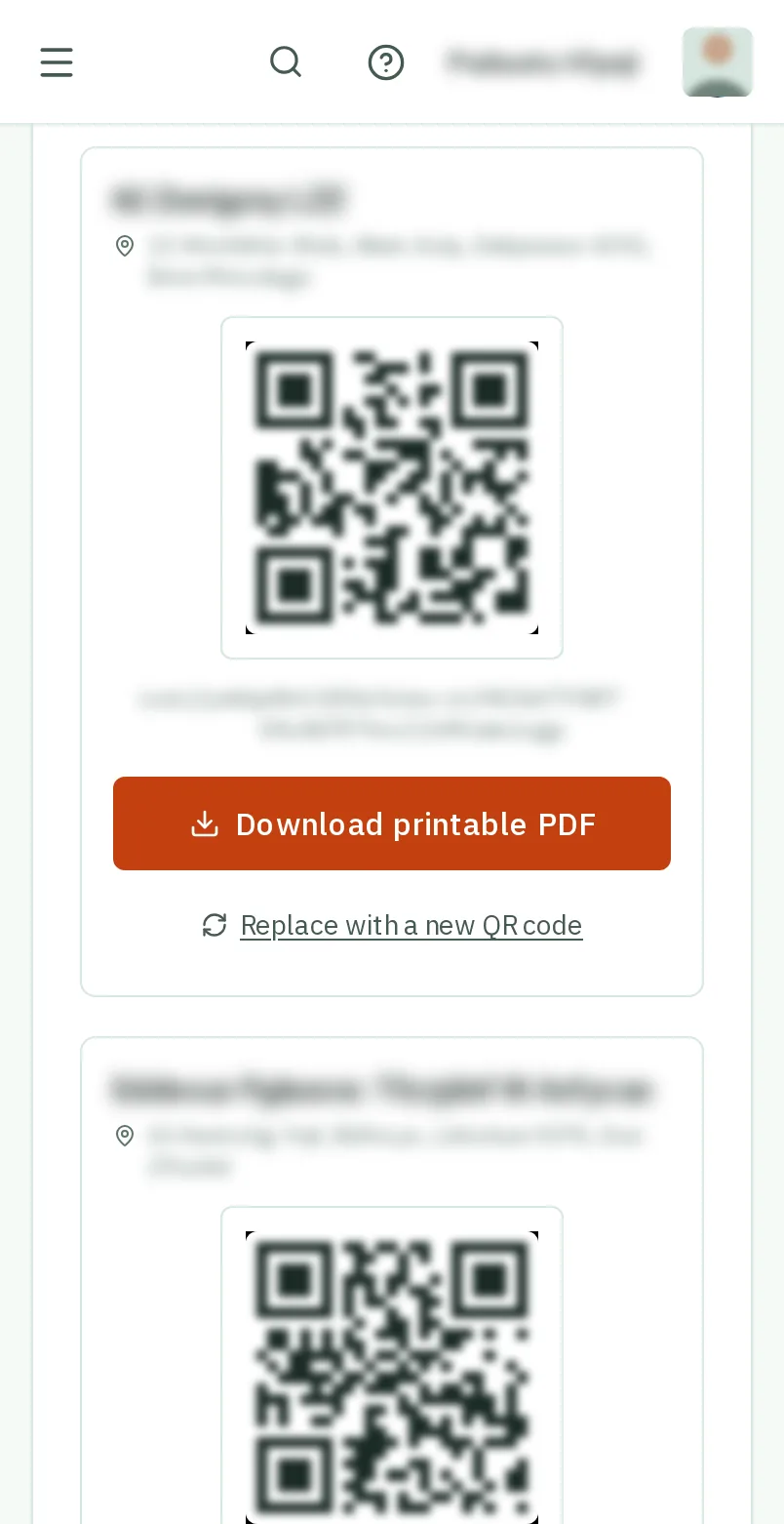
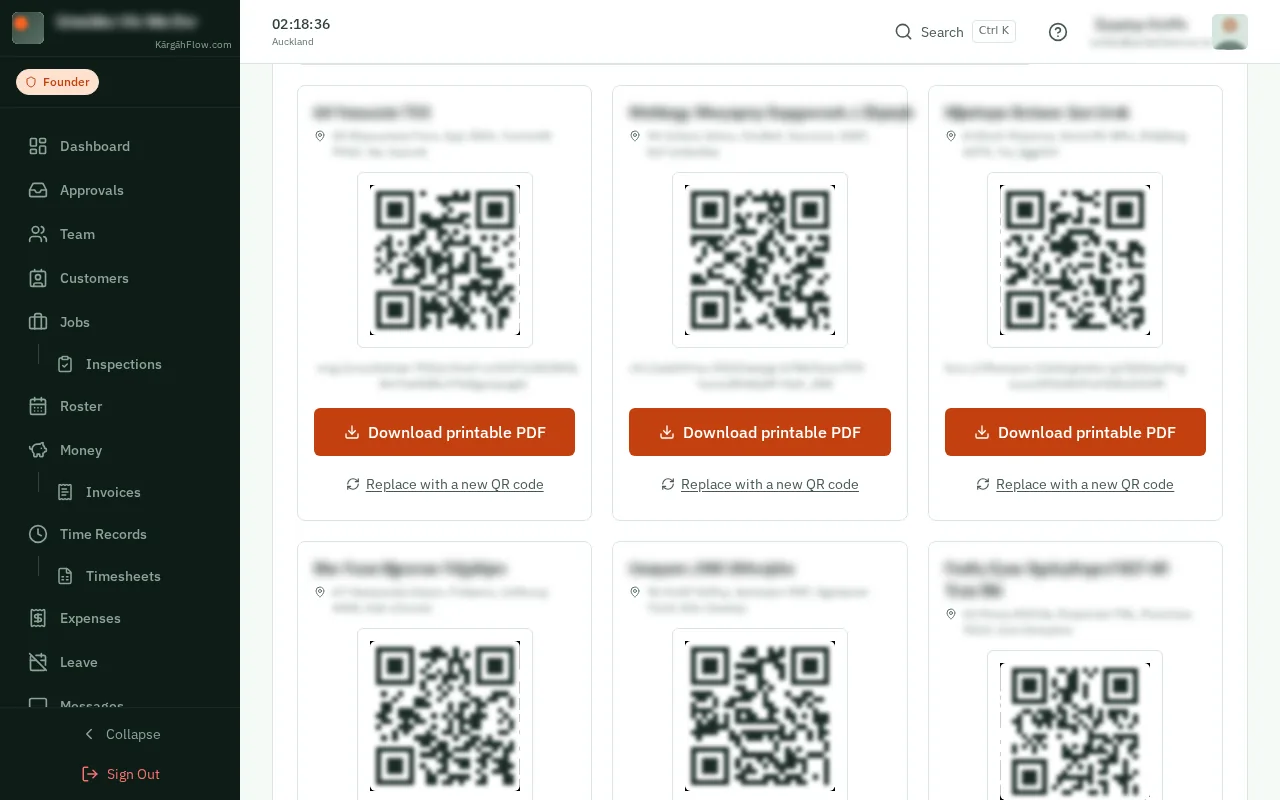
TapClick Replace with a new QR code under it. The old poster stops working straight away, so print the new one.
Good to know: Archiving a finished job does not switch its poster off. Replacing the code does.