Step 1: Open Inspections
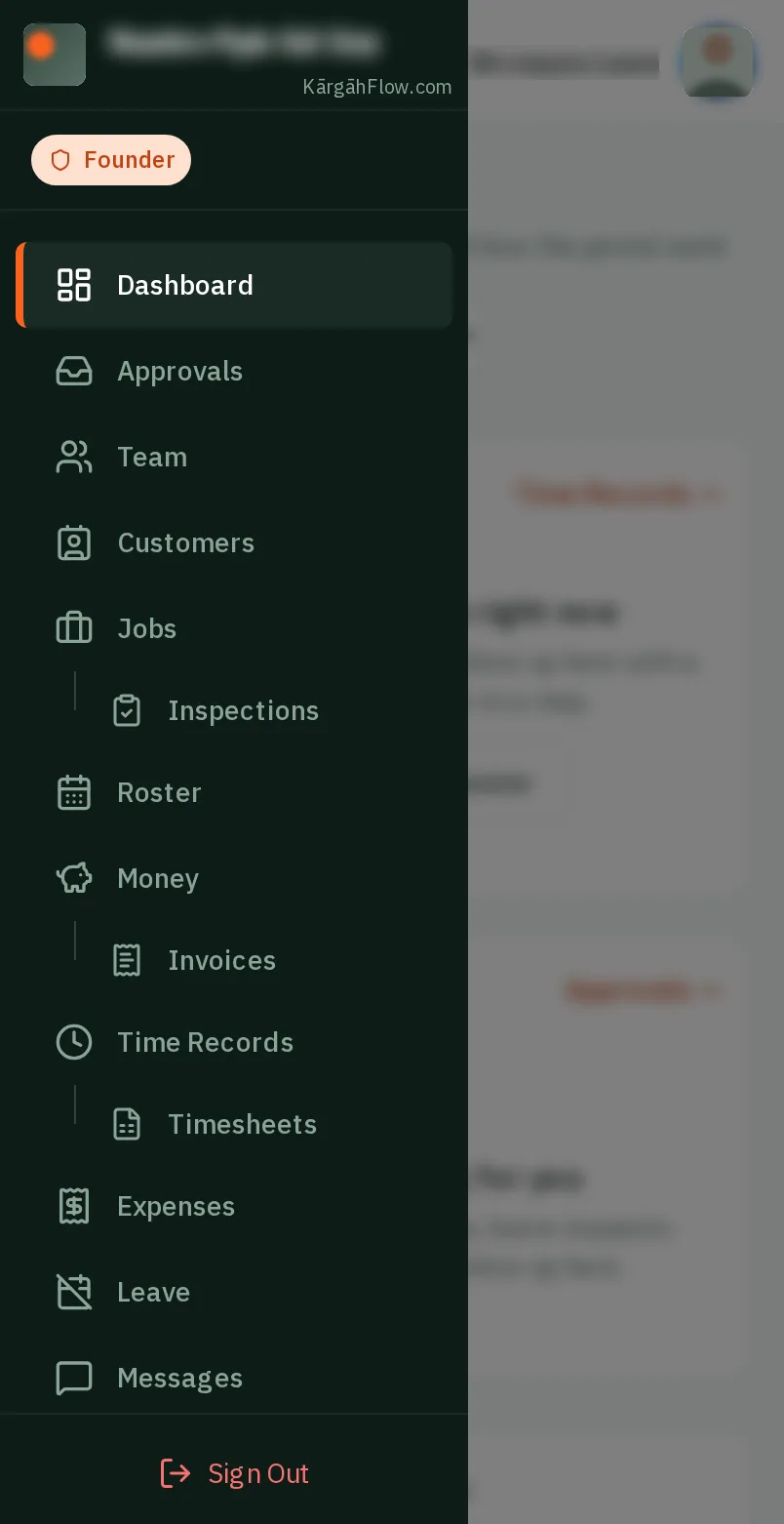
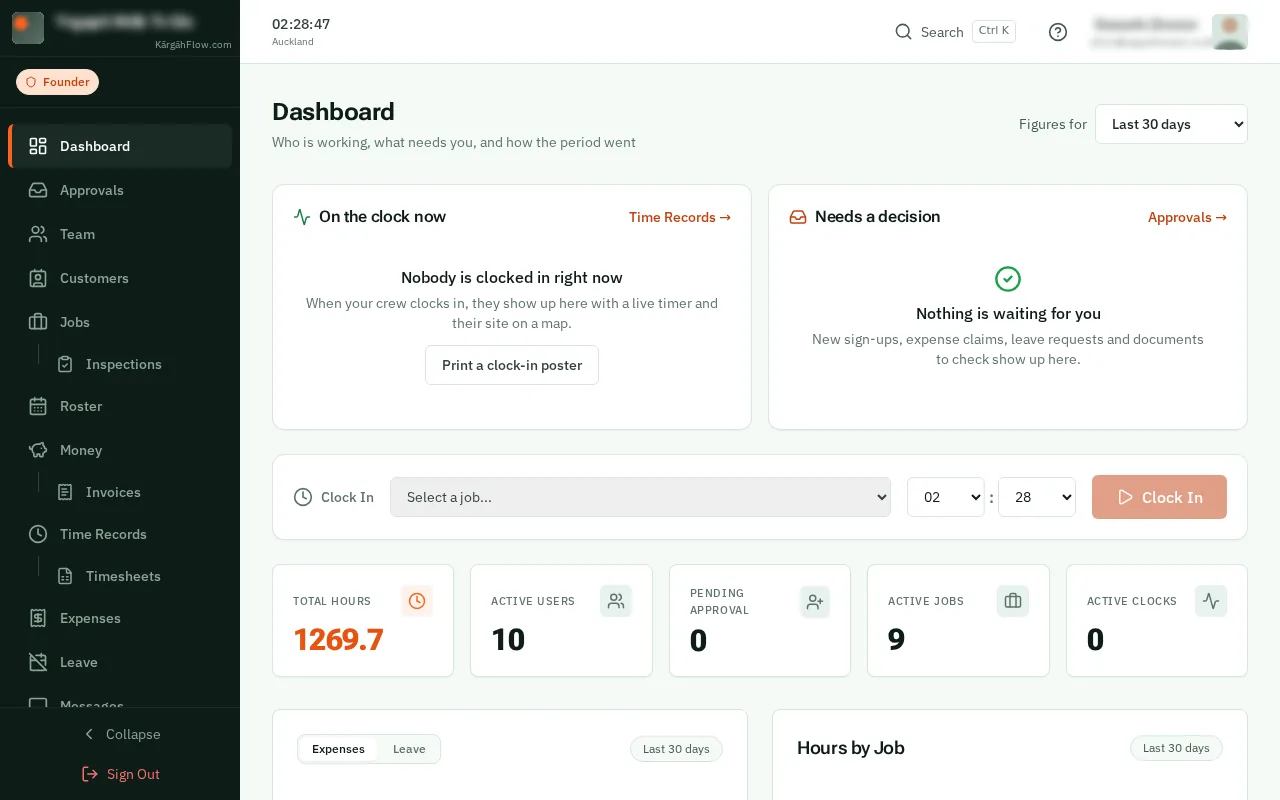
TapClick the menu button at the top left of the screen, then Inspections.TapClick Inspections in the menu on the left.
Look forthe Inspections item in the menu
A form stays on a job until you take it off. The form’s page lists every job it is on and what has been done on each, and you can take it off several at once.
Inspections already done stay on record. A job where someone is part way through keeps the form until they finish.
TapClick the menu button at the top left of the screen, then Inspections.TapClick Inspections in the menu on the left.
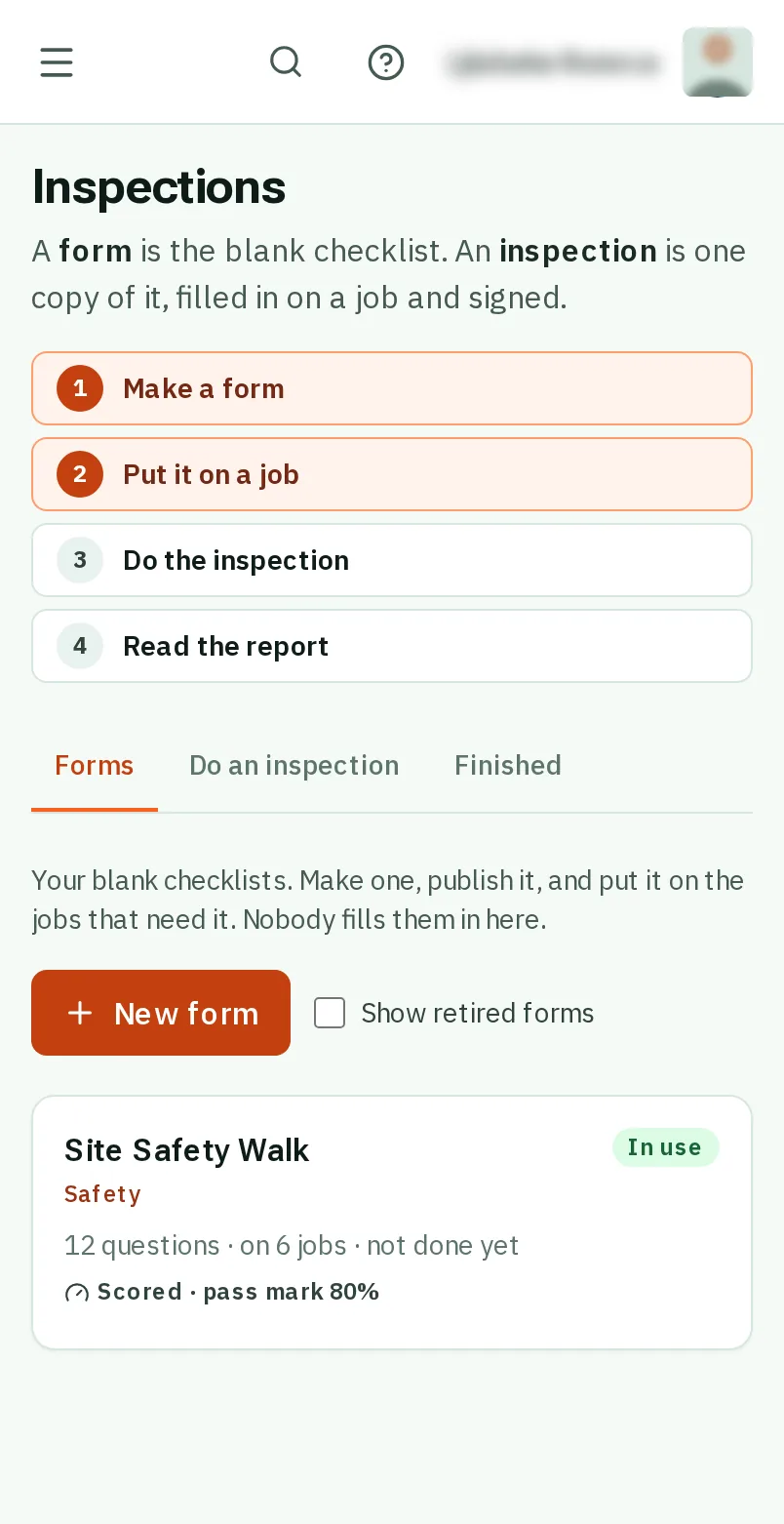
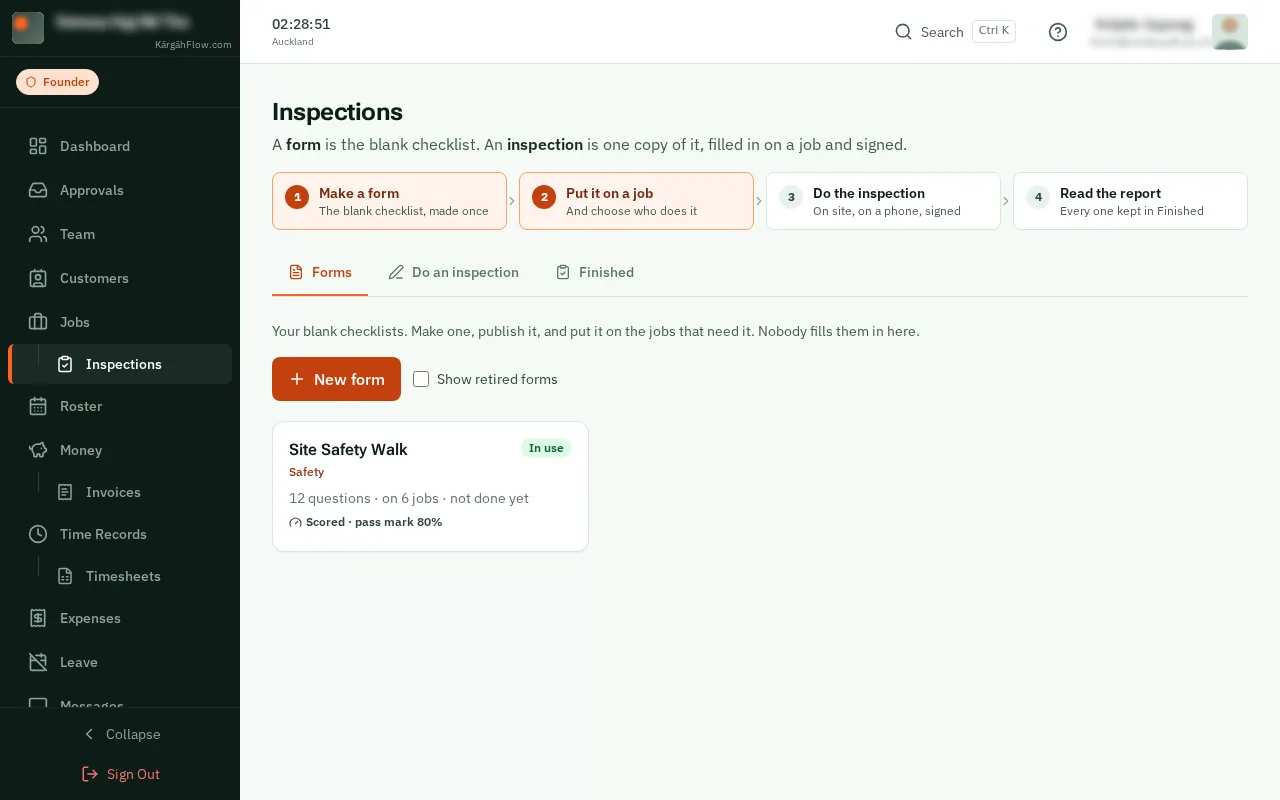
TapClick the form.
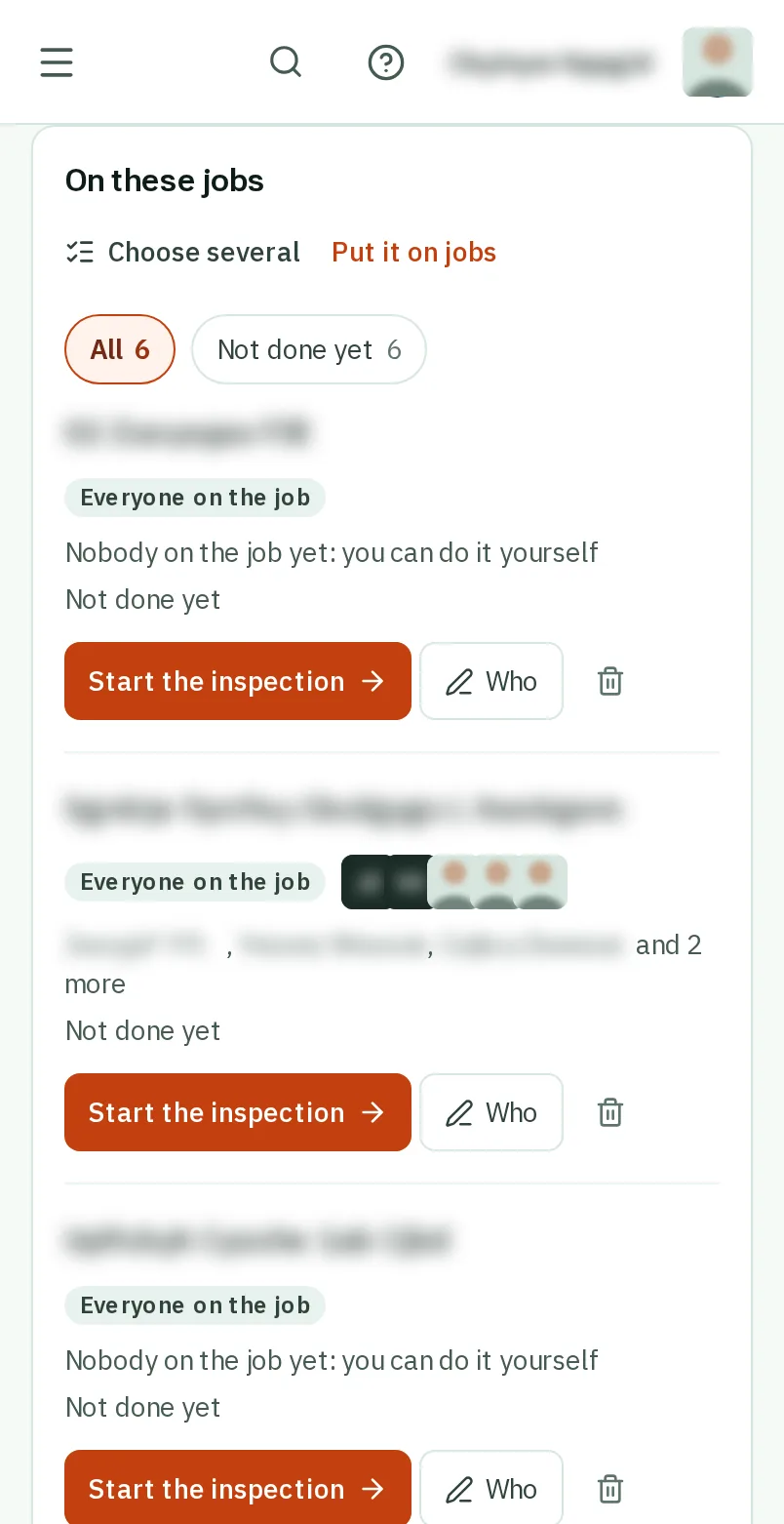
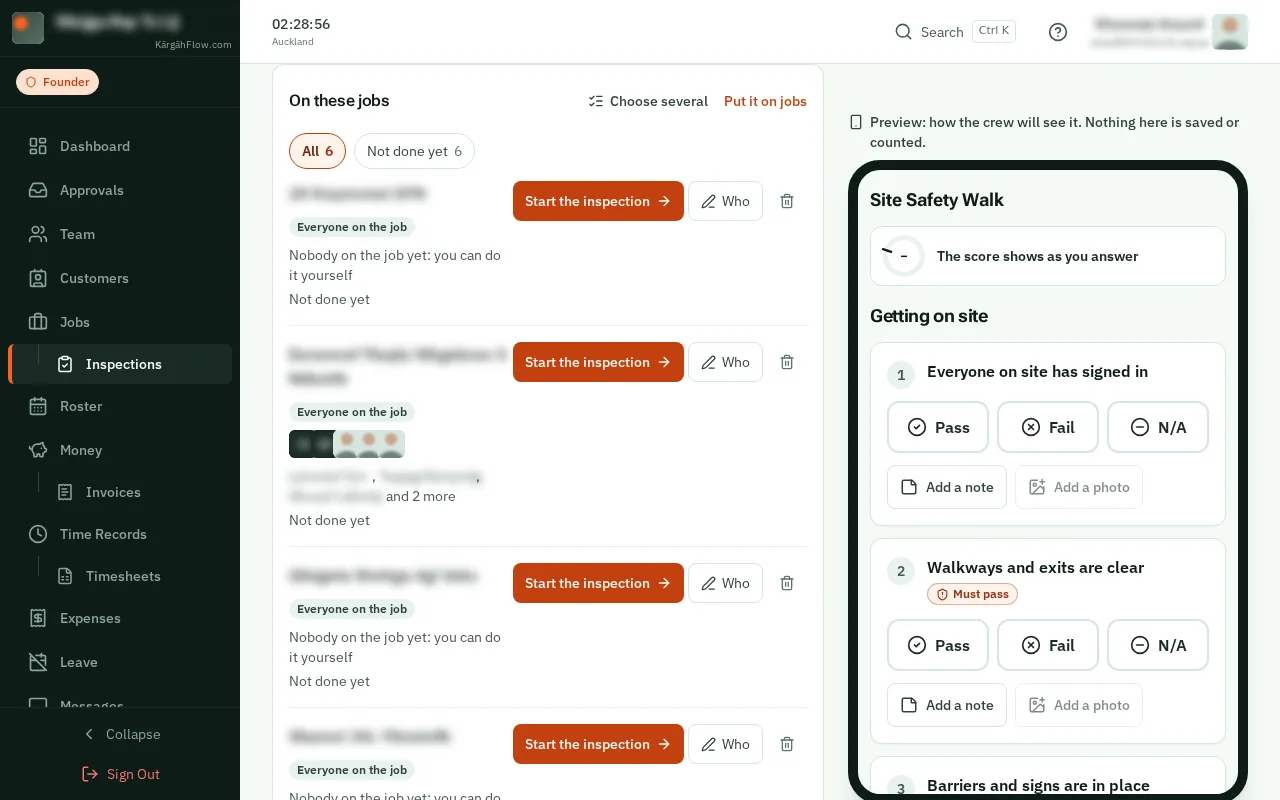
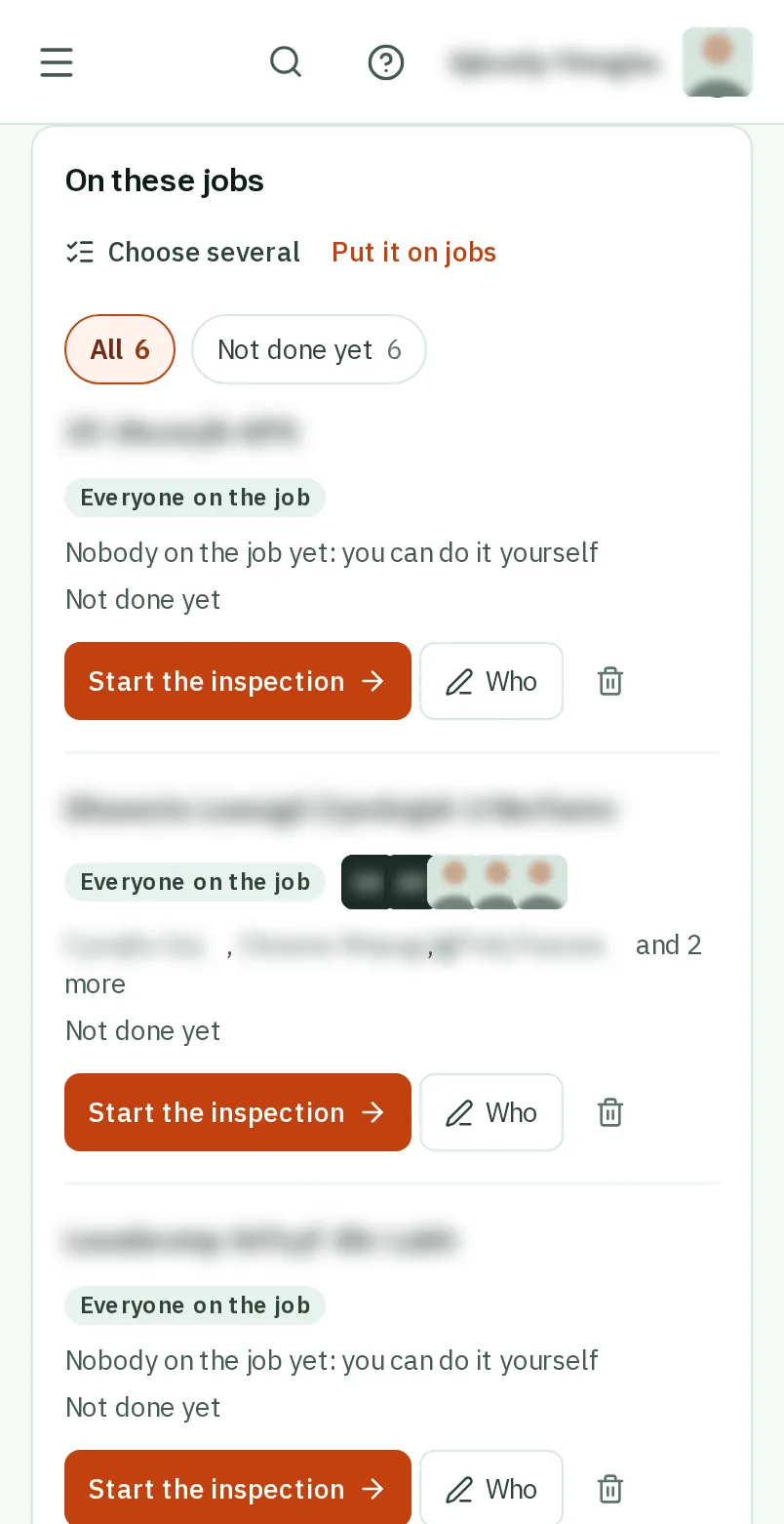
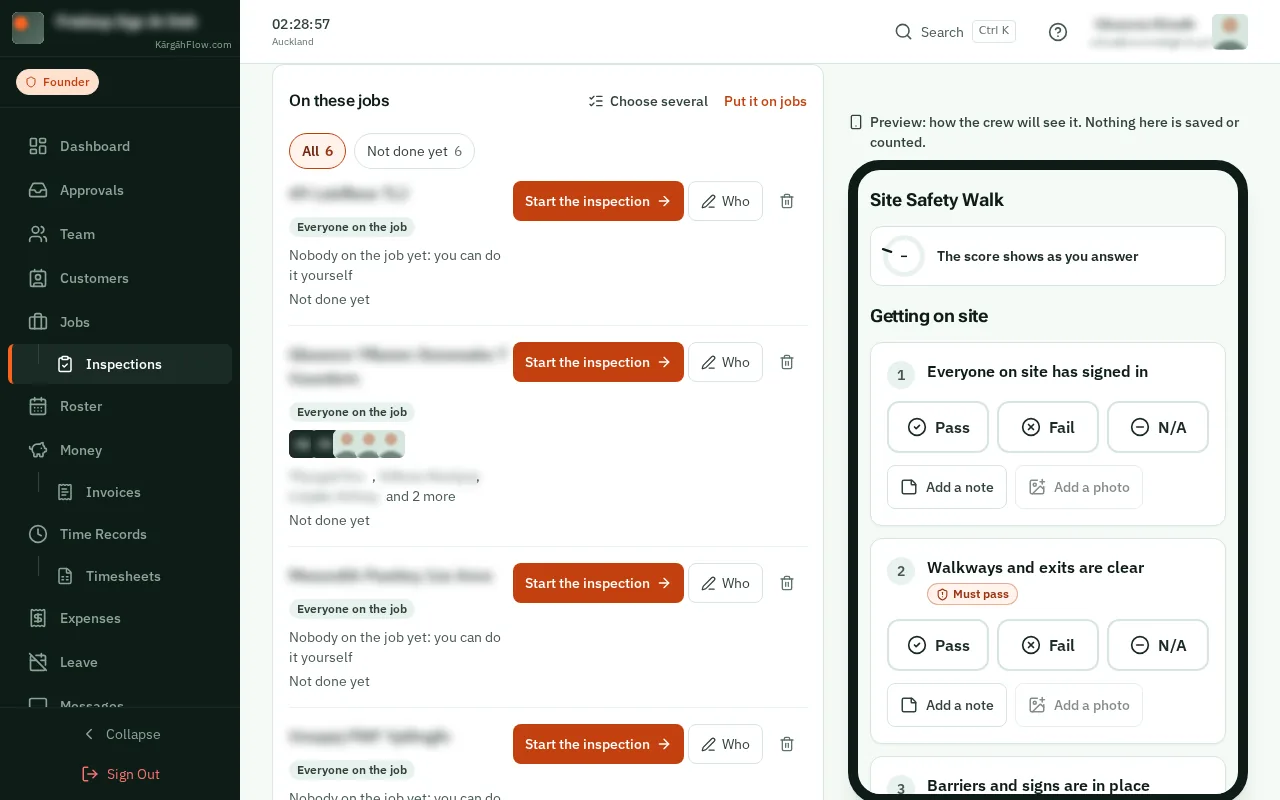
Under On these jobs, tapclick a filter to see only some of them, like Not done yet or On archived jobs. Each filter says how many jobs it has.
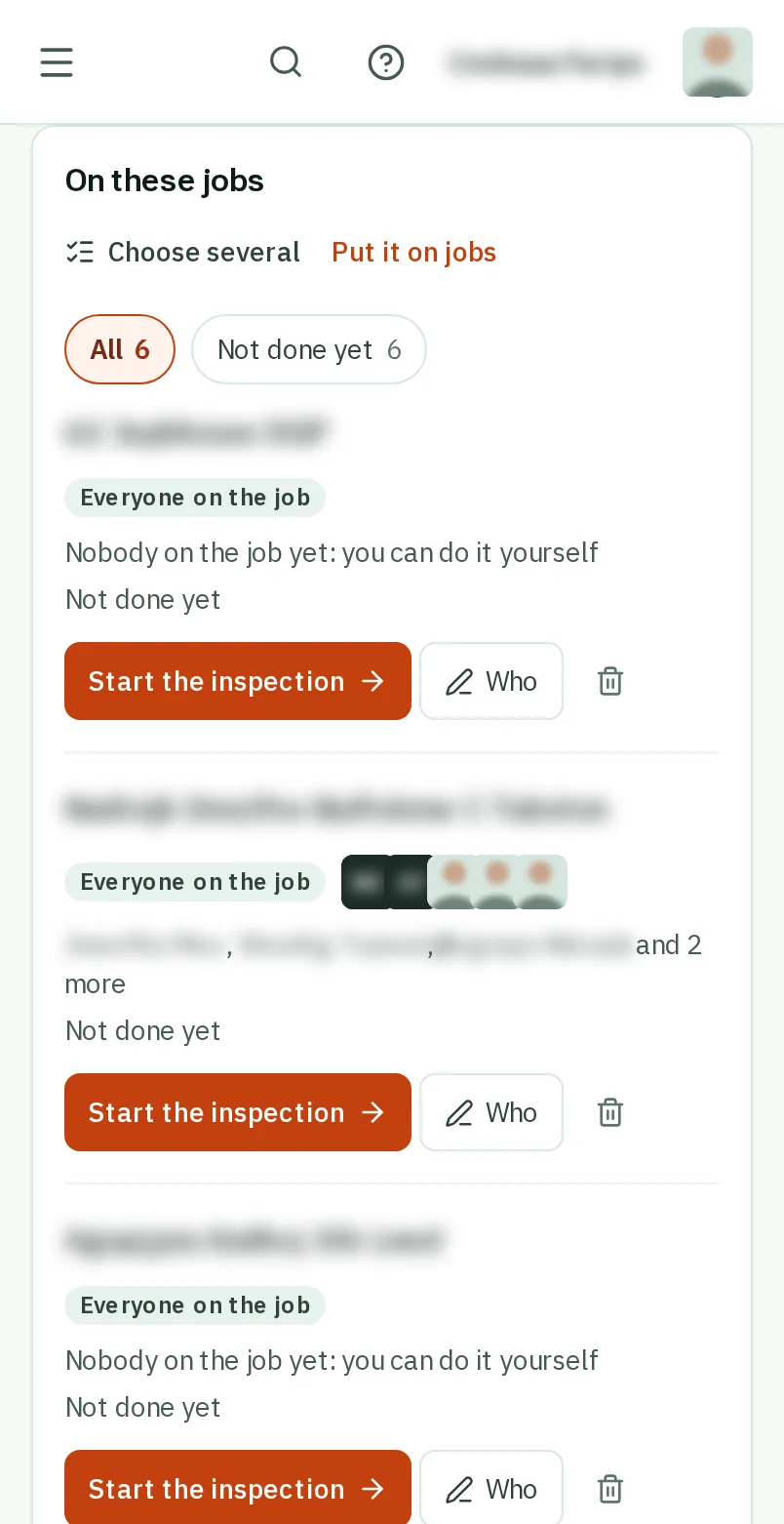
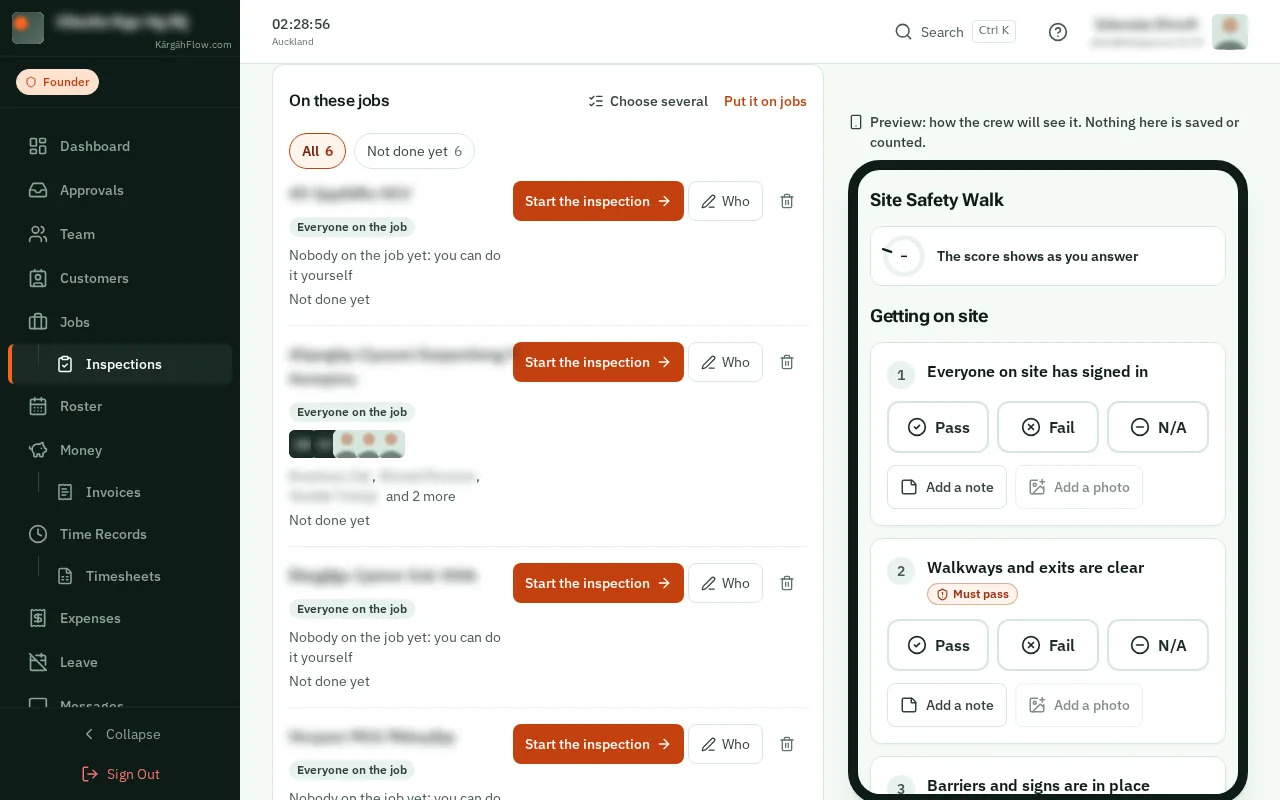
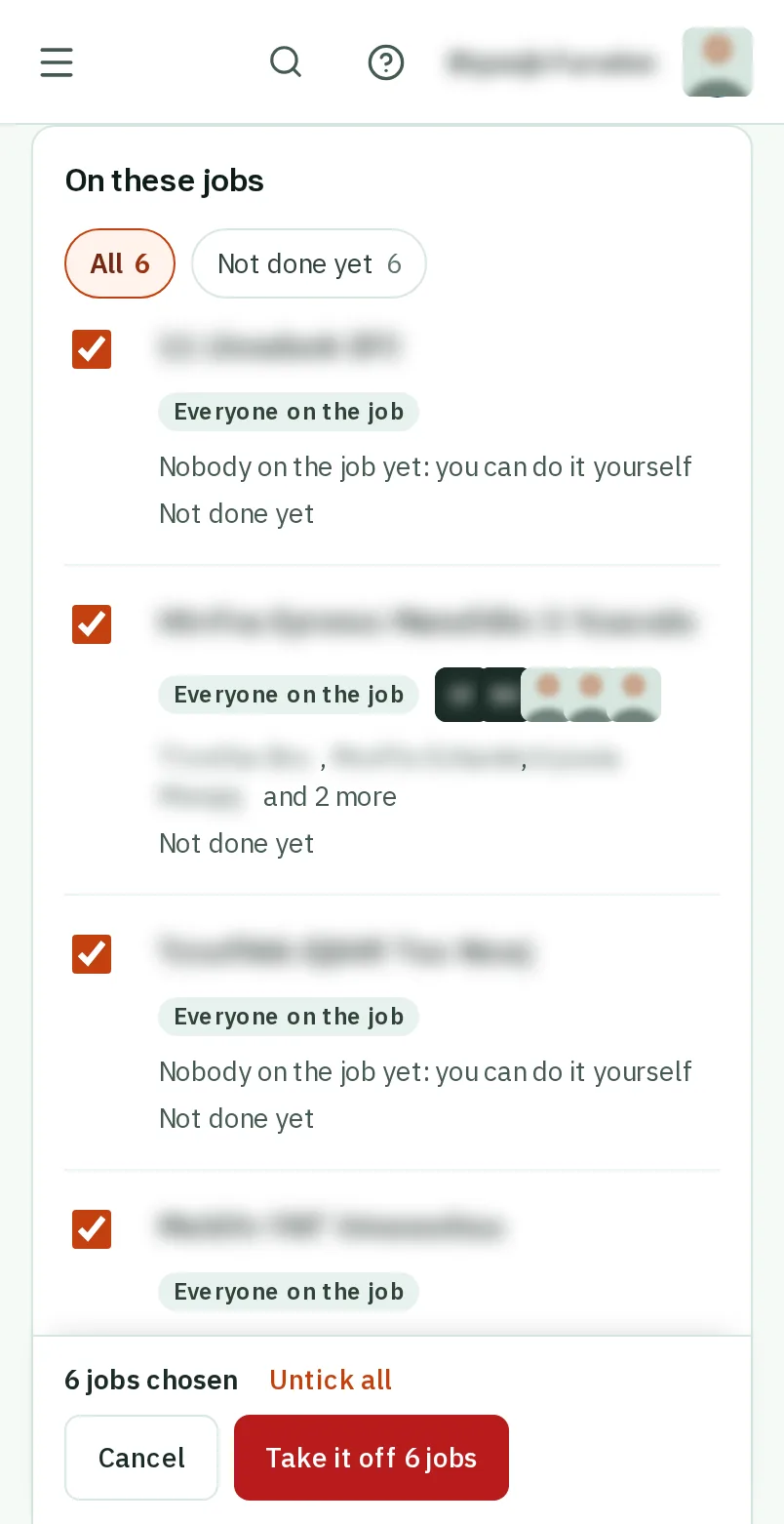
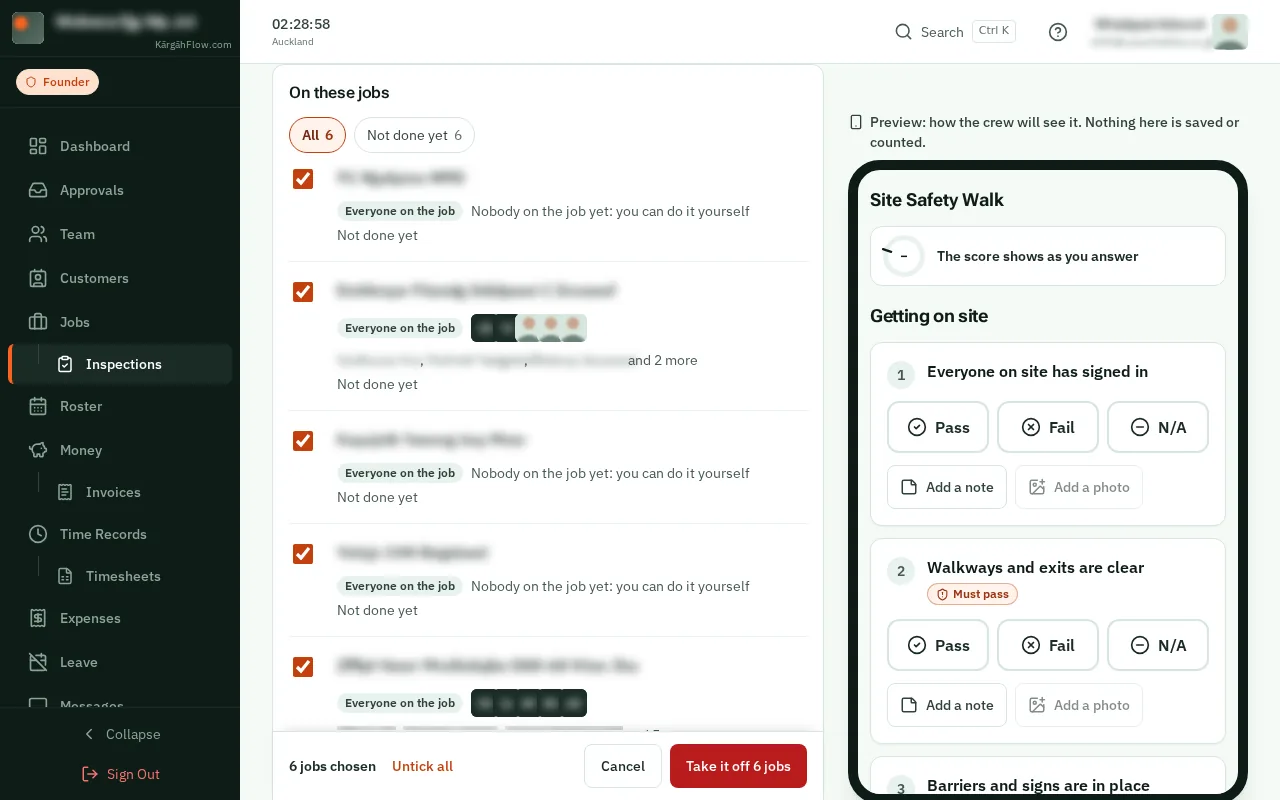
TapClick Choose several, then tick the jobs to take it off, or tapclick Tick all for every job shown.
TapClick Take it off at the bottom, then Take it off again to be sure. Those jobs stop showing it on anyone’s phone.
Good to know: For one job, tapclick the bin beside it instead. A job where someone is part way through keeps the form, and the page says who.