Step 1: Open Inspections
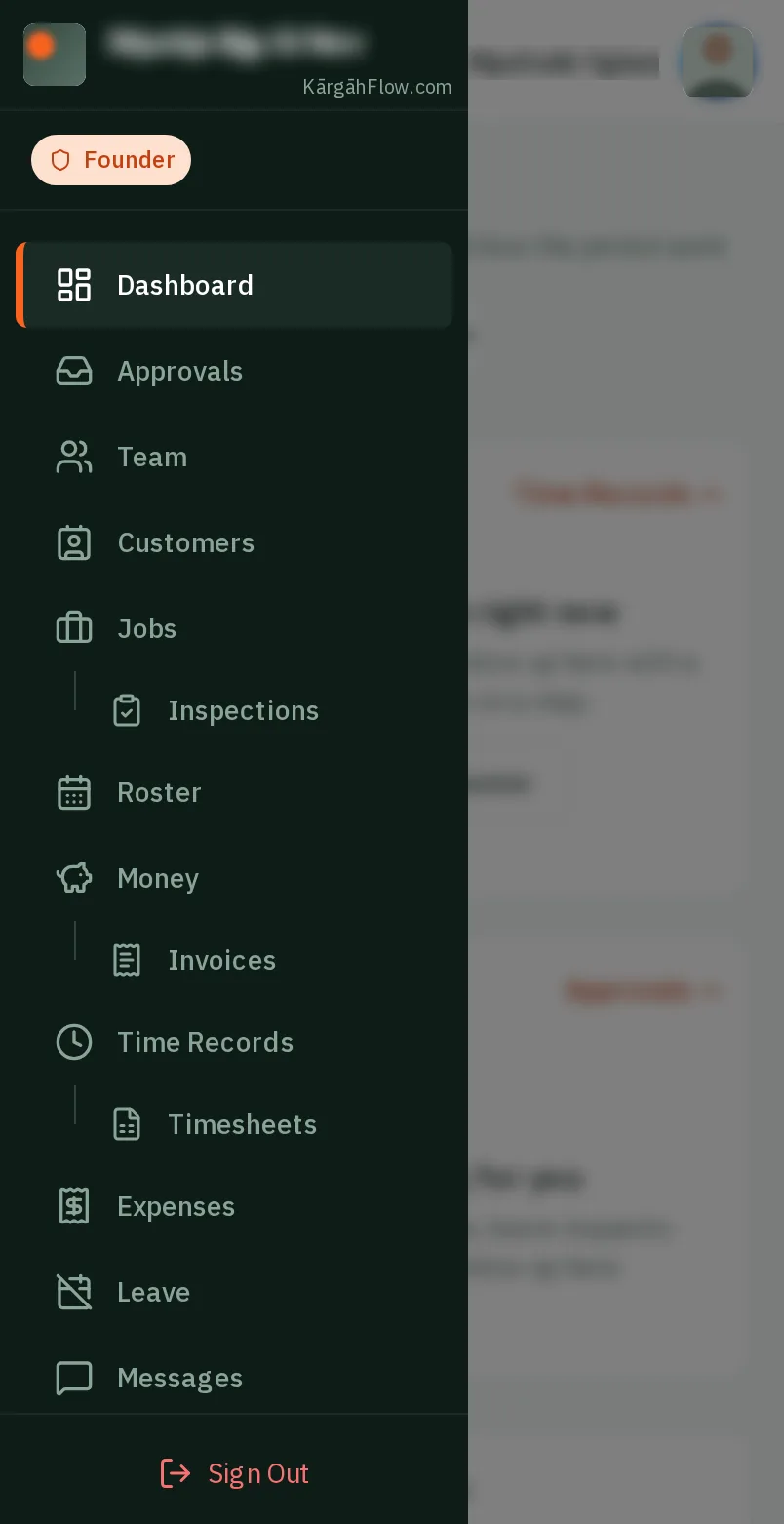
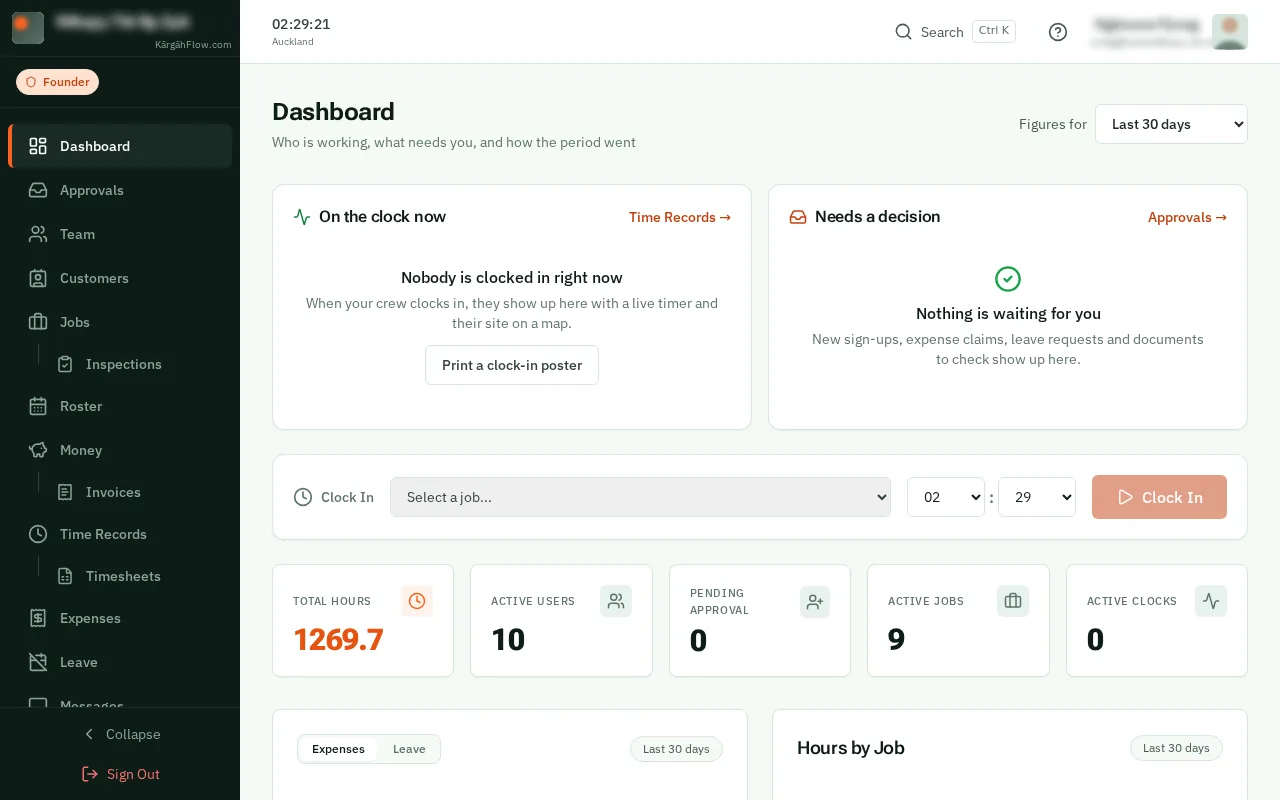
TapClick the menu button at the top left of the screen, then Inspections.TapClick Inspections in the menu on the left.
Look forthe Inspections item in the menu
Every inspection your crew finish is kept here, with its answers, photos and signature, and a PDF report you can print or email to the customer.
A finished inspection never changes. A mistake is put right with a corrected copy, so the record stays true.
TapClick the menu button at the top left of the screen, then Inspections.TapClick Inspections in the menu on the left.
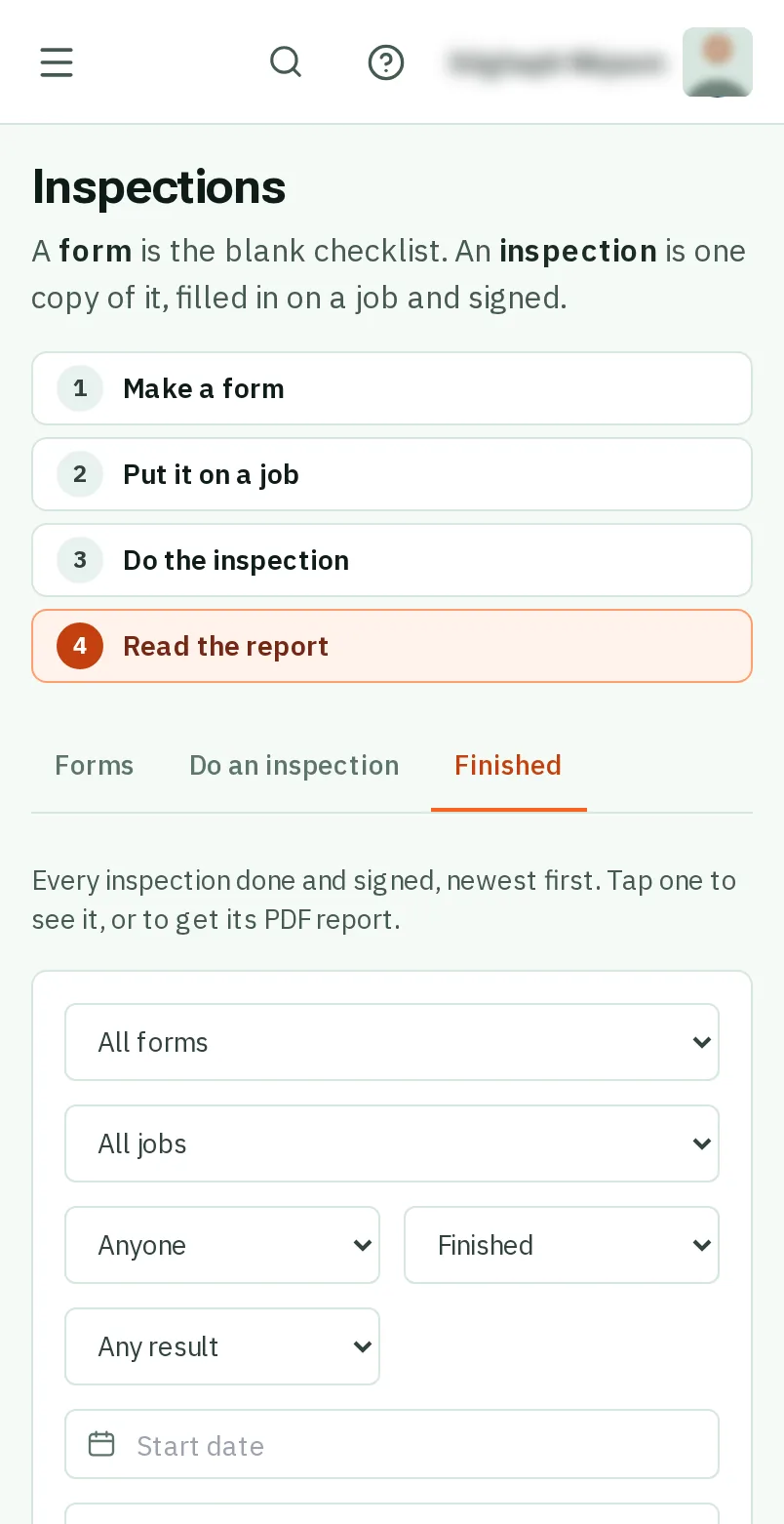
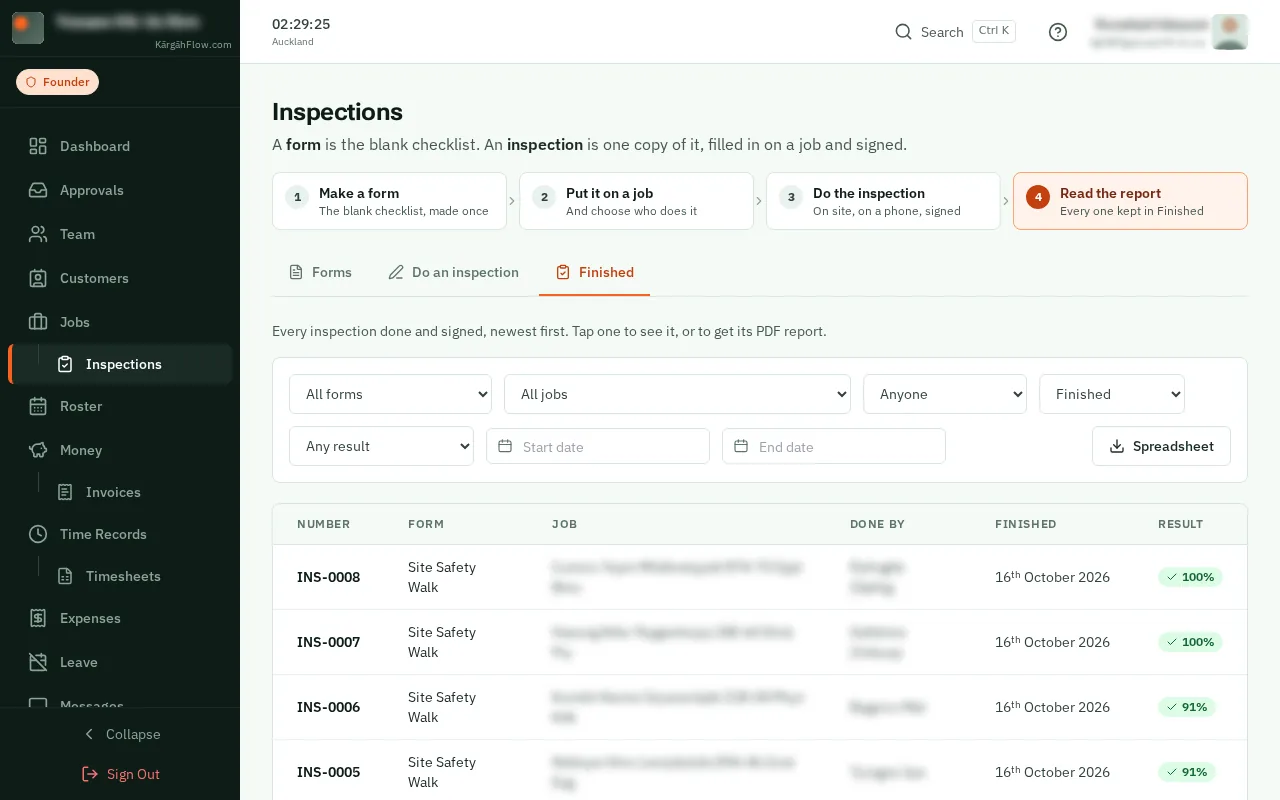
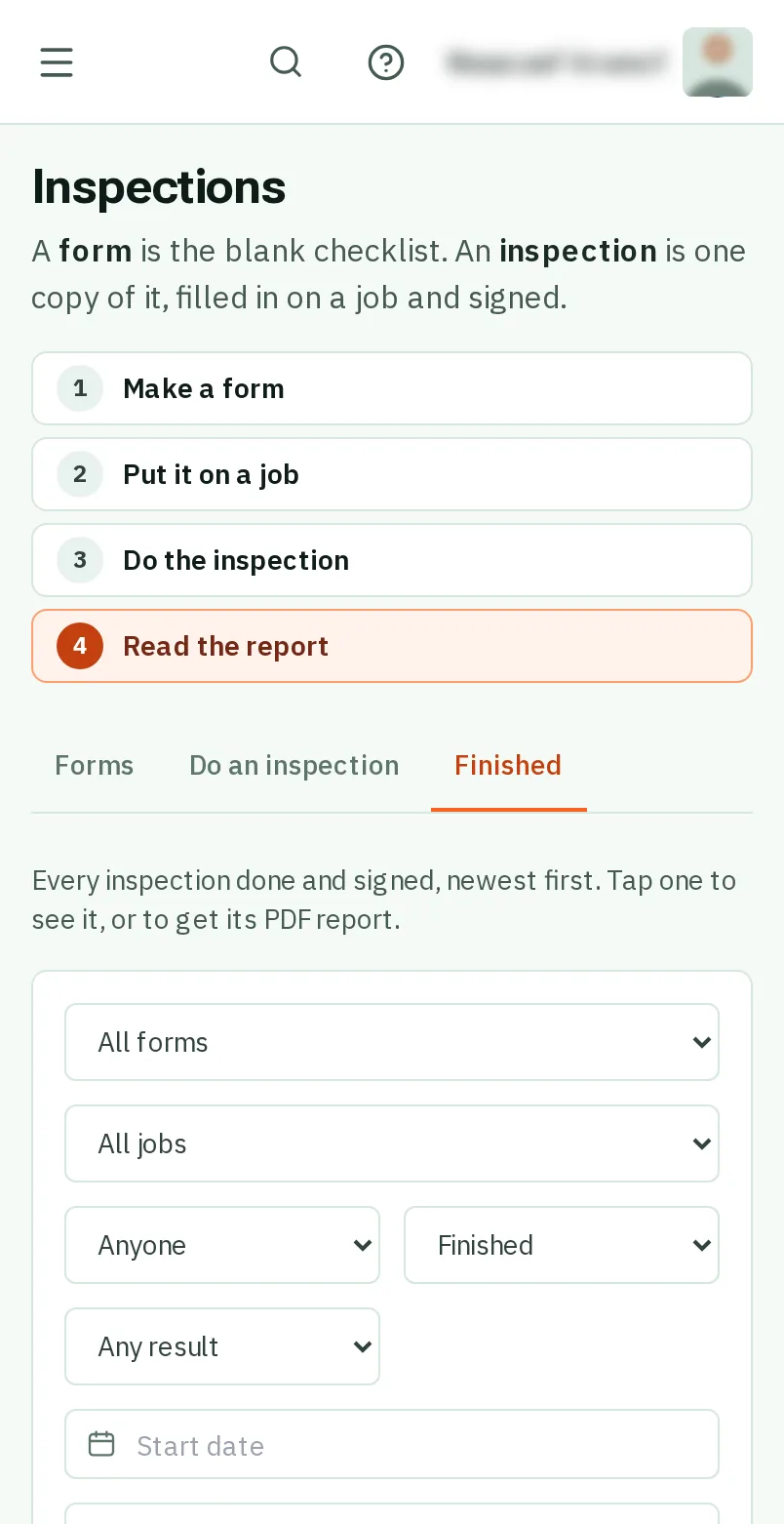
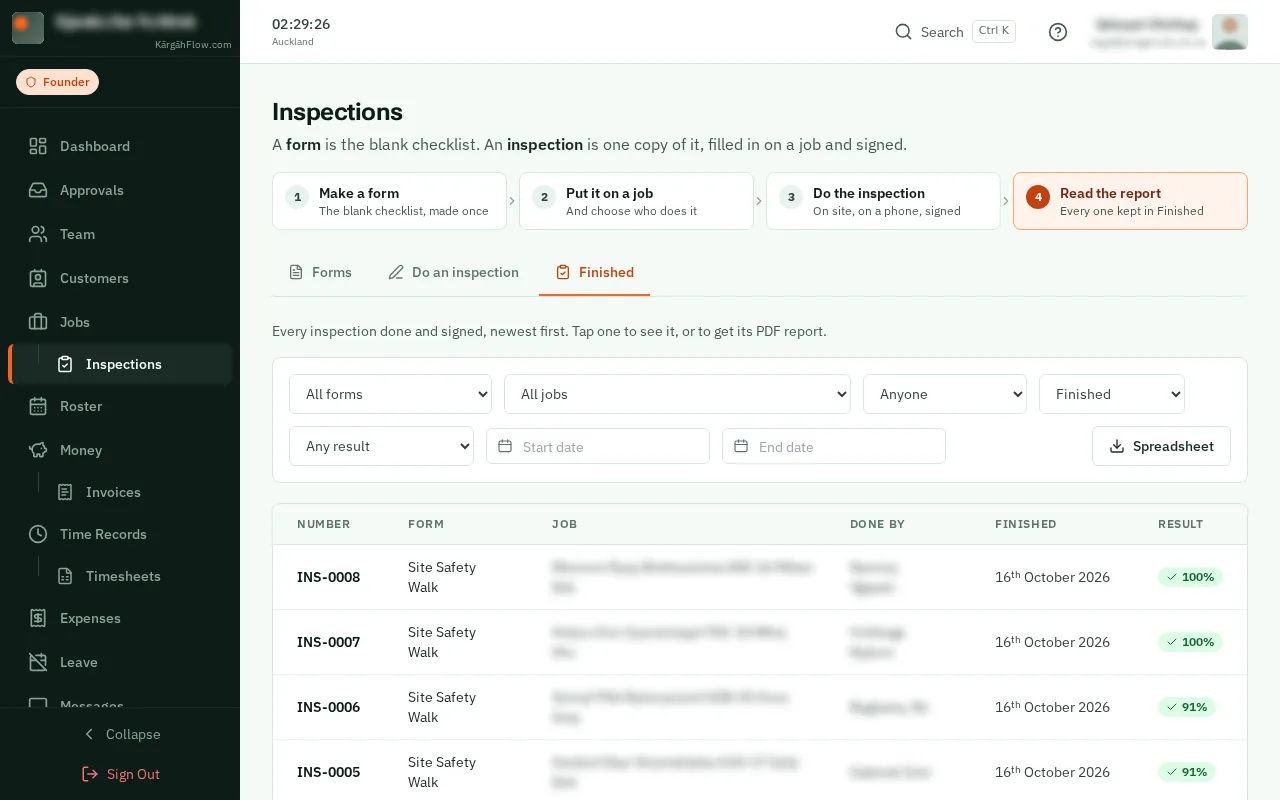
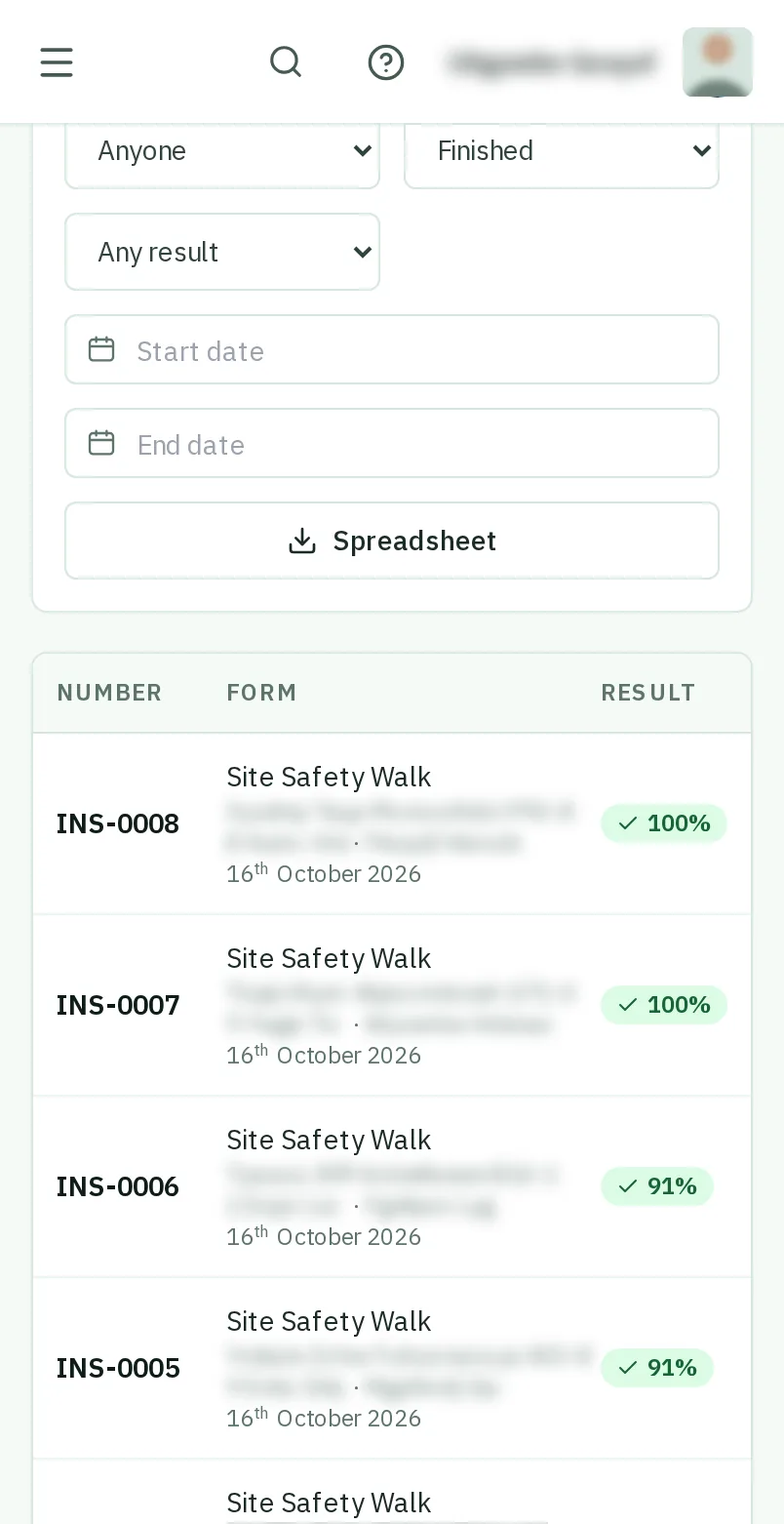
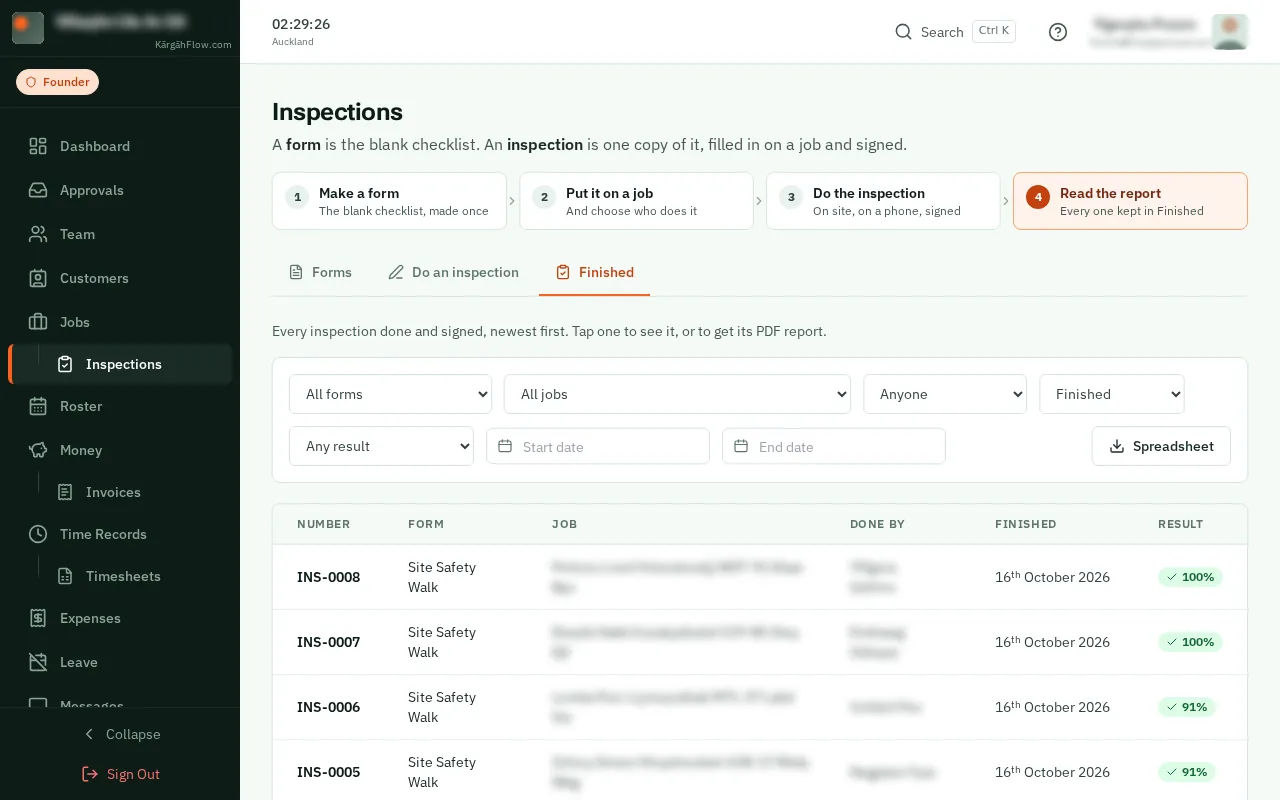
TapClick Finished. Every inspection done and signed is listed, newest first. A scored one shows its score, green if it passed and red if it failed; any other shows how many checks failed.
Good to know: Choose a form, a job, a person, a result or dates to narrow the list, and tapclick Spreadsheet to download it. Each job’s Inspections tab lists the inspections done there too.
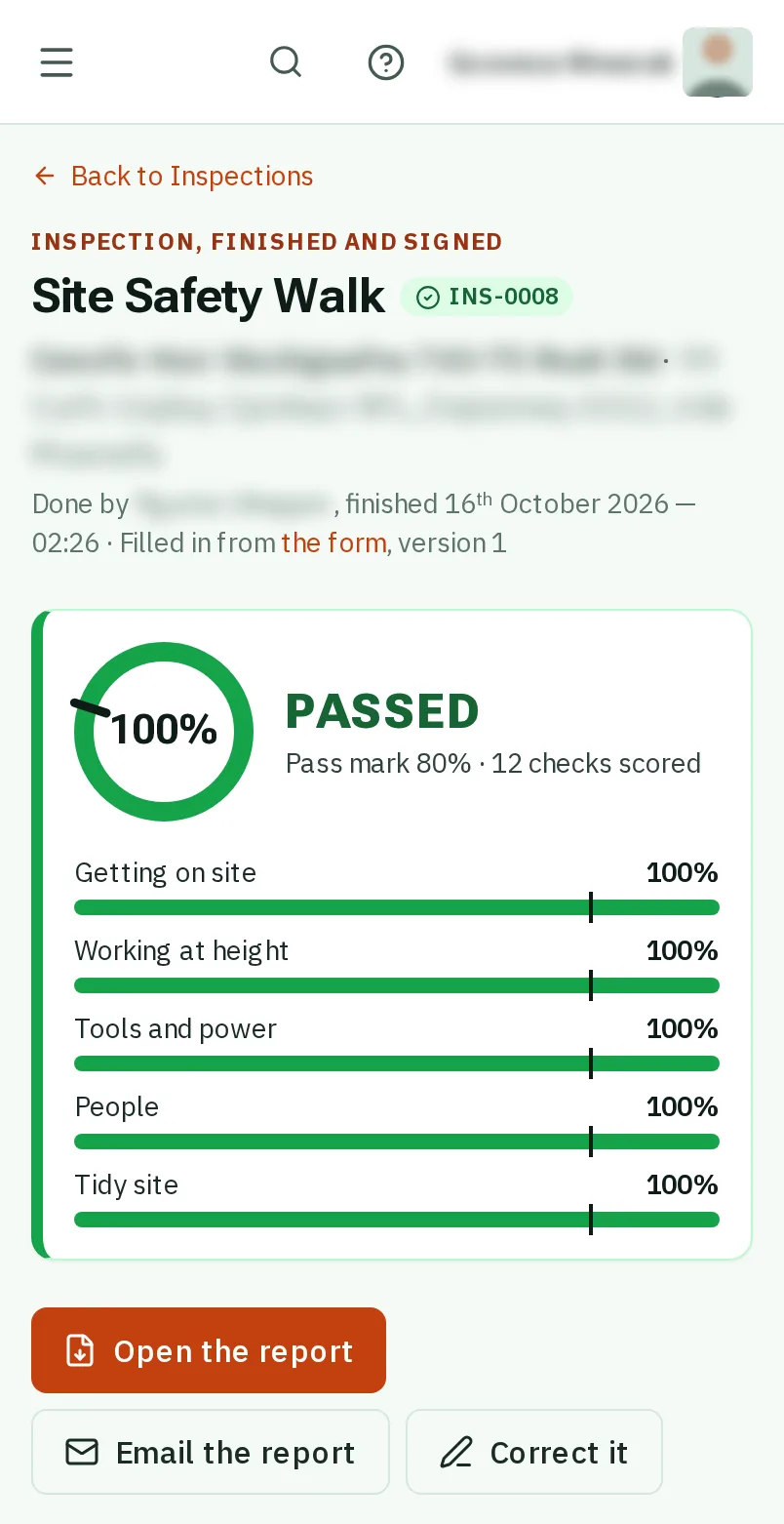
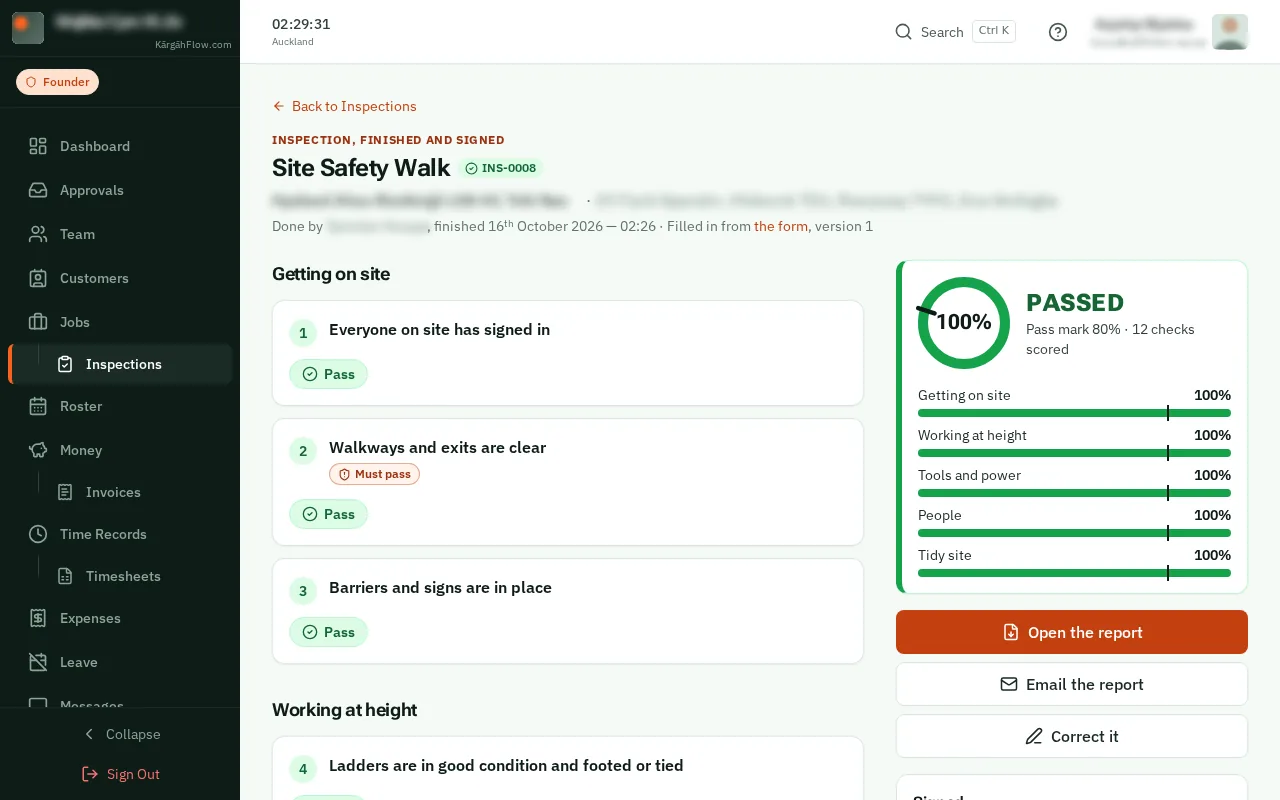
TapClick its number to see every answer, the photos and the signature.
TapClick Open the report for the PDF, with the score and the checks that failed at the top. Print it or save it.
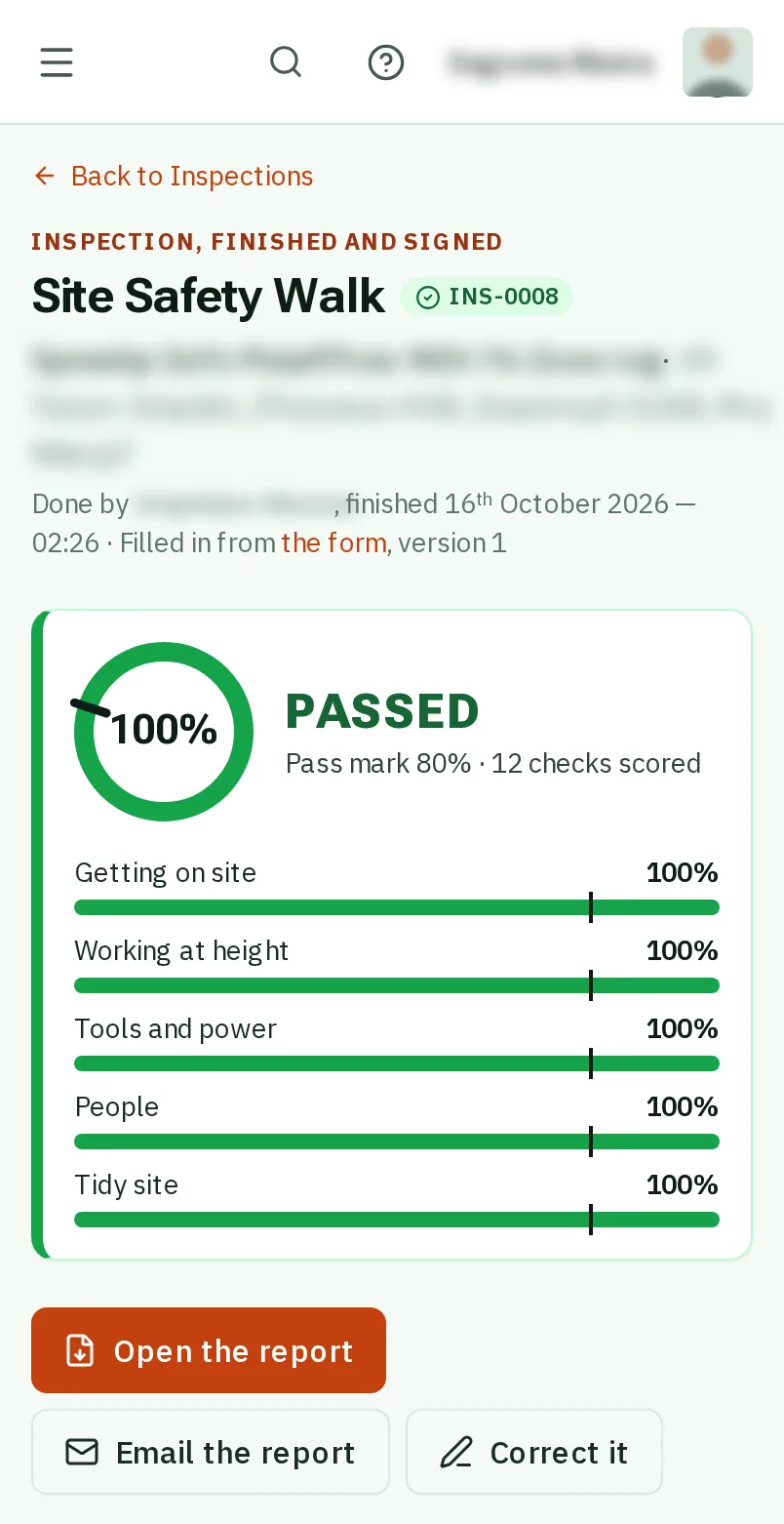
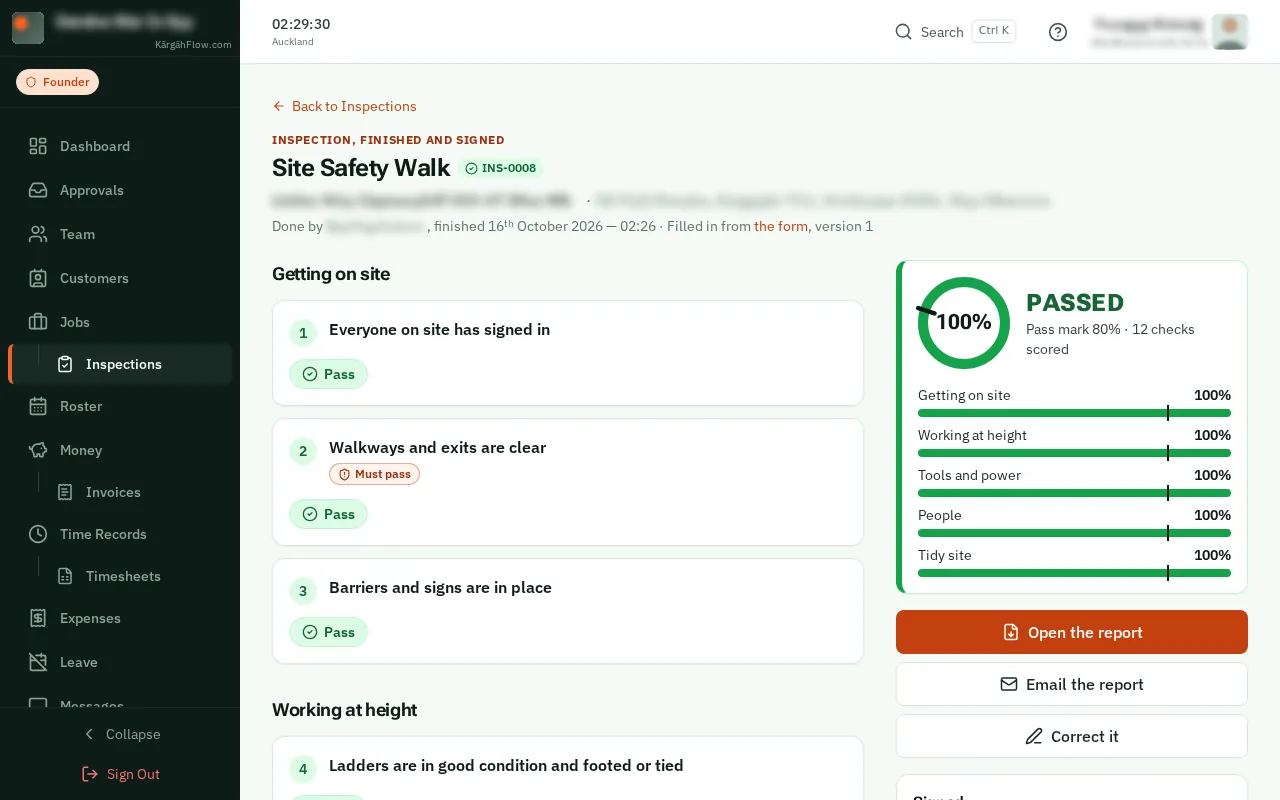
TapClick Email the report, type the address it goes to, add a message if you like, and tapclick Send.
Good to know: The PDF is attached, and a reply comes back to your own email address.
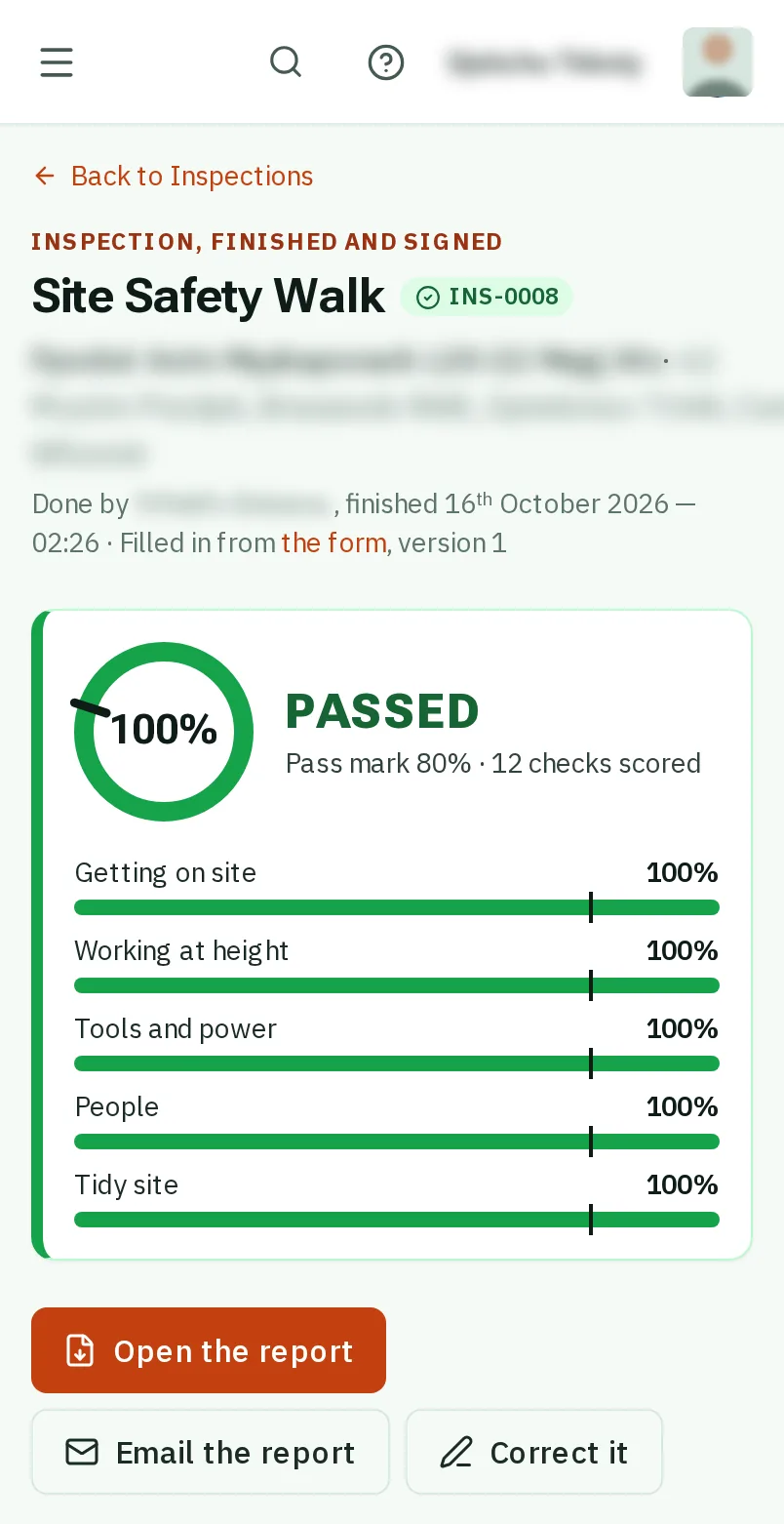
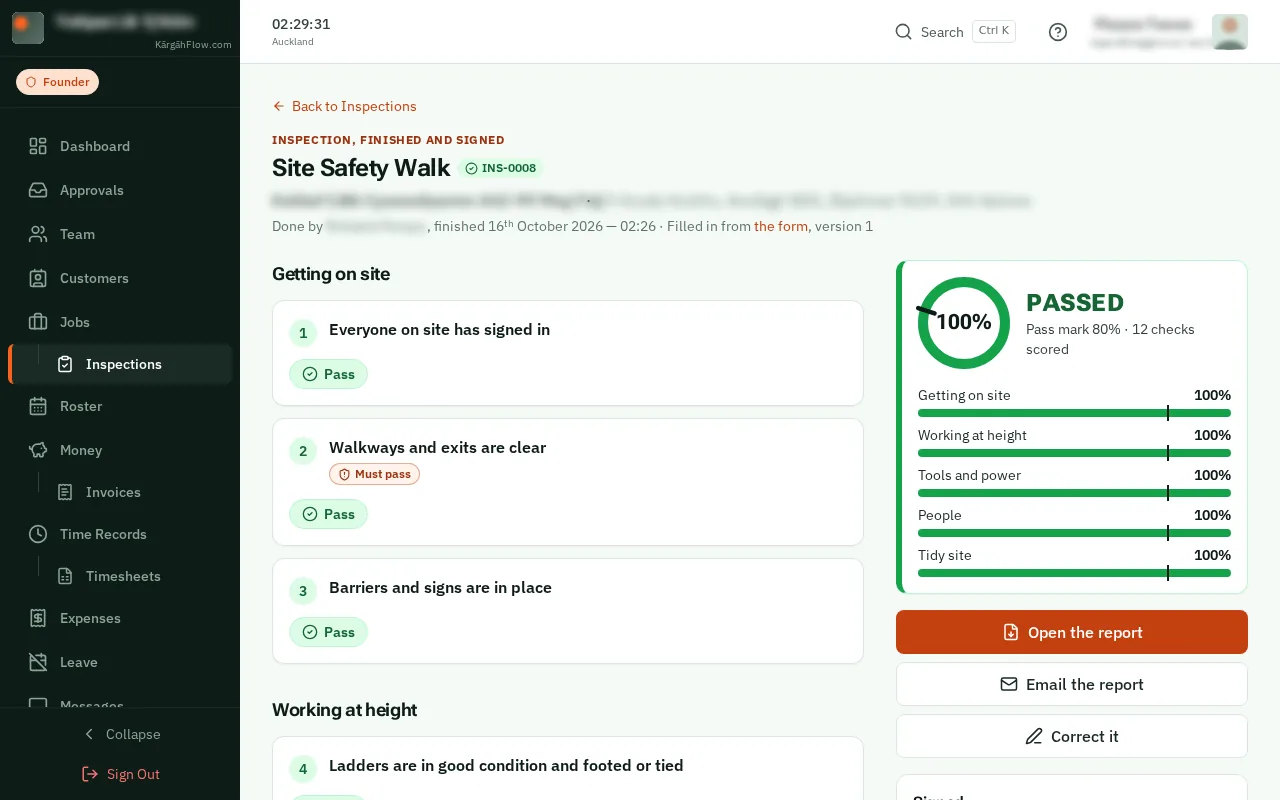
A finished inspection cannot be changed. TapClick Correct it to start a copy with its answers and photos. Once that is finished, the old one says what corrected it.