KārgāhFlow
About 1 minute 6 stepsFor crew, admins and owners

Send and read messages

Talk to your team or your manager inside the app.

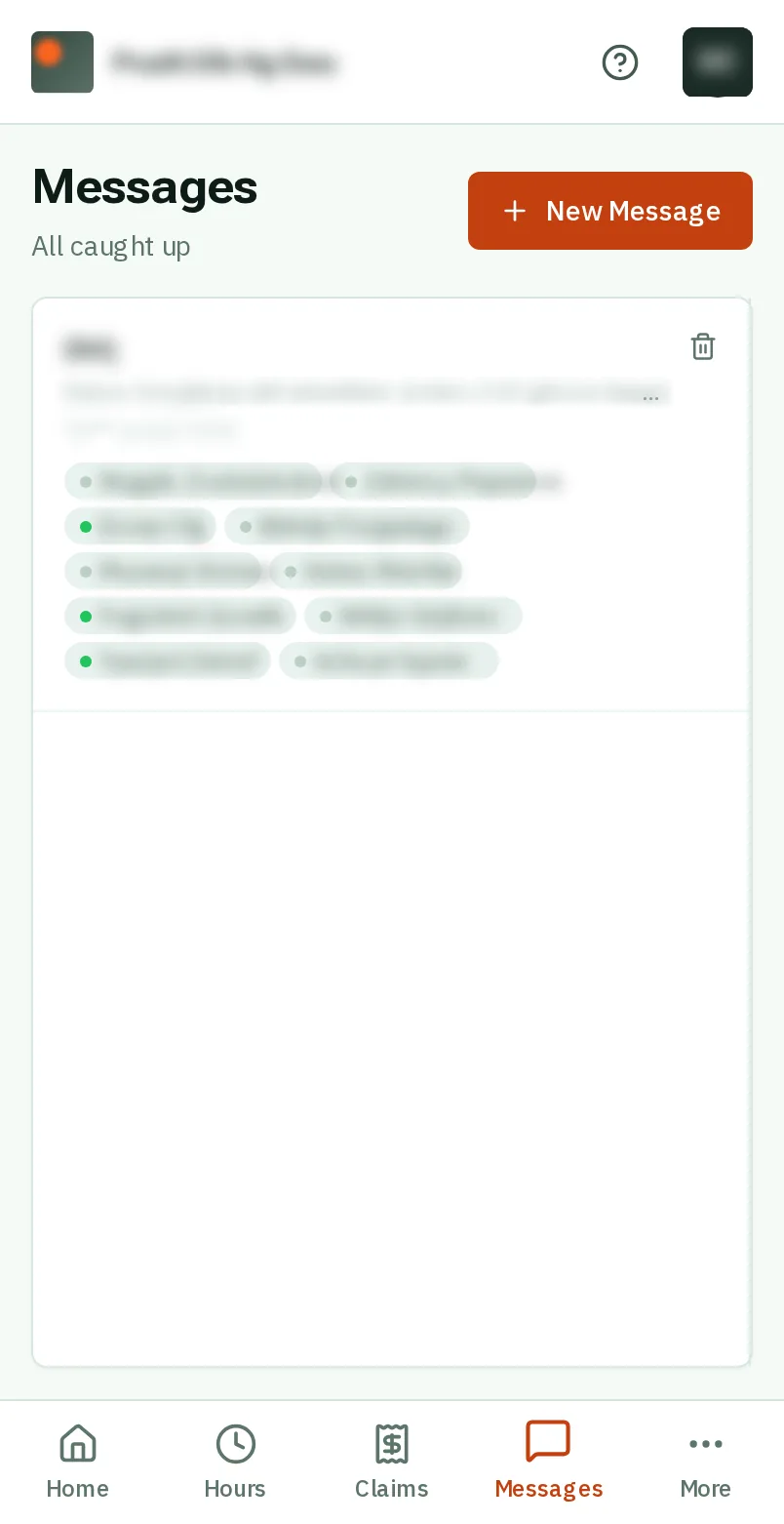
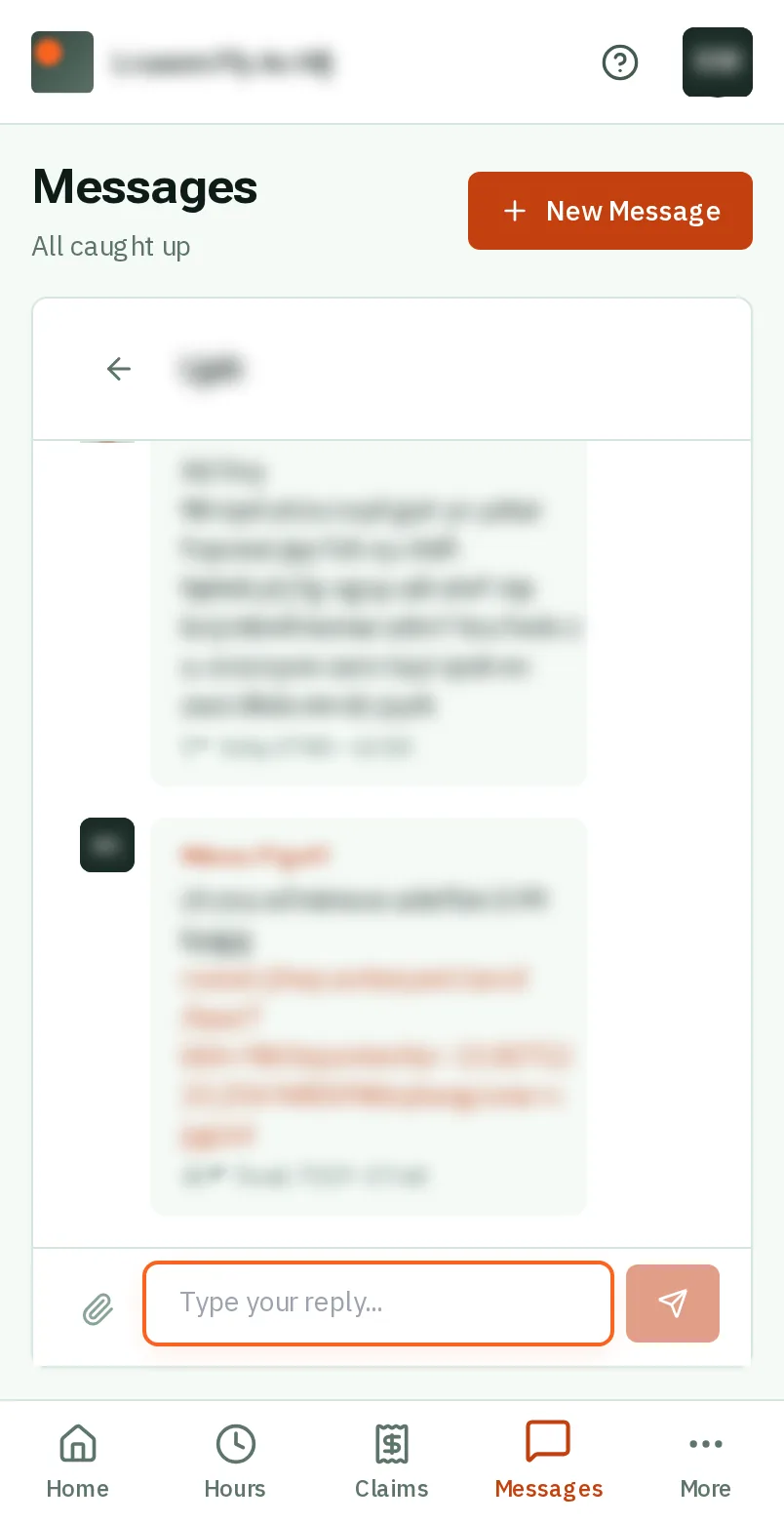
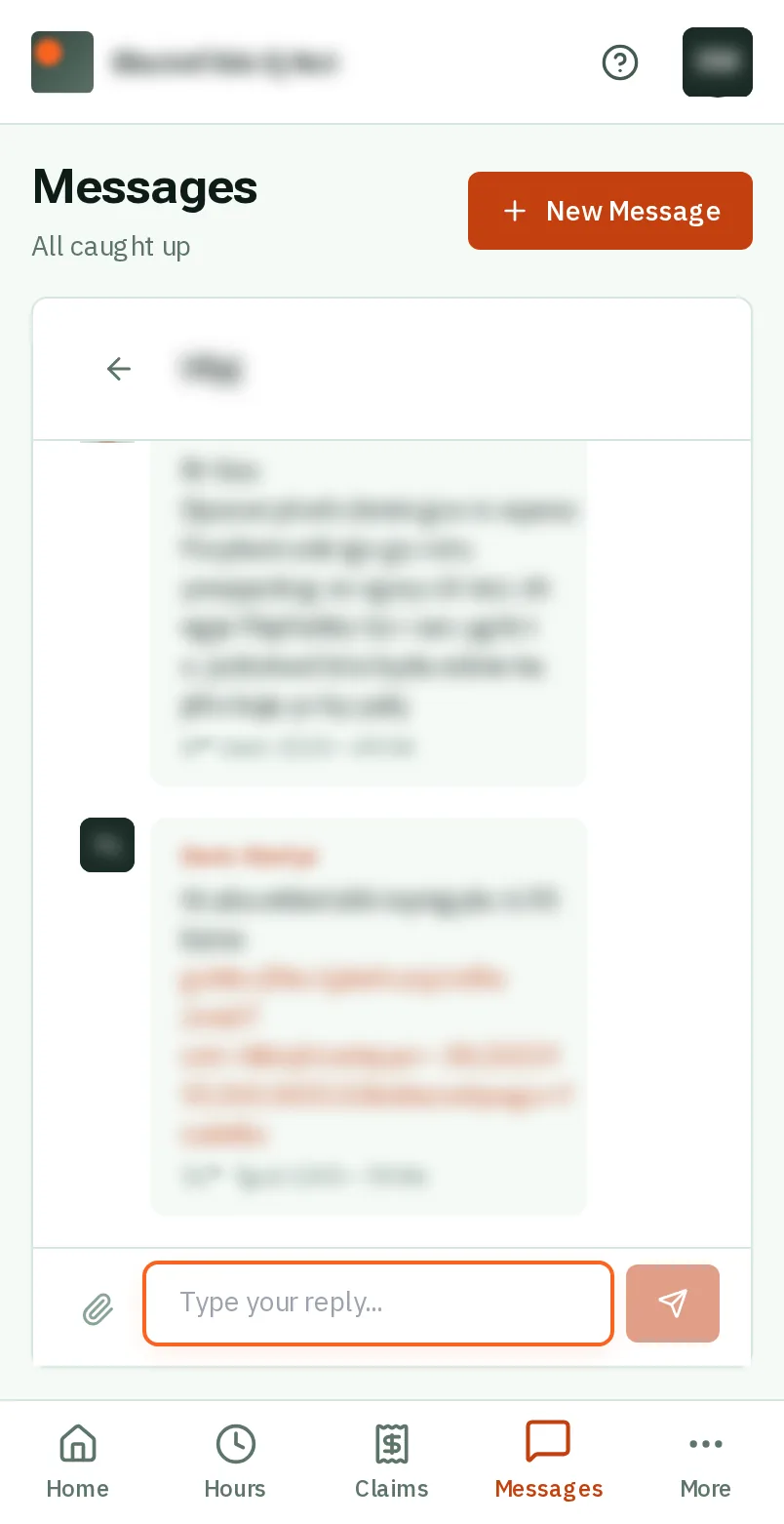
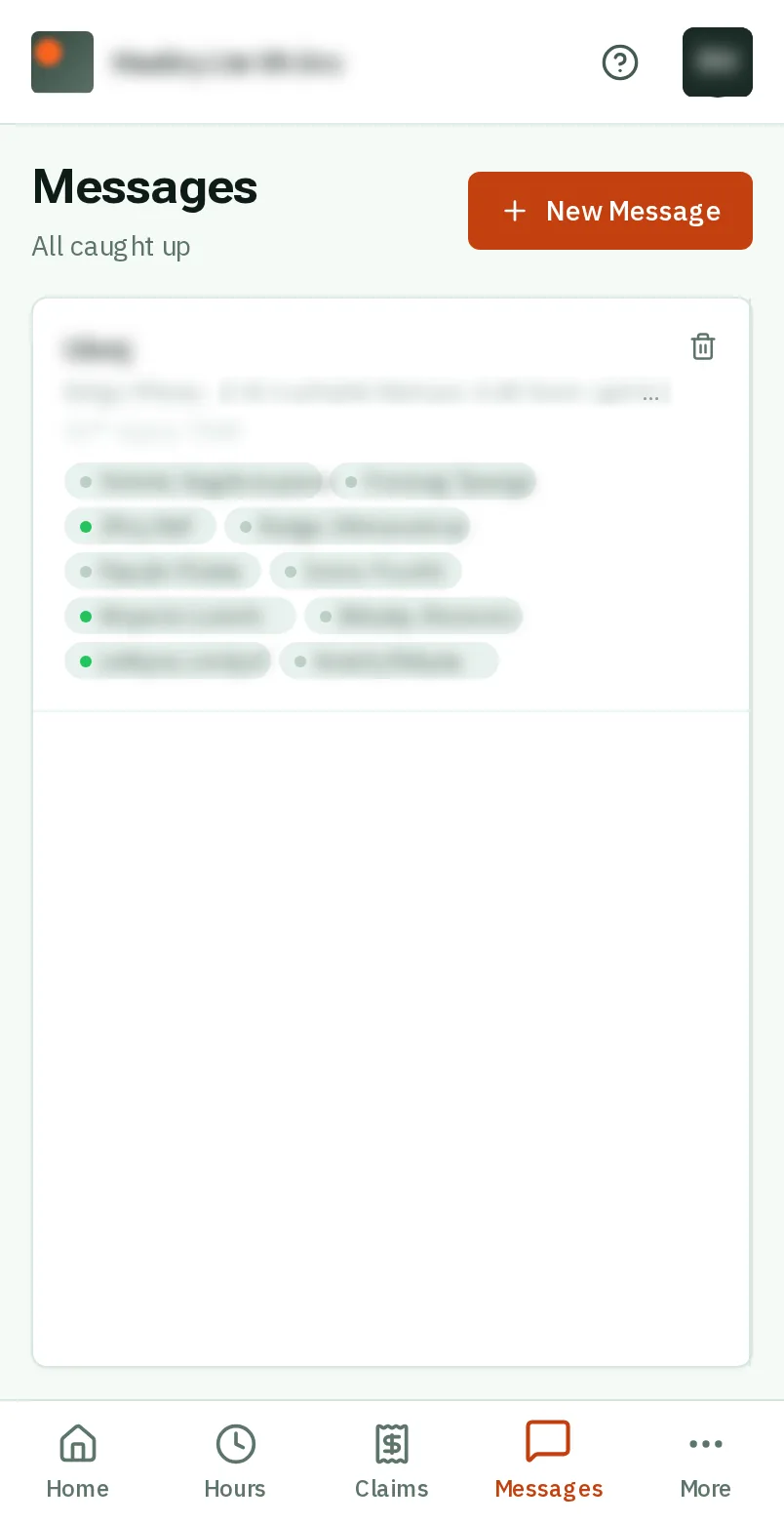
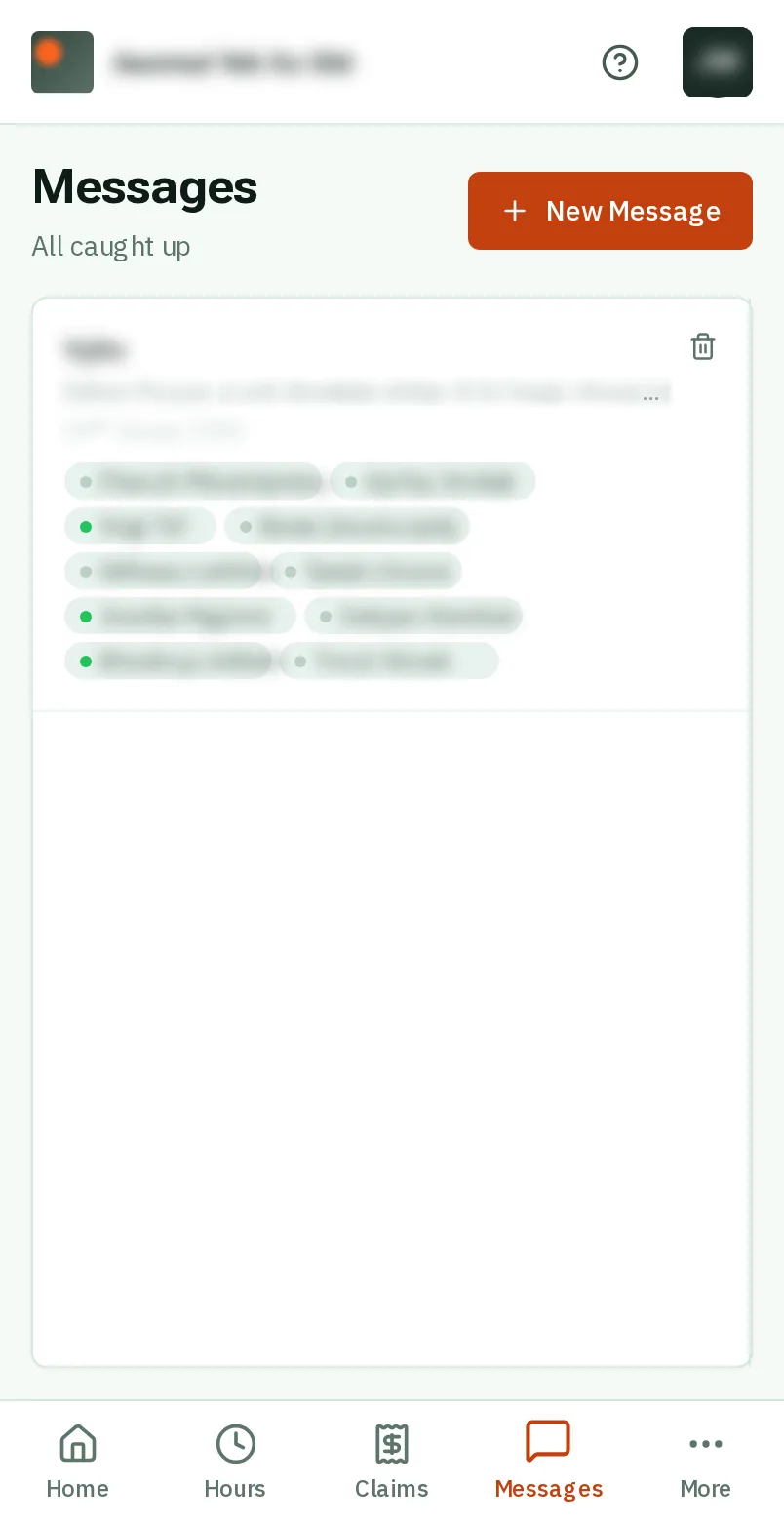
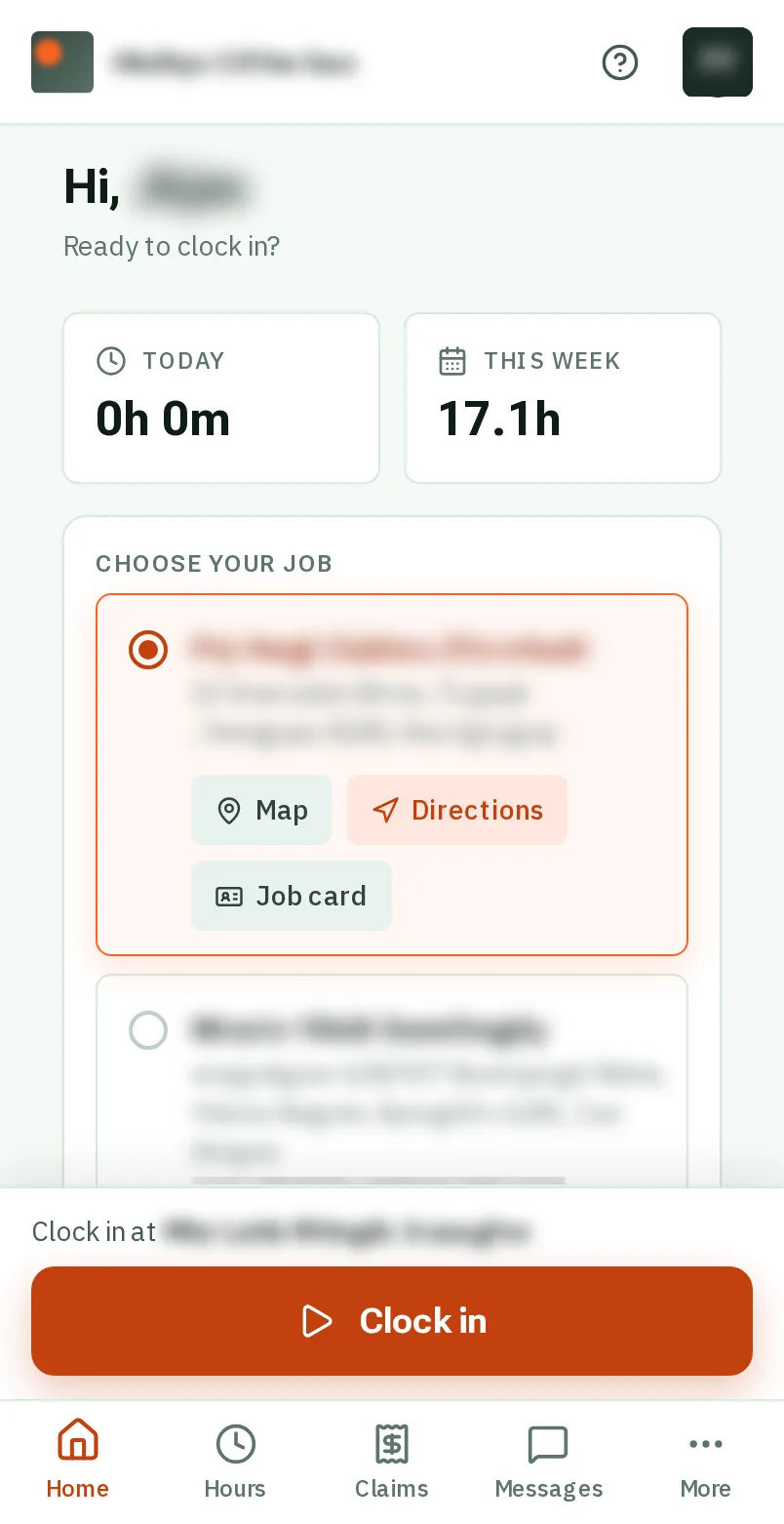
Send and read messages: the screen on a phone
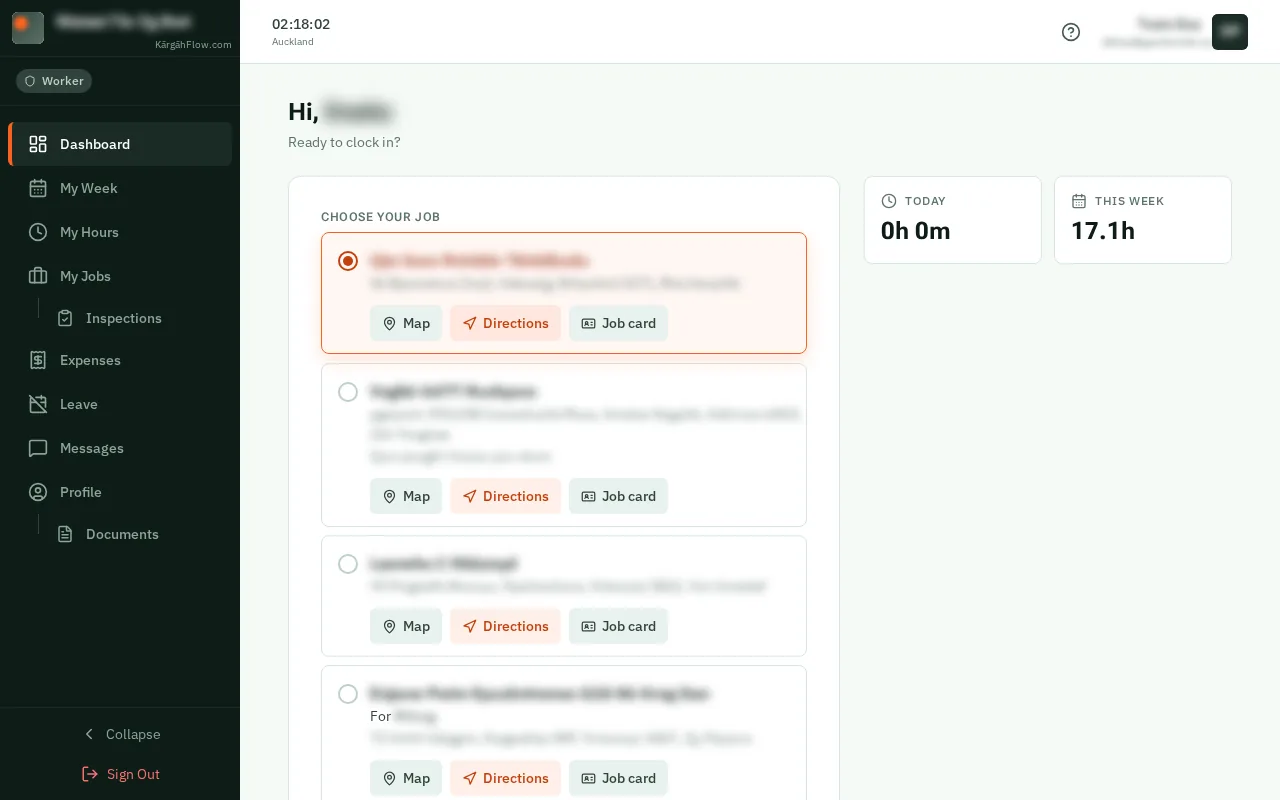
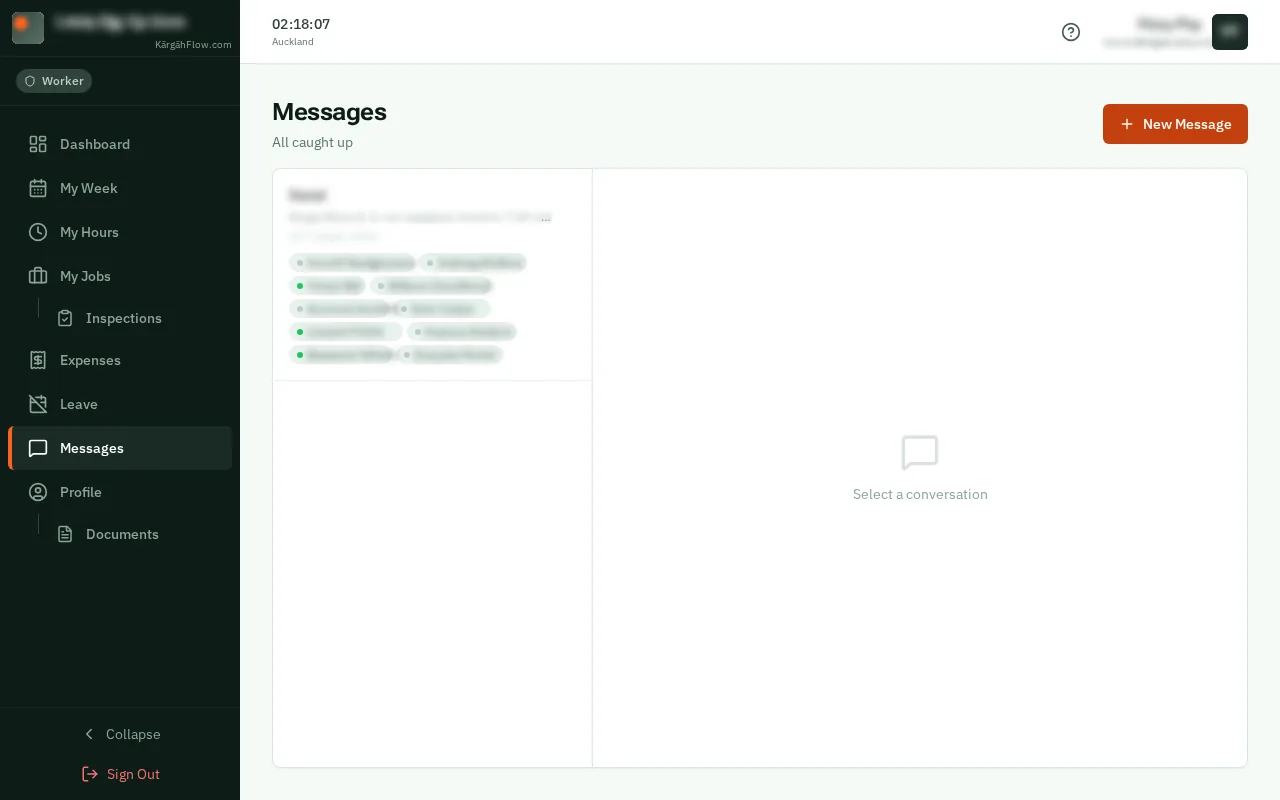
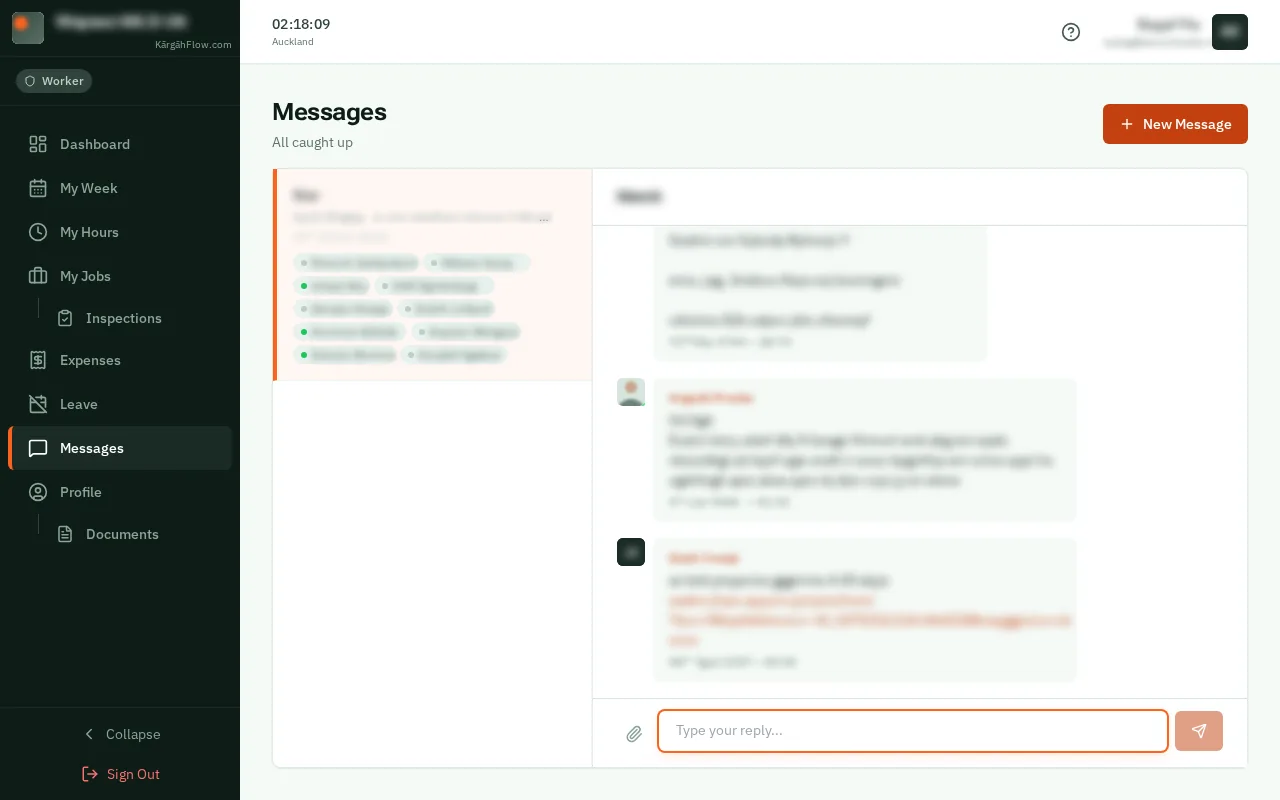
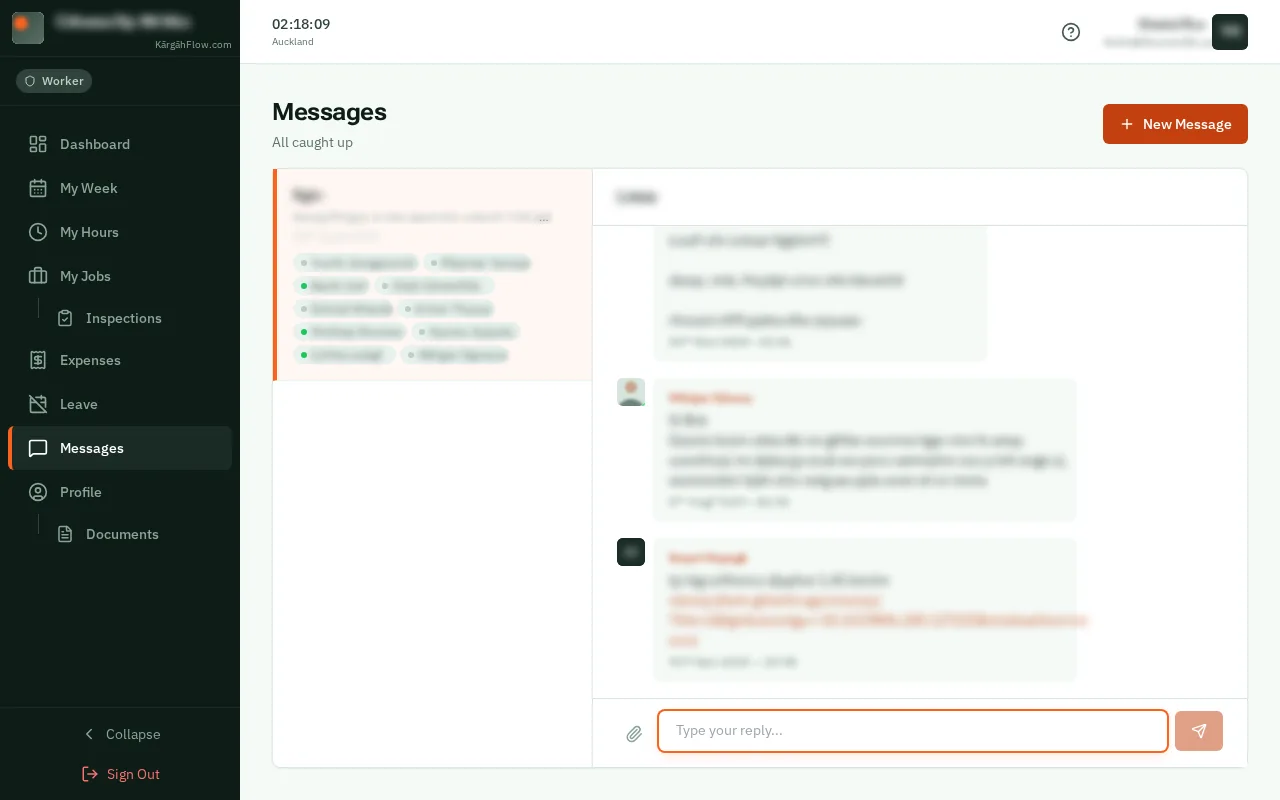
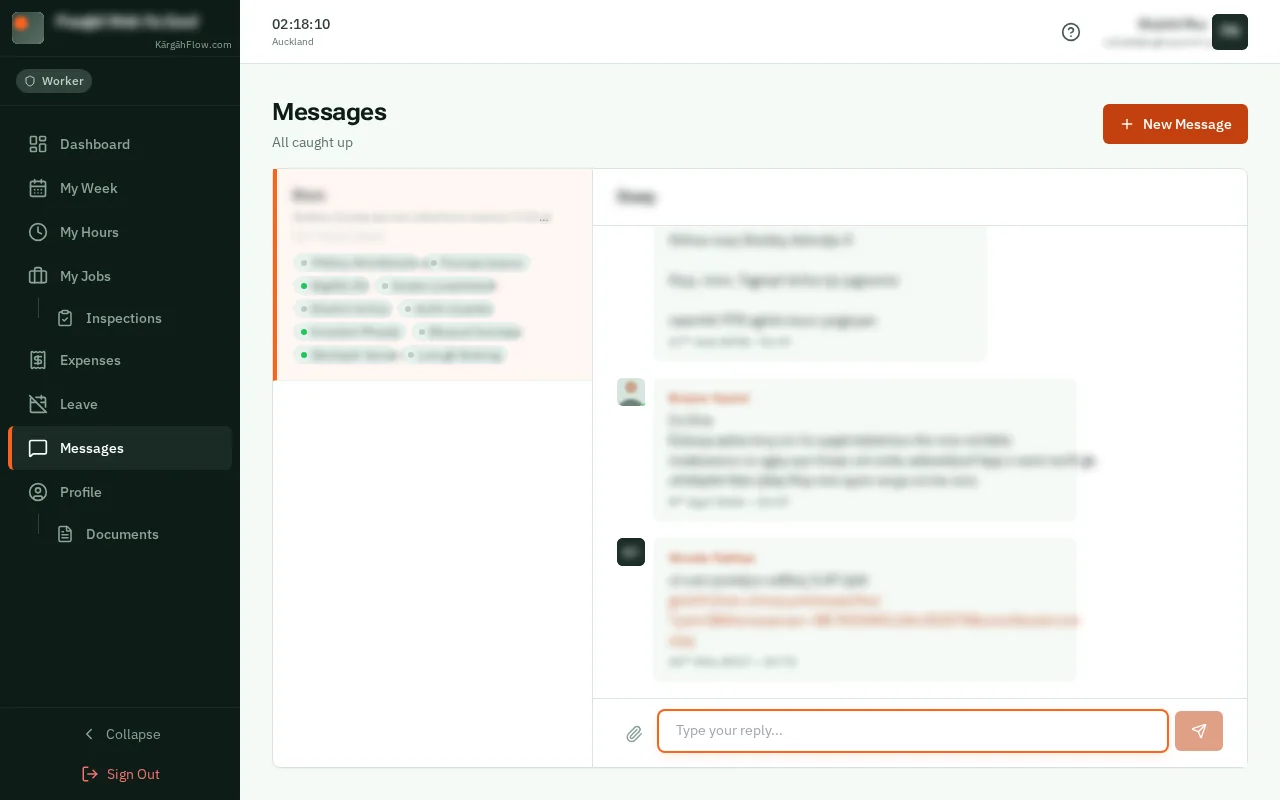
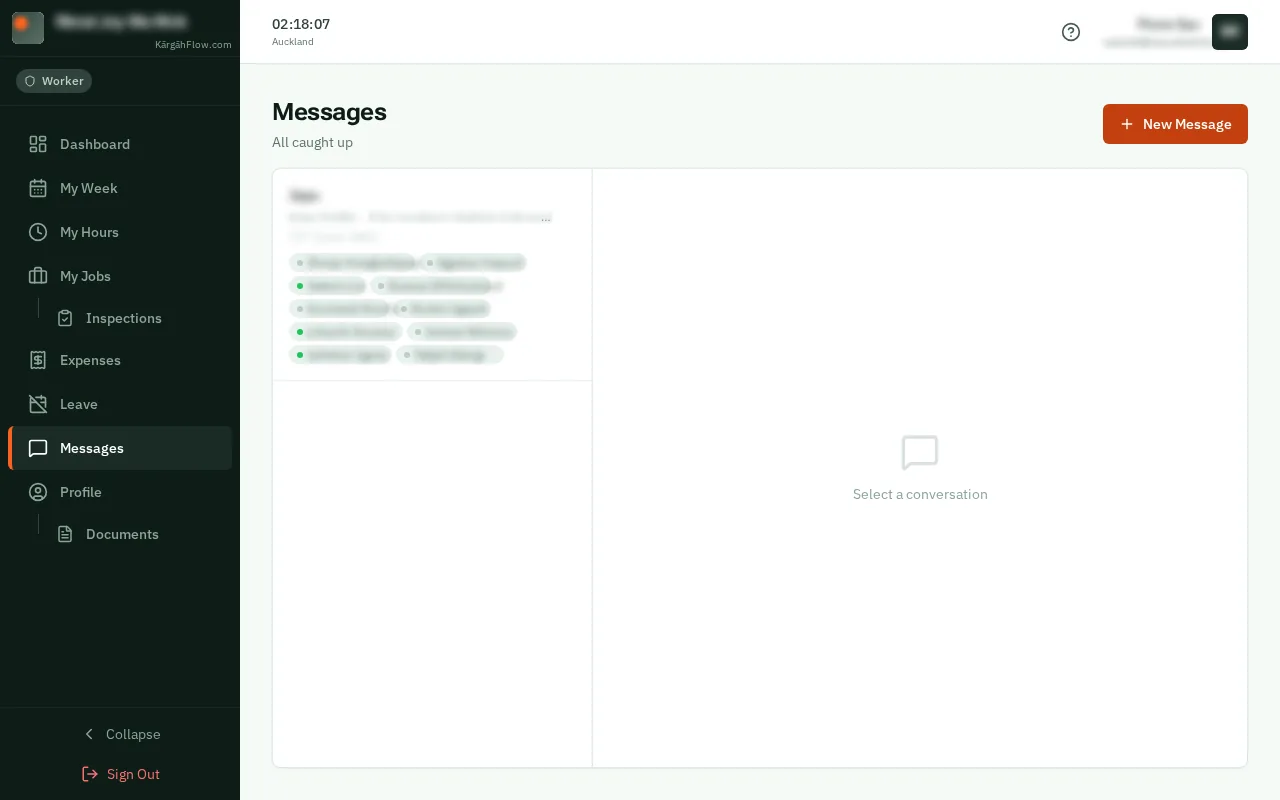
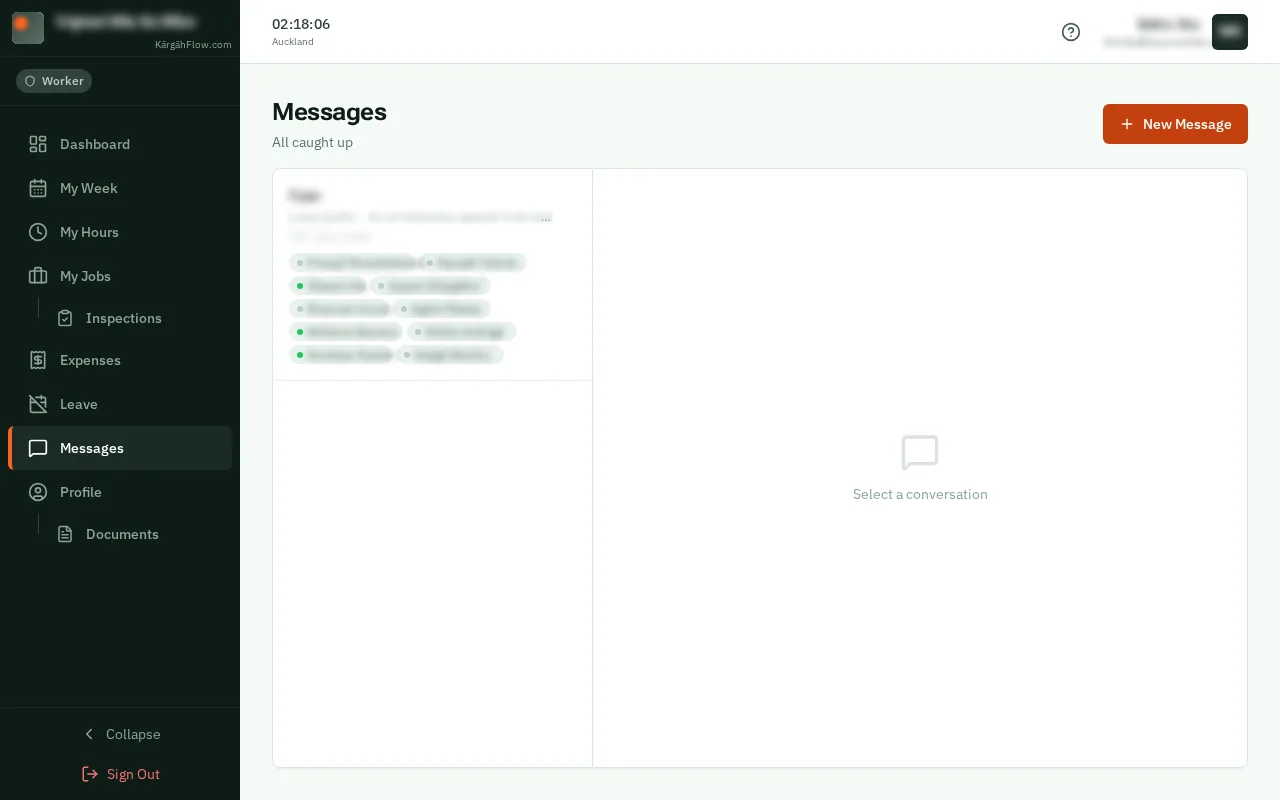
Send and read messages: the screen on a computer
Step 1 of 6
  1. Step 1: Open Messages

    TapClick Messages in the bar at the bottom of the screen.TapClick Messages in the menu on the left.

    Look forthe Messages tab in the bar at the bottom of the screen

    Good to know: Admins and owners on a phone: open the menu at the top left, then Messages.
    Open Messages
    Open Messages
  2. Step 2: Open a conversation

    Your conversations are listed, newest first. An orange number means new messages. TapClick one to read it.

    Open a conversation
    Open a conversation
  3. Step 3: Write back

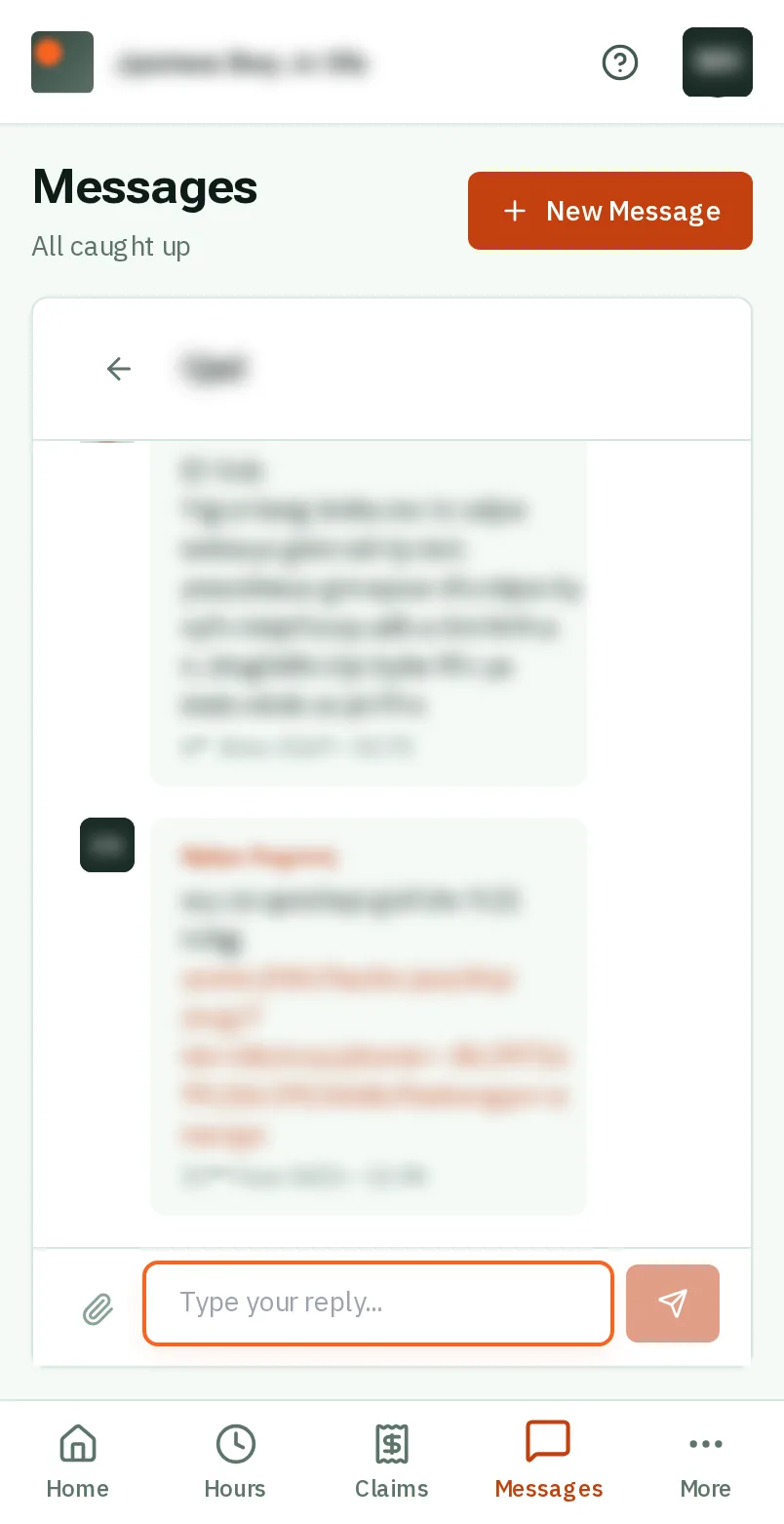
    Type your reply in the box at the bottom.

    Look forthe Type your reply... box
    Write back
    Write back
  4. Step 4: TapClick the send button

    TapClick the orange button beside the box, with the paper plane on it. Everyone in the conversation gets it, with a buzz on their phone.

    Look forthe Send button
    Tap the send button
    Click the send button
  5. Step 5: Send a photo or a PDF

    TapClick the paper clip beside the box, choose the photo or PDF, then tapclick the send button.

    Look forthe Attach file button
    Send a photo or a PDF
    Send a photo or a PDF
  6. Step 6: Start a new conversation

    TapClick New Message, type a subject, tick who it is for, write your message, and tapclick Send.

    Look forthe New Message button
    Start a new conversation
    Start a new conversation

That's it

Your team is one message away.

Next: Run your jobs on the board

Usually next

Still stuck? Ask your manager, or tap the ? at the top of any page in KārgāhFlow. Running the business and need us?