KārgāhFlow
About 1 minute 4 stepsFor crew, admins and owners

Turn on notifications

Get a buzz when your manager messages you or decides on a claim.

Turn on notifications: the screen on a phone
Step 1 of 4
  1. Step 1: Find the card on your home screen

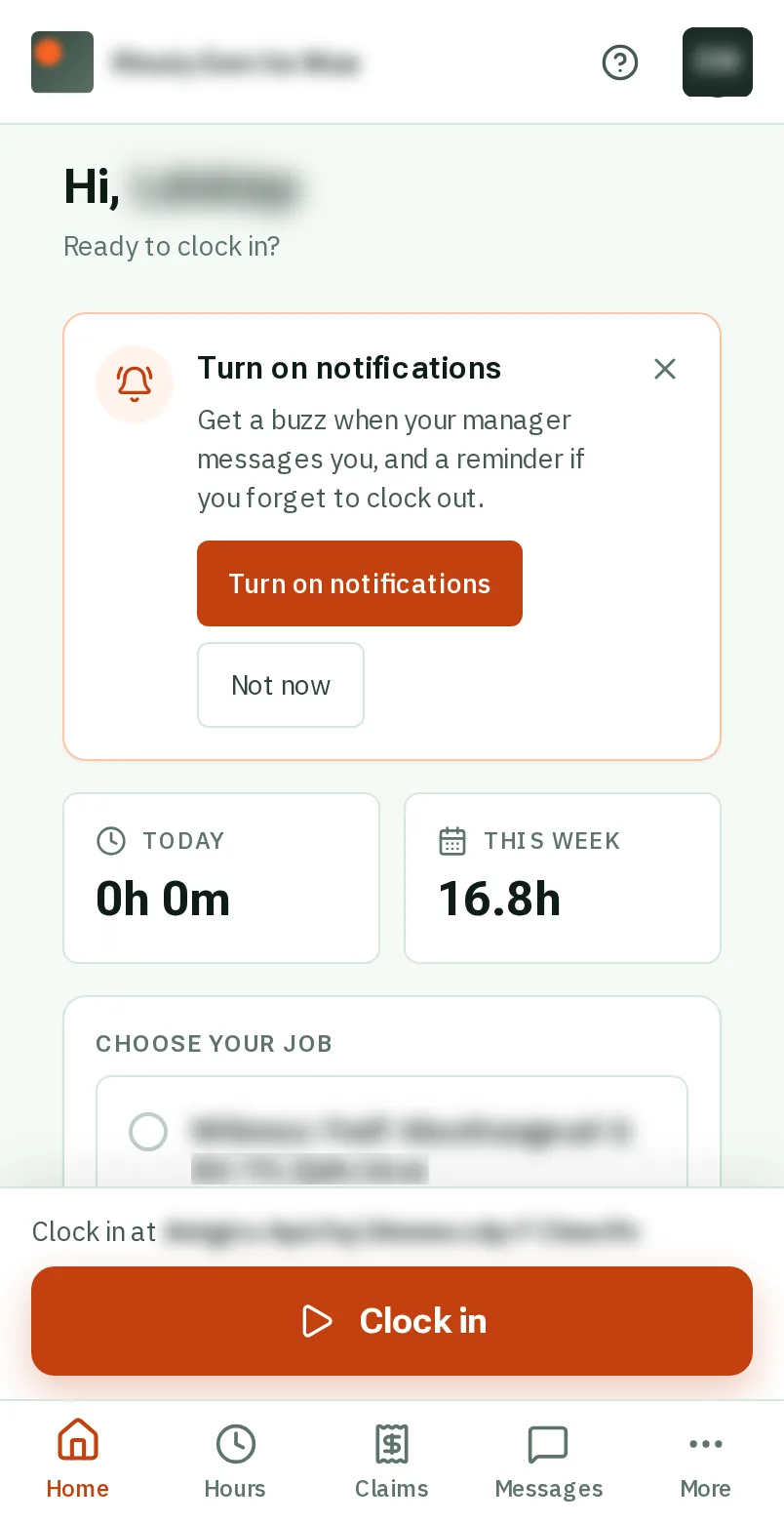
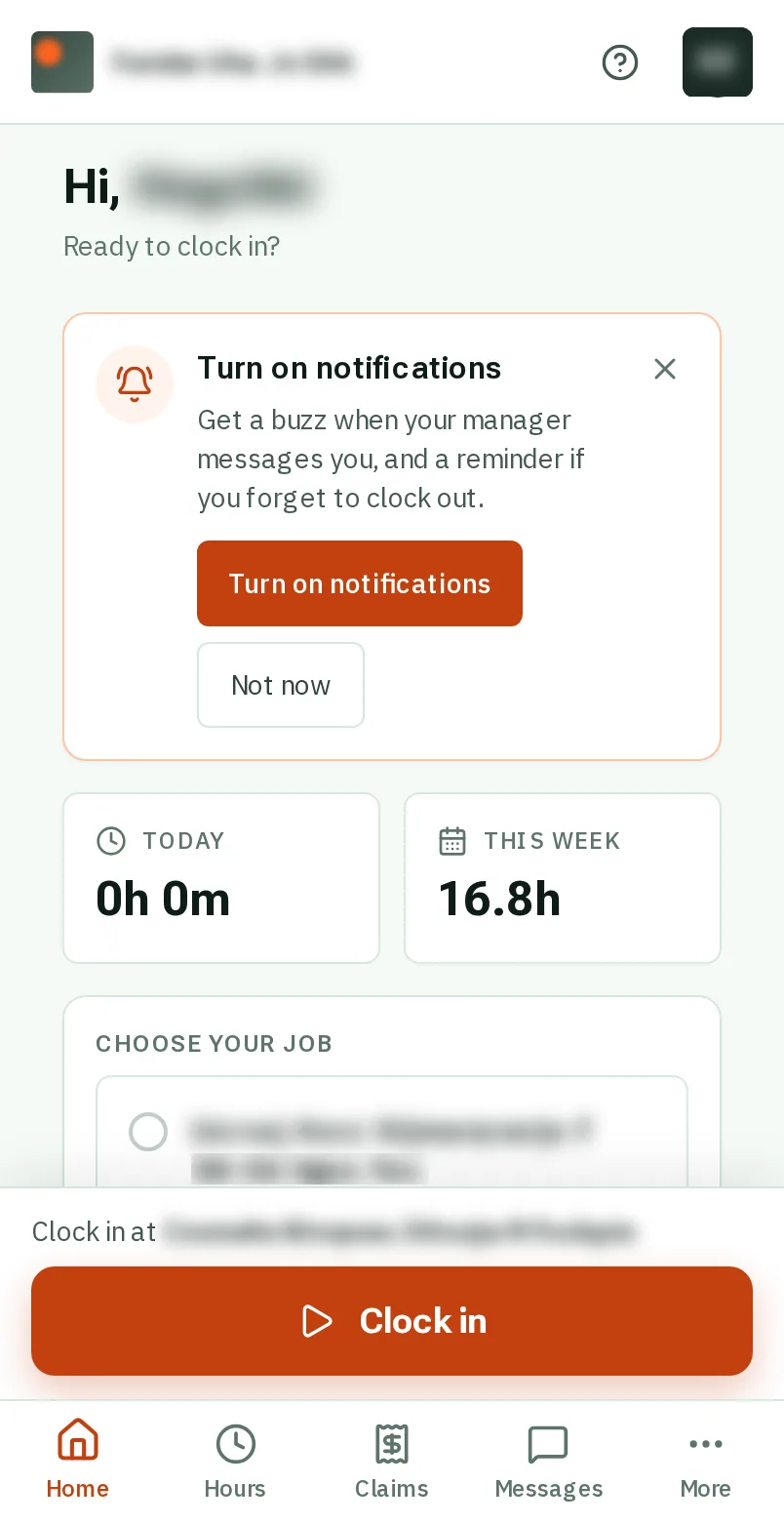
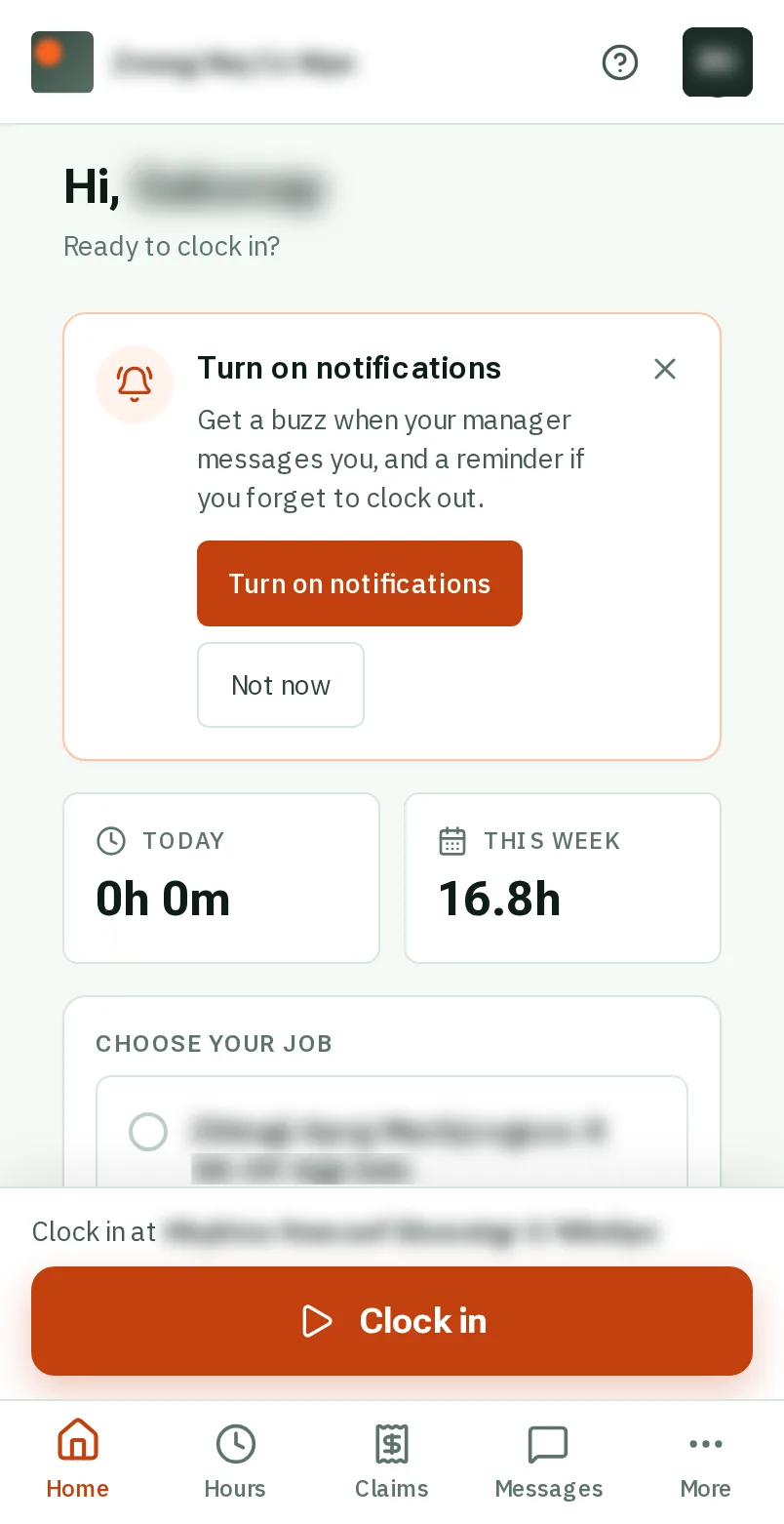
    Open KārgāhFlow. Near the top of your home screen is a card that says Turn on notifications.

    Good to know: On an iPhone, put KārgāhFlow on your home screen first: iPhones only send app notifications from there. The card shows you how.
    Find the card on your home screen
  2. Step 2: TapClick Turn on notifications

    TapClick the orange Turn on notifications button on the card.

    Look forthe Turn on notifications button
    Tap Turn on notifications
  3. Step 3: TapClick Allow

    Your phone asks if KārgāhFlow may send you notifications. TapClick Allow.

    Look forthe Allow button
    Tap Allow
  4. Step 4: Notifications are on

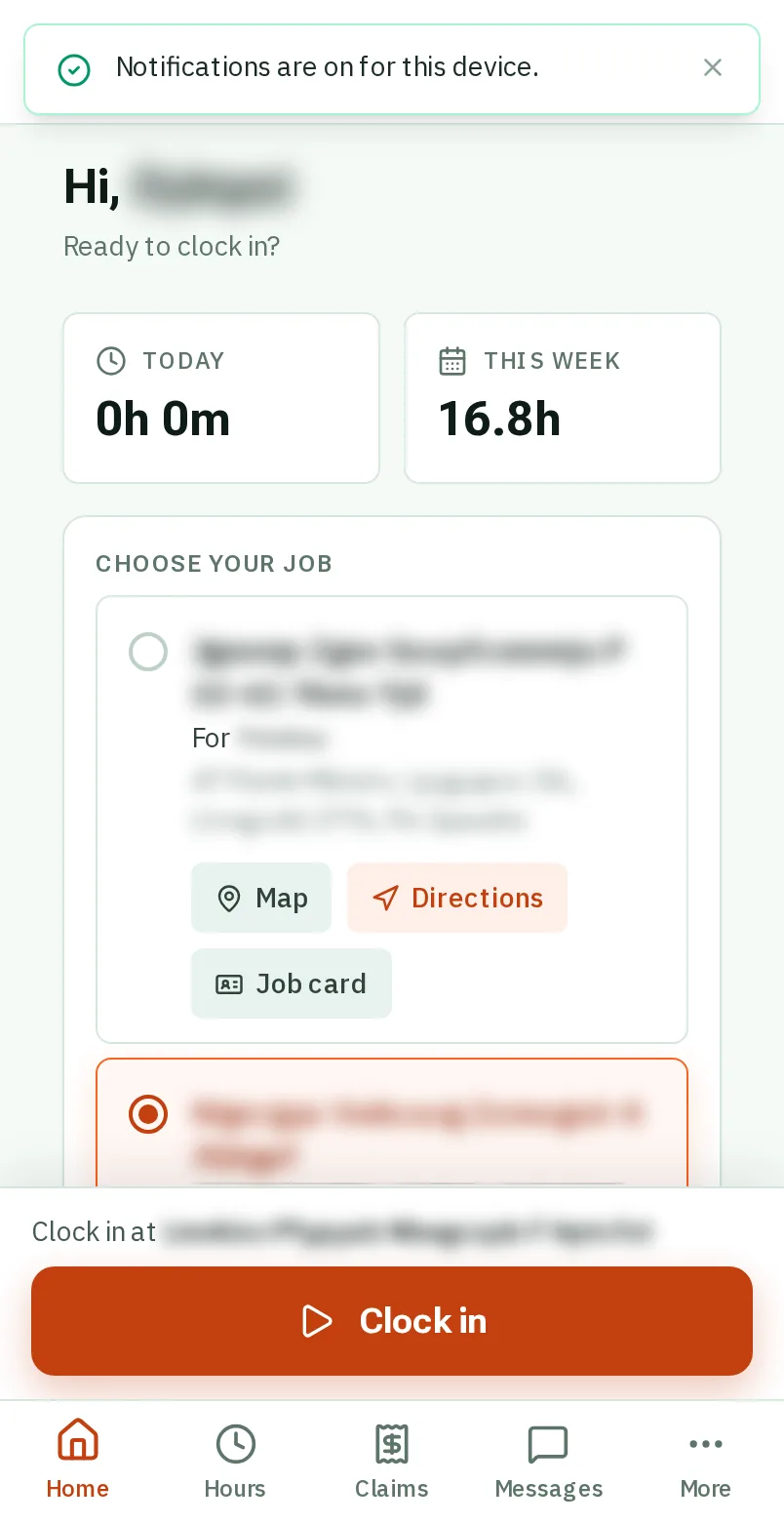
    A green line says Notifications are on for this device. Now your phone buzzes for new messages, for answers to your claims and leave, when the office changes your week, and to remind you if you forget to clock out.

    Good to know: Tapped Block by mistake? Open your phone’s settings for the internet app, find kargahflow.com, and allow notifications.

    Notifications are on

That's it

Your phone will tell you when something needs you.

Next: Find your way around