KārgāhFlow
About 2 minutes 5 stepsFor crew, admins and owners

Find your way around

What is on your home screen, and where everything else is.

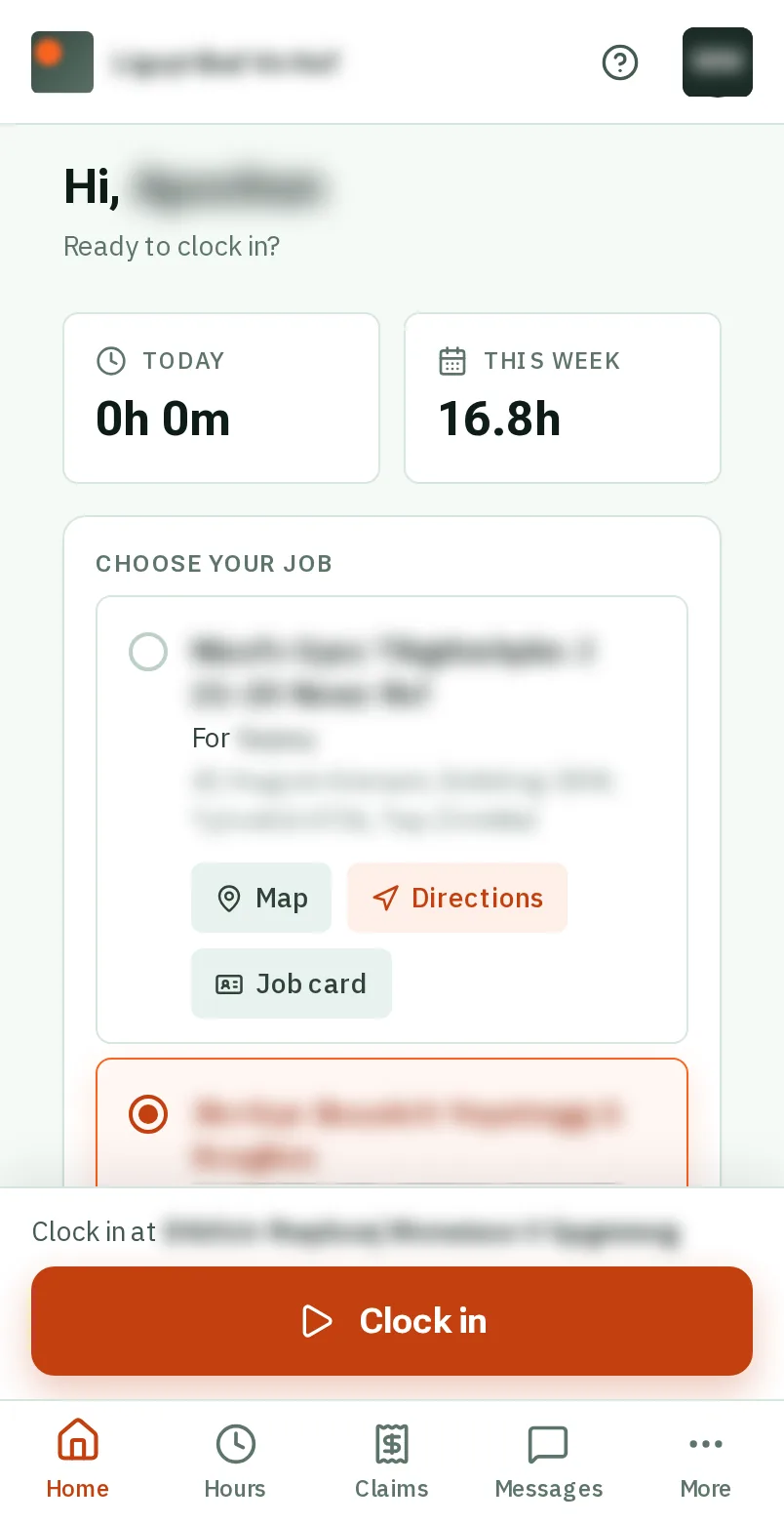
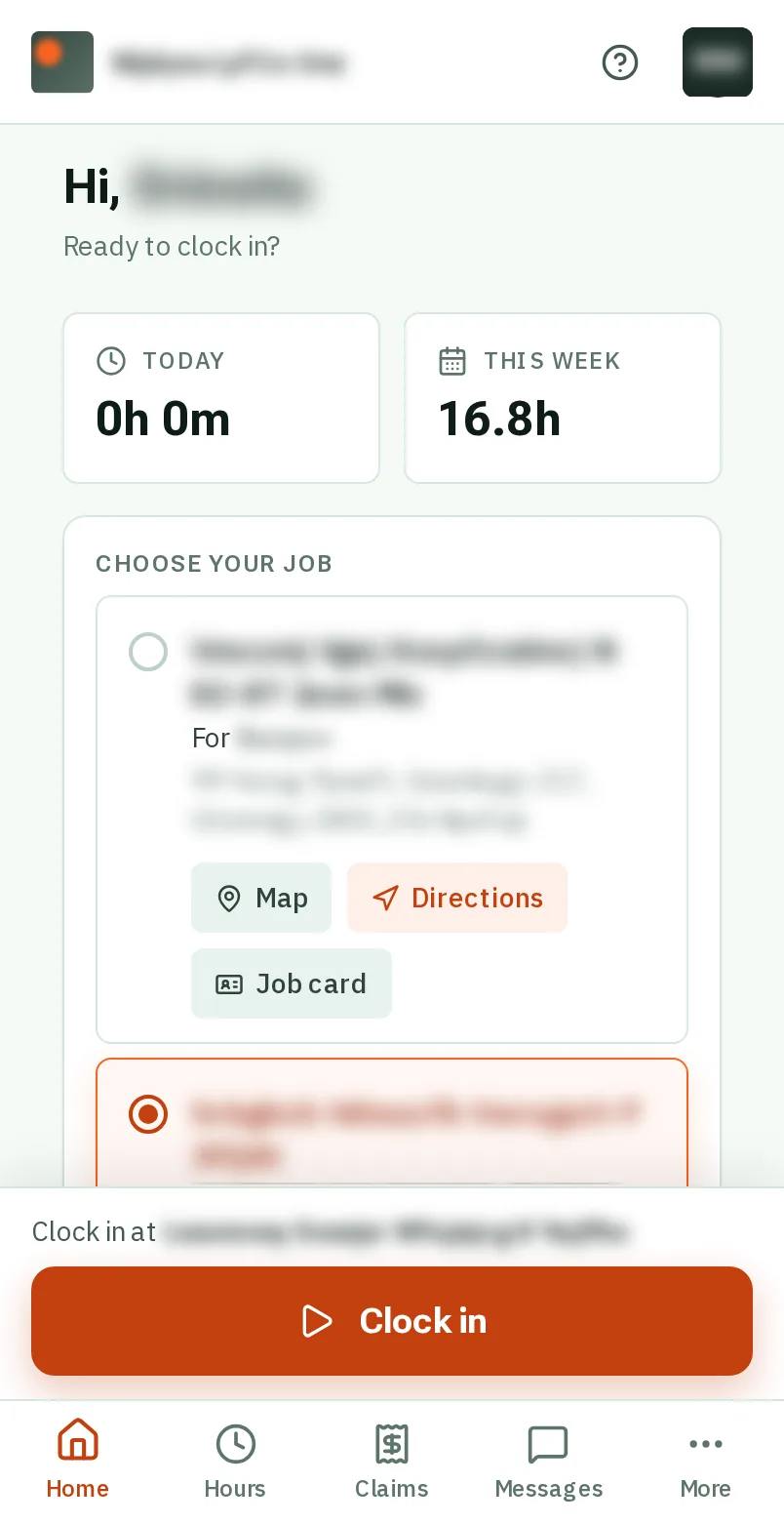
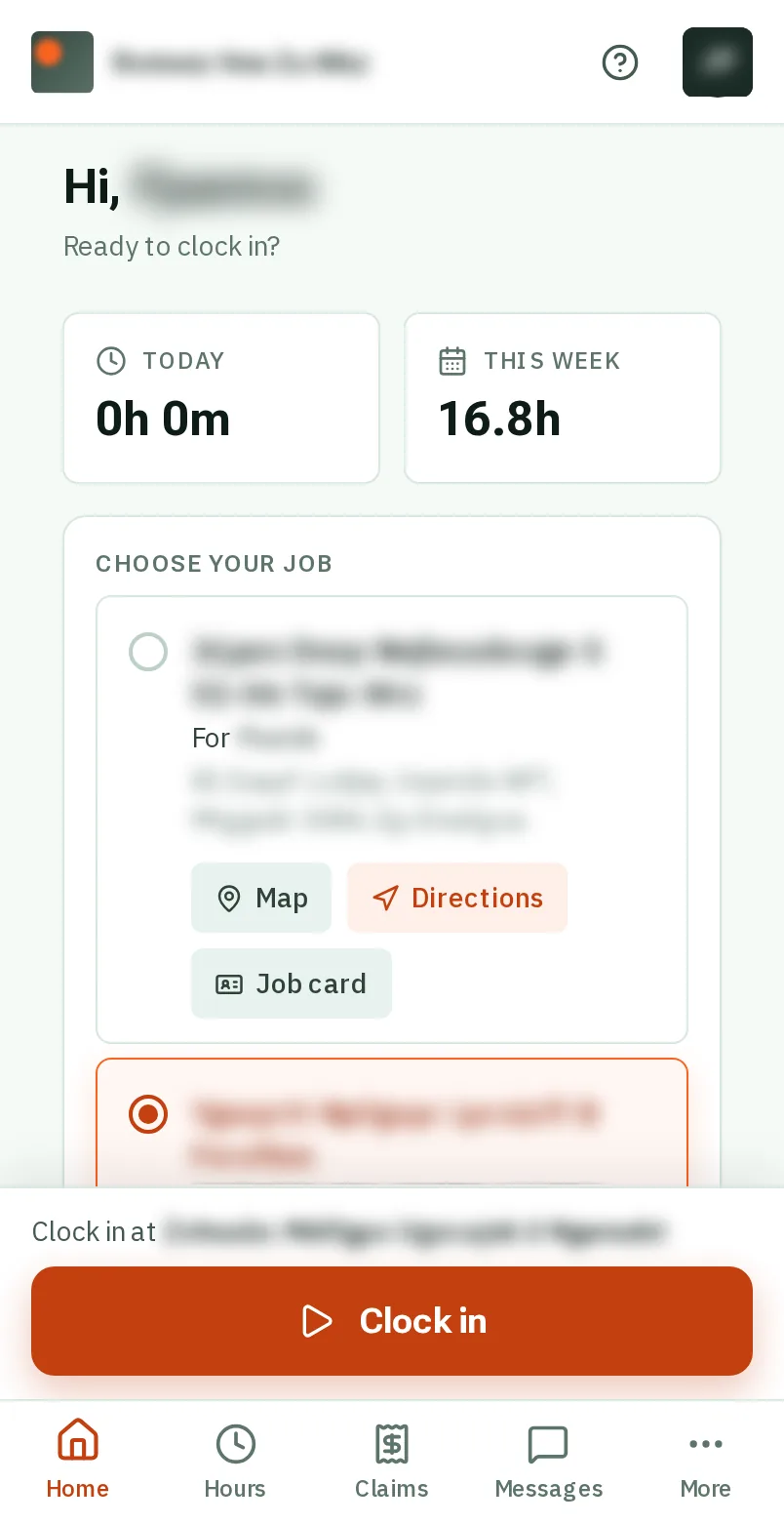
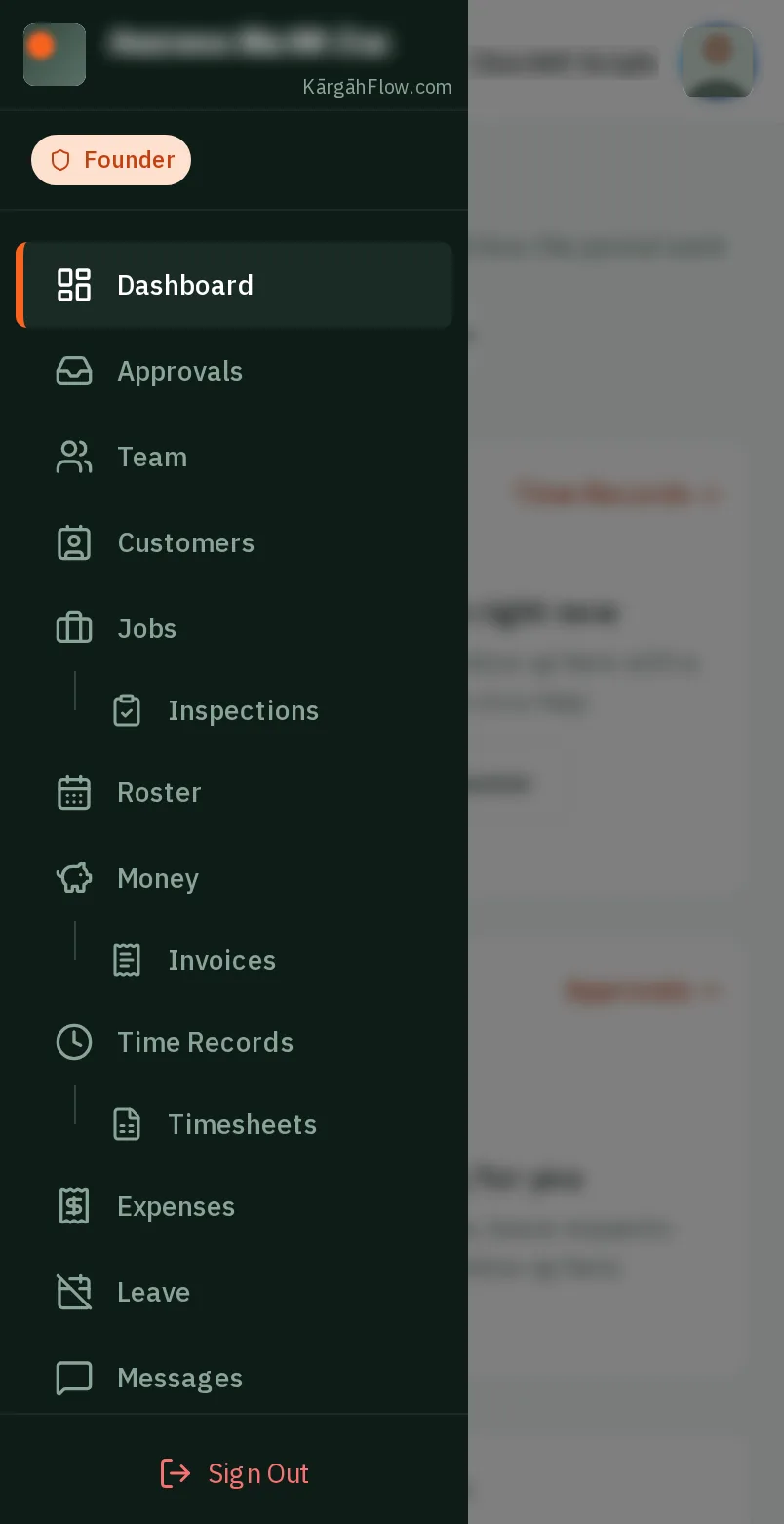
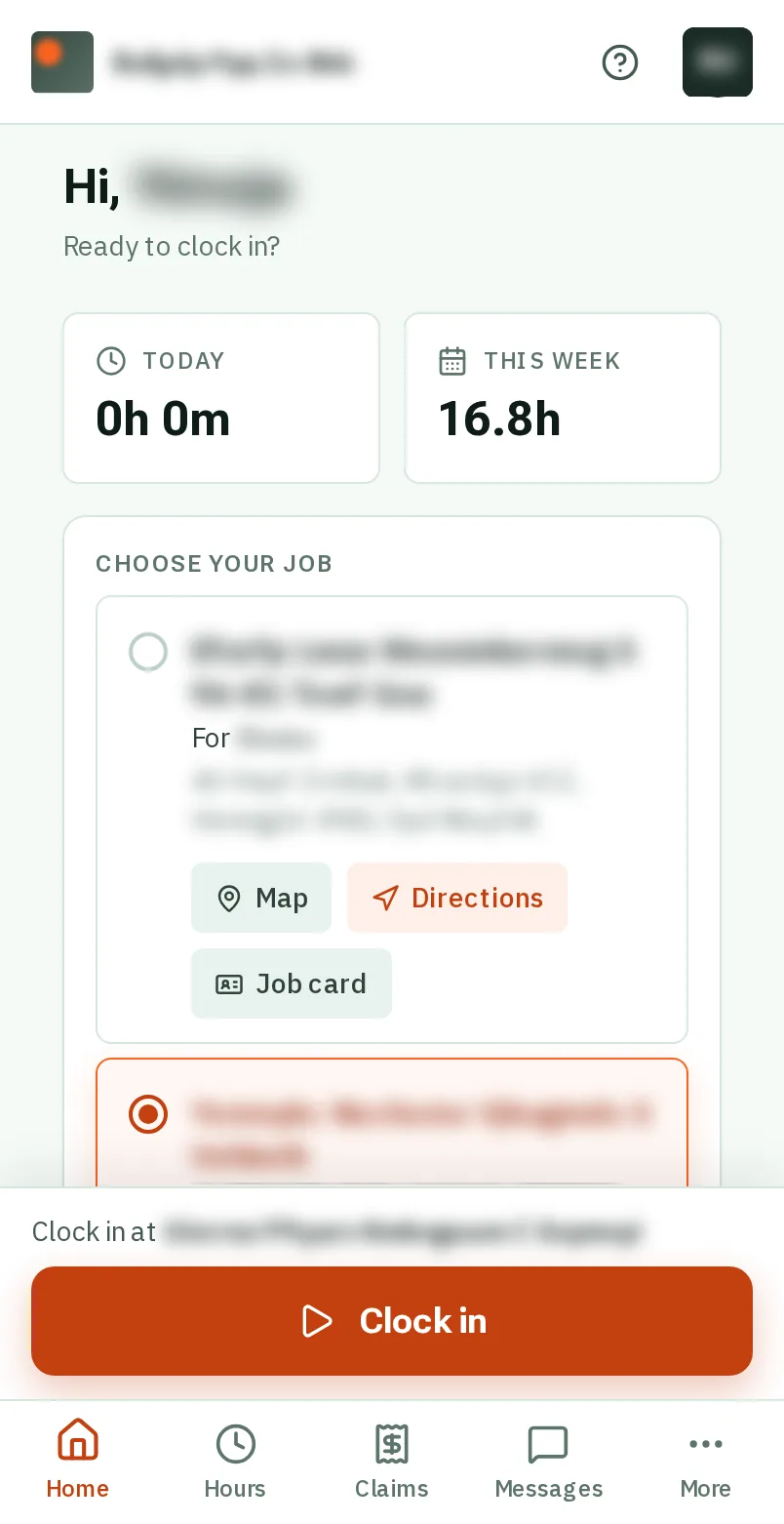
Find your way around: the screen on a phone
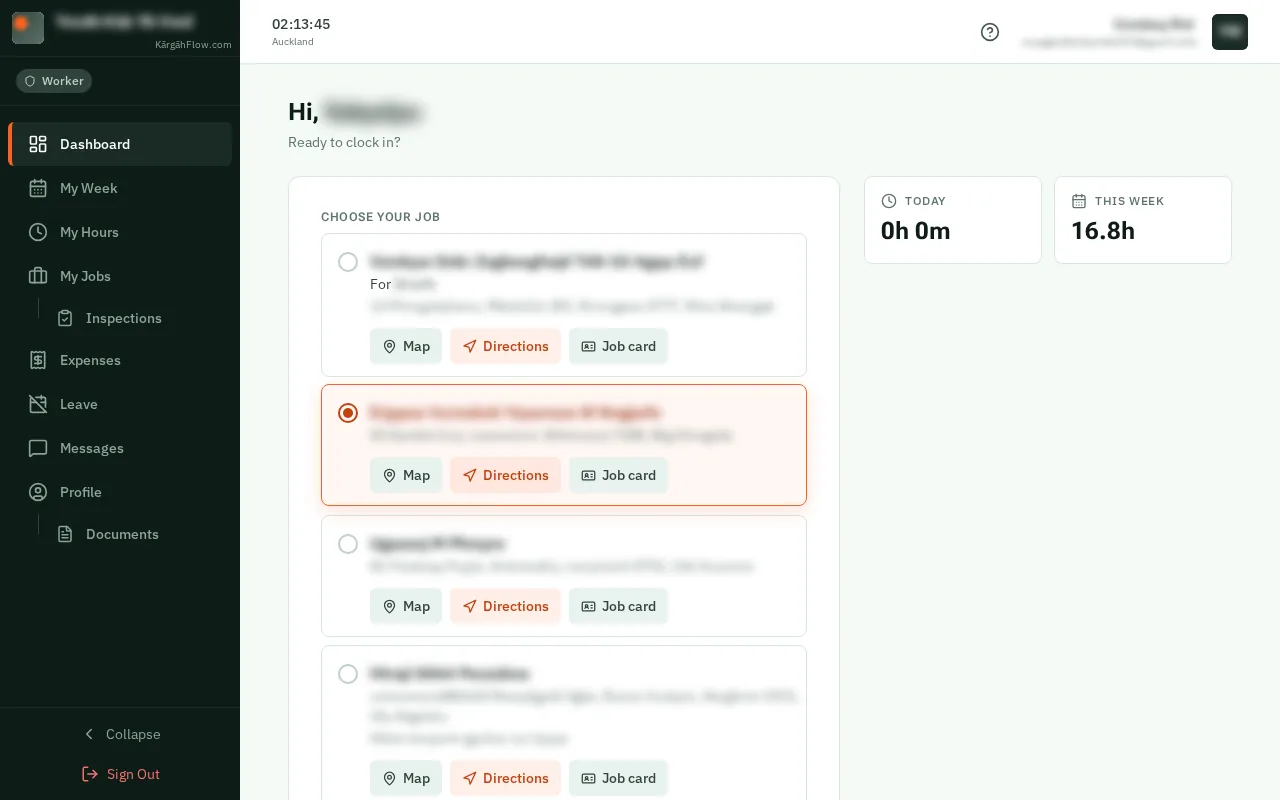
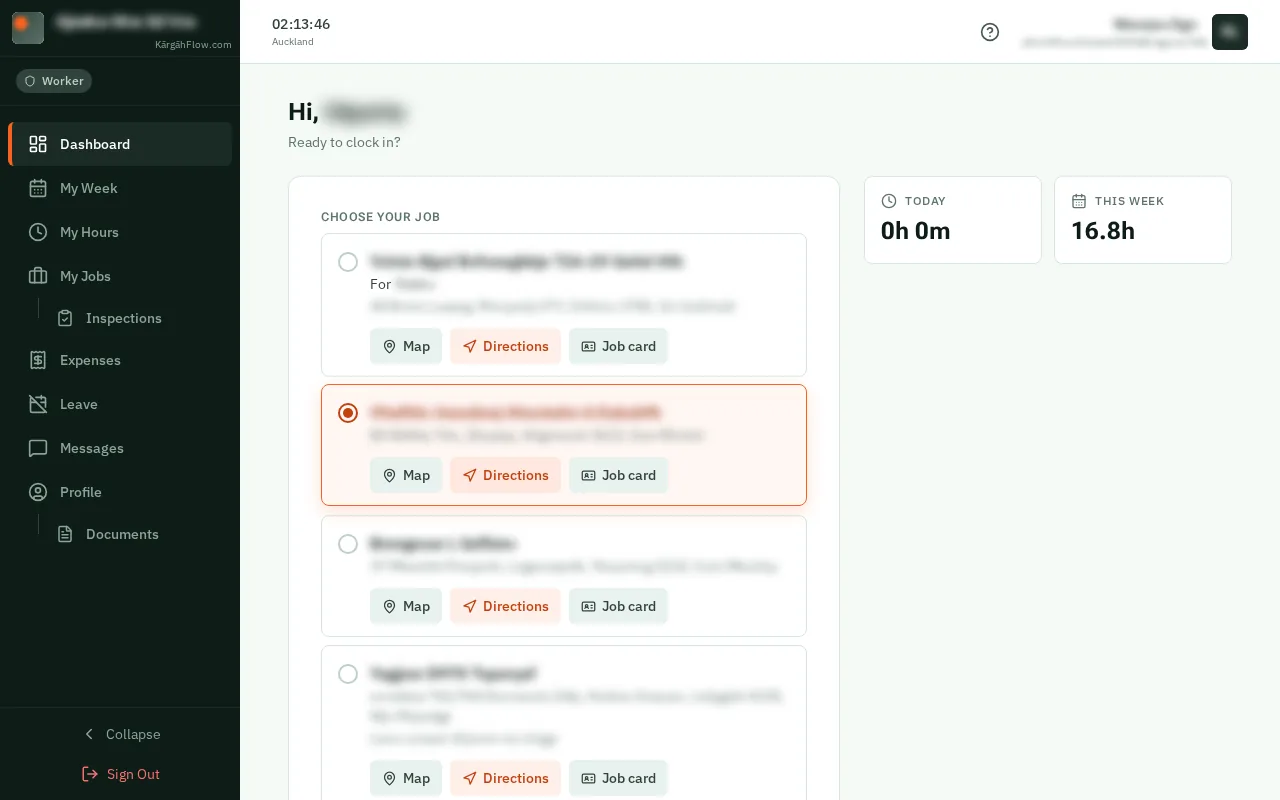
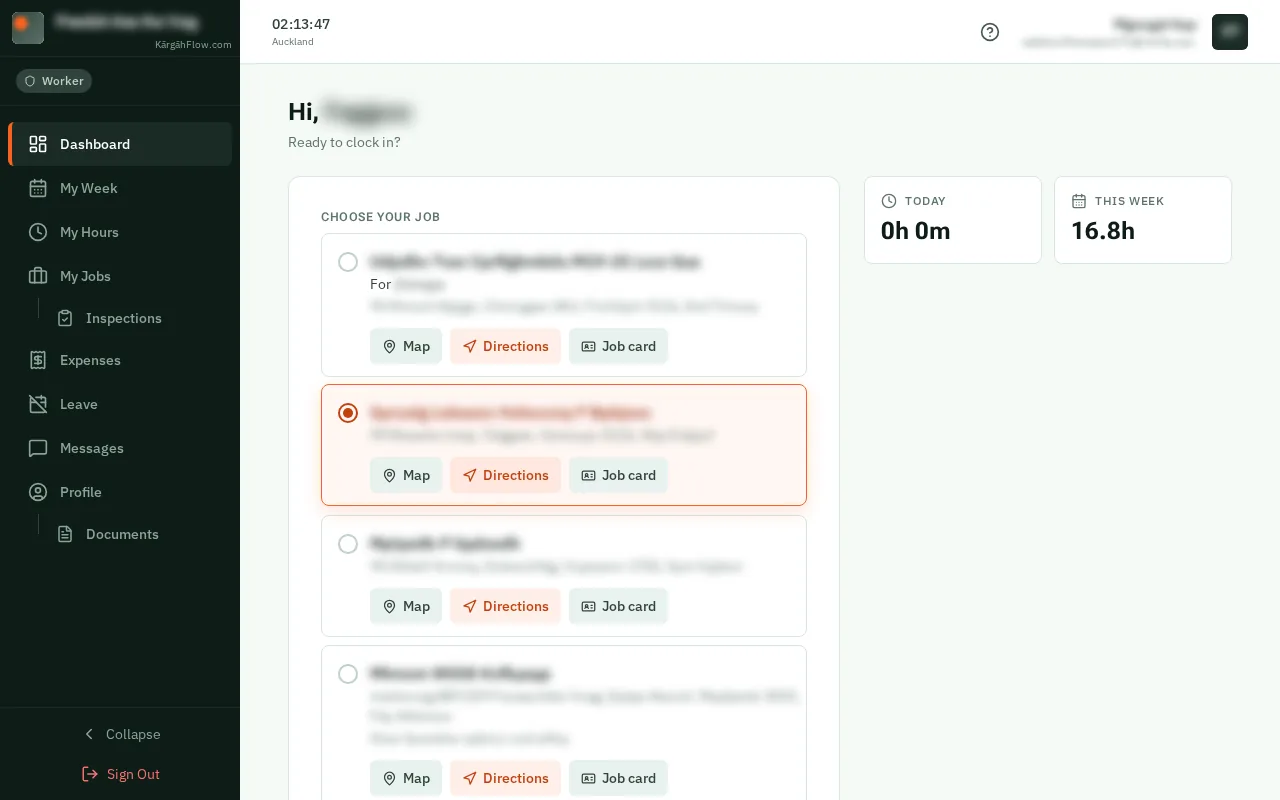
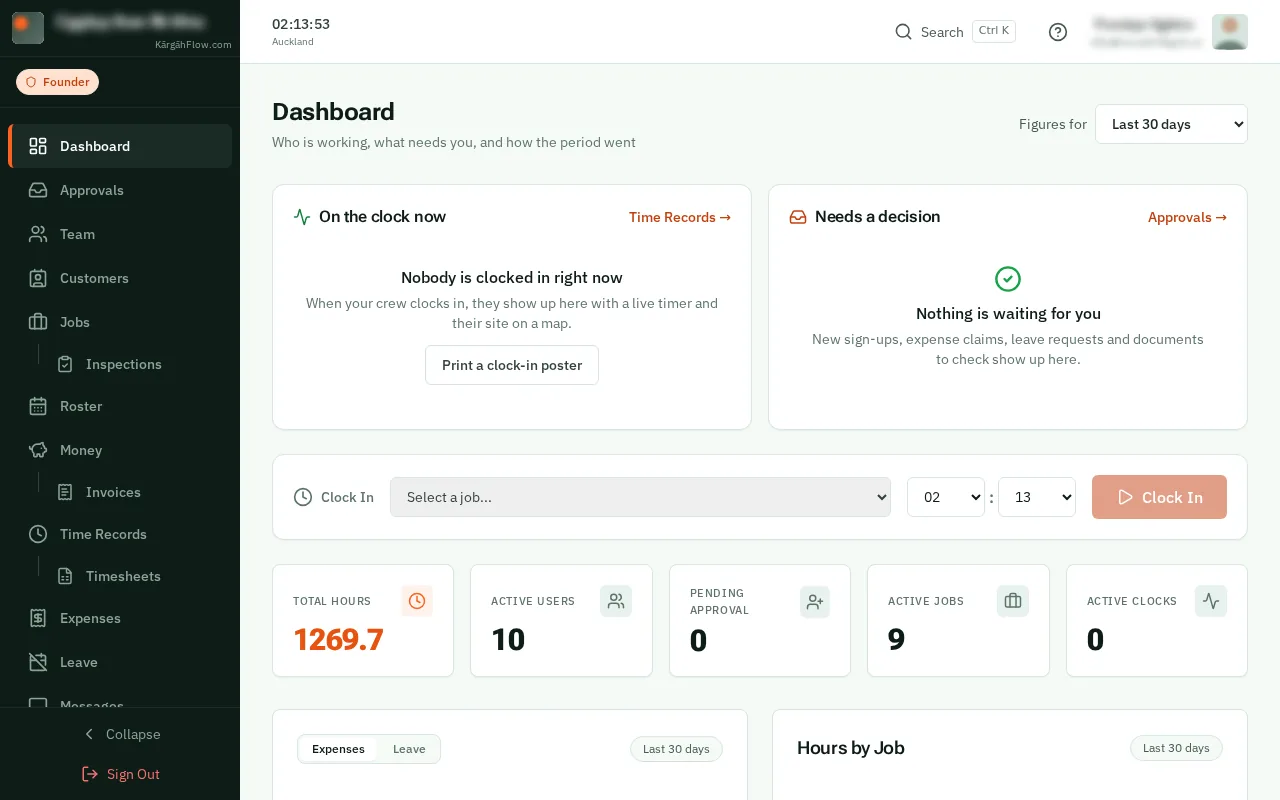
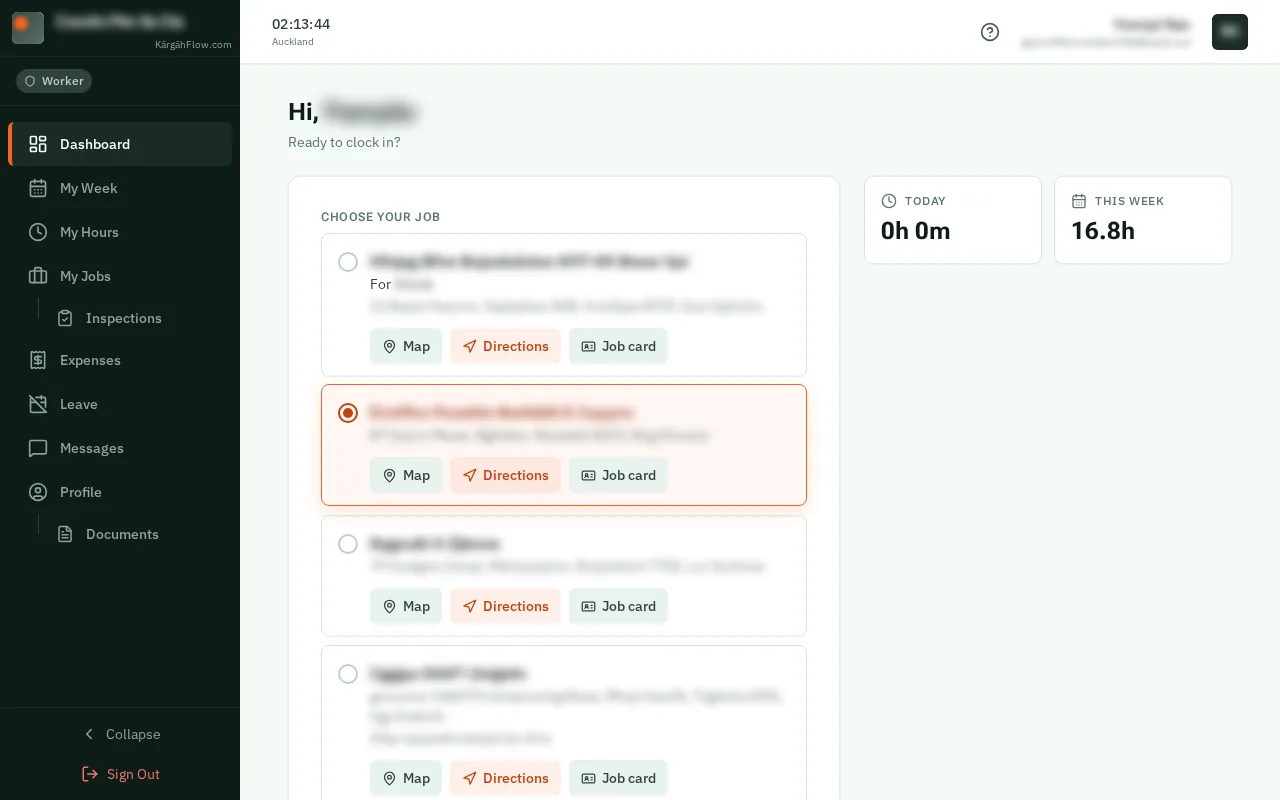
Find your way around: the screen on a computer
Step 1 of 5
  1. Step 1: Your home screen

    KārgāhFlow opens on Home: your hours today and this week, your jobs, and the button to clock in.KārgāhFlow opens on your Dashboard: your jobs and the button to clock in on the left, and your hours today and this week on the right.
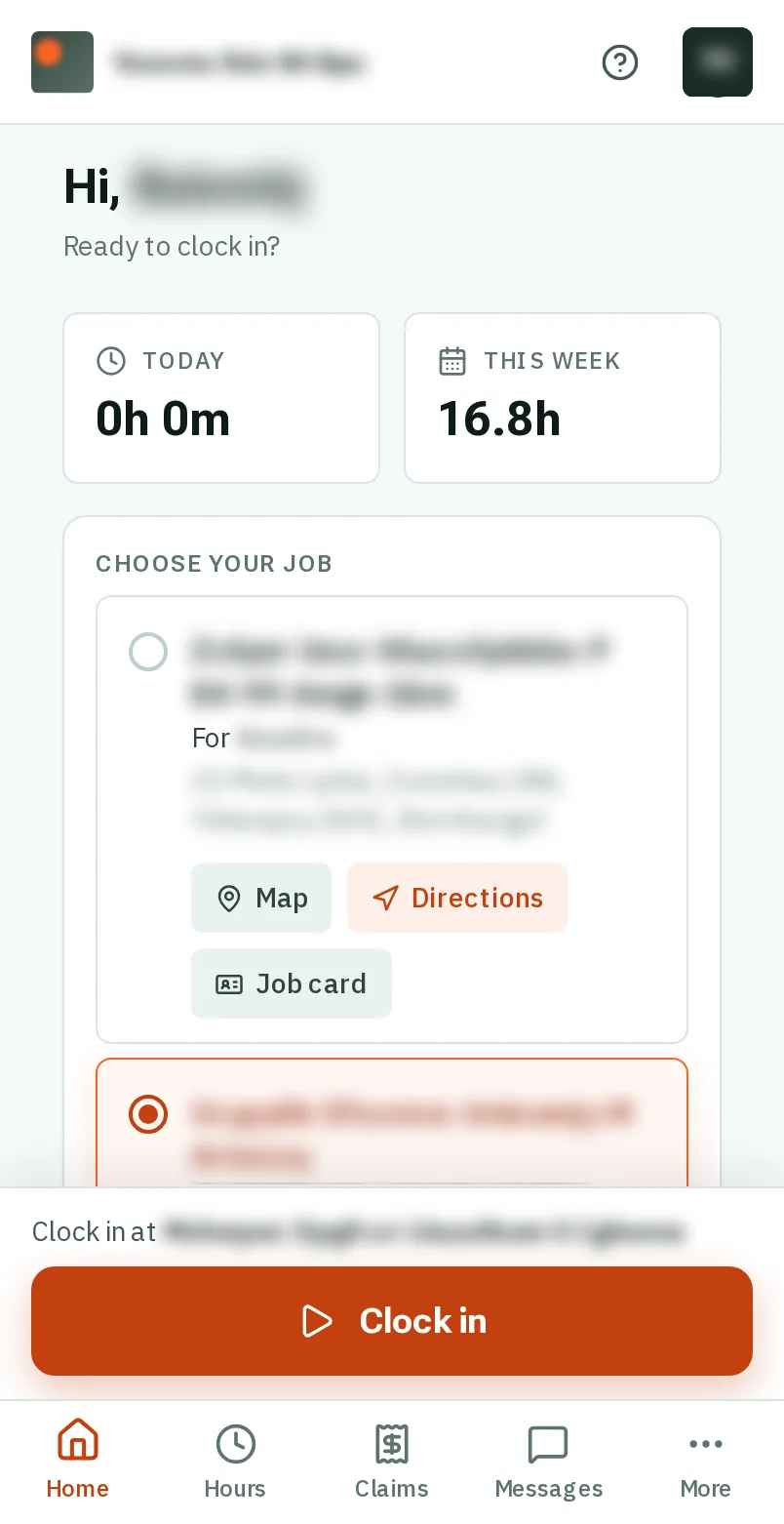
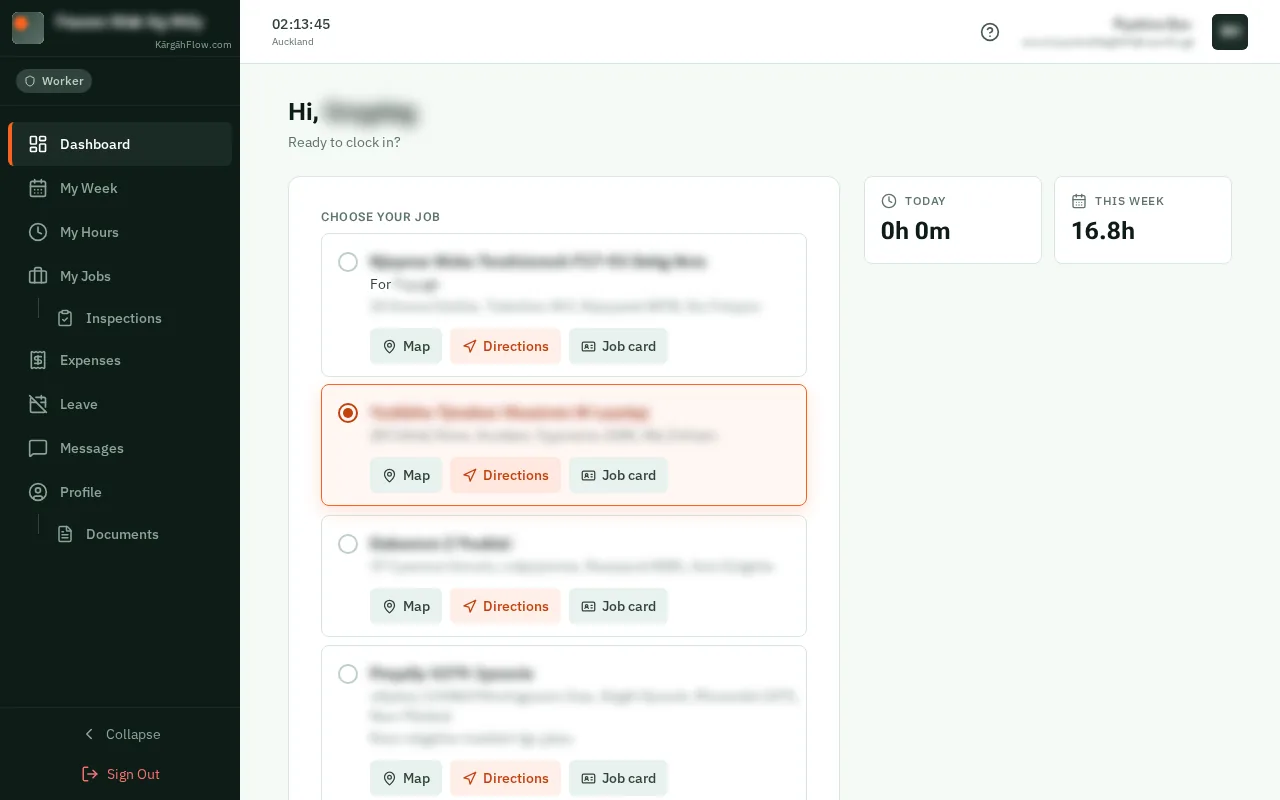
    Your home screen
    Your home screen
  2. Step 2: Move around

    The bar along the bottom takes you everywhere: Home, Hours, Claims, Messages and More. TapClick one to open it.The menu on the left lists every page: Dashboard, My Week, My Hours, My Jobs, Inspections, Expenses, Leave, Messages and Profile. TapClick one to open it.

    Look forthe Hours tab in the bar at the bottom of the screen
    Move around
    Move around
  3. Step 3: More, and signing out

    TapClick More for your week on the roster, your jobs, your inspections, your documents, your profile, and Sign Out.Sign Out is at the very bottom of the menu on the left.

    Look forthe More tab in the bar at the bottom of the screen

    Good to know: On your own phone you never need to sign out. Do sign out on a phone or tablet other people use.

    More, and signing out
    More, and signing out
  4. Step 4: Help on every page

    TapClick the ? at the top of any page for help with that page, and a link to its guide here.

    Look forthe Help button

    Good to know: KārgāhFlow makes small sounds as you use it. To turn them off, tapclick the ? Help button at the top of the page, then Sounds.

    Help on every page
    Help on every page
  5. Step 5: Admins and owners

    Your menu is behind the button at the top left of the screen: tapclick it to see every page. The bell beside the ? counts what is waiting for you to approve.Your menu lists every page, from Approvals to Settings, with your Customers, the Jobs board, Inspections and the Roster. The bell at the top counts what is waiting for you, and Search finds any page, person or job.

    Admins and owners
    Admins and owners

That's it

You know your way around. Every page has a ? at the top if you get stuck.

Next: Your profile and password