Step 1: Open the job card
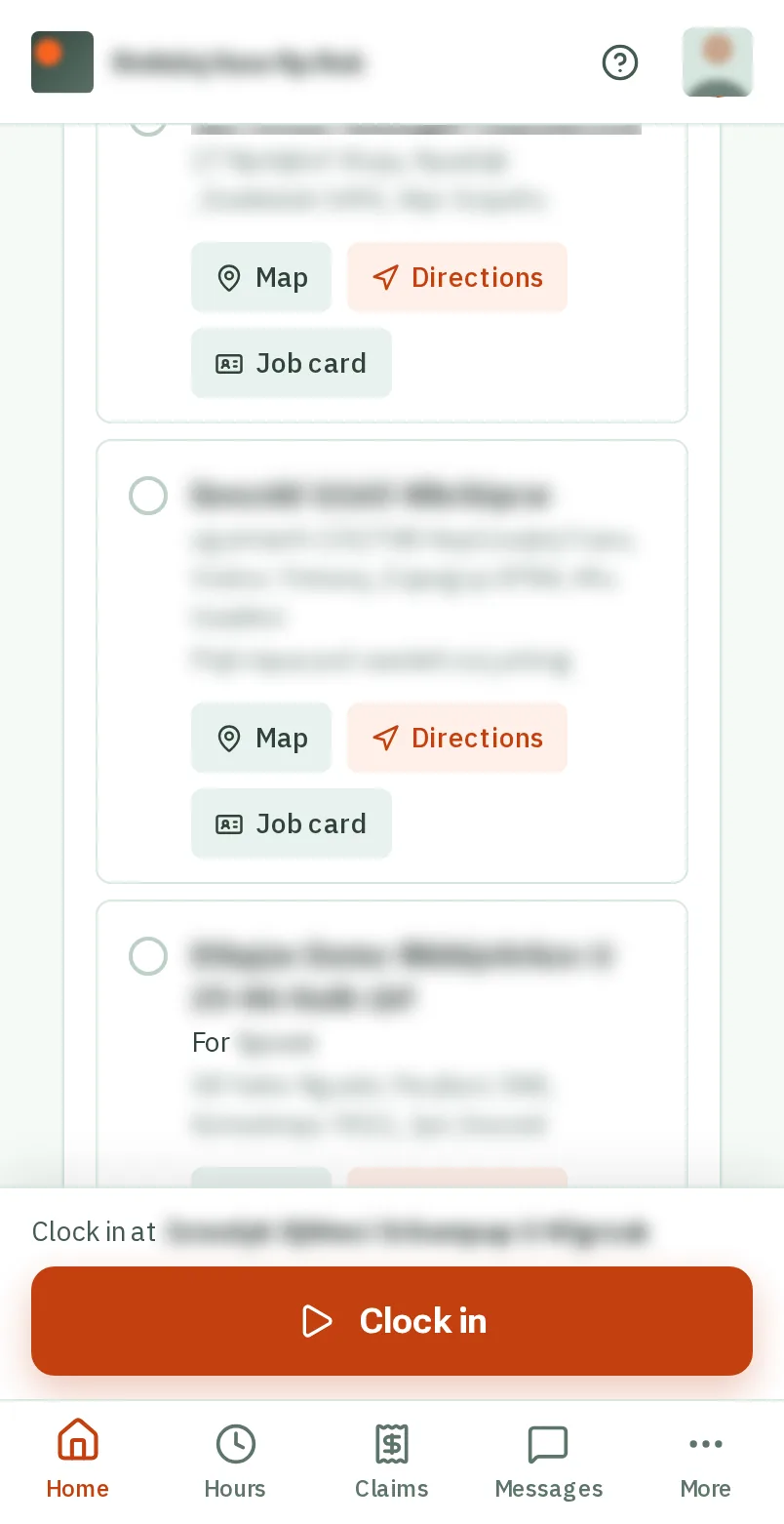
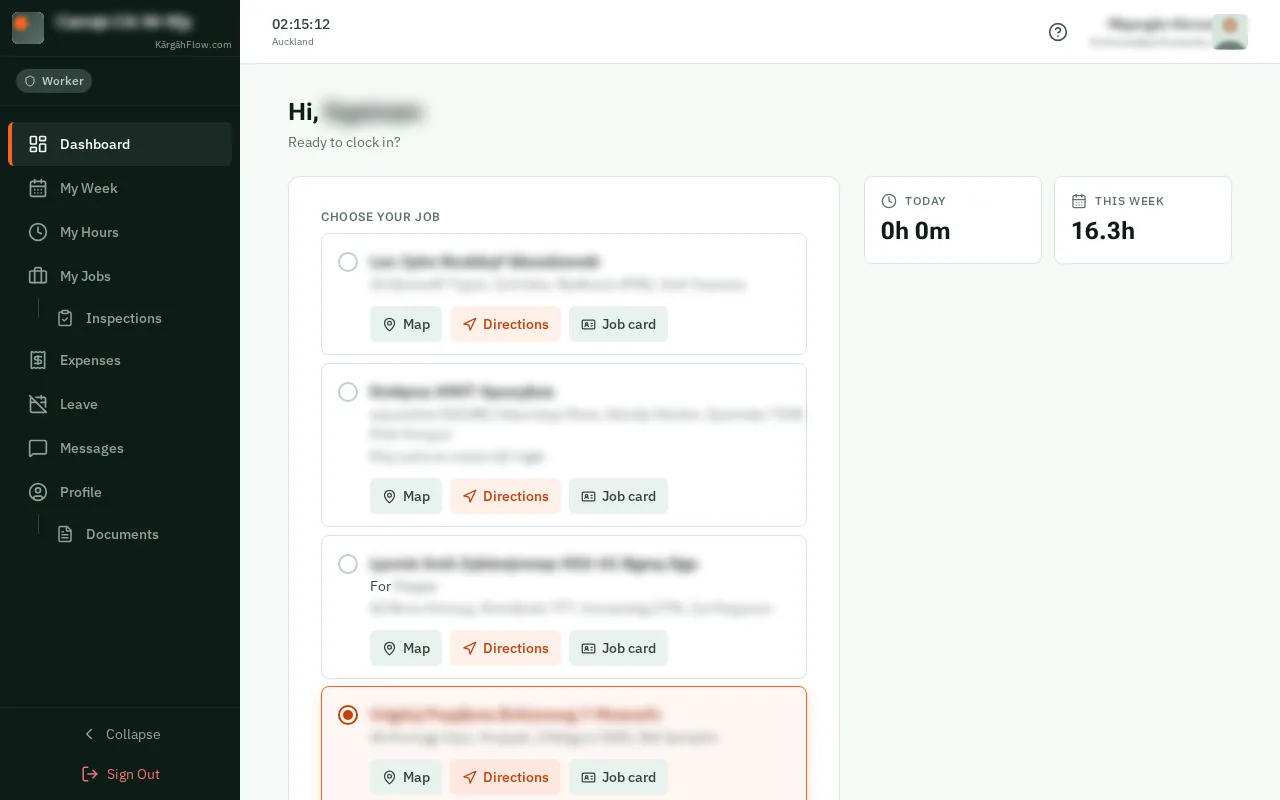
On your Home screen, tapclick Job card under the job. All your jobs are also under More, My Jobs.On your Dashboard, tapclick Job card under the job. All your jobs are also under My Jobs in the menu.


Bought something for a job? Add the receipt on the job’s card, whoever paid for it.
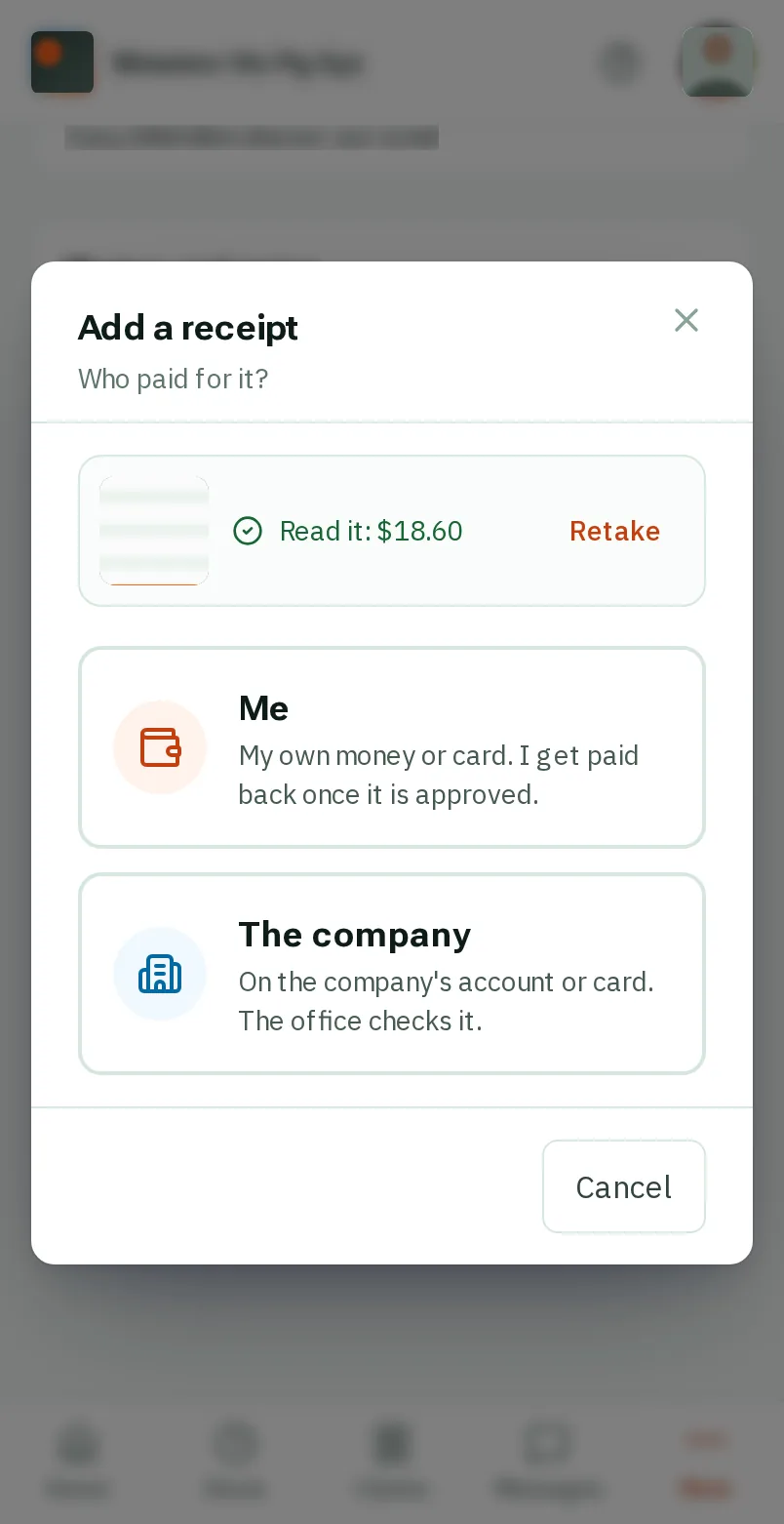
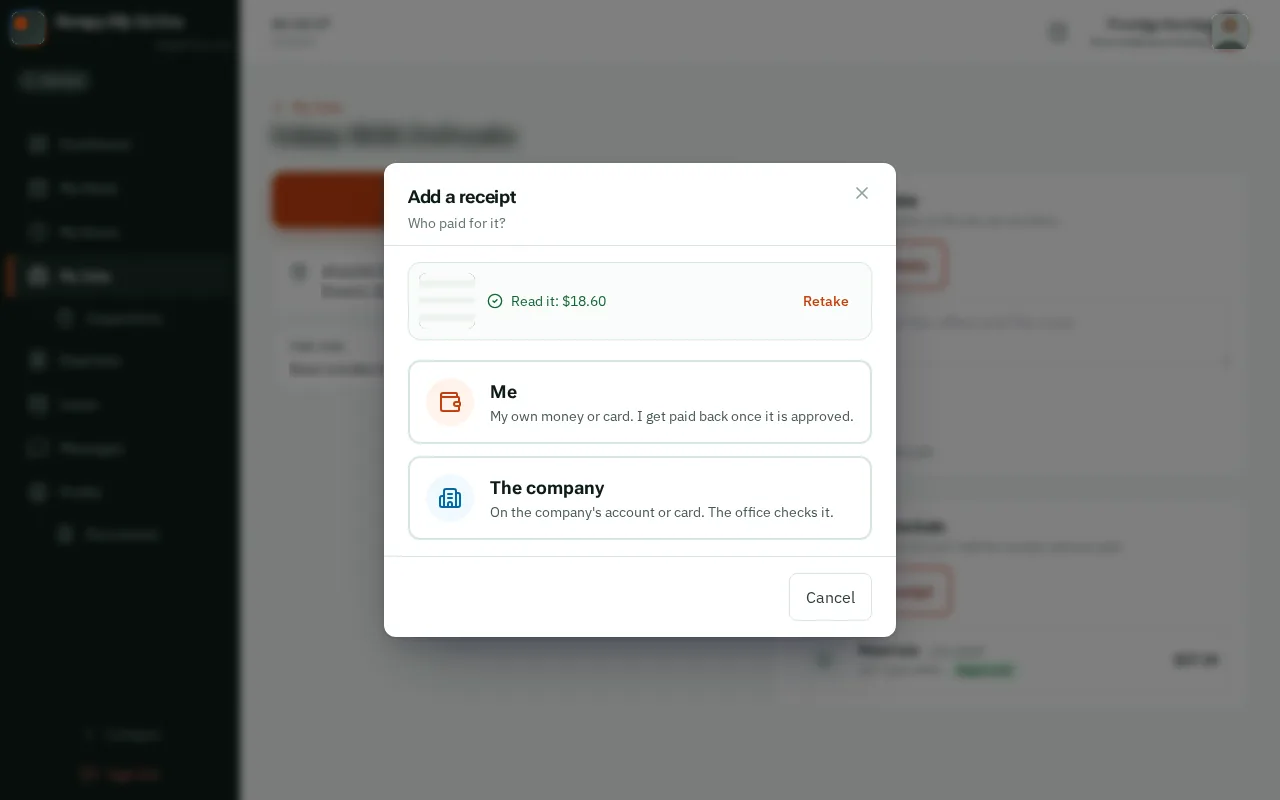
If you paid, you are paid back once it is approved. If the company paid, the office checks it and puts it on the job.
On your Home screen, tapclick Job card under the job. All your jobs are also under More, My Jobs.On your Dashboard, tapclick Job card under the job. All your jobs are also under My Jobs in the menu.


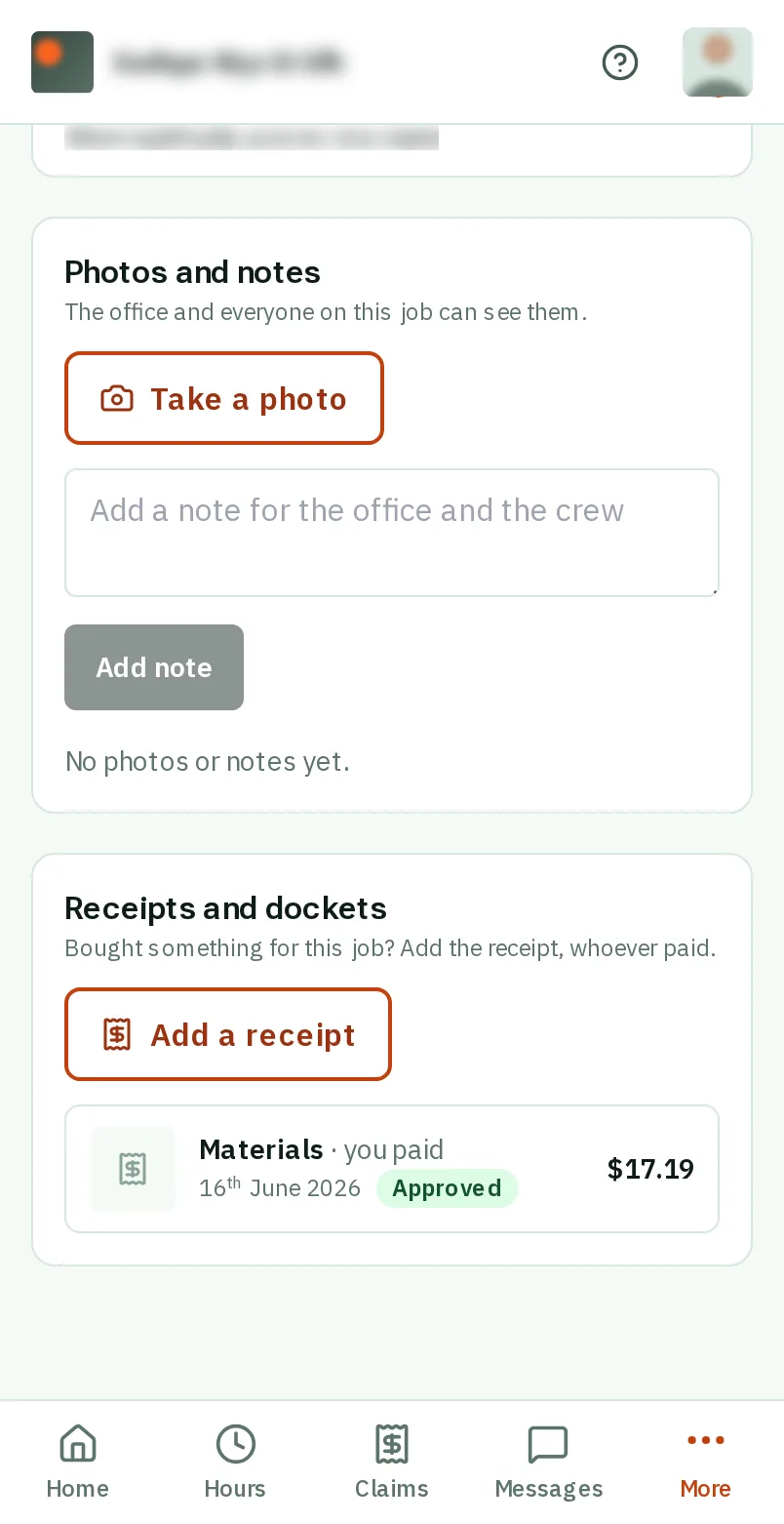
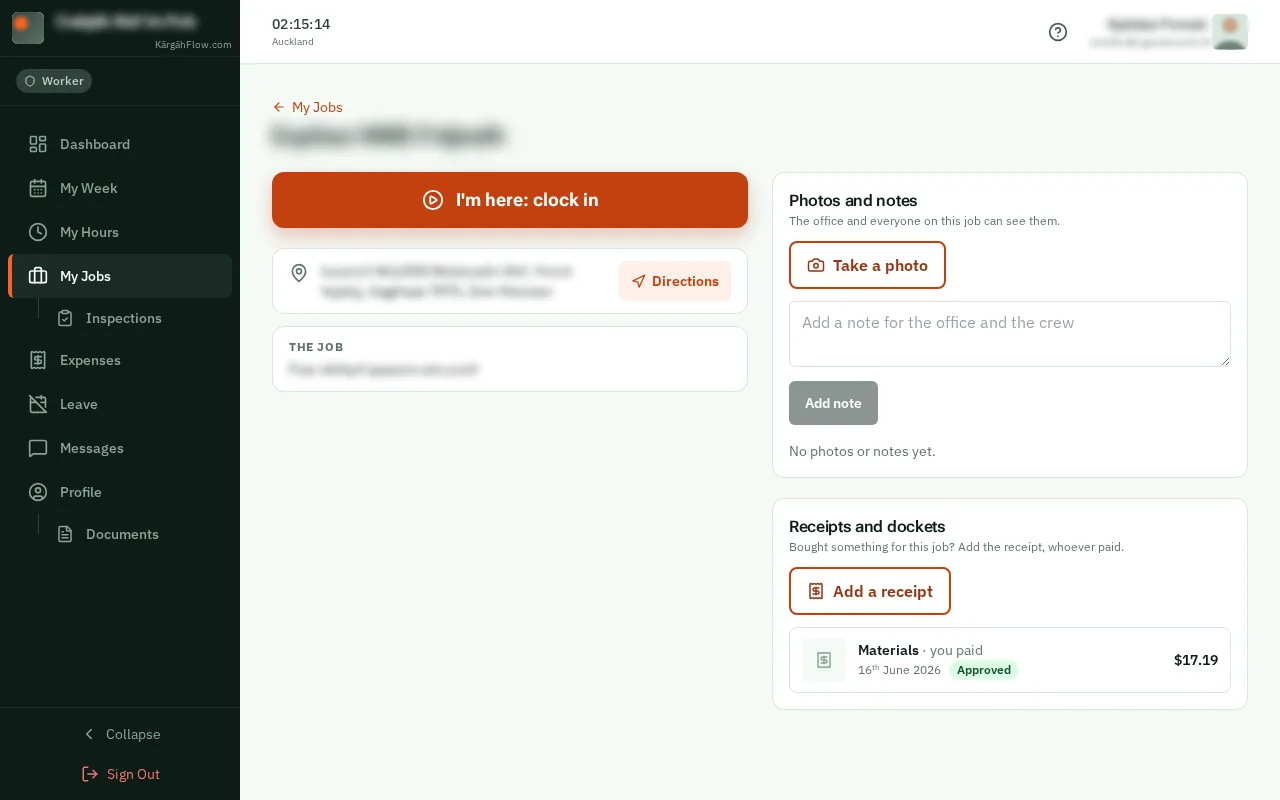
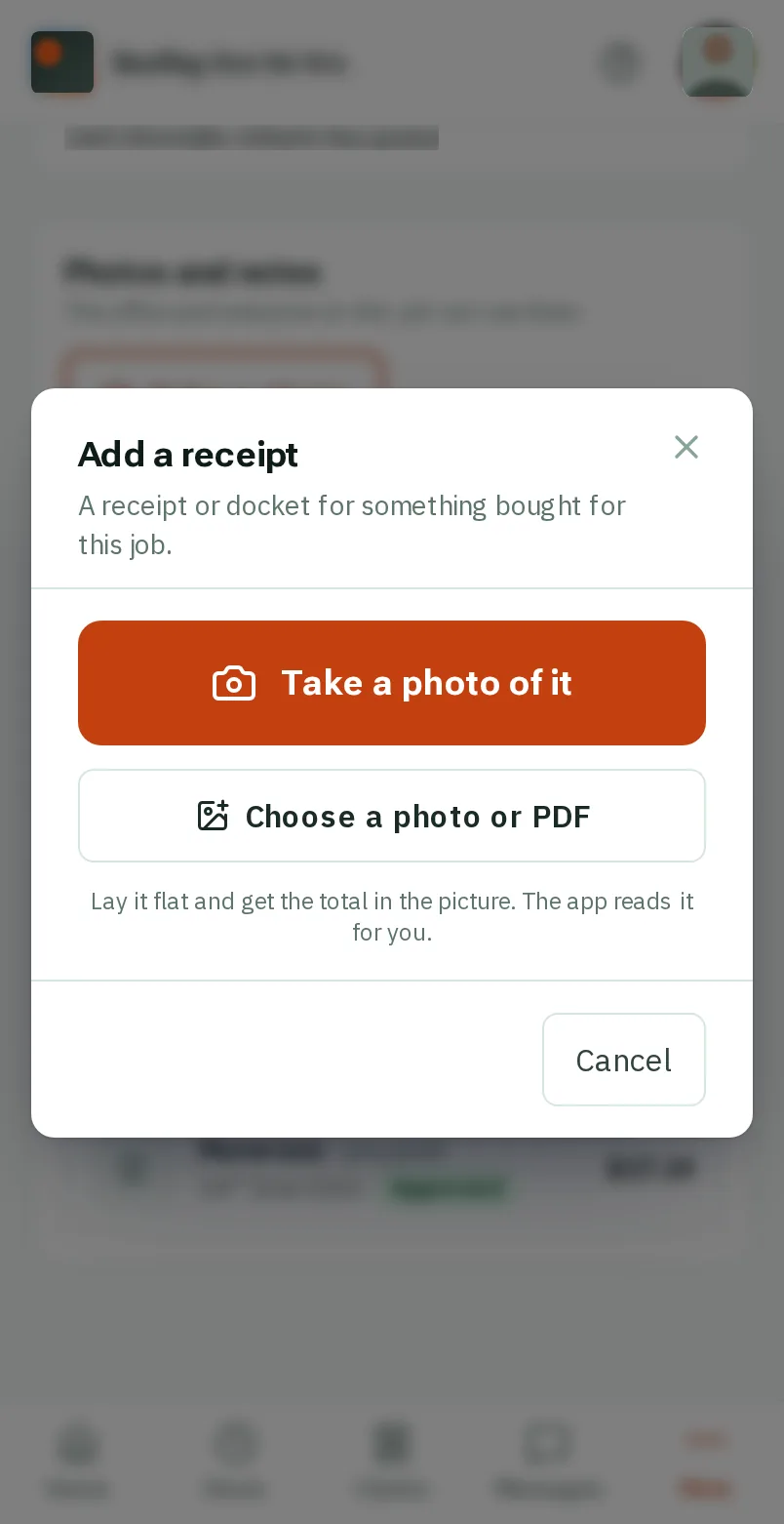
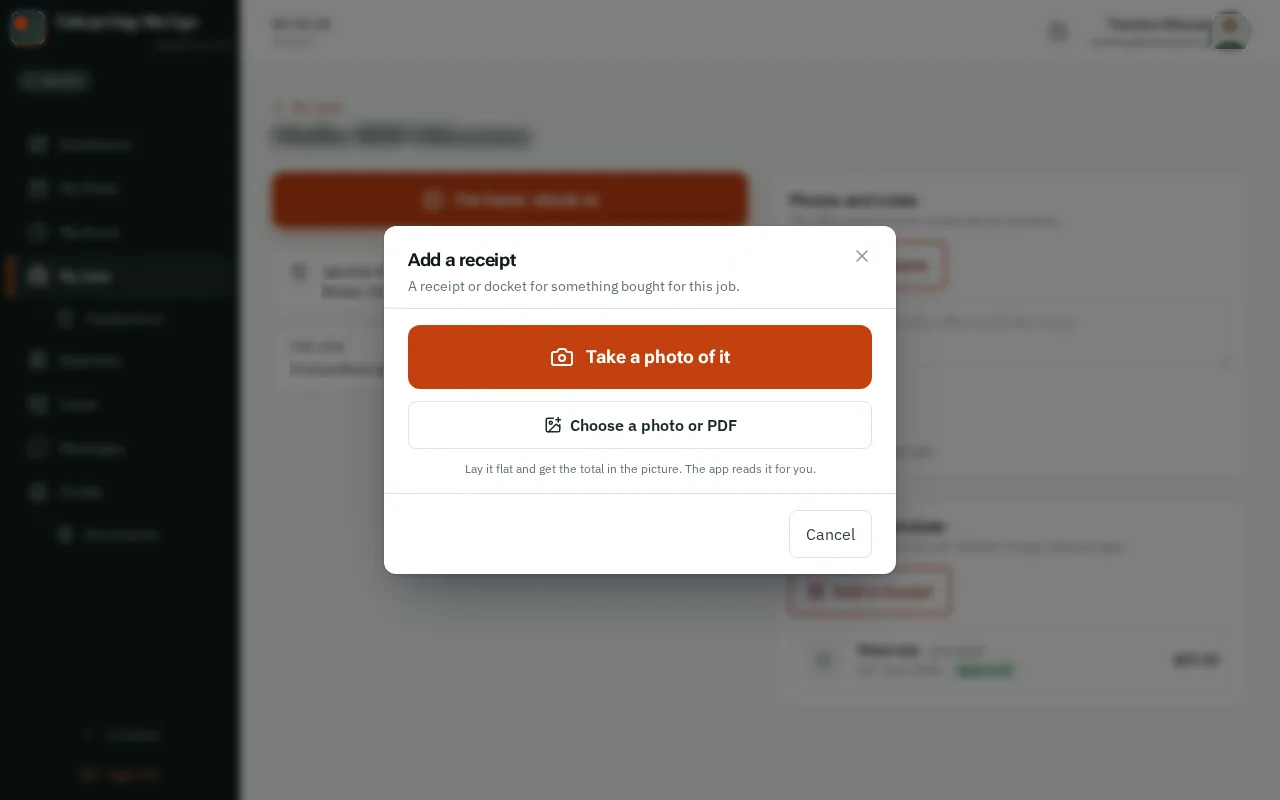
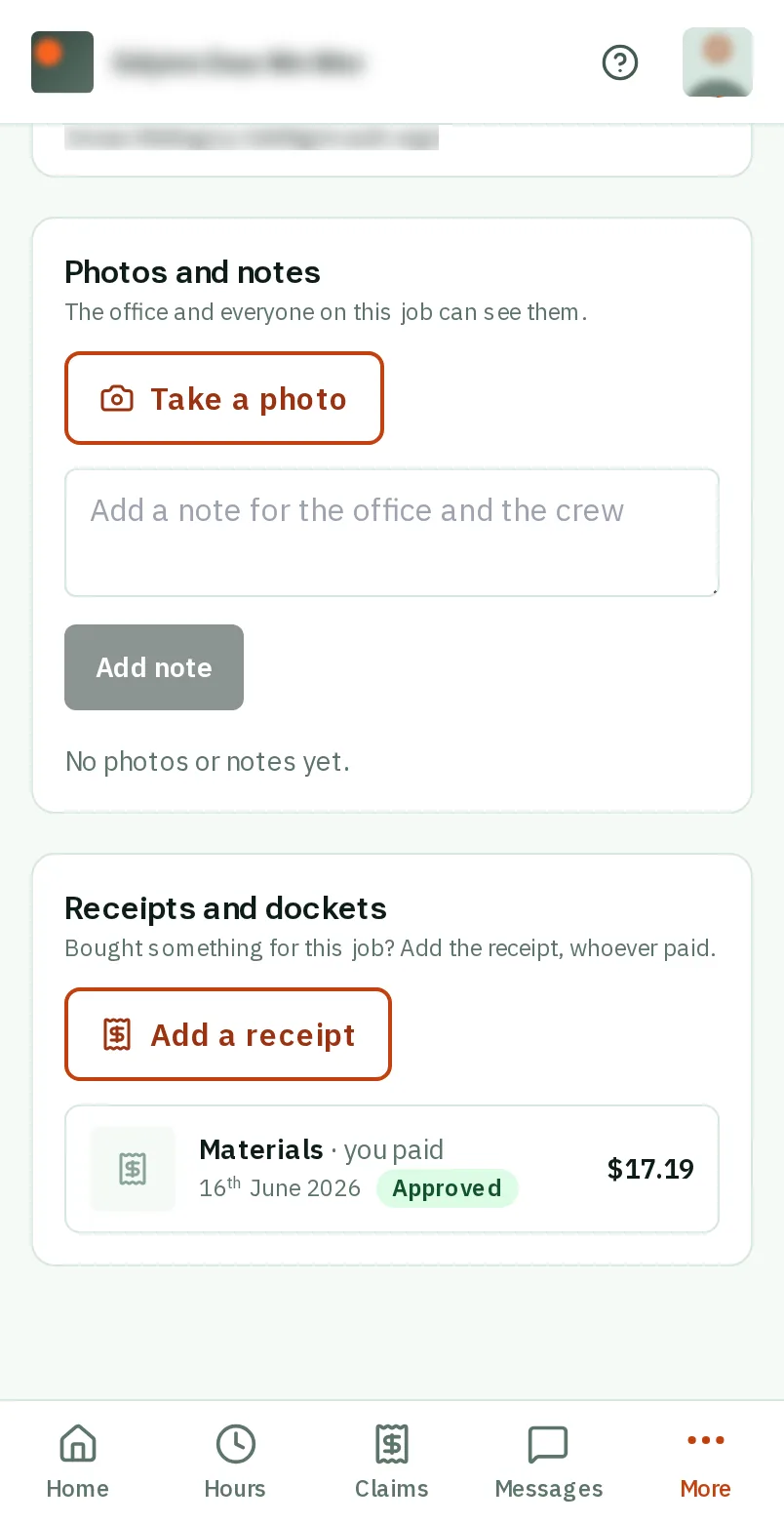
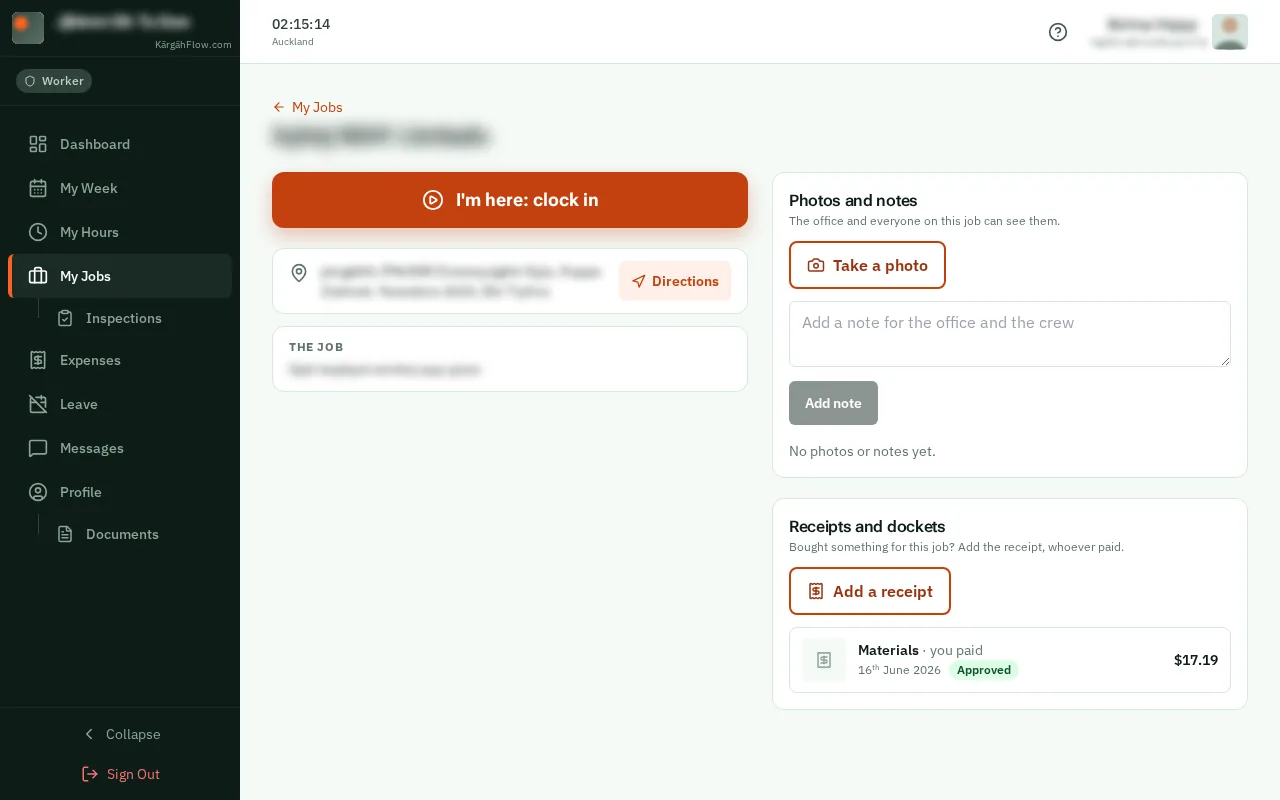
Under Receipts and dockets, tapclick Add a receipt.


TapClick Take a photo of it, and take a photo of the receipt lying flat. The app reads it for you.TapClick Choose a photo or PDF and pick the receipt from your computer. The app reads it for you.


TapClick Me if you paid and want it back, or The company if it went on the company’s account or card.


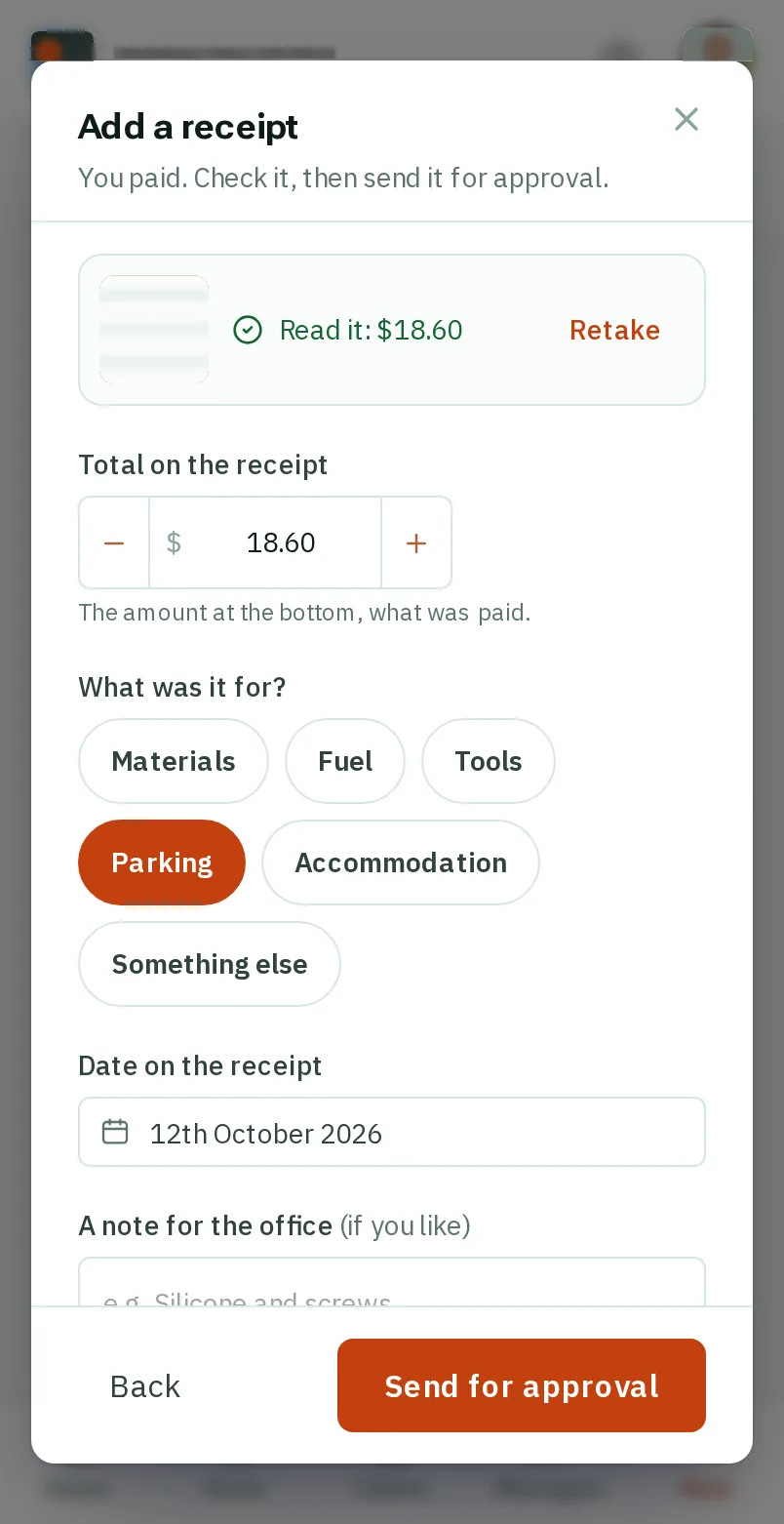
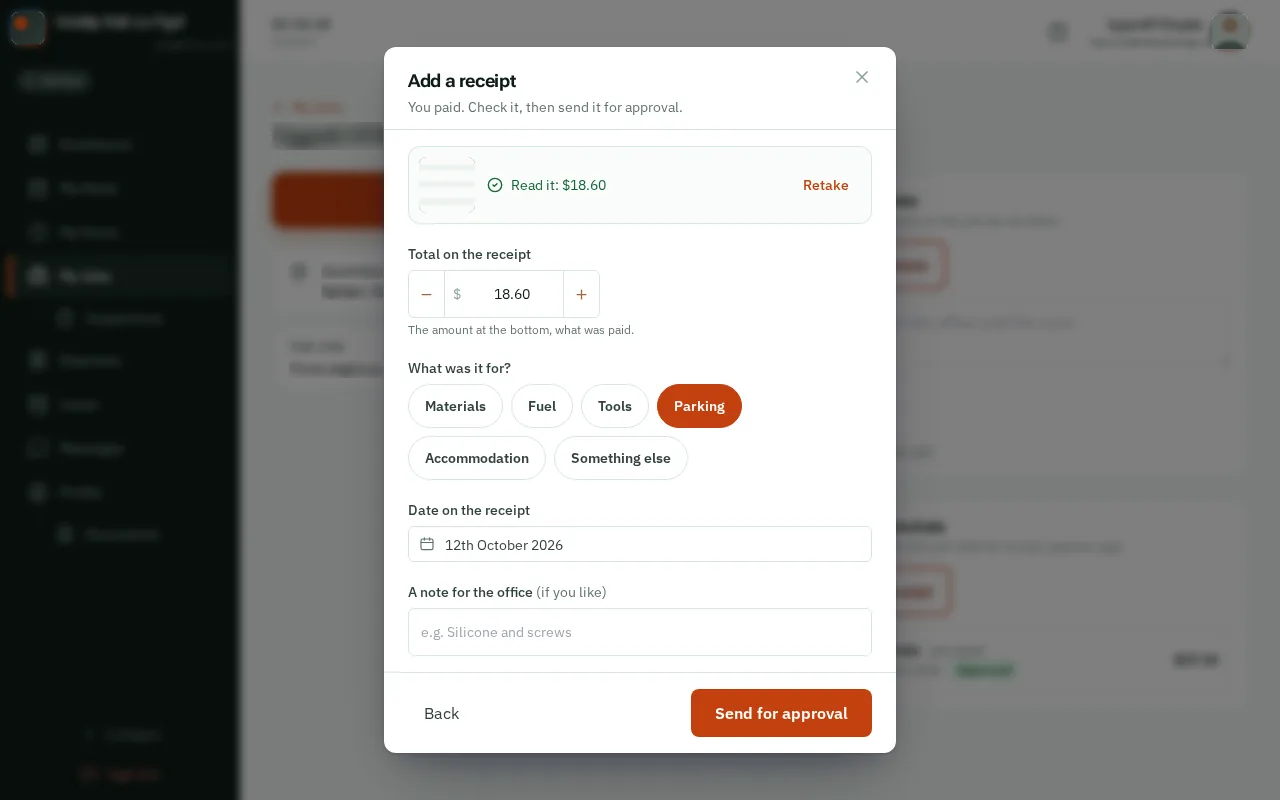
Check the total and the date, then tapclick Send for approval. When the company paid, the button says Send to the office.
Good to know: Your receipts on the job are listed under the button, with where each one is up to. You can take one off until the office has dealt with it.