Step 1: Open your hours
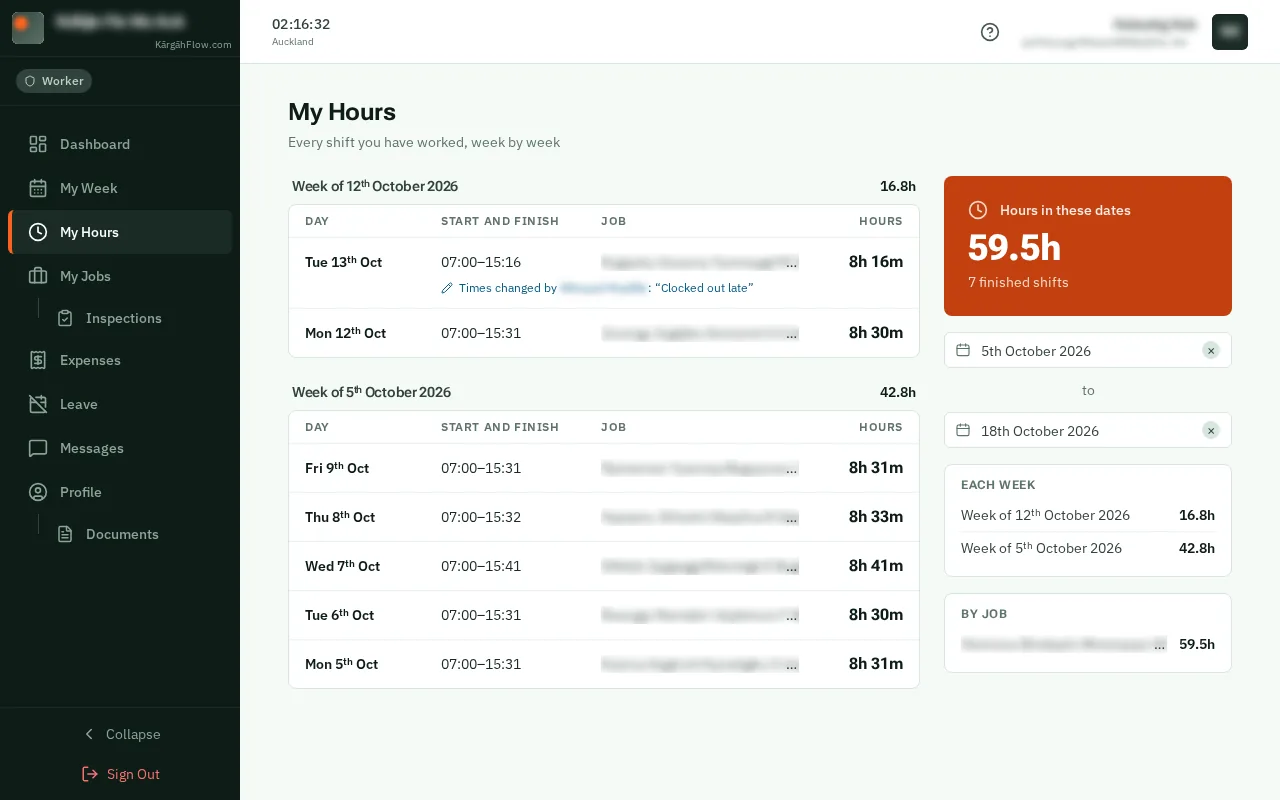
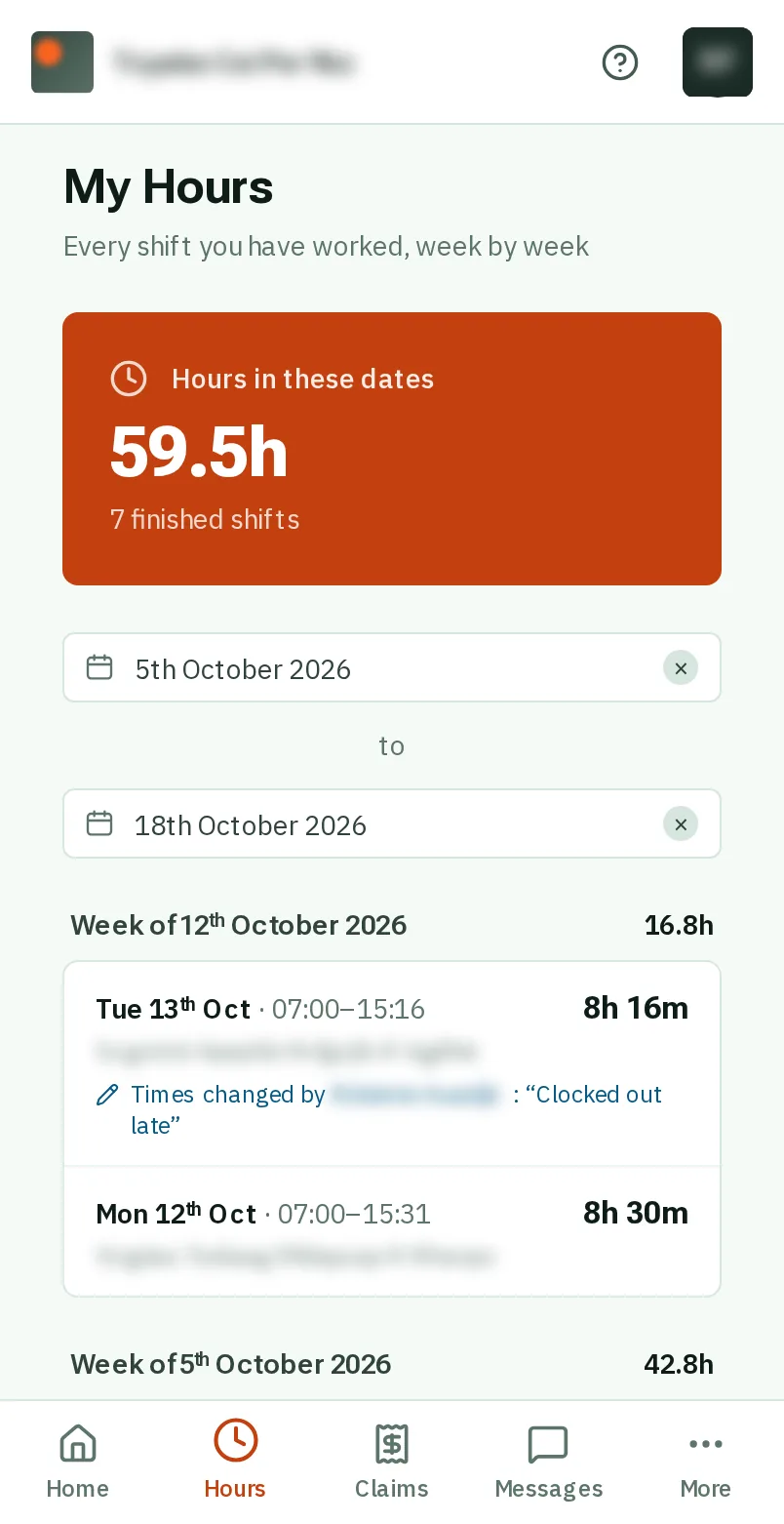
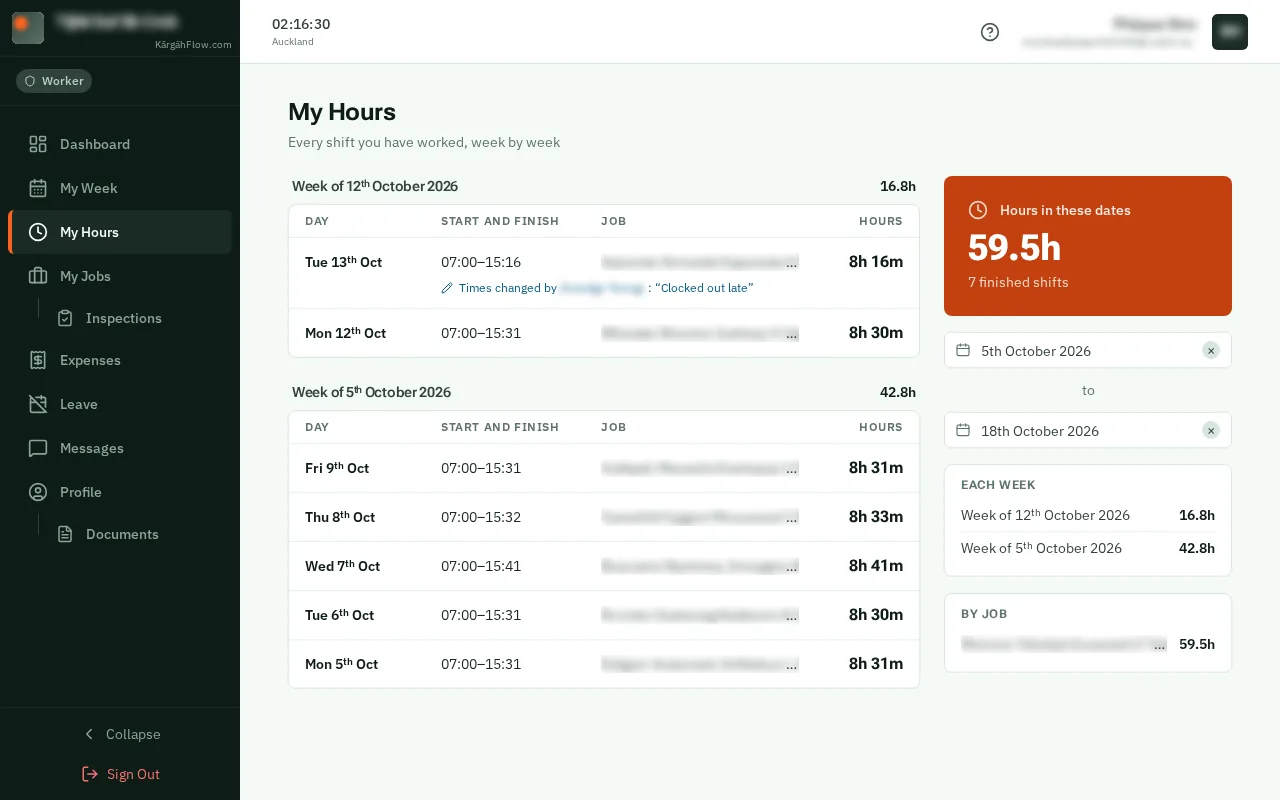
TapClick Hours in the bar at the bottom of the screen.TapClick My Hours in the menu on the left.
Look forthe Hours tab in the bar at the bottom of the screen
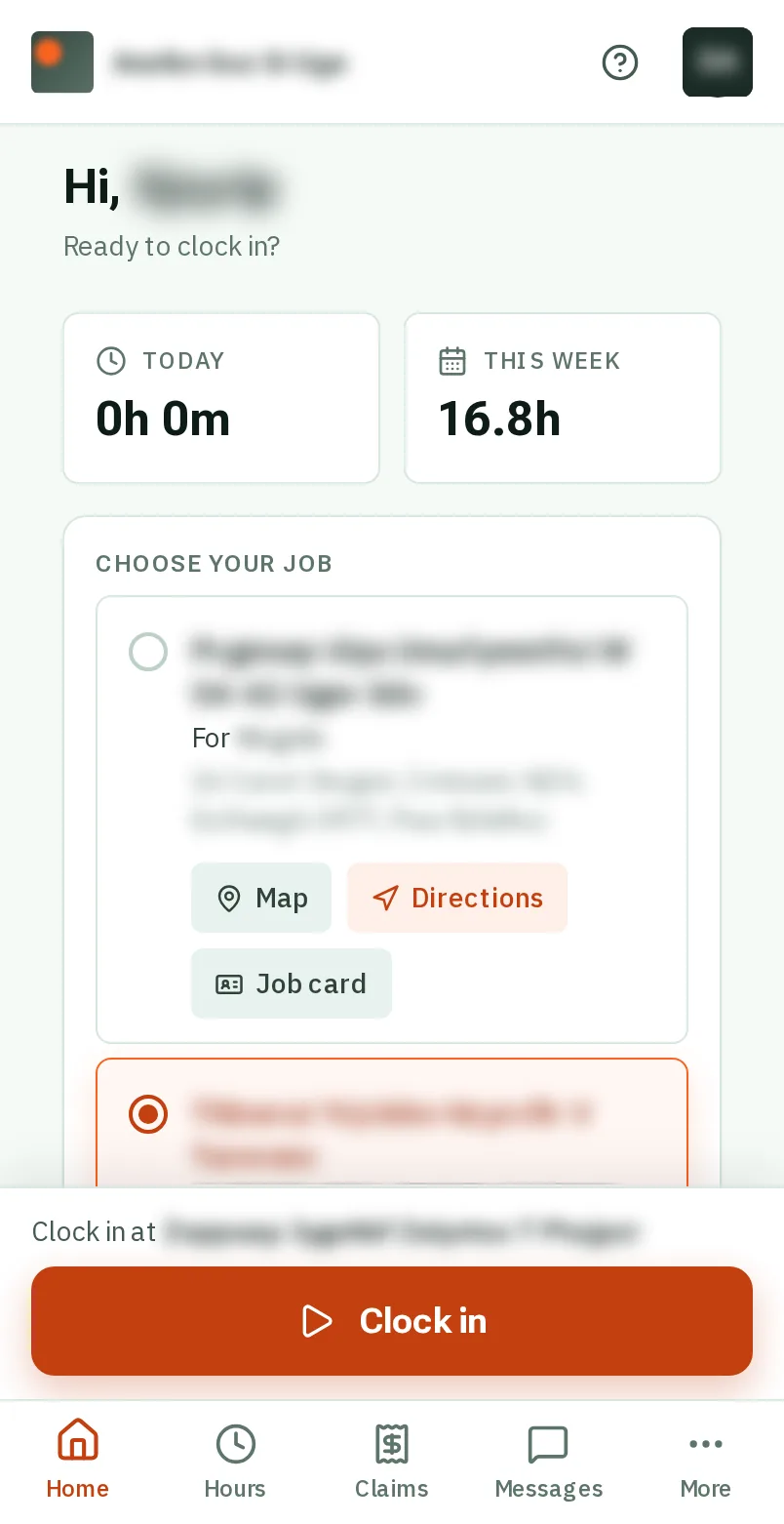
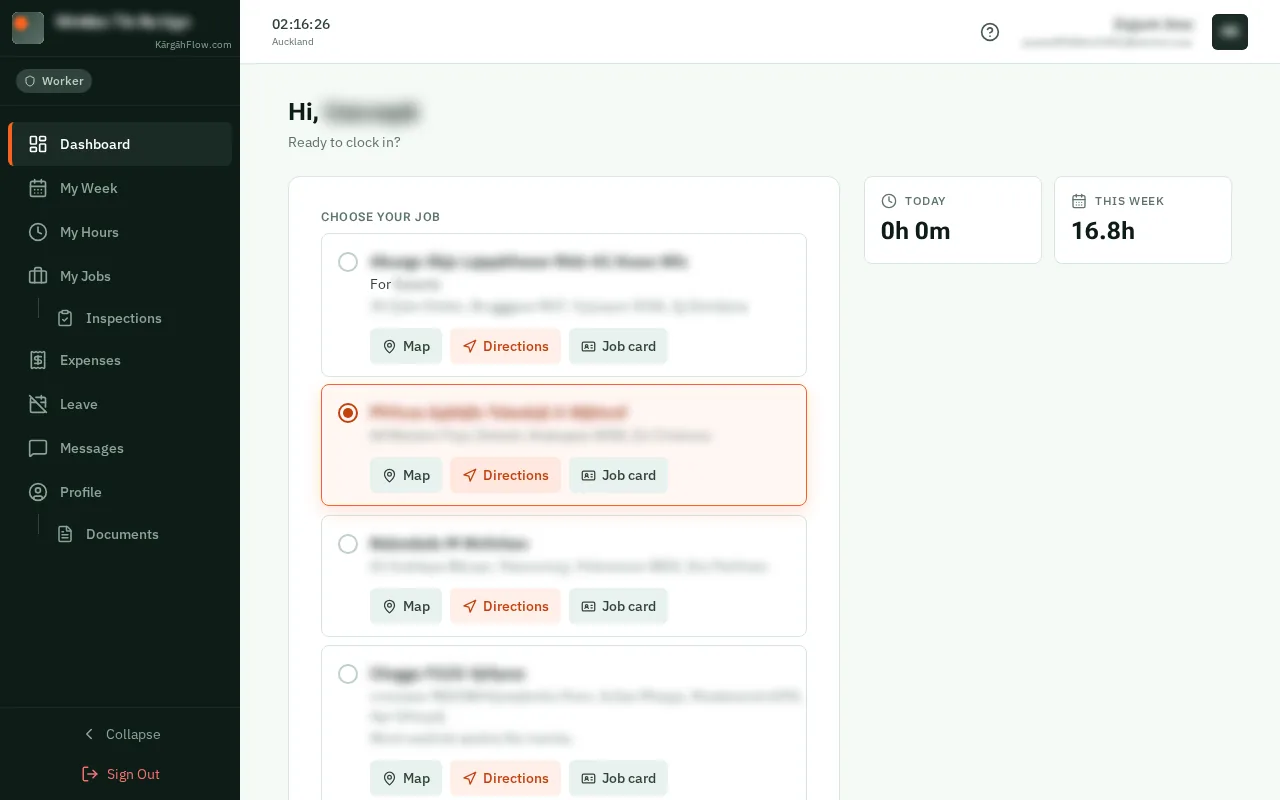
TapClick Hours in the bar at the bottom of the screen.TapClick My Hours in the menu on the left.
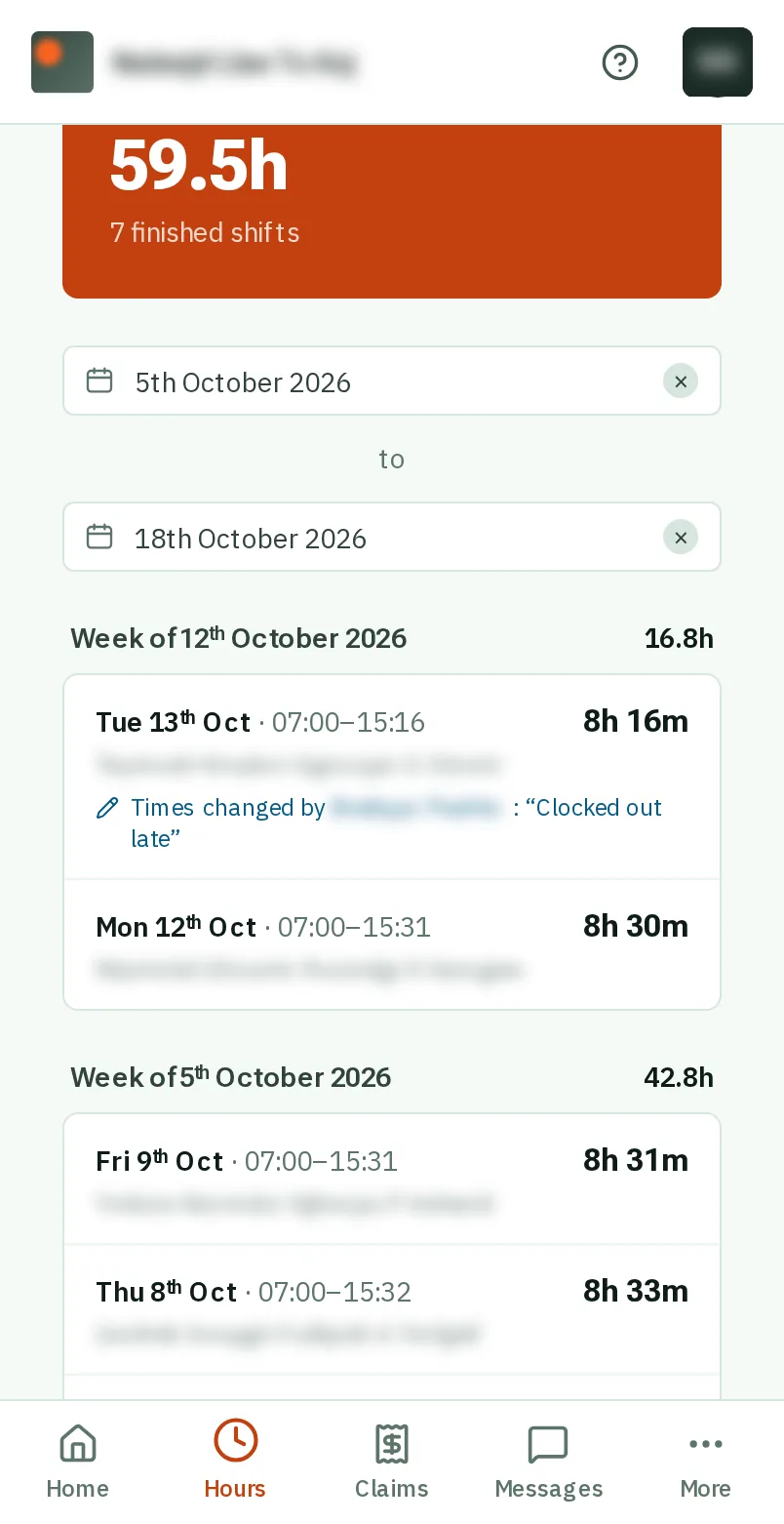
The orange box adds up your hours for the dates under it: this fortnight, to start with.
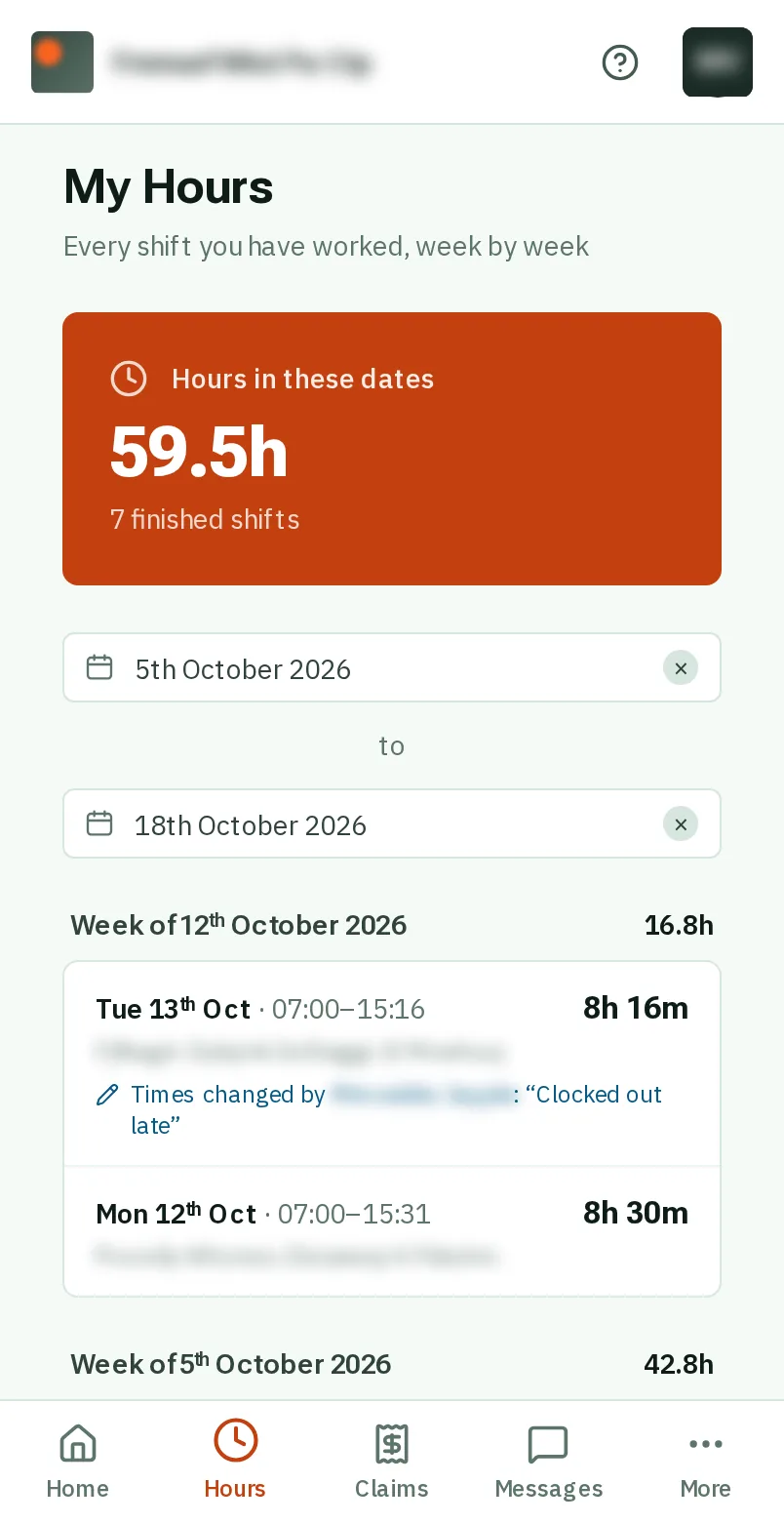
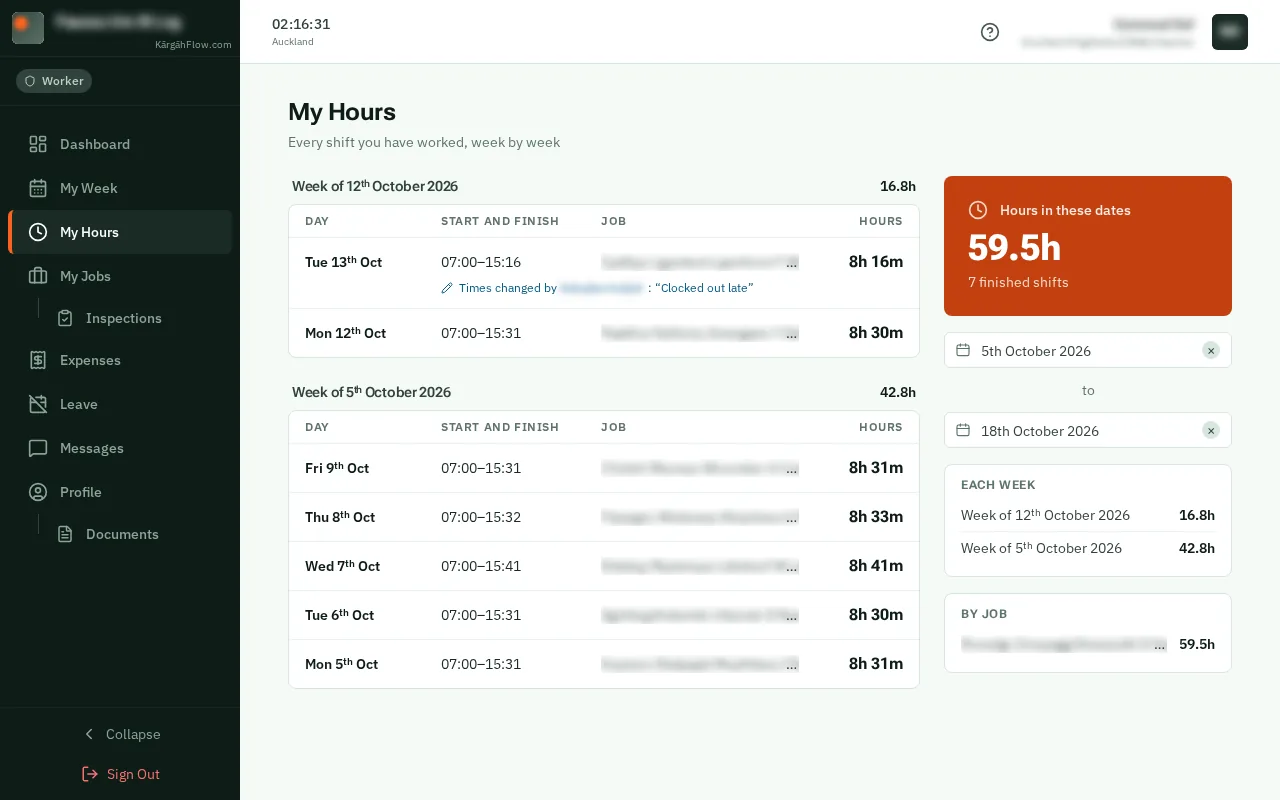
TapClick the first date to choose where to start, and the second date for where to stop.
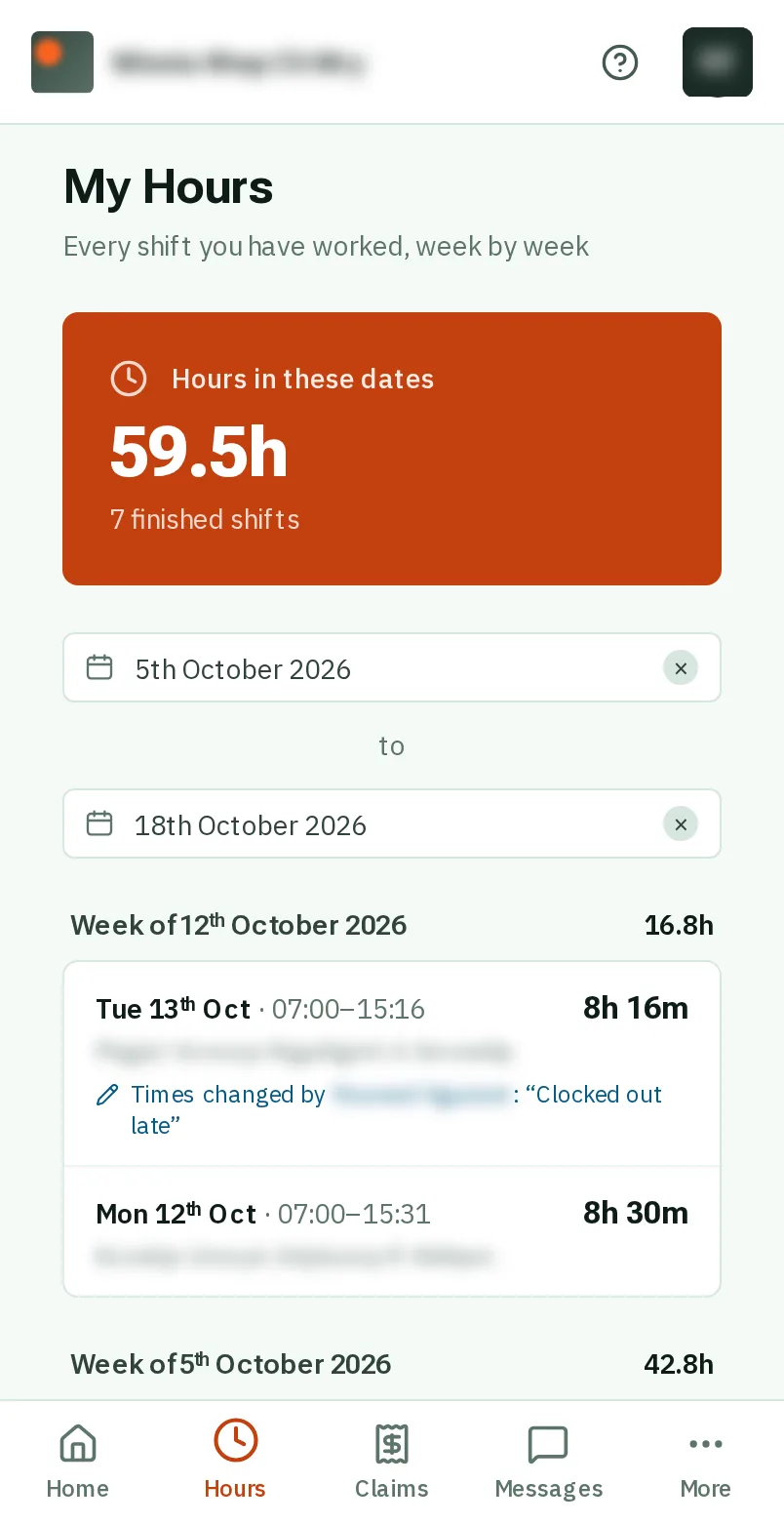
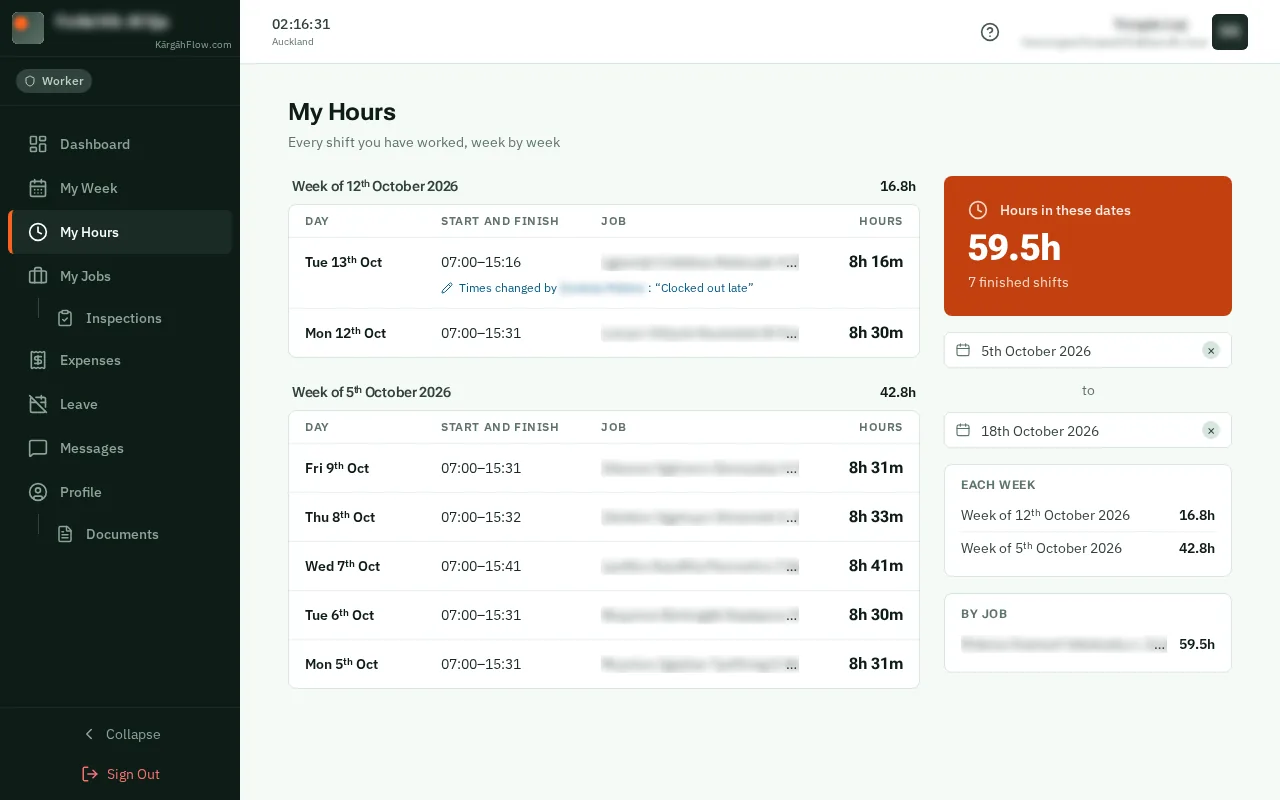
Your shifts are listed week by week, newest first, with each week’s total on the right. Each line shows the day, when you started and finished, how long, and the job.Your shifts are listed week by week, newest first. Each row shows the day, when you started and finished, the job and how long. The panel on the right adds up each week and each job.
Good to know: A shift the app started by itself says Clocked in by the app. One you finished from a notification says Clocked out from a reminder.
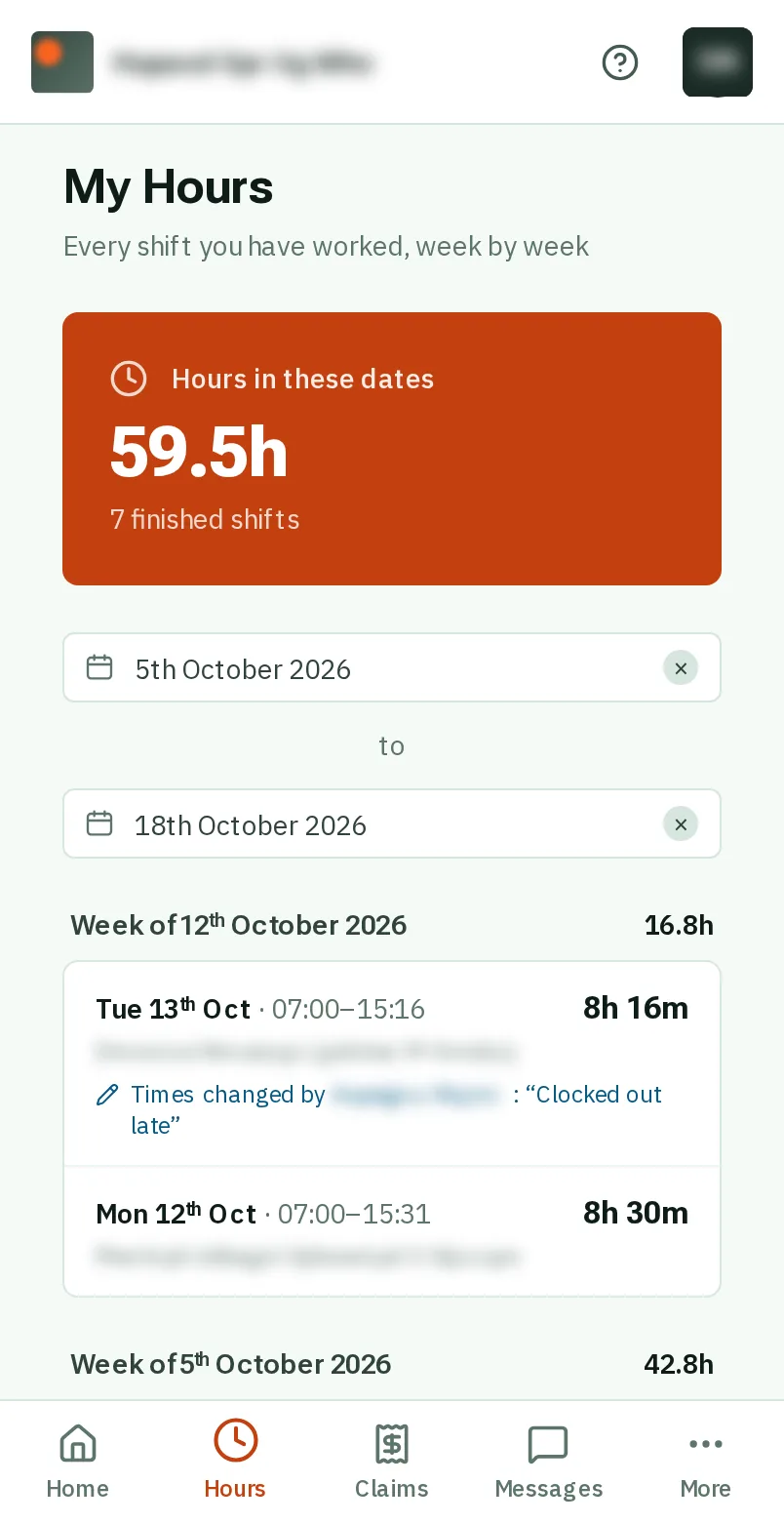
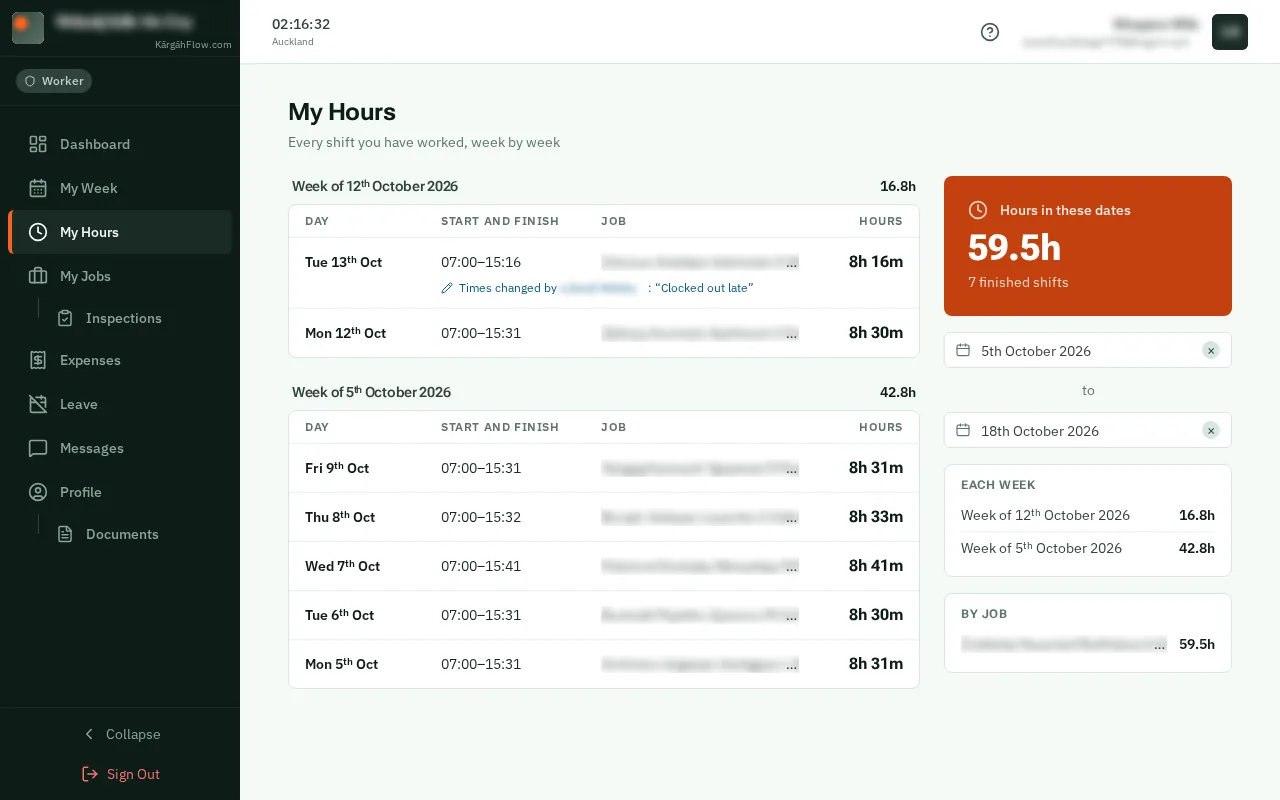
If your manager corrected one of your times, the shift says so in blue, with their name and the reason they gave.