KārgāhFlow
About 1 minute 7 stepsFor crew

Let the app clock you in

Open the app at your job and it clocks you in by itself, with Undo if you are not starting yet.

Let the app clock you in: the screen on a phone

What this is

When your office uses automatic clock-in, KārgāhFlow can clock you in by itself: open the app when you get to your job, and your time starts counting.

It looks at where your phone is only when you open the app, never in between. You turn it on yourself, on your own phone, and you can turn it off at any time.

When your day is due to end, your phone asks if you have finished, and one tap clocks you out.

Step 1 of 7
  1. Step 1: TapClick Turn it on

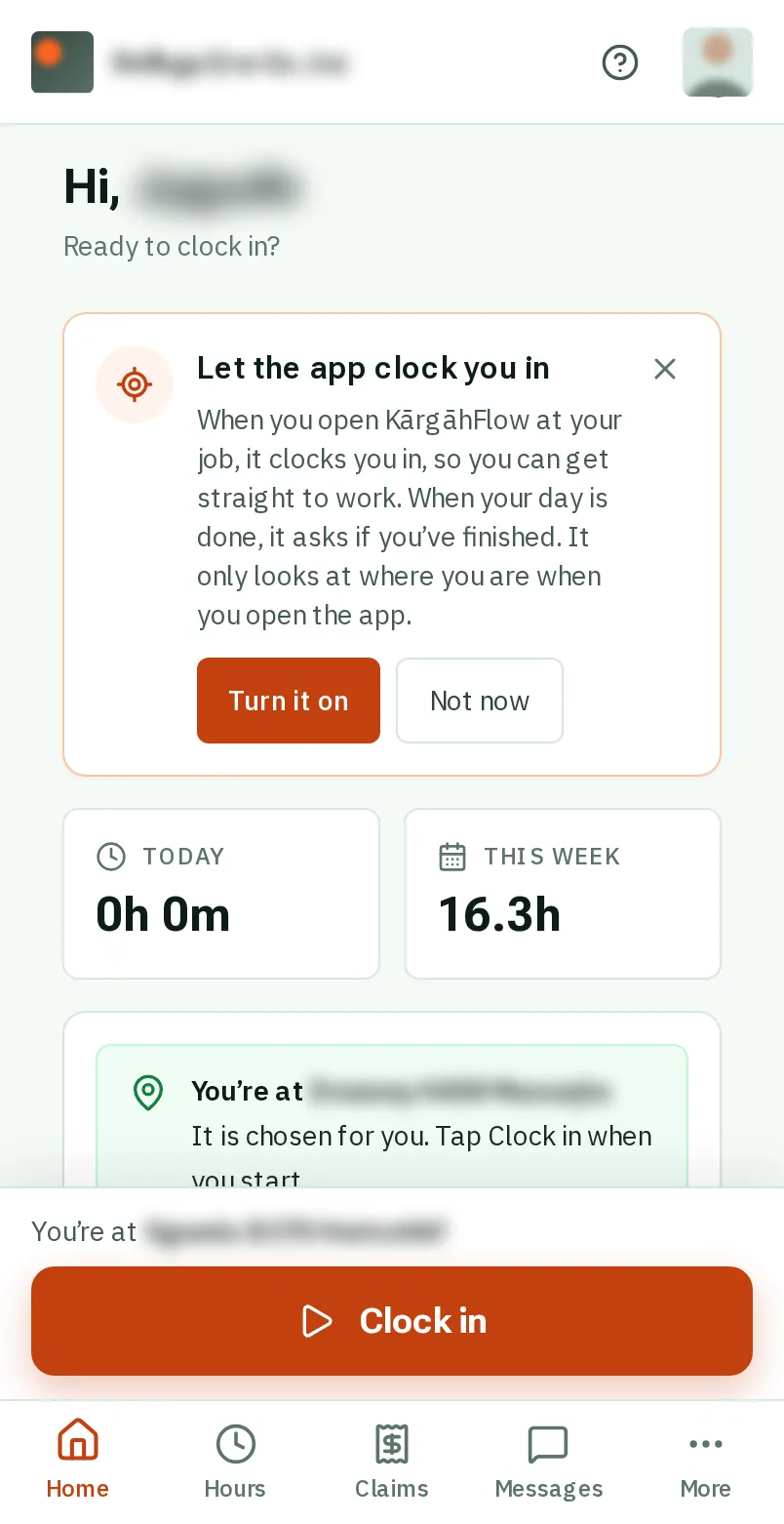
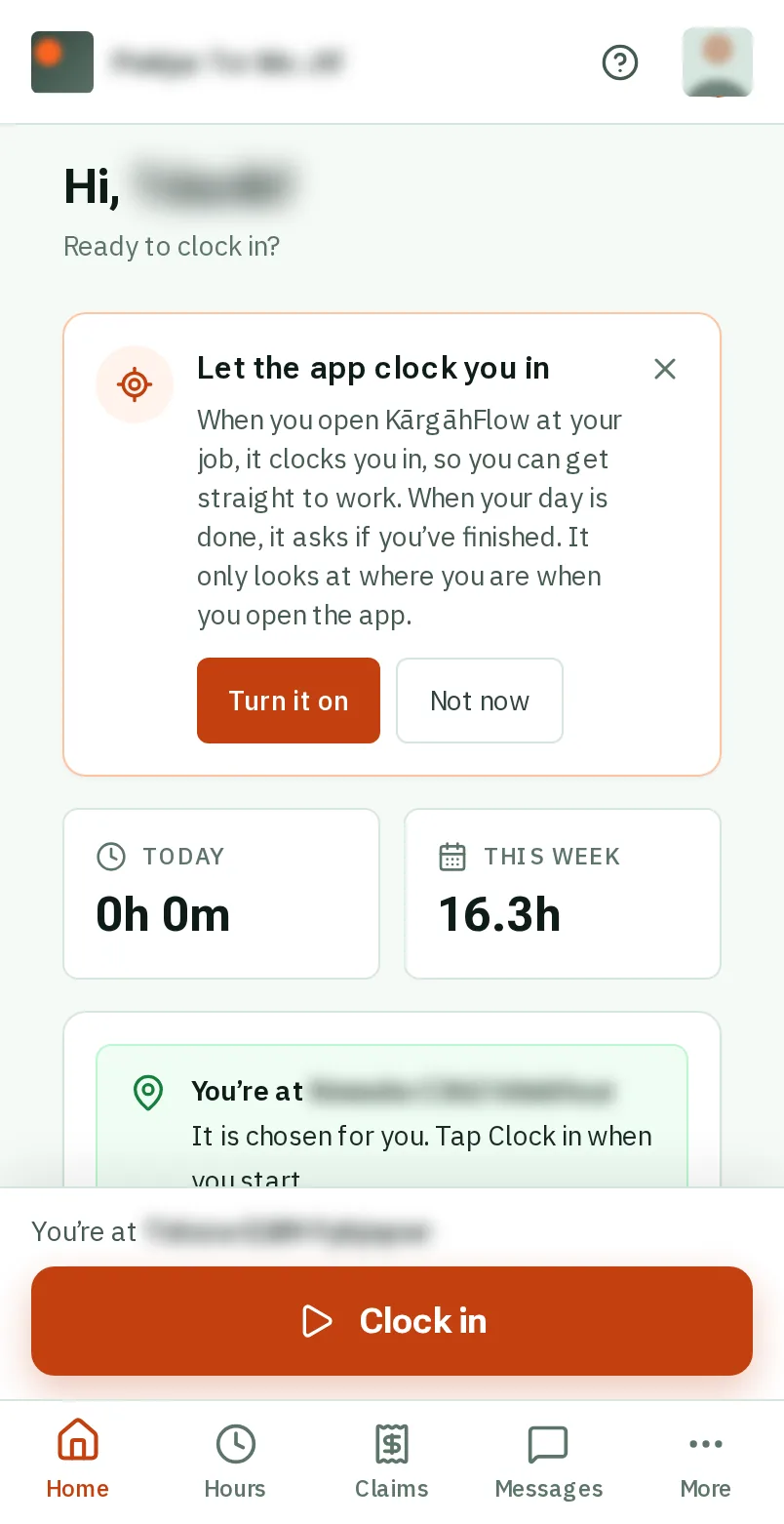
    Open KārgāhFlow. On your home screen, under Let the app clock you in, tapclick Turn it on.

    Look forthe Turn it on button

    Good to know: You only see this when your office uses automatic clock-in. Not for you? TapClick Not now, and it stays away for a month.
    Tap Turn it on
  2. Step 2: TapClick Allow

    Your phone asks if KārgāhFlow may use your location. TapClick Allow. Your home screen then says Automatic clock-in is on.

    Look forthe Allow button

    Good to know: Tapped Don’t allow by mistake? Your home screen shows how to allow it on your phone.

    Tap Allow
  3. Step 3: Open the app at your job

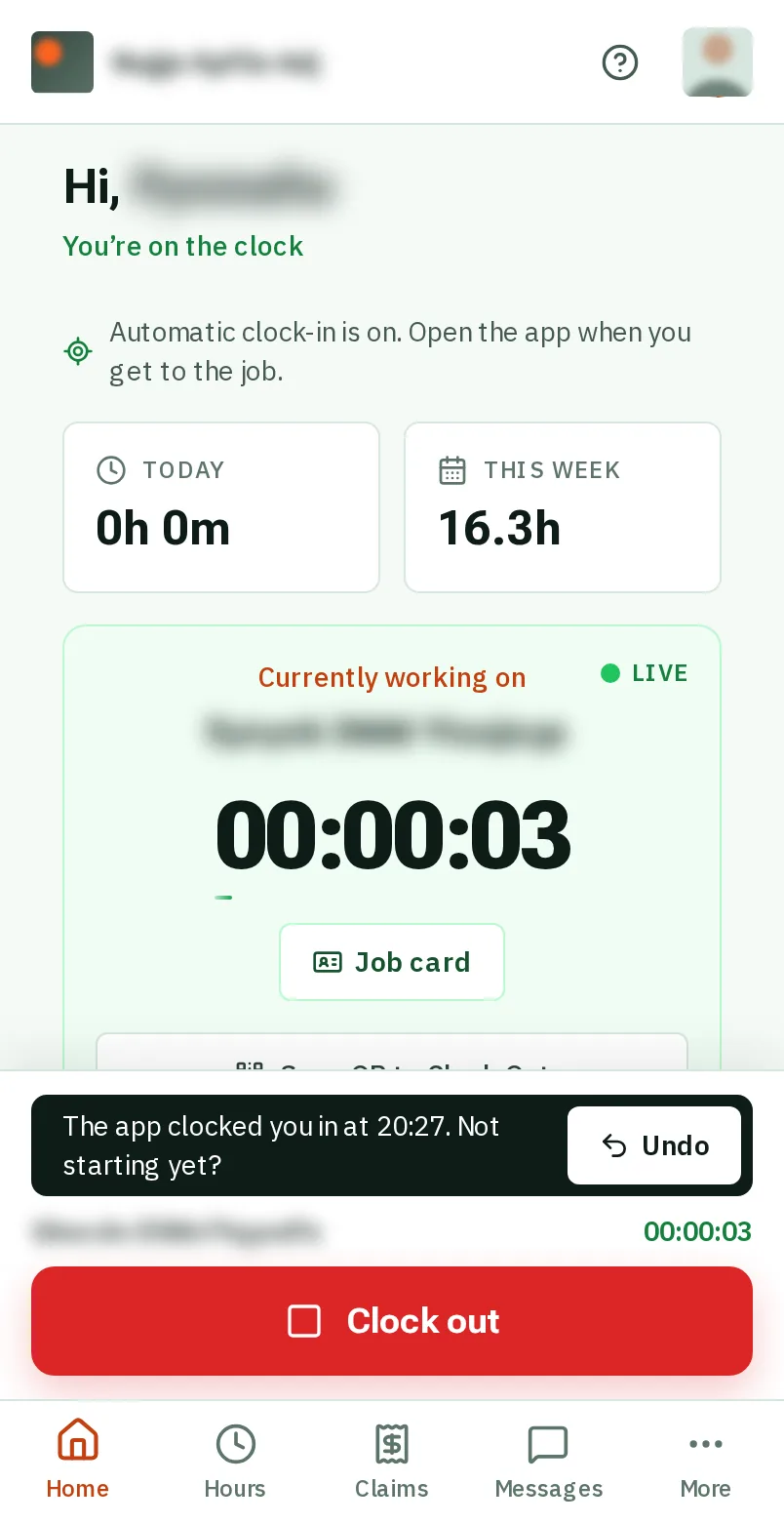
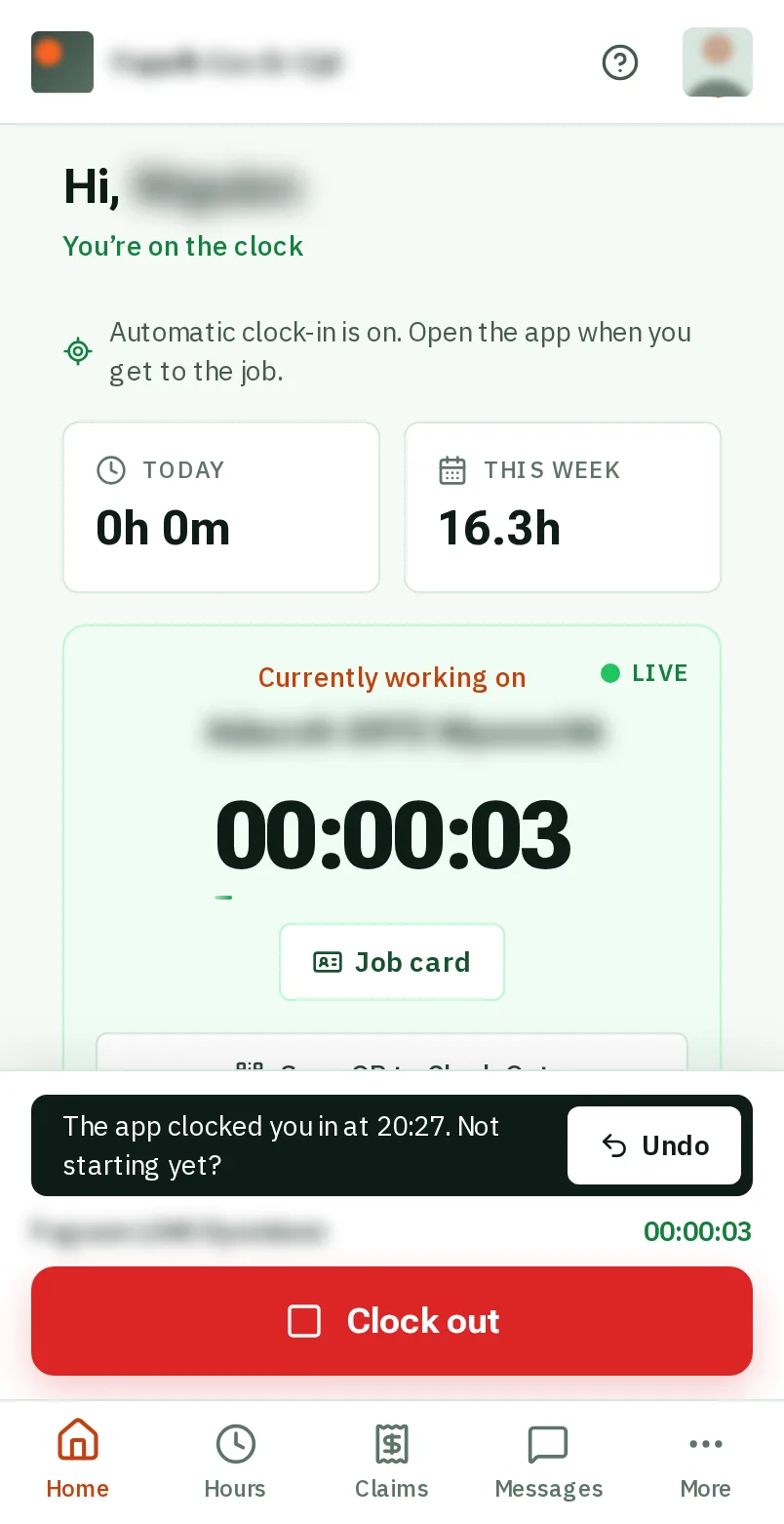
    When you get to your job, open KārgāhFlow. It clocks you in by itself, and says so just above Clock out. Your time is counting.

    Good to know: It looks at where you are each time you open the app, so open it when you arrive.

    Open the app at your job
  4. Step 4: Not starting yet? TapClick Undo

    Clocked in before you meant to start? TapClick Undo within five minutes. The clock-in is taken back, and the app will not clock you in at that job again until tomorrow.

    Look forthe Undo button
    Not starting yet? Tap Undo
  5. Step 5: When it does not clock you in

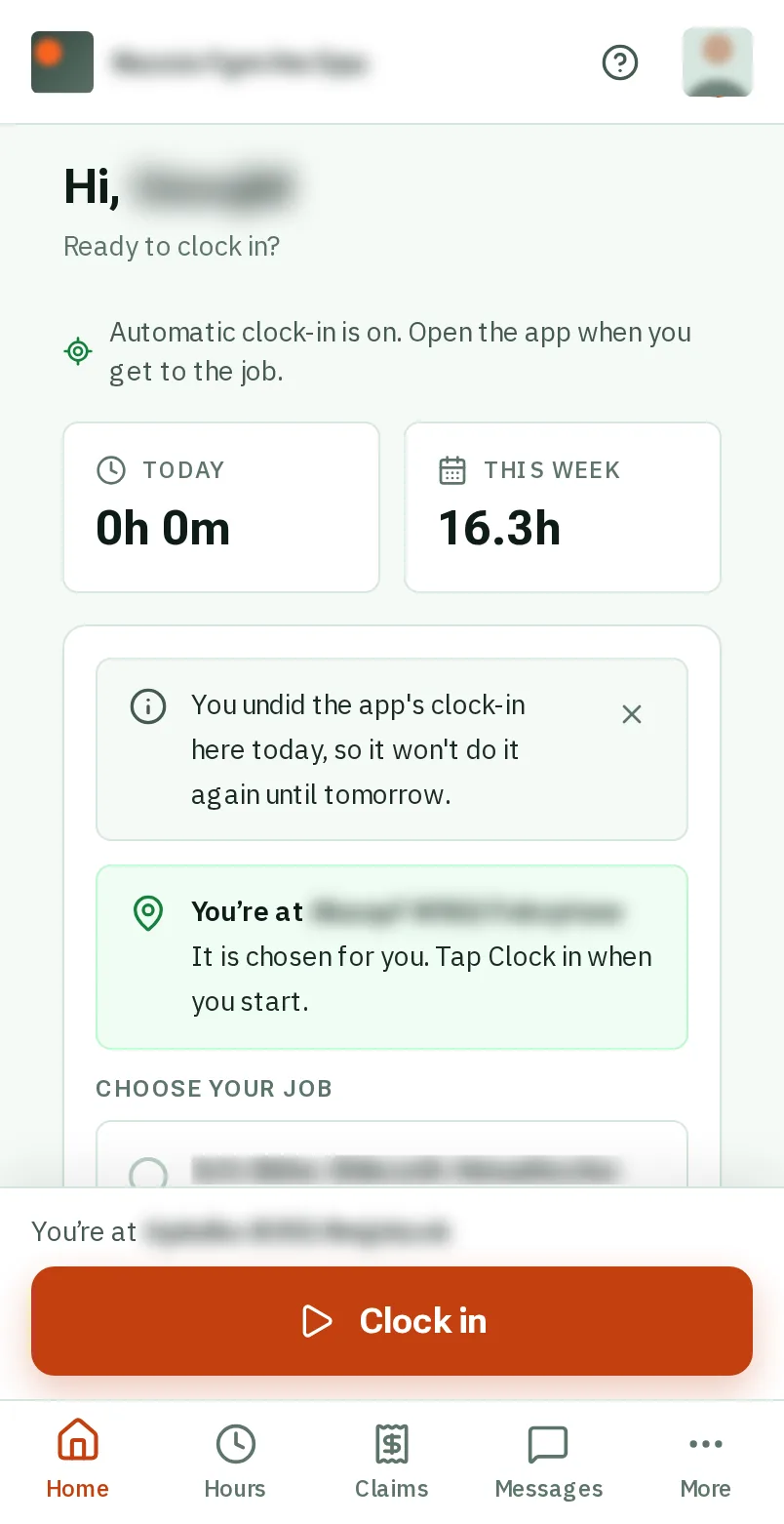
    If the app does not clock you in by itself, your home screen says why, just above your jobs: you are early for your start, you undid it today, or your phone cannot tell exactly where you are. TapClick Clock in if you are starting anyway.

    Good to know: Early for your start on the roster? The app waits, and your phone buzzes at your start time. Open the app then, and it clocks you in.

    When it does not clock you in
  6. Step 6: Finished for the day?

    When your day is due to end, your phone asks Finished for the day? TapClick Clock me out if you have finished, or Still working if you have not. It asks again an hour later.

    Good to know: The app never clocks you out by itself. The question needs notifications turned on, and on an iPhone, KārgāhFlow on your home screen.

    Finished for the day?
  7. Step 7: Turn it off

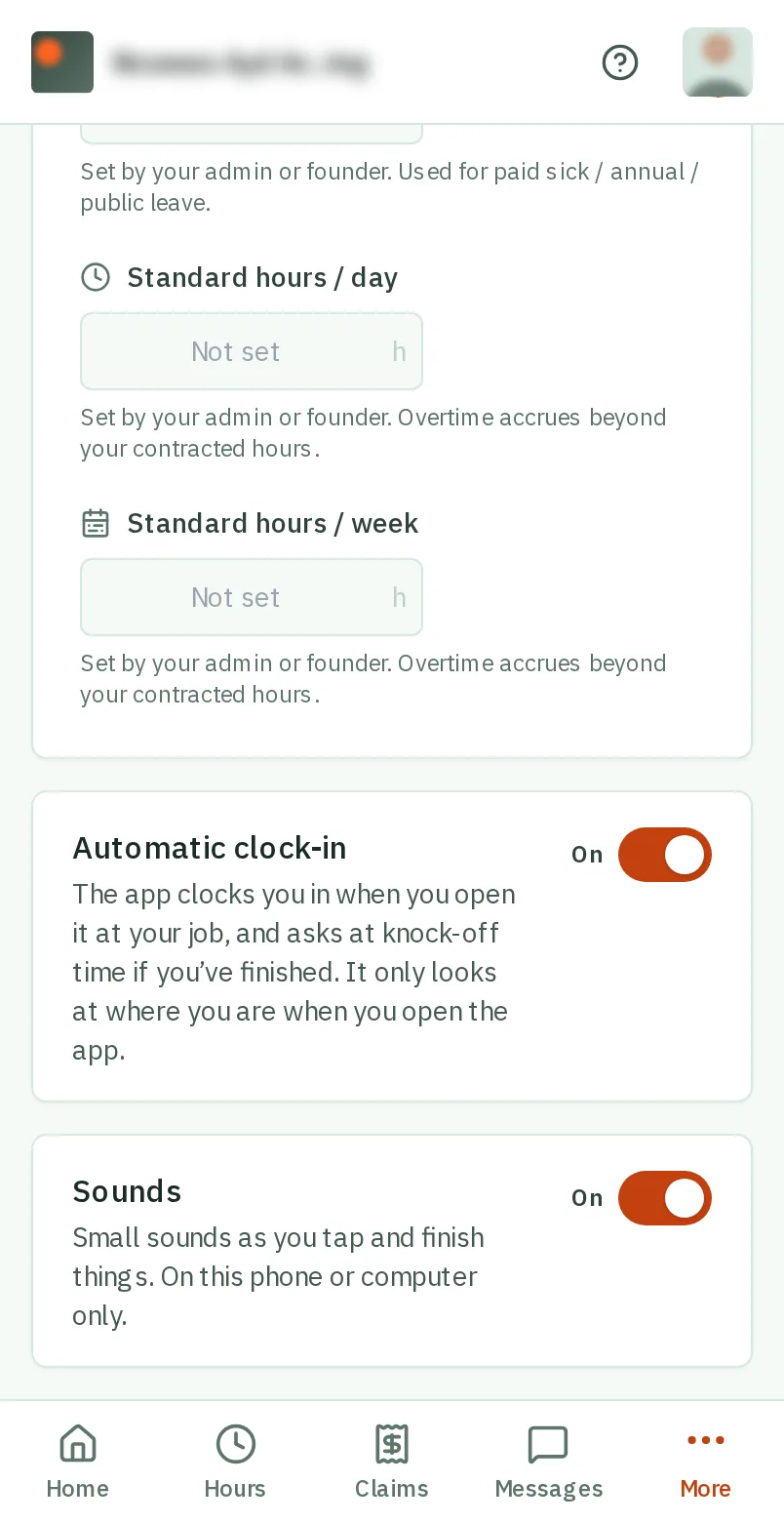
    TapClick More, then Profile. Just above Sounds, tapclick Automatic clock-in to turn it off, or on again.

    Look forthe Automatic clock-in choice
    Turn it off

That's it

Open the app when you get to work, and your time starts counting.