KārgāhFlow
About 2 minutes 6 stepsFor crew, admins and owners

See where you are going this week

Your days on the roster: the job, the time, who else is going, and the way there.

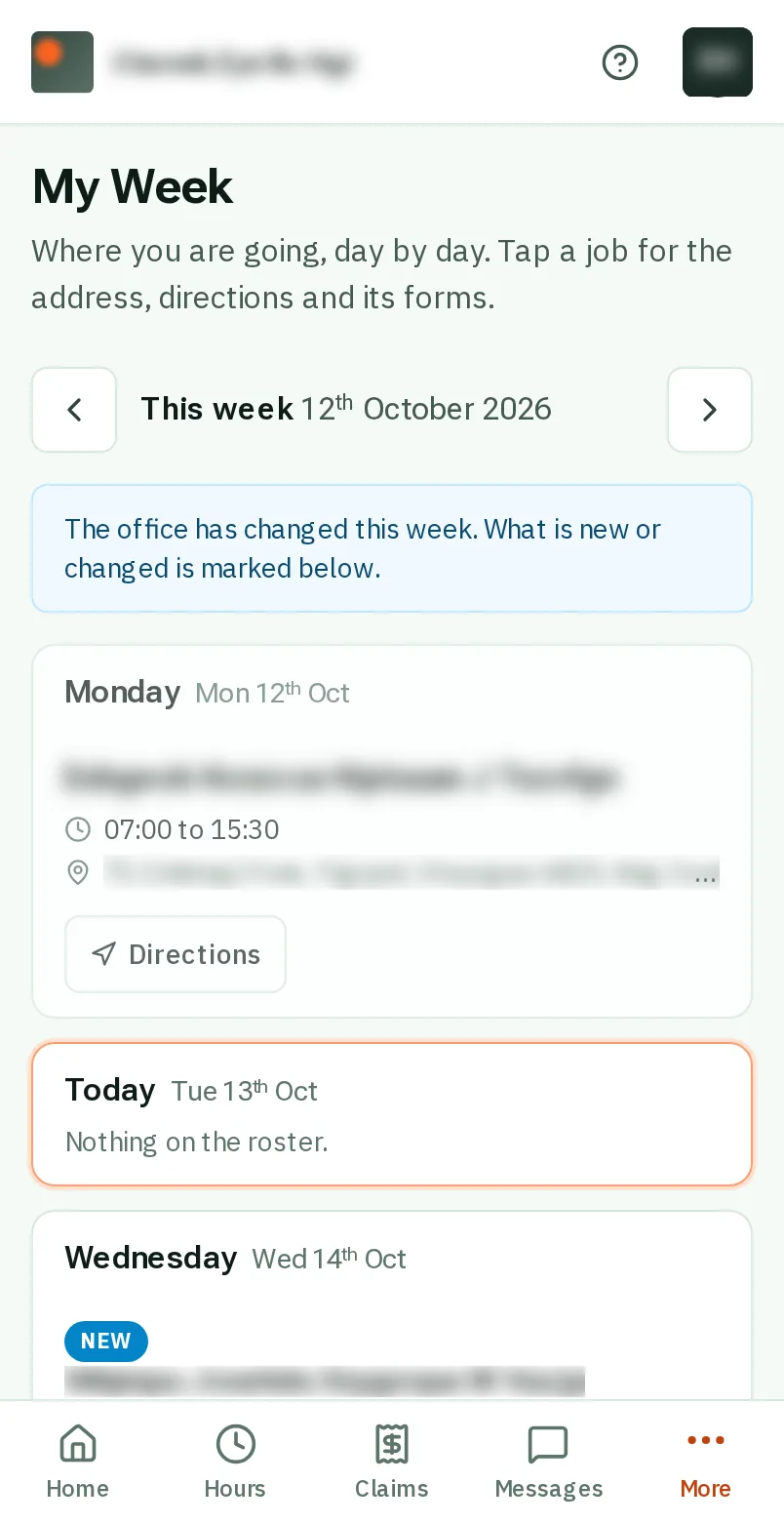
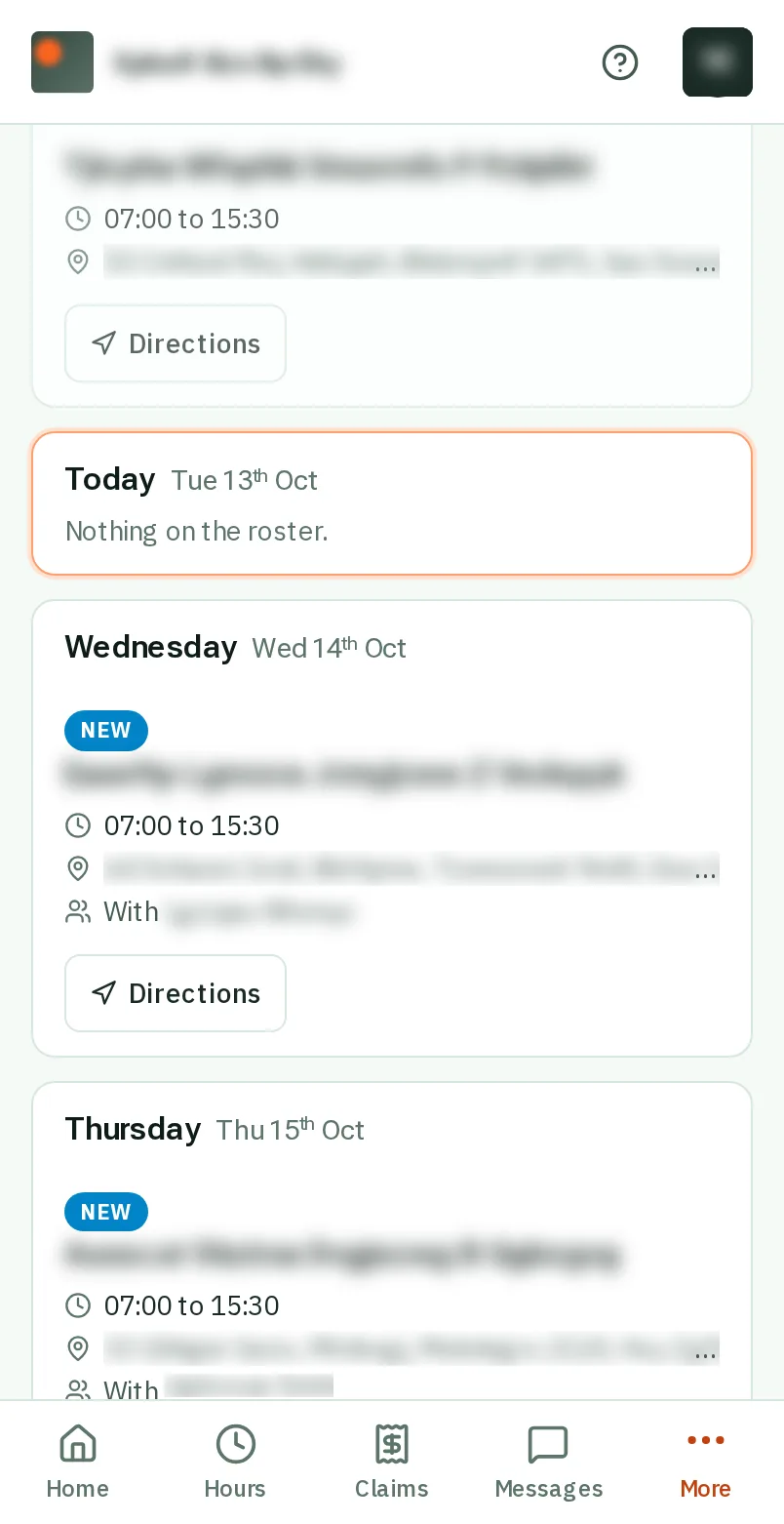
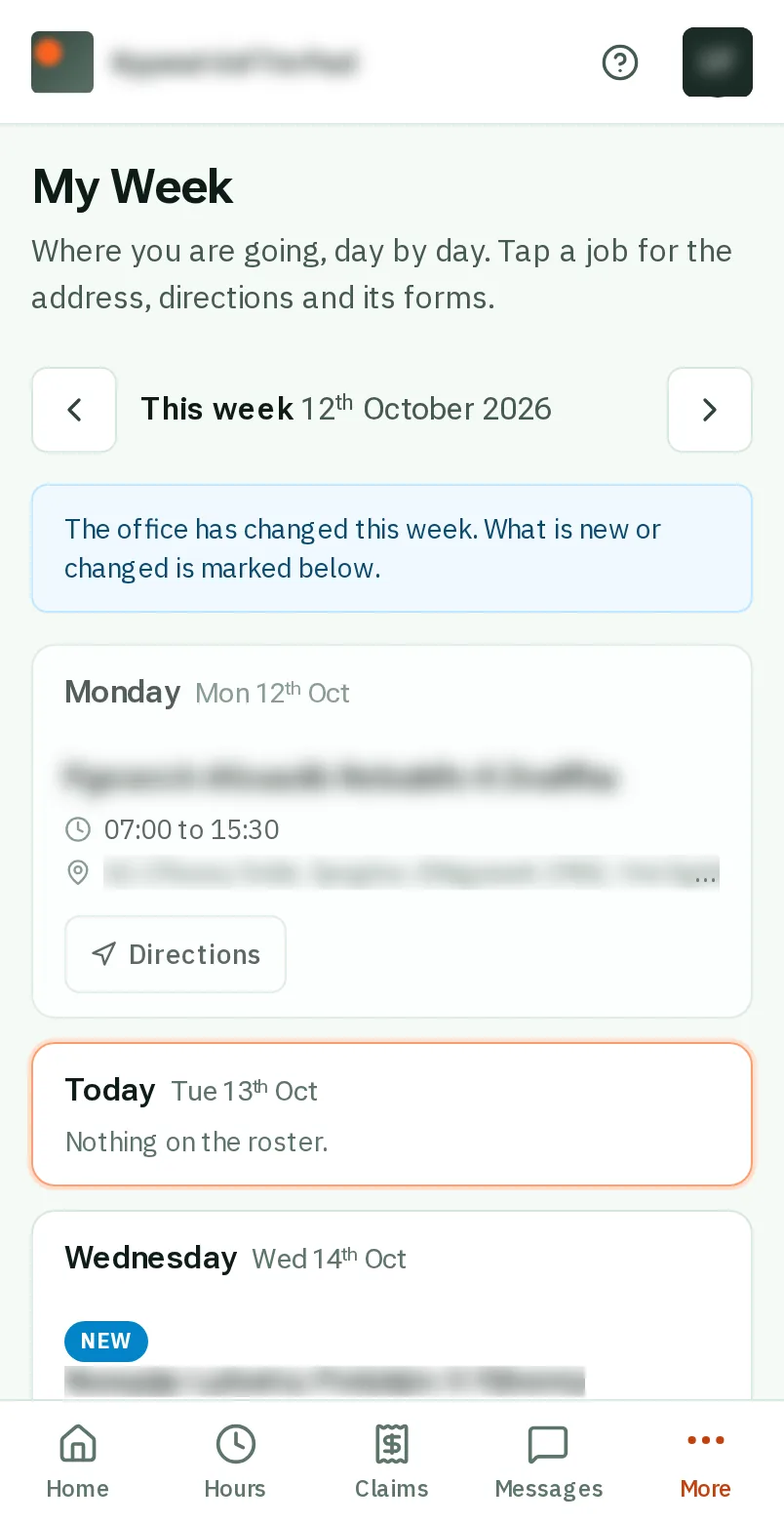
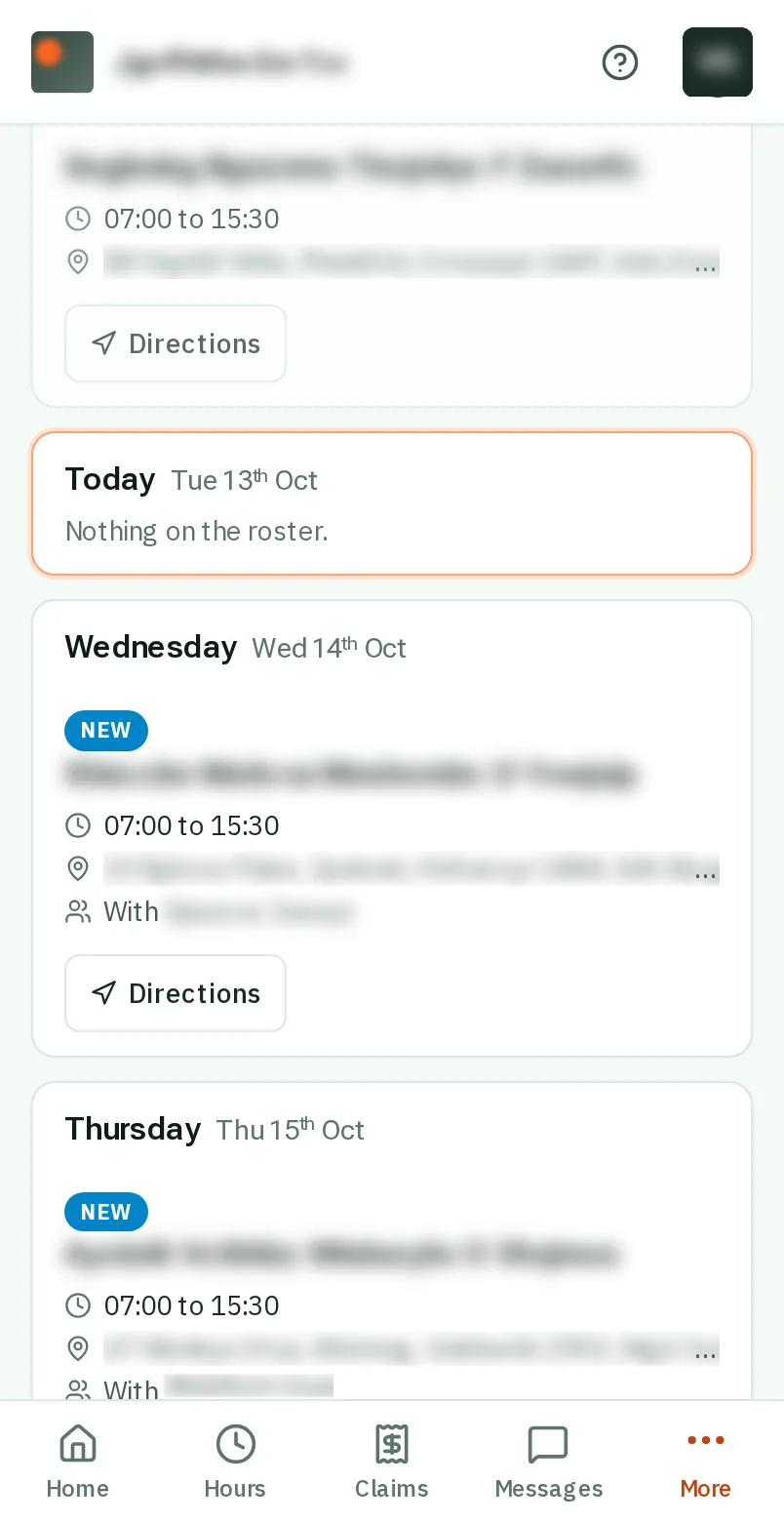
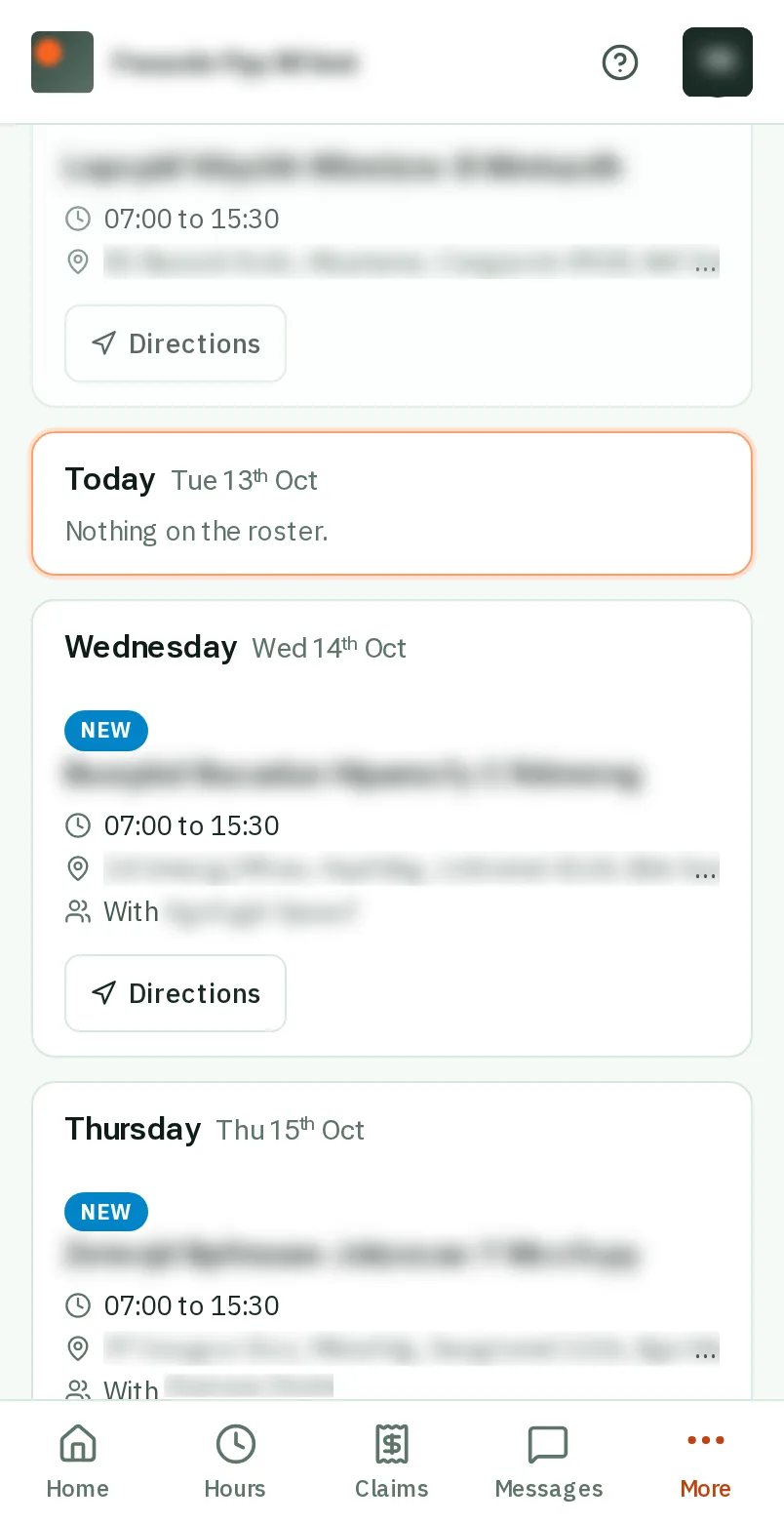
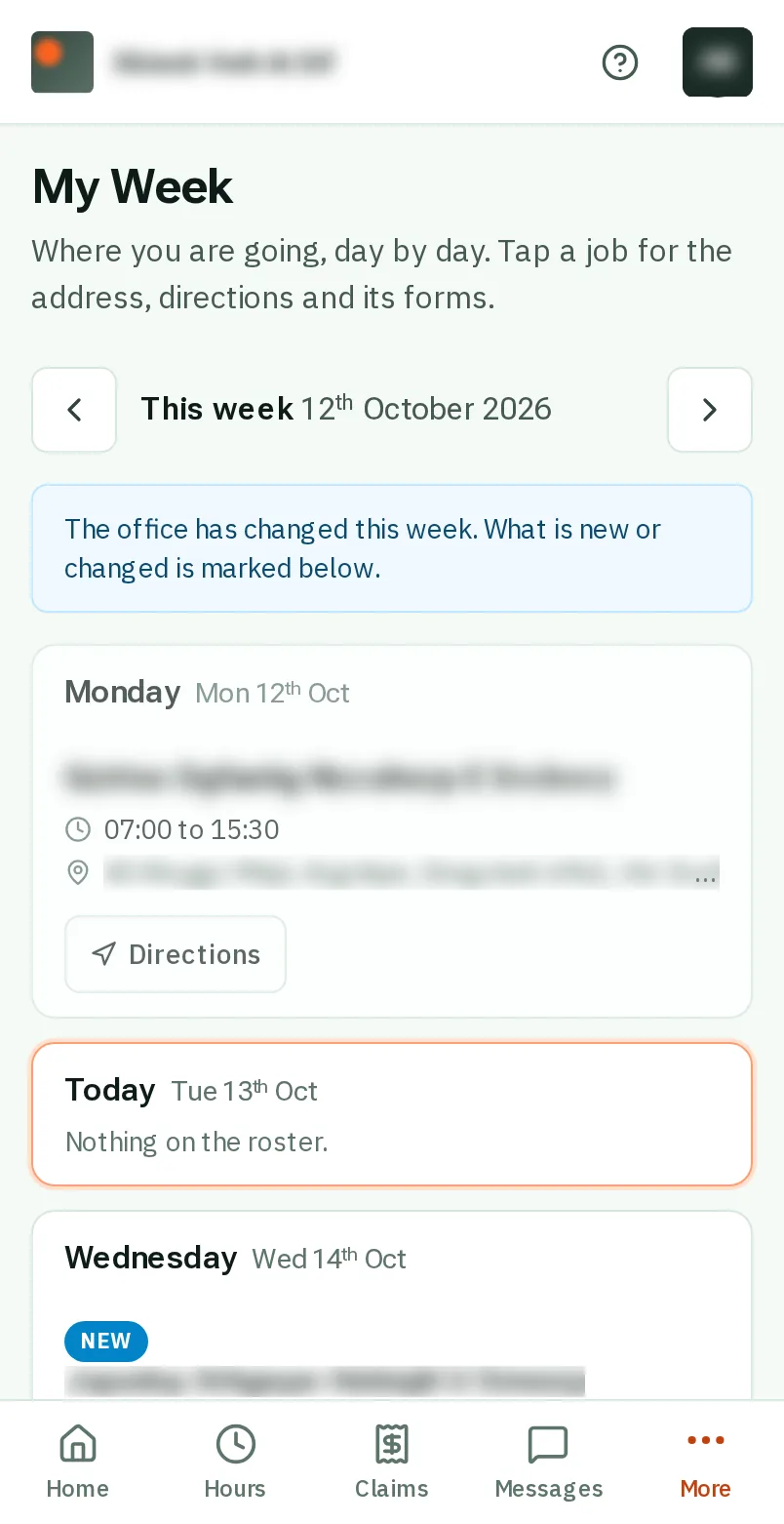
See where you are going this week: the screen on a phone
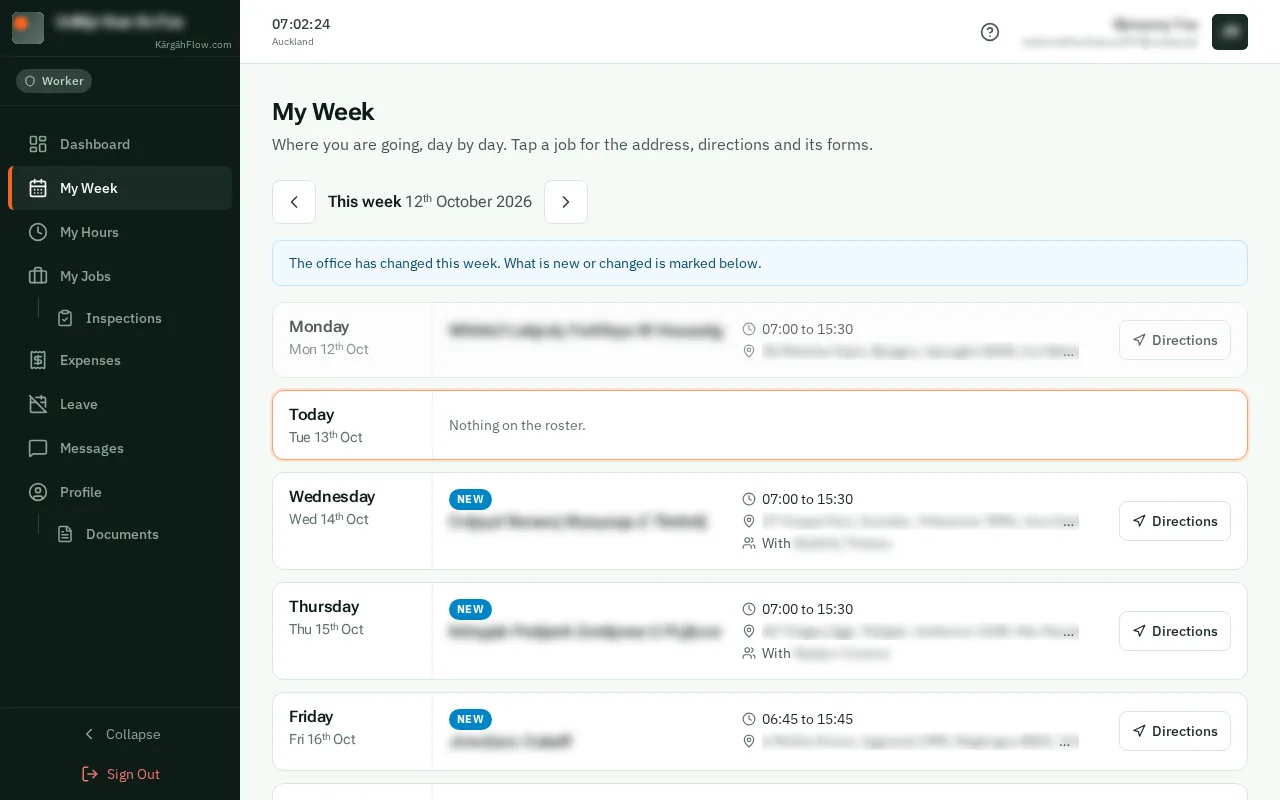
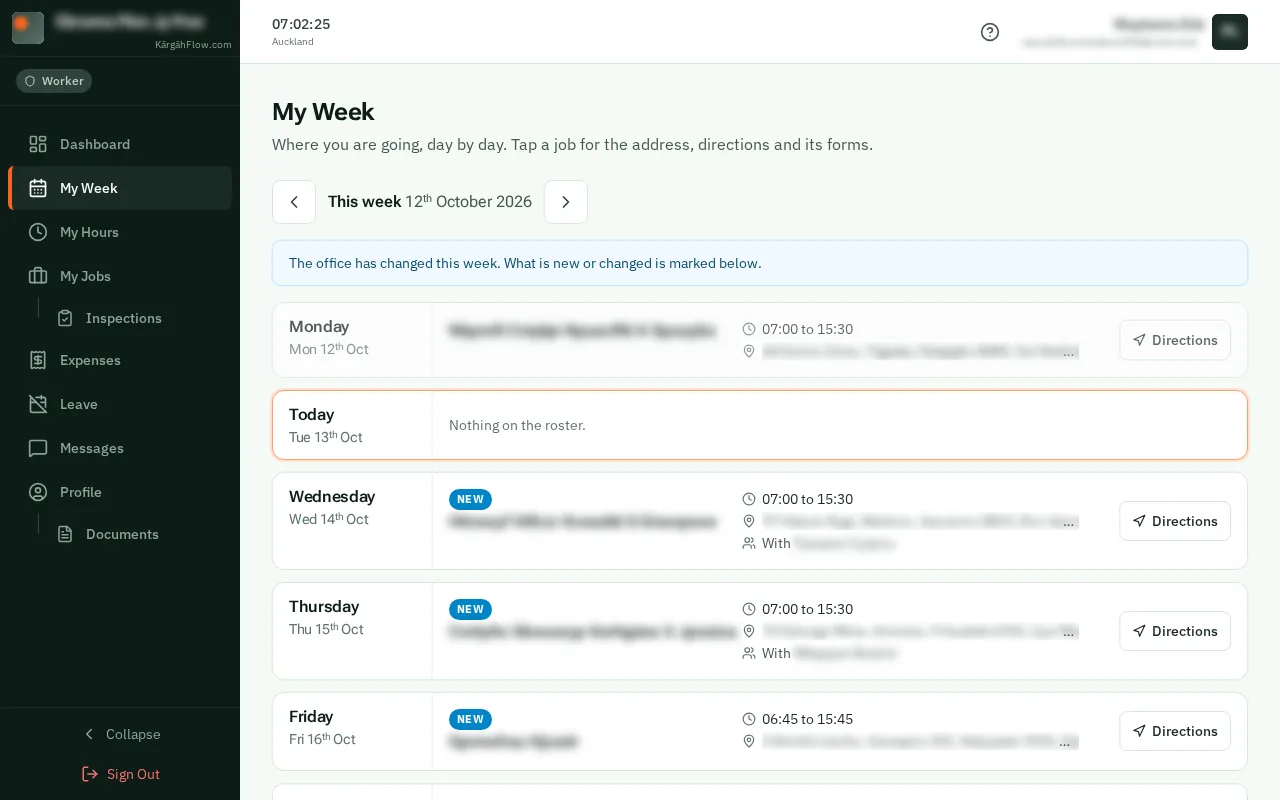
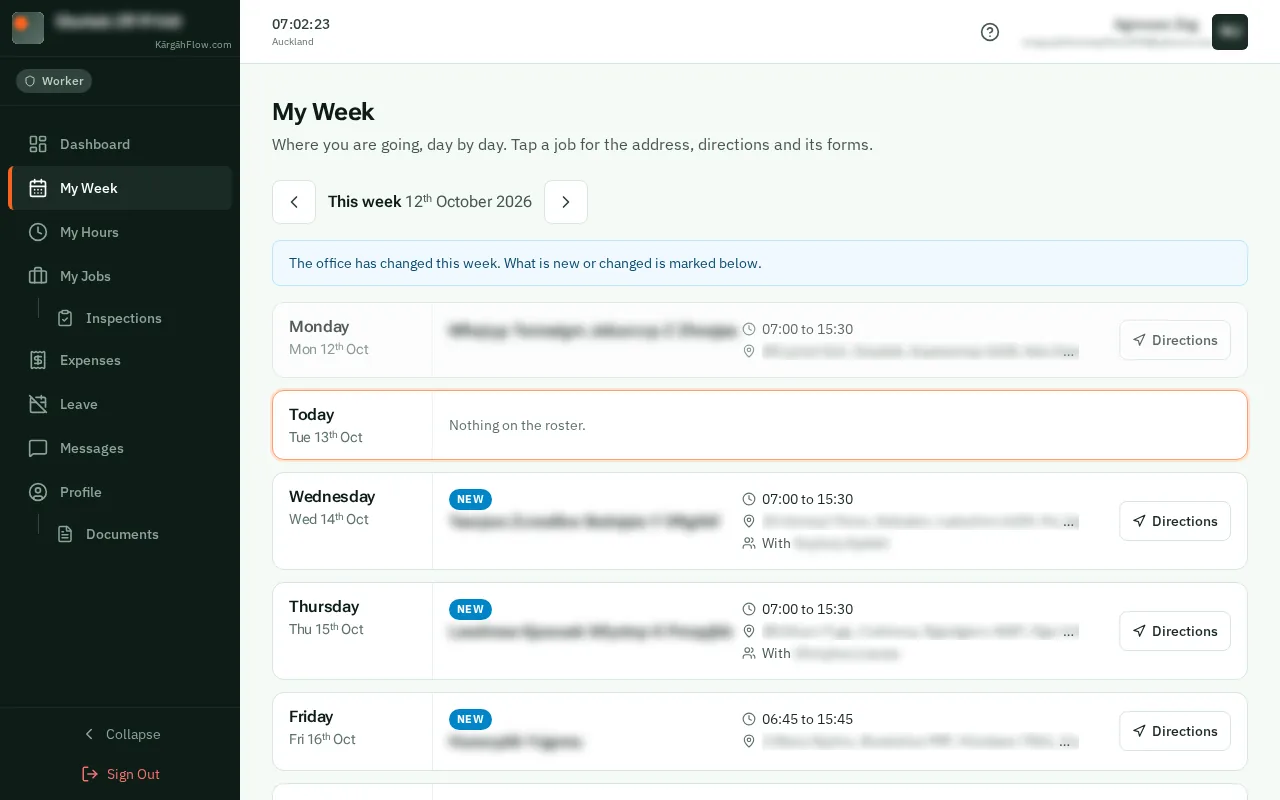
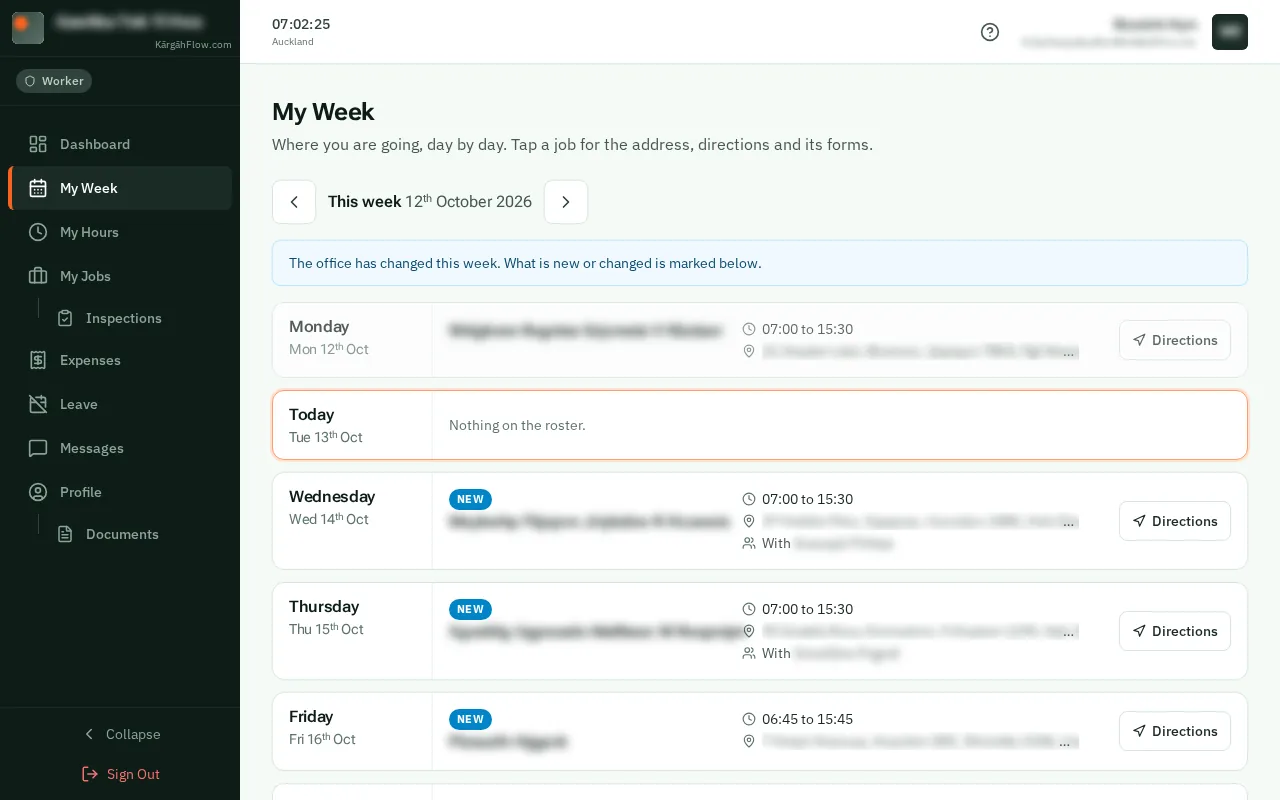
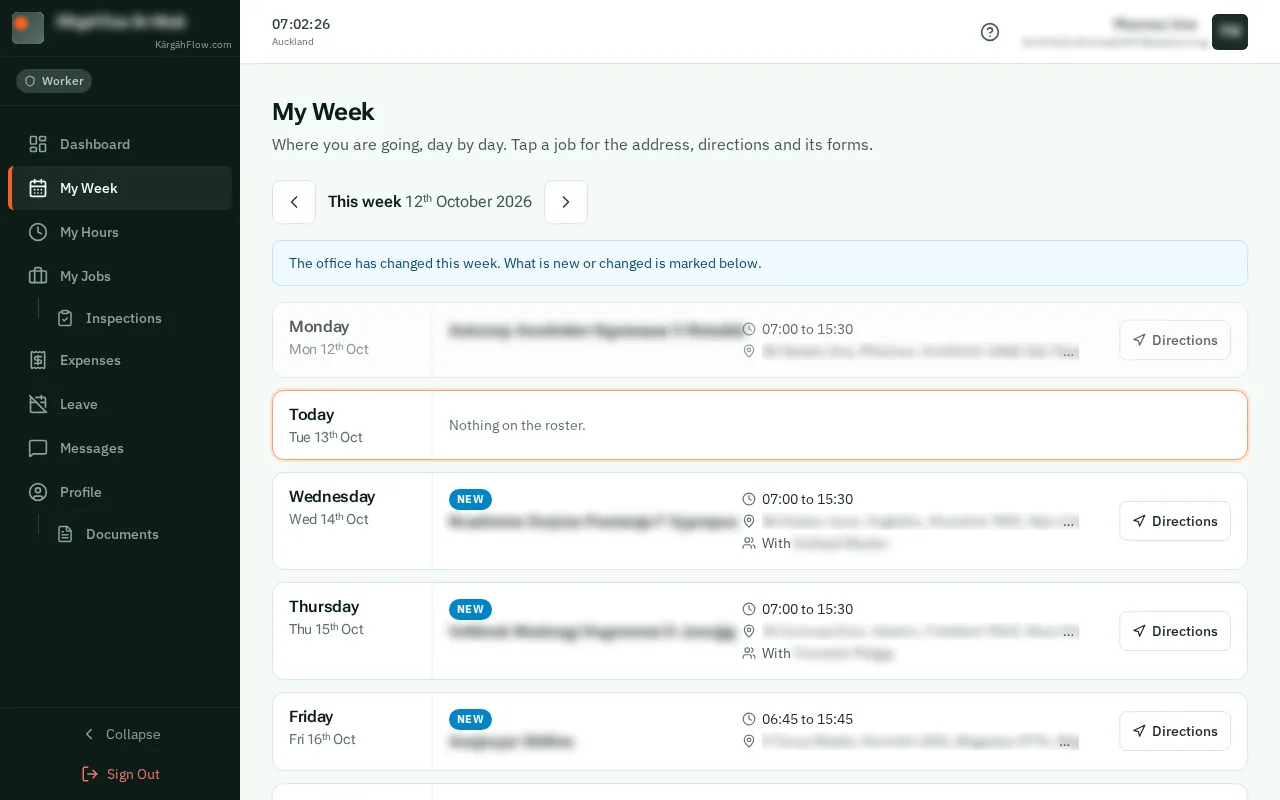
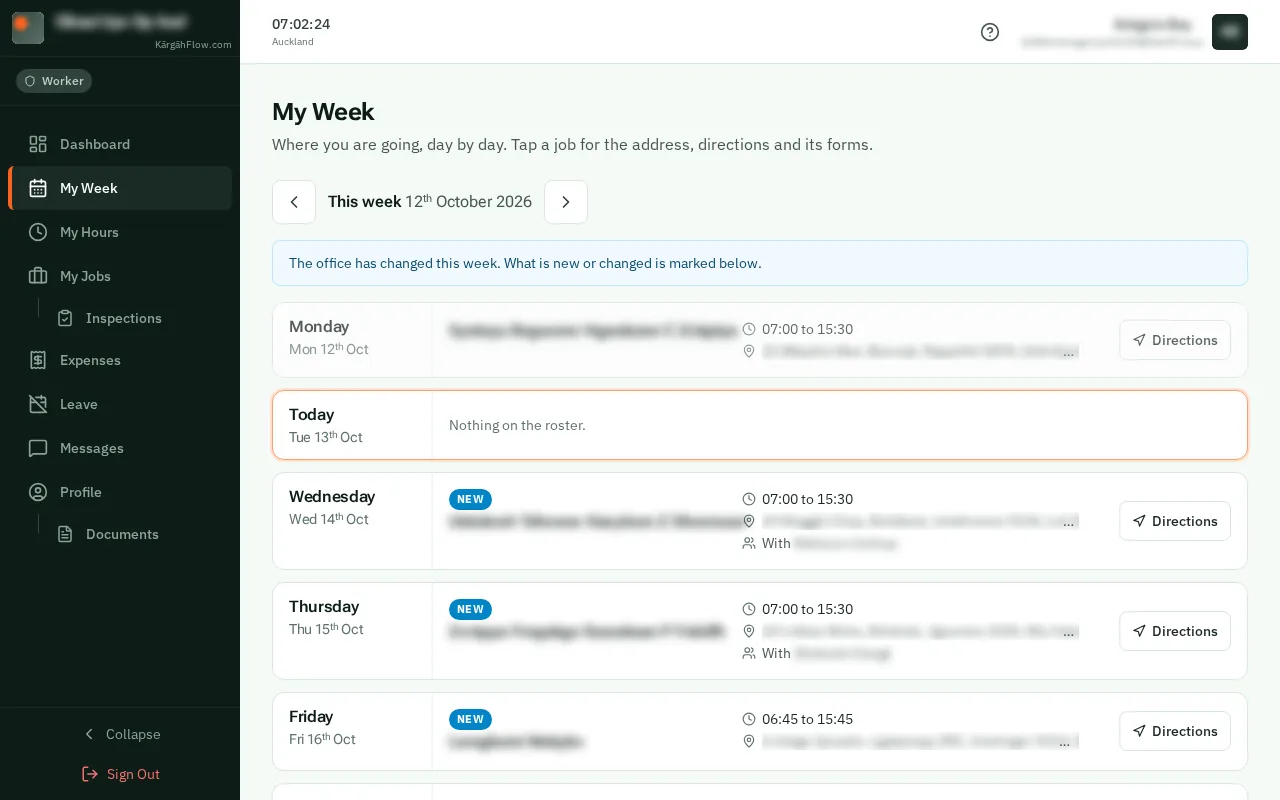
See where you are going this week: the screen on a computer

What this is

My Week is your week on the roster: where the office wants you each day, when to start, who else is going, and any note for you.

When the office changes it, your phone gets one notification, and the days that changed are marked until you have looked.

Step 1 of 6
  1. Step 1: Open My Week

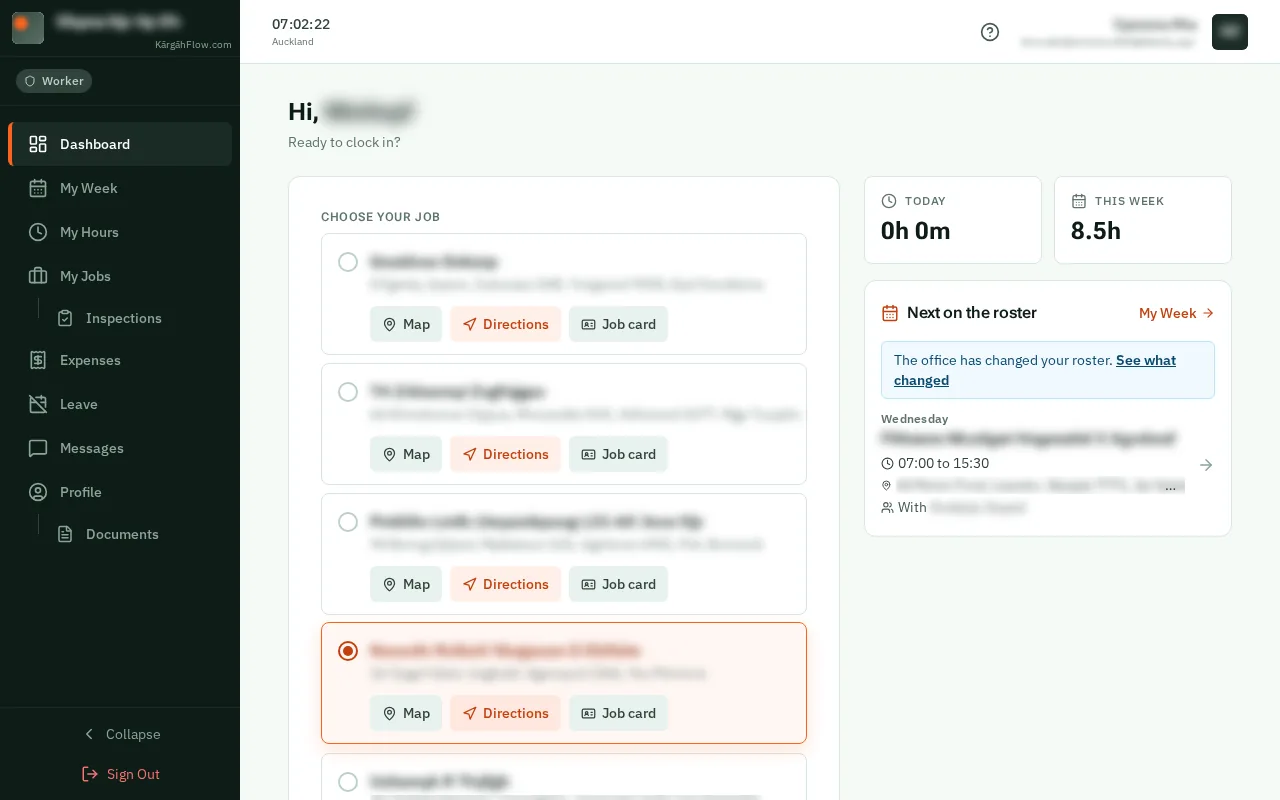
    TapClick More at the bottom of the screen, then My Week. When you are on the roster today, your Home screen shows it too.TapClick My Week in the menu on the left. When you are on the roster today, your Dashboard shows it too.

    Look forthe My Week item in the menu

    Good to know: Admins and owners: open Roster and tapclick My week at the top.
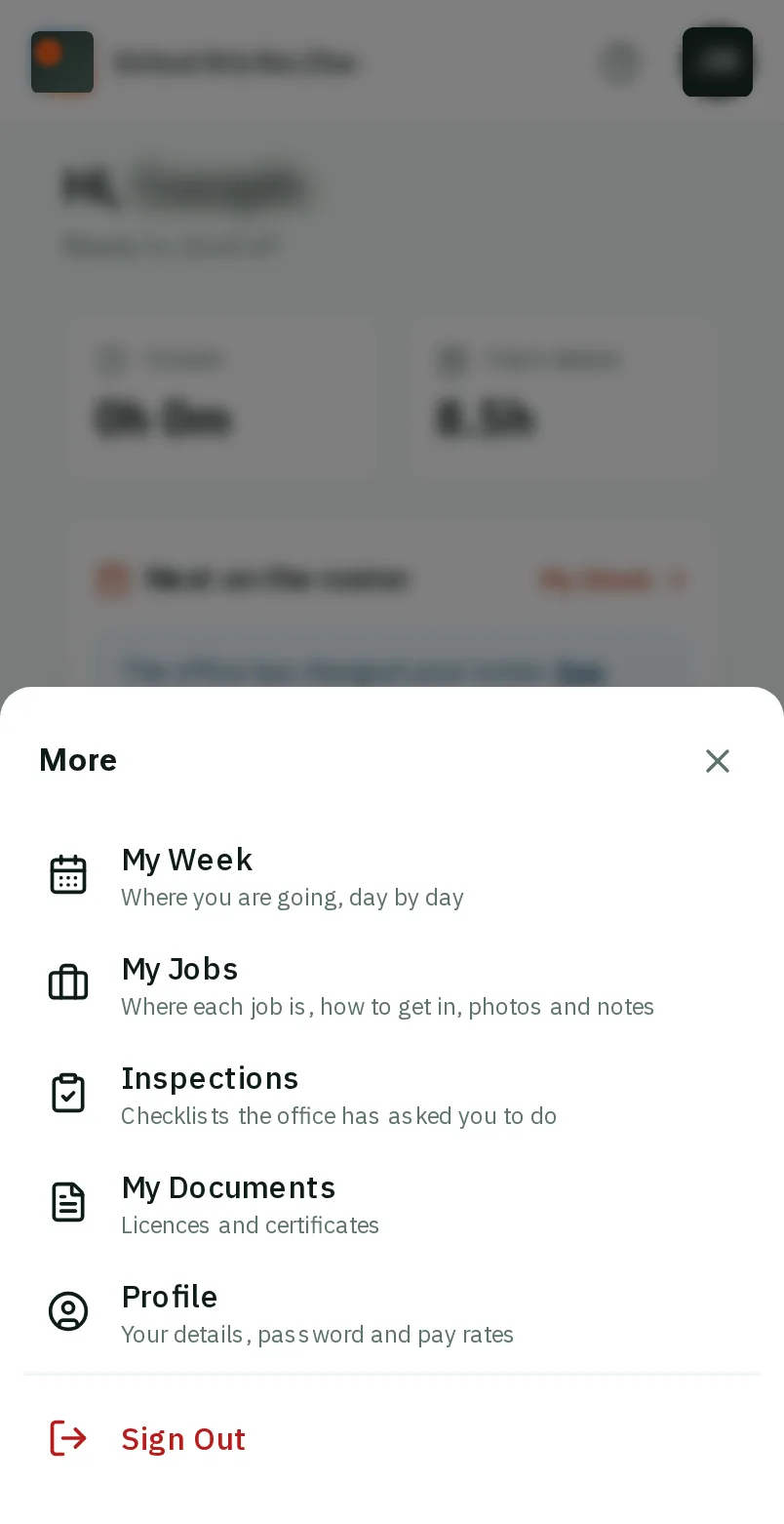
    Open My Week
    Open My Week
  2. Step 2: Find the day

    Each day of the week has its jobs under it, and today is marked. TapClick the arrow at the top to see next week.Each day of the week is a row, with its jobs beside it, and today is marked. TapClick the arrow at the top to see next week.

    Look forthe › button
    Find the day
    Find the day
  3. Step 3: Read where and when

    Each job says when to start, where it is, who else is going, and any note from the office.

    Read where and when
    Read where and when
  4. Step 4: See what has changed

    When the office changes your week, you get one notification. Days that changed say New or Changed until you have looked.

    Look forthe New tab in the bar at the bottom of the screen
    See what has changed
    See what has changed
  5. Step 5: TapClick Directions

    TapClick Directions under a job, and a map shows you the way there.TapClick Directions at the end of a job’s row, and a map shows you the way there.

    Look forthe Directions button
    Tap Directions
    Click Directions
  6. Step 6: Open the job

    TapClick the job for everything else: how to get in, what to watch out for, its forms, and I’m here to clock in.

    Look forthe The job choice
    Open the job
    Open the job

That's it

You know where you are going each day, and your phone tells you when that changes.

Next: Your job card