Step 1: Open Settings
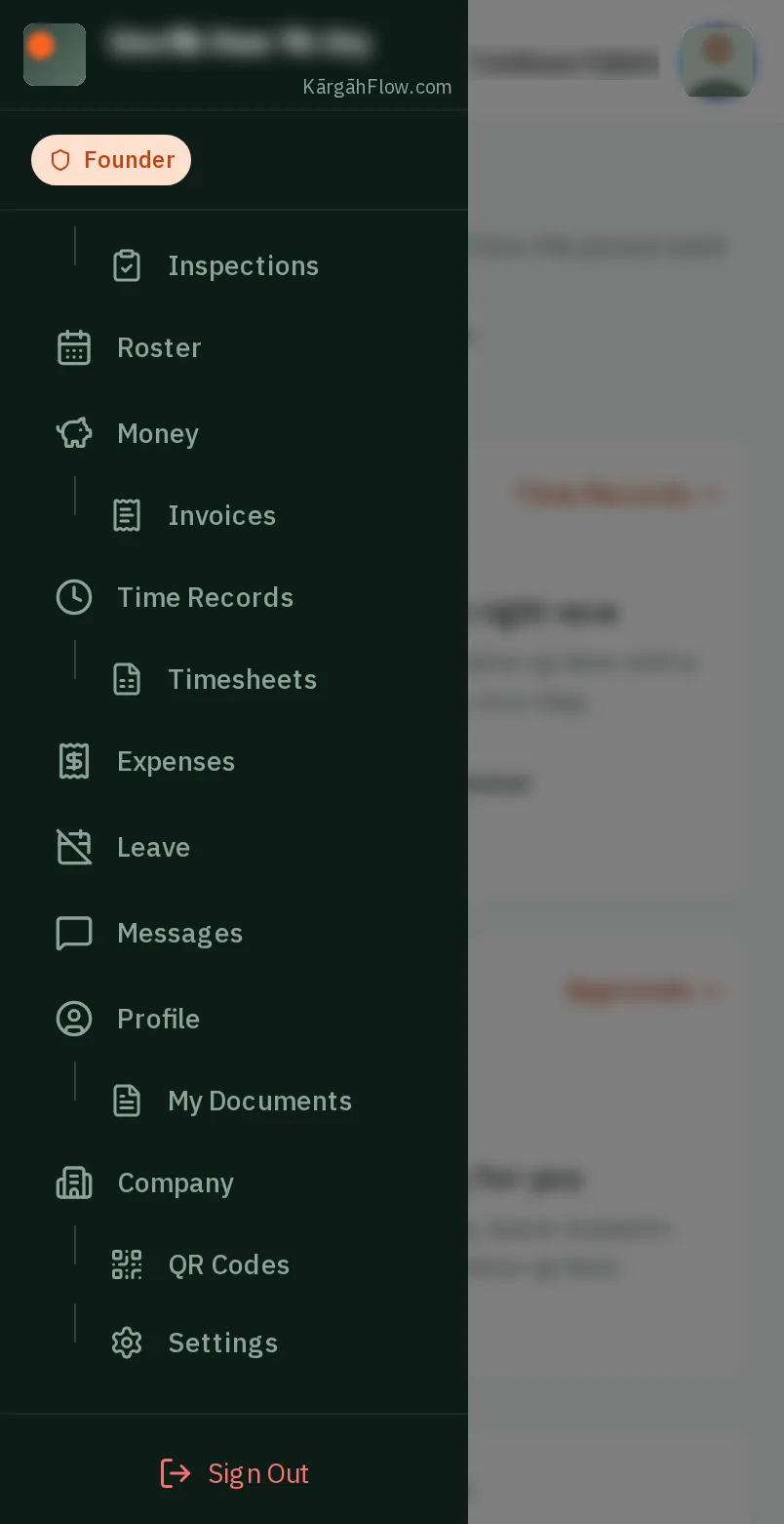
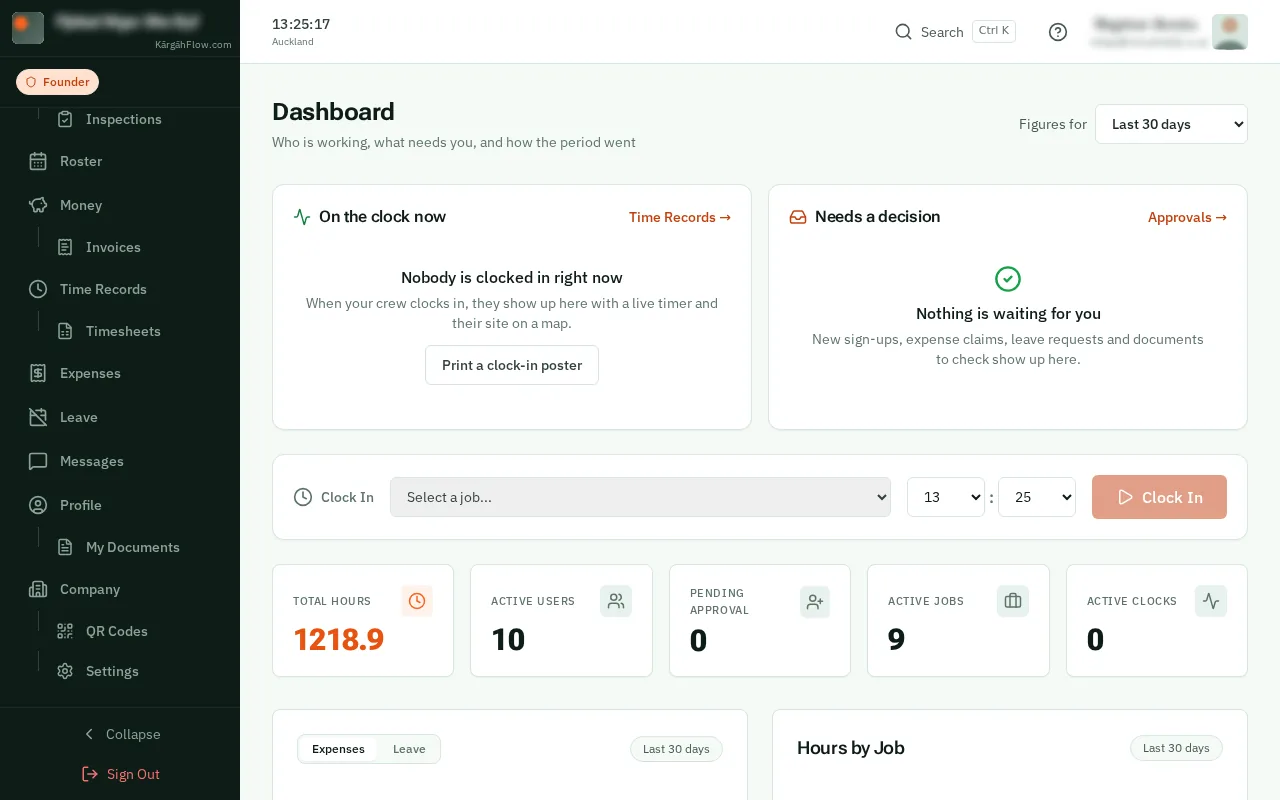
TapClick the menu button at the top left of the screen, then Settings.TapClick Settings in the menu on the left.
Look forthe Settings item in the menu
Good to know: Settings sits under Company in the menu.
With automatic clock-in on, the app clocks your crew in when they open it at their job, and asks them at knock-off time if they have finished.
Nobody is switched on for them: each person turns it on once, on their own phone. The app looks at where a phone is only when it is opened, and never clocks anyone out by itself.
TapClick the menu button at the top left of the screen, then Settings.TapClick Settings in the menu on the left.
Good to know: Settings sits under Company in the menu.
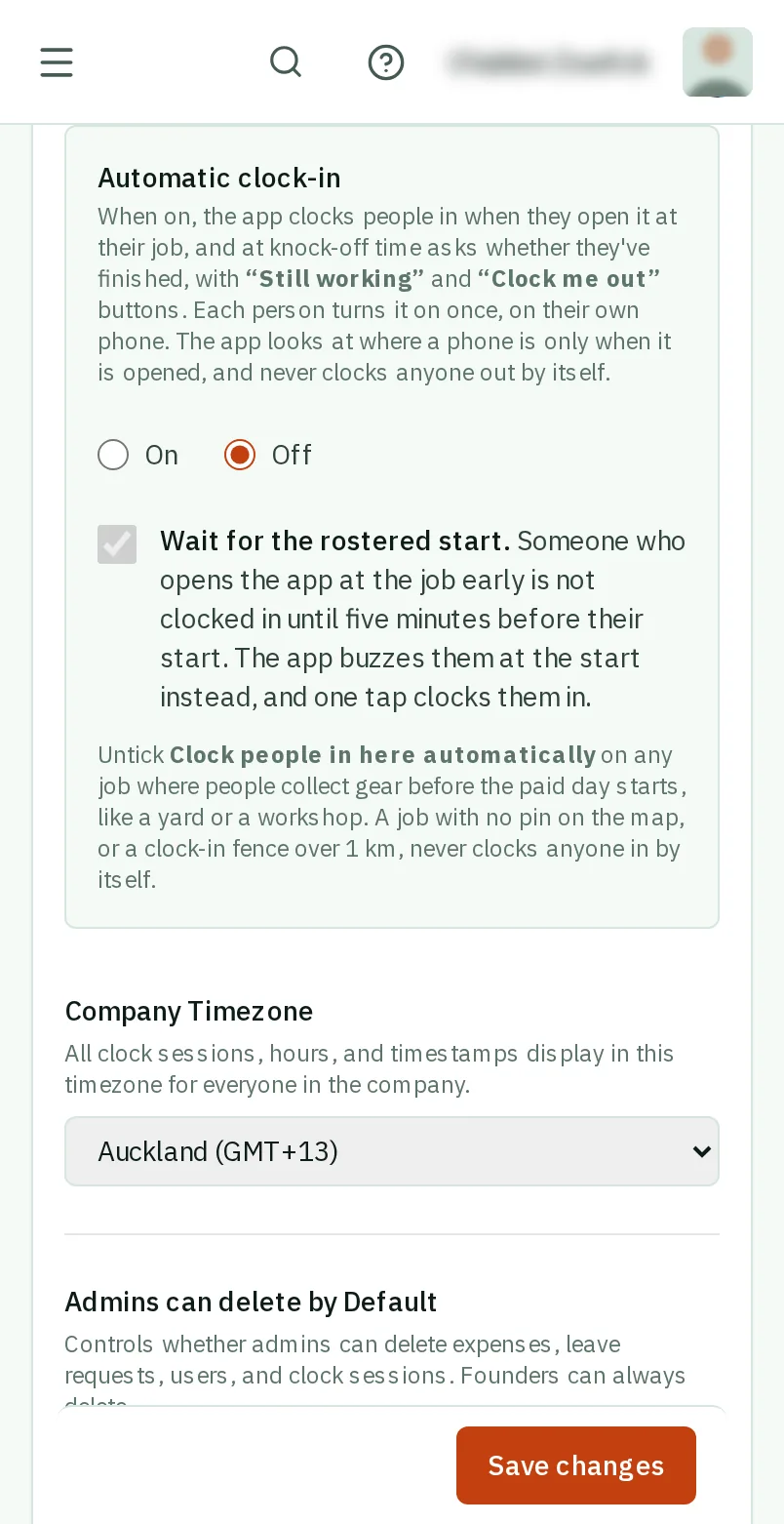
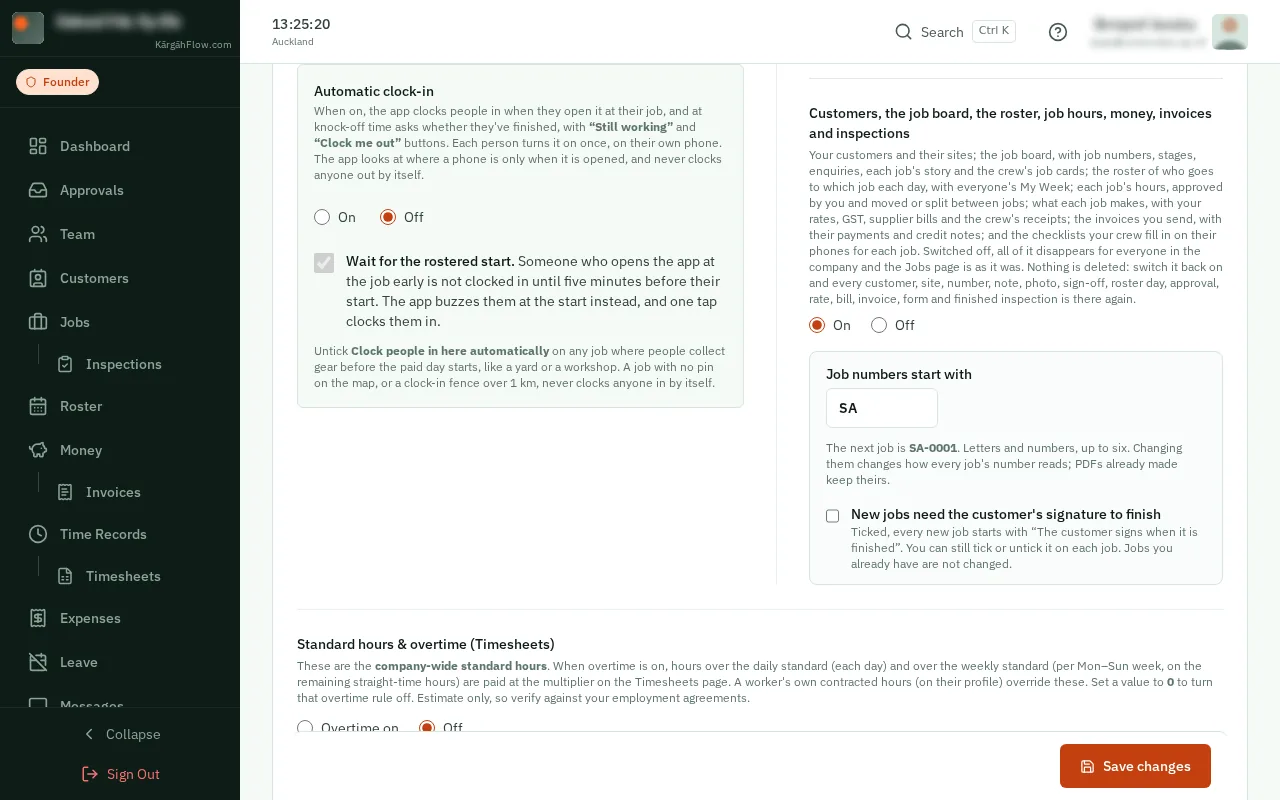
Under Automatic clock-in, choose On.
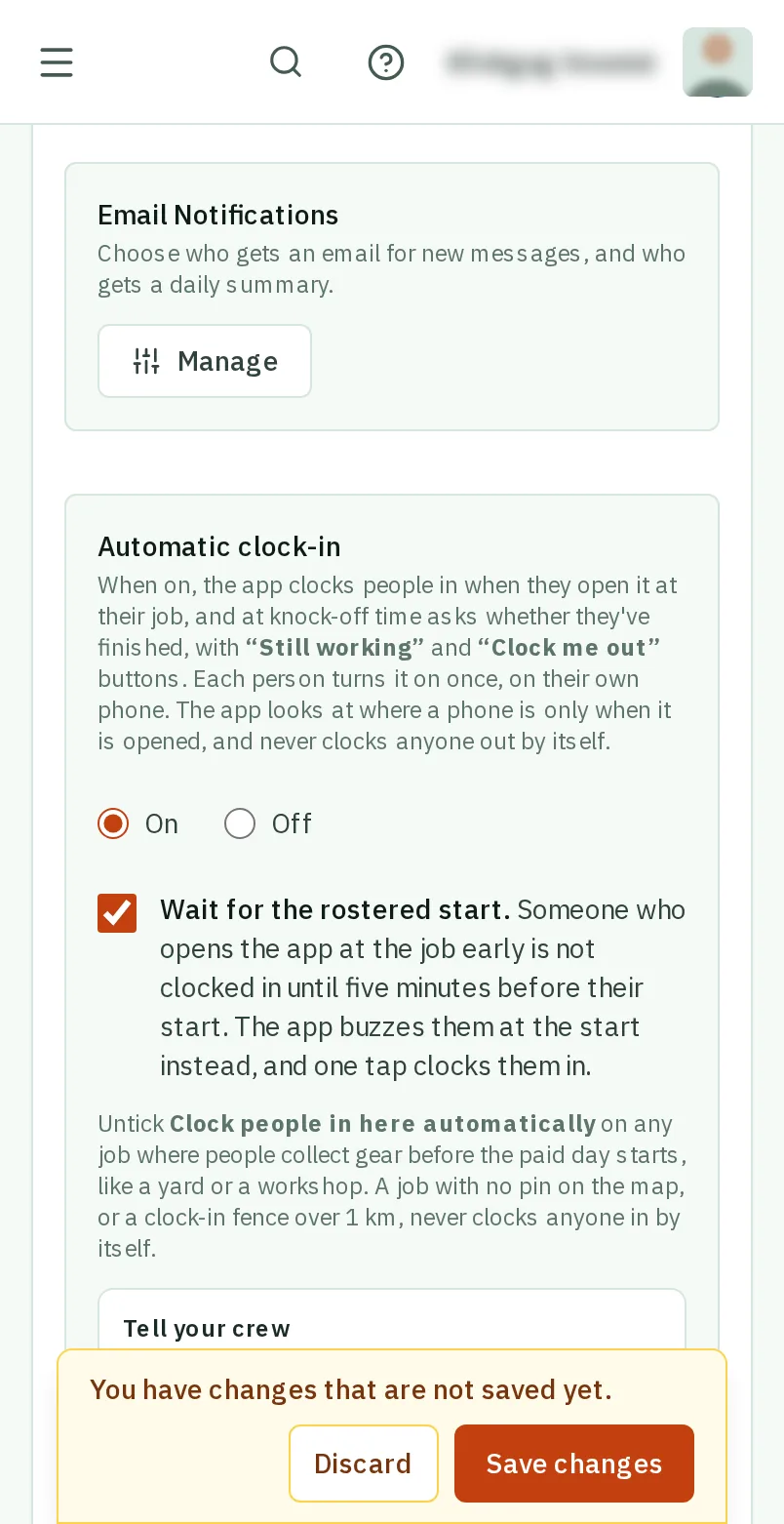
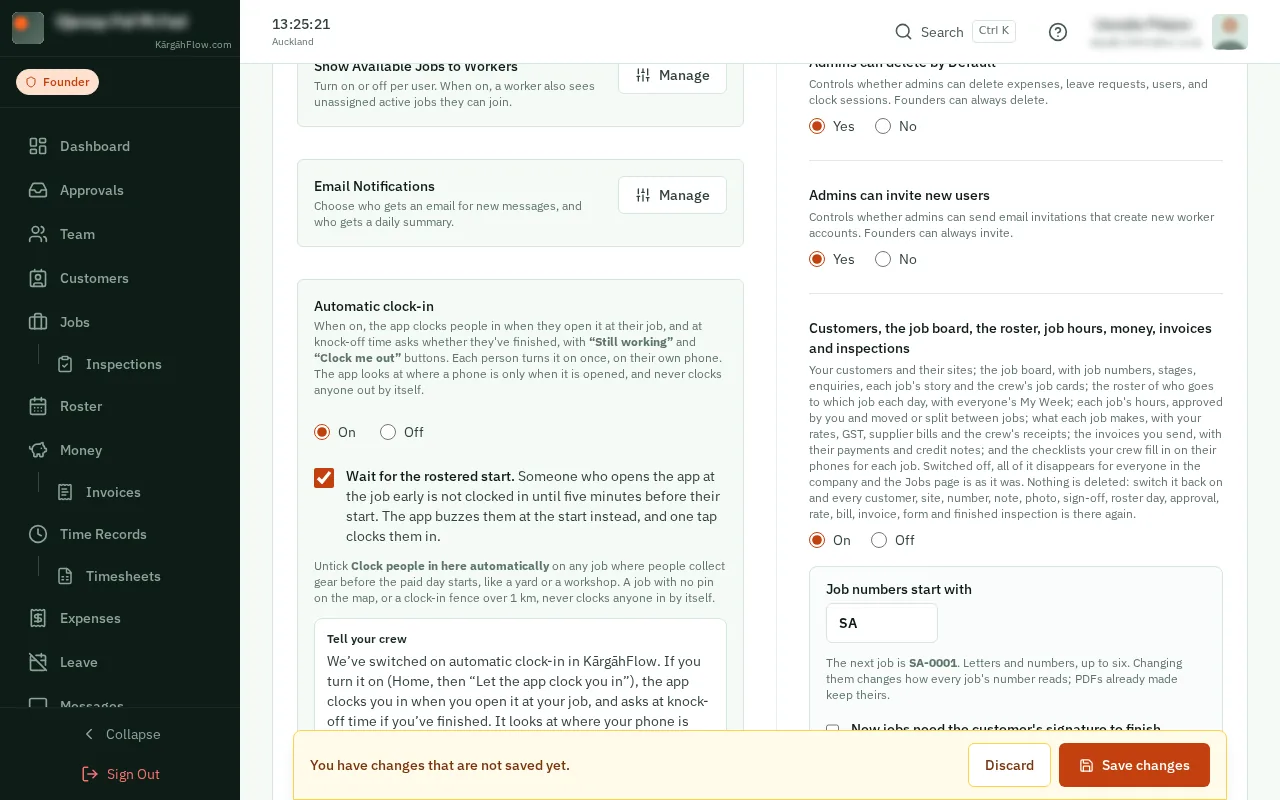
Wait for the rostered start is ticked to begin with. Someone who opens the app at the job early is not clocked in until five minutes before their start. Their phone buzzes at the start instead.
Good to know: It shows while job management is on, because the start times come from the roster.
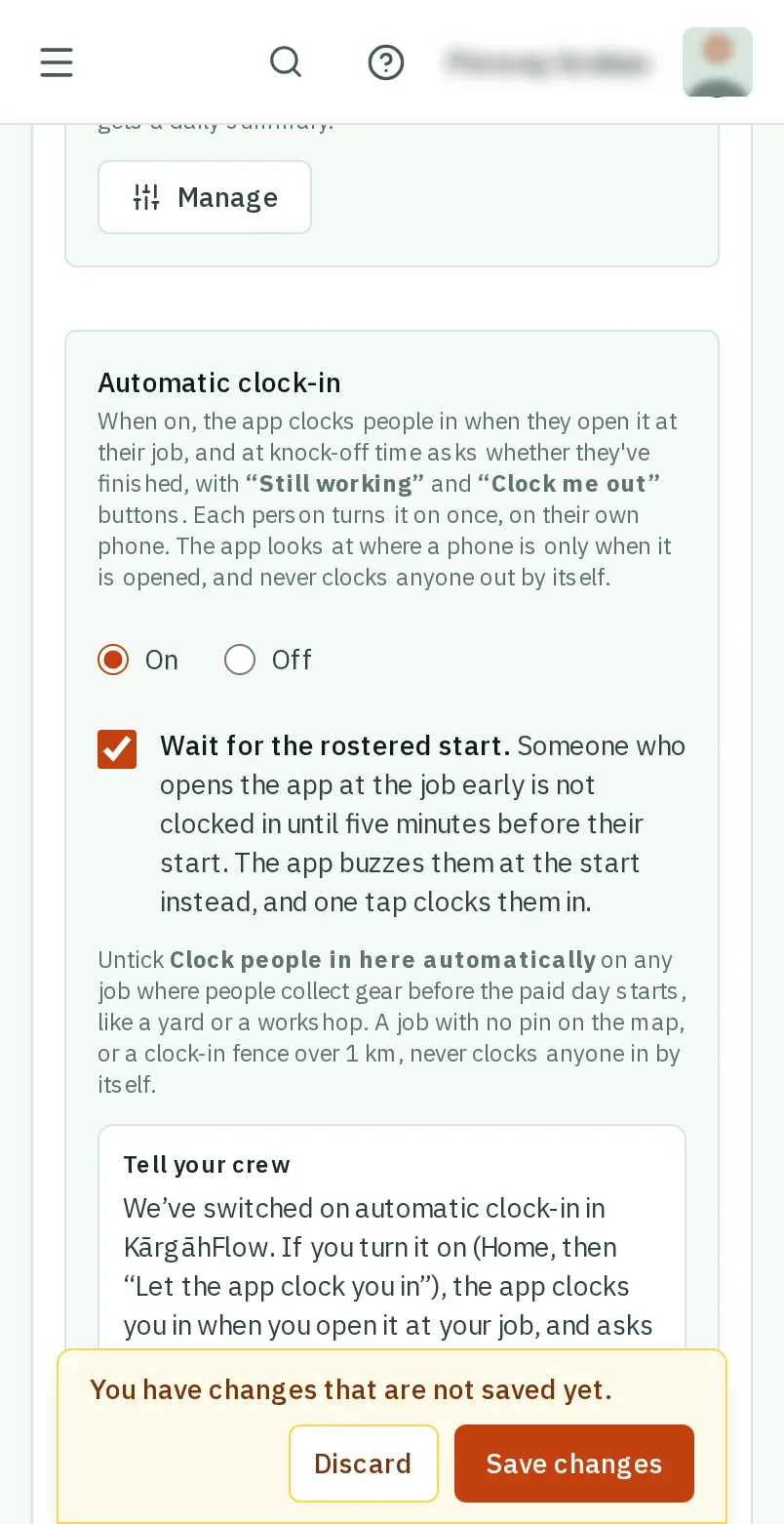
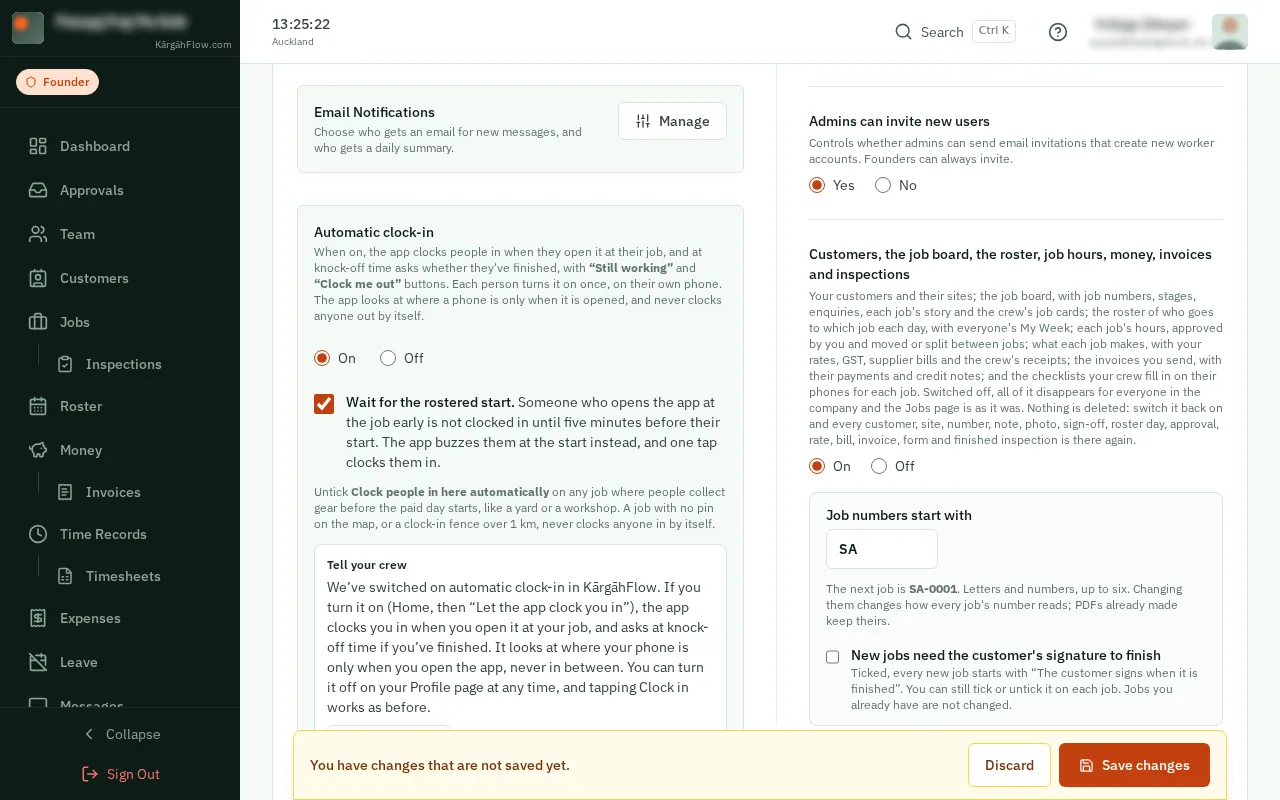
TapClick Save changes at the bottom.
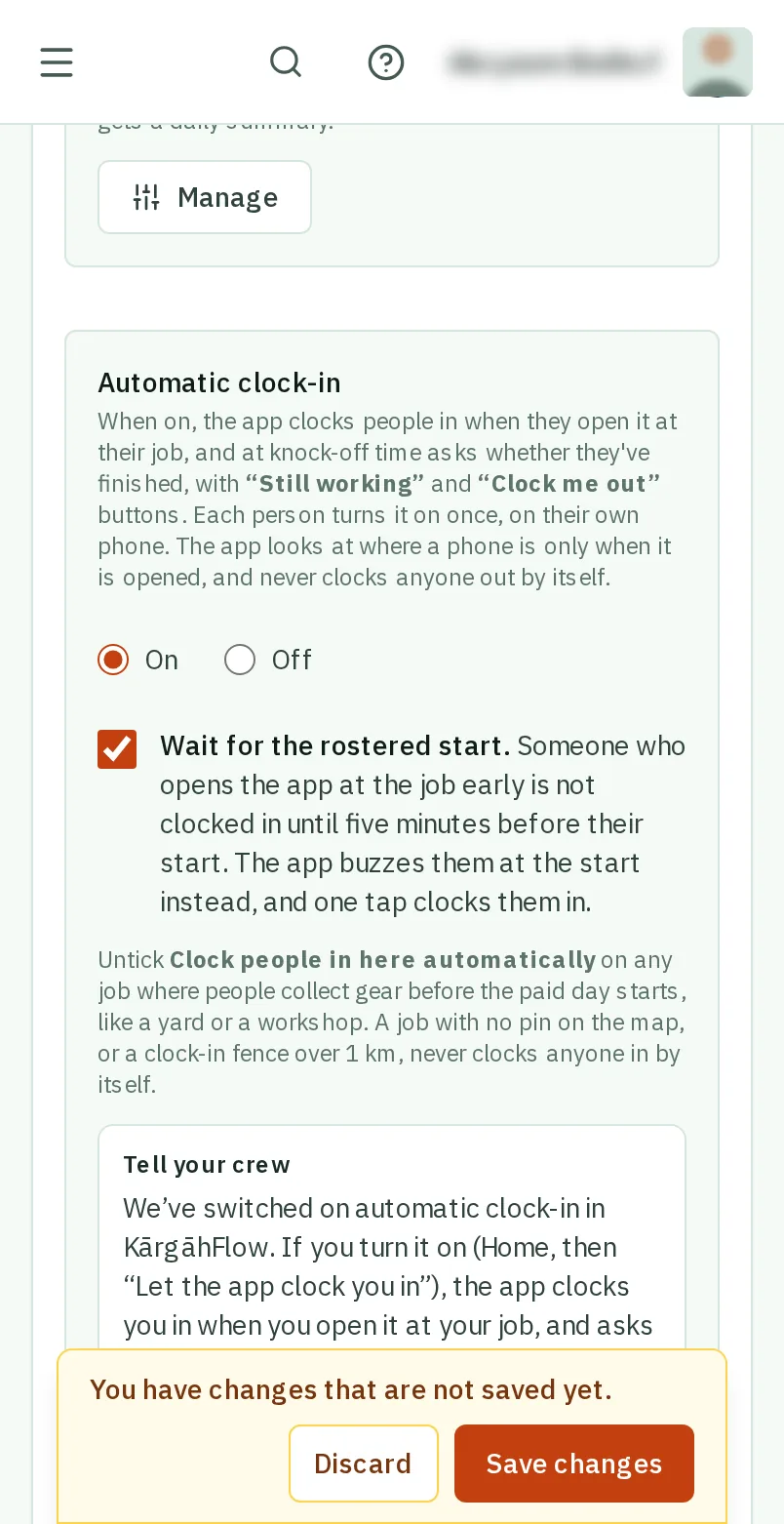
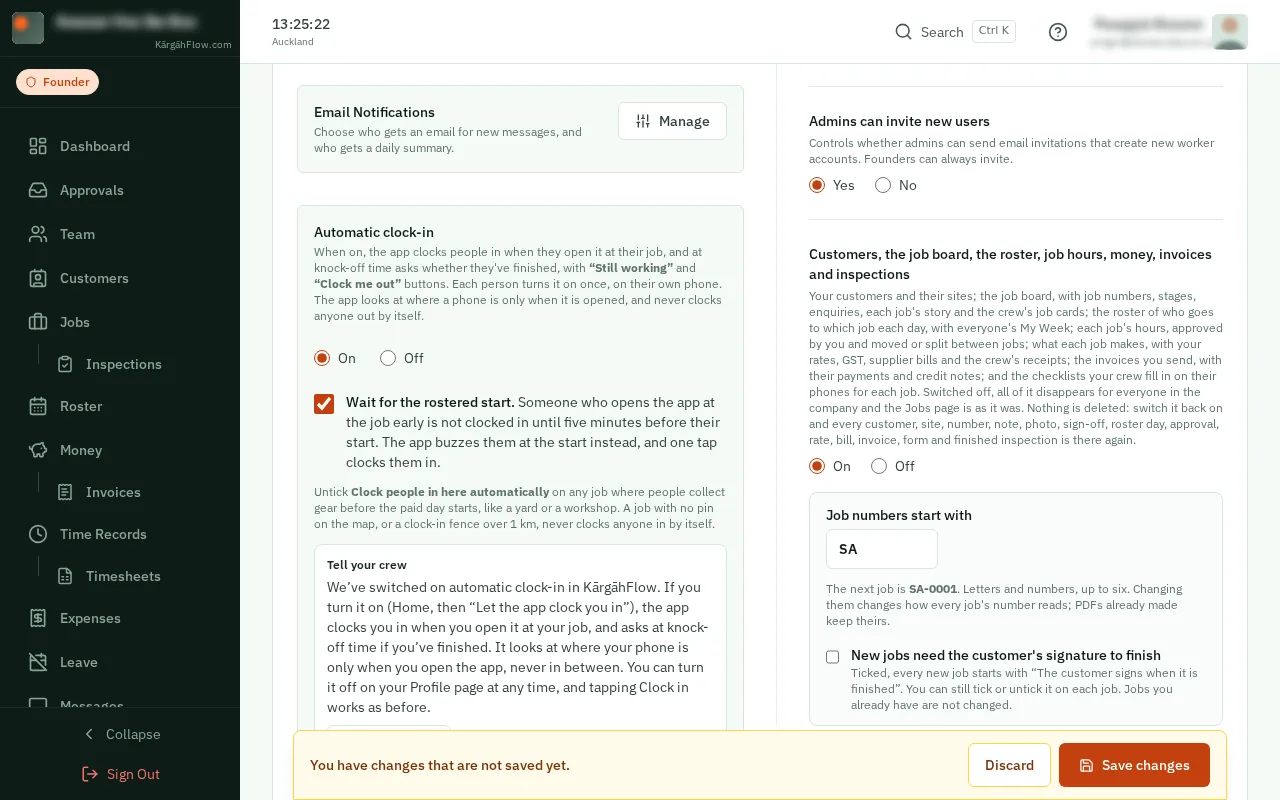
Under Tell your crew, tapclick Copy the words, and paste them into a message to your crew. They say what the app does, and how to turn it on and off.
Good to know: Nobody can turn it on for someone else. Each person taps Turn it on on their own home screen.
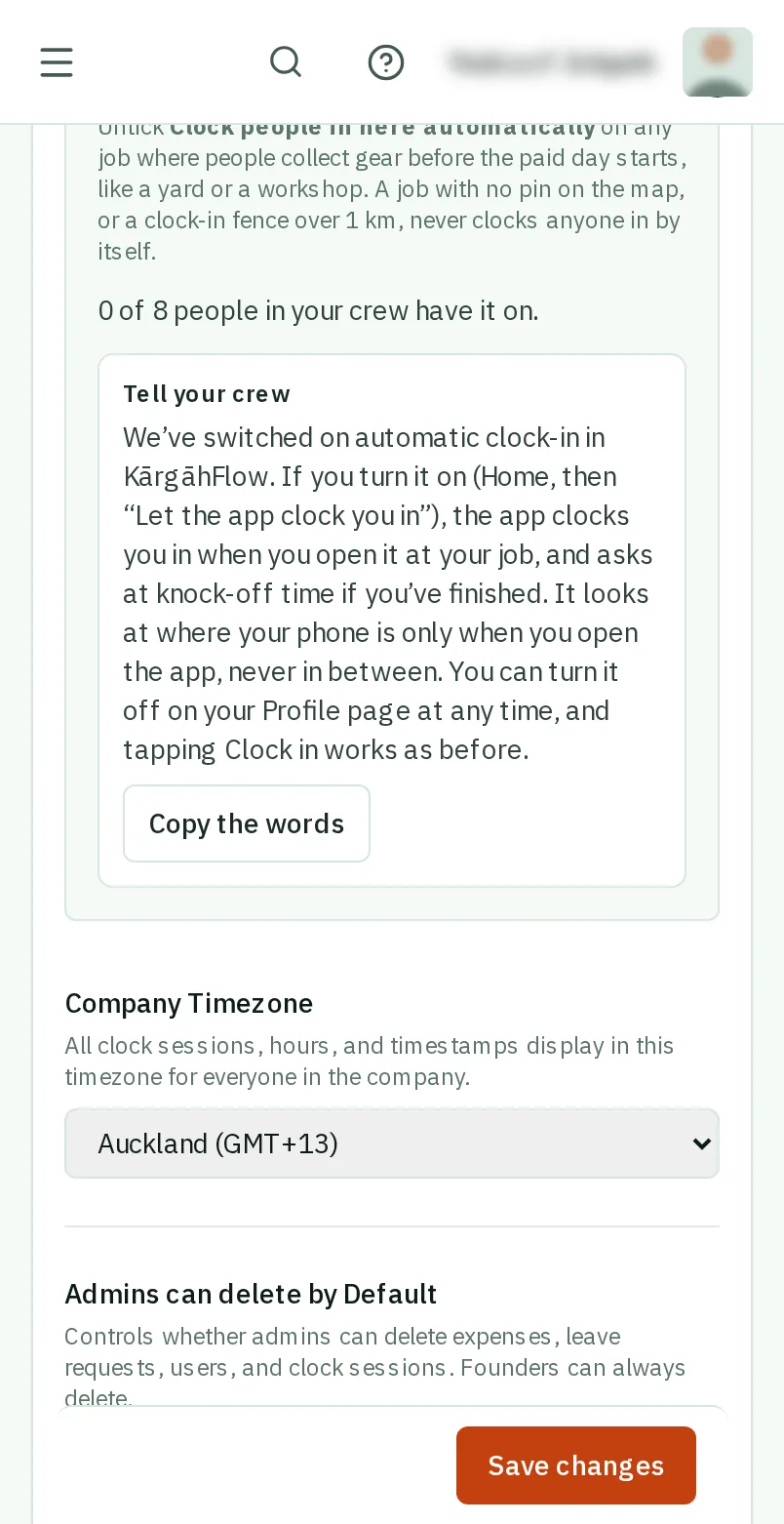
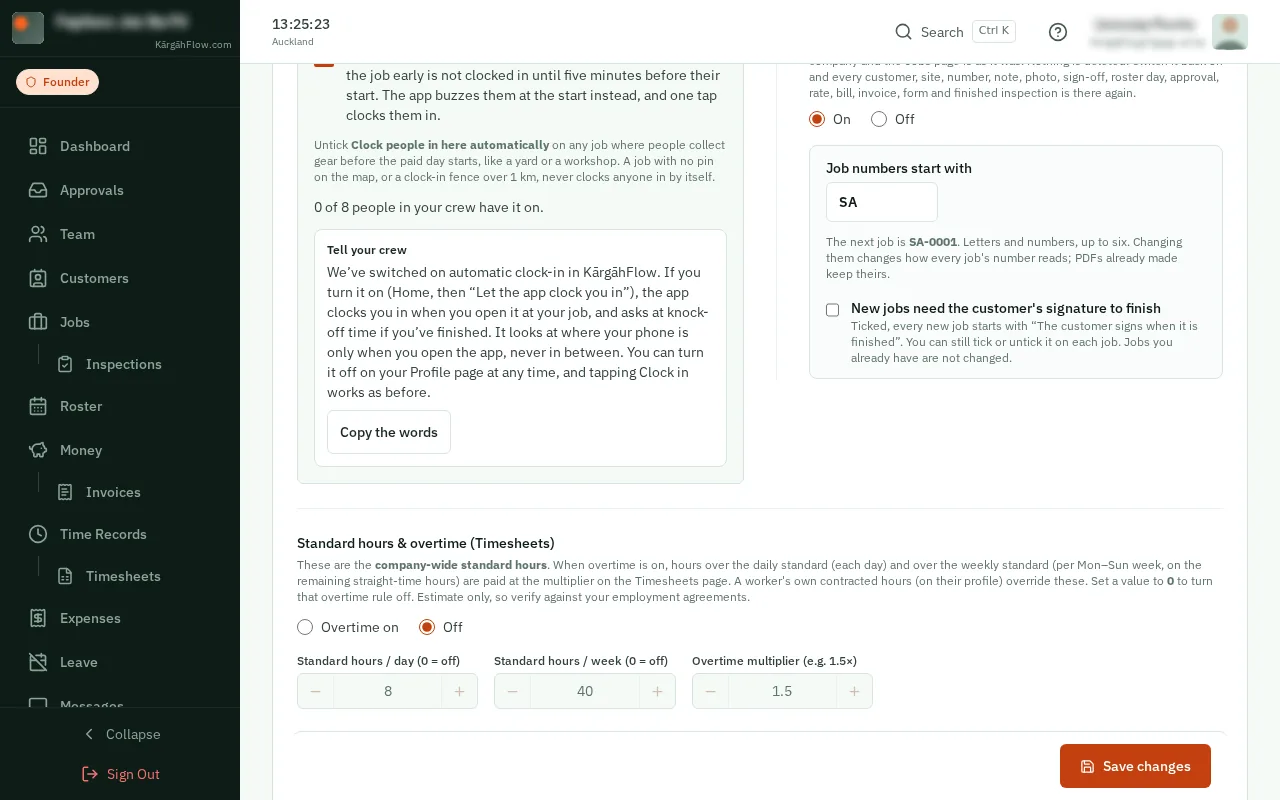
Once your crew turn it on, the section says how many have. TapClick See who for their names.
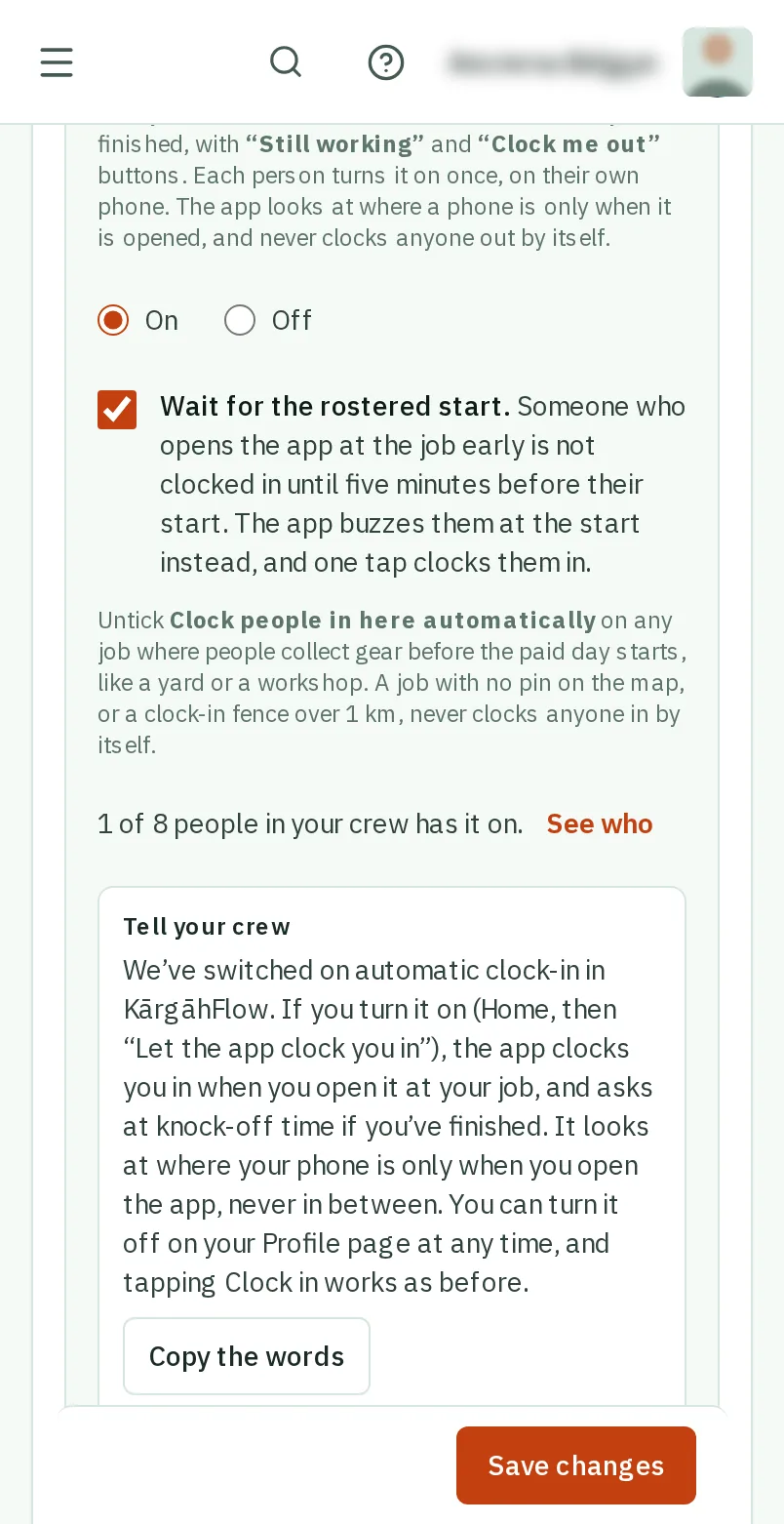
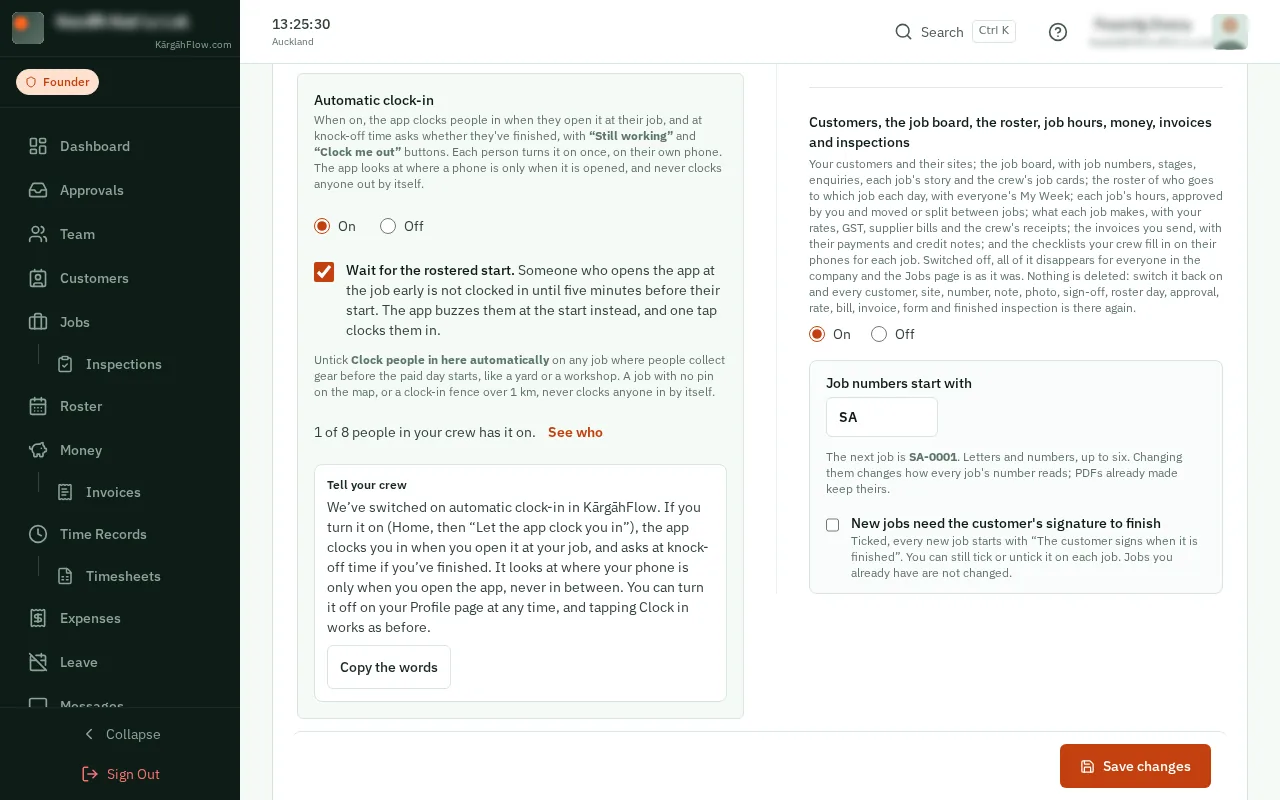
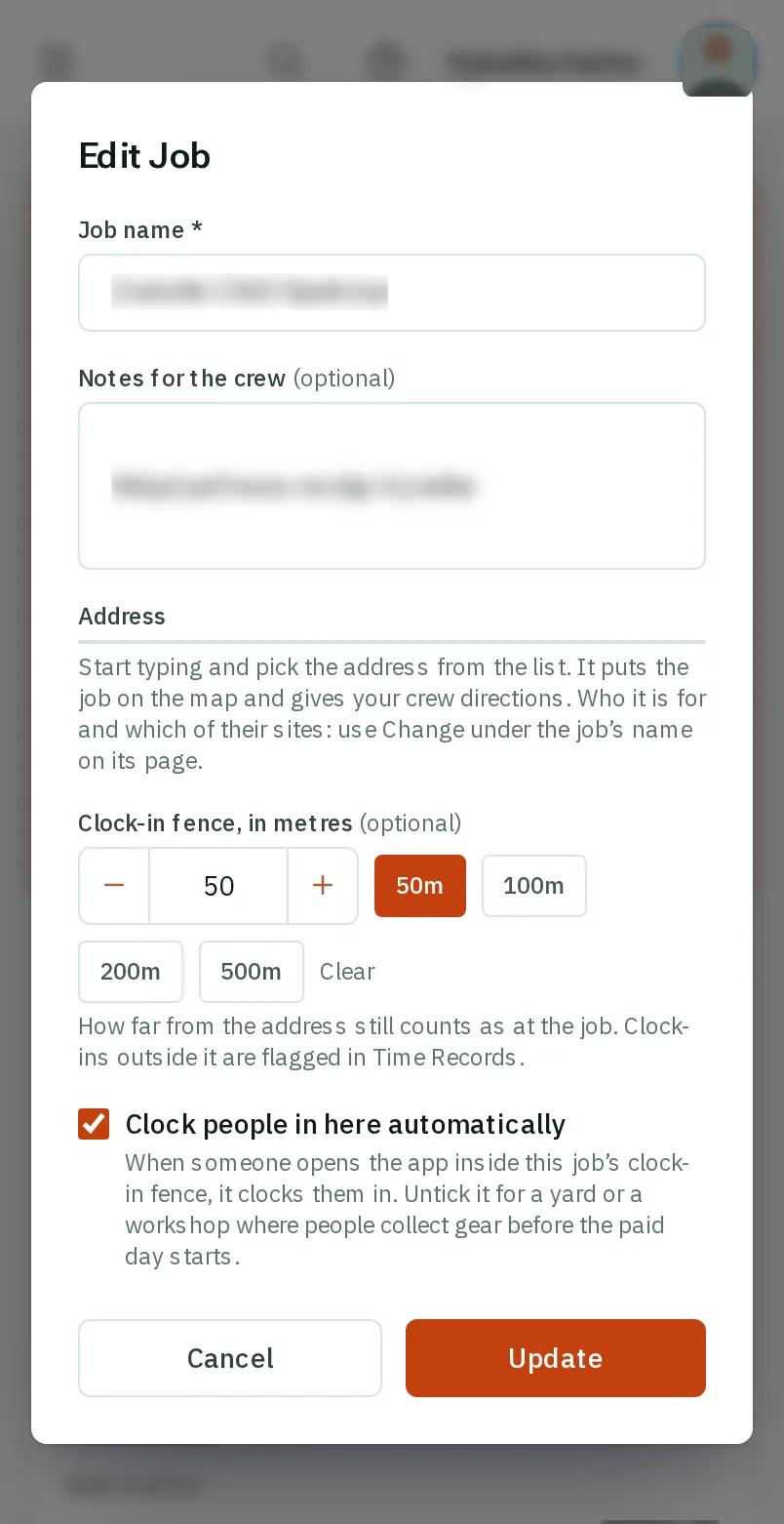
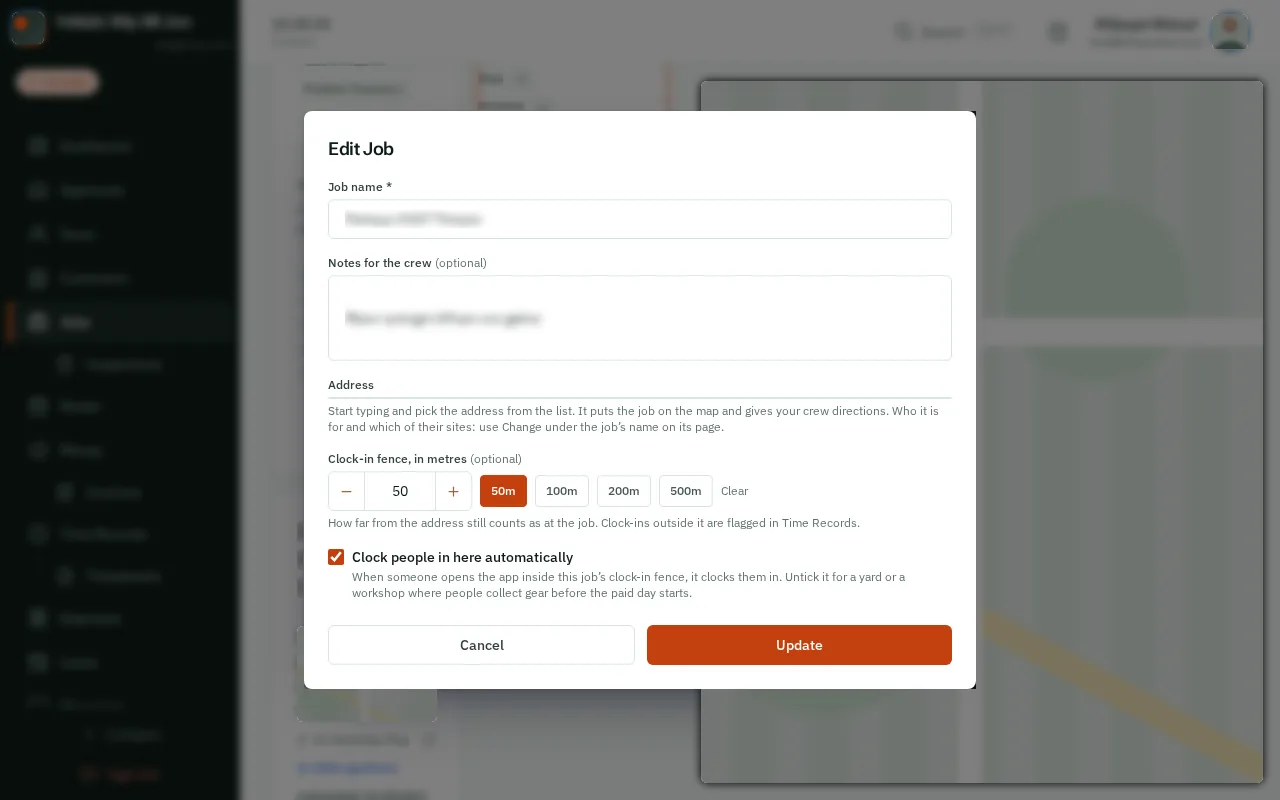
On a job where people collect gear before the paid day starts, like a yard or a workshop, untick Clock people in here automatically when you create or change the job.
Good to know: A job with no pin on the map, or a clock-in fence over 1 km, never clocks anyone in by itself. Your admins can untick a job too.
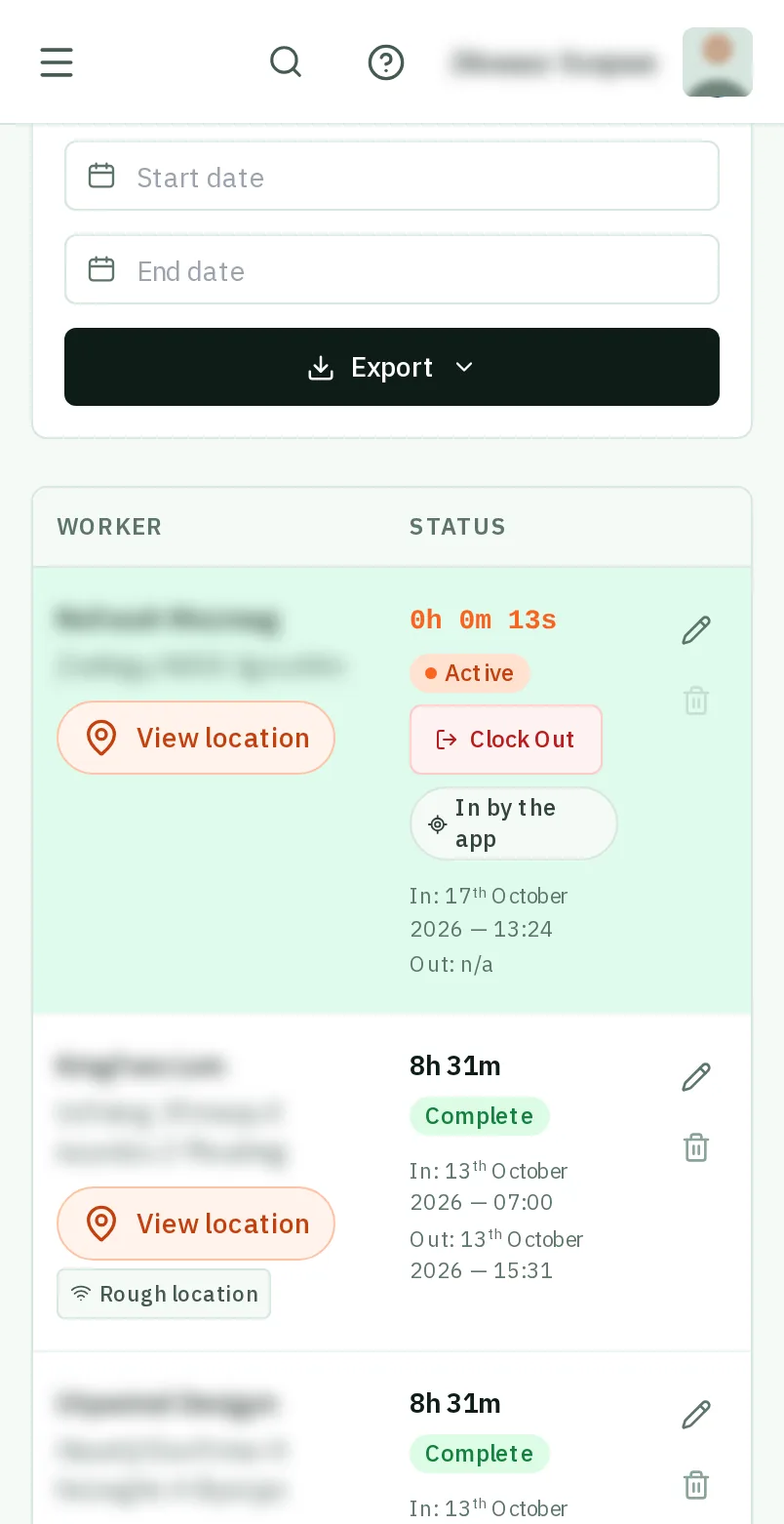
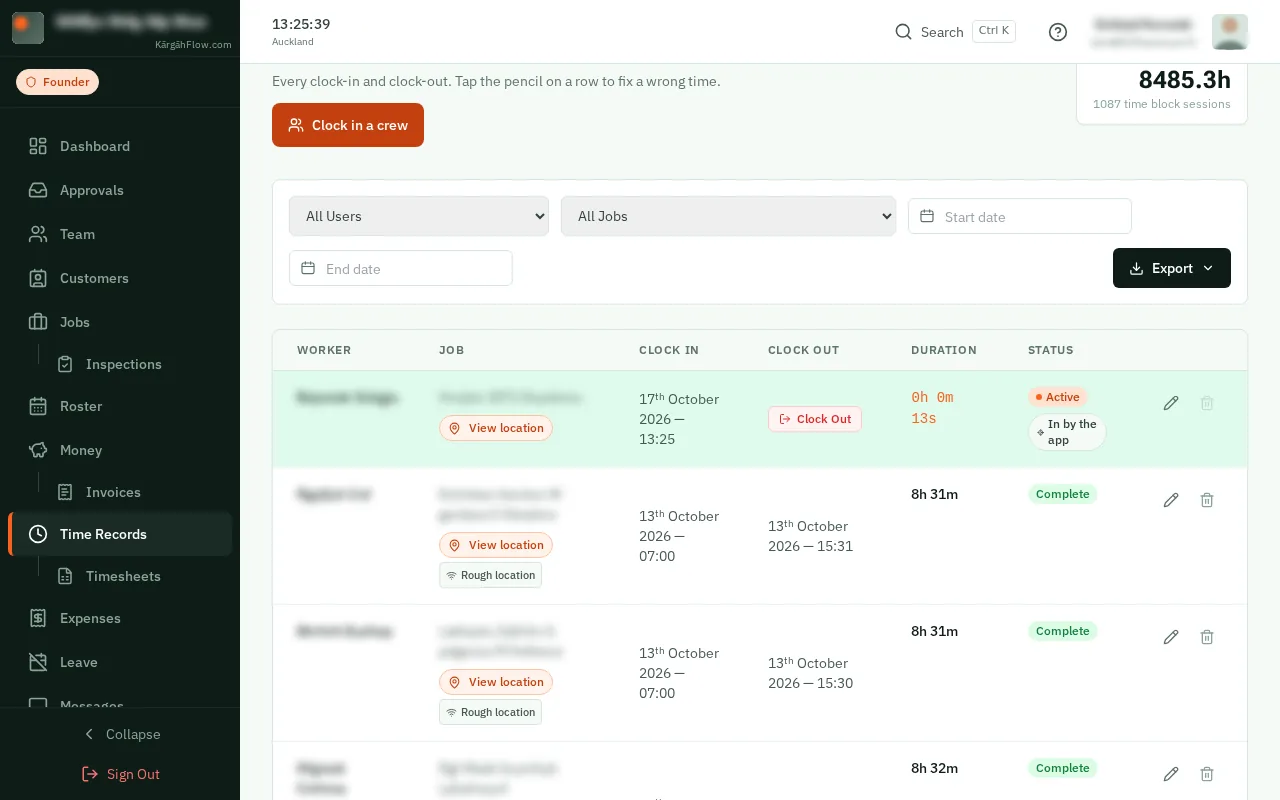
In Time Records, a shift the app started says In by the app, and one finished from the knock-off question says Out from a reminder.