Step 1: Open Time Records
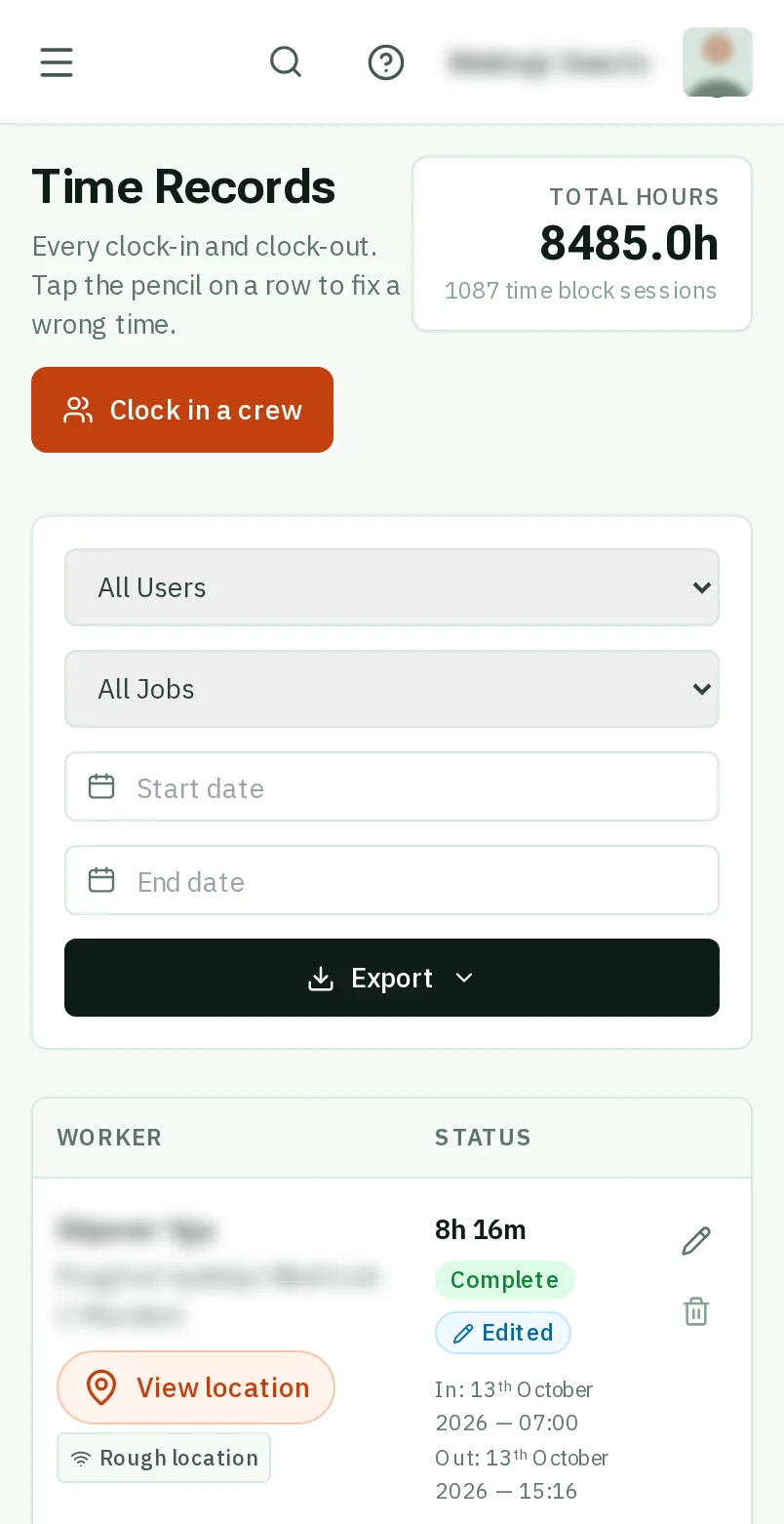
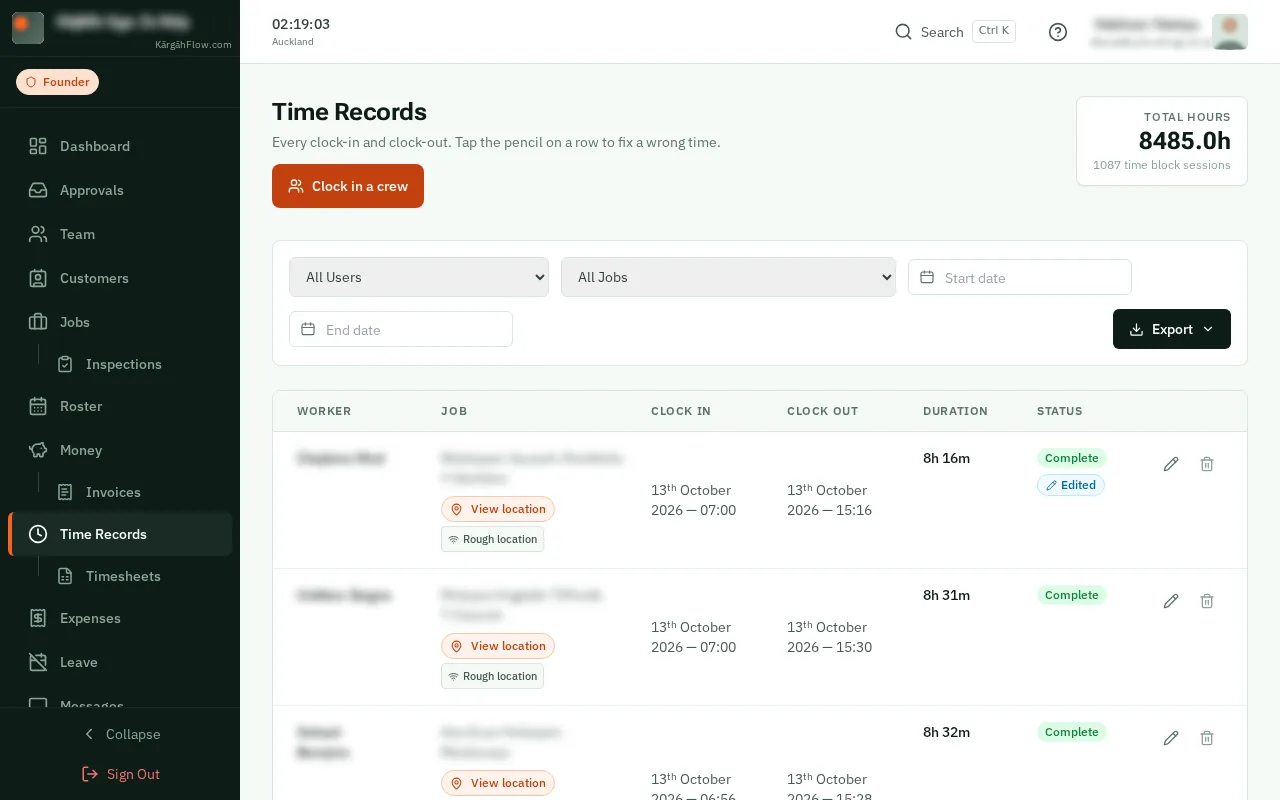
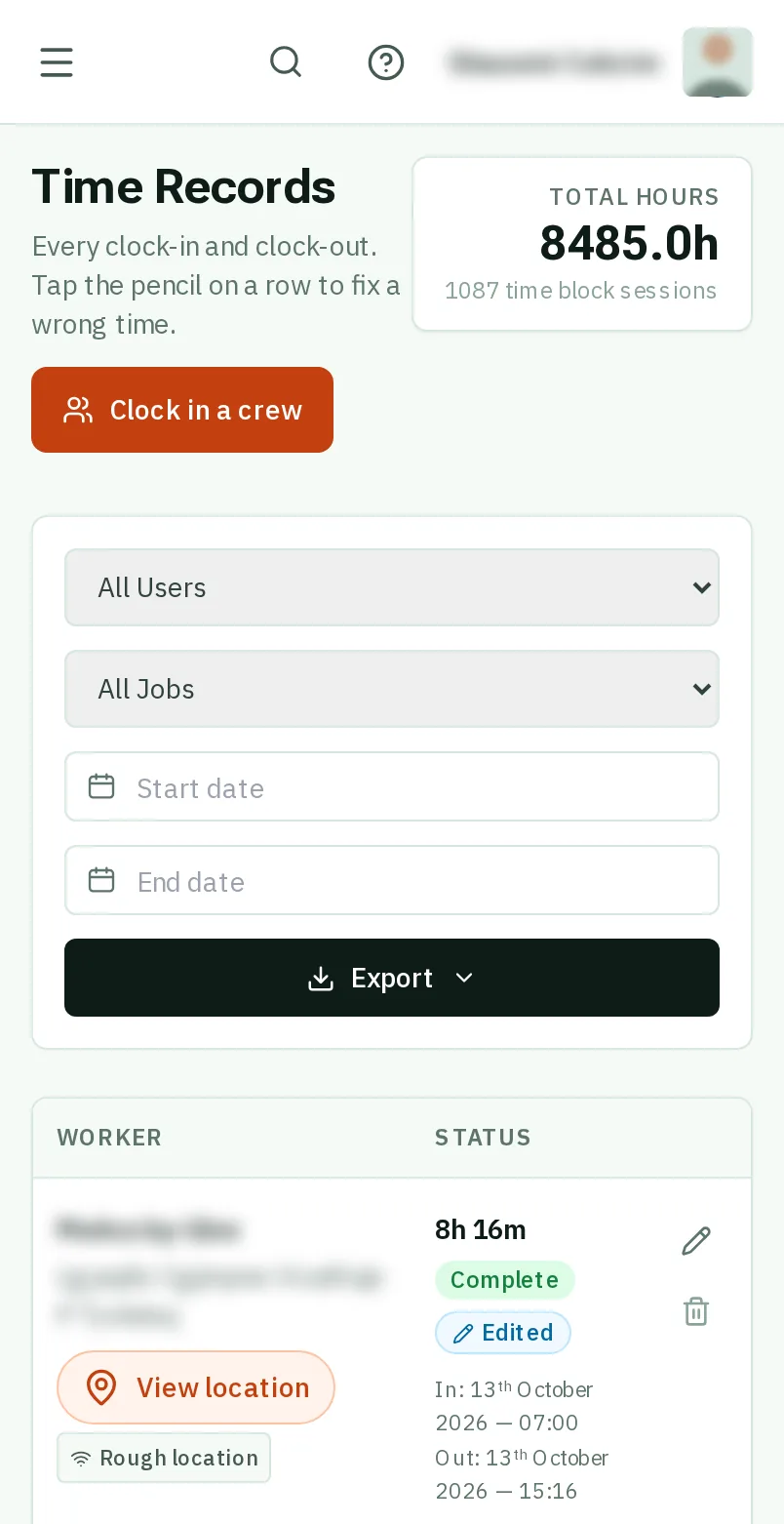
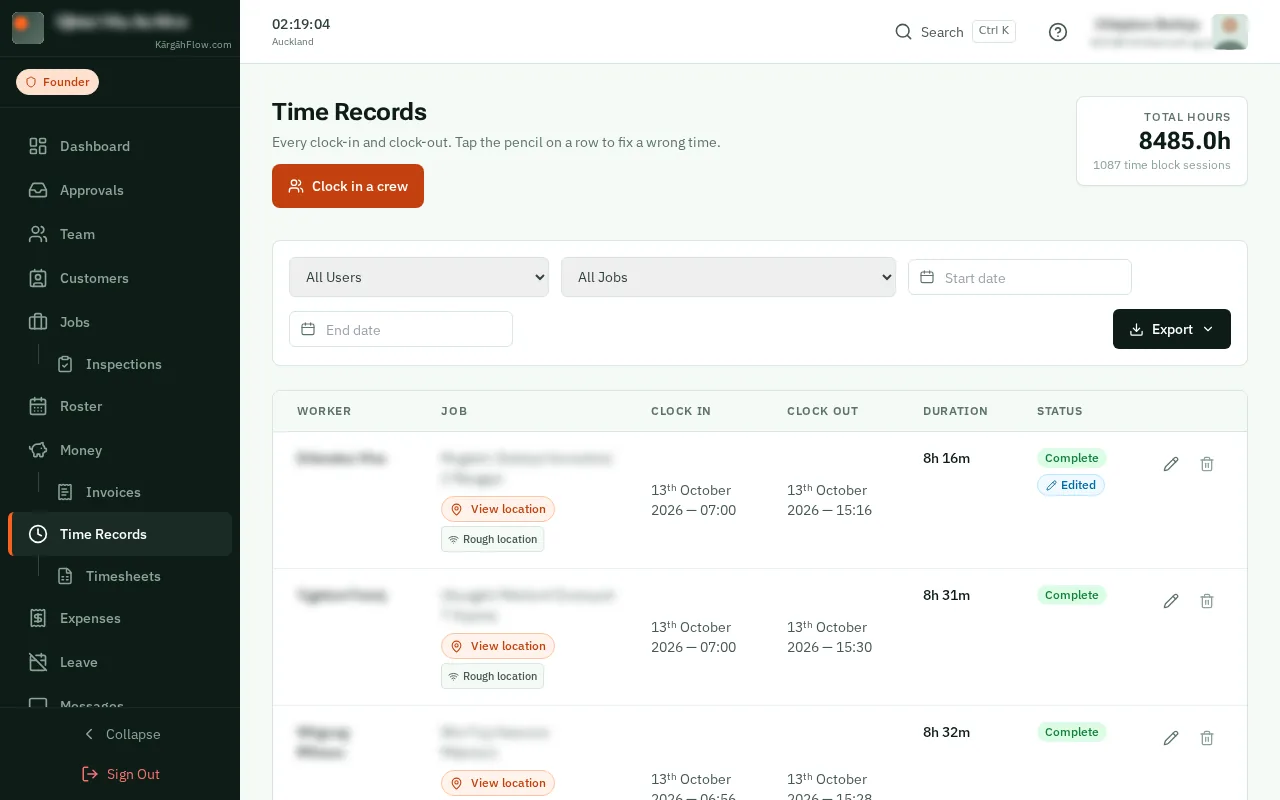
TapClick the menu button at the top left of the screen, then Time Records.TapClick Time Records in the menu on the left.
Look forthe Time Records item in the menu
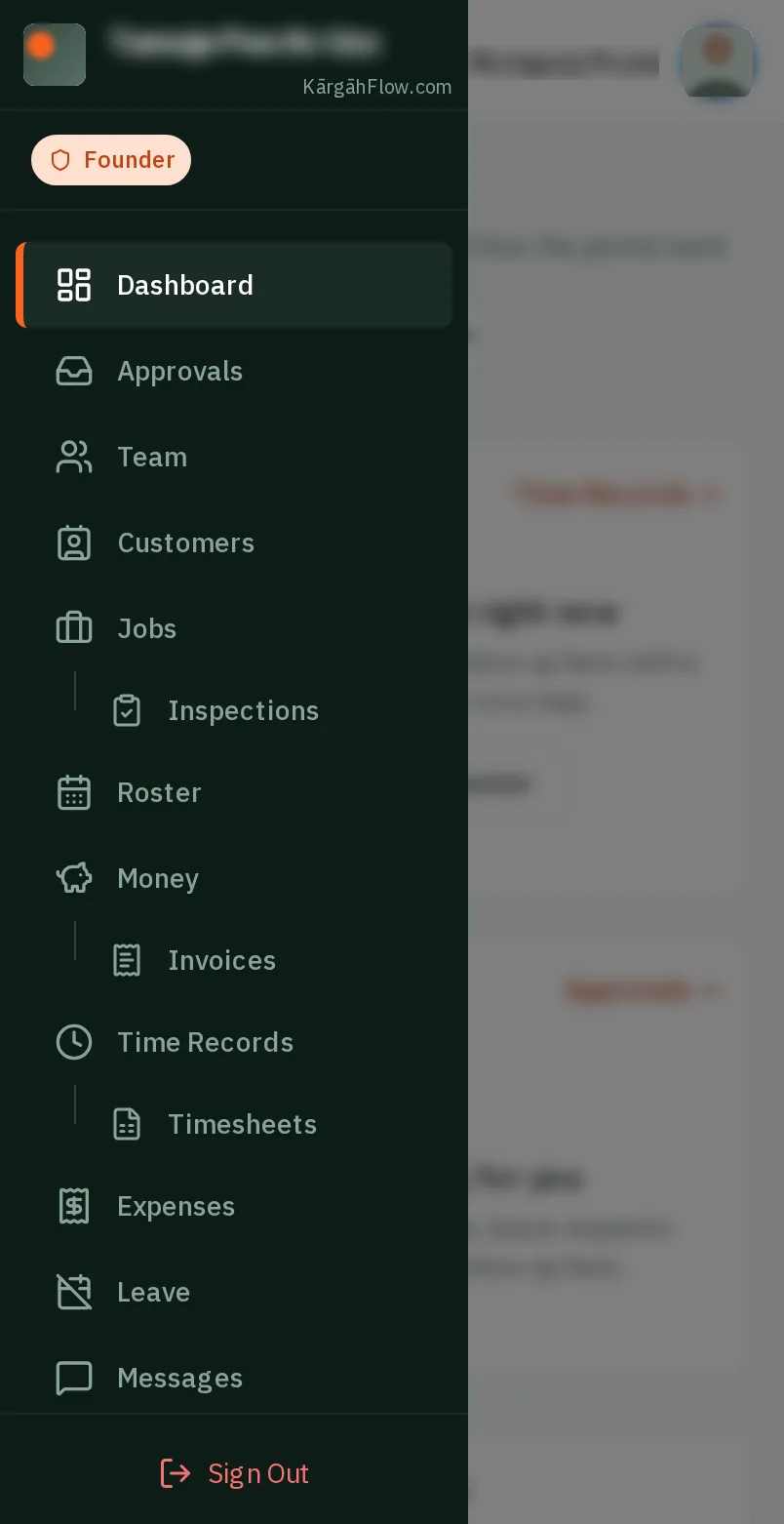
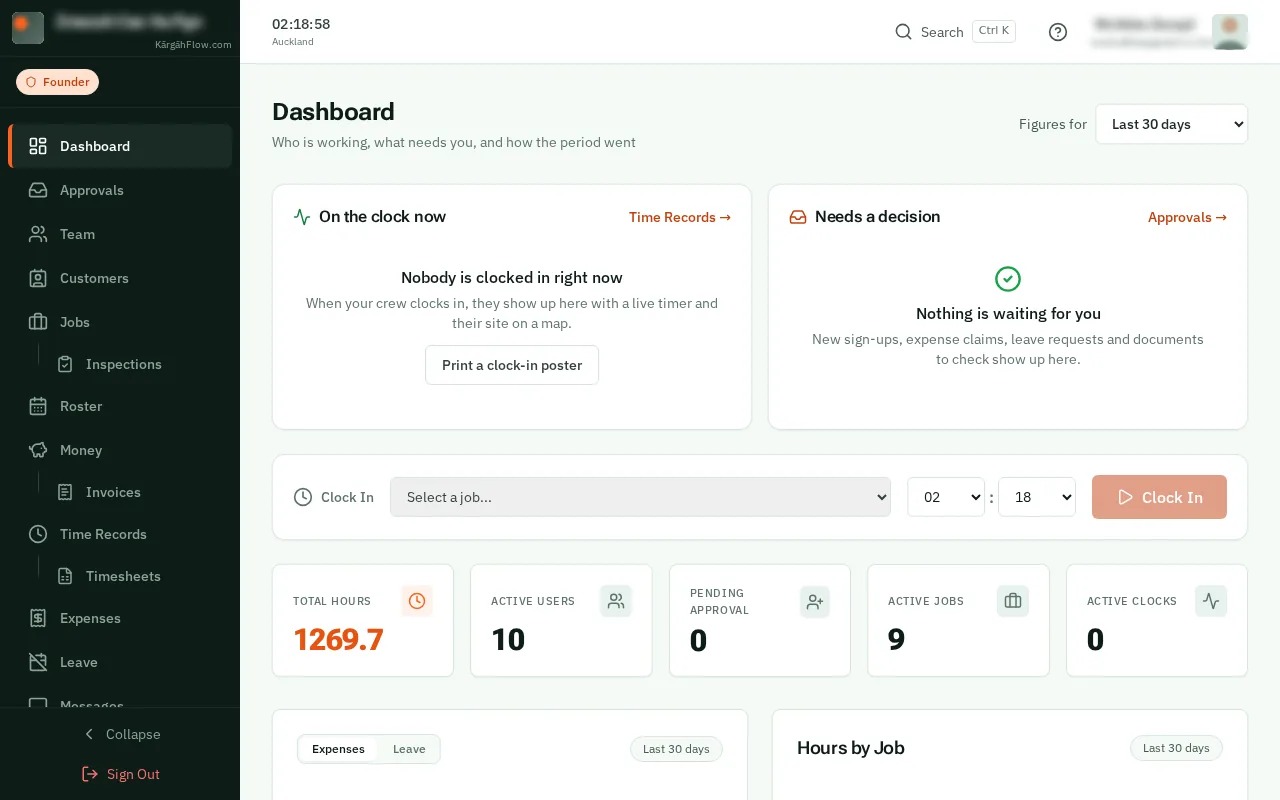
TapClick the menu button at the top left of the screen, then Time Records.TapClick Time Records in the menu on the left.
Shifts are listed newest first; one still running is green. To see one person’s shifts, choose them under All Users.
Good to know: Someone forgot to clock out? A shift running more than 12 hours may say something like Usually ends 15:30. Fix? TapClick it, and the finish time and reason are filled in for you to check.
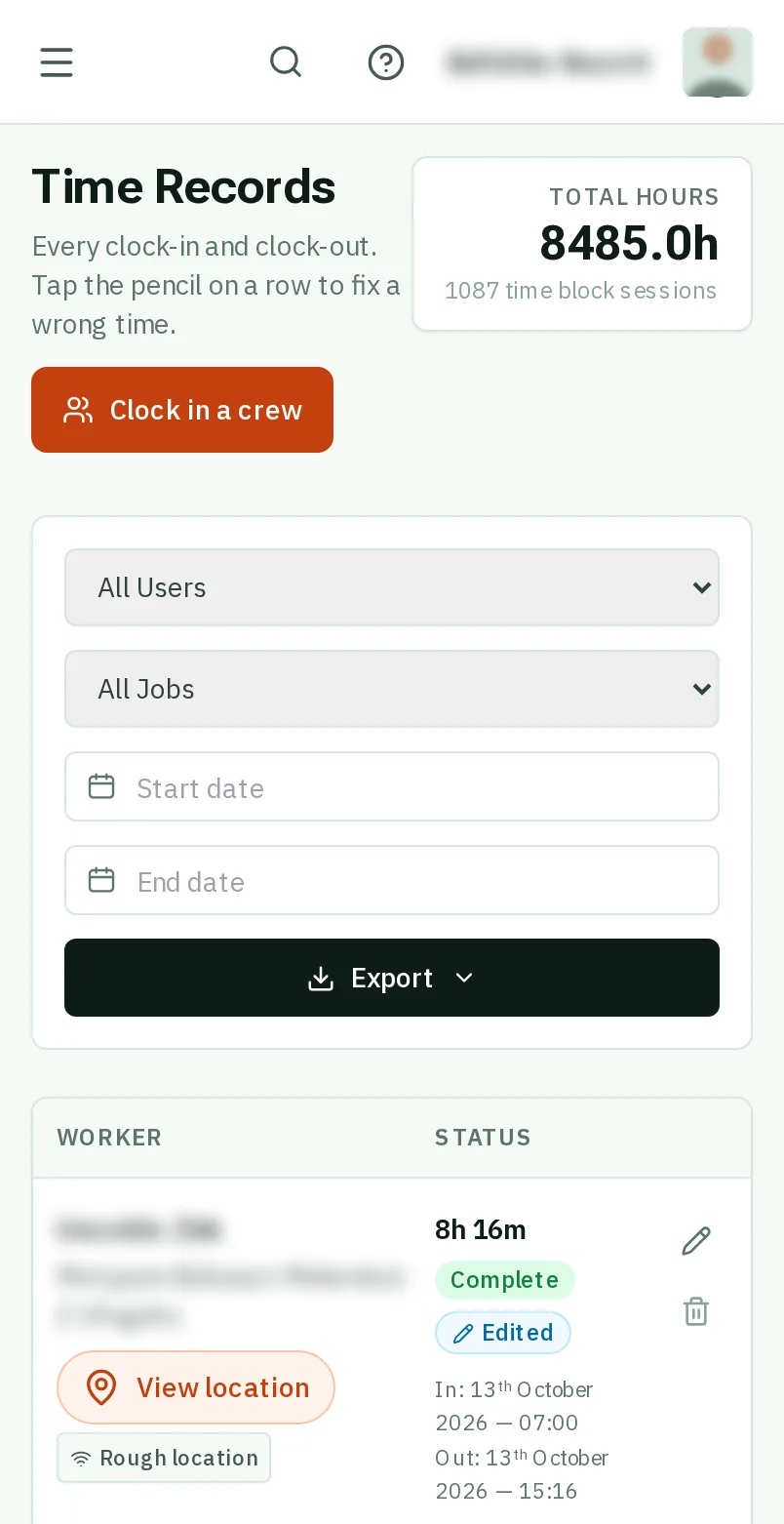
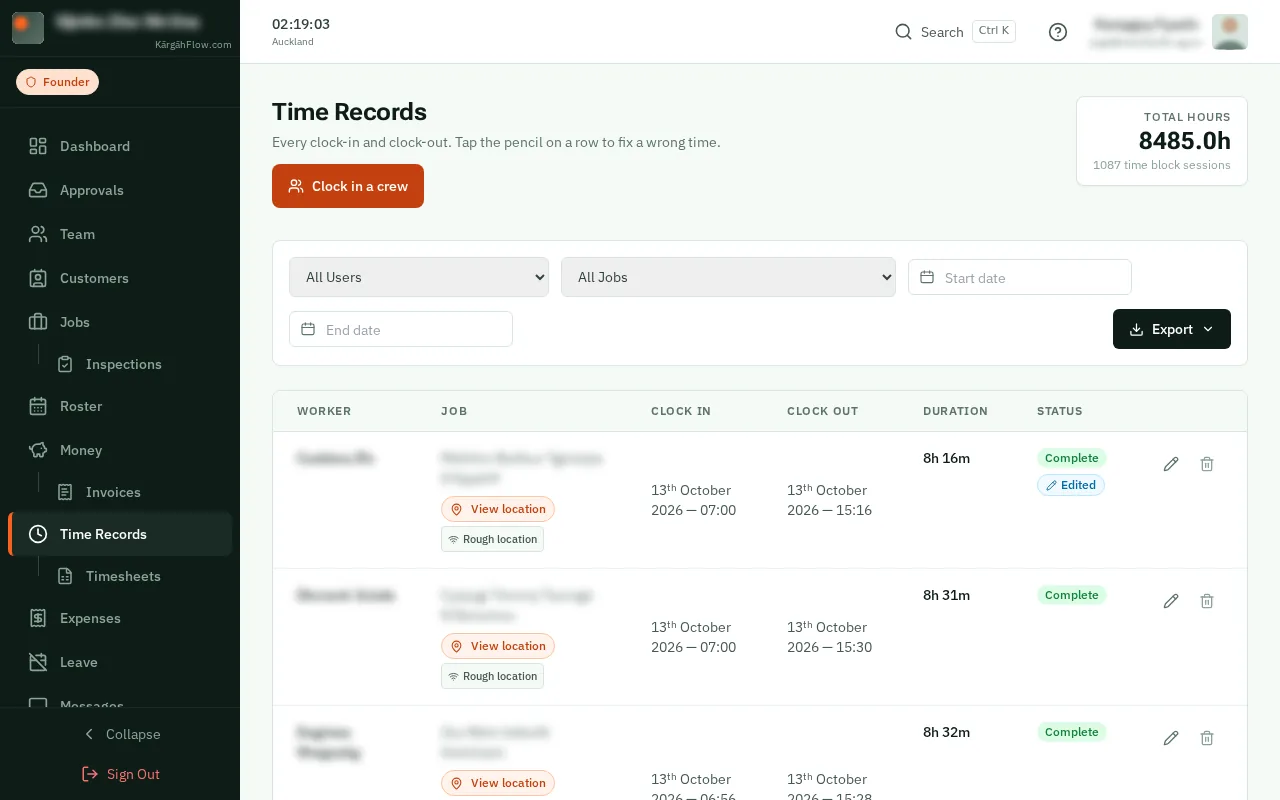
TapClick the pencil at the end of the shift that is wrong.
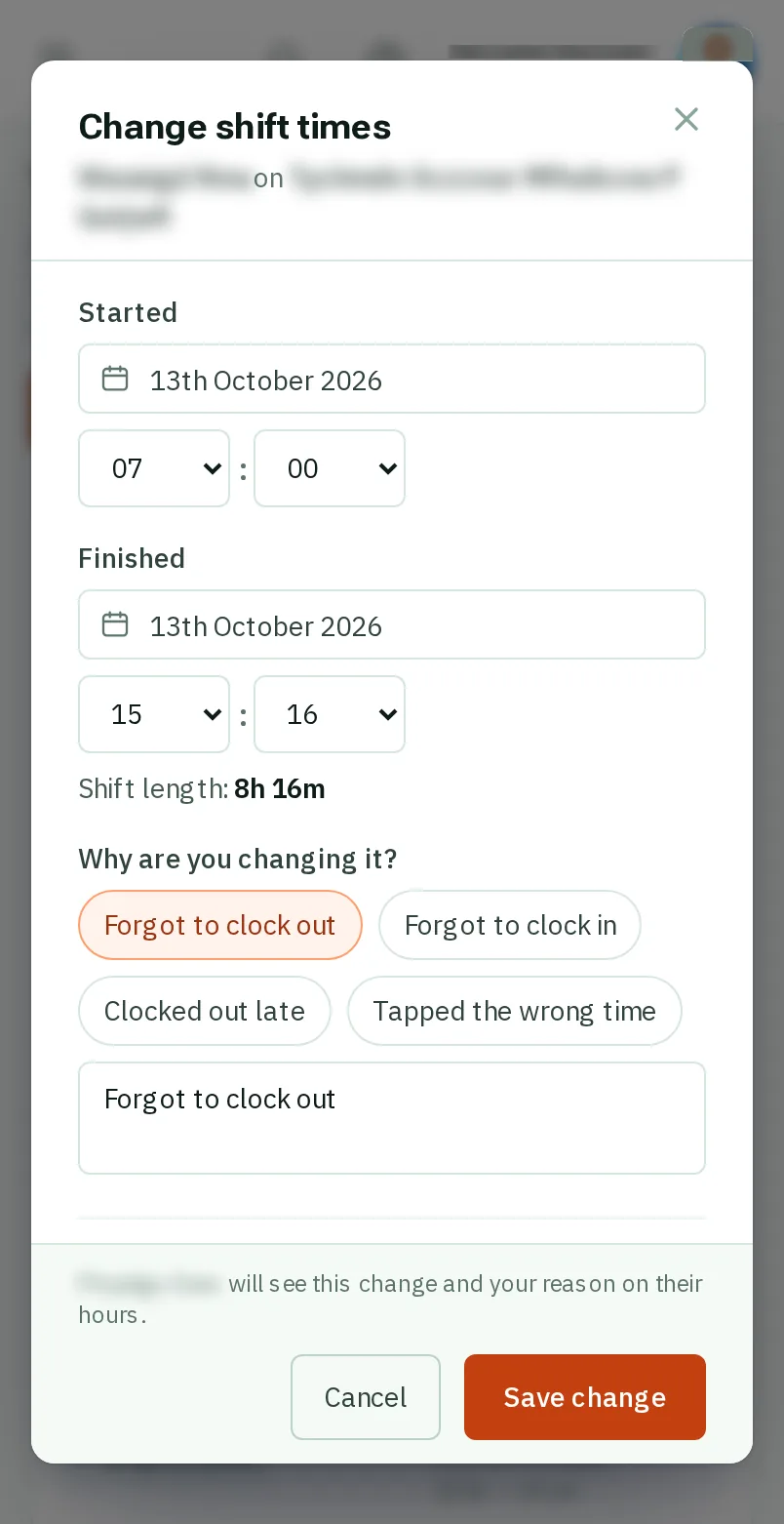
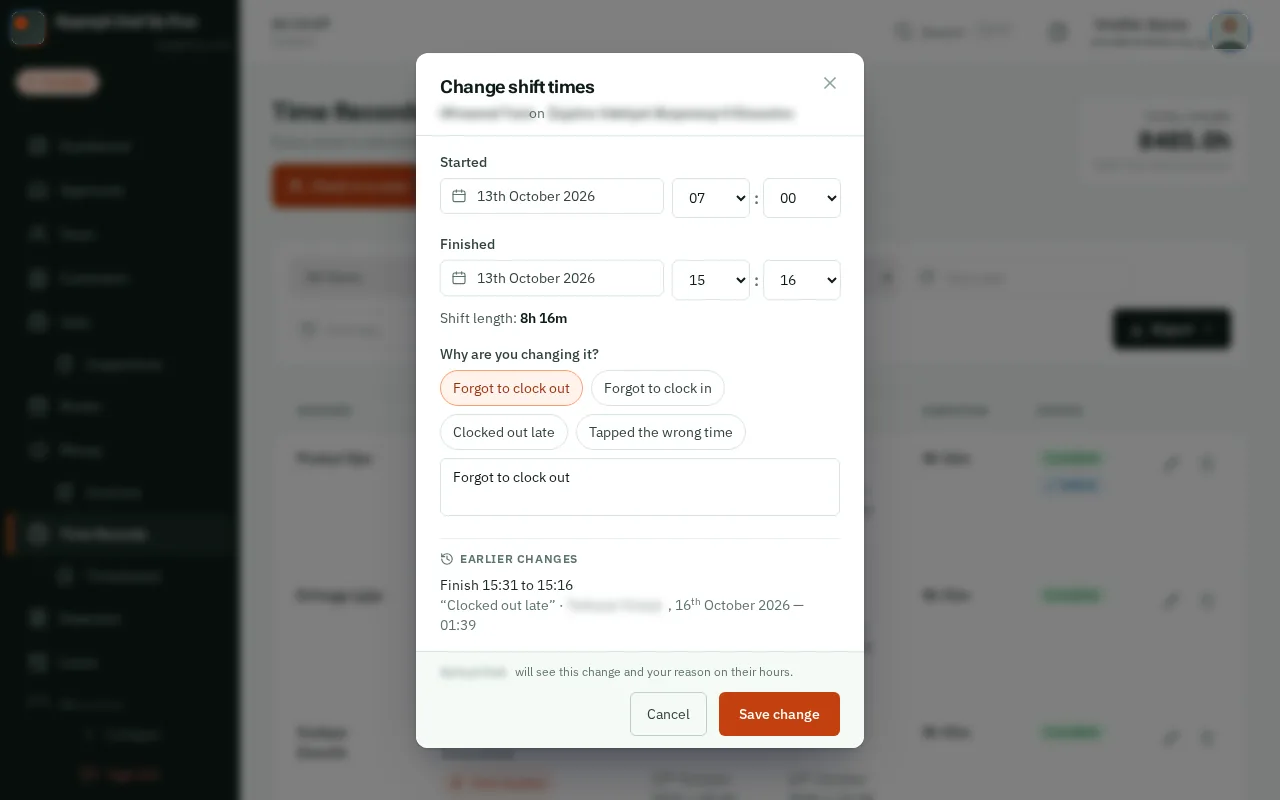
Change the Started or Finished time, and the date if the shift ran past midnight. The shift length underneath changes as you go.
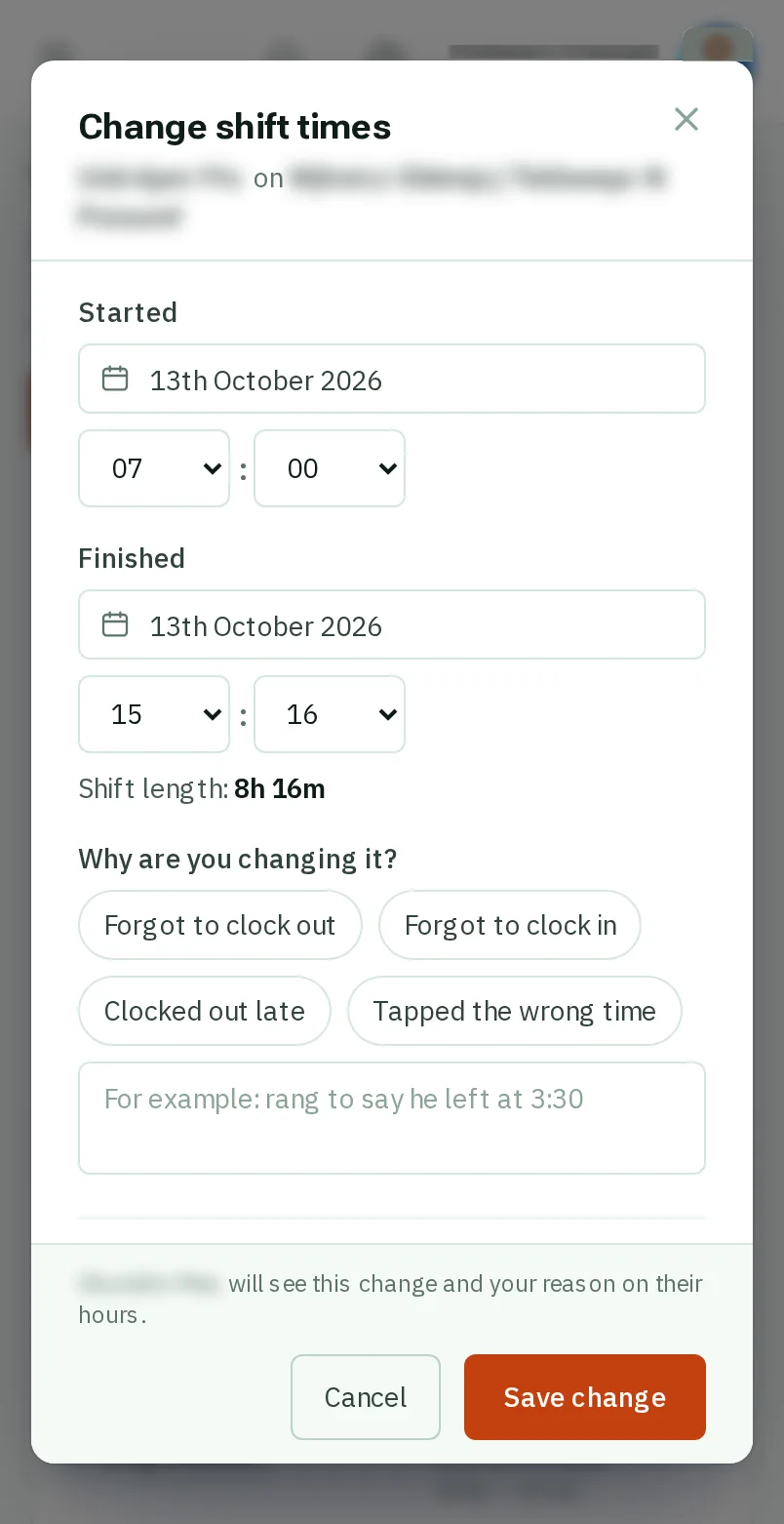
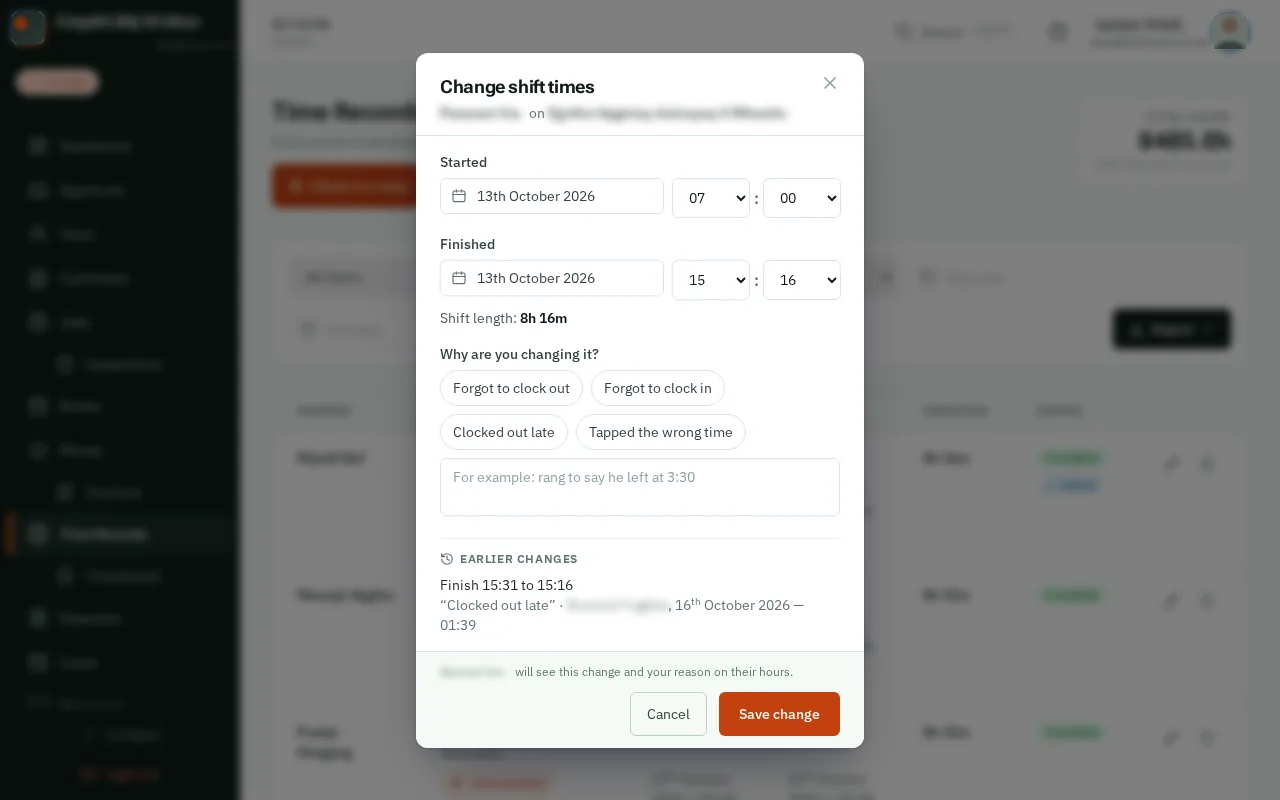
Under Why are you changing it?, tapclick one of the answers, such as Forgot to clock out, or type your own.
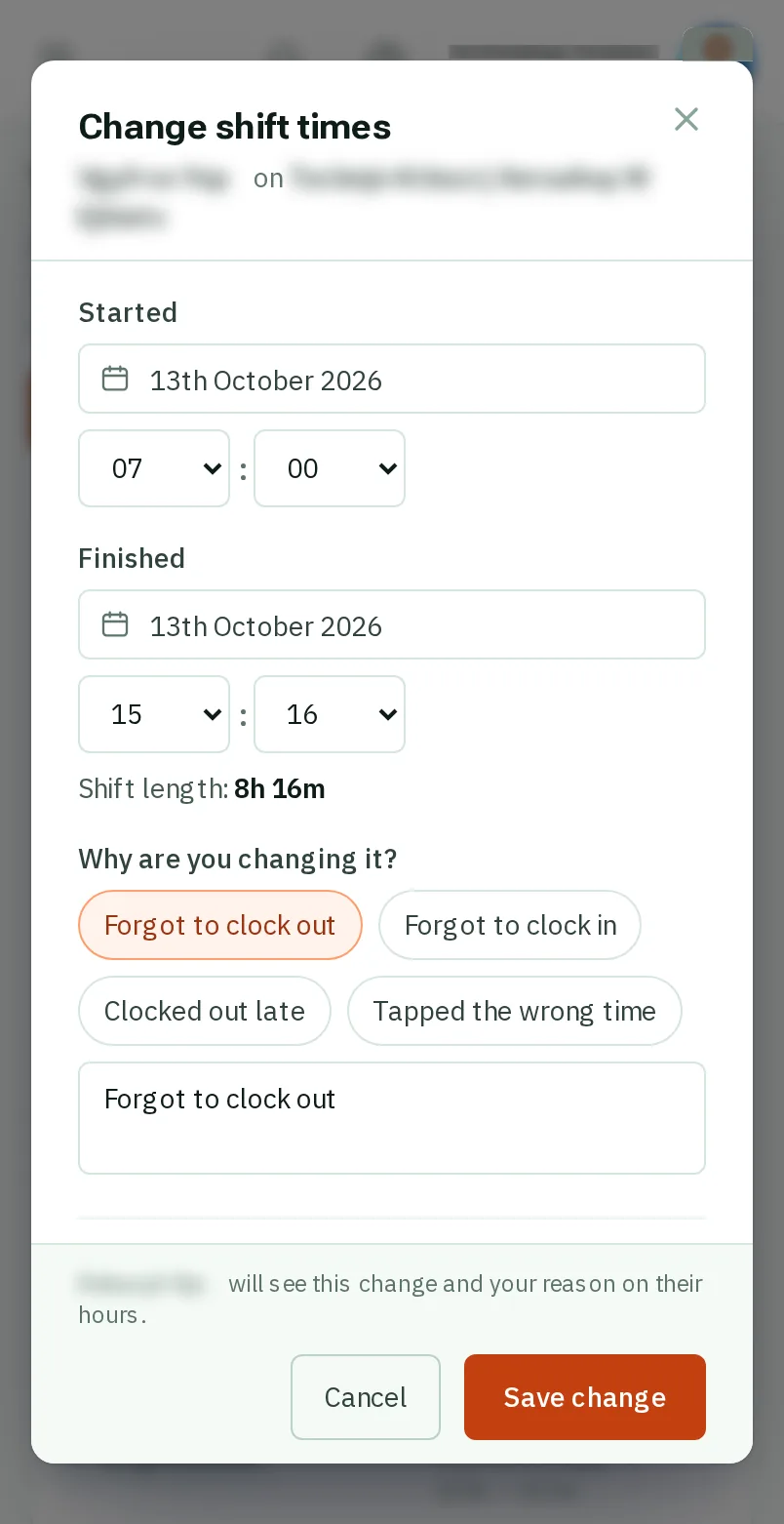
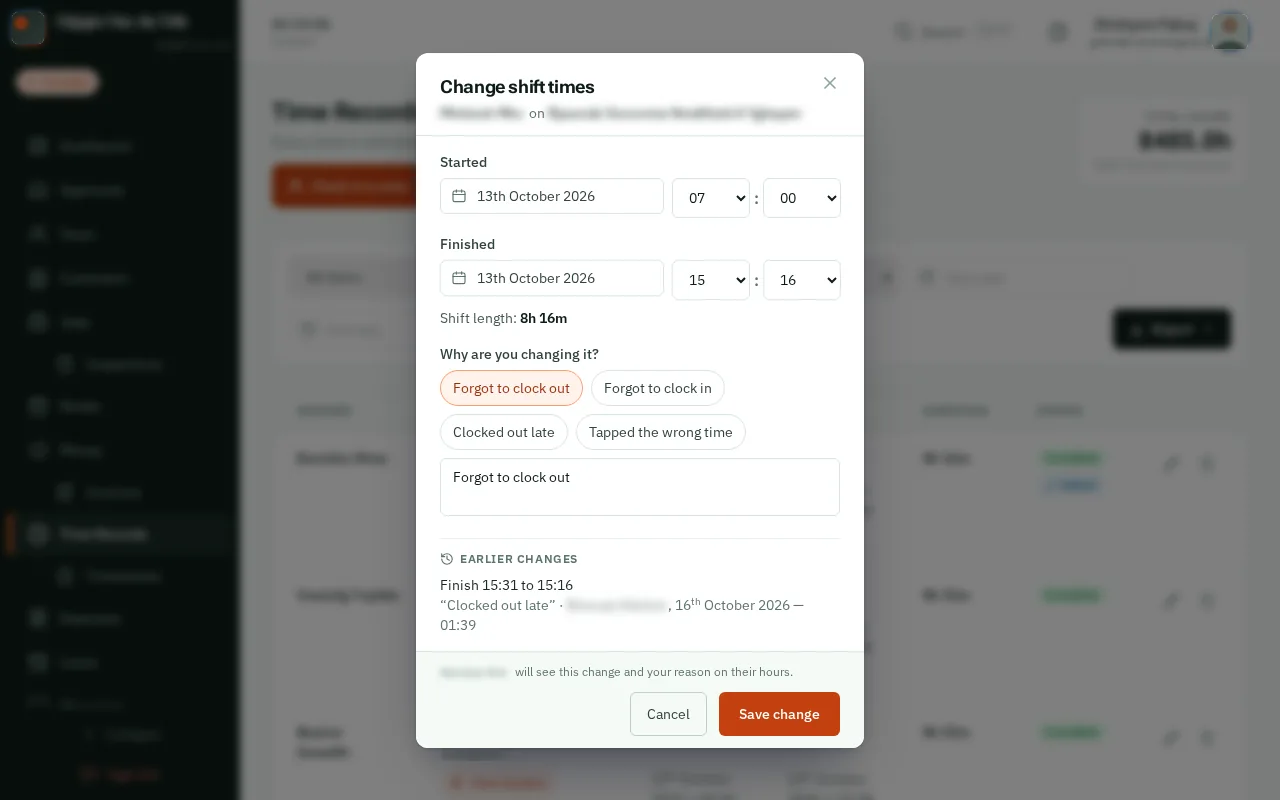
TapClick Save change. The worker sees the new times, and your reason, on their hours.