KārgāhFlow
About 1 minute 4 stepsFor owners

Choose who gets which emails

The evening summary and message emails, and the hour they arrive.

Choose who gets which emails: the screen on a phone
Choose who gets which emails: the screen on a computer
Step 1 of 4
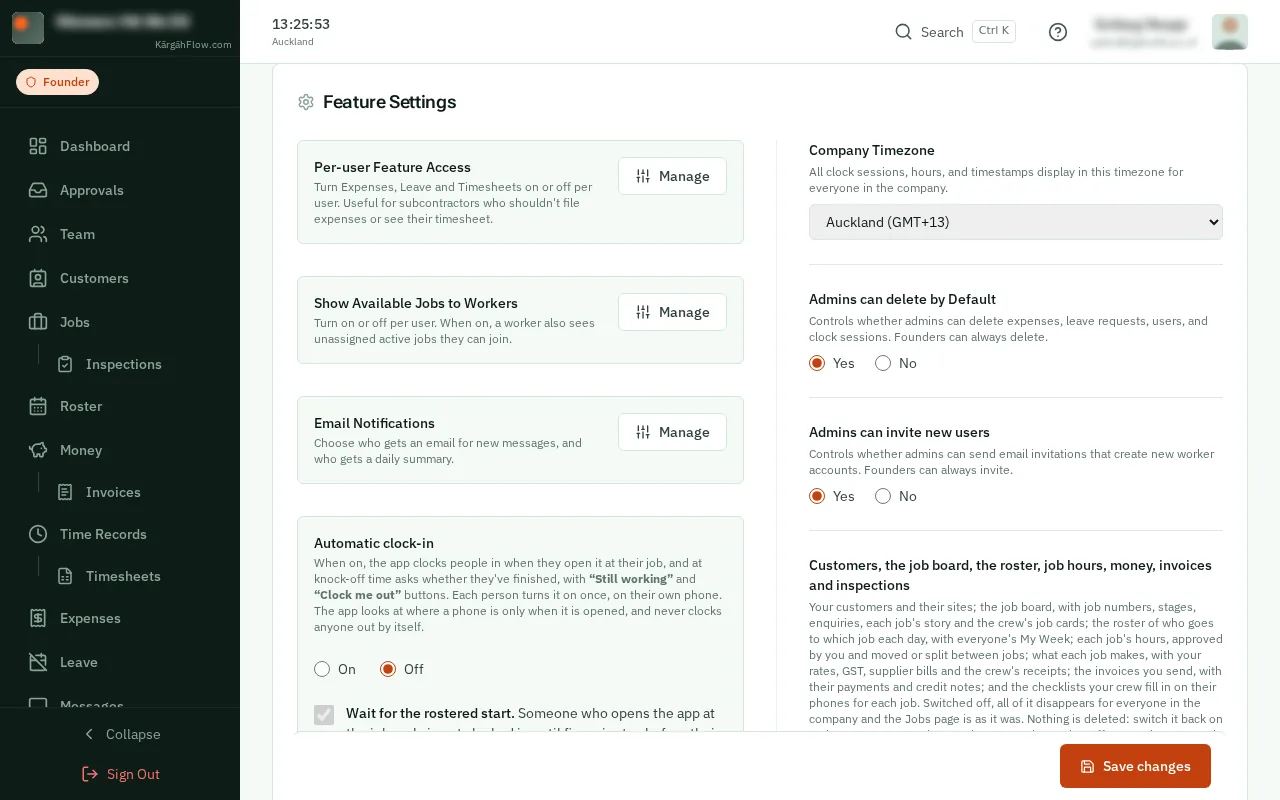
  1. Step 1: Open the email settings

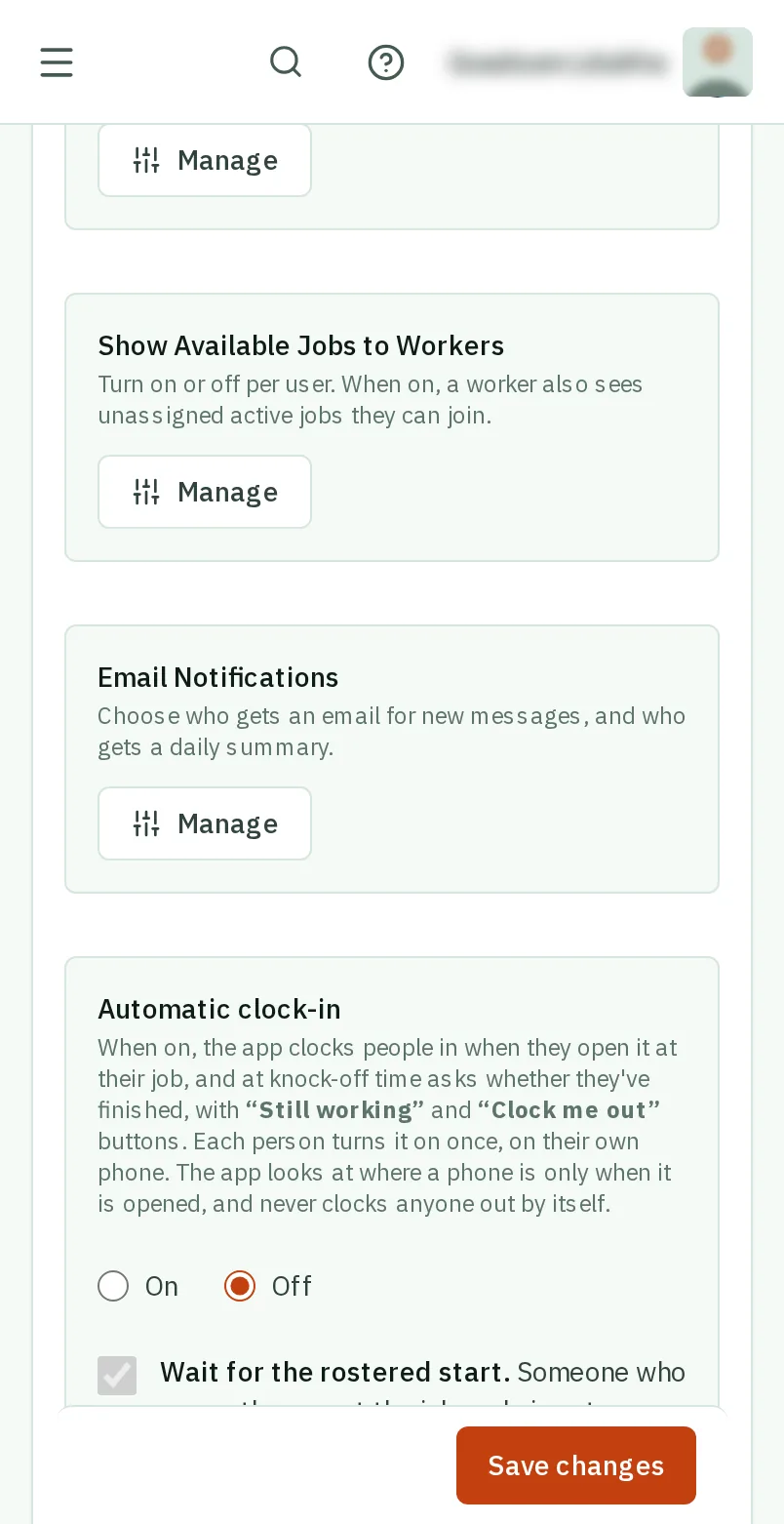
    Open Settings, and under Email Notifications, tapclick Manage.Open Settings, and beside Email Notifications, tapclick Manage.

    Look forthe Manage button
    Open the email settings
    Open the email settings
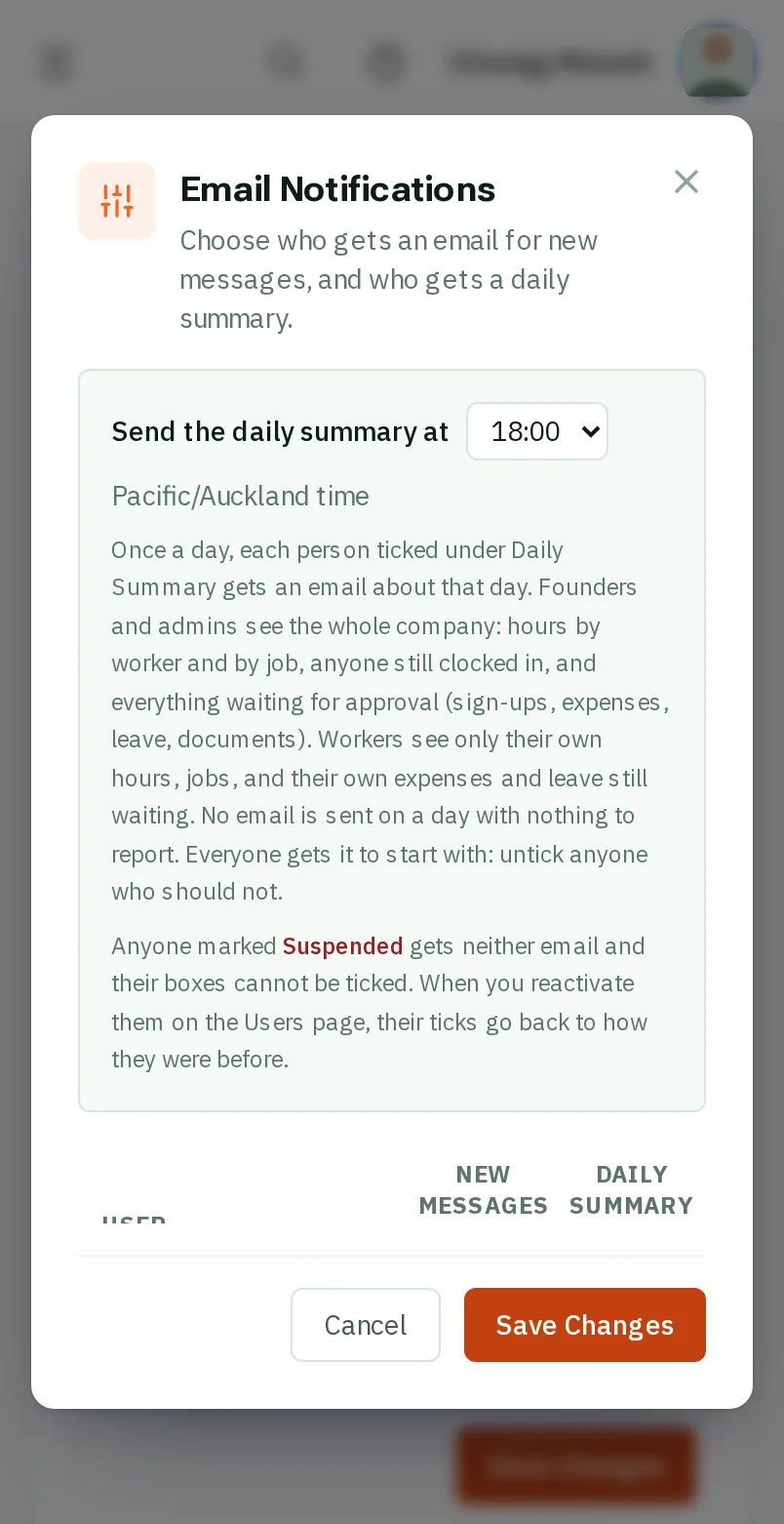
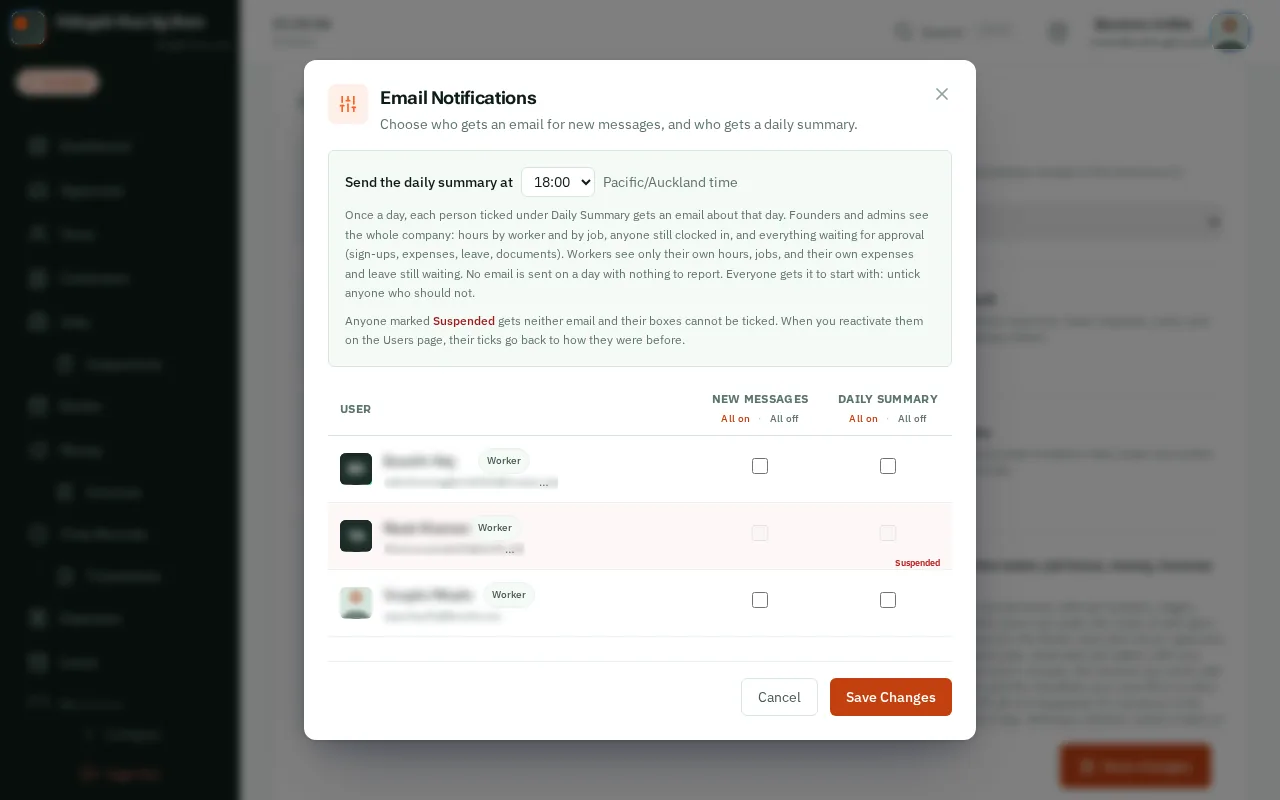
  2. Step 2: When the summary arrives

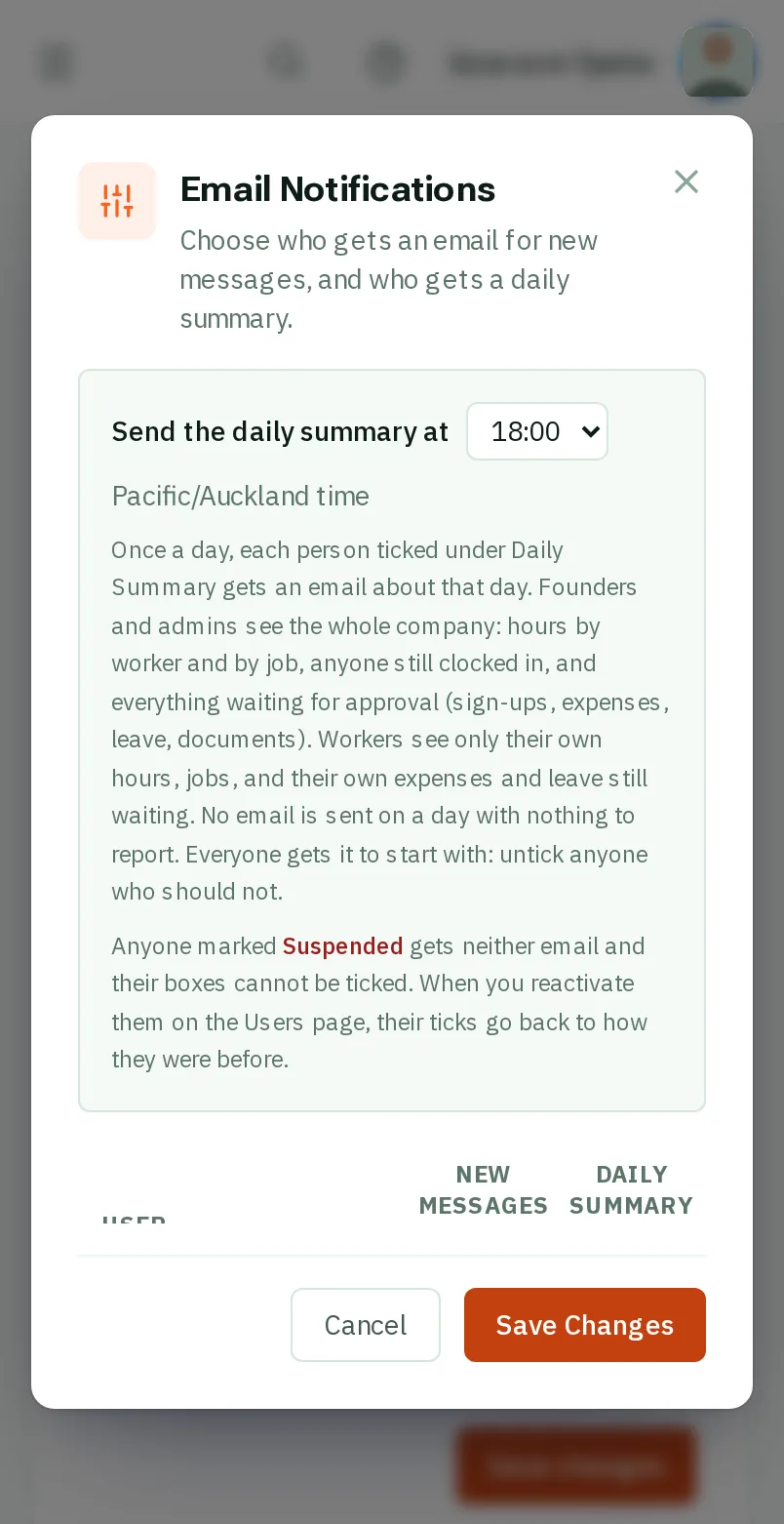
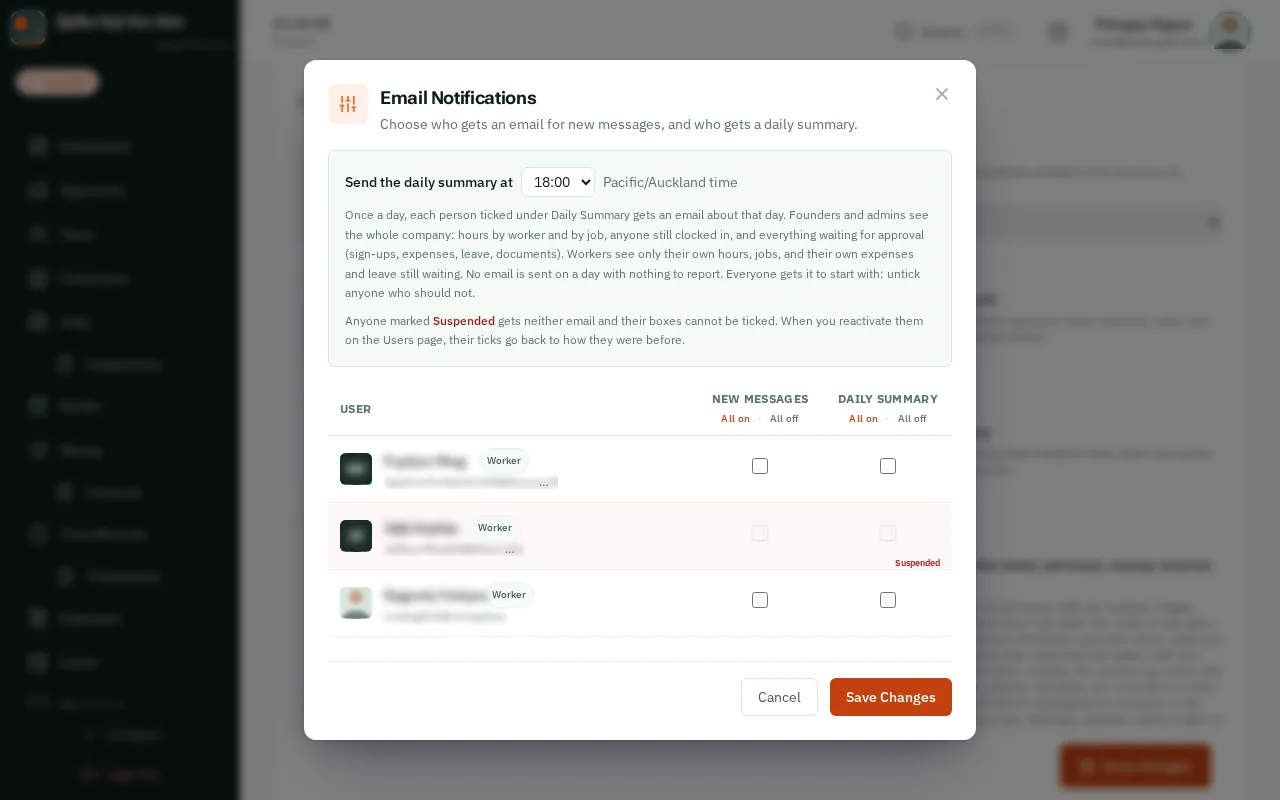
    Choose the hour beside Send the daily summary at. It arrives then, on any day with something to report.

    Look forthe Send the daily summary at box

    Good to know: You and your admins get the whole company’s day. Your crew get only their own hours and claims.
    When the summary arrives
    When the summary arrives
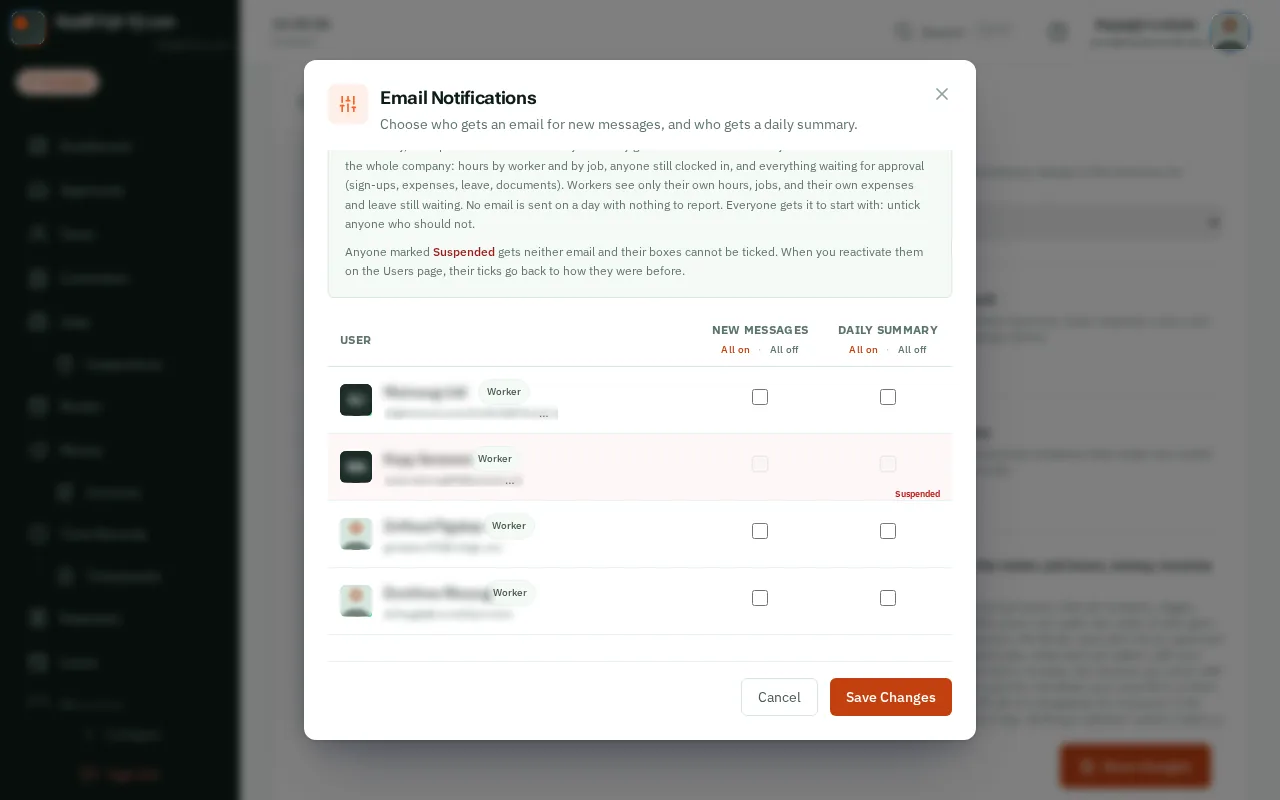
  3. Step 3: Who gets which email

    Tick who gets an email for New Messages, and who gets the Daily Summary. Everyone starts ticked: untick anyone who should not.
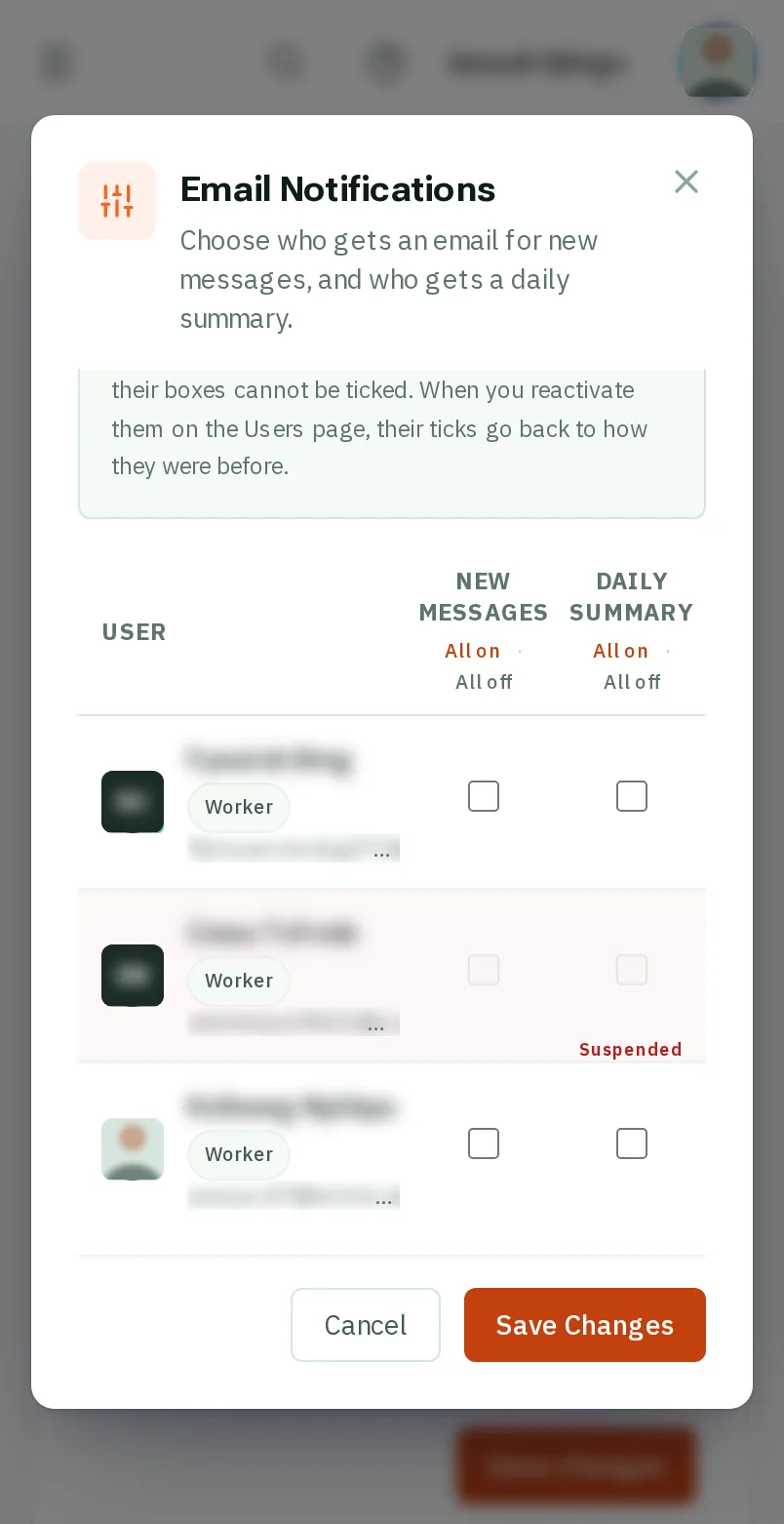
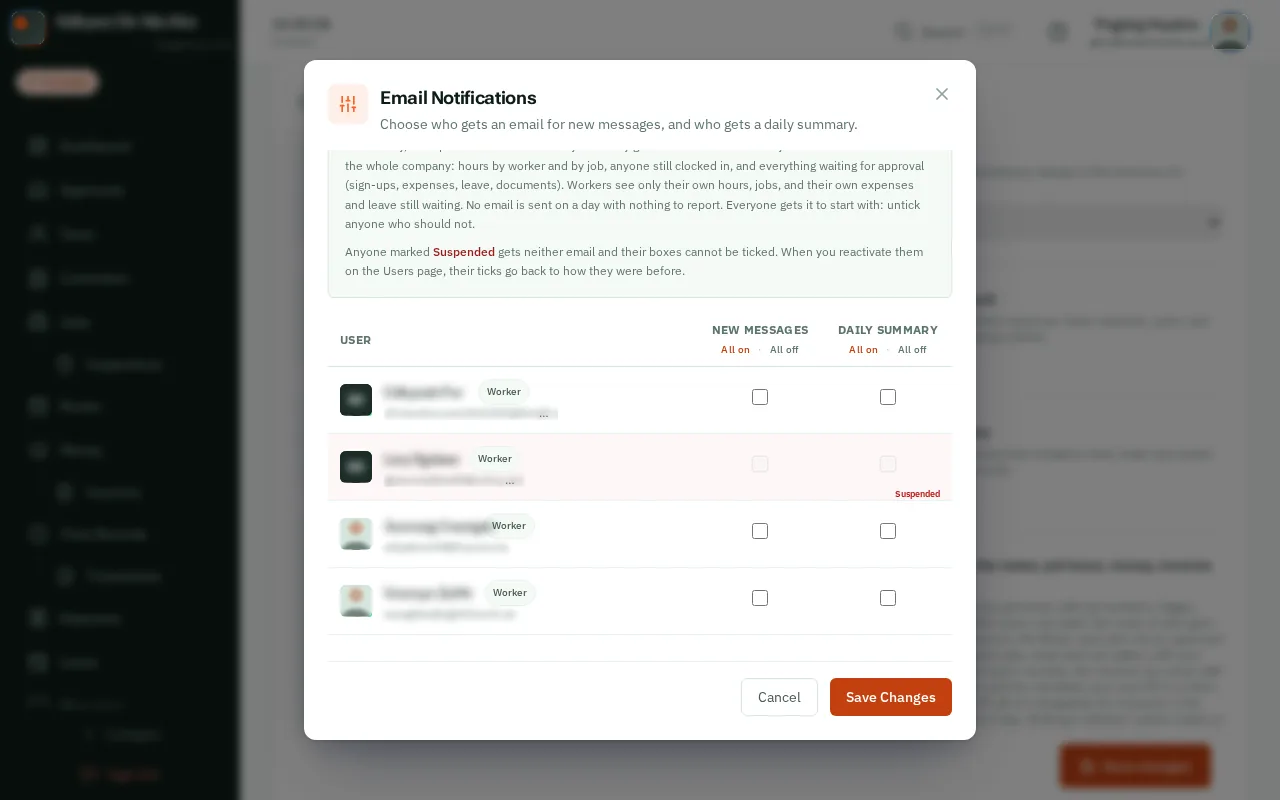
    Look forthe Daily Summary choice
    Who gets which email
    Who gets which email
  4. Step 4: TapClick Save Changes

    TapClick Save Changes at the bottom of the window.
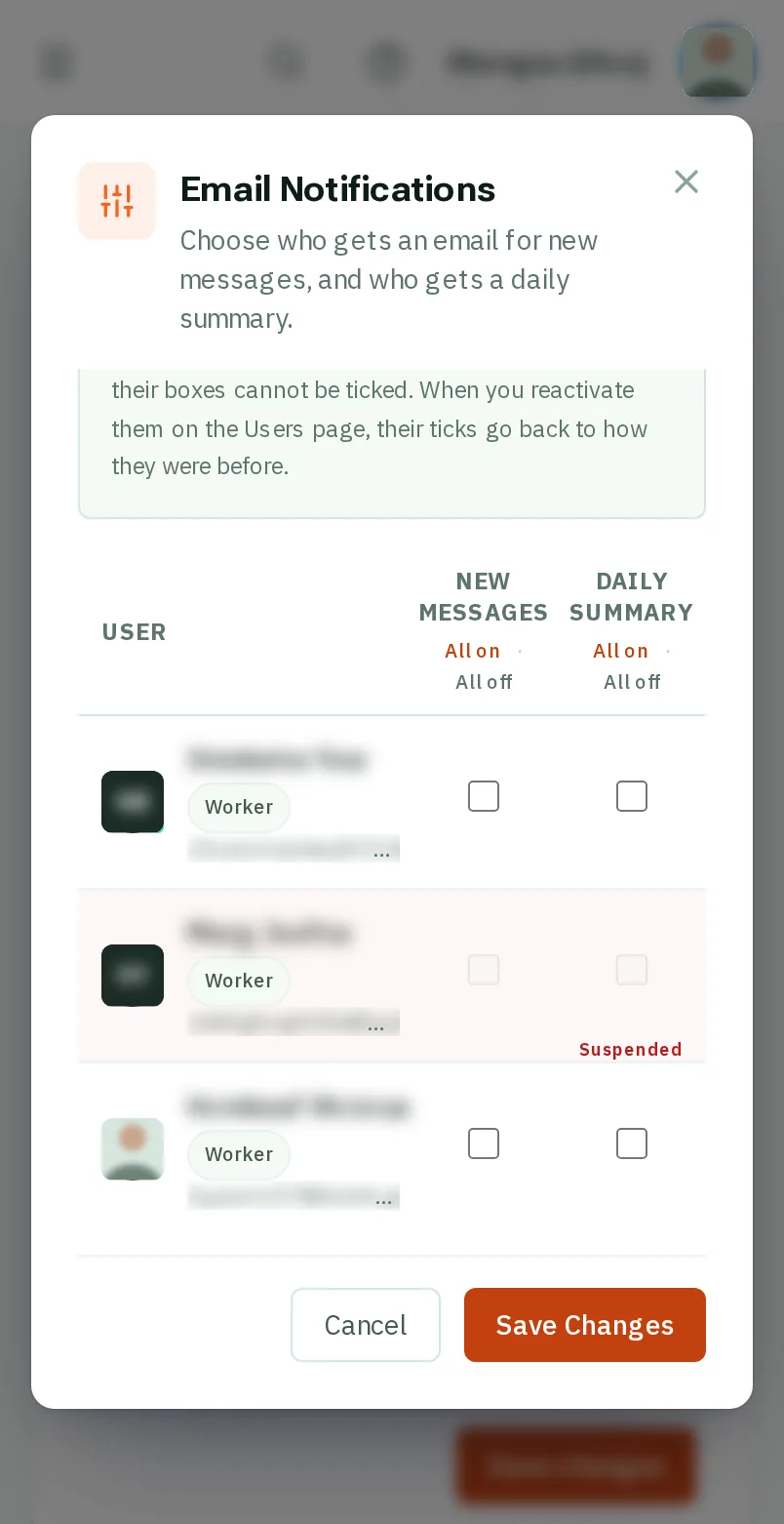
    Look forthe Save Changes button
    Tap Save Changes
    Click Save Changes

That's it

Everyone gets the emails that are useful to them, and no others.

Next: Your logo and colour

Usually next

Still stuck? Ask your manager, or tap the ? at the top of any page in KārgāhFlow. Running the business and need us?