Step 1: Open Company
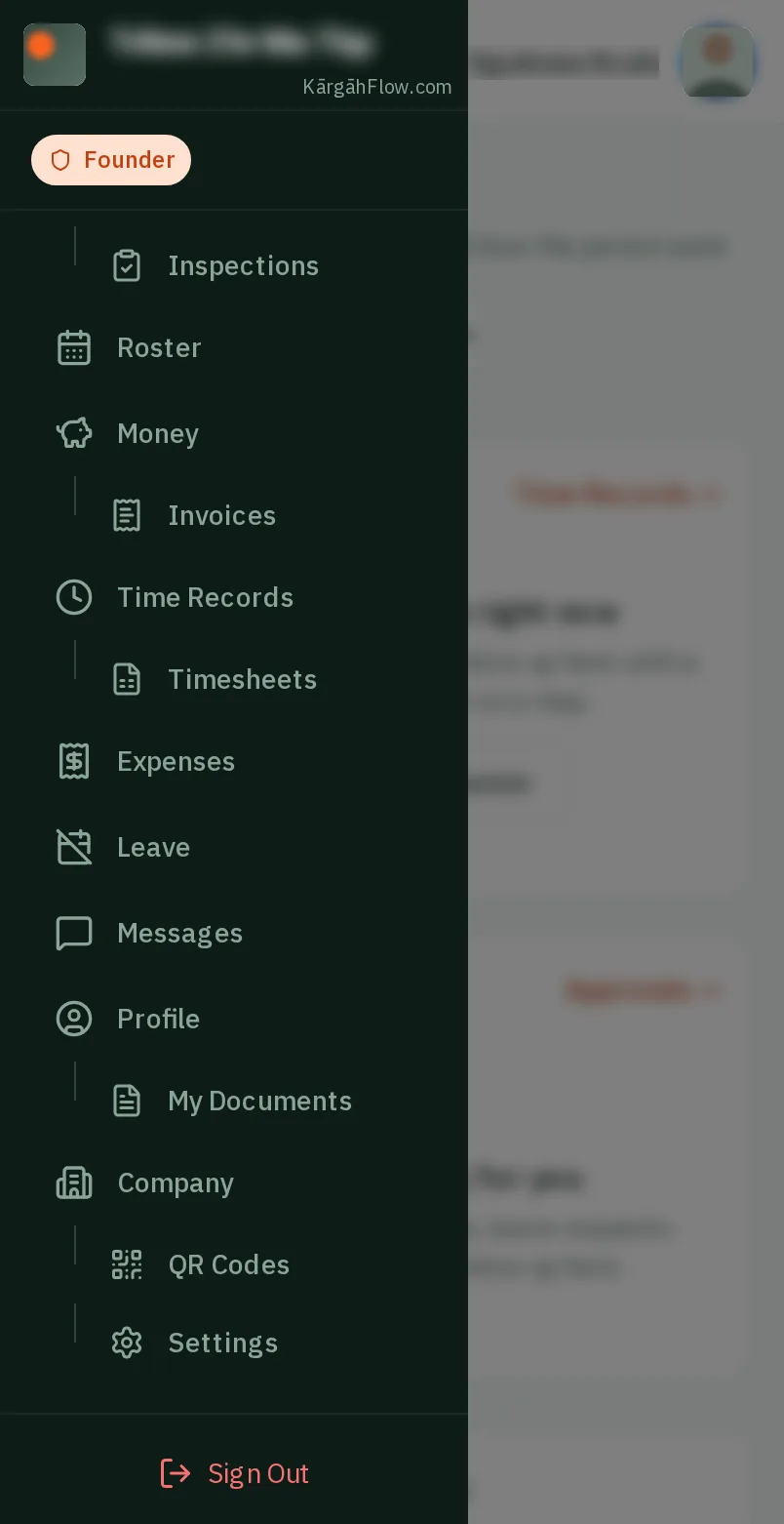
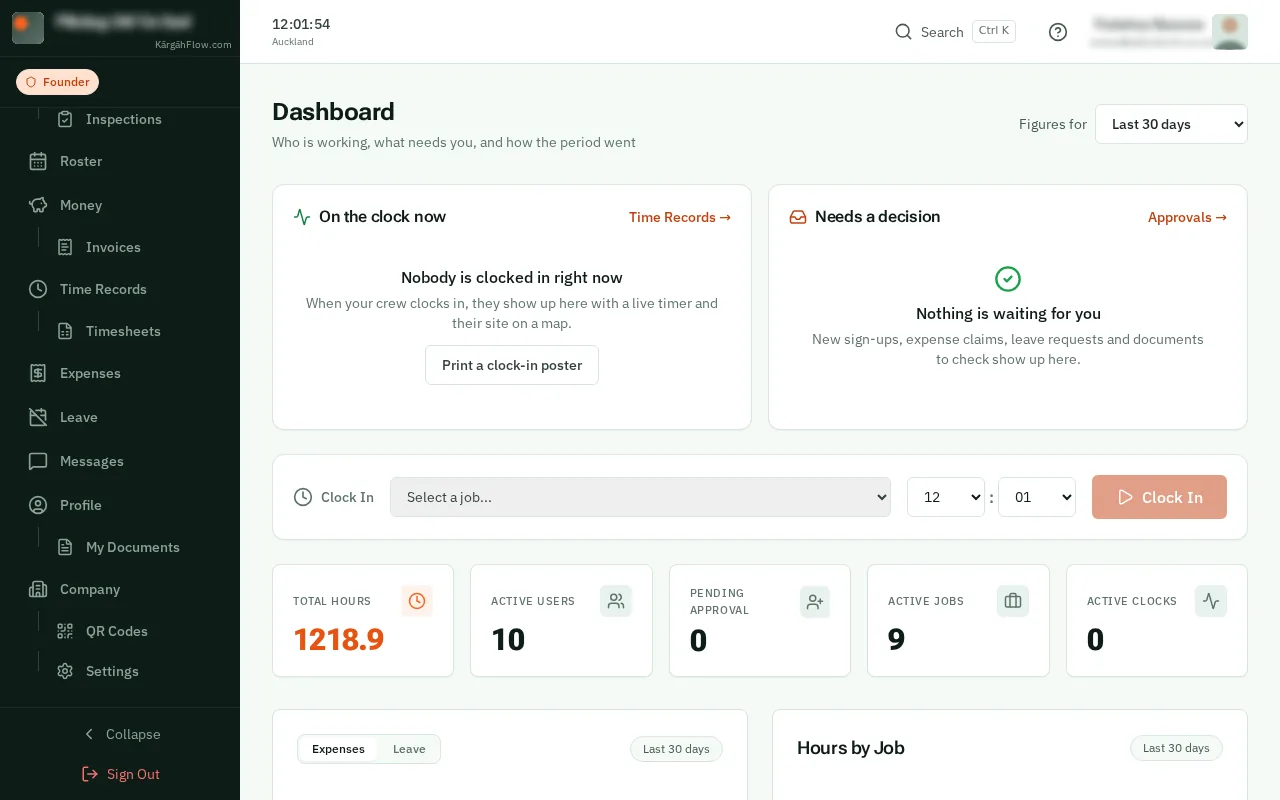
TapClick the menu button at the top left of the screen, then Company.TapClick Company in the menu on the left.
Look forthe Company item in the menu
Your logo and your colour go on everything your company sends: invoices, inspection reports, sign-offs, reports, posters and the emails with your invoices.
The colour comes from your logo unless you choose one, and it is always made dark enough to read and print well. Only you, the owner, can change them.
TapClick the menu button at the top left of the screen, then Company.TapClick Company in the menu on the left.
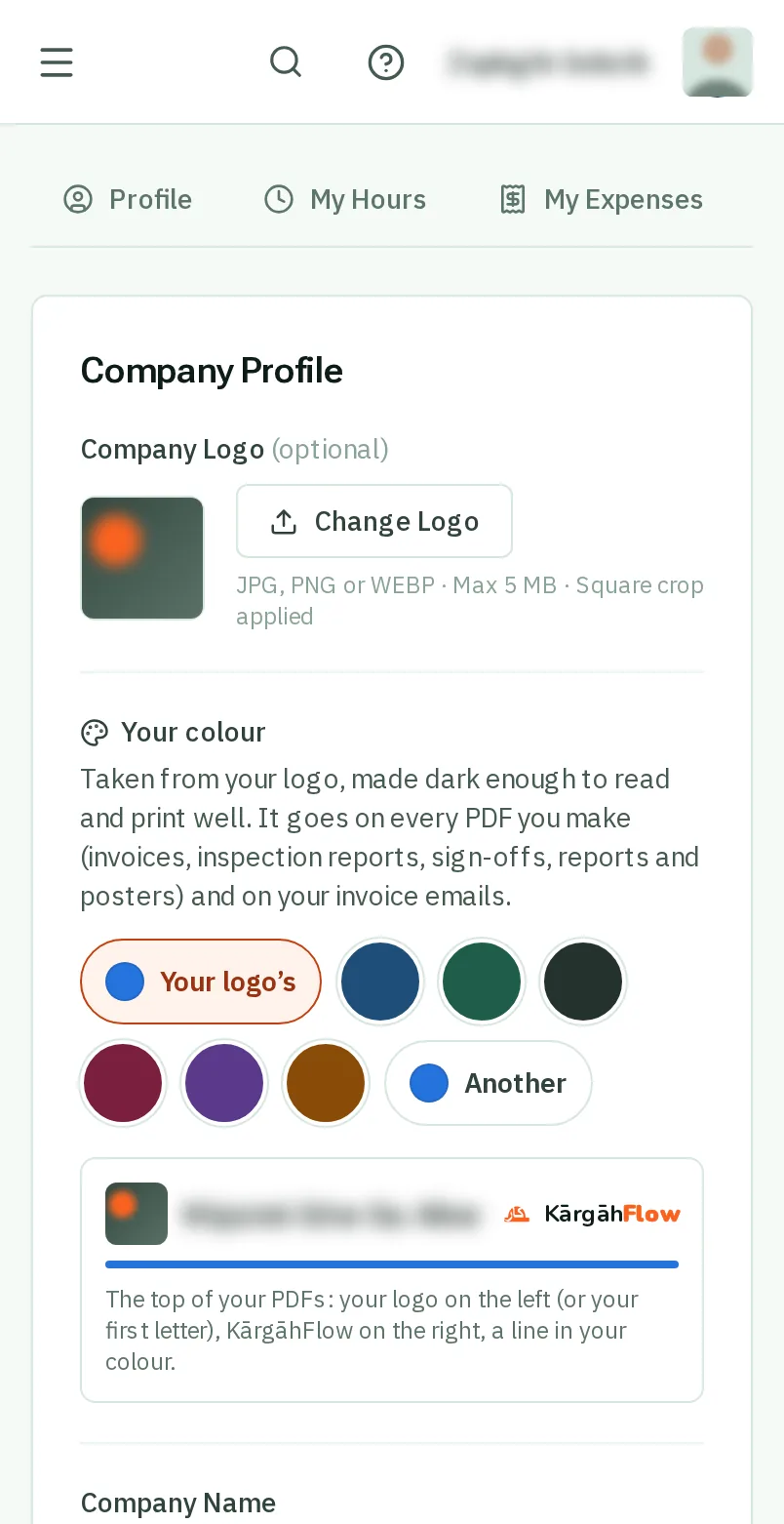
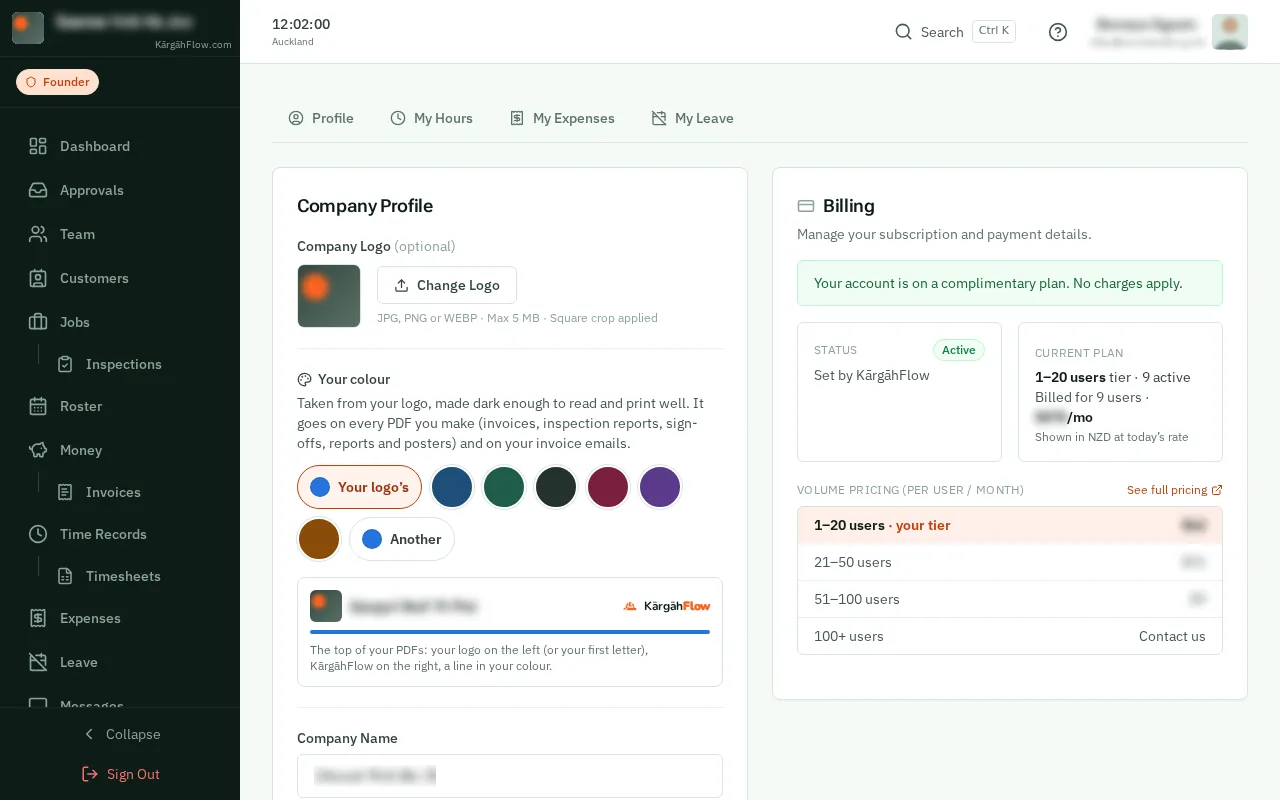
TapClick Upload Logo, or Change Logo if you have one, and choose the picture. Move the square over your logo, then tapclick Crop & Upload. It is saved straight away.
Good to know: Your logo shows on your team’s app, at the top of every PDF you make, and on your emails.
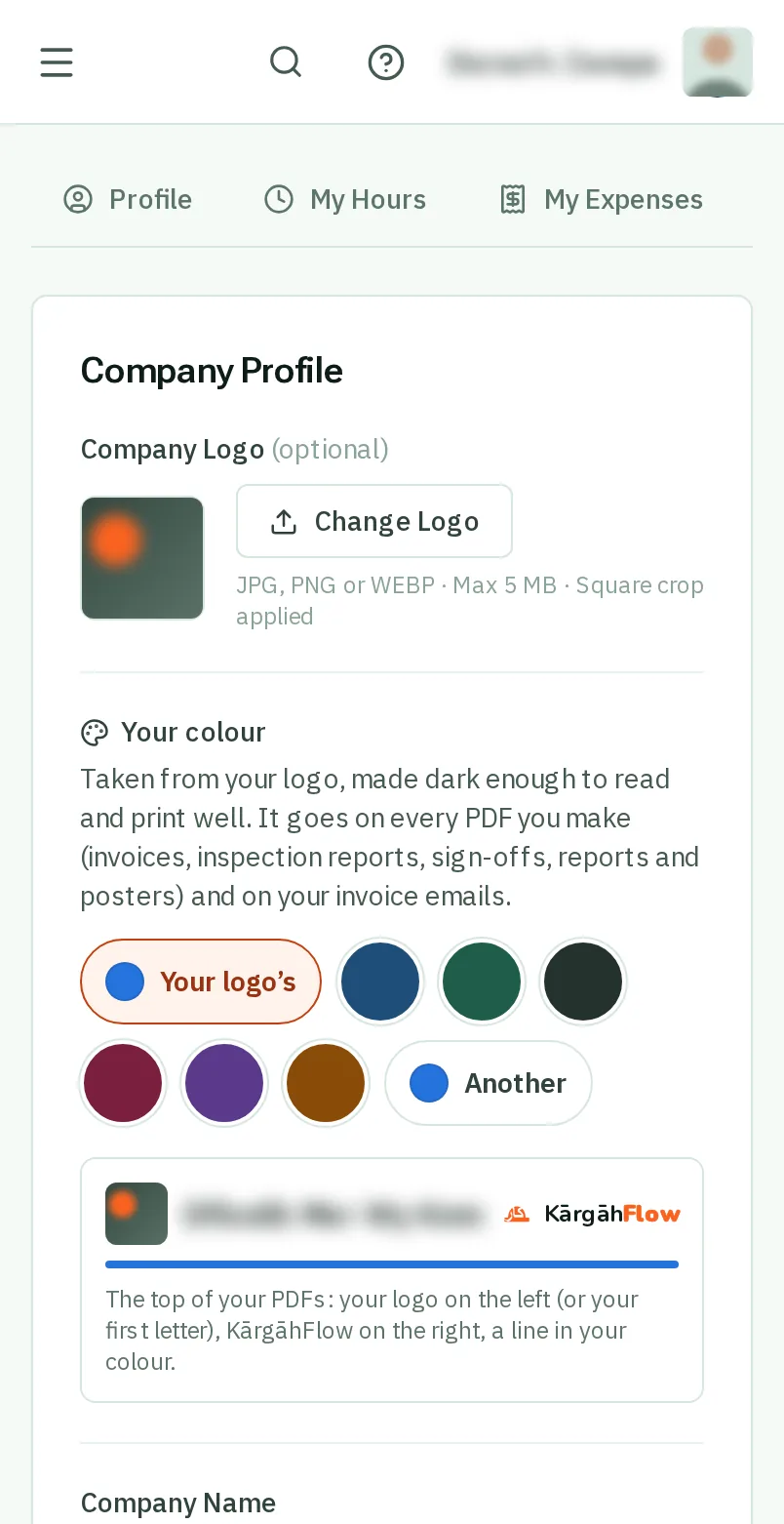
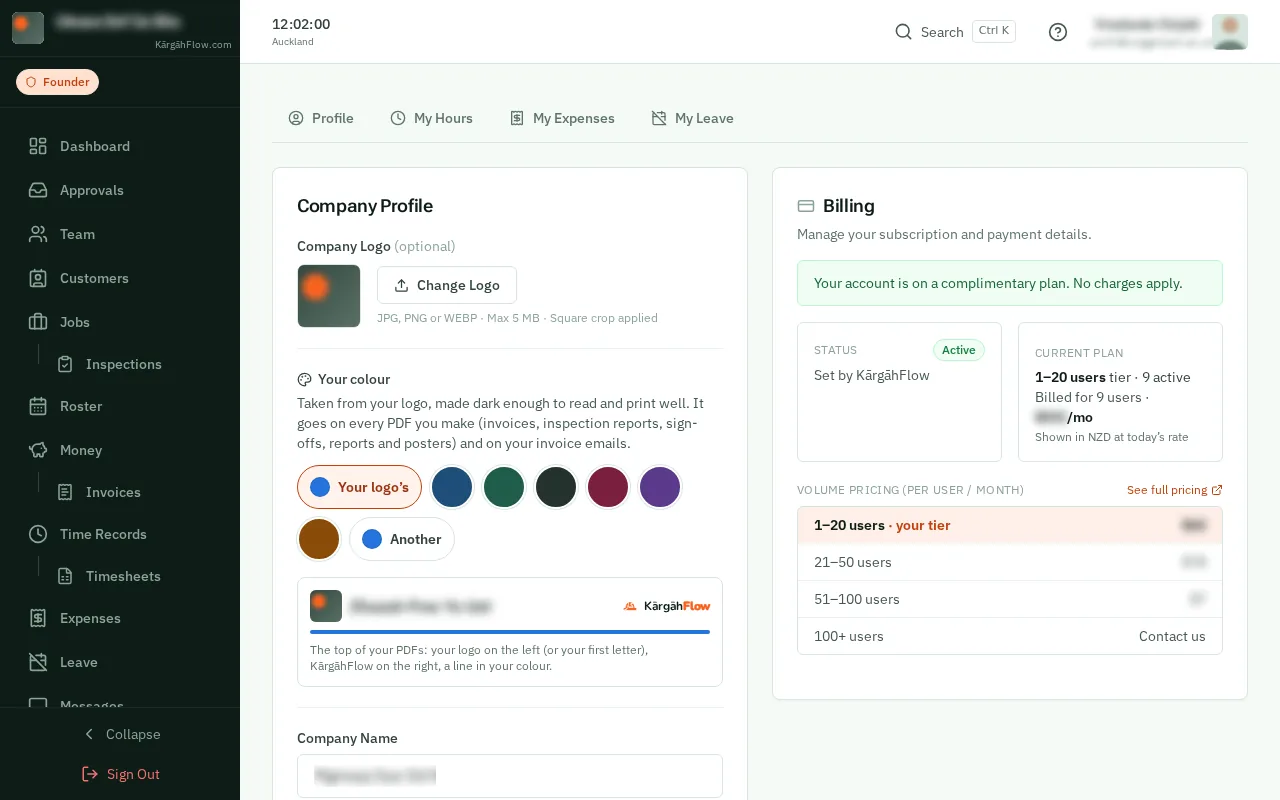
Under Your colour, a line says where your colour comes from: your logo, or a colour you chose.
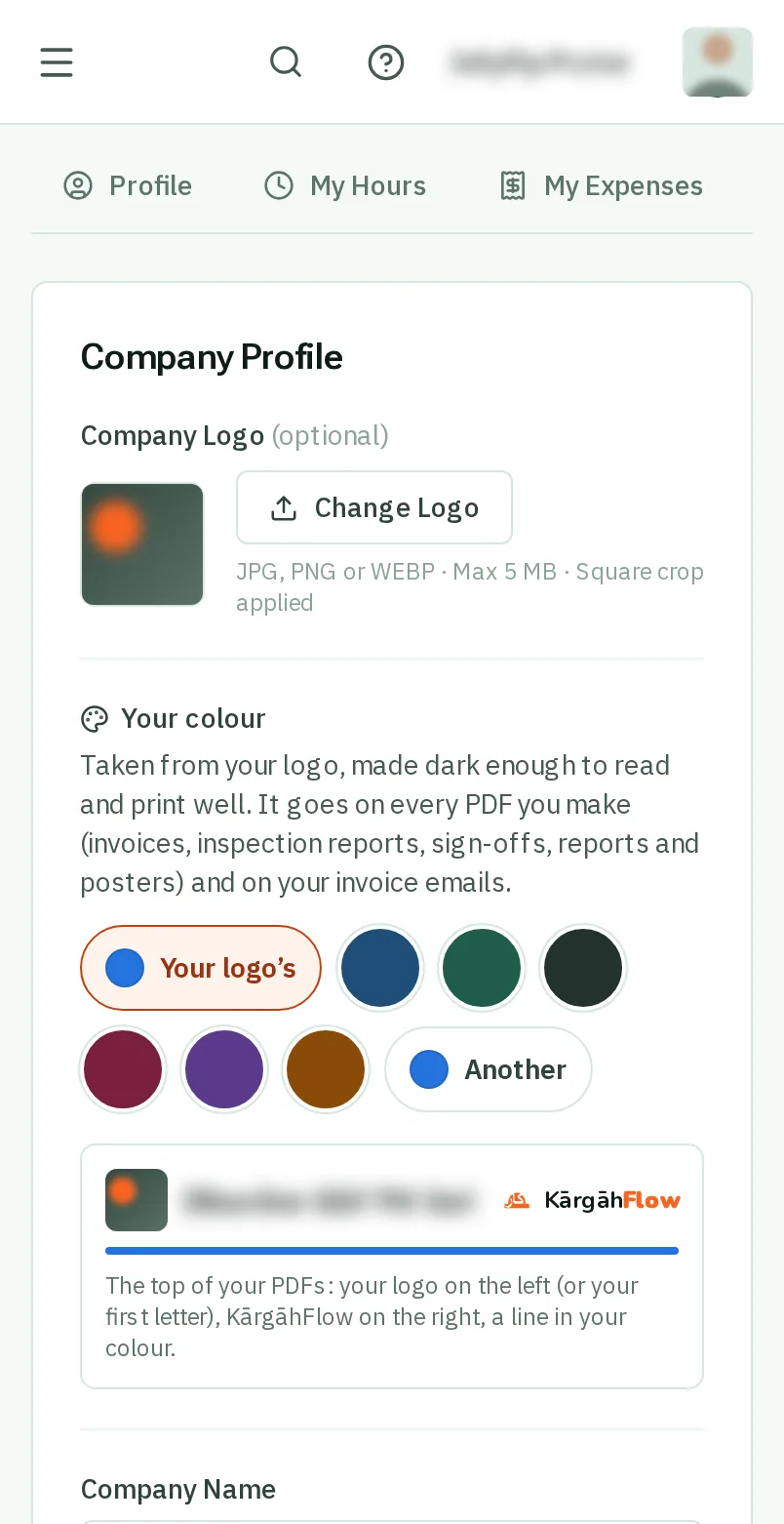
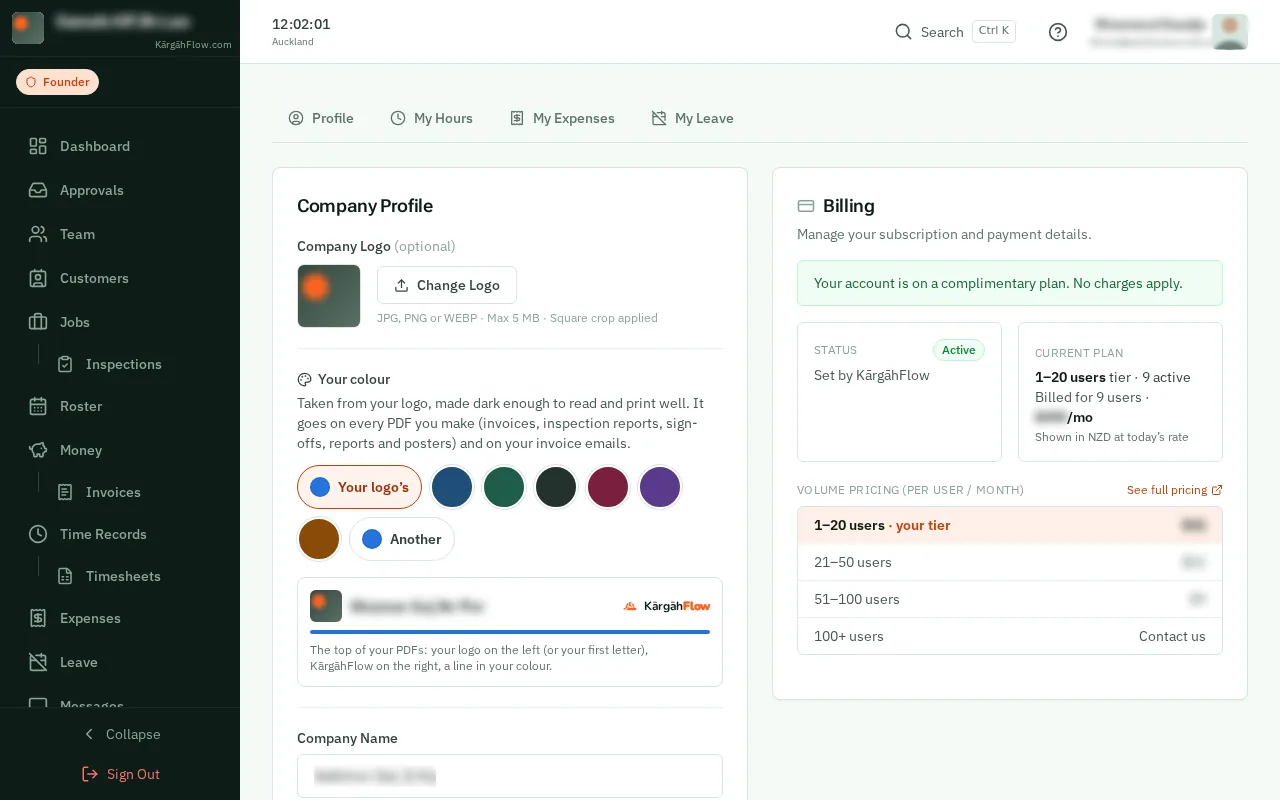
TapClick one of the colours, or Another to pick any colour you like. It is saved the moment you tapclick it. To go back to the colour from your logo, tapclick Your logo’s.
Good to know: A colour too light to read is made a little darker, so your PDFs always read and print well.
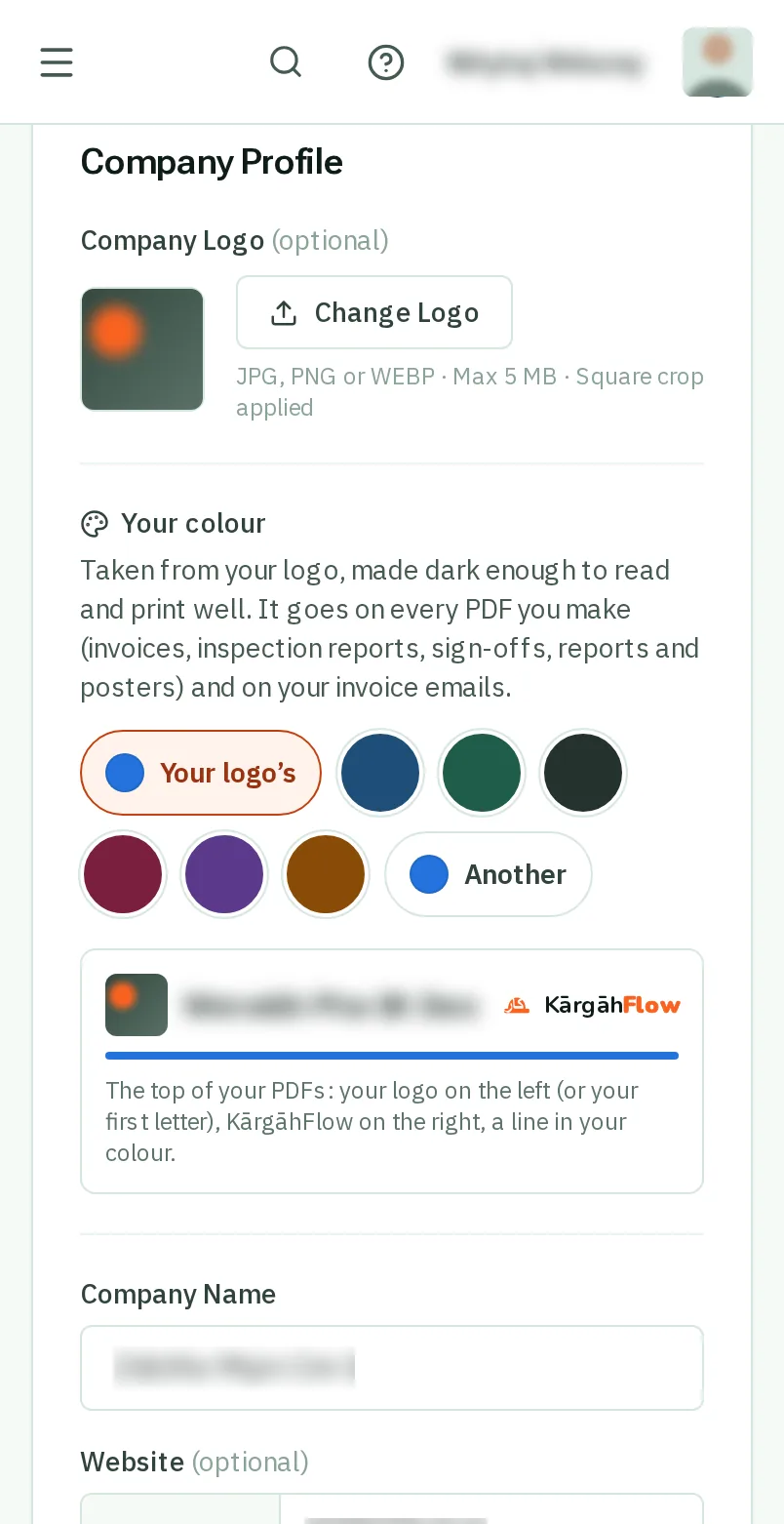
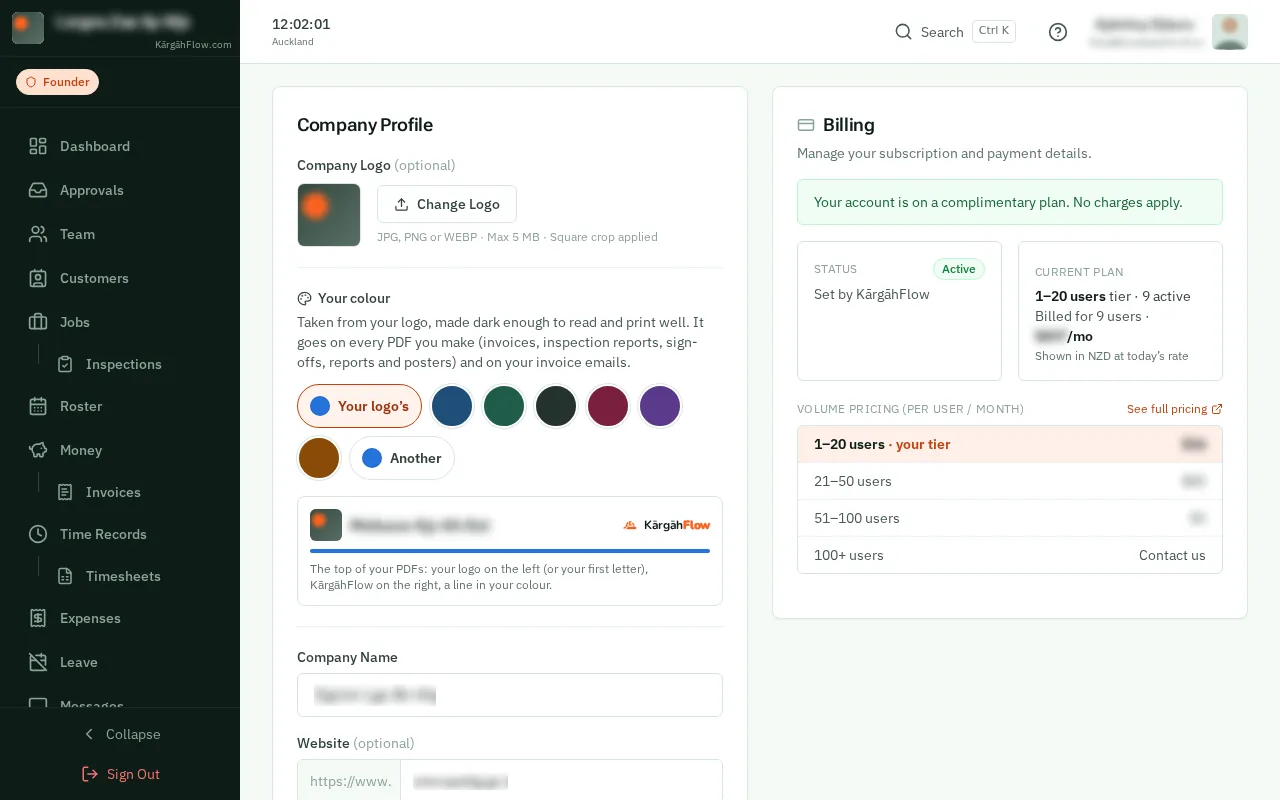
The sample under the colours shows the top of every PDF: your logo on the left, KārgāhFlow small on the right, and a line in your colour.
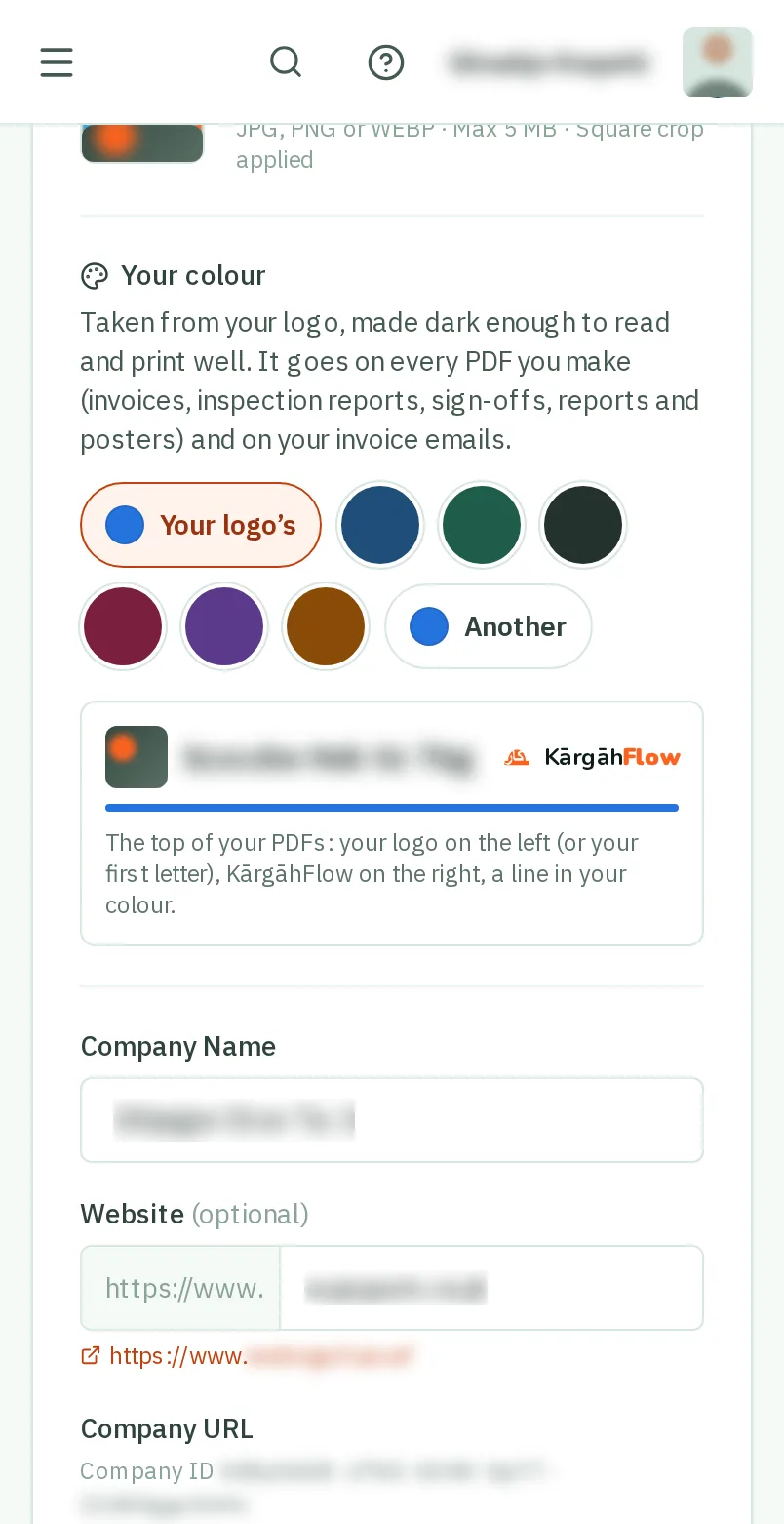
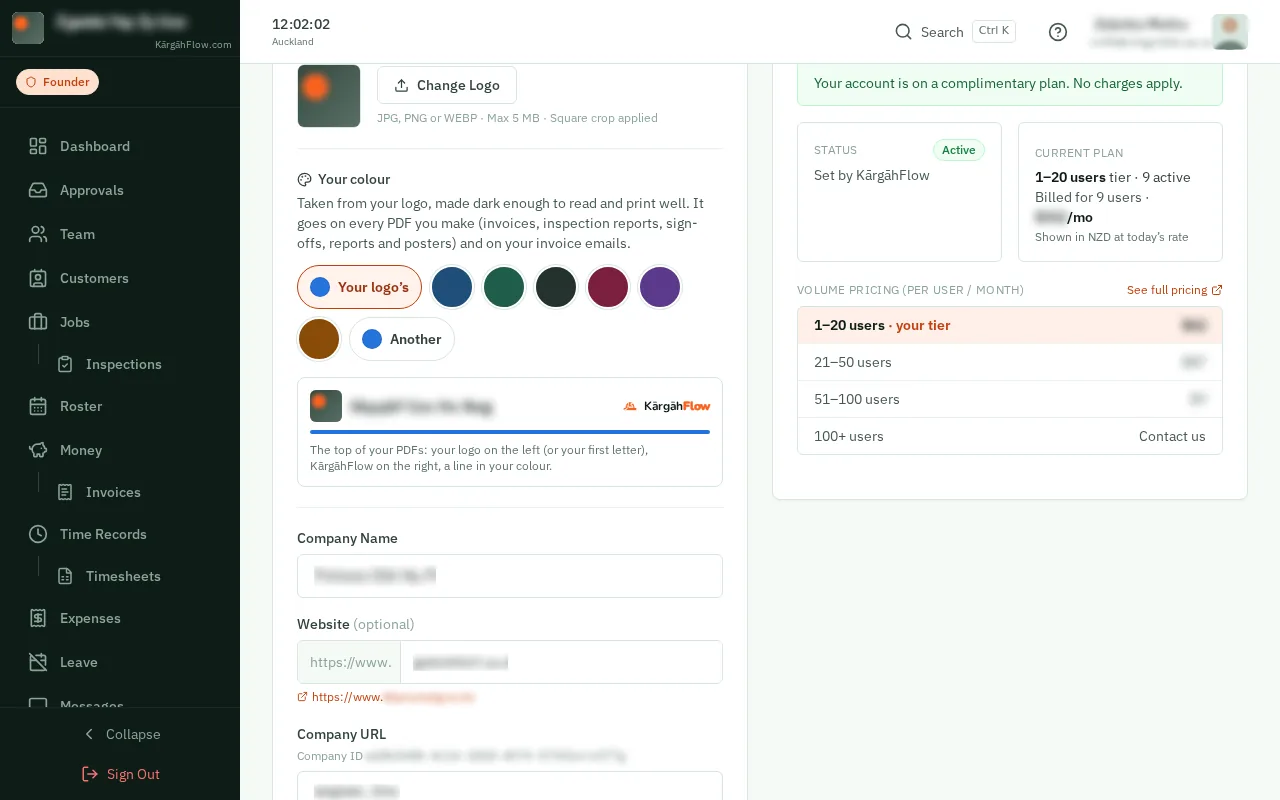
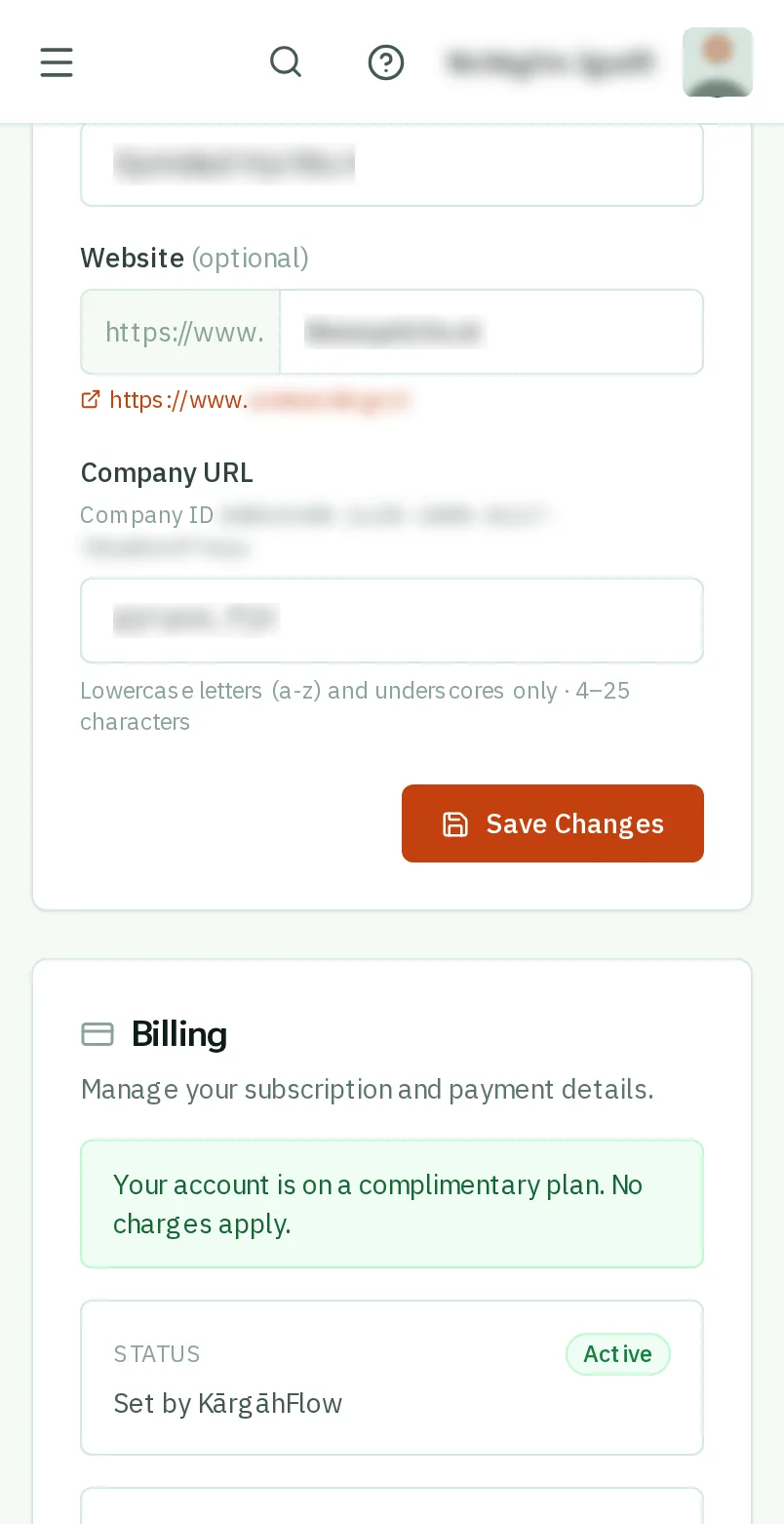
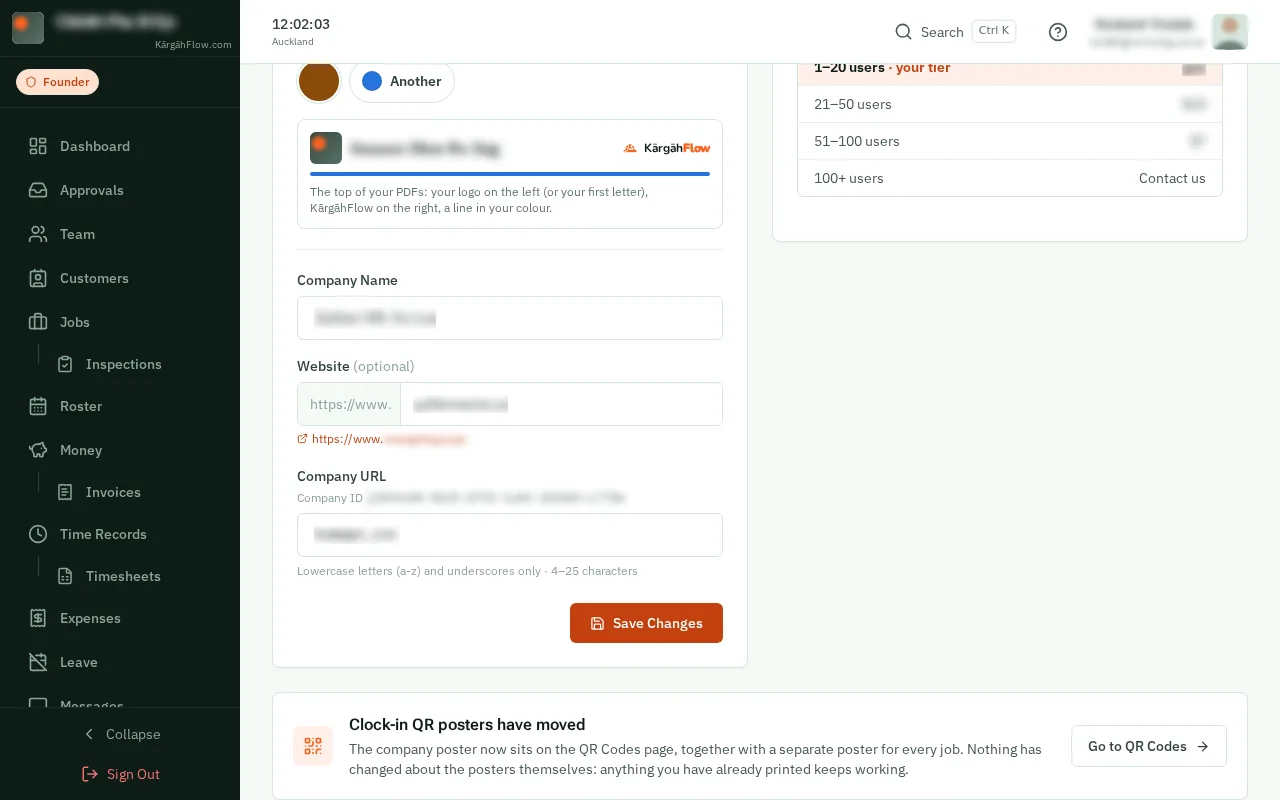
Change your Company Name or Website if you need to, then tapclick Save Changes.
Good to know: Only these need Save Changes. Your logo and your colour save the moment you choose them.