Step 1: Open Money
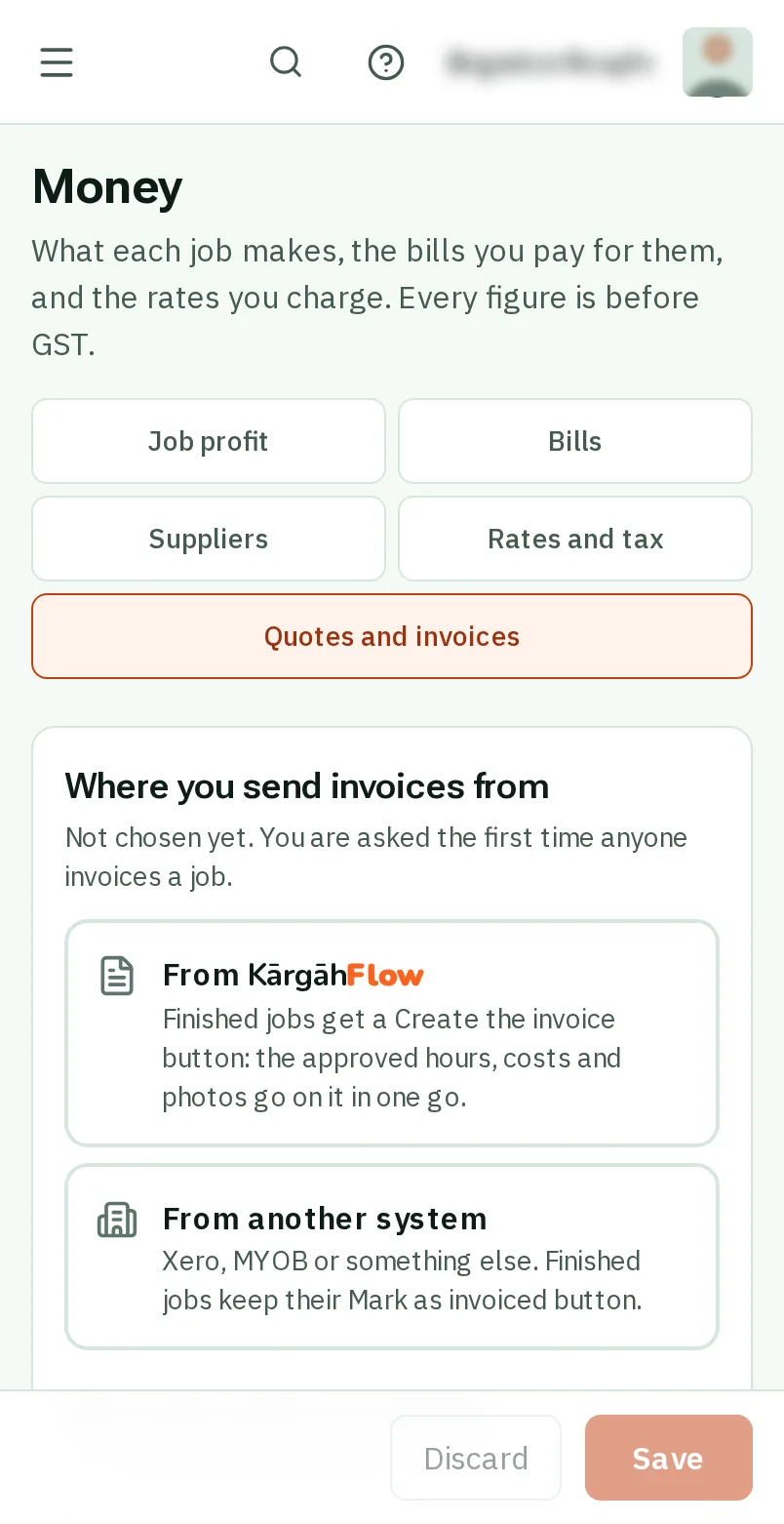
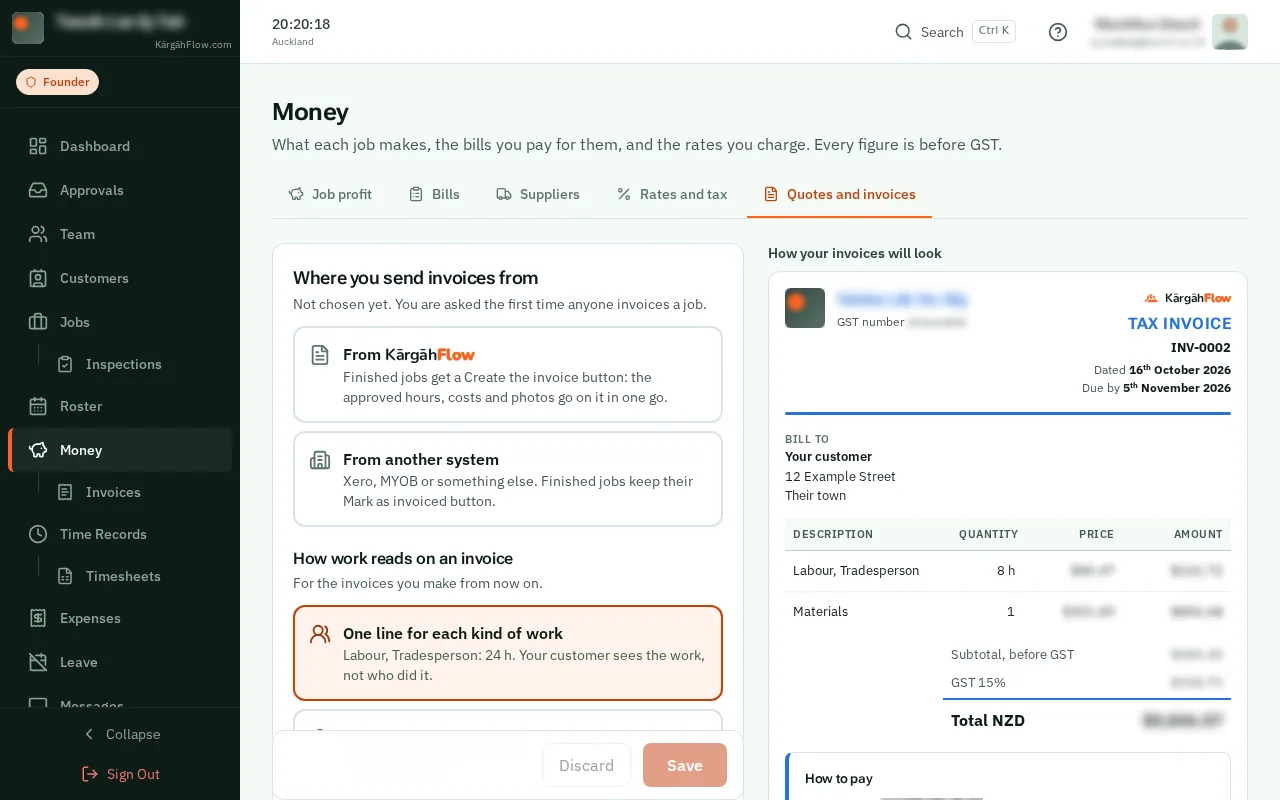
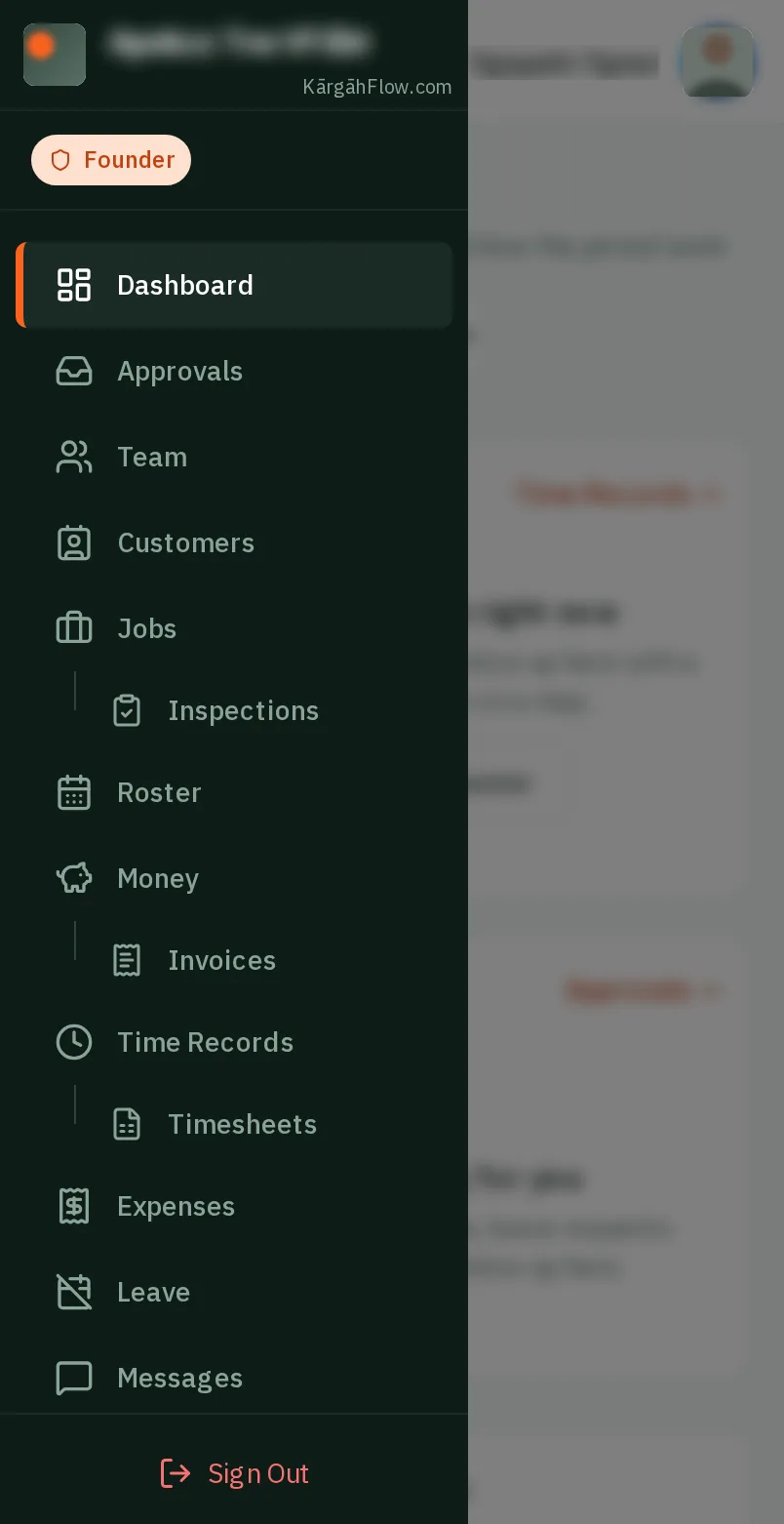
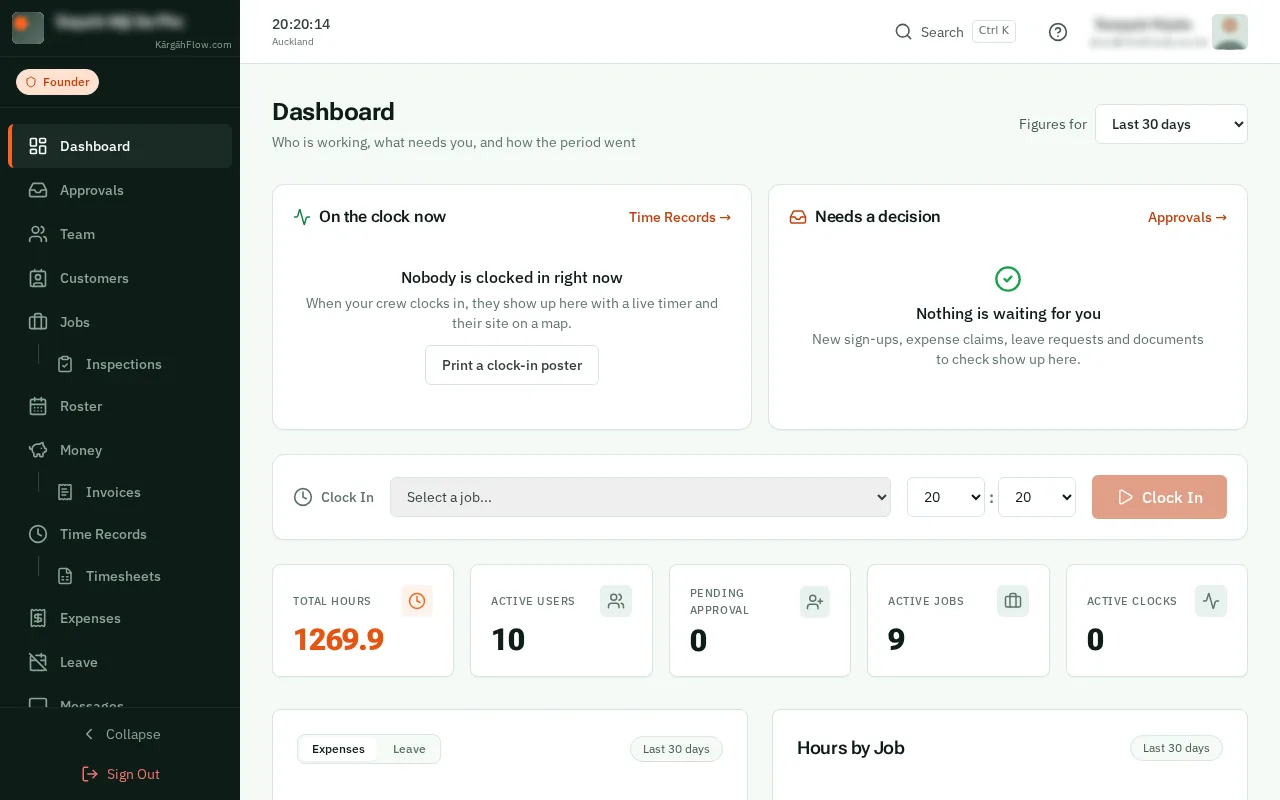
TapClick the menu button at the top left of the screen, then Money.TapClick Money in the menu on the left.
Look forthe Money item in the menu
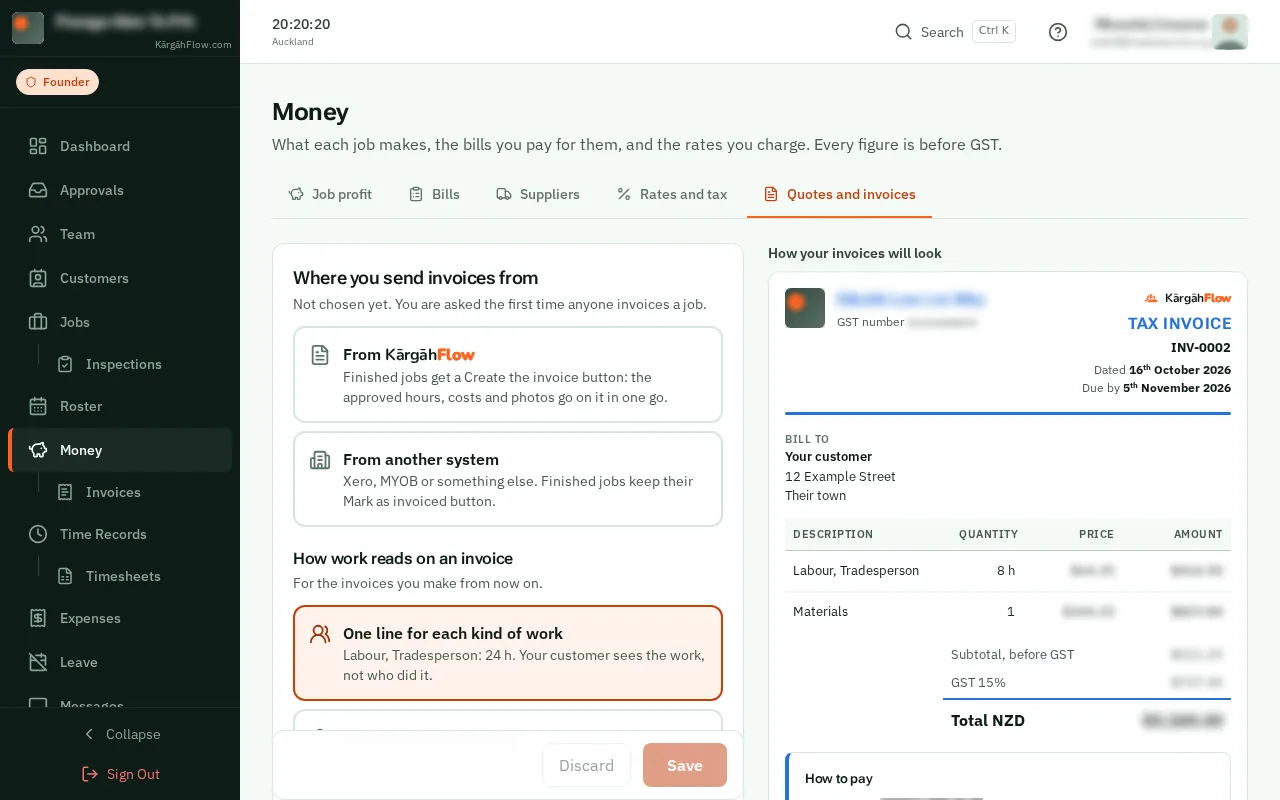
Every quote and invoice you send carries the same details: your name and address, your GST number, and how customers pay you.
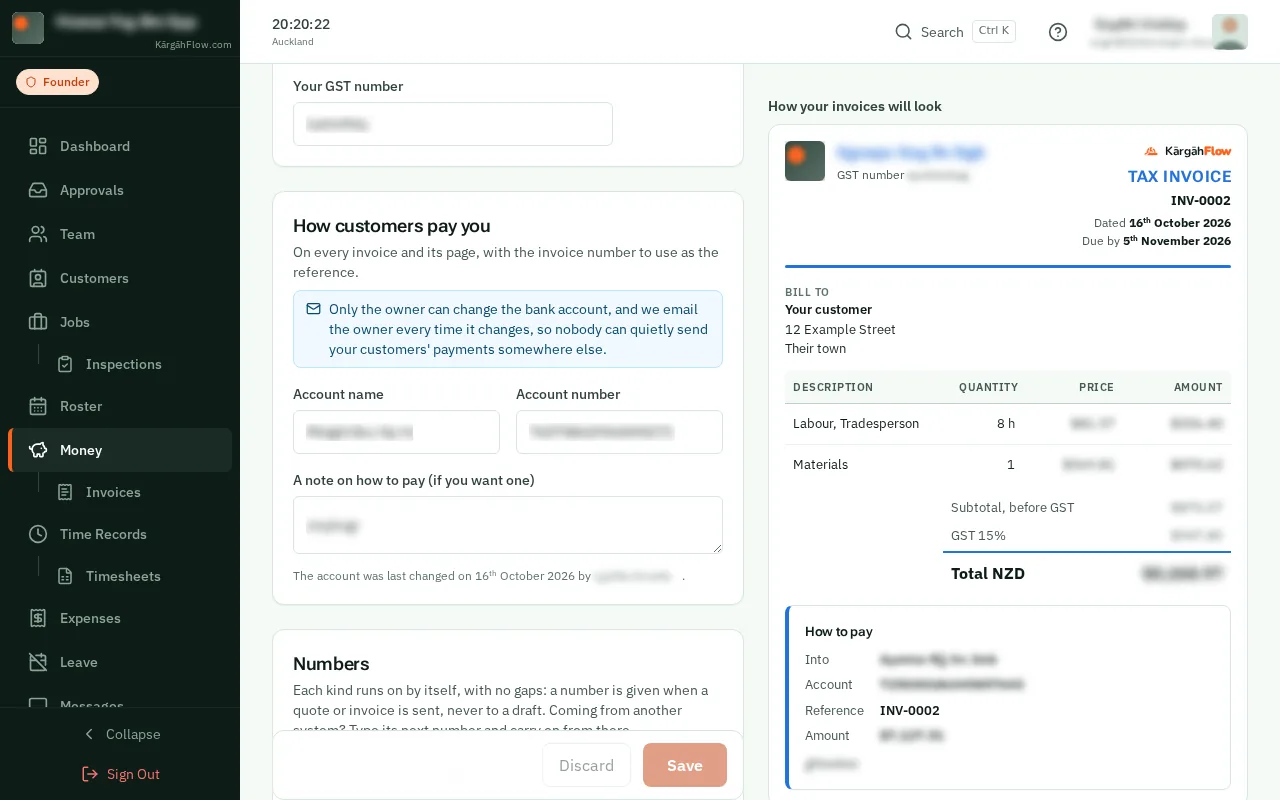
You set them once, with a sample invoice beside them that changes as you type. Only the owner can change the bank account, and the owner is emailed whenever it changes.
TapClick the menu button at the top left of the screen, then Money.TapClick Money in the menu on the left.
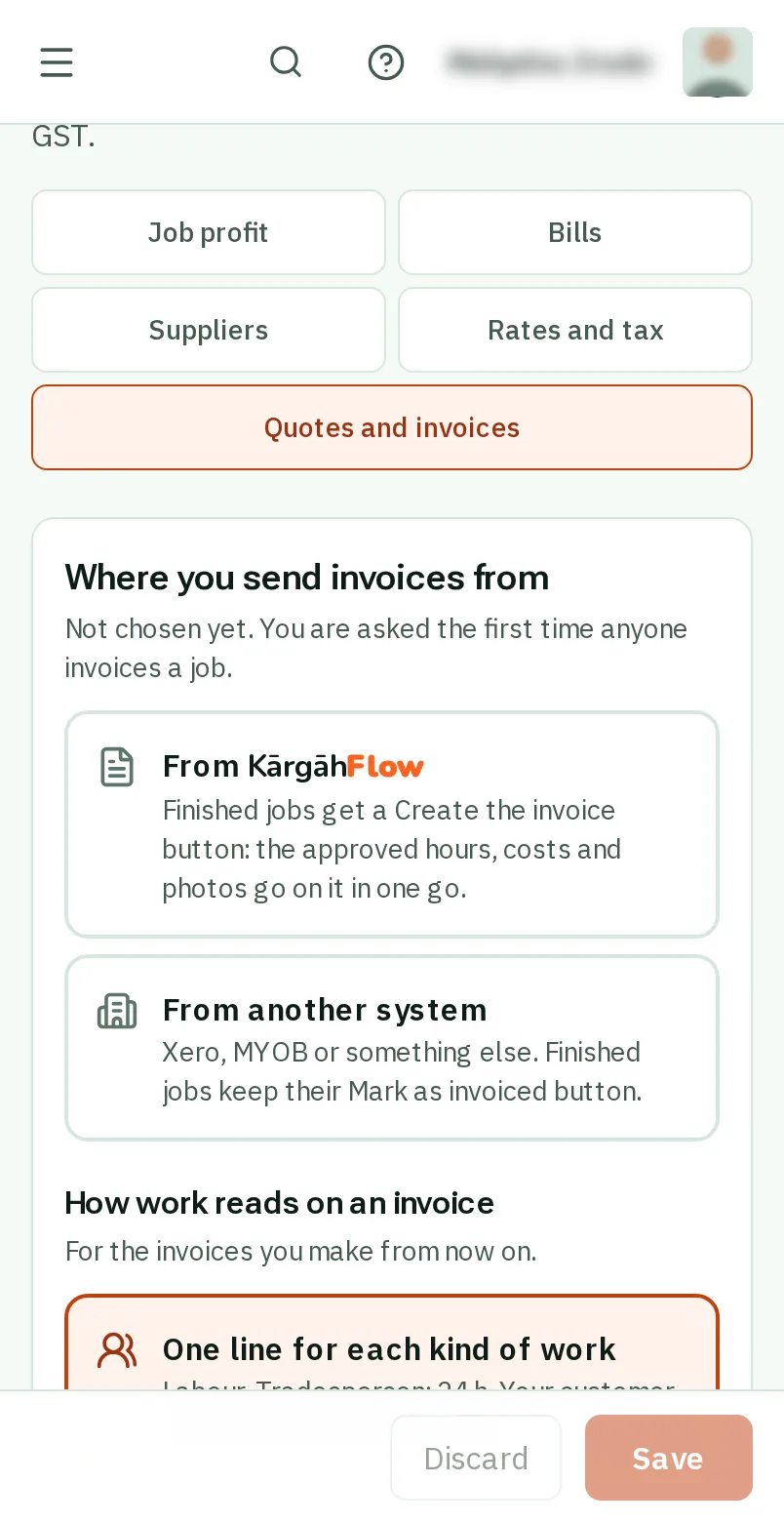
TapClick the Quotes and invoices tab.
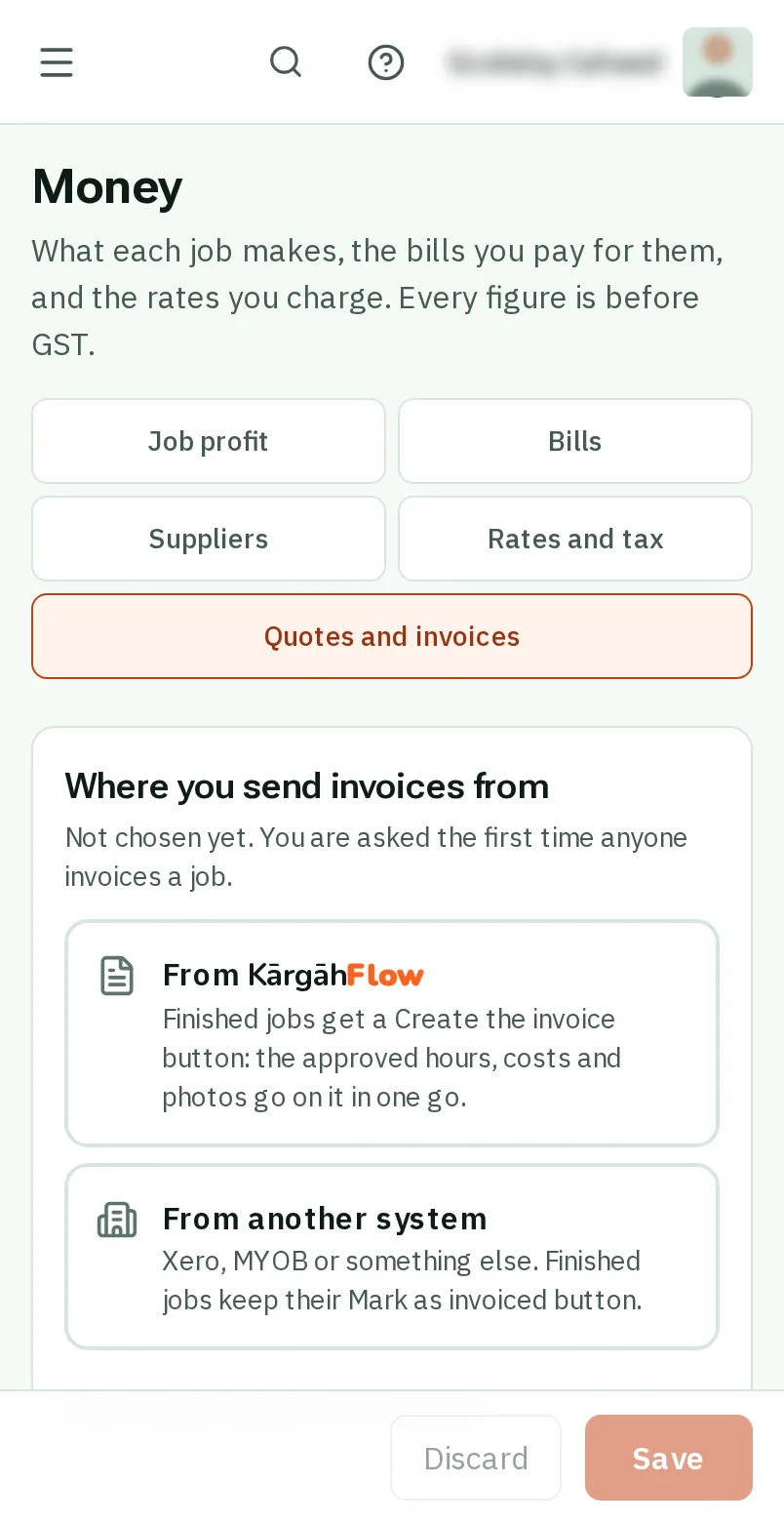
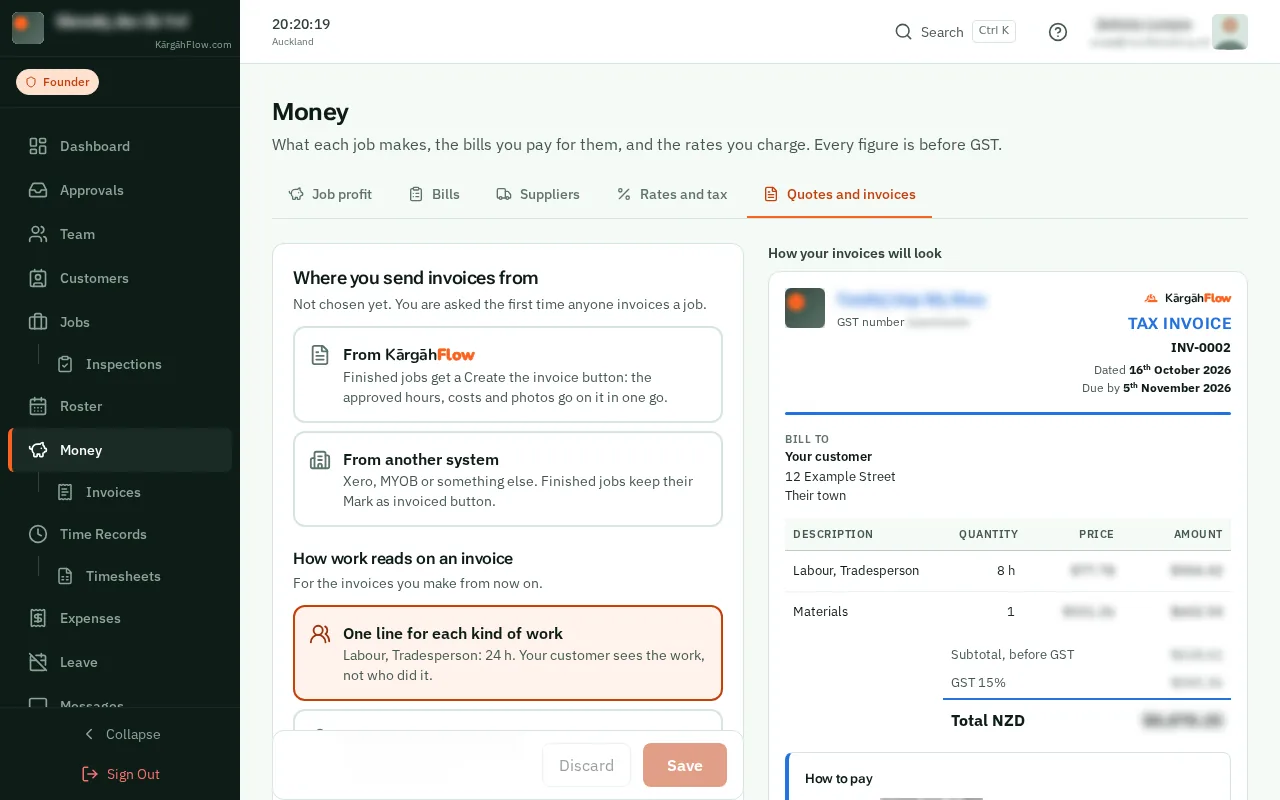
Under Where you send invoices from, tapclick From KārgāhFlow, or From another system if your invoices go from Xero or MYOB. It saves straight away.
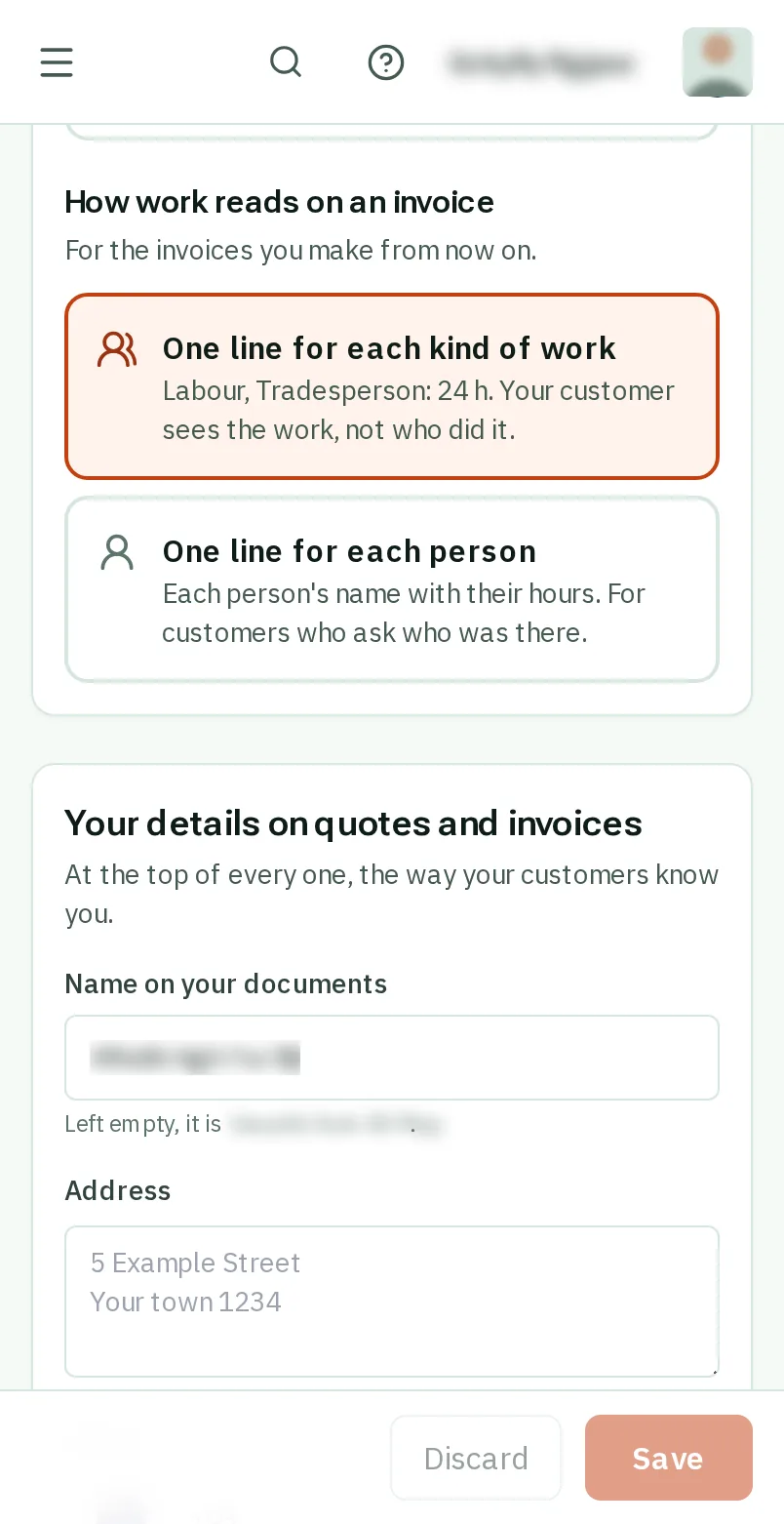
Under Your details on quotes and invoices, check your name, address, phone, the email your customers reply to, and your GST number.
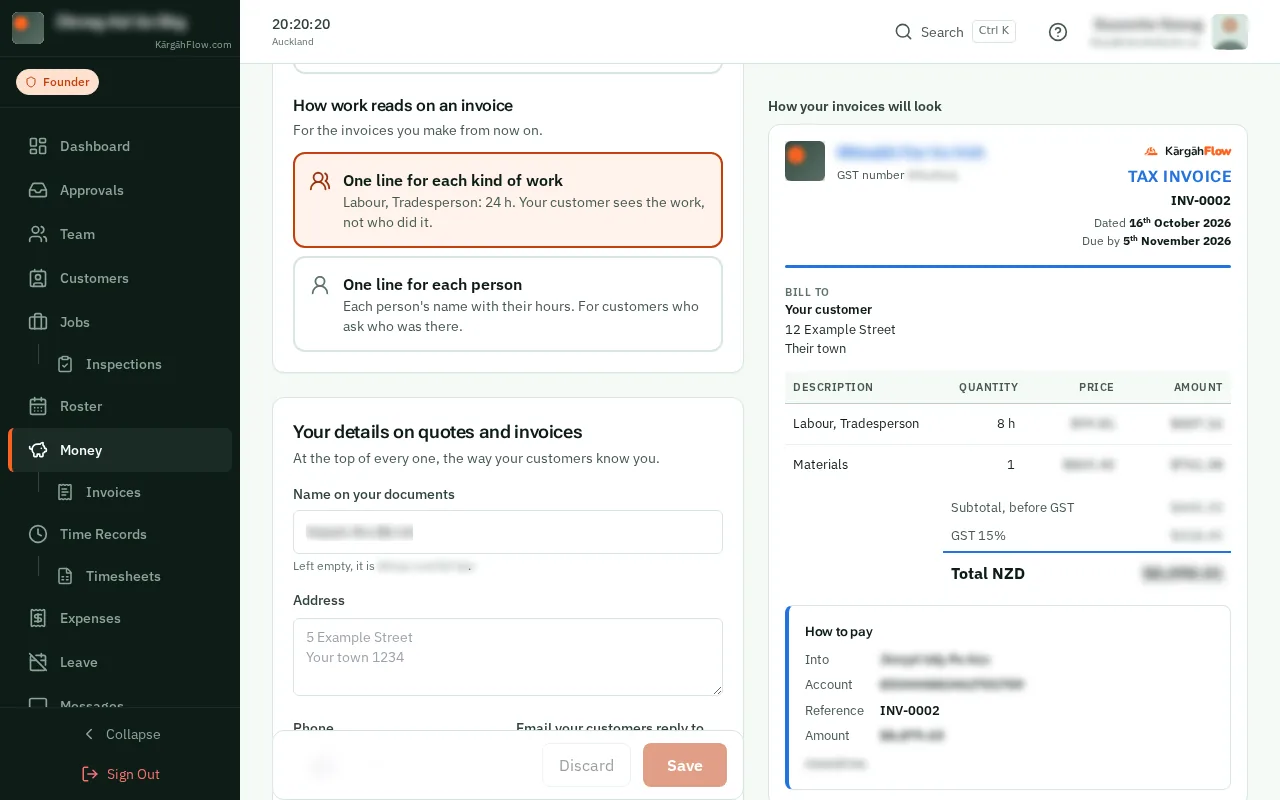
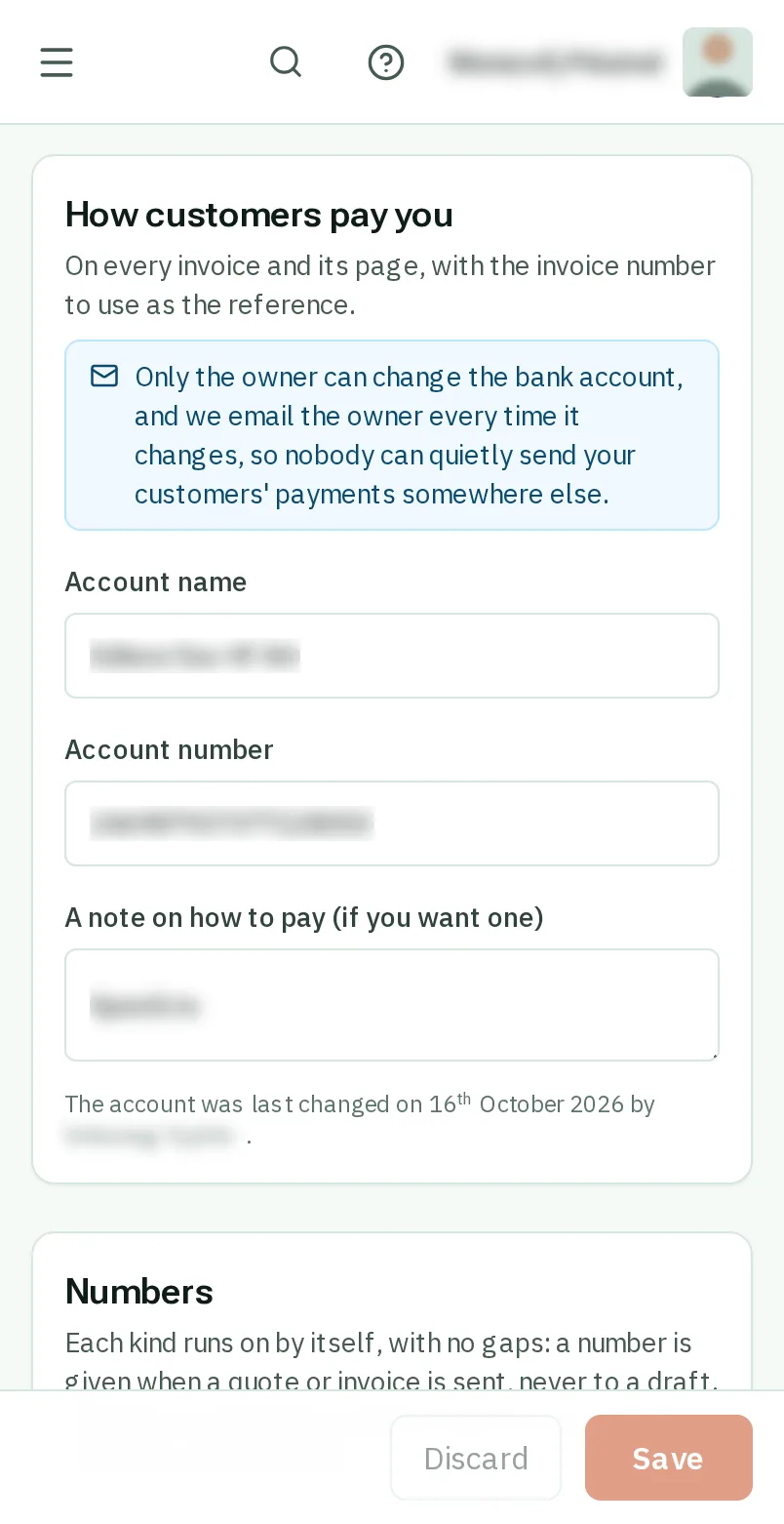
Under How customers pay you, type your bank account. It goes on every invoice, with the invoice number for them to use as the reference.
Good to know: Only the owner can change the bank account, and the owner is emailed every time it changes, so nobody can quietly send your customers’ payments somewhere else.
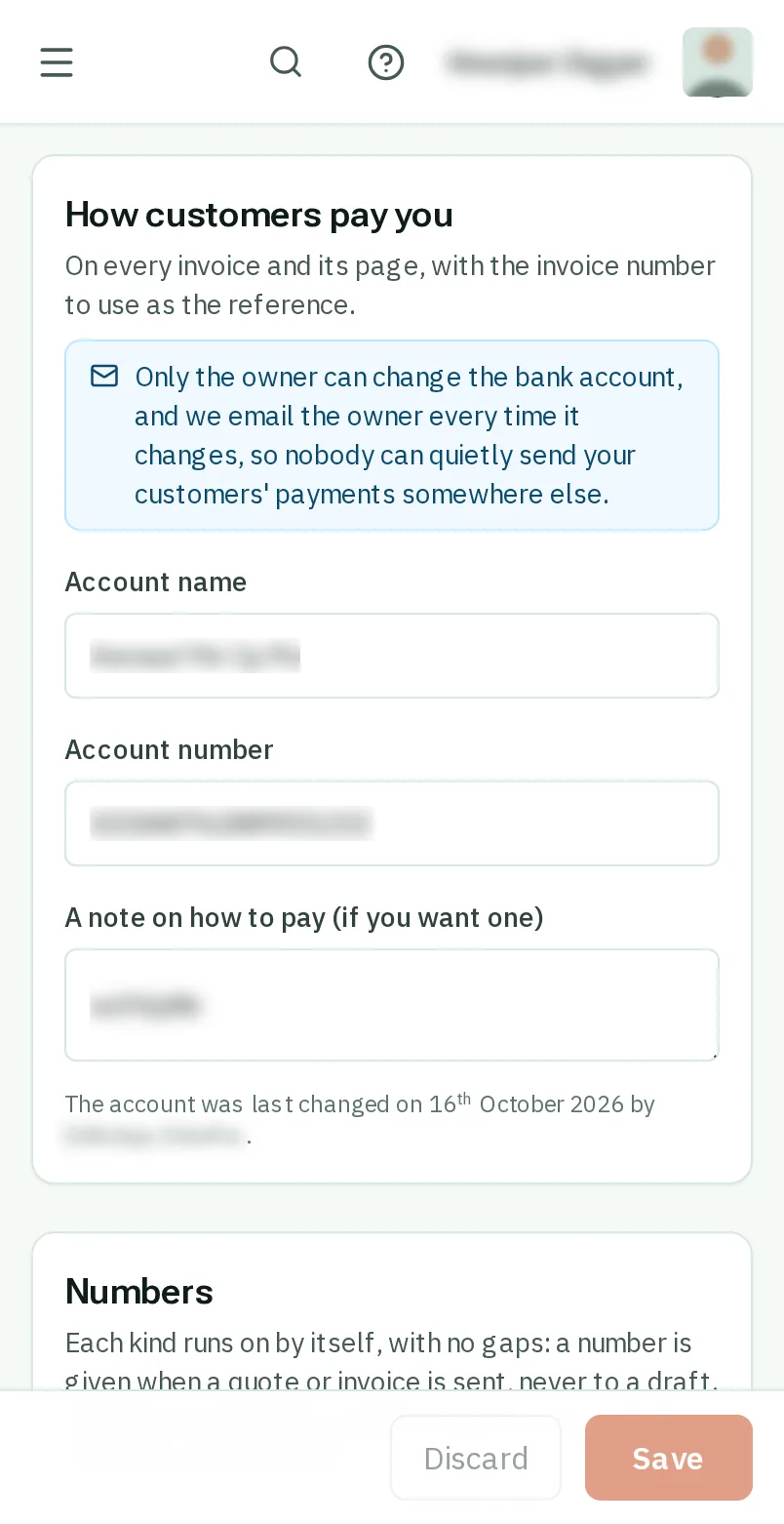
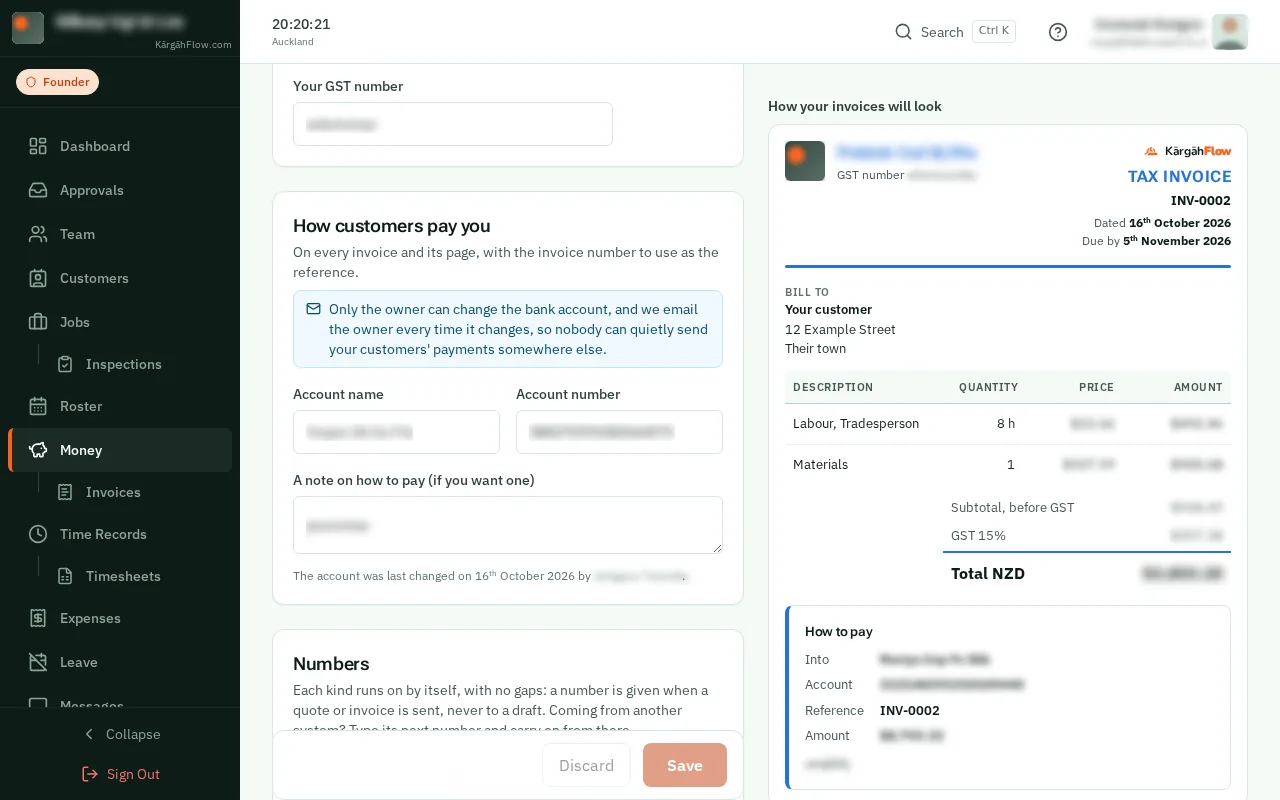
Check the sample invoice under them, then tapclick Save at the bottom of the screen.Check the sample invoice beside them, then tapclick Save at the bottom.
Good to know: Coming from another system? Under Numbers, type its next invoice number and carry on from there.