KārgāhFlow
About 2 minutes 5 stepsFor admins and owners

Get paid

See what you are owed, remind a customer who is late, and record each payment as it comes in.

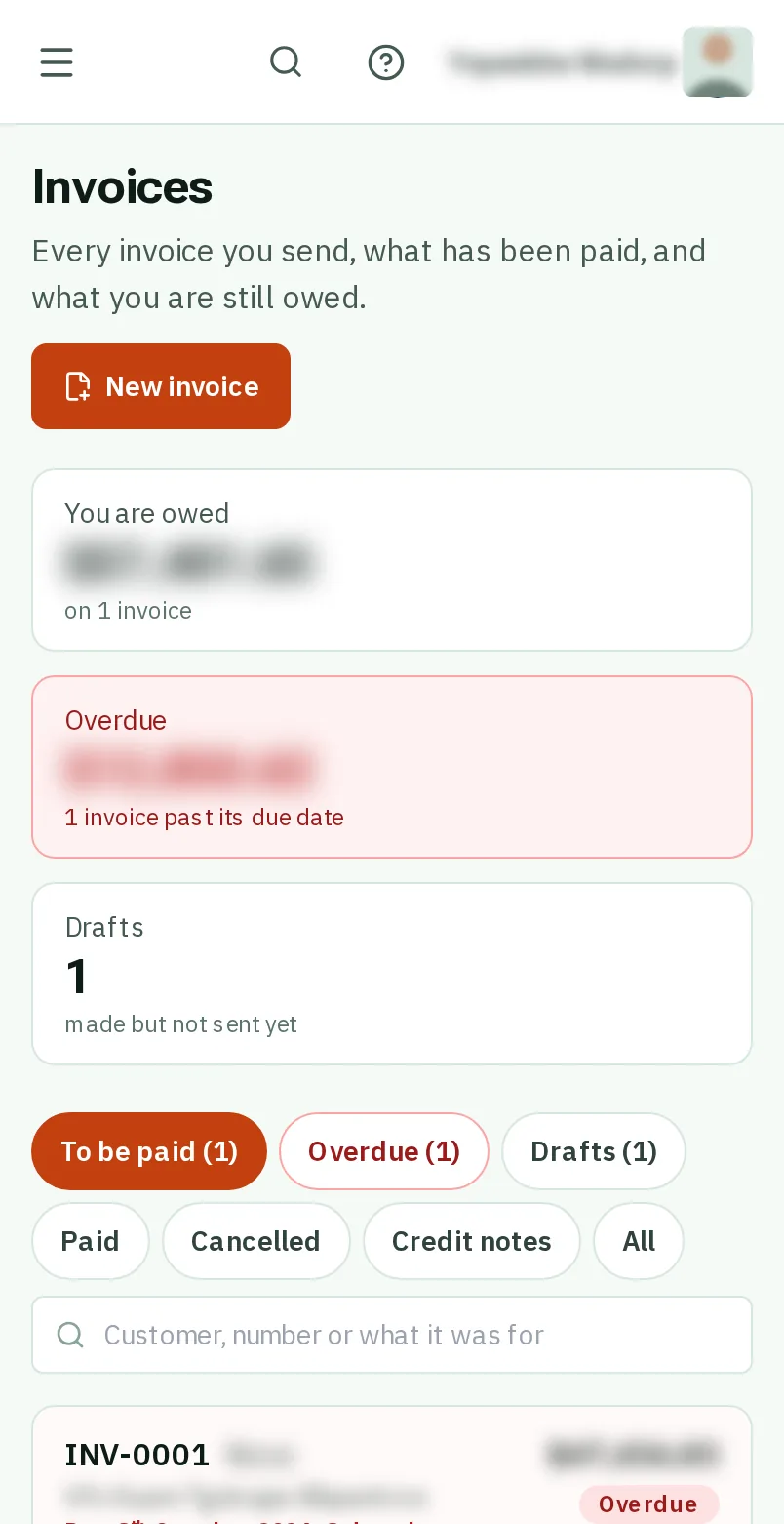
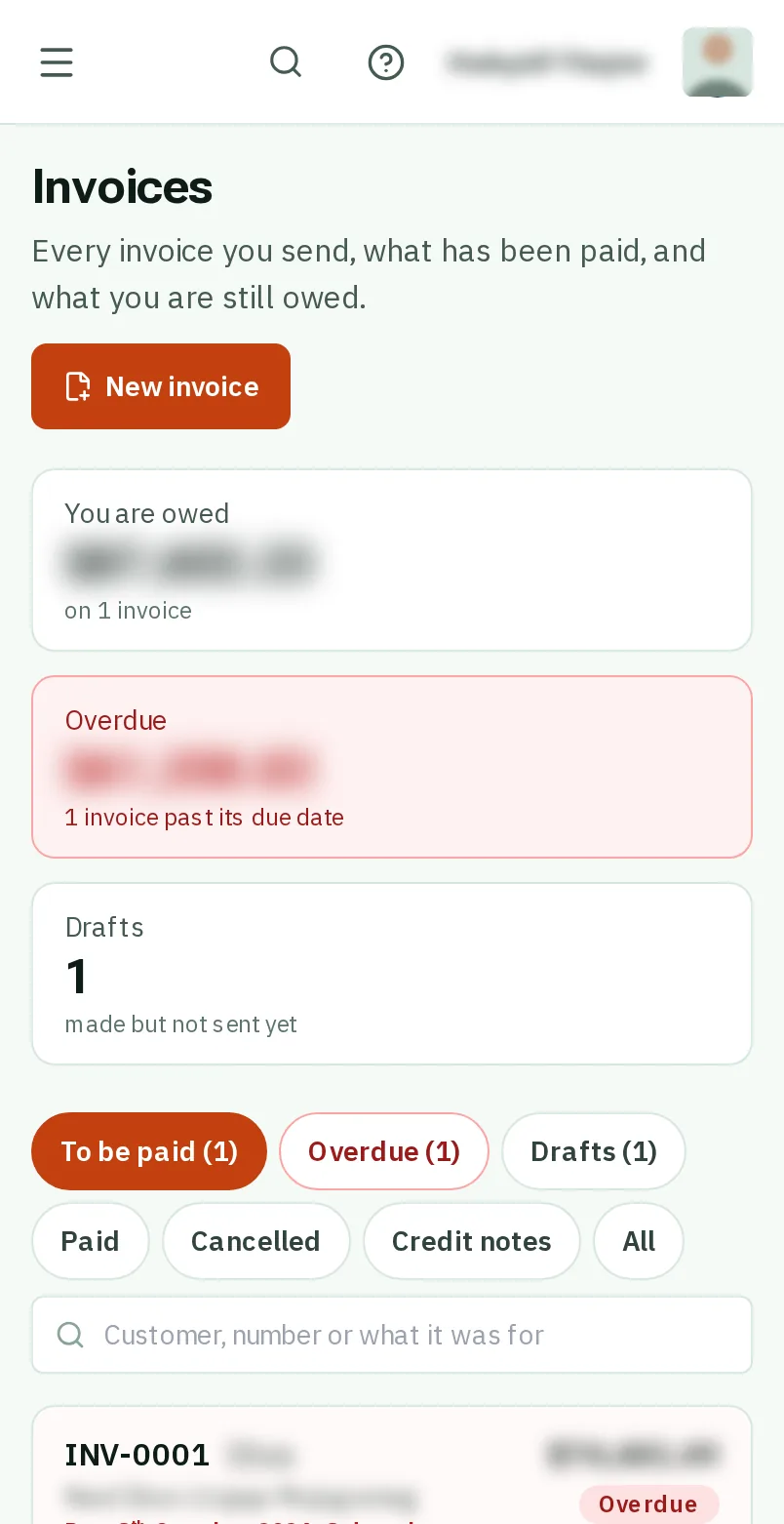
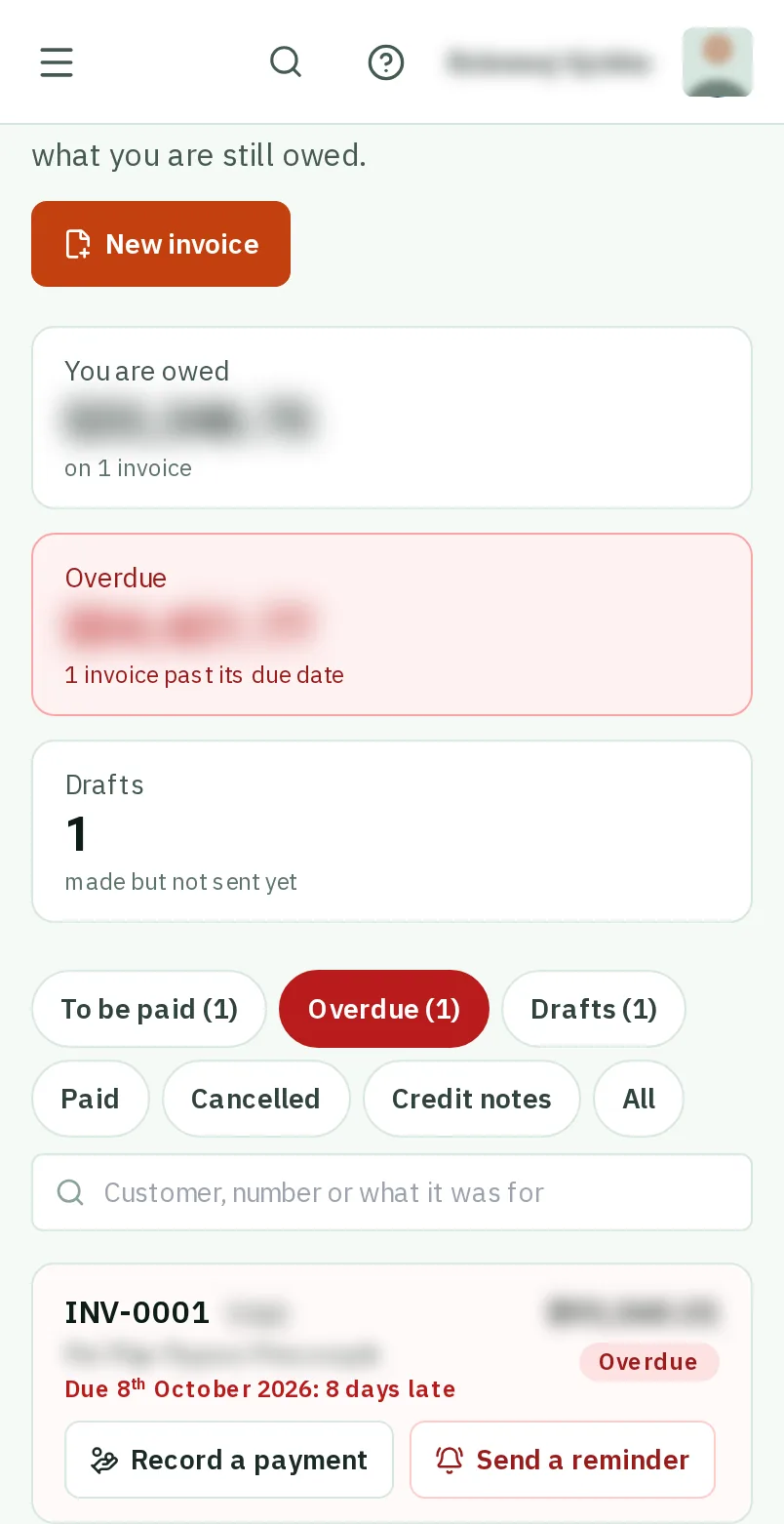
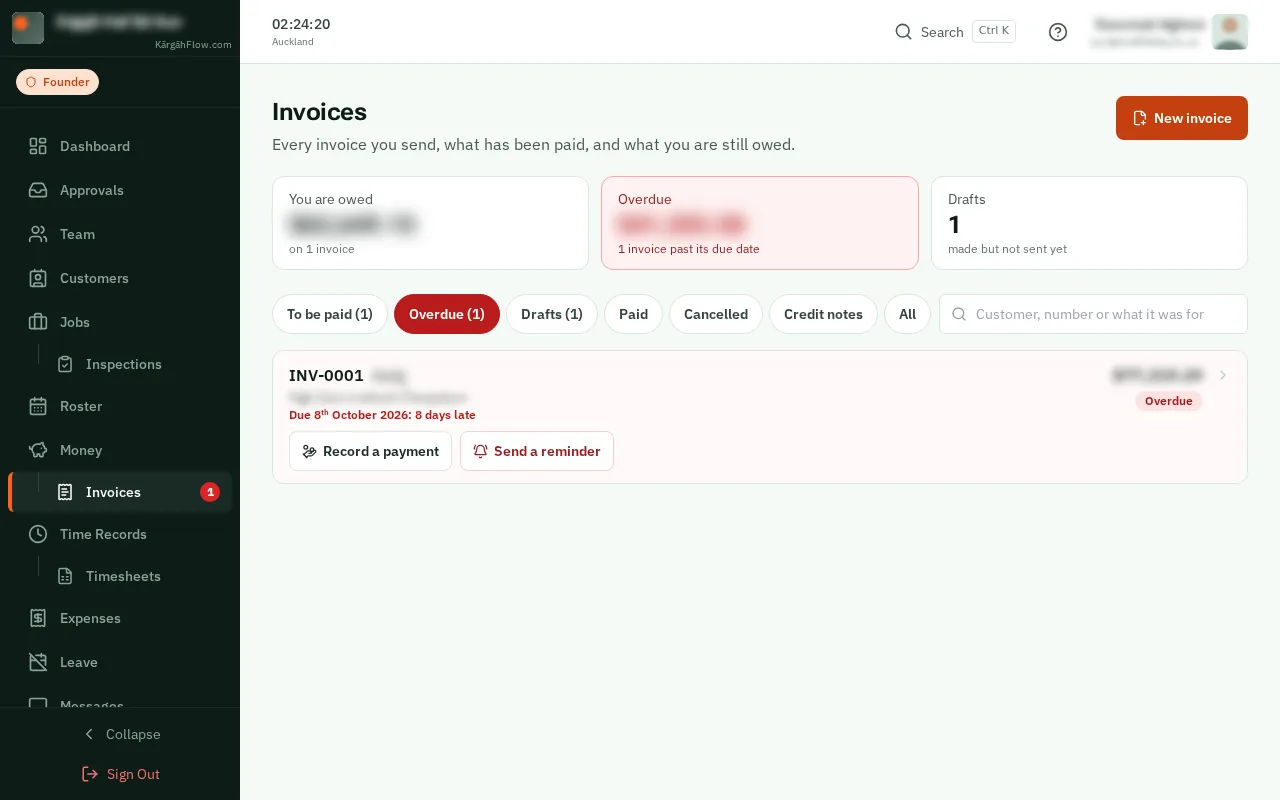
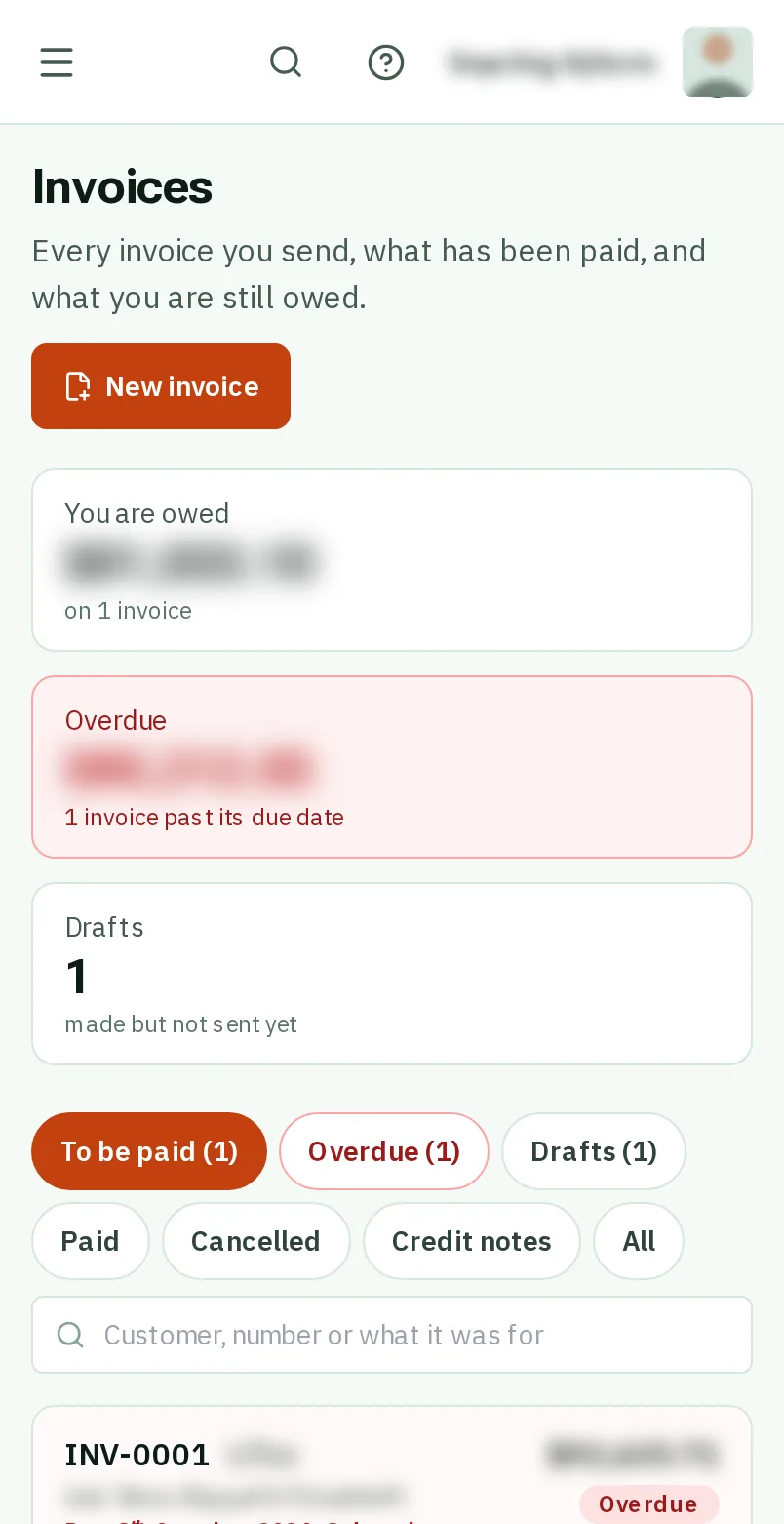
Get paid: the screen on a phone
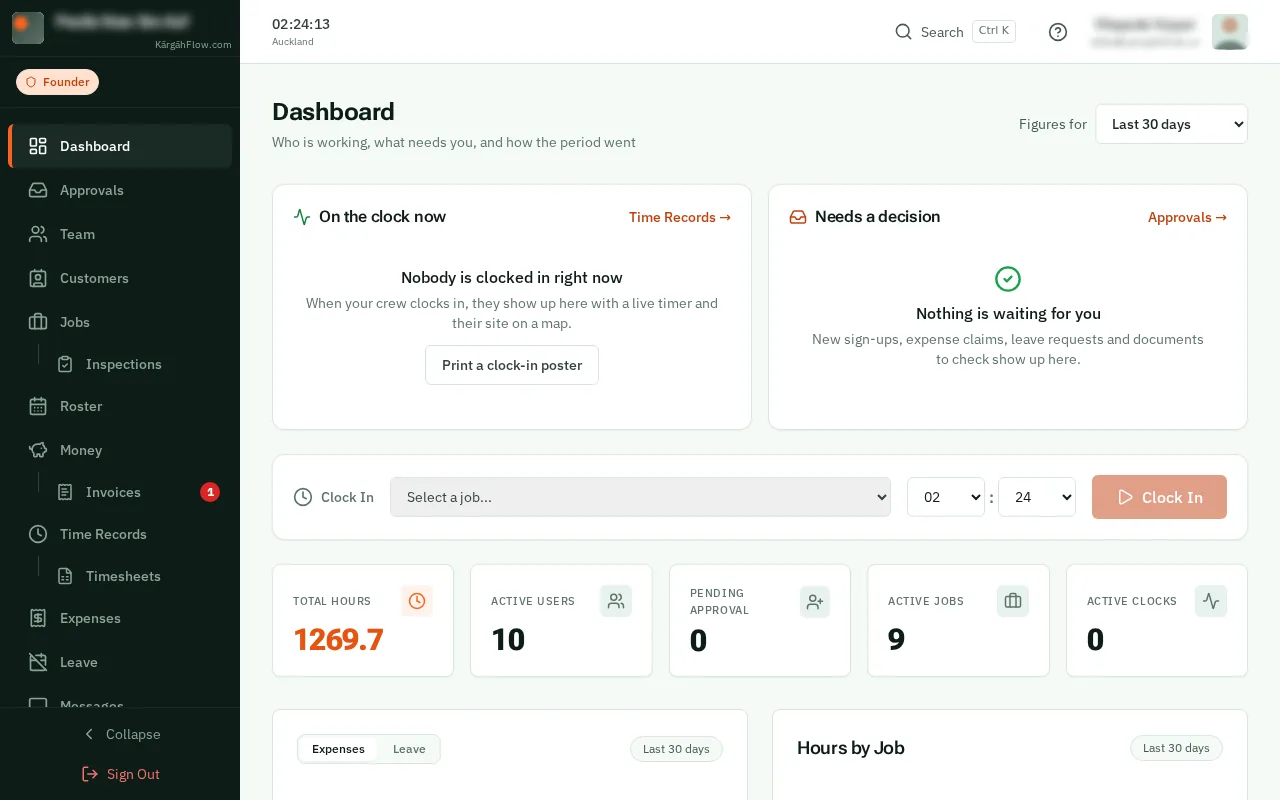
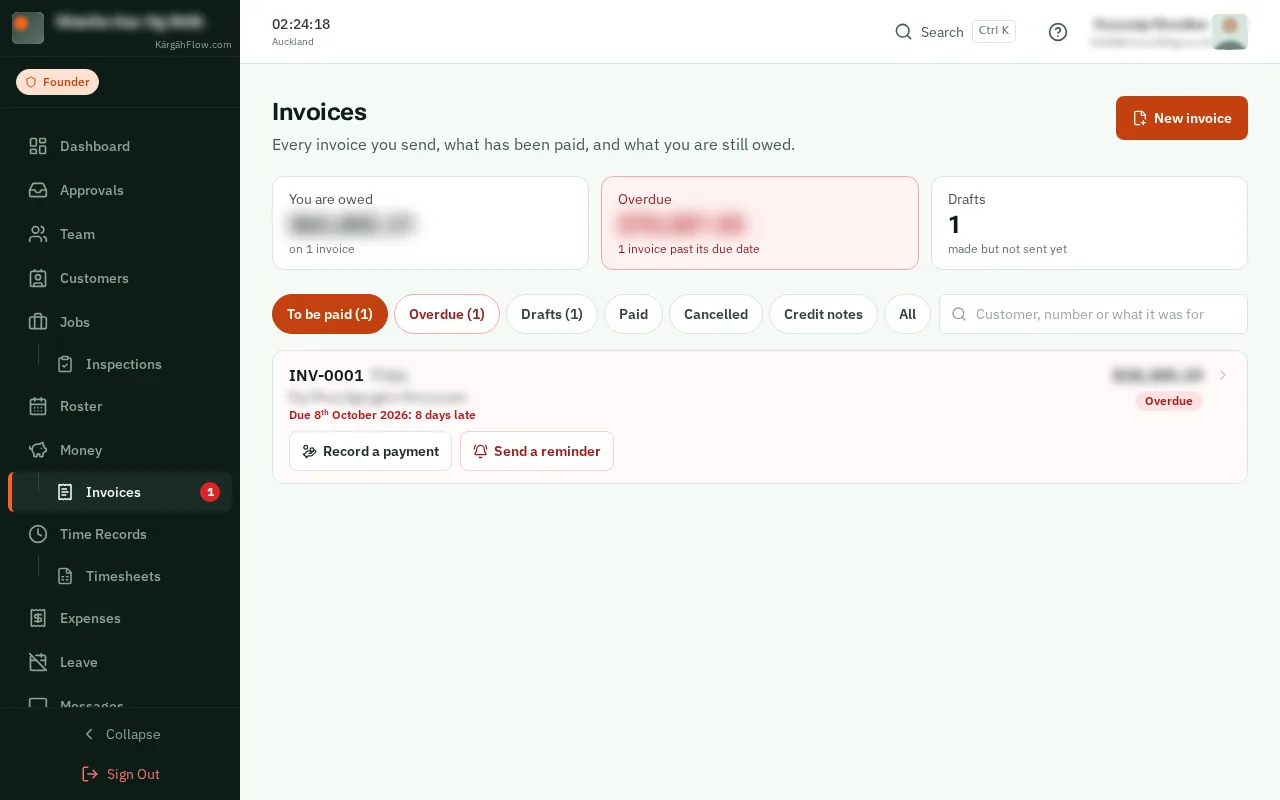
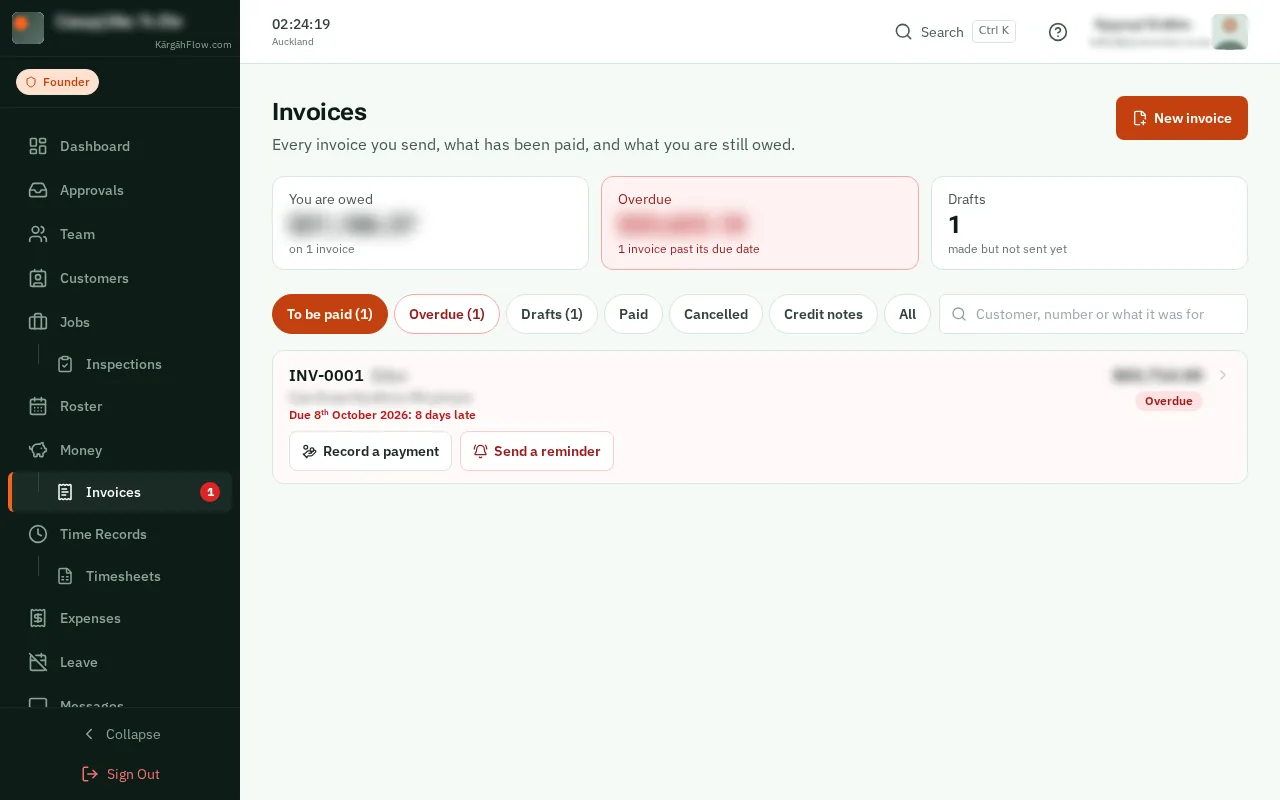
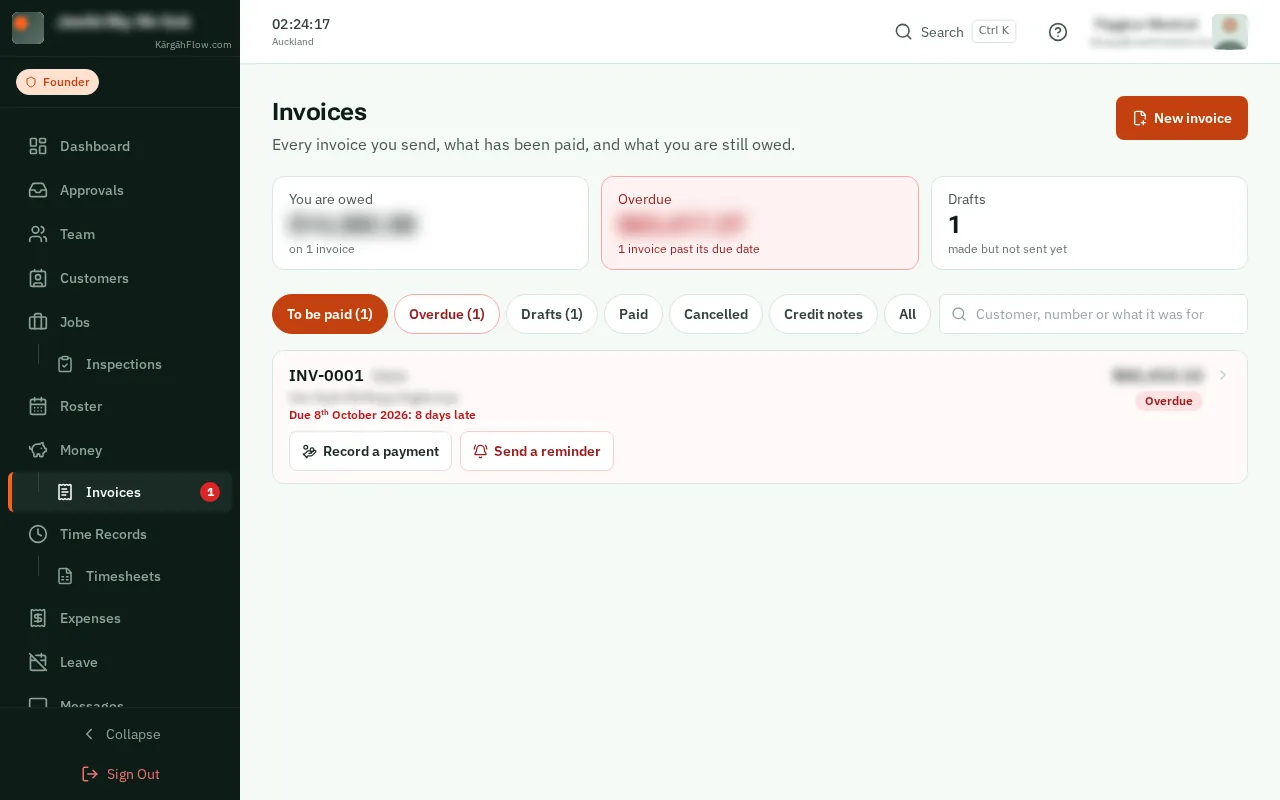
Get paid: the screen on a computer

What this is

The Invoices page, under Money in the menu, shows every invoice you have sent and what you are still owed. Late ones are red, and the menu counts them.

Nothing is chased by itself: you choose when to send a reminder. Record each payment as it comes in, and the invoice and the job read Paid.

Step 1 of 5
  1. Step 1: Open Invoices

    TapClick the menu button at the top left of the screen, then Invoices.TapClick Invoices in the menu on the left.

    Look forthe Invoices item in the menu

    Good to know: A red number beside Invoices in the menu is how many are overdue.
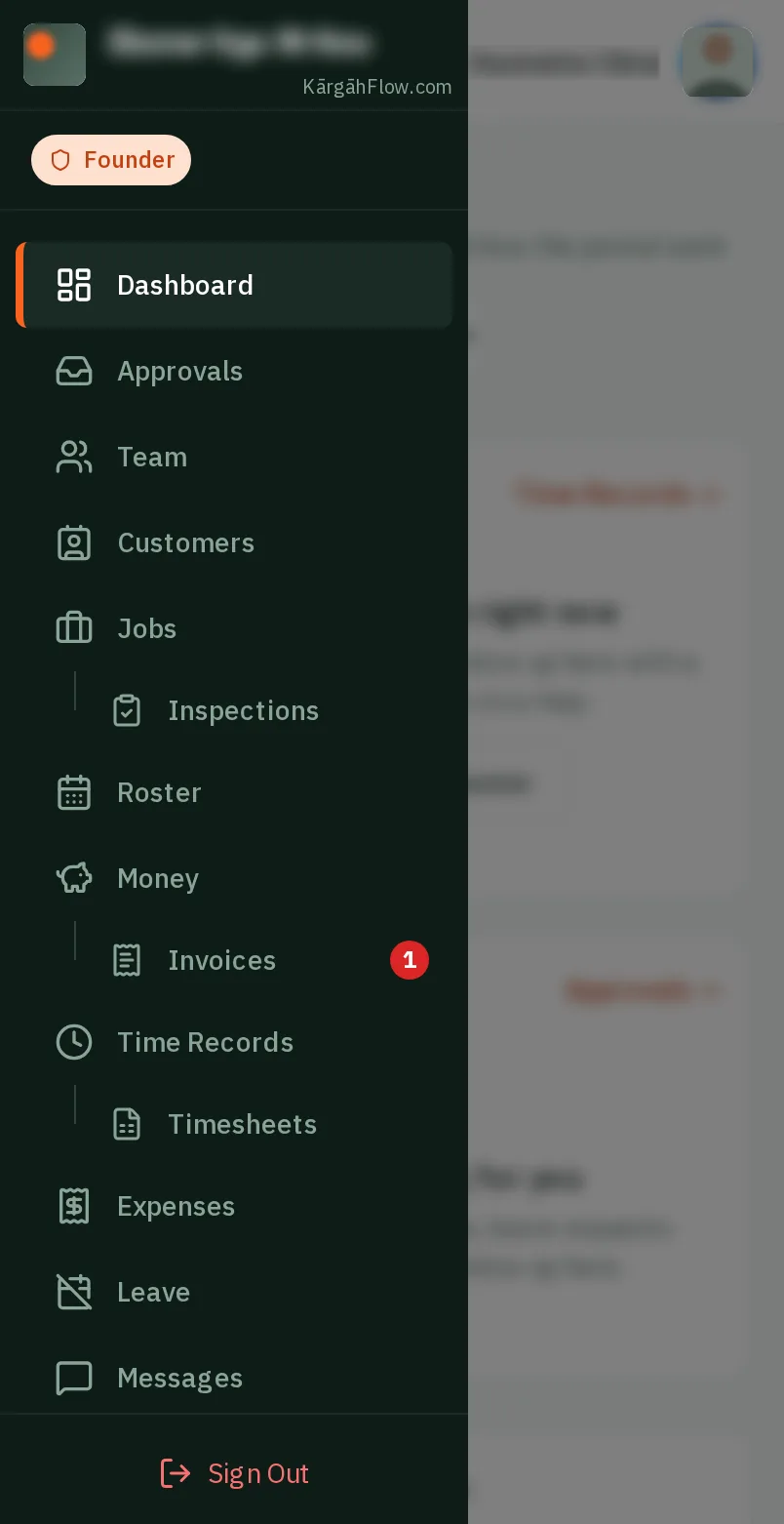
    Open Invoices
    Open Invoices
  2. Step 2: What you are owed

    At the top is what You are owed, how much of it is Overdue, and the drafts not sent yet. The list starts with what is still to be paid, the oldest due first.

    Good to know: Cleaning contracts: when a month or a week ends, a box at the top says their invoices are ready. TapClick Check and send them to send them all together.

    What you are owed
    What you are owed
  3. Step 3: TapClick Overdue

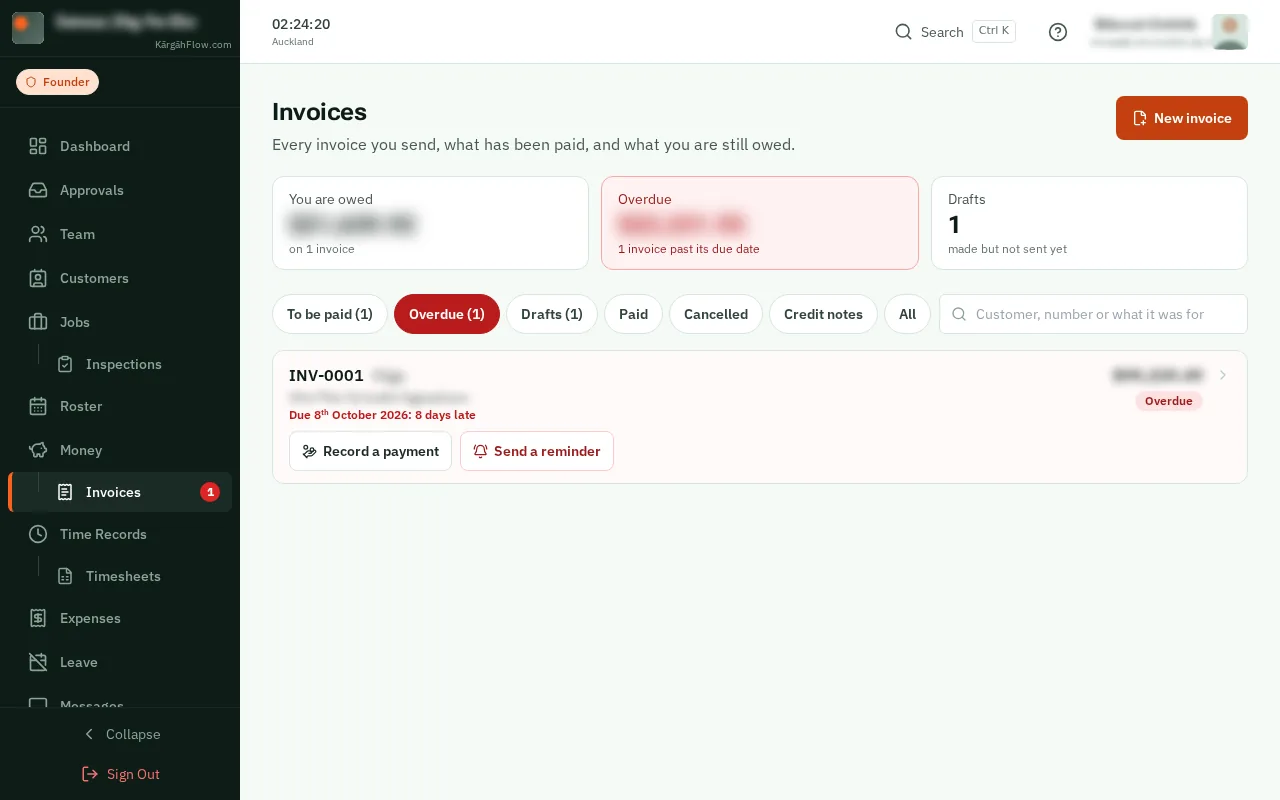
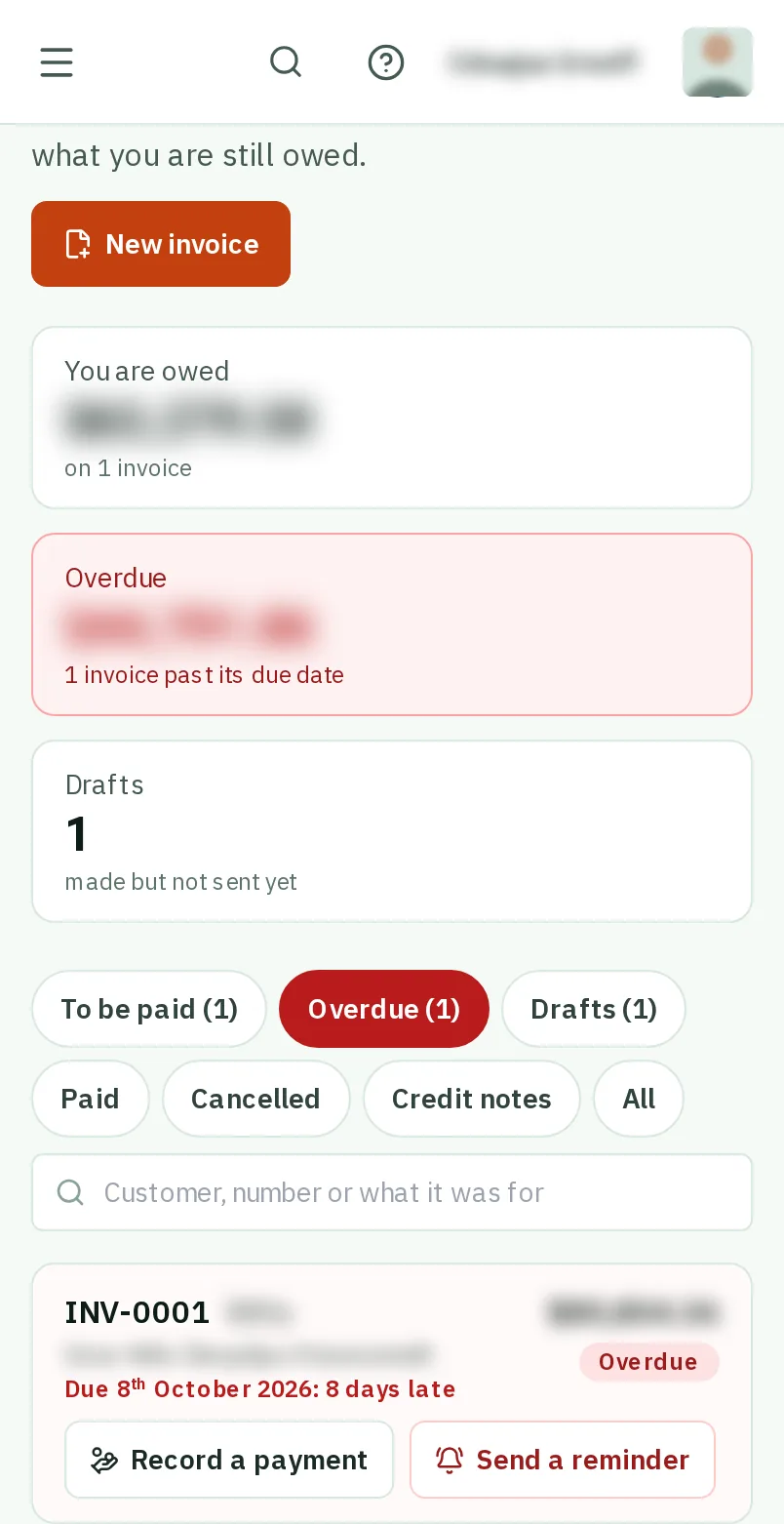
    TapClick Overdue to see only the late ones, each with how many days late it is.

    Look forthe Overdue tab in the bar at the bottom of the screen
    Tap Overdue
    Click Overdue
  4. Step 4: Send a reminder

    TapClick Send a reminder on a late invoice. It is the same invoice again, with a polite line about what is still owed. Change the words if you like, then tapclick Send the reminder.

    Look forthe Send a reminder button
    Send a reminder
    Send a reminder
  5. Step 5: Record a payment

    Money came in? TapClick Record a payment on its invoice. What is still owed is filled in: change it for a part payment, choose how it came in, then tapclick Save the payment.

    Look forthe Record a payment button

    Good to know: Paid in full, the invoice reads Paid, and so does the job once all its invoices are. A payment recorded by mistake can be taken off on the invoice’s own page.

    Record a payment
    Record a payment

That's it

You can see who owes you what, and every payment is on its invoice.

Next: Put an invoice right