KārgāhFlow
About 5 minutes 7 stepsFor owners

Set up in five steps

Your logo, your first job, your team, your poster and a pay rate.

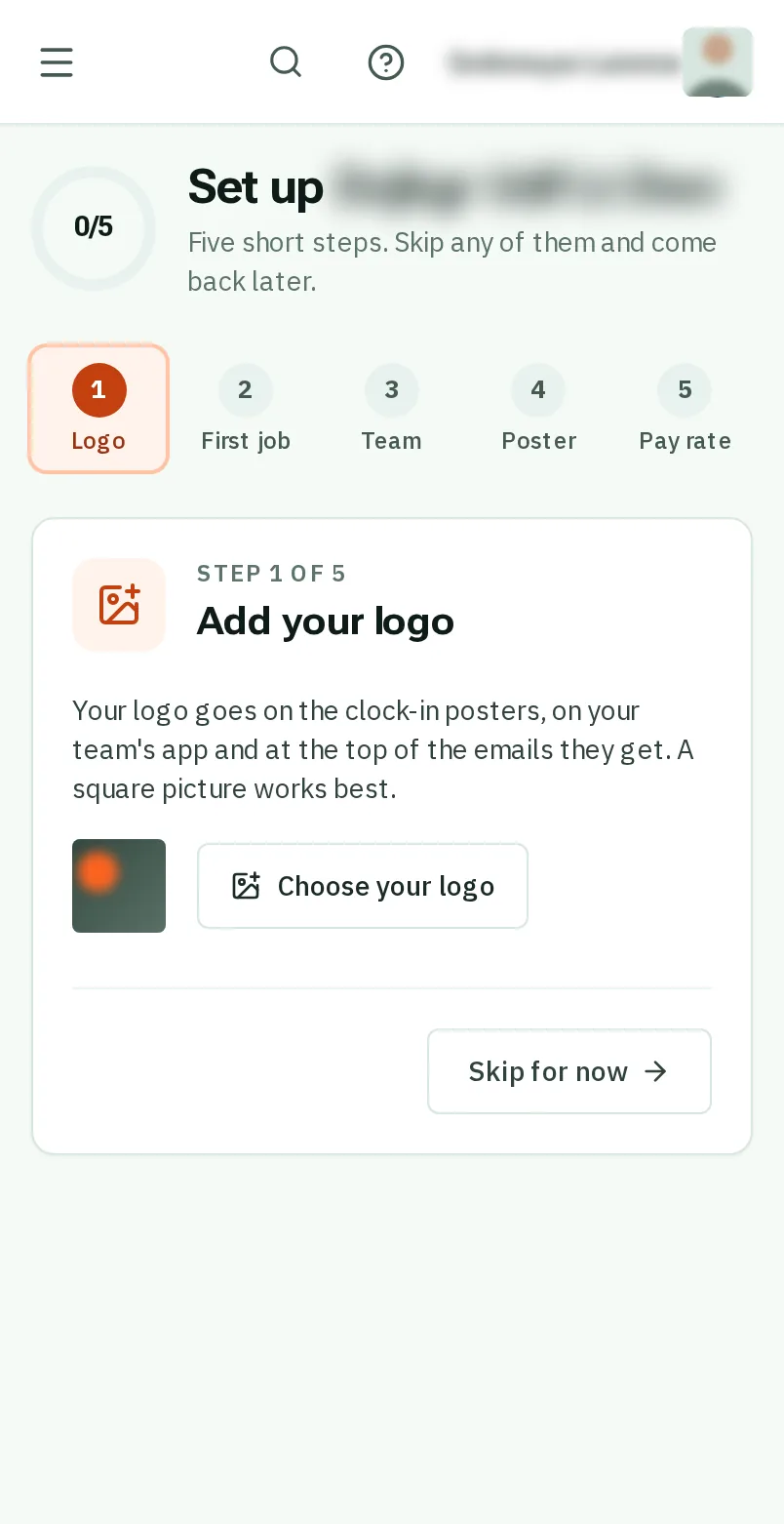
Set up in five steps: the screen on a phone
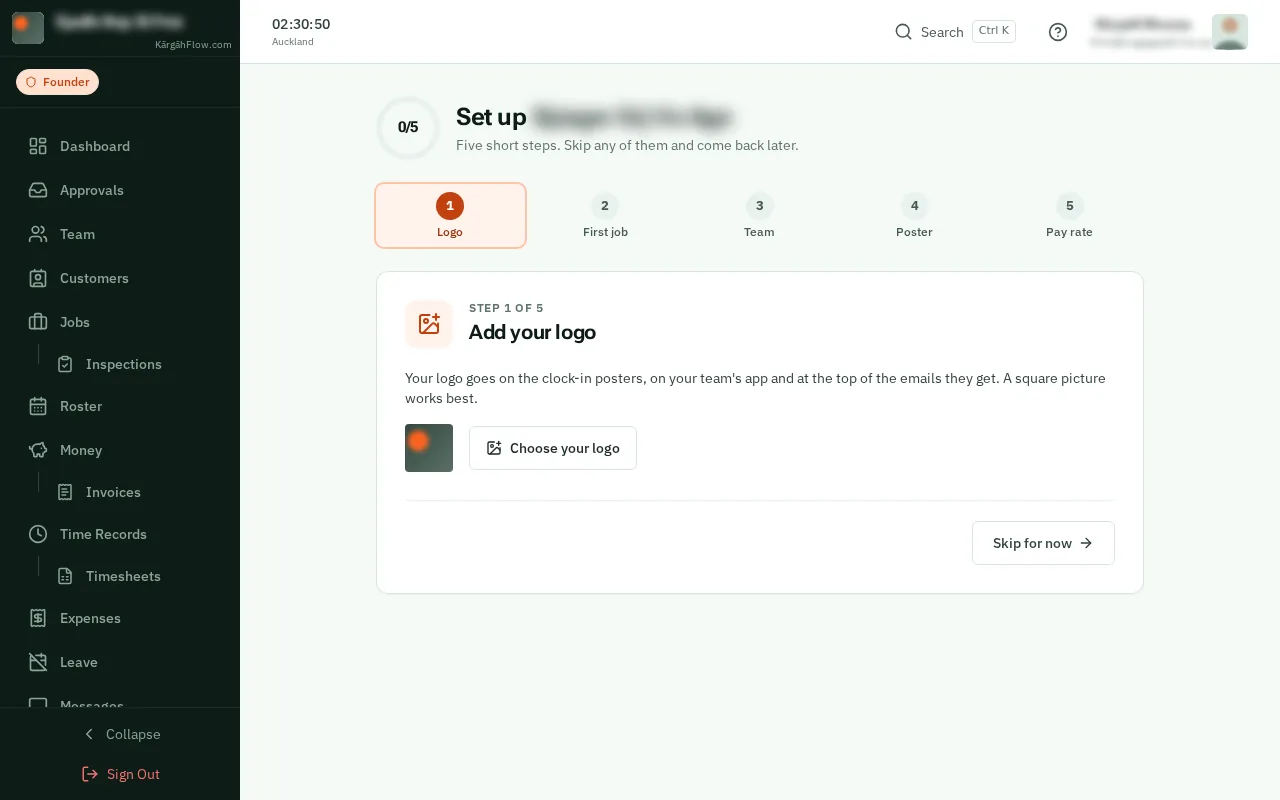
Set up in five steps: the screen on a computer
Step 1 of 7
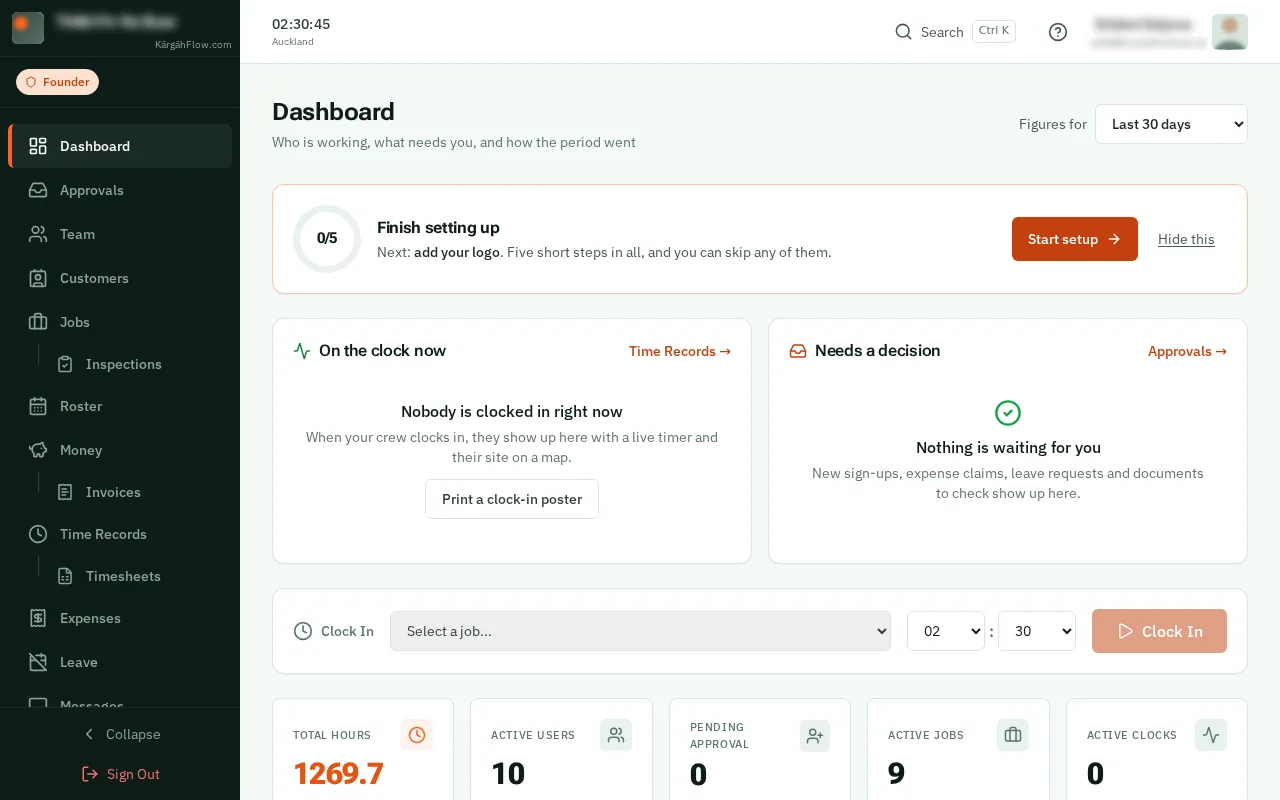
  1. Step 1: TapClick Start setup

    On your dashboard, the Finish setting up card shows how far you are. TapClick Start setup.

    Look forthe Start setup button
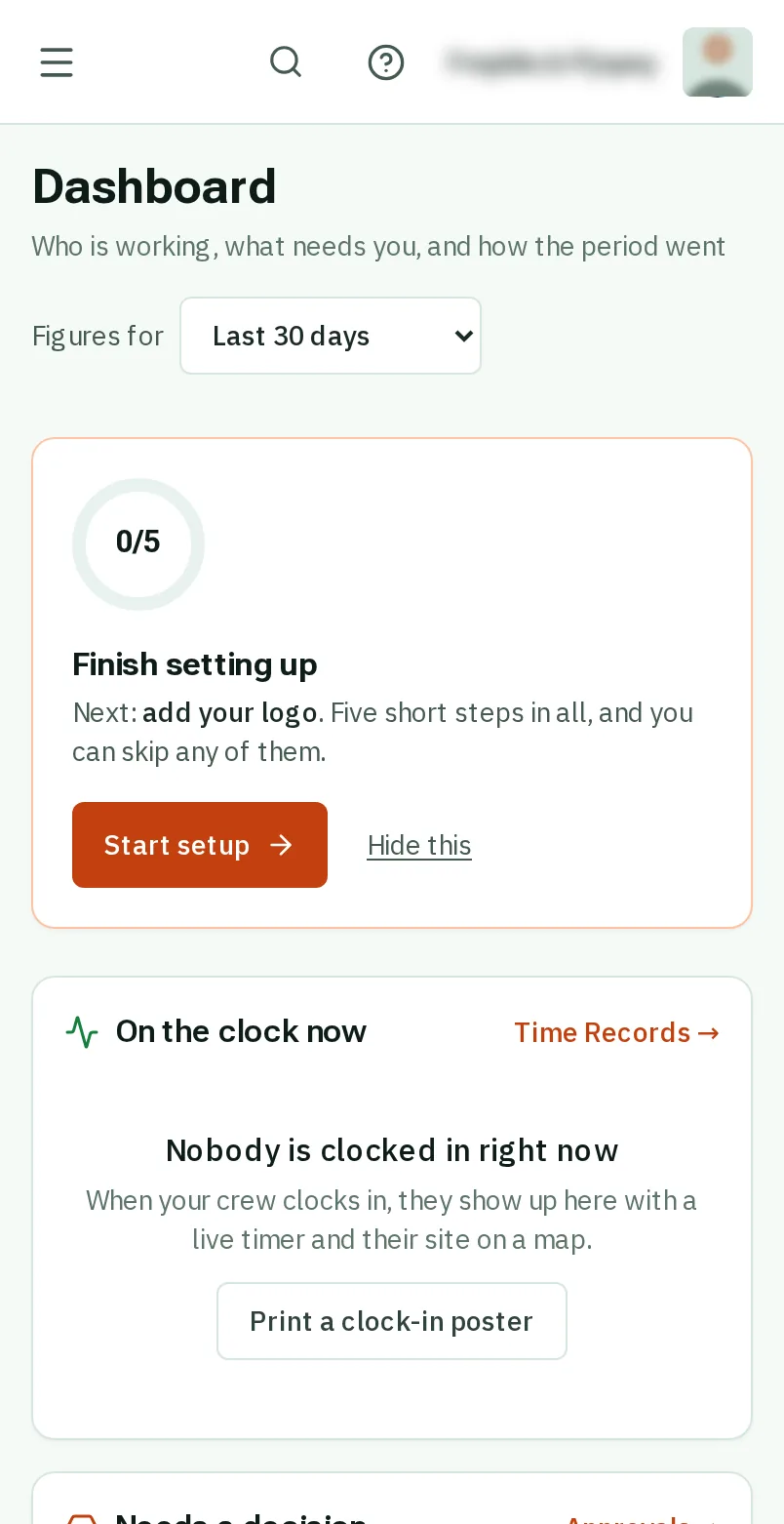
    Tap Start setup
    Click Start setup
  2. Step 2: 1. Your logo

    TapClick Choose your logo, pick the picture, and crop it. It goes on your posters, your team’s app and their emails.
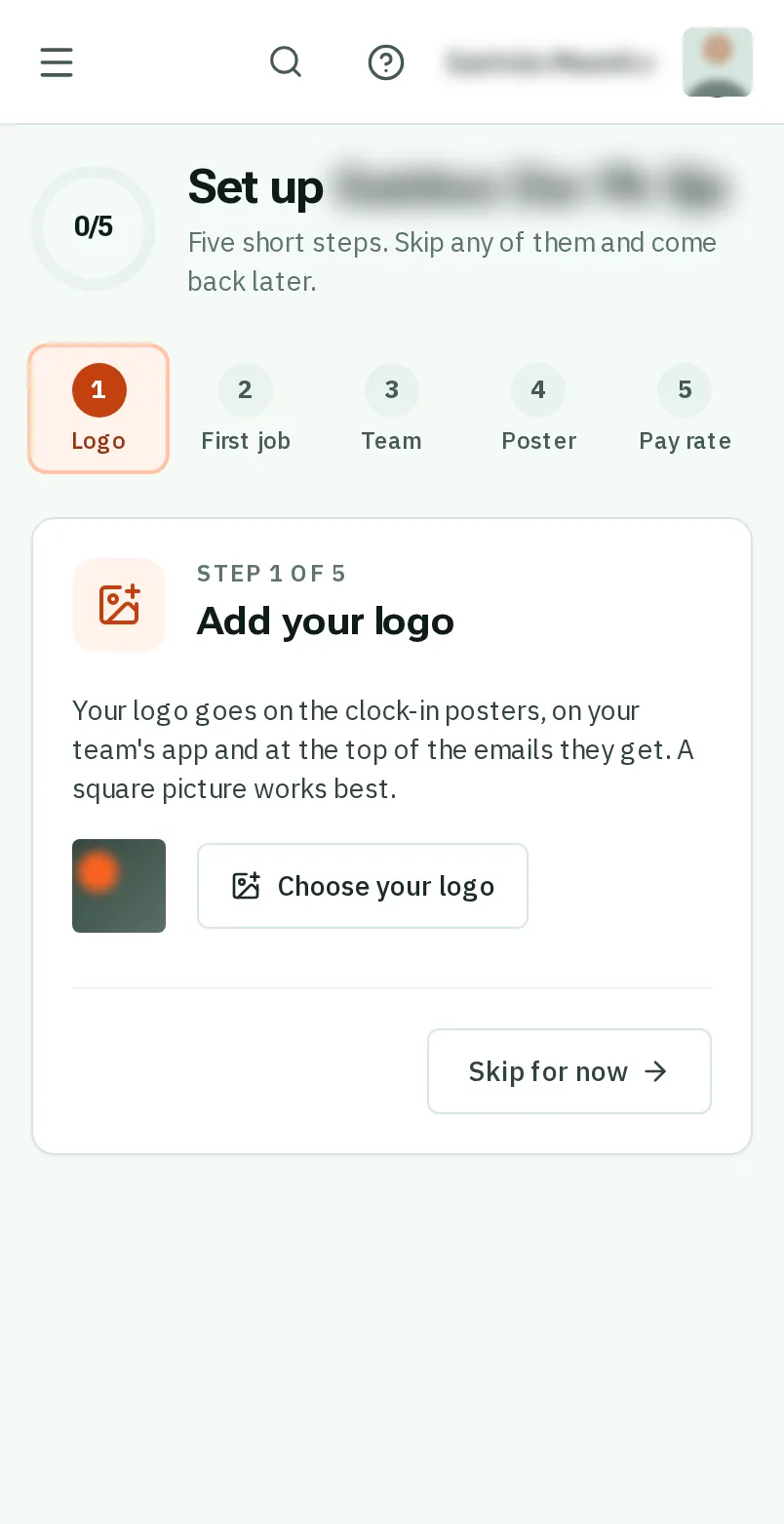
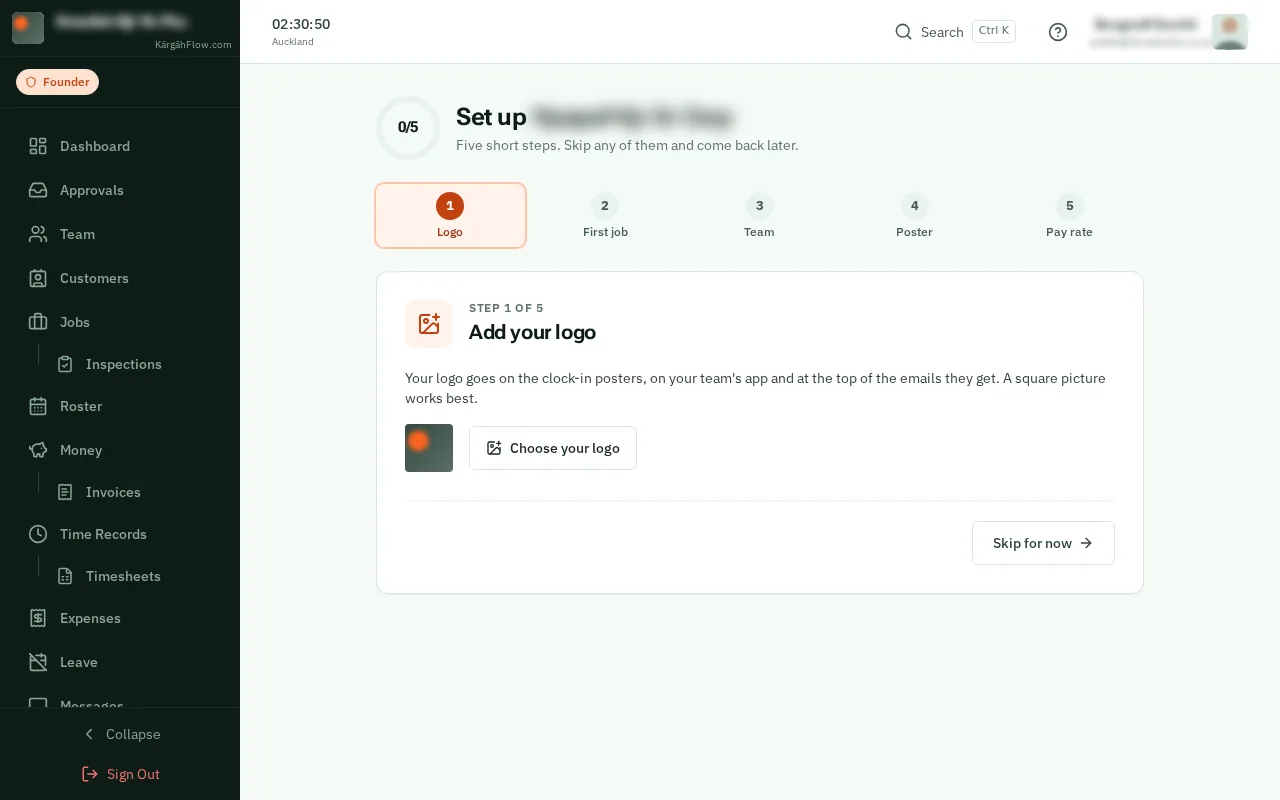
    Look forthe Choose your logo button
    1. Your logo
    1. Your logo
  3. Step 3: 2. Your first job

    TapClick Add your first job. The New Job window opens, and brings you back here when you are done.
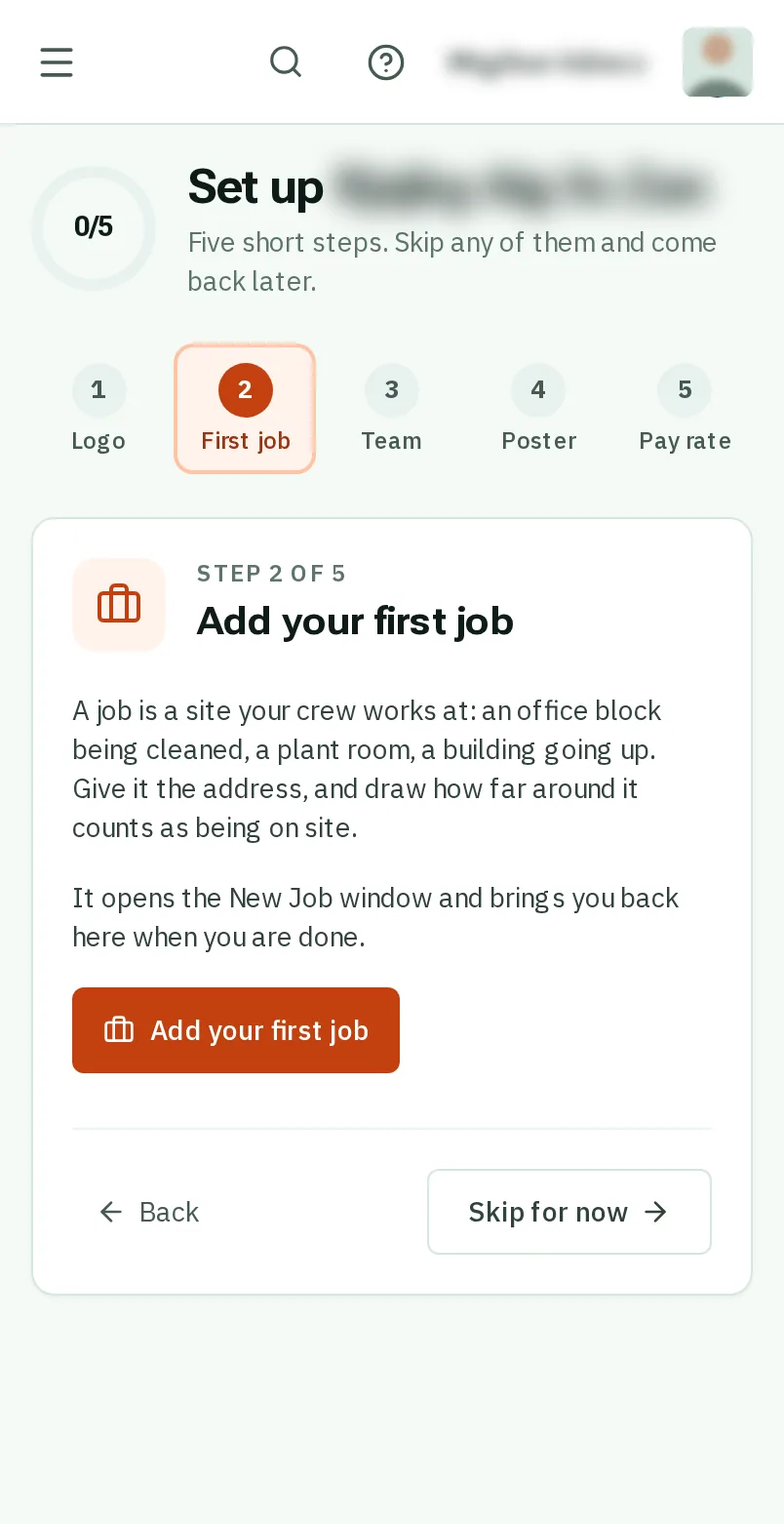
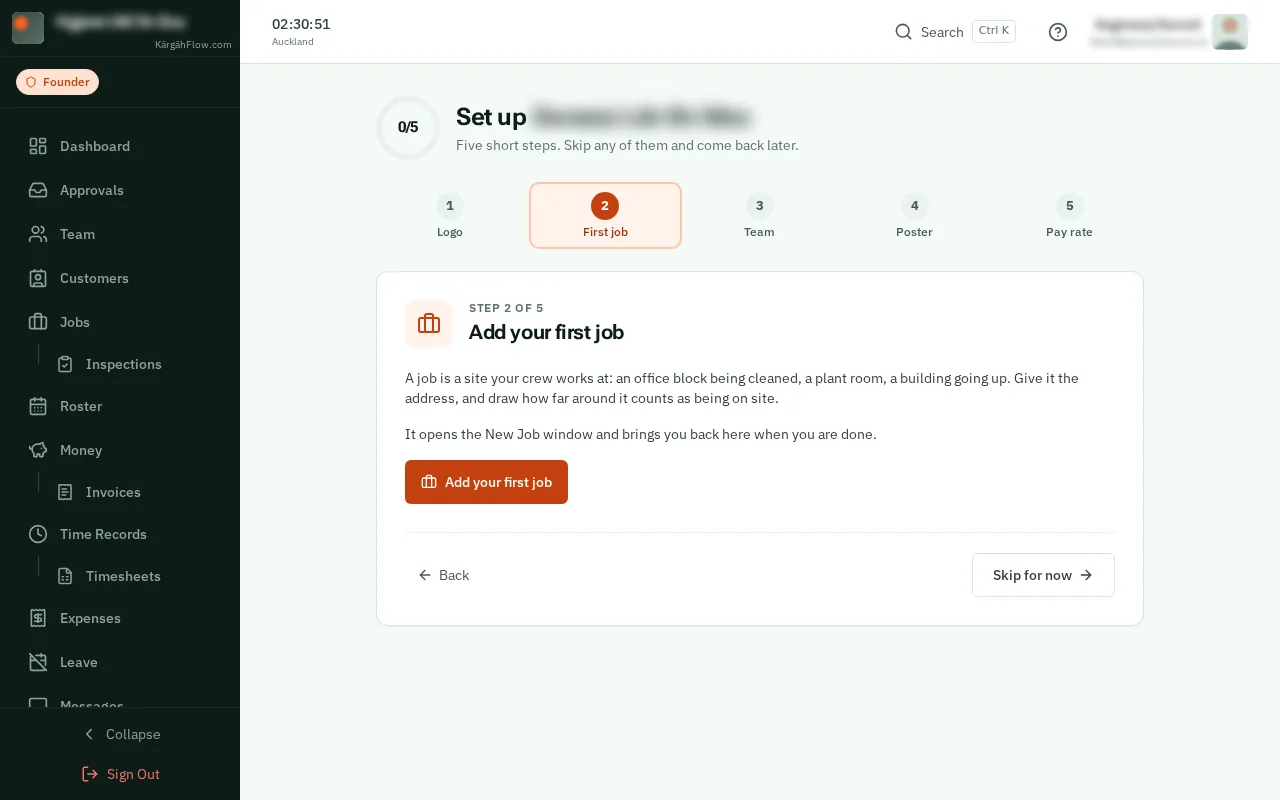
    Look forthe Add your first job button
    2. Your first job
    2. Your first job
  4. Step 4: 3. Your team

    Send your join link by text or WhatsApp, or print the “Scan to join” poster. You approve each person when they sign up.
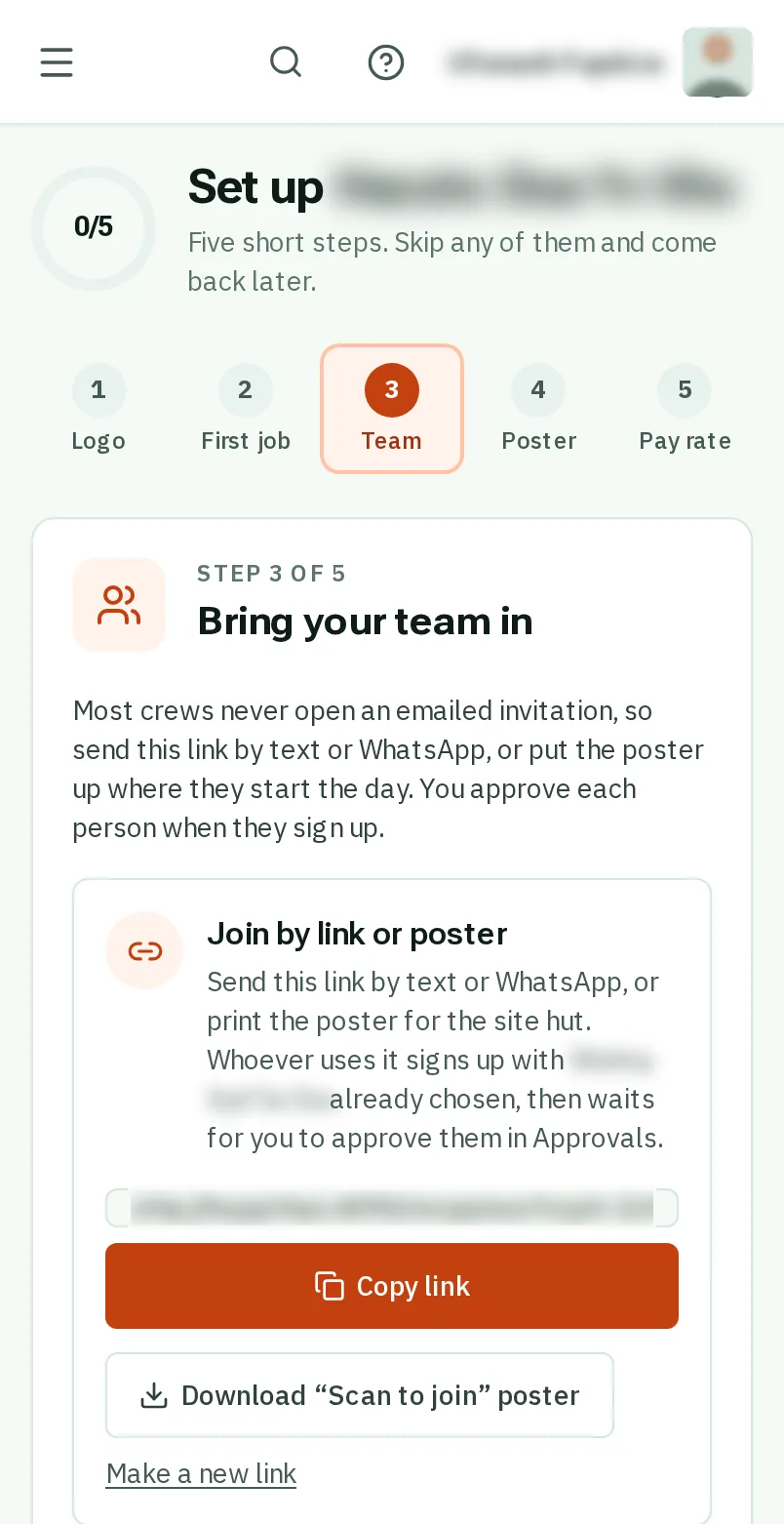
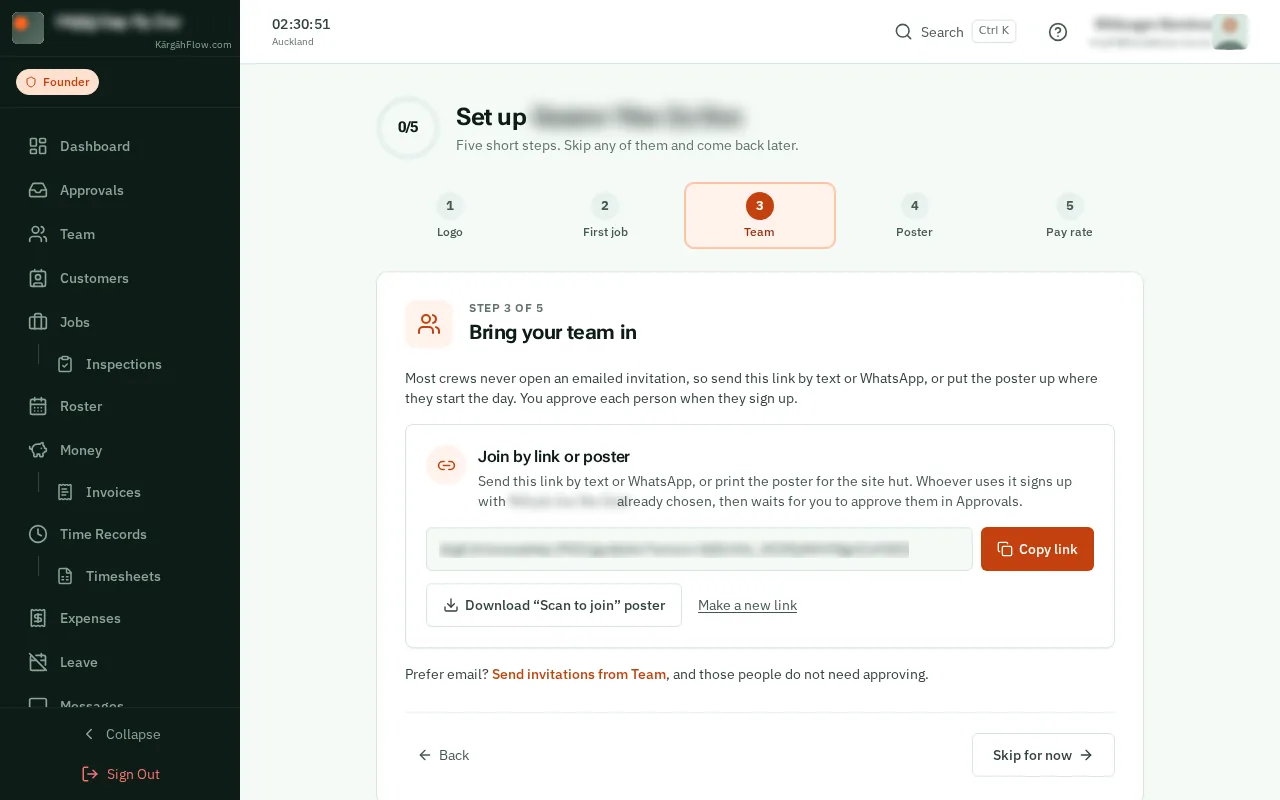
    3. Your team
    3. Your team
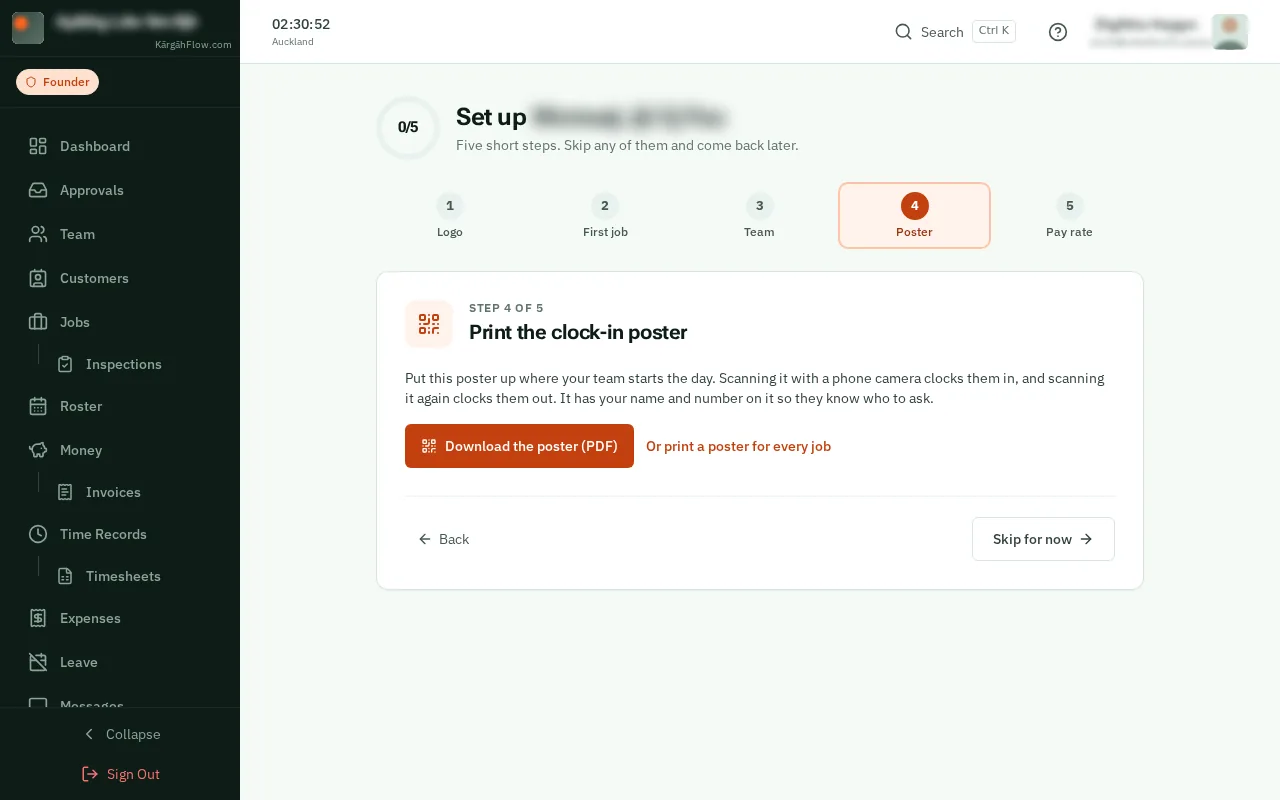
  5. Step 5: 4. Your clock-in poster

    TapClick Download the poster (PDF) and put it up where your team starts the day.
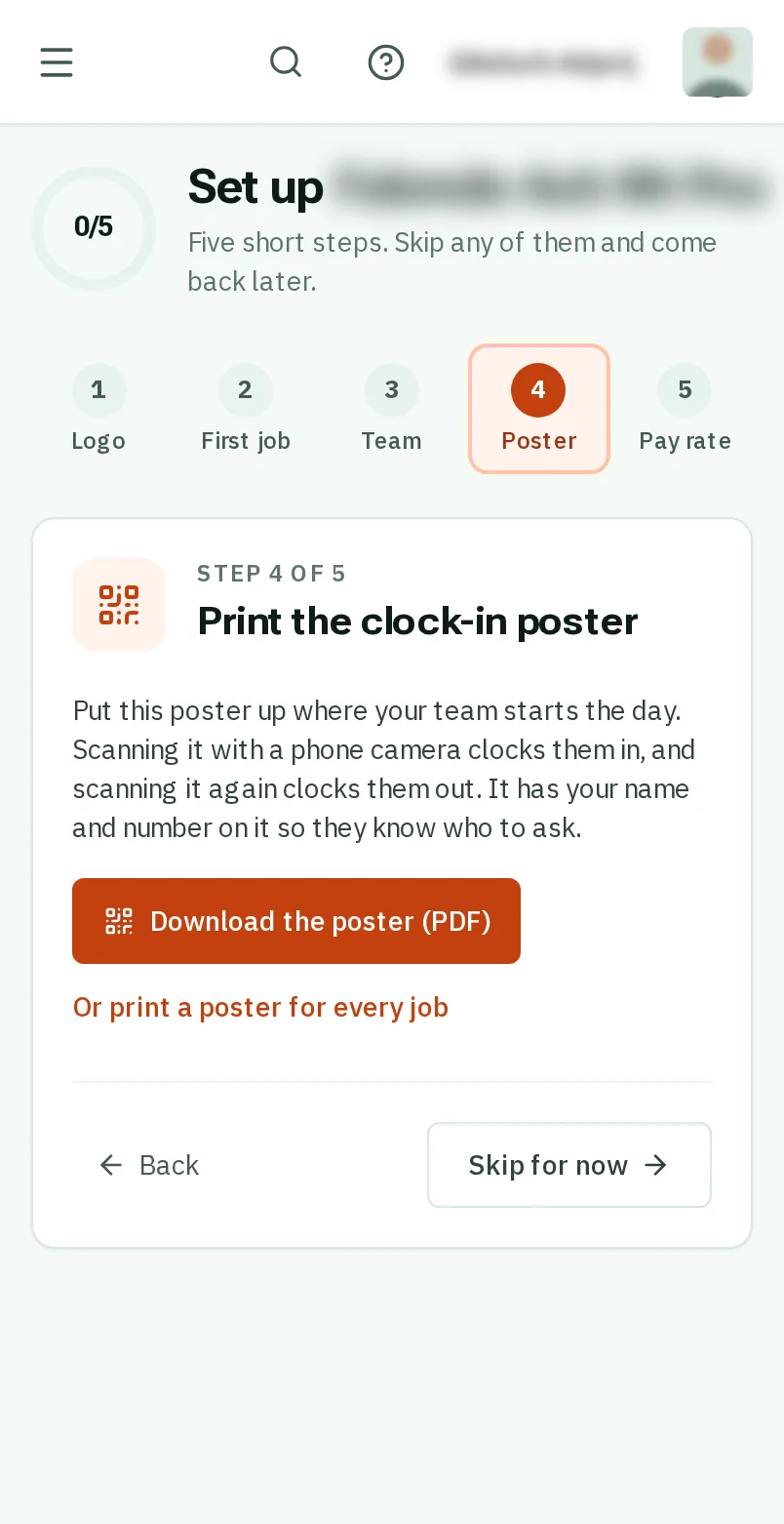
    Look forthe Download the poster (PDF) button
    4. Your clock-in poster
    4. Your clock-in poster
  6. Step 6: 5. A pay rate

    Type one Hourly rate for everyone and tapclick Save rate. Anyone paid differently can have their own rate later.
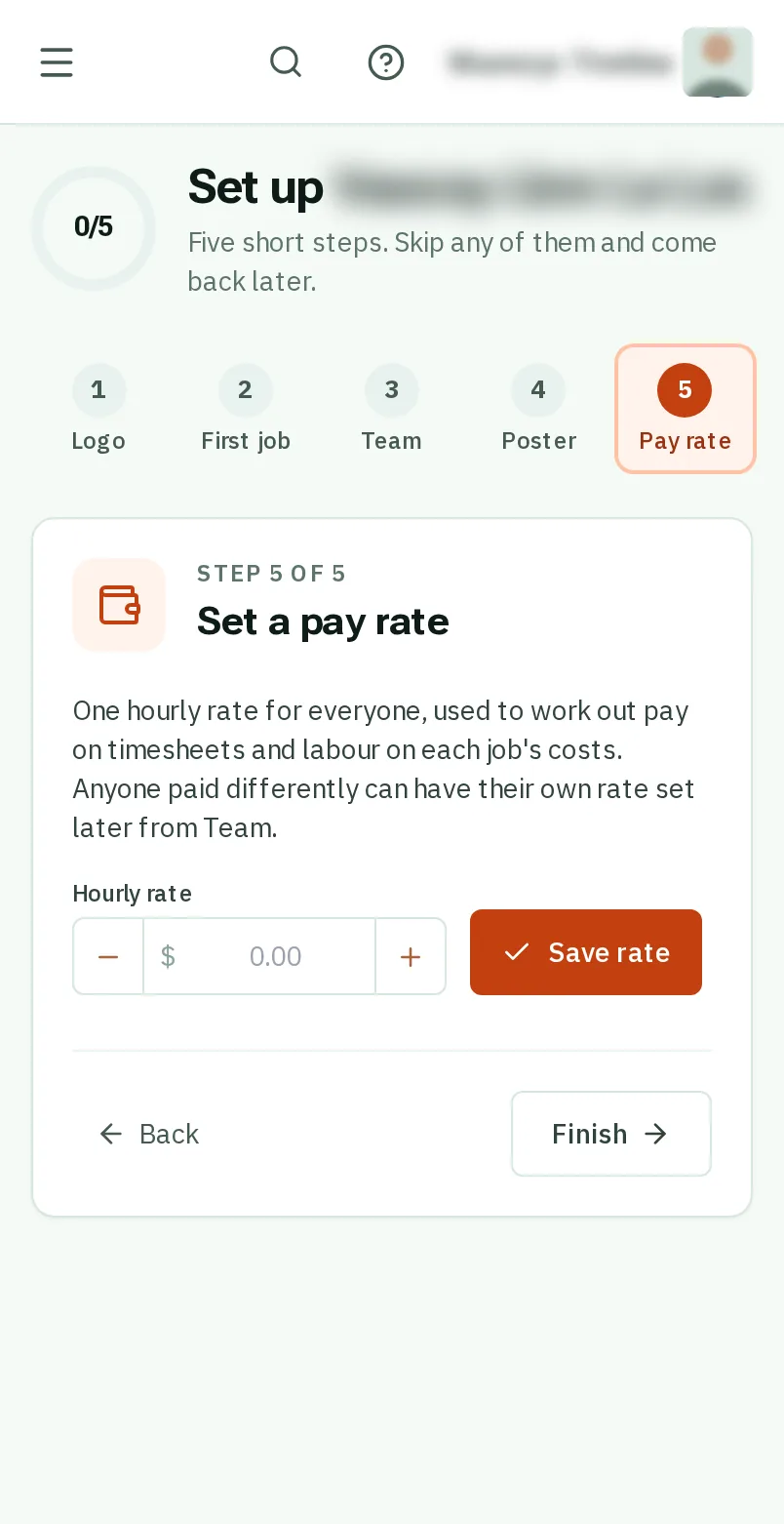
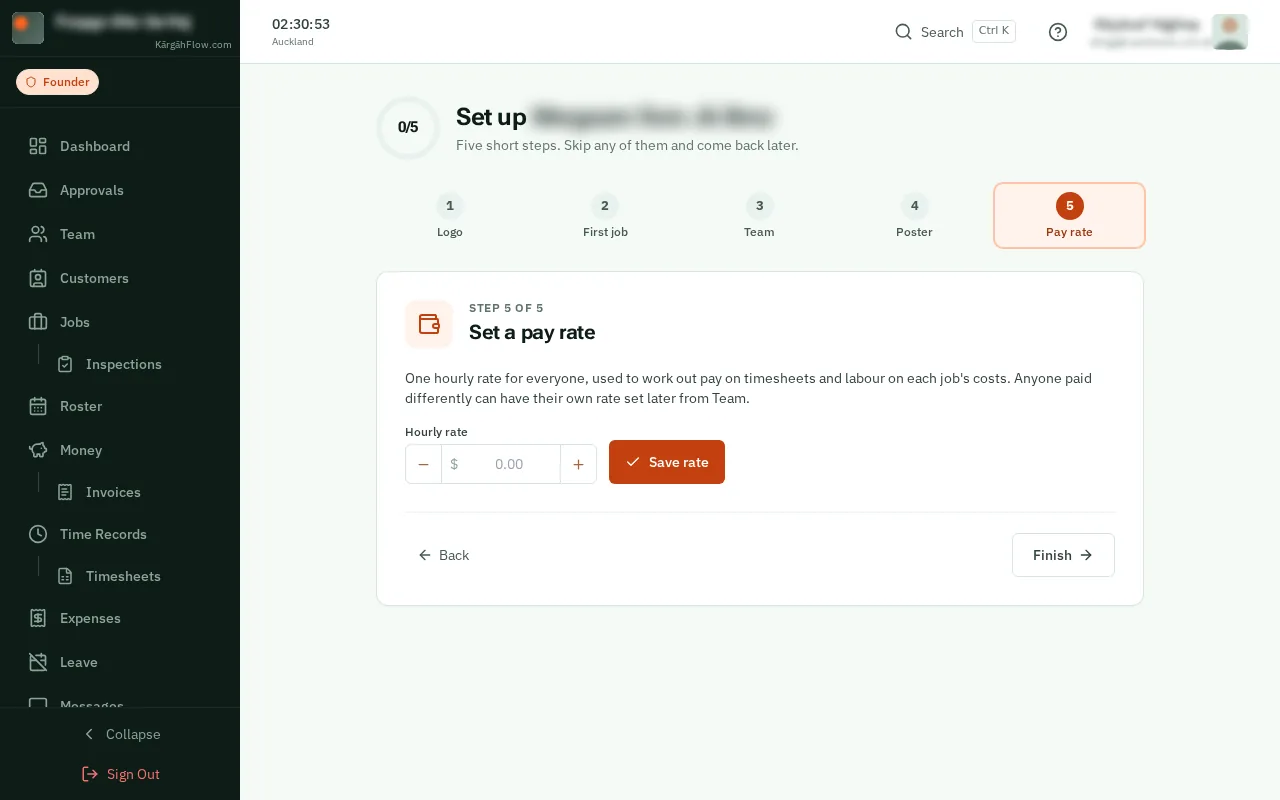
    Look forthe Save rate button
    5. A pay rate
    5. A pay rate
  7. Step 7: TapClick Finish

    TapClick Next after each step, or Skip for now, and Finish at the end. Anything skipped can be done later.
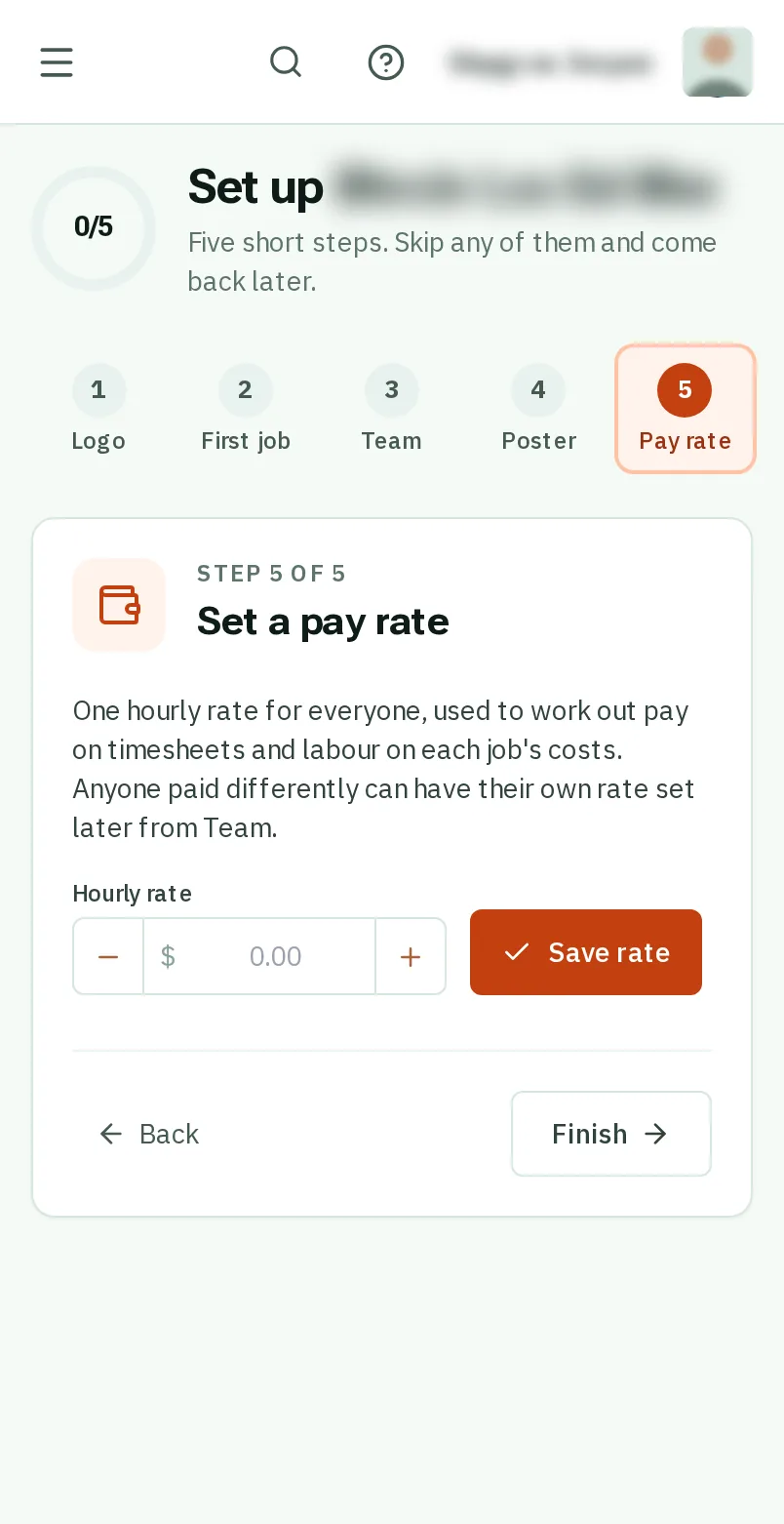
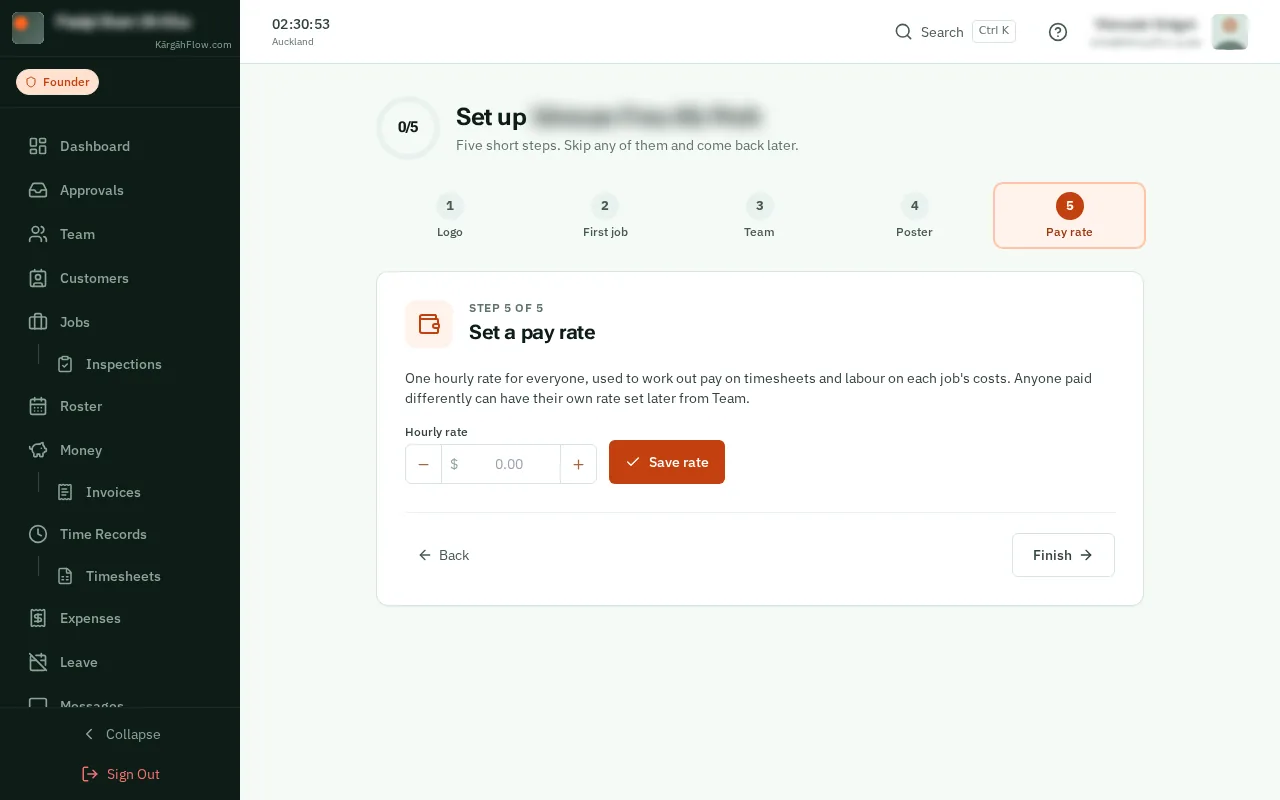
    Look forthe Finish button
    Tap Finish
    Click Finish

That's it

Your company is ready for your crew.

Next: Switch features on and off