KārgāhFlow
About 1 minute 5 stepsFor crew, admins and owners

Sign in

Open KārgāhFlow with your email and password, and stay signed in on your own phone.

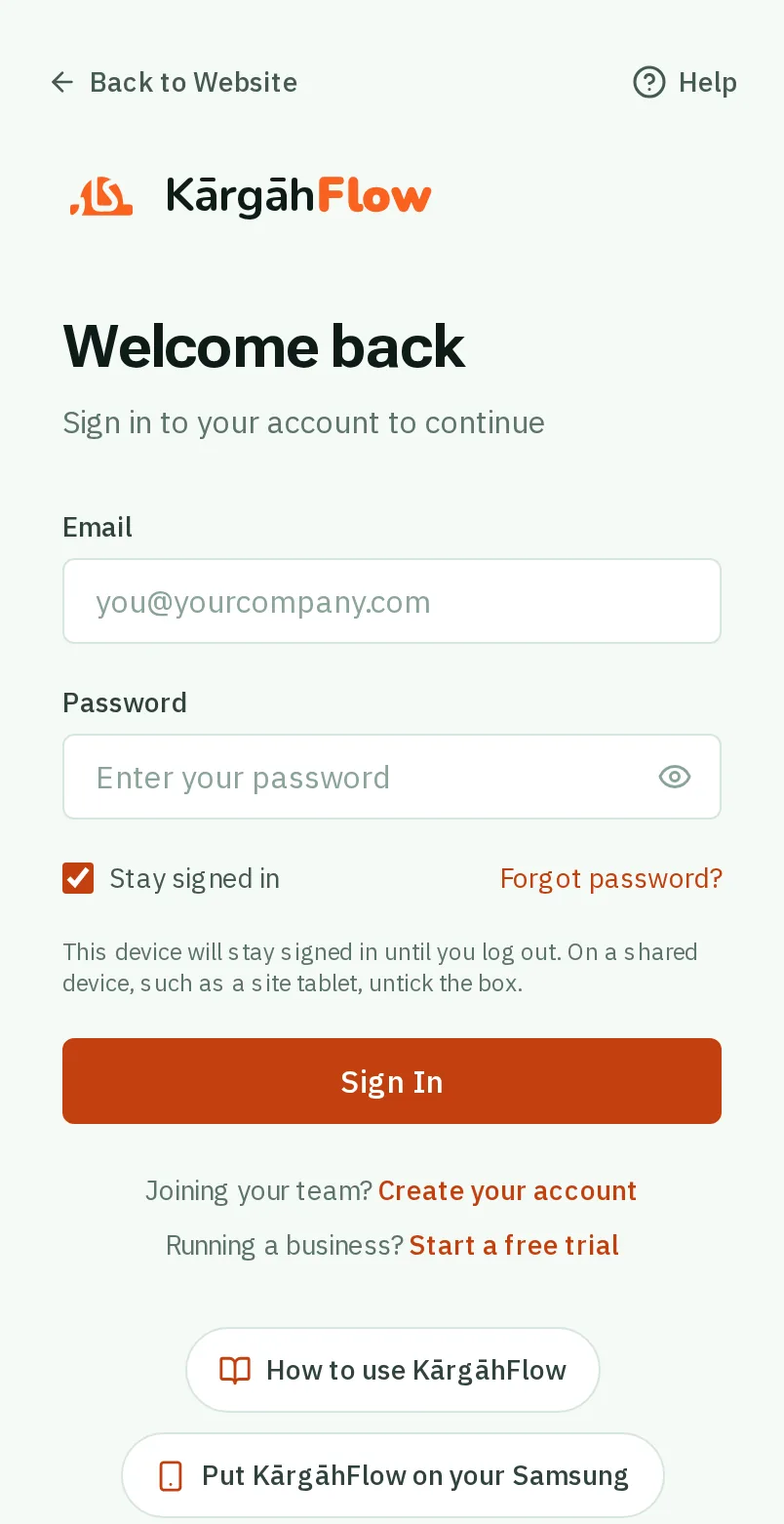
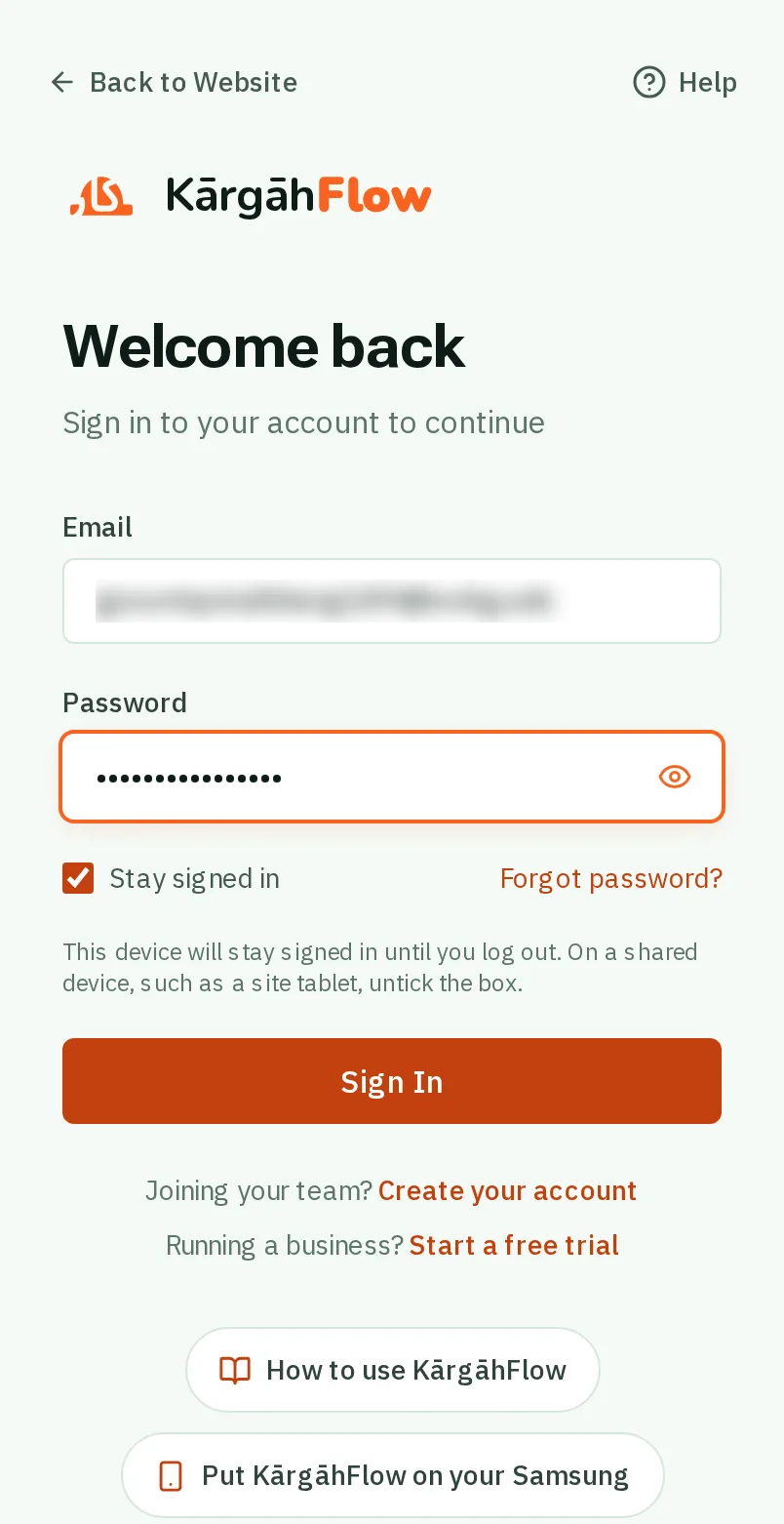
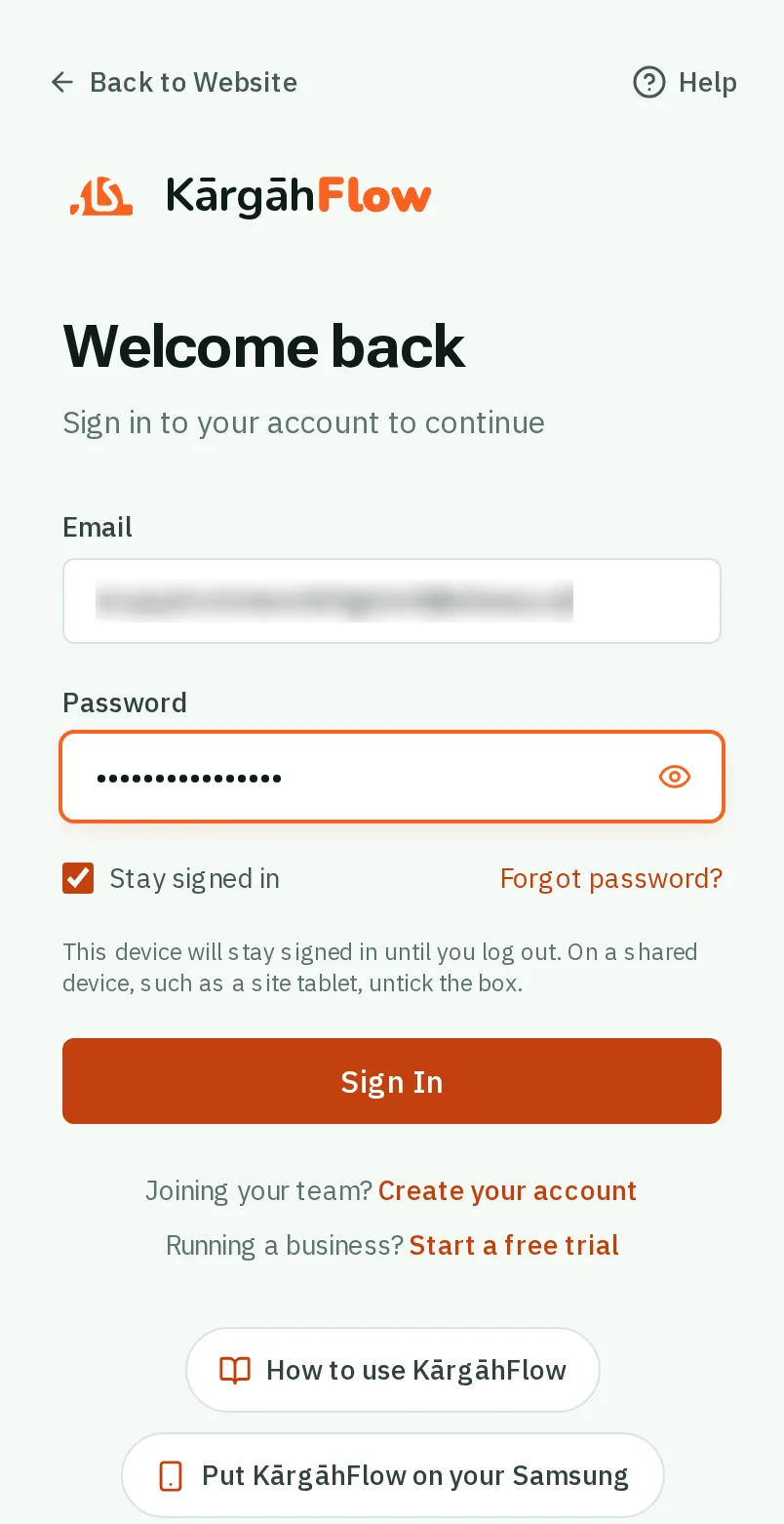
Sign in: the screen on a phone
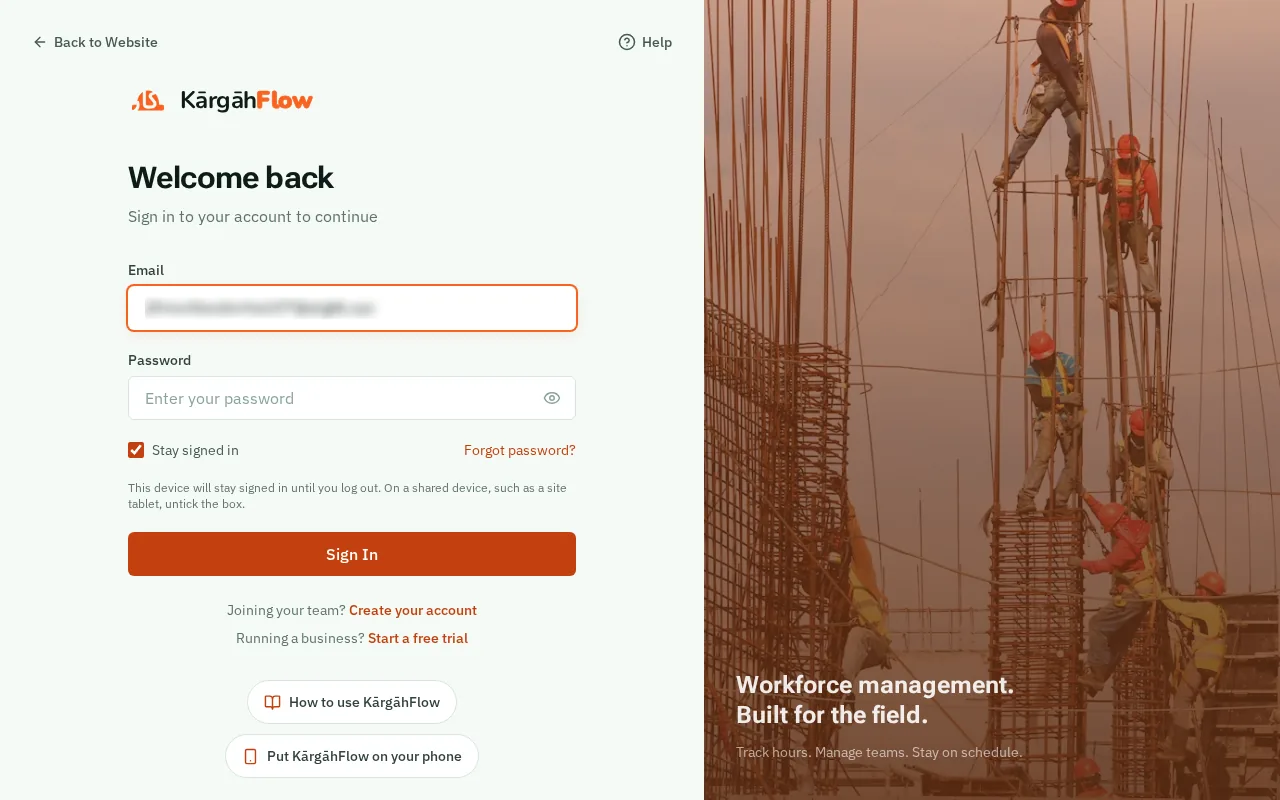
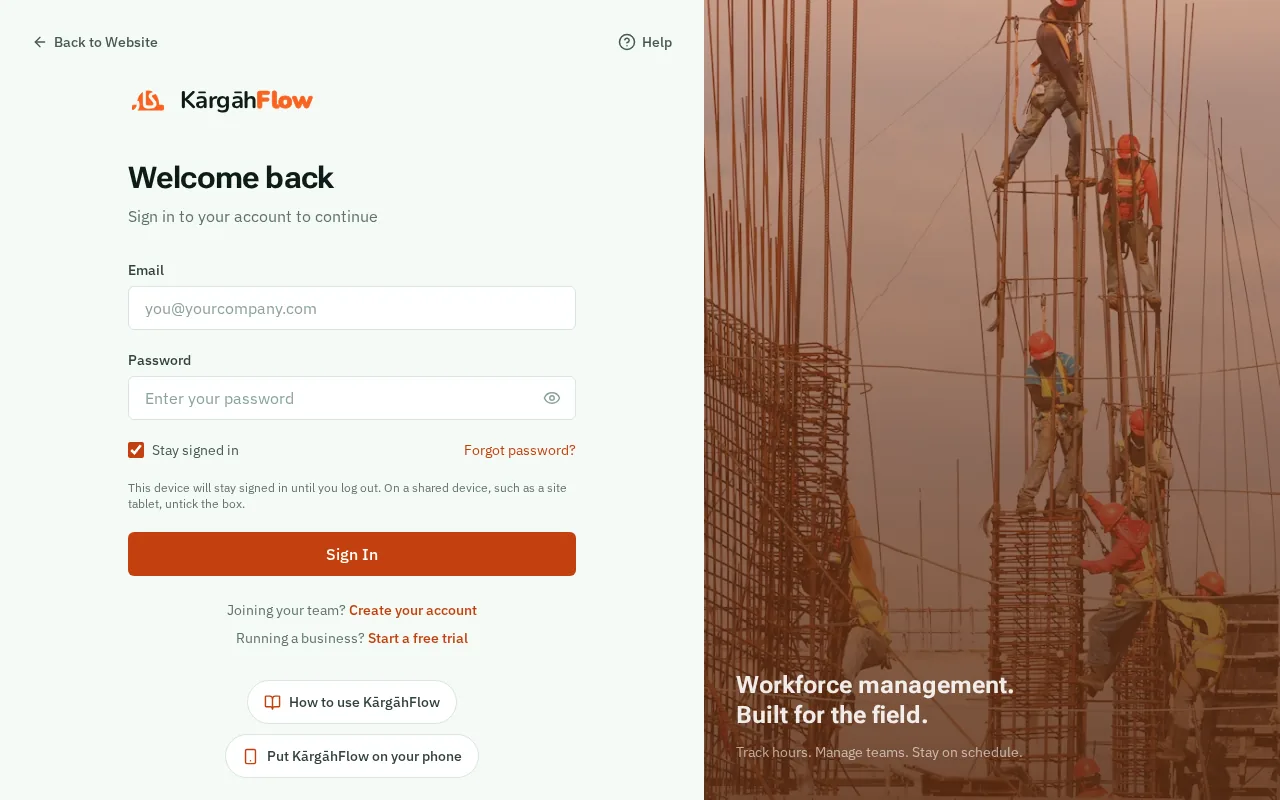
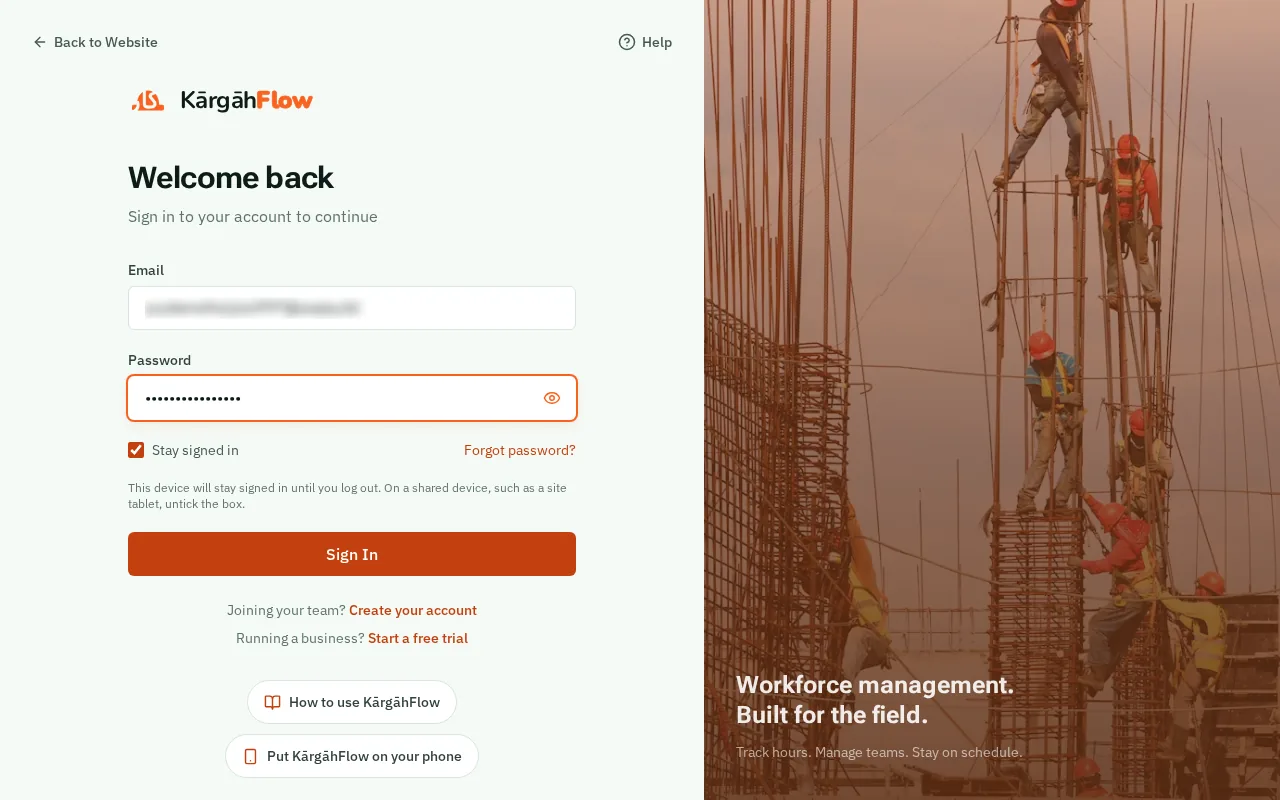
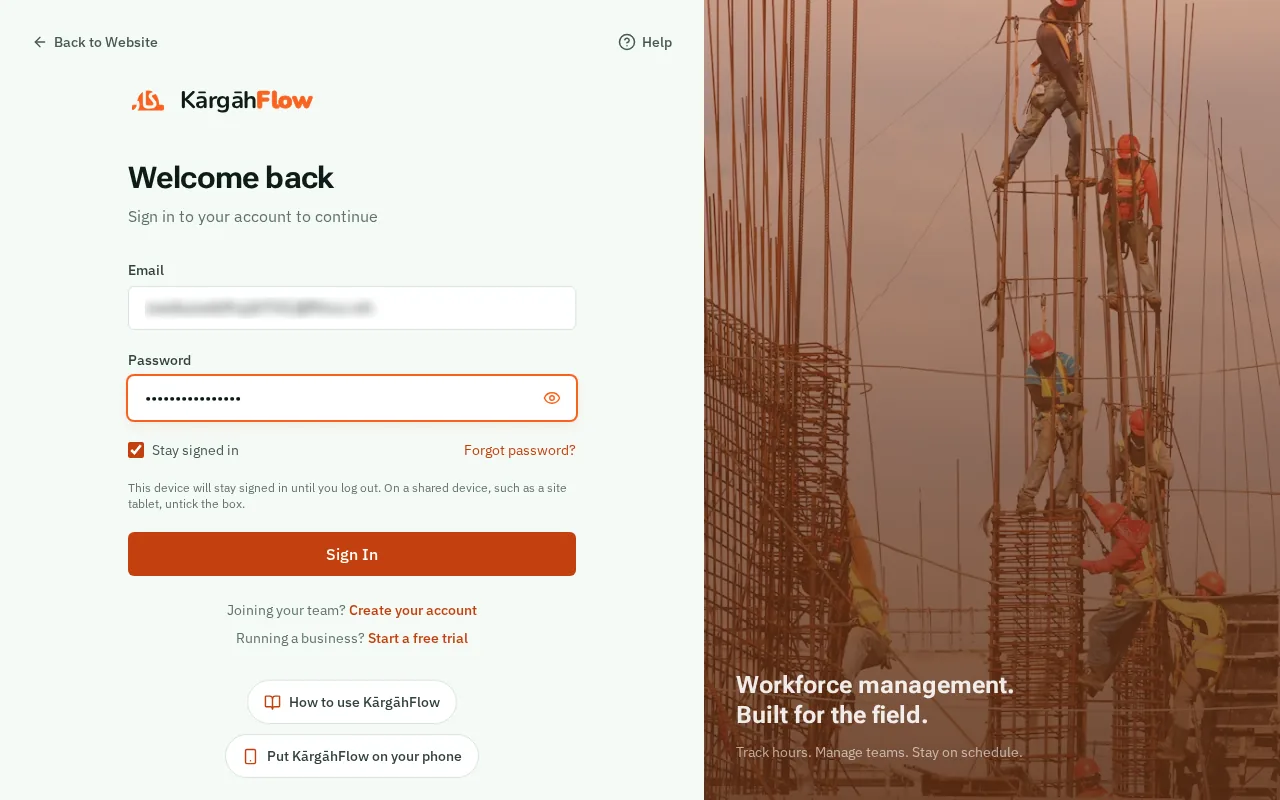
Sign in: the screen on a computer
Step 1 of 5
  1. Step 1: Type your email

    TapClick the Email box and type your email address. It is the one your invite was sent to.

    Look forthe Email box
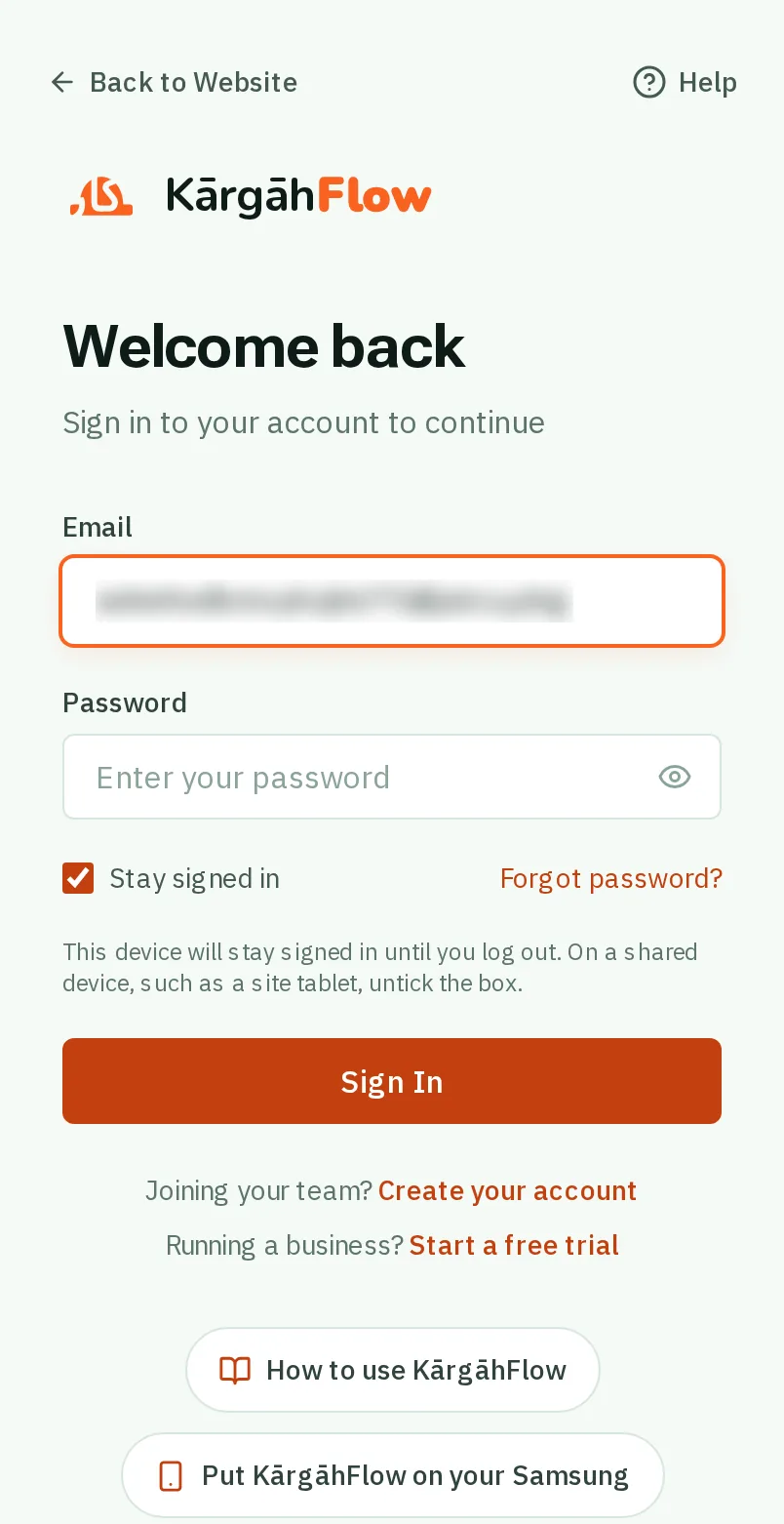
    Type your email
    Type your email
  2. Step 2: Type your password

    TapClick the Password box and type your password. TapClick the eye at the end of the box to see what you typed.
    Look forthe Password box
    Type your password
    Type your password
  3. Step 3: Stay signed in on your own phone

    Leave Stay signed in ticked on your own phone and you will not have to sign in again. On a phone or tablet other people use, untick it.

    Look forthe Stay signed in choice
    Stay signed in on your own phone
    Stay signed in on your own phone
  4. Step 4: TapClick Sign In

    TapClick the orange Sign In button. Your home screen opens.

    Look forthe Sign In button
    Tap Sign In
    Click Sign In
  5. Step 5: Forgot your password?

    TapClick Forgot password?, type your email, and we send you a link to make a new password.

    Look forthe Forgot password? link

    Good to know: The email comes from KārgāhFlow. If it is not in your inbox after a minute, look in your junk mail.
    Forgot your password?
    Forgot your password?

That's it

You are signed in. Next time, it opens straight away.

Next: Join your team