Step 1: Open your invitation
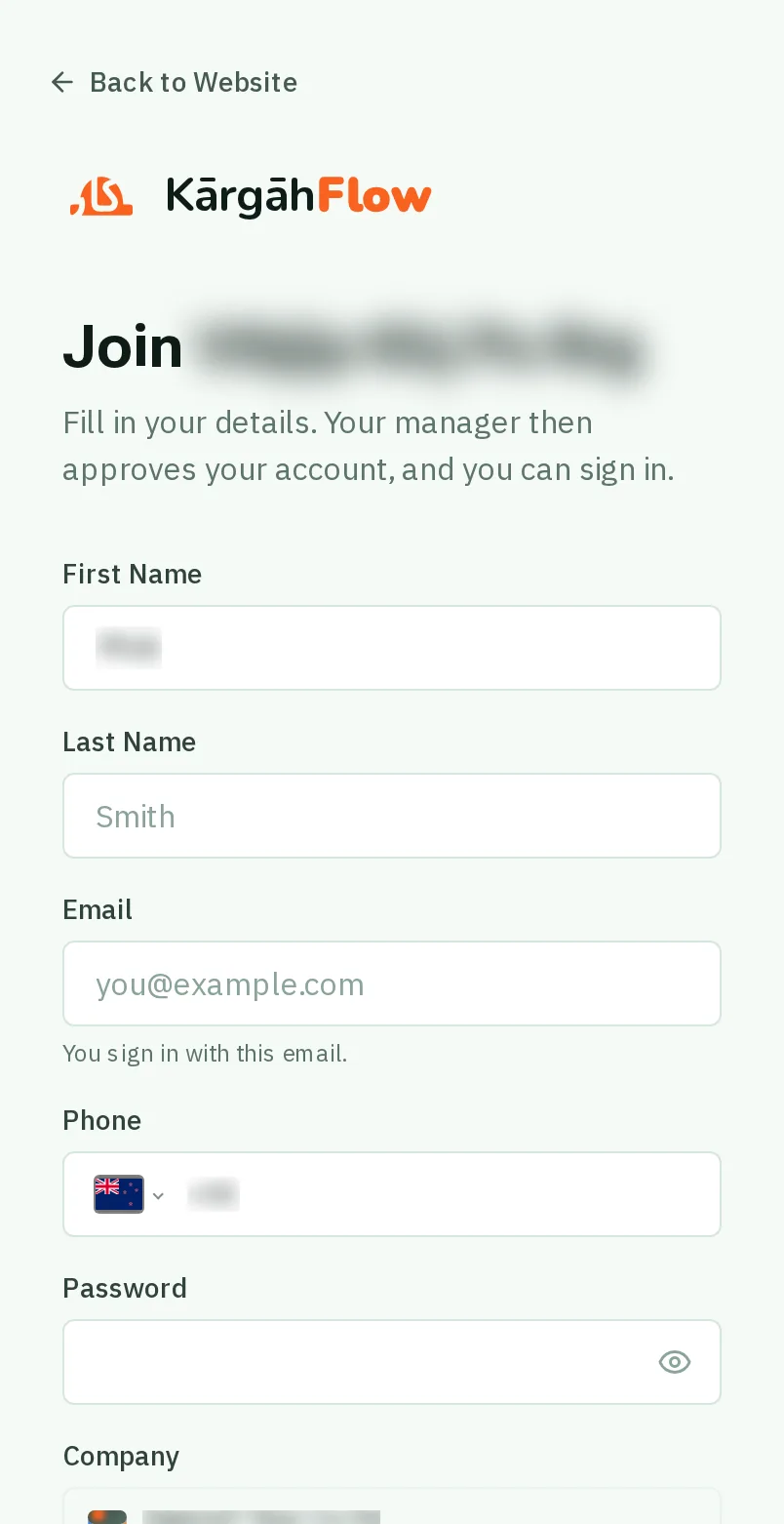
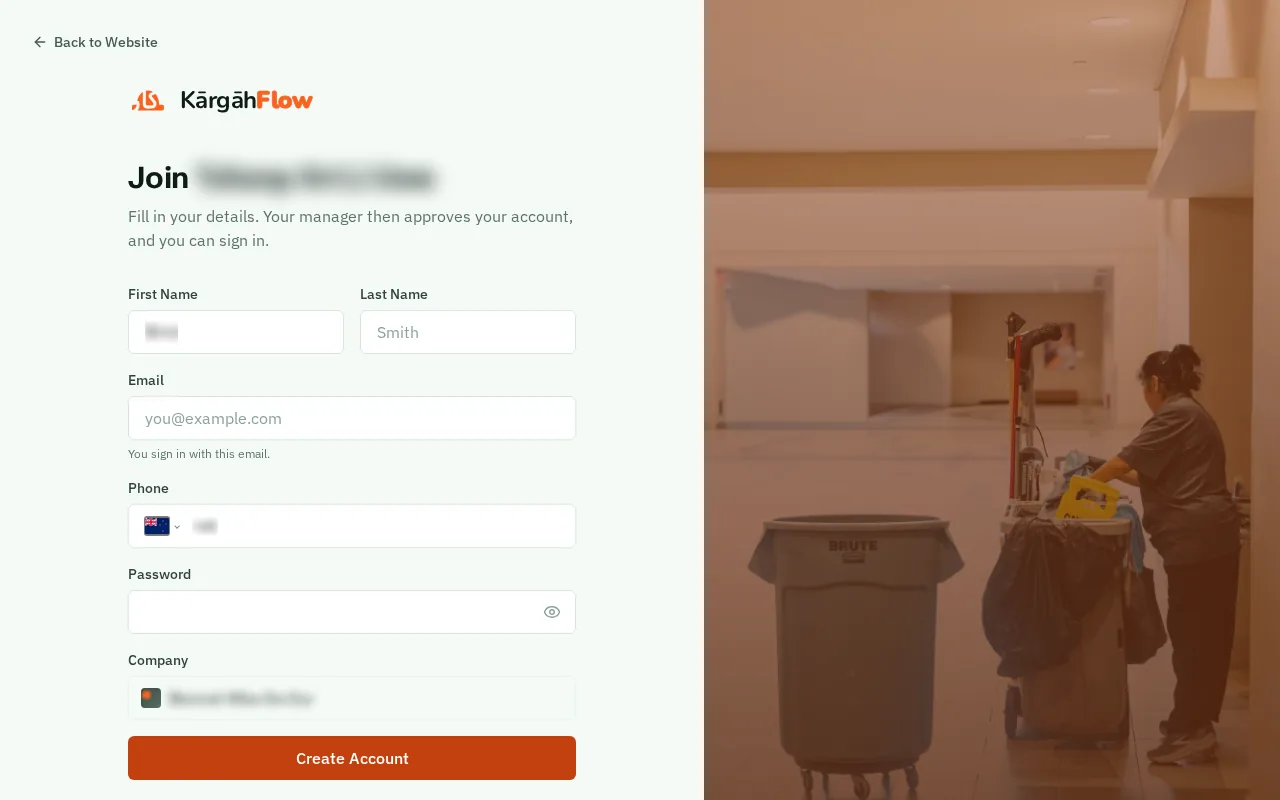
Tap the link in the invitation email or text your boss sent you, or point your phone’s camera at the “Scan to join” poster and tap the link that pops up. The sign-up page opens with your company already chosen.
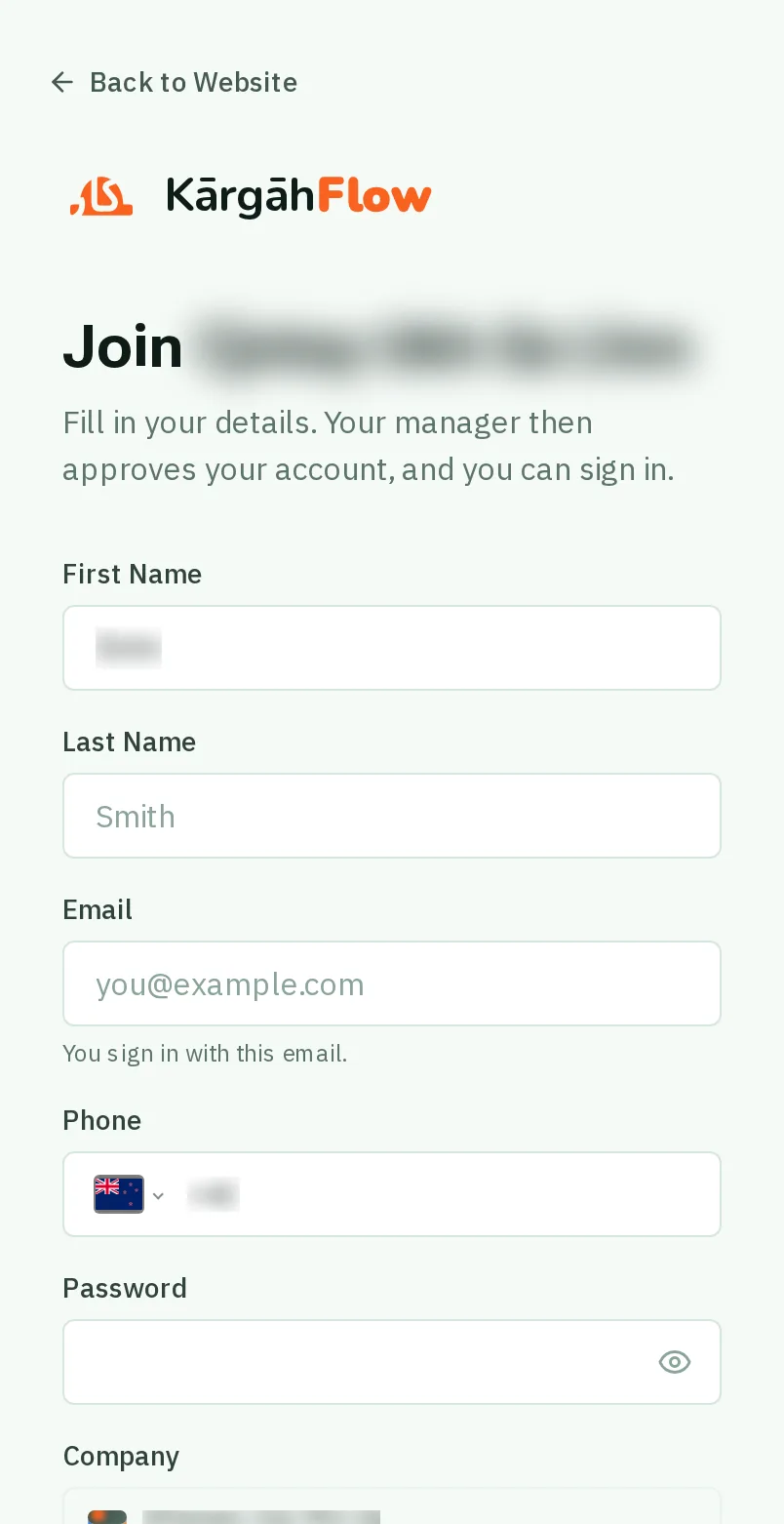
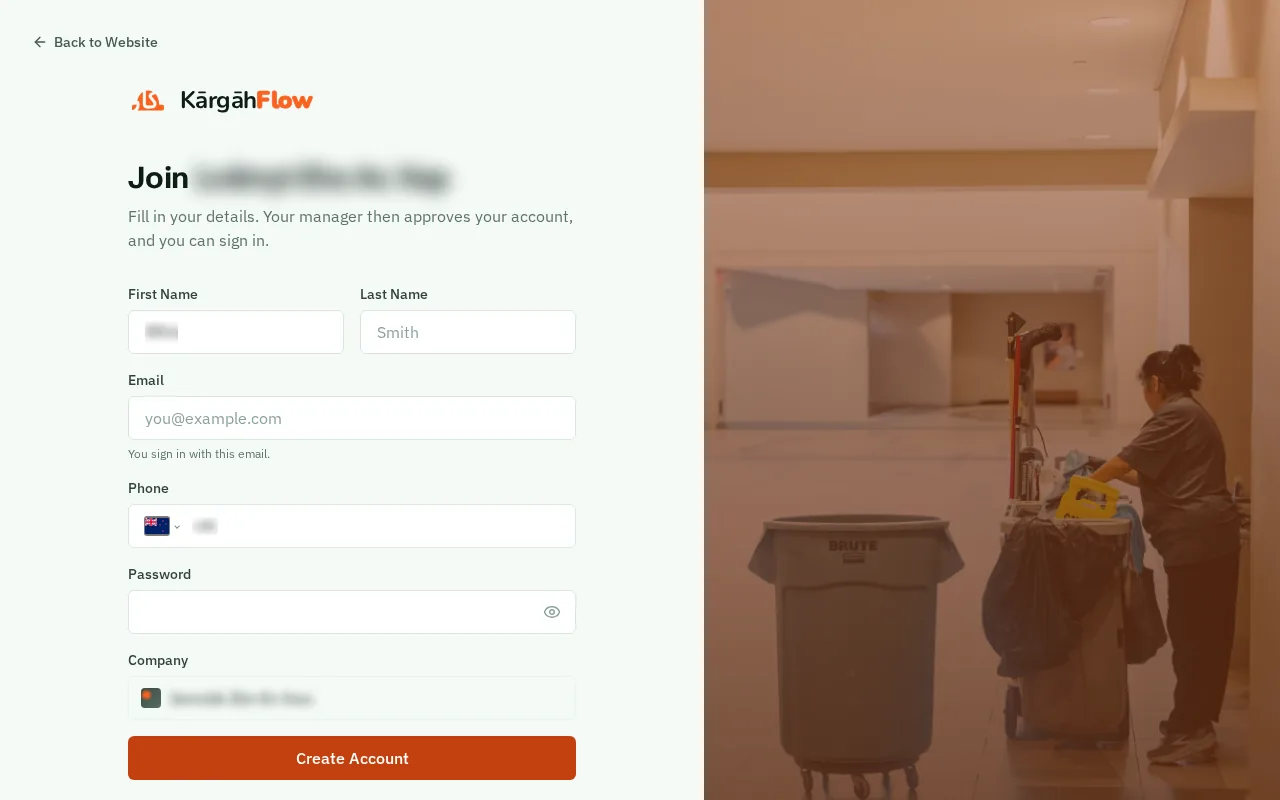
Tap the link in the invitation email or text your boss sent you, or point your phone’s camera at the “Scan to join” poster and tap the link that pops up. The sign-up page opens with your company already chosen.
Type your First Name and Last Name in the two boxes at the top.
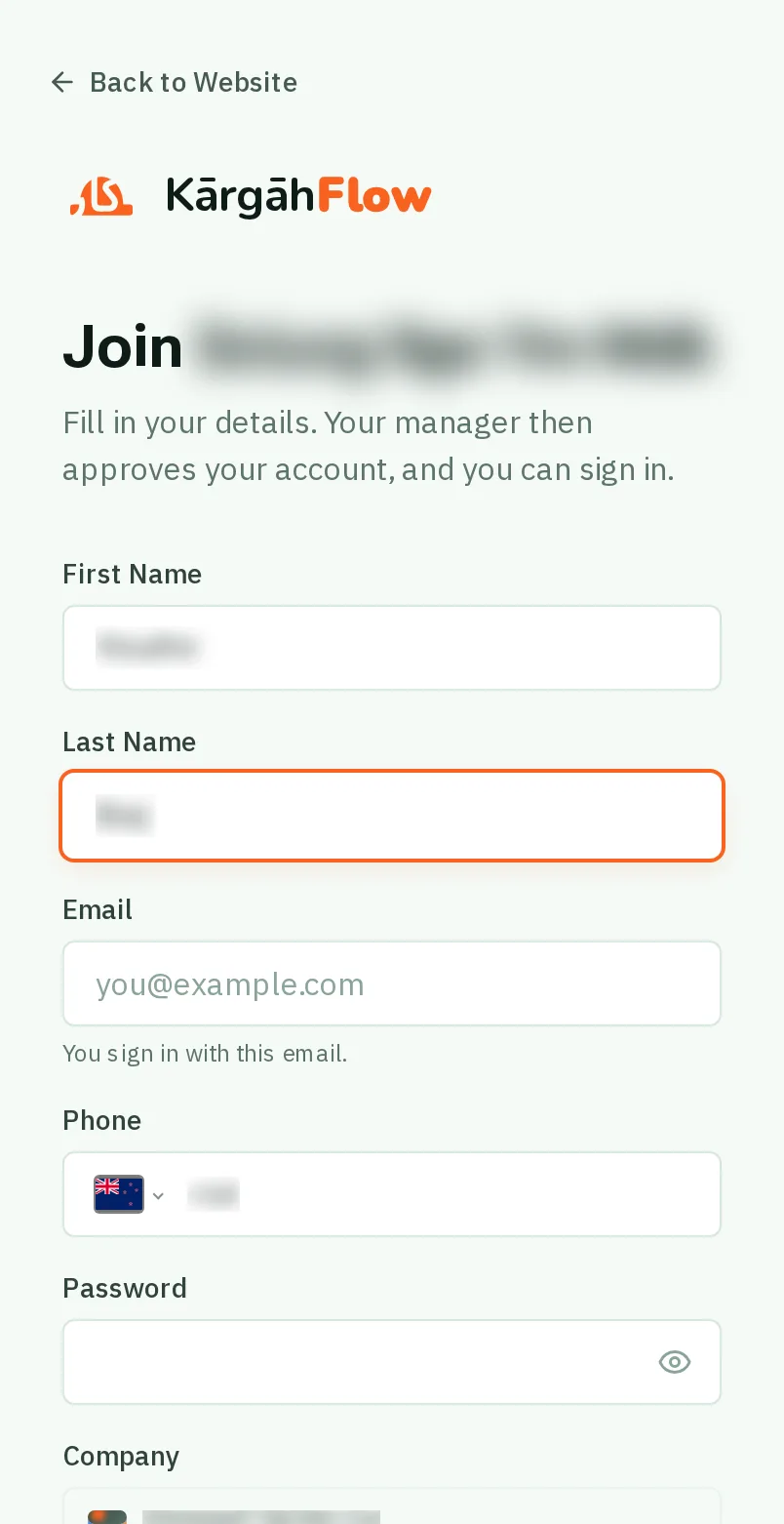
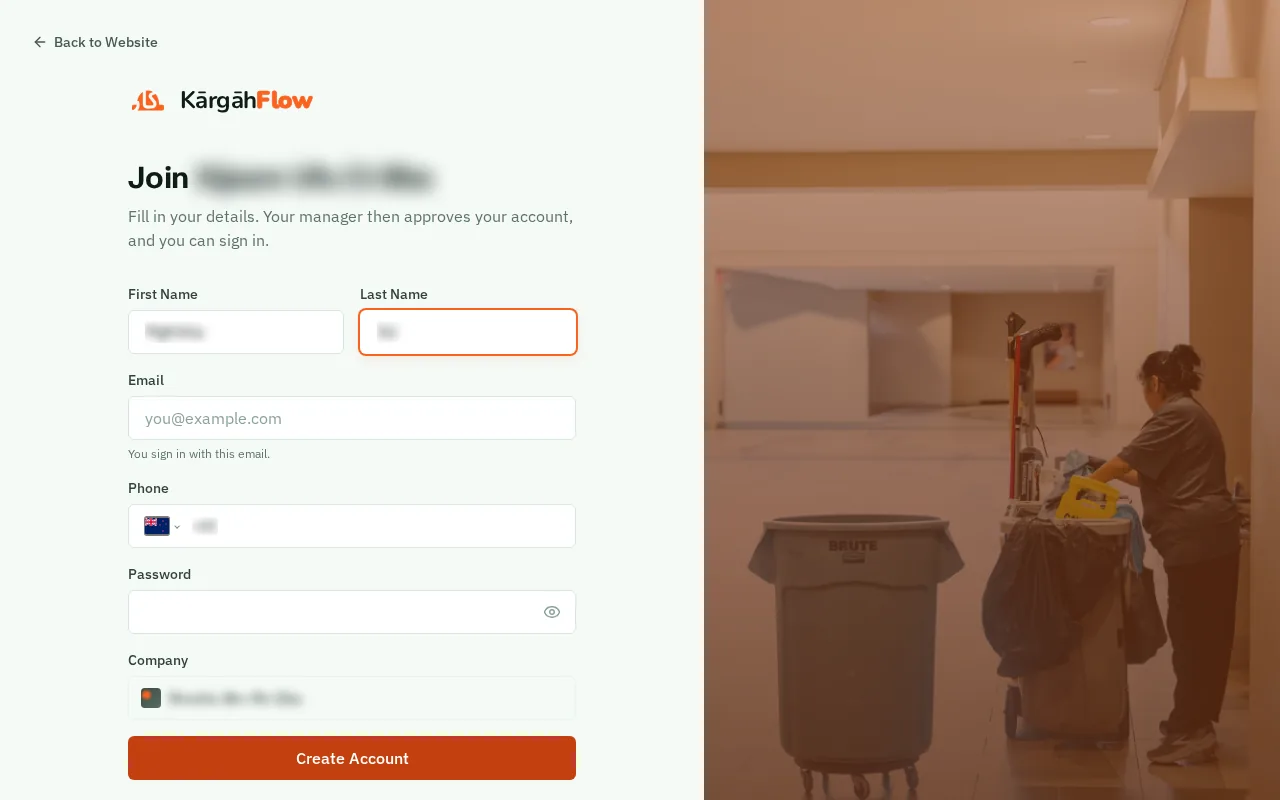
Type your Email. You sign in with it, so use one you check.
Good to know: Joining from an email invitation? Your email is filled in already.
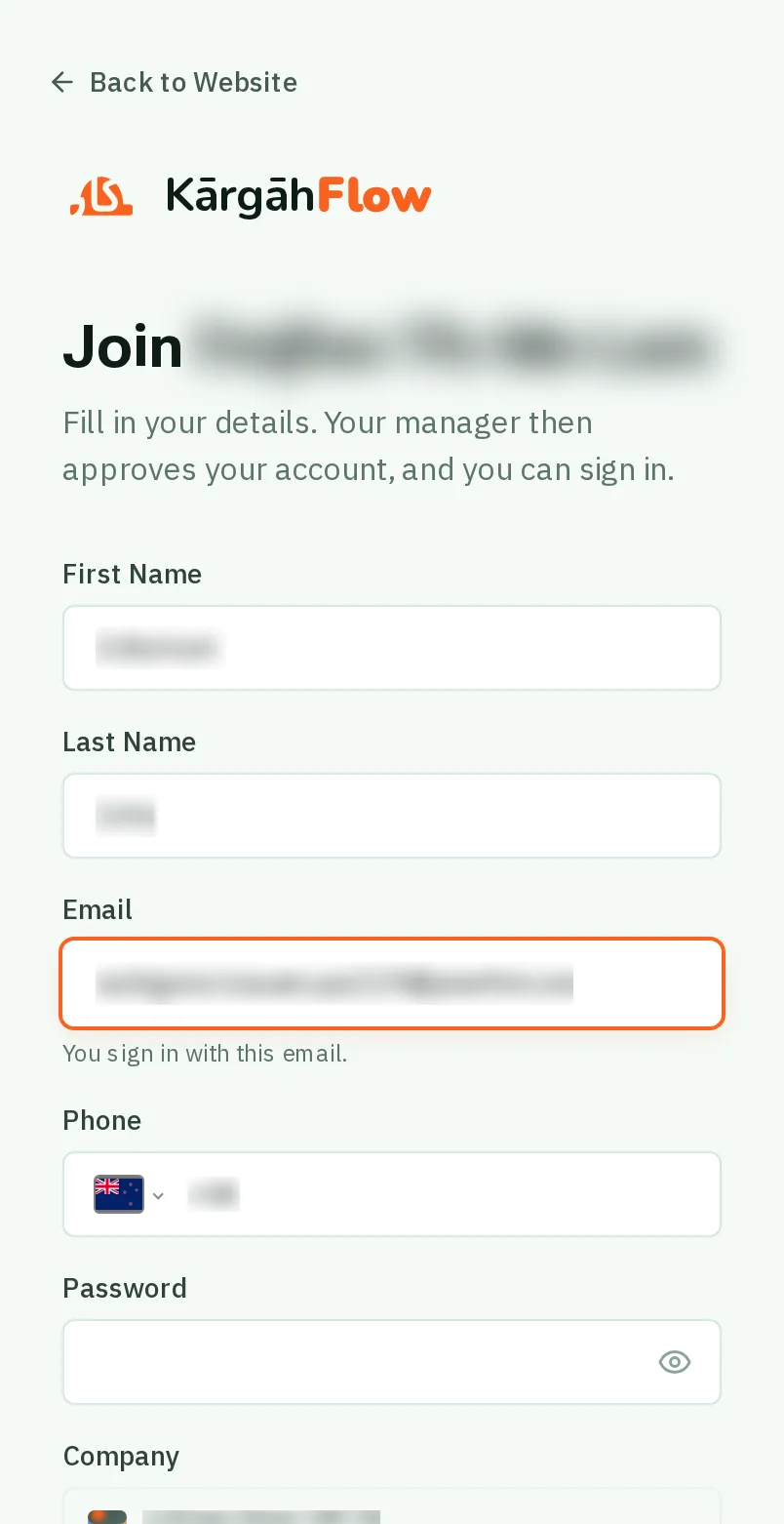
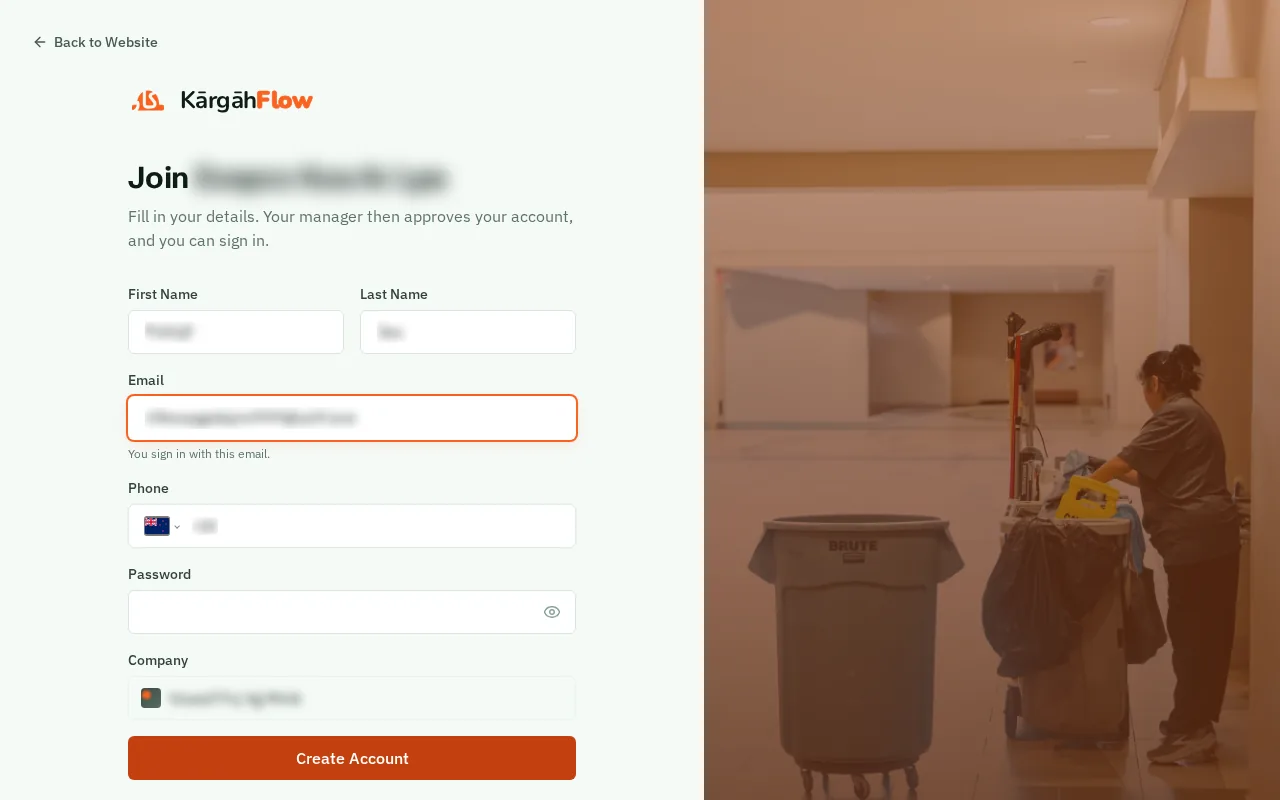
Under Phone, type your mobile number. The country in front of it is chosen for you.
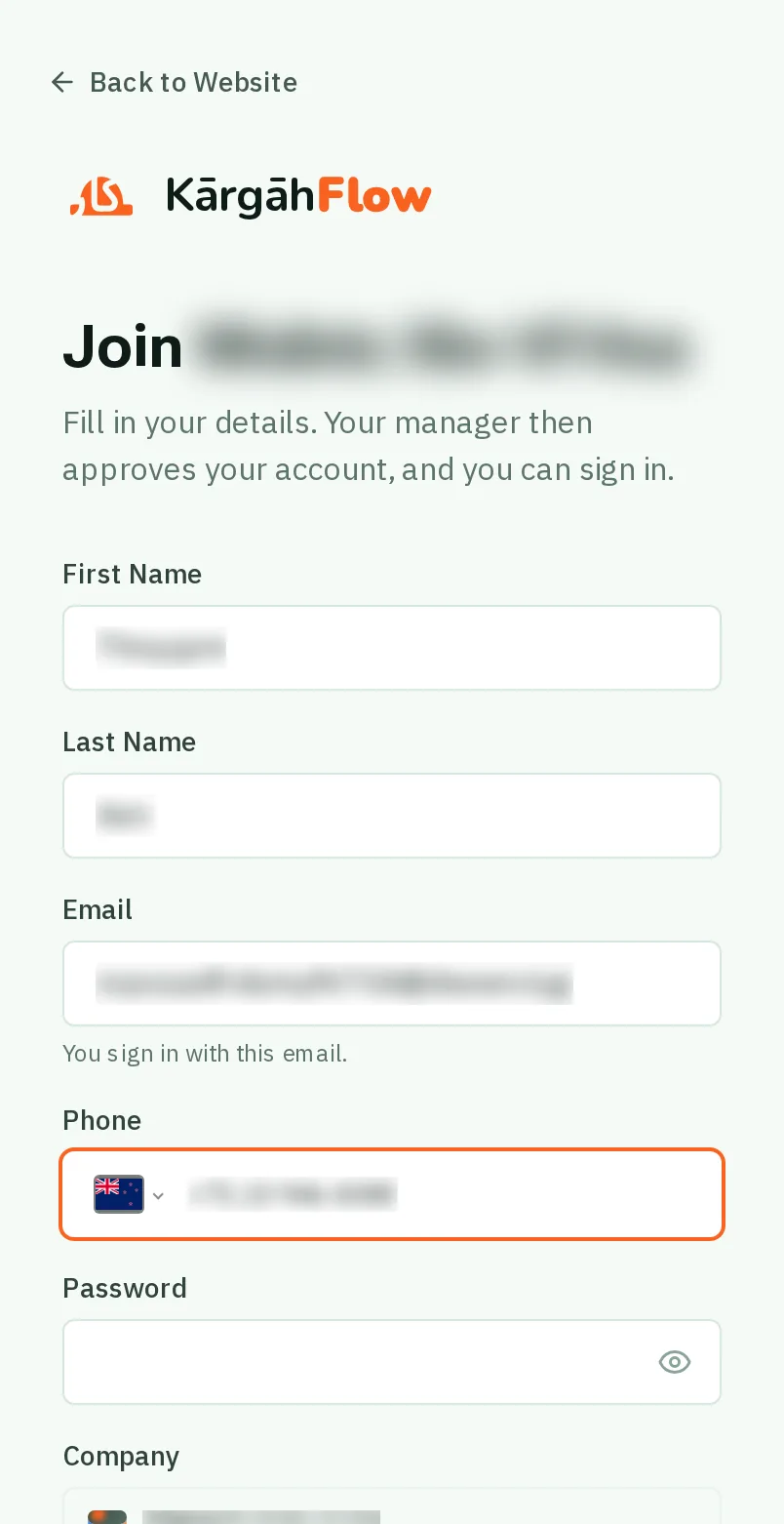
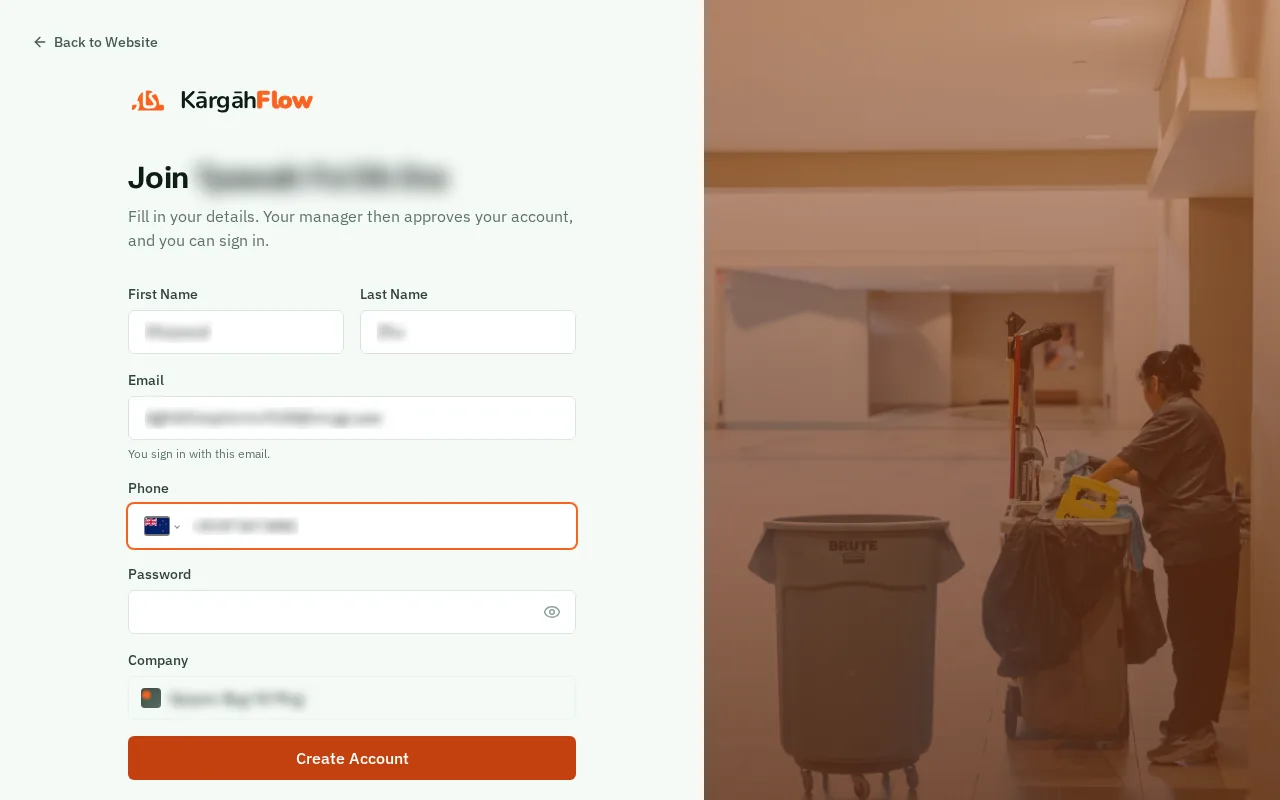
Under Password, make up a password. The list under the box ticks off each rule as you type: keep going until they are all green.
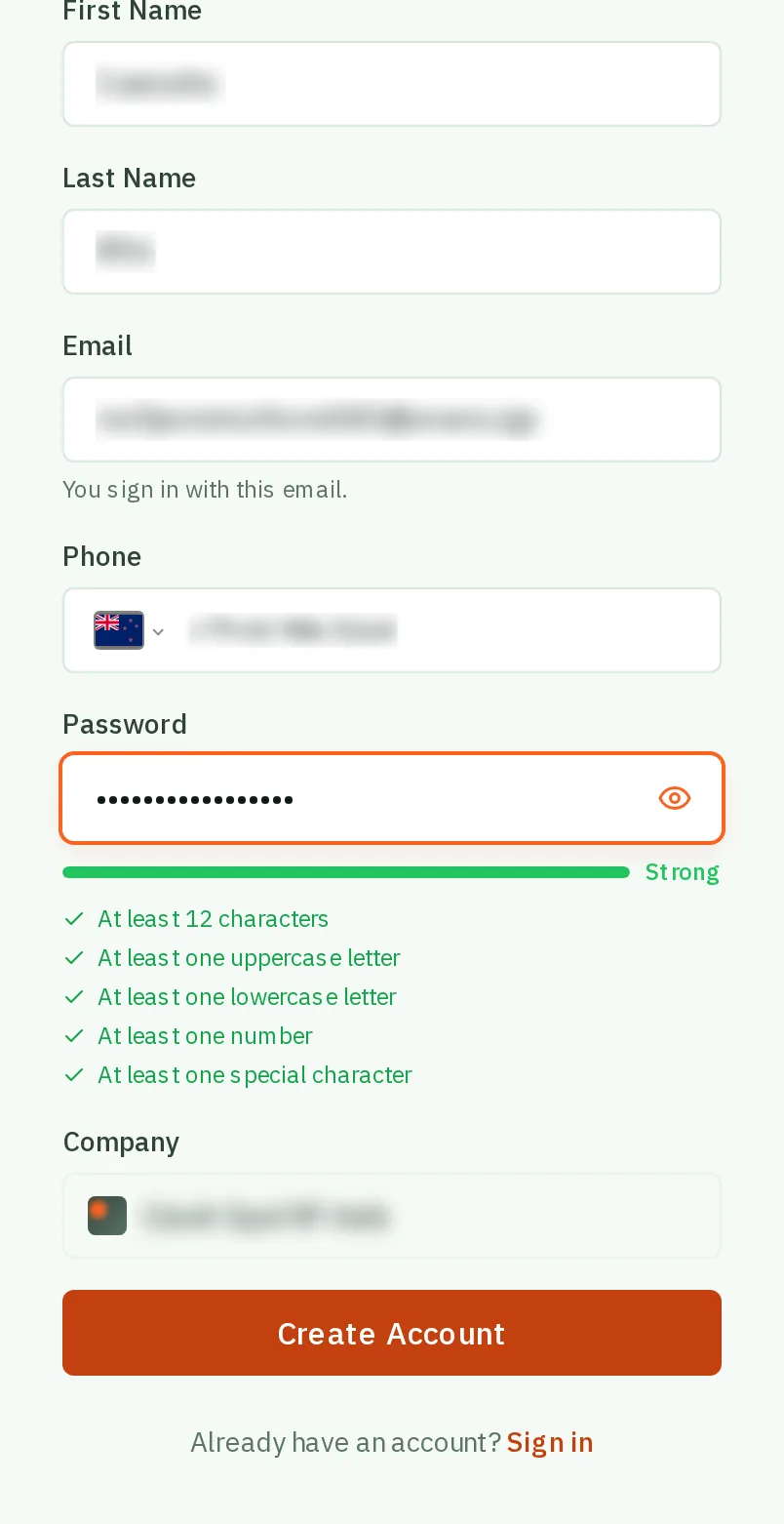
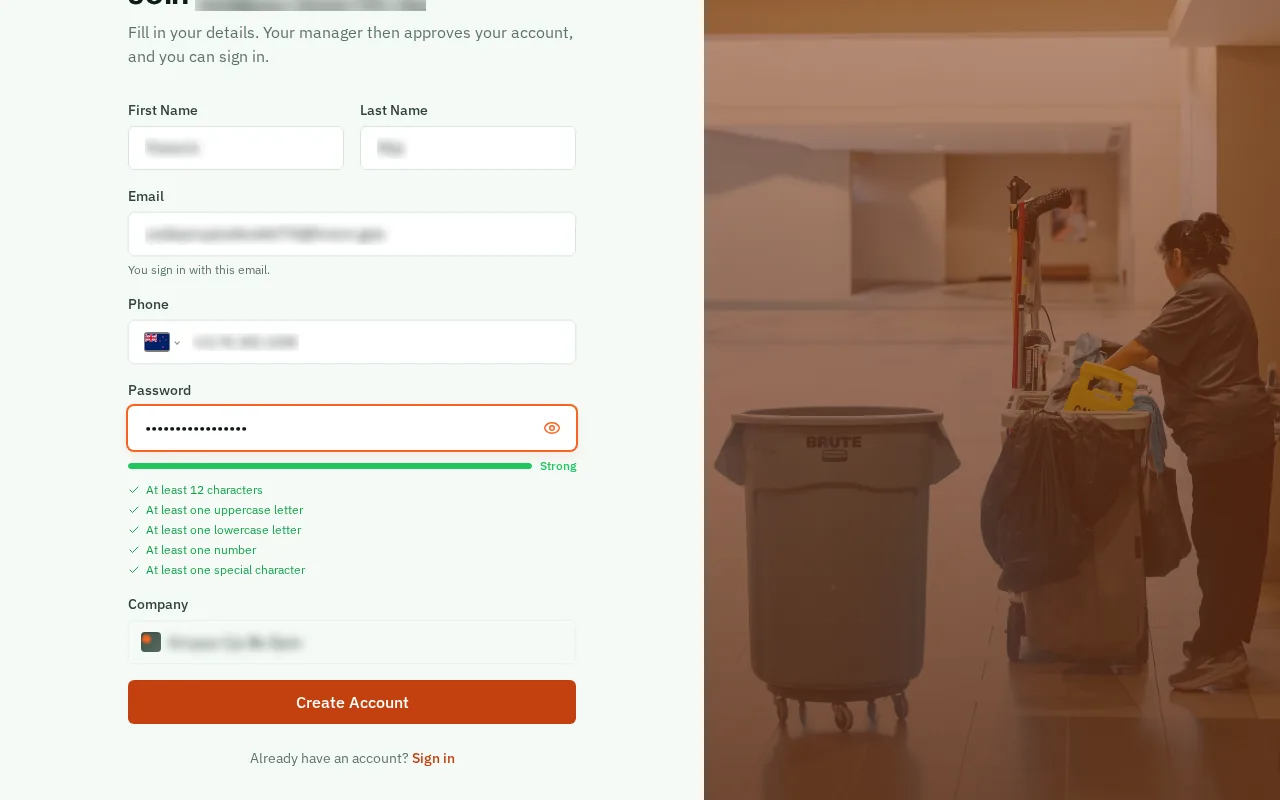
TapClick the orange Create Account button at the bottom.
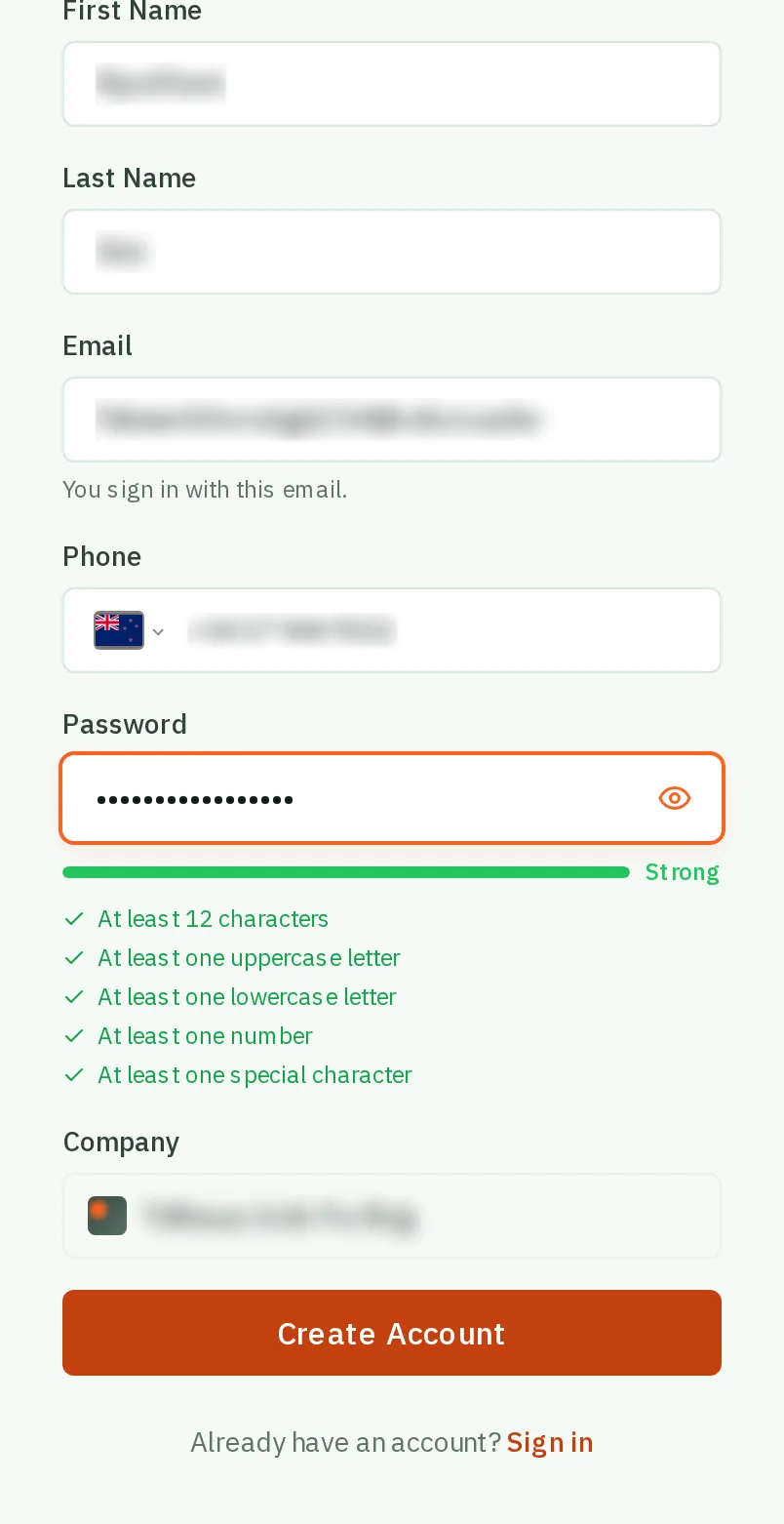
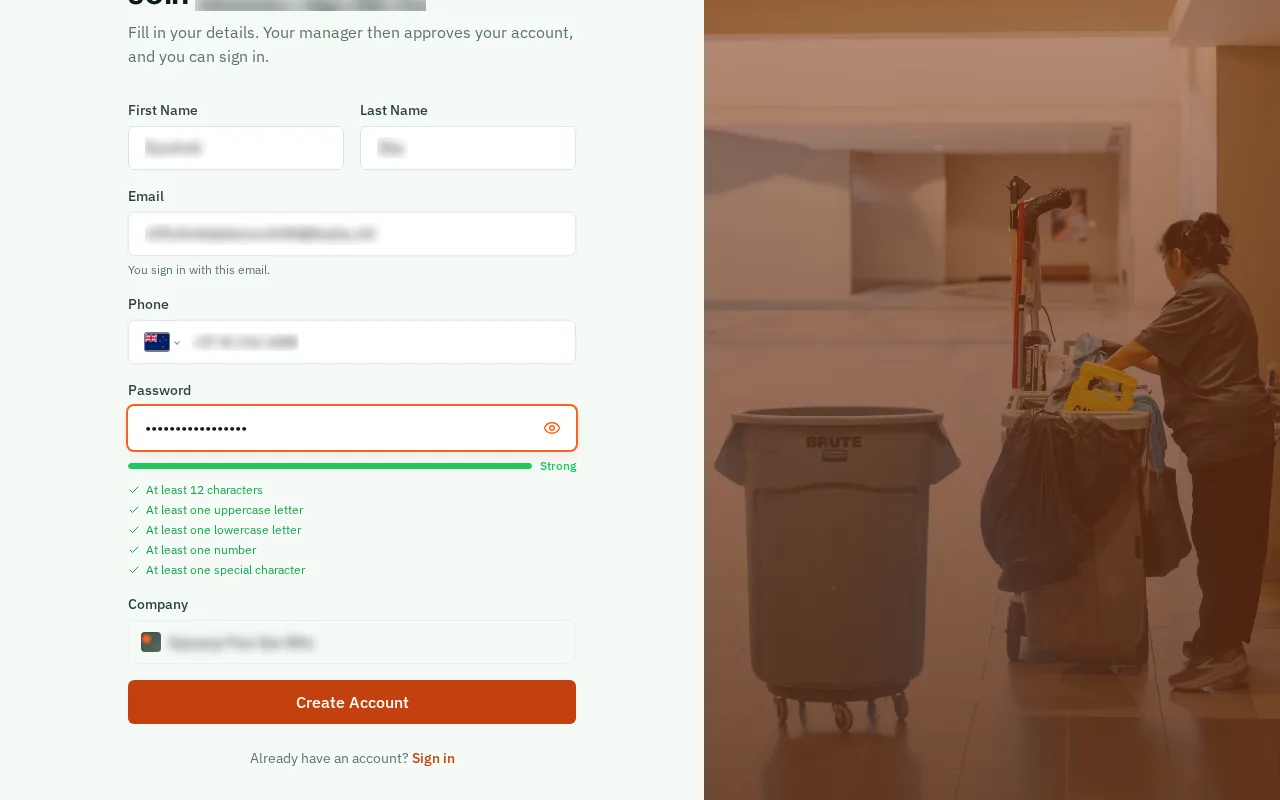
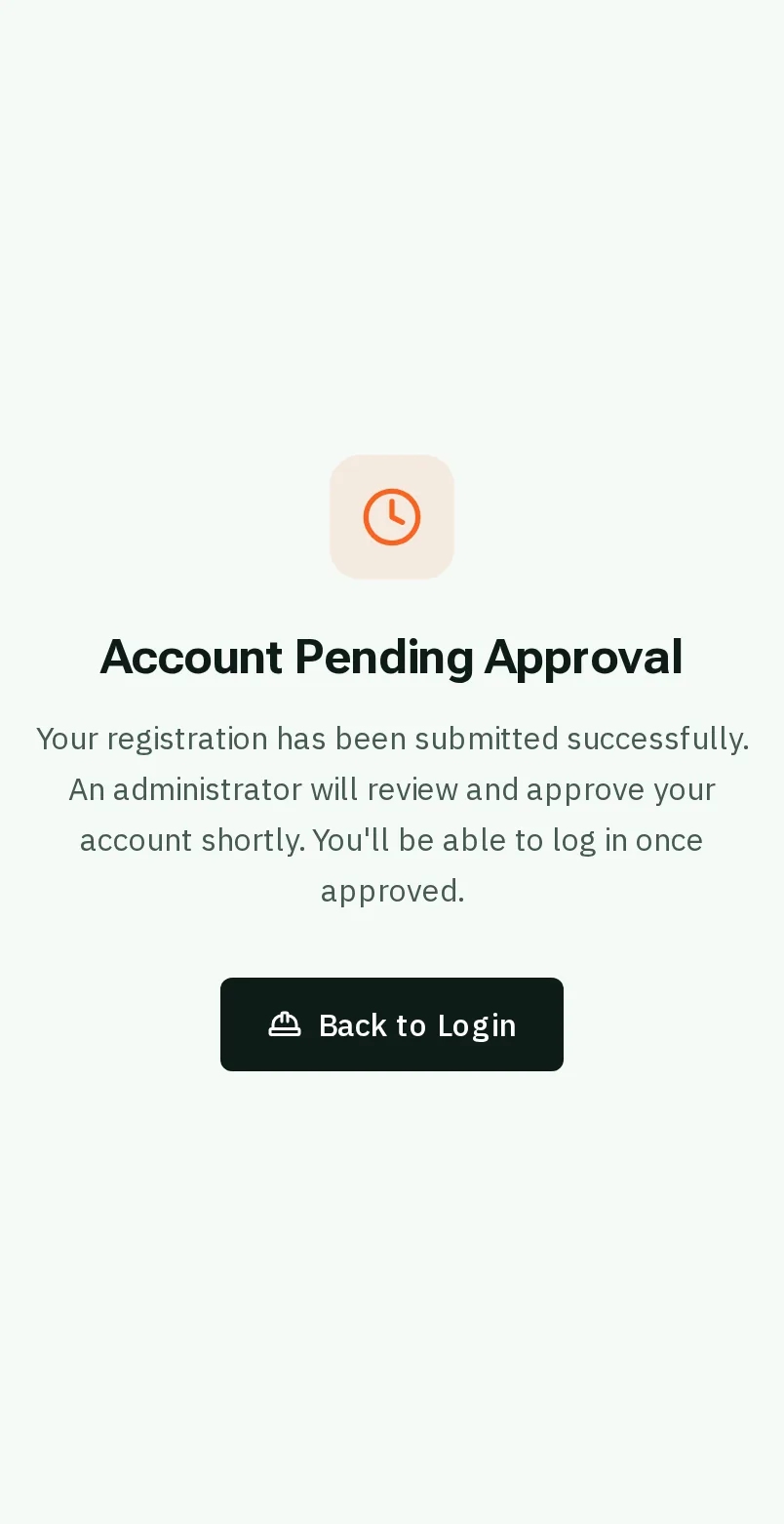
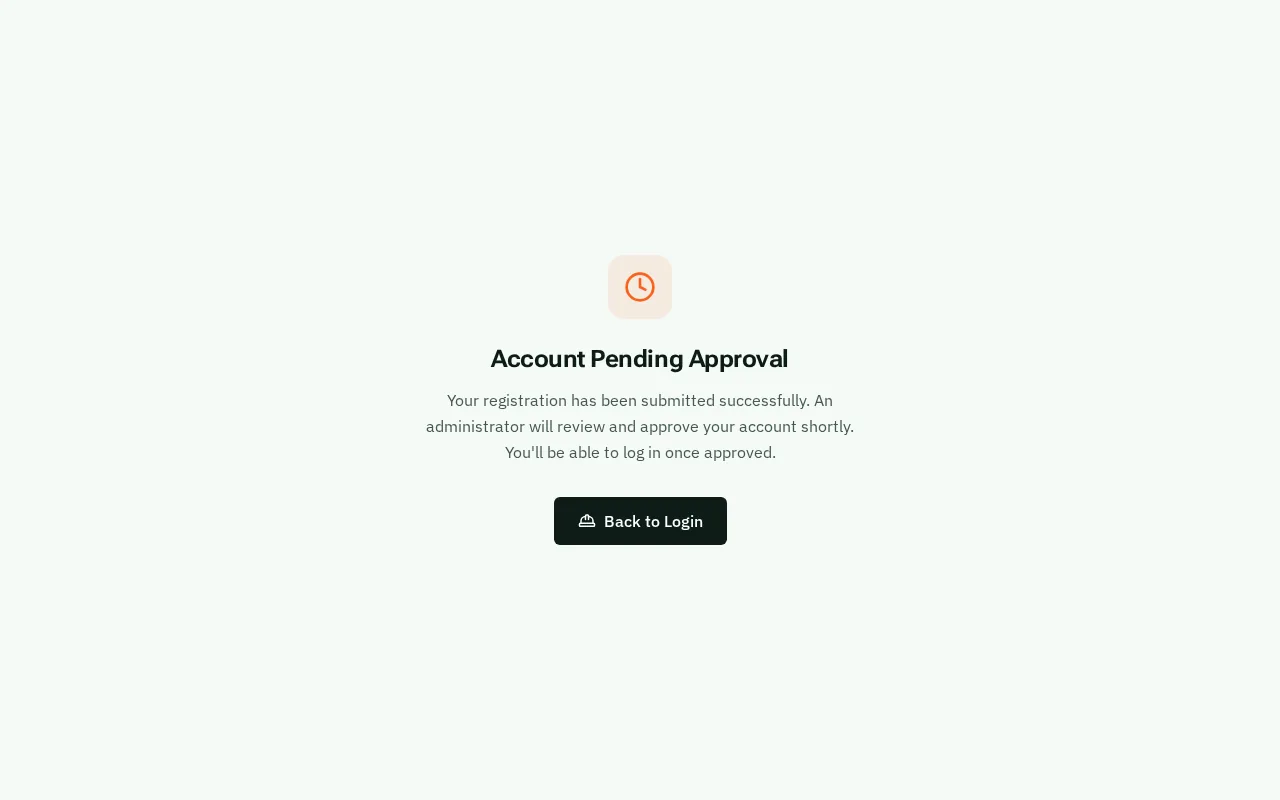
Joined with a link or a poster? Your manager approves you first, so nobody joins your company by mistake. Once they have, you can sign in.
Good to know: Joined from an email invitation? You are approved already, so sign in straight away.