KārgāhFlow
About 1 minute 5 stepsFor admins and owners

Move a shift to another job

Clocked in on the wrong job? Count the shift for the right one. Nobody’s pay changes.

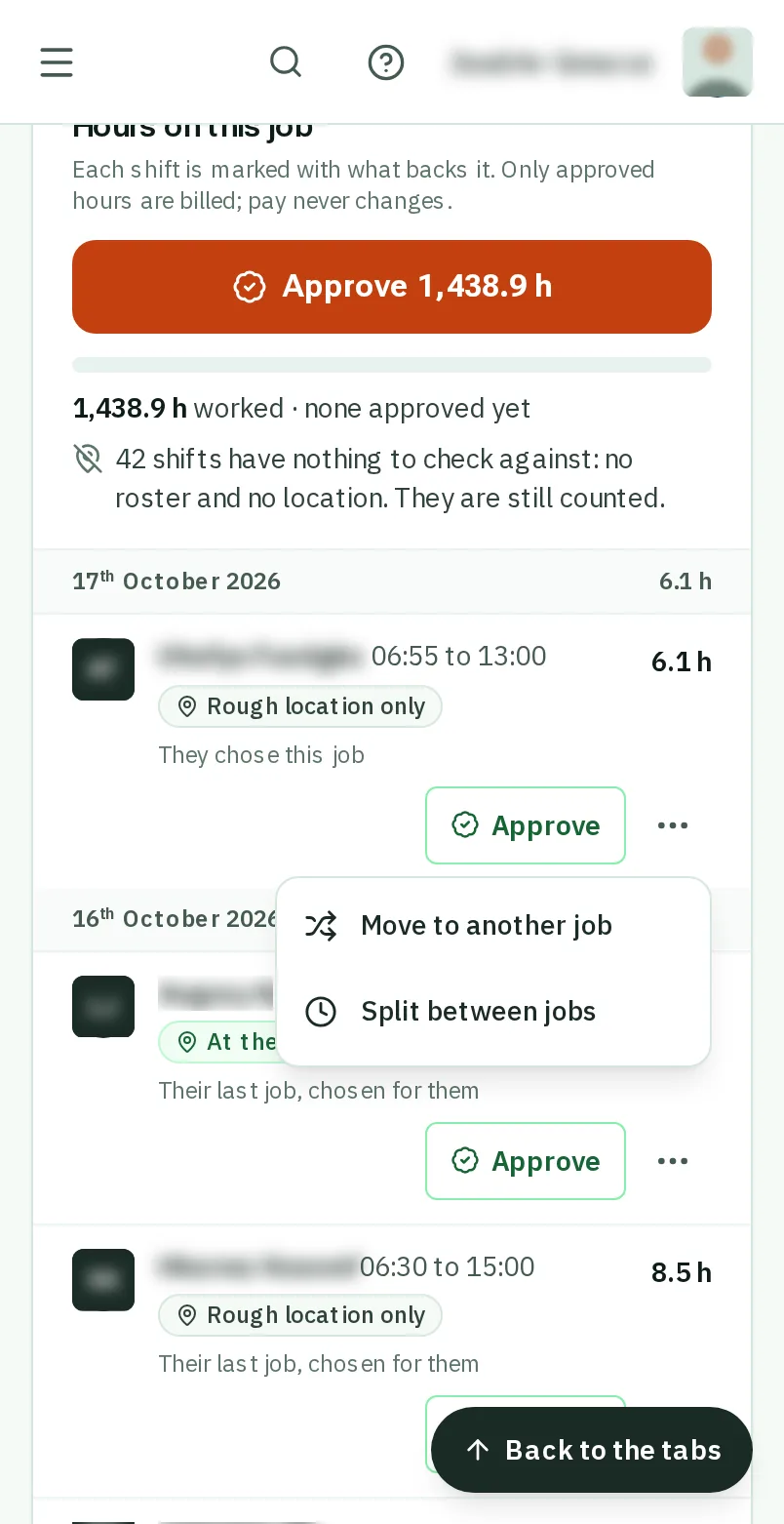
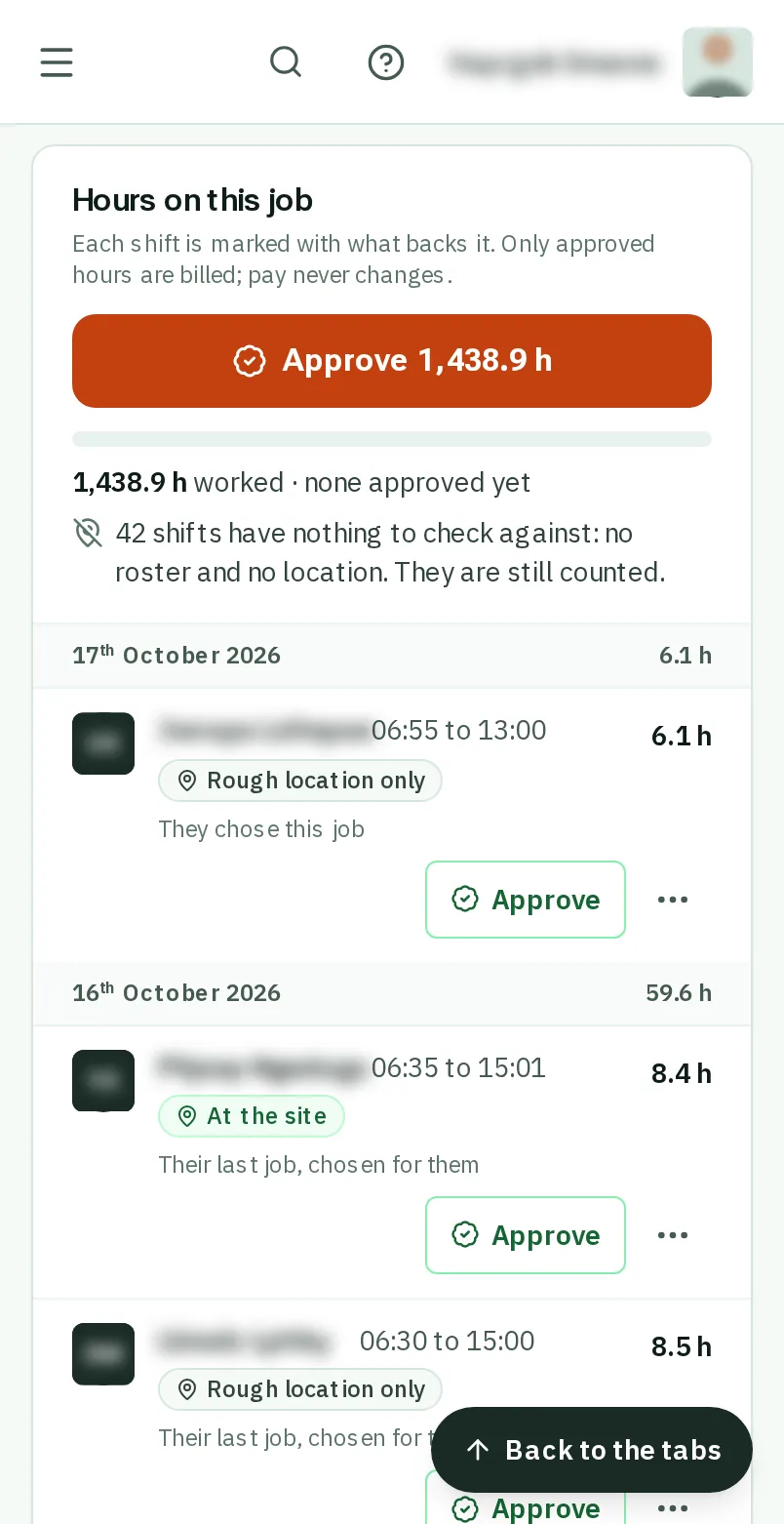
Move a shift to another job: the screen on a phone
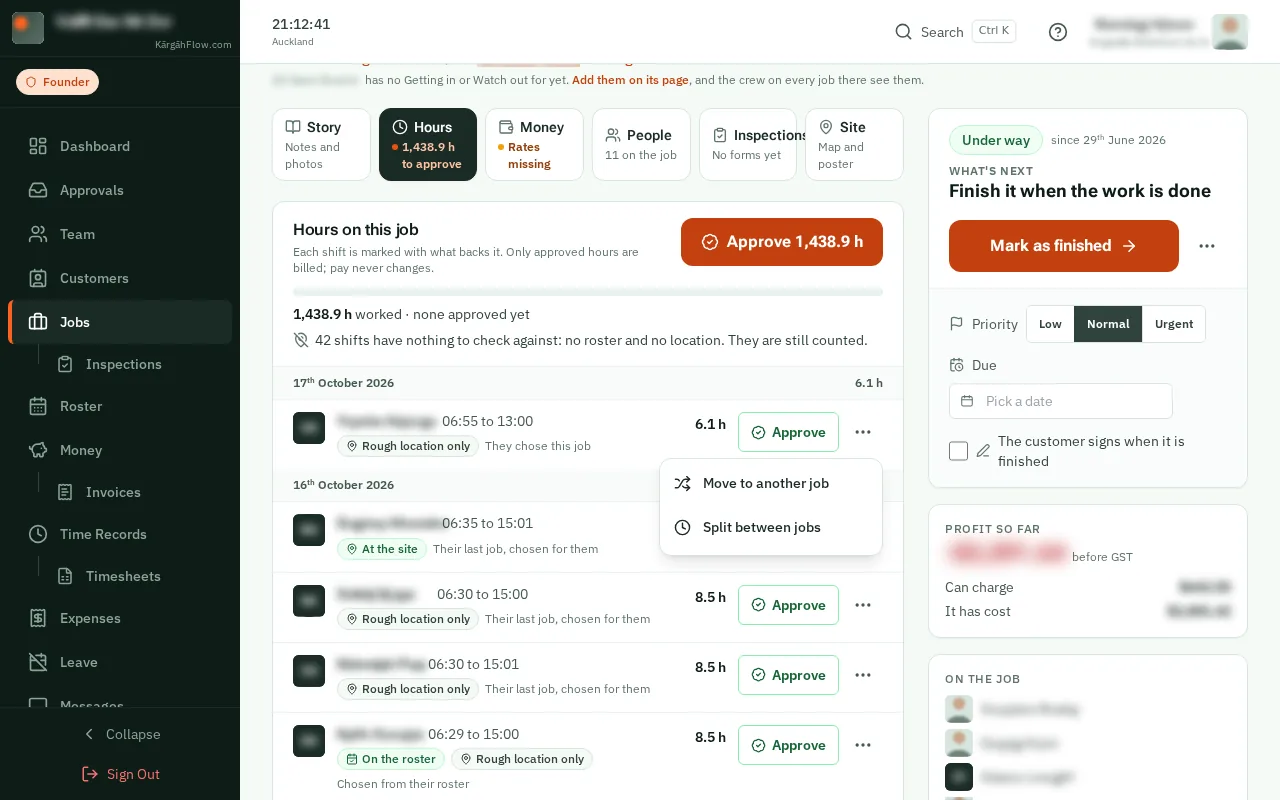
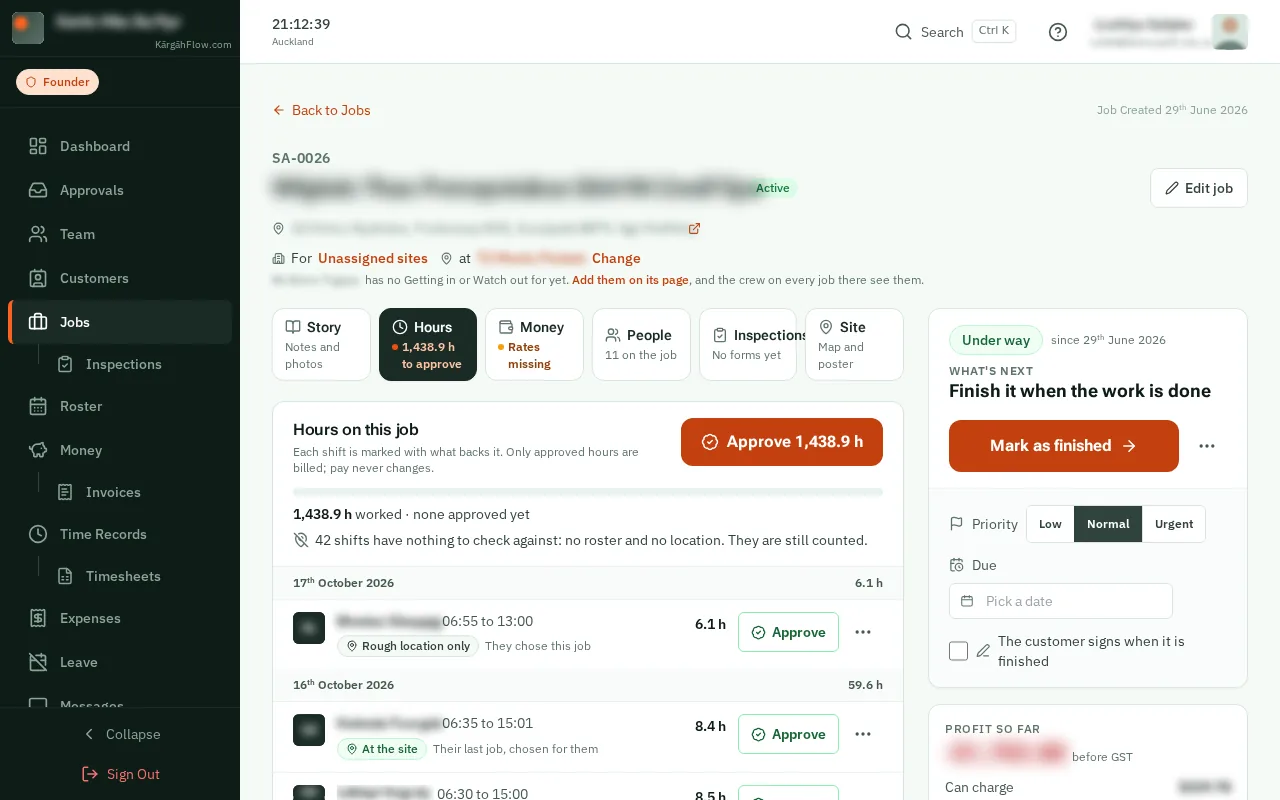
Move a shift to another job: the screen on a computer

What this is

Sometimes someone clocks in on the wrong job. Move the shift to the job it was for, and it counts there: in the job’s hours, its costs and its bill.

Only the job changes. The person, their times and their pay stay exactly as they were.

Step 1 of 5
  1. Step 1: Open the job

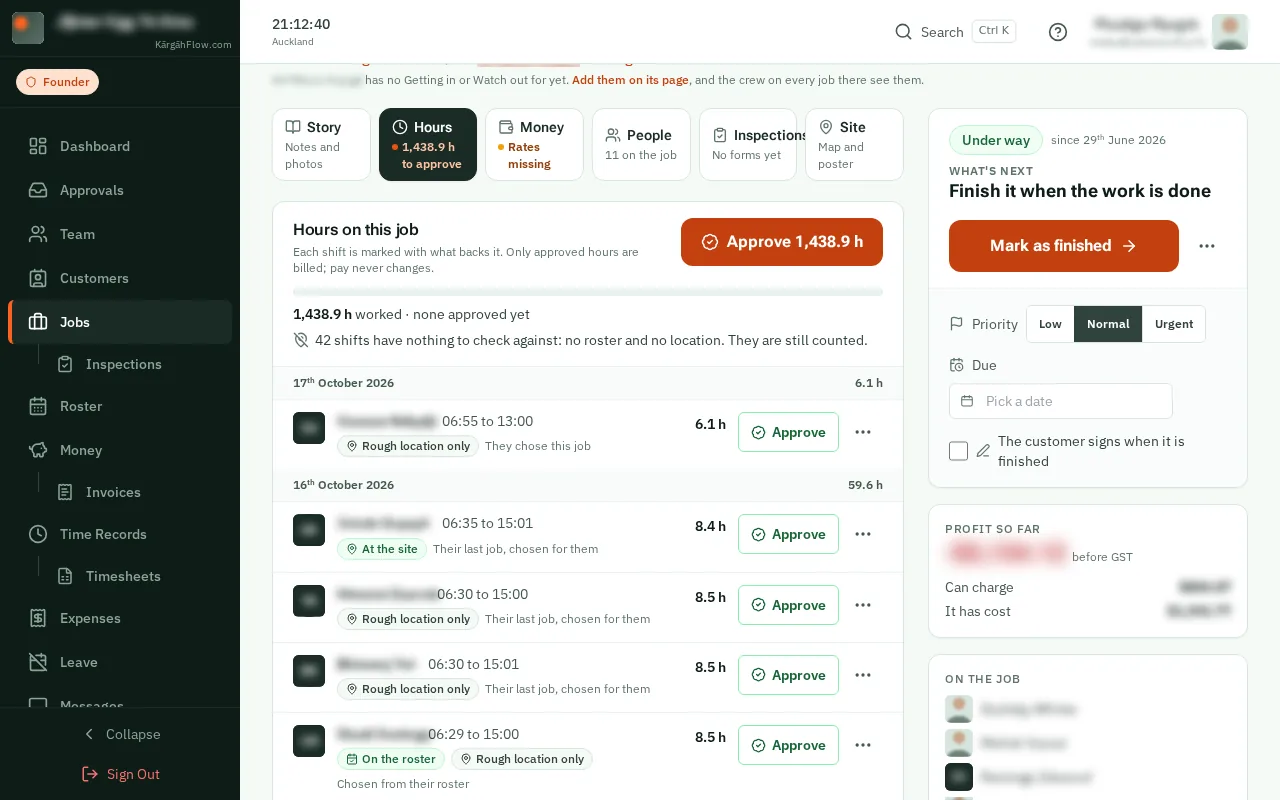
    Open Jobs and tapclick the job the shift was clocked in on.
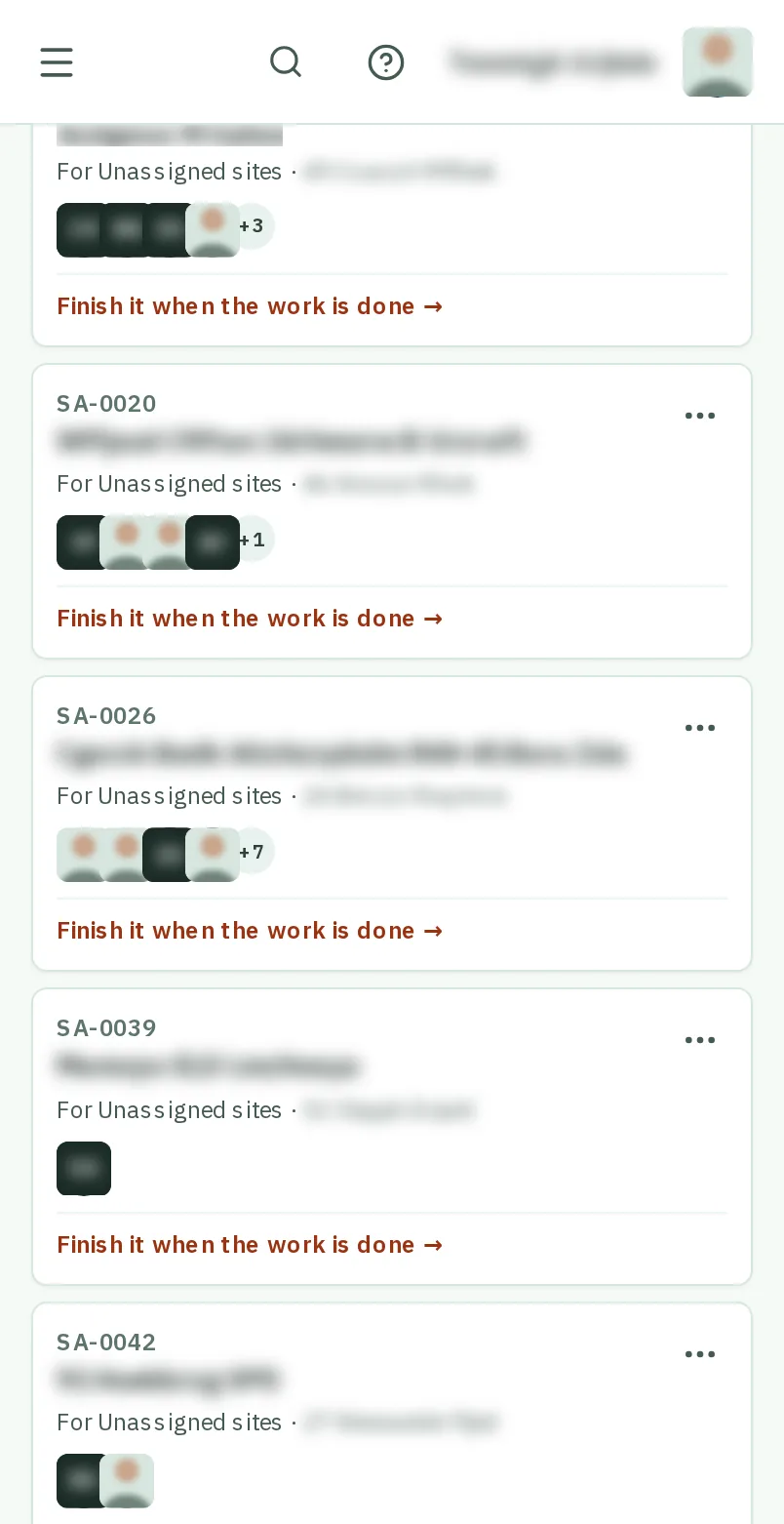
    Open the job
    Open the job
  2. Step 2: TapClick the three dots beside the shift

    On the job’s Hours tab, find the shift and tapclick the three dots beside it.
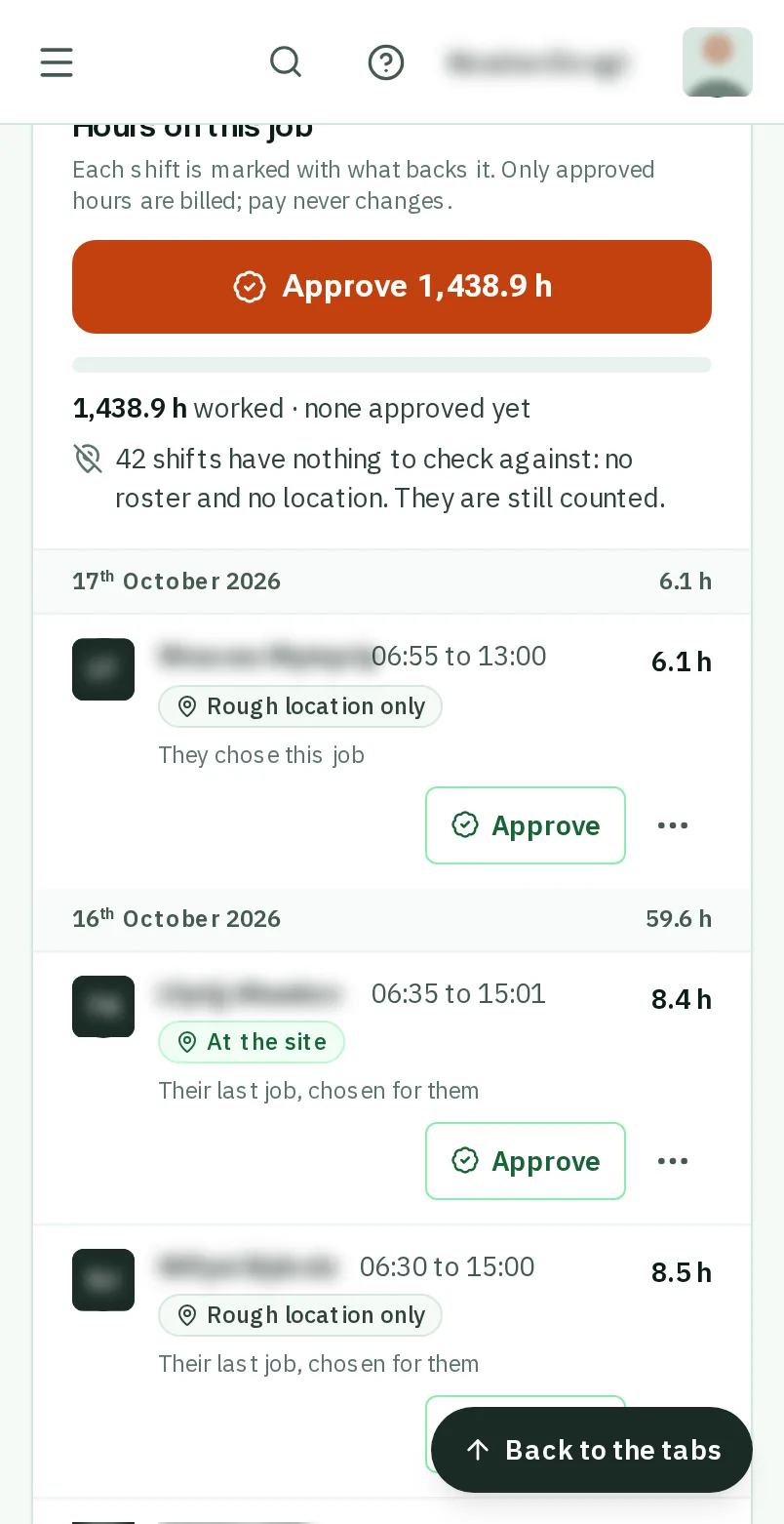
    Look forthe More item in the menu
    Tap the three dots beside the shift
    Click the three dots beside the shift
  3. Step 3: TapClick Move to another job

    TapClick Move to another job.

    Look forthe Move to another job item in the menu
    Tap Move to another job
    Click Move to another job
  4. Step 4: Choose the job it was for

    Under Count it for, choose the job. Active jobs come first, then archived ones.
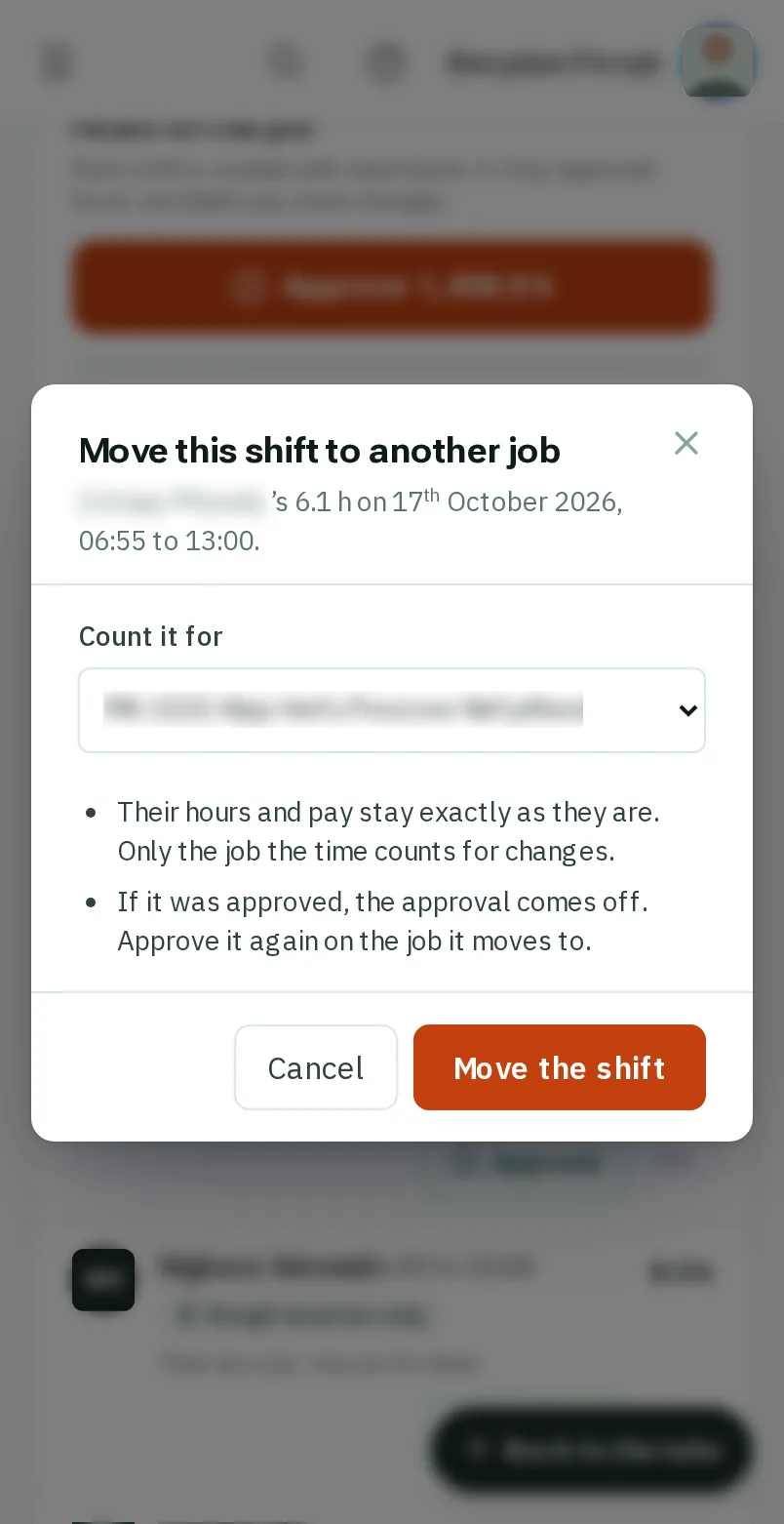
    Look forthe Count it for box
    Choose the job it was for
    Choose the job it was for
  5. Step 5: TapClick Move the shift

    TapClick Move the shift. It counts for that job from now on.

    Look forthe Move the shift button

    Good to know: If the shift was approved, its approval comes off. Approve it again on the job it moved to.
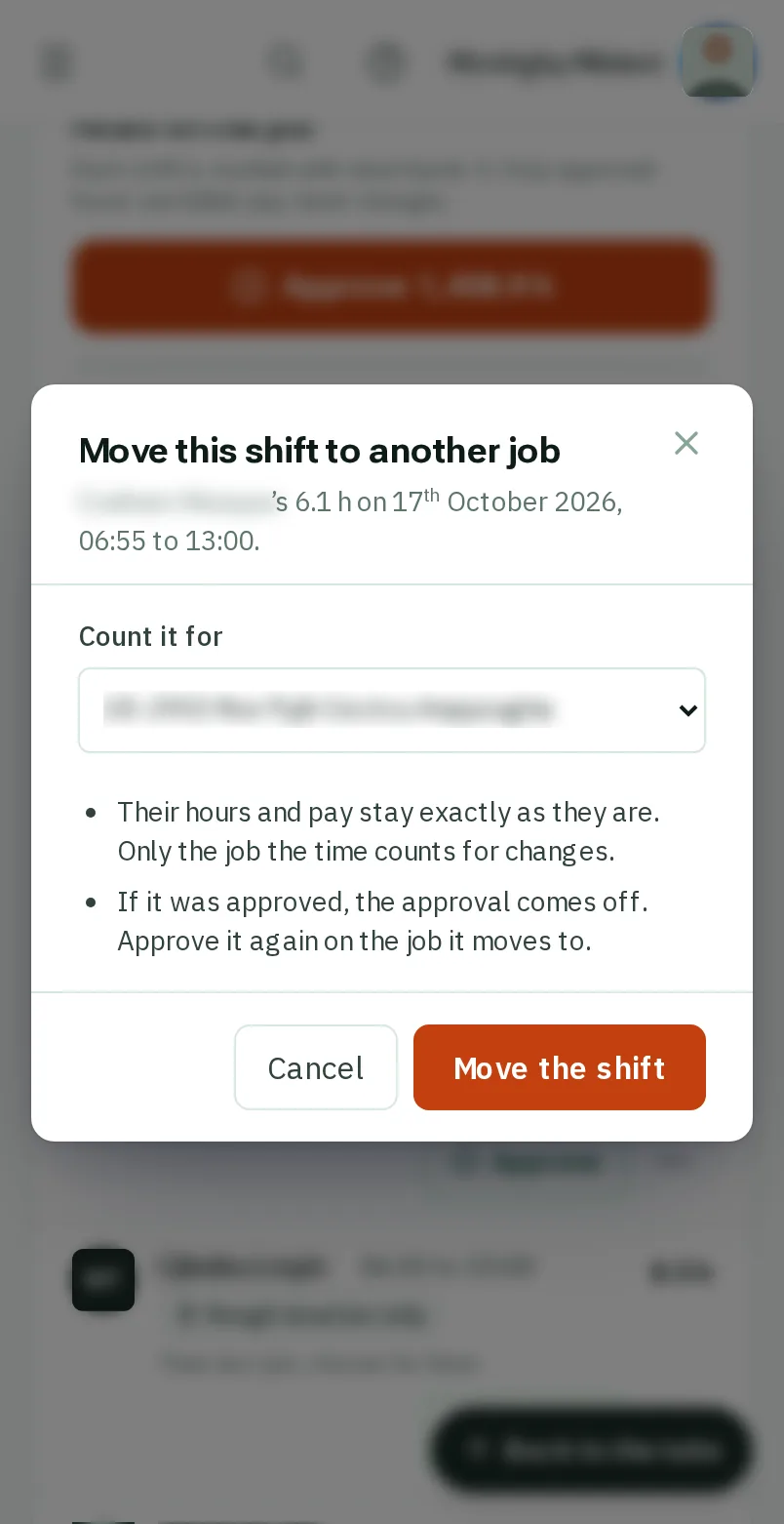

    Tap Move the shift
    Click Move the shift

That's it

The shift counts for the right job, and nobody’s pay has changed.

Next: Split a shift between jobs