Step 1: Open the job
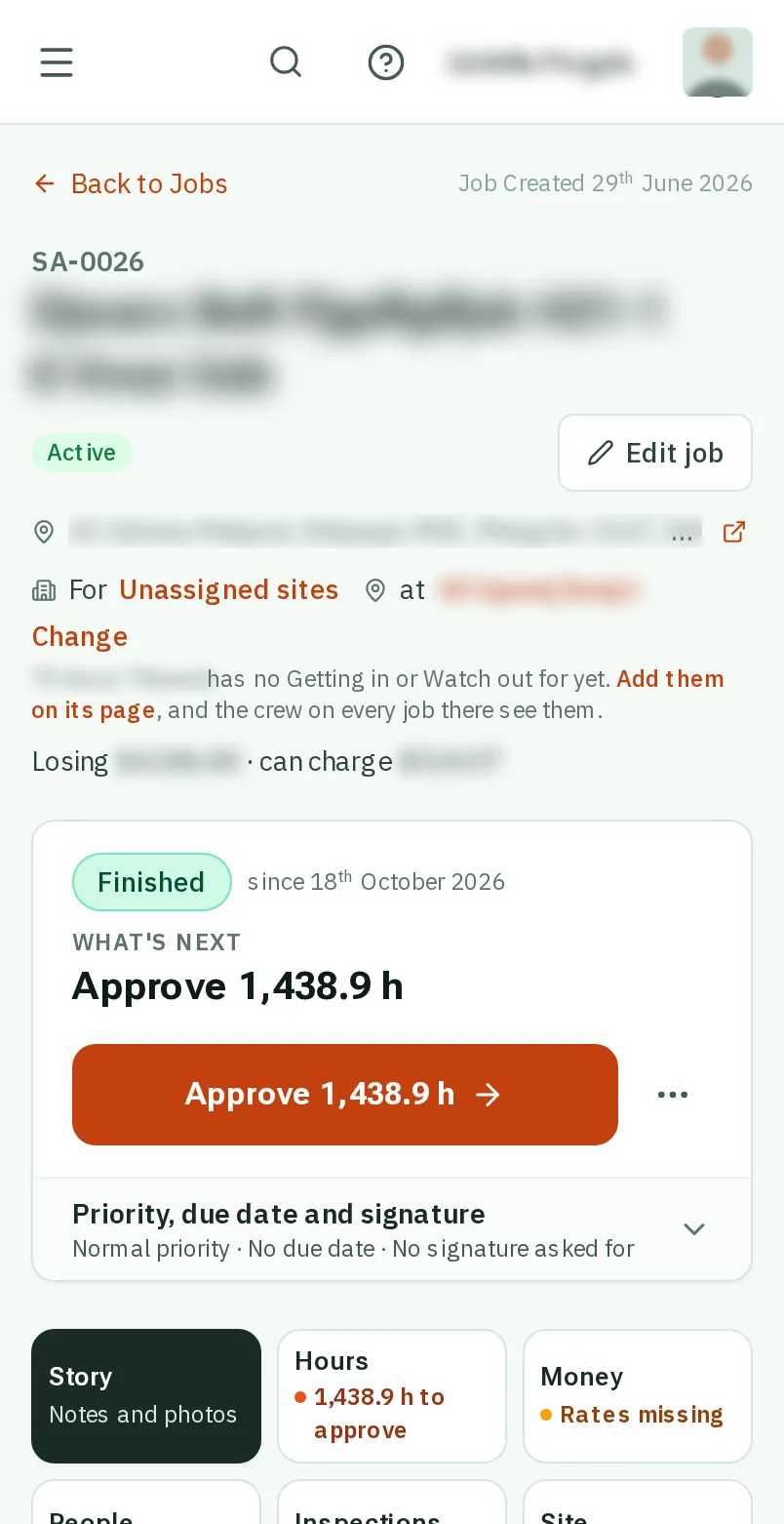
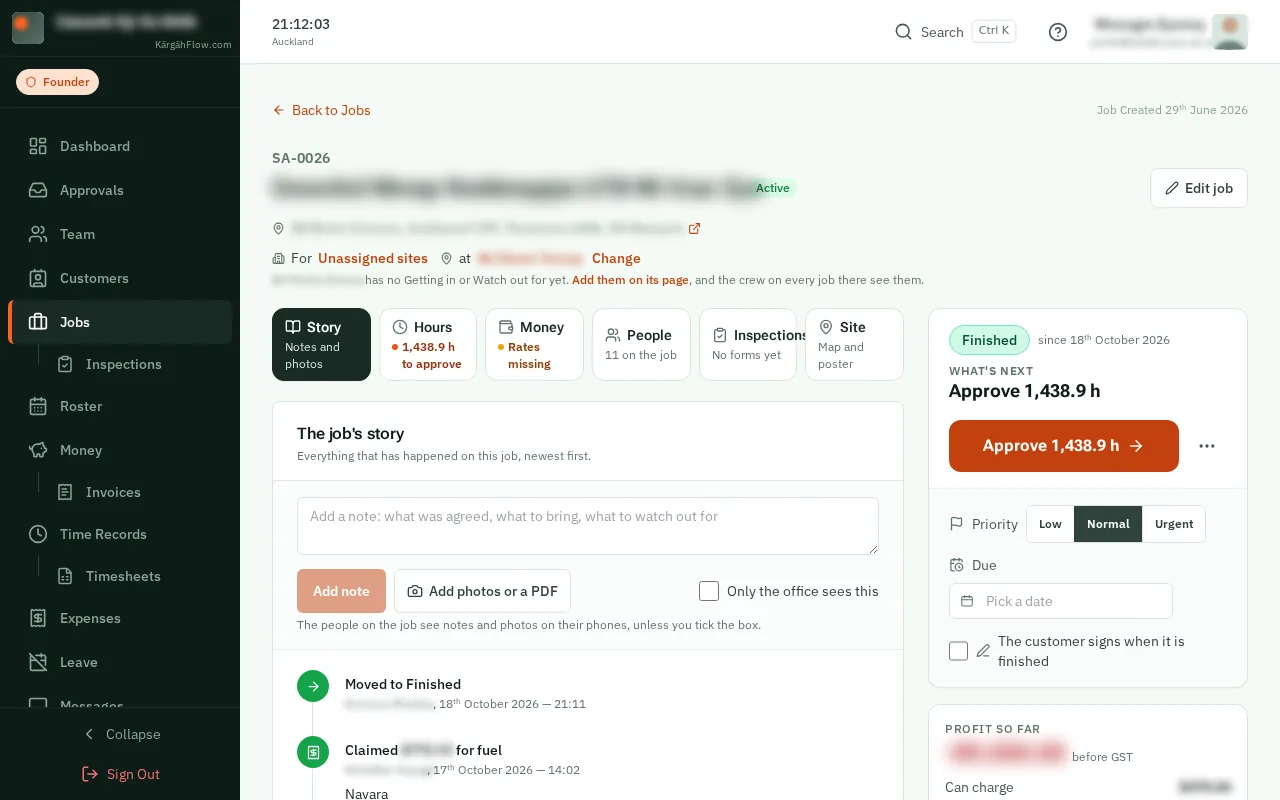
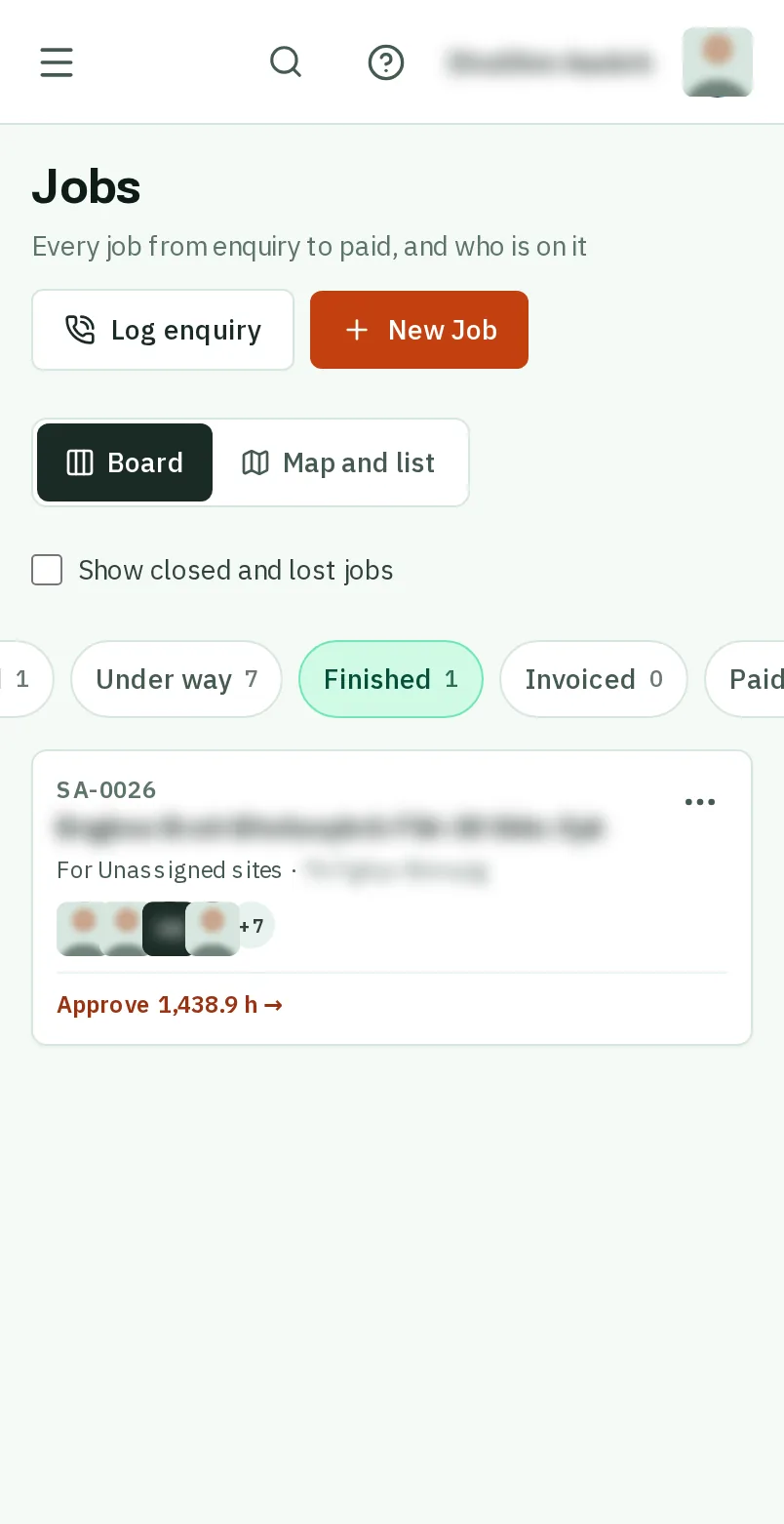
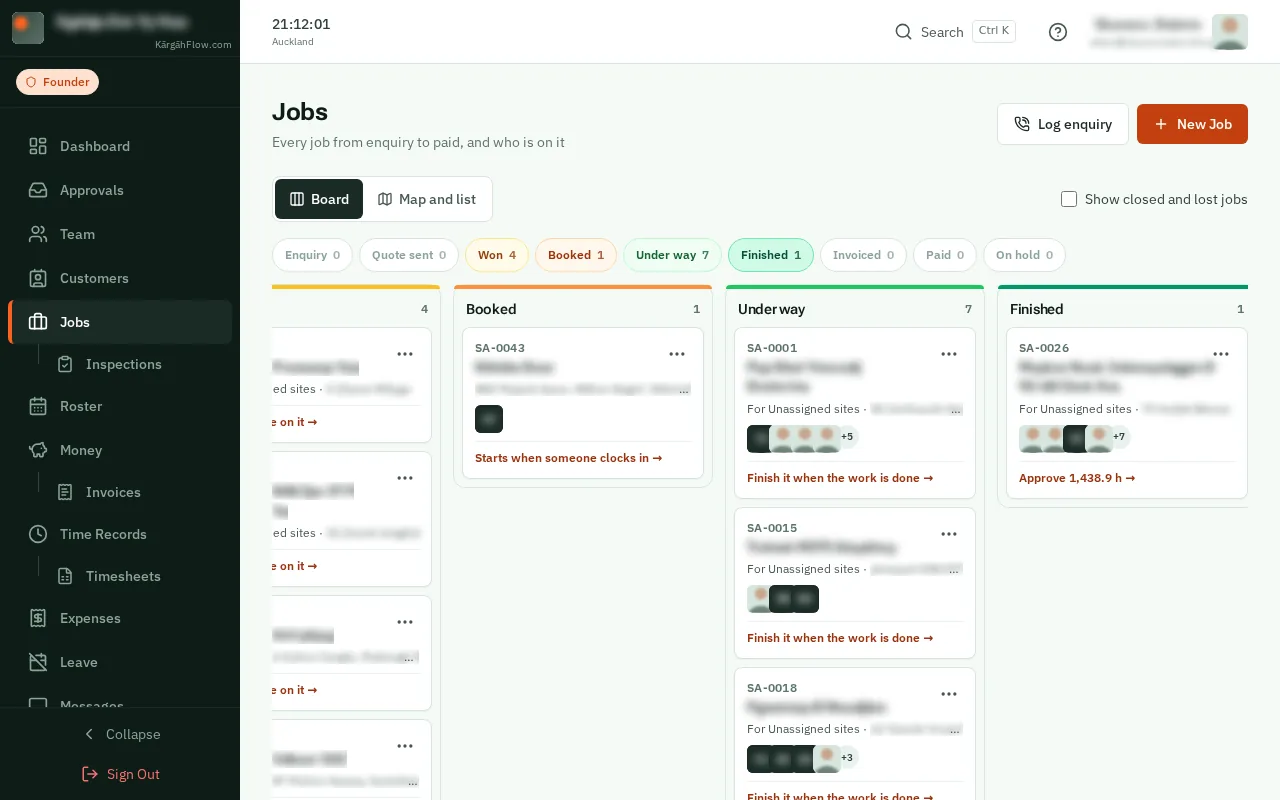
Open Jobs and tapclick the job. On the board, a finished job with hours still to approve says Approve and its hours.
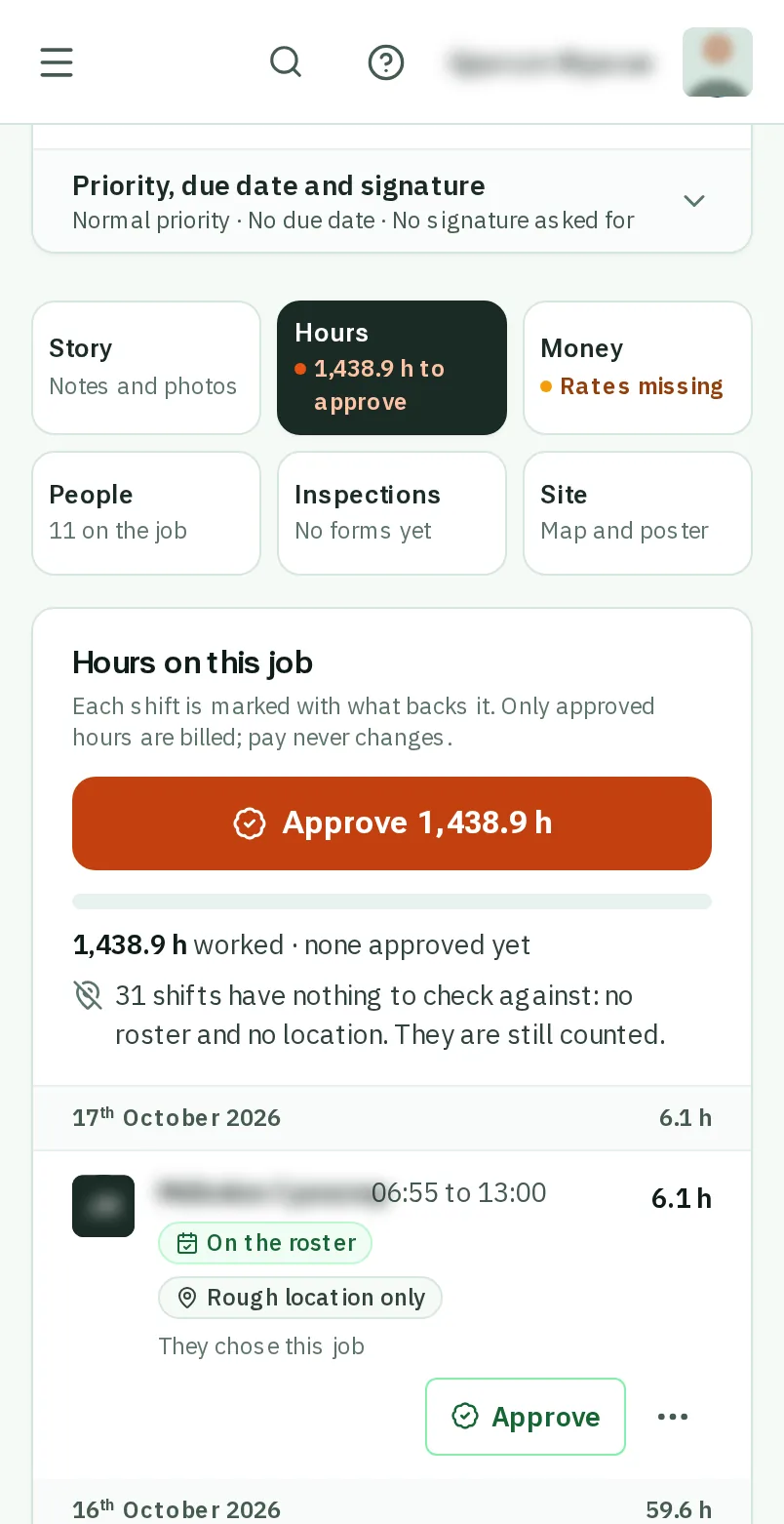
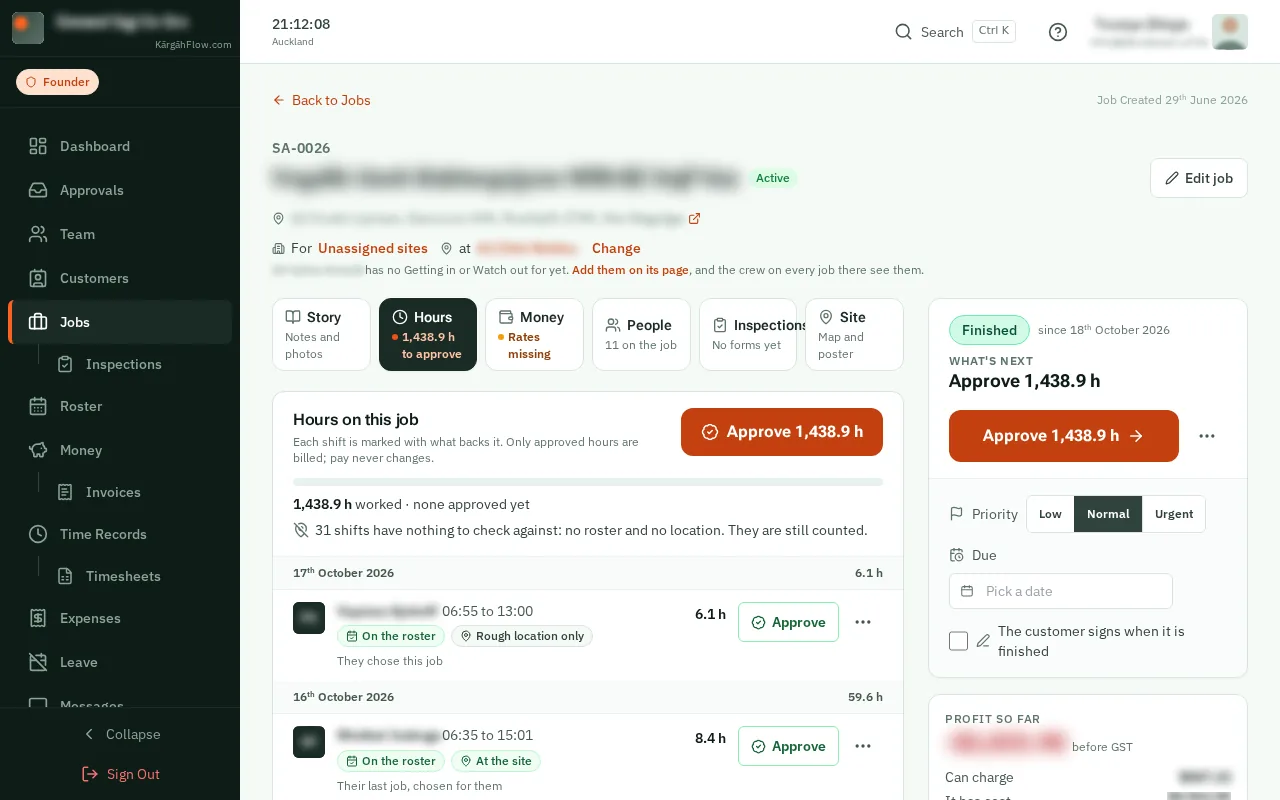
Every shift on a job is marked with what backs it: on the roster for that job that day, clocked in at the site, or how far away it was clocked in. That is how you know the time belongs to the job.
Approving says the hours are right for this job. Only approved hours go on the customer’s bill. Nobody’s pay changes: the timesheets count every hour worked.
Open Jobs and tapclick the job. On the board, a finished job with hours still to approve says Approve and its hours.
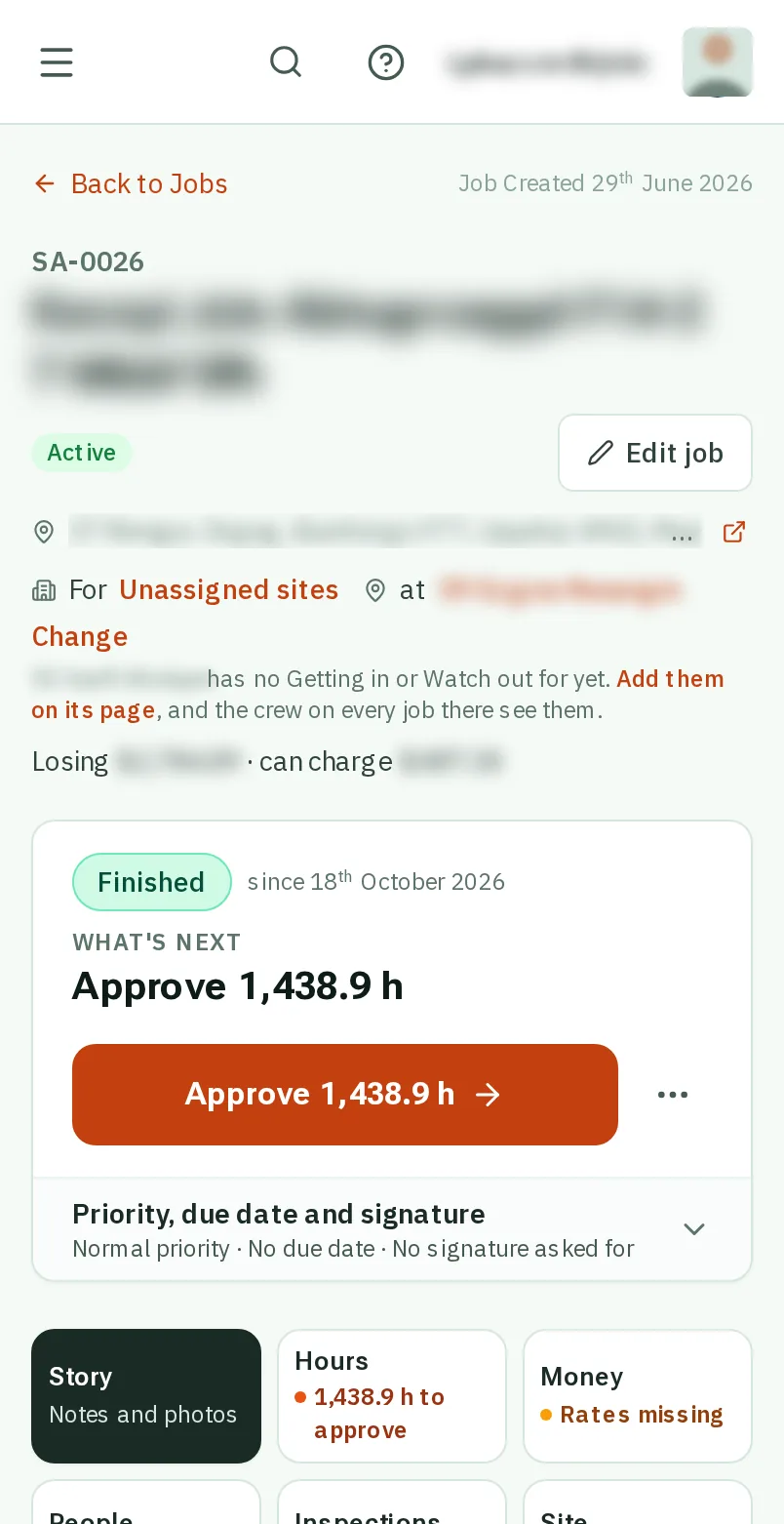
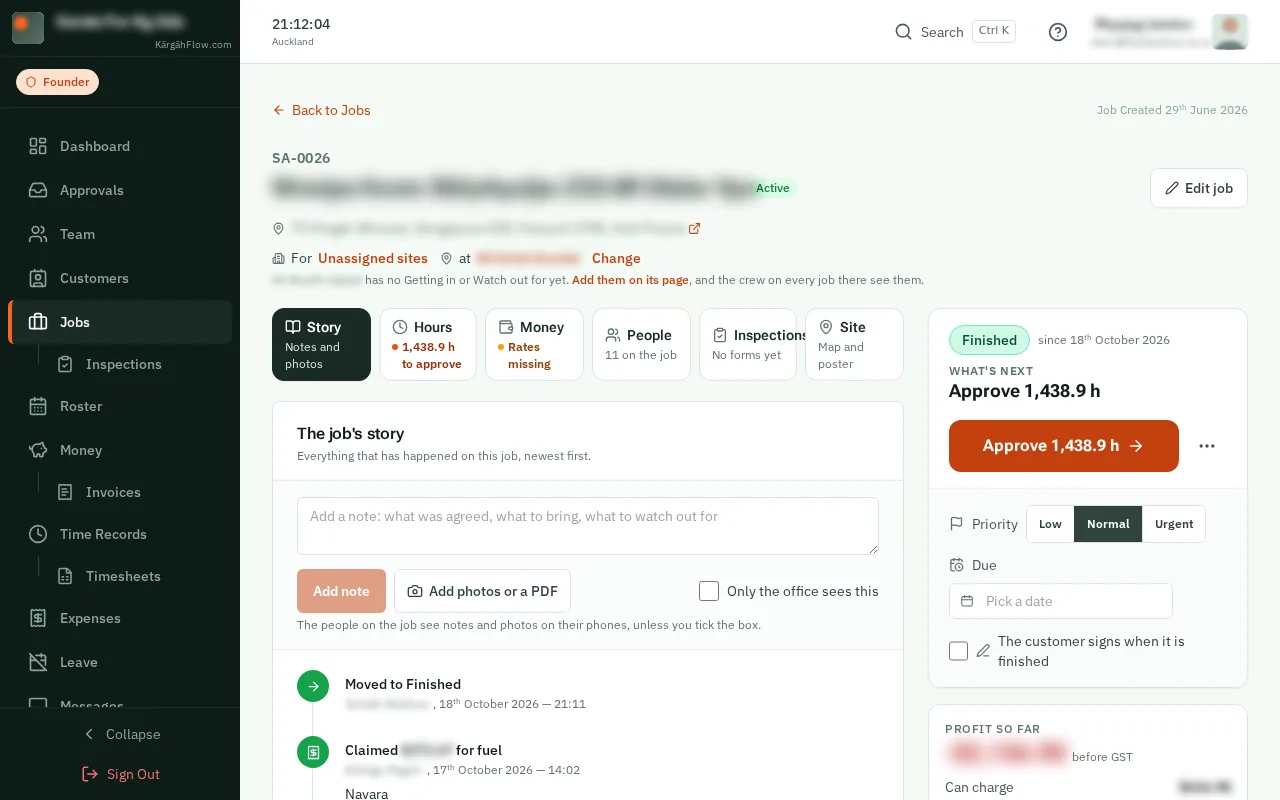
At the top of the job’s page, tapclick the big Approve button. It opens the job’s Hours tab.On the right of the job’s page, tapclick the big Approve button. It opens the job’s Hours tab.
Good to know: You can approve hours at any time, not only when a job is finished: every job has an Hours tab, and it says how many hours are waiting.
Every shift is listed, newest first. Each says what backs it: On the roster, At the site, or how far from the site it was clocked in. The line above the shifts sums it up.
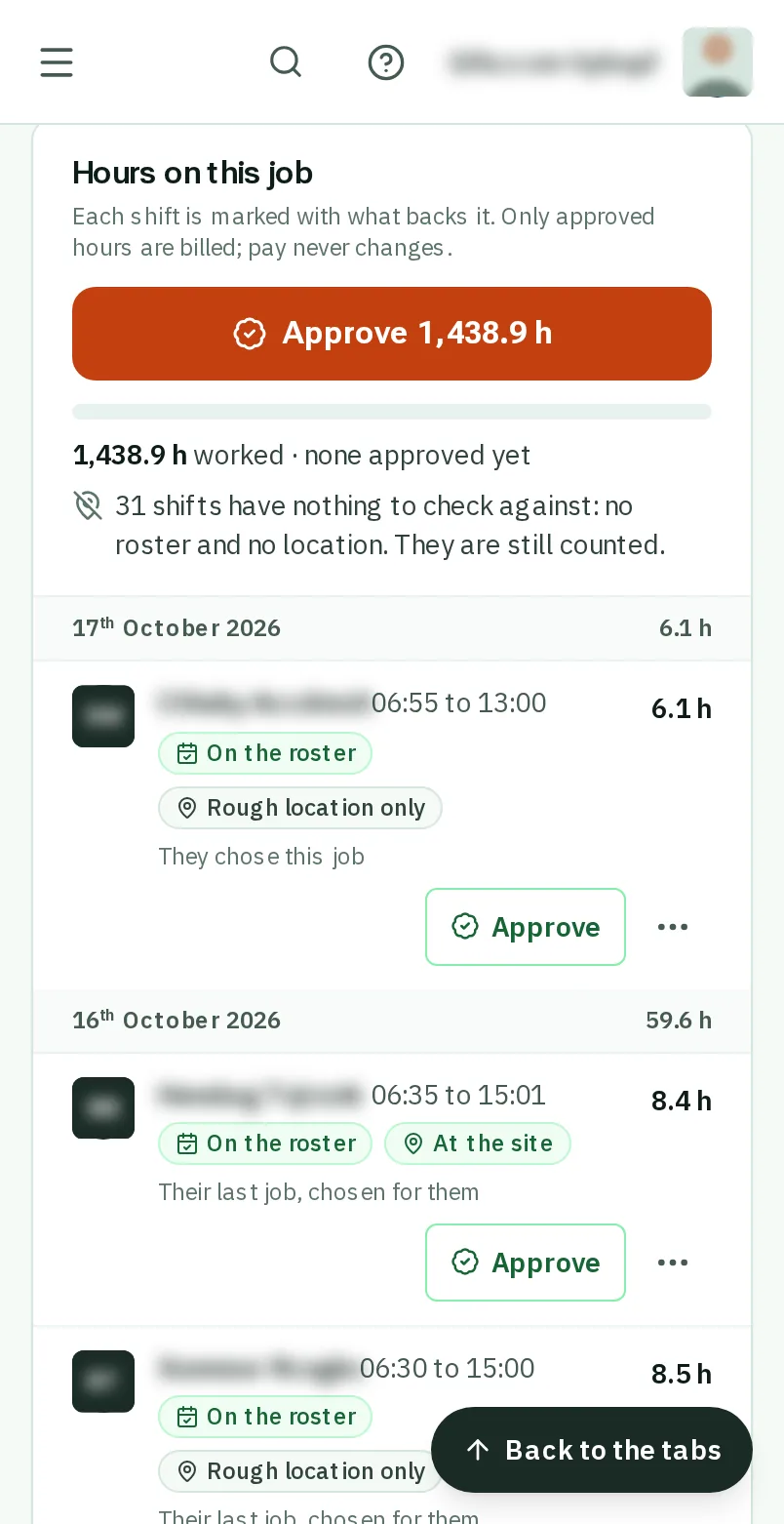
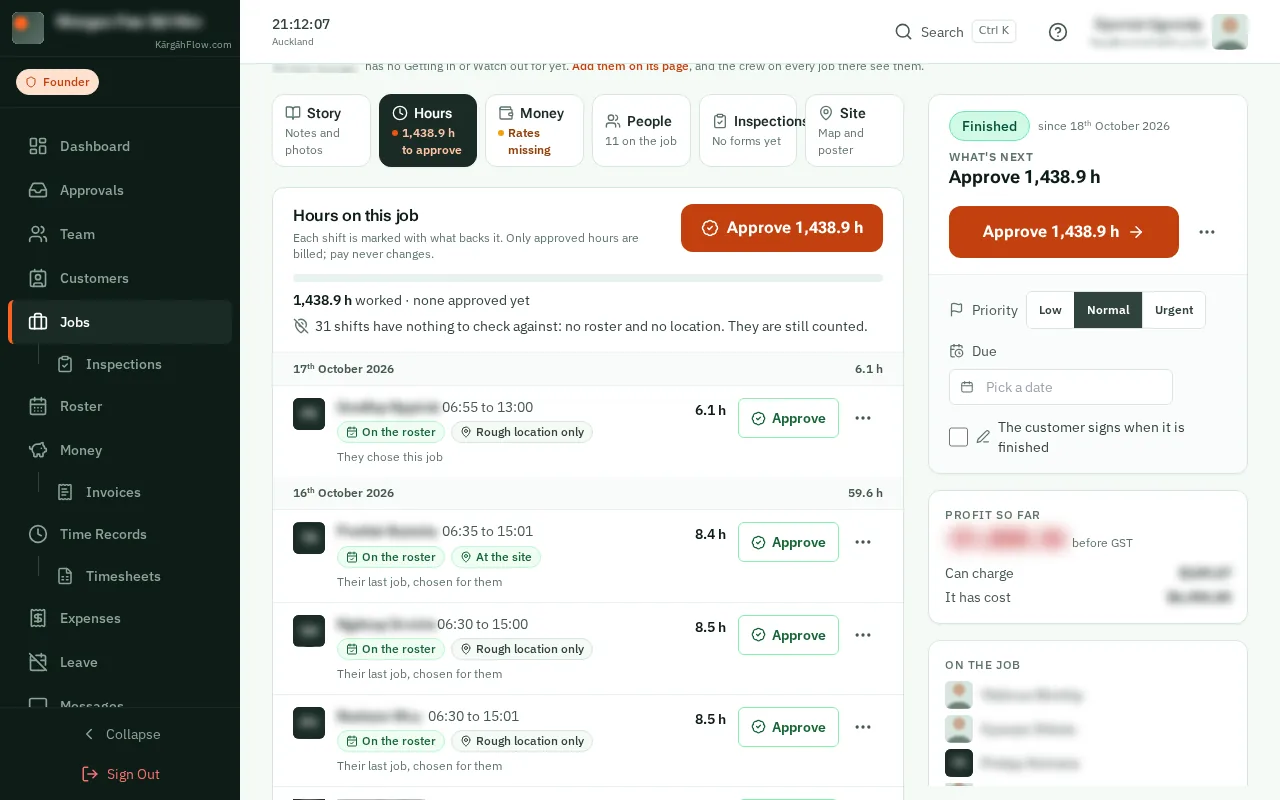
A shift clocked in away from the site is marked in orange. If it was for another job, tapclick the three dots beside it to move it.
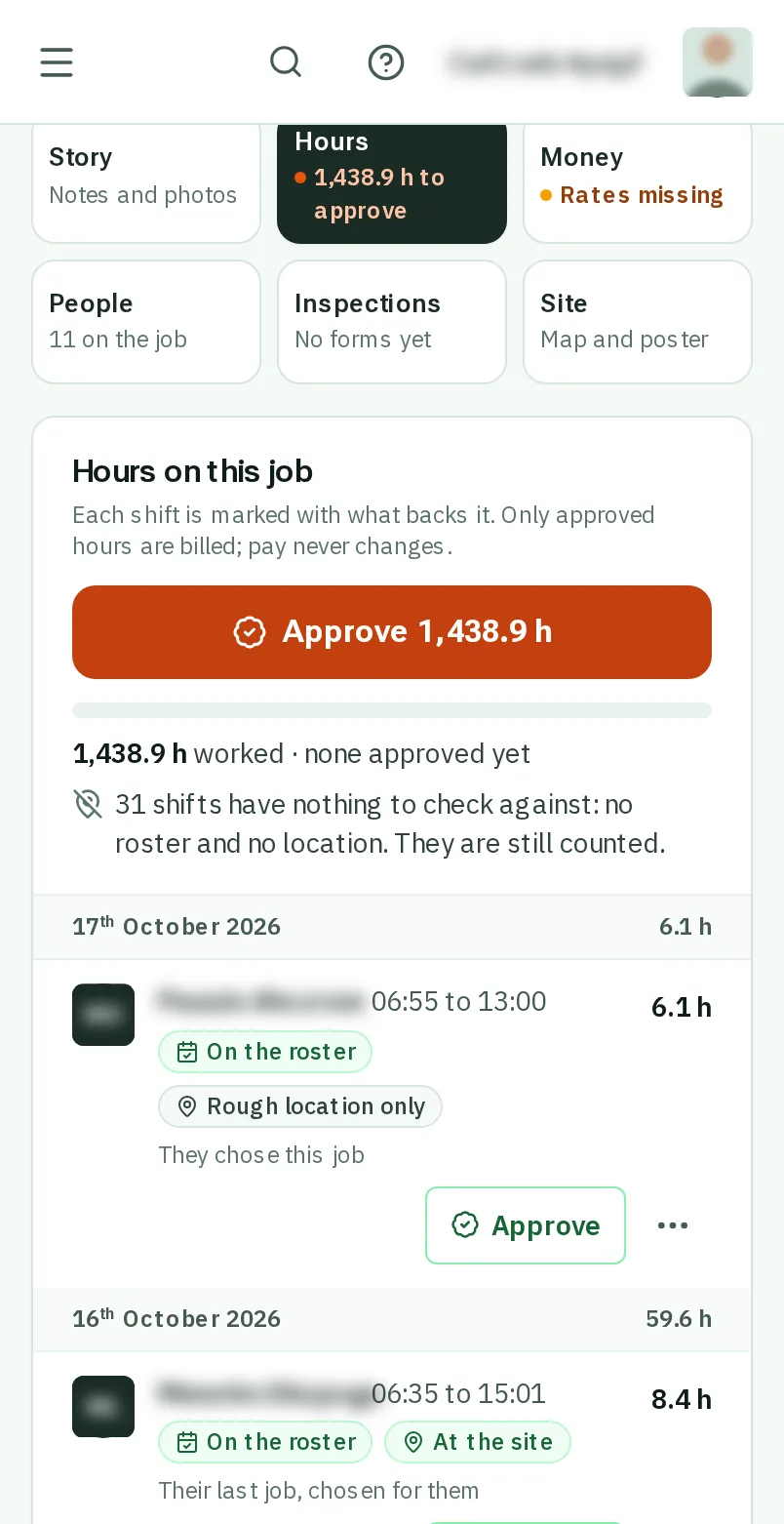
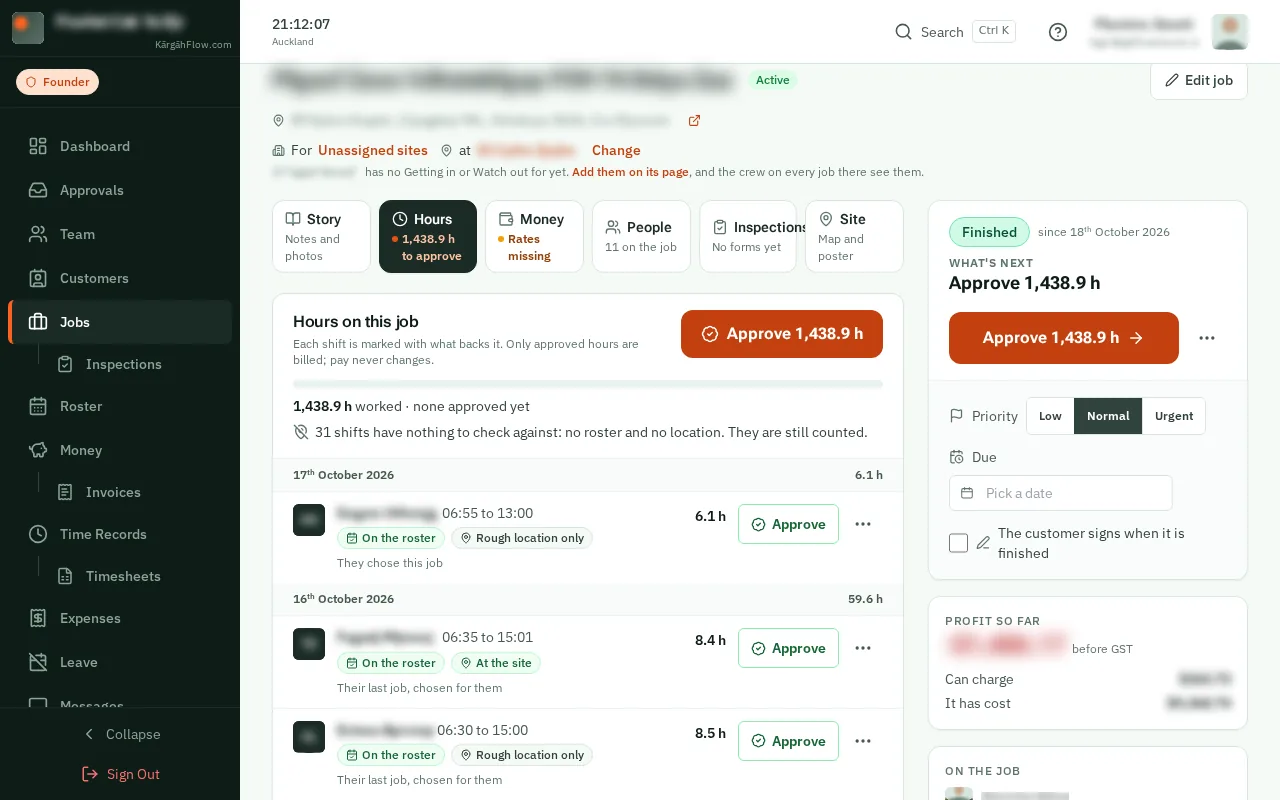
TapClick Approve and the hours, at the top of the list, to approve all of them. To approve one shift, tapclick Approve beside it.
Good to know: Changed your mind? TapClick the three dots beside a shift and Take the approval off. Moving or changing a shift takes its approval off by itself.