KārgāhFlow
About 2 minutes 5 stepsFor admins and owners

Split a shift between jobs

Someone worked on two jobs without clocking out in between? Give each job its part of the shift.

Split a shift between jobs: the screen on a phone
Split a shift between jobs: the screen on a computer

What this is

When someone works on two jobs in one shift, split it: the morning on one job, the afternoon on another. Each job counts its own part, in its hours, its costs and its bill.

The parts always add up to the whole shift. The person, their times and their pay stay exactly as they were.

Step 1 of 5
  1. Step 1: Open the job

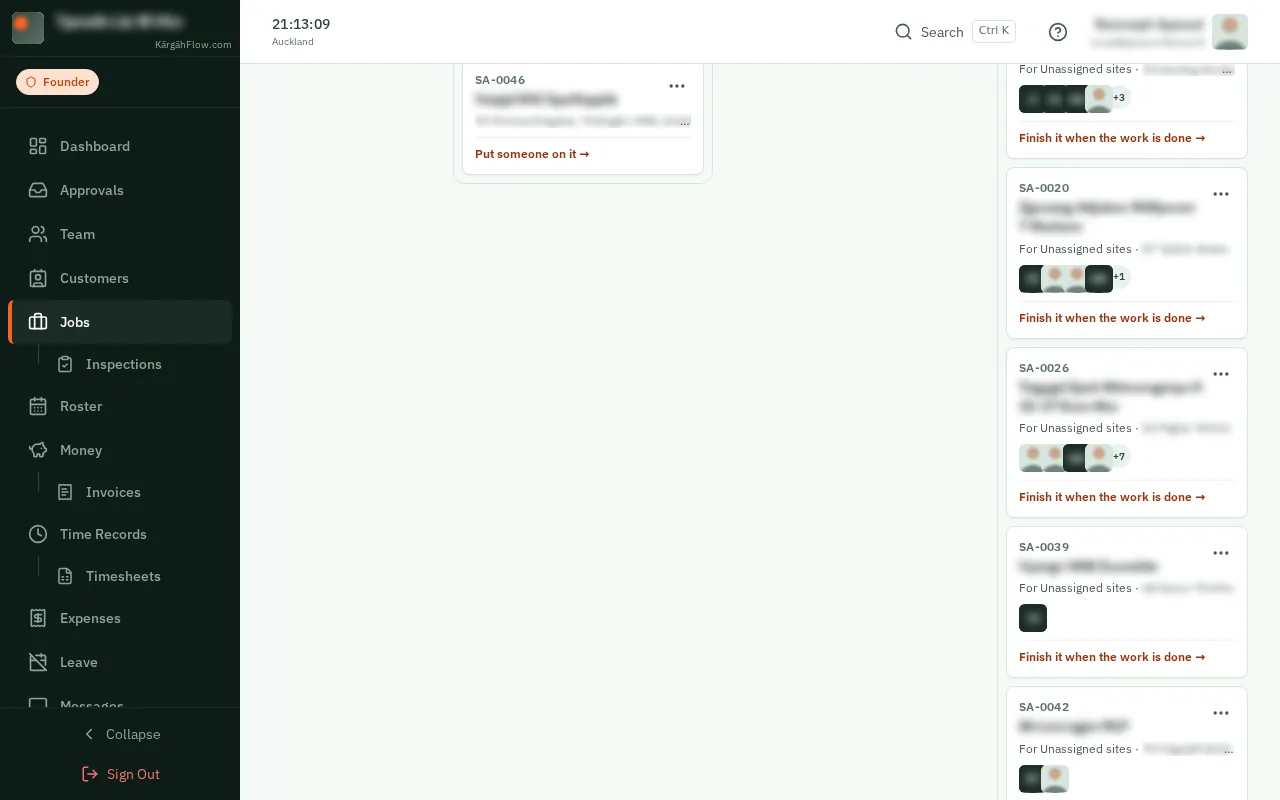
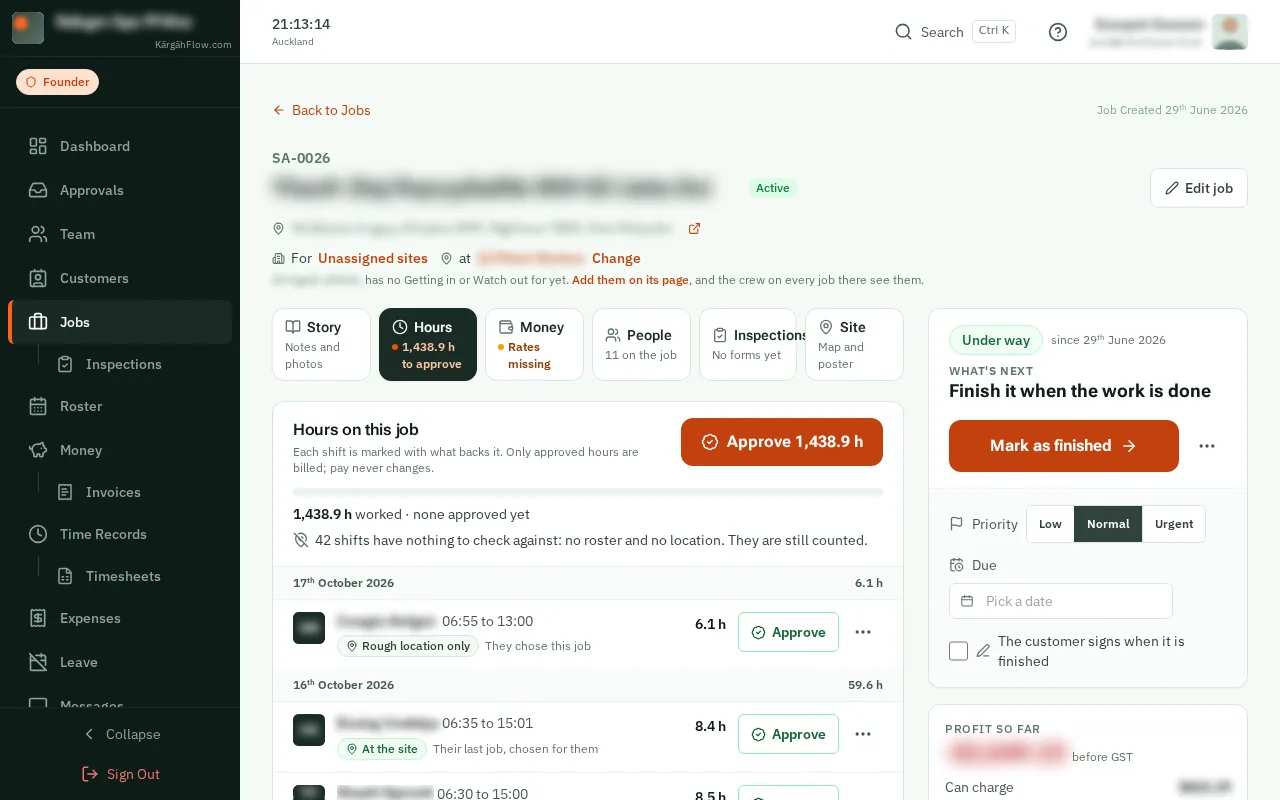
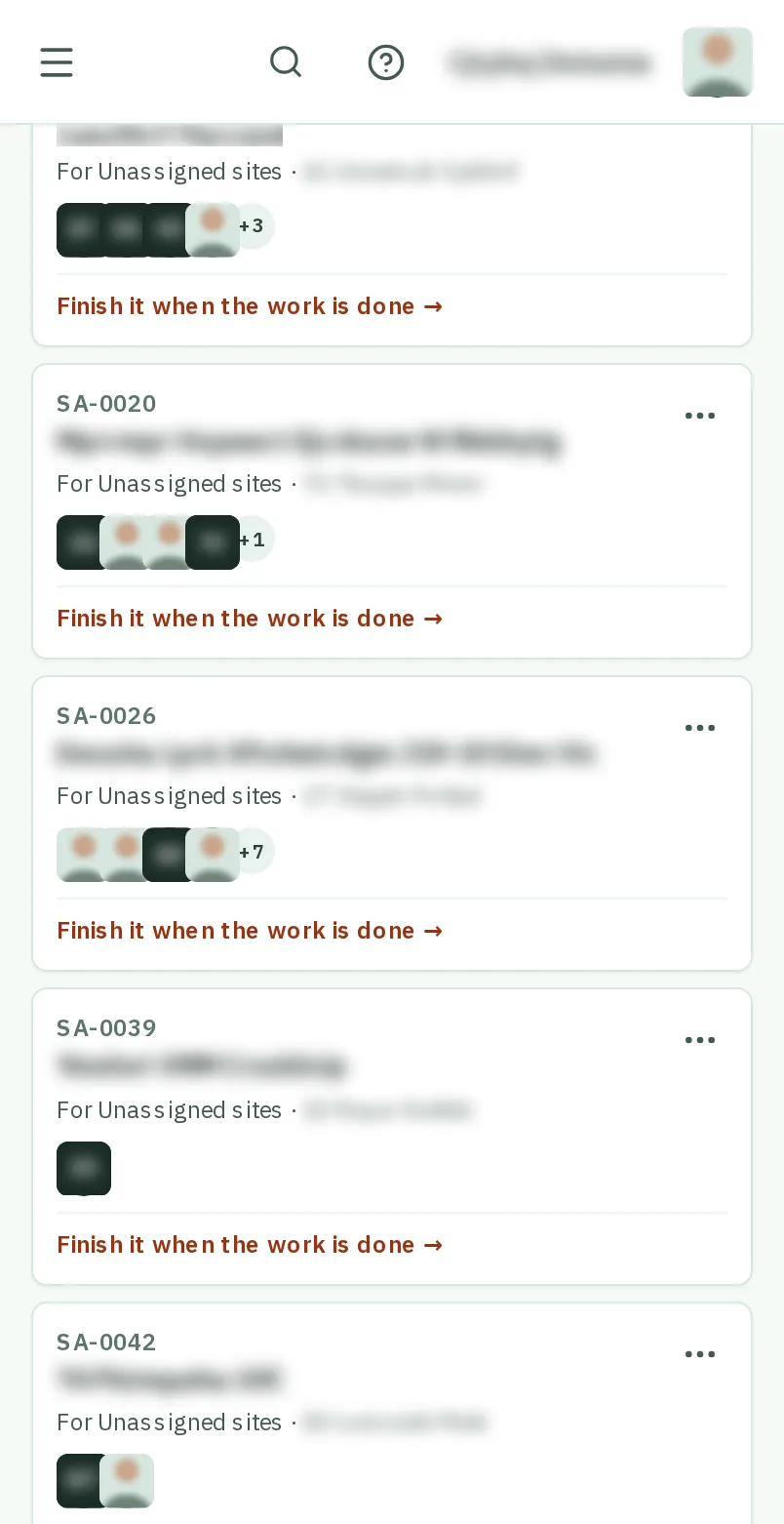
    Open Jobs and tapclick the job the shift was clocked in on.
    Open the job
    Open the job
  2. Step 2: TapClick the three dots beside the shift

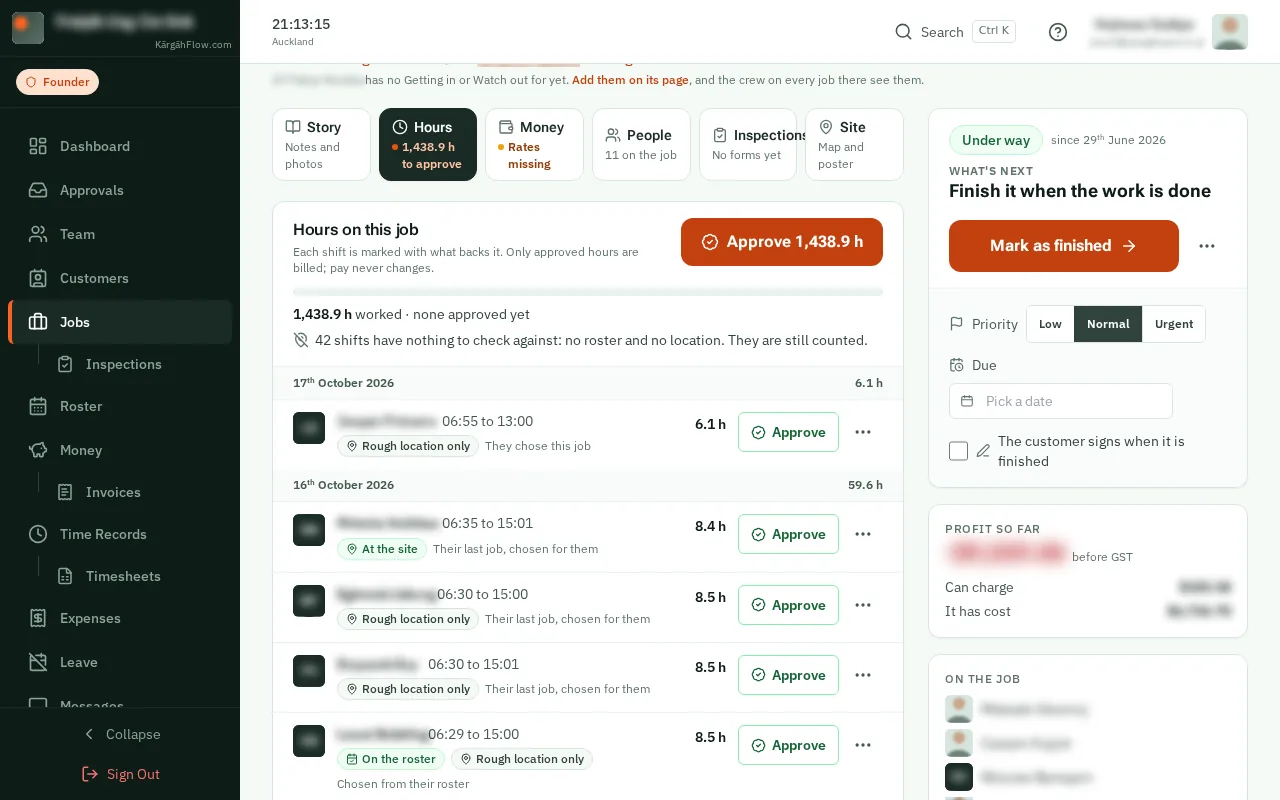
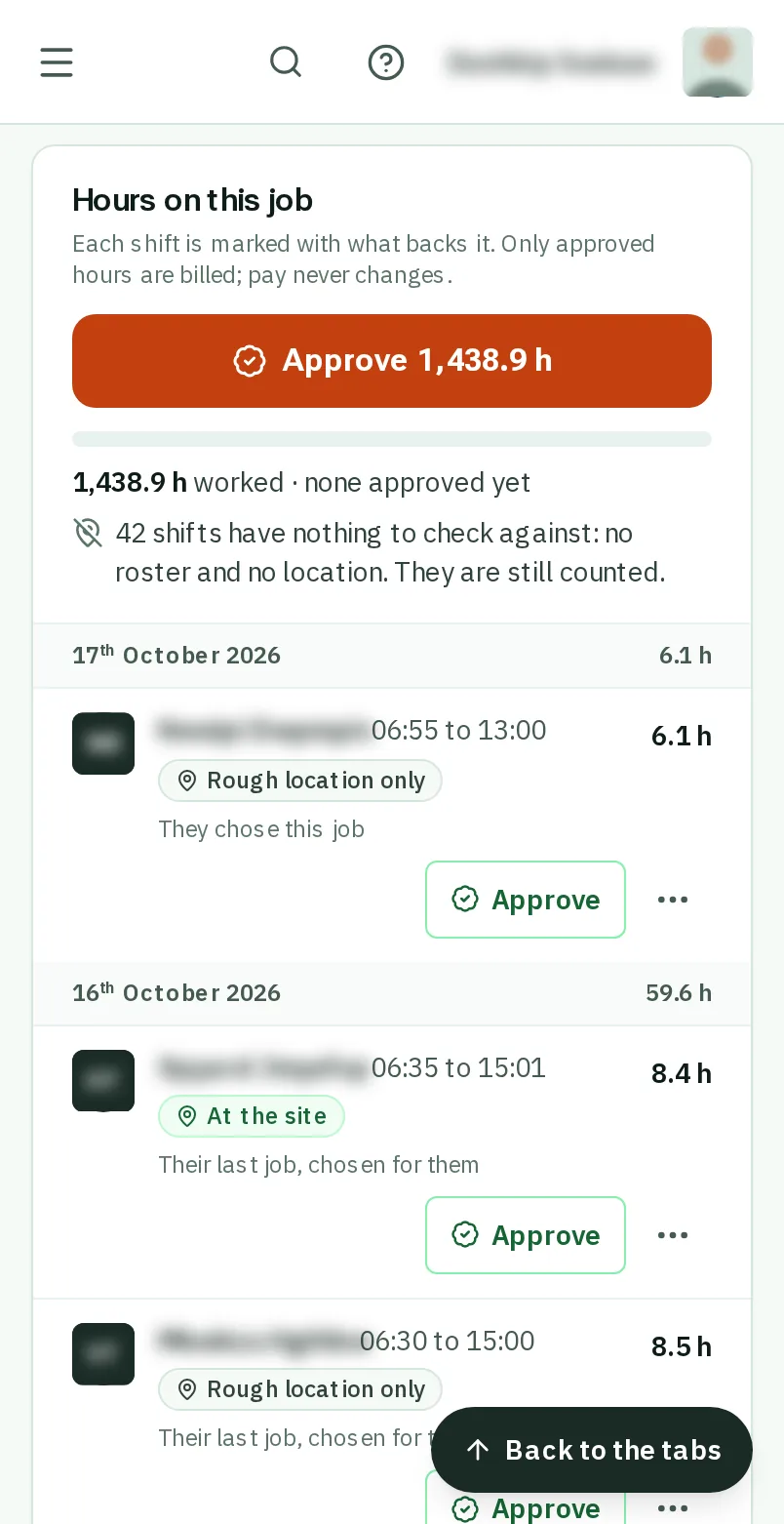
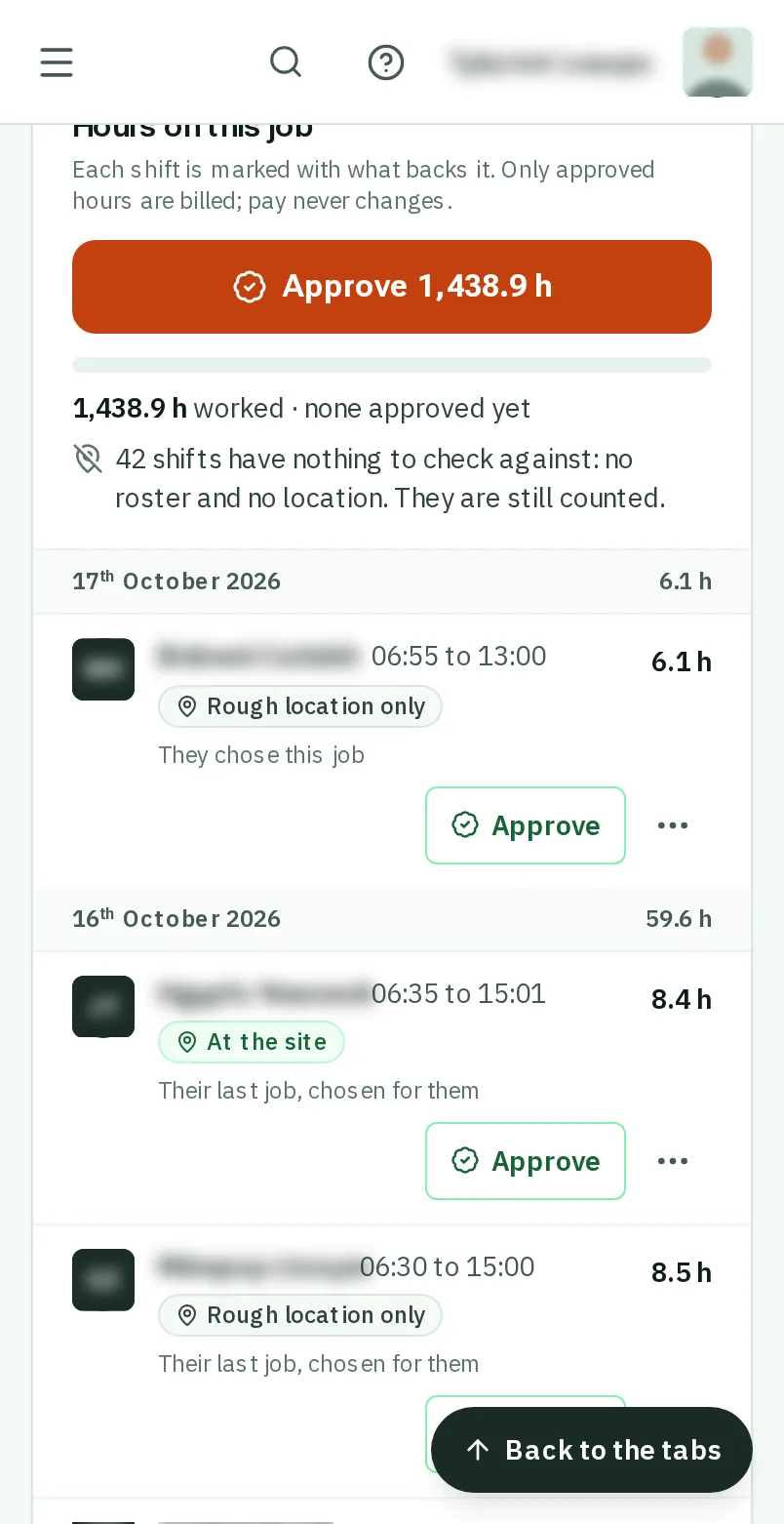
    On the job’s Hours tab, find the shift and tapclick the three dots beside it.
    Look forthe More item in the menu
    Tap the three dots beside the shift
    Click the three dots beside the shift
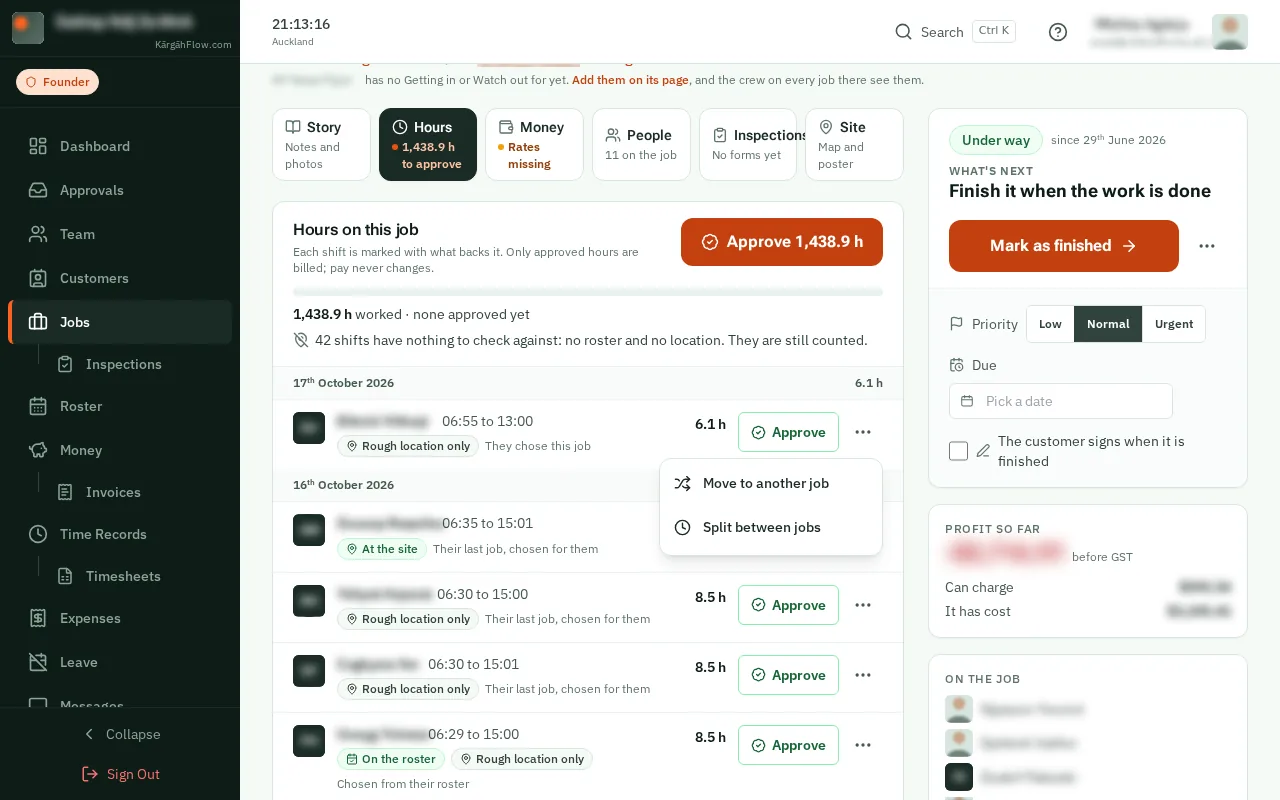
  3. Step 3: TapClick Split between jobs

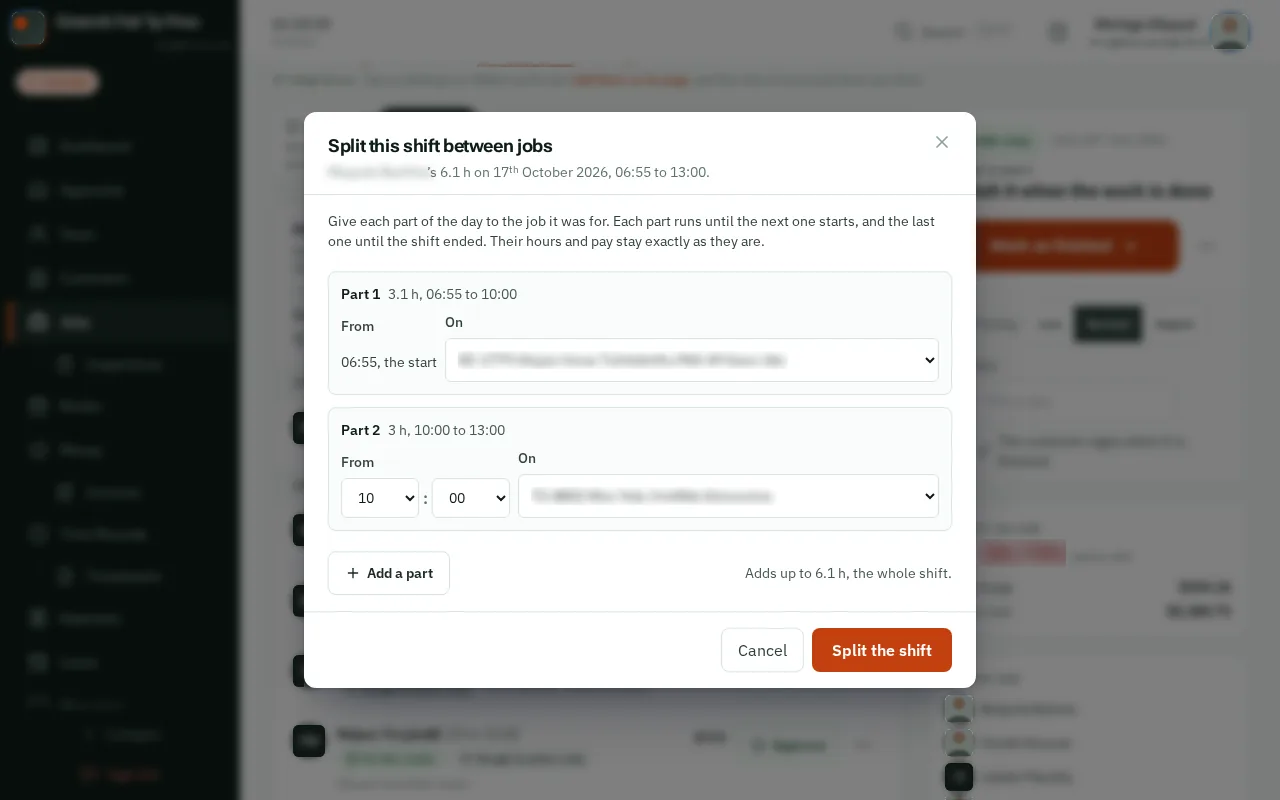
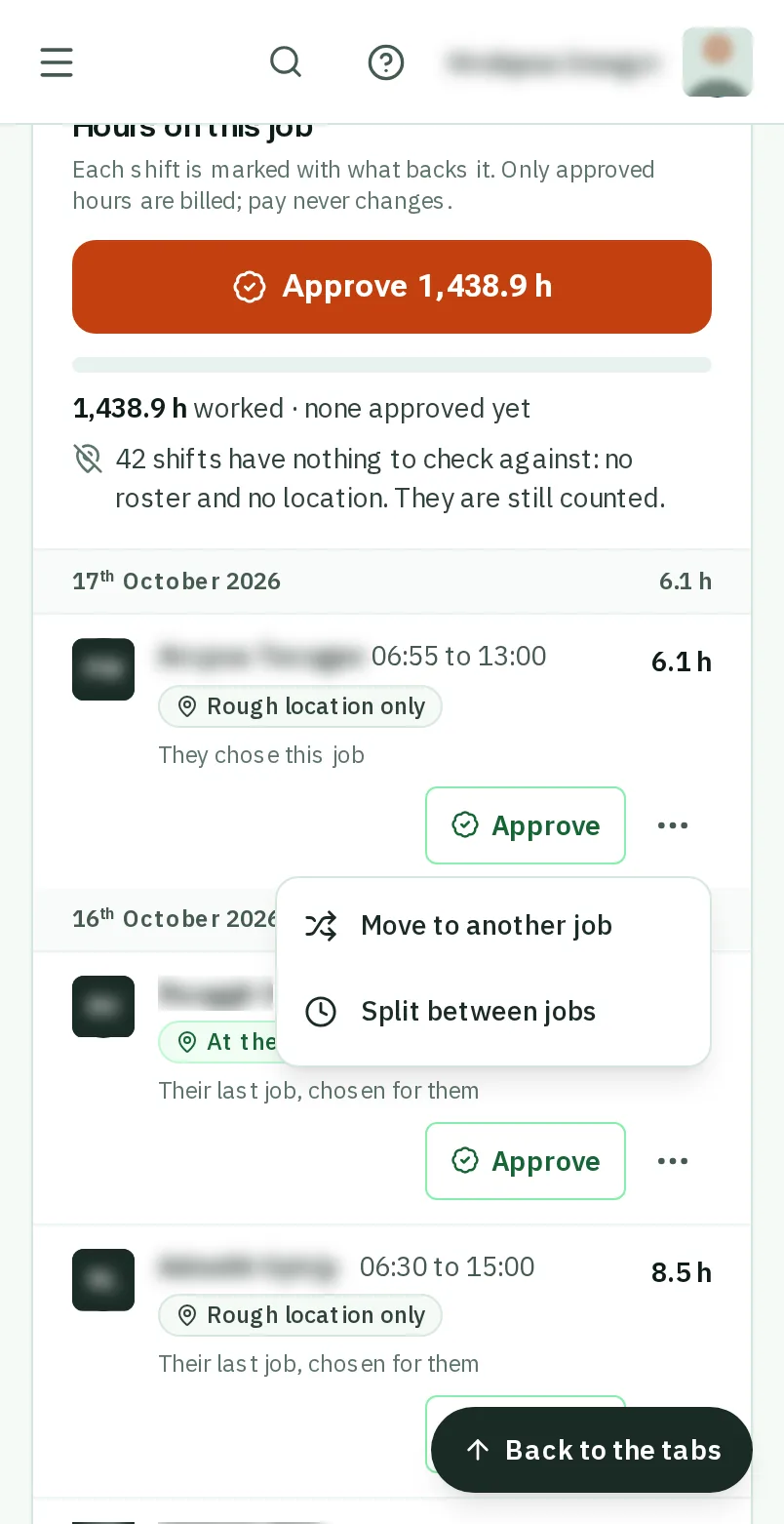
    TapClick Split between jobs. Part 1 starts when the shift started, on the job it was clocked in on.
    Look forthe Split between jobs item in the menu
    Tap Split between jobs
    Click Split between jobs
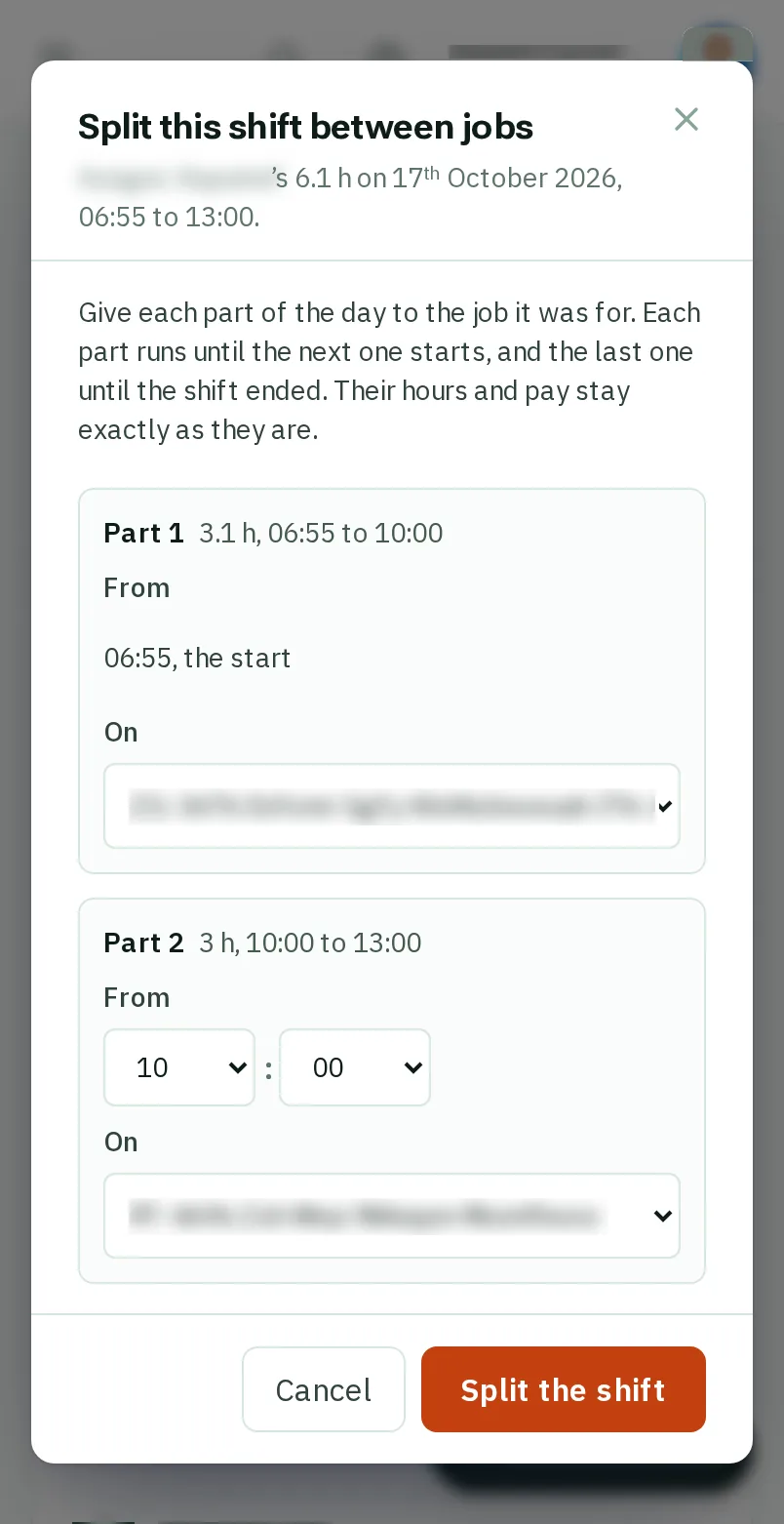
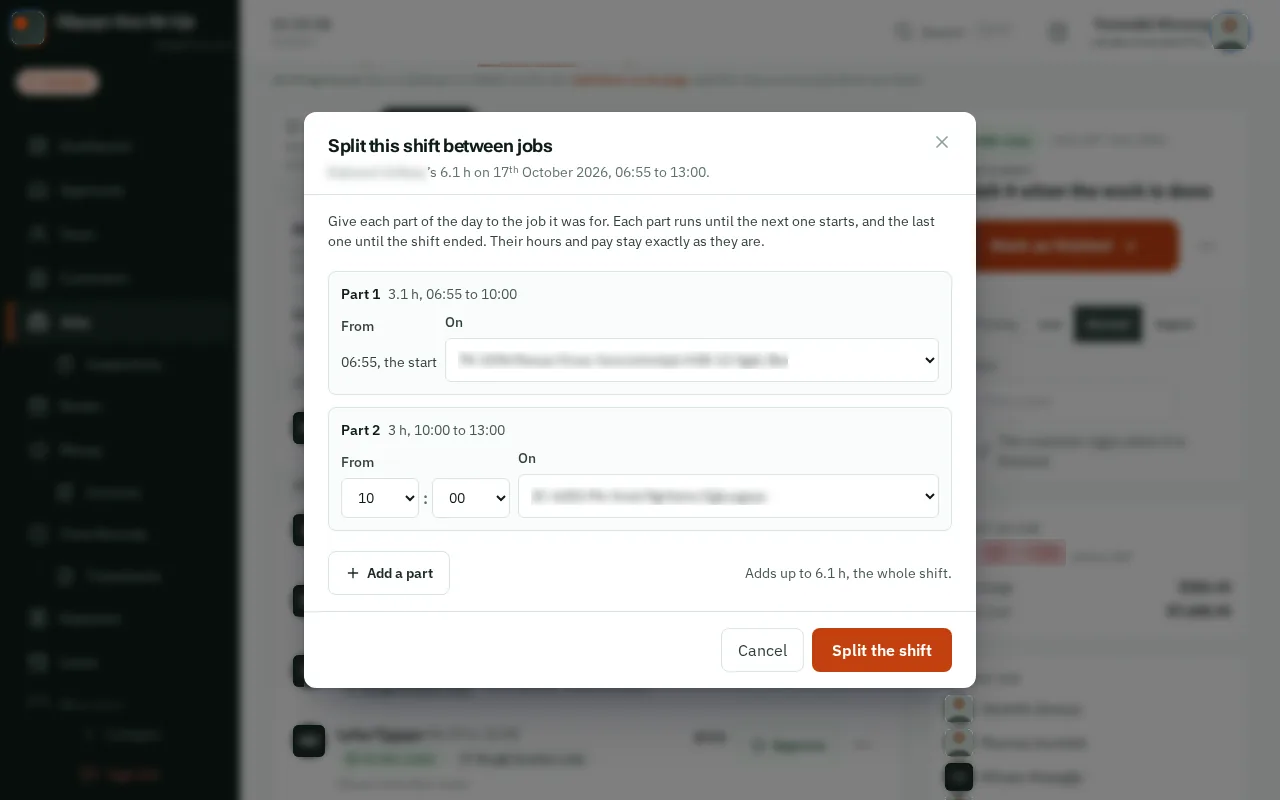
  4. Step 4: Say when the next part started, and its job

    For Part 2, choose the time it started and the job it was for. TapClick Add a part if there were more.

    Look forthe Add a part button

    Good to know: Each part runs until the next one starts, and the last one until the shift ended. The window adds them up as you go.
    Say when the next part started, and its job
    Say when the next part started, and its job
  5. Step 5: TapClick Split the shift

    When it says Adds up to the whole shift, tapclick Split the shift. Each job now shows its own part.

    Look forthe Split the shift button

    Good to know: Changed your mind? TapClick the three dots beside a part and Put it back together.
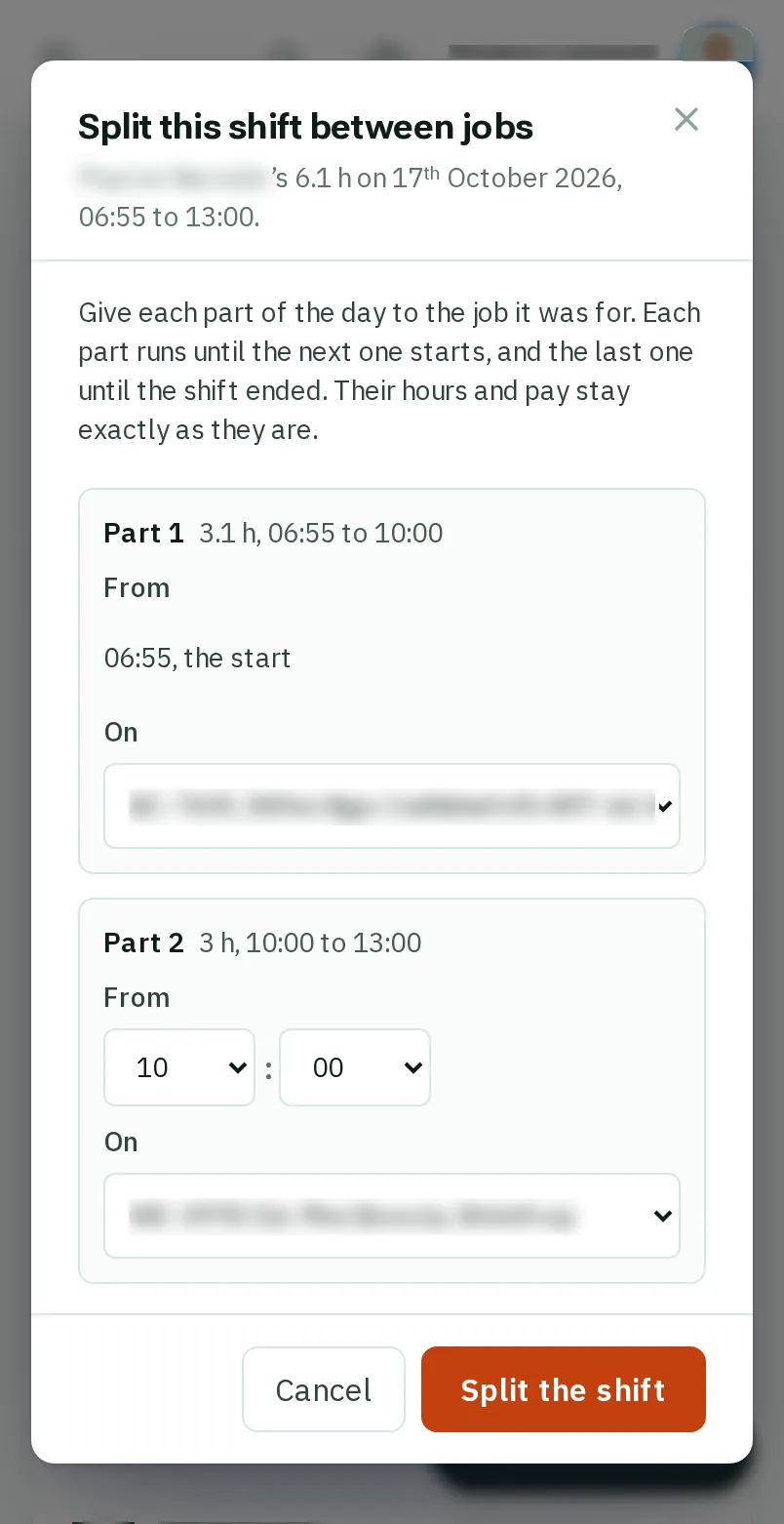
    Tap Split the shift
    Click Split the shift

That's it

Each job counts its own part of the day, and nobody’s pay has changed.

Next: Send an invoice