KārgāhFlow
About 1 minute 5 stepsFor admins and owners

Approve sign-ups, claims and leave

Everything waiting for you in one list, oldest first.

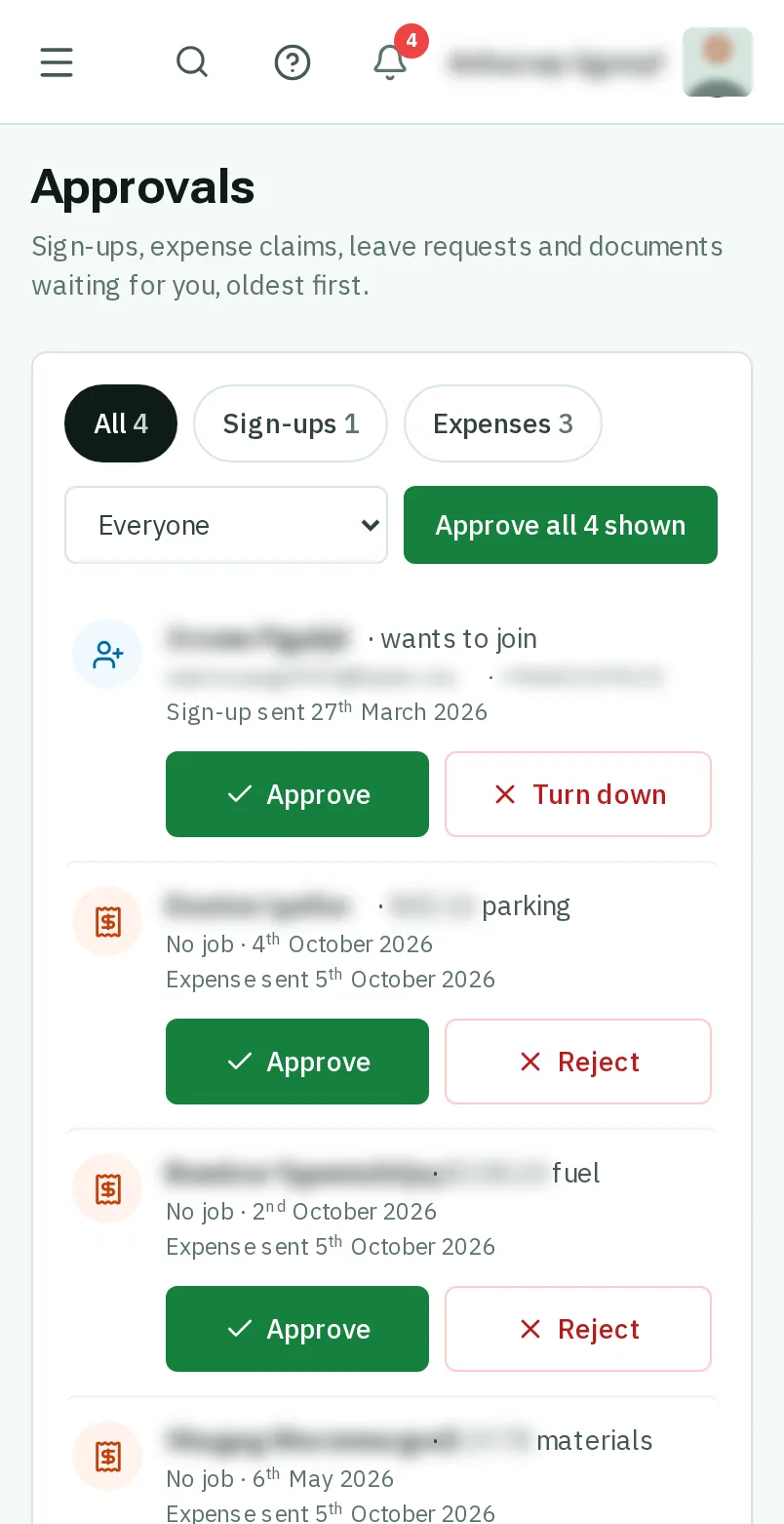
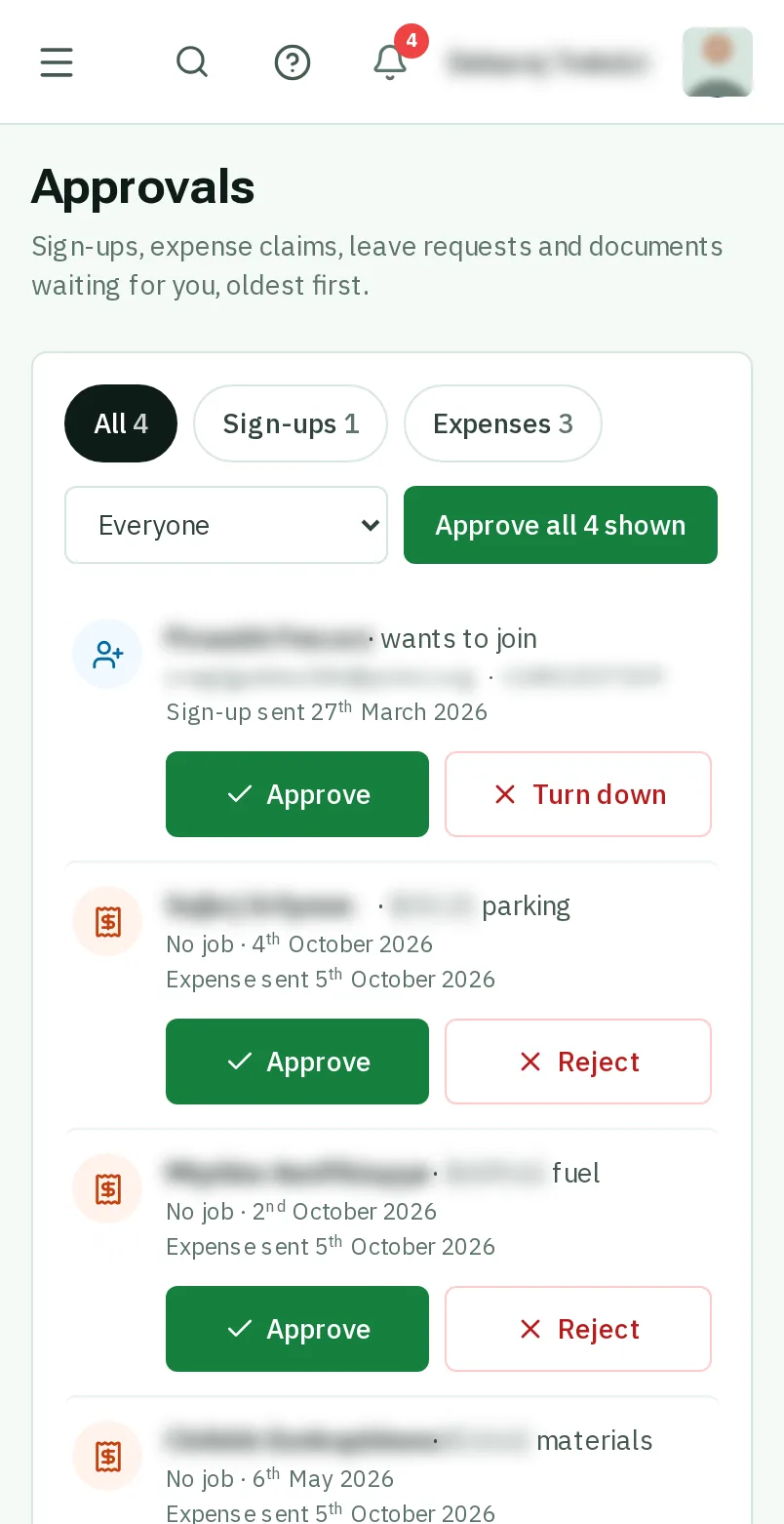
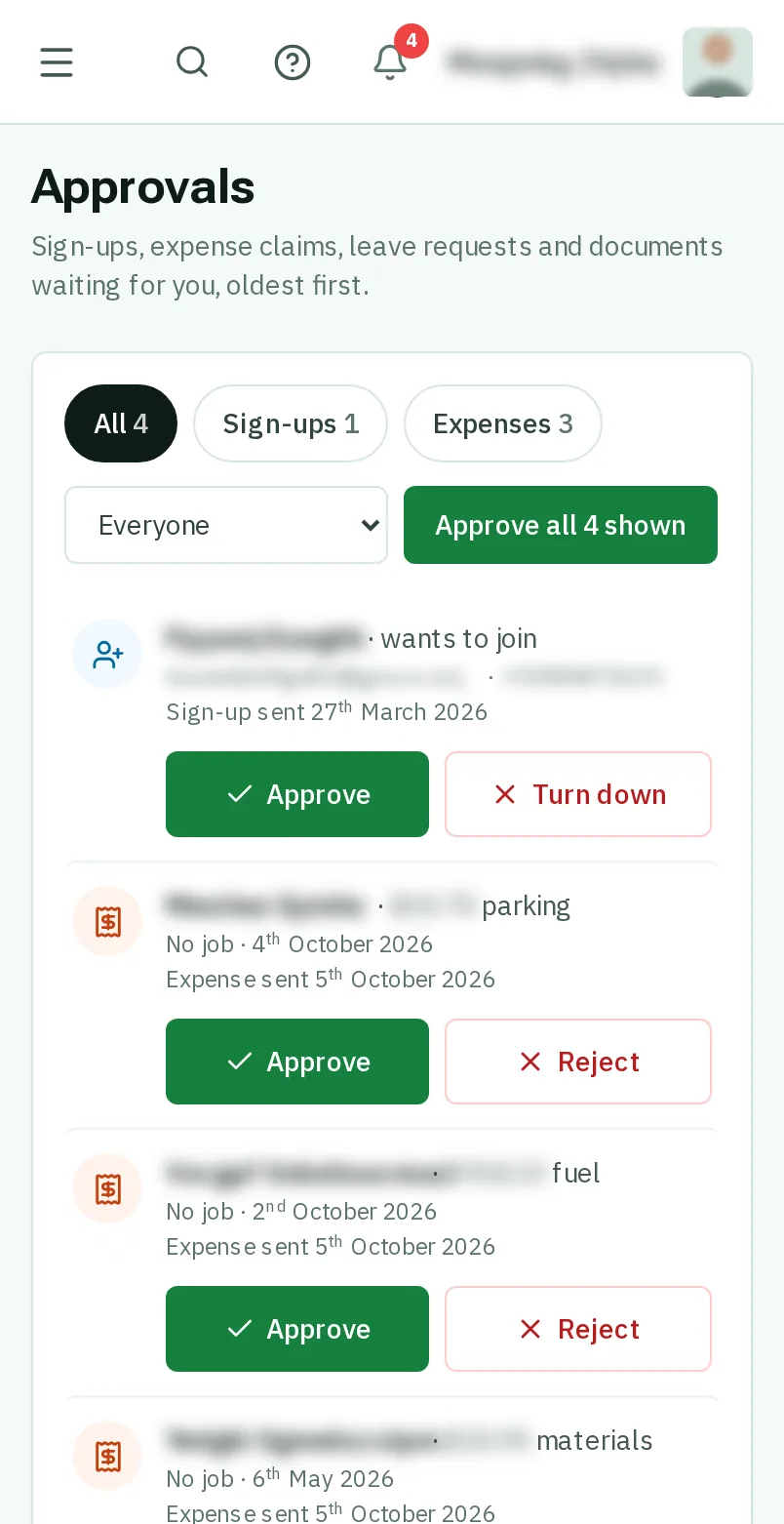
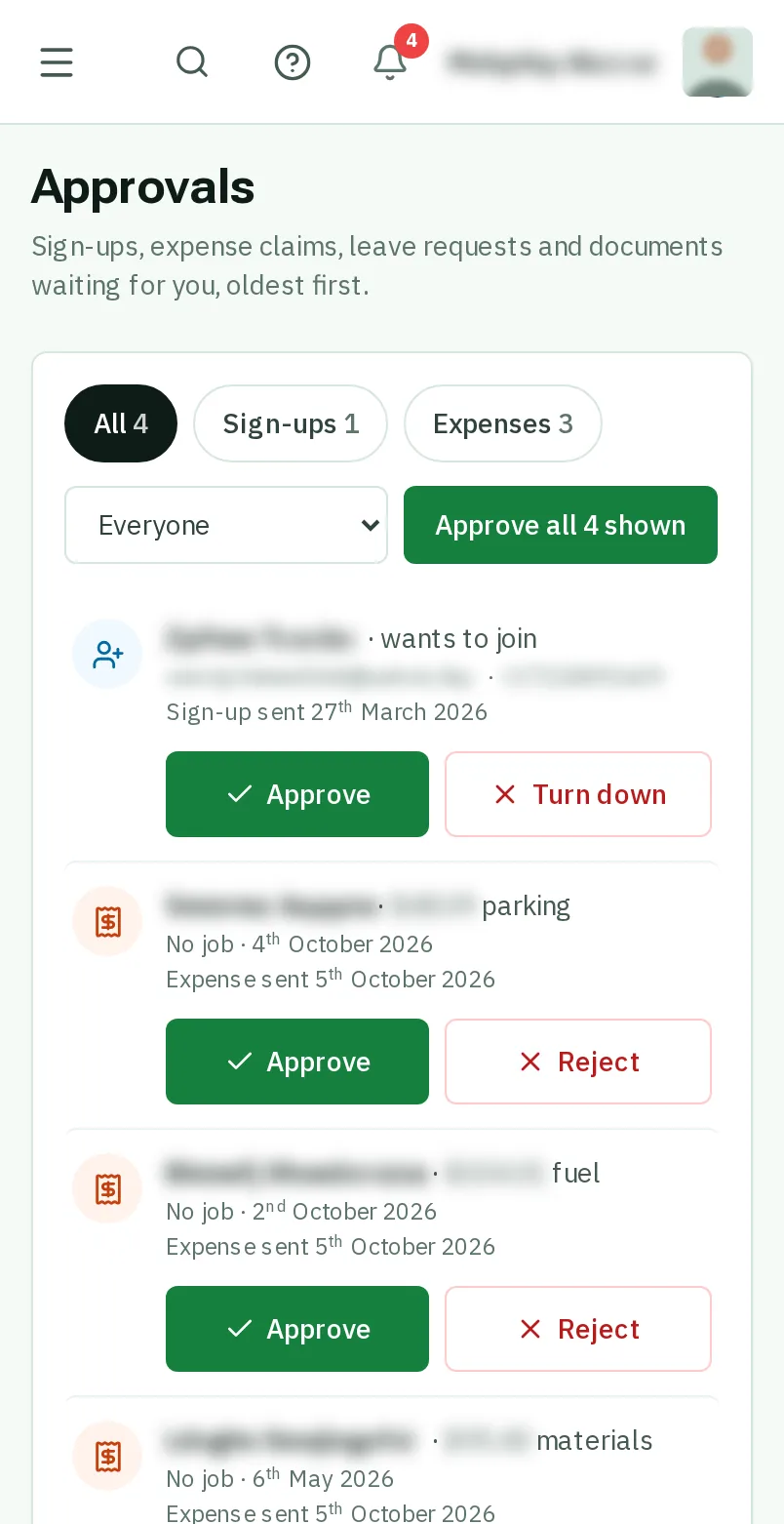
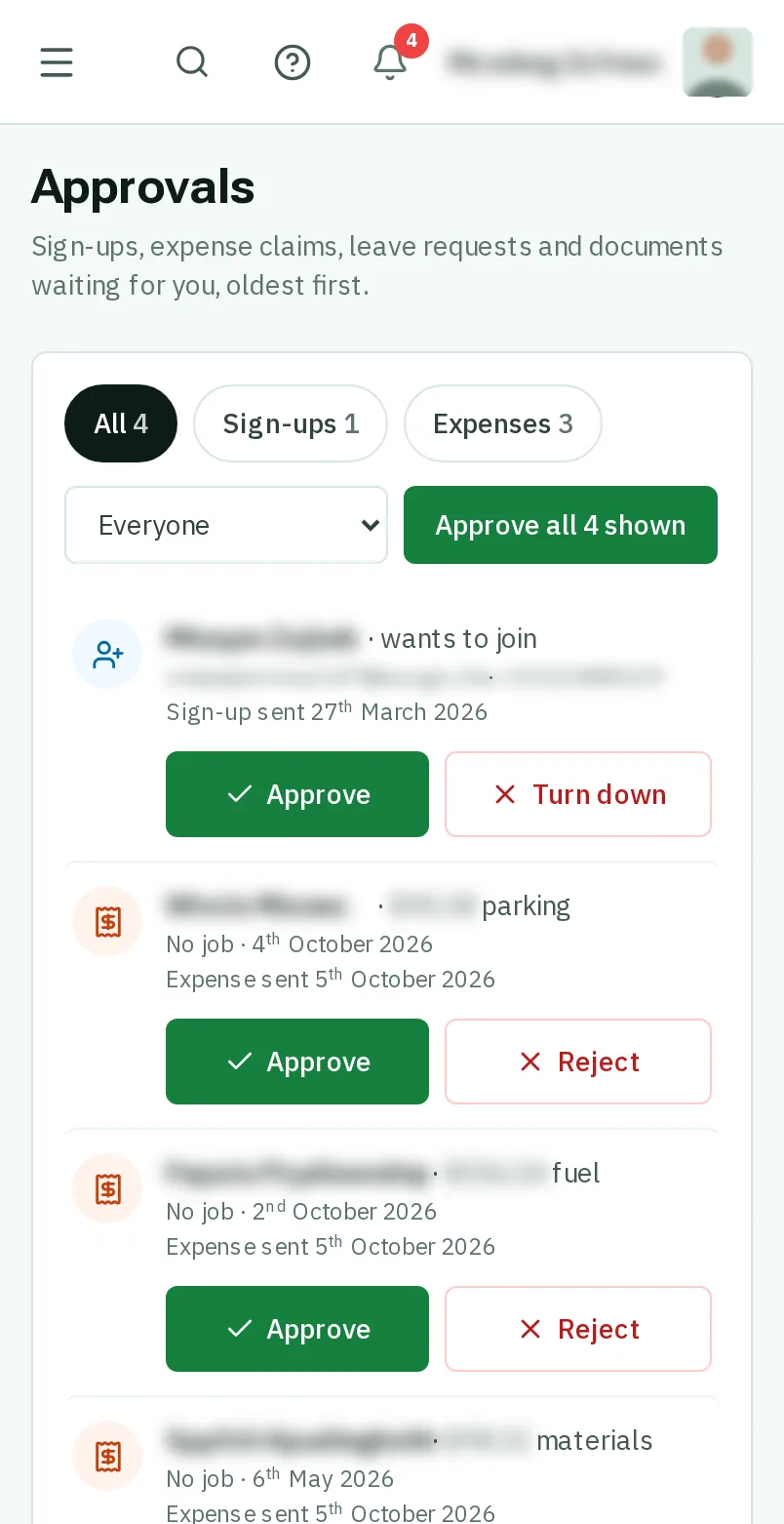
Approve sign-ups, claims and leave: the screen on a phone
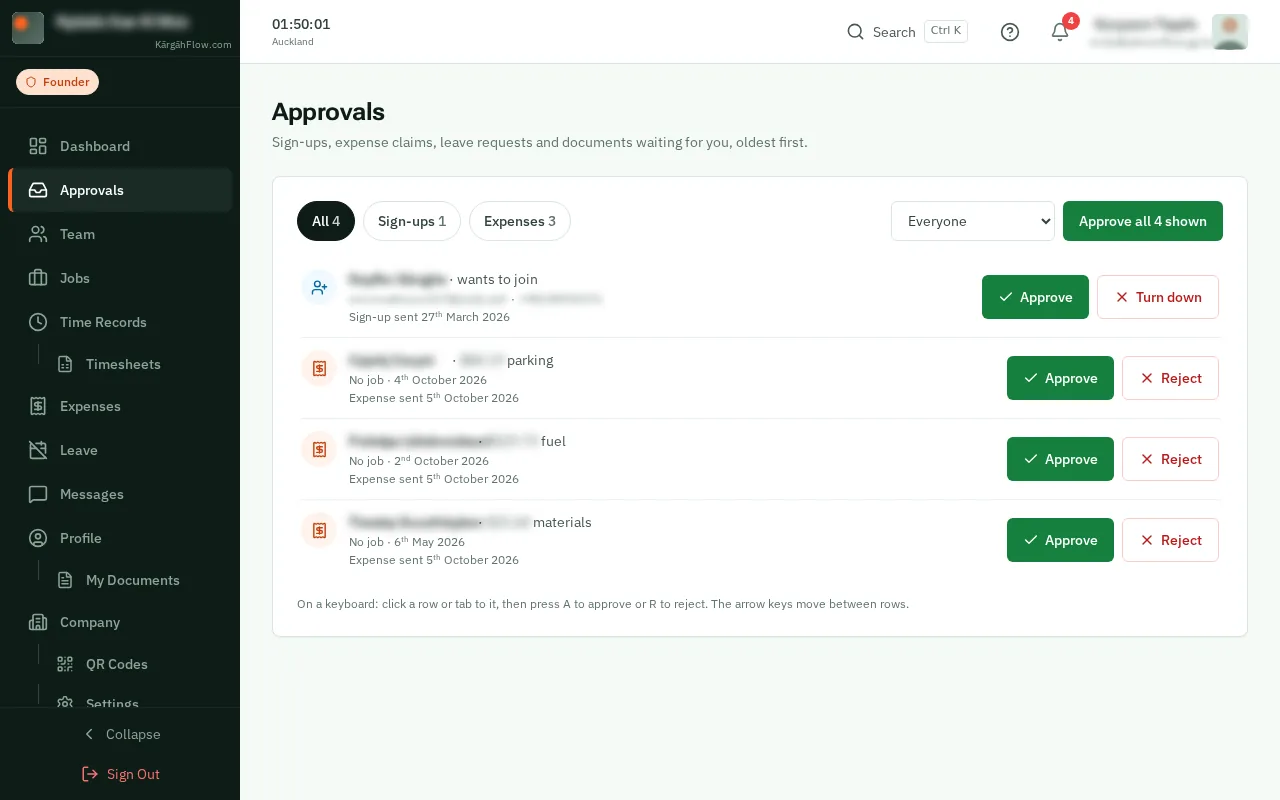
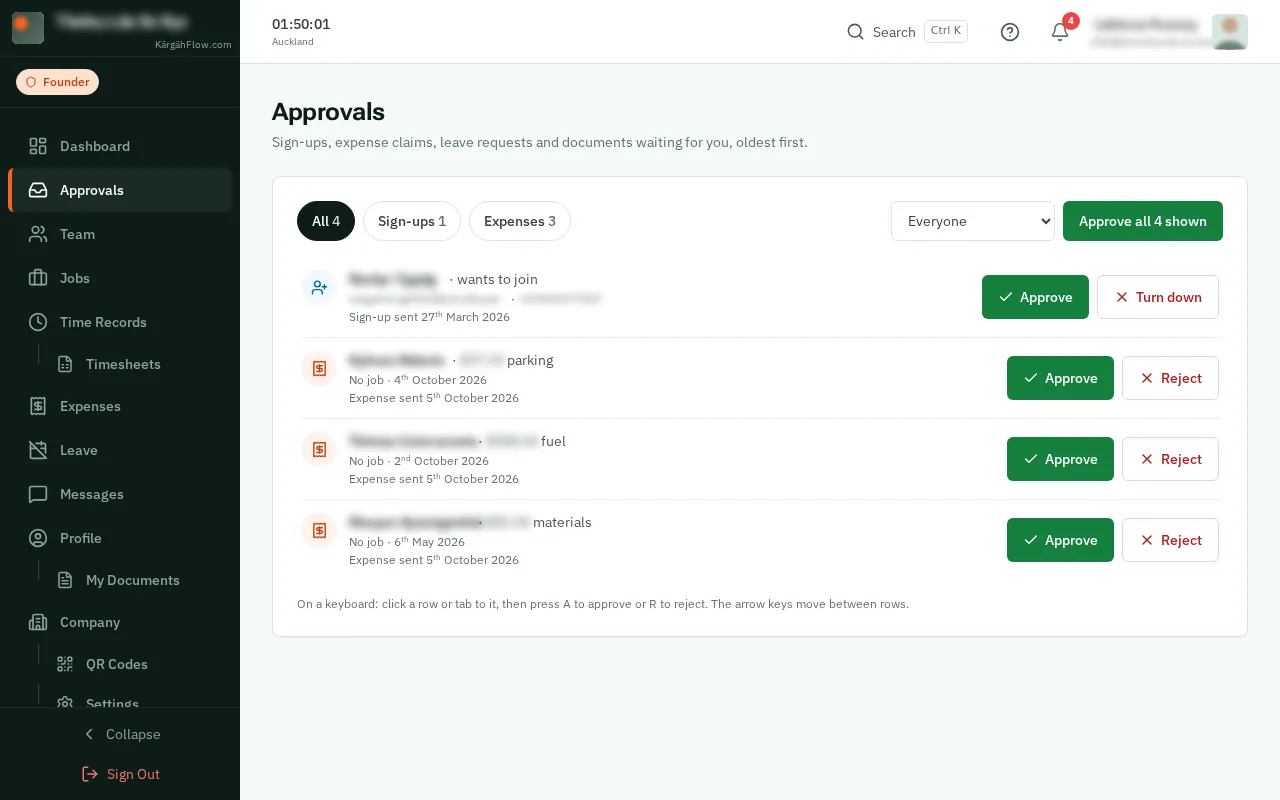
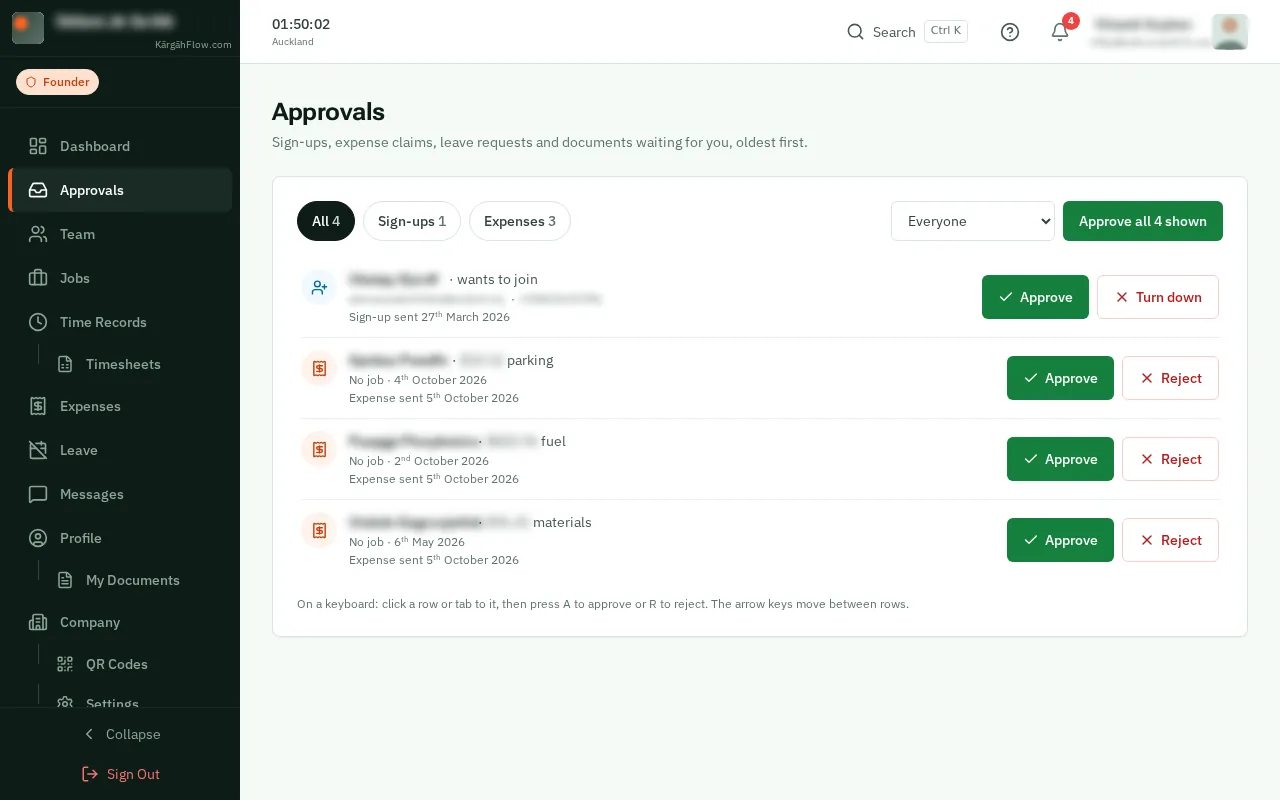
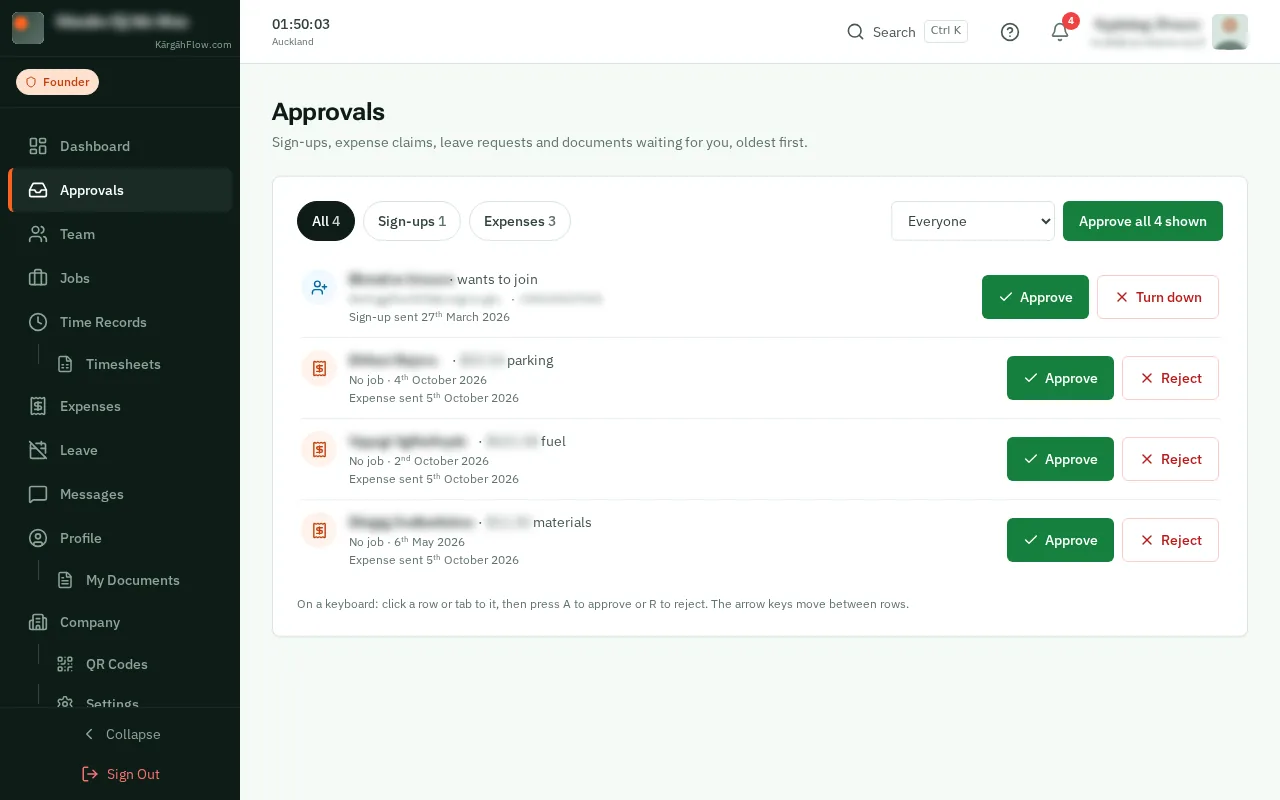
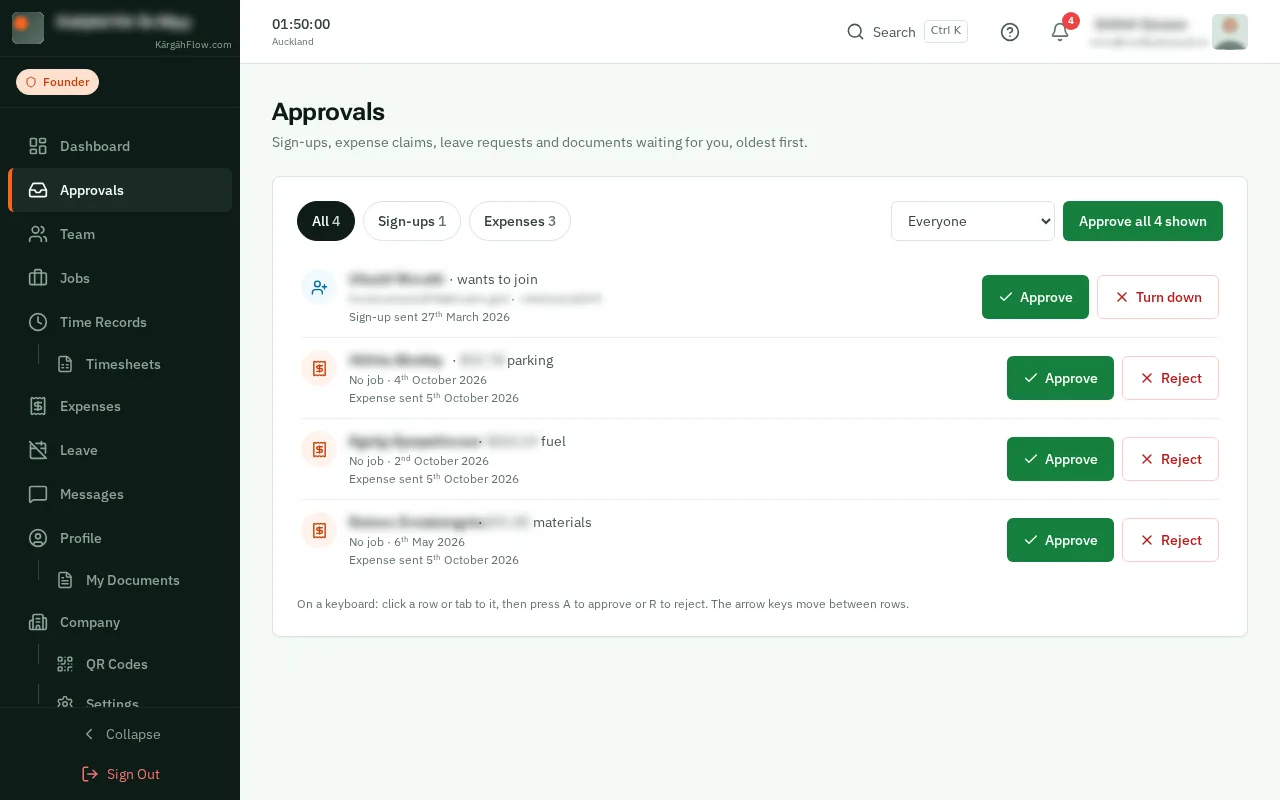
Approve sign-ups, claims and leave: the screen on a computer
Step 1 of 5
  1. Step 1: Open Approvals

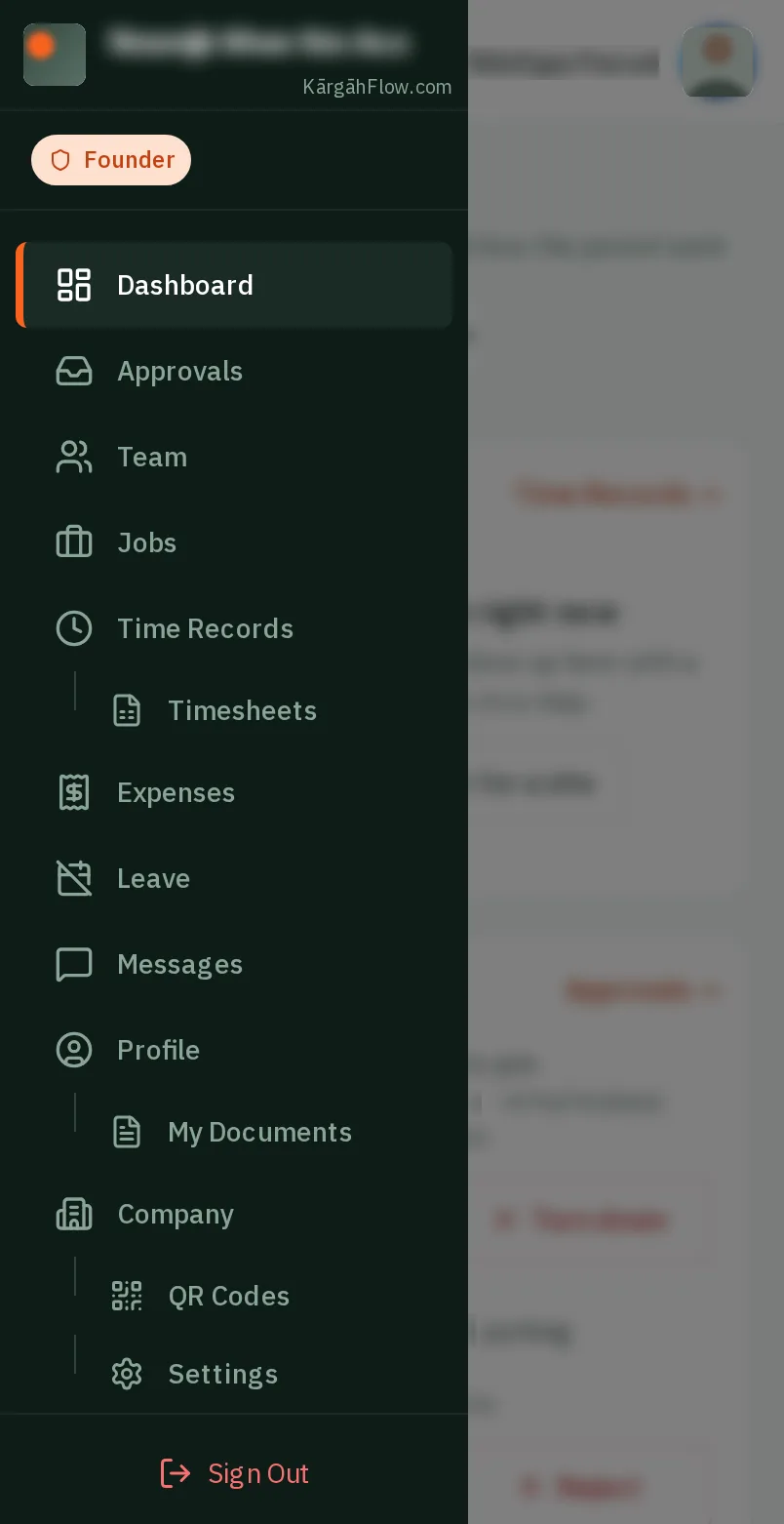
    TapClick the menu button at the top left of the screen, then Approvals.TapClick Approvals in the menu on the left.

    Look forthe Approvals item in the menu

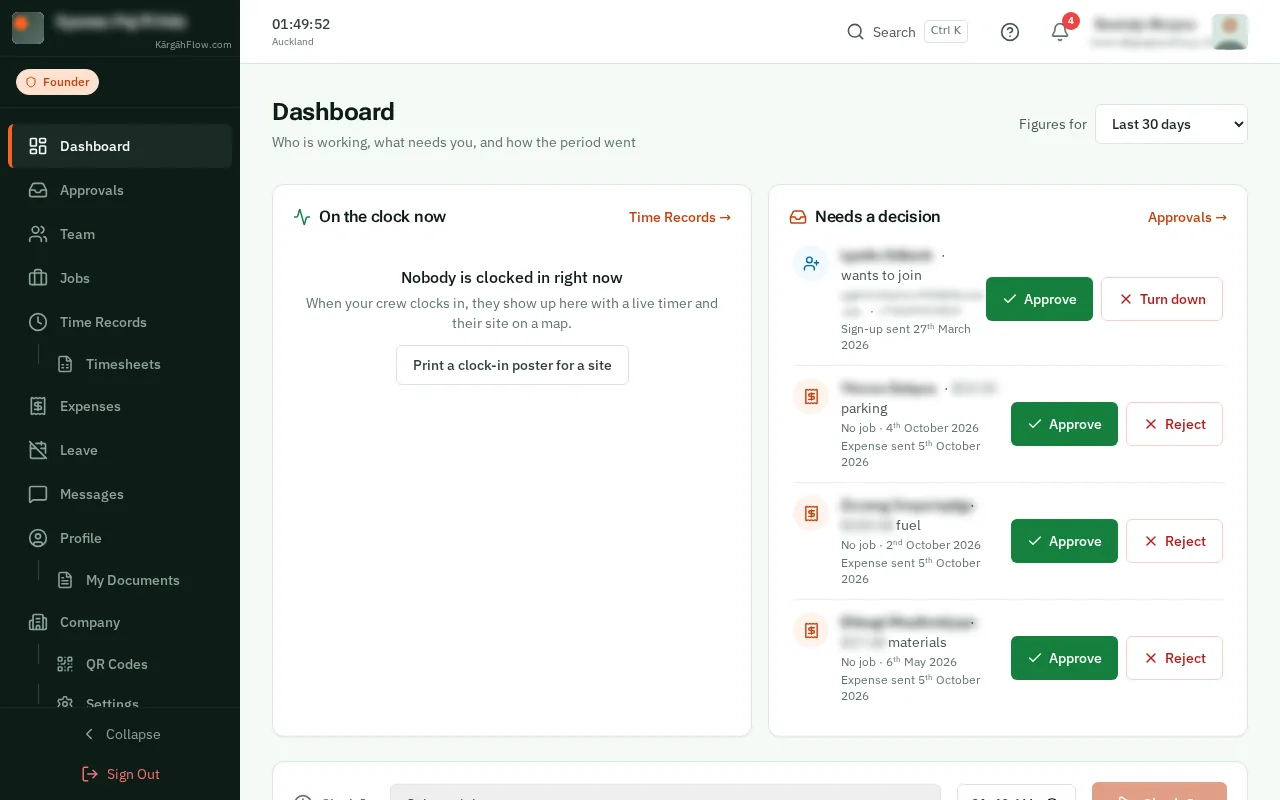
    Good to know: The bell at the top of every page counts what is waiting. On your dashboard, Needs a decision shows the first four.
    Open Approvals
    Open Approvals
  2. Step 2: Everything in one list

    Sign-ups, expense claims, leave requests and documents, oldest first, each with who sent it and what it is.

    Everything in one list
    Everything in one list
  3. Step 3: Show one kind

    TapClick a kind at the top, such as Expenses, to see only those, or choose one person under Everyone.

    Look forthe Expenses button
    Show one kind
    Show one kind
  4. Step 4: TapClick Approve

    TapClick Approve, or Reject if it is not right. Their phone tells them your answer.

    Look forthe Approve button

    Good to know: For a claim or a document, tapclick View receipt or View document under it first, to see it before you decide.

    Tap Approve
    Click Approve
  5. Step 5: Approve them all at once

    Checked them all? TapClick Approve all, then confirm.

    Look forthe Approve all button
    Approve them all at once
    Approve them all at once

That's it

Nobody is left waiting for an answer.

Usually next

Still stuck? Ask your manager, or tap the ? at the top of any page in KārgāhFlow. Running the business and need us?