Step 1: Open Inspections
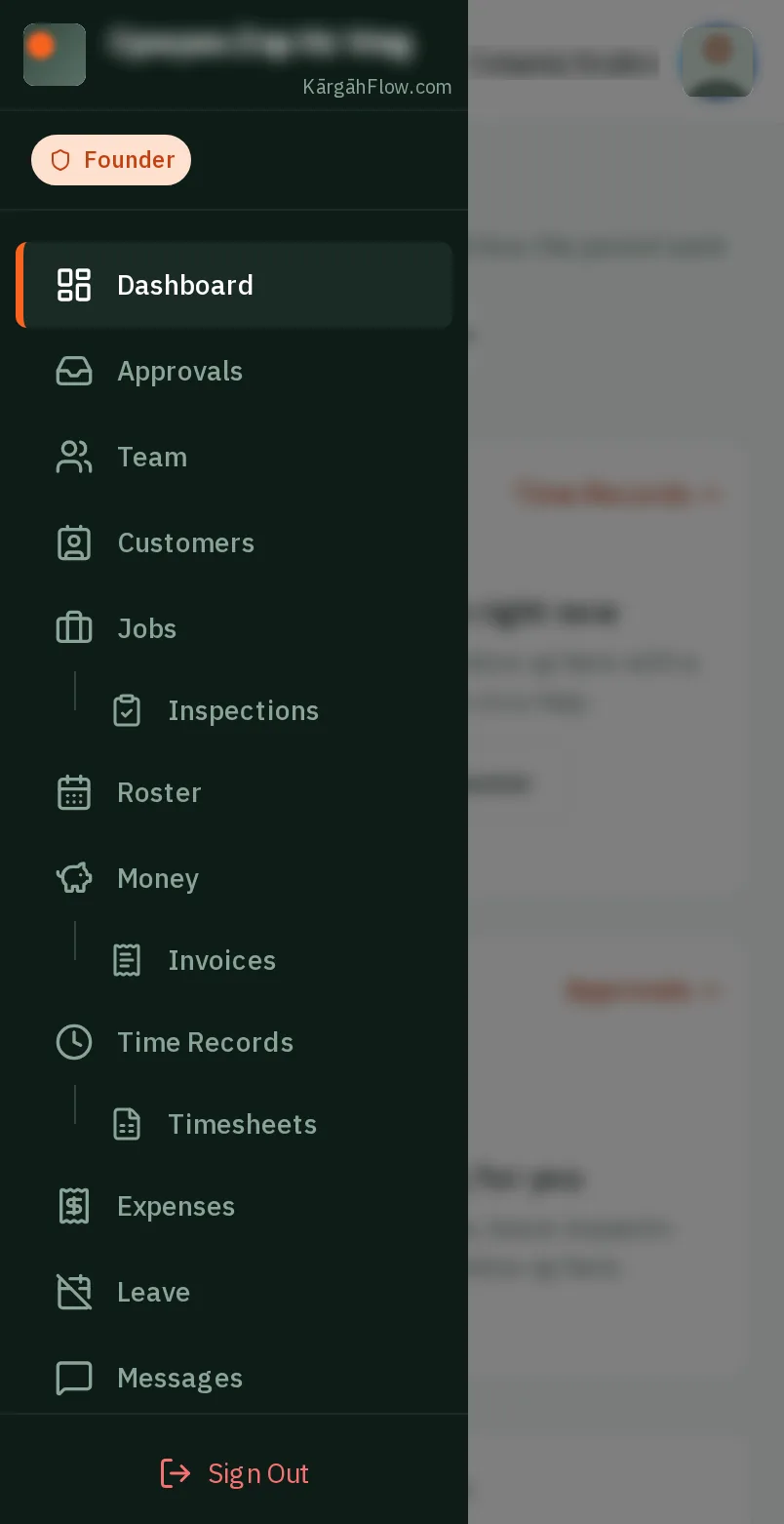
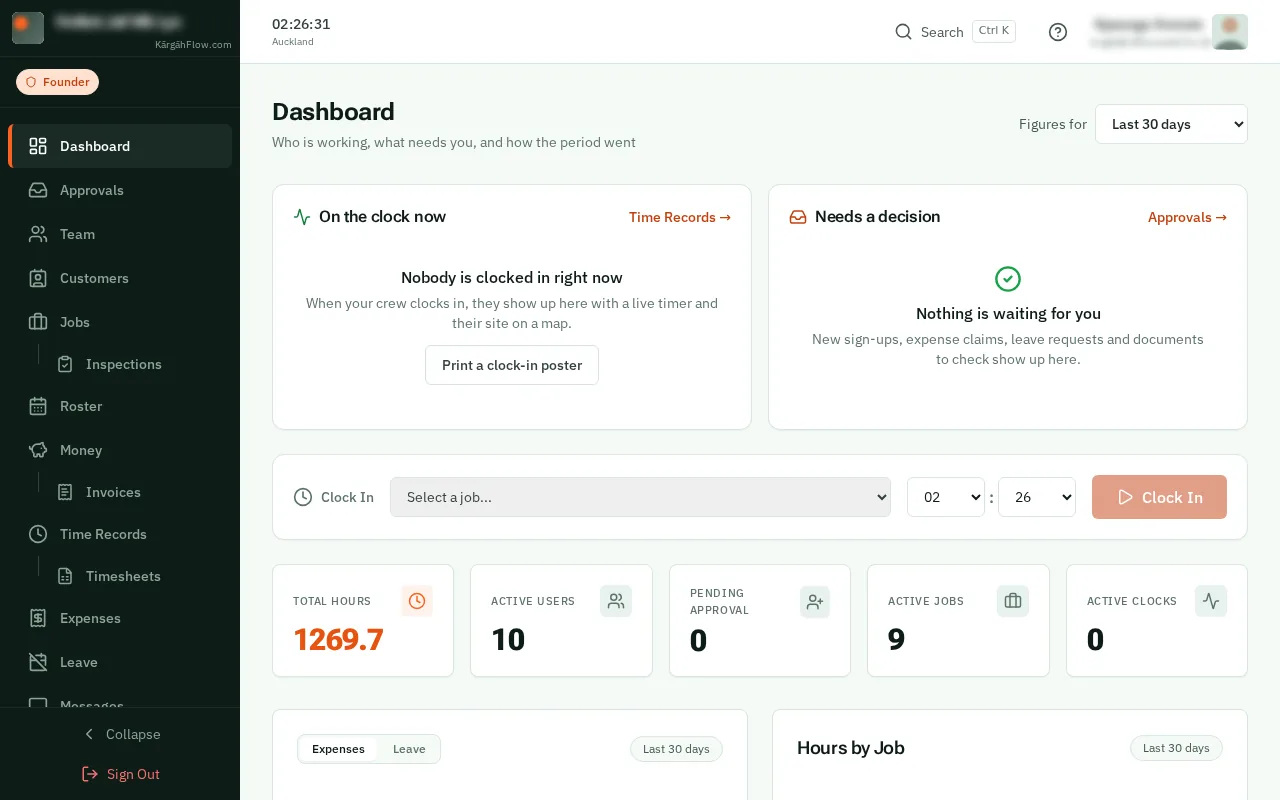
TapClick the menu button at the top left of the screen, then Inspections.TapClick Inspections in the menu on the left.
Look forthe Inspections item in the menu
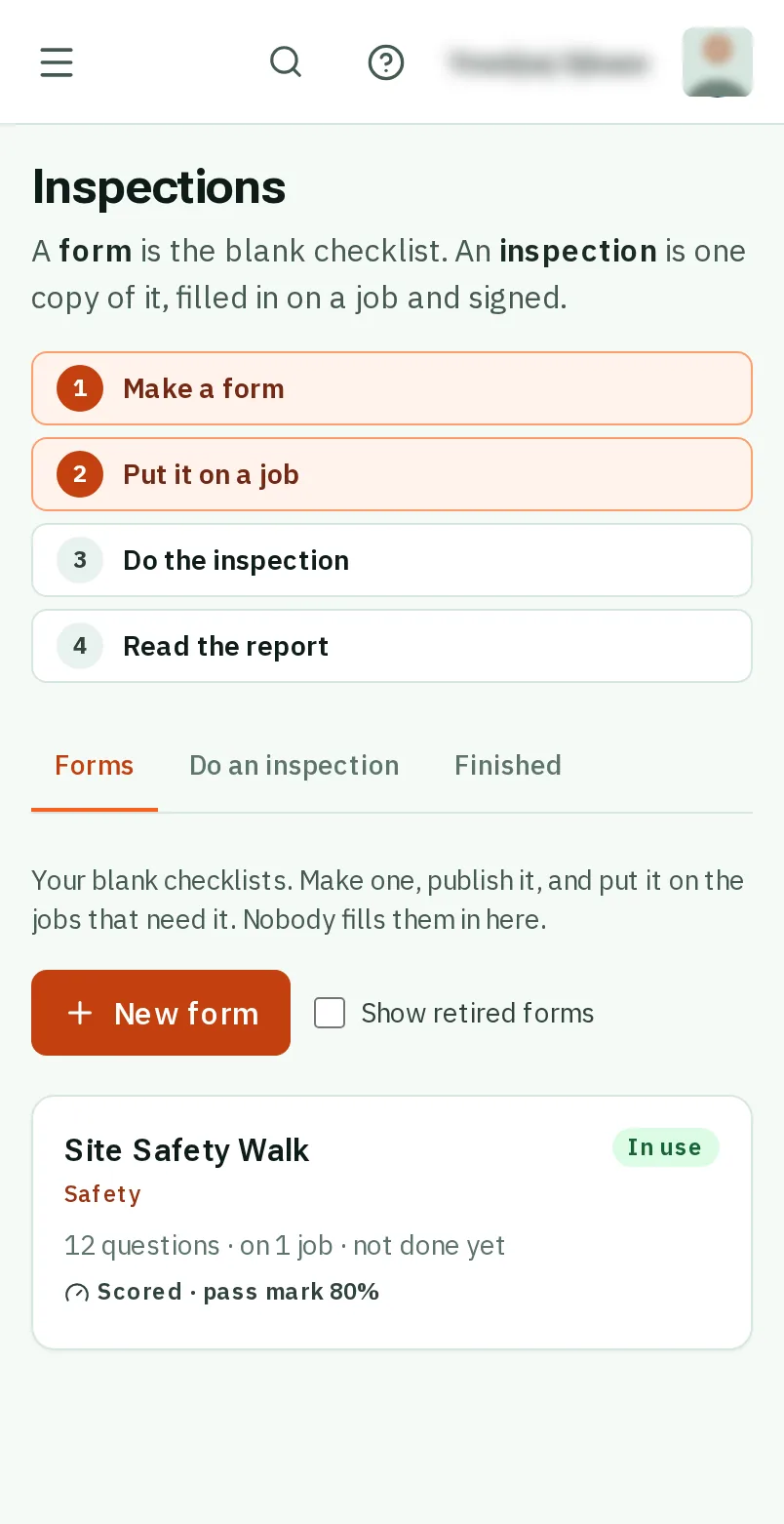
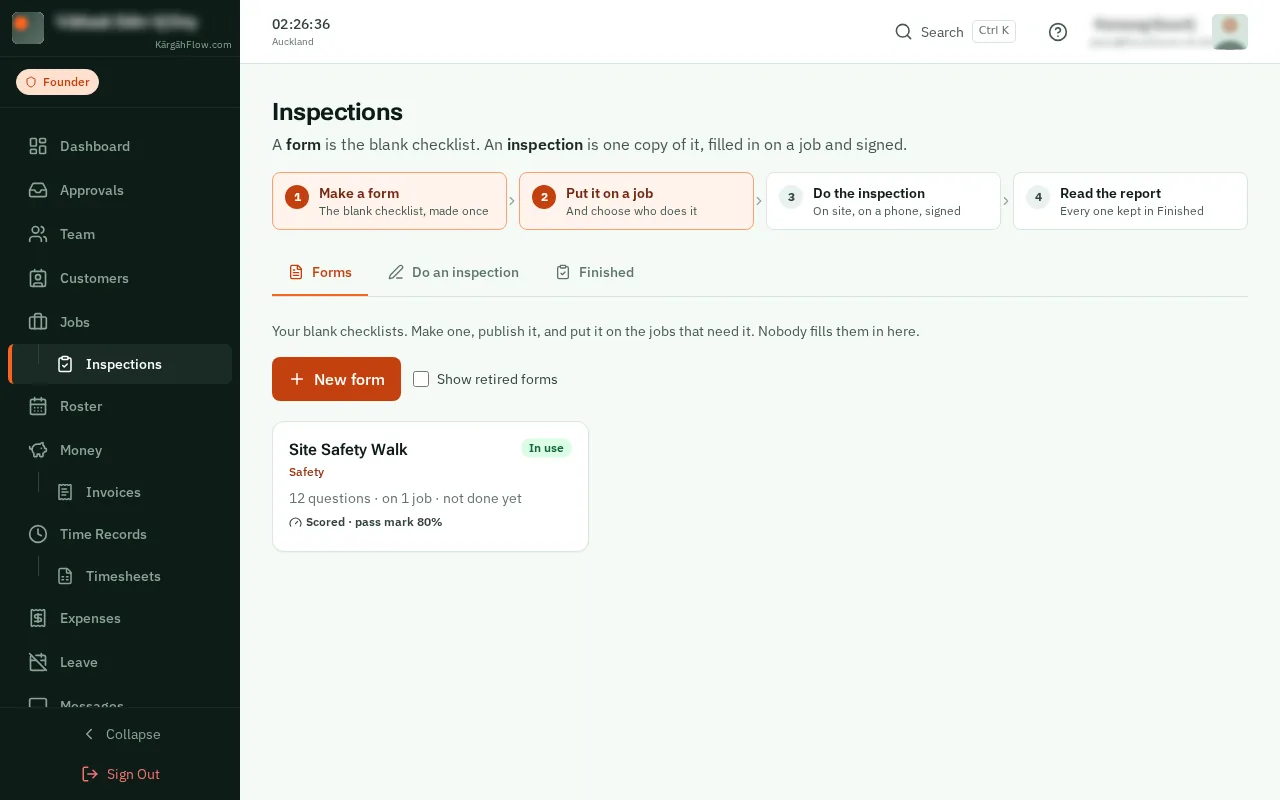
A form is the blank checklist you made. An inspection is one copy of it, filled in on a job and signed. Making the form does not do the inspection: someone fills it in on site.
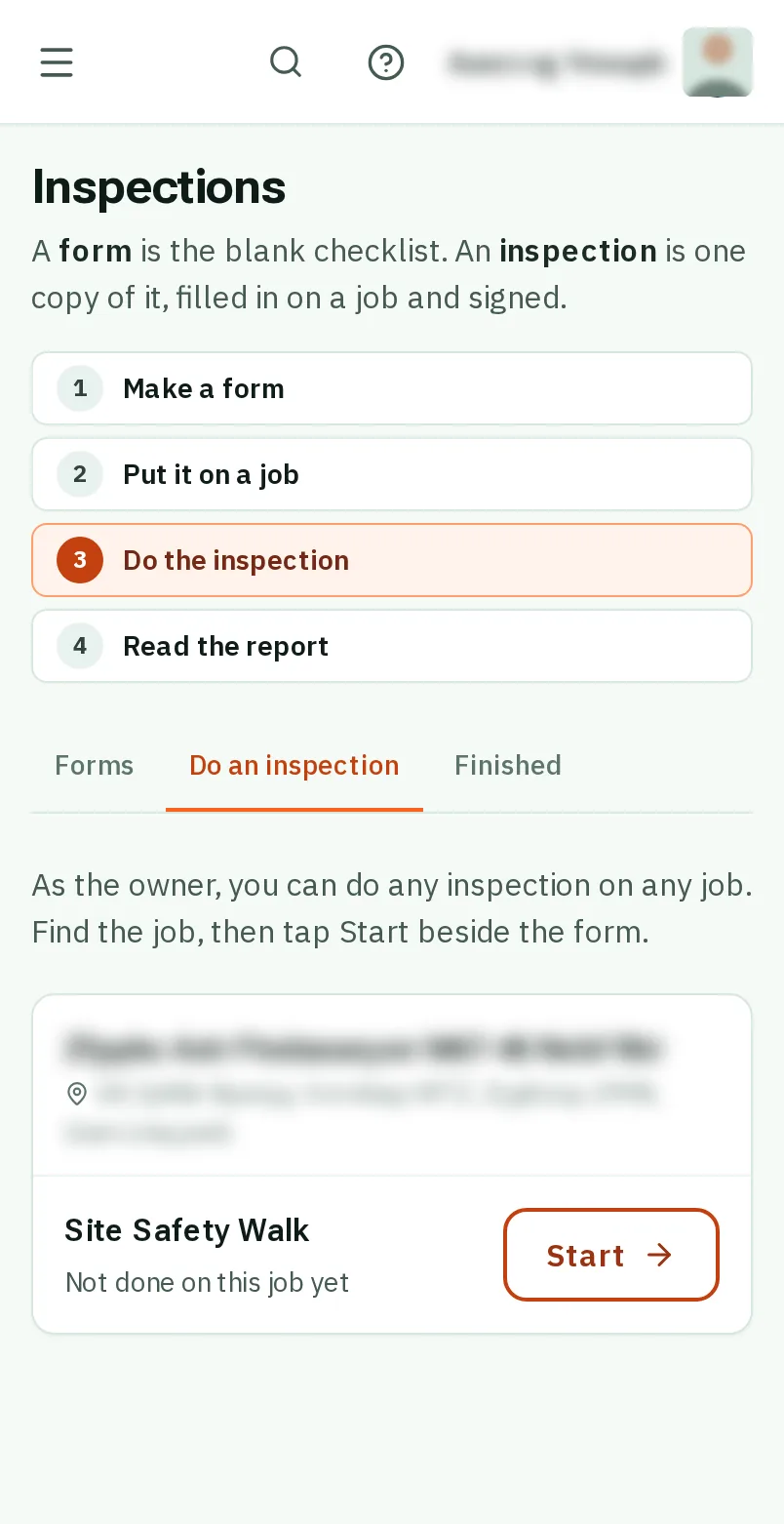
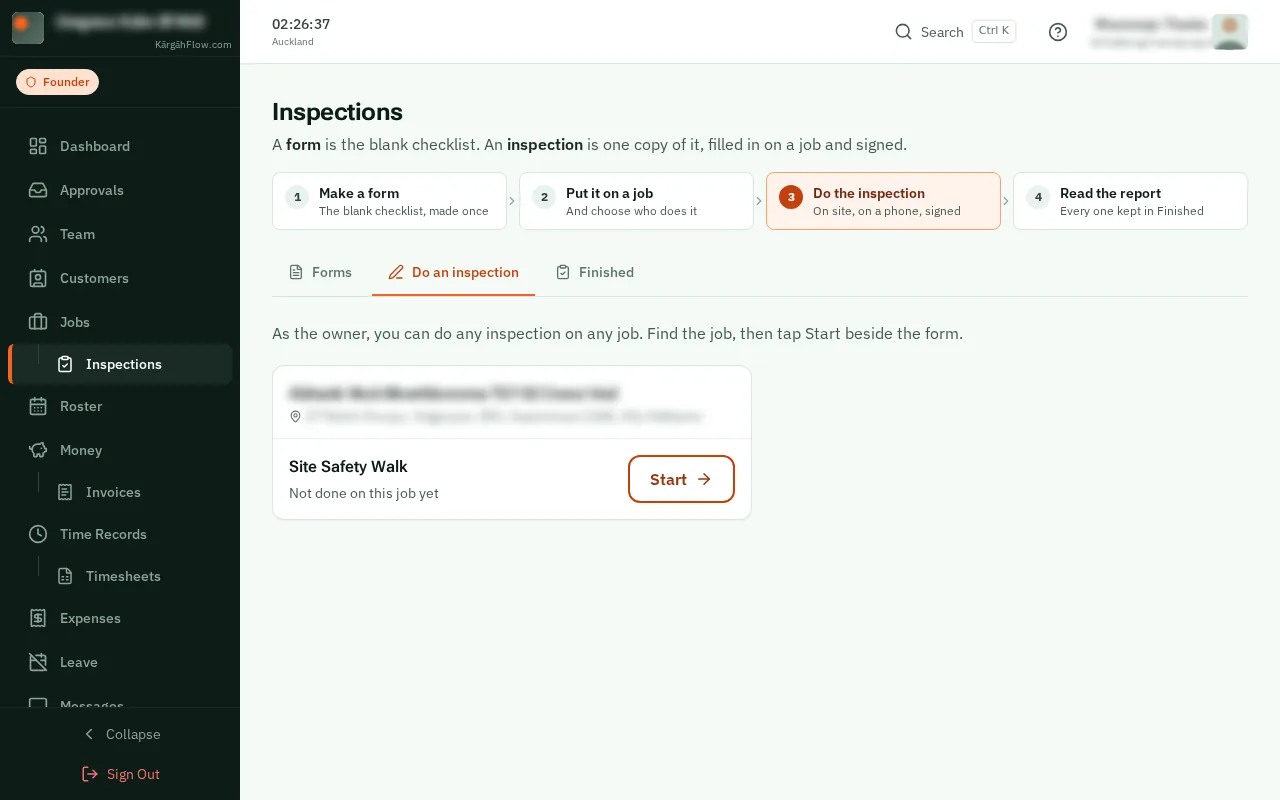
As the owner, you can do any inspection on any job. An admin does the ones they are asked to do.
TapClick the menu button at the top left of the screen, then Inspections.TapClick Inspections in the menu on the left.
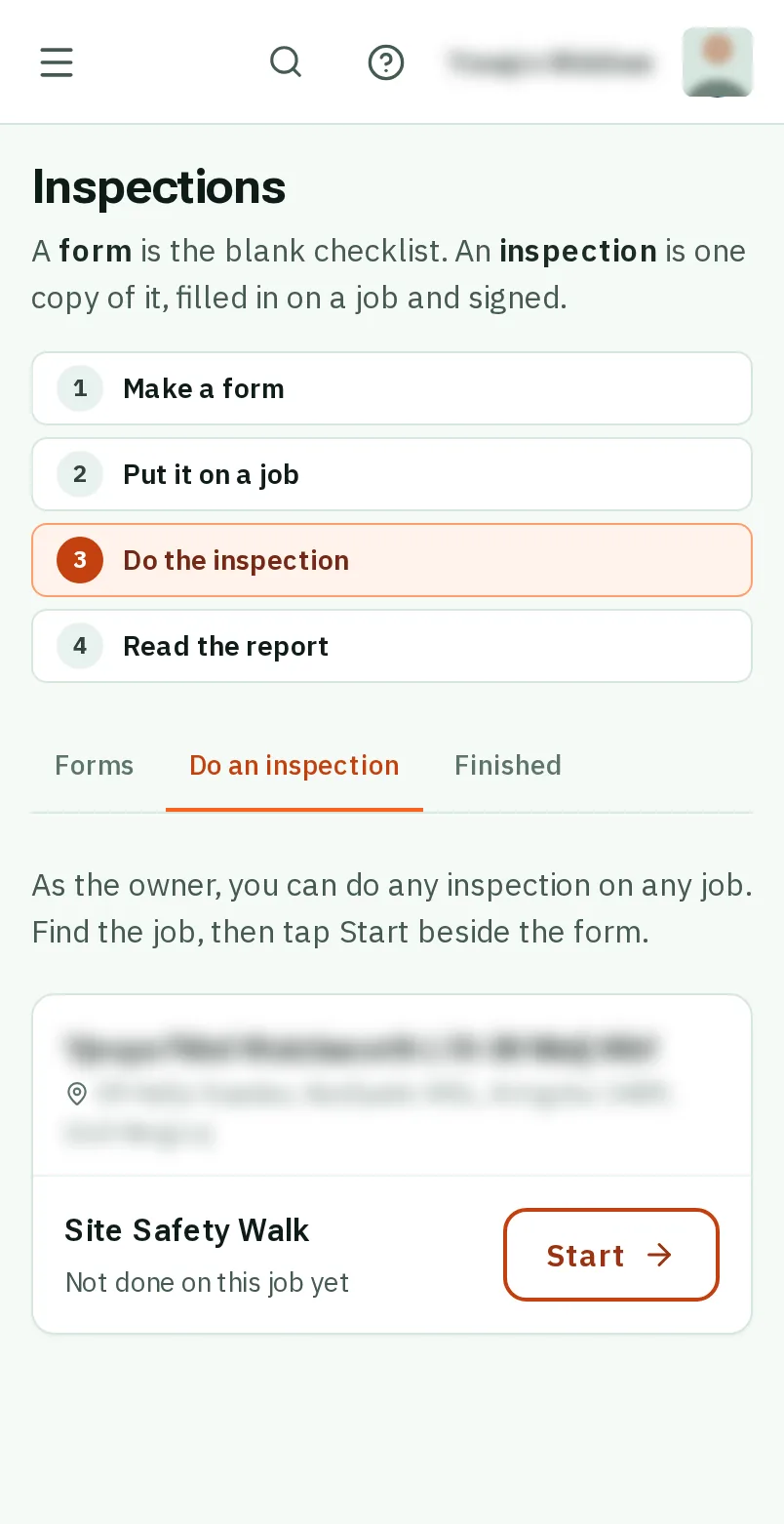
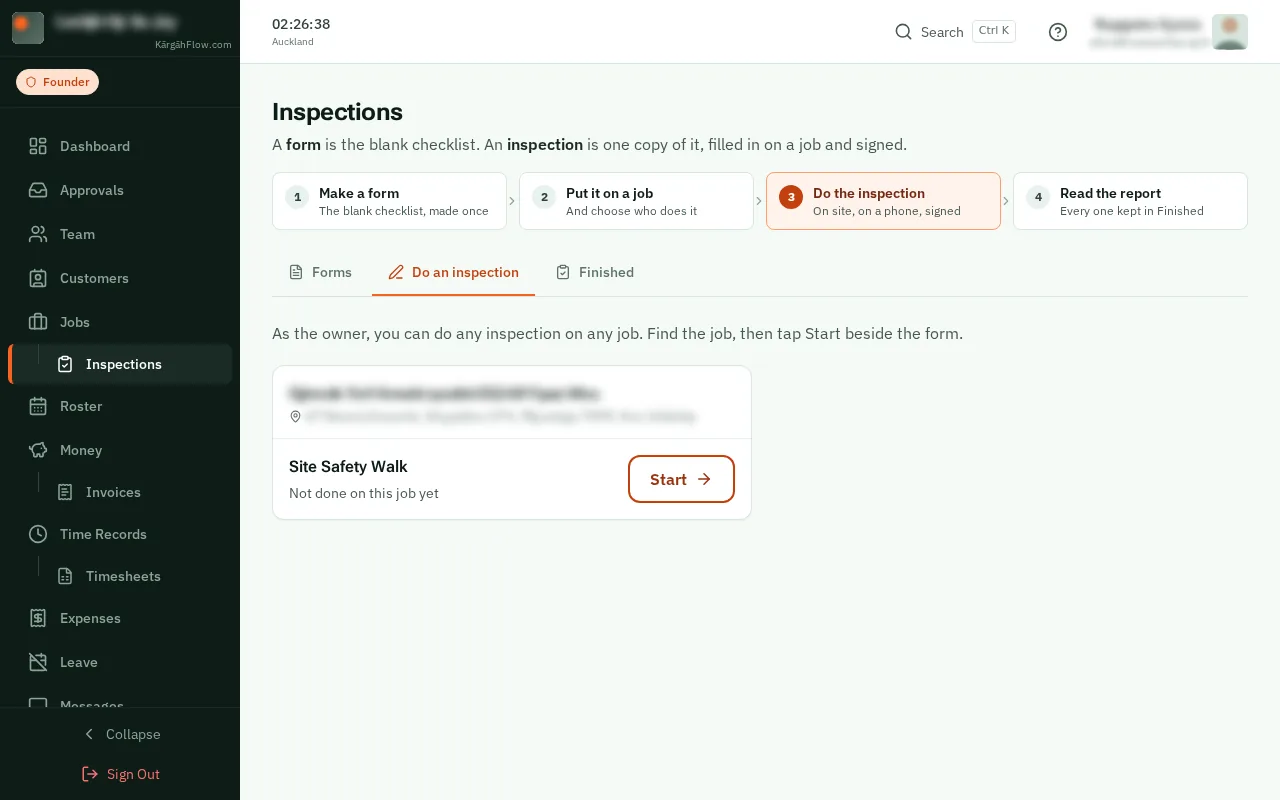
TapClick the Do an inspection tab. Each job is a card, with its forms inside.
Good to know: The owner sees every form on every job that is running. An admin sees the ones they have been asked to do.
Find the job, then tapclick Start beside the form. Started one before? TapClick Carry on.
Good to know: You can start one from the job’s own page too: on its Inspections tab, tapclick Start the inspection beside the form.
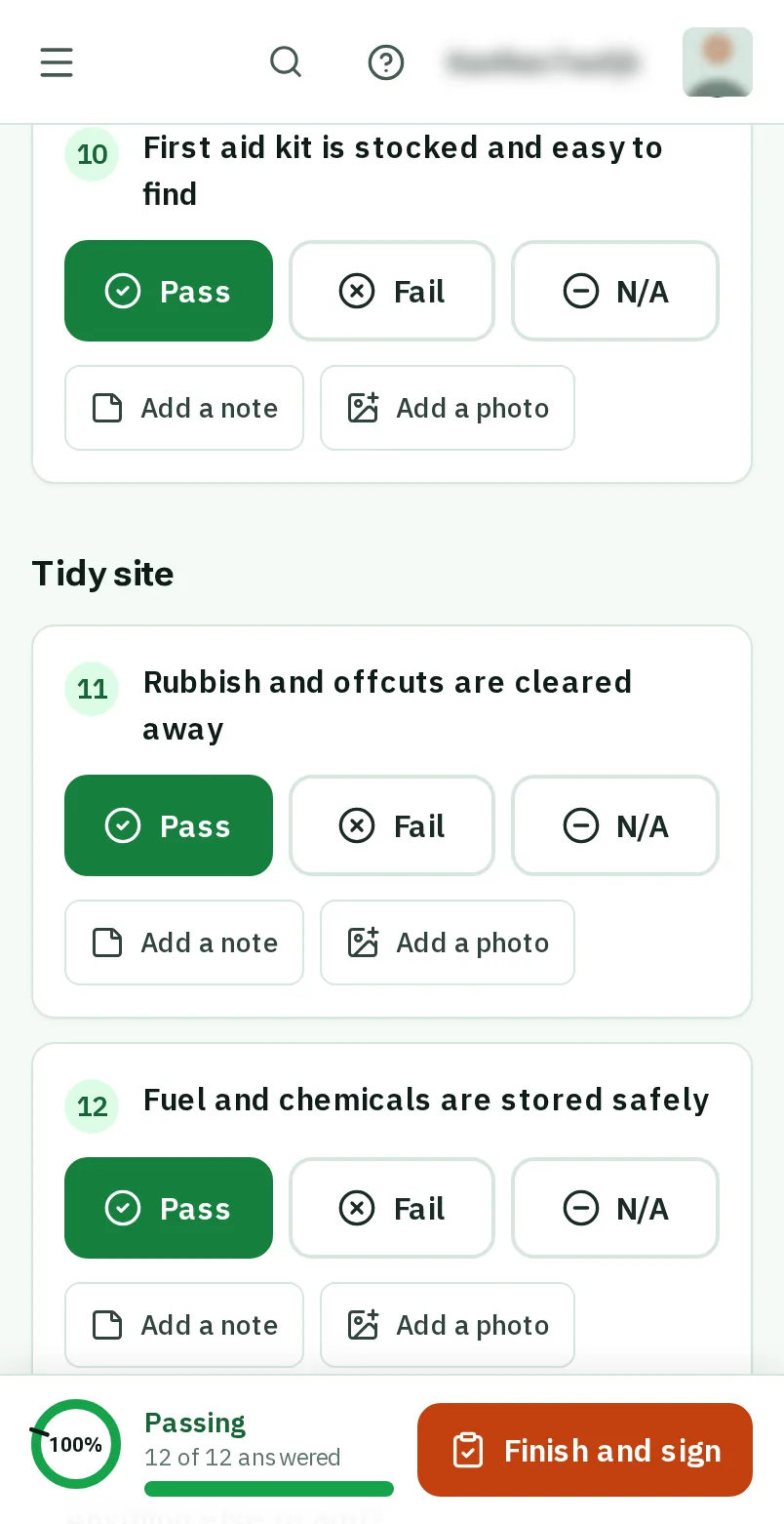
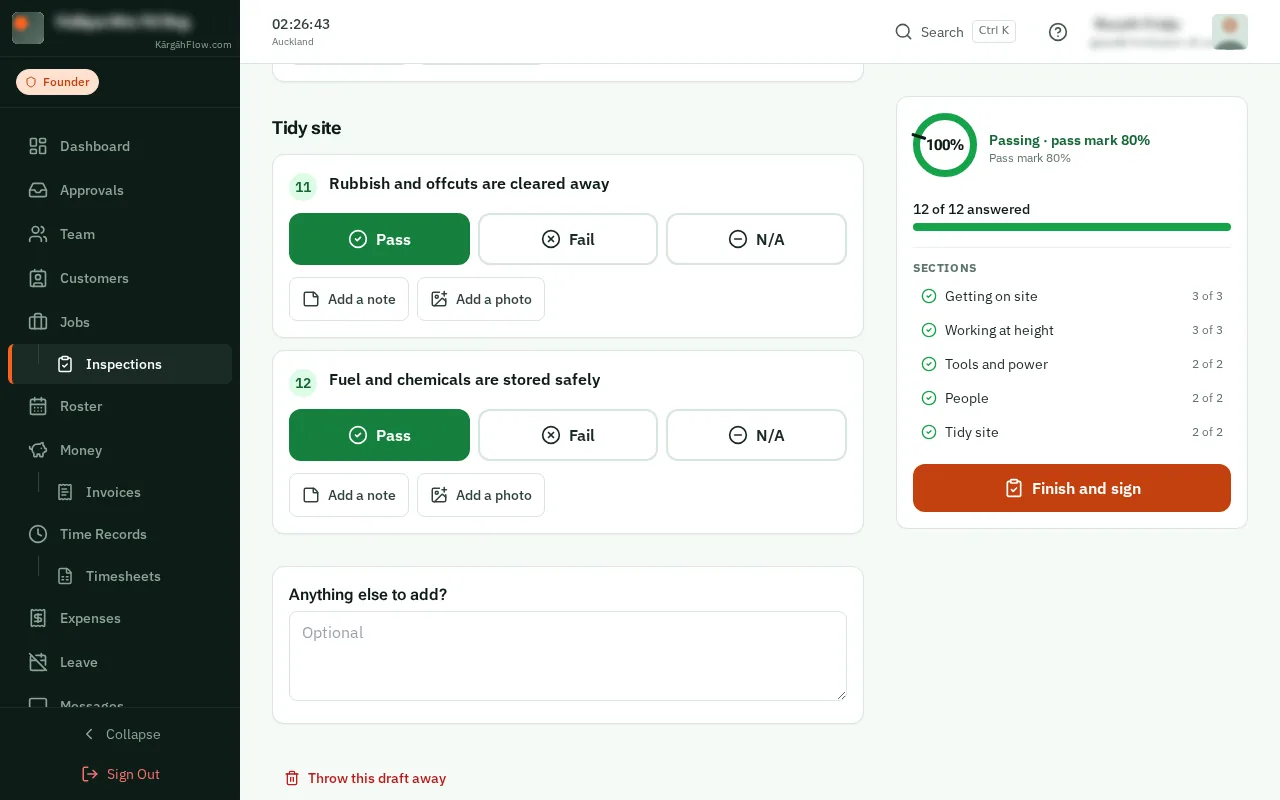
TapClick Pass, Fail or N/A for each check, and answer the other questions. A Fail asks what is wrong, and offers a photo.
Good to know: Your answers save as you go, even with no signal.
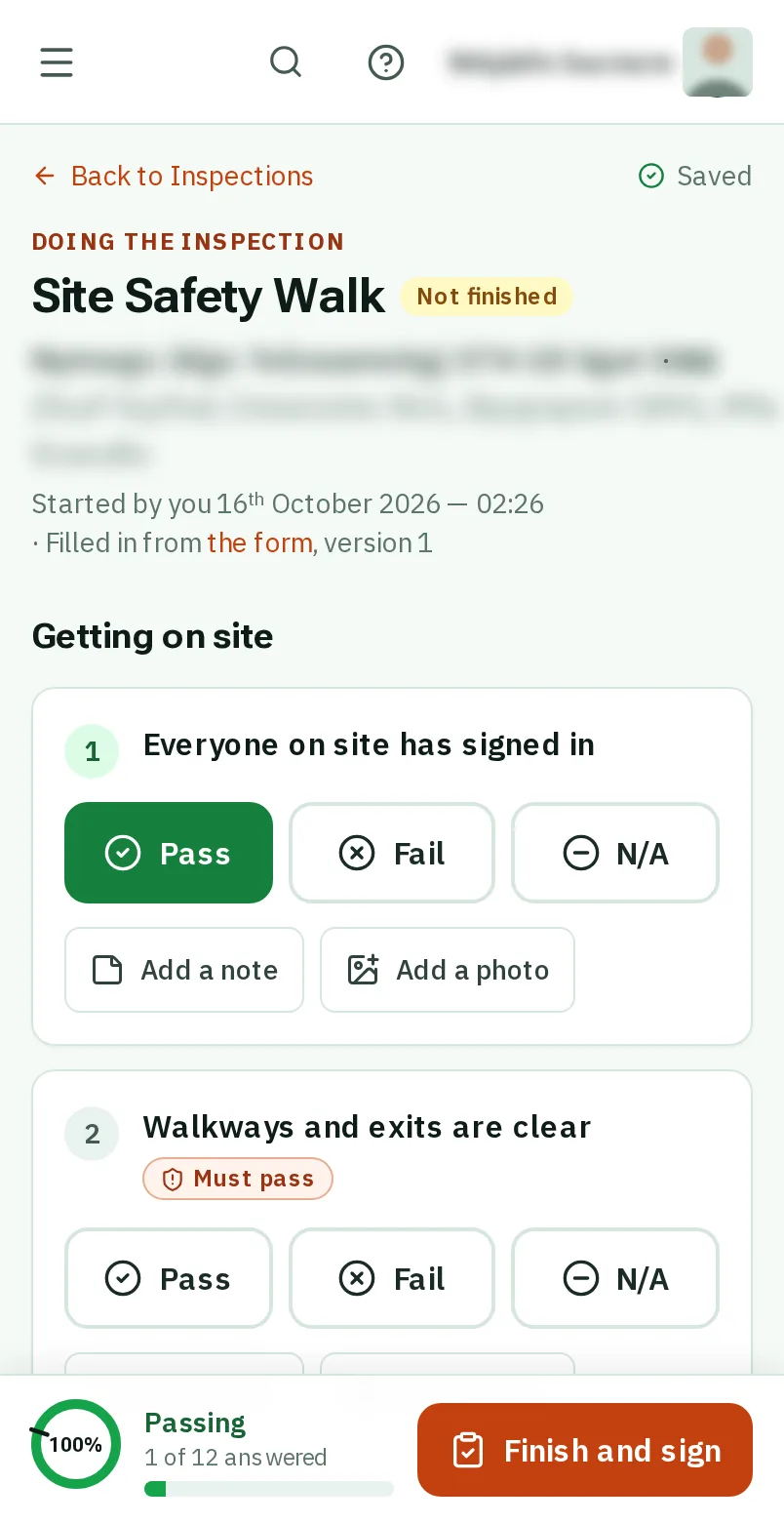
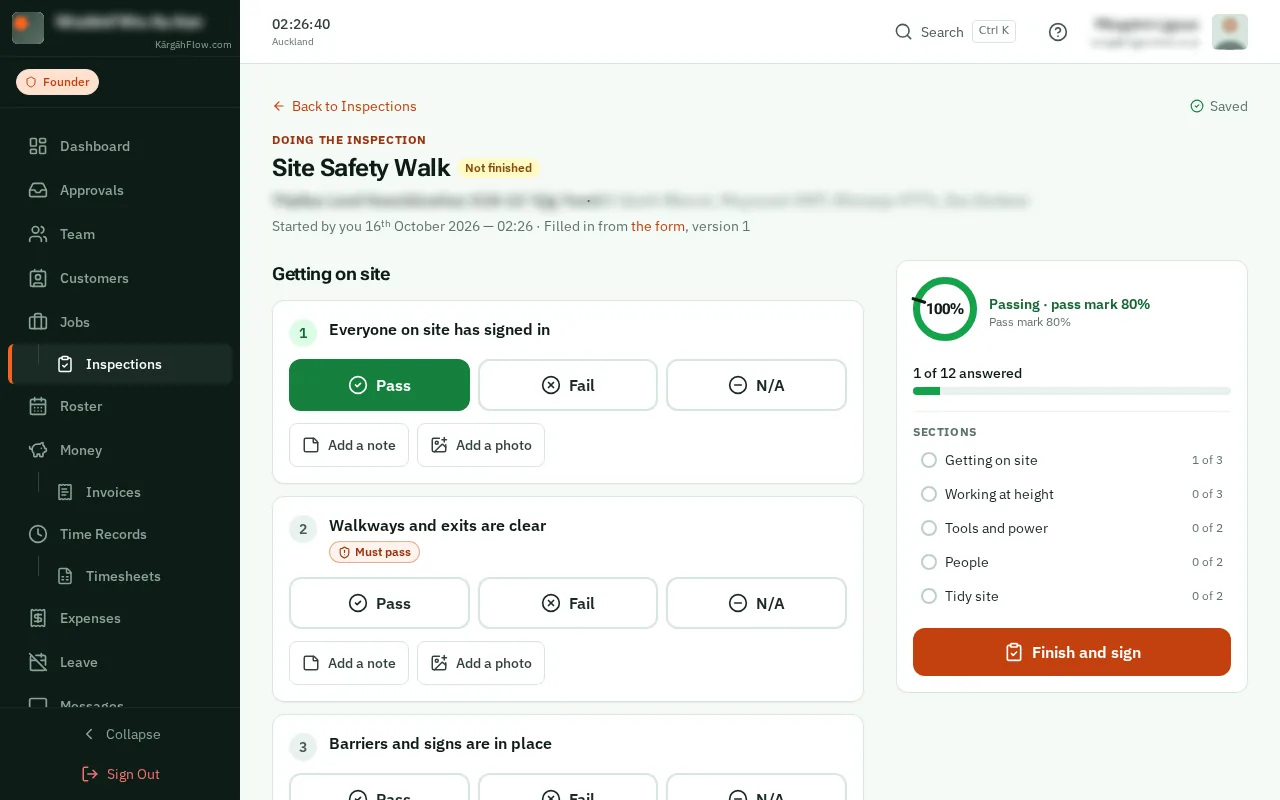
TapClick Finish and sign at the bottom of the screen. A question that still needs an answer is marked in red.TapClick Finish and sign in the panel on the right. A question that still needs an answer is marked in red.
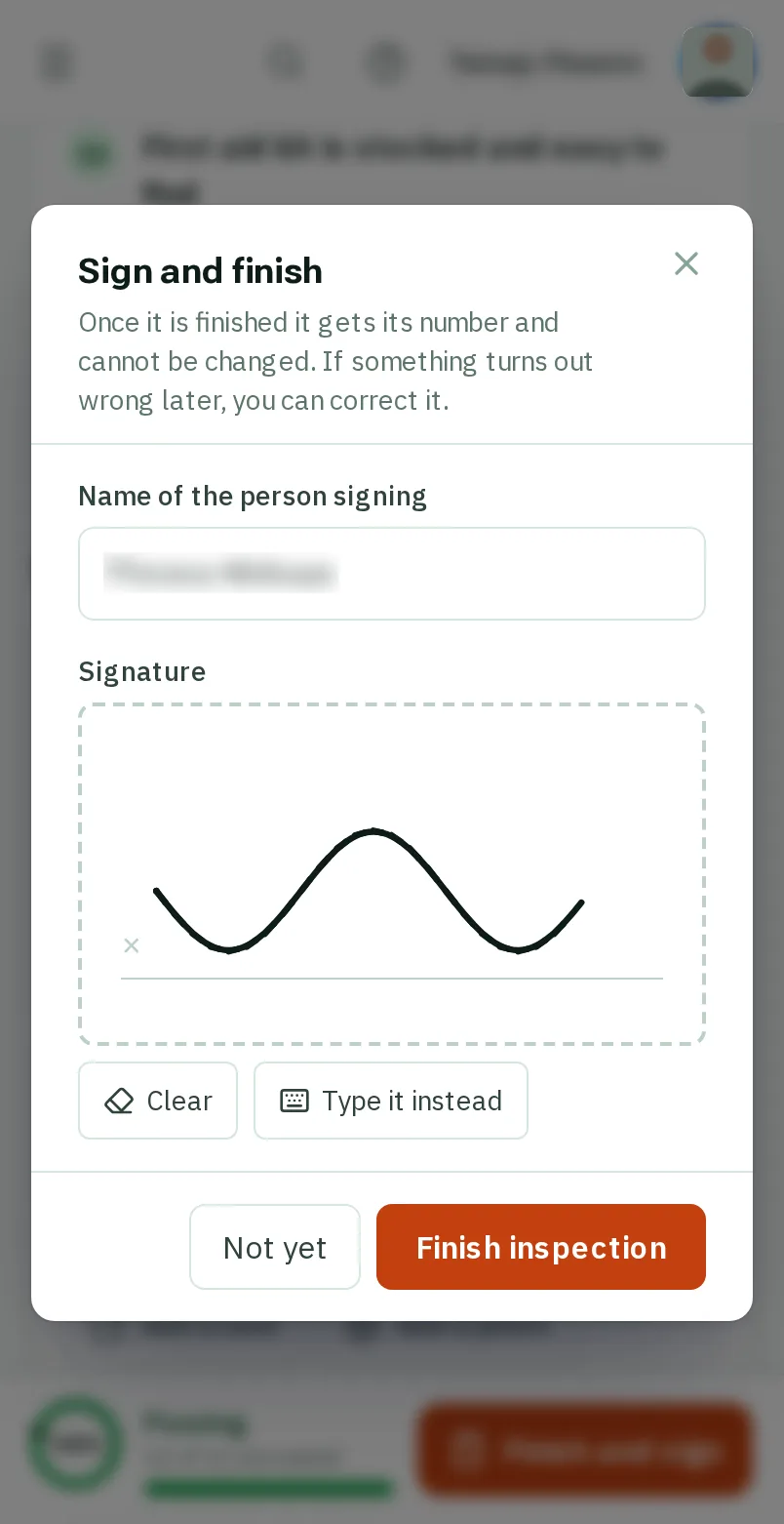
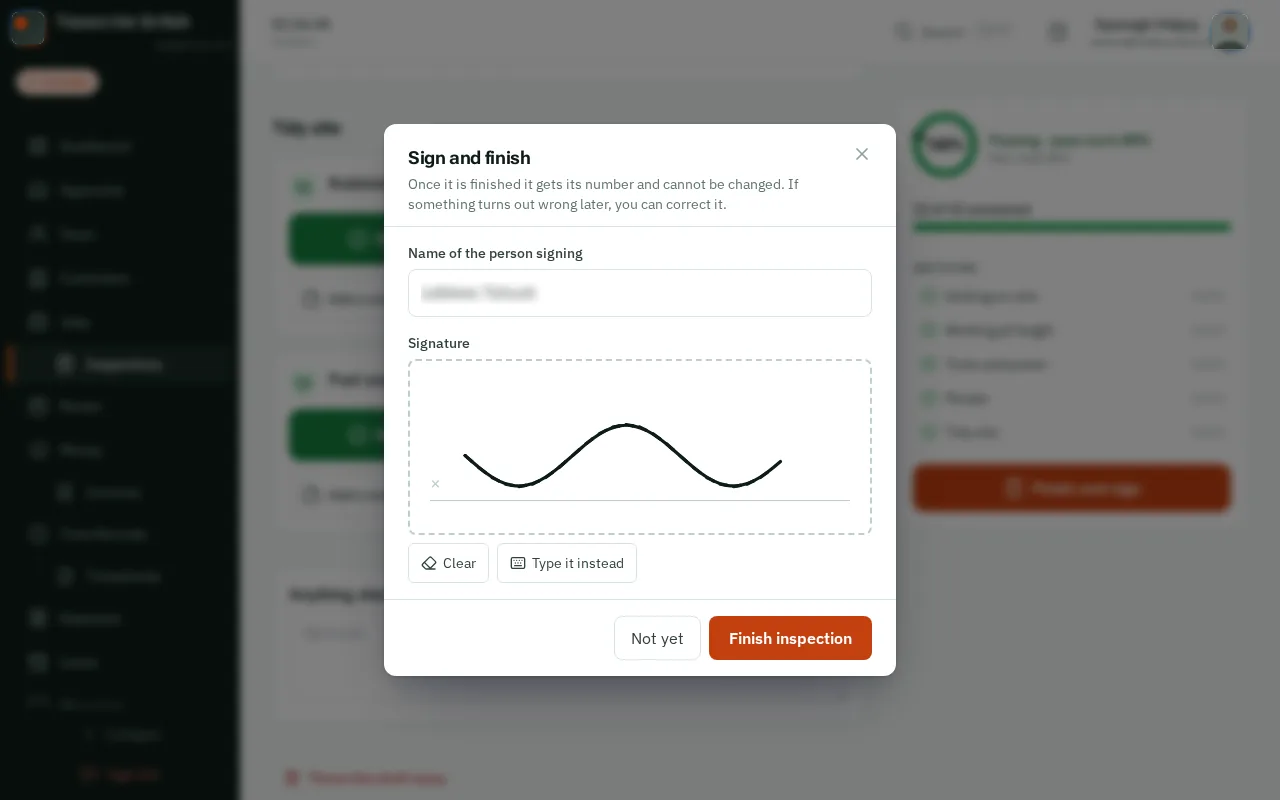
Check your name, sign in the box, and tapclick Finish inspection. It gets its number, like INS-0007.
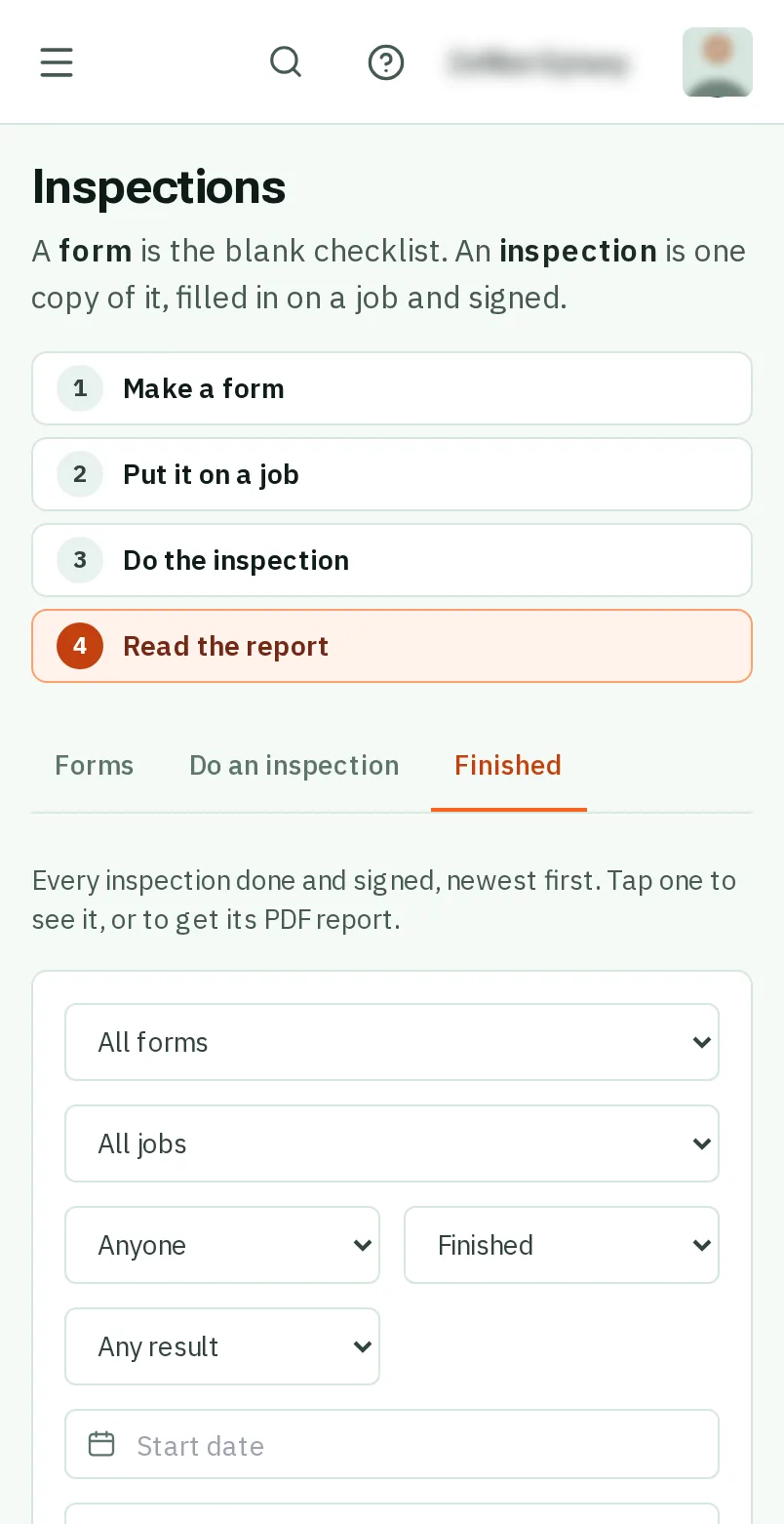
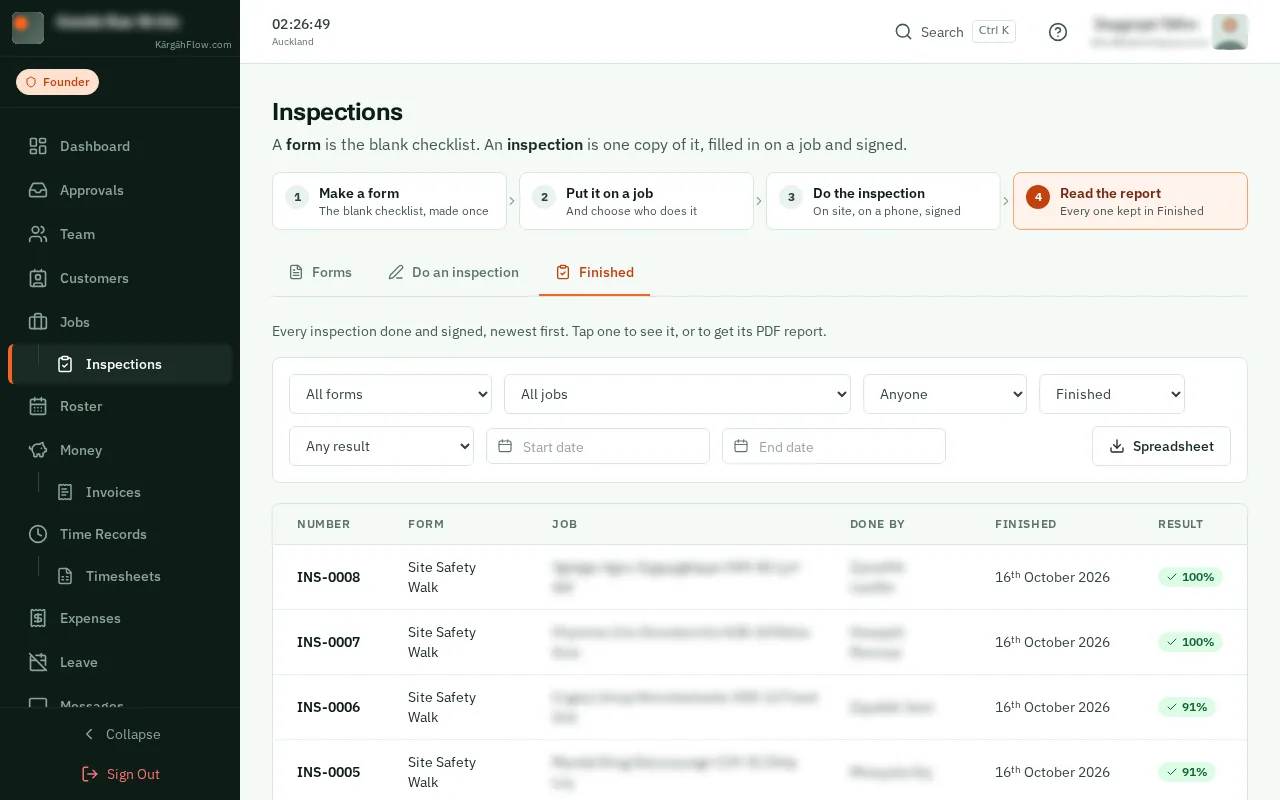
Back on Inspections, tapclick Finished. Your inspection is at the top, with its PDF report.