KārgāhFlow
About 1 minute 5 stepsFor crew, admins and owners

Check your spelling

The app looks over your notes, receipts, messages, quotes and invoices, and offers fixes you can use or ignore.

What this is

Spell check looks over what you type in a box where you describe something: a note on a job, a receipt, a message, a quote or an invoice.

When it finds a mistake, it shows you the fix. Nothing changes unless you say so.

Step 1 of 5
  1. Step 1: Open a job card

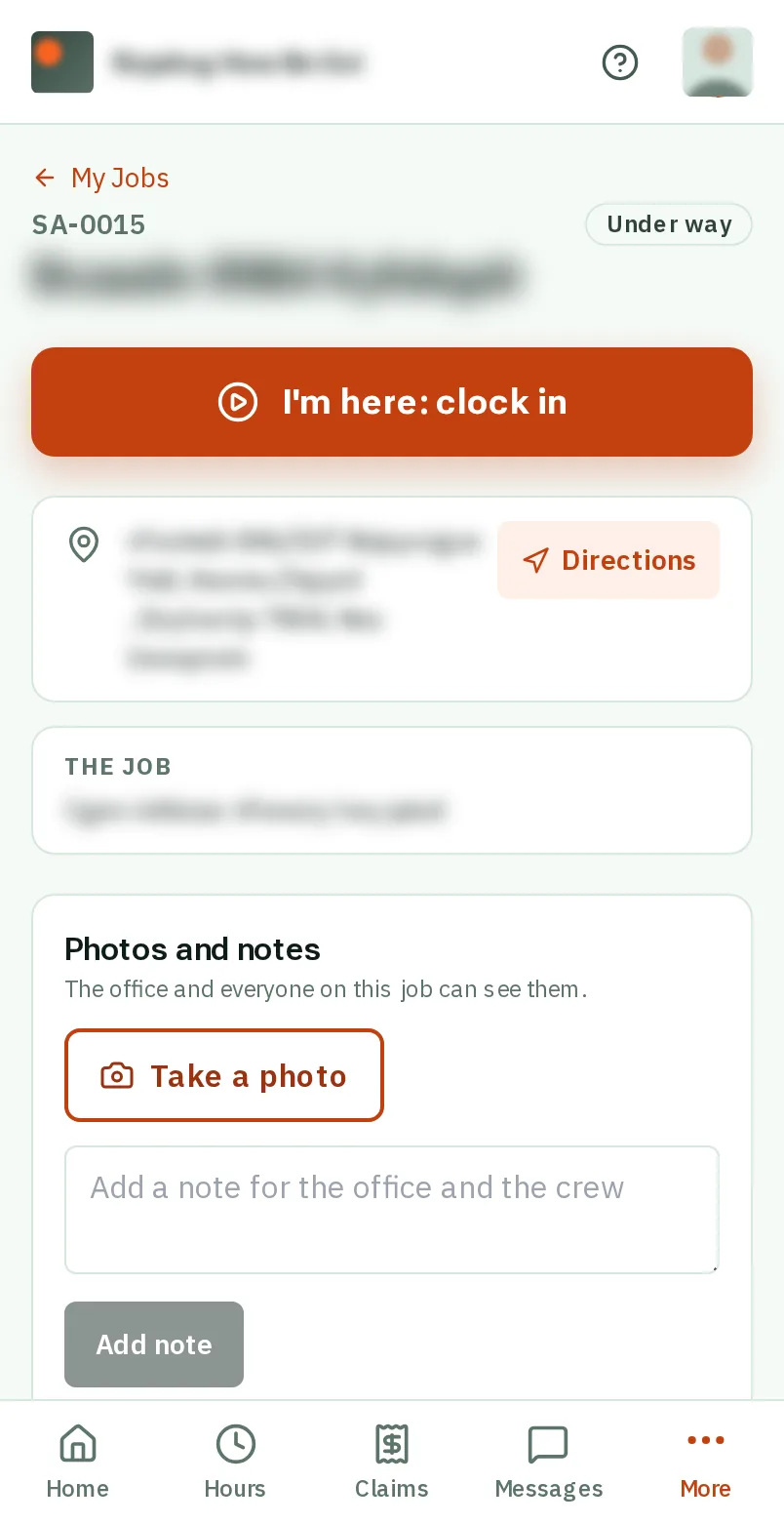
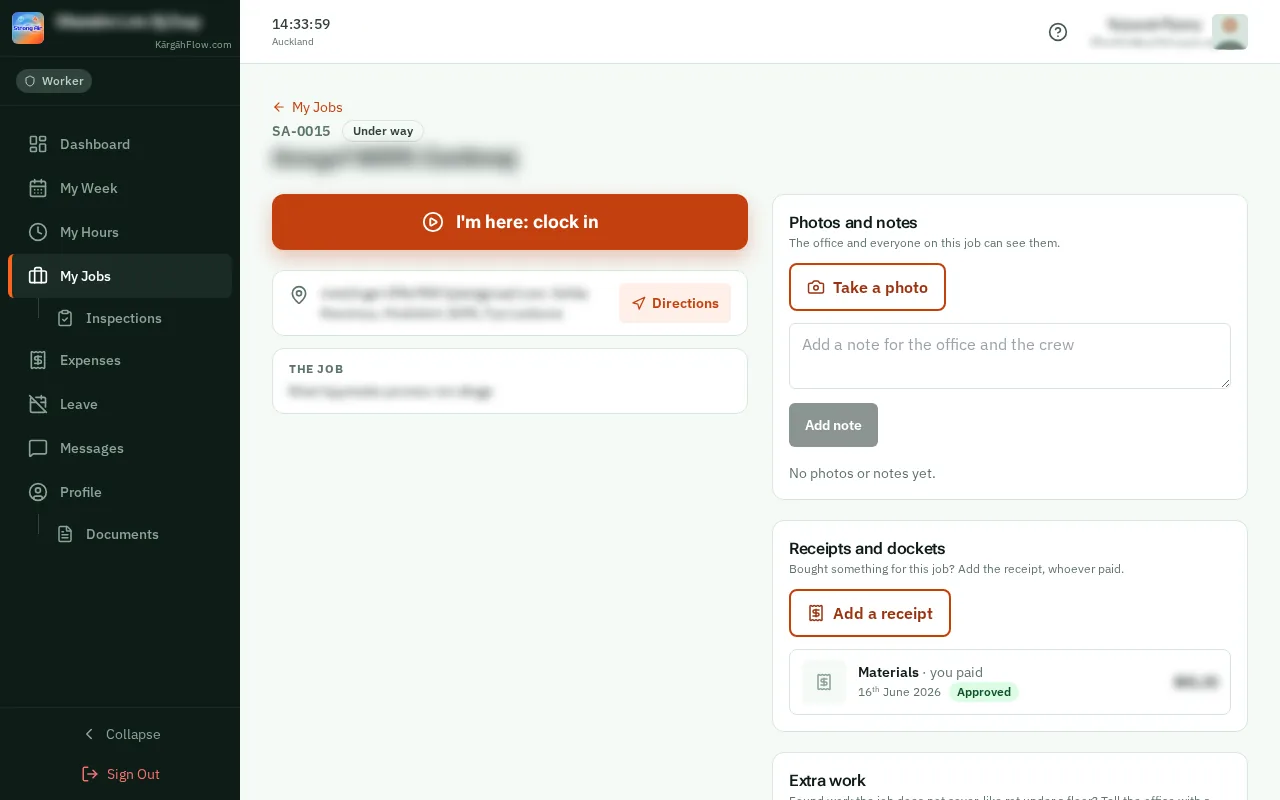
    Spell check is in every box where you describe something. To see it, on your Home screen tapclick Job card under a job.Spell check is in every box where you describe something. To see it, on your Dashboard tapclick Job card under a job.

    Look forthe Job card button

    Good to know: Admins and owners: it works the same in your boxes, like a job’s notes, a line on a quote or a message.
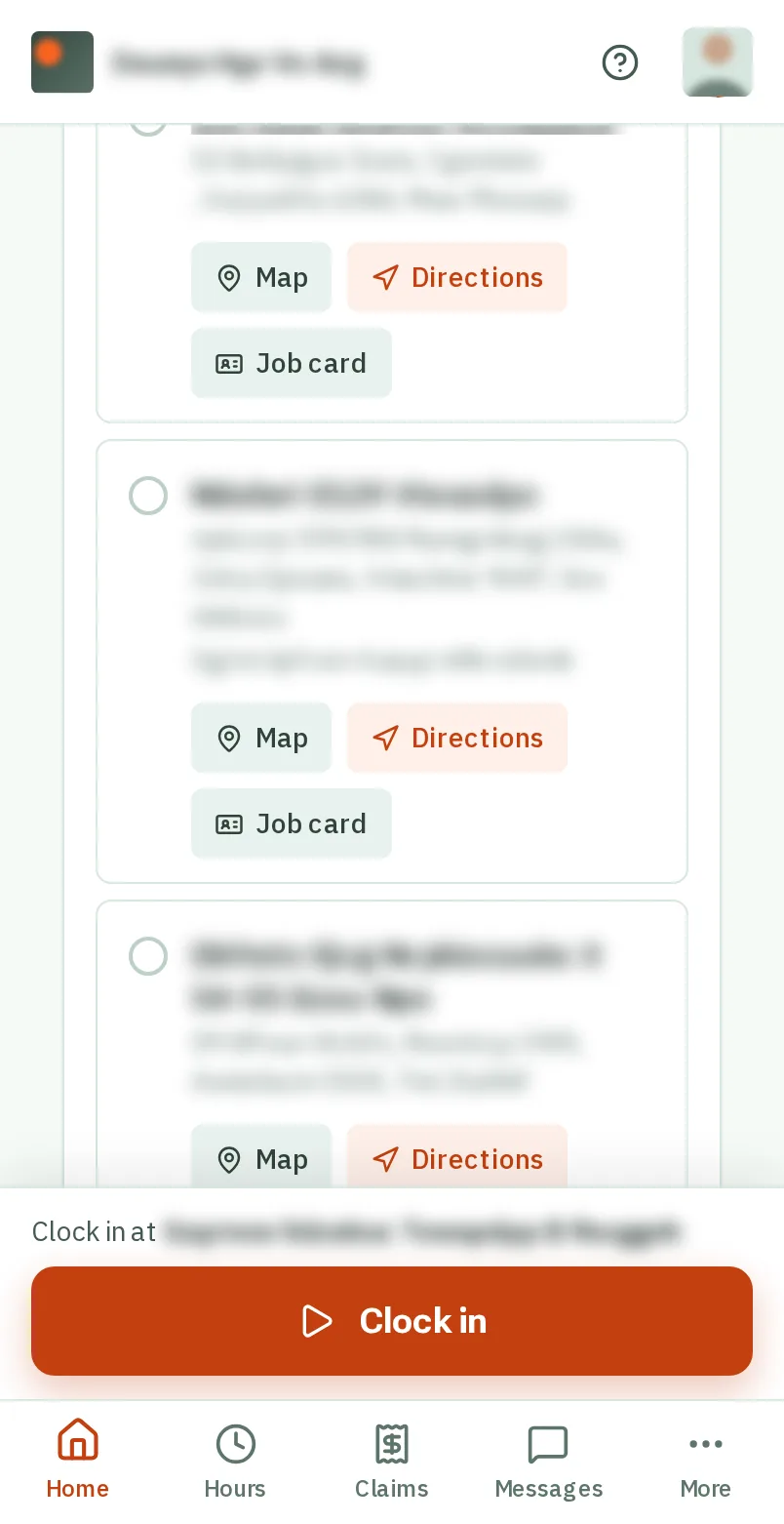
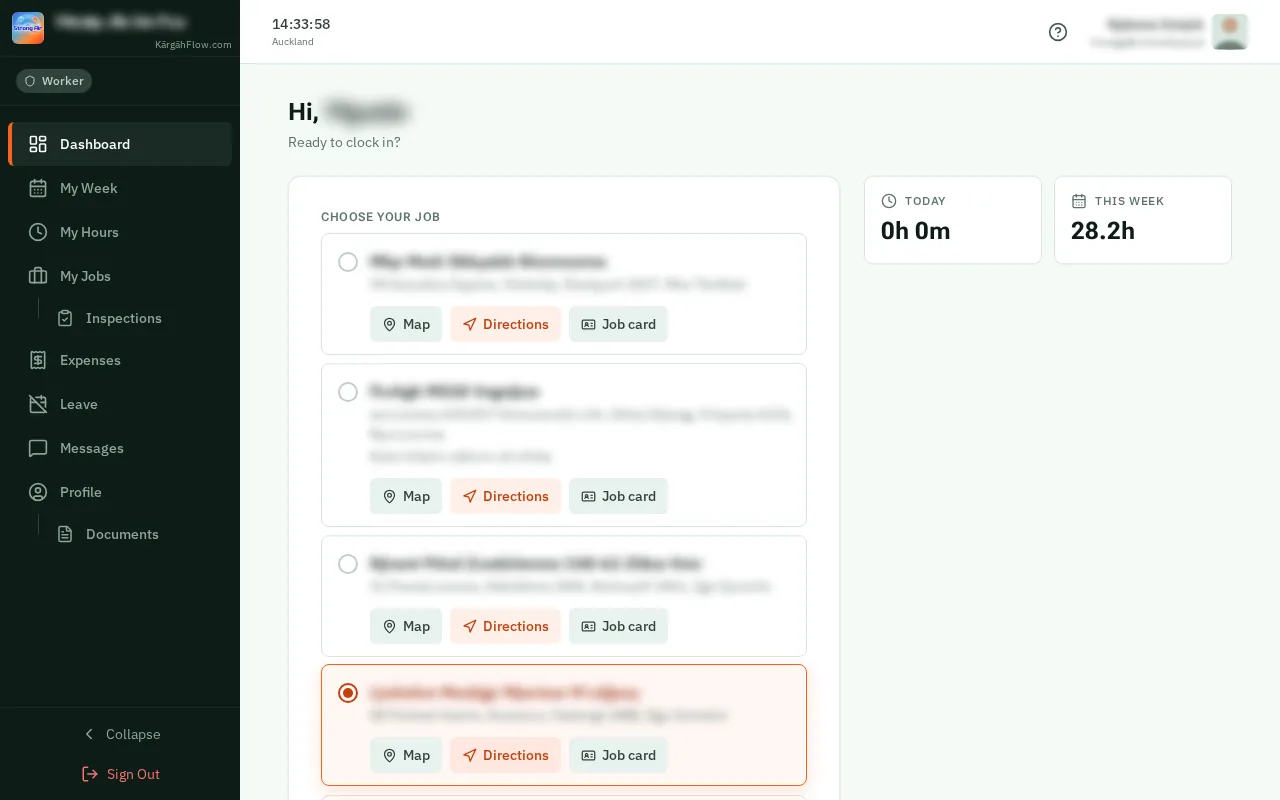
    Open a job card
    Open a job card
  2. Step 2: Type as you always do

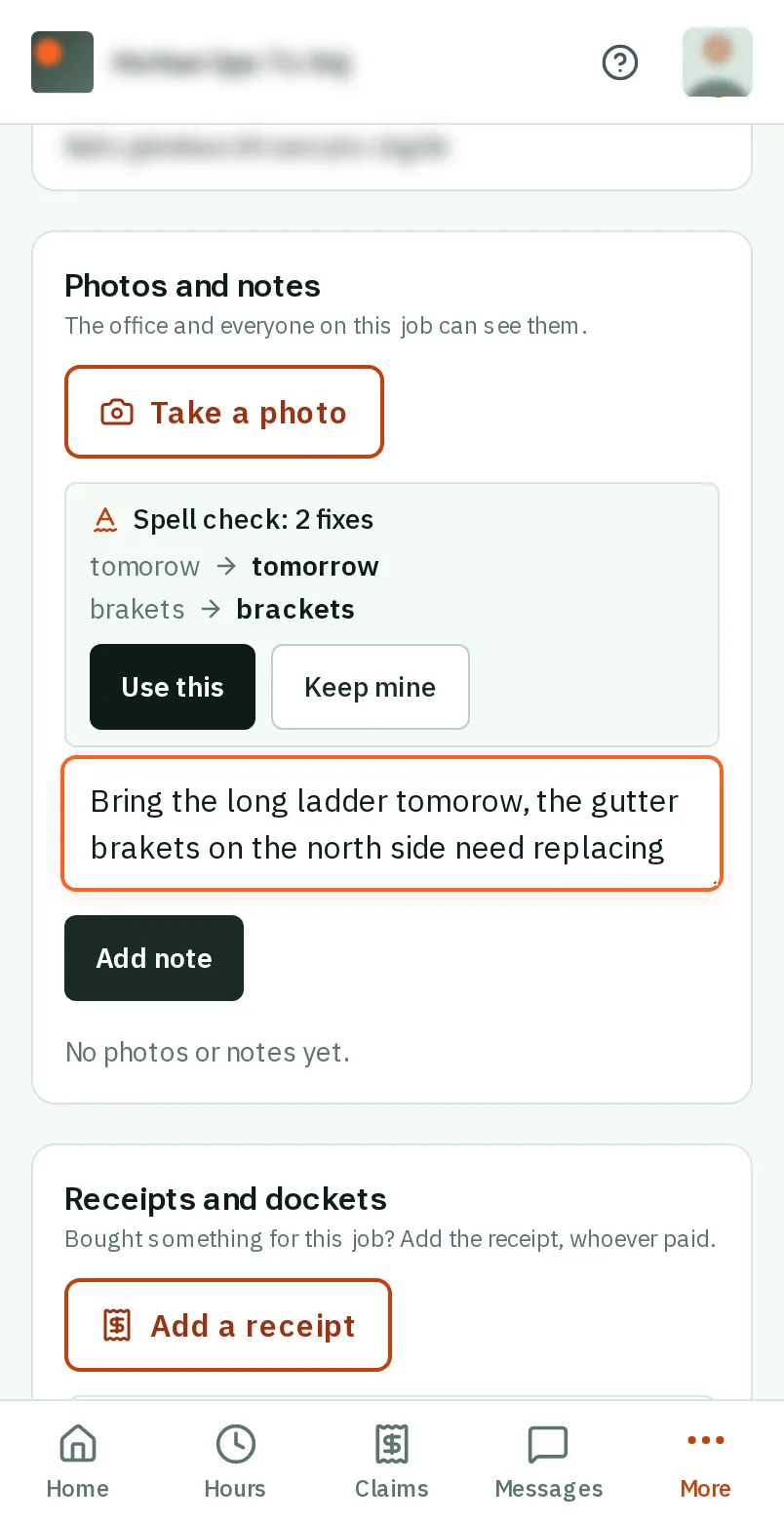
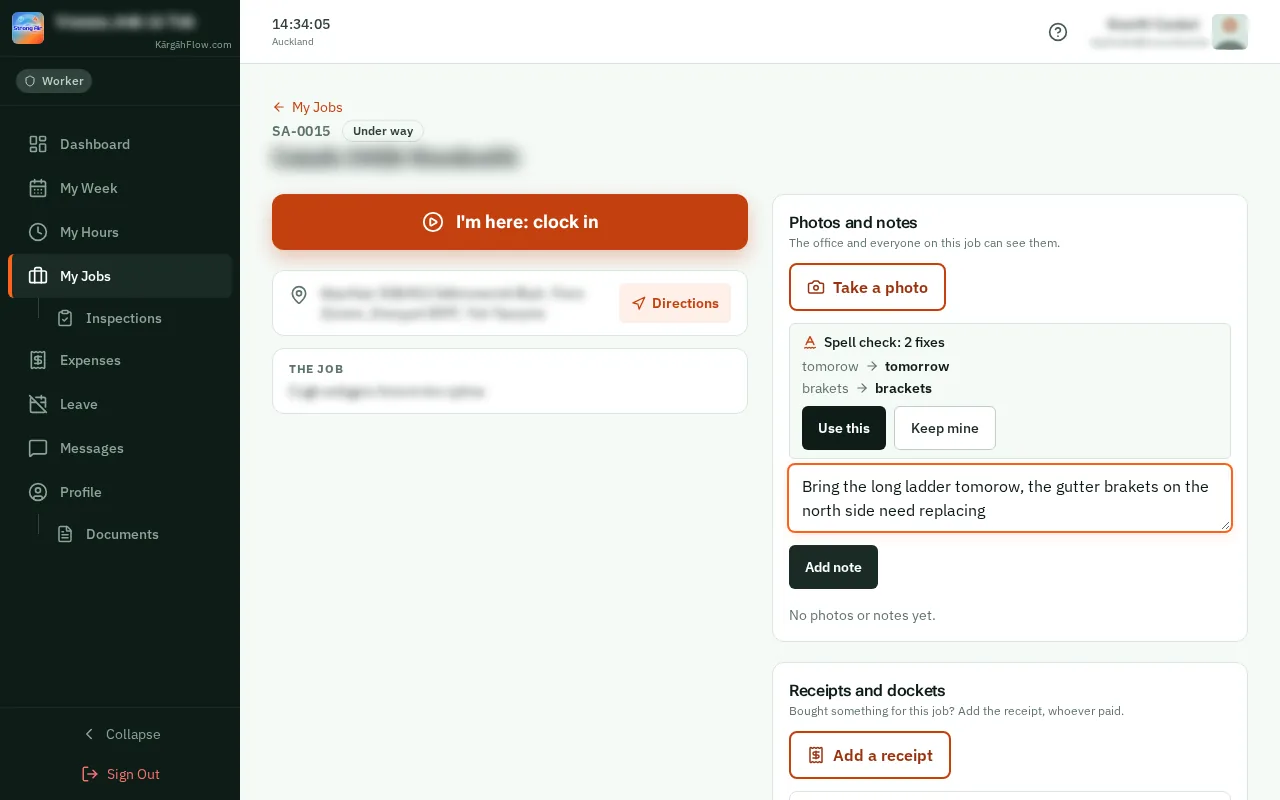
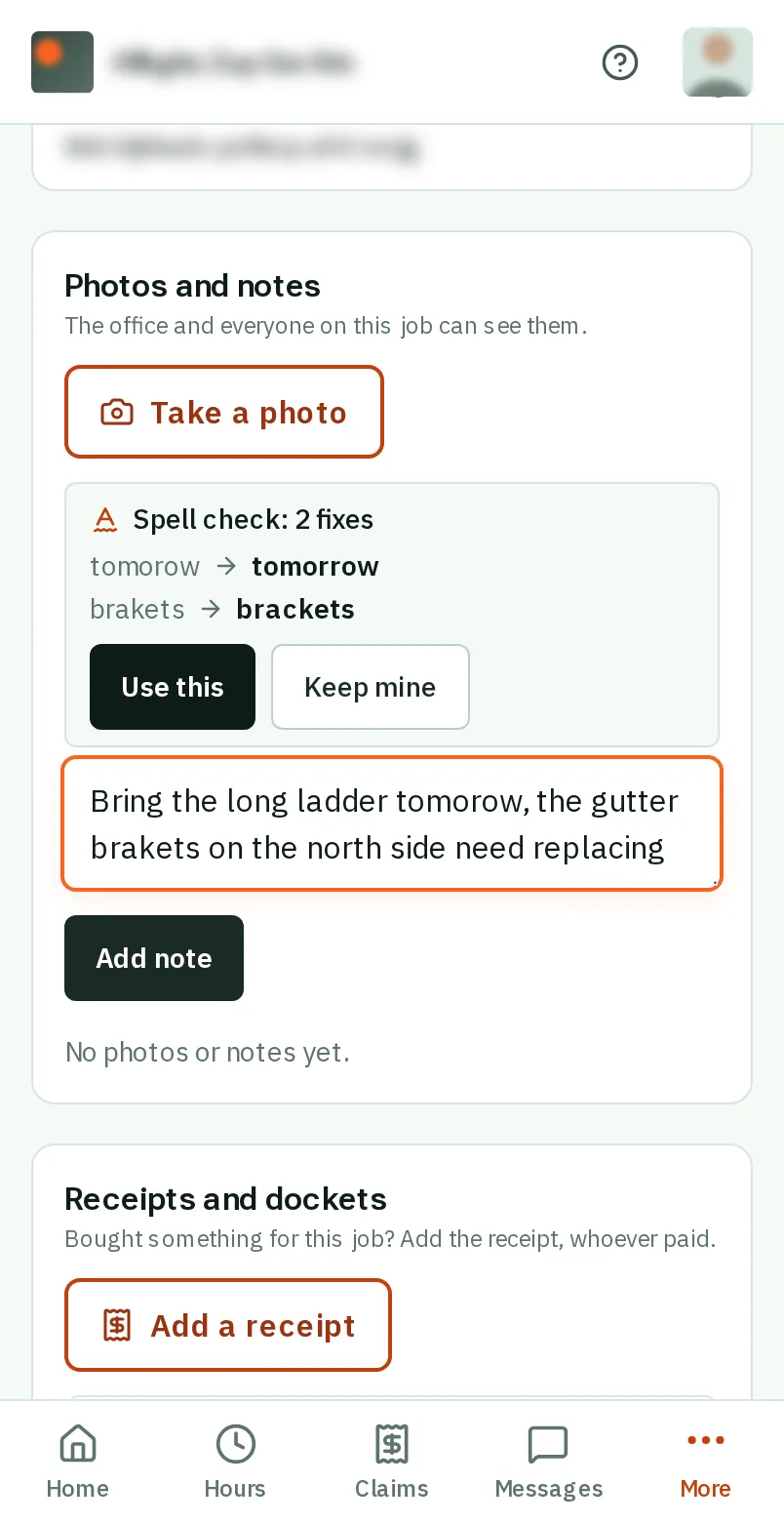
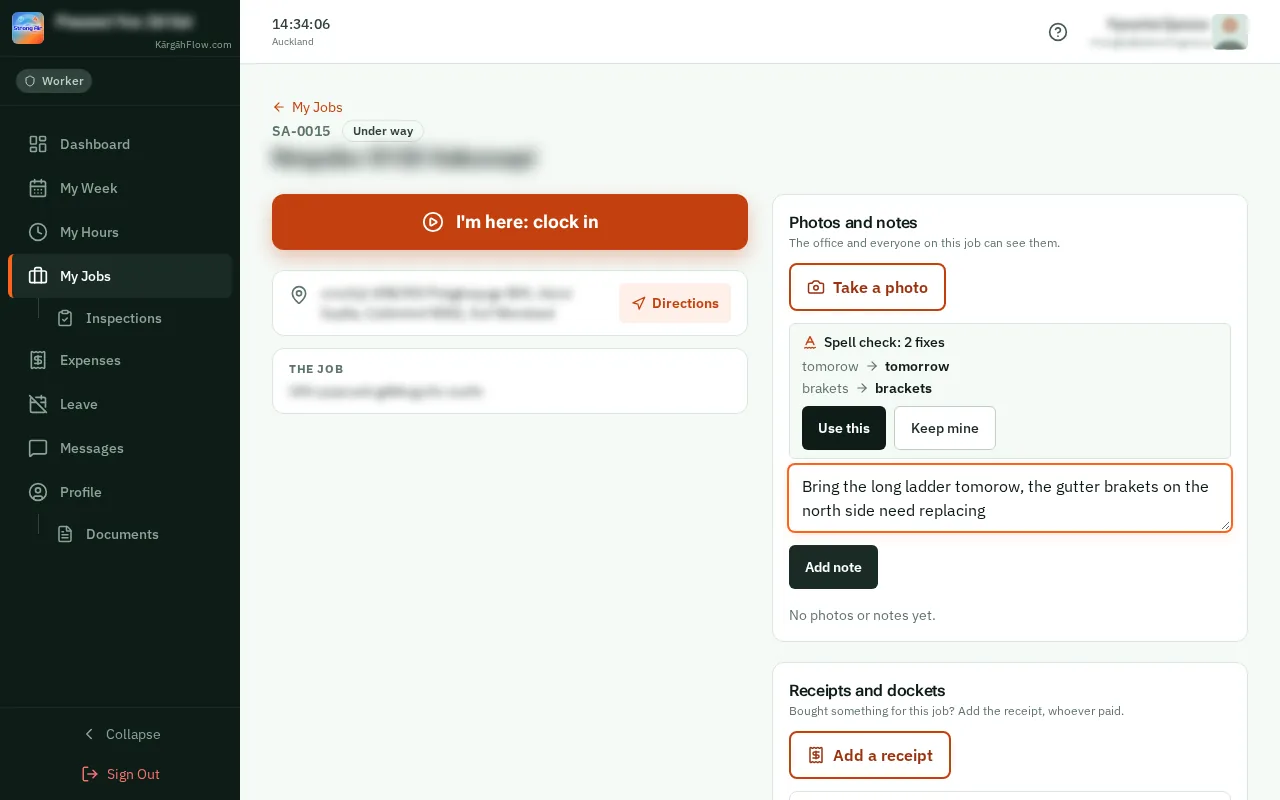
    Type in the box under Add a note. When you stop typing, or tapclick somewhere else, the app looks over your words.

    Look forthe Add a note box
    Type as you always do
    Type as you always do
  3. Step 3: See what it would fix

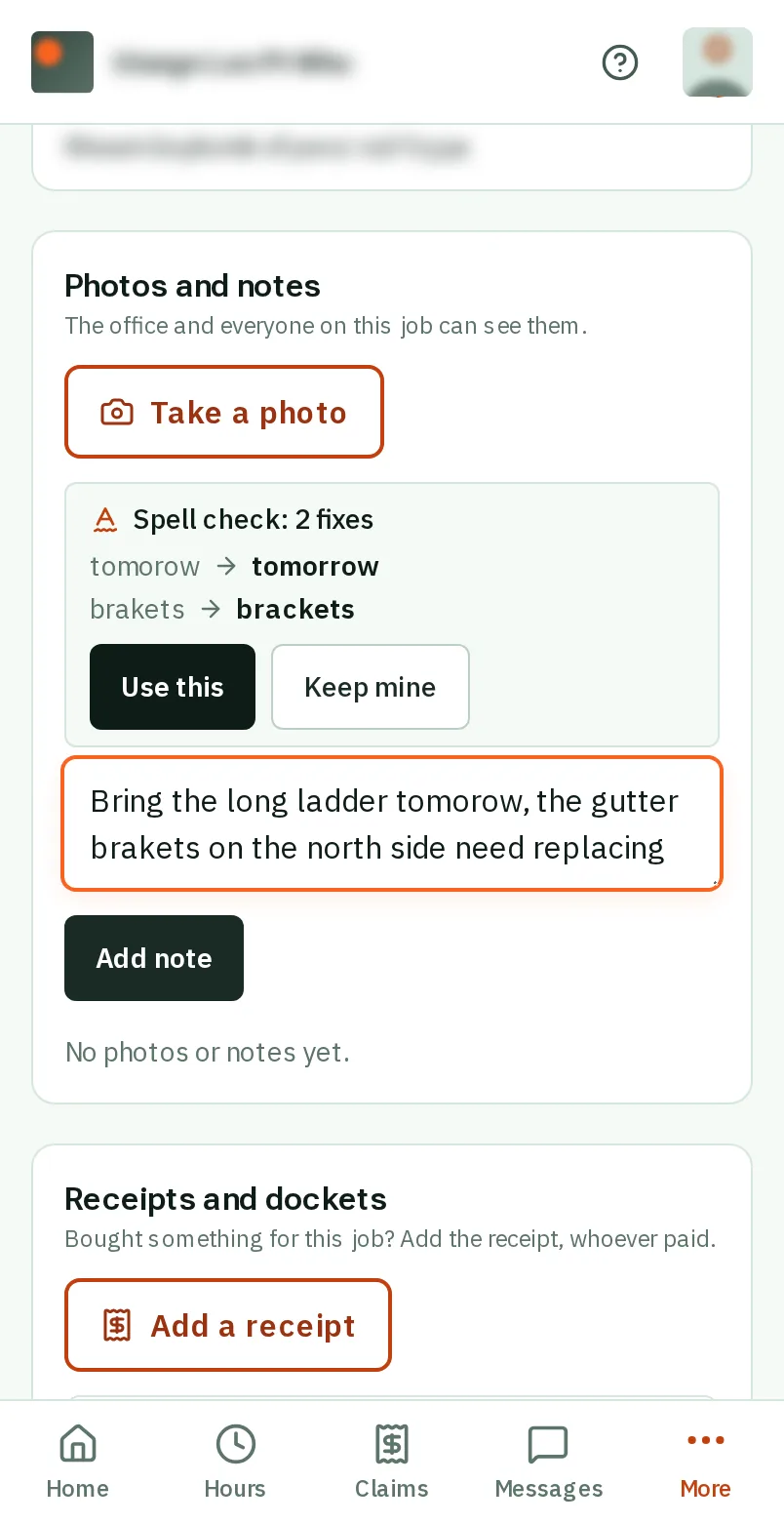
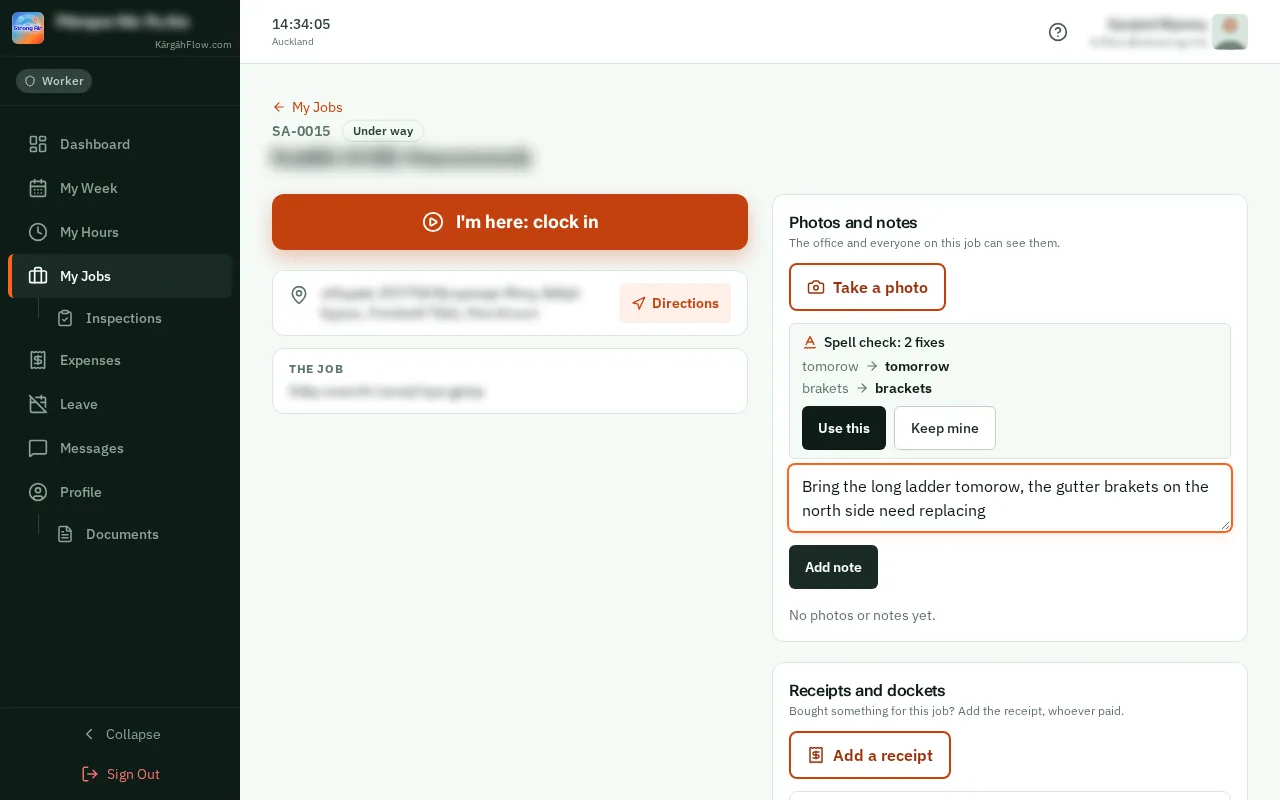
    Each fix shows what you typed, then the fix beside it. For a message or a note like this one it shows above the box, for every other box under it.

    Good to know: On a quote or an invoice it may also suggest clearer words, where a customer could be left guessing what they are paying for.

    See what it would fix
    See what it would fix
  4. Step 4: TapClick Use this

    TapClick Use this and the fixes go into your words. Then add the note, or save, as you always do.

    Look forthe Use this button
    Tap Use this
    Click Use this
  5. Step 5: Or tapclick Keep mine

    TapClick Keep mine to leave your words as they are. A name the app did not know, like a supplier or a street, is kept for your whole company and never flagged again.

    Look forthe Keep mine button

    Good to know: Kept one by mistake? TapClick Undo straight after. The owner can see every word kept, or switch spell check off, in Settings.

    Or tap Keep mine
    Or click Keep mine

That's it

Your notes, messages, quotes and invoices go out spelt right, and every word stays yours.

Next: Clock in and out