Step 1: Open the enquiry
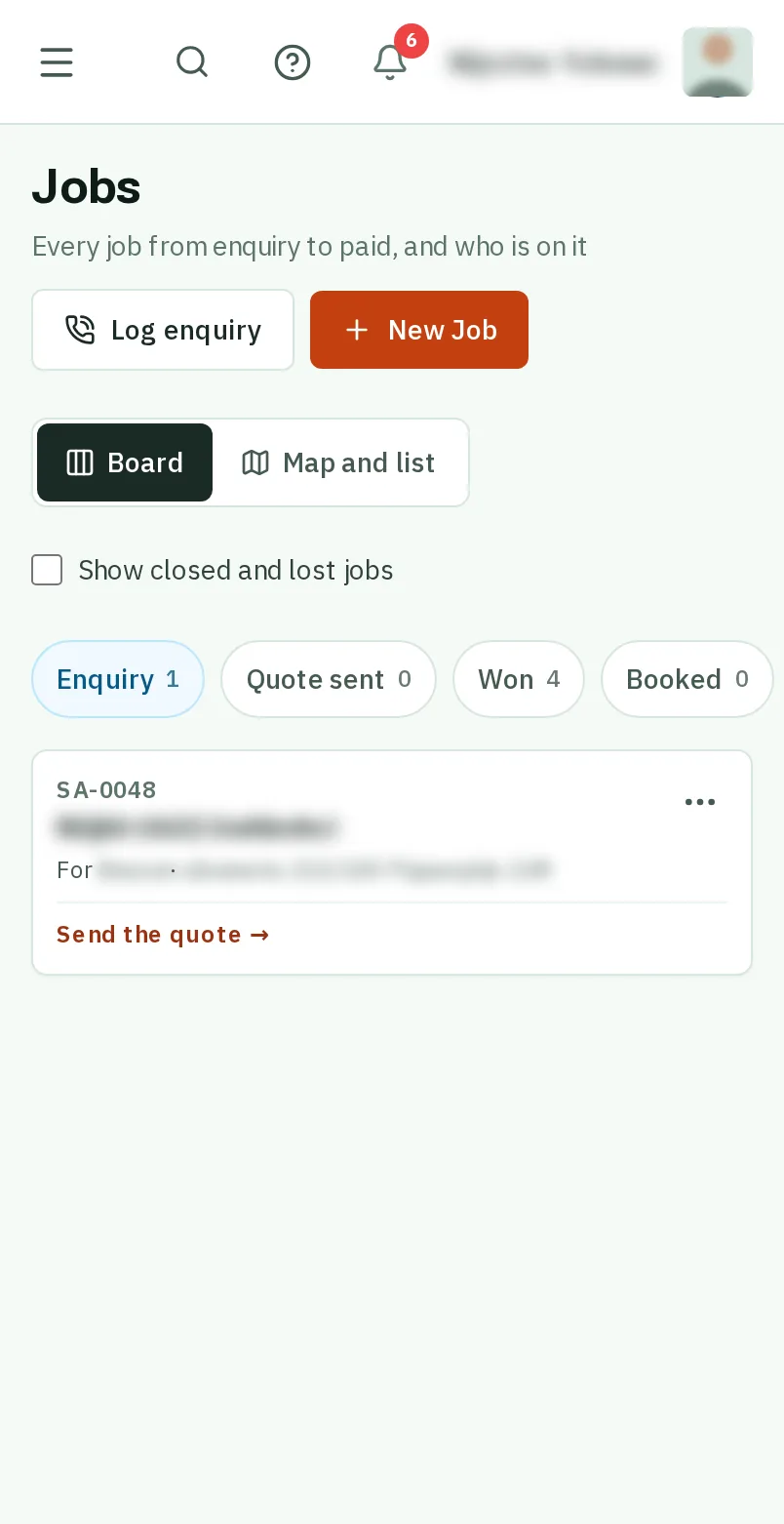
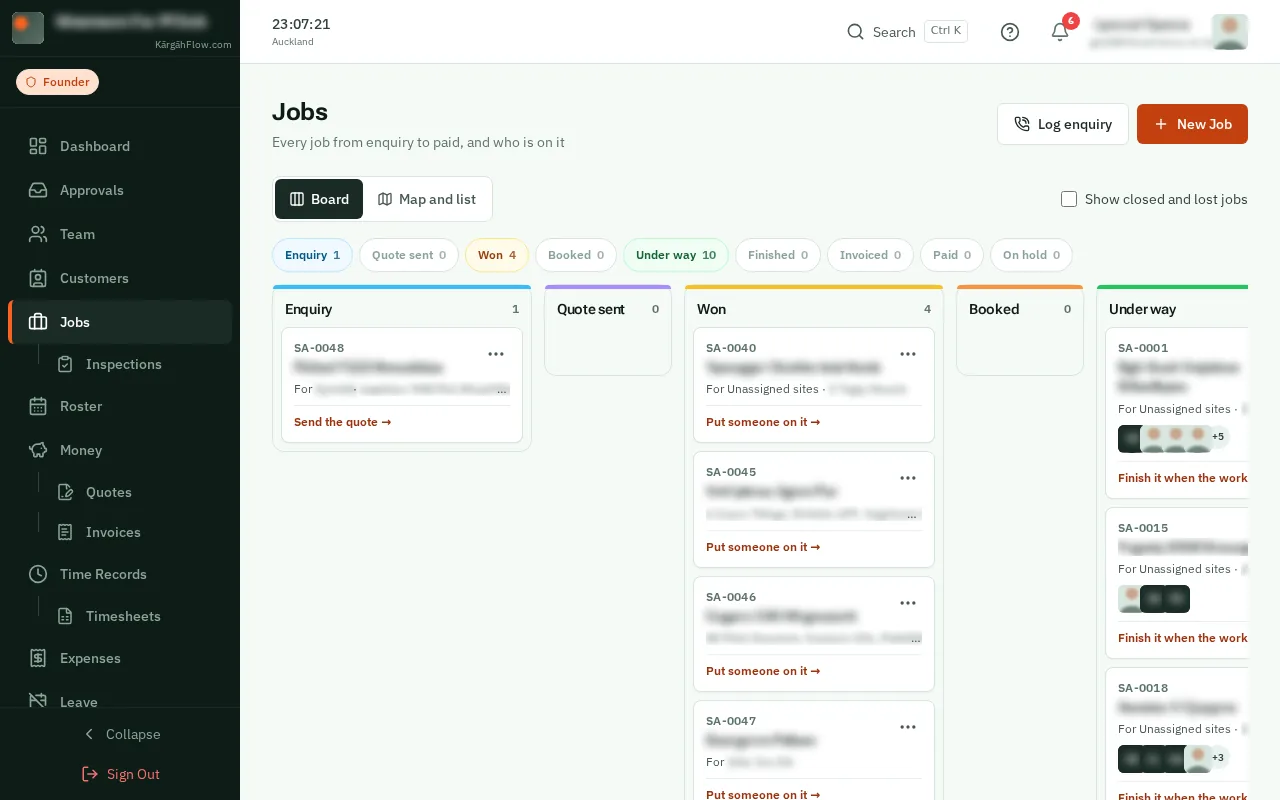
Open Jobs and tapclick the enquiry on the board. Under it, it says Send the quote.
Good to know: No enquiry yet? Log the call first, or open Quotes and tapclick New quote: it puts the enquiry on the board for you.
A quote is the price you offer for a job. You write it from the enquiry on the board, and your customer gets it by email with a link to accept it online.
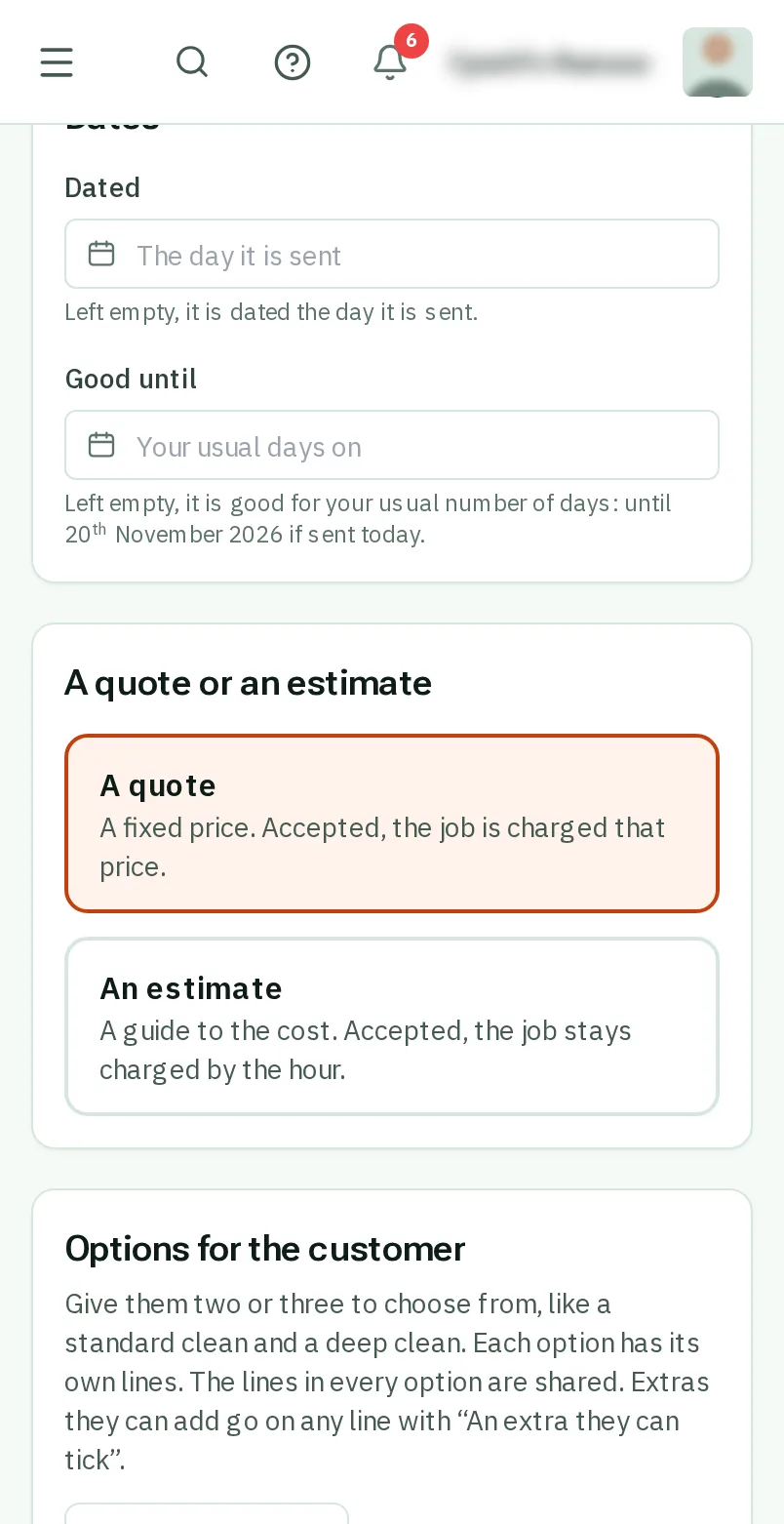
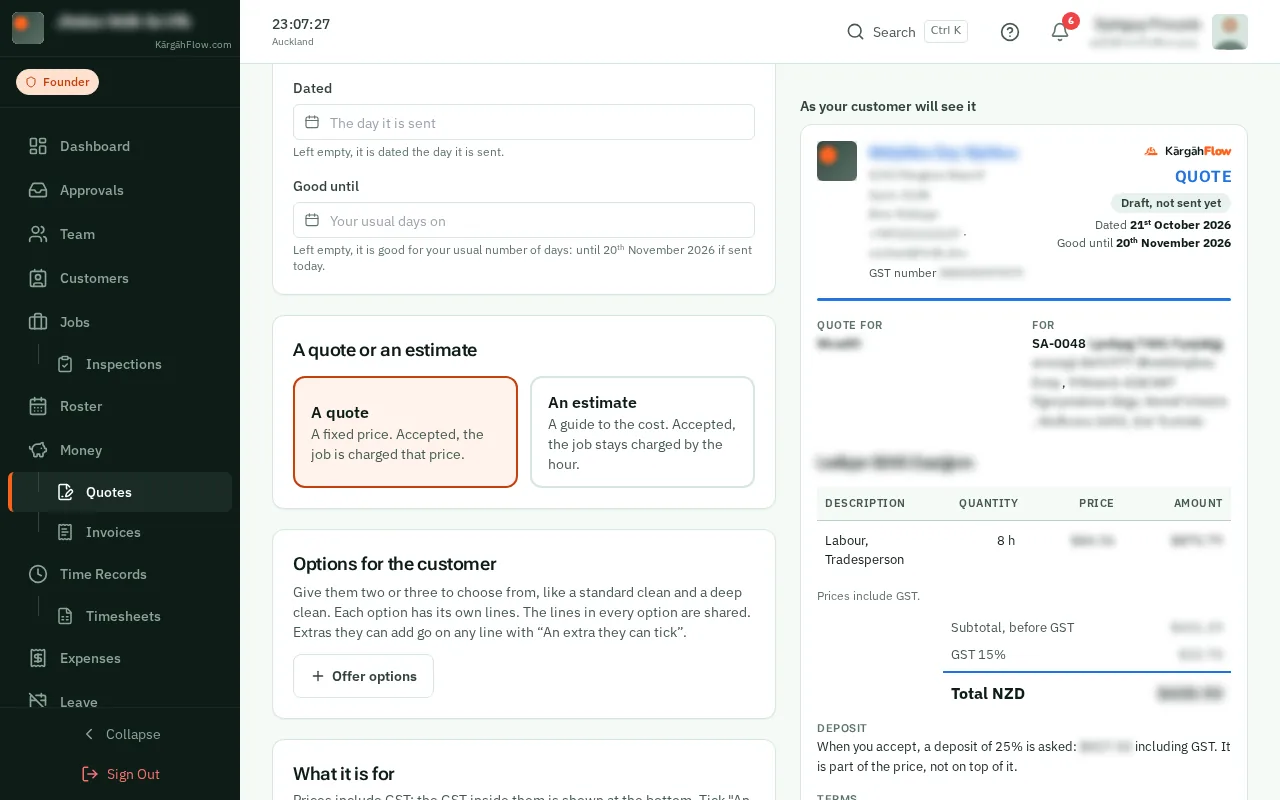
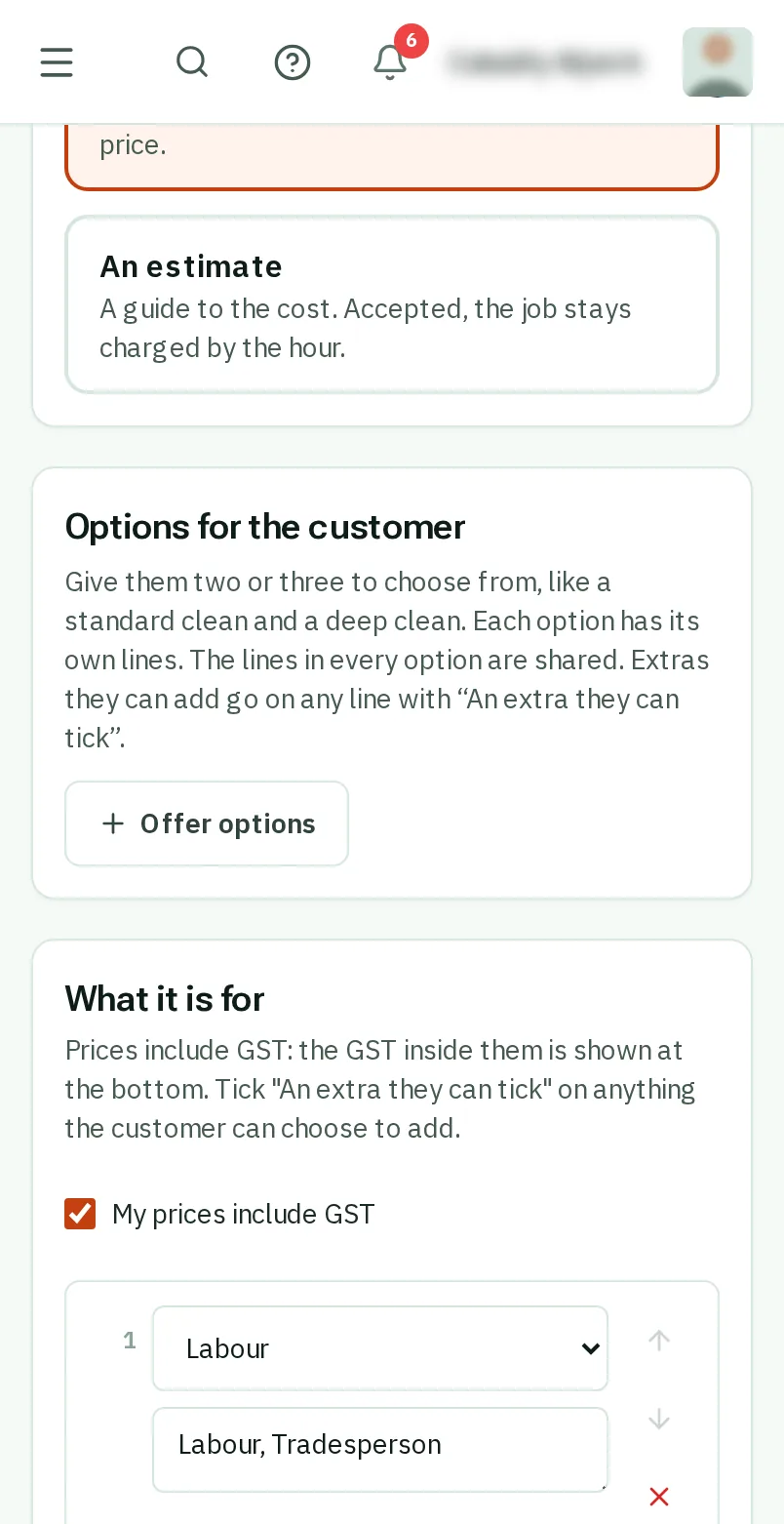
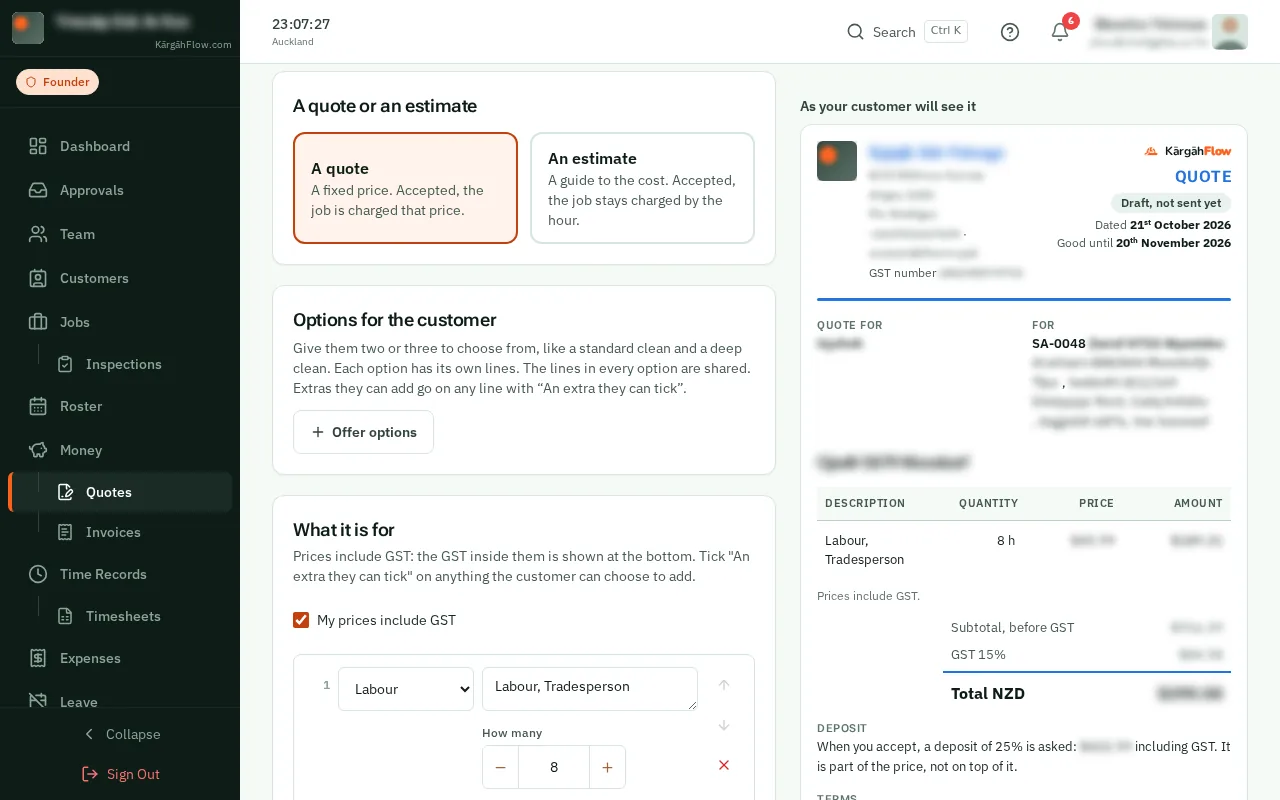
A quote is a fixed price: accepted, the job is charged that price. An estimate is a guide to the cost: accepted, the job stays charged by the hour.
Sending it moves the job to Quote sent. When they accept, it moves to Won by itself, and you are told.
Open Jobs and tapclick the enquiry on the board. Under it, it says Send the quote.
Good to know: No enquiry yet? Log the call first, or open Quotes and tapclick New quote: it puts the enquiry on the board for you.
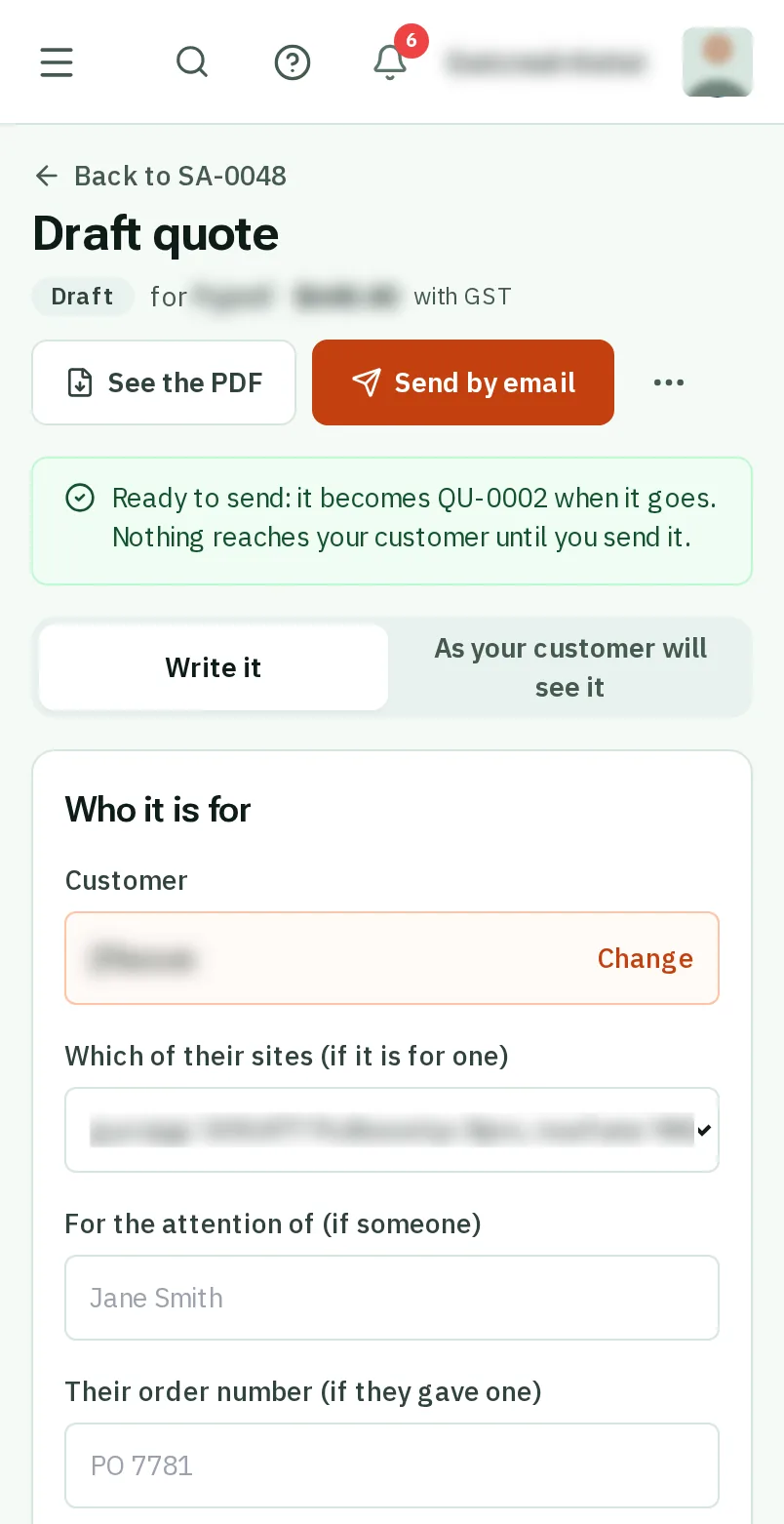
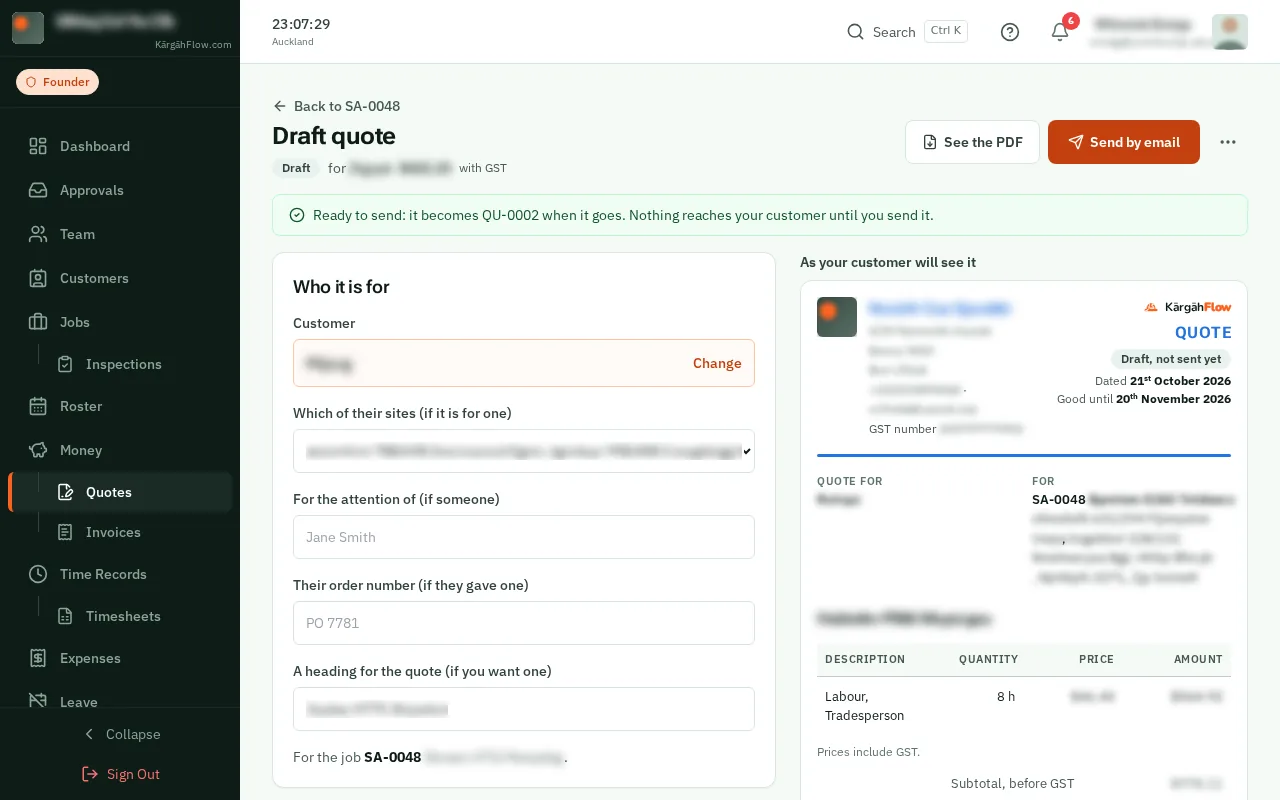
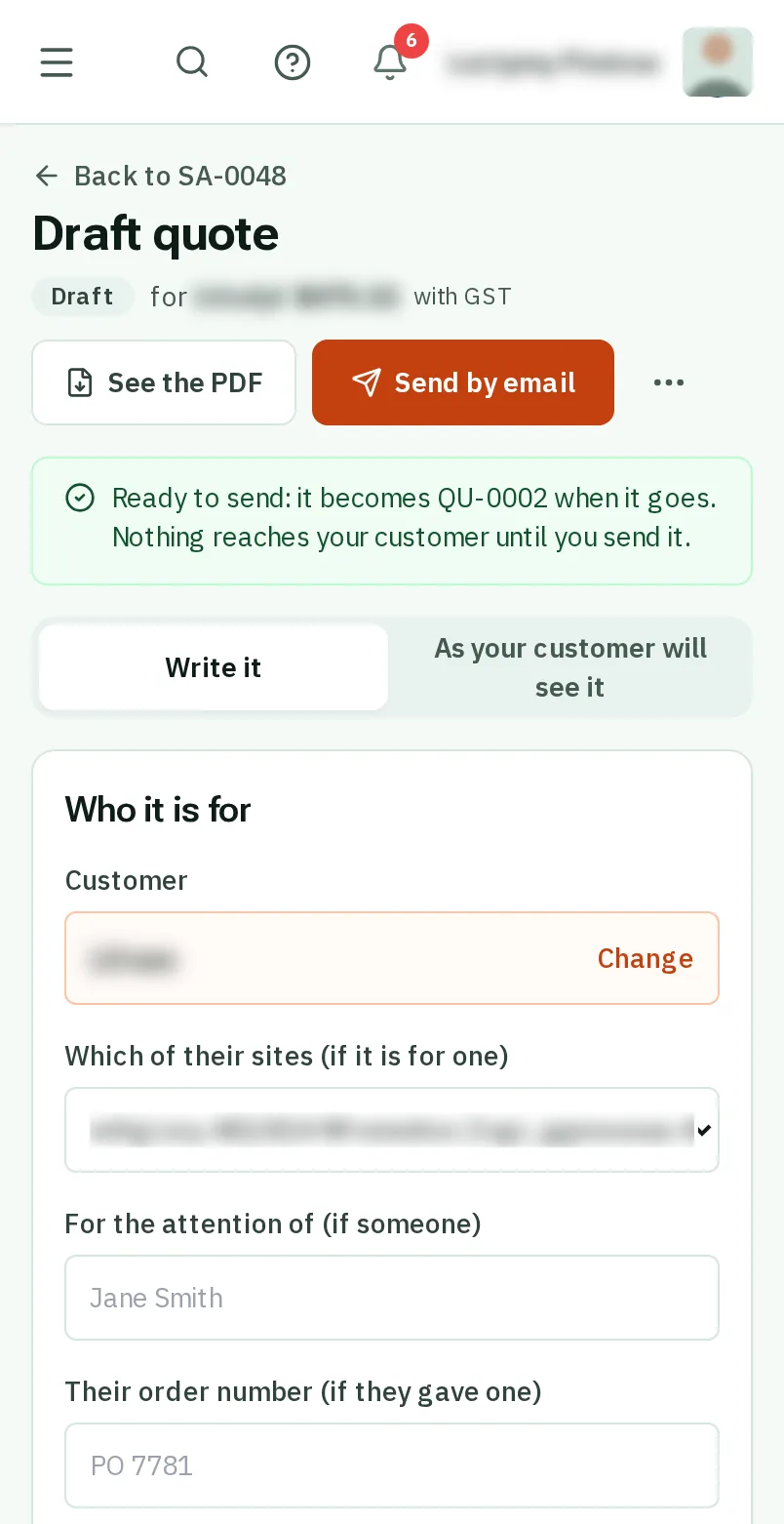
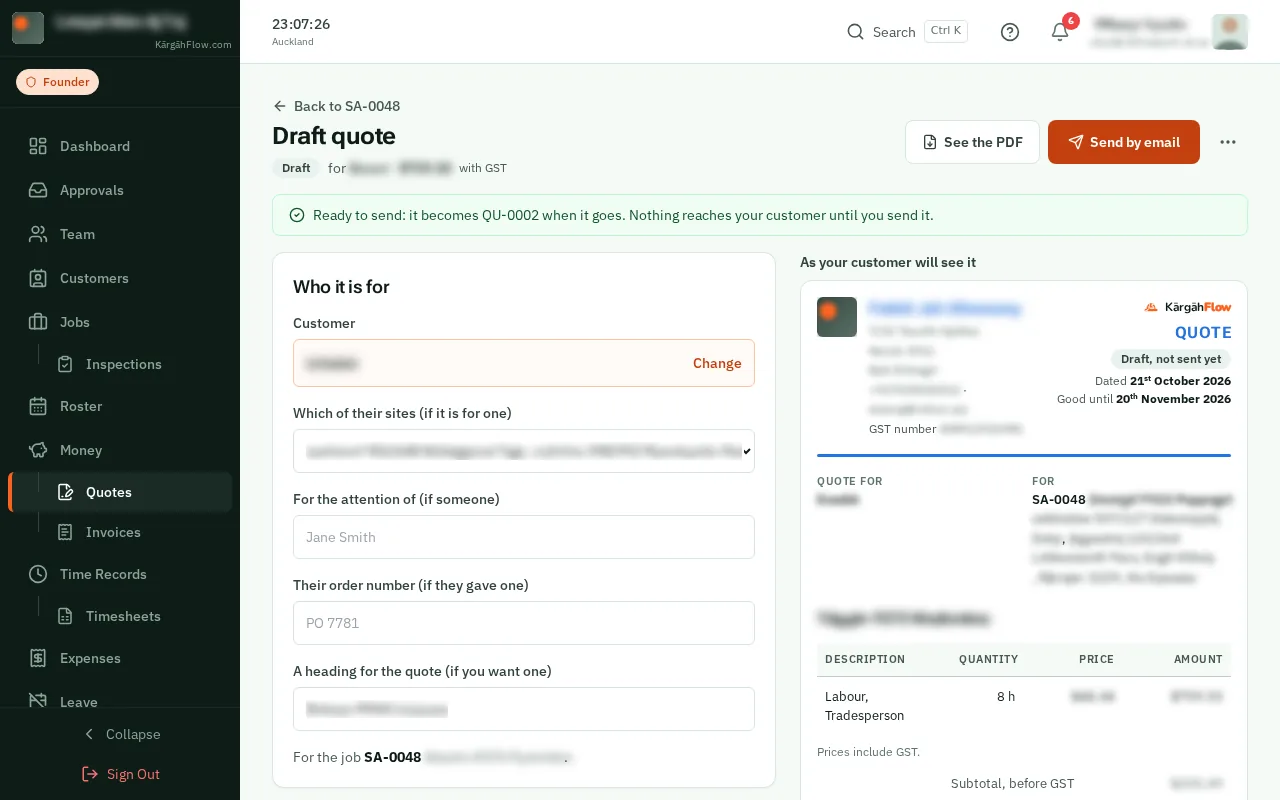
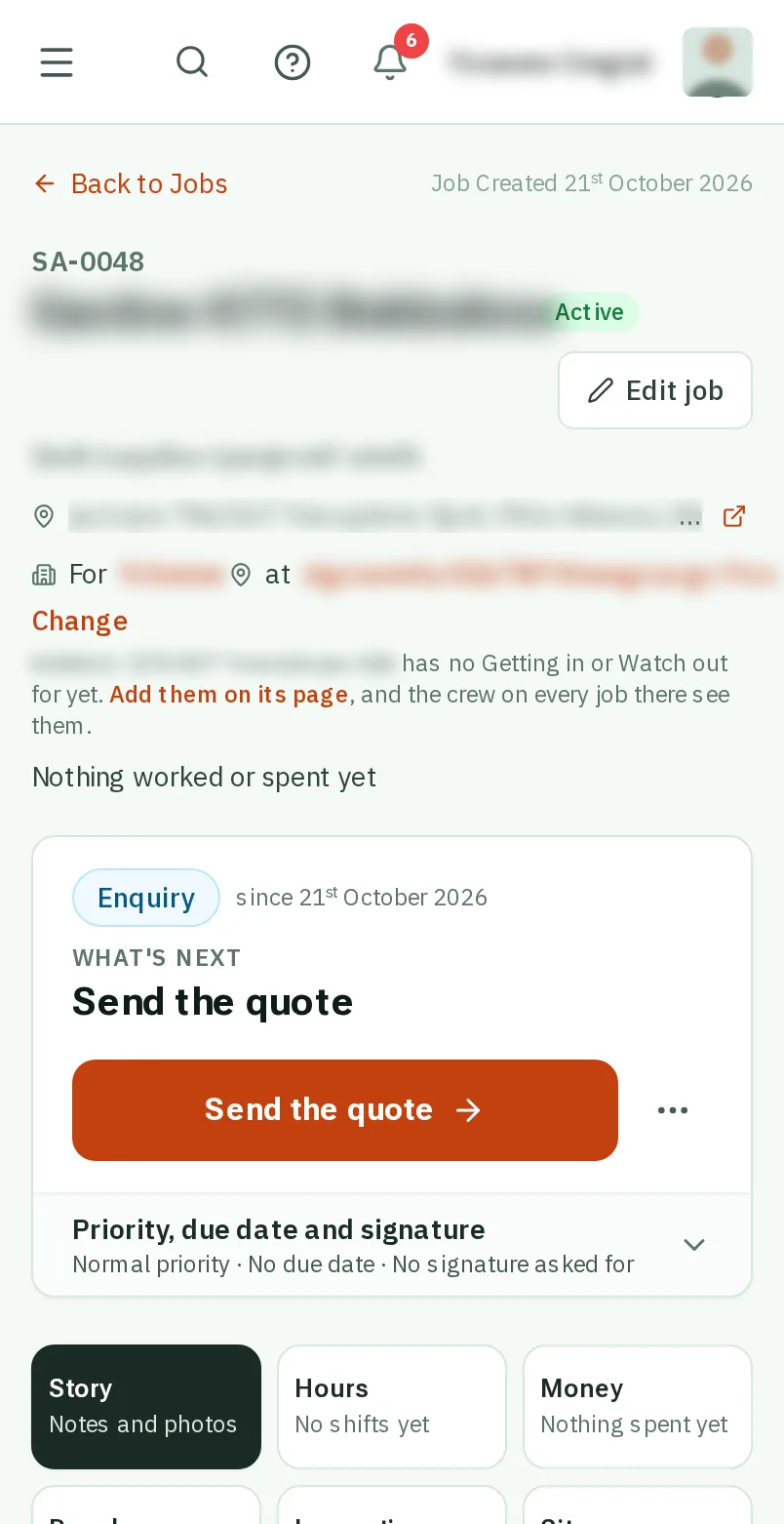
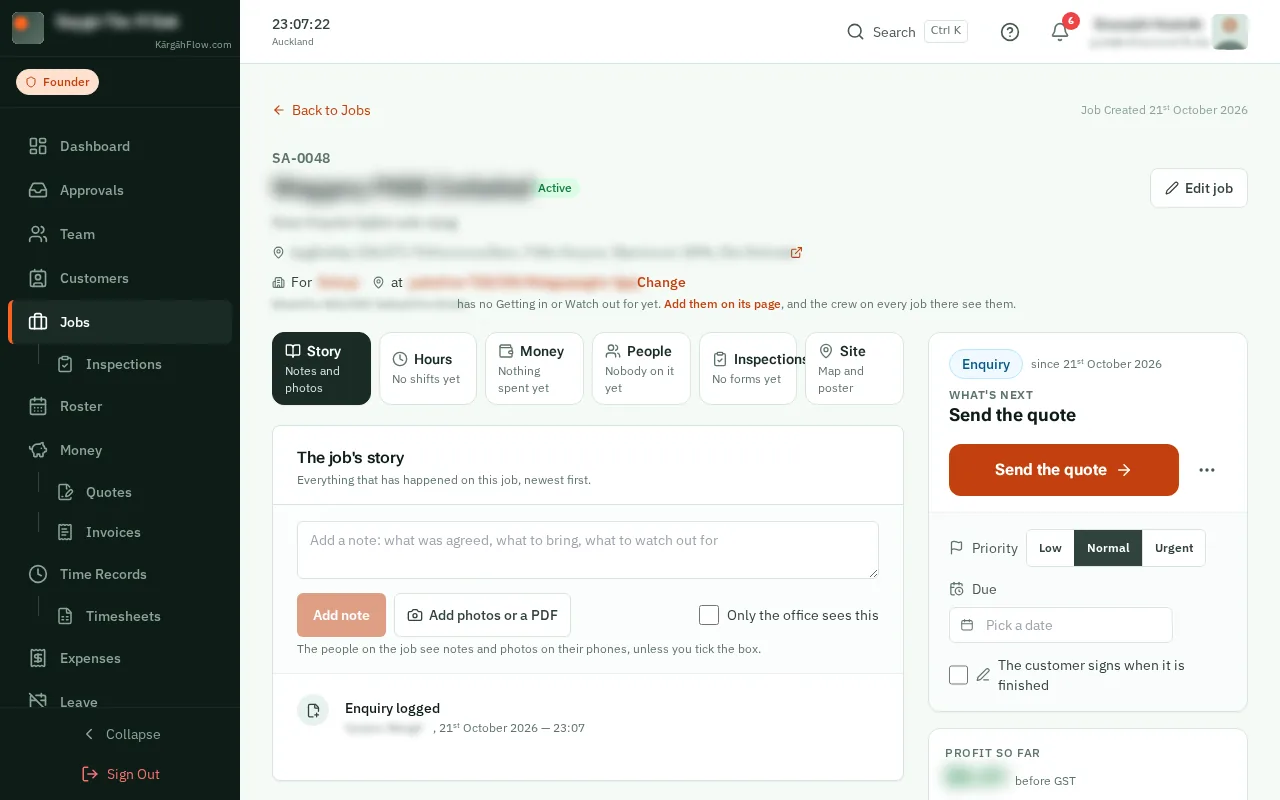
At the top of the job’s page, tapclick the big Send the quote button. Its quote opens, ready to write.On the right of the job’s page, tapclick the big Send the quote button. Its quote opens, ready to write.
Good to know: Sent a quote some other way? TapClick the three dots beside the button, then I’ve sent the quote.
TapClick A quote for a fixed price, or An estimate for a guide to the cost of a job charged by the hour.
Under What it is for, put each thing on its own line, with how many and the price. Start typing and your price list offers its items. A labour line takes your rate for the level you choose.
Good to know: TapClick Put on a kit to add a whole set of lines at once, like a bathroom refit. Tick My prices include GST if the prices you type have GST in them already.
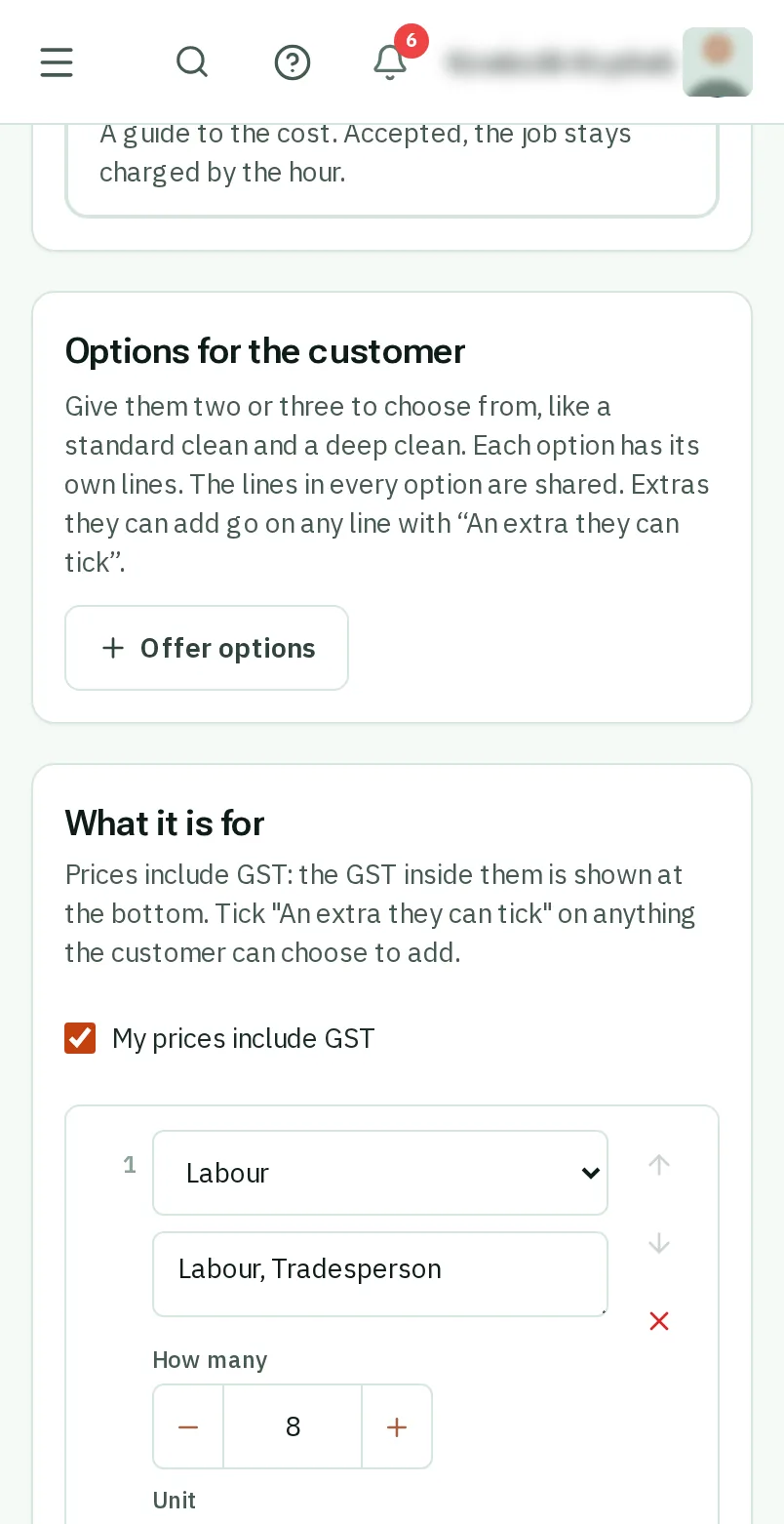
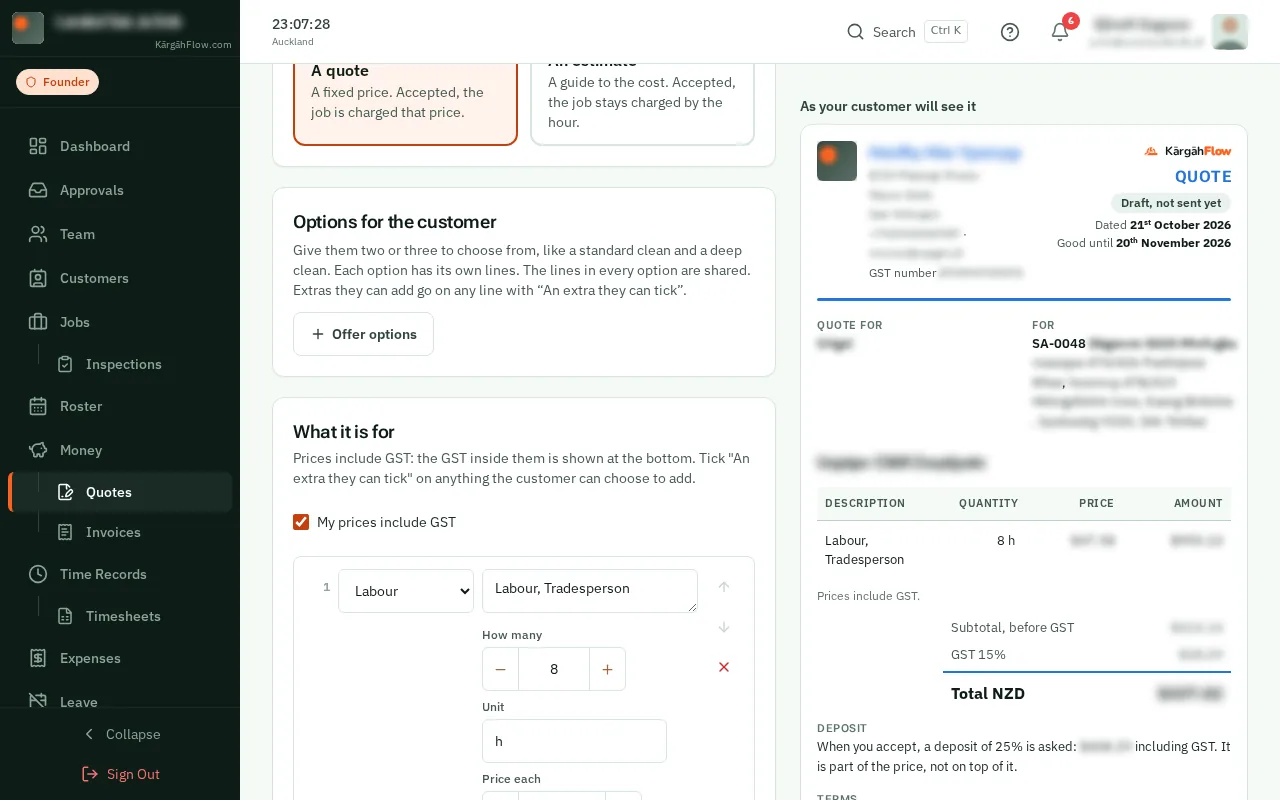
TapClick Offer options to let them choose between two or three, like a standard clean and a deep clean. Name each one, then choose on each line which option it is in.
Good to know: Tick An extra they can tick on anything they can add if they want it, like a heated towel rail.
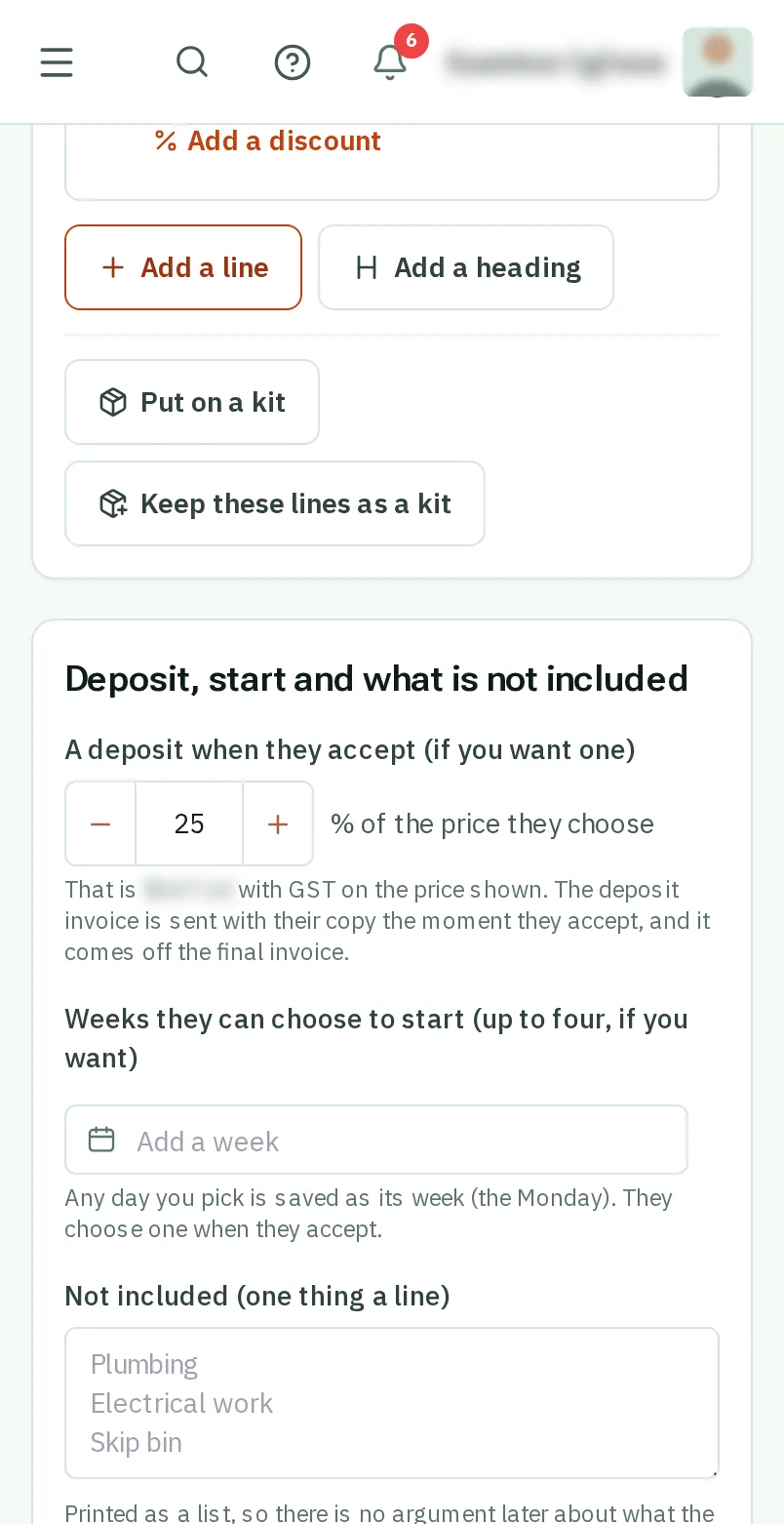
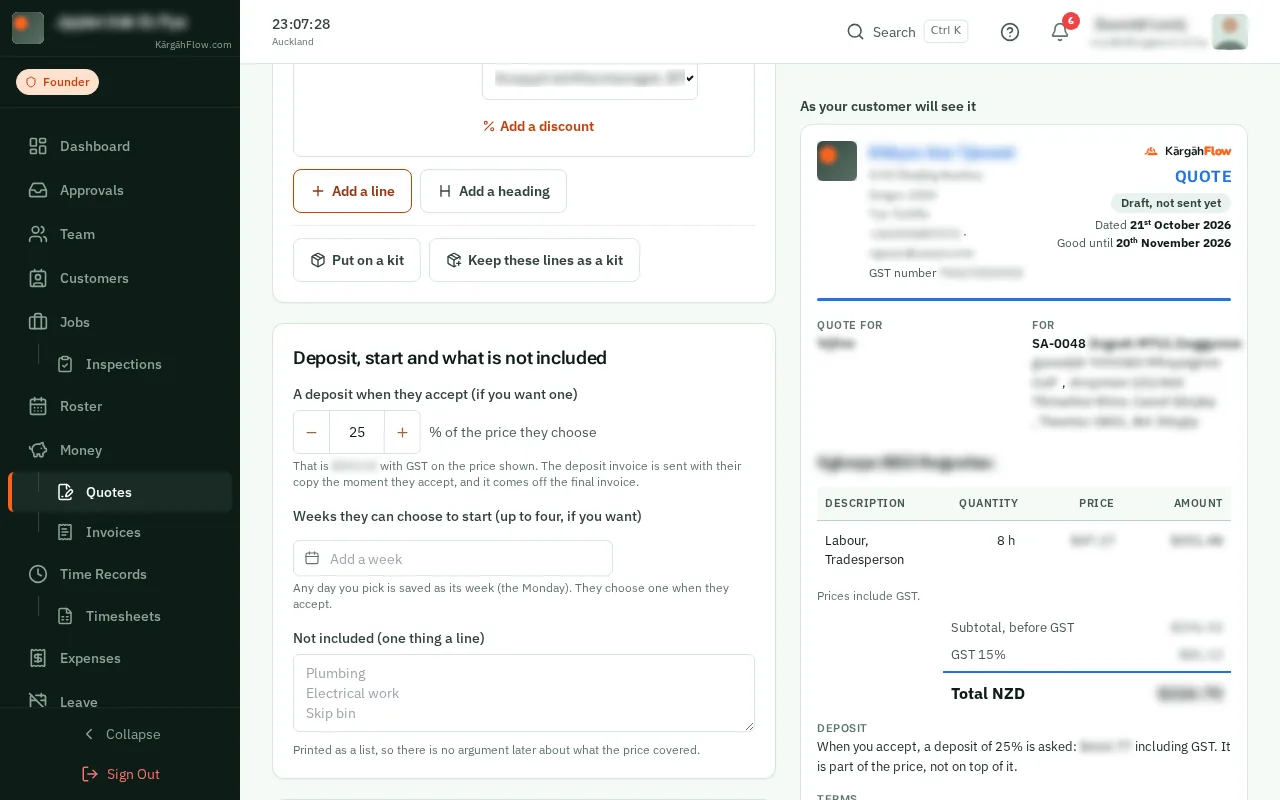
Under A deposit when they accept, type a share of the price, like 25. Add up to four weeks they can choose to start, and anything the price does not cover under Not included, one thing a line.
Good to know: The deposit invoice goes to them the moment they accept, and it comes off the final invoice.
TapClick Send by email, check the address, tick anyone to copy it to, then tapclick Send it. The job moves to Quote sent.
Good to know: What it makes, under the lines, is your margin, for you only. If it is less than you want, the window says so before the quote goes.