Step 1: Open Quotes
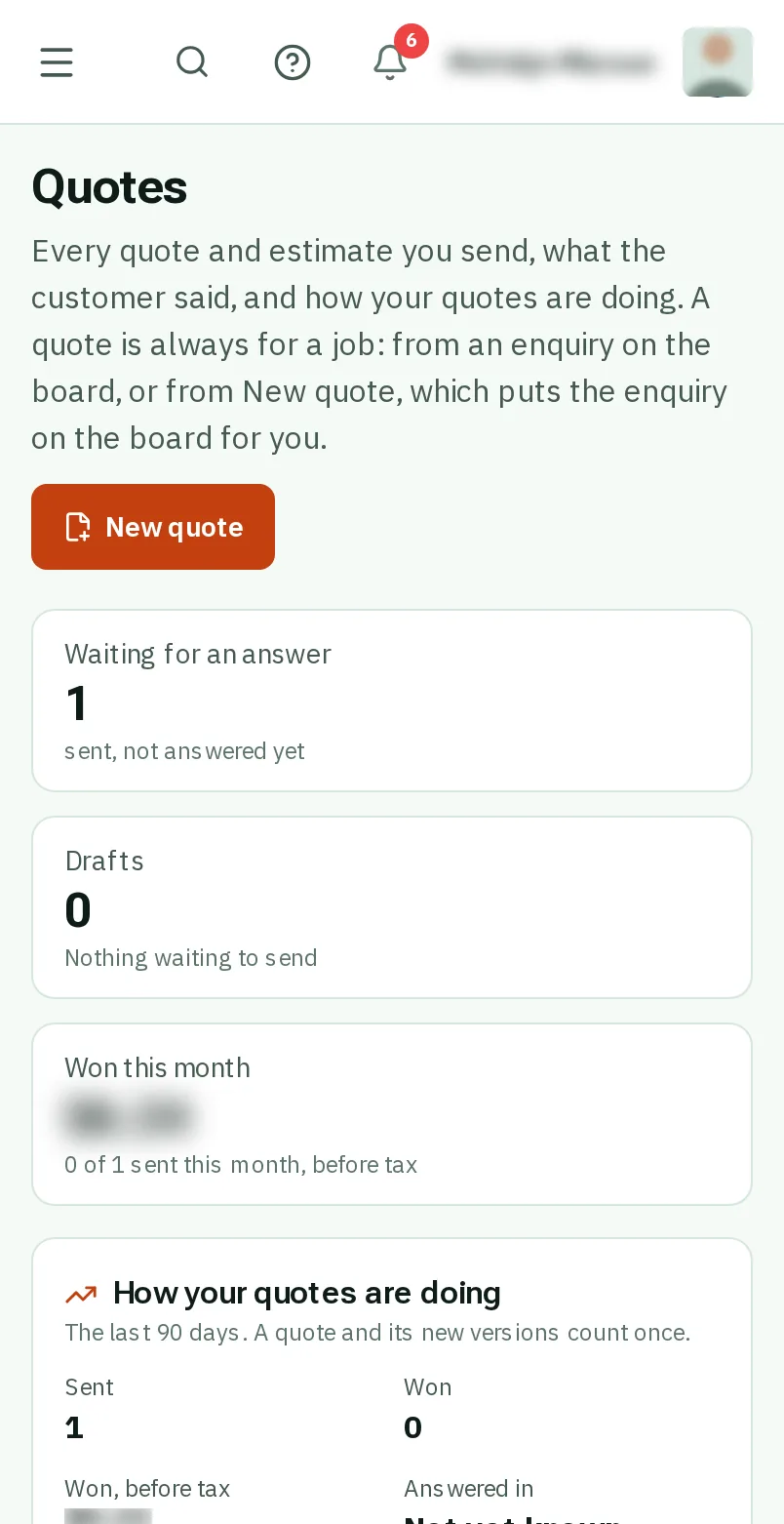
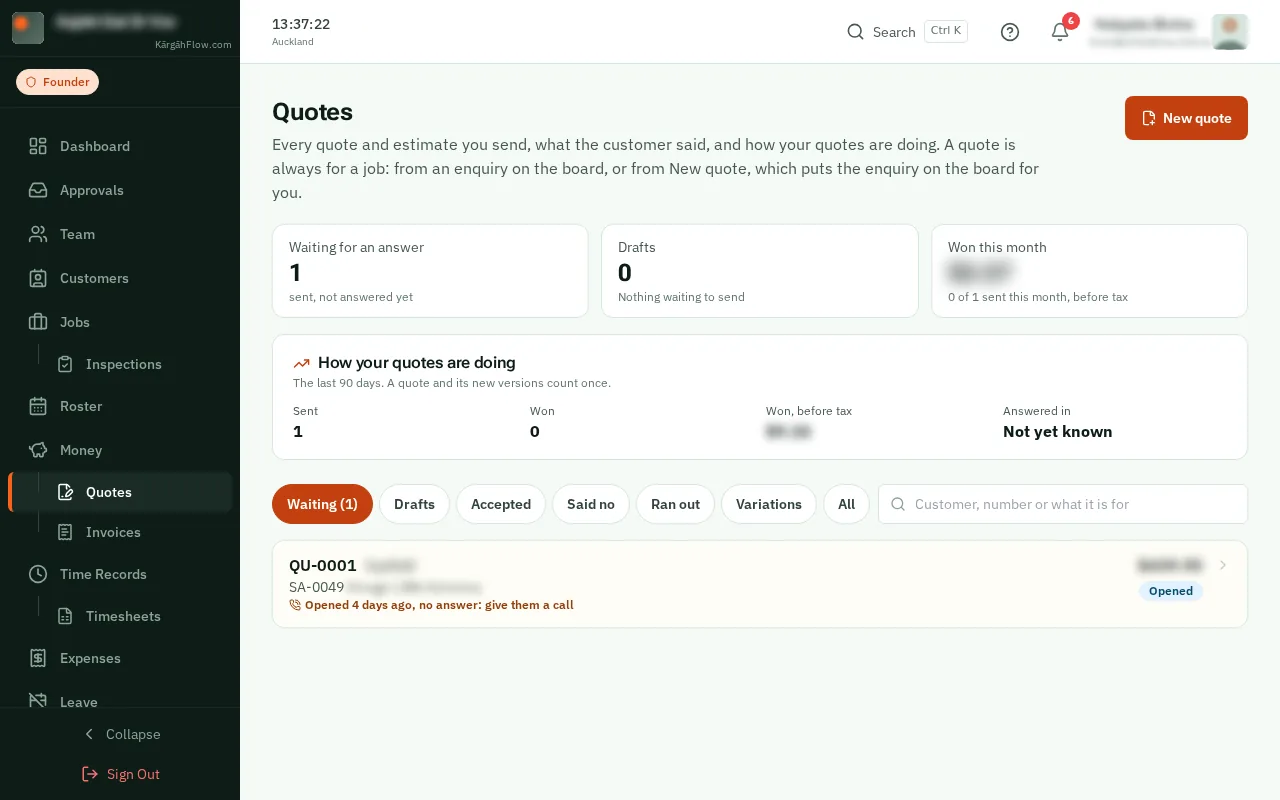
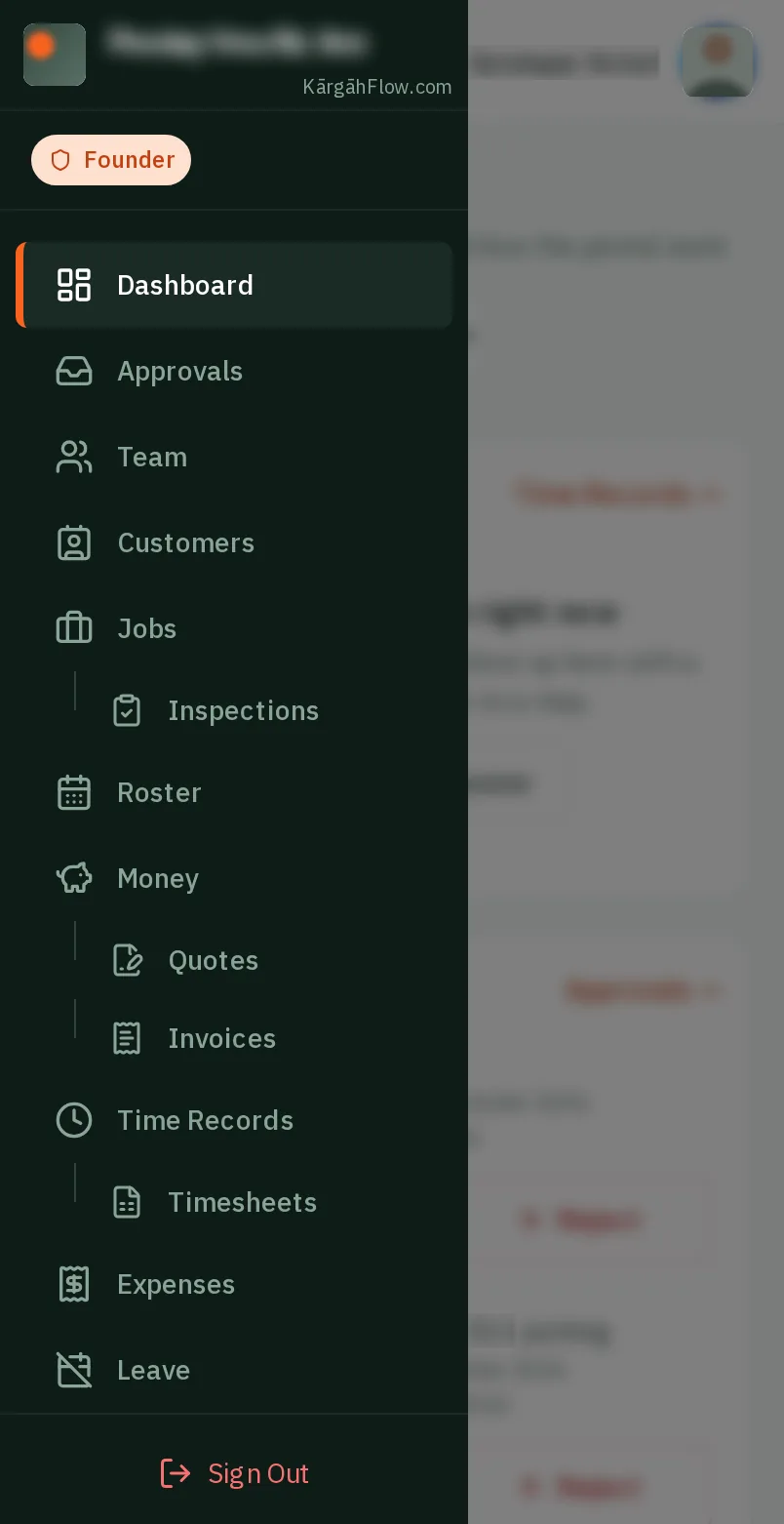
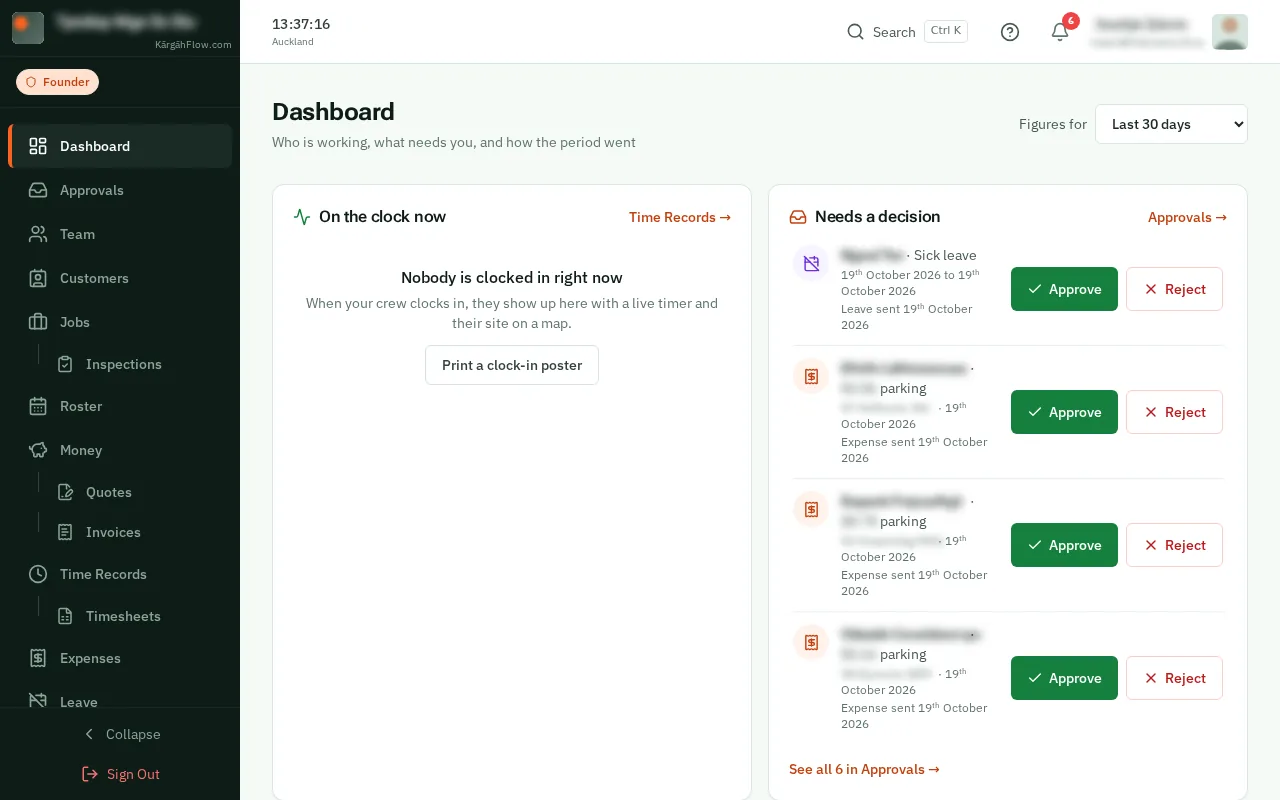
TapClick the menu button at the top left of the screen, then Quotes.TapClick Quotes in the menu on the left.
Look forthe Quotes item in the menu
Good to know: Quotes is under Money in the menu.
Your customer opens the quote from the email, chooses an option if there are some, and accepts it. The job moves to Won by itself, any deposit invoice goes to them, and you get a notification.
They can also say no and why, ask a question, or ask for an updated quote once it runs out. Each one shows on the quote, and on Quotes in the menu.
TapClick the menu button at the top left of the screen, then Quotes.TapClick Quotes in the menu on the left.
Good to know: Quotes is under Money in the menu.
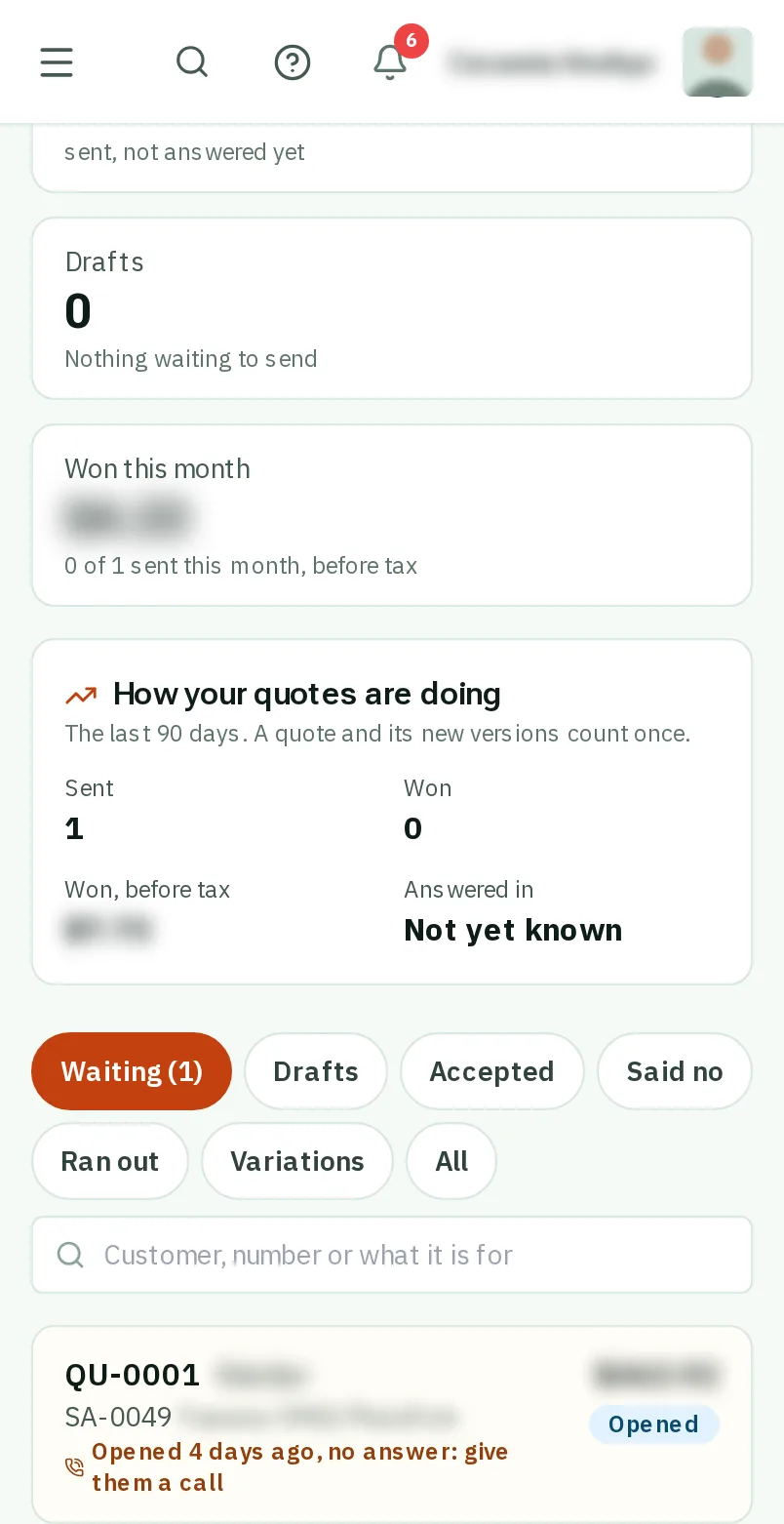
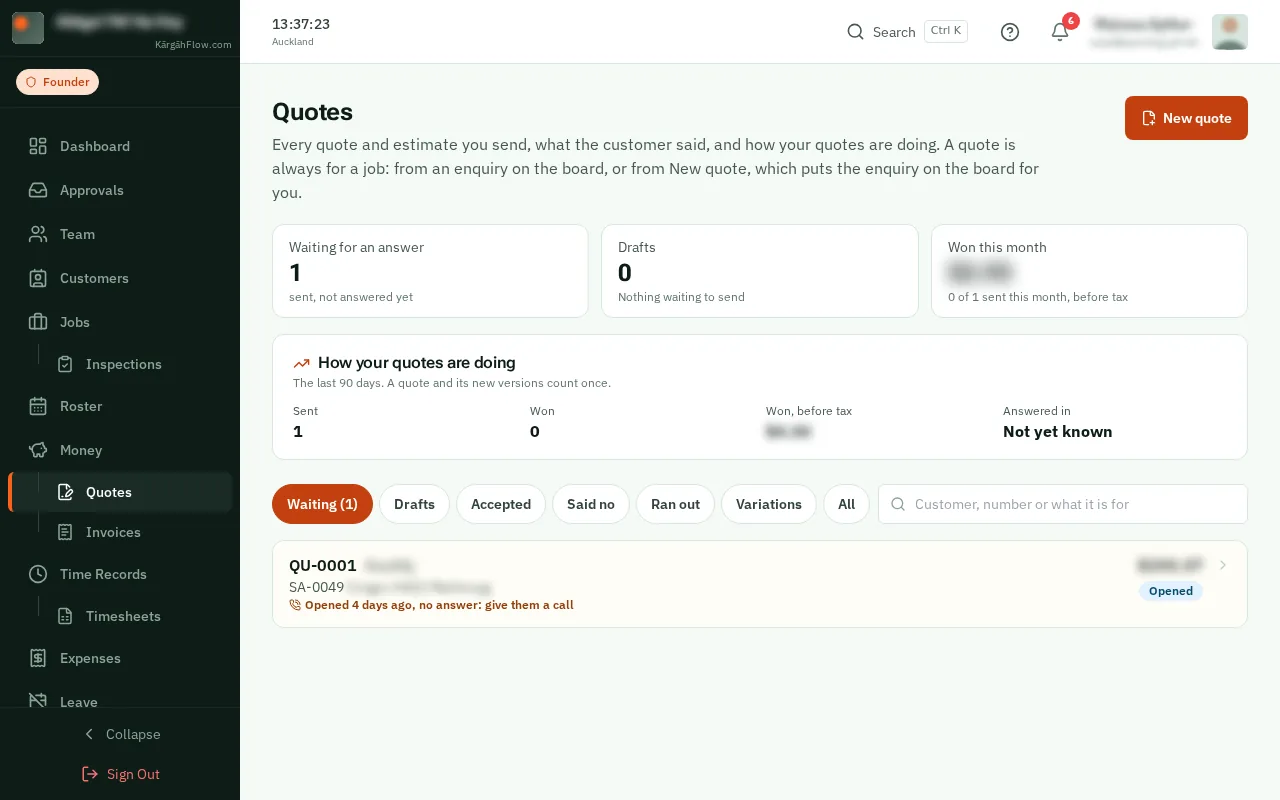
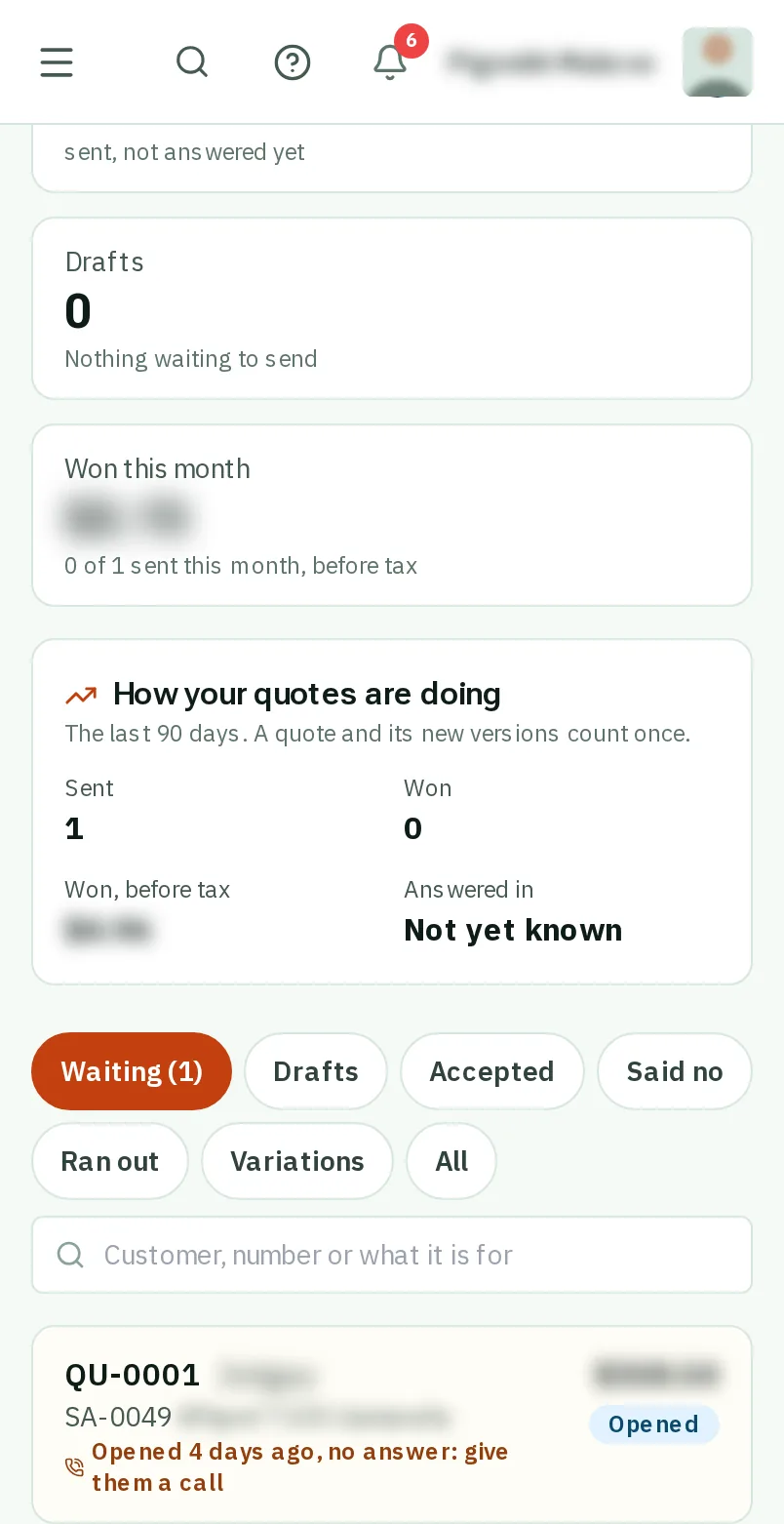
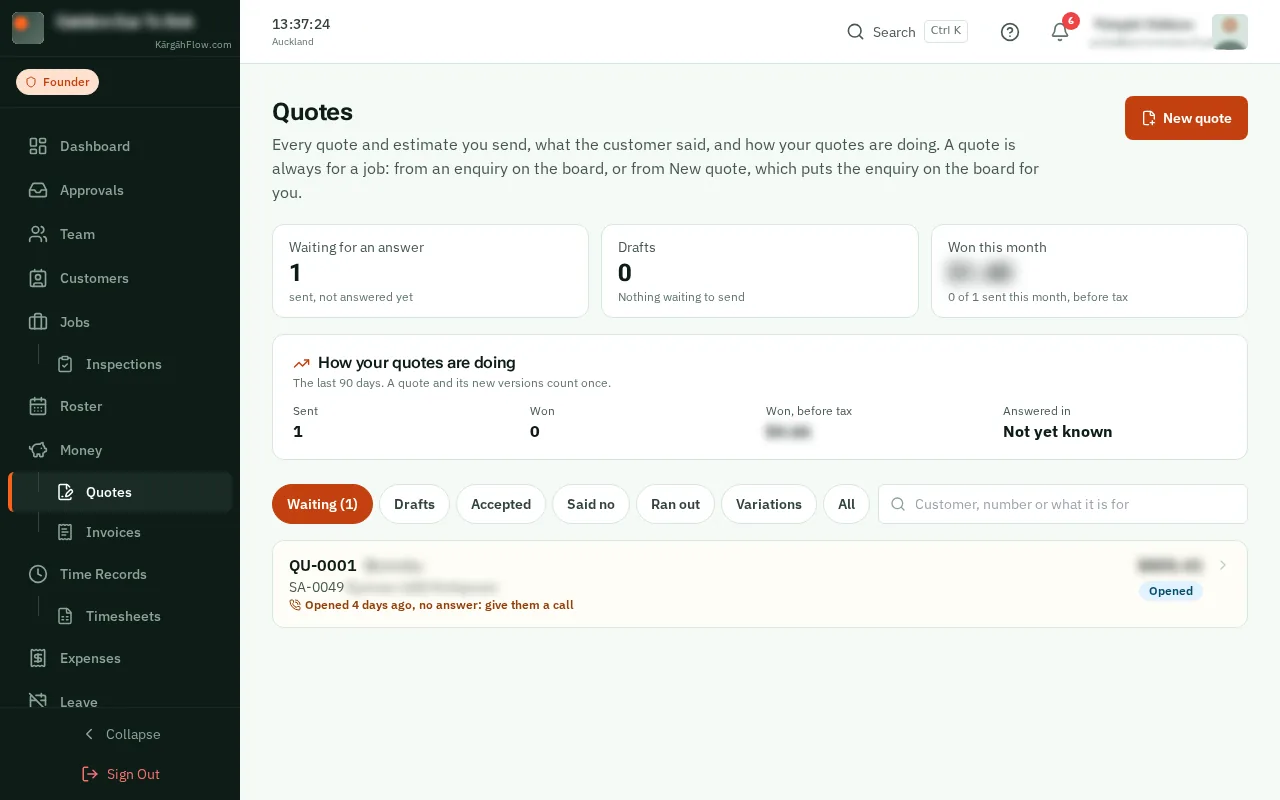
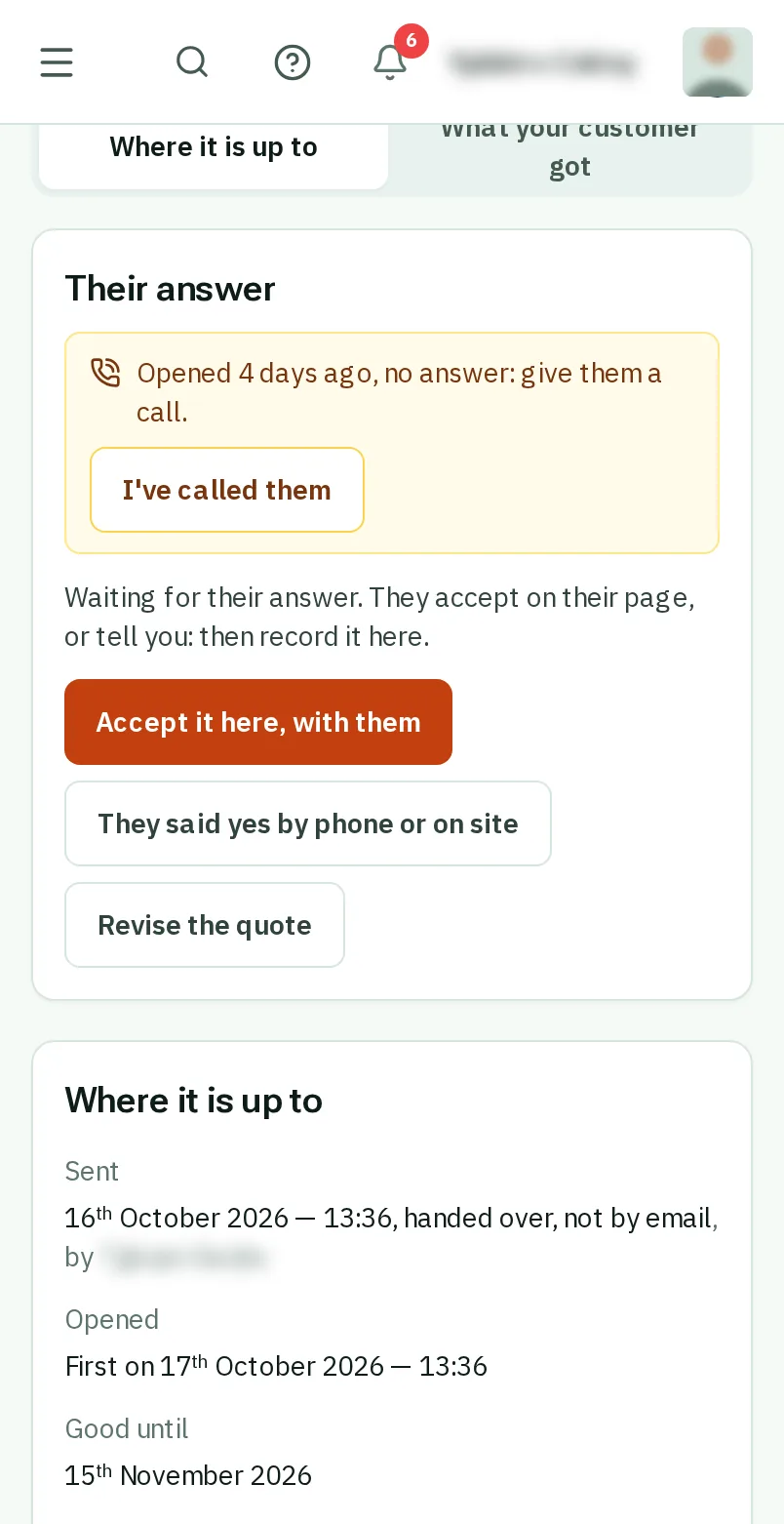
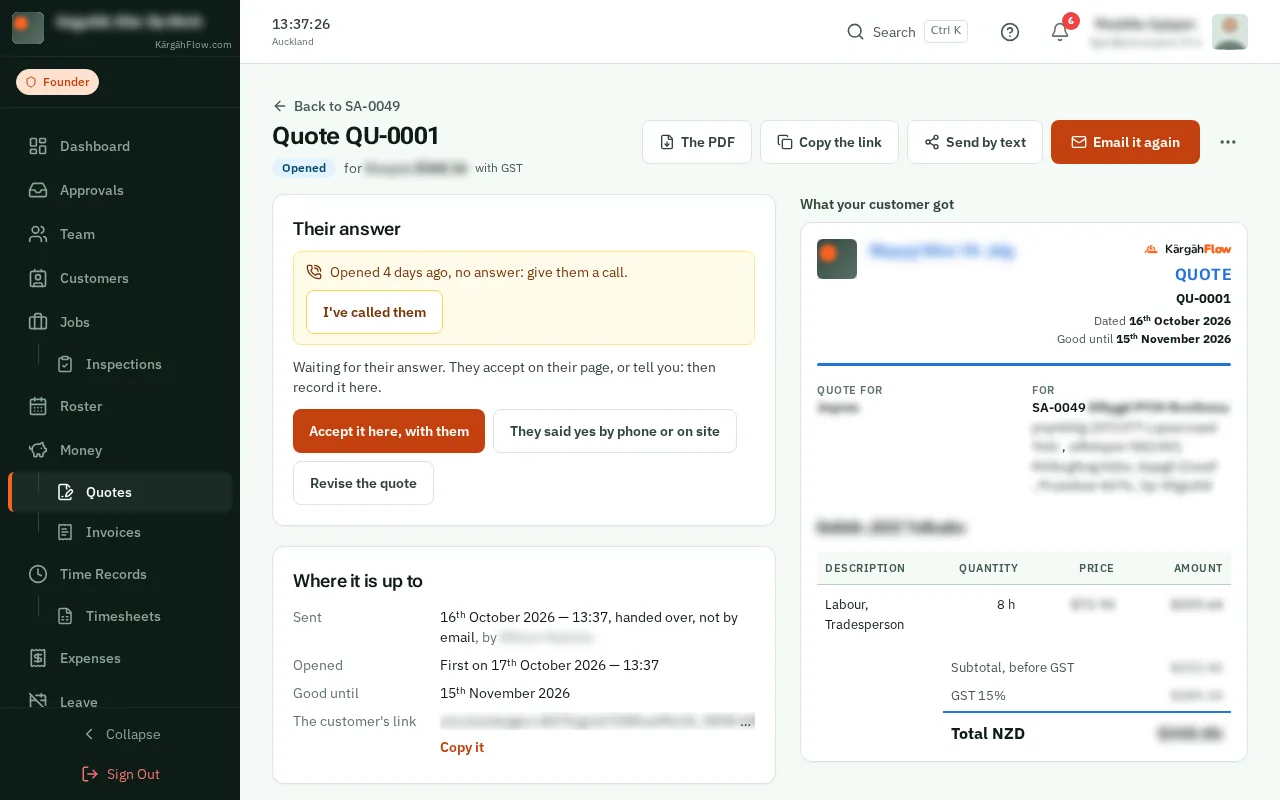
The list opens on Waiting: the quotes still out, newest first. One with no answer three days on says so in orange: give them a call.
Good to know: Beside Waiting are Drafts, Accepted, Said no and Ran out. How your quotes are doing, above them, counts the last 90 days.
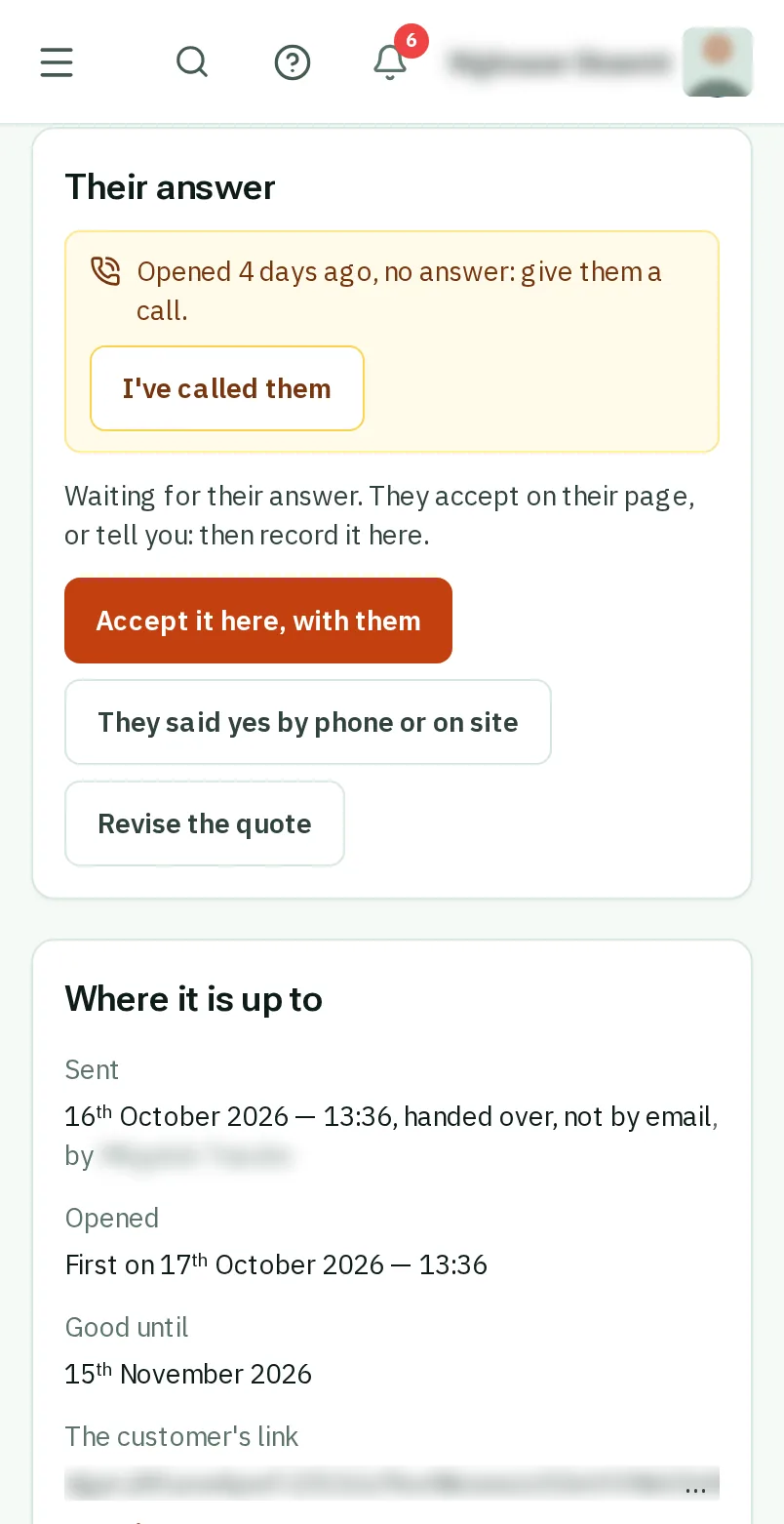
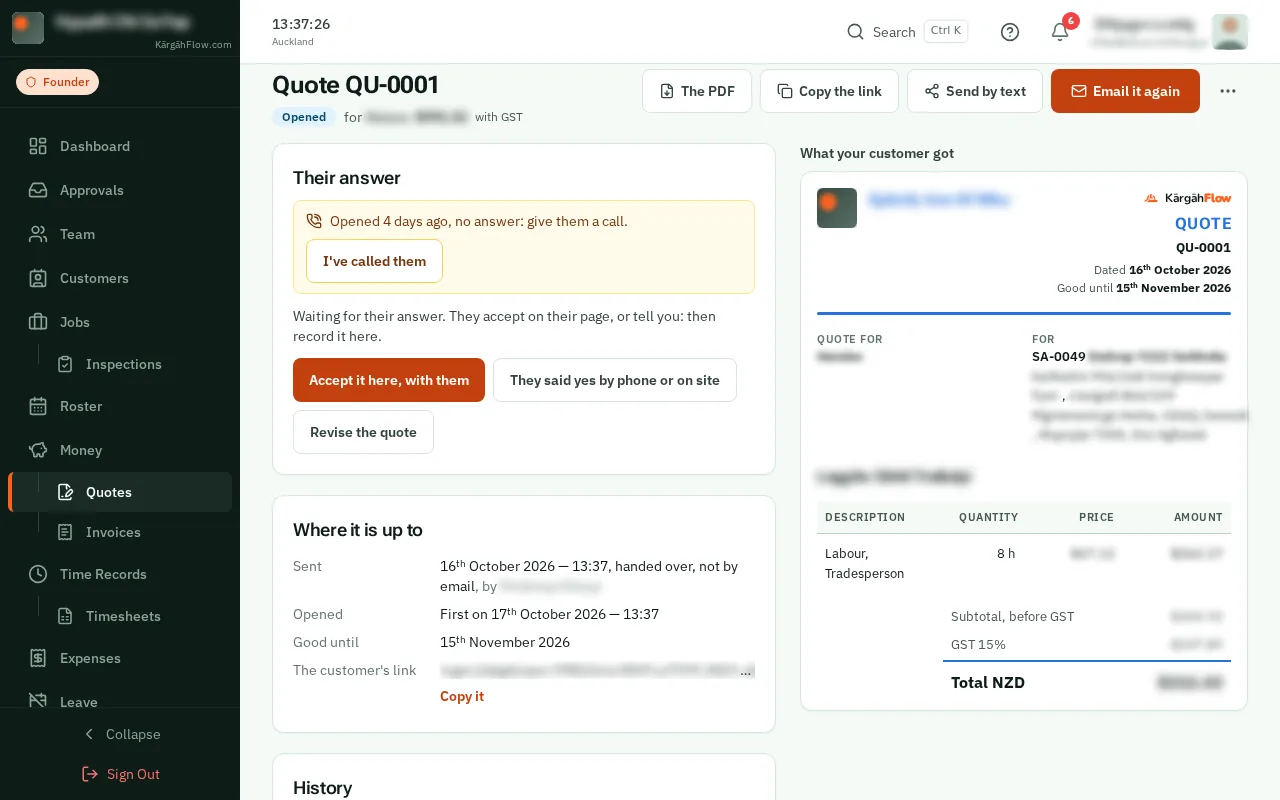
TapClick the quote. Their answer, at the top, says where it is up to.
Once you have called them, tapclick I’ve called them. The orange line goes, and comes back if there is still no answer three days on.
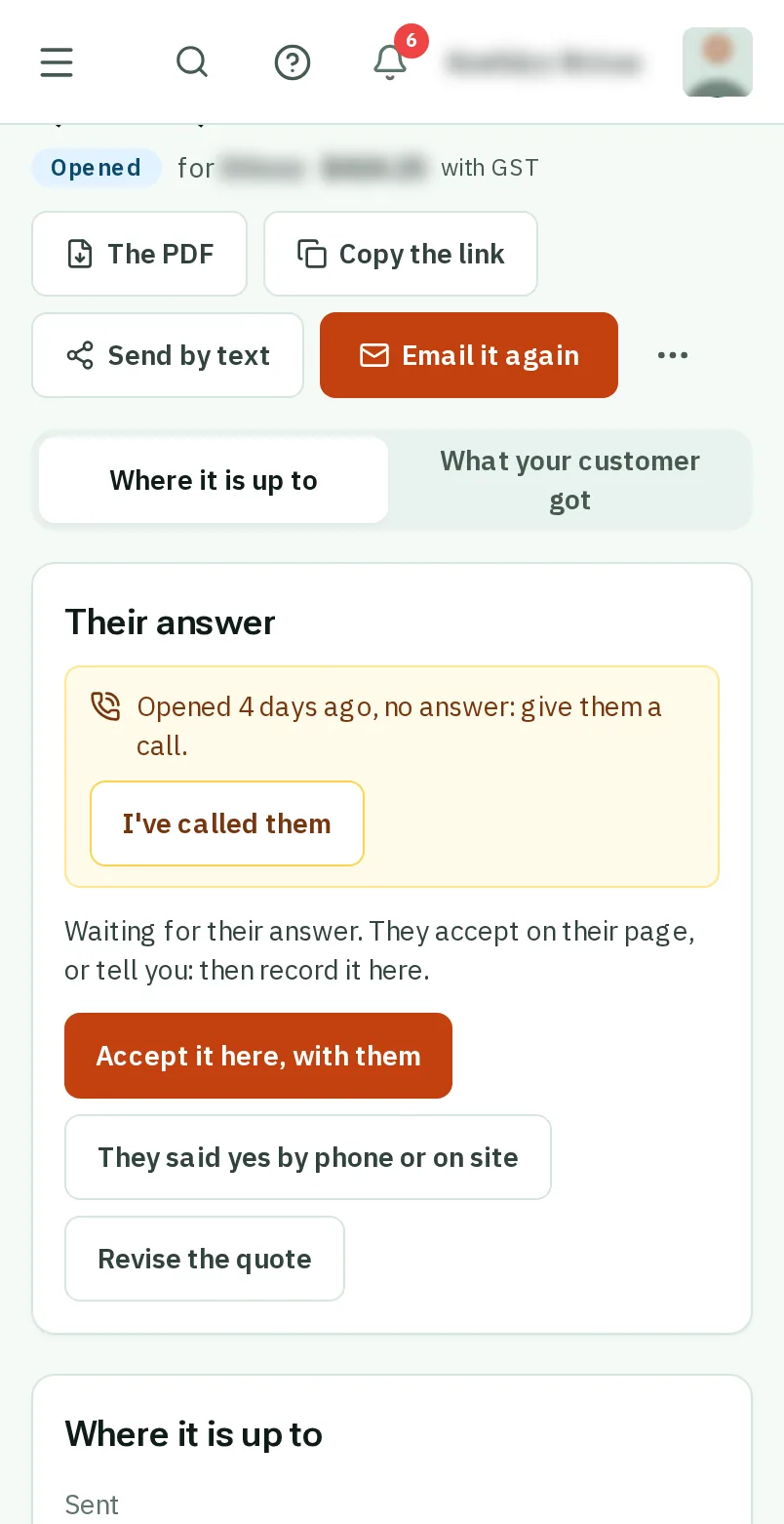
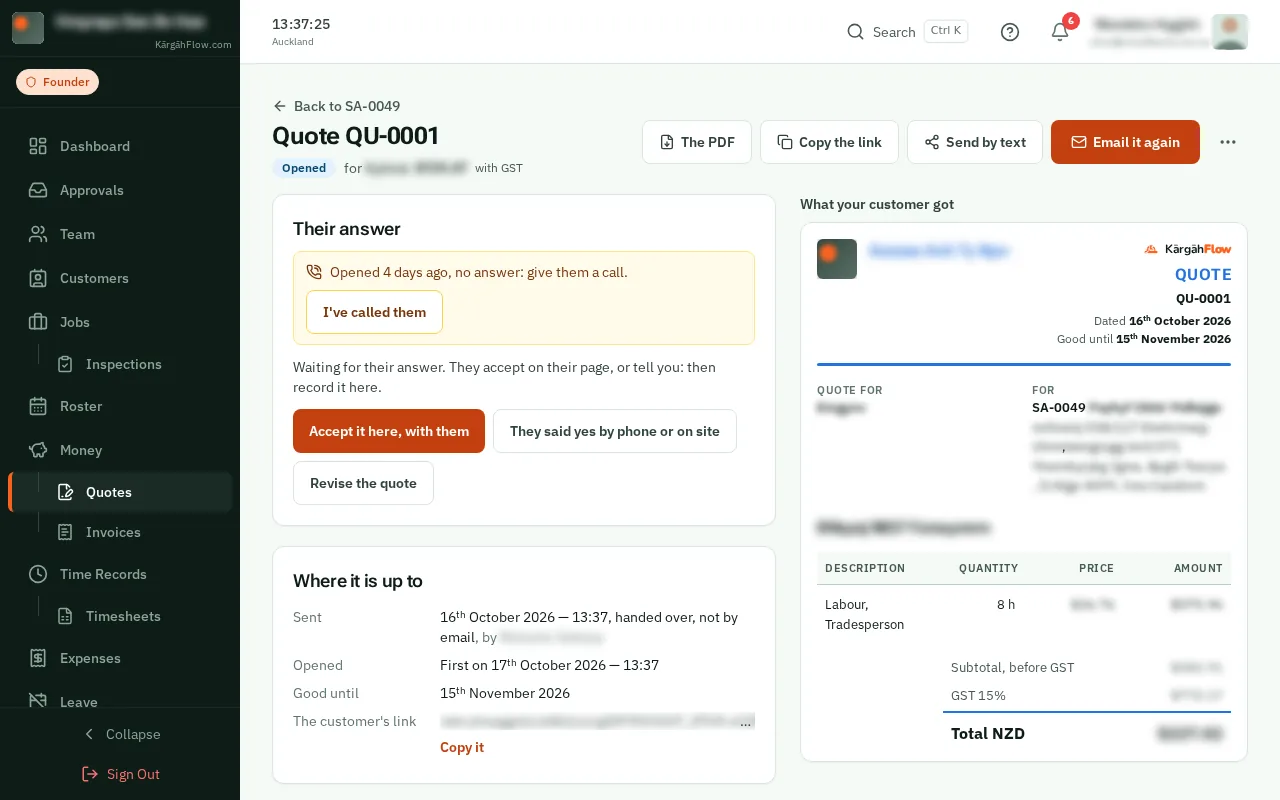
TapClick They said yes by phone or on site. Choose how, what they chose, type who said yes, and tapclick Record their yes. The job moves to Won, and they get their copy by email.
Good to know: Standing with them? TapClick Accept it here, with them and hand them your phone: they choose, type their name and tick, as on their own page.
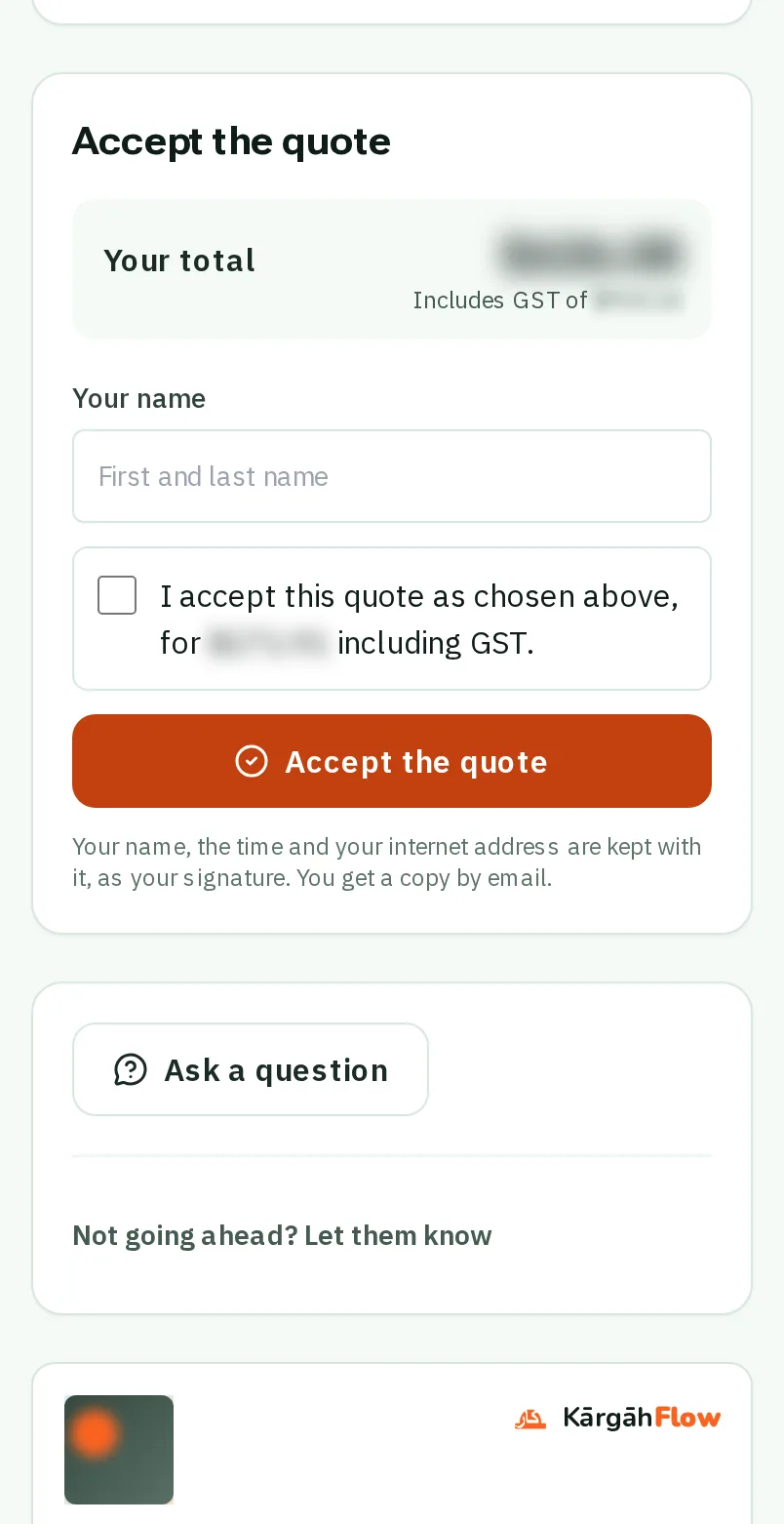
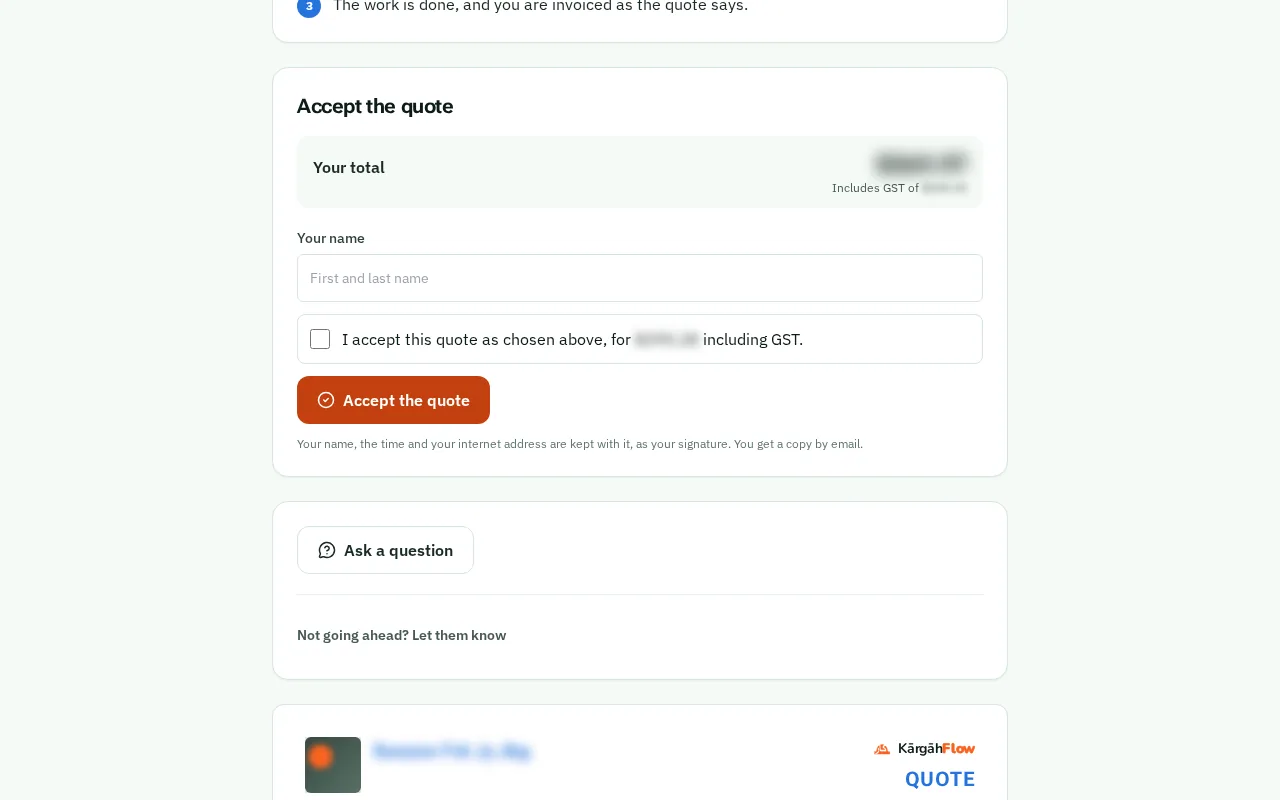
Their link opens the quote, with what happens next. They choose an option, type their name, tick, and tap Accept the quote. They can also ask a question, or say they are not going ahead and why.
Price changed, they said no, or it ran out? TapClick Revise the quote. A new version opens to change, with the same number. Once it is sent, their old link takes them to the new one.