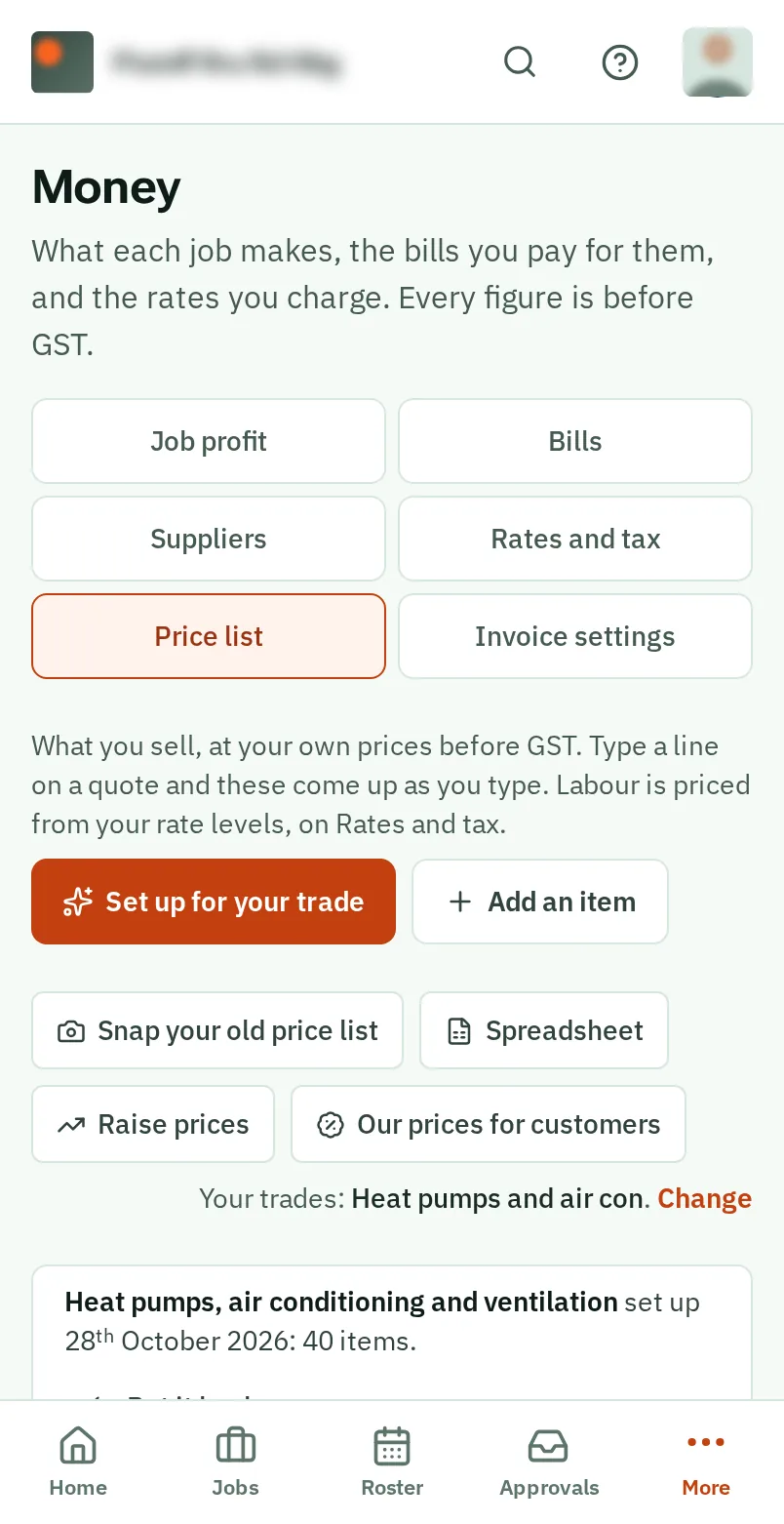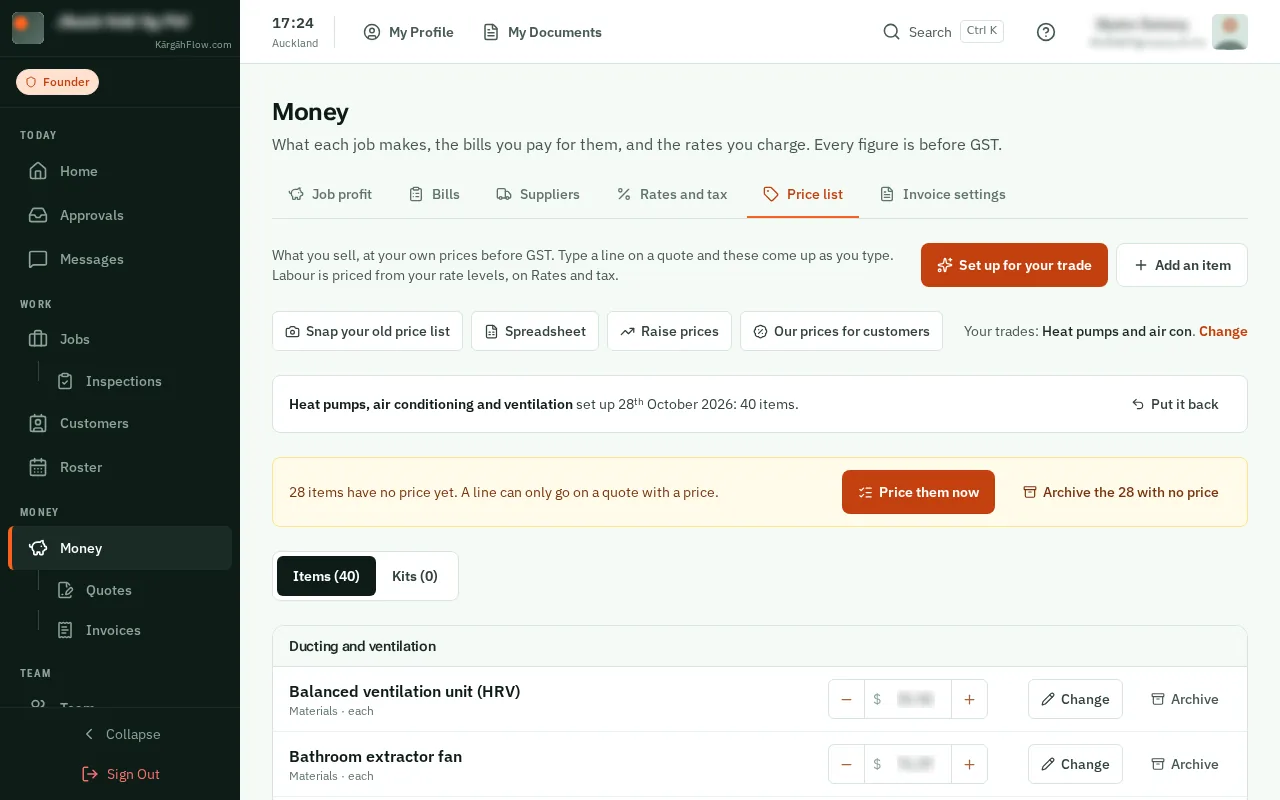
Step 1: Open Money
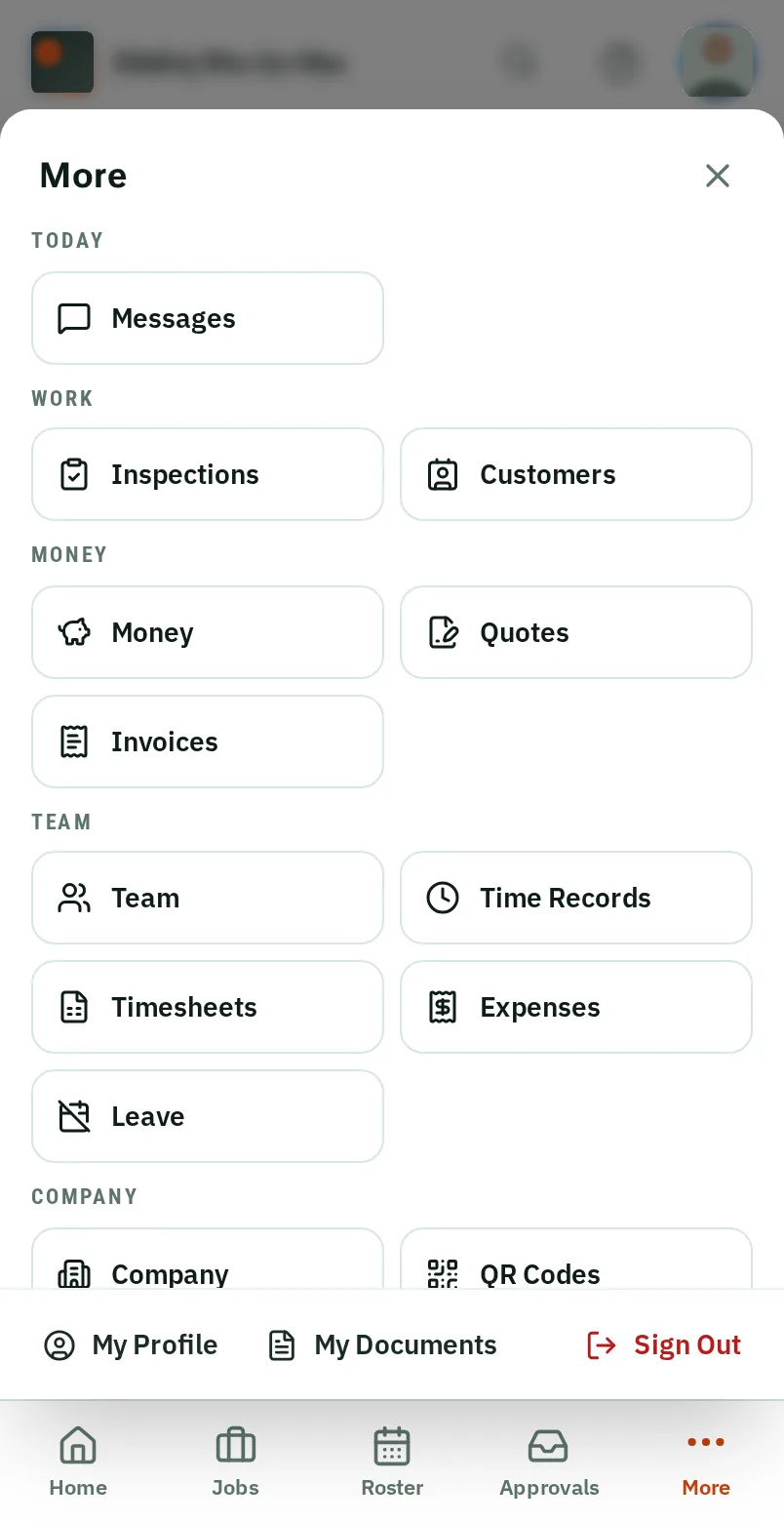
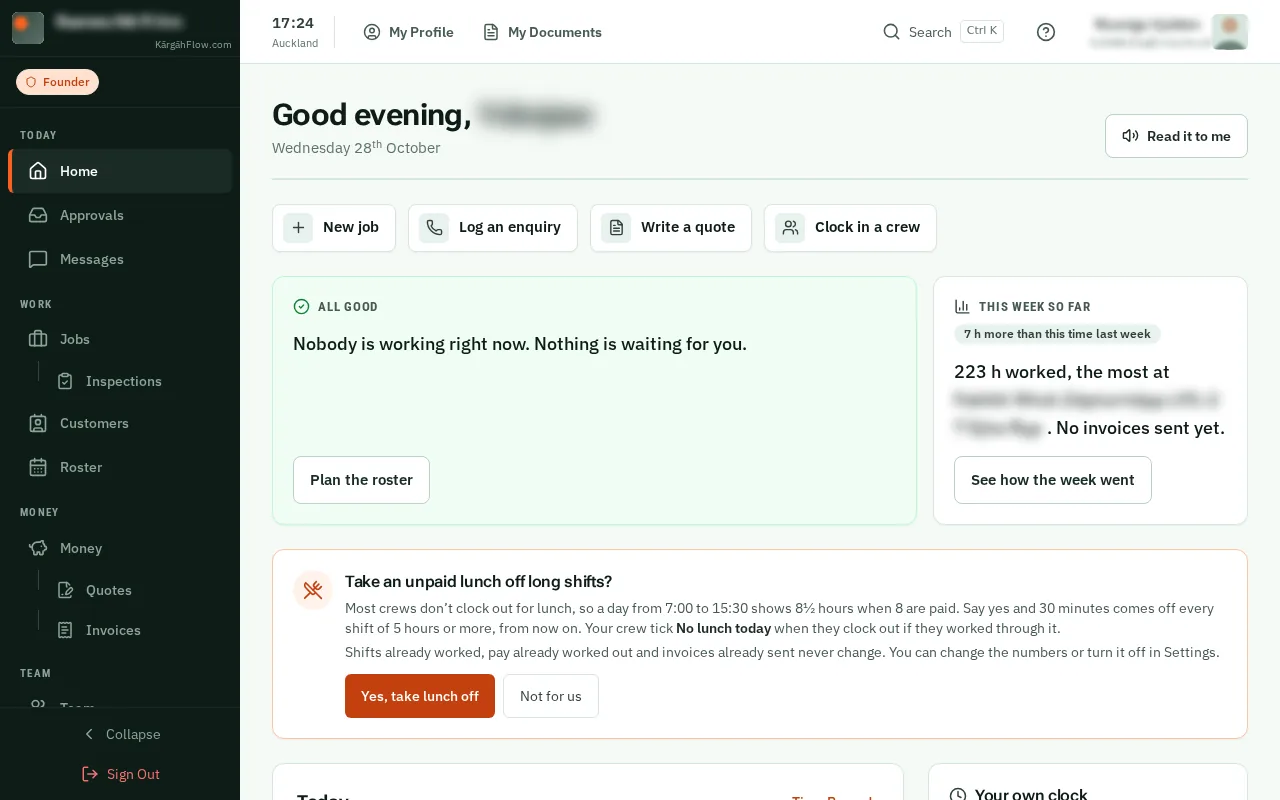
TapClick More in the bar at the bottom of the screen, then Money.TapClick Money in the menu on the left.
Look forthe Money item in the menu
Prices go up. Raise every price, or one group, by the same amount, and see the new prices before they change. Undo puts them back.
Bring in the price list you use now from a spreadsheet or a photo, and give customers your prices as a PDF or a link. They never see what anything costs you.
TapClick More in the bar at the bottom of the screen, then Money.TapClick Money in the menu on the left.
TapClick the Price list tab.
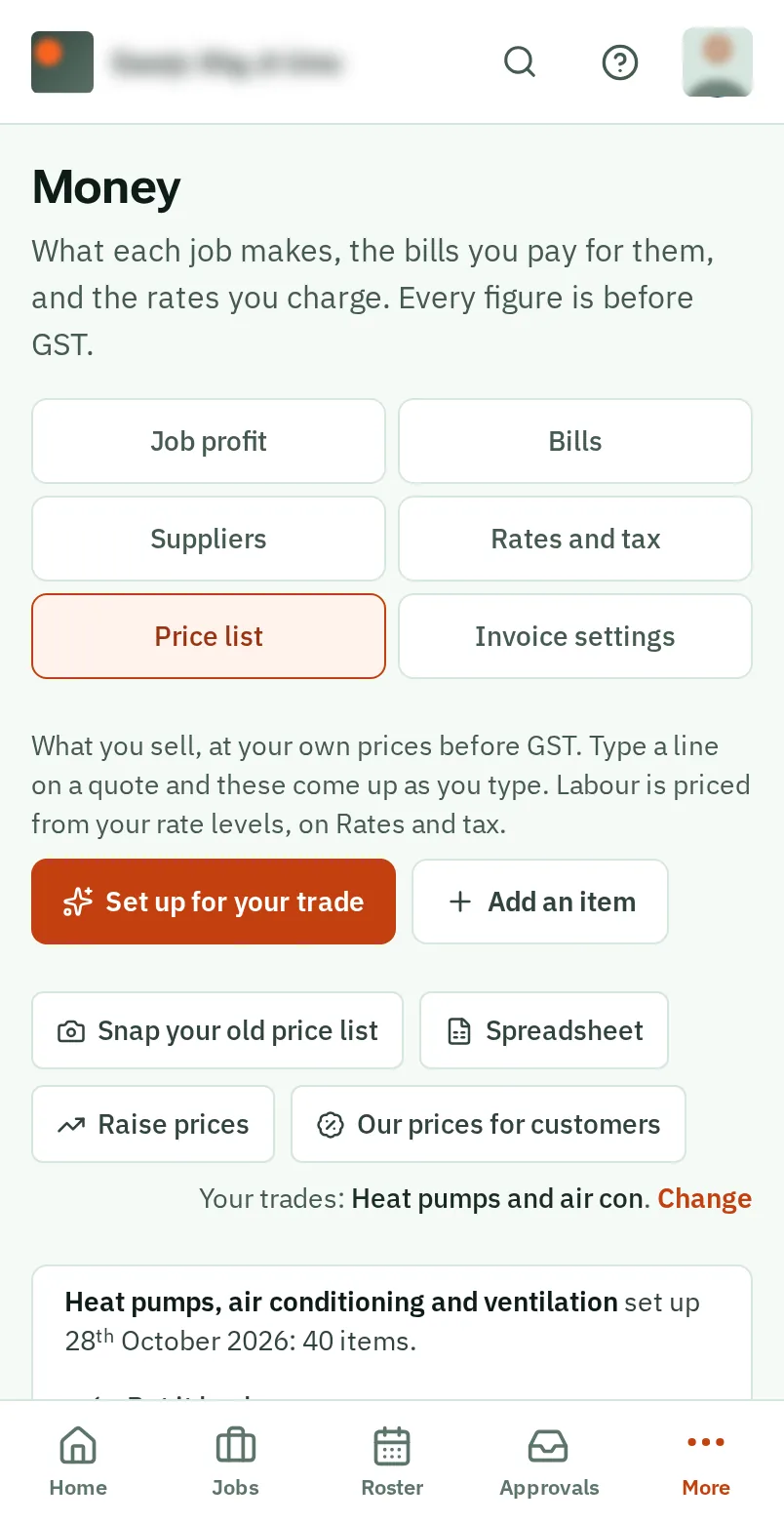
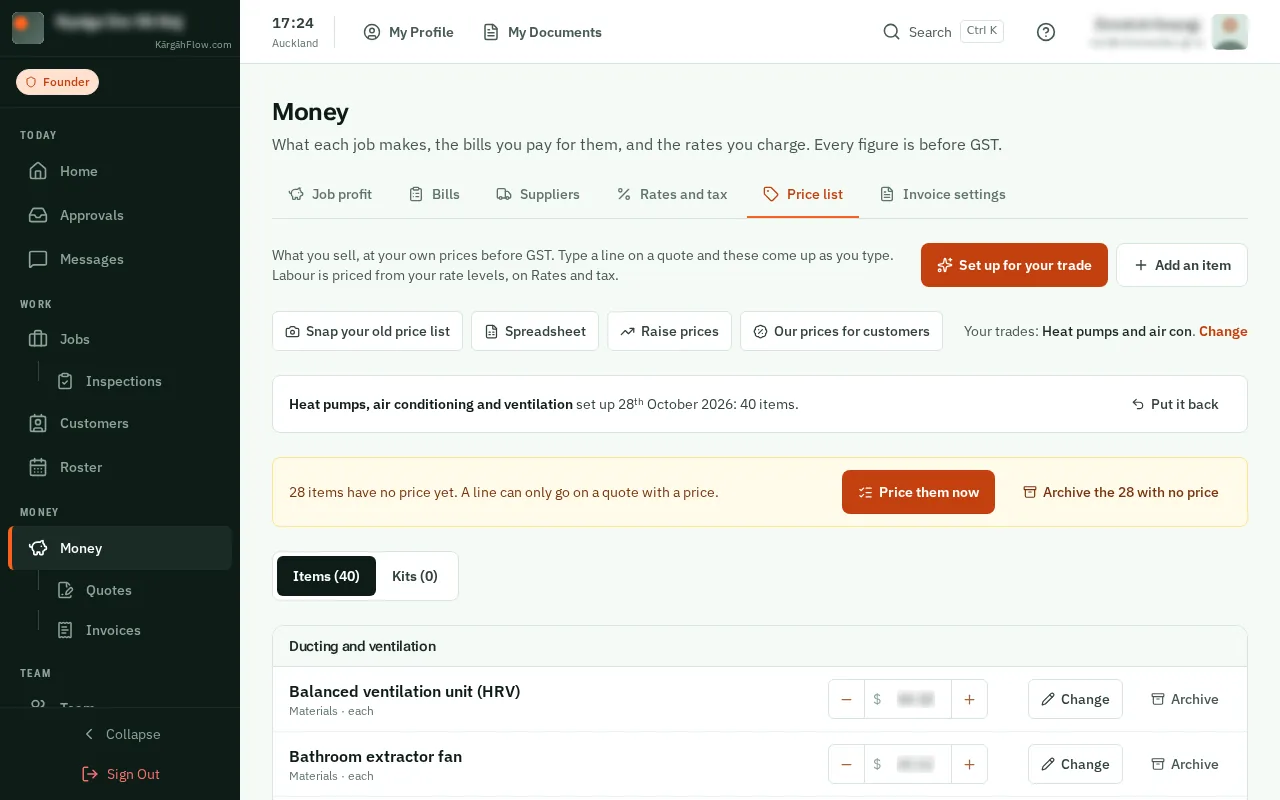
TapClick Raise prices and tapclick how much, like 5%. Choose the whole list or one group. The window shows prices before and after, then tapclick the Raise button at the bottom.
Good to know: Raised by mistake? TapClick Undo straight after. A price you have changed since stays as you set it.
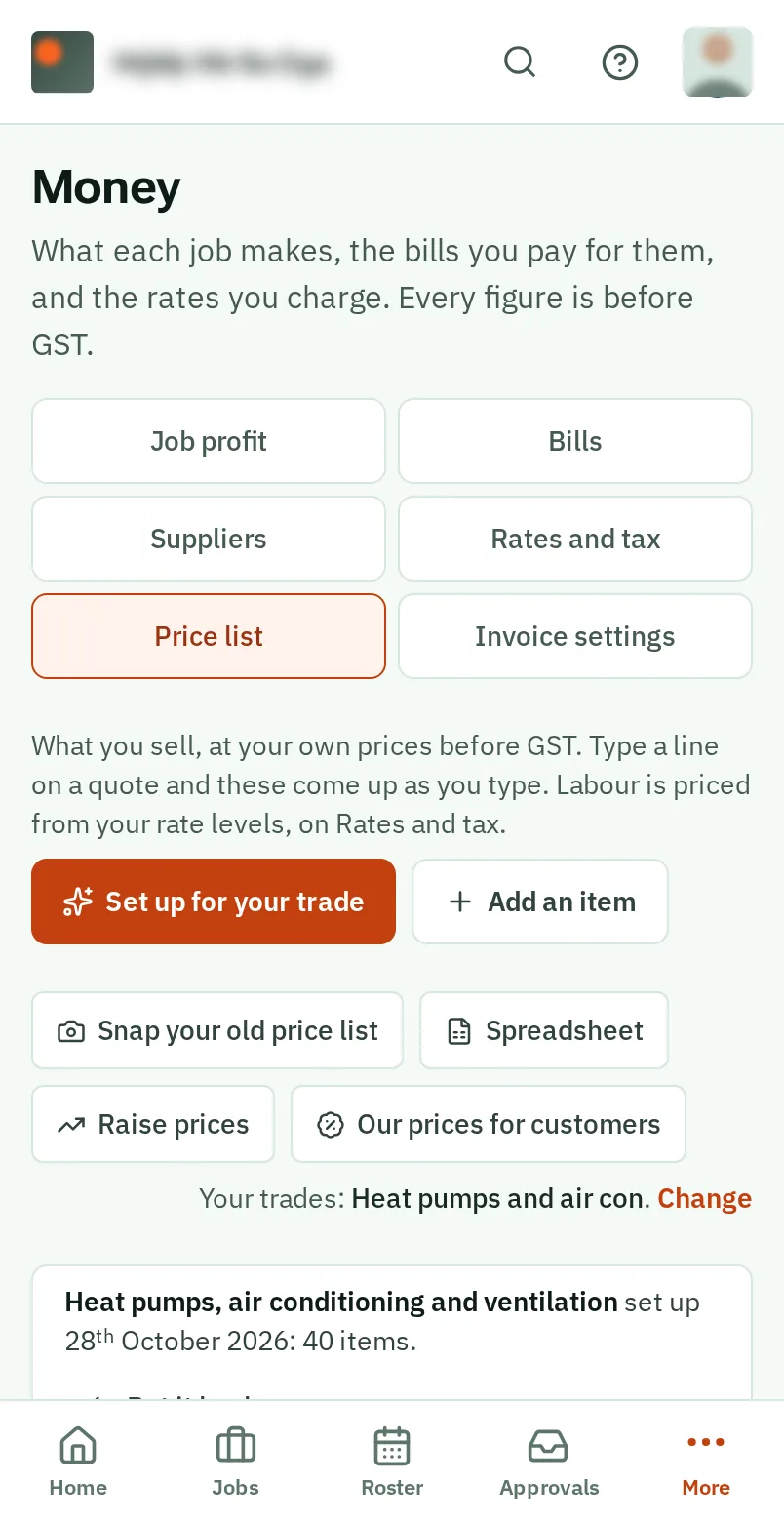
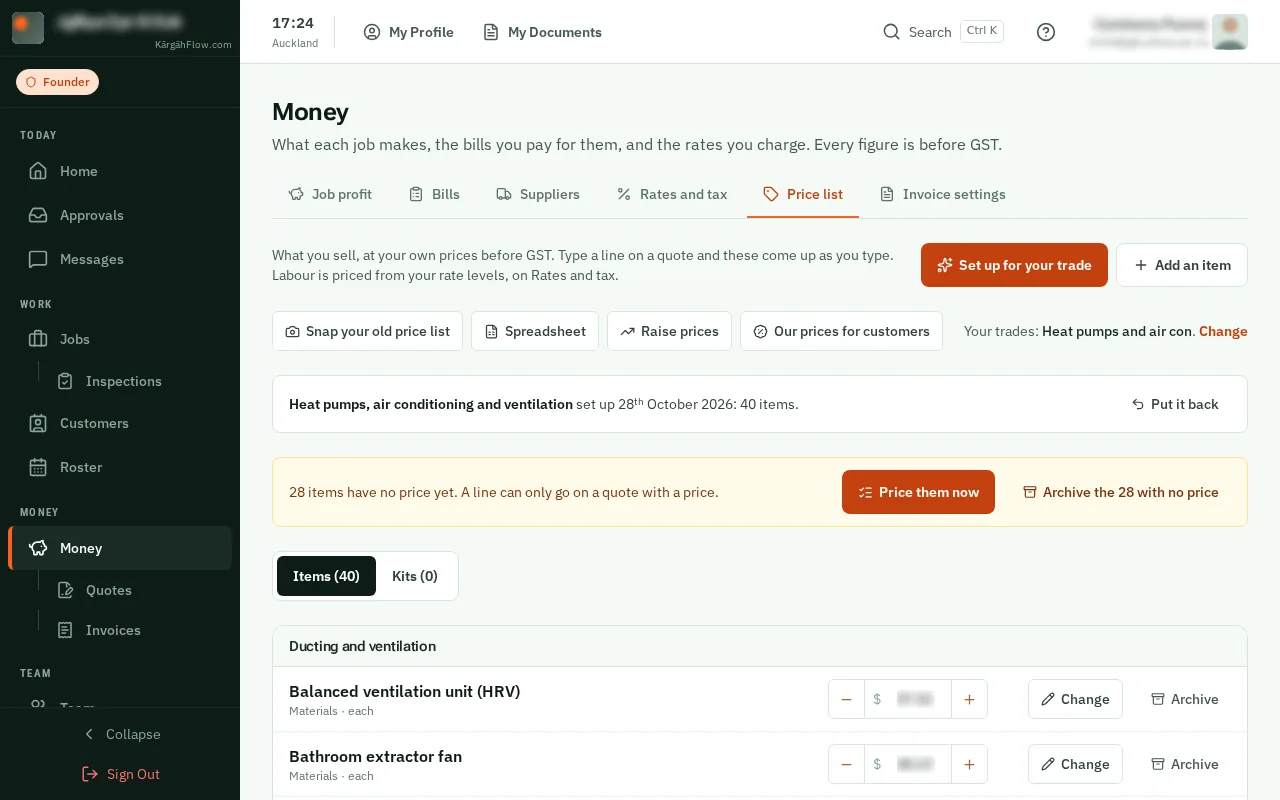
TapClick Spreadsheet, then Download as a spreadsheet. Change prices in it, then come back and tapclick Bring one in. You see what changes before it does.
Good to know: A list from another system works too: its columns are read by their headings, like Description and Price.
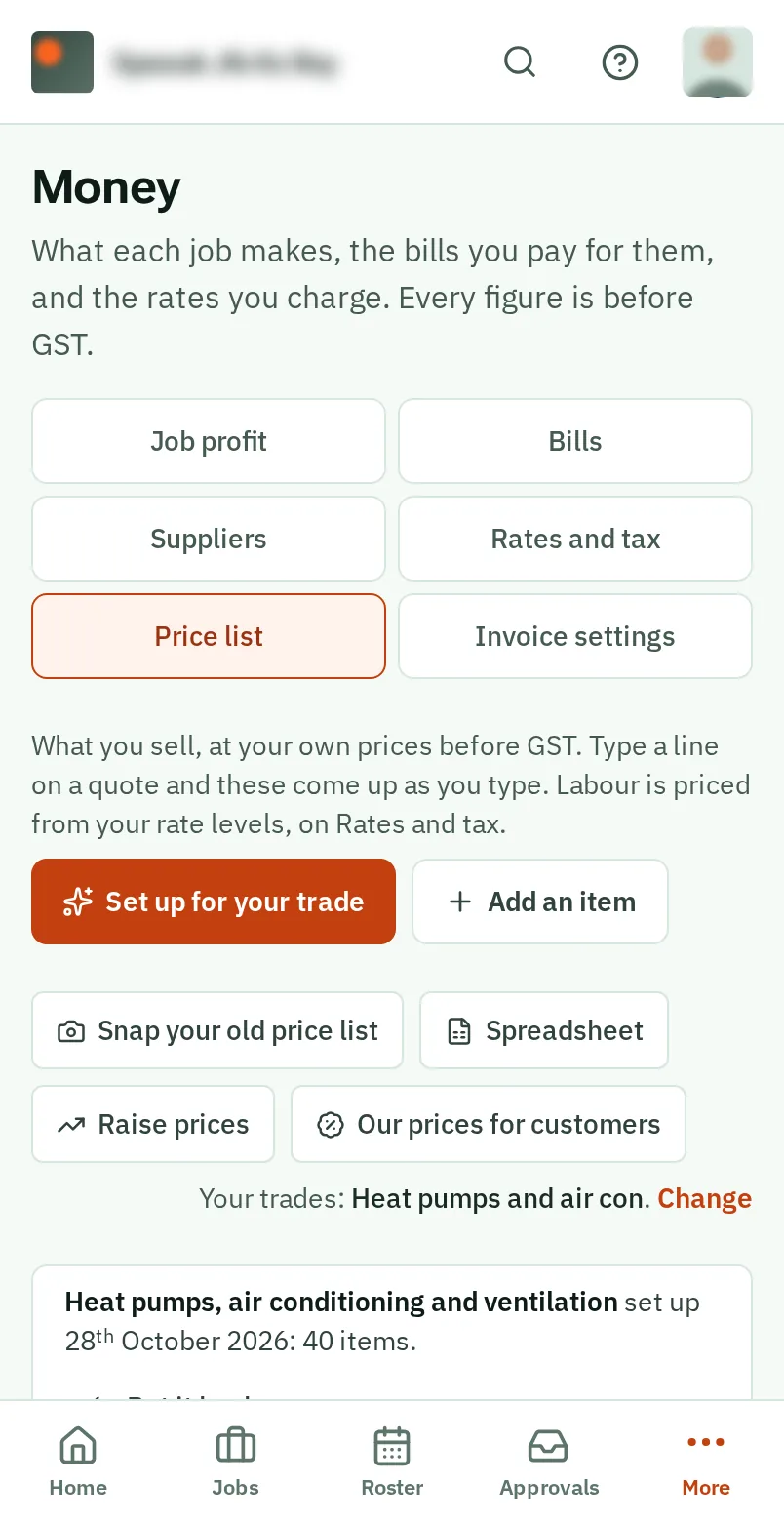
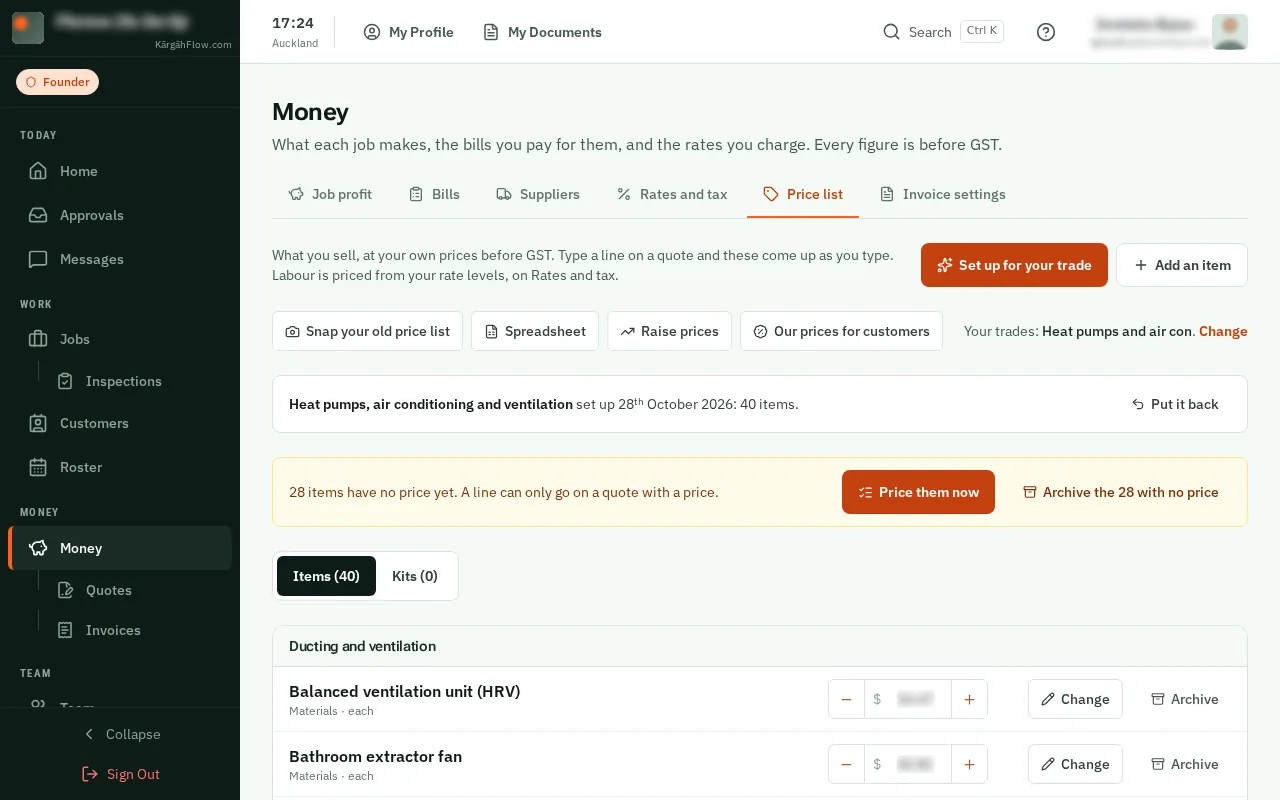
TapClick Snap your old price list, take a photo of it or choose a PDF, and tapclick Read it. Check what was read, then tapclick Add.
Good to know: A printed list, an old quote or a supplier sheet all work. A long list can take a minute or two.
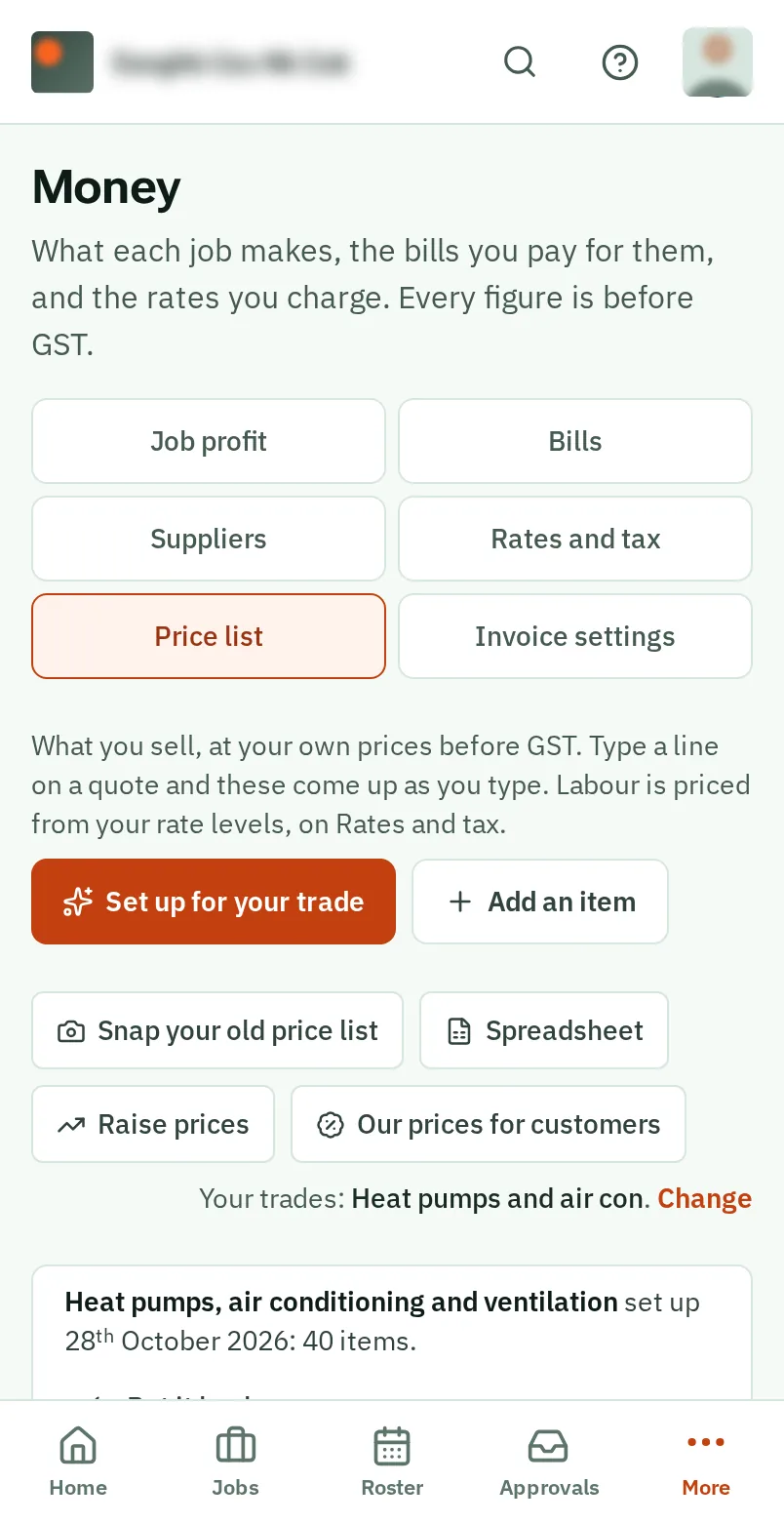
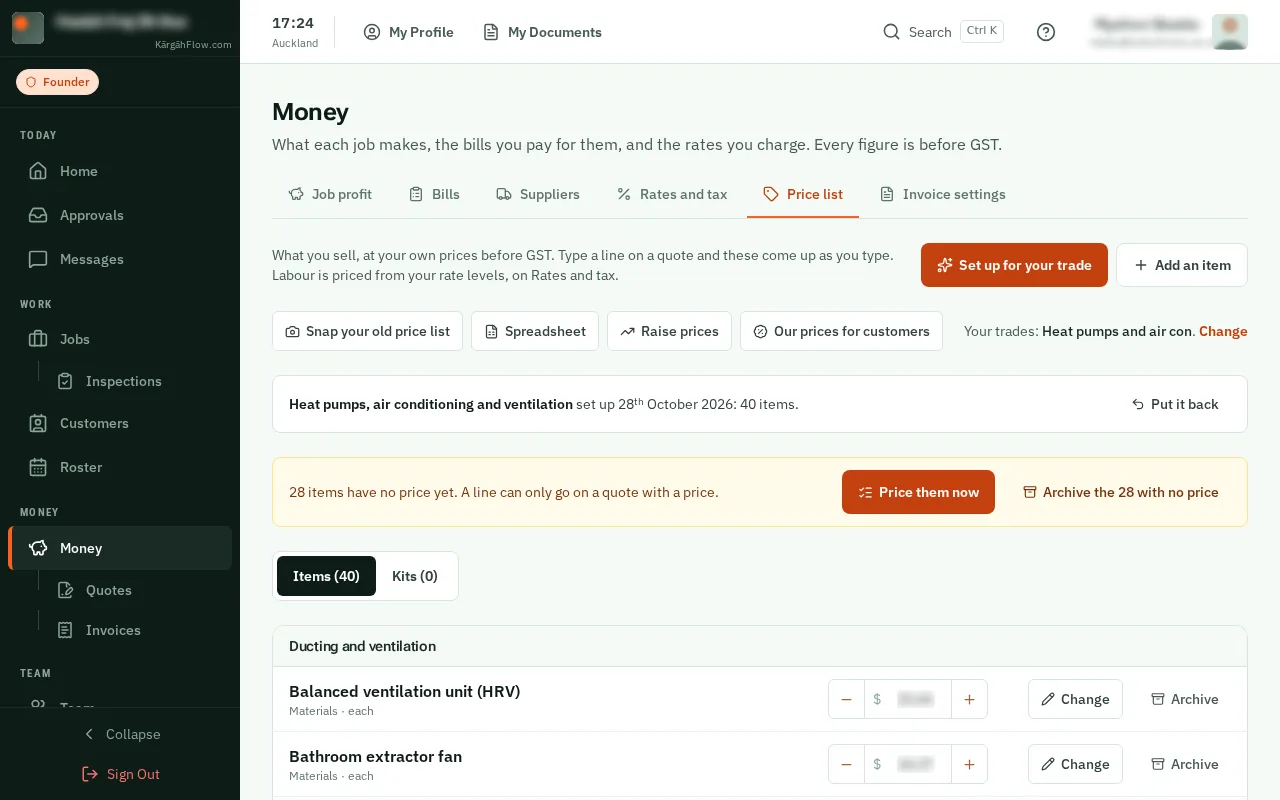
TapClick Our prices for customers. Choose the groups to show, then tapclick Download the PDF, or Make a link for customers to send.
Good to know: It shows only priced items, in your logo and colour, never what they cost you. Switch it off stops the link at once.