Step 1: Open Money
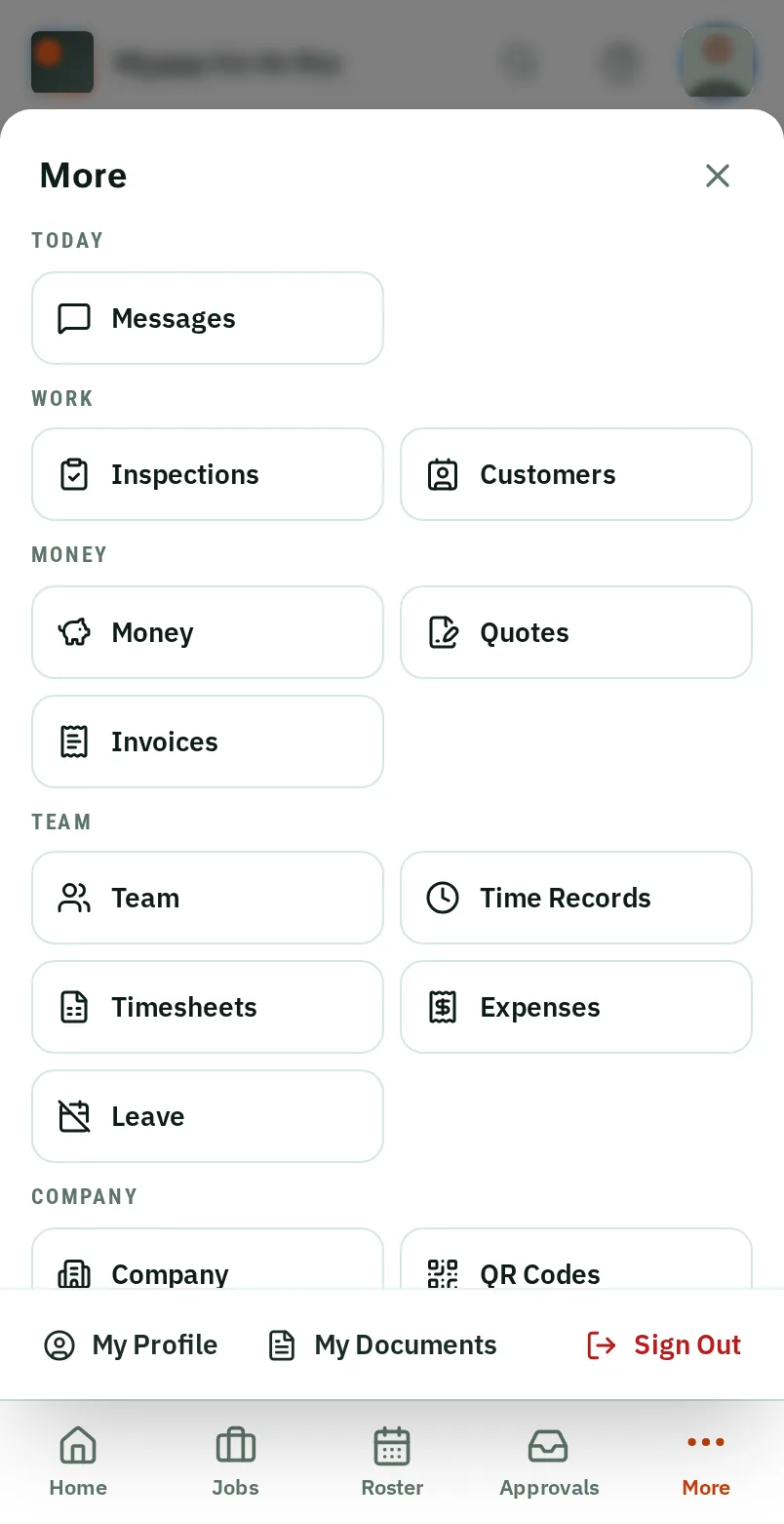
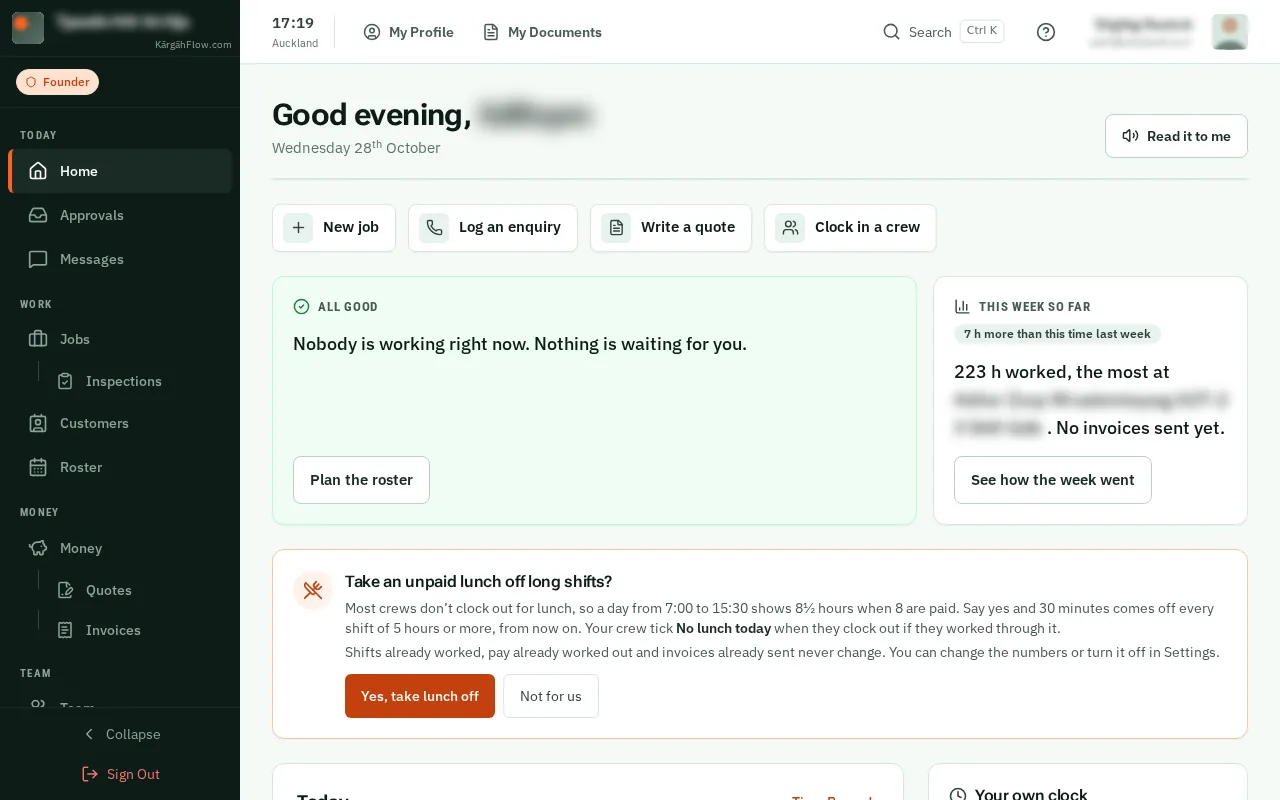
TapClick More in the bar at the bottom of the screen, then Money.TapClick Money in the menu on the left.
Look forthe Money item in the menu
KārgāhFlow has ready-made kits and items for 23 trades: building and construction, from electricians, plumbers and builders to roofers and landscapers, and residential, commercial and specialist cleaning.
Say the work you do and they are laid out for you, with no prices: KārgāhFlow never tells you what to charge. A kit’s labour takes your own rate, with typical hours for you to check.
Changed your mind? Put it back takes off what a set-up added, as long as nothing of it has been priced or used.
TapClick More in the bar at the bottom of the screen, then Money.TapClick Money in the menu on the left.
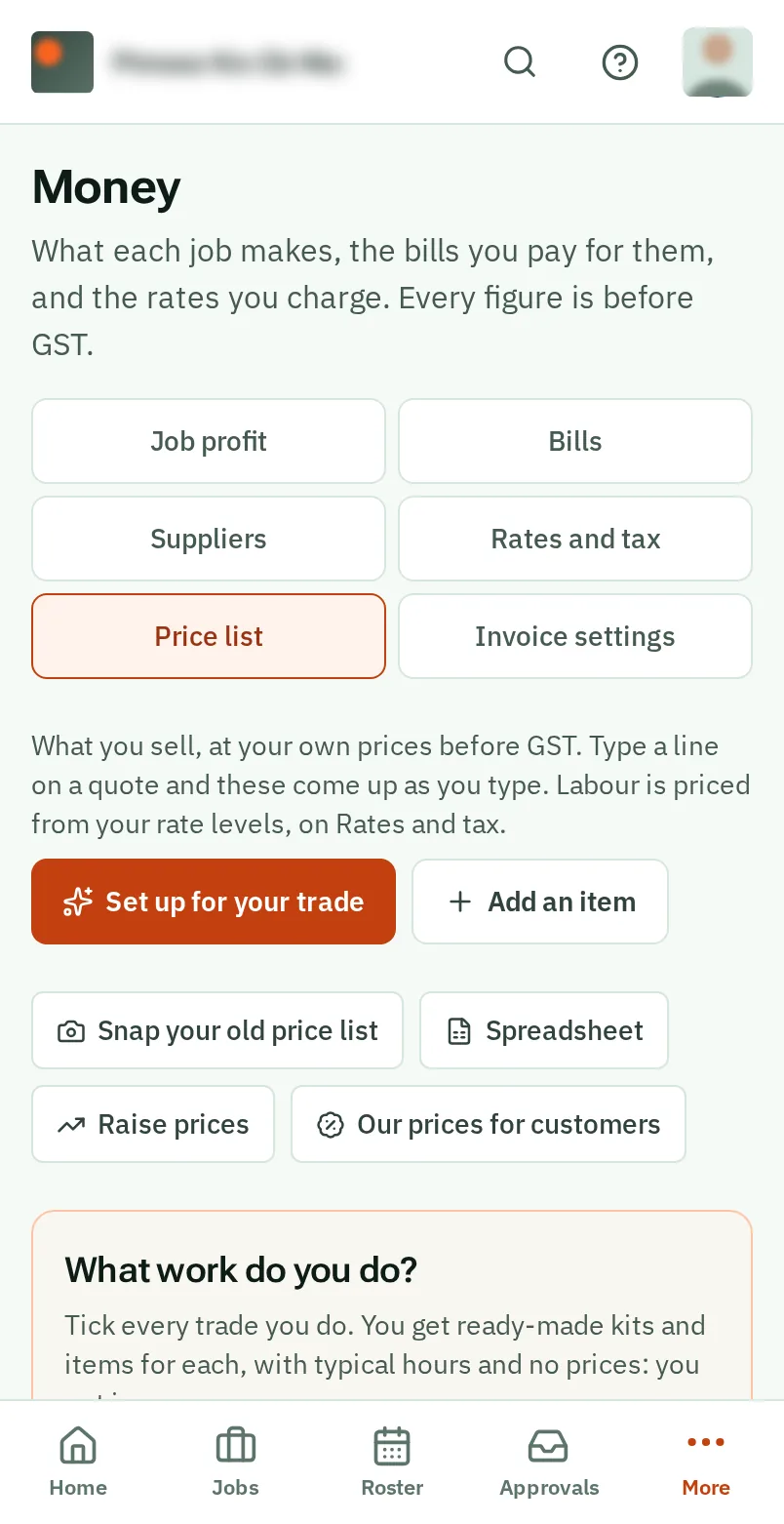
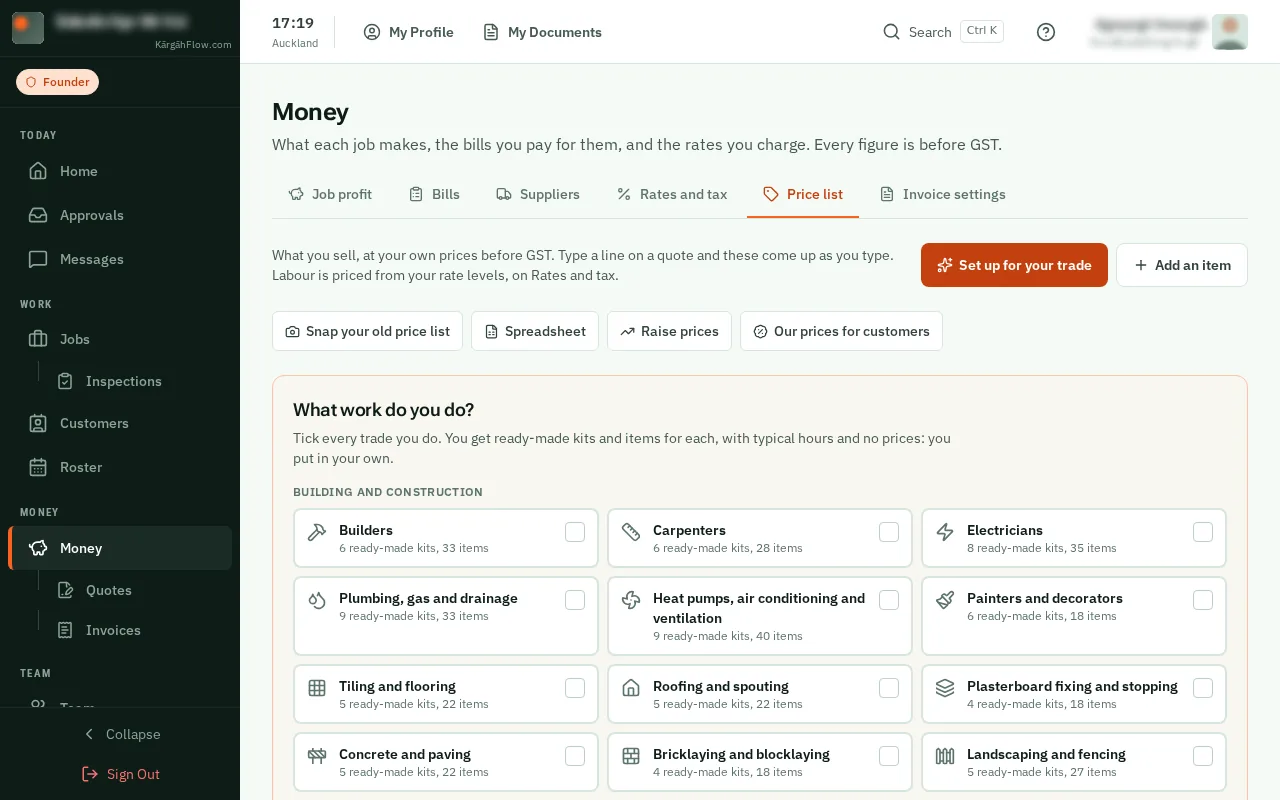
TapClick the Price list tab.
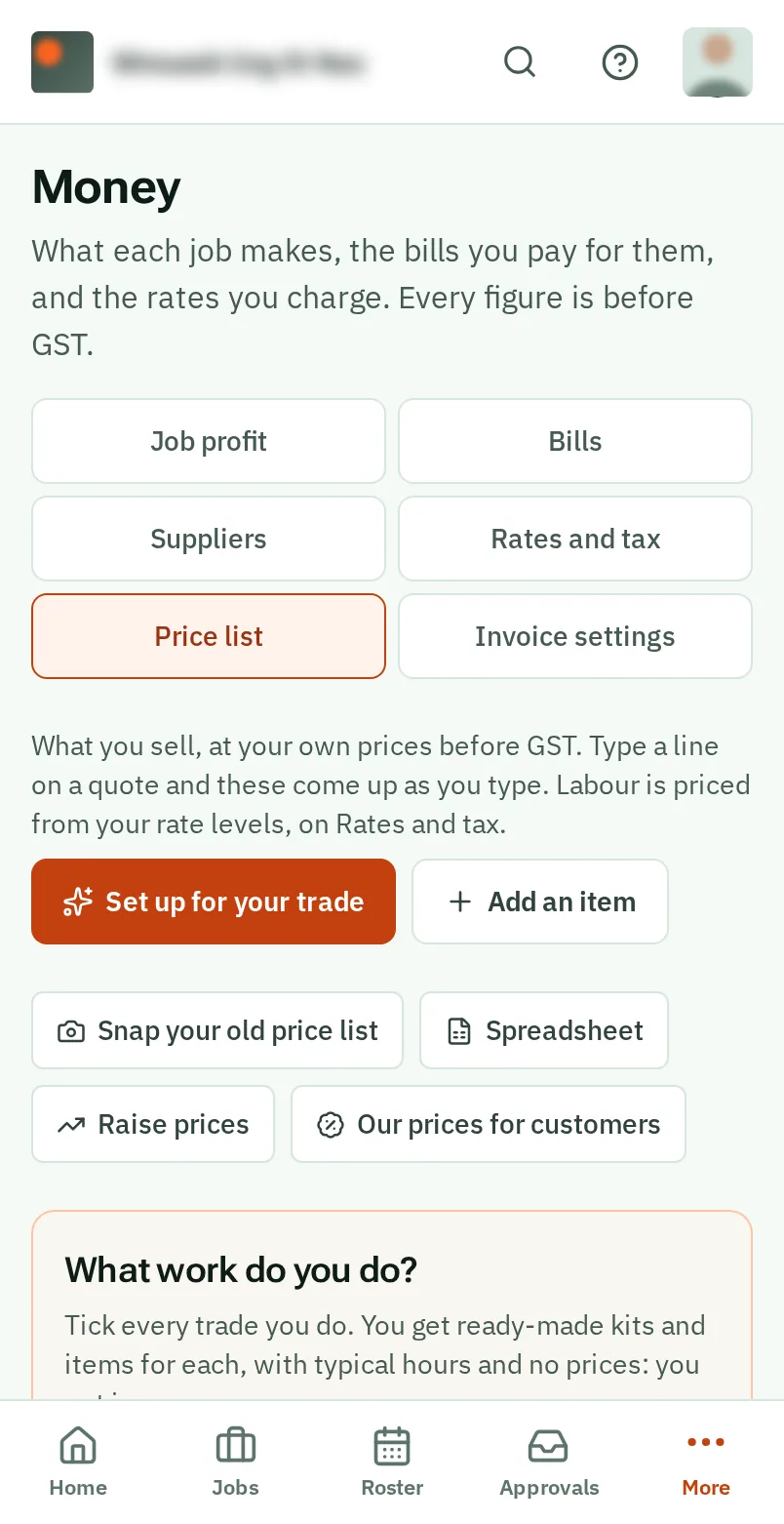
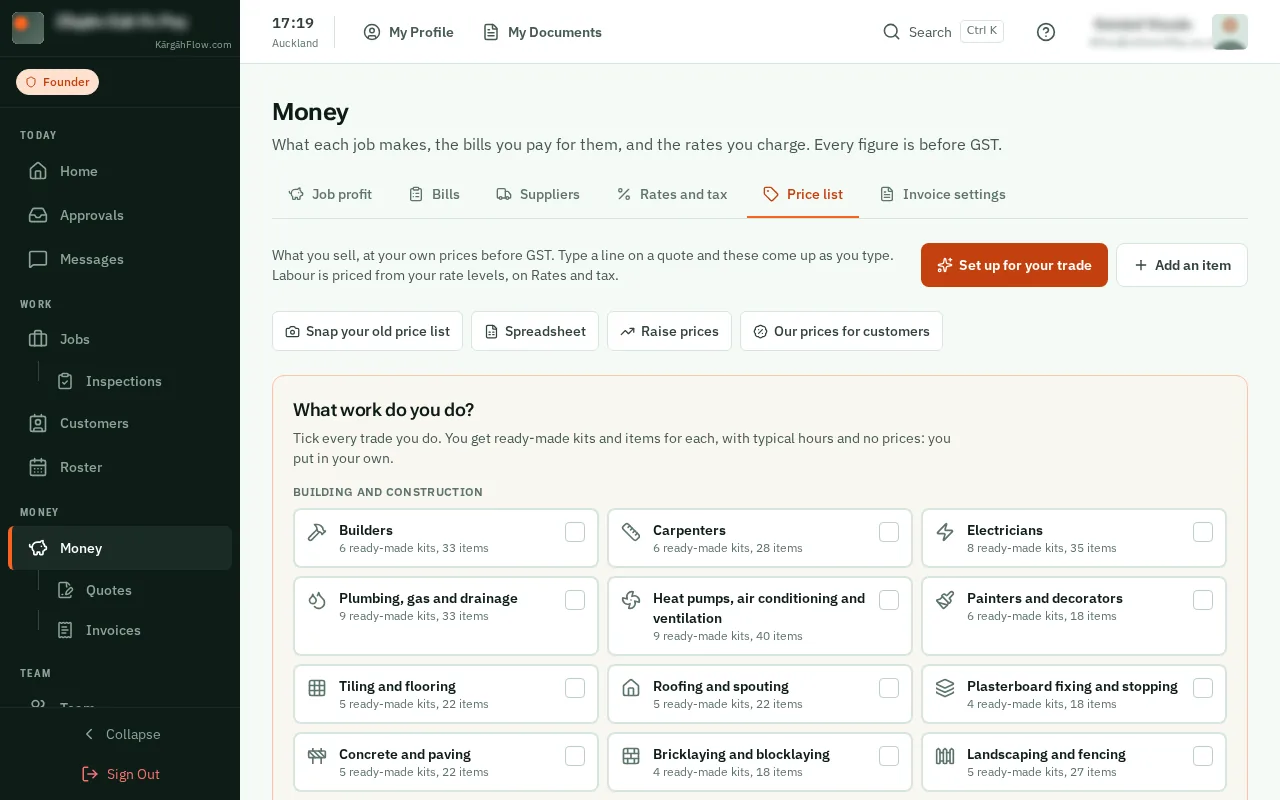
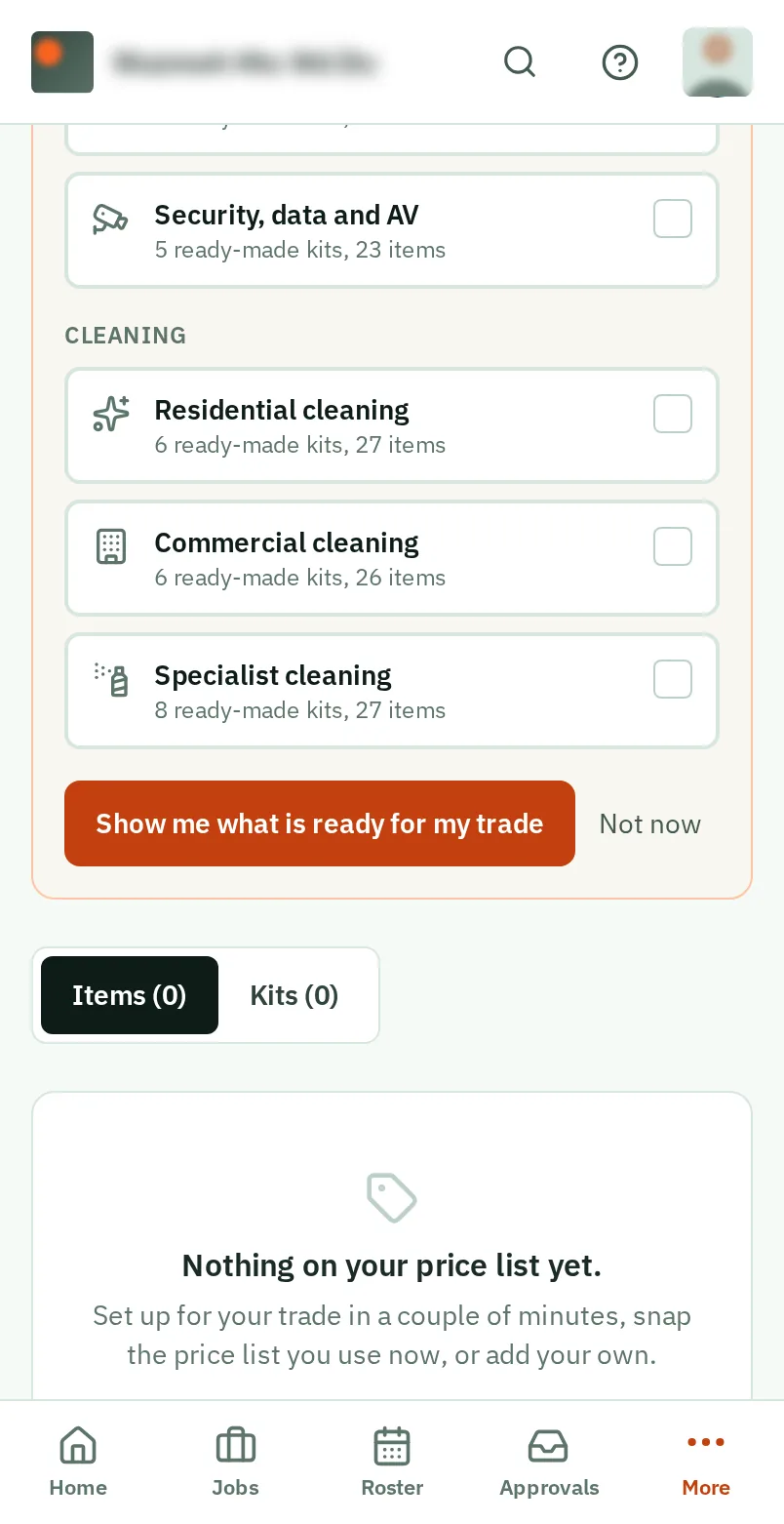
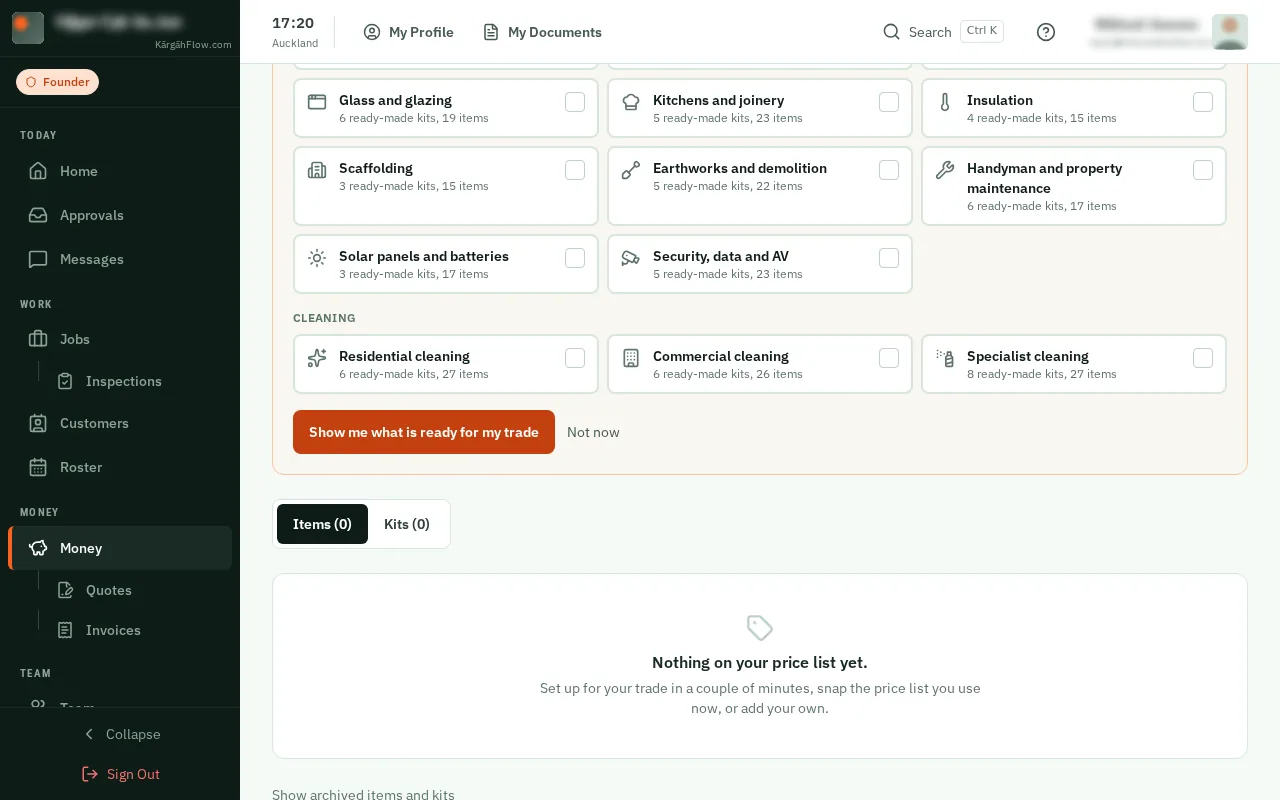
The first time, it asks What work do you do? Tick every trade you do, then tapclick Show me what is ready for my trade.
Good to know: From then on, tapclick Set up for your trade at the top. Your trades show beside the tools, with Change, and on Settings under The work you do.
Set up for your trade opens with your trade’s ready-made kits on one side and its items on the other, all ticked. Untick anything you do not do.
Good to know: An item a ticked kit uses stays ticked. Another trade? Choose it under Trade at the top.
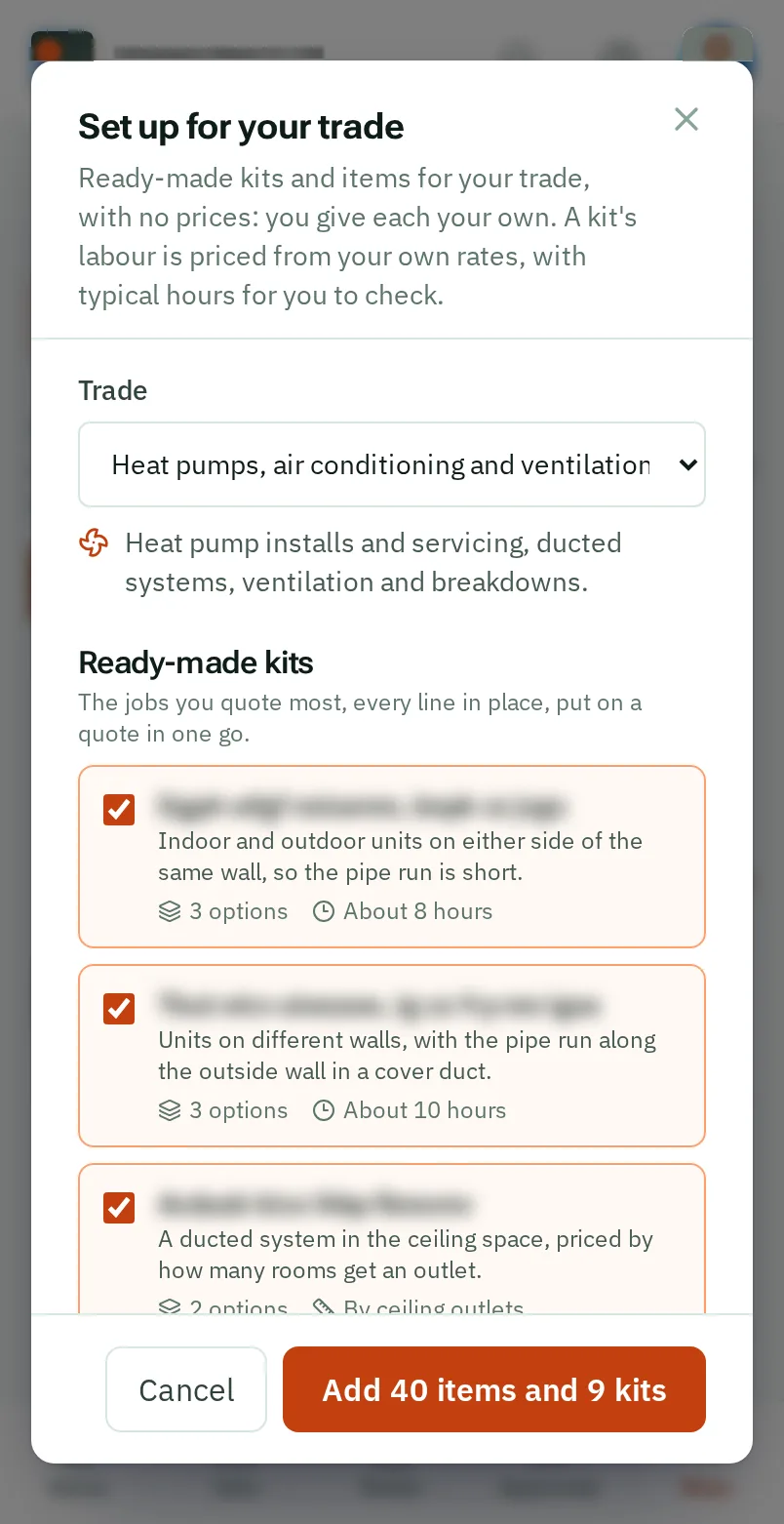
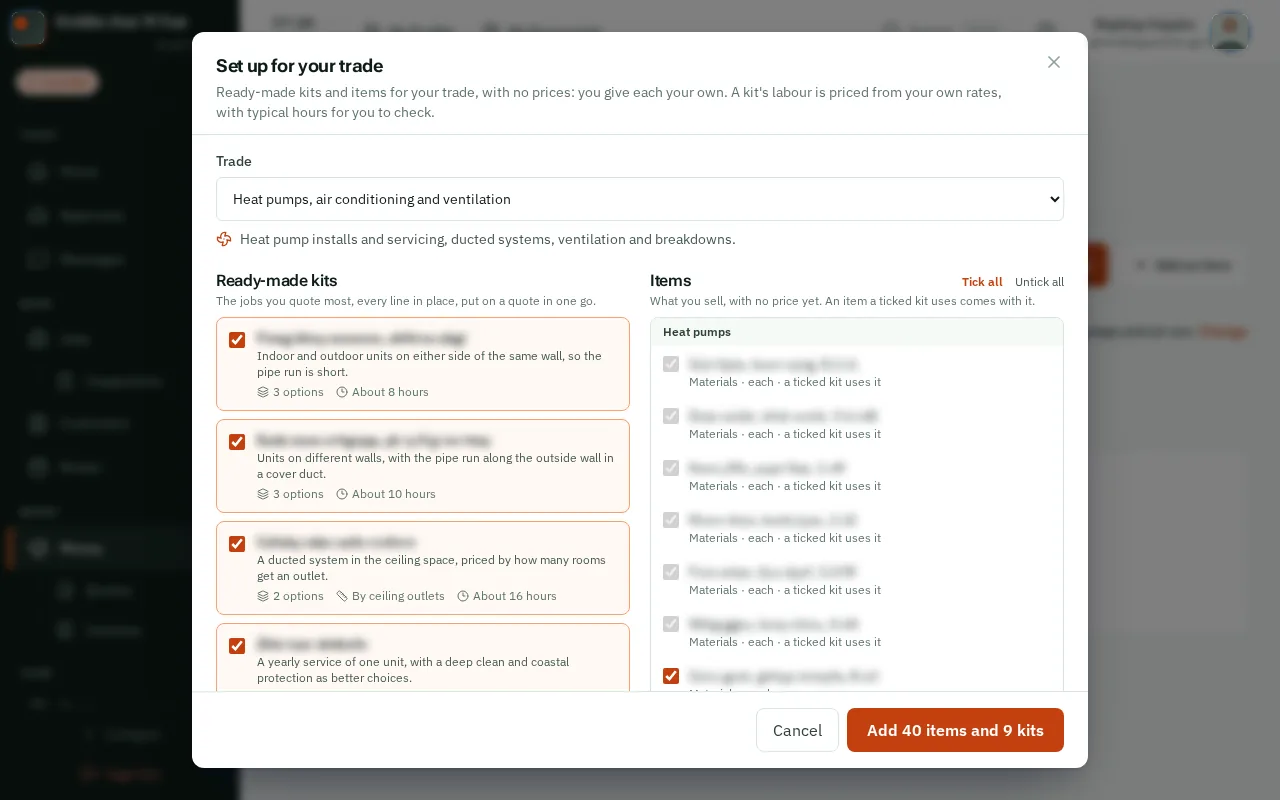
TapClick Add at the bottom. The button says how many items and kits go on your list.
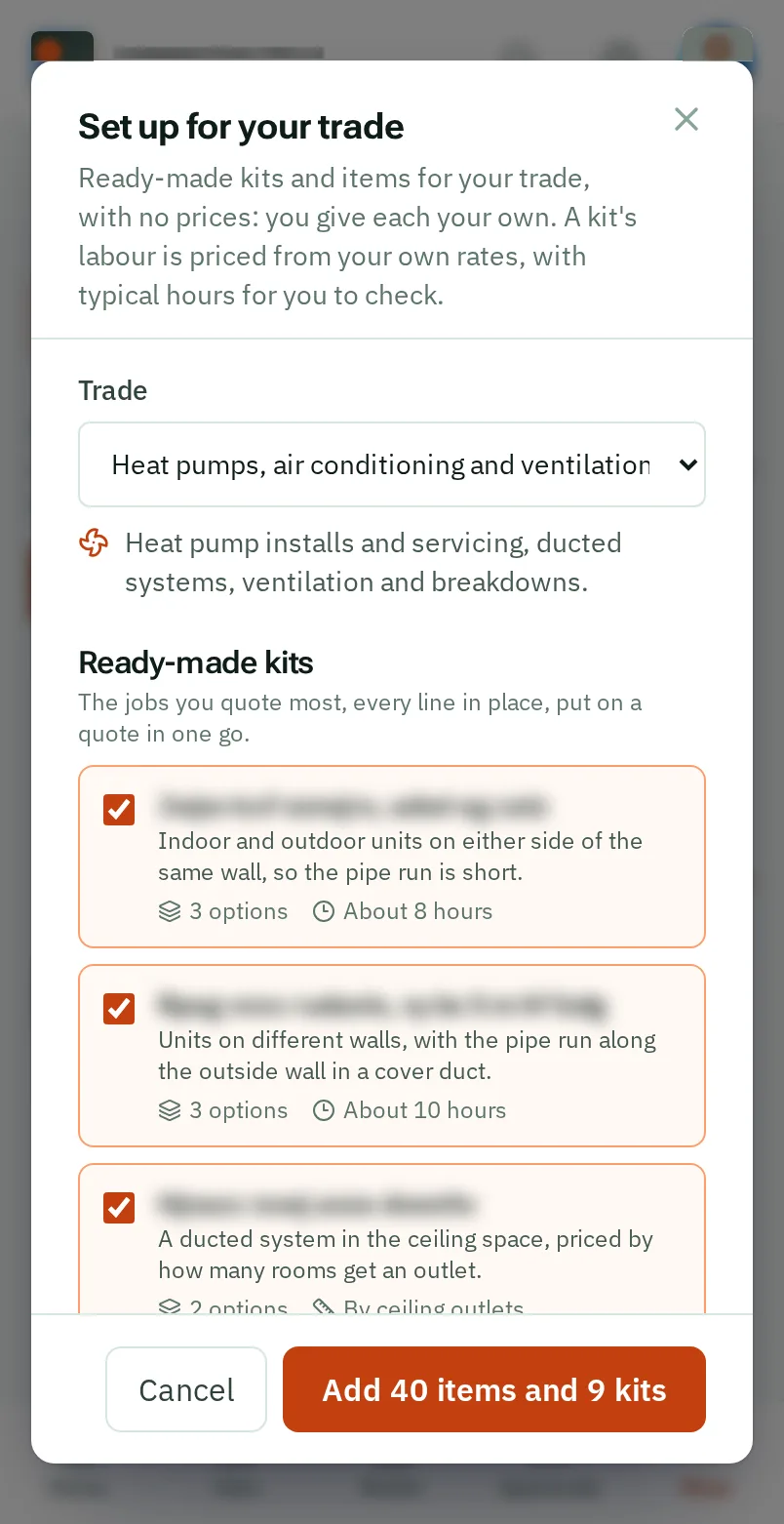
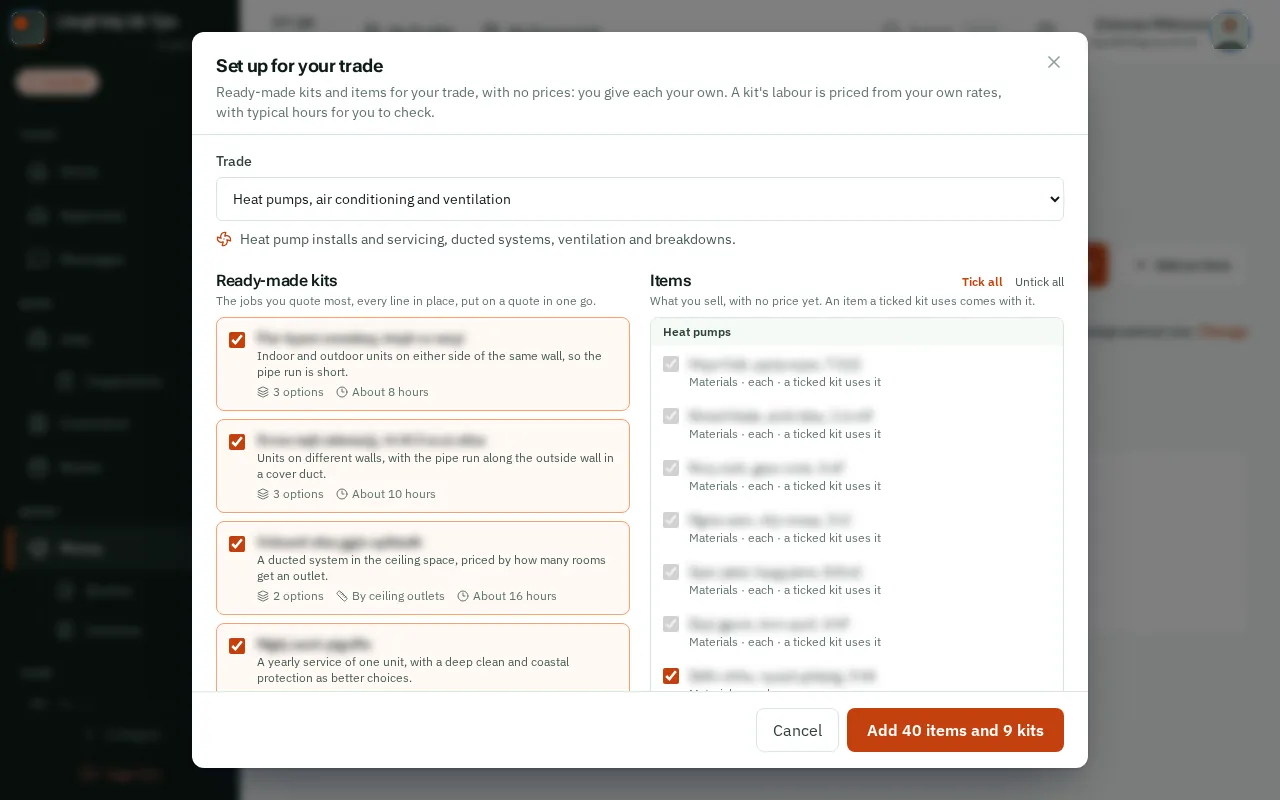
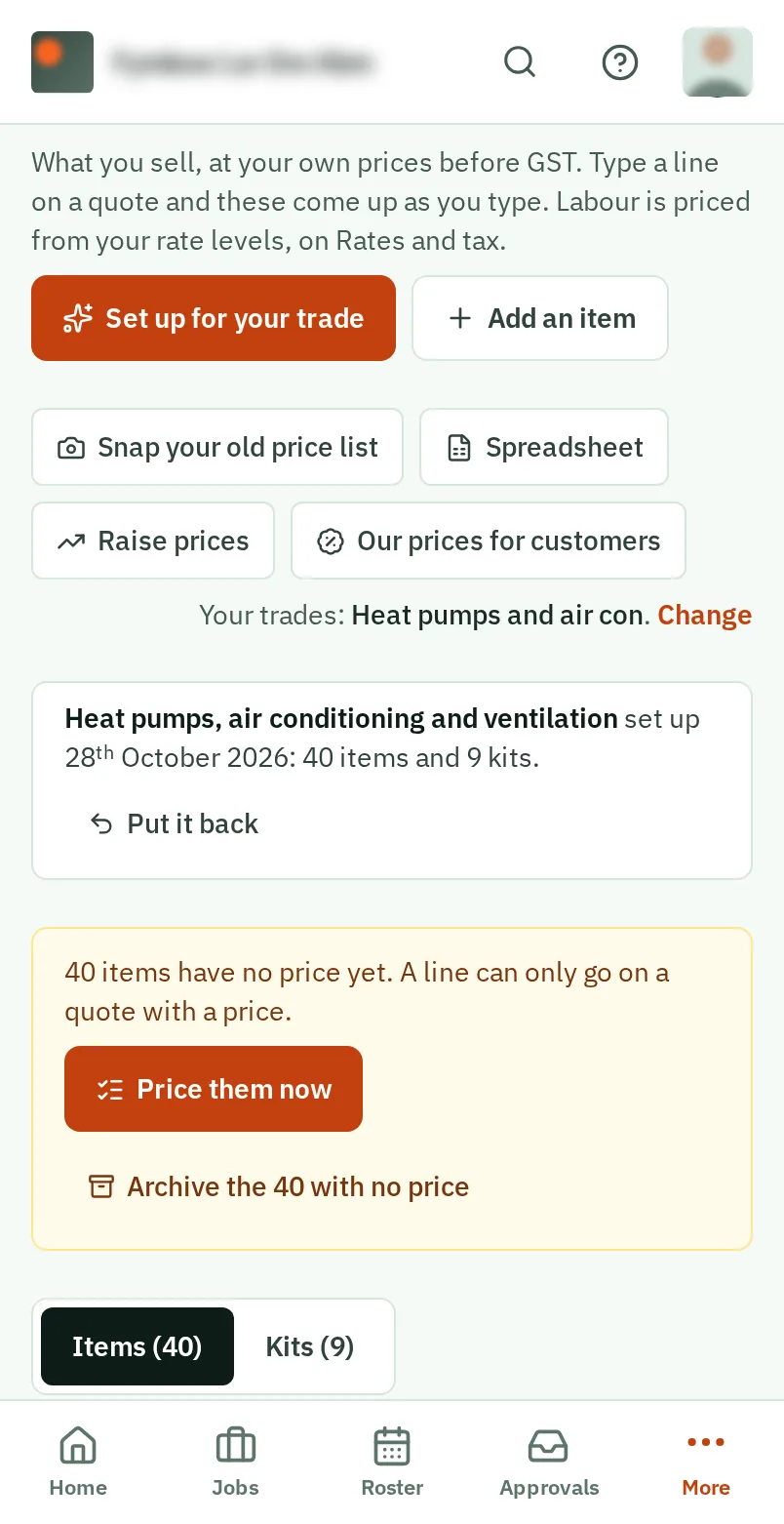
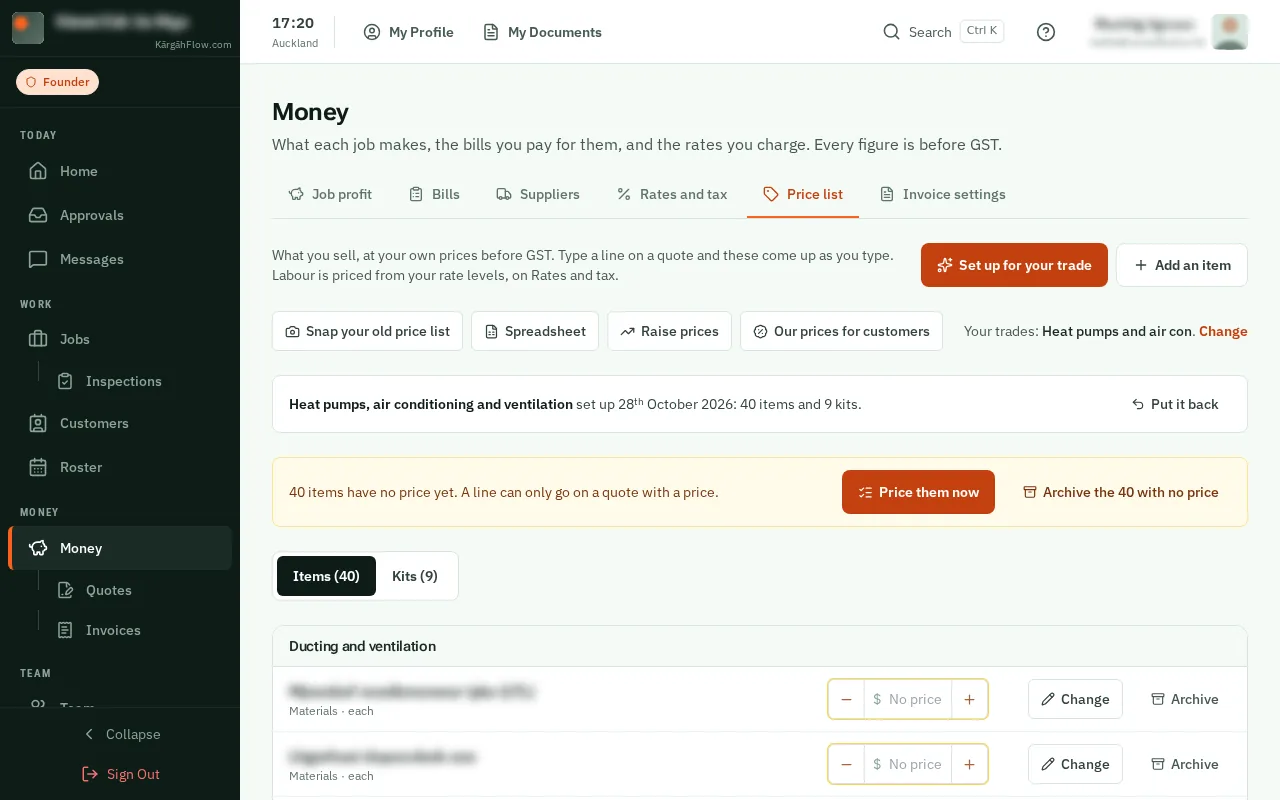
They arrive with no price. TapClick Price them now, type your price before GST for each, and tapclick Save and next.
Good to know: Type what an item costs you instead, and your markup fills the price in. Or type a price straight into the box beside any item.
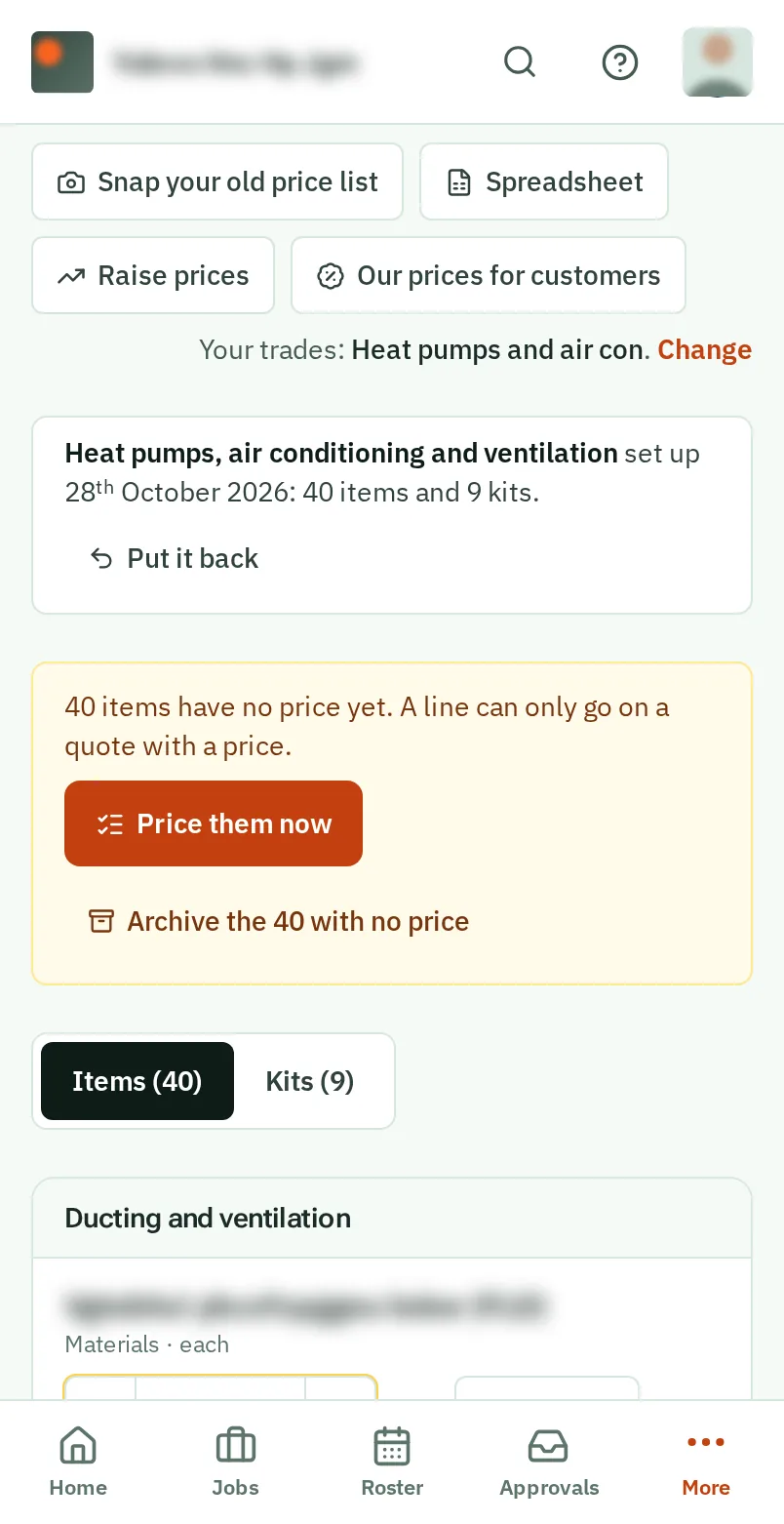
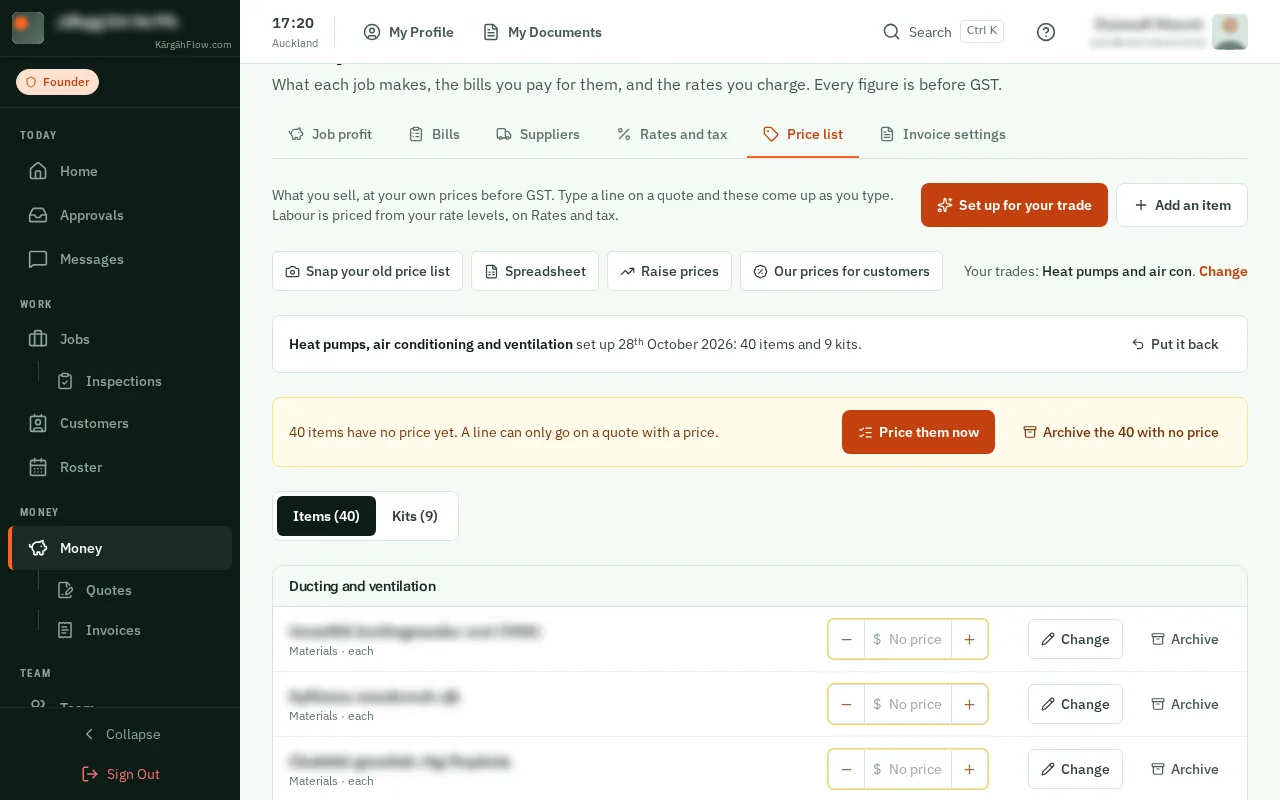
At the top of the list, tapclick Put it back beside the set-up. It takes off what it added that nobody has priced, changed or put on a quote.
Good to know: Some of them you do not sell? The yellow box has a button that archives every item with no price, with Undo straight after.