Step 1: Open Roster
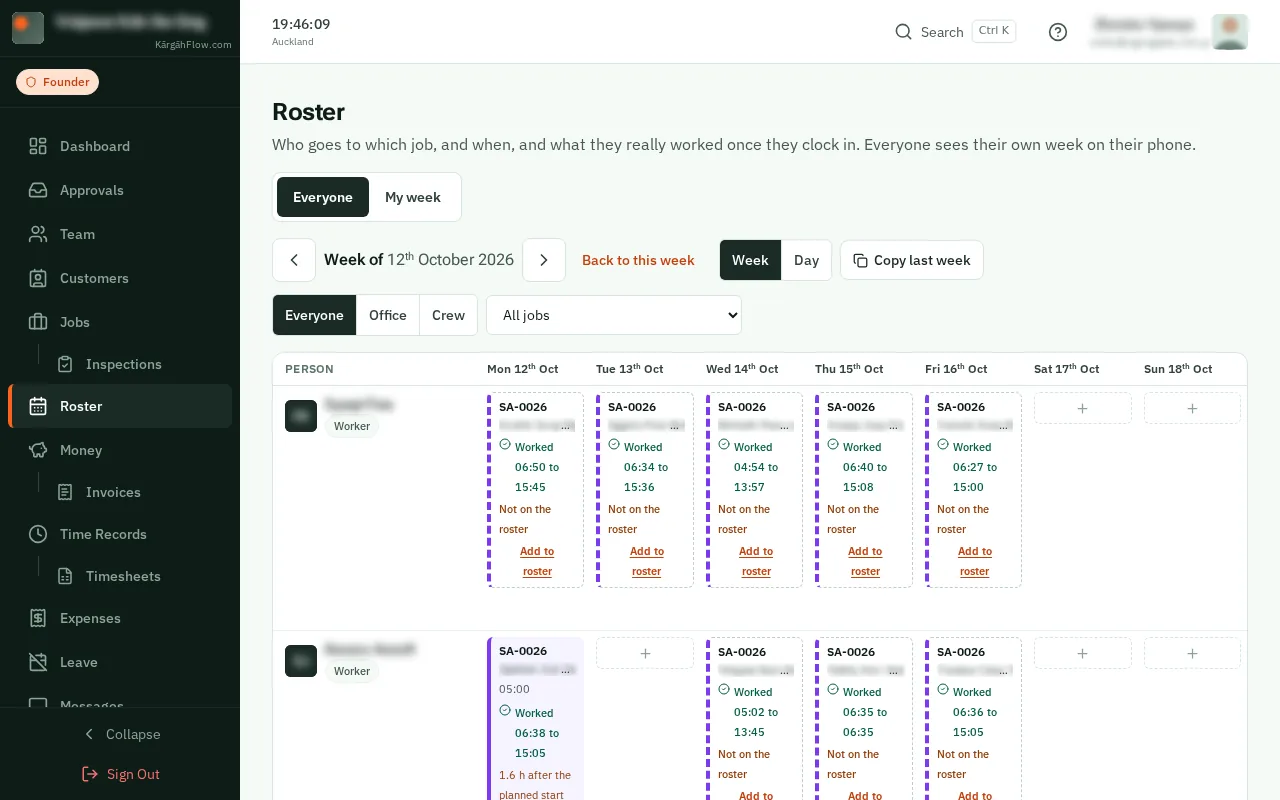
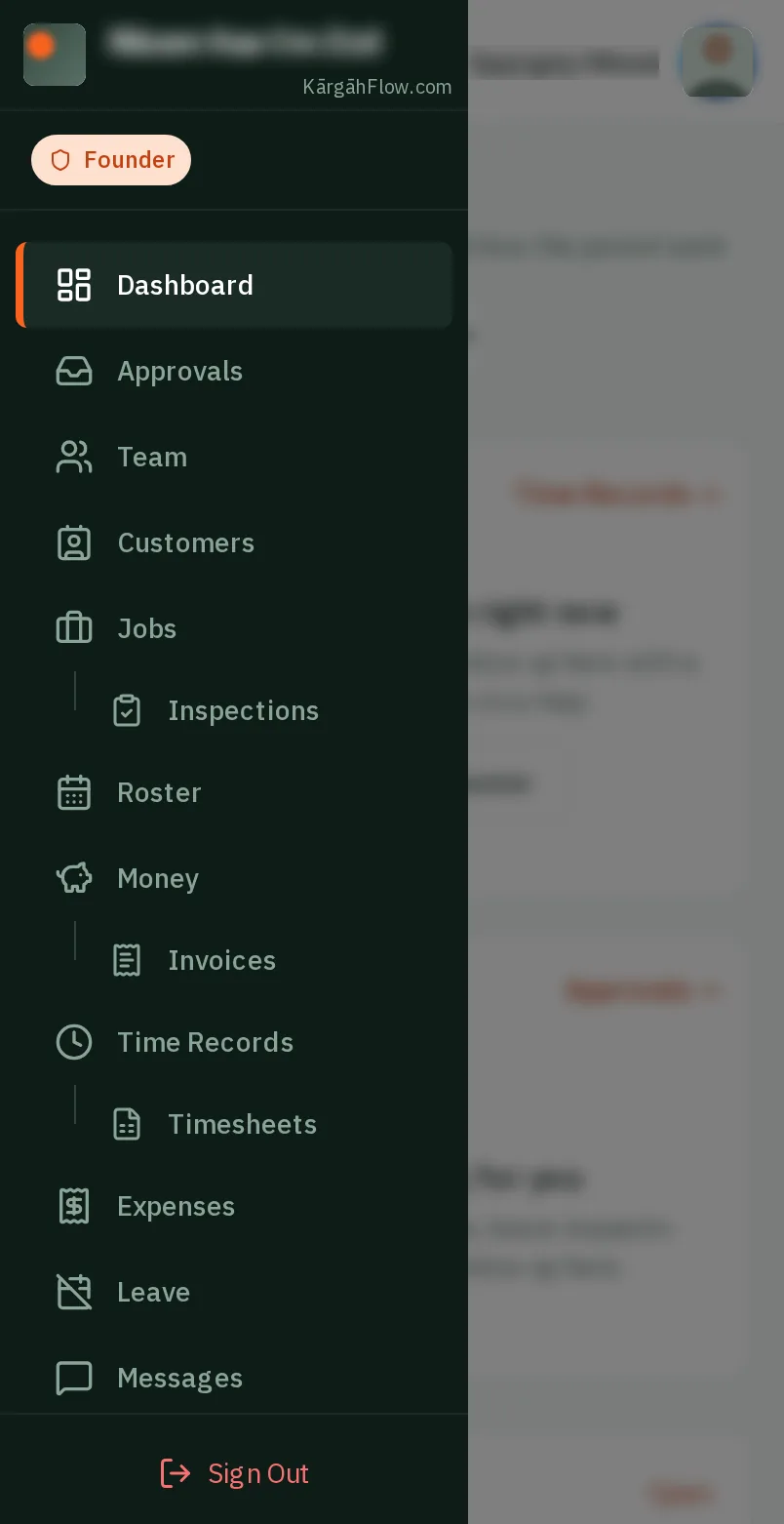
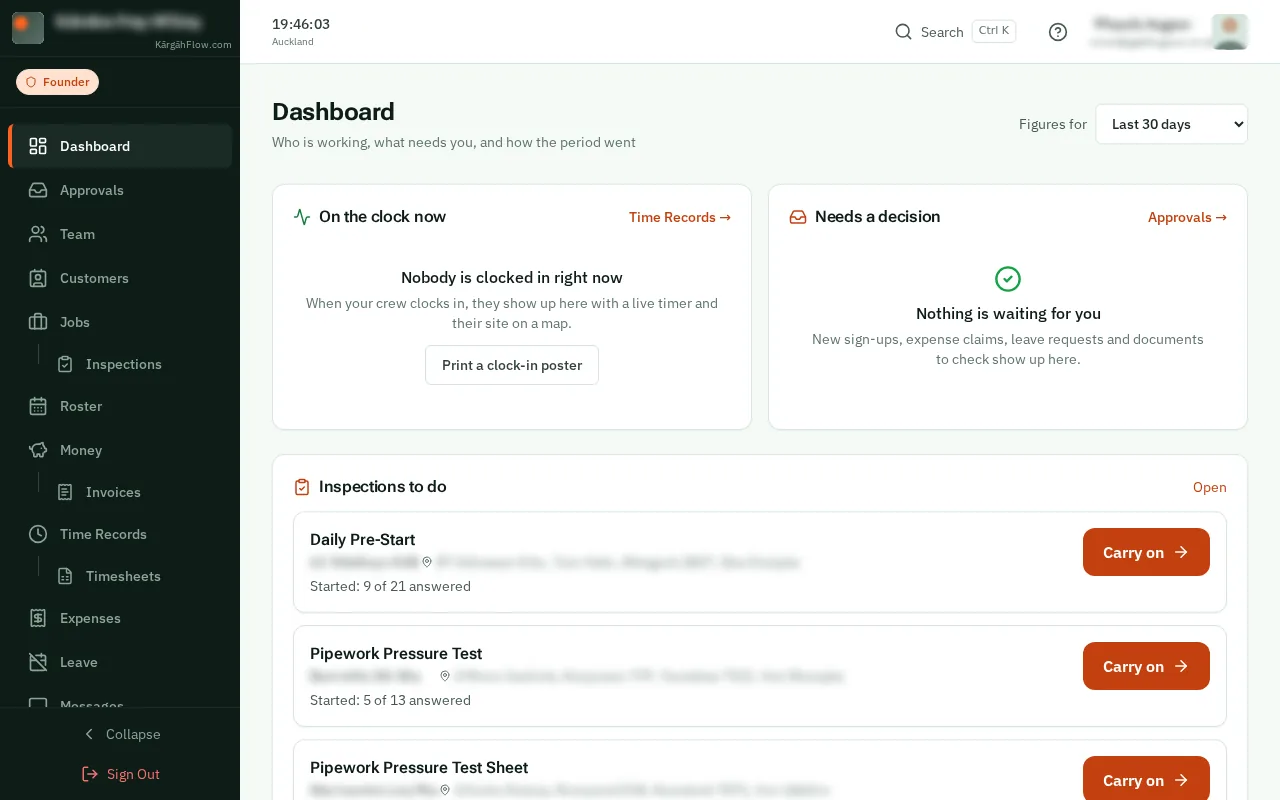
TapClick the menu button at the top left of the screen, then Roster.TapClick Roster in the menu on the left.
Look forthe Roster item in the menu
Once people clock in, the roster shows what they really worked beside your plan. When the two do not match, the day says so, with one button to put it right.
Nothing changes by itself. You check each one, because hours change someone’s pay.
TapClick the menu button at the top left of the screen, then Roster.TapClick Roster in the menu on the left.
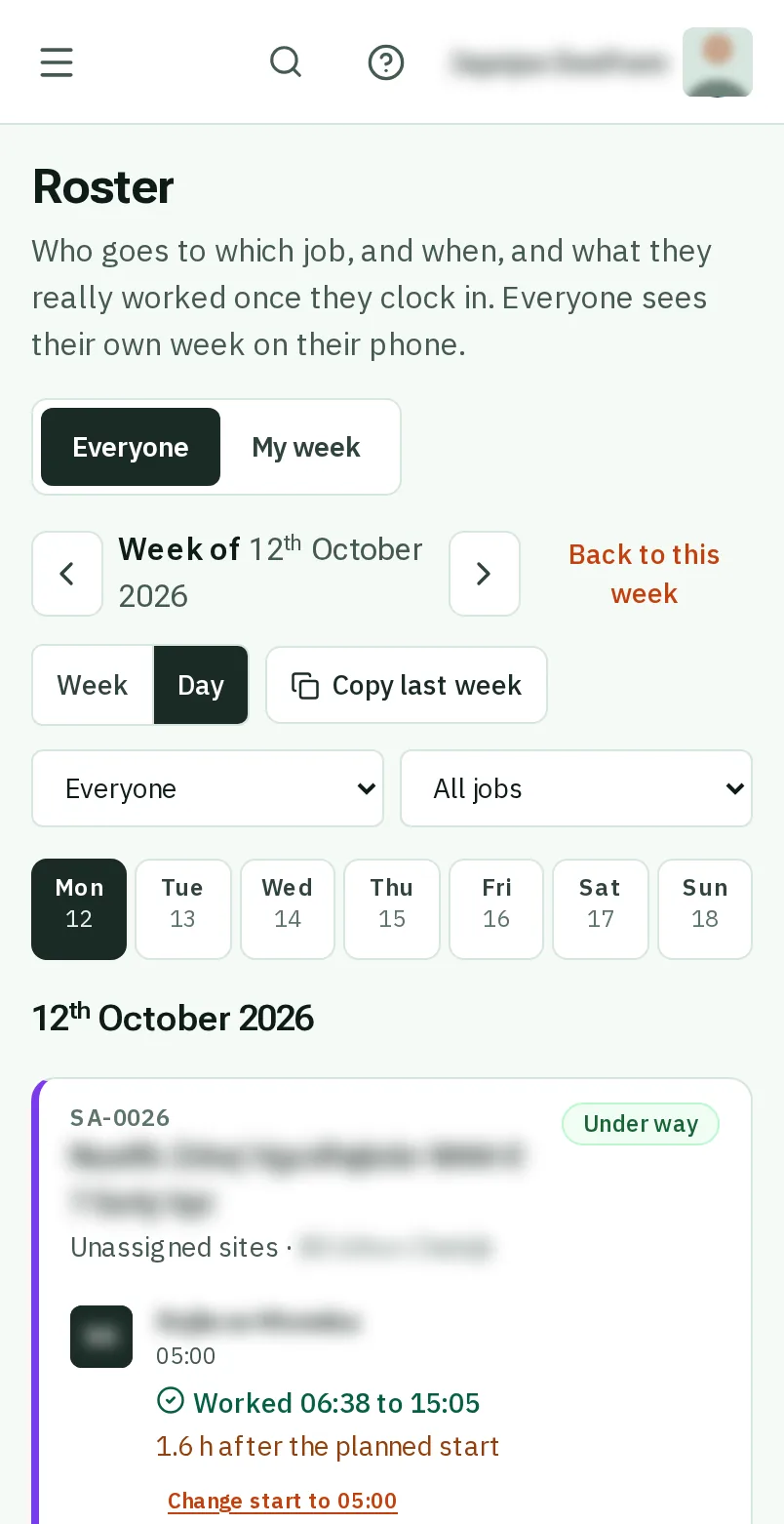
TapClick the arrow on the left at the top to go back a week, then tapclick the day you want to check.TapClick the arrow on the left at the top to go back a week.
Good to know: The days already gone this week work the same way.
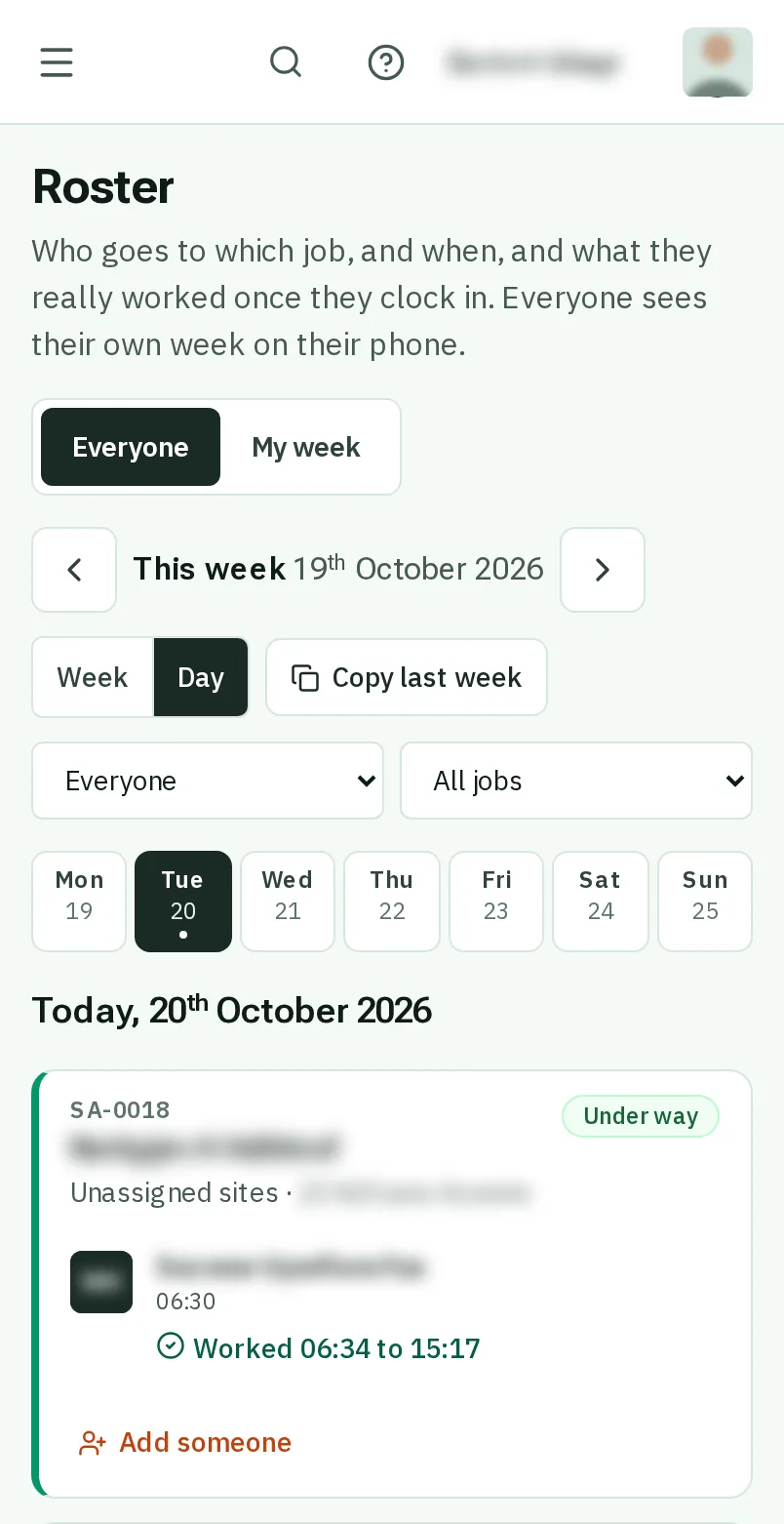
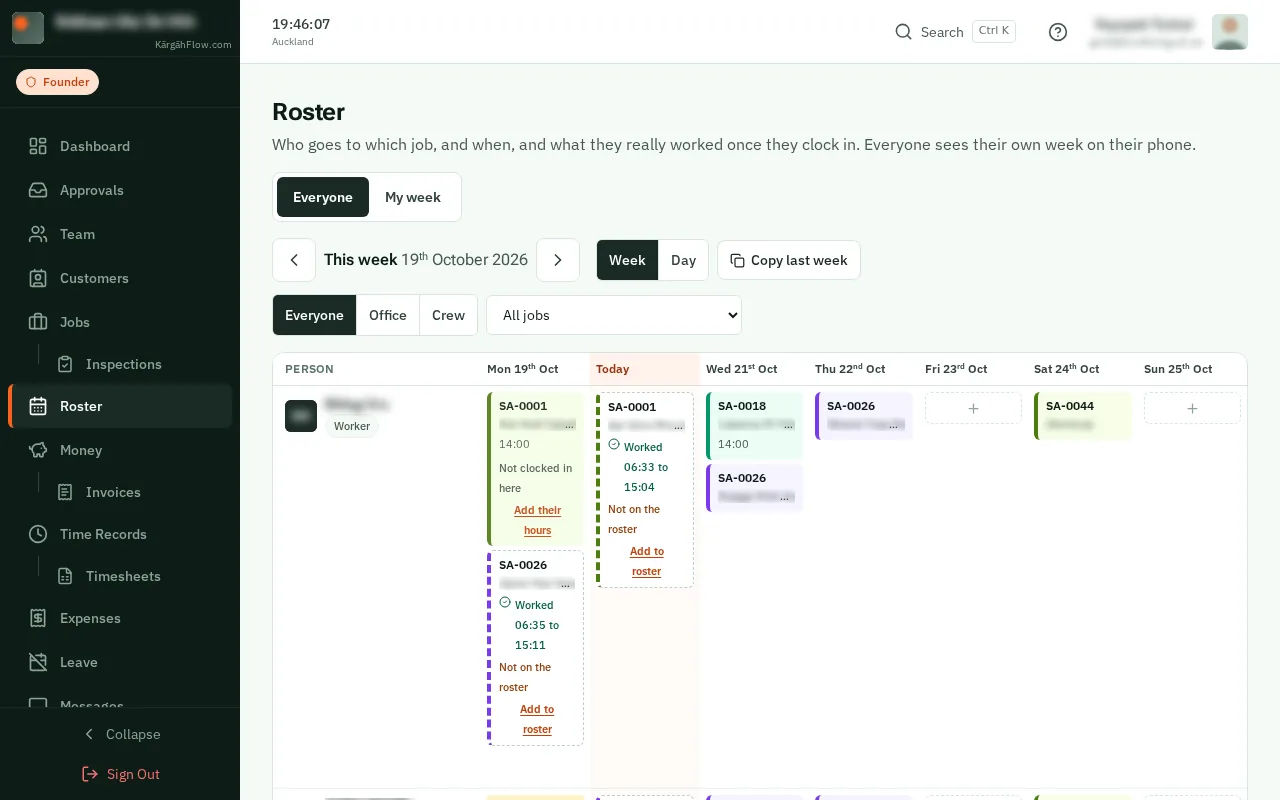
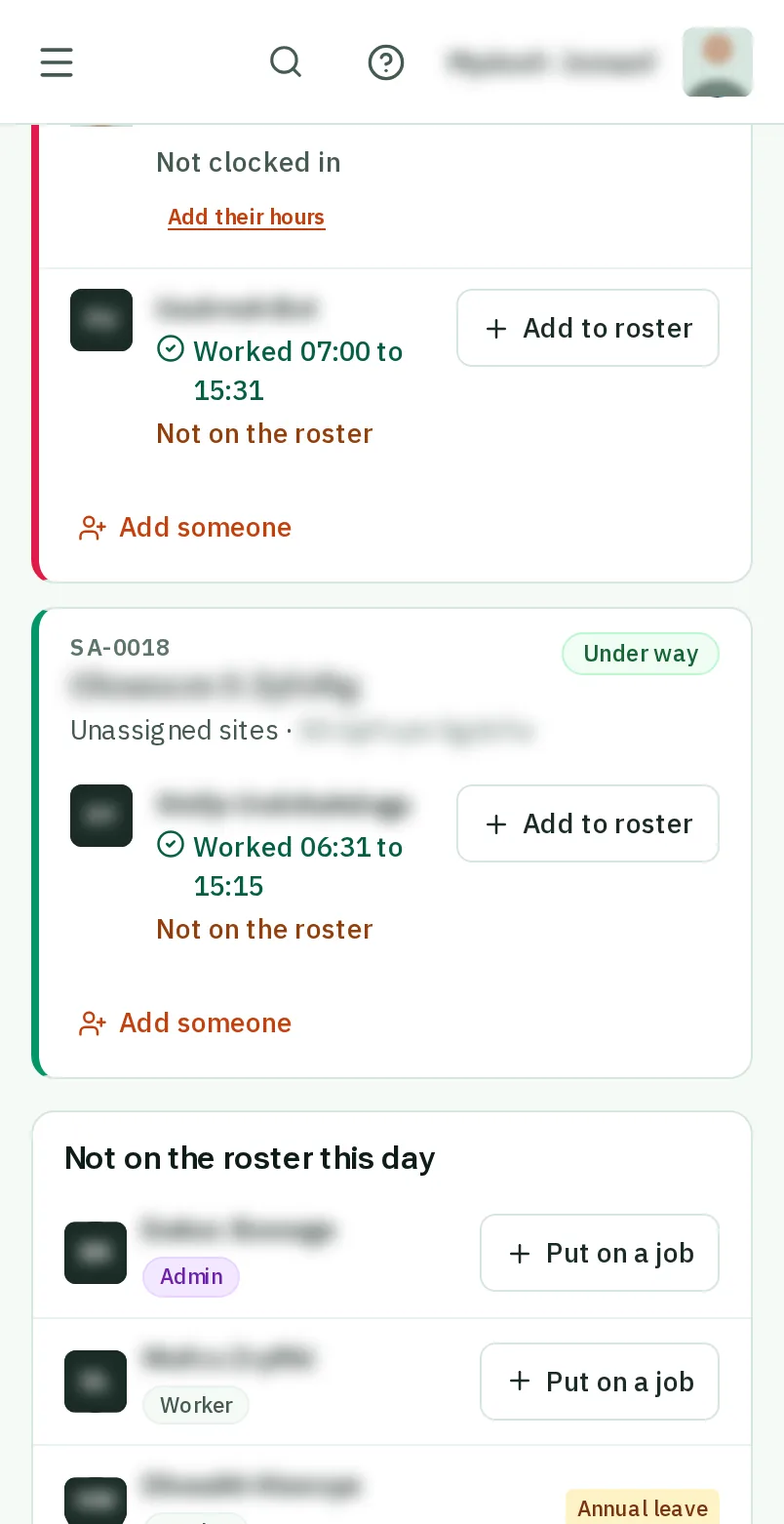
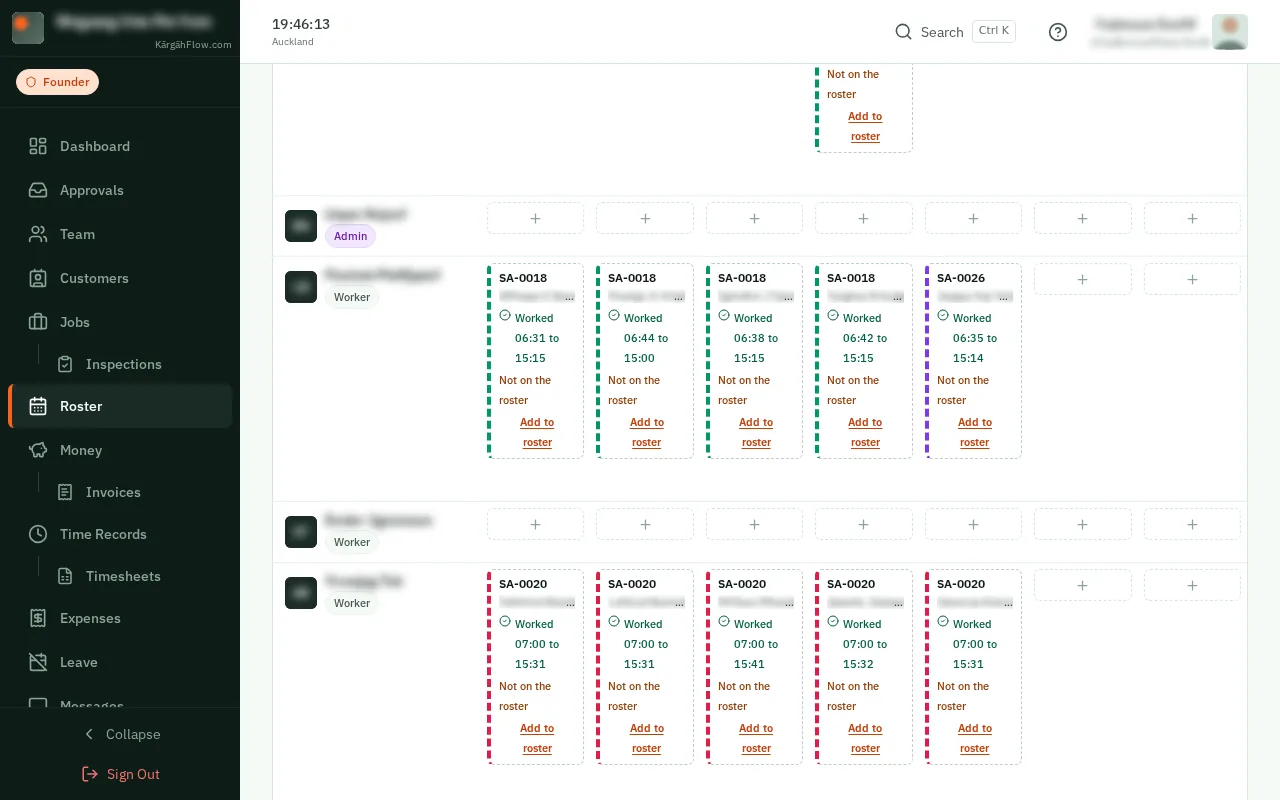
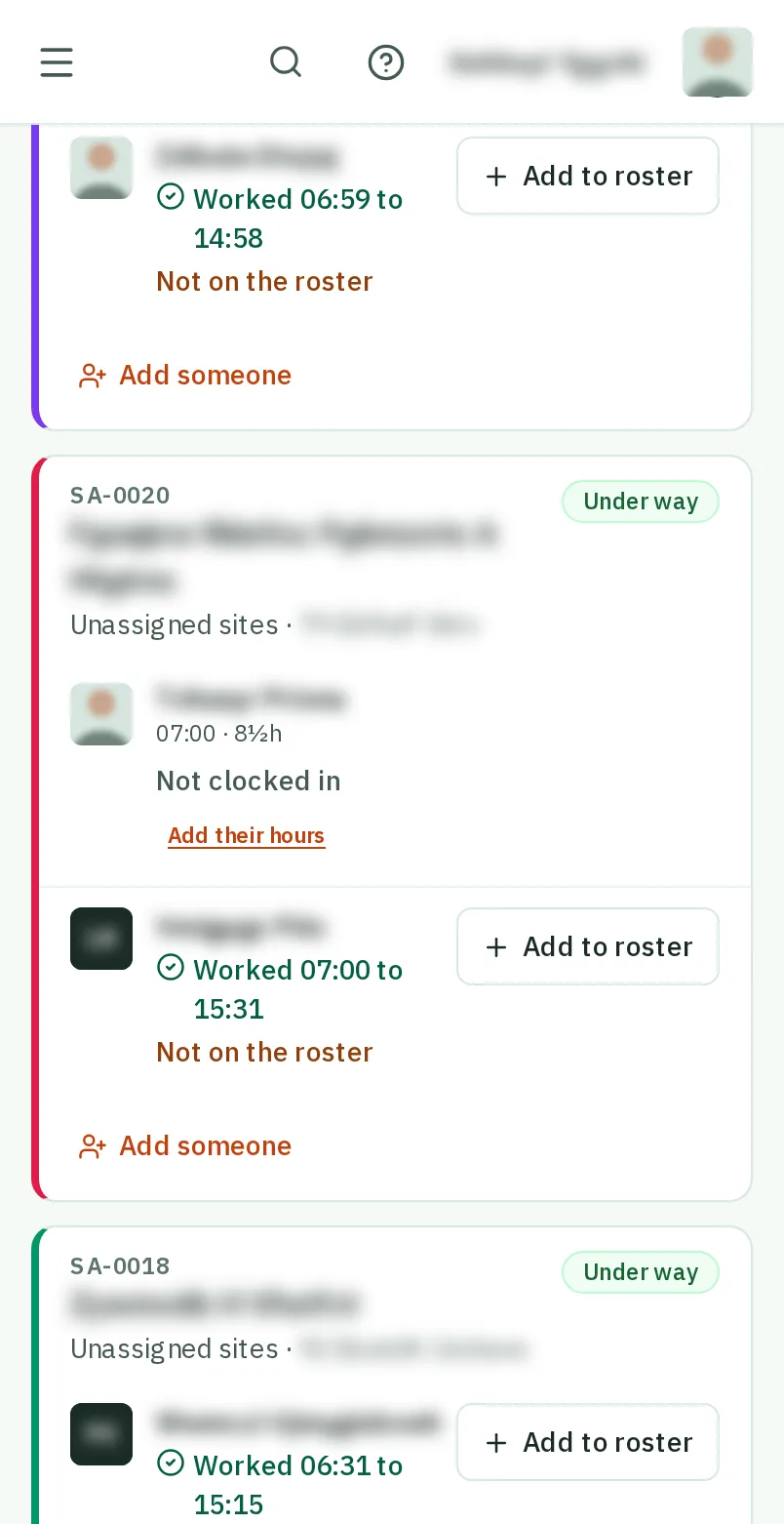
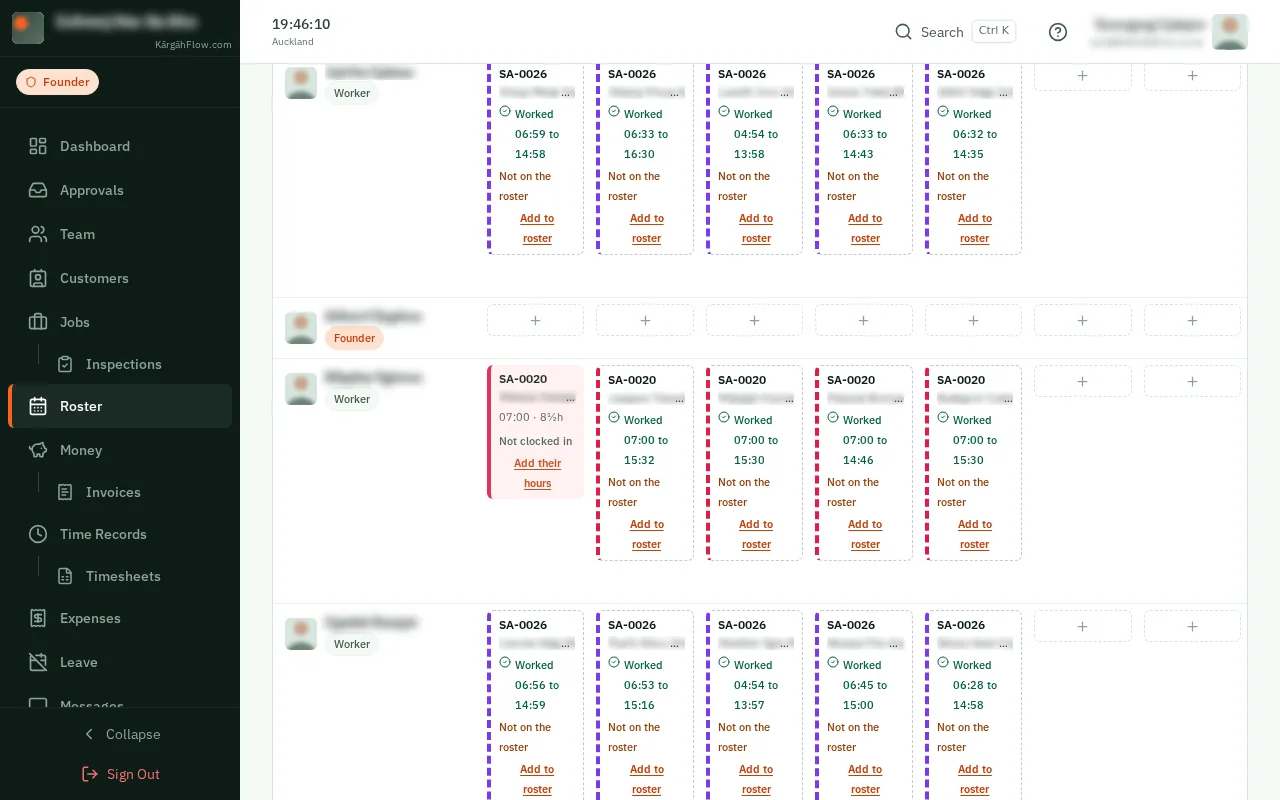
A tick and the times means they worked as planned. Not clocked in is a planned day with no hours. A dashed card that says Not on the roster is work nobody planned for them.
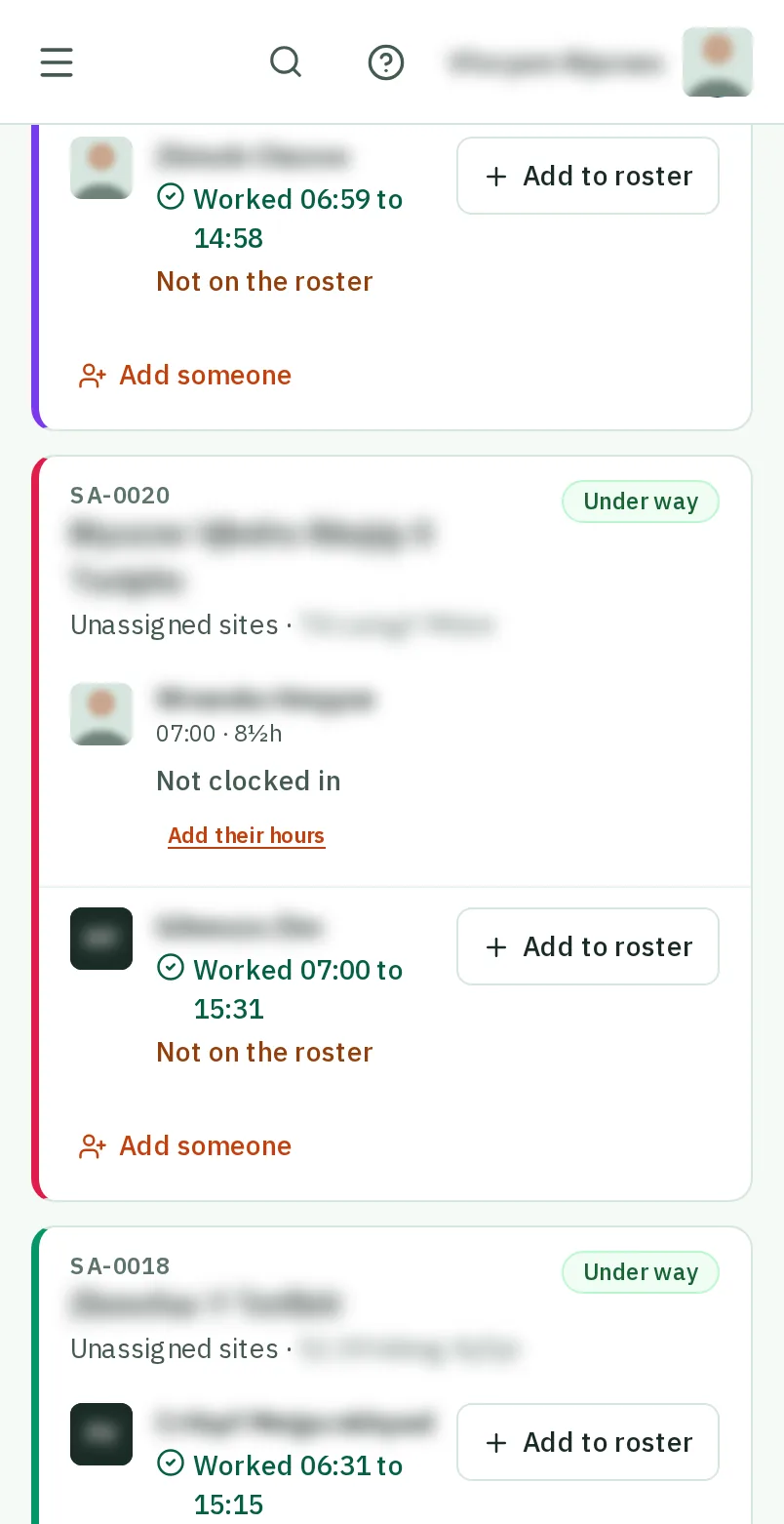
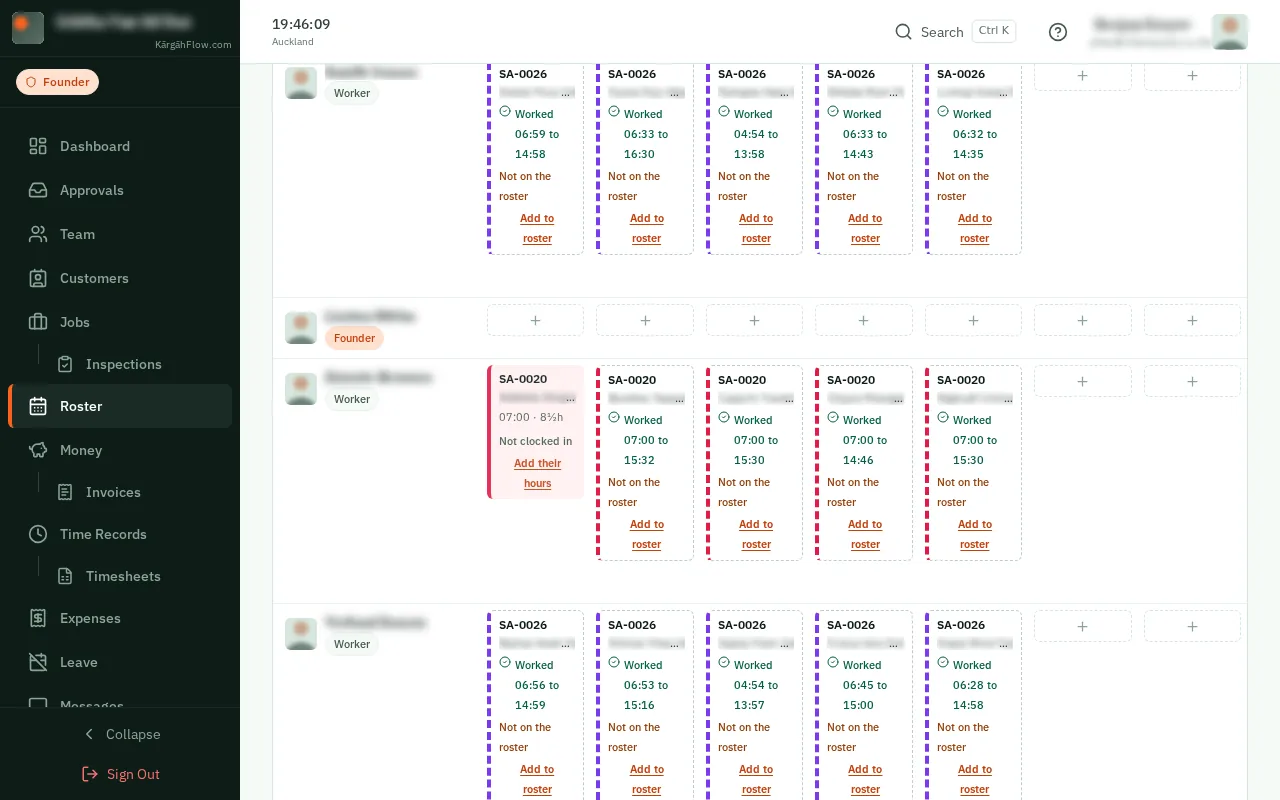
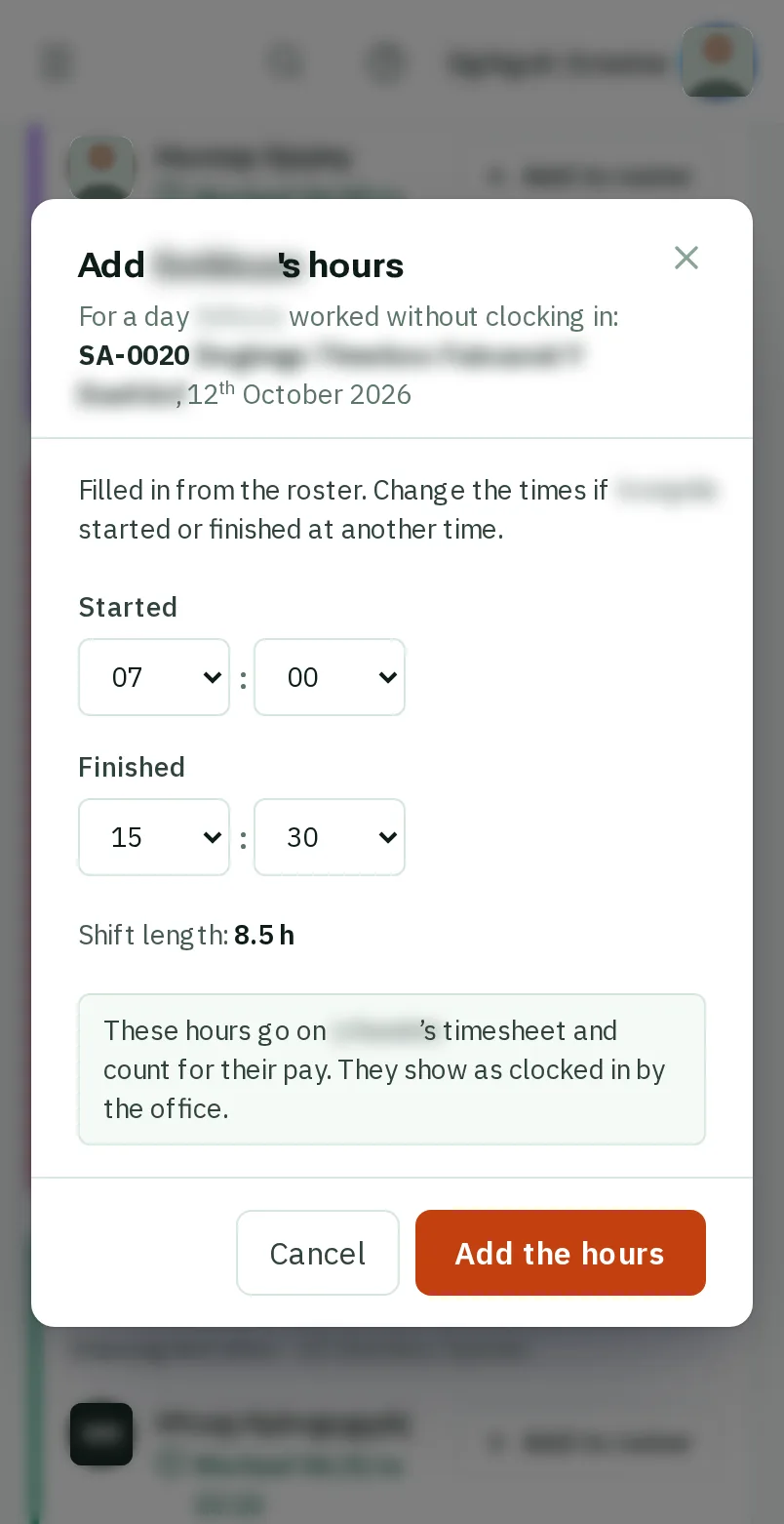
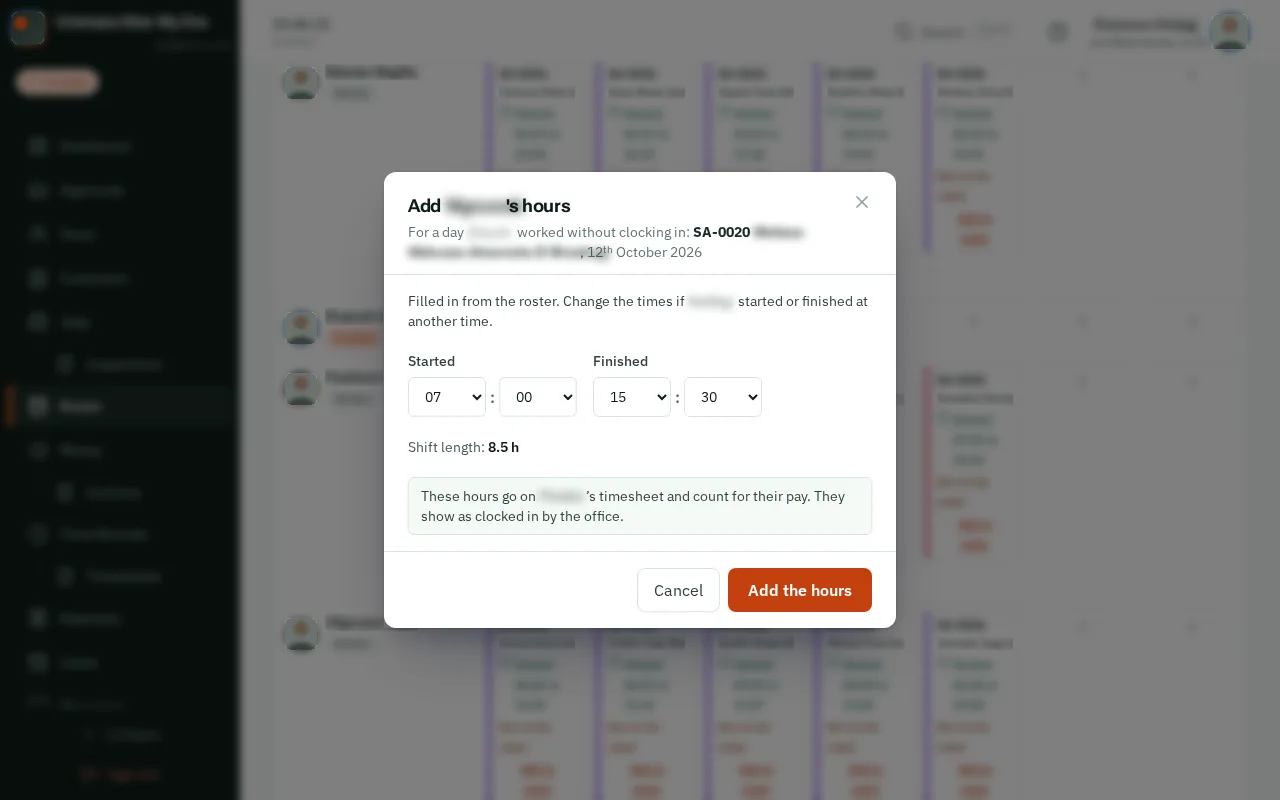
On a day that says Not clocked in, tapclick Add their hours if they did work that day.
The start and finish are filled in from the roster. Change them if they started or finished at another time, then tapclick Add the hours.
Good to know: The hours go on their timesheet and count for their pay. They show as clocked in by the office.
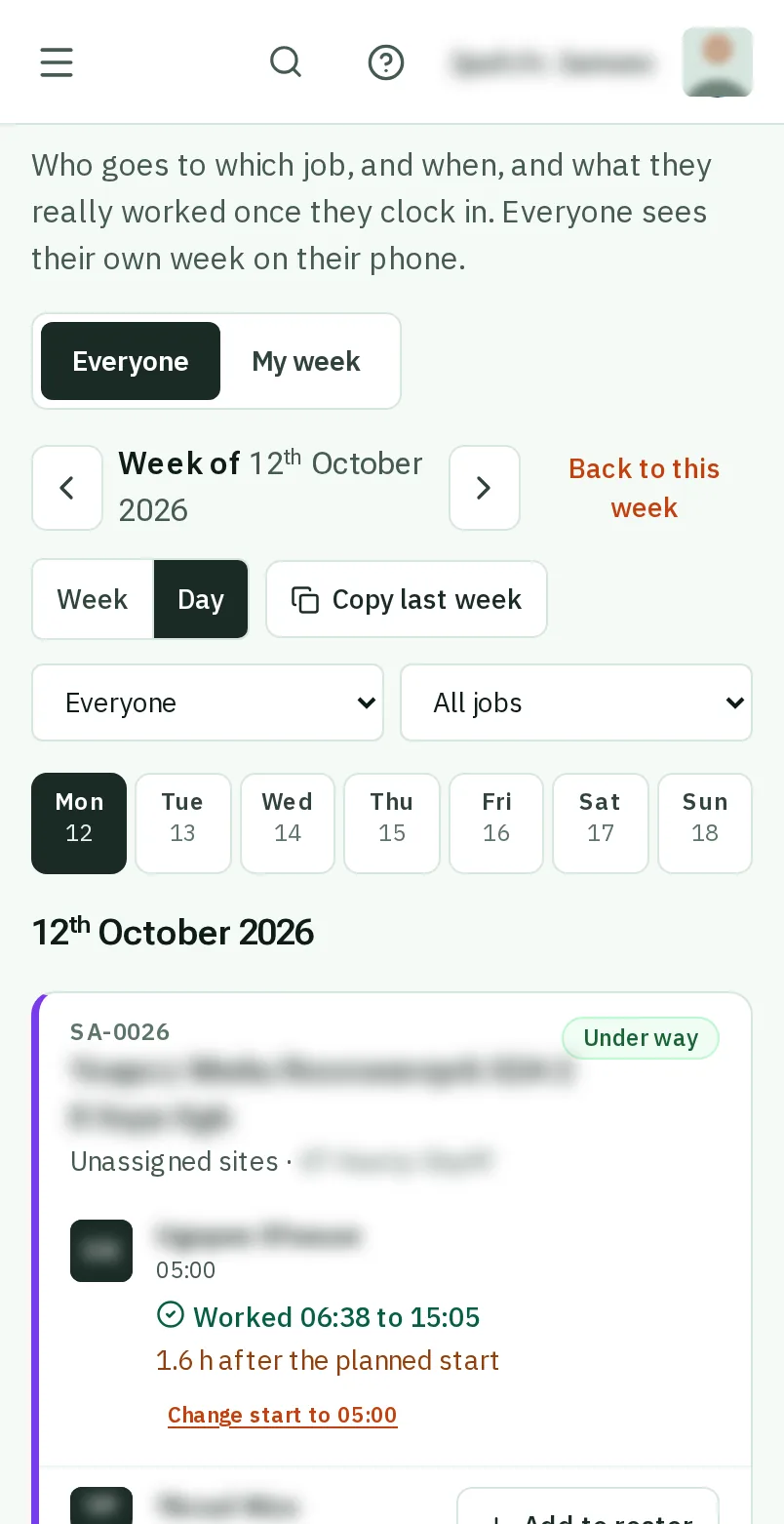
Clocked in 15 minutes or more after the planned start? The day says how late. If they really started on time and forgot to tap, tapclick Change start, check the time, then tapclick Save change.
Good to know: It changes their pay, so they see the change and why on their hours. If they really started late, leave it as it is.
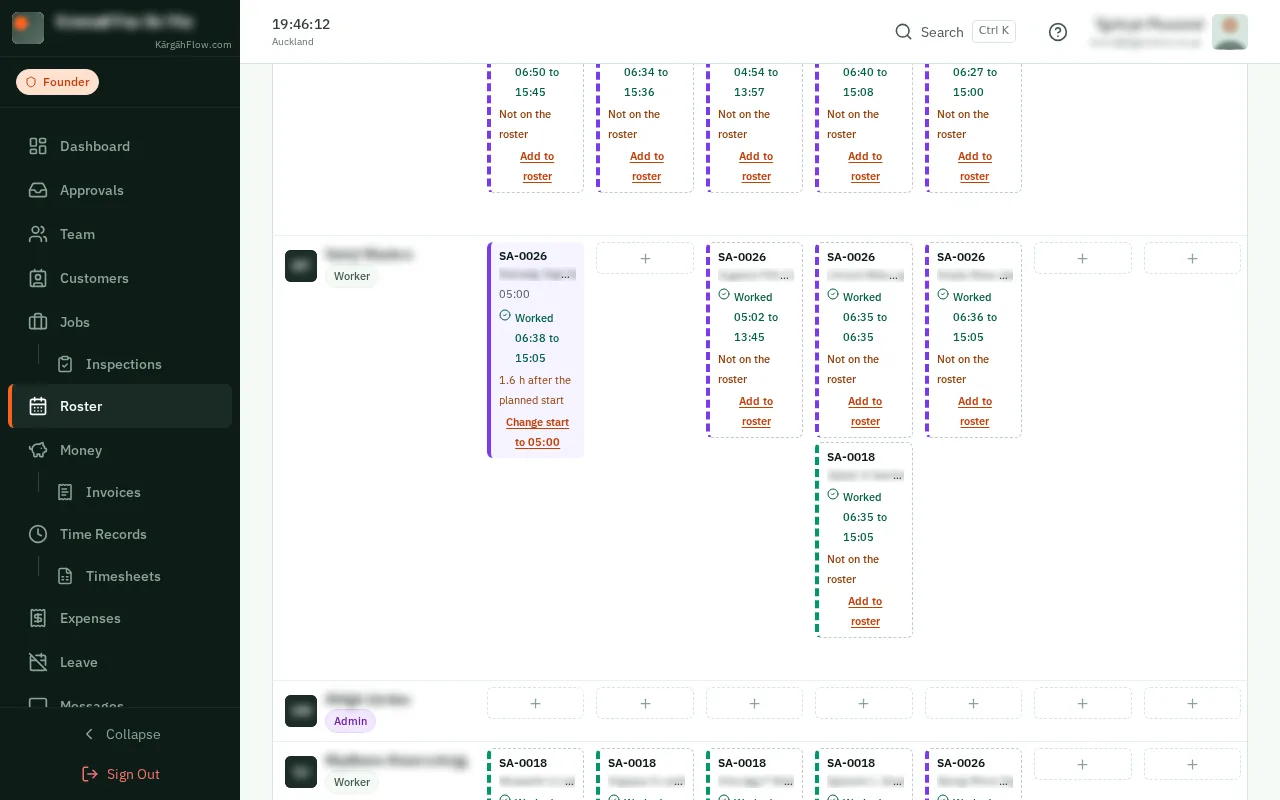
On a dashed card that says Not on the roster, tapclick Add to roster. The job, the day and the start are filled in, so tapclick Put on the roster.
Good to know: Nobody gets a notification for it: the work has already been done.