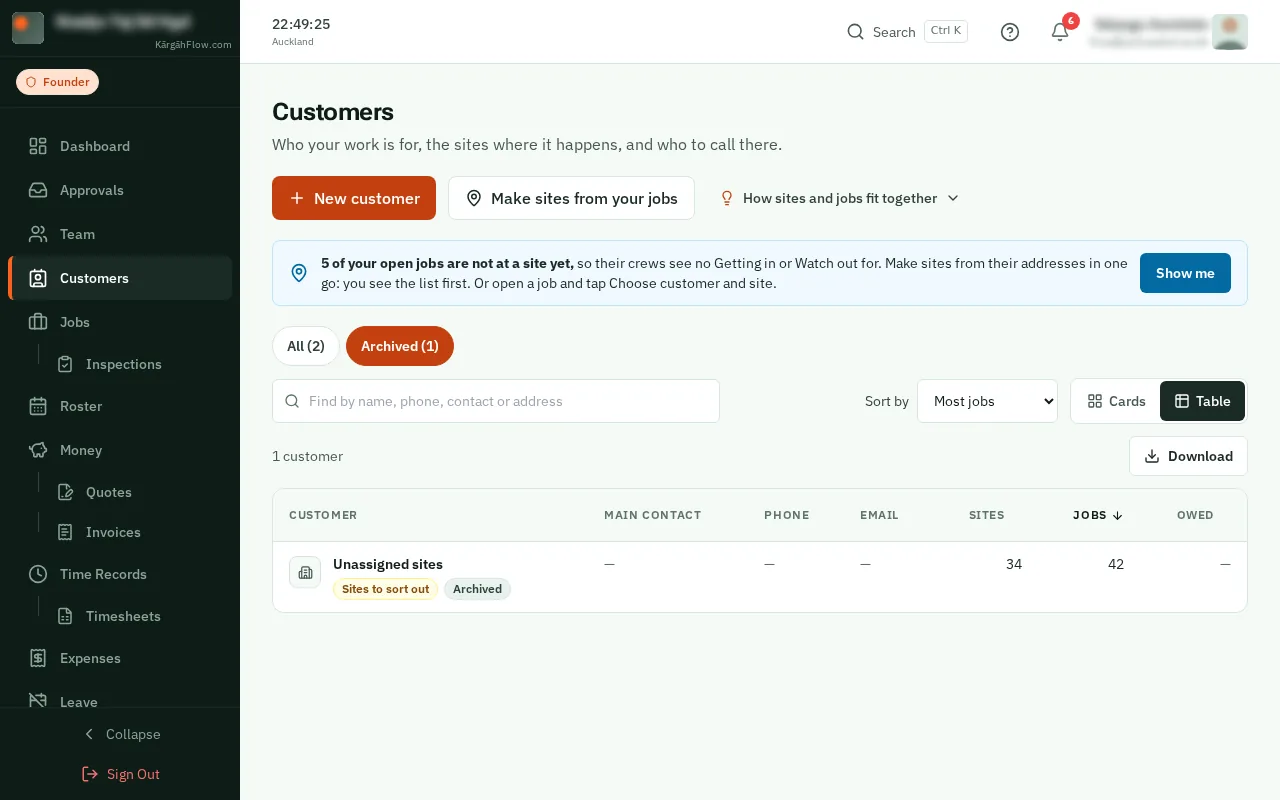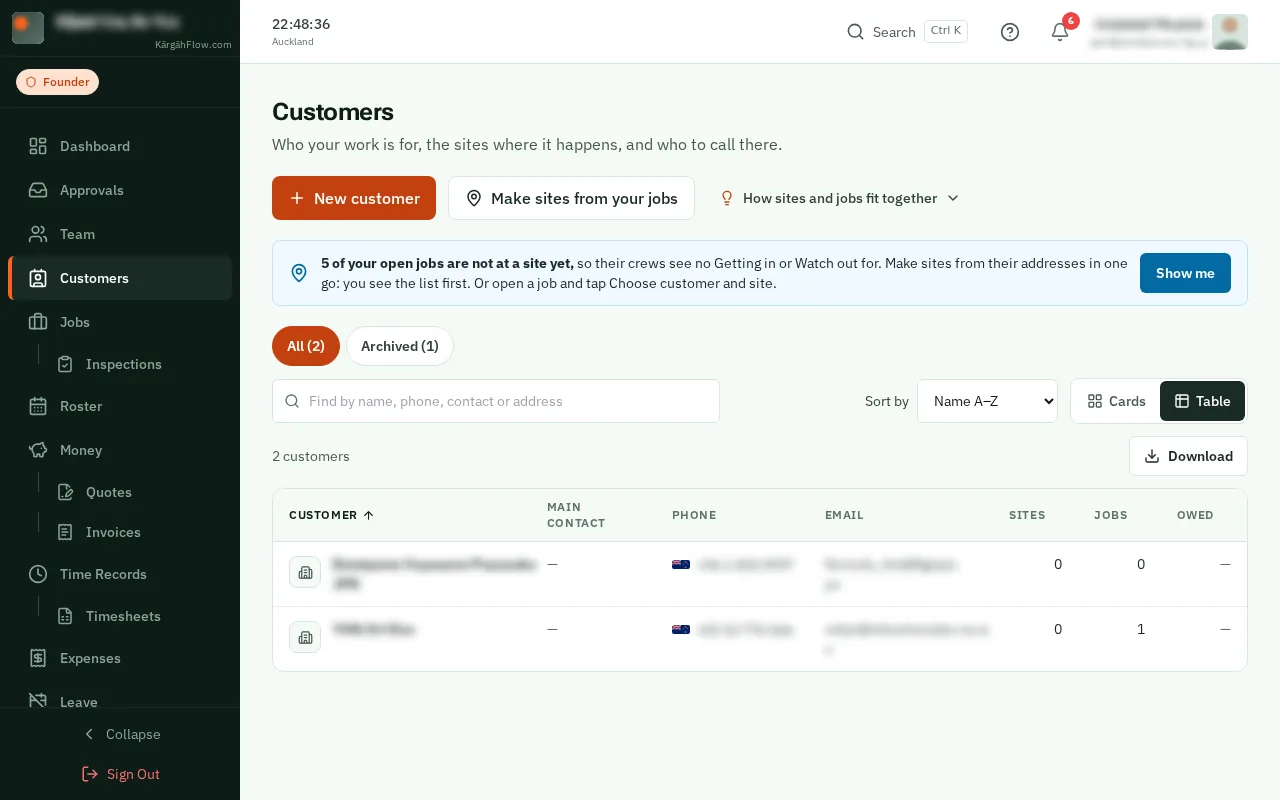
Step 1: Open Customers
TapClick the menu button at the top left of the screen, then Customers.TapClick Customers in the menu on the left.
Look forthe Customers item in the menu
Picture coming
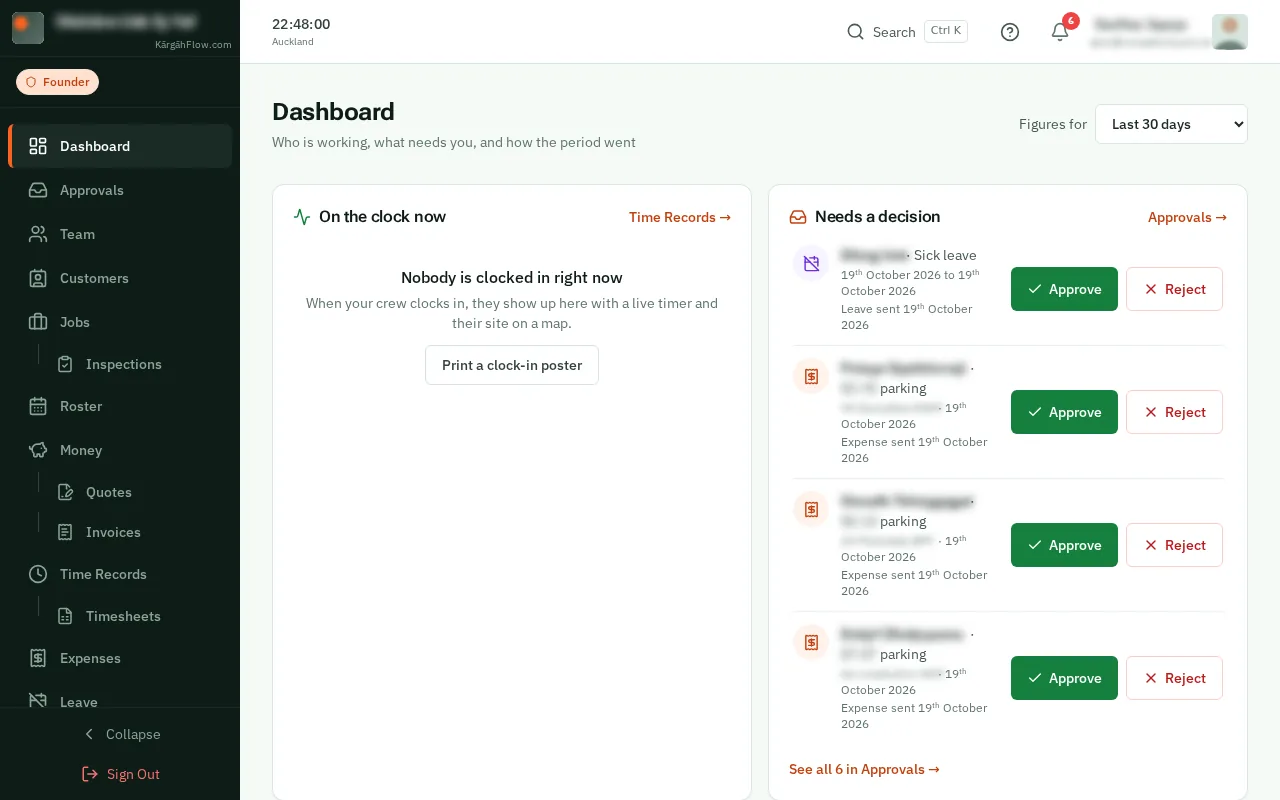
The Customers page shows your customers as cards or as a table. In the table each customer is one row: the person to call, their phone and email, their sites and jobs, and what they still owe on the invoices you have sent.
Your computer remembers the way you chose and the order. On a phone, customers are always cards.
TapClick the menu button at the top left of the screen, then Customers.TapClick Customers in the menu on the left.
Click Table, to the right of the search box. Each customer is now one row.
Good to know: Owed is what they still owe on your invoices, in red when part of it is overdue. Click it to open their invoices. Cards puts the cards back.
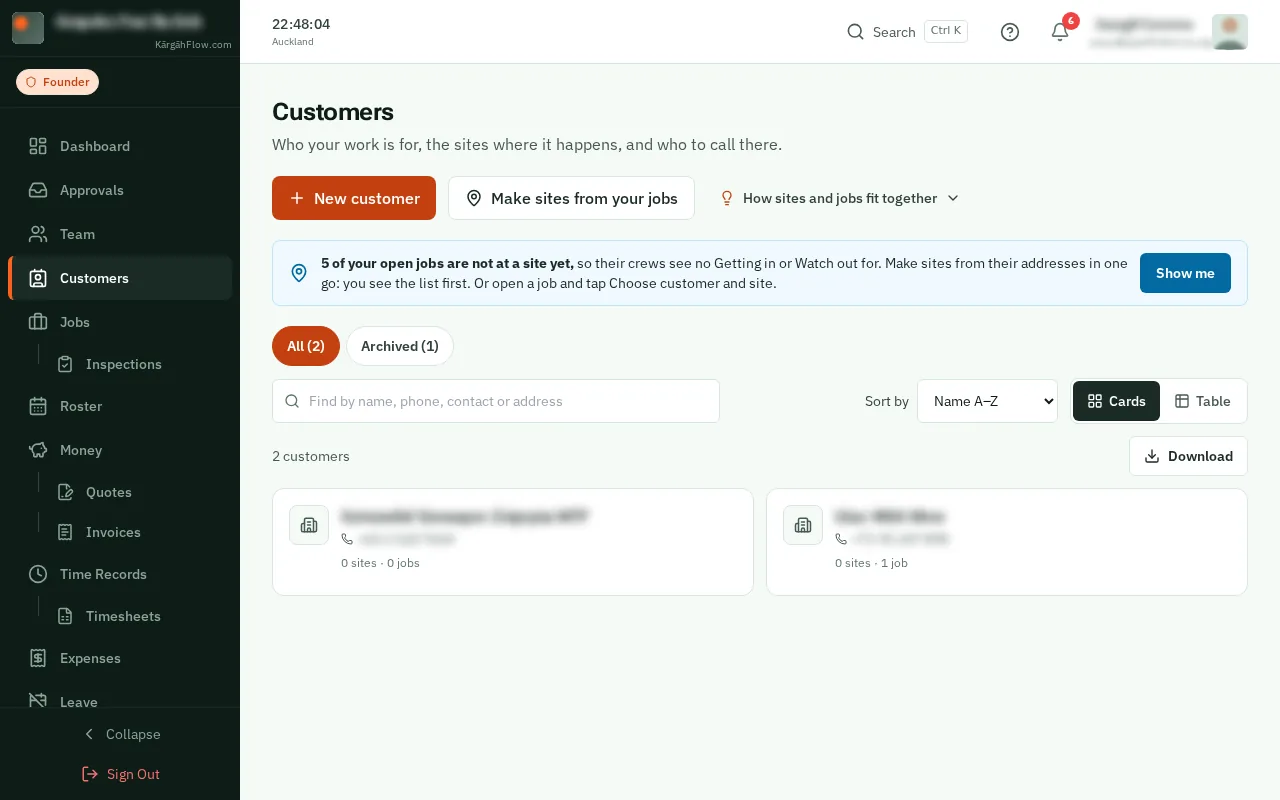
Click Jobs at the top of the table: the customers with the most jobs come first. Owed puts whoever owes you the most at the top, and Customer goes back to A to Z.
Good to know: The Sort by box does the same, and your computer remembers the order you chose.
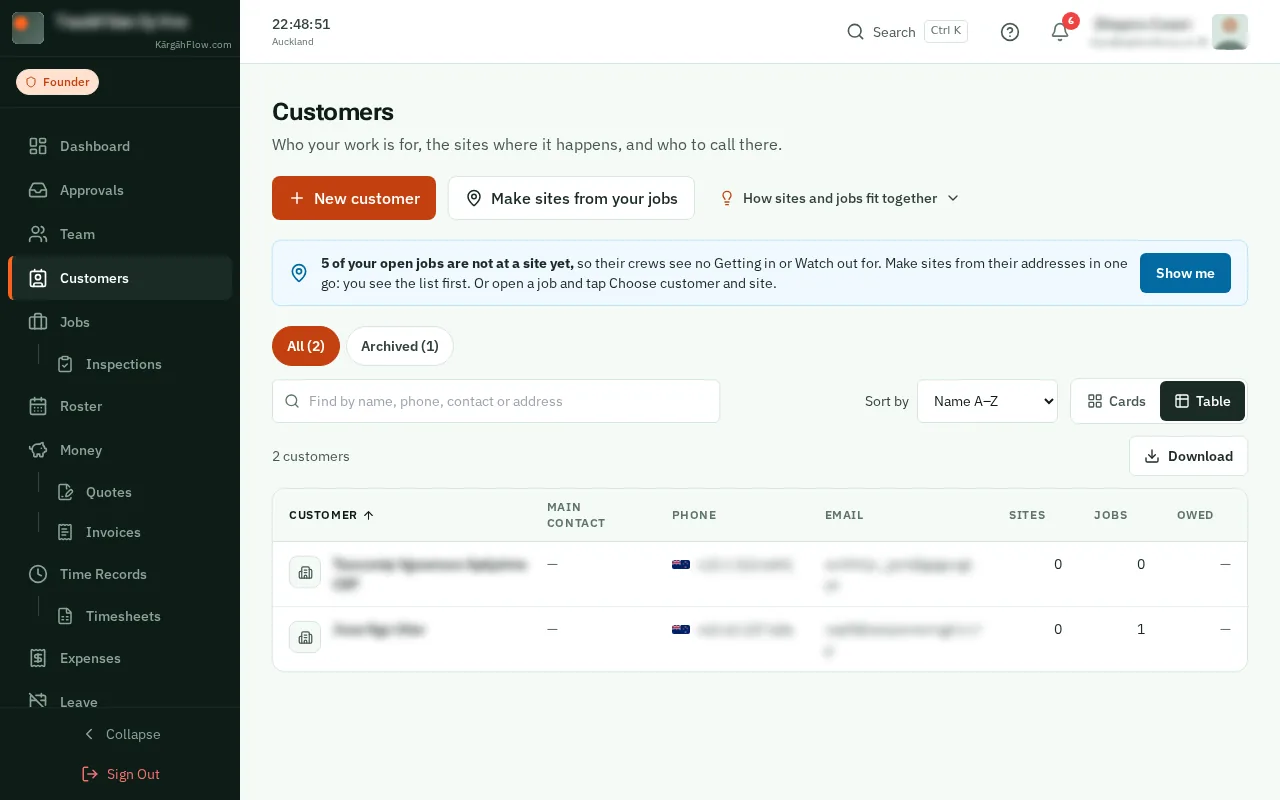
The chips above the search box each hold a group, with how many are in it: Owes money, Sites to sort out, No contact yet and Archived. Click one to see only them. All shows everyone again.
Good to know: A chip shows once someone is in it.
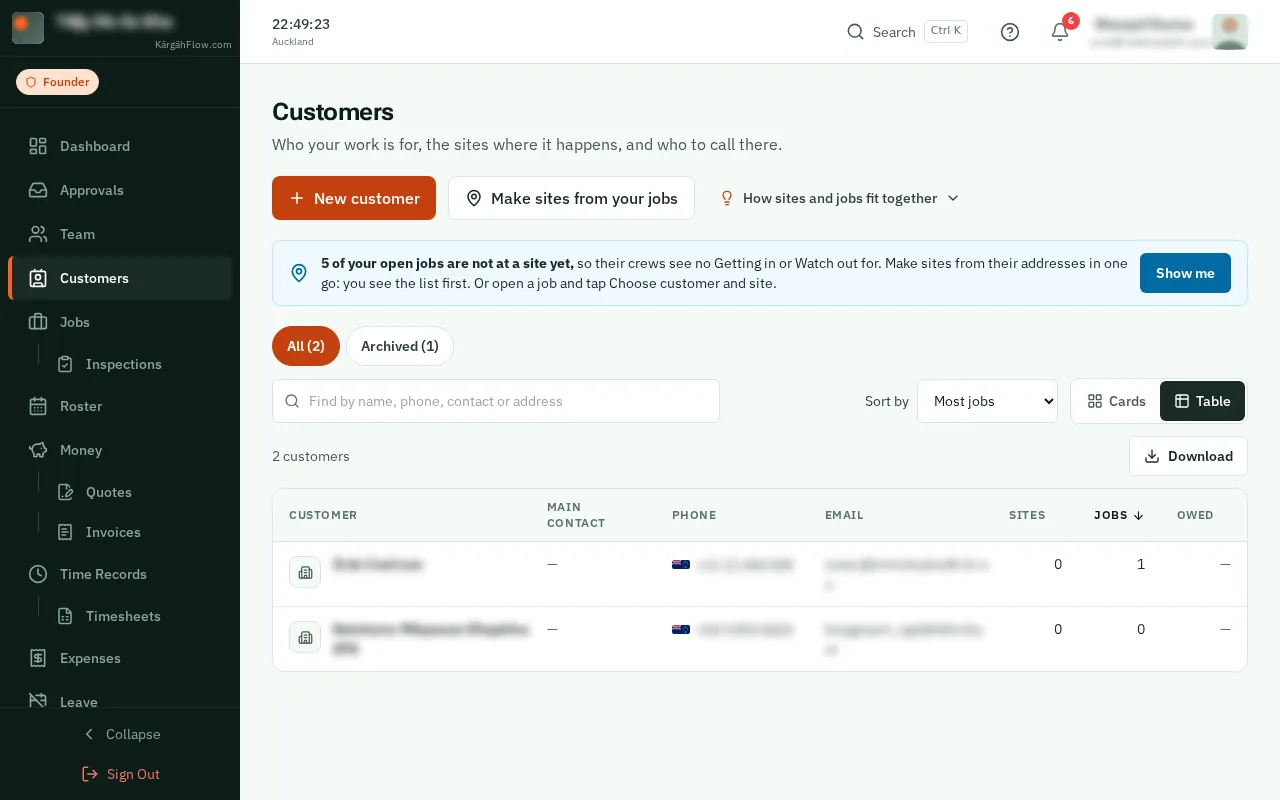
Click Download above the list. The customers on screen, with their contacts, phones, emails, addresses and what they owe, are saved as a spreadsheet that opens in Excel.