KārgāhFlow
About 1 minute 6 stepsFor owners

Name your roles

Call each role what your company calls it: an Owner, a Manager, a Technician.

What this is

KārgāhFlow has three roles: Founder, Admin and Worker. You can call each one what your company calls it, like Owner, Manager or HVAC Technician.

What each role can do stays exactly the same. Your names show for everyone in your company, on every screen, email and PDF.

Step 1 of 6
  1. Step 1: Open Settings

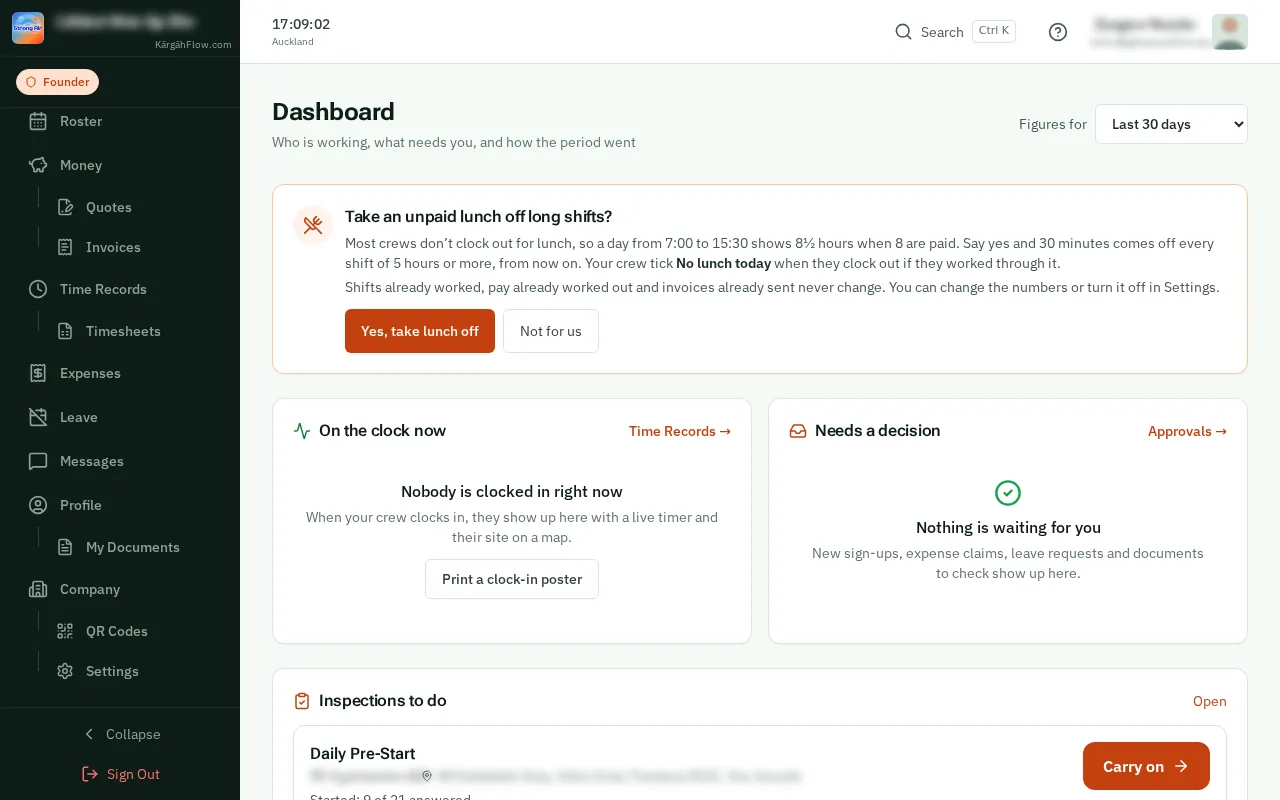
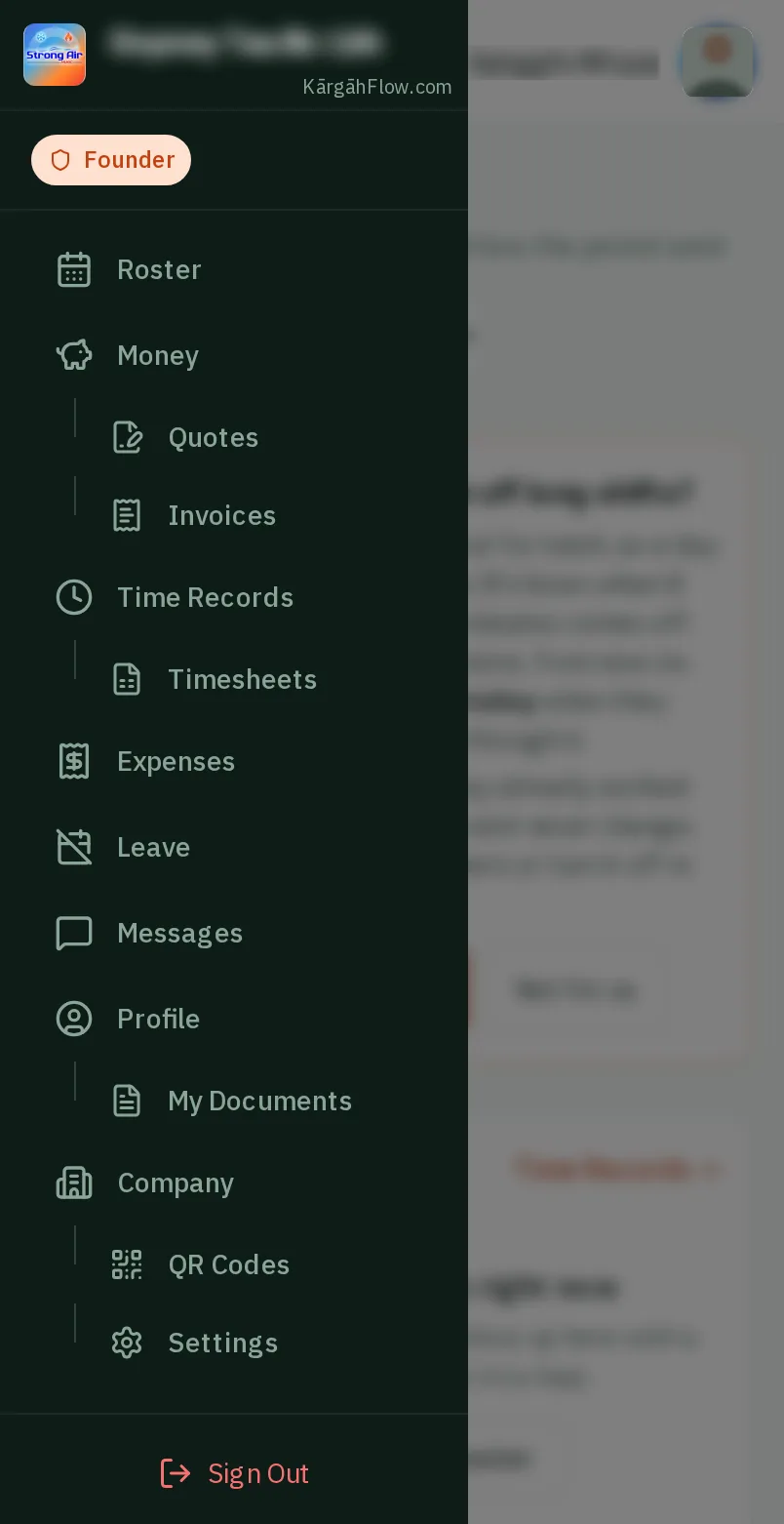
    TapClick the menu button at the top left of the screen, then Settings.TapClick Settings in the menu on the left.

    Look forthe Settings item in the menu

    Good to know: Role names is at the top of Settings. On Team, Rename the roles opens it too.
    Open Settings
    Open Settings
  2. Step 2: Type a name

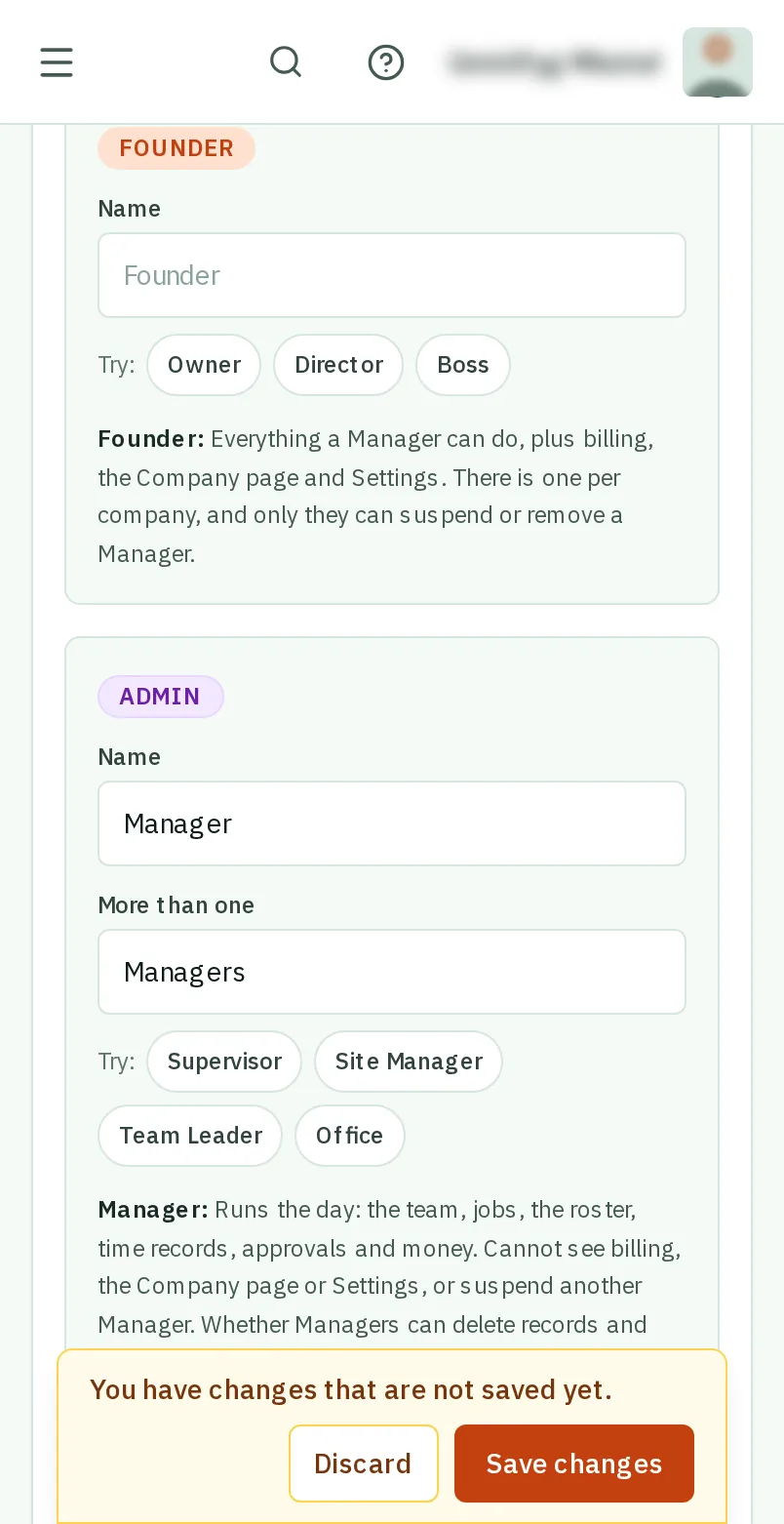
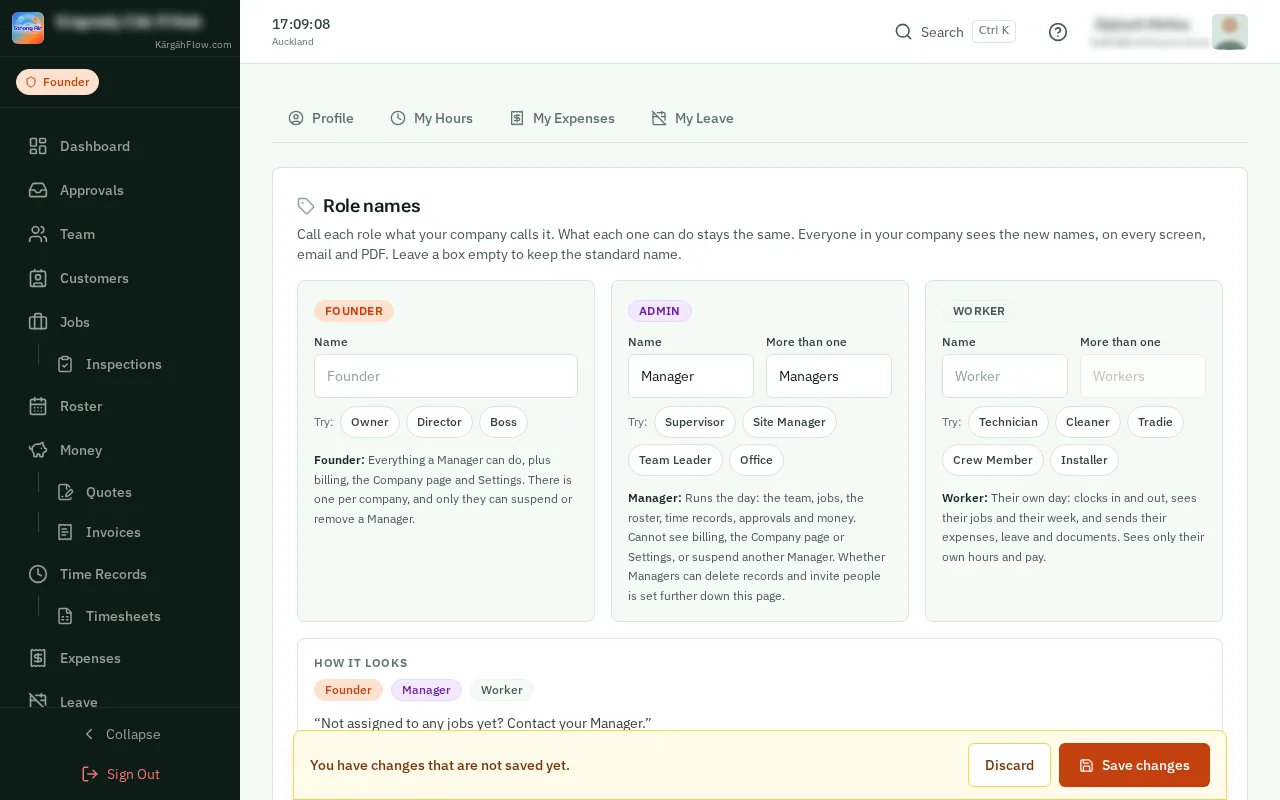
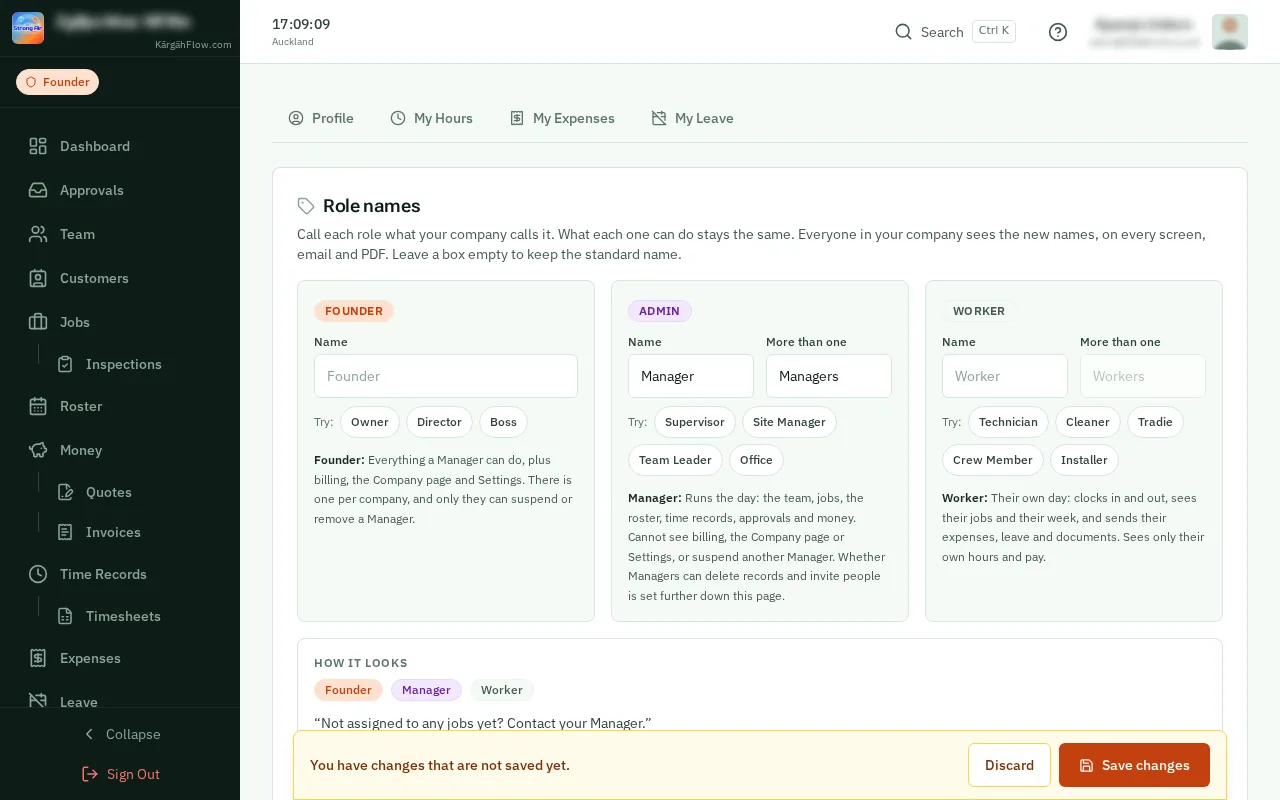
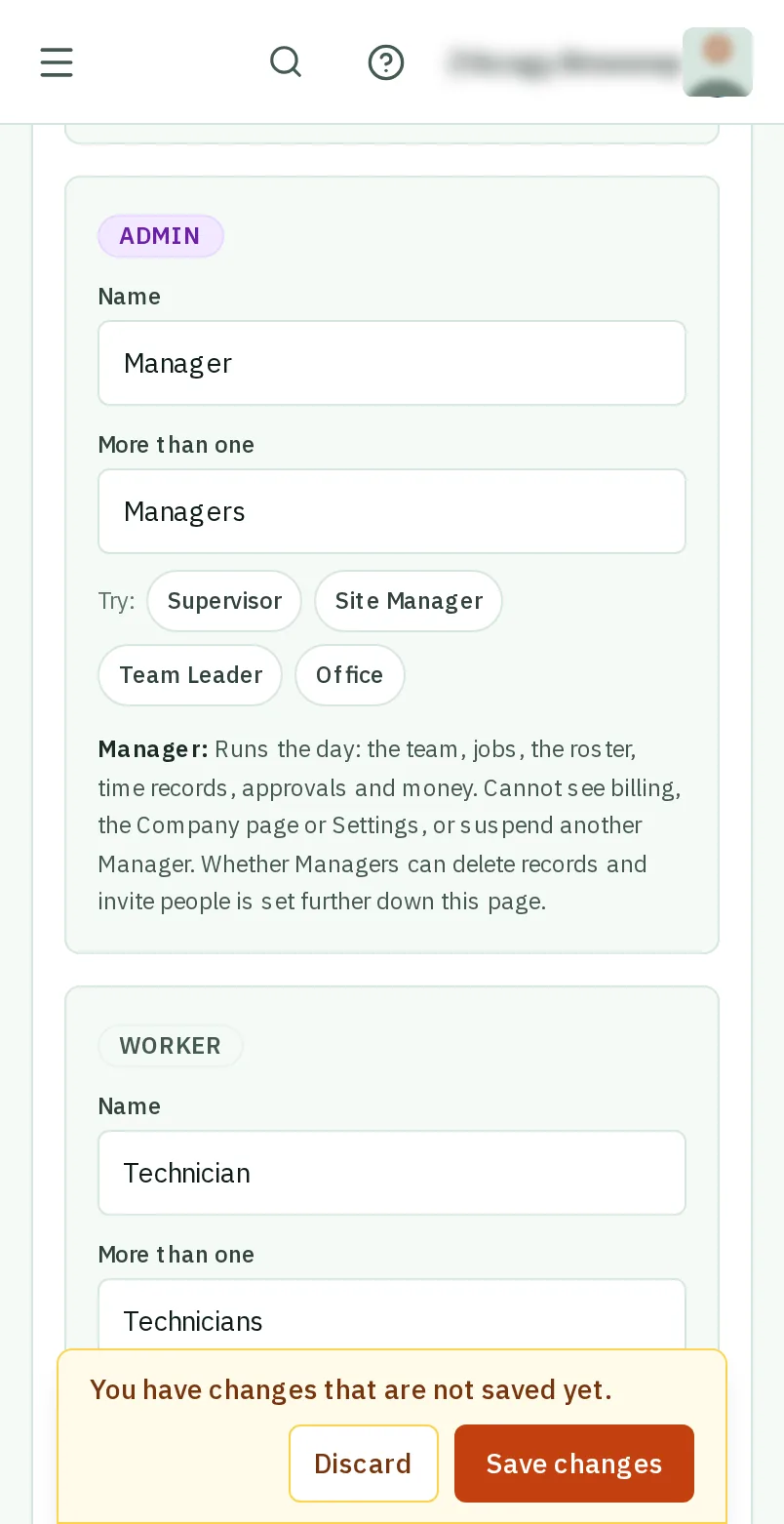
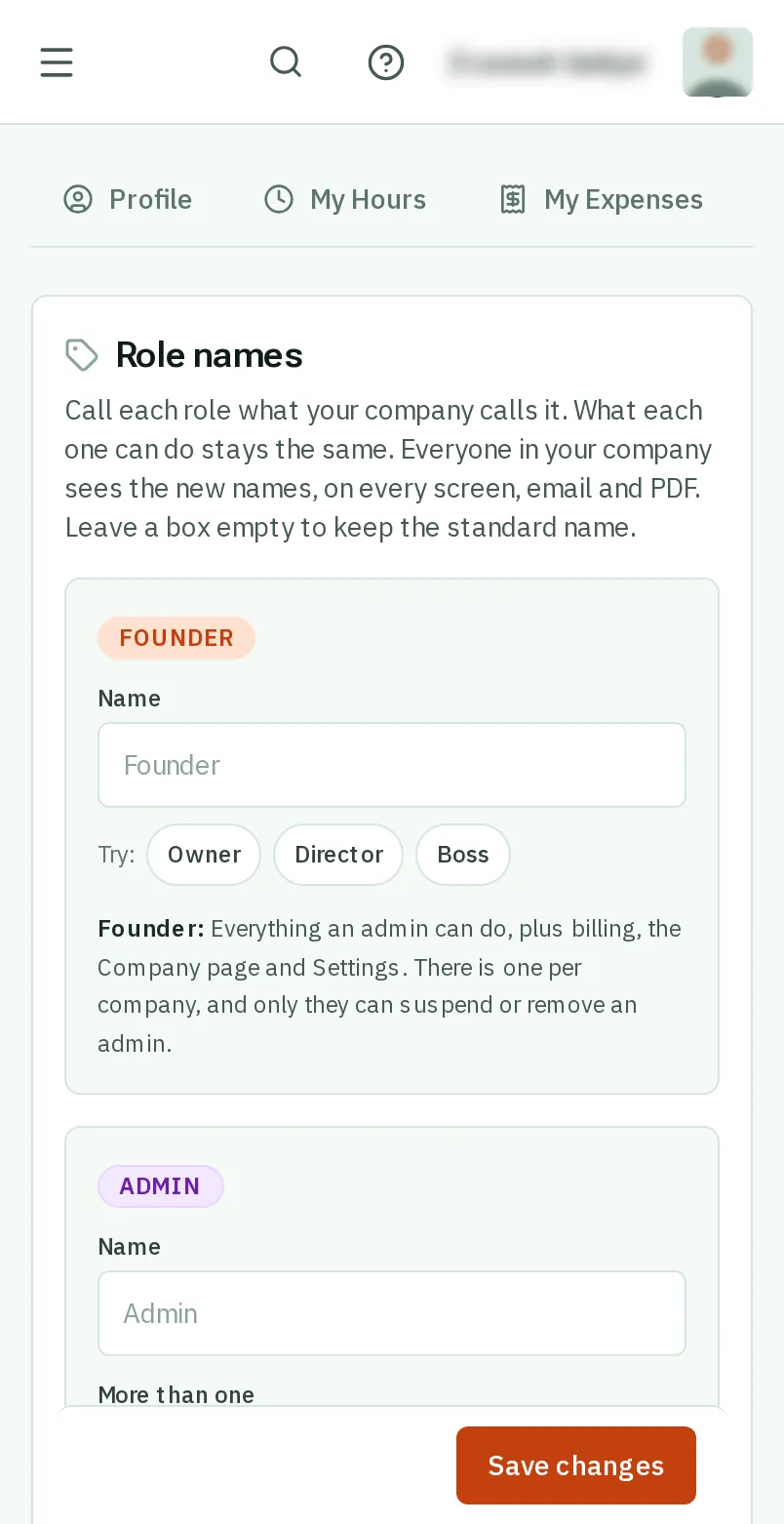
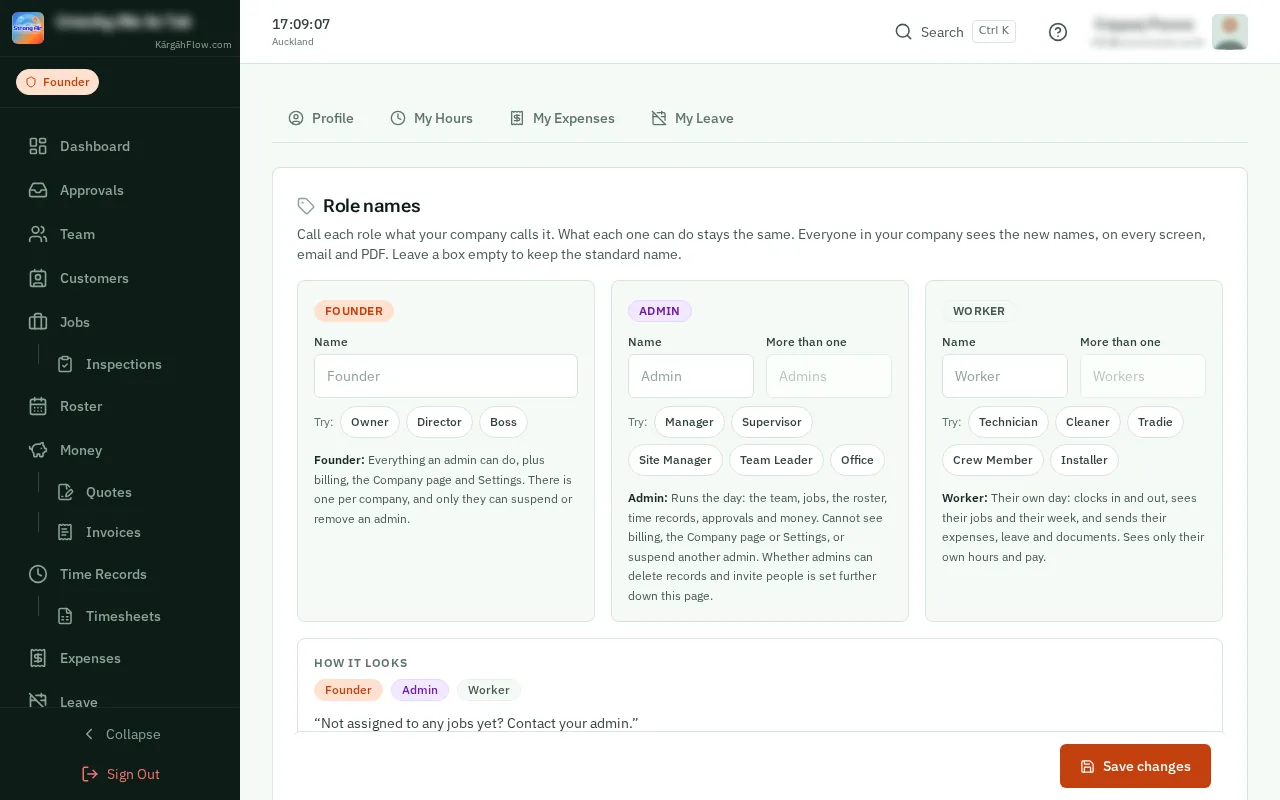
    Under Role names, type the new name in a role’s Name box. More than one fills itself in, and you can change it.

    Look forthe Name box

    Good to know: Leave a box empty to keep that role’s standard name.

    Type a name
    Type a name
  3. Step 3: Or tapclick a name to try

    Beside Try, under a role, tapclick a name like Technician to fill in both boxes.

    Look forthe Technician button
    Or tap a name to try
    Or click a name to try
  4. Step 4: What each role can do

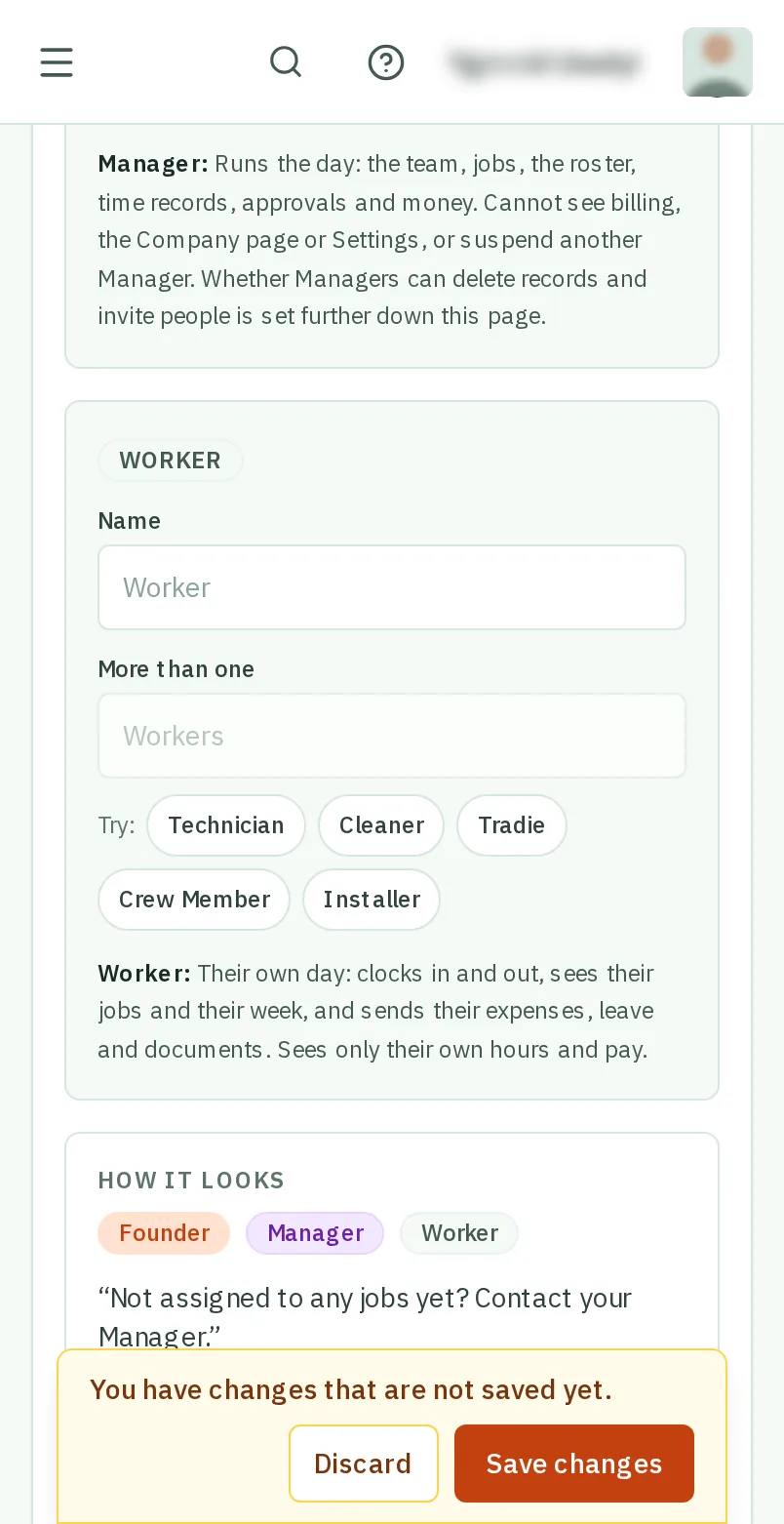
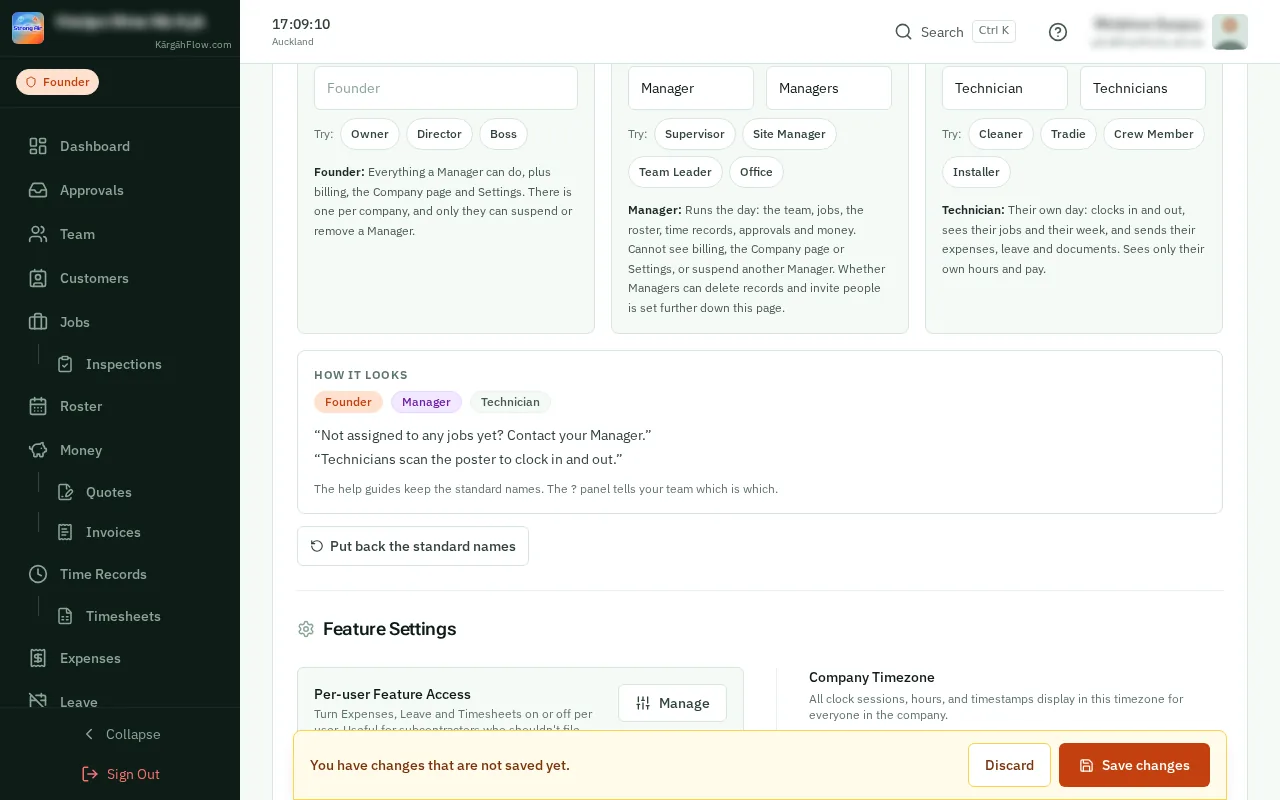
    Under each role, a line says what it can do, in your names. Renaming a role never changes it.

    What each role can do
    What each role can do
  5. Step 5: See how it looks

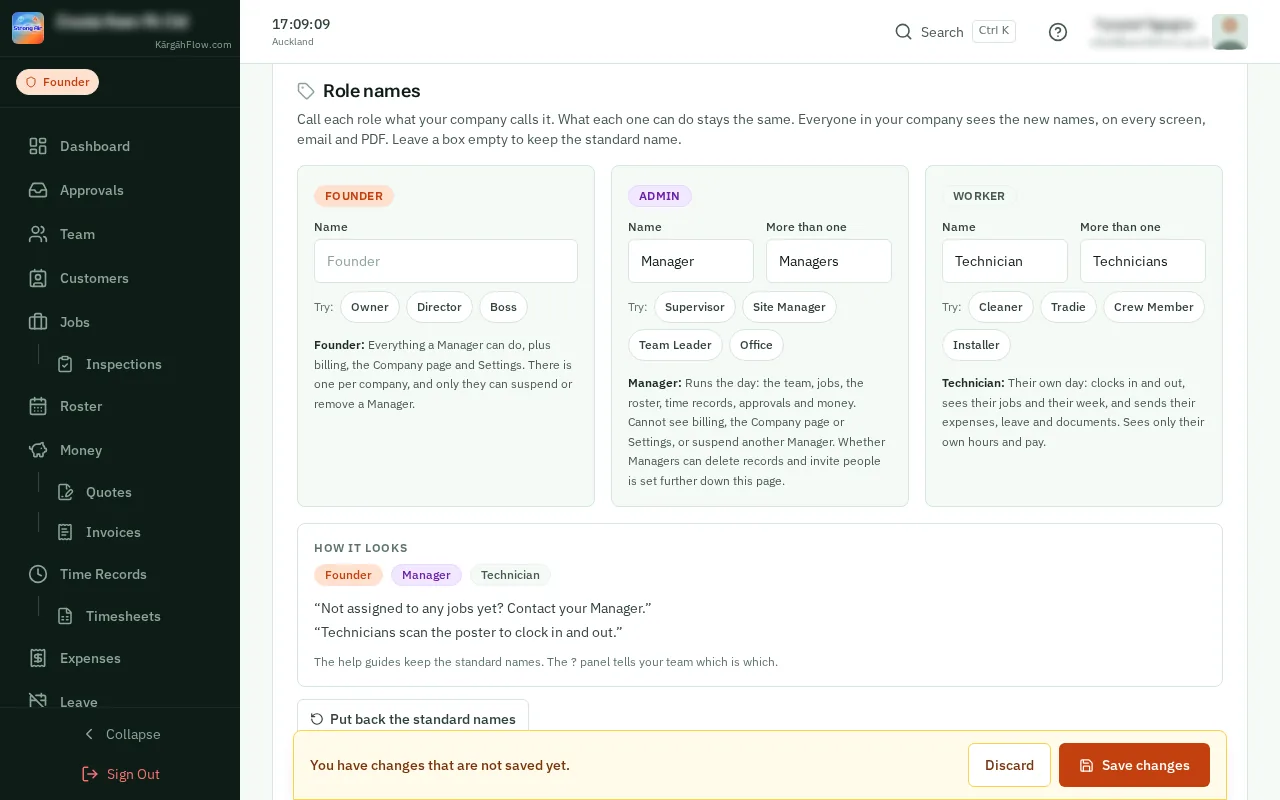
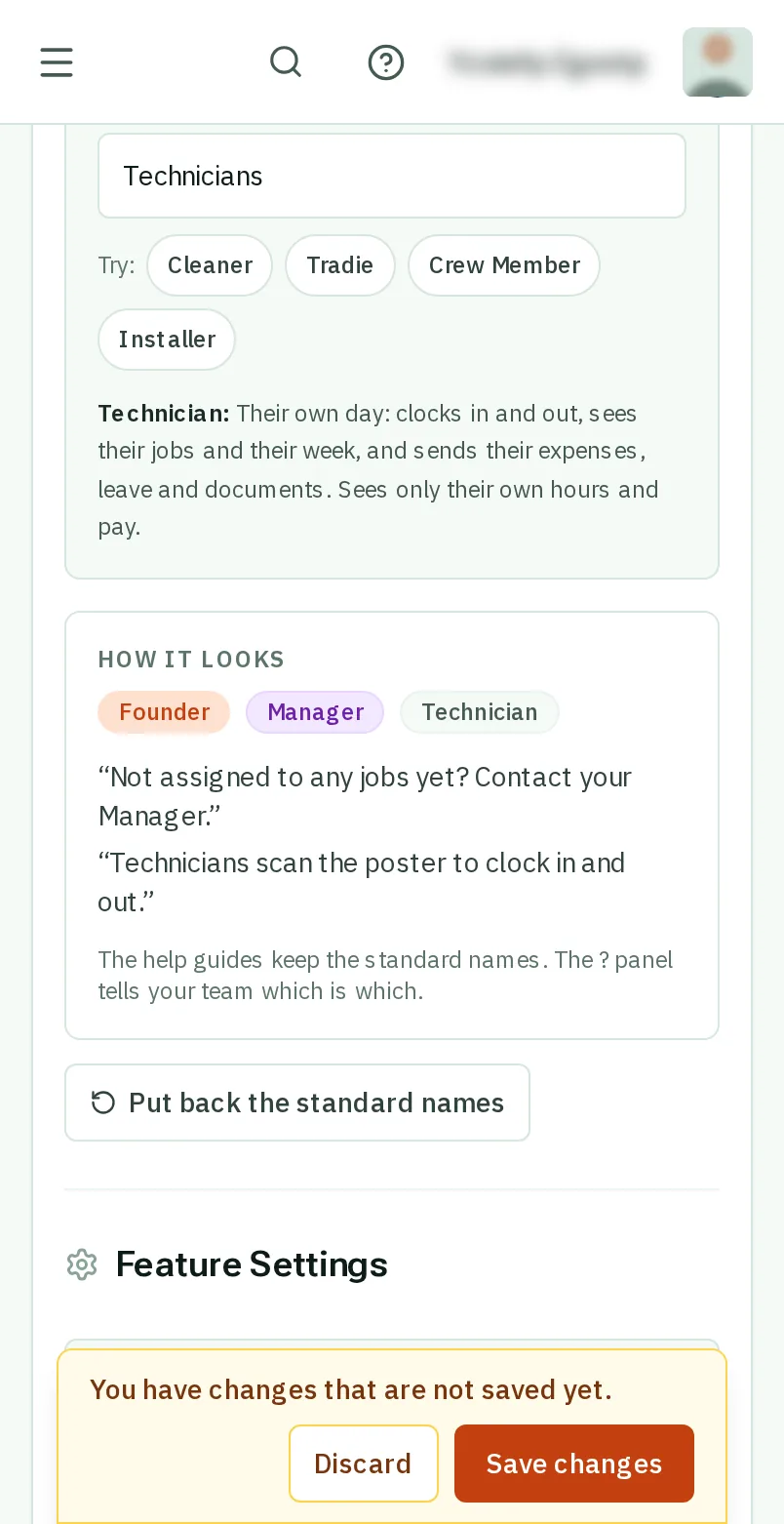
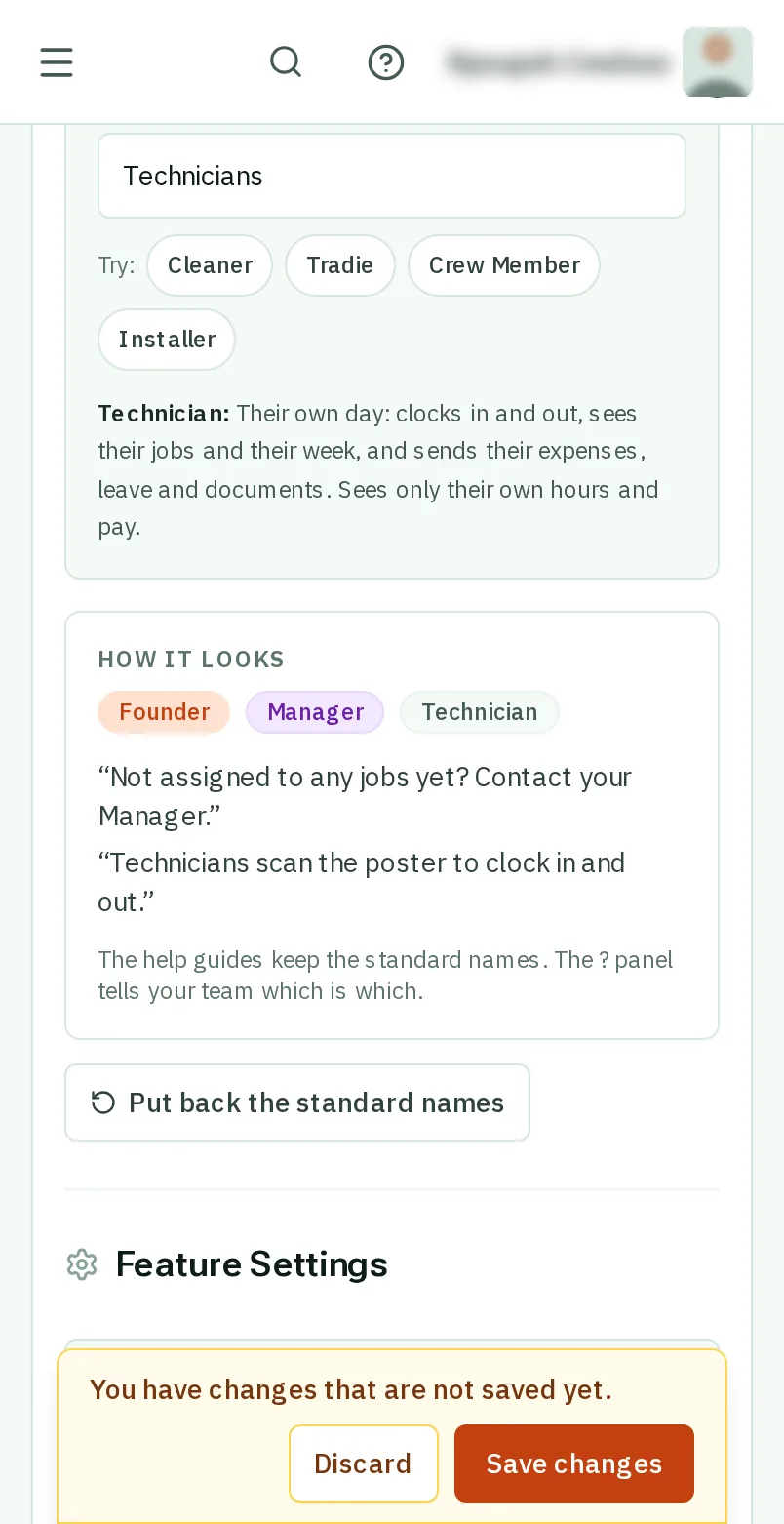
    How it looks shows the badges and two lines from the app in your names, before anything is saved.

    See how it looks
    See how it looks
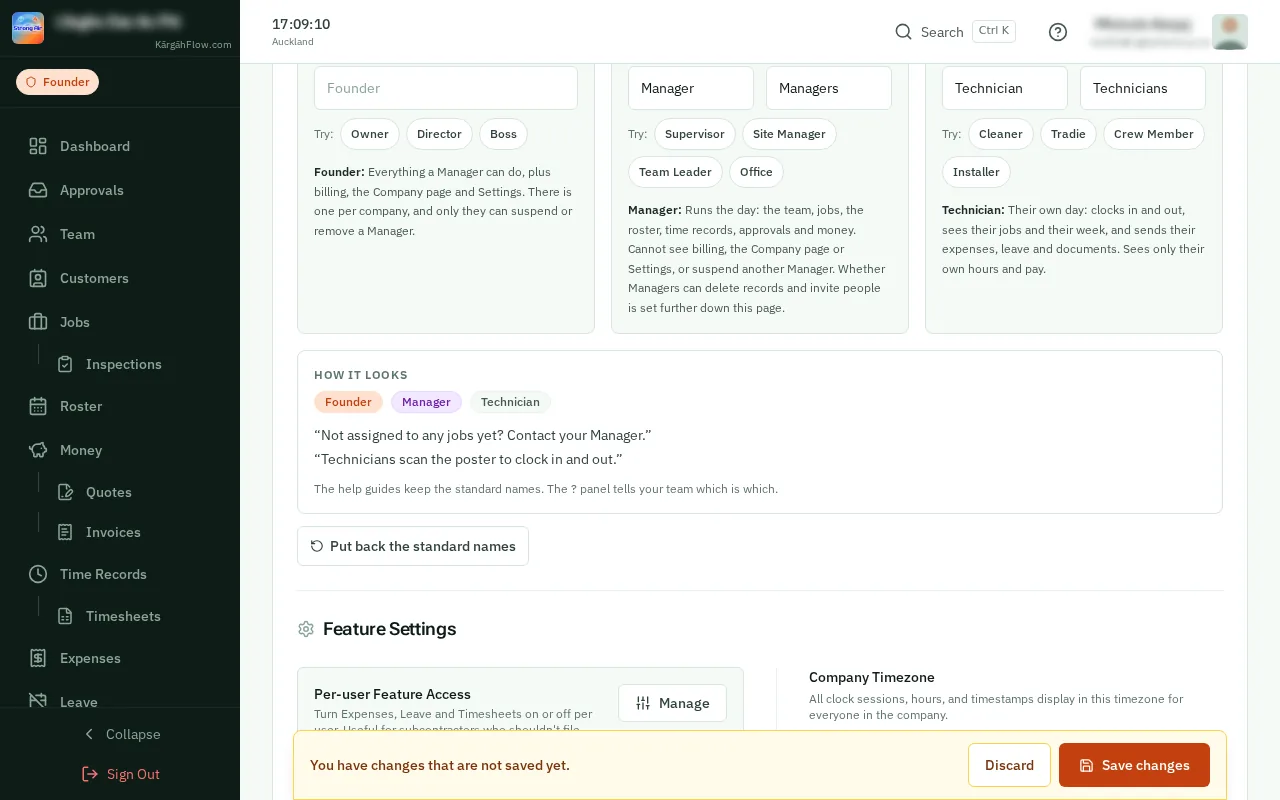
  6. Step 6: TapClick Save changes

    TapClick Save changes at the bottom. Your team see the new names the next time they open a page.

    Look forthe Save changes button

    Good to know: To go back, tapclick Put back the standard names, then Save changes.

    Tap Save changes
    Click Save changes

That's it

Everyone in your company sees the names you use.