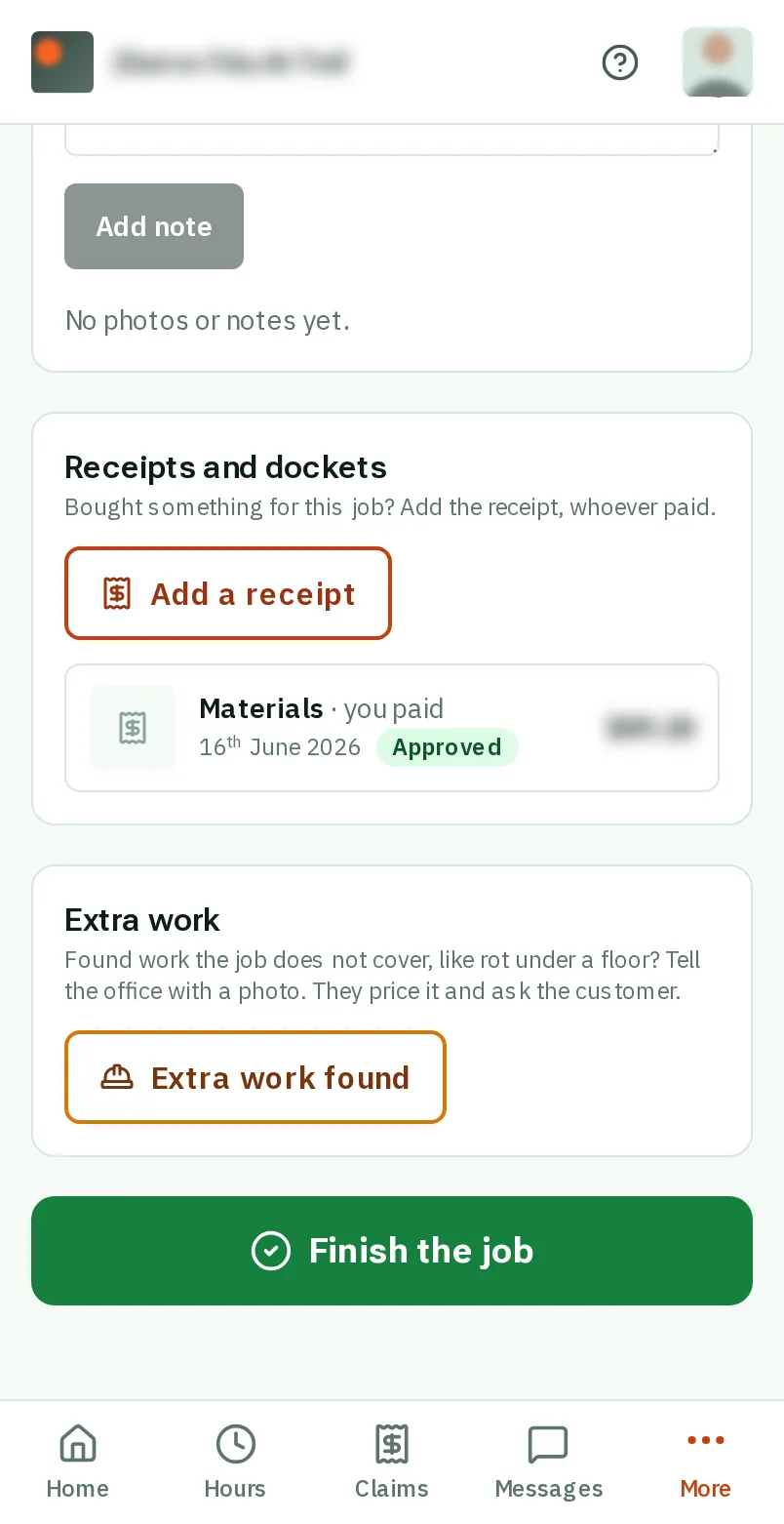
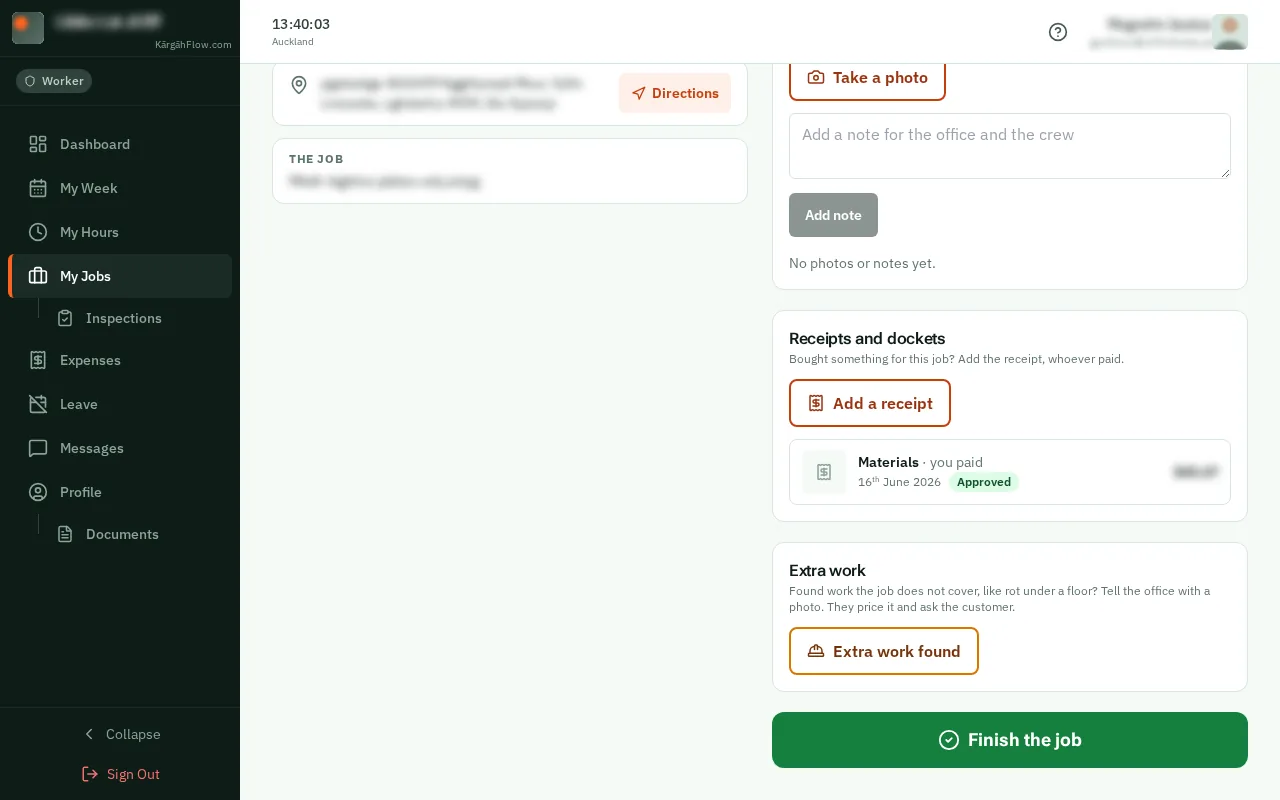
Step 1: Open the job card
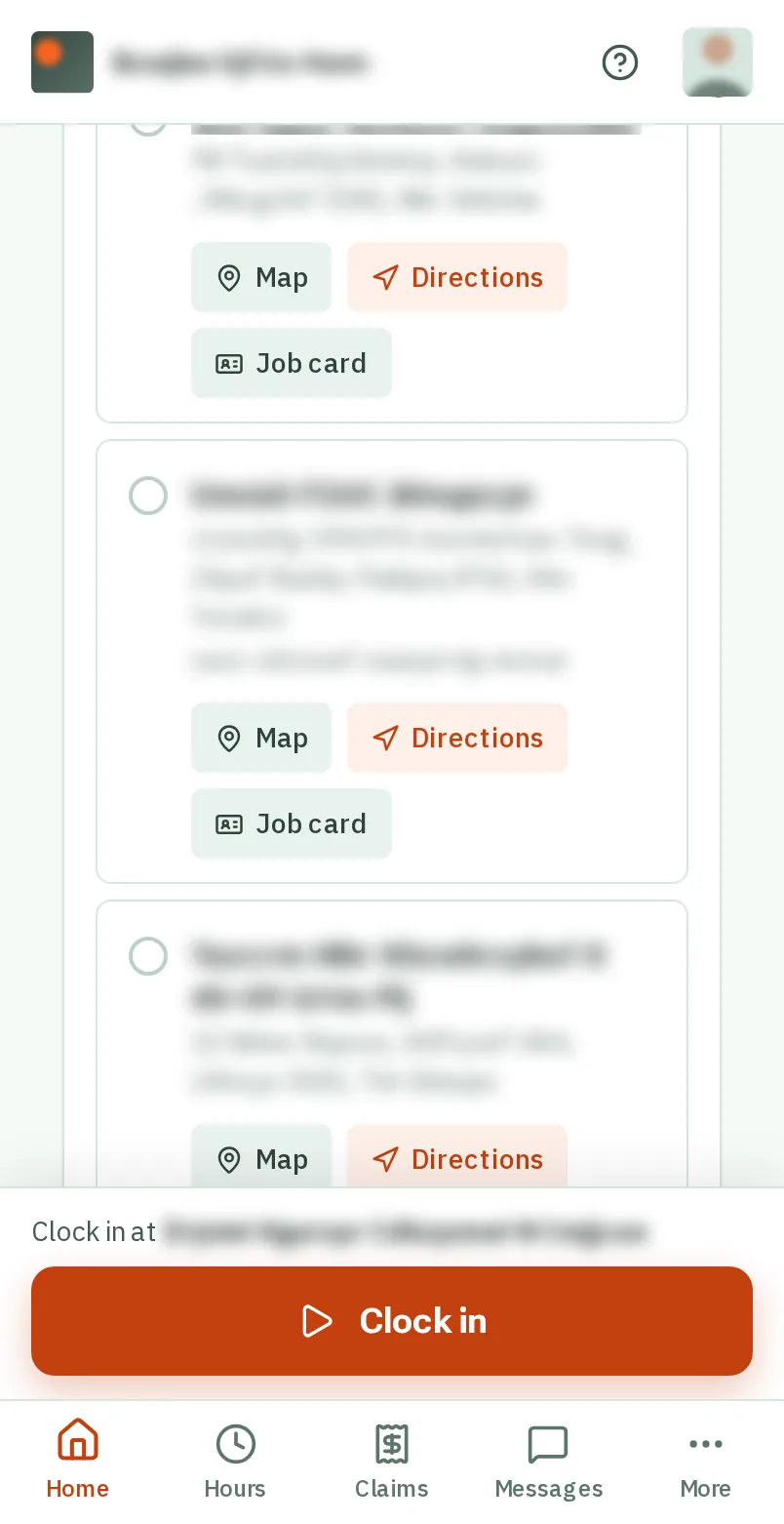
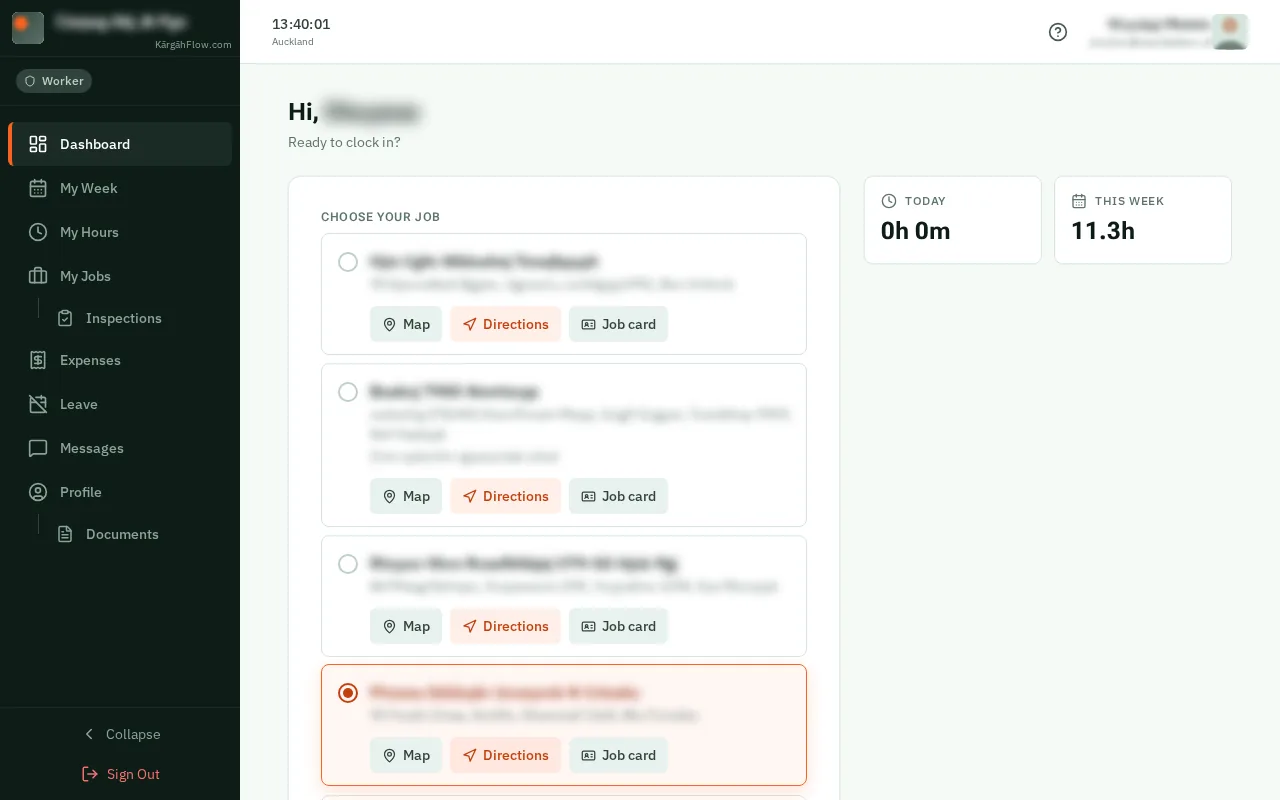
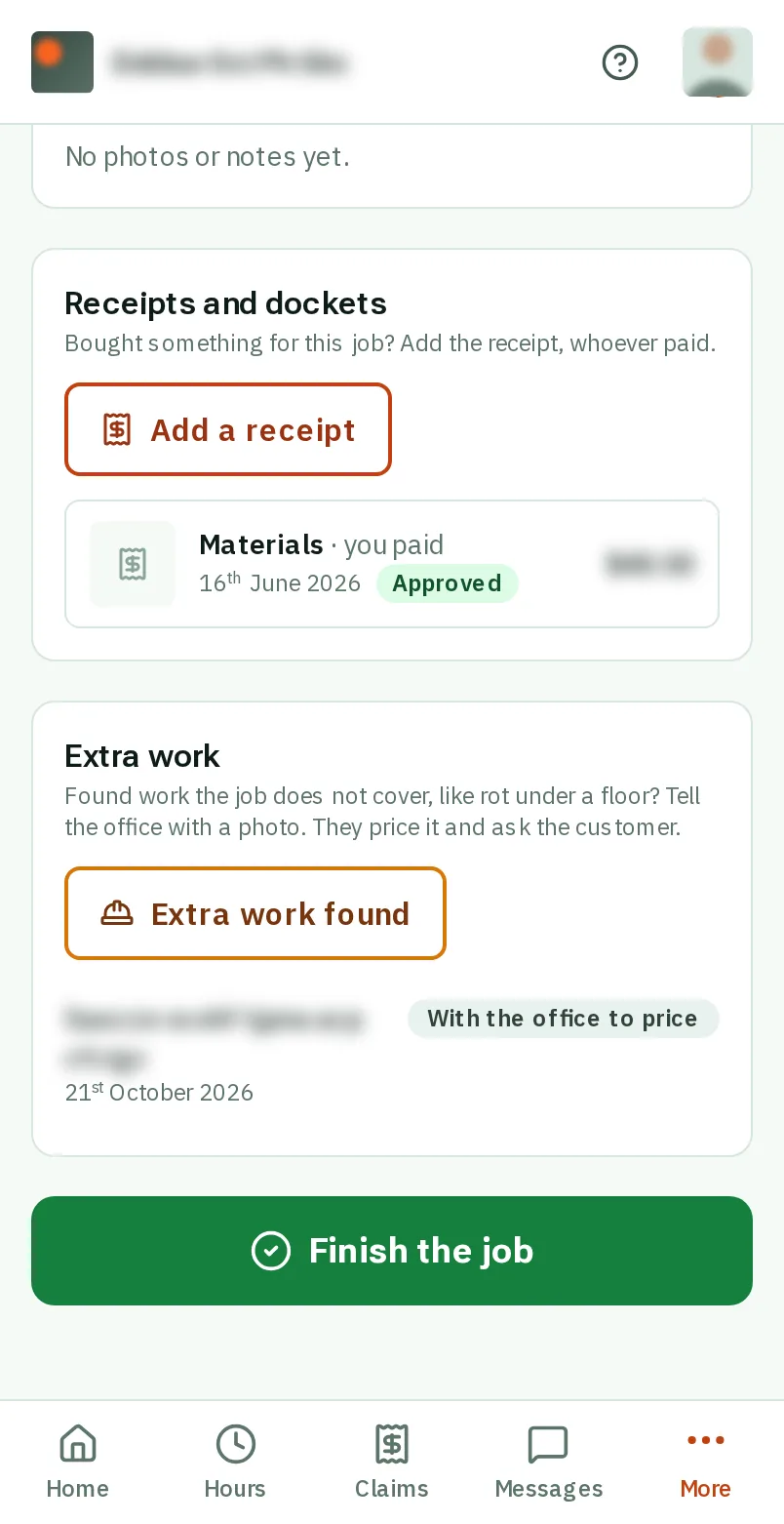
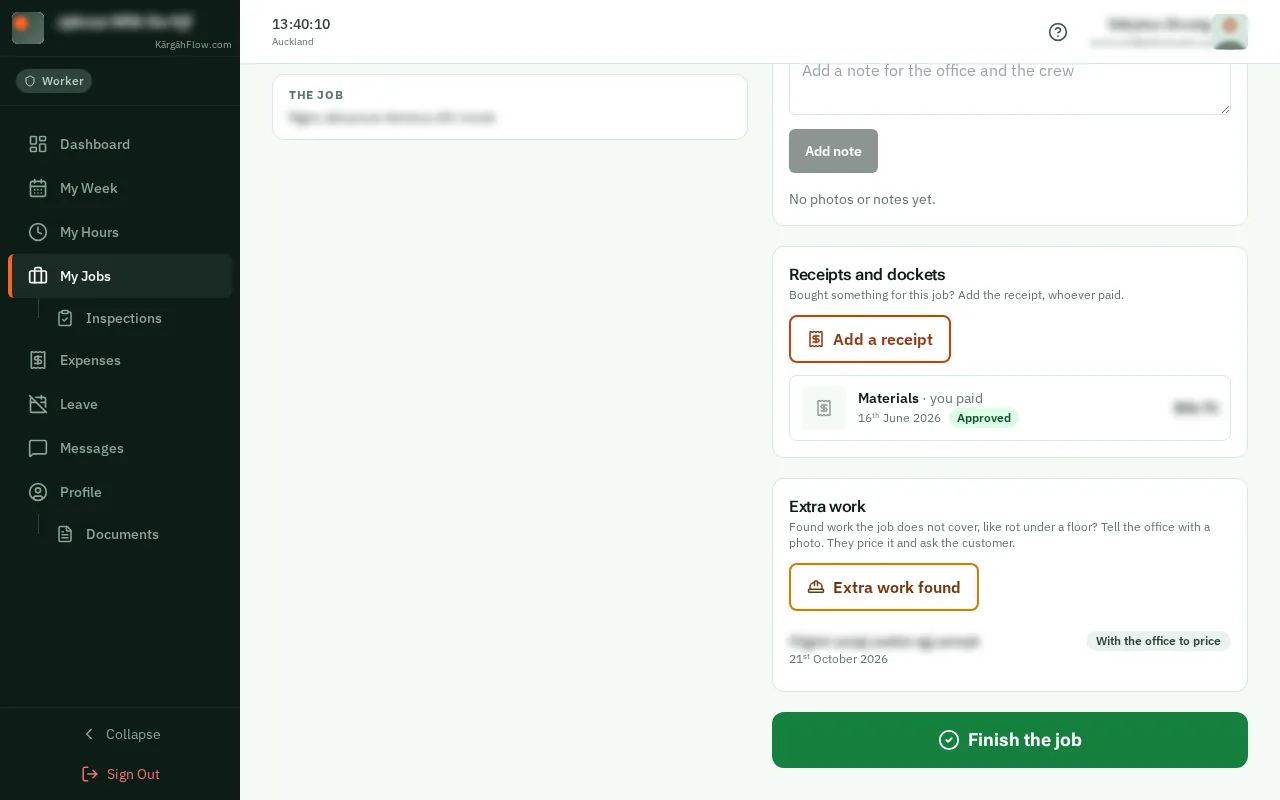
On your Home screen, tapclick Job card under the job. All your jobs are also under More, My Jobs.On your Dashboard, tapclick Job card under the job. All your jobs are also under My Jobs in the menu.


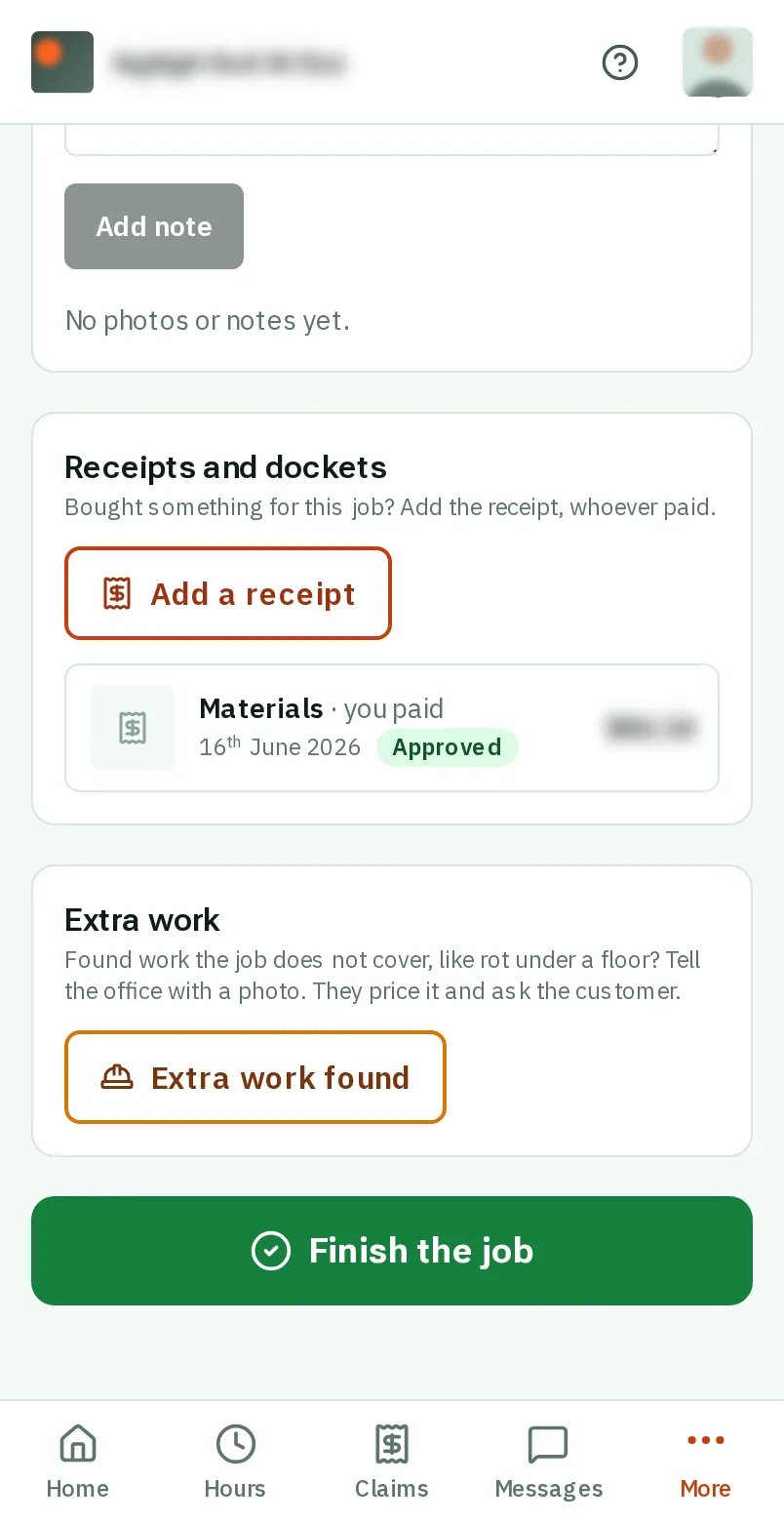
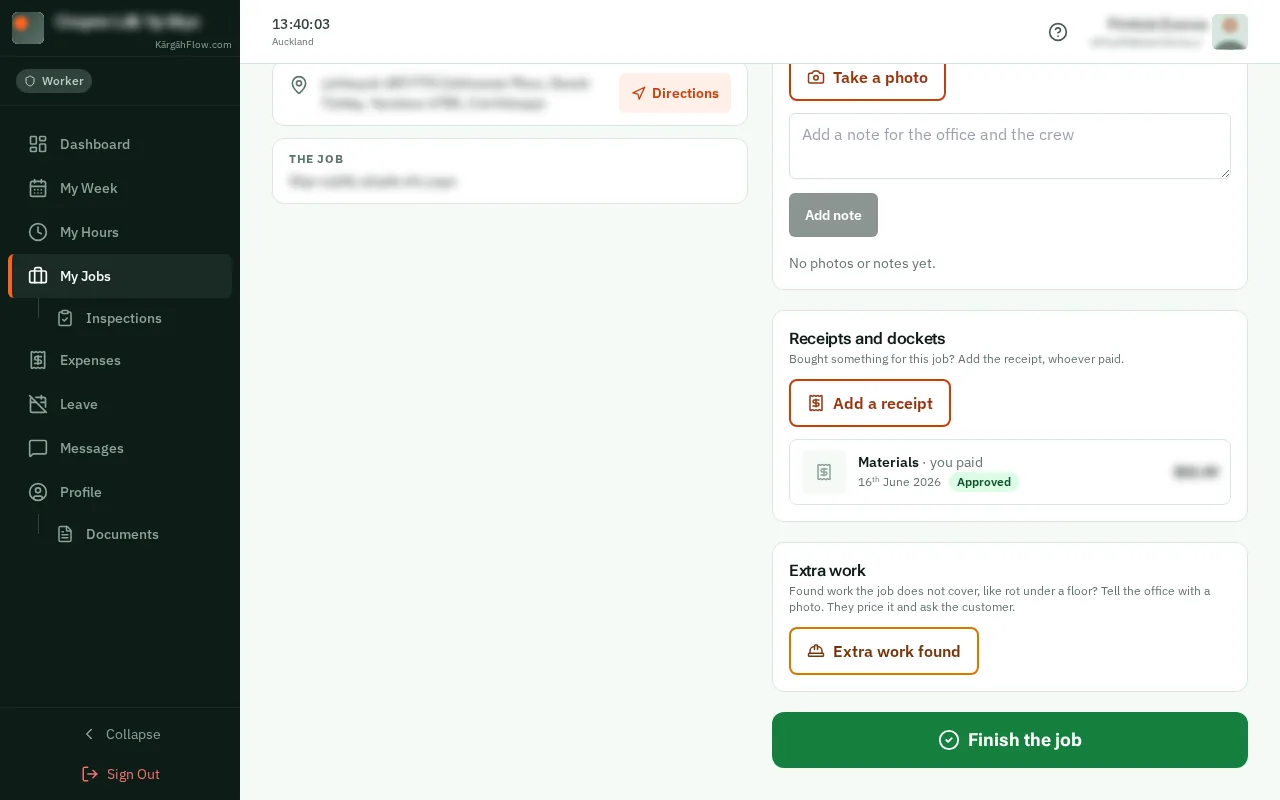
Extra work is anything the job does not cover that you find on site, like rot under a floor or a cracked pipe.
Tell the office from the job card, with a photo. They work out the price and ask the customer before it is done. You never see the price: the job card shows where it is up to.
On your Home screen, tapclick Job card under the job. All your jobs are also under More, My Jobs.On your Dashboard, tapclick Job card under the job. All your jobs are also under My Jobs in the menu.


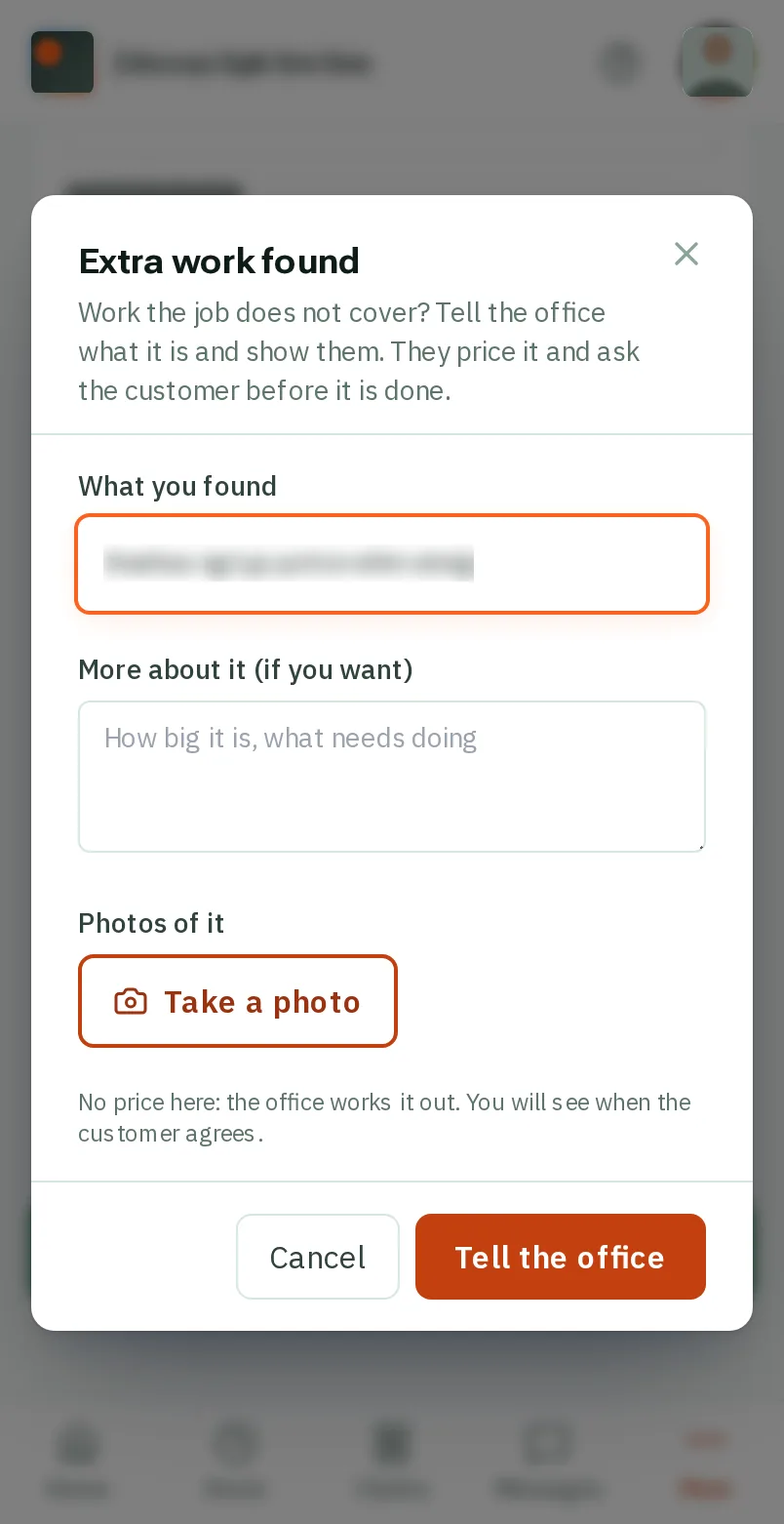
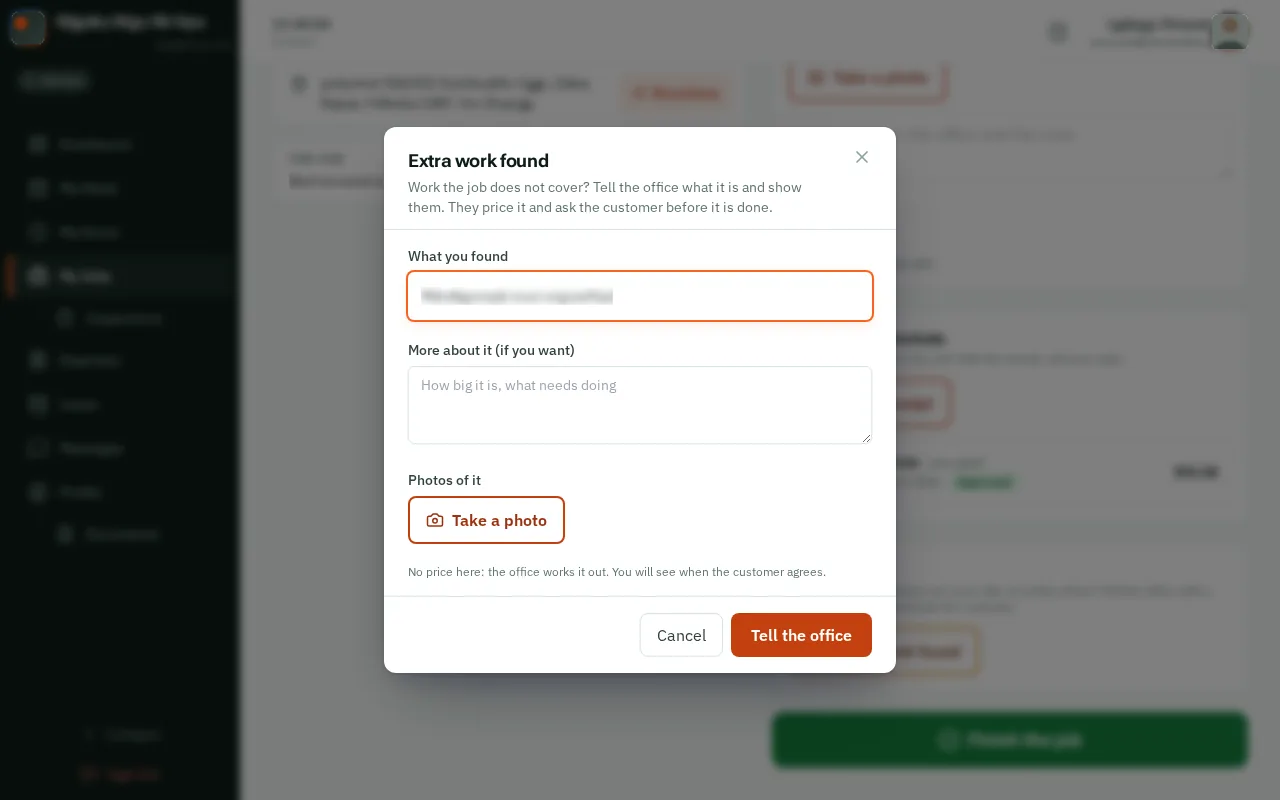
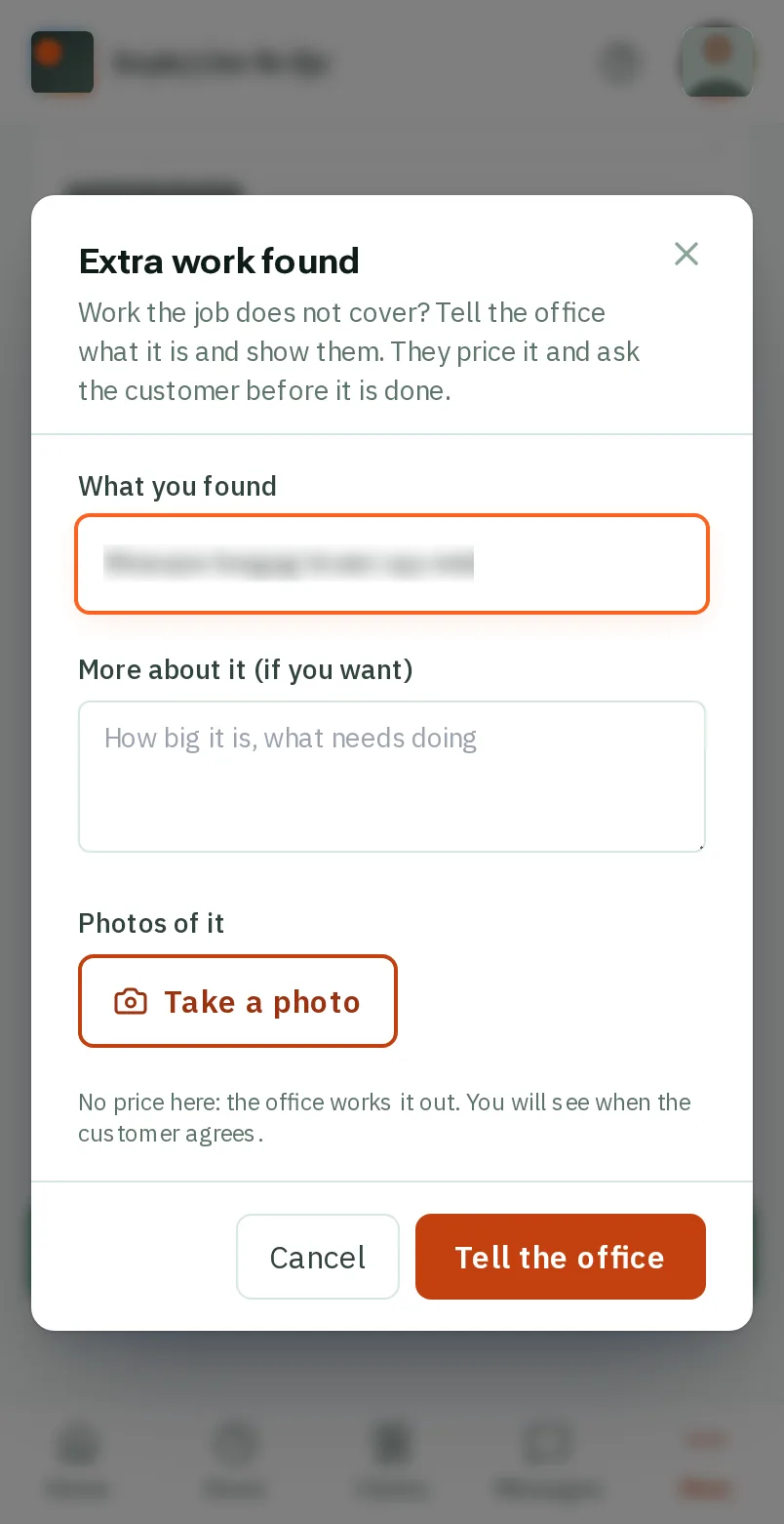
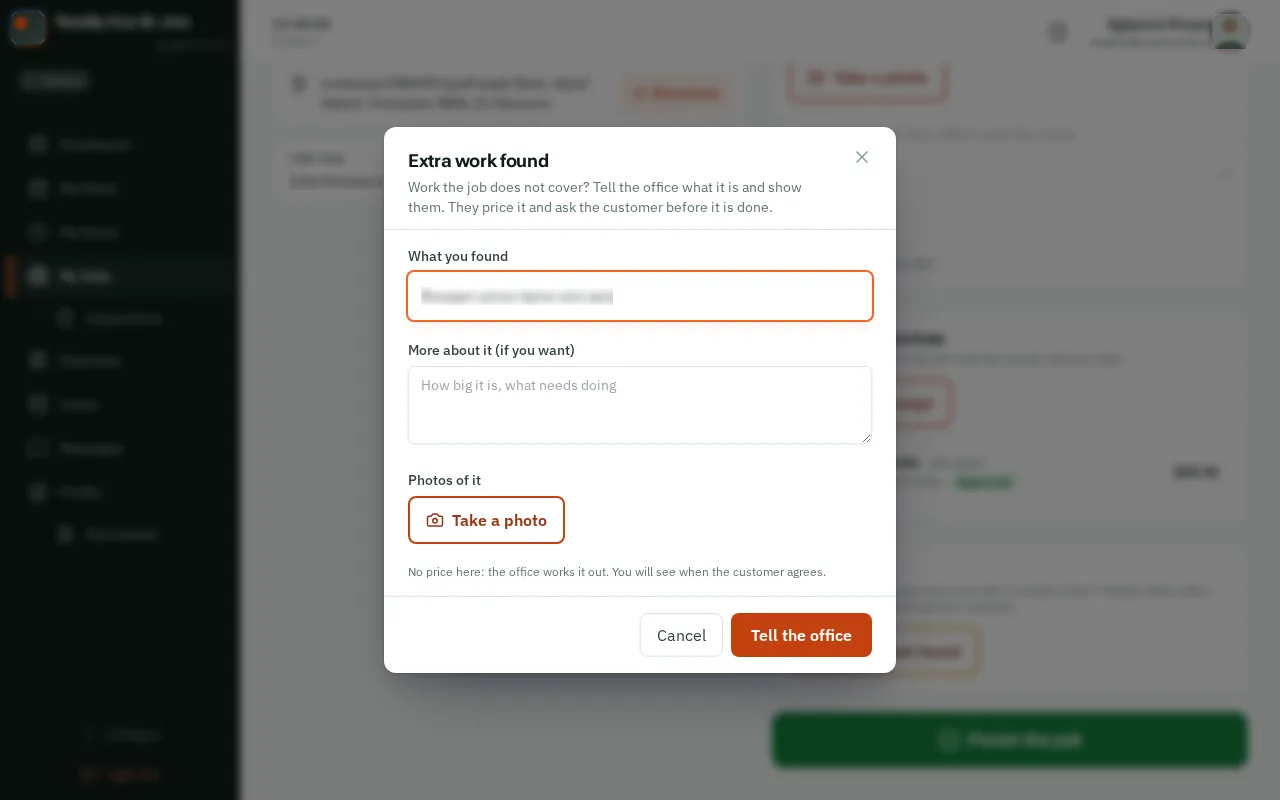
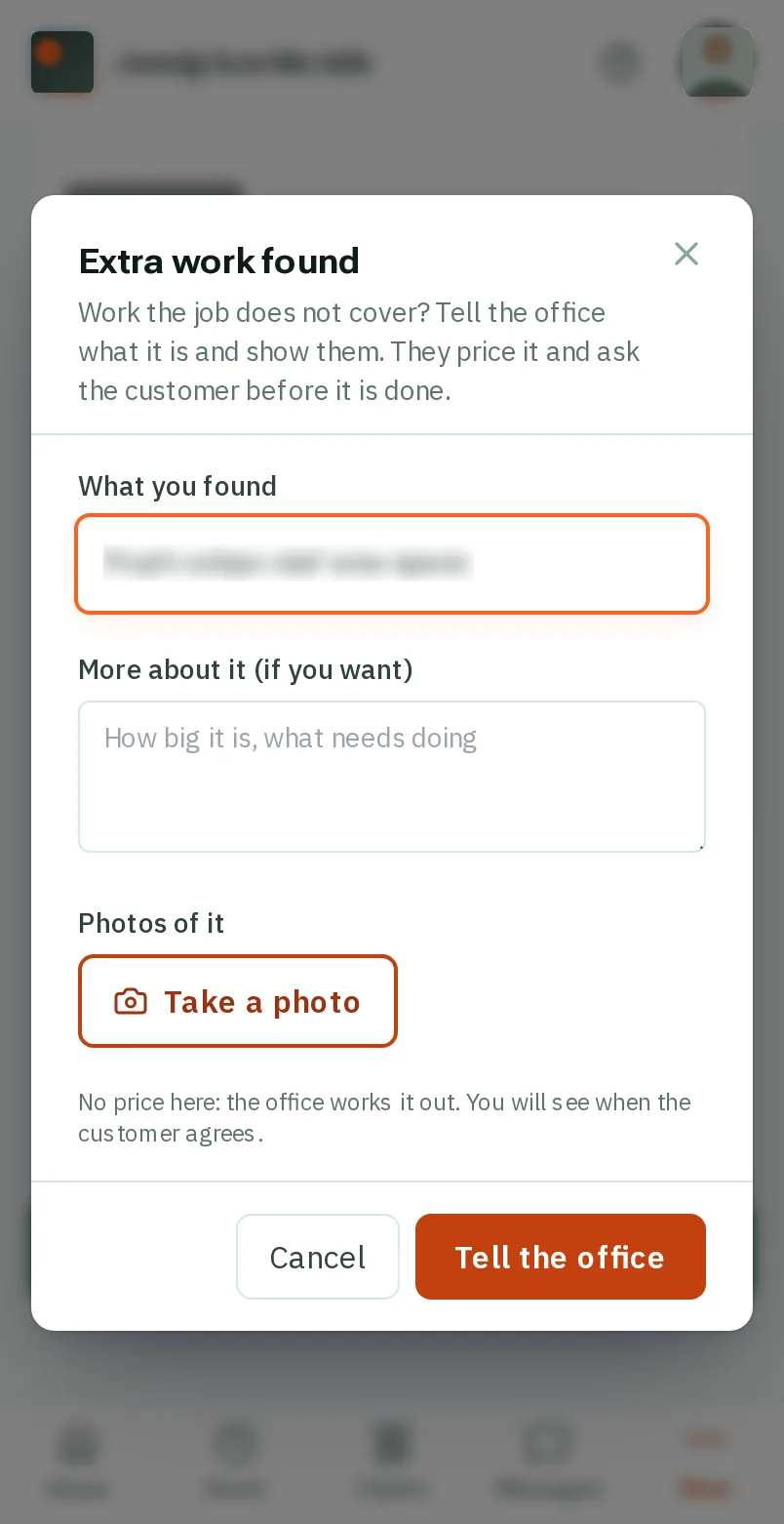
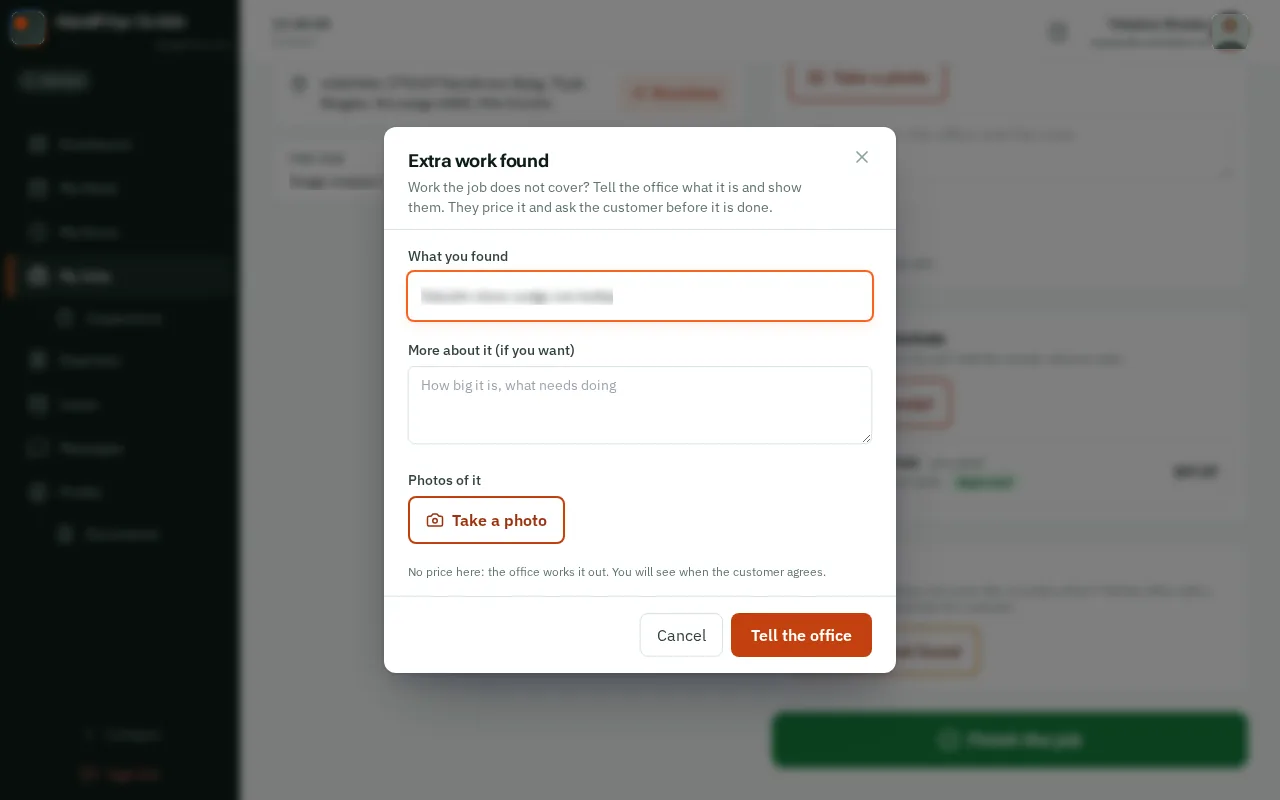
Under Extra work, tapclick Extra work found.
Good to know: The button is there once the job is going ahead: from when the customer says yes until it is invoiced.


Under What you found, say it in a few words, like Rotten floor under the shower. Put how big it is and what needs doing in the box under it, if you like.


TapClick Take a photo and take one of what you found. Take as many as you need: the ones you take are chosen to send.TapClick Take a photo and choose a photo of it from your computer. The ones you add are chosen to send.
Good to know: Photos already on the job are there too: tapclick one to send it as well. Every photo you take here goes on the job’s photos.


TapClick Tell the office. The office gets a notification straight away.


It is listed under Extra work on the job card: With the office to price, then Sent to the customer, then Agreed. Start the extra work once it says Agreed, or when the office tells you to.