KārgāhFlow
About 1 minute 5 stepsFor admins and owners

Ask for a review

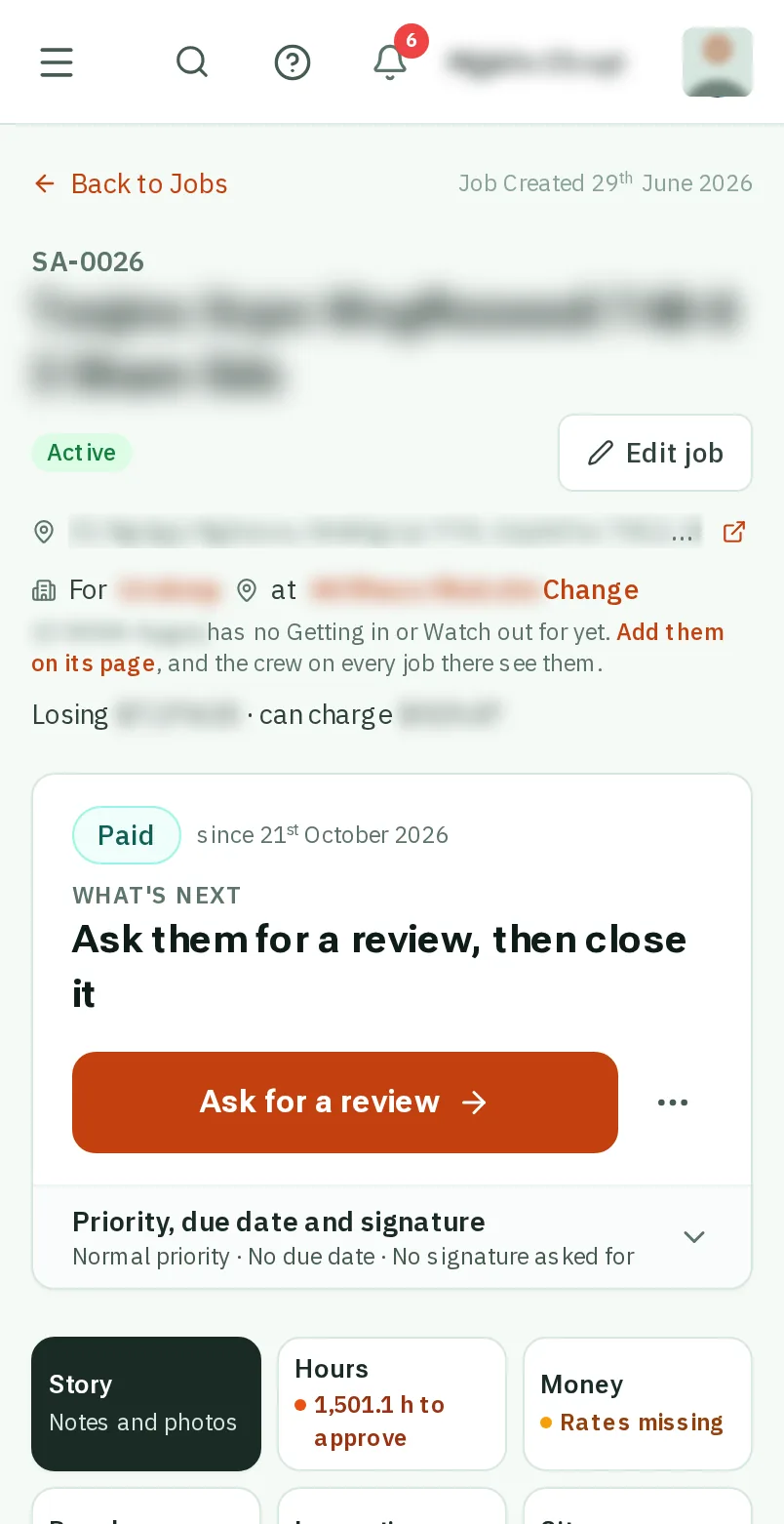
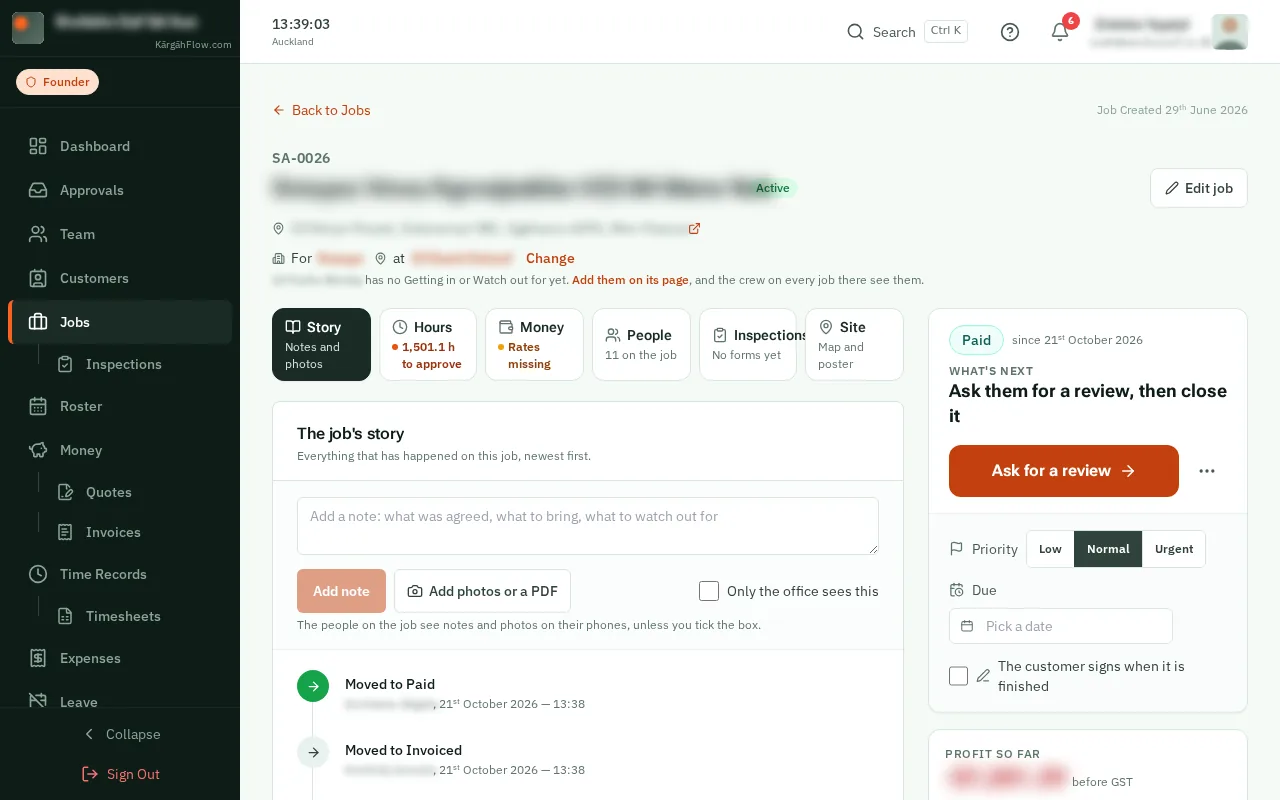
Once a job is paid, send the customer one email with a button to your Google reviews.

What this is

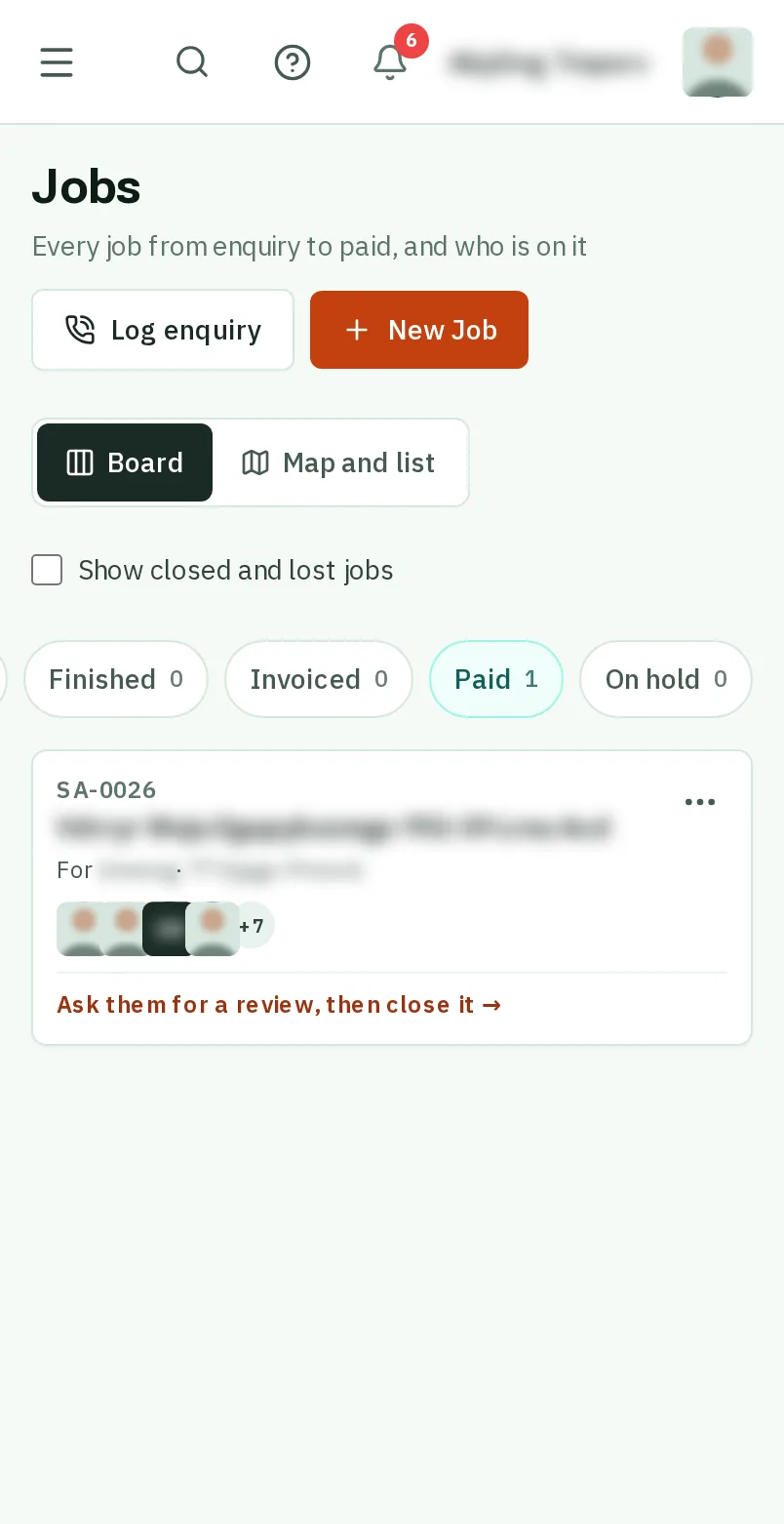
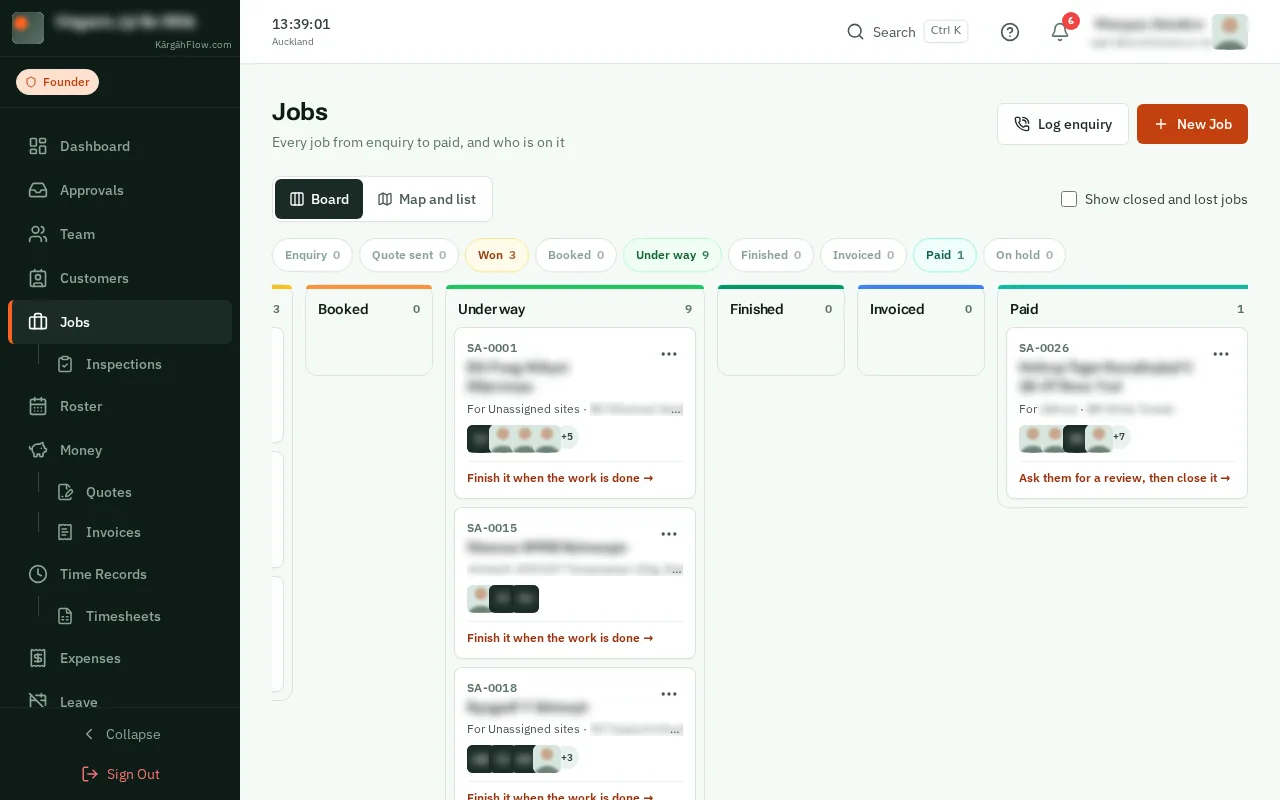
A happy customer’s review is what the next customer reads. Once a job is paid, its big button is Ask for a review.

It sends one email, from your company, with a button to your Google reviews. Nothing is sent by itself, and each job is asked once.

Step 1 of 5
  1. Step 1: Add your reviews link, once

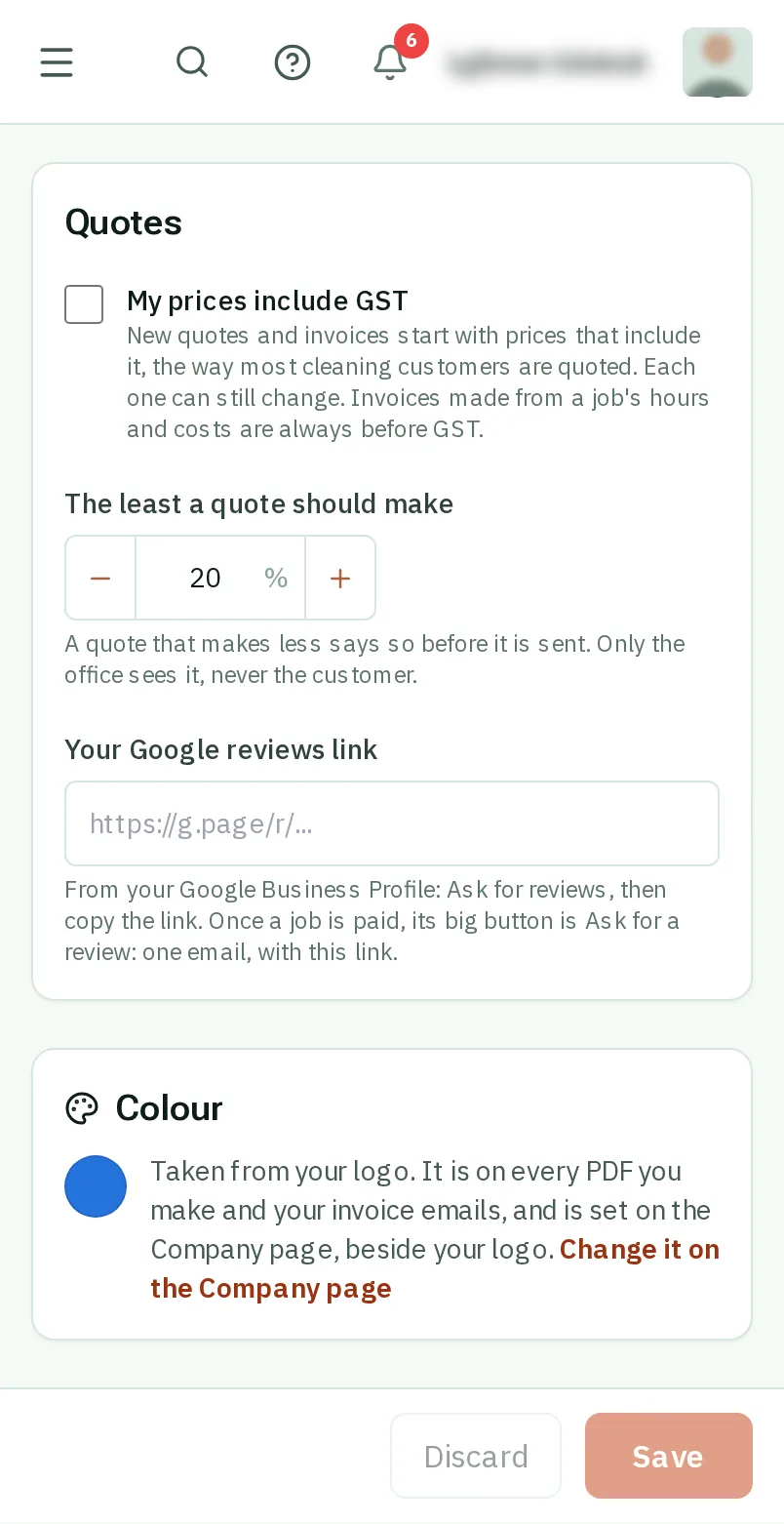
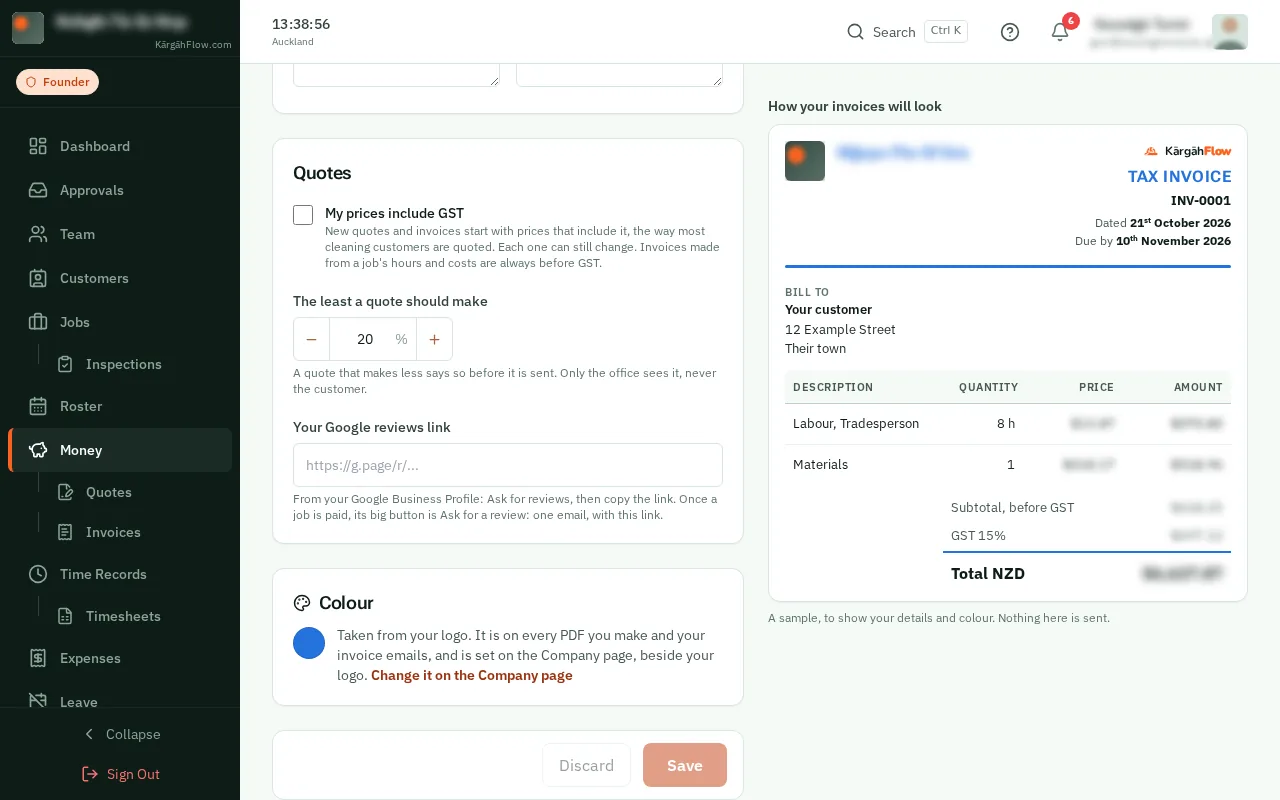
    Open Money, then Quotes and invoices. Under Your Google reviews link, paste the link from your Google Business Profile, and save.

    Look forthe Your Google reviews link box

    Good to know: Google gives you the link in your Business Profile under Ask for reviews. Only the owner can add it.
    Add your reviews link, once
    Add your reviews link, once
  2. Step 2: Open the paid job

    Open Jobs and tapclick the job. On the board, it is under Paid.

    Open the paid job
    Open the paid job
  3. Step 3: TapClick Ask for a review

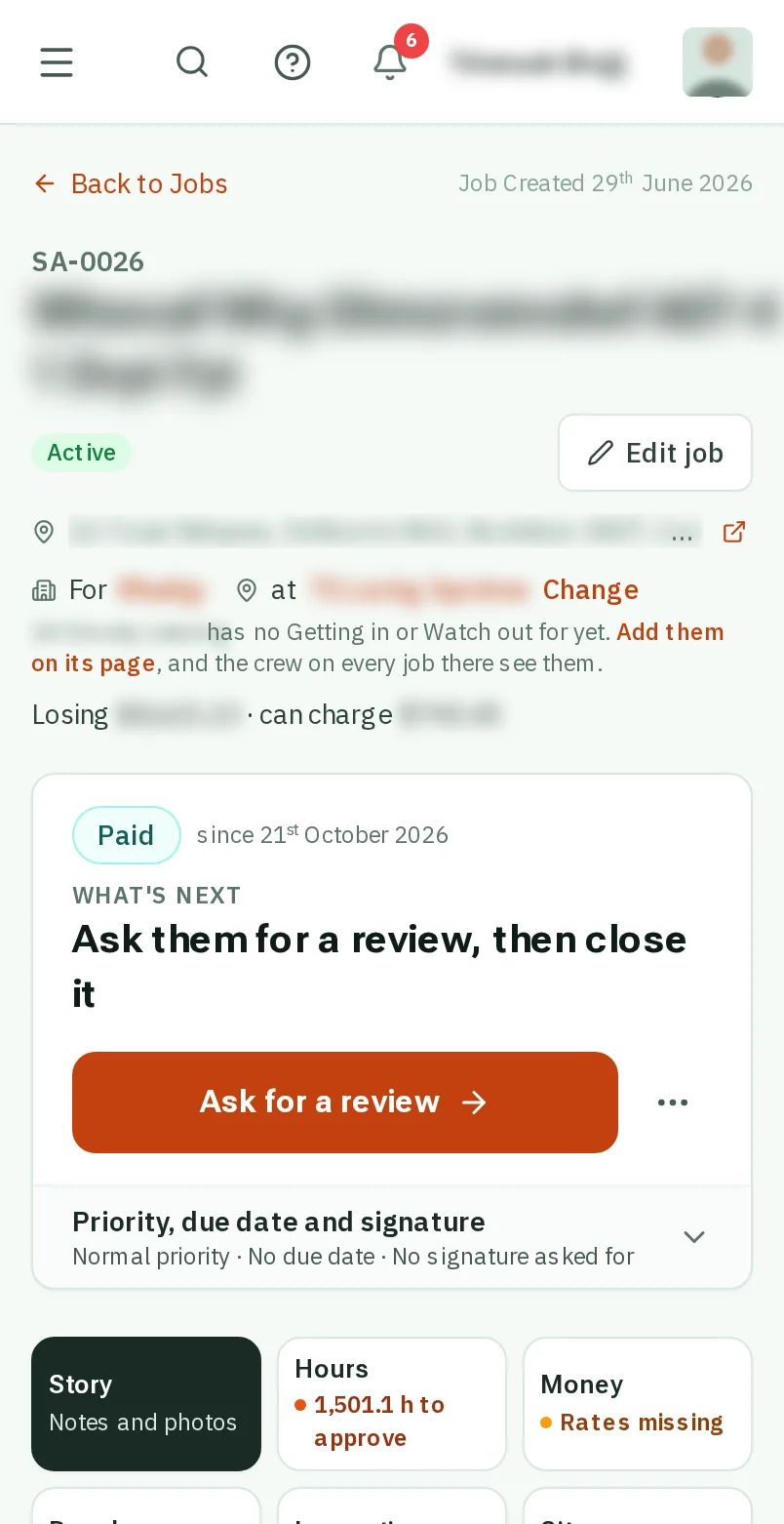
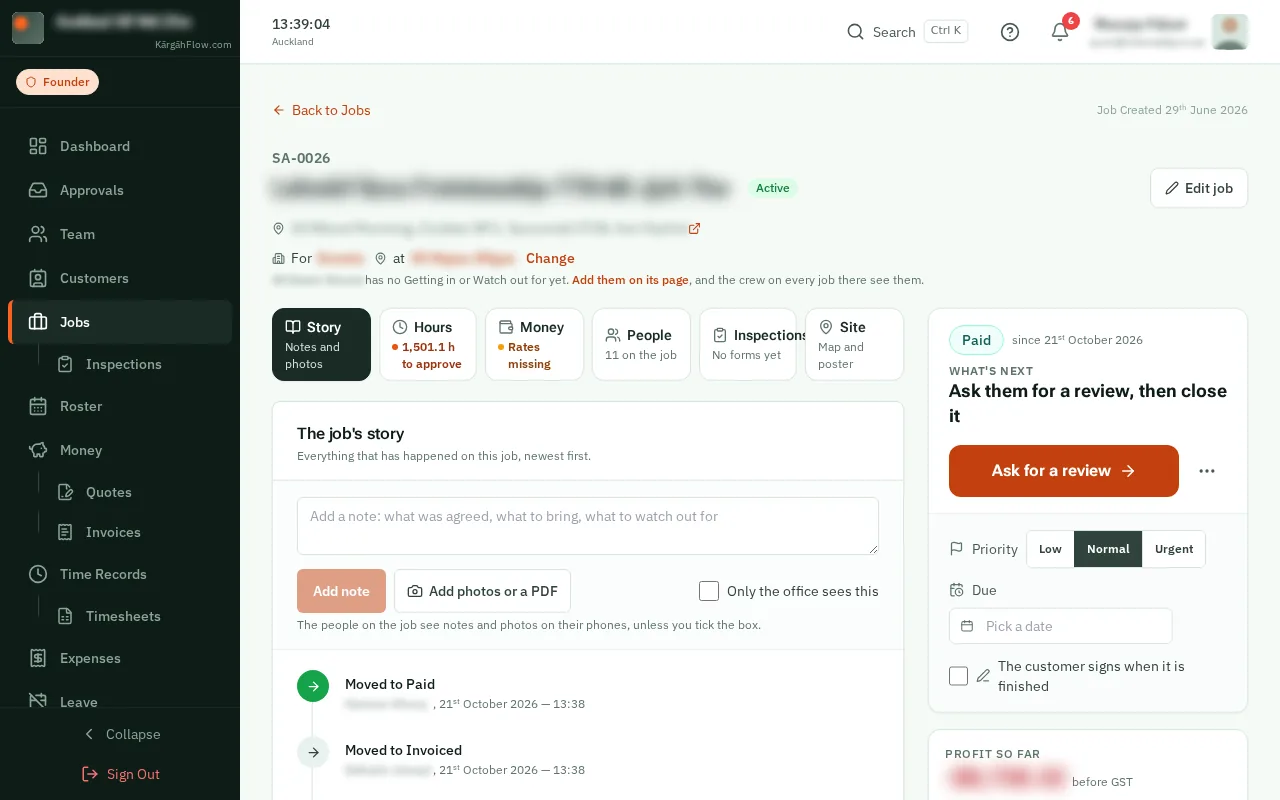
    At the top of the job’s page, tapclick the big Ask for a review button.On the right of the job’s page, tapclick the big Ask for a review button.

    Look forthe Ask for a review button
    Tap Ask for a review
    Click Ask for a review
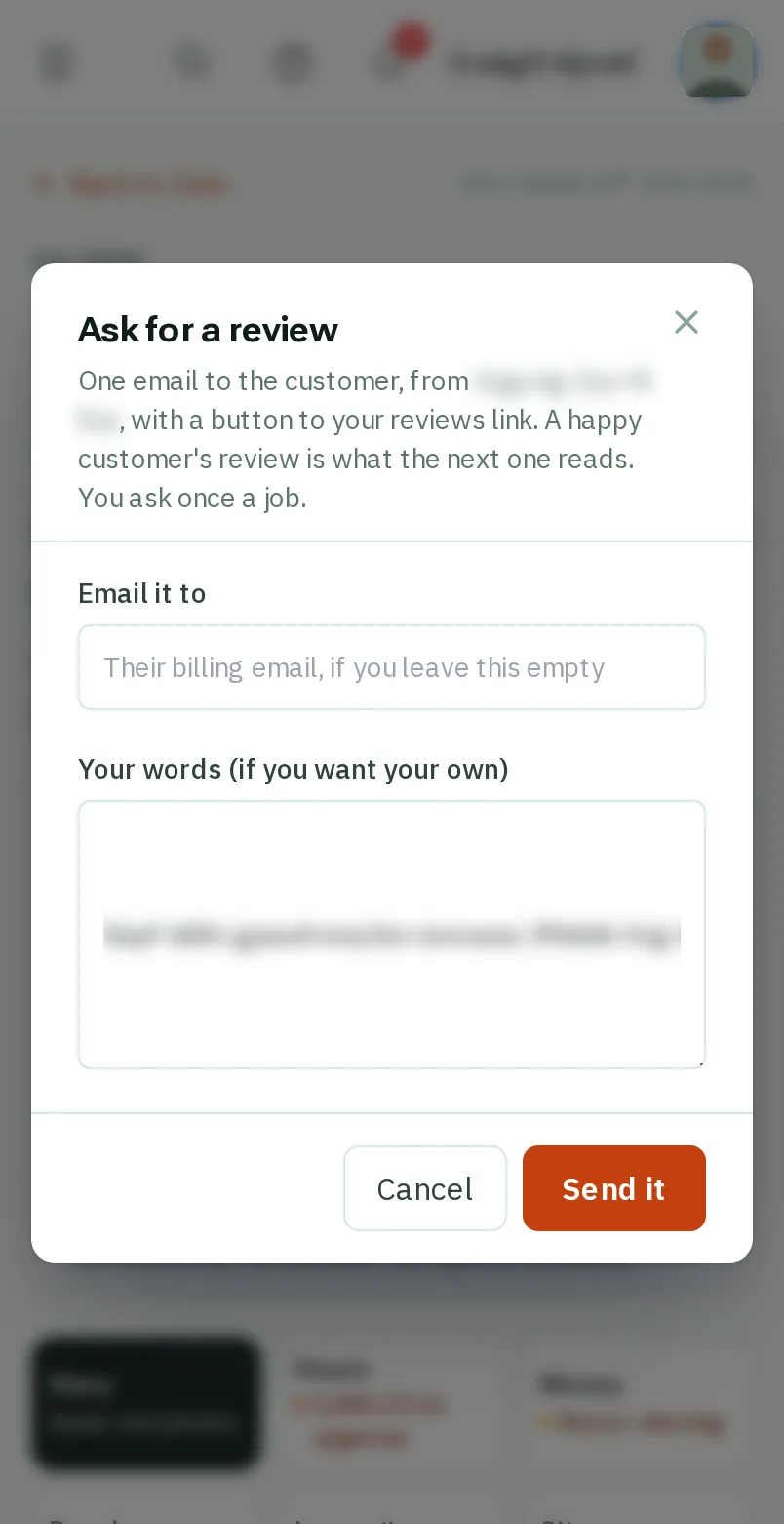
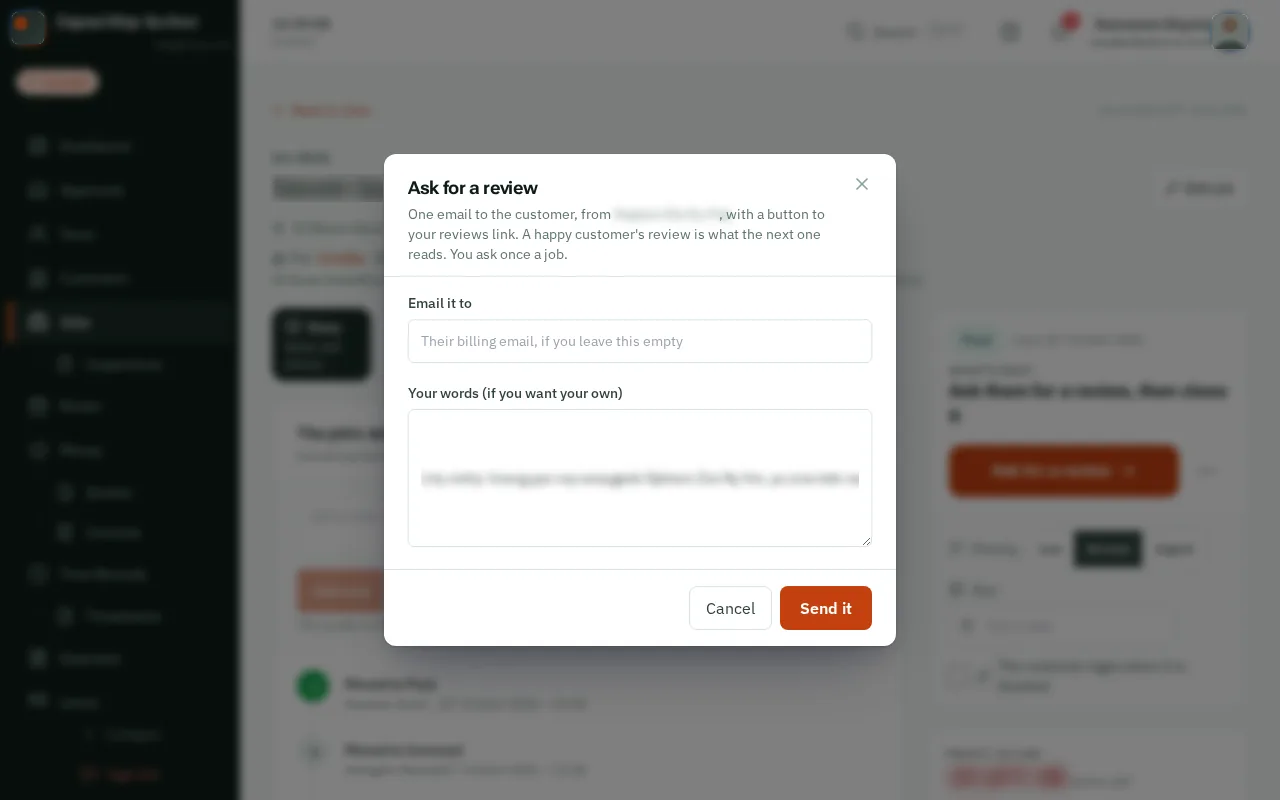
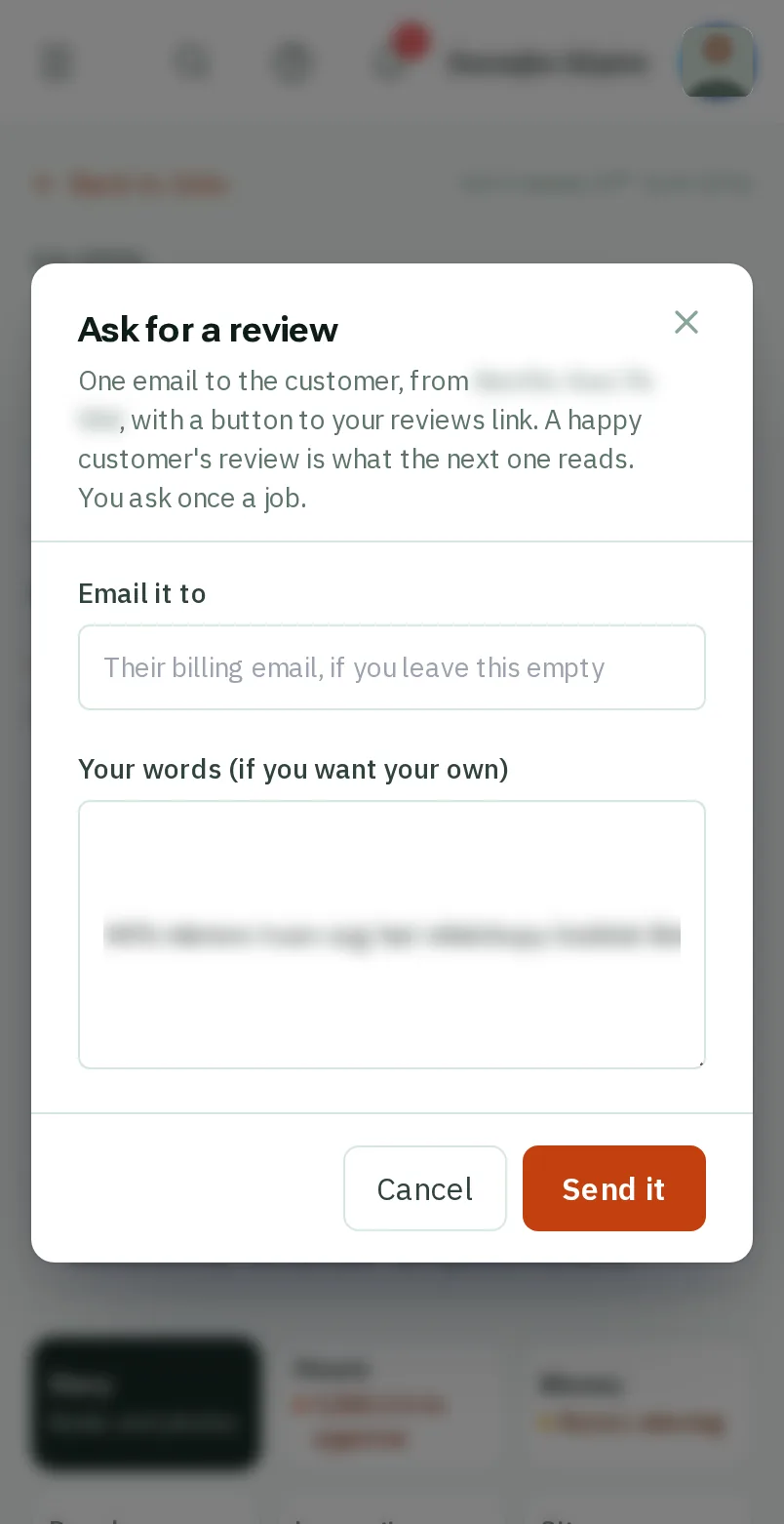
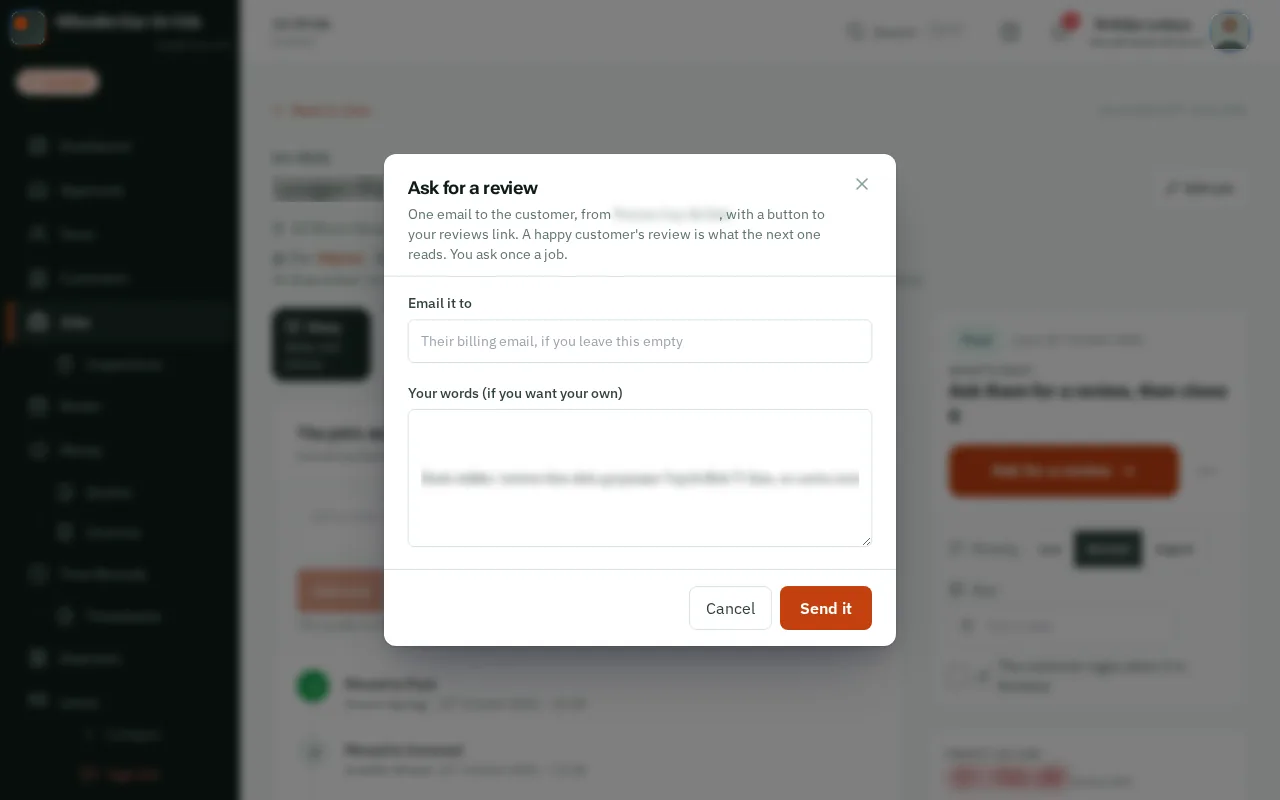
  4. Step 4: Check who it goes to, and the words

    It goes to their billing email unless you type another. Leave the words empty for the usual thank-you, or write your own.

    Look forthe Your words (if you want your own) box
    Check who it goes to, and the words
    Check who it goes to, and the words
  5. Step 5: TapClick Send it

    TapClick Send it. The job’s story says when you asked, so nobody asks them twice.

    Look forthe Send it button
    Tap Send it
    Click Send it

That's it

Your customer has one easy way to say how you did, and the next customer reads it.

Next: Put an invoice right