Step 1: Open Home
TapClick Home in the bar at the bottom of the screen.TapClick Home in the menu on the left.
Look forthe Home tab in the bar at the bottom of the screen
Good to know: KārgāhFlow opens on Home when you sign in.
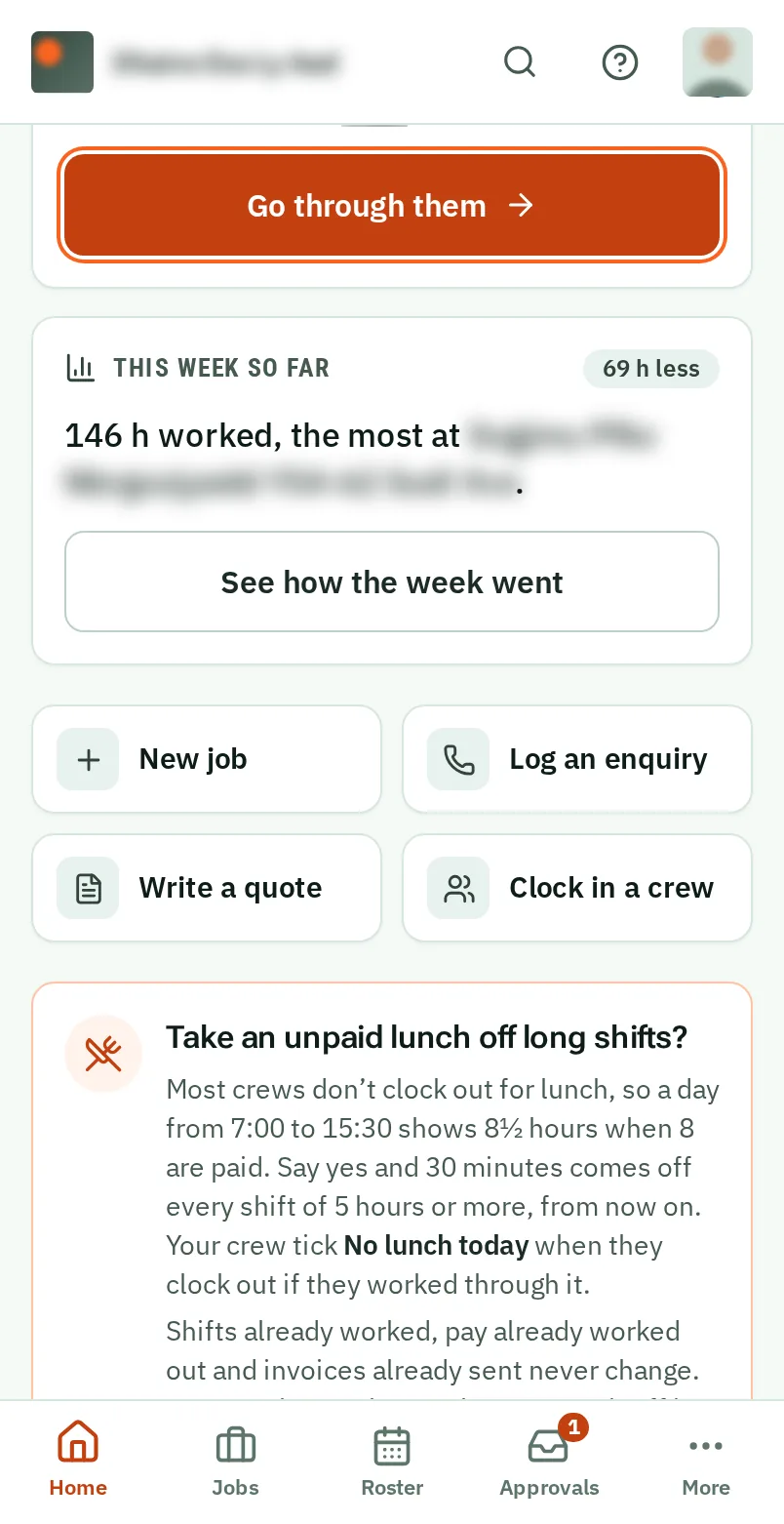
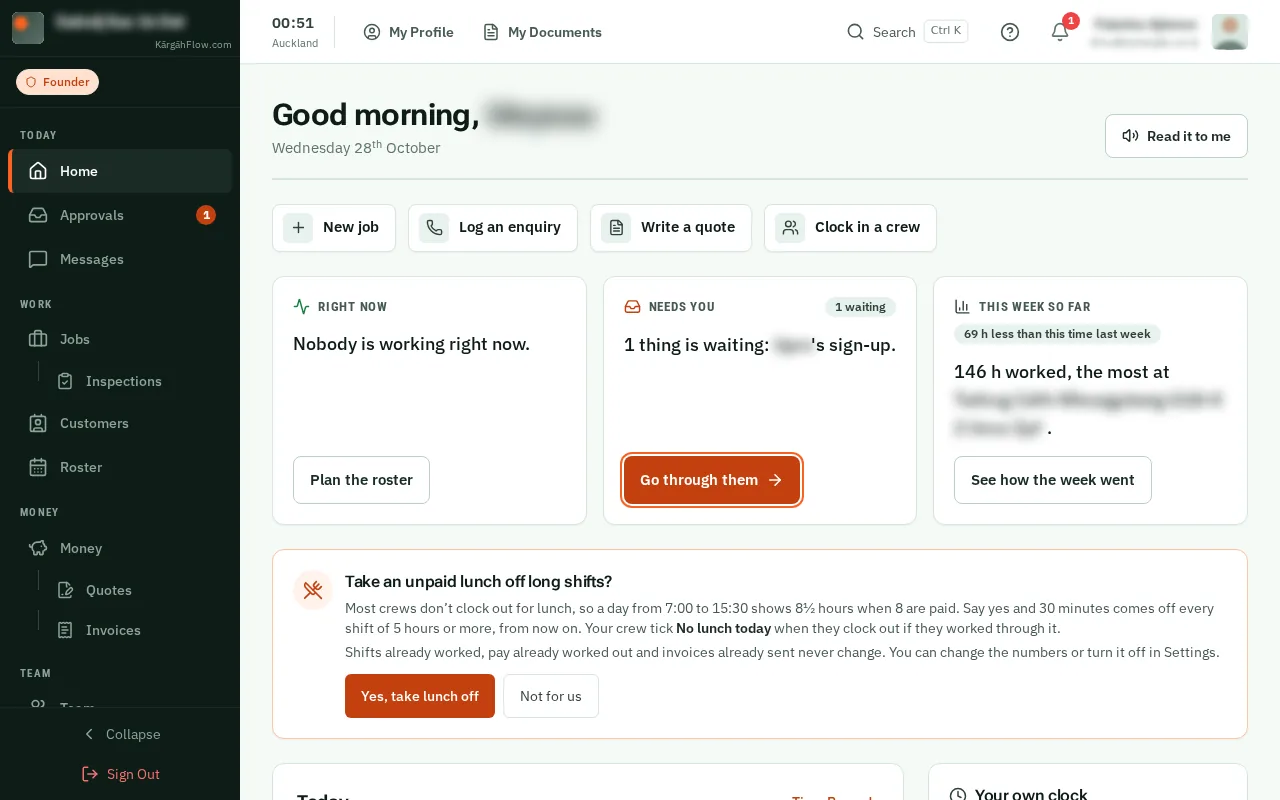
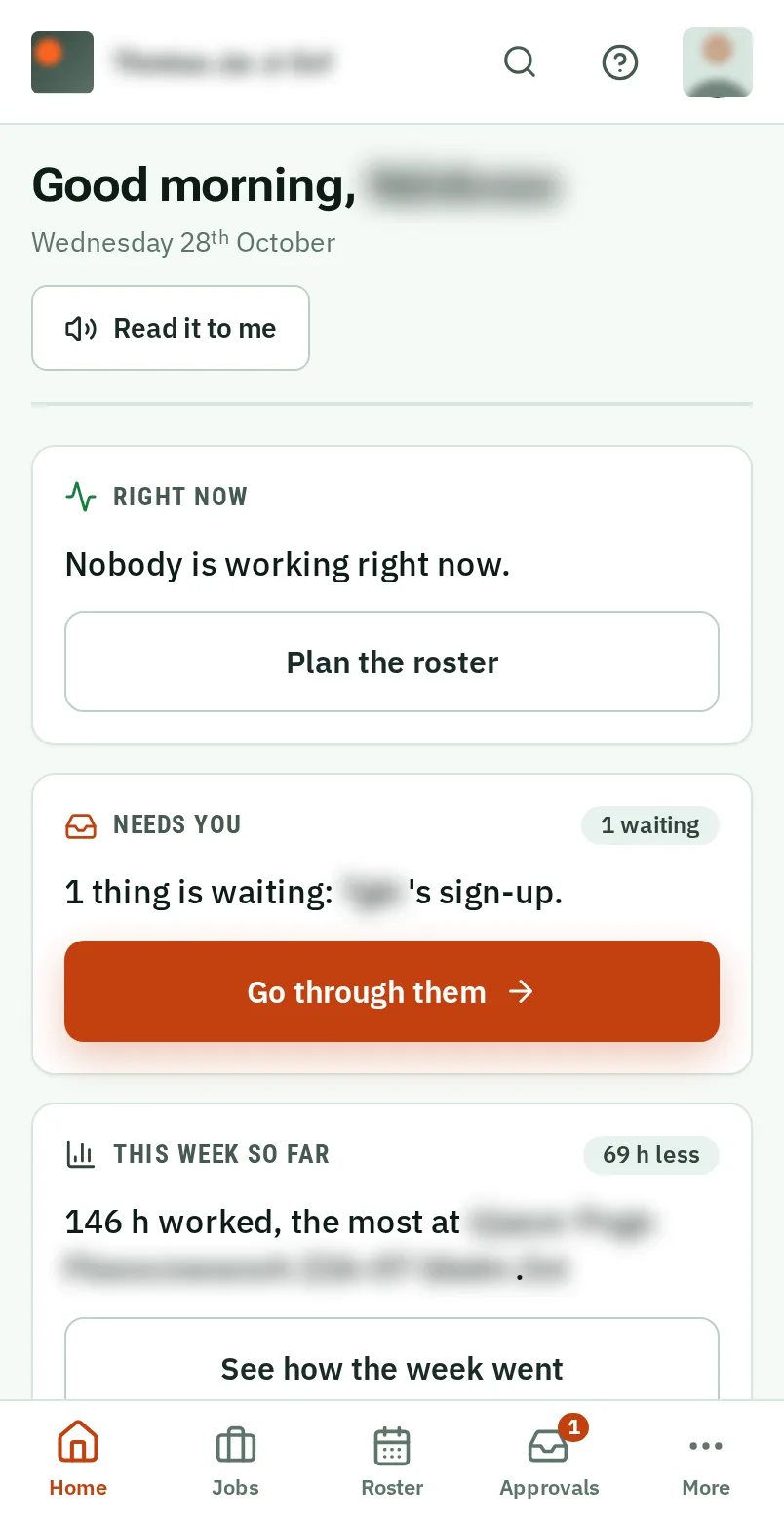
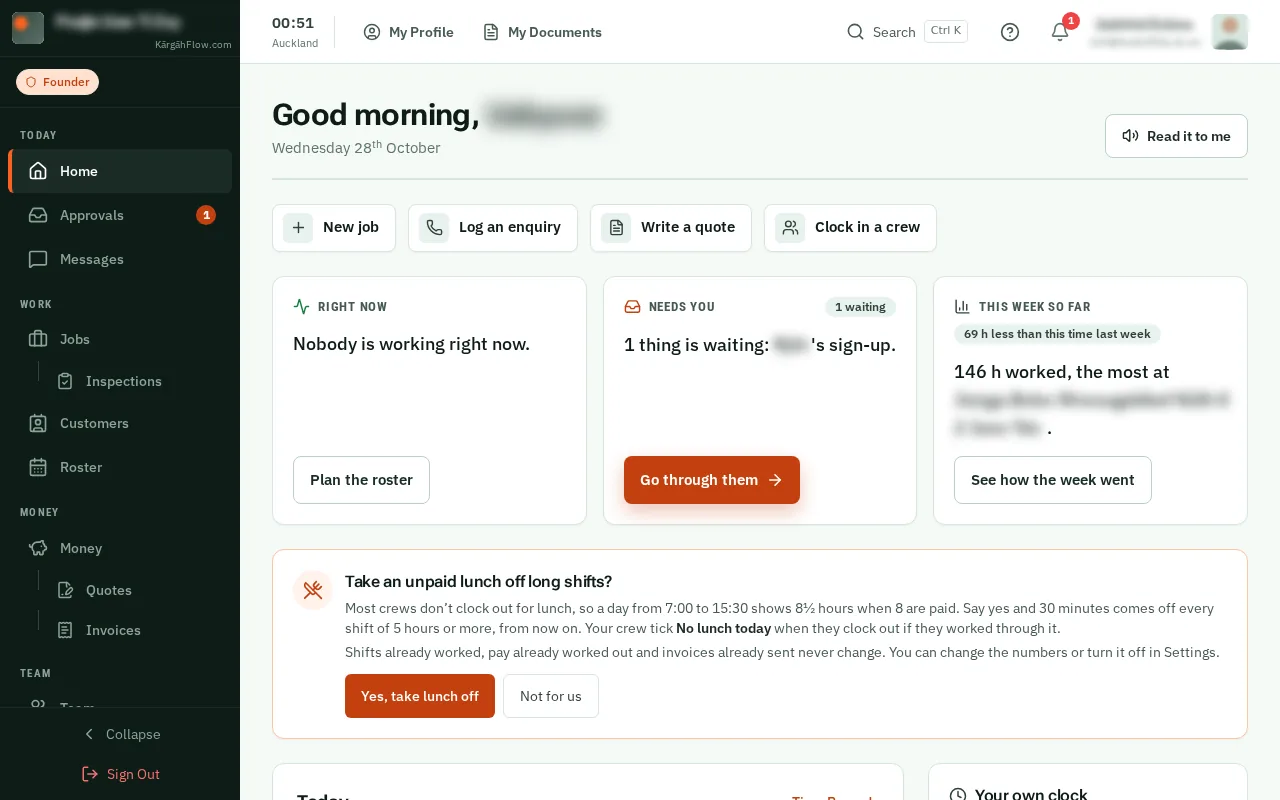
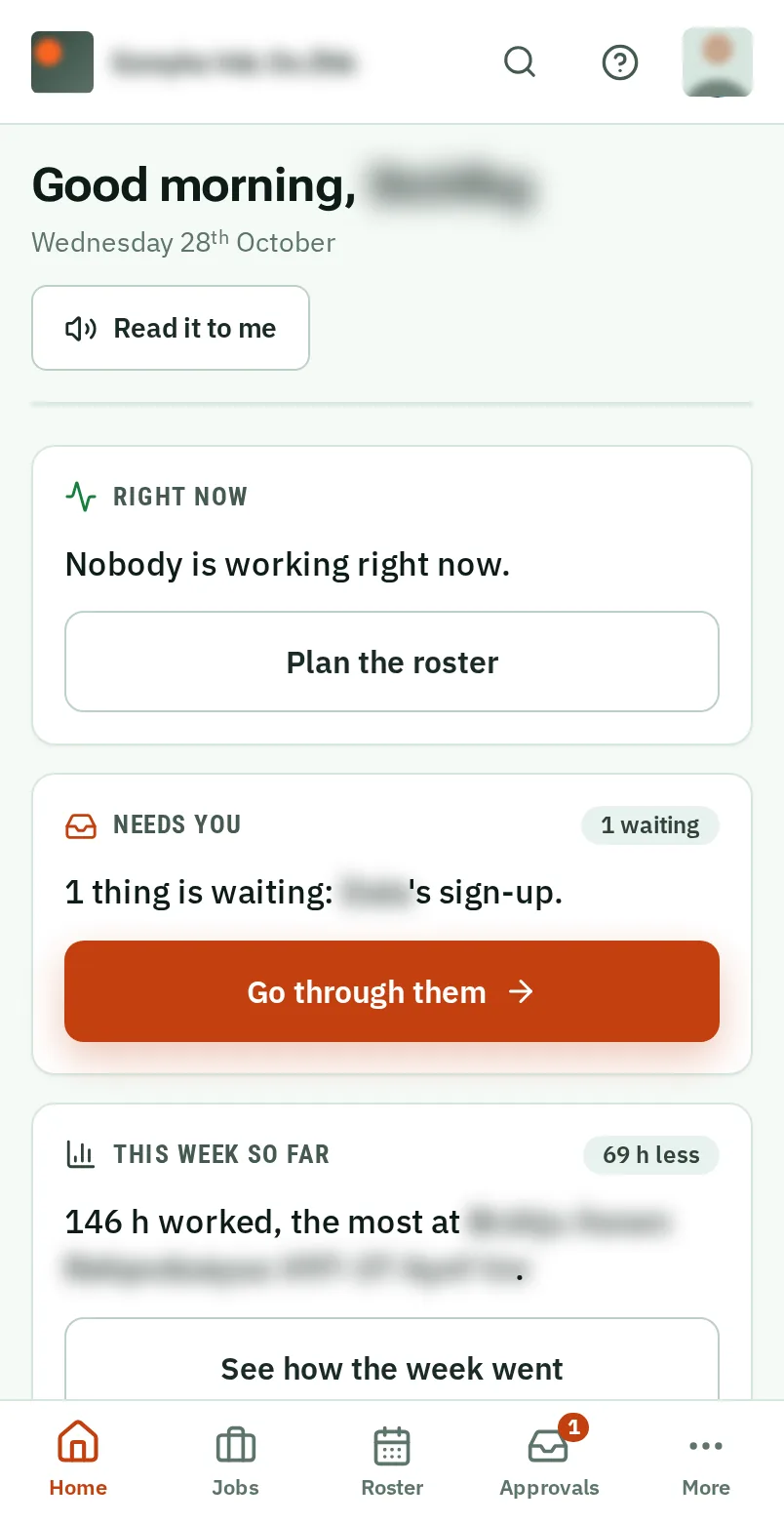
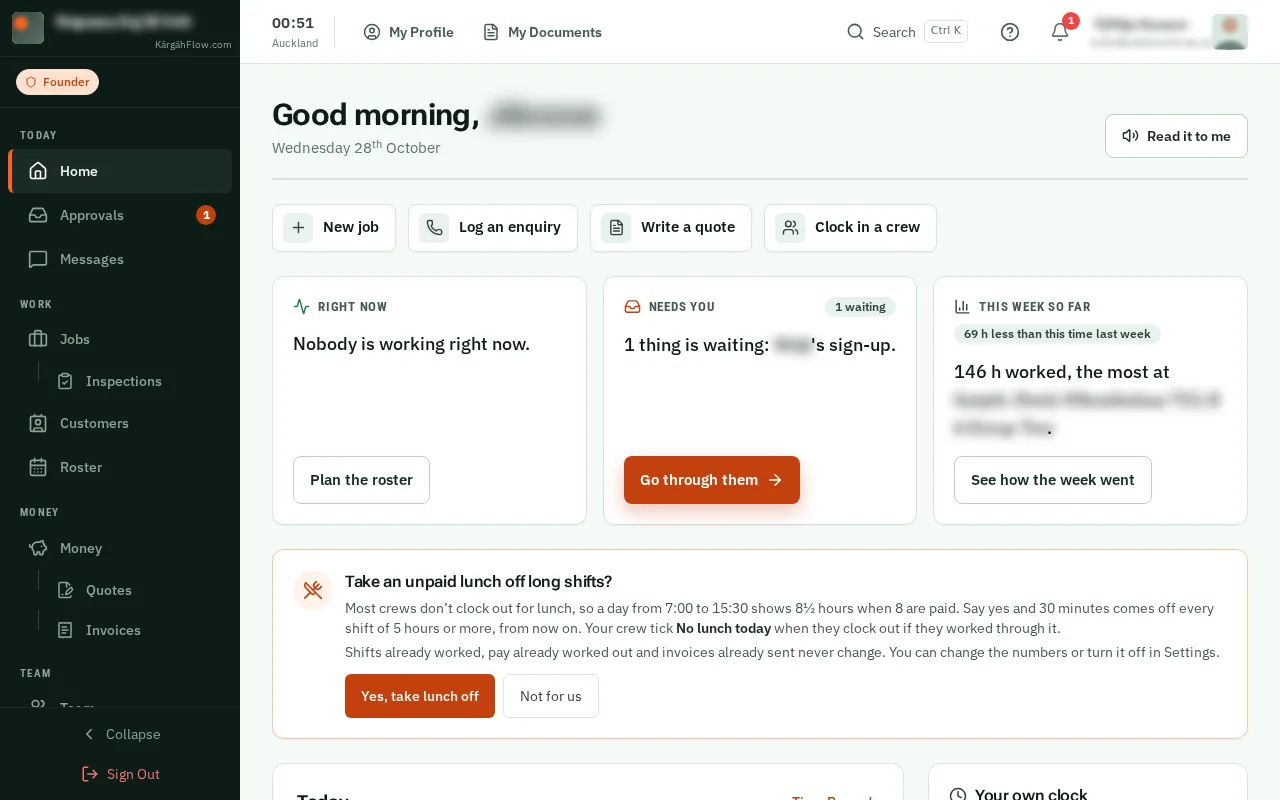
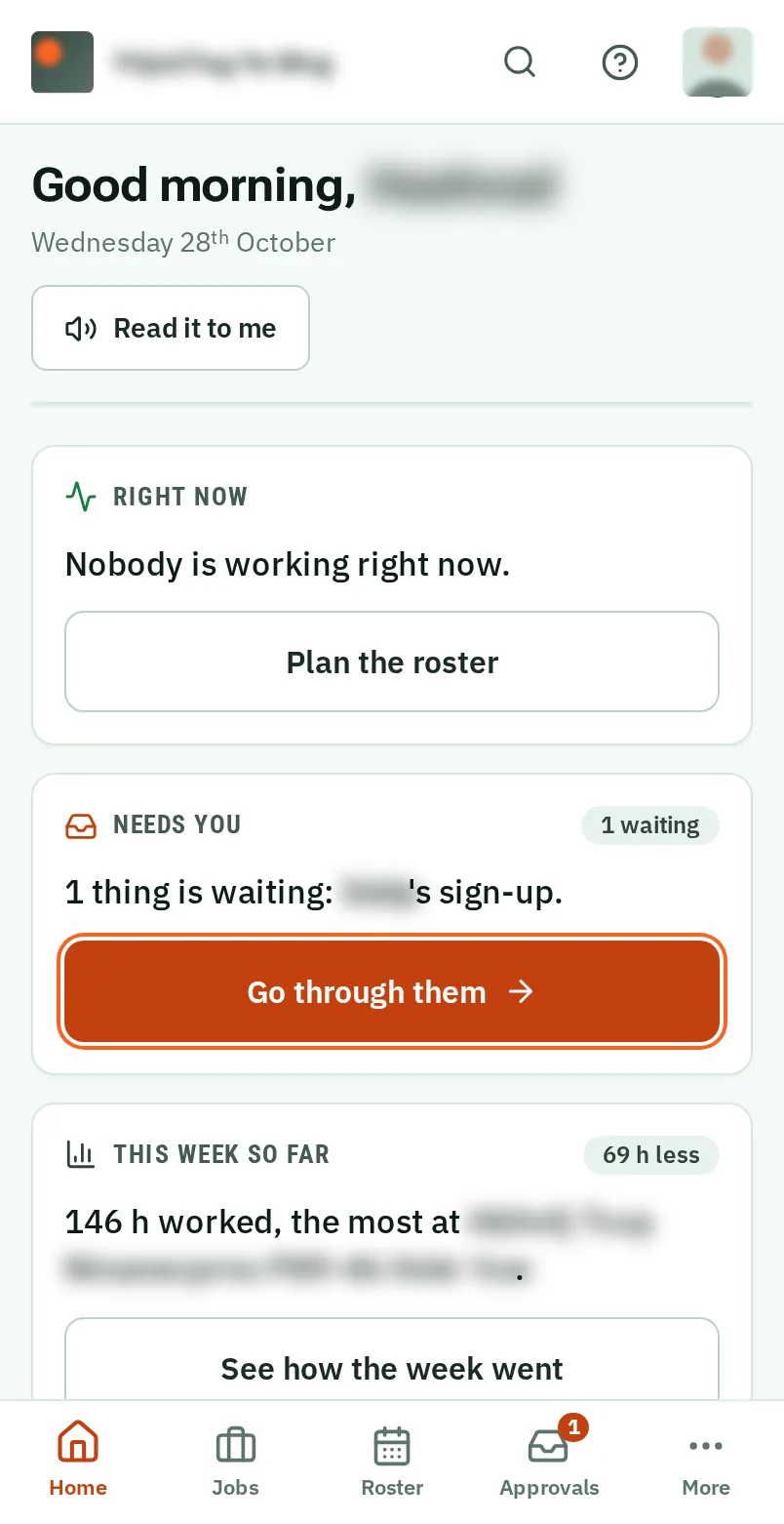
Home is the first page you see. It says in plain words who is working right now, what is waiting for your answer, and how the week is going.
Each card has a button for what to do next, and the most urgent one is orange.
TapClick Home in the bar at the bottom of the screen.TapClick Home in the menu on the left.
Good to know: KārgāhFlow opens on Home when you sign in.
TapClick Read it to me to hear the cards read out, in the voice of these guides. TapClick Stop reading to stop.
Good to know: Turn the sound up first. It reads exactly what the cards say.
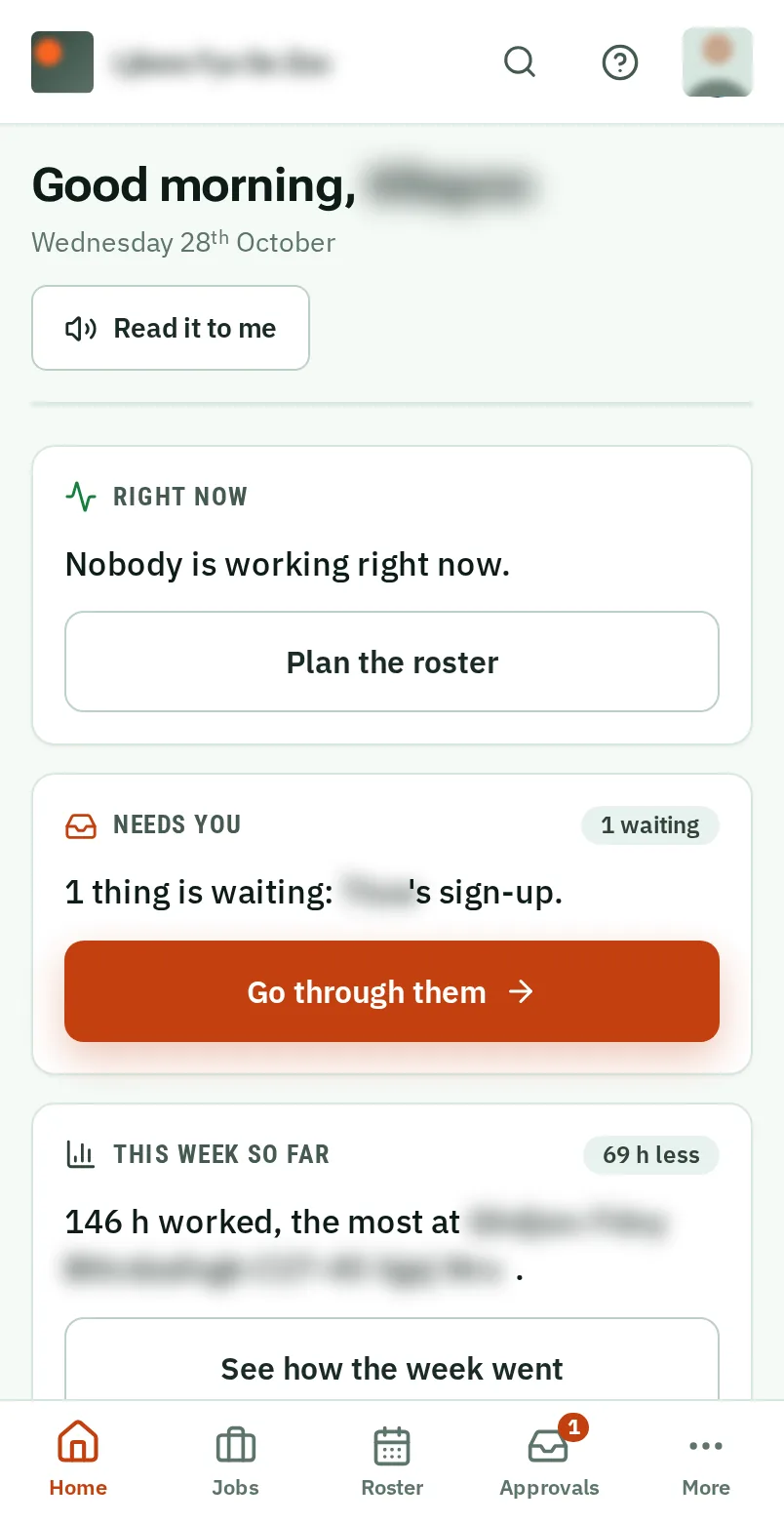
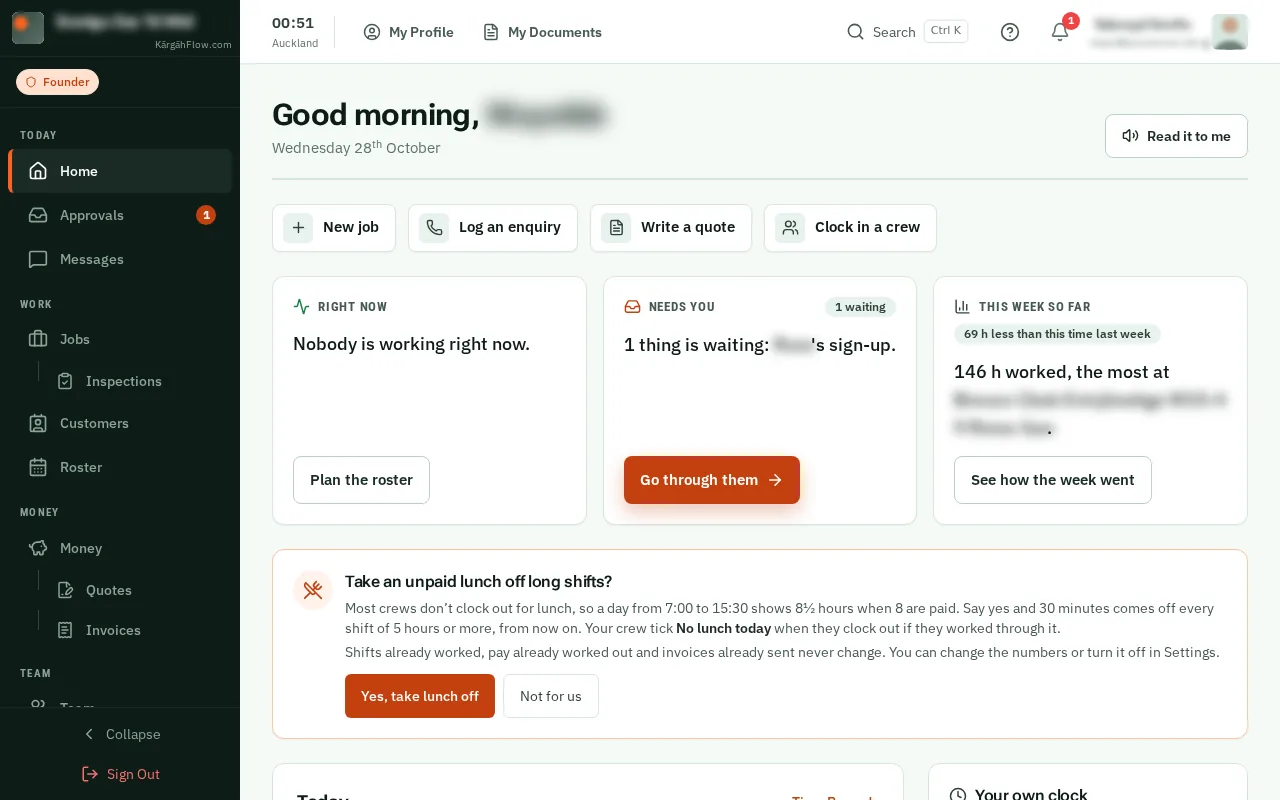
Right now says who is working, and where. Anyone on the roster who is not in 15 minutes after their start is named, with a button to Call them or send a Message.
Good to know: When nobody is late and nothing is waiting, the first two cards become one green card, All good.
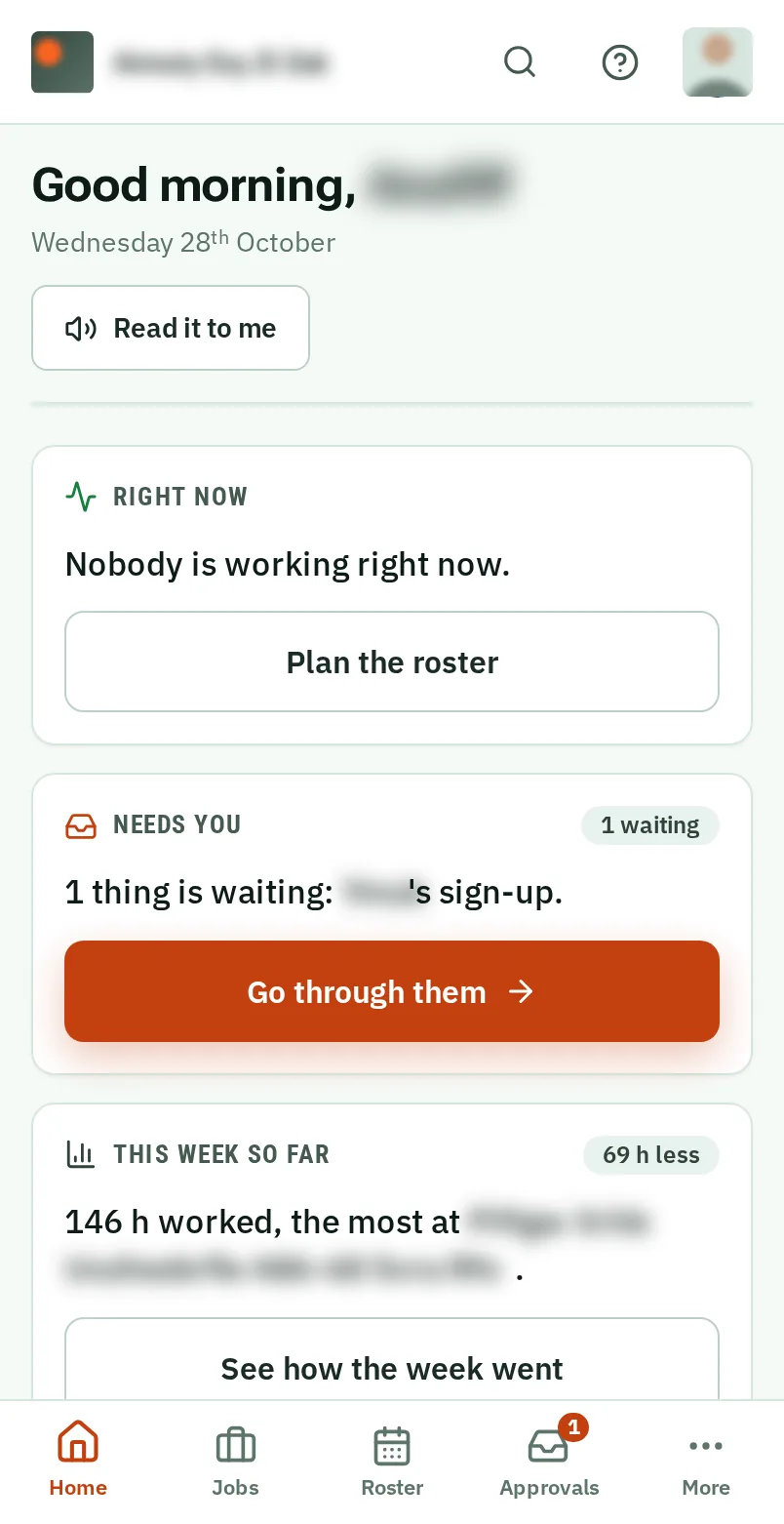
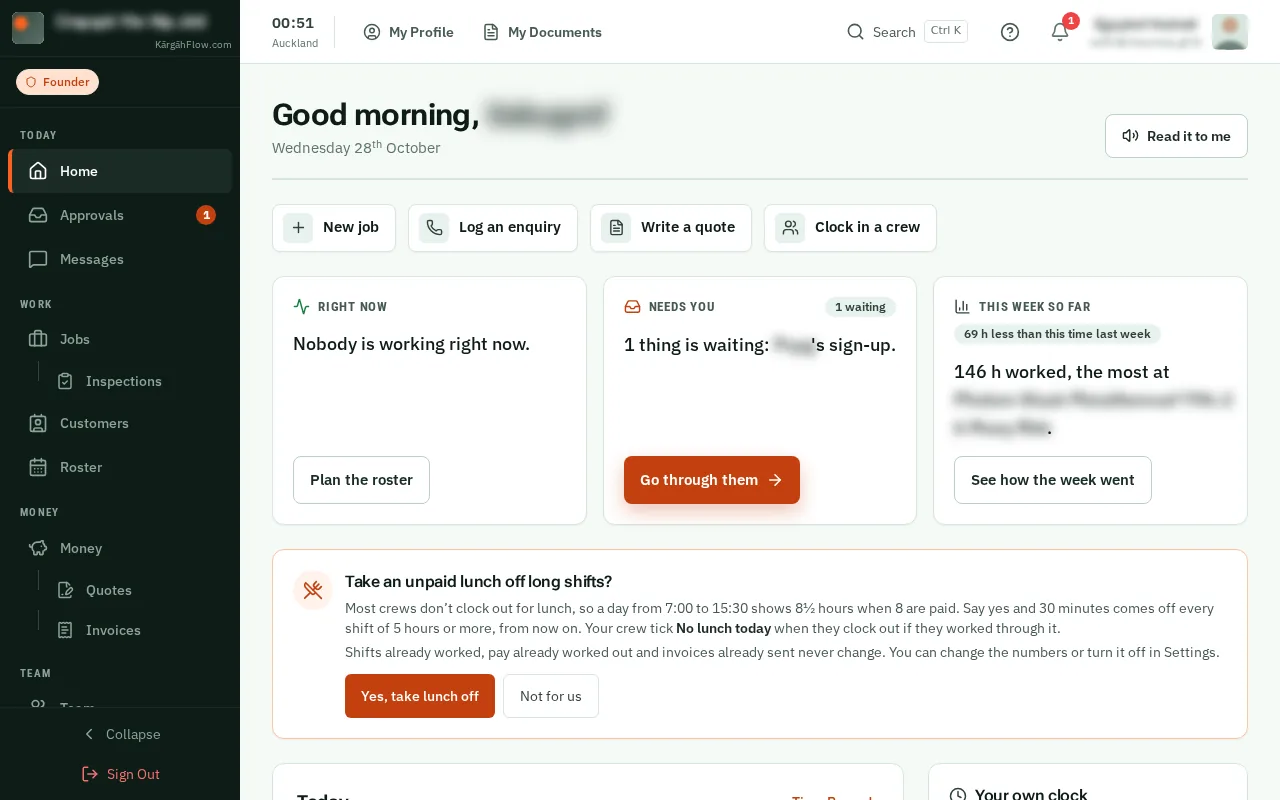
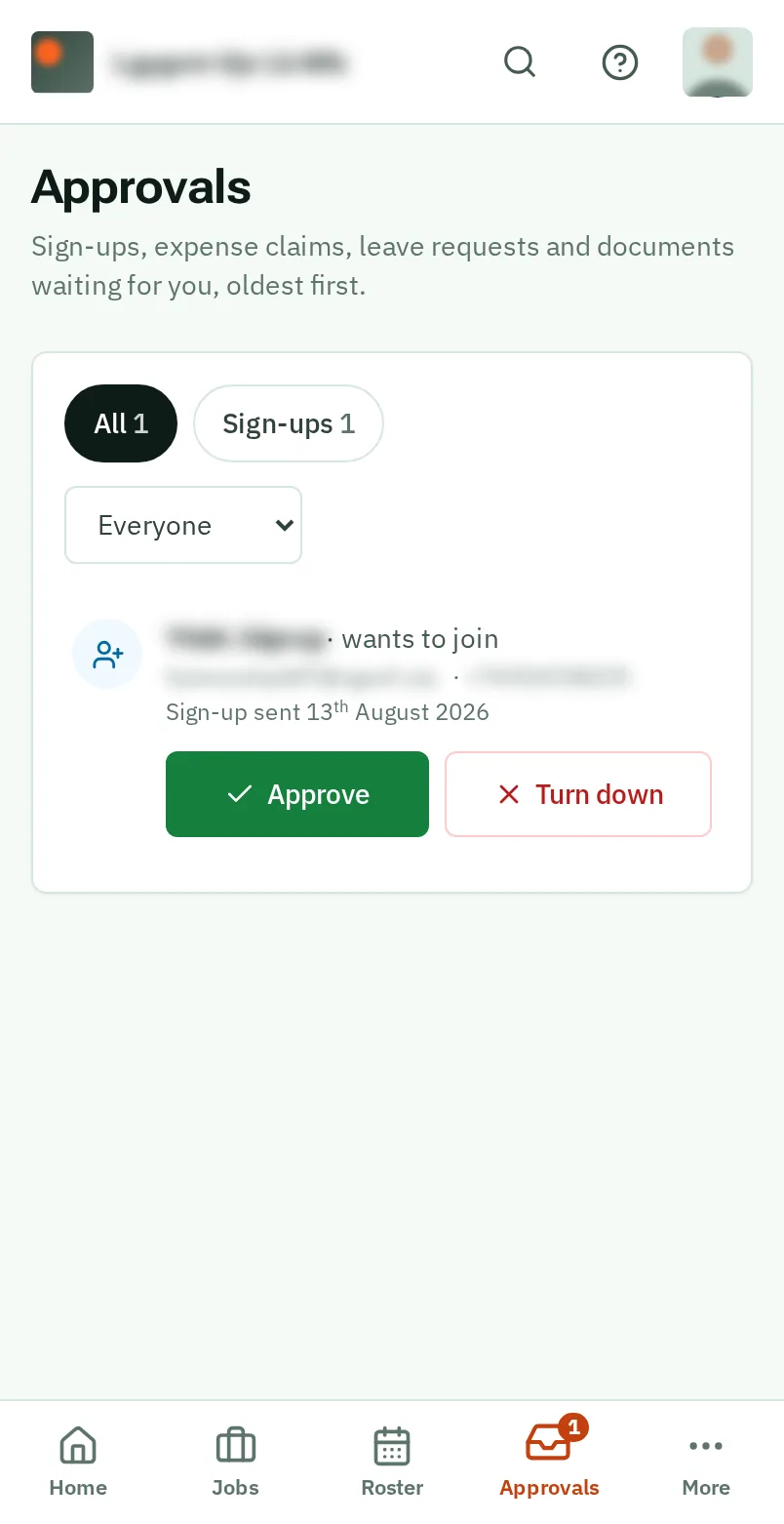
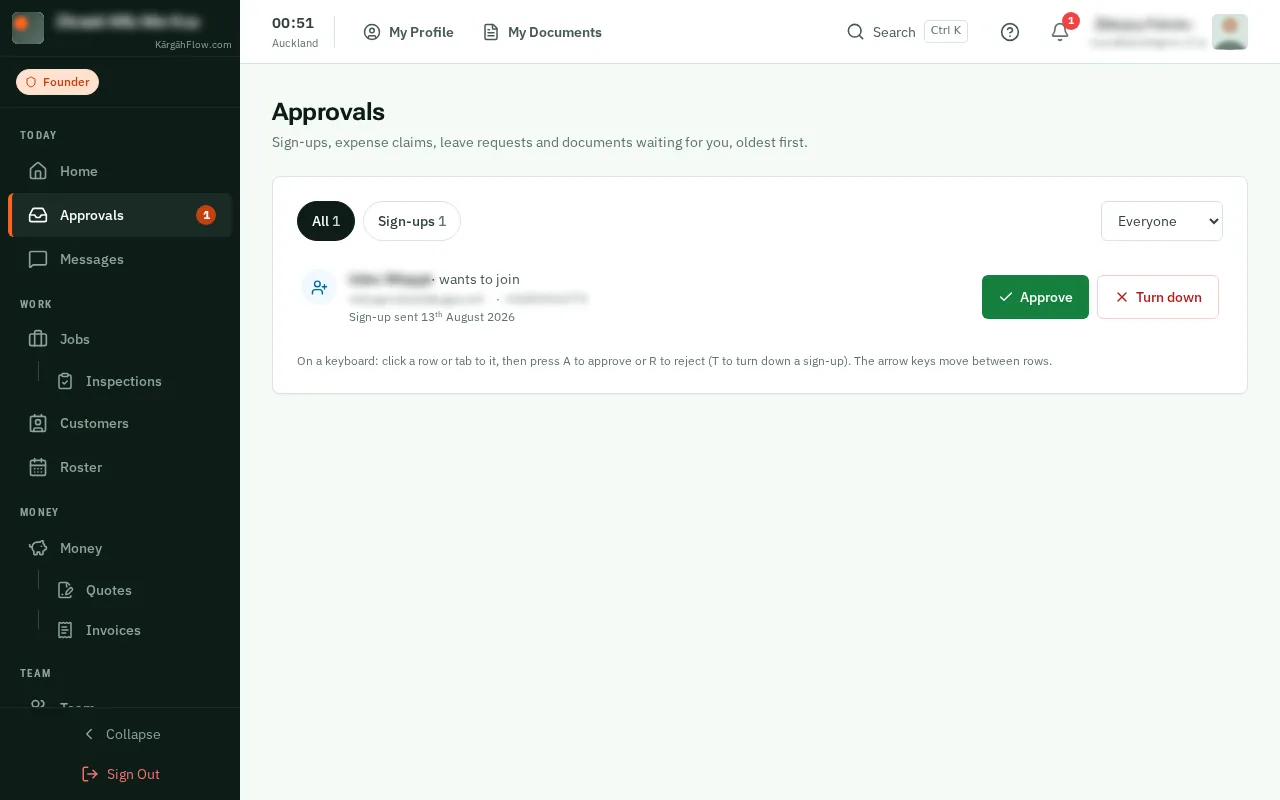
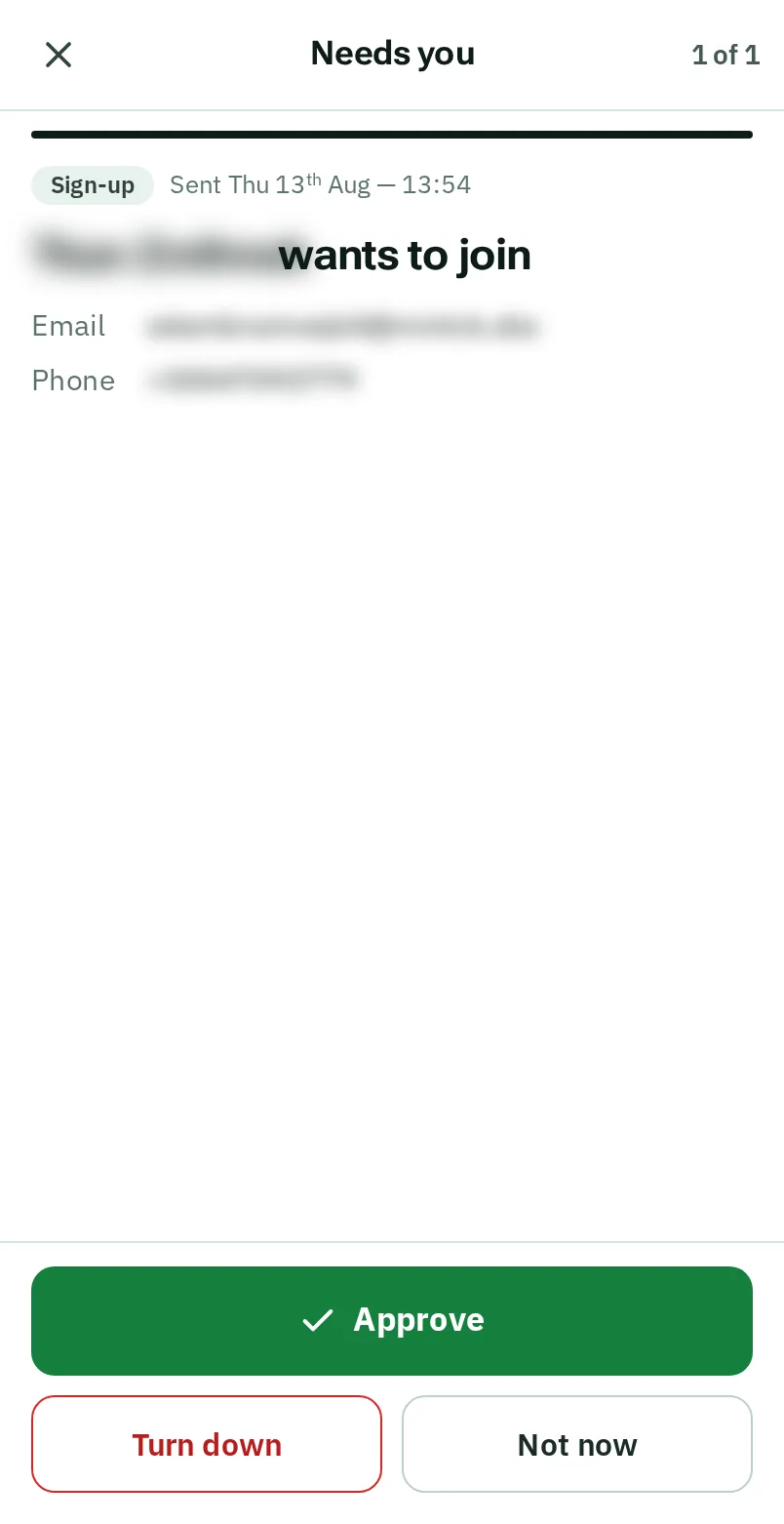
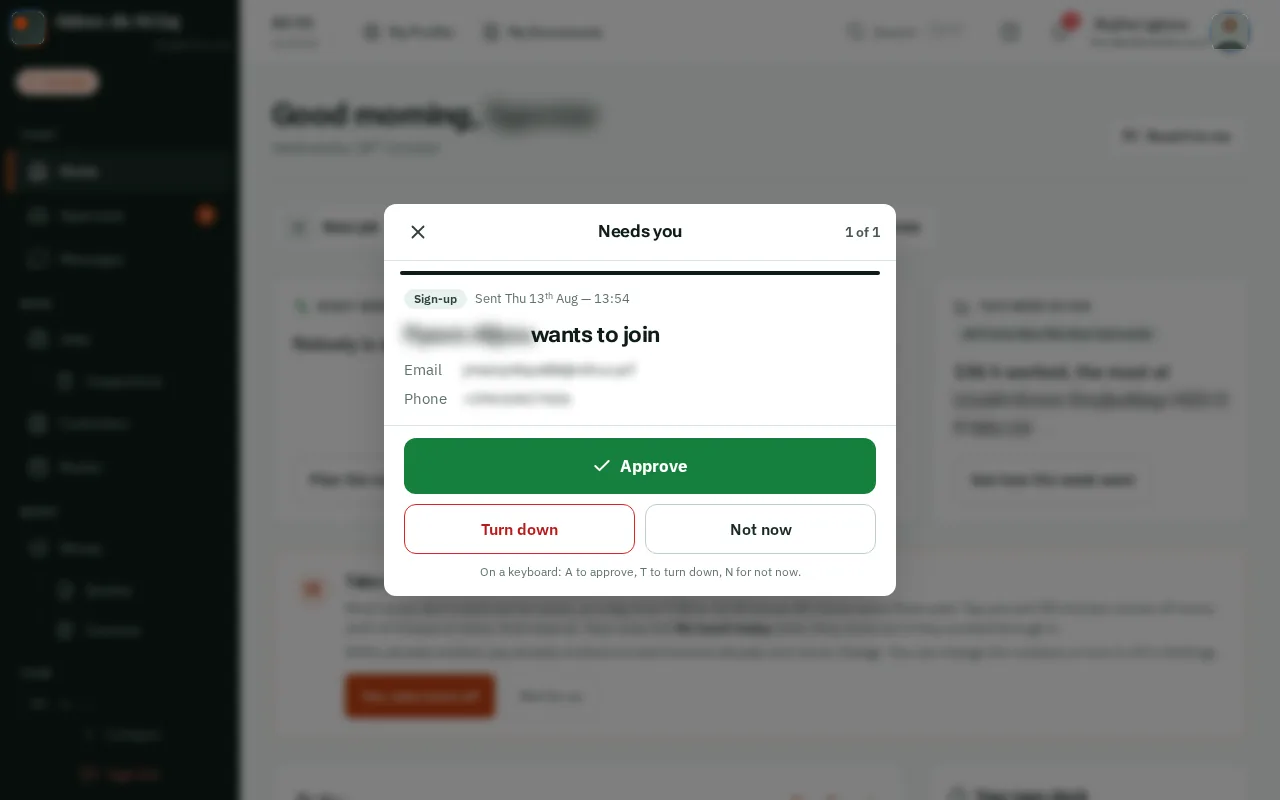
Needs you says how many things are waiting for your answer, and names the oldest. TapClick Go through them to answer them one at a time.
Each one shows what it is, its details and its receipt or document. TapClick Approve, Reject, or Not now to leave it for later. The next one comes up by itself.
Good to know: At a computer, press A to approve, R to reject (T to turn down a sign-up) and N for not now.
The third card says how many hours were worked this week, and where most of them went. On a Monday morning it looks back at last week instead.
Good to know: Where you can open Money, it says what was invoiced and paid too.
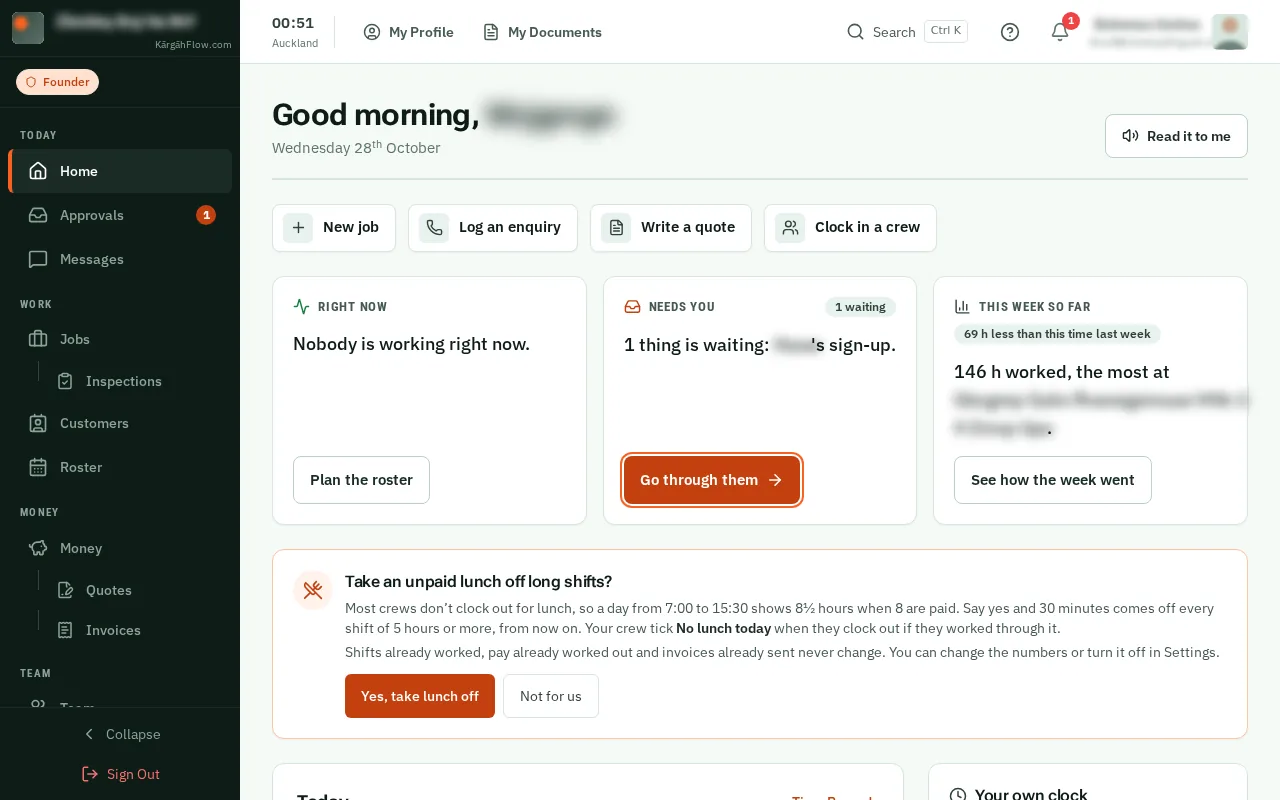
Under the cards, the buttons start what you do most, like New job, Log an enquiry and Clock in a crew.Above the cards, the buttons start what you do most, like New job, Log an enquiry and Clock in a crew.
Good to know: Further down, Reminders says what is worth doing today, like planning the roster on a Monday, Since you last looked lists what is new, and From the sites shows the newest photos. Each shows only when it has something to say.